Meta attribution relies on matching signals (fbc, fbp, user data); their absence reduces attribution accuracy.
Safari's ITP and ad blockers shorten cookie lifespan and strip identifiers, making first-party data and server-side tracking essential.
Server-side solutions for Meta (CAPI, CAPIG, Signals Gateway) help preserve and send key identifiers and improve attribution along with Event Match Quality.
Always validate event payloads sent to Meta. Stape Logs lets you inspect outgoing requests and quickly detect missing fbc/fbp parameters.
For offline conversions tracking, fbc/fbp tracking is critical; Stape Store and Logger simplify payload inspection and troubleshooting.
Understanding how Meta attribution works
Understanding how attribution works helps explain why reporting sometimes looks inconsistent.
The core idea behind attribution in Meta Ads is matching clicks to conversions. Meta connects two events:
ad interaction (click or view);
conversion event (purchase, lead, etc.).
To make this connection, Meta uses identifiers like fbclid(click ID from ads), fbc (stored click identifier), fbp (browser identifier cookie), andhashed user data (email, phone).
It works the following way:
When a user clicks a Meta ad, the URL includes a fbclid parameter. The sGTM tag (or fbevents.js if it's web tracking) converts it into an fbc cookie. At this point, Meta records the click event with a timestamp and ad metadata; the user is tagged for potential attribution.
If the user converts later (e.g., purchases), Meta receives the event through Meta Pixel (client-side tracking) and Conversions API/CAPIG (if configured). Each event includes signals such as browser data (fbp), click data (fbc), and user data (email/phone hashed). Meta tries to match this conversion to a previous ad interaction. If it succeeds, a conversion is attributed to a specific ad campaign.
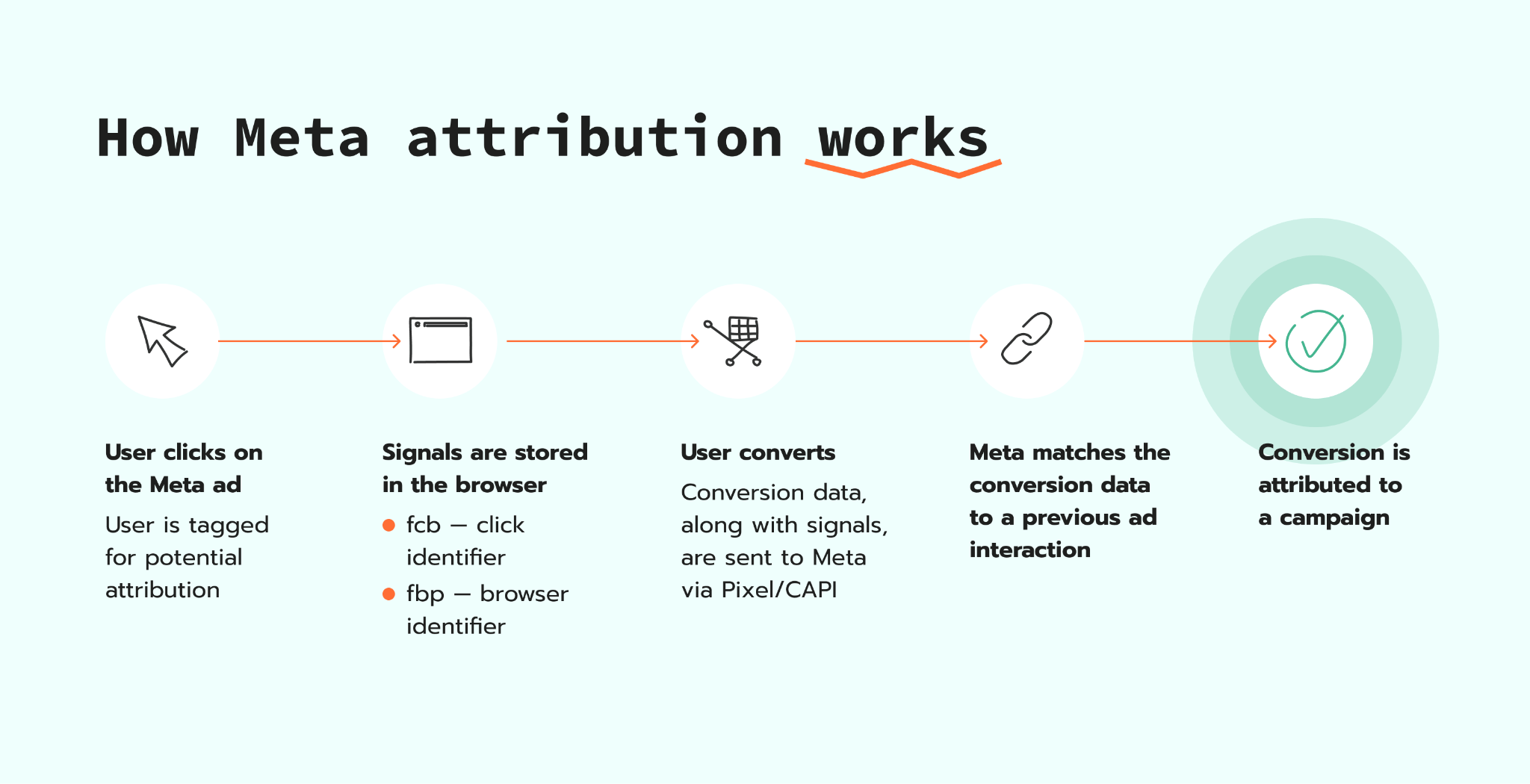
That's a simplified explanation of how attribution works; of course, the logic of conversion attribution will depend on attribution settings and attribution windows configured in your account.
The attribution can be inaccurate, usually because some of the steps don't work properly (like Meta struggles to attribute the conversions because the conversion payload is missing required parameters). In the next section, we consider likely causes, their troubleshooting, and fixing in detail.
Inaccurate Facebook Ad attribution causes
Facebook Pixel doesn't fire correctly
Probably the most obvious reason why the conversions aren't attributed correctly - the Meta Pixel (and Meta CAPI/CAPIG if you have it configured) doesn't fire or fires but with problems, as a result, you receive fewer or don't receive conversions in Meta at all.
Although it is a super basic cause, it's always worth starting with it. Below, we show how to troubleshoot this problem.
Safari and tracking limitations

If you know that a large share of your leads/clients are using iOS, the cookie limitation (ITP) that Apple has applied since 2021 can impact the data tracking and, as a result, attribution within Meta.
Third-party cookies are largely unavailable in Safari. Without third-party cookies, attribution becomes less reliable unless alternative user identifiers are available:
User data - first-party cookies can be used to store or help collect user data. The more high-quality user data you send (such as email, phone number, or other identifiers), the better the platform can match conversions to actual users.
Click ID (_fcb) - Safari significantly impacts the lifespan of cookies, which can lead to losing the click ID value before a conversion occurs. When this happens, attribution accuracy drops.
In the article below, we show how to figure out whether the data required for accurate attribution is sent to Meta and some options to prolong the lifespan of cookies.
The fbc/fbp parameters are missing in the event payload
As mentioned earlier, Meta relies on identifiers such as fbc and fbp to match conversions to ad clicks and browser sessions.
When these parameters are missing or not passed in the event payload, Meta loses matching signals. This typically results in lower Event Match Quality and unattributed or "other" conversions.
Webhooks misconfiguration
Webhooks are typically used for offline conversion tracking (conversions made via offline stores or phone calls, for example). Similar to online conversions, webhook's payload should include fbc/fbp parameters for accurate attribution in Meta. We've listed it as a separate problem because troubleshooting in case of a webhook differs.
What tools we use to troubleshoot attribution problems
❗Note: in the sections below, we show problems troubleshooting on the client- + server-side tracking configuration (not client-side with Meta Pixel only). Client- + server-side tracking is a more reliable way to track conversions in Meta that can also improve the attribution.
If you are considering switching or just would like to know more about server-side tracking for Meta, expand the collapse element below for details:
Server-side tracking for Meta Ads
With server-side tracking, the conversion data is sent from your server to Meta using the CAPI, instead of relying only on browser-based tracking like the Meta Pixel.
In a client-side setup, the Pixel runs in the user's browser and tracks events (e.g., page views, add-to-cart events, purchases, etc.). However, this method relies on cookies and JavaScript execution. If a visitor uses ad blockers, the tracking scripts will be blocked.
Server-side tracking changes this by moving part of the tracking process to your backend. When a conversion happens, your server sends the event directly to Meta, including important data such as fbc and fbp that are essential for correct attribution.
Server-side configuration for Meta works in combination with theMeta Pixel (recommended combo by Meta). The Pixel captures real-time browser signals, and the server sends a more reliable confirmation of the event. These two sources are then connected using an event_id, which allows Meta to deduplicate events.
There are a few ways to configure server-side tracking for Meta:
Using Meta CAPI - the most flexible and customized method, but still can be the most complex to configure. It works perfectly if you need to configure server-side tracking for multiple platforms.
👉 Stape's offer: Stape offers a free plan to get started with server-side tracking. It will be free of charge if you don't exceed 10,000 requests per month. Calculate the number of requests using Stape's calculator.
Using Meta CAPIG - simpler setup but less flexibility and control. It will work for small to mid-sized businesses that need server-side tracking for Meta primarily.
👉 Stape's offer: Stape provides a 7-day free trial and $8 per month/Pixel.
Using Signals Gateway - similar to Meta CAPIG in terms of setup and level of control. The difference is that Signals will be a better option if you need to configure server-side tracking for a few other platforms.
👉 Stape's offer: Stape provides a free option with up to 10K events per month.
Why use it: GTM Preview Mode allows you to see what happens in the browser and on the server when a user interacts with your site. It helps you verify whether Meta Pixel events are firing correctly, check whether fbc/fbp, and debug the setup.
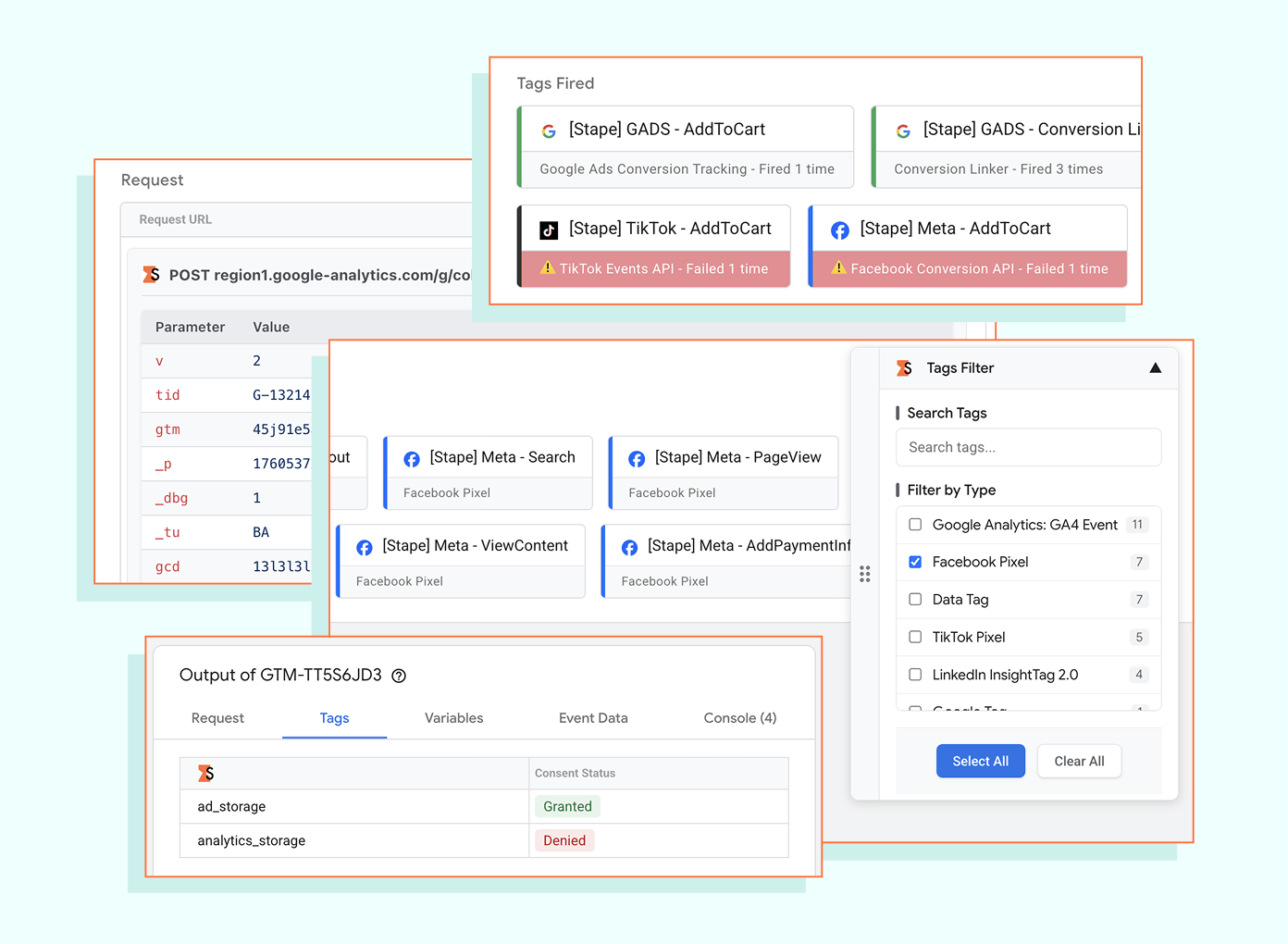
Why use it: it makes your troubleshooting way easier. You can quickly identify which tags fired or failed, inspect request payloads (including Meta events) with formatted JSON and URL parameters. If you run a website on Shopify, it will be especially helpful for debugging the checkout page.
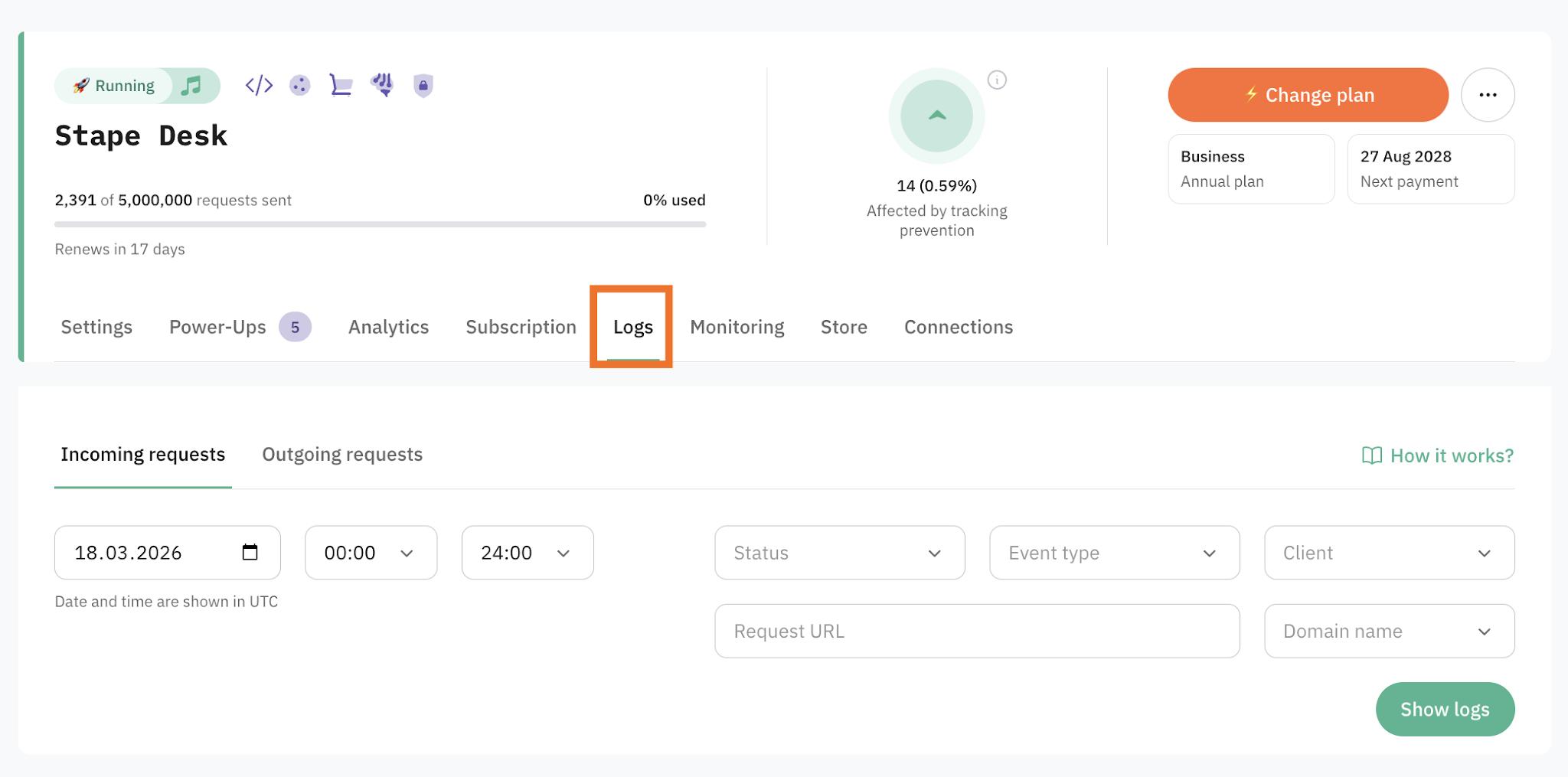
Why use it: compared to other server-side tracking solutions (likeGCP or other infrastructure providers), which may offer incoming logs only (the requests your server-side GTM receives), Stape provides both incoming and outgoing logs (what is actually sent from your server to platforms) without the need to request the data via support.
In the context of Facebook attribution troubleshooting, Stape Logs will help you analyze whether the conversion sent to Meta actually contains fbc/fbp parameters. You can view the actual requests/events that were sent to Meta and their payload.
Why use it: in Stape Logs, the POST request body isn't logged by default. To log it, you need to use the Logger tag. In this way, the full webhook payload will be stored in the Stape Store. So, within the Stape Store, you can debug the problem with the webhook configuration.
How to troubleshoot and fix inaccurate Facebook Ad attribution
Step 1. Check whether Facebook Pixel/Meta CAPI works correctly
1.1 Run Preview mode in both web and server GTM containers.
1.2 Enable the Stape Chrome extension for easier debugging.
You can select the options that work for your case. Also, you can easily debug the checkout page for Shopify with this Chrome extension.
1.3 Trigger the events on the website. You should see that Meta tags (Pixel and CAPI) are triggering:
In the web GTM container:
And in the server GTM container:
1.4 Look through the event IDs in the web and server GTM containers.
Meta recommends using both Meta Pixel and Meta CAPI for more accurate tracking, but without an appropriate setup (with a unique identifier), the events can be duplicated. We have the event_id variable configured as an identifier.
You should see that the event_id for the same event is identical in the web and server GTM containers. If you don't have it configured, refer to our guide on setting up Facebook event deduplication in GTM.
Web container Pixel tag:
Server container with Meta CAPI tag:
1.5 For more precise troubleshooting, check also the Stape Logs.
In this way, you can see whether some errors happen when users trigger the events. In some cases, the setup can work perfectly fine in a testing environment, but errors can occur in real life.
Navigate to the Logs section in your account.
Check the Outgoing requests tab.
For your convenience, use filters: filter by platform and conversion you send to Meta, also specify the status, you are looking for requests with errors. The common errors are:
4xx error - requests reached the server but weren't handled (e.g., wrong path or unpublished container).
5xx error - requests were received but failed during processing.
If there are some requests with errors, you can see their number over a specific date and click on More for the detailed troubleshooting. Also, you can download the report in CSV format to debug in Google Sheets, for example.
To avoid manual work, you can get reports on the request statuses for each platform using the Monitoring feature (available on Business plan or higher). It's an aggregate view of the requests sent to the platform, how many of them failed, and what the success rate is (percent of requests that were sent). Here is an example of what report you can see with Monitoring feature:
Step 2. Validate fbc/fbp parameters in the online event payload
2.1 Navigate to Stape Logs.
2.2 Filter Outgoing requests.
Select the date, specify Facebook as the platform, and select the required event from the list (usually Purchase).
2.3 Analyze the requests that were sent to Facebook.
If there are not a lot of requests, the analysis can be done manually. Click on More next to the record. Search for:
fbc - is a specific ad click ID. It links a specific action (like a purchase) to a specific ad click. This is a key for accurate attribution.
fbp - unique identifier for a specific browser. It identifies a user across different sessions on the same browser, even if they didn't click on an ad to get there.
In most cases, you will see that the fbc parameter is missing, which causes incorrect attribution. Review other logs to quantify the impact on your data.
If you have a lot of requests, opt for Download as CVS. Be sure that all the logs are loaded before downloading them - click Load more at the bottom of the page.
Then, select one of the options:
Ask the AI agent to analyze the request's payload and identify how many of them have fbc and fbp parameters.
Use Google Sheets formulas to do it on your own.
Use the formulas to figure out:
How many requests you have in total:
=COUNTIF(H2:H, "*")
How many of them contain the fbp parameter:
=COUNTIF(H:H, "*fbp*")
How many of them contain the fbc parameter:
=COUNTIF(H:H, "*fbc*")
In this way, you can quantify how many transactions aren't attributed correctly. Here is an example of what you can receive:
Trigger the event, click on it in the debugger, and go to the Event Data tab.
If there is no fbc or fbp there, it means that the Client couldn't extract this data from the HTTP request.
Keep in mind that the _fbcparameter is only captured when a user clicks on an ad. For example, if you recorded 100 purchases but Ads Manager shows only 30 clicks in that same period, you shouldn't expect all 100 purchases to include the _fbc value. At most, it would appear on 30 purchases, assuming every click resulted in a conversion.
On the other hand, if you still see 100 purchases and 30 clicks, and GA4 indicates that some conversions came from Facebook, but your logs contain no purchase events with _fbc, that points to a problem. In that case, _fbc is either not being stored correctly or not being passed along with the event data.
Note: if your server container is on a different third-party domain (for example, google-analytics.com instead of your example.com), the browser will not send cookies due to security policies. Using a custom domain resolves this issue by making the cookies "first-party."
Some ad blockers may remove the fbcparameter from the URL before the tag fires. To lower the impact of ad blockers on your data, be sure you’ve configured the Custom Loader.
Also, ITPs (Intelligent Tracking Prevention) in Safari can shorten the lifespan of cookies. If you don't have the Cookie Keeper configured yet, try to activate it. It can help extend the lifespan of these identifiers.
You can't use the Stape Logs, since it contains only the original request; when it comes to webhooks, this isn't enough for debugging. For efficient debugging, you also need to send a POST body request. It can be done with the Logger tag.
Note: Stape Store is included at no extra charge for Pro and higher plans.
3.2 Analyze the webhooks' payload via Stape Store.
After configuring, you will get the logger collection.
In the fields, look for the details on the webhook payload. You are looking for the key identifiers that can help Meta attribute the conversion:
fbc/fbp parameters (whether they're sent)
Some user data (like email)
All this data is stored in the Event data. Here is an example of how it looks in practice:
Sometimes, these parameters are missing (e.g., you get no value), which can lead to inaccurate conversion attribution on Meta's end and a lower Event Match Quality score. However, this is not always an issue. For example, if the user clicked on an ad but a purchase was made through a different traffic source (not from a Meta ad), the _fbc parameter wouldn't be added to the webhook payload.
How to fix it?
Offline conversion attribution can be more precise if you:
Catch fbc/fbp parameters along with a unique user identifier (such as email) on the web.
Save the data on such an event in your CRM or in Stape Store.
When the webhook arrives in sGTM, take the user identifier from the webhook.
Compare the identifier with the recorded data on the web.
If match - take the fbc/fbp parameters and attach to the webhooks payload.
Send a webhook with complete data to Meta.
But first of all, you need to be sure that while collecting data on the web, your tracking scripts will be less prone to being blocked. So, you would need to start by adding the Custom Loader, Cookie Keeper, and a custom subdomain as we described in Step 2.
Then, you need to configure the whole flow to add the fbc/fbp parameters to the webhook. There are a few ways to do:
Set up storing data on parameters in CRM. The way you do it will highly depend on the system you use and what it offers. Usually, the easiest way is to add the fbc/fbp values to a hidden form field - so this data goes into CRM and then will be available in the webhook.
Save online event data in the Stape Store. The Stape Store will act as a database to preserve the required values and return them when needed.
If you use the Stape Store, you would need to do the following:
Meta attribution is not inherently broken, but it is highly dependent on the quality and completeness of the data you send to a platform. The key takeaway is that accurate attribution isn't just about configuring Meta Pixel or Conversions API; it's about ensuring the entire data flow works reliably from the moment a user clicks an ad to the moment a conversion is recorded.
Want to start on the server side?register now!
🍽️ Table of content:
Subscribe for updates:
we don’t spam!
Uliana Lesiv
Author
Uliana is a Content Manager at Stape, specializing in analytics and integration setups. She breaks down complex tracking concepts into clear insights, helping businesses optimize data collection.
Comments