Logger tag
Updated Mar 13, 2026
The Logger tag for server-side Google Tag Manager (sGTM) helps track and debug requests sent to your server container. It allows you to log event data, request details, and custom information to Stape, GCP, BigQuery, or other cloud platform logs. This tag also allows logging of POST request bodies, which are not included in logs for GCP or Stape by default.
Pre-requisites
The tag doesn’t log responses to requests made within sGTM, because it’s not possible for this tag to access them. To achieve this, use the logging section in the tag template.
Logger tag setup guide
1. Go to your Google Tag Manager server Container → open the Tags section → click New.
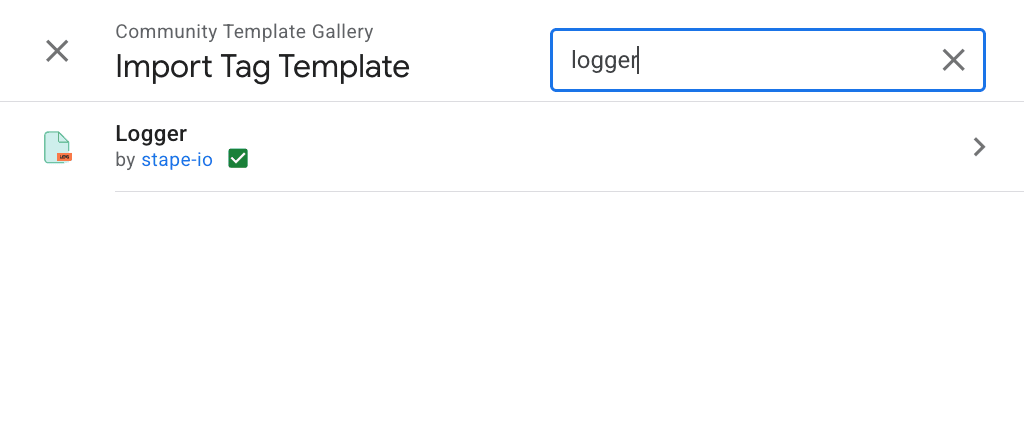
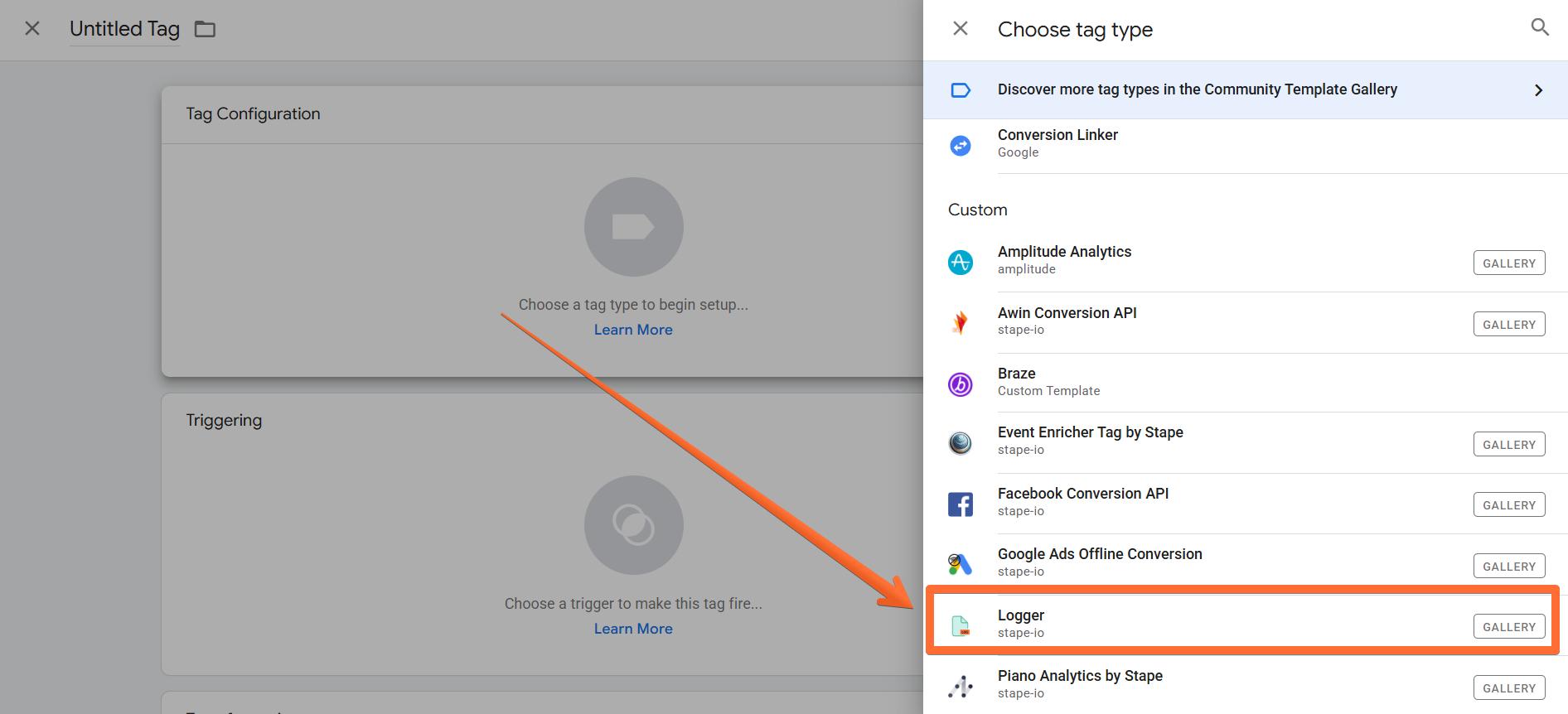
2. In the panel that opens, click Discover more tag types in the Community Template Gallery → search for Logger → click on the Logger tag by stape-io → click Choose template.
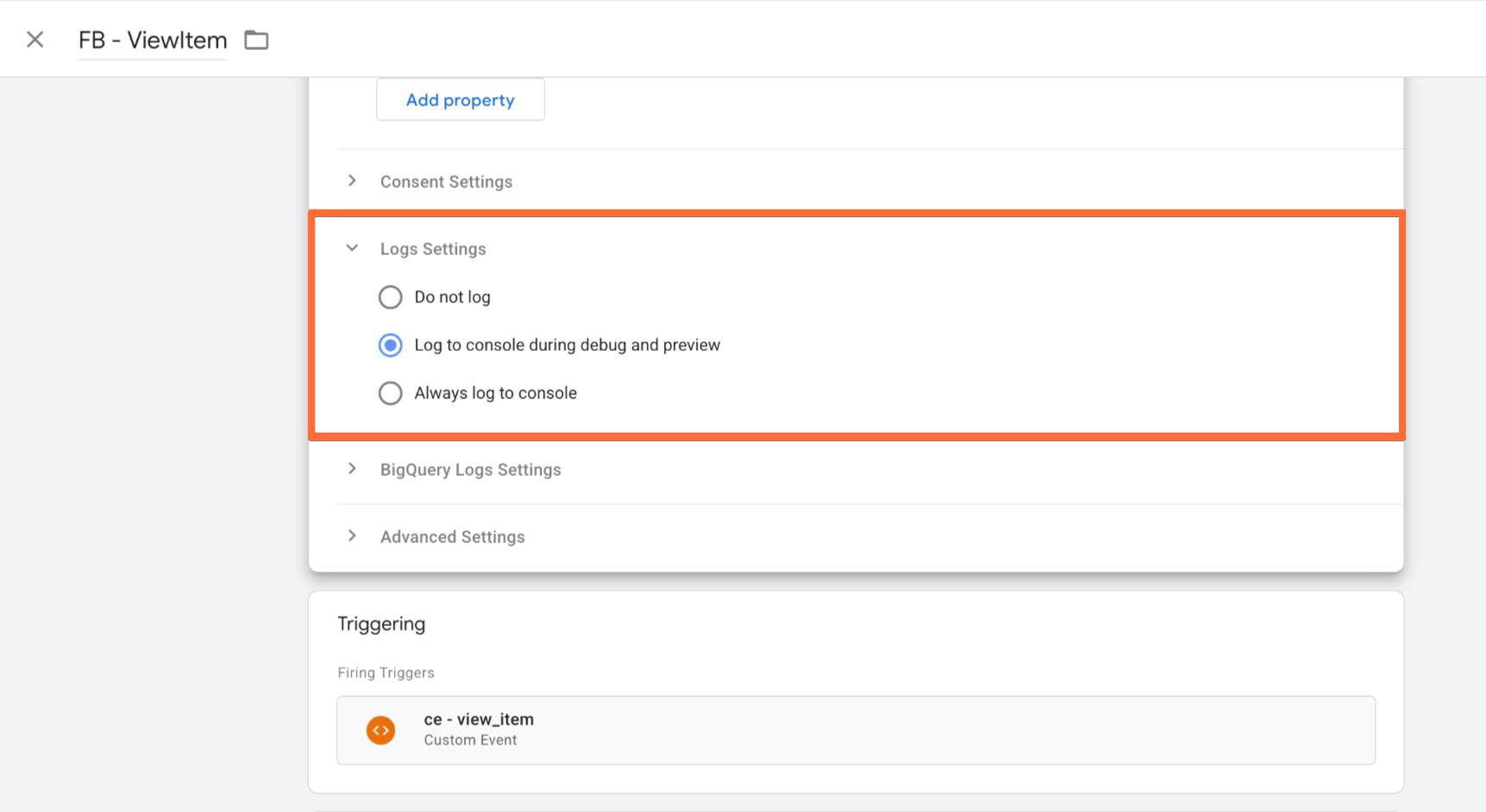
3. Create a new tag in sGTM → tag type Logger Tag → select if you want to log events only while debugging or always → add event name (static or dynamic) → select what information you want to add to logs → add custom data if needed → add a trigger.
The tag can also be used to log request data into BigQuery or Stape Store. Since the tag provides three destinations - Console, BigQuery, or Stape Store. If you are a Stape Pro or higher plan user and need to save some storage space in the container, opt for Stape Store as the logs destination. BigQuery as Logs Destination is more complex than Console and requires creating a table in BigQuery.
Testing the Logger tag
Launch the sGTM Preview debugger and test the Logger tag. Once the tag is triggered, go to your sGTM Container → click Logs tab → click Incoming logs → select event type from drop-down menu → click Show logs → click on the required log. You will see the information about requests and can troubleshoot any issues.
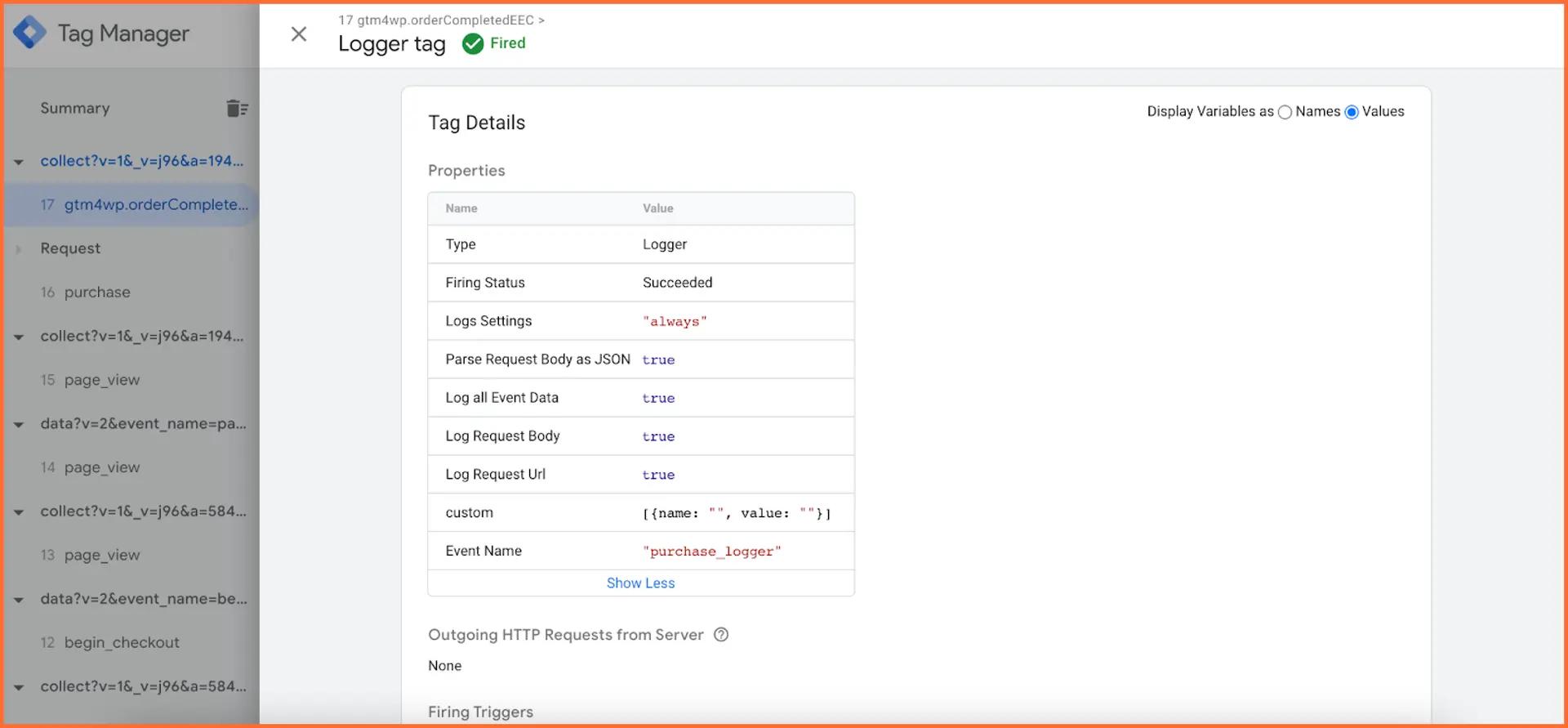
For more detailed debugging instructions, refer to our server-side tracking debugging guide.
Was this article helpful?
🍽 Table of content:
Comments