Meta Custom Audience tag
Updated Mar 31, 2026
The Meta Custom Audience tag for sGTM is a solution designed by Stape to help businesses manage their Meta audiences directly from the server. Unlike traditional methods that rely on manual CSV uploads or browser-based scripts, this tag communicates with the Meta Marketing API to add or remove users from specific Custom Audiences in real-time.
Prerequisites
To set up the tag, you will need to complete the following steps:
- Configured Meta Custom Audience - if you don’t have one, check our guide on Meta Custom Audience.
- Set up the server GTM container.
- Set up data sending from the web to the server GTM container. You can set it up using server-side Google Analytics 4 or Data Tag/Data Client.
- Select and configure an authentication method.
You must choose and configure one of the following authentication methods:
- Use Stape’s connection (recommended) - the easiest option. Simply enable the Meta Connection in your Stape admin account.
- Use your own Meta credentials - select this if you’re not using Stape’s services or if you’re on a free Stape plan.
Pick the option that best fits your setup and follow the instructions below:
How to configure the Meta Custom Audience tag?
1. Add the Meta/Facebook Custom Audience tag.
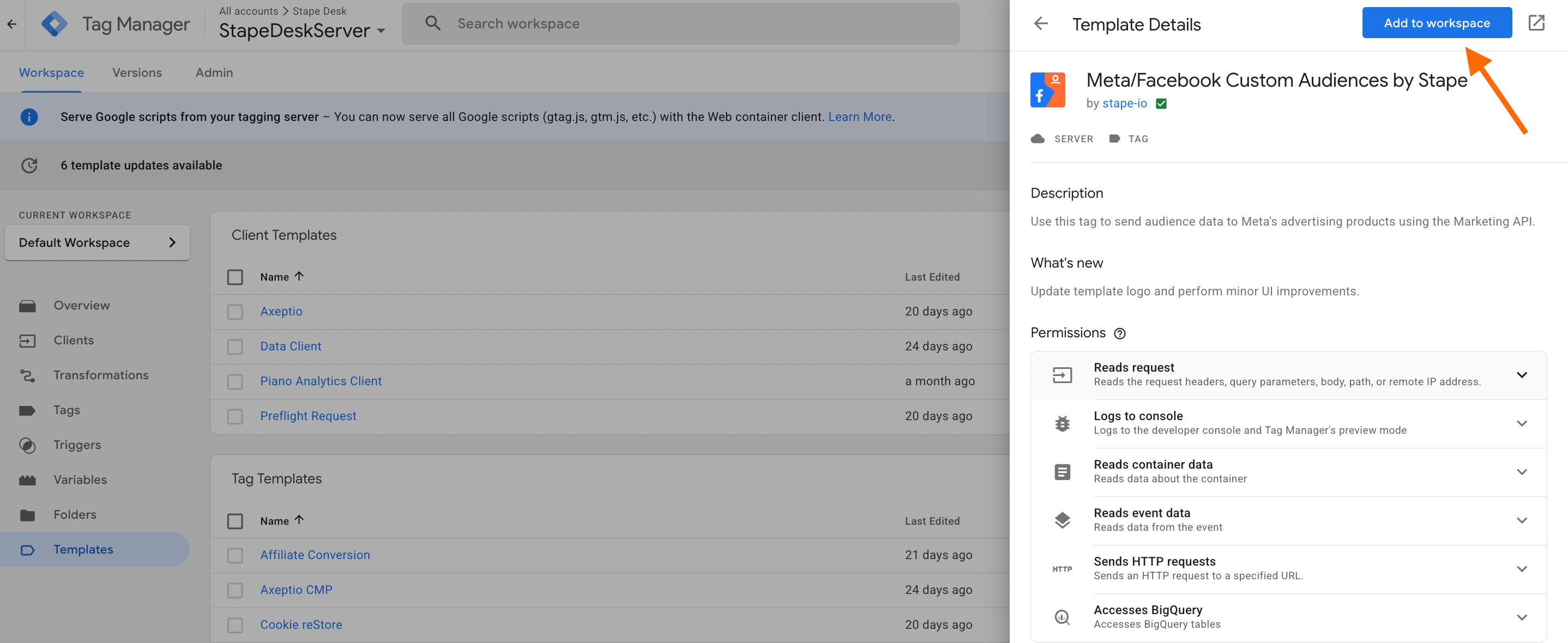
Navigate to your server GTM container → Templates section → next to Tags click "Search Gallery" → find "Meta/Facebook Custom Audiences by Stape" → click "Add to workspace".
2. Create a new tag.
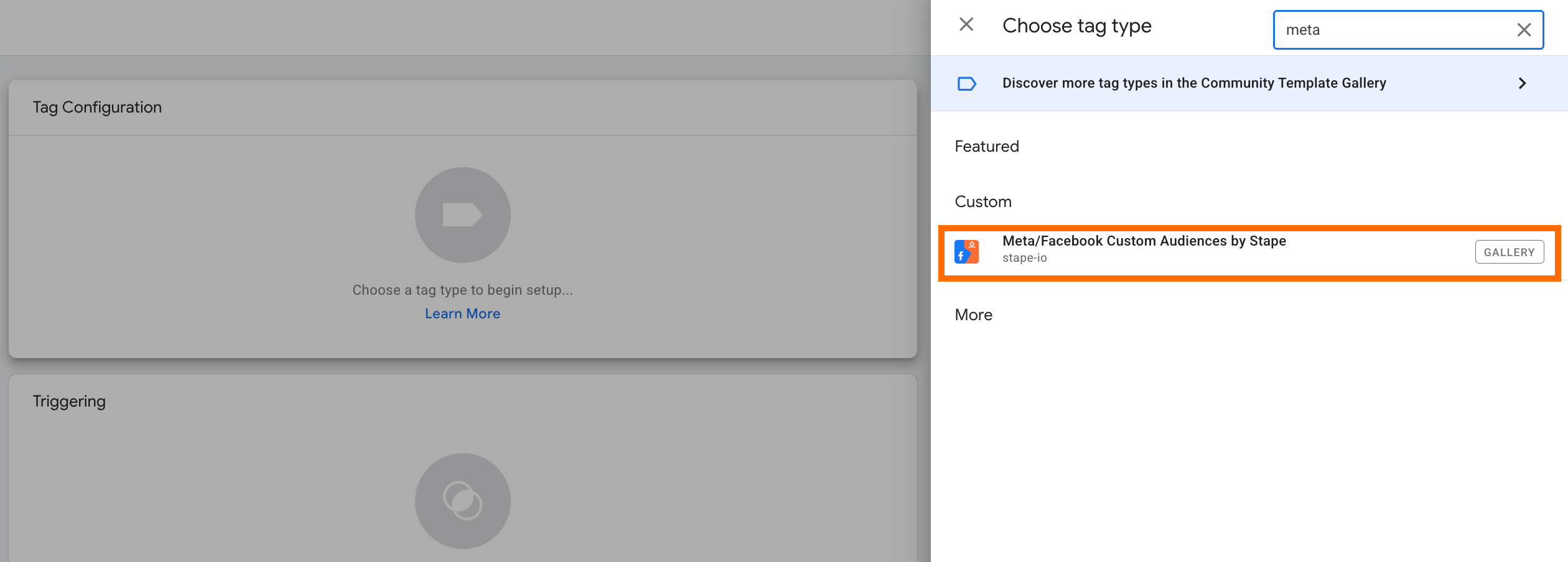
Go to the Tags section of the server GTM → New → choose Meta/Facebook Custom Audience as tag type.
3. Configure the tag.
3.1 Action - select the operation you want a tag to perform: add to audience data, remove from audience, or remove from all audiences.
3.2 Authentication Type - select the one based on your choice in step 3.
3.3 Add Audience ID and Access token.
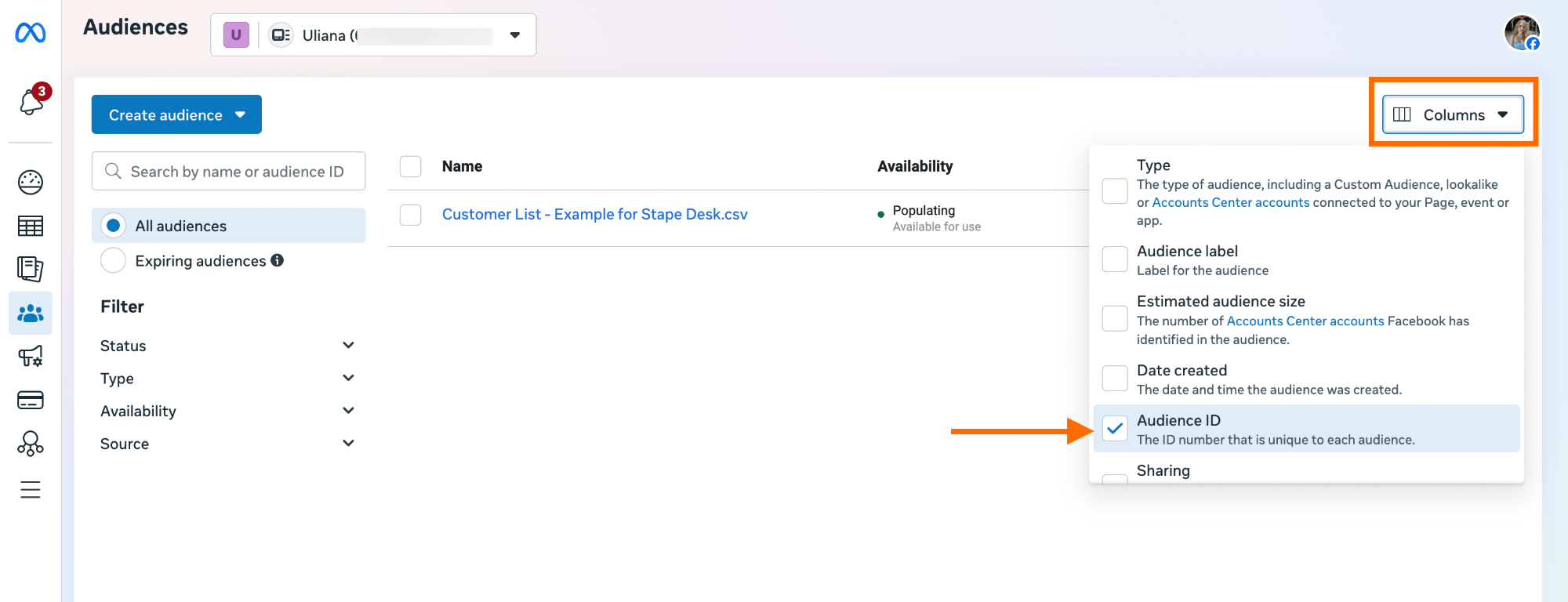
- Audience ID - go to the Audiences section, click Columns, enable Audience ID, then copy the ID of the required custom audience once the column appears.
- Access token - this is required only if you selected your own credentials as the authorization method. We've explained in detail how to obtain it in the prerequisites section in the collapse element "Own Meta credentials".
3.4 Audience members.
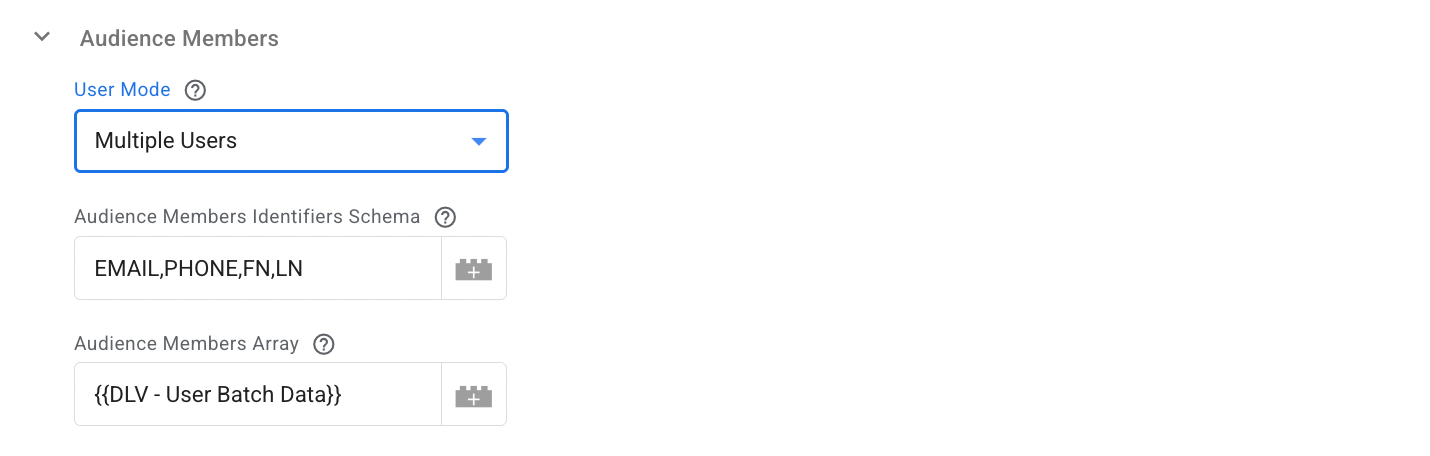
The tag can be set up to send data for either a single user or multiple users in a single request.
- Single User. Manually enter identifiers for one user using the UI input fields.
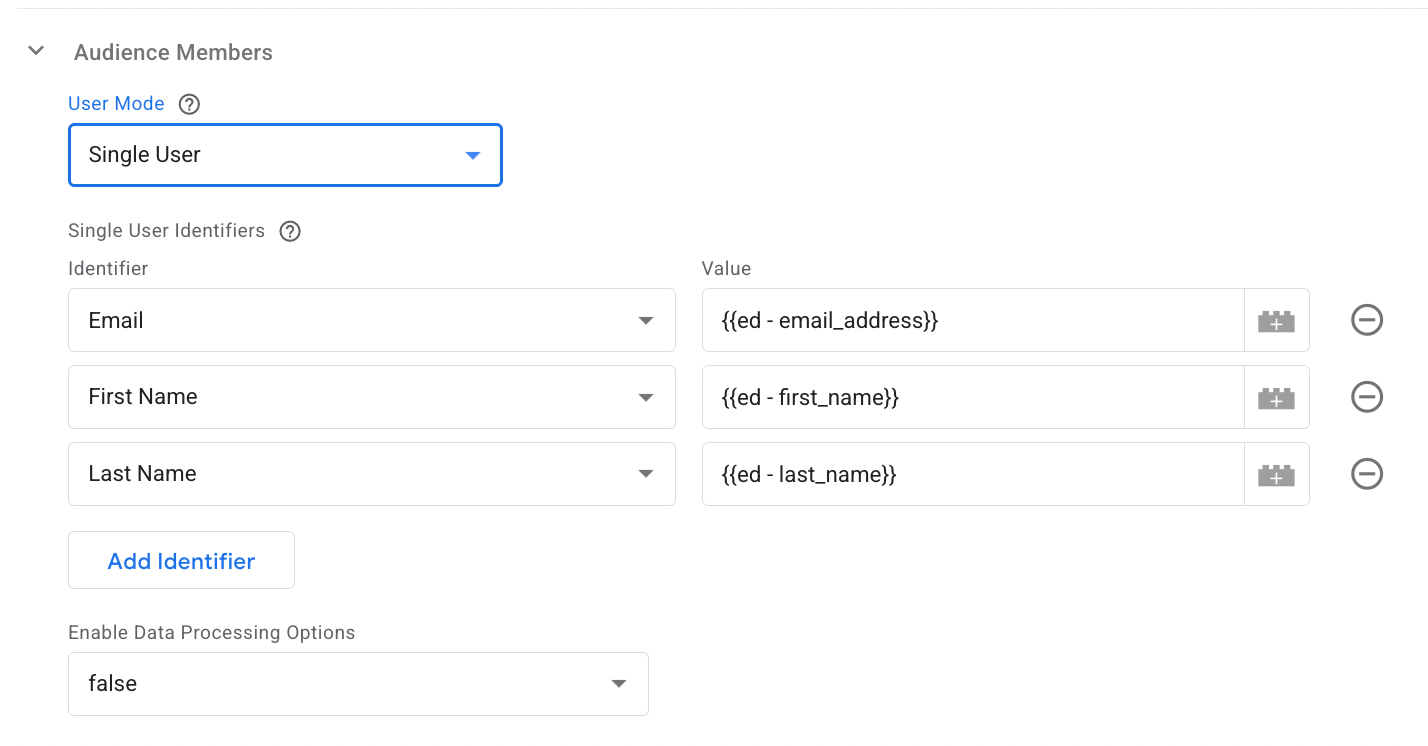
Enable Data Processing Options - to comply with U.S. state privacy regulations (Limited Data Use), you can enable data processing settings and define the relevant country and state.
- Multiple Users. Submit a preformatted array of audience members along with a corresponding schema. Each request can include up to 10,000 audience members.
Provide a comma-separated list or array defining the order and type of user identifiers (e.g., EMAIL, PHONE, FN, LN).
4. Add a trigger for the tag.
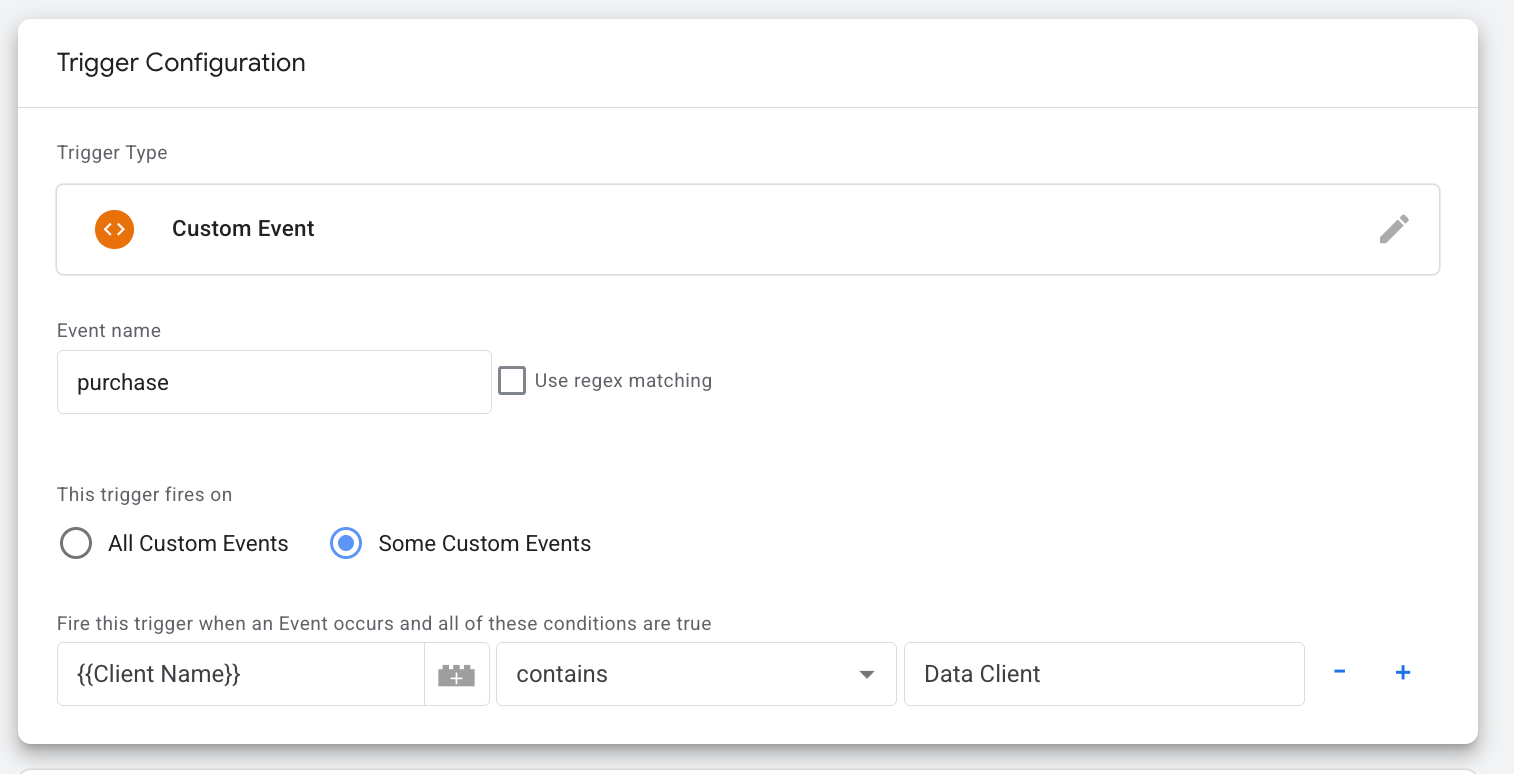
Define the condition under which the tag should fire and send data to the Meta custom audience. In this case, the trigger is a purchase.
We added the following configurations for a trigger:
- Trigger type: Custom Event
- Event name: purchase
- Trigger fires on: Client Name contains Data Client
Test the configuration
| 💡Tip: For easier GTM debugging, use the Stape GTM Helper Chrome extension, which enhances the Google Tag Manager debugging experience. It offers color-coded views for GTM tags and server-side requests and helps you quickly spot failed tags. Learn more about the Stape GTM Helper features in our post. |
1. Run Preview mode in both web and server GTM containers.

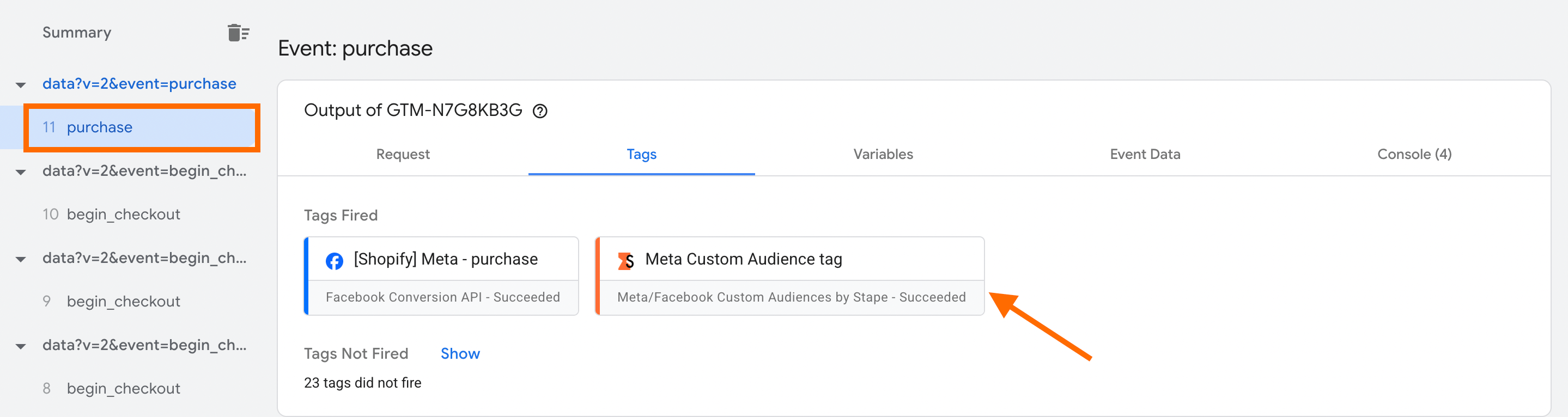
2. Trigger the event defined in your trigger configuration. In this case, it’s a purchase. Then locate the event in the left-hand menu and click the Stape tag you configured.
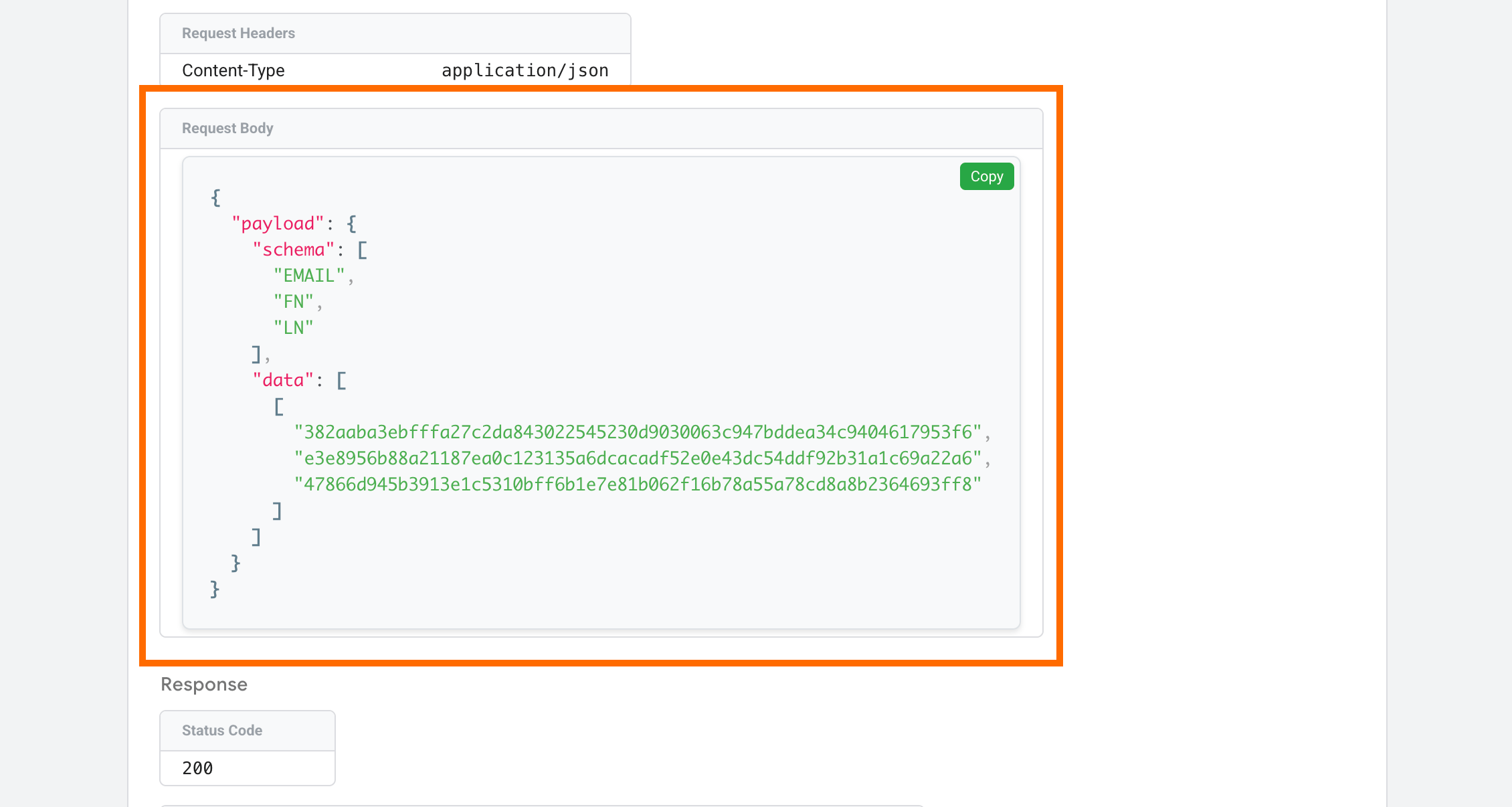
3. Click on "Outgoing HTTP Requests from Server" - this is the request that is being sent to Meta.
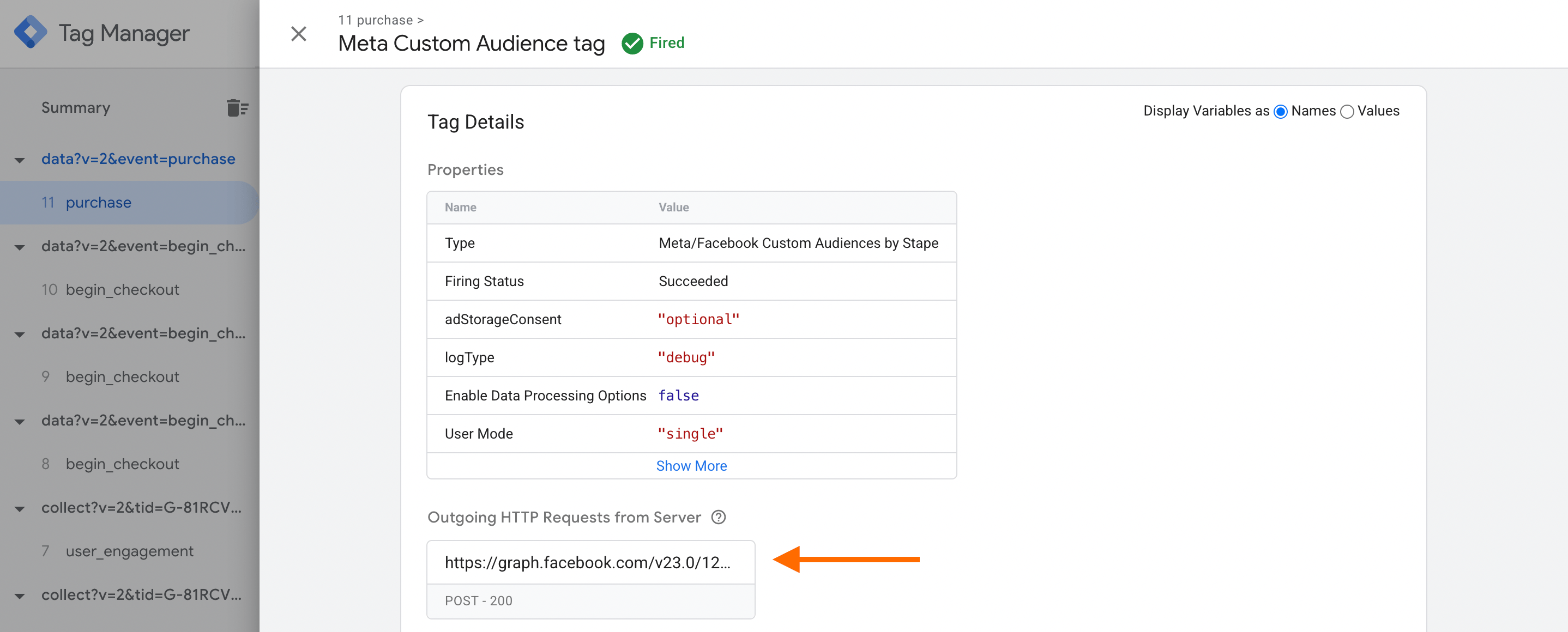
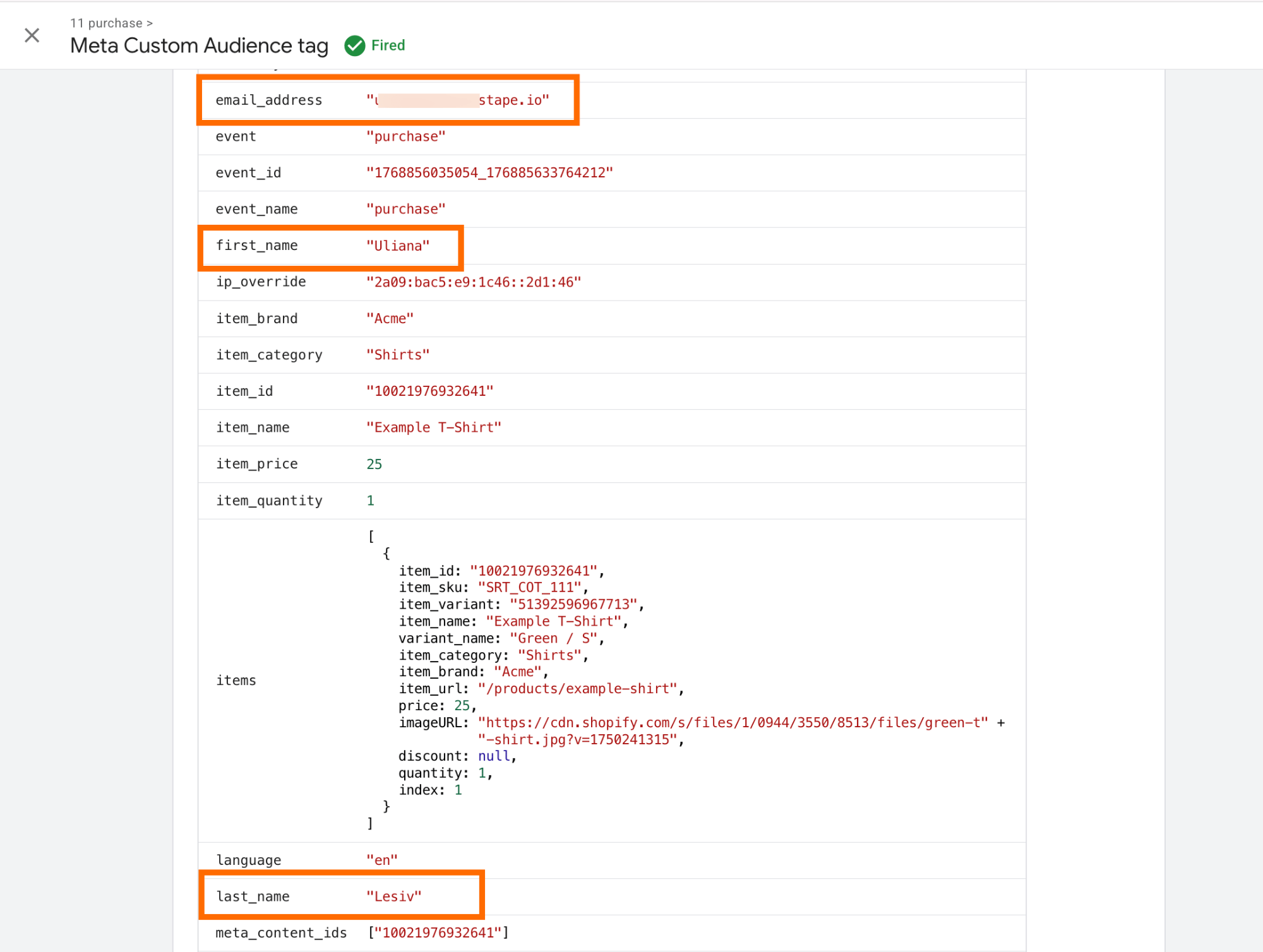
In the request body, you’ll see hashed values instead of actual emails or names. This hashing occurs before the data leaves the server, ensuring Meta receives the information in the required secure format.
The actual data that Meta will receive and process can be viewed in the tag details:
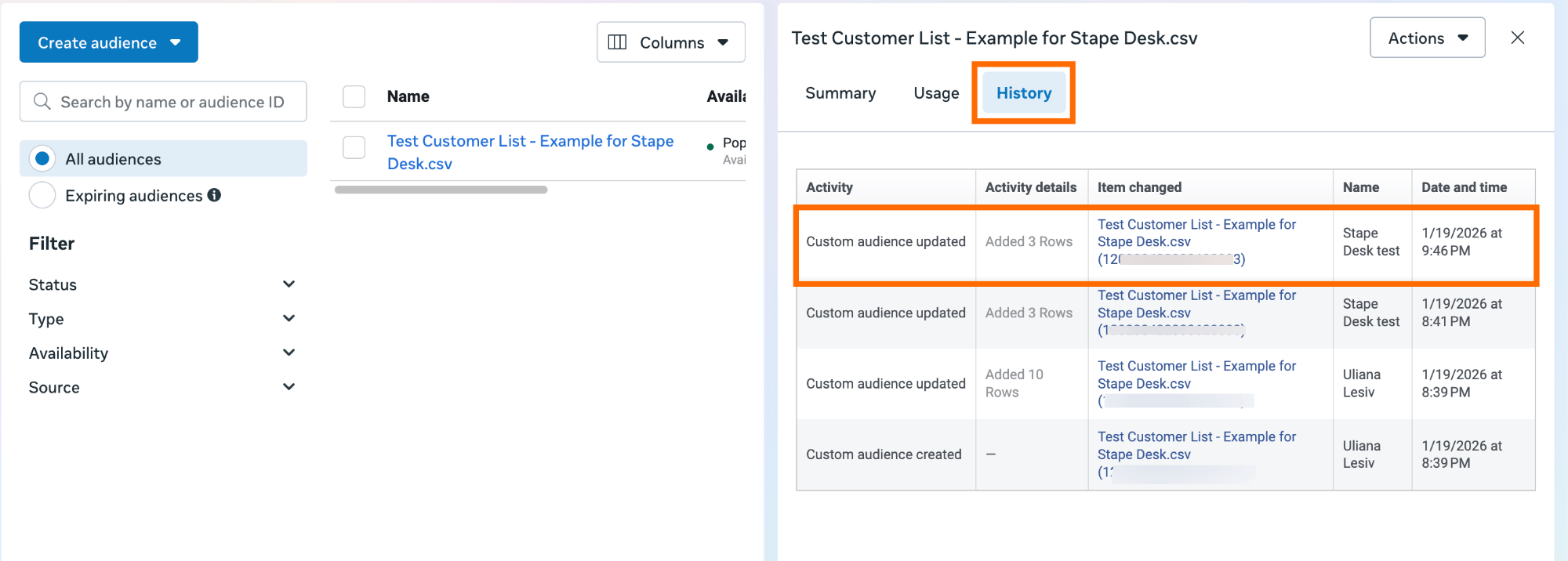
4. Check whether Meta actually receives the data.
Go to Audiences, select the custom audience you’re sending data to, then open the History tab - any updates should be visible there.
In case of difficulties with testing the configuration, refer to our guide on debugging and monitoring server-side configuration.
Was this article helpful?
🍽 Table of content:
Comments