Google Data Manager API Conversion Events tag
Updated Aug 4, 2026
The Google Data Manager API Conversion Events tag allows you to transmit conversion events directly to Google’s advertising platforms (such as Google Ads) via the Data Manager API. The tag supports submitting one or multiple conversion events within a single request and provides functionality for managing user data, consent signals, ad IDs, and custom parameters.
Benefits of using the Google Data Manager API Conversion Events tag
- Accurate click attribution. It supports all necessary ad identifiers, including gclid, gbraid, and wbraid, along with Landing Page User Agent and IP Address, which are important for accurate click attribution.
- Data enrichment. The tag allows for sending data, including Conversion Information (value, currency, transaction ID), User Data (email, address, phone), Device Information, User Properties (e.g., Customer Type), and detailed Cart Data (items, merchant ID) for eCommerce.
- Batch uploads. The tag supports a Multiple Conversion Events mode, allowing users to send a pre-formatted JSON array of up to 2,000 conversions in a single request. This is highly efficient for high-volume sites or batch uploads.
Precise data tracking. By sending data server-to-server, the tag ensures accurate conversion tracking that reduces the impact of client-side limitations, such as ad-blockers and Intelligent Tracking Prevention (ITP) from browsers (like Safari).
Pre-requisites
Regardless of the solution you choose to send data to Google Ads, you will need the following to get started:
- Configured the server GTM container.
- Set up data transfer from the web to the server GTM container. You can set it up using server-side Google Analytics 4 or Data Tag/Data Client.
- Select and set up an authentication method.
- Use Stape's connection (recommended) - the simplest way to manage authentication, just enable the Data Manager API Connection in your Stape admin account.
- Use your own Google credentials - choose this if you’re not using Stape’s services or are on Stape’s free plan.
Select the authentication option and follow the instructions:
How to configure the Google Data Manager API Conversion Events tag
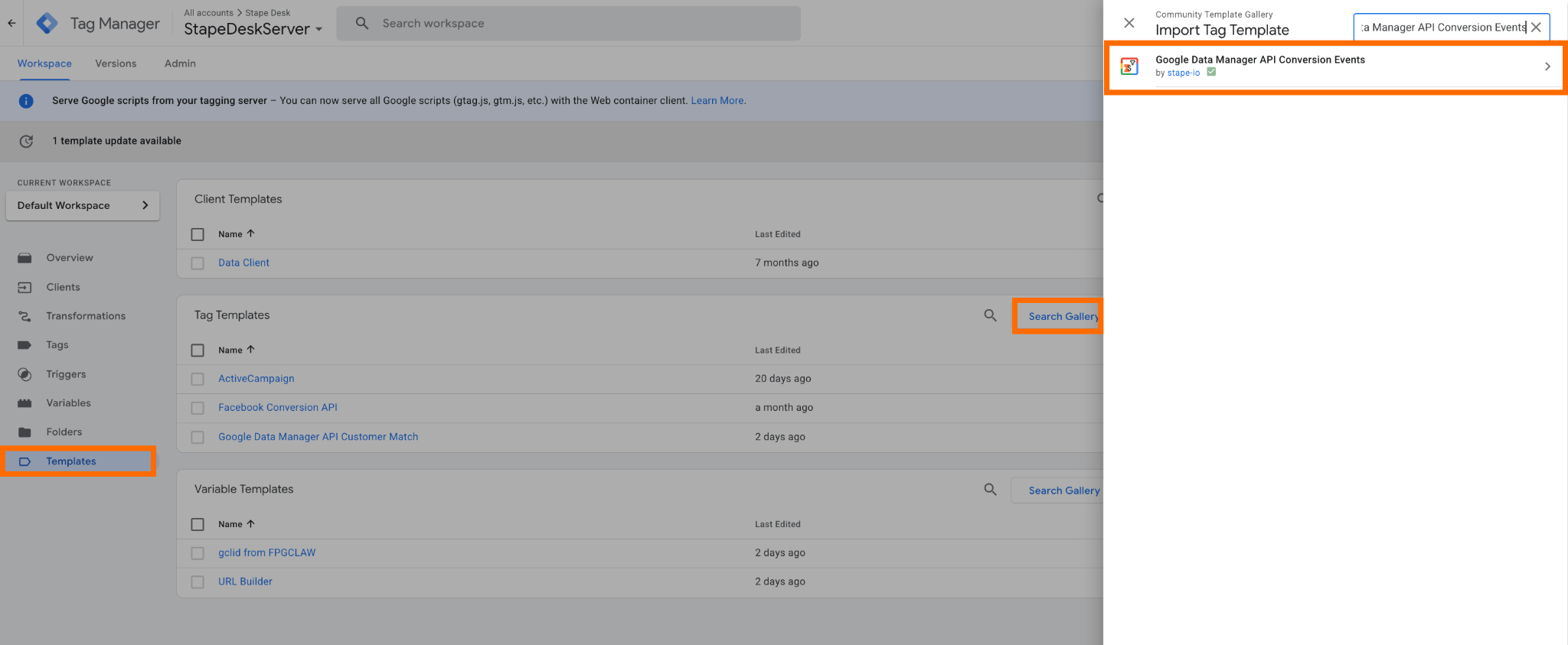
1. Add the tag to your workspace. Open your server GTM container → go to Templates → under Tag Templates, click Search gallery → find Google Data Manager API Conversion Events → click Add to workspace.
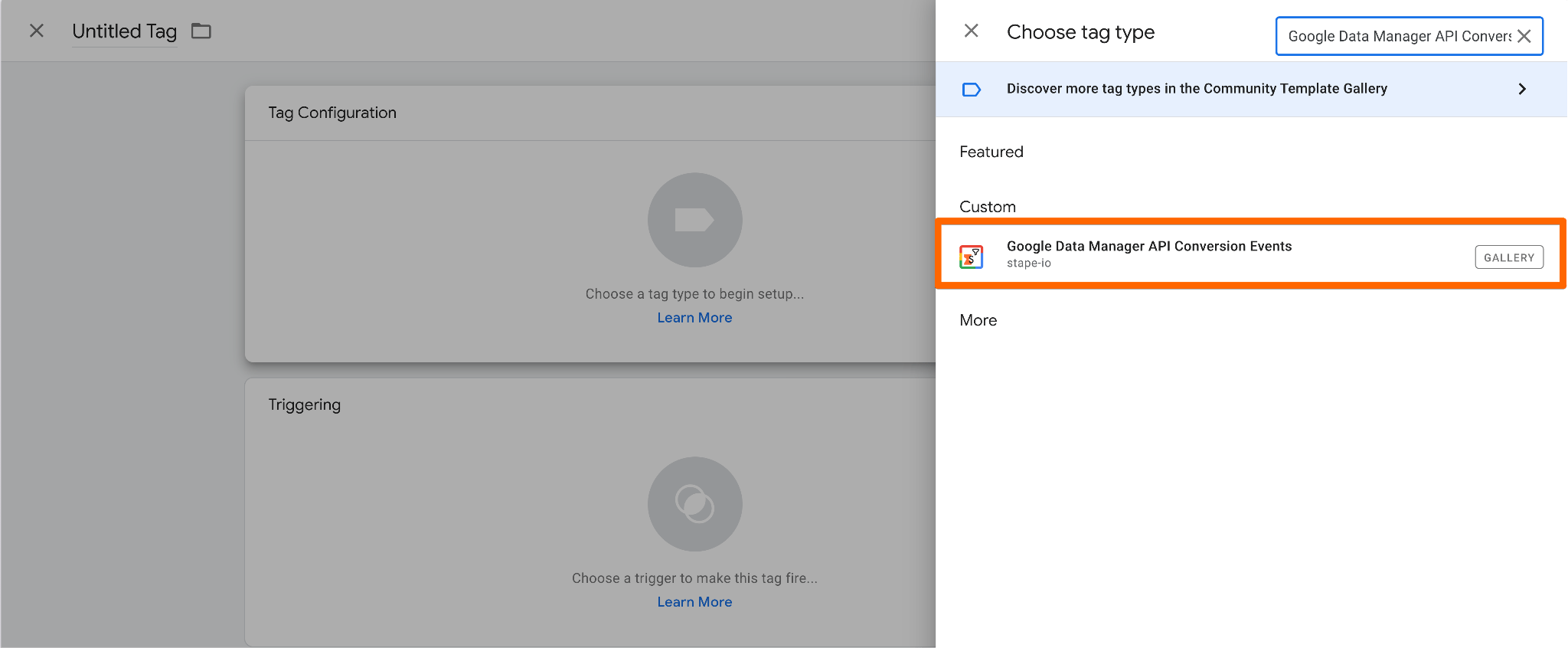
2. Create a new tag. Go to the Tags section → click New → choose Google Data Manager API Conversion Events as the tag type.
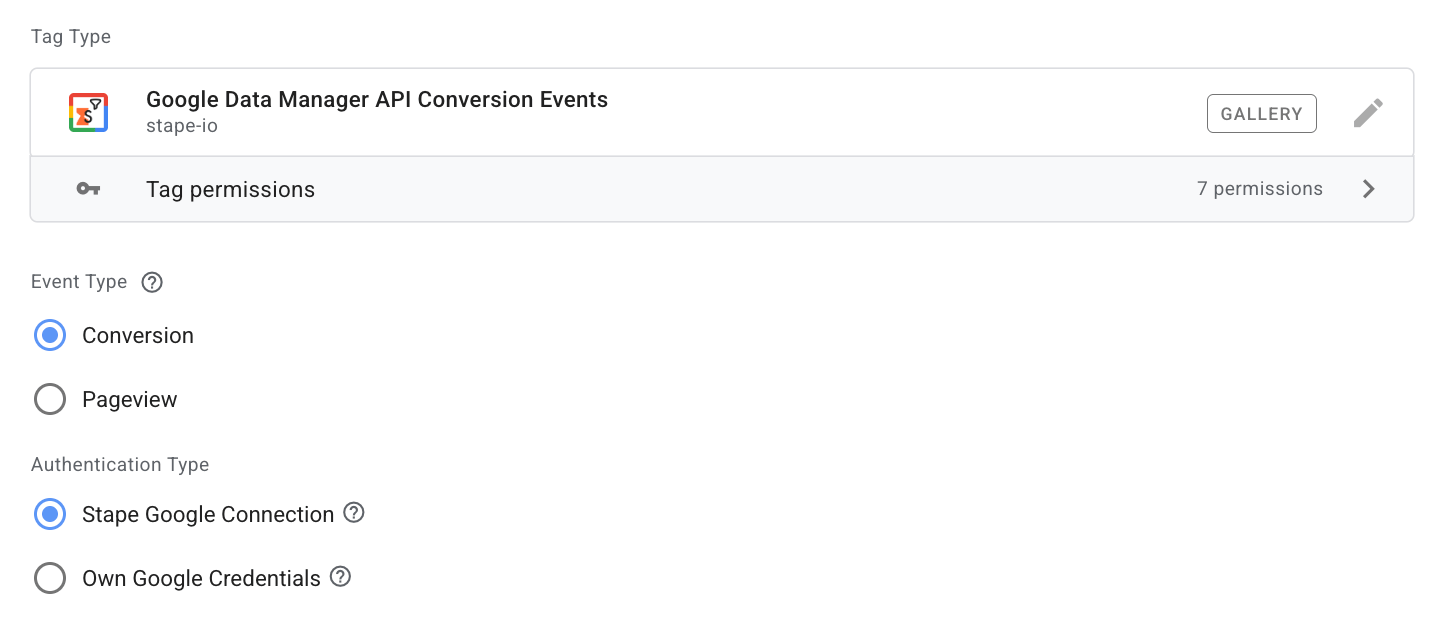
3. Configure the tag.
3.1 Event Type - select the type of event you need to track:
- Conversion - sends the conversion event via Google Data Manager API based on the specified conditions.
- Pageview - creates the
_dm_session_attributescookie when a user starts a new session. This cookie stores session-level information that is later used to attribute conversion events sent through the Data Manager API.
3.2 Authentication Type - opt for the option selected in the prerequisites section.
- Stape Google Connection - an easier way to establish the connection with the Data Manager API. It can be enabled within the Stape container settings, in the Connections section.
- Own Google Credentials - a more complicated type of auth. Use this authentication method only if you want to authenticate with your own Google Cloud credentials instead of using the Stape Google Connection. This option relies on Google Cloud Application Default Credentials (ADC), which automatically discovers and uses credentials available in the server environment.
If you haven’t configured one of the authentication types, please refer to the detailed instructions in the prerequisites section of this guide.
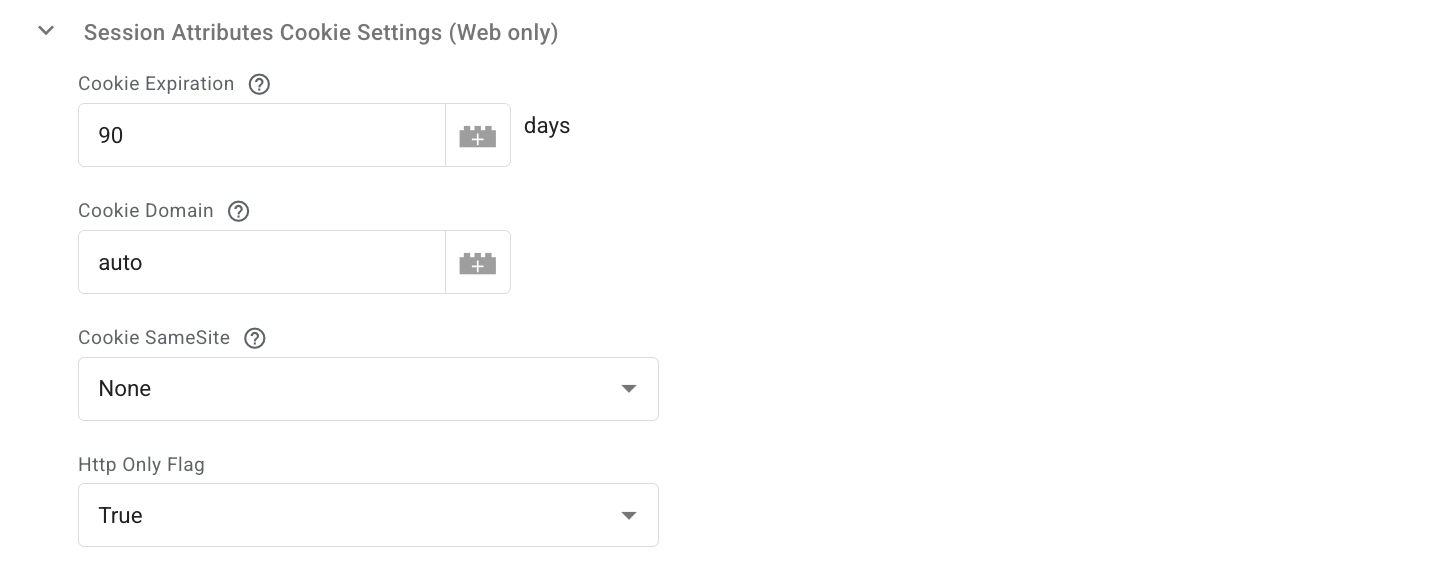
If you opt for the Pageview Event Type, the basic configuration is done, and you can change the default settings within Session Attributes Cookie Settings if they don’t correspond to the tracking needs.
To complete the configuration of Conversion Event Type, follow the steps below:
3.3 Product - defaults to Google Ads.
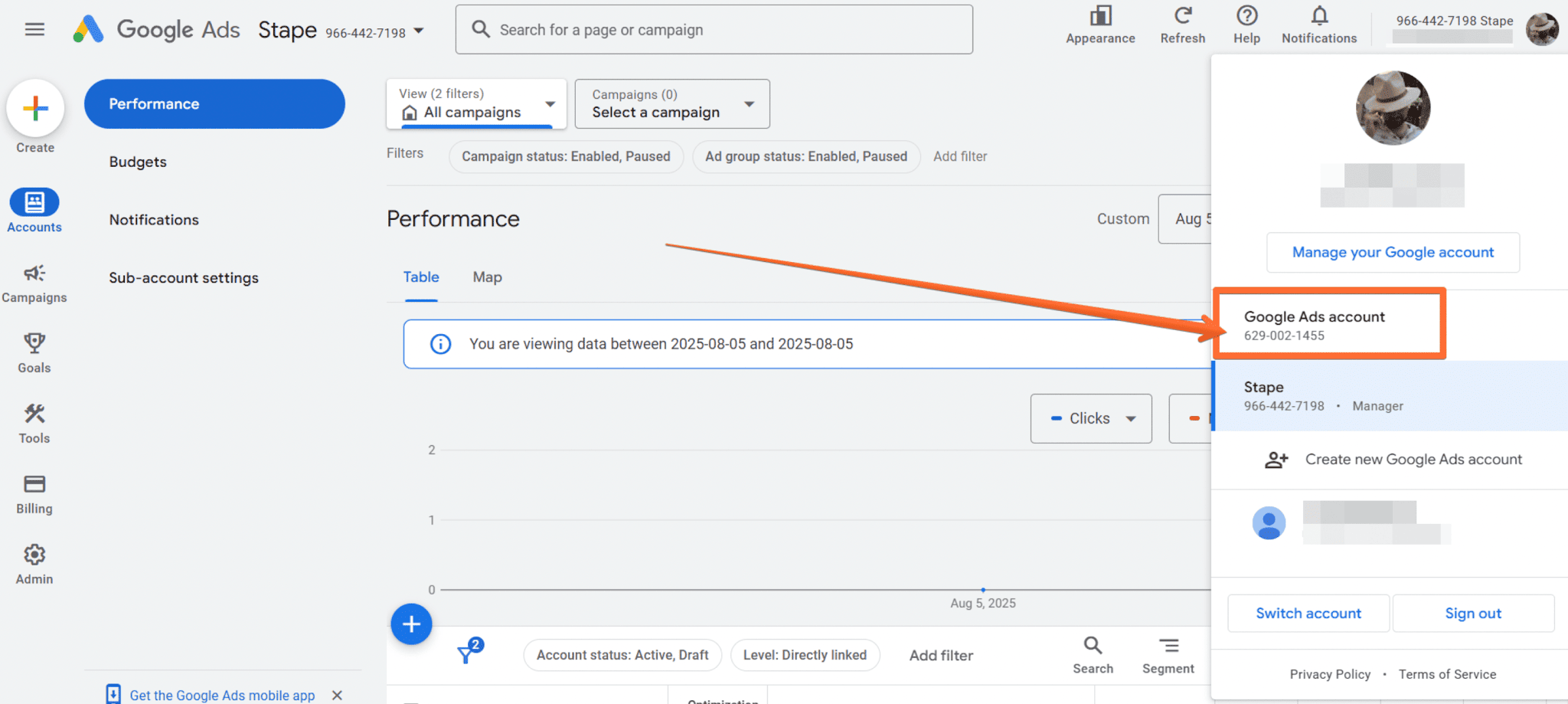
3.4 Operating Customer ID - the Google Ads account ID that should receive the conversion.
To get the value, log in to Google Ads → click your profile icon → copy your account ID.
Note:
Use the same Google account that was used to sign in to the Data Manager API Connection. Remove all hyphens before entering the ID.
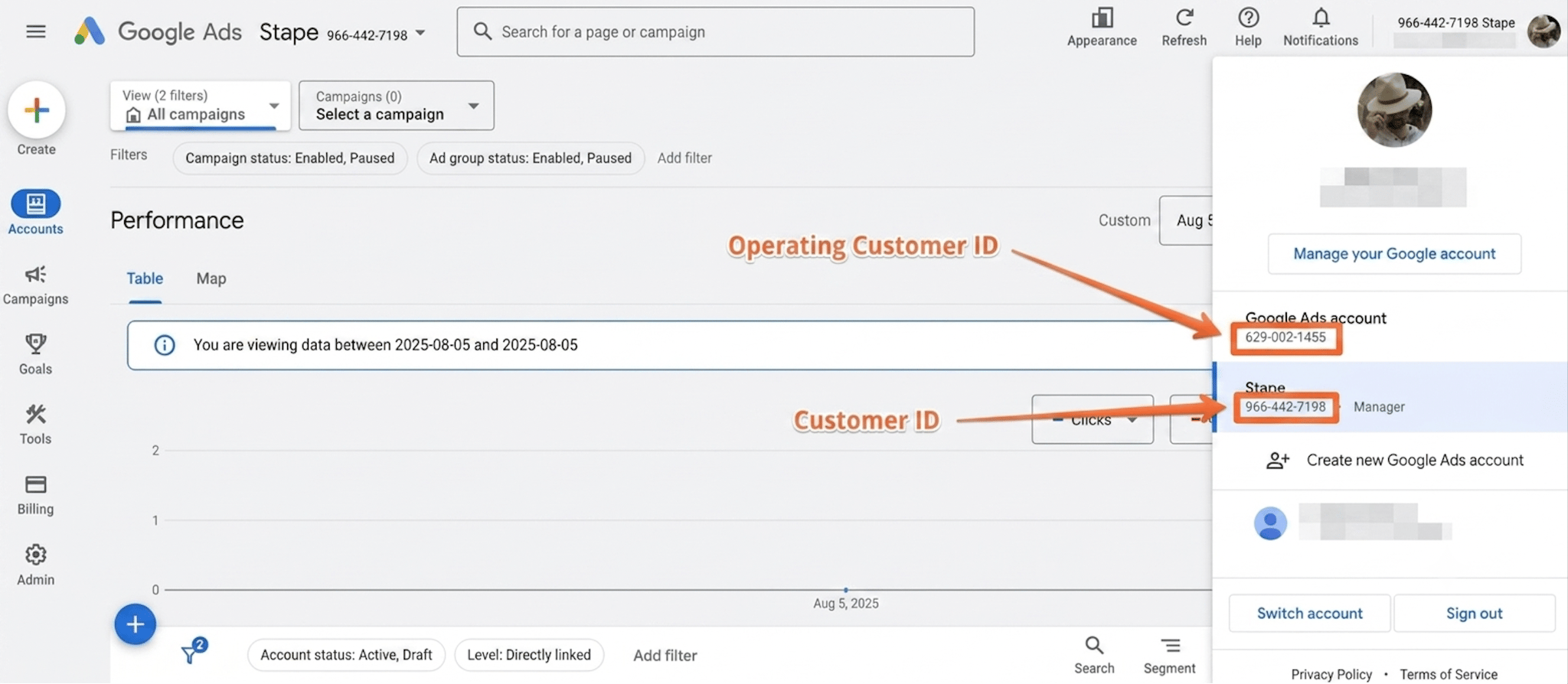
3.5 Customer ID - the account ID used for authorization:
- If you work directly in a customer account, use that account’s ID.
- If you access the customer account via a manager account, use the manager account’s ID.
Note:
Make sure the same account was used for the Data Manager API Connection.Remove hyphens before entering it.
3.6 Conversion Event ID - the ID of the conversion action you want to track.
Create a conversion event first, then open Goals → Conversions → Summary → open the event.
The ID appears in your browser's URL under the ctId parameter.

Here’s an example of Destination Accounts and Conversion Events configuration within the tag:

If you need to track some more events, click on the “Add Conversion Event” button within the section and specify values for the fields as described above.
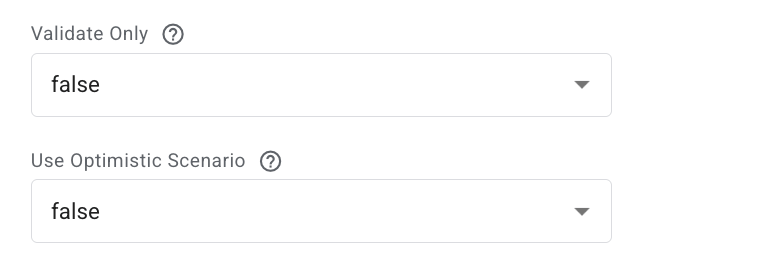
3.7 Validate Only - when enabled, the request is validated but not executed. Only validation errors are returned.
3.8 Use Optimistic Scenario - triggers gtmOnSuccess() immediately without waiting for an API response.
This speeds up sGTM but always reports the tag as successfully fired even if the API call later fails.
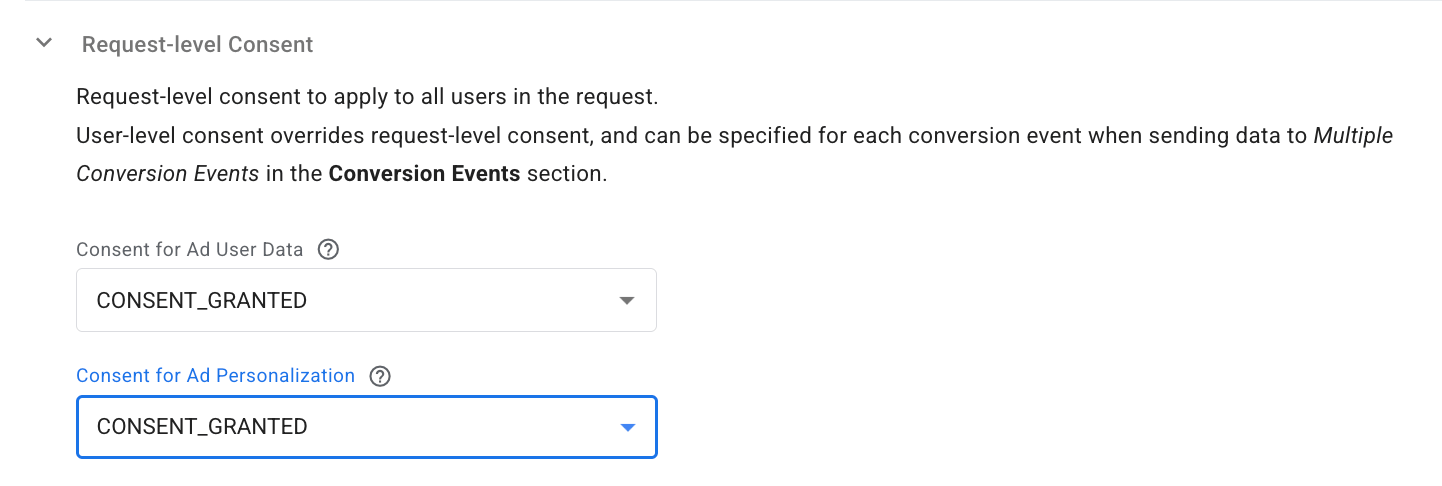
3.9 Request-level consent - define consent states for Ad User Data and Ad Personalization.
User-level consent (per conversion event) overrides request-level consent when using Multiple Conversion Events.
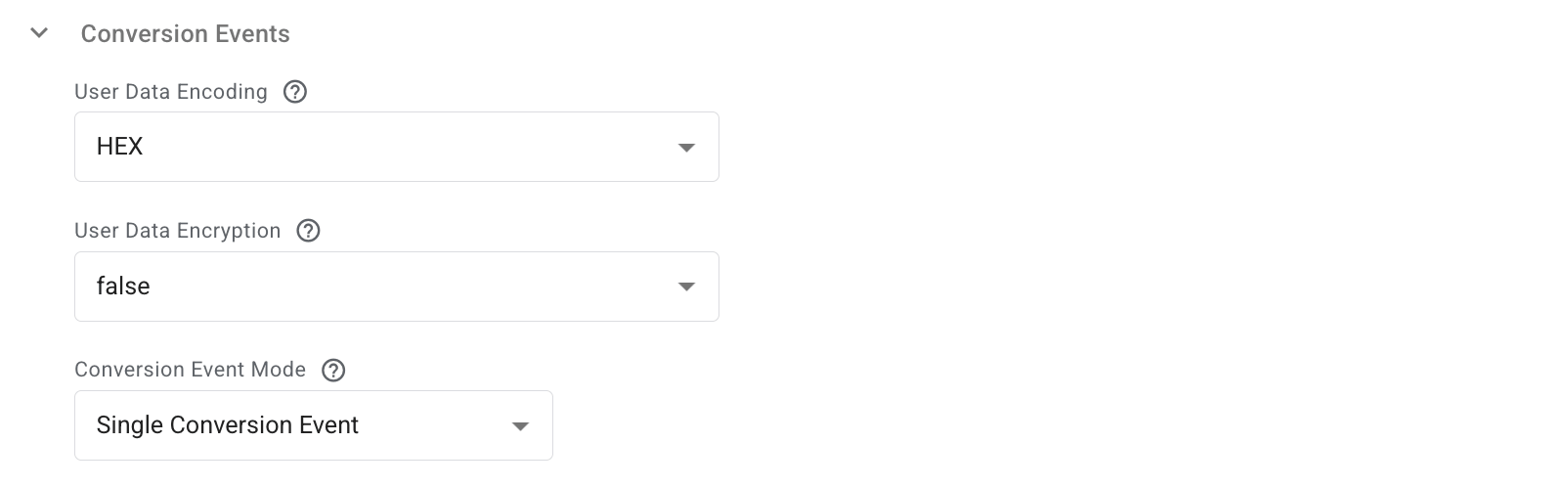
3.10 Conversion events section.
- User Data Encoding - select HEX or BASE64 for hashing user identifiers. Required when uploading UserData (email, phone, first/last name). For other fields (address region, postal code), encoding is ignored. Default: HEX — use this for raw (non-hashed) values or default GA4 values.
- User Data Encryption - choose whether identifying fields (email, phone, name) are encrypted before upload. If not specified, the system assumes they are hashed but not encrypted.
- Conversion Event Mode - choose whether to send a single conversion event or multiple events.
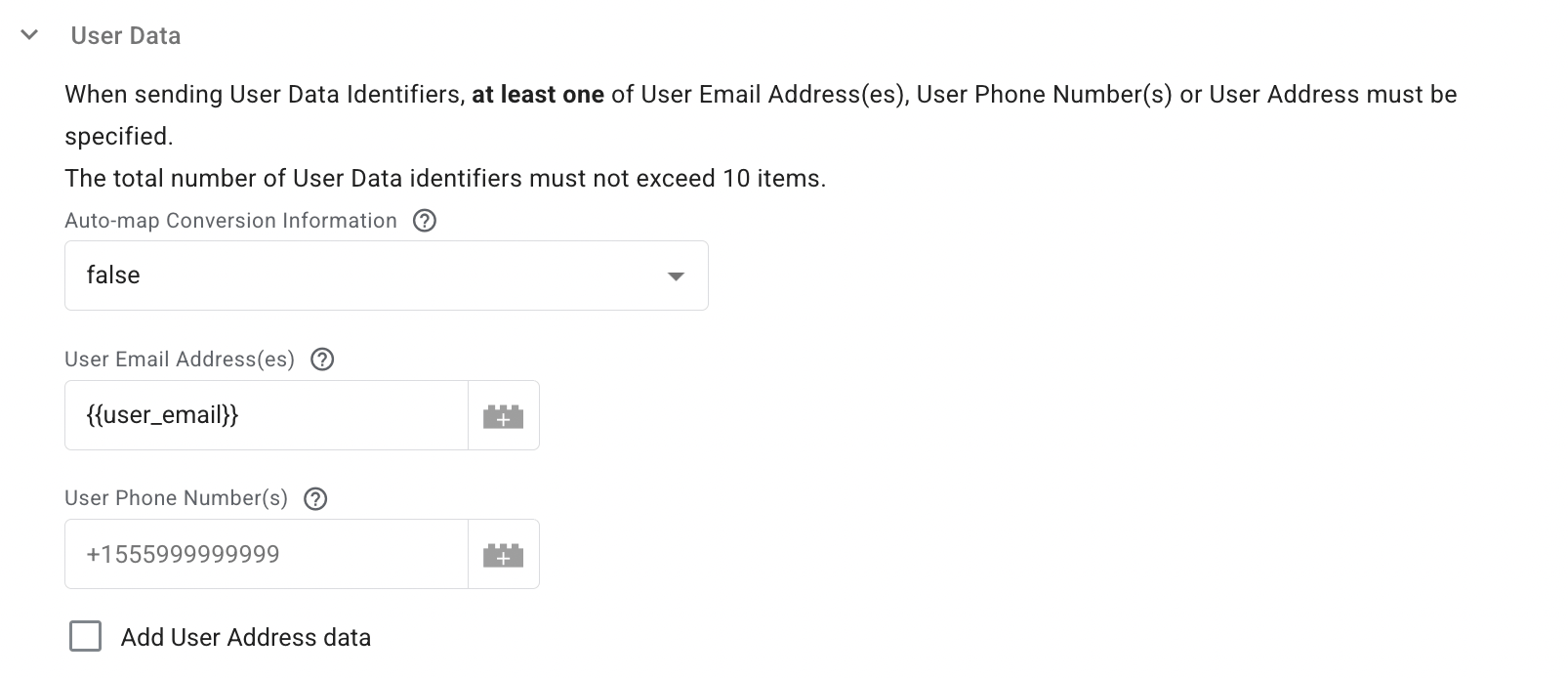
3.11 User Data Identifiers – specify up to 10 identifiers.
At least one of these must be provided:
- Email address(es)
- Phone number(s)
- Postal address
Auto-map Conversion Information - when enabled, the tag automatically maps values from event data. Any manually entered value overrides the auto-mapped one.
3.12 The Conversion Information section includes the core details of the conversion you need to send.
- Auto-map Conversion Information - when enabled, the tag automatically attempts to populate the required parameters by mapping values from the incoming Event Data object.
Any value manually configured in the corresponding fields takes precedence over the automatically mapped value. Manual configuration always overrides automatic mapping.
- Event Source - specify where the event will take place (web, app, in-store, phone, other).
- Transaction/Order ID - this field is required to specify when sending offline conversion as an additional data source to boost the performance and data strength of an online conversion.
- Event Timestamp - specify the original time when the conversion event occurred. It is especially useful when sending conversions through an API because the conversion may be processed later than the actual event time.
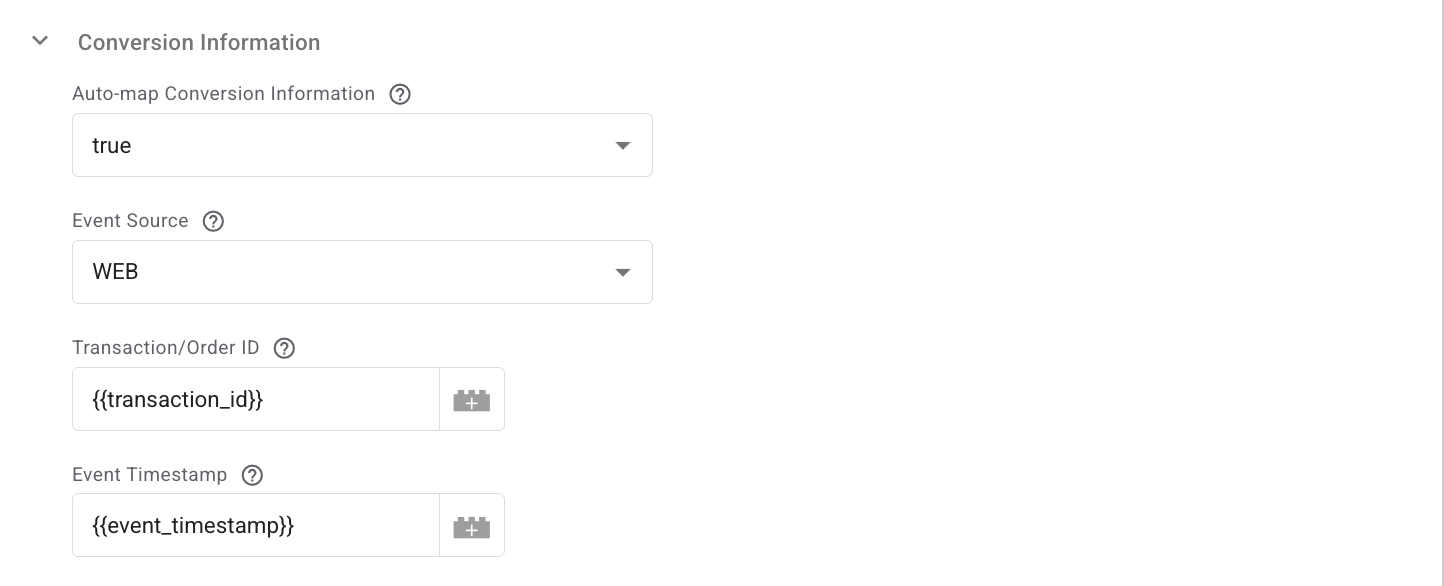
These fields are required for most configurations; besides these, you can also configure additional parameters for the recorded conversion within this section in a tag.
4. Add a trigger. Define when the tag should fire.
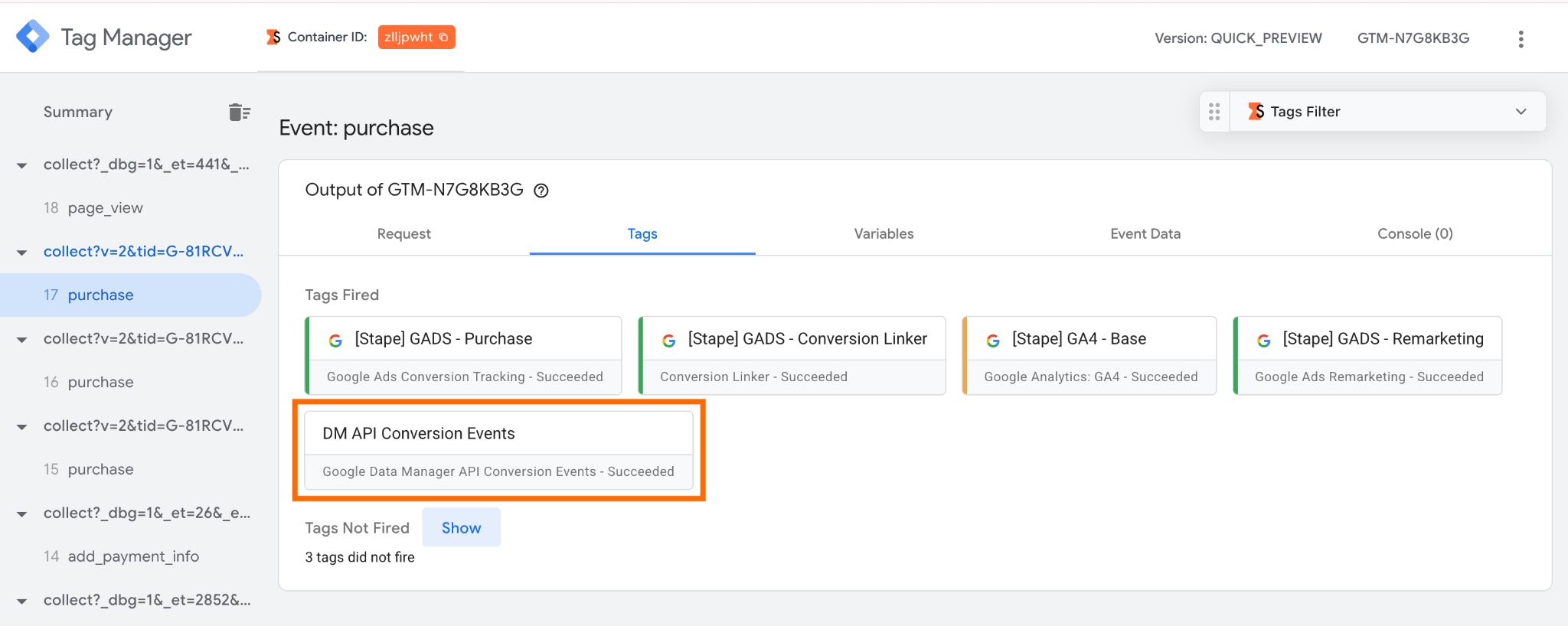
5. Test the configuration. Open Preview mode in both your web and server GTM containers and verify your setup. For more detailed debugging instructions, refer to our server-side tracking debugging guide.
Was this article helpful?
🍽 Table of content:
Comments