Awin tag
Updated Jun 9, 2026
Awin tag for the server Google Tag Manager container can significantly simplify server-to-server integration.
There are two types of events that the Awin tag supports:
- PageView event stores the
awcURL parameter inside theawin_awcorawin_sn_awccookie, and the source (usually, theutm_sourcevalue) inside theawin_sourcecookie. - Conversion event sends the HTTP request with the specified conversion data to Awin.
Requirements for setting up the Awin tag
Please ensure that you already have Google Tag Manager web and server containers, as well as a configured server container and custom domain in Stape. Please follow these guides if you don’t have any of those:
Additionally, the Awin-recommended server-side tracking setup comprises several web and server container tags:
- In your web GTM container, you need to set up Awin Advertiser Mastertag (to get access to the necessary functions for Awin tracking), Awin - AW Last Click Identifier (to set up Awin’s cookie and track the source of the conversion), and Awin Conversion Tag (to pass the conversion data). Awin manages these tags, so for more information, please refer to Awin’s official guide on client-side tracking.
- In the web GTM container, you need Google Analytics 4 or Data Tag/Data Client sending data to the sGTM container. In the server GTM container, you need a respective client. Here is a step-by-step guide on sending data to sGTM. Make sure that the tag is passing the following parameters:
- send_page_view = true
- server_container_url = {{Your container URL}}
- In the server GTM container, you need to set up the Awin tag, as described in the next section.
- Also in the server GTM container, once you set up the Awin tag by Stape, you will need to configure Server Awin AW Last Click Identifier for event deduplication. Awin manages this tag, so for more information, please refer to Awin’s official guide to last-click deduplication.
How to set up the Awin tag
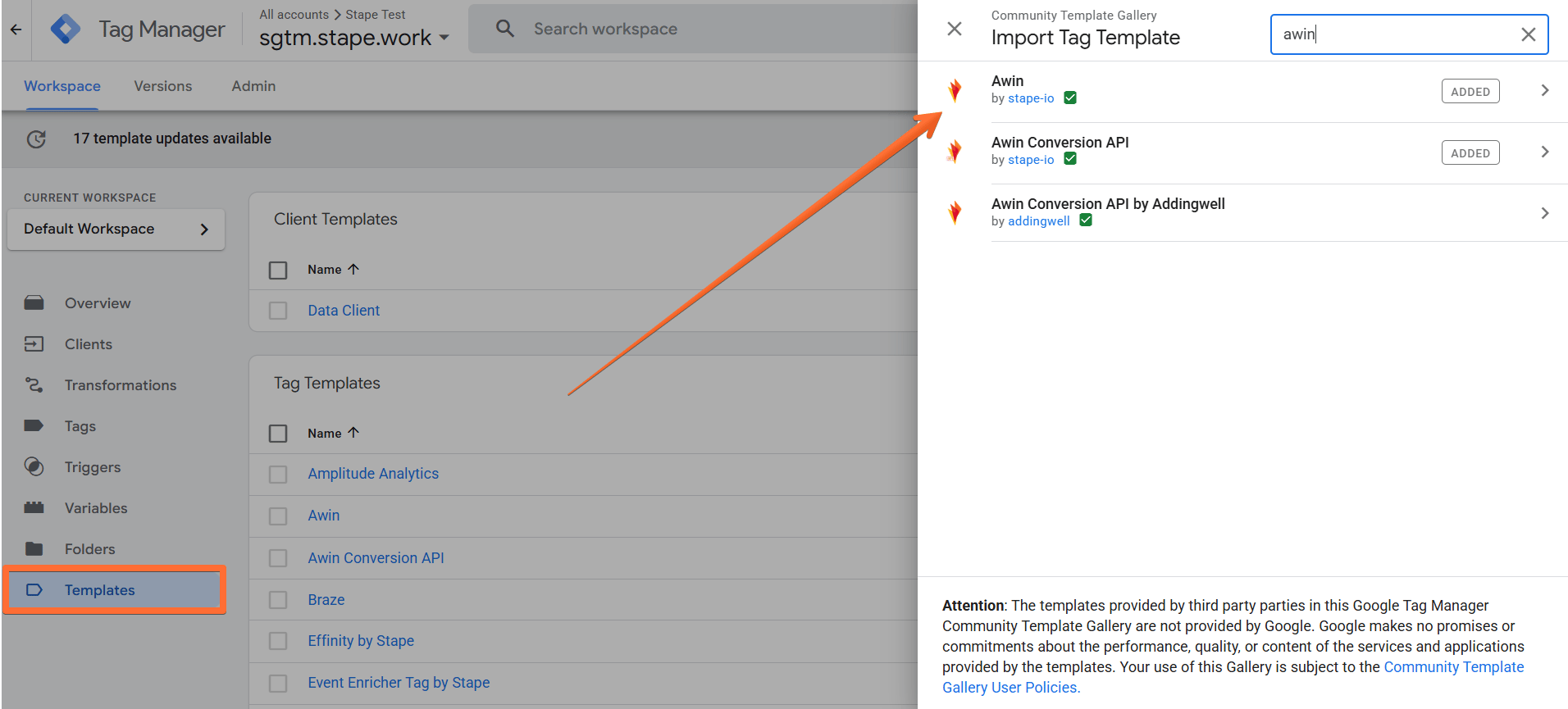
1. Add the Awin tag template in the server GTM container by importing it from the Template gallery:
- Search for the Awin tag in the Google Tag Manager Tag Template gallery.
- Click Add to workspace.
2. Create the Awin tag:
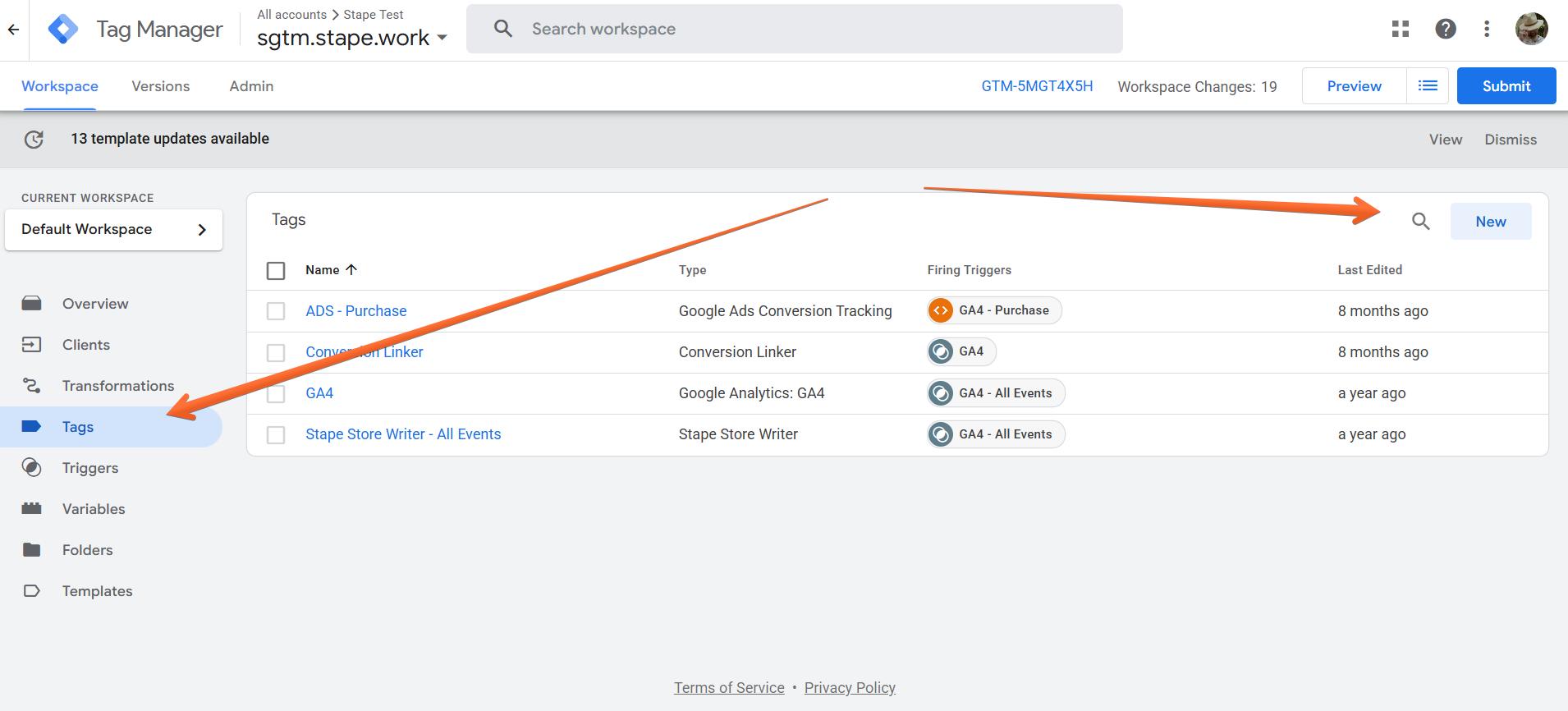
- Go to the Tags menu → click New.
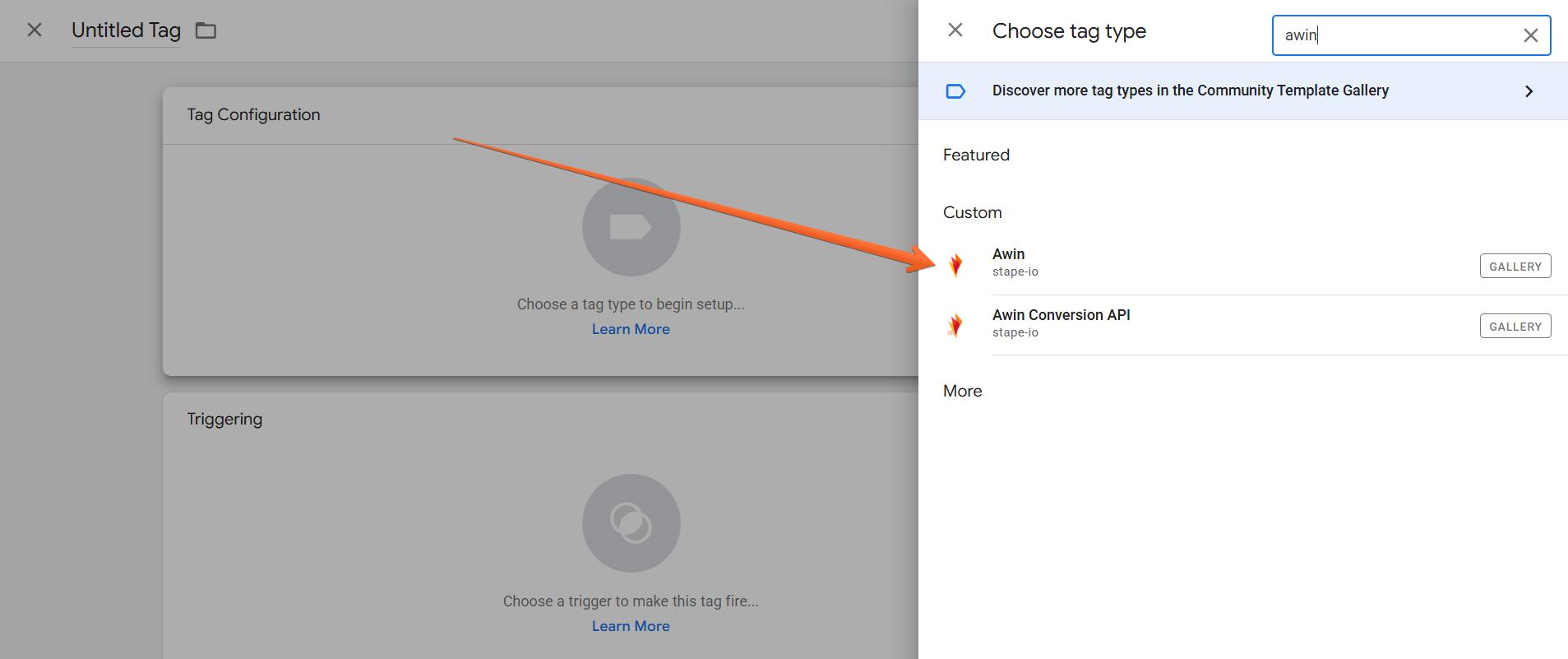
- Click Tag Configuration → select Awin.
4. Configure the Awin tag:
- Merchant ID - a unique numeric code of a merchant. To find your merchant ID, log in to your Awin account → click the Account button → click the Overview tab. Your Merchant ID (MID) will be shown underneath your account name.
- Order Reference - the unique booking or order reference that identifies the transaction.
- Total Order Value - the total booking or order value excluding any taxes, delivery, and discounts. For a lead-based campaign or program, the value should be the number of leads. The value will be ignored if multiple commission groups are specified in the Commission Group Code field.
- Currency Code - a 3-letter currency code per ISO standard (e.g.,
GBP). - Commission Group Code - the code for the commission group you want to base the commission calculation on. The value can be either a single group name (e.g.,
CD), or a full set of groups and the commission value for each group (e.g.,CD:11.10|DVD:14.99). If you don’t have this code, enter theDEFAULTvalue. - Discount Code - the code or name of the discount code that was applied during checkout.
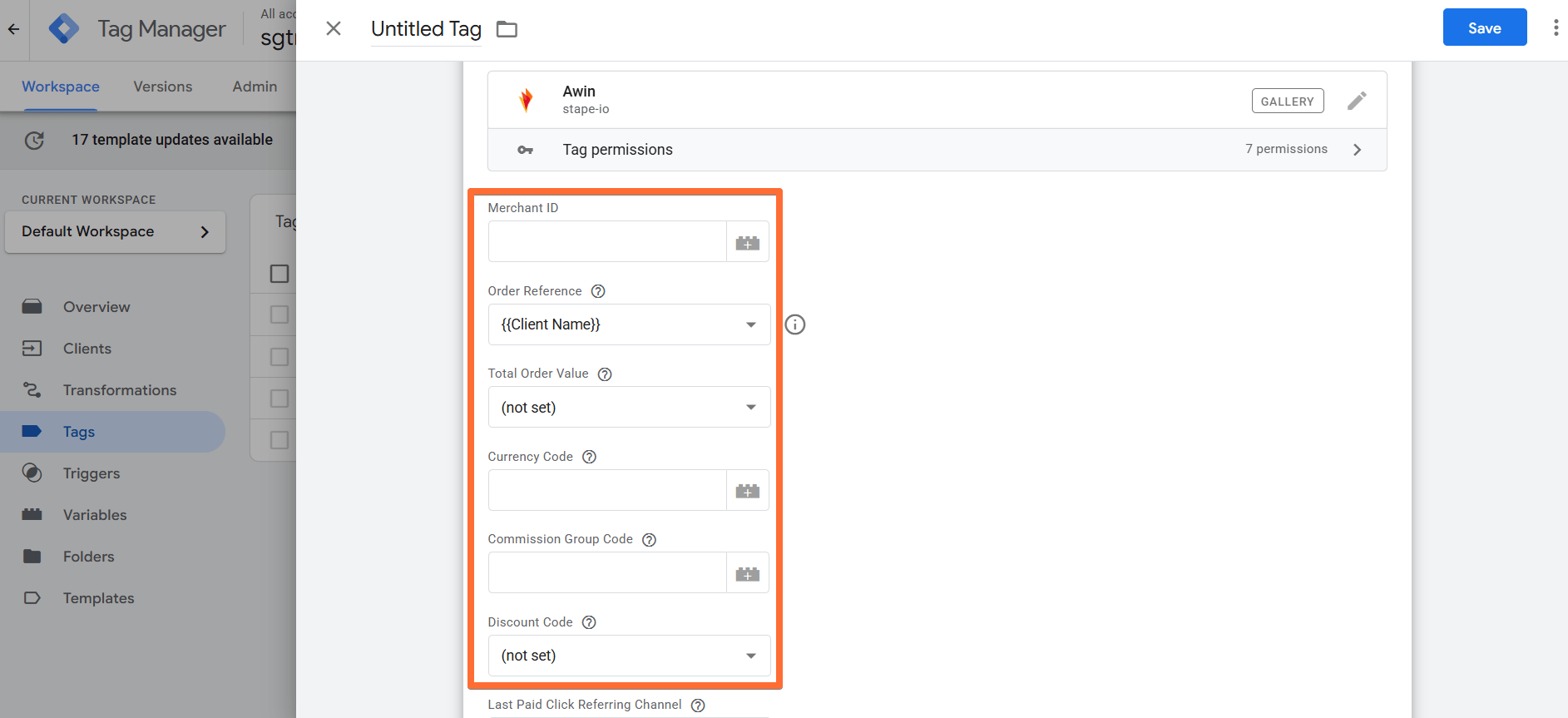
- Last Paid Click Referring Channel - the value utilized to determine how AWIN should process the incoming transaction requests (most often the
utm_sourcevalue). After you configure the Server Awin AW Last Click Identifier (see this guide), please add the variable with the typecookie valueand the name of the cookieServerAwinChannelCookieas the chosen variable for this parameter. - Deduplication Query Parameter Name - Specify the deduplication query parameter name to be used if Last paid click referring channel doesn't exist.
- Customer Acquisition - either
NEWorRETURNINGvalues to identify if it’s a new customer acquisition or a returning customer. - Products Override - can be used if you wish to override the default UA/GA4 item parsing format (in this case, pass the array of items in GA4 format).
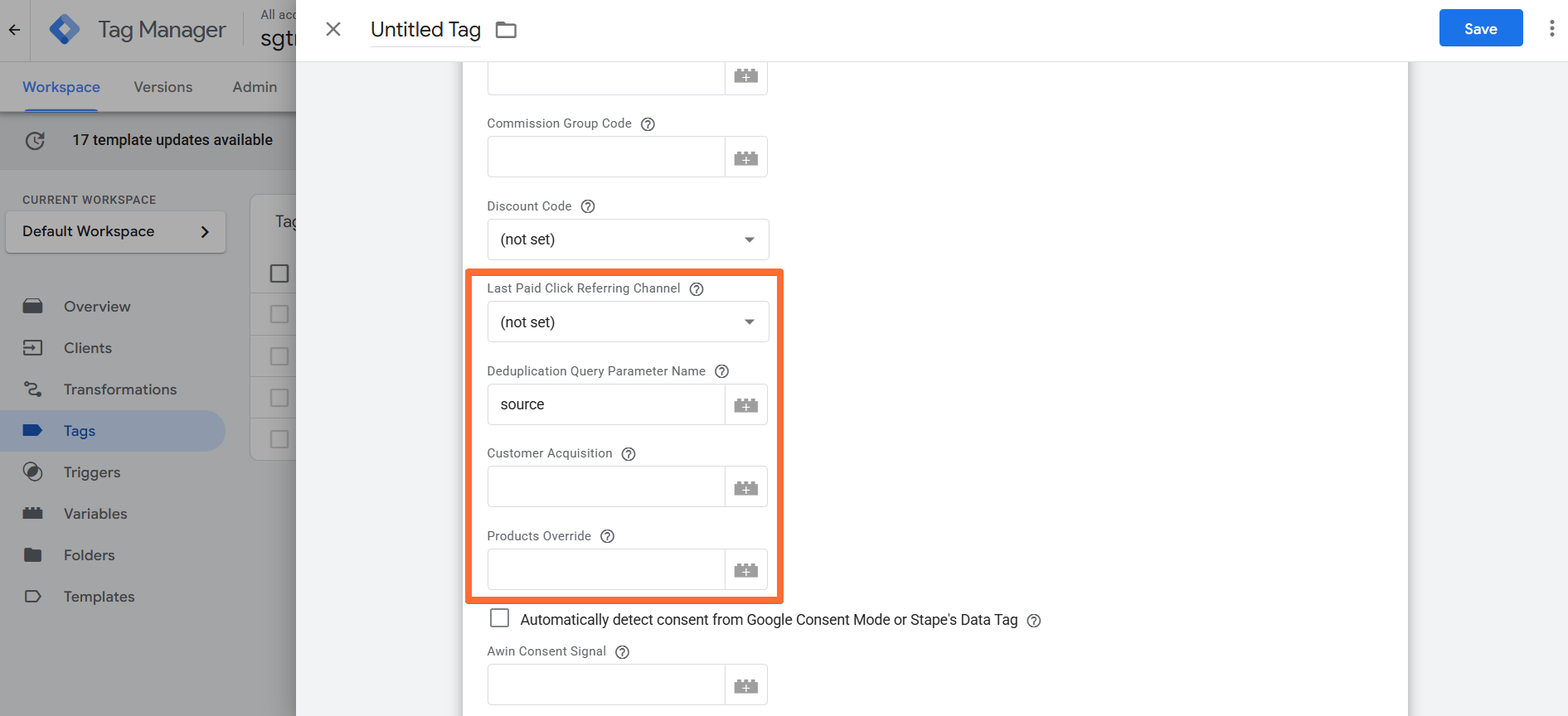
- Automatically detect consent from Google Consent Mode or Stape's Data Tag - if you are using Google Consent Mode or Stape's Data Tag to transmit consent to the server, then enable this setting to use the consent information from them. This field has precedence over the Awin Consent Signal below. If you aren’t using Google Consent Mode or Stape's Data Tag to transmit consent to the server, see Awin’s official guide on Consent Signals.
- Awin Consent Signal - here you can manually supply consent information. Accepted values are:
0, 1, true, false. - Enable Unconditional Cashback & Rewards Tracking - option to exempt Cashback and Rewards Journeys from consent restrictions.
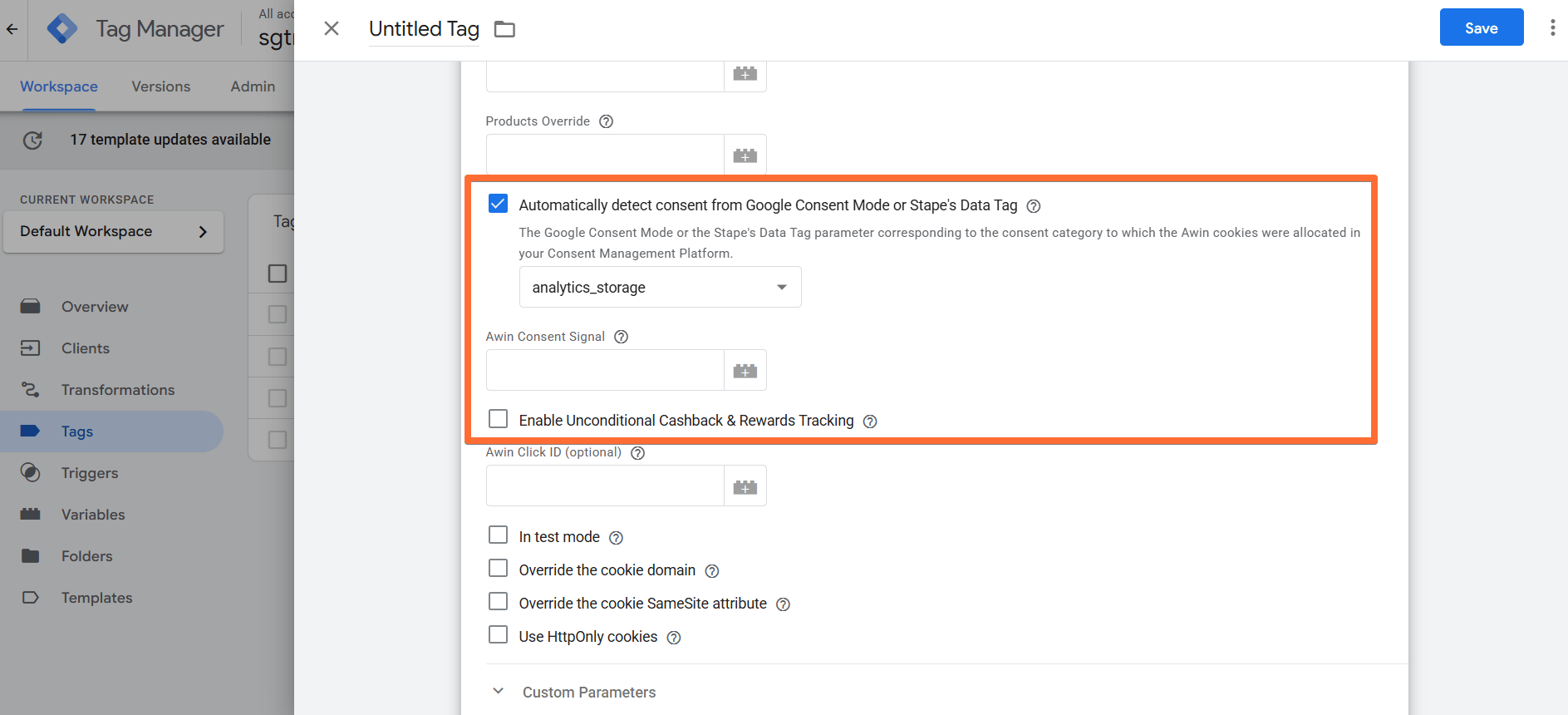
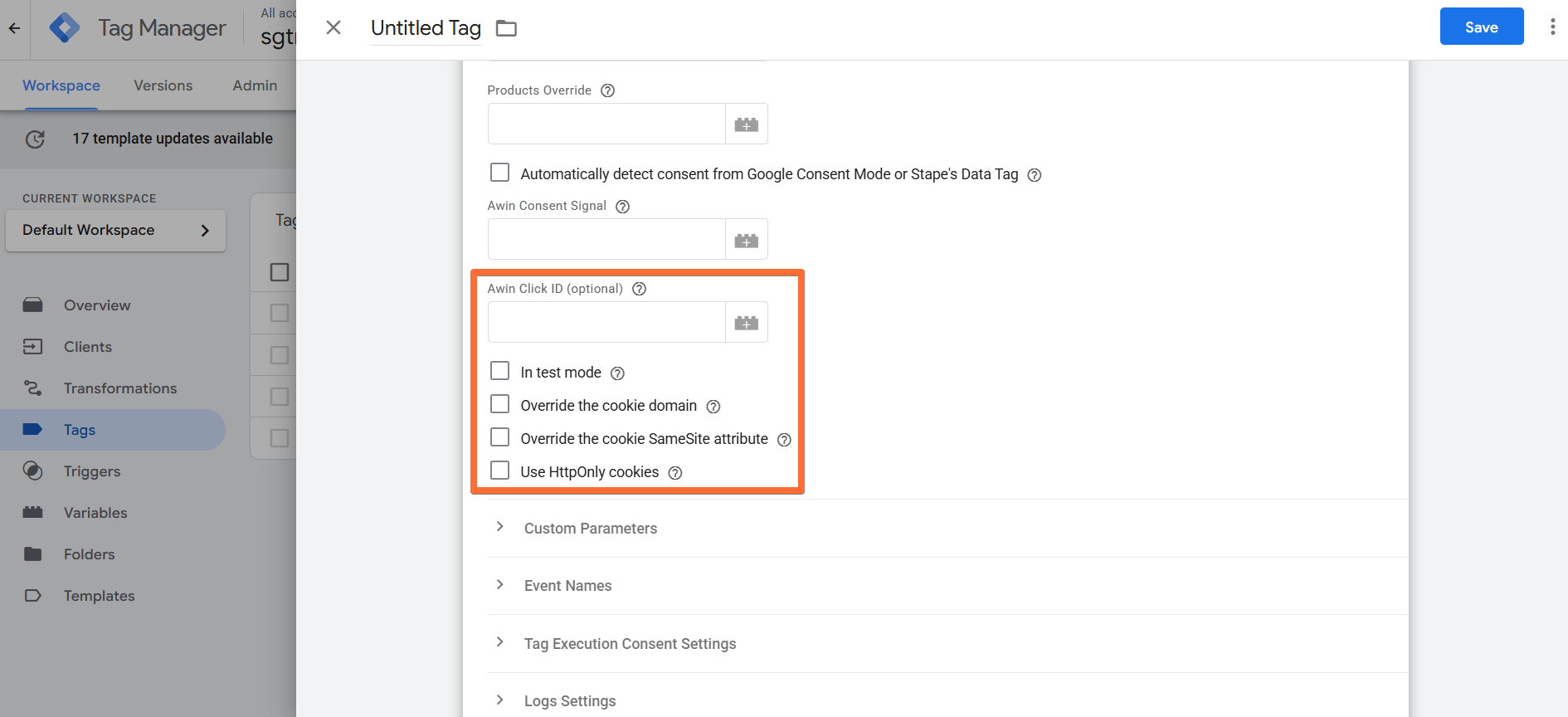
- Awin Click ID - can be used to override the click ID from the cookie.
- In test mode - check to have the tag fire in test mode and the reported conversion be ignored.
- Override the cookie domain - can be used to override the default domain where cookies are set (must be your website's top-level domain, e.g., example.com). If unchecked, the domain is determined automatically.
- Override the cookie SameSite attribute - can be used to override the SameSite attribute used by cookies (by default, no SameSite attribute is set).
- Use HttpOnly cookies - can be used to forbid JavaScript from accessing the cookie.
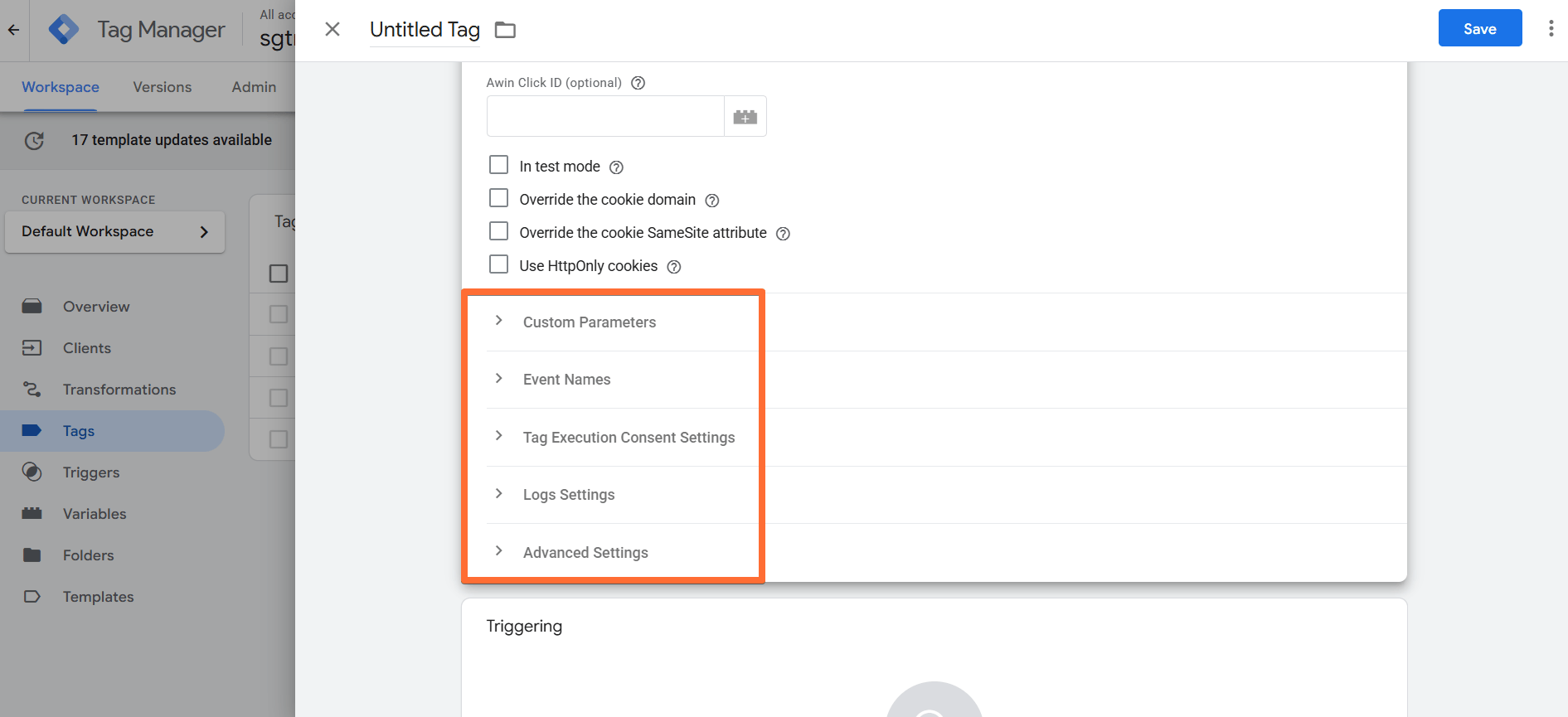
- Advanced parameters:
- Custom Parameters - can be used to pass additional parameters with the tag.
- Event Names - define the event names that will trigger the PageView functionality and Conversion functionality of the tag.
- Tag Execution Consent Settings - choose if you wish for the tag to wait for marketing consent from the user before firing.
- Logs Settings - choose if you want to log requests to your account. This feature is handy when setting up server-side tagging since it allows seeing incoming and outgoing requests and network responses.
- Advanced Settings (Additional Tag Metadata) - specify additional tag metadata to be included in the event data when the tag is fired.
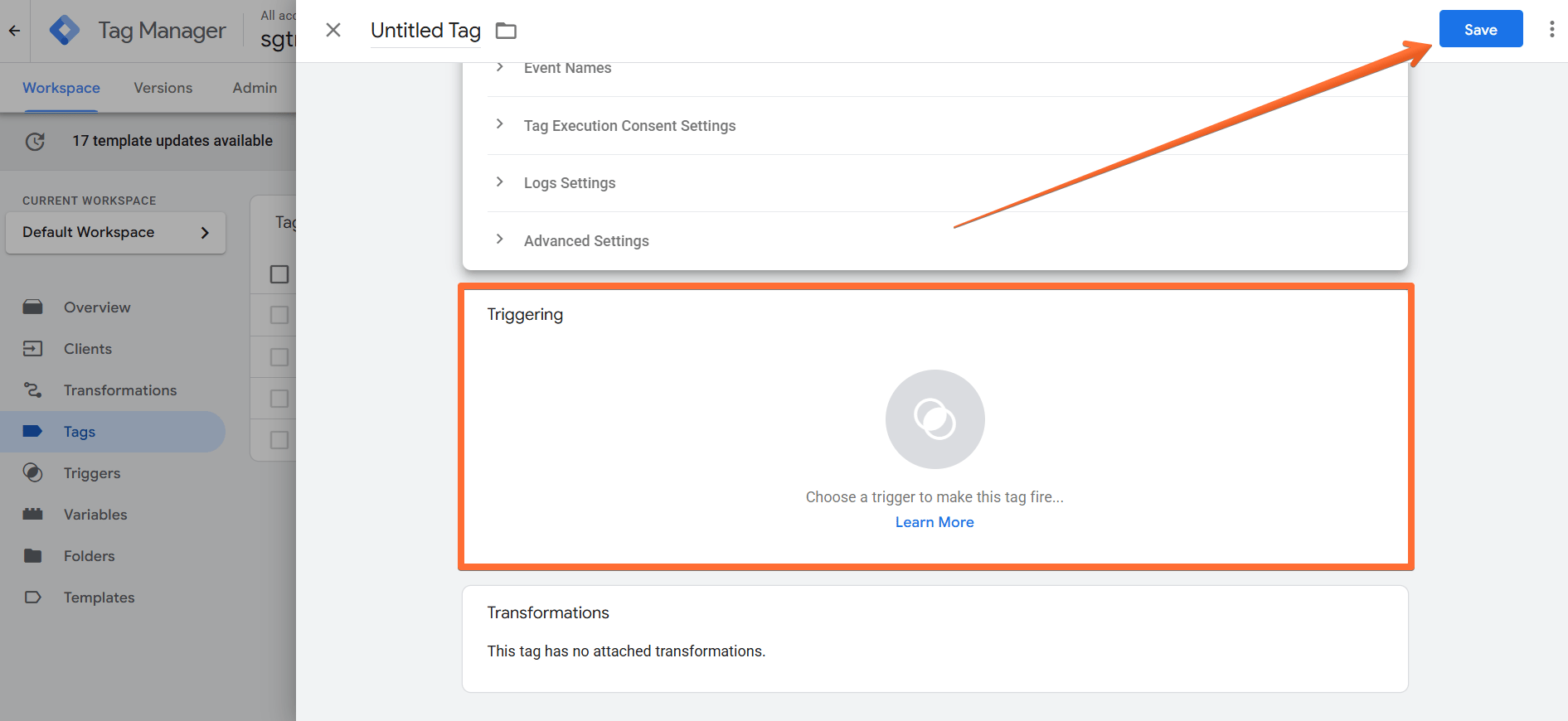
5. Add the Trigger for the tag (All Pages and your applicable Purchase Event), give it a descriptive name, and click Save.
After you’ve configured the Awin tag by Stape, don’t forget to also set up Server Awin AW Last Click Identifier for event deduplication. Awin manages this tag, so for more information, please refer to Awin’s official guide to last-click deduplication.
How to test and troubleshoot the Awin tag setup
You can test the configurations in Google Tag Manager. Click on Preview, trigger the event, and check whether the tag has fired.

Find out more about debugging and monitoring server-side tracking configuration in our guide.
Was this article helpful?
Comments