LINE Yahoo Conversion API tag (Display Ads)
Updated Sep 22, 2026
LINE Yahoo Conversion API Tag (Display Ads) by Stape is a custom Google Tag Manager (GTM) server-side template designed to complement the LINE Yahoo Measurement tag. When the pixel fires in the browser, the tag sends conversion event data directly from your sGTM container to the LINE Yahoo Display Ads Conversion API. This improves conversion measurement accuracy, resilience against browser restrictions, and user data privacy.
With the LINE Yahoo Conversion API tag you can:
- Map events – the tag supports standard LINE Yahoo event types or inherits event names from GA4.
- Manage cookies – automatically read and set
_ly_su(Anonymous ID),_ly_c(Click ID), and_ly_r(Complementary Click ID) cookies. - Hash PII – the tag automatically hashes user email and phone numbers using SHA-256 before sending. Supports mapping user details such as LINE User ID, Phone Number, Email, Client IP, and User Agent.
- Do the server-side deduplication – the tag supports Transaction ID / Event ID for deduplication between the web Measurement tag and the Conversion API.
Note:
This tag is designed for users in Japan. Screenshots in this article show the Japanese Campaign Management Tool interface, as well as a Japanese version of this tag is available for users with GTM set to Japanese.
Before you begin
To complete this setup, you will need to create a sGTM container and send data from the web to the sGTM container. You will also need to set up the LINE Yahoo Measurement tag on the web container, and prepare the following credentials:
- Tag ID and Tag Access Token from the Yahoo Campaign Management Tool.
- Channel ID from the LINE Developers Console.
- Event Snippet ID from Conversion Settings.
How to set up LINE Yahoo Conversion API tag
1. Go to the Google Tag Manager and open your server container.
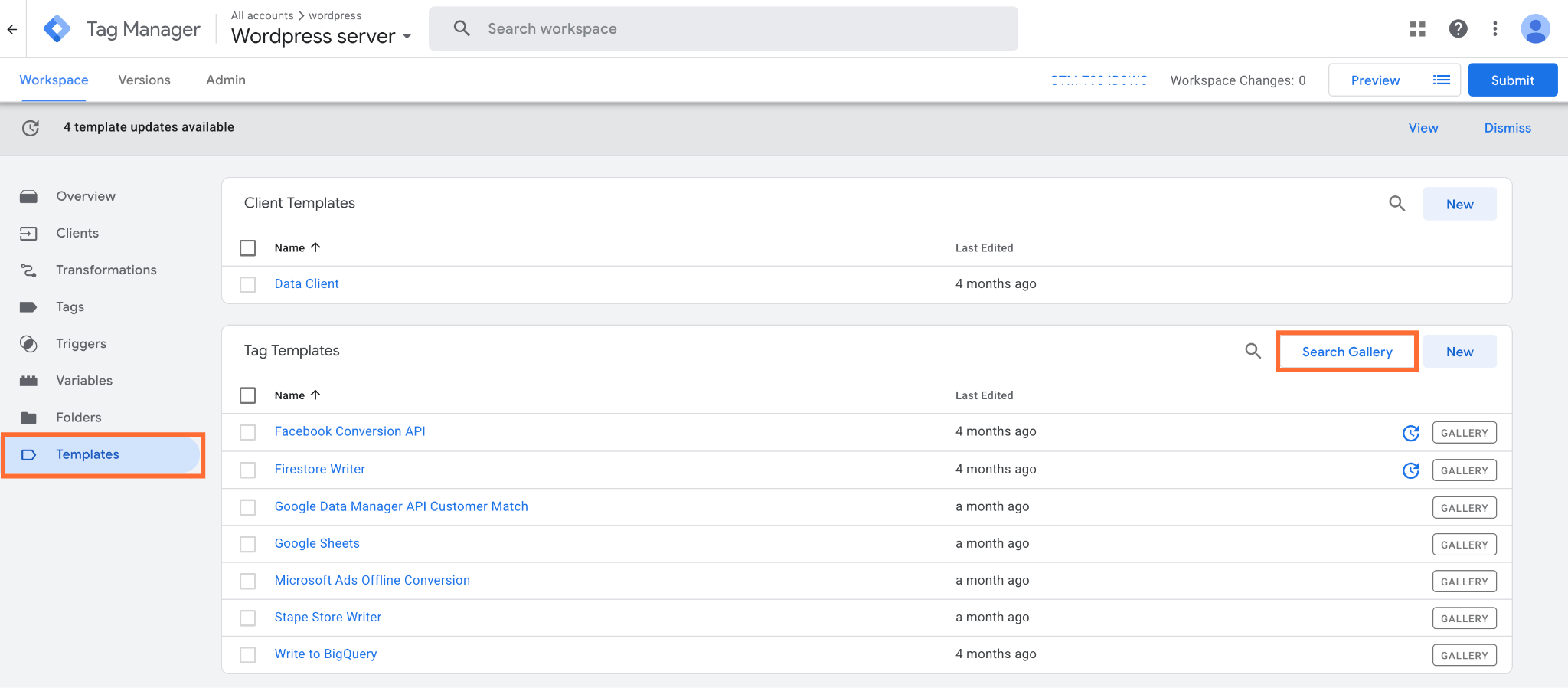
2. Go to Templates, and under Tag Templates, click Search Gallery.
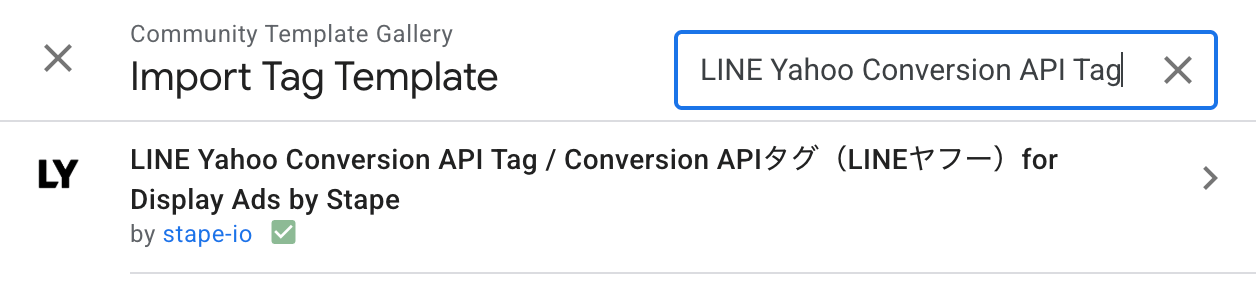
3. Search for LINE Yahoo Conversion API Tag.
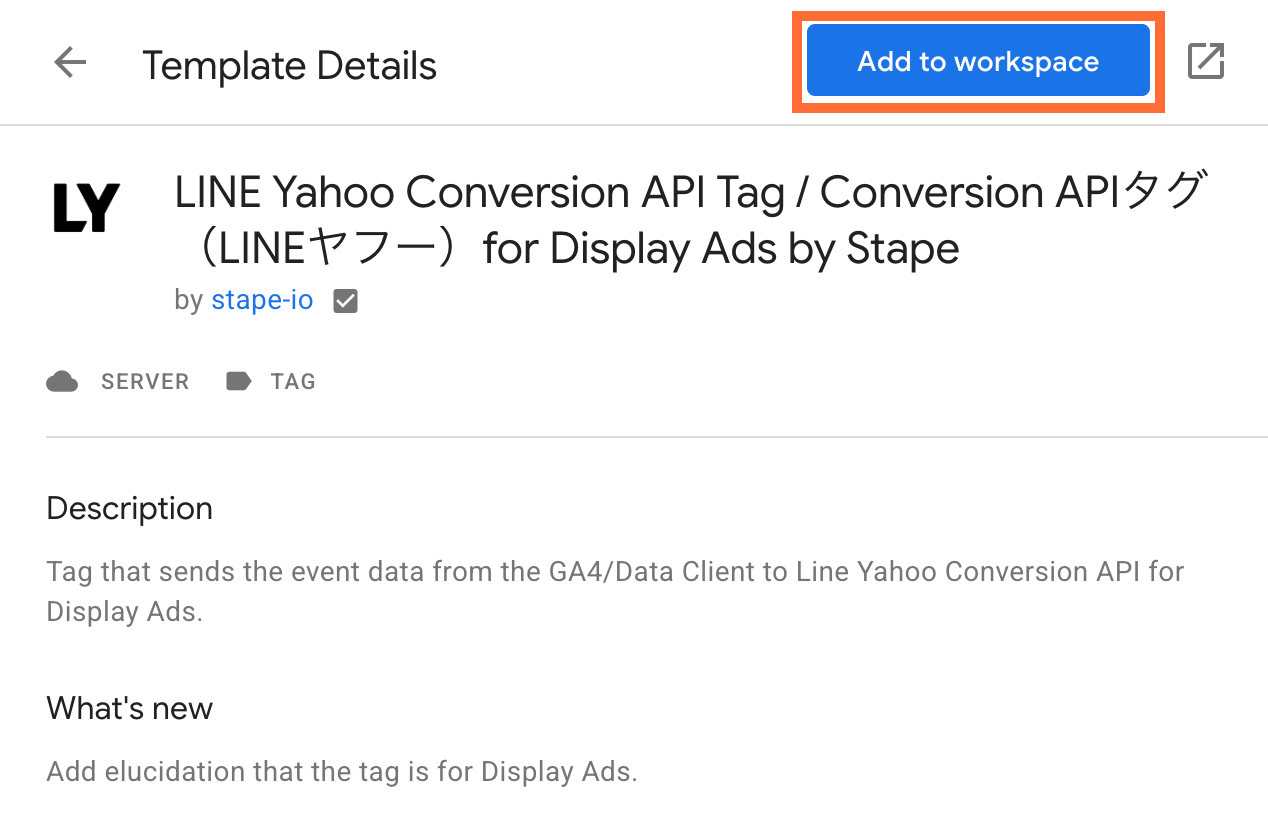
4. Click Add to workspace and confirm.
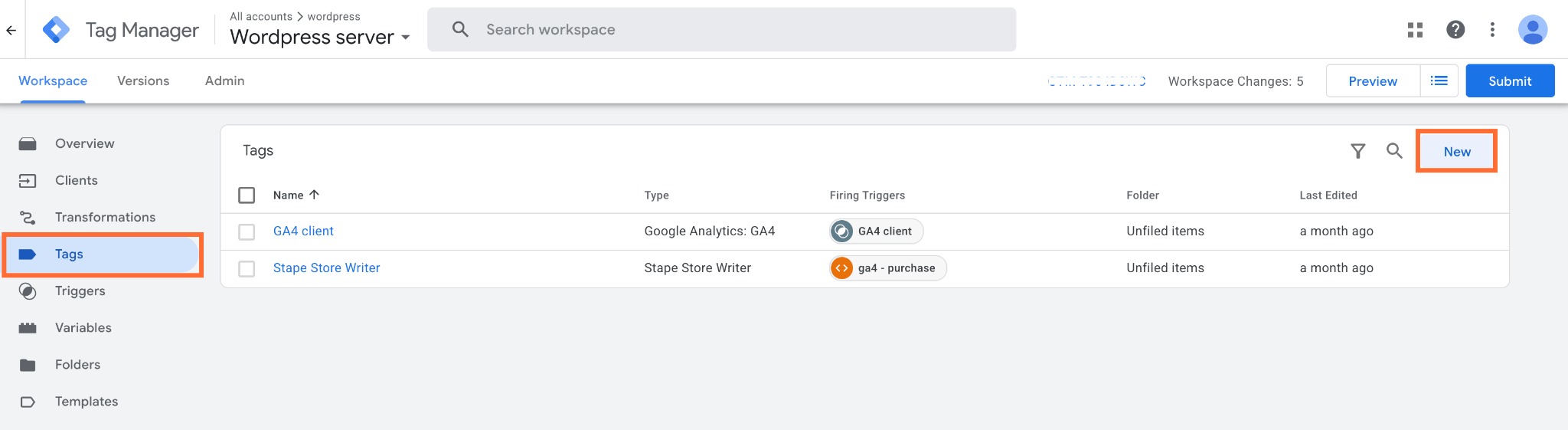
5. Go to Tags and click New.
6. Click Tag Configuration and select LINE Yahoo Conversion API Tag.
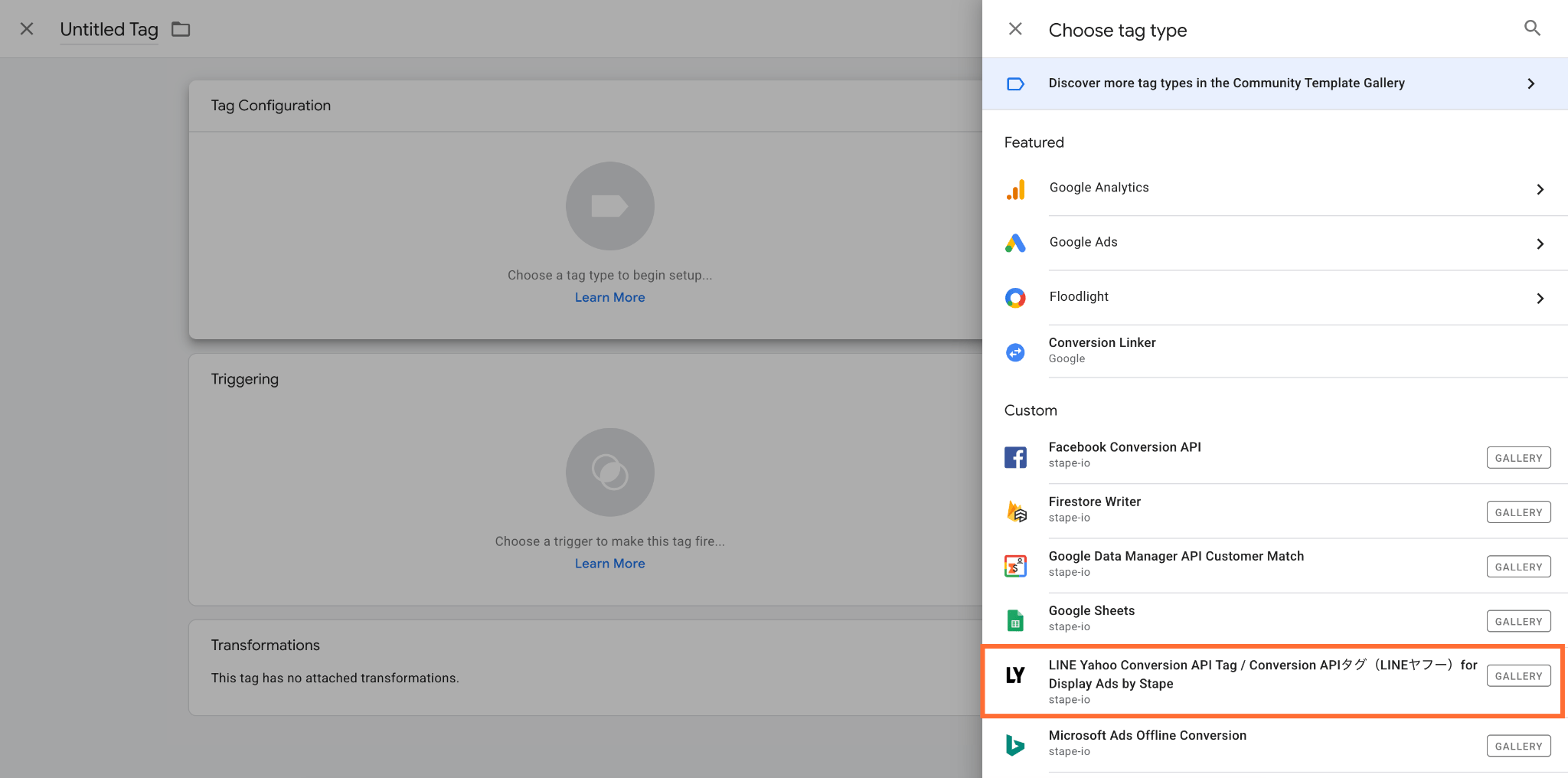
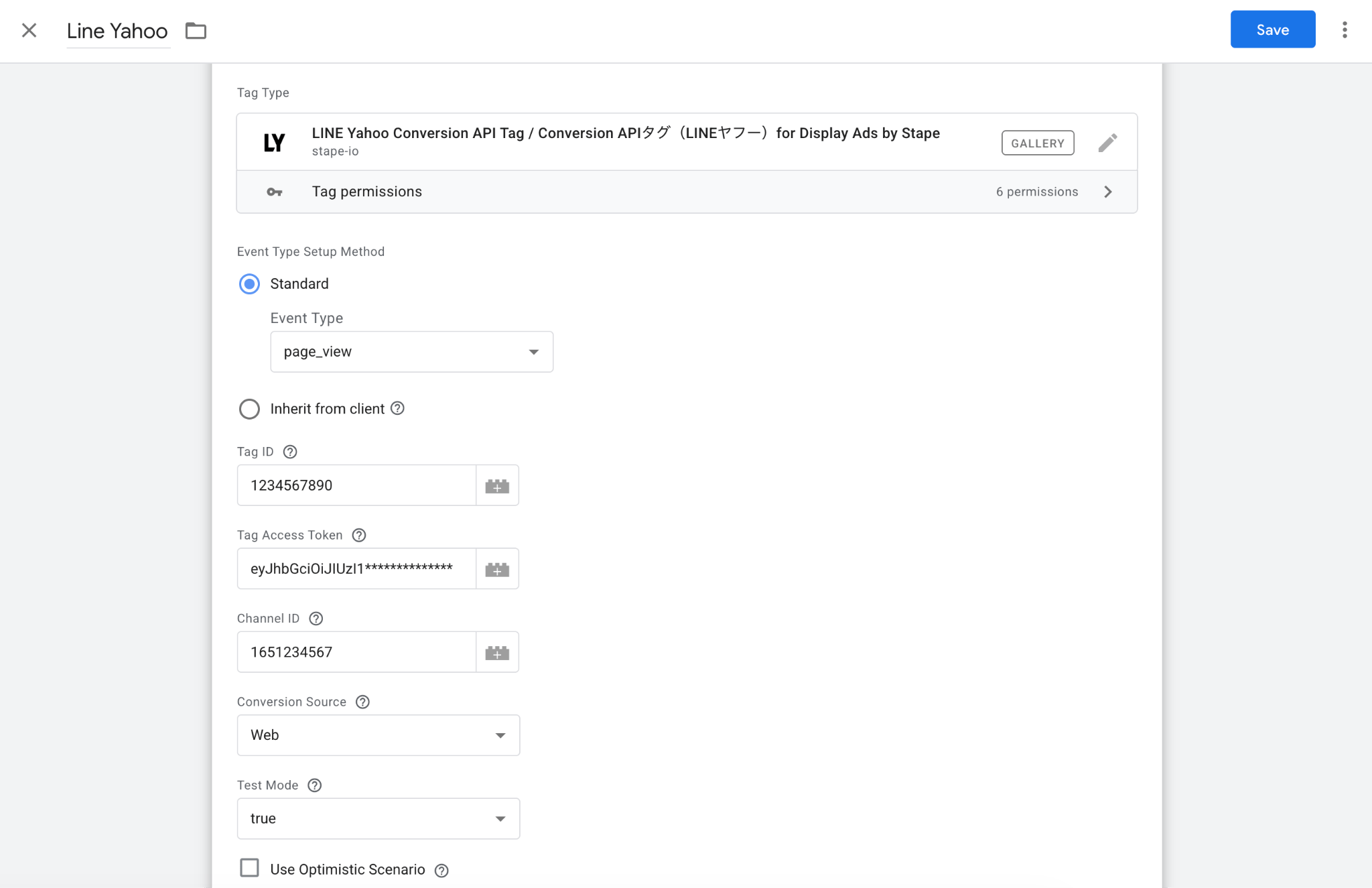
7. In Event Type Setup Method select from the following:
- Standard – allows you to explicitly set a single LINE Yahoo event type for this specific tag (for example, forcing a tag to always send
purchaseoradd_to_cart). Useful when you want to have dedicated tags per event type rather than relying on automatic GA4 event mapping. Also, it’s convenient for debugging and maintaining separate events. - Inherit from client – the tag automatically reads the incoming event name from the client and maps standard ecommerce and web event names to their LINE Yahoo API equivalents automatically (for example
view_item→view_product, orbegin_checkout→check_out). Not all GA4 events can be mapped to Conversion API Event Types. Those are sent as custom events.
8. Enter previously saved Tag ID, Tag Access Token and Channel ID. Channel ID is only required when passing the LINE User ID in User Identifiers Parameters. If you selected Inherit from client, enter the Event Snippet ID as well.
9. In Test Mode set whether this tag is currently used for test purposes. If true, the events will be excluded from measurements.
10. If you check Use Optimistic Scenario, the tag will call gtmOnSuccess() without waiting for a response from the API. This will speed up sGTM response time however your tag will always return the status fired successfully even if it isn’t.
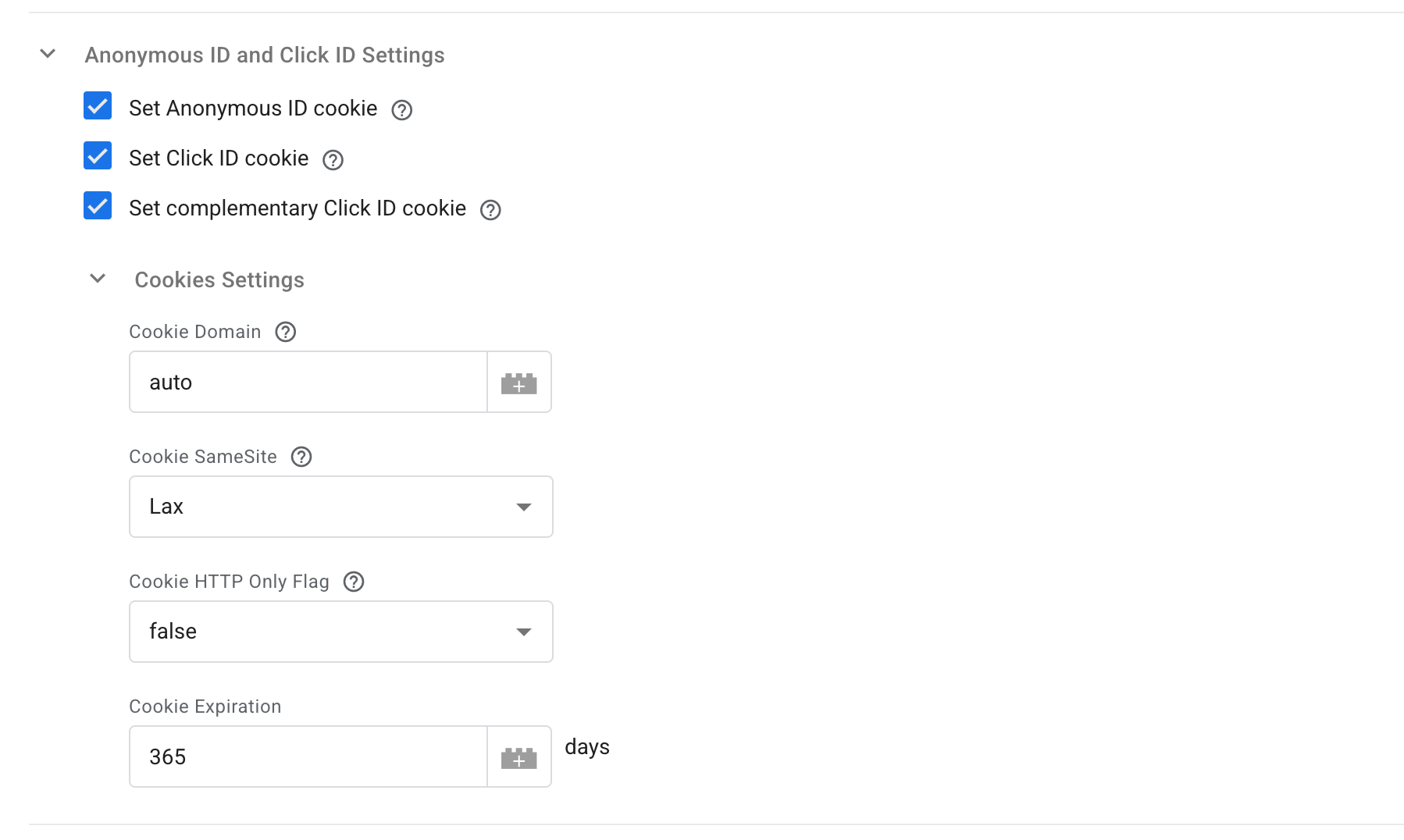
11. In Anonymous ID and Click ID Settings you can set the following parameters:
- Set Anonymous ID cookie – when checked, the tag automatically reads or creates a server-side first-party cookie
_ly_su. This cookie stores an anonymous browser/user identifier (anonymous_id) generated for site visitors when no logged-in user identifier is available. It allows LINE Yahoo to group multiple events from the same unauthenticated browser session over time. - Set Click ID cookie – when checked, the tag detects the LINE Yahoo Display Ads click identifier in incoming URLs or request data and saves it in a server-side first-party cookie
_ly_c. This ensures the click ID persists across page views so conversion events occurring later in the user journey can be properly attributed to the original ad click. - Set complementary Click ID cookie – when enabled, the tag manages a secondary first-party cookie
_ly_rto store complementary/backup click parameter data. This acts as a fallback mechanism for click attribution when primary URL parameters or cookies are stripped, restricted, or shortened by browser privacy protections (such as Safari ITP). - Cookies settings – configures how server-side first-party cookies are written to the user's browser.
- Cookie Domain – if default
autois set then automatically sets the cookie domain to the top-level domain, ensuring cookies are accessible across subdomains. Also, you can override and explicitly specify the domain for cookie storage. - Cookie SameSite – controls cross-site cookie transmission to balance privacy and cross-domain tracking functionality. For more information read Mozilla documentation.
- Cookie HTTP Only Flag – determines whether client-side JavaScript can access the cookies created by the tag. If
false,it allows browser scripts (like the web LINE Tag) to read the cookie values. Iftrue,cookies are restricted to HTTP headers only and can’t be accessed via JavaScript in the browser. - Cookie Expiration – determines the cookie TTL (time-to-live). You can align the cookie life with your organization's privacy policies or browser cookie storage regulations.
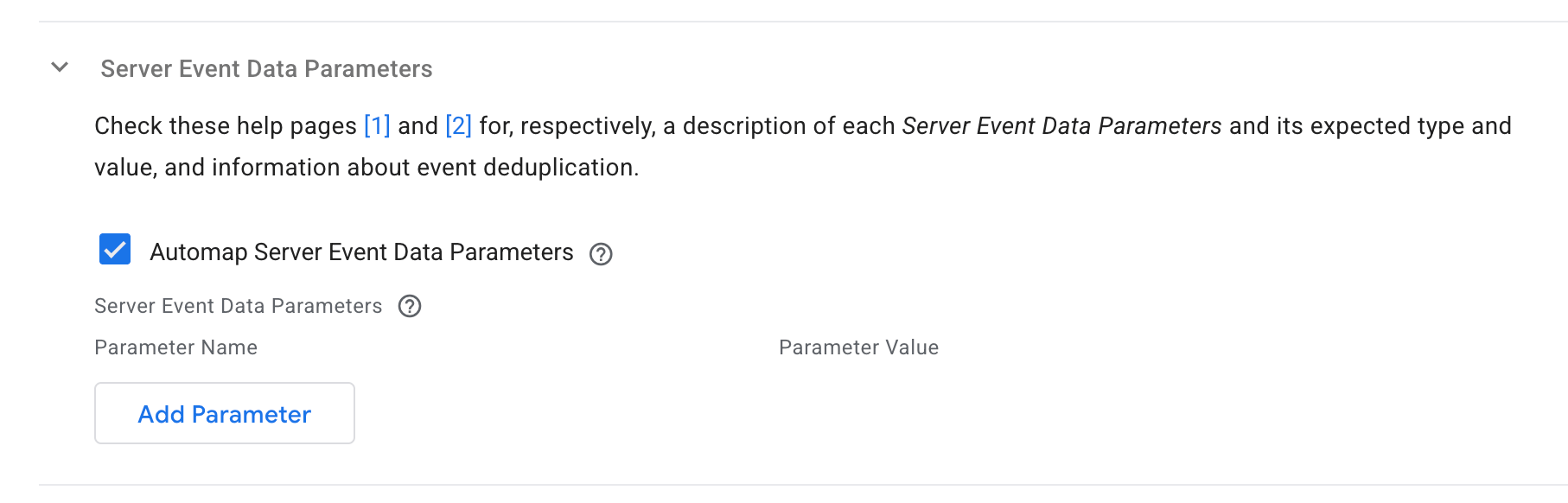
12. In Server Event Data Parameters you can define core metadata and attributes attached to the conversion event payload:
- Automap Server Event Data Parameters – when checked, the tag automatically extracts standard event metadata from the incoming event object such as
event_timeandtransaction_id / event_id. Thetransaction_id / event_idvalues are extracted fromtransaction_id,event_id, oreventIdin the event data, and are used for deduplicating events. - Server Event Data Parameters – here you can manually override
event_timeandtransaction_id / event_idwith a variable. The field must match the following regular expression:^[!"#$%&'()*+,\-./0-9:;=\?@A-Z_a-z~]+$. This is used for deduplicating events.
13. In User Identifiers Parameters you can control how user identity data is collected, formatted, and attached to conversion events sent to LINE Yahoo. At least one user identifier is required (either auto-mapped or manually provided). The email address and phone number are hashed, and the phone number is converted to the E.164 standard.
- Automap User Identifiers Parameters – when checked, the tag automatically extracts and maps user details from the incoming event object. For a full parameters list read the reference documentation.
- User Identifiers Parameters – here you can manually override the following user identifiers: Email Address, Phone Number, Anonymous ID, Click ID, Complementary Click ID, Mobile ID (iOS IDFA or Android AAID), LINE User ID. When passing LINE User ID, make sure to also provide the Channel ID.
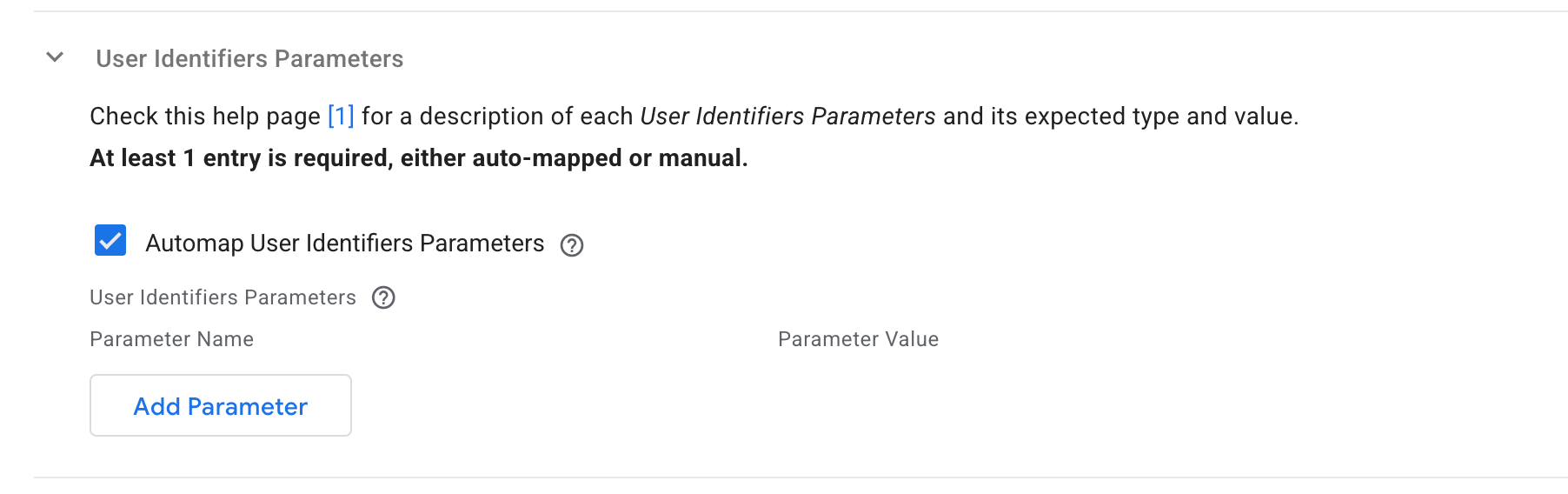
14. In Web Parameters you can configure browser level data (Page URL, Page Referrer, User Agent, and IP Address). This contextual data helps LINE Yahoo verify event sources and attribute conversions to the correct pages and ad click journeys. For a full parameters list read the reference documentation.
- Automap Web Parameters – when checked, the tag automatically extracts and web context details from the incoming event object.
- Web Parameters – here you can manually override Page URL, Page Referrer, User Agent, and IP Address with a variable
.
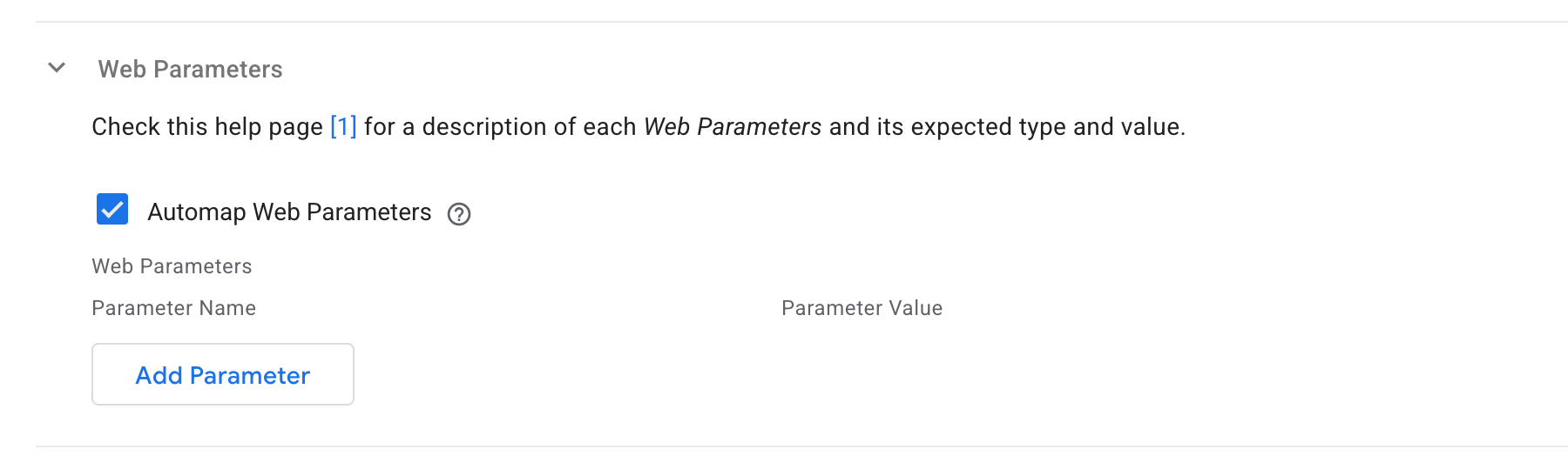
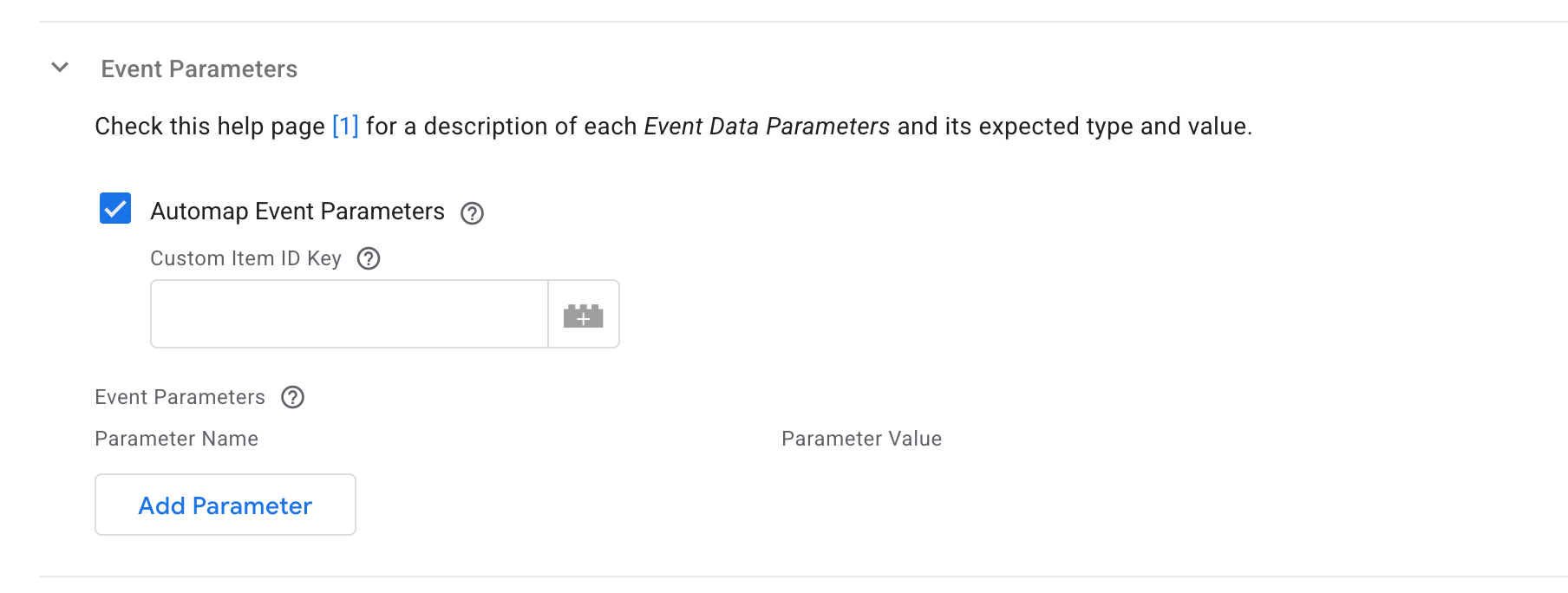
15. In Event Parameters you can configure business and ecommerce parameters associated with the user action/conversion event. For a full parameters list read the reference documentation.
- Automap Event Parameters – when checked, the tag automatically extracts and maps
Amount, CurrencyandItemsfrom the incoming event object. For currency, only theJPYvalue is supported.Itemsexpects an array of objects with a maximum length of 10. Each object can have:item_id, category_id, price and quantity.- Custom Item ID Key – specify which property inside your Data Layer items array should be used as the product identifier. When event parameters are automatically mapped, the tag looks for the standard key
item_idinside each product object in the items array. If your Data Layer uses a different property name for your product IDs (such asid,sku,product_id, oritem_sku), entering that key name tells the tag to extract the product ID from that property instead.
- Event Parameters – here you can override
Amount, CurrencyandItemswith a variable.
16. In Tag Execution Consent Settings you can control whether a tag fires and sends HTTP request data based on the user's consent status:
- Send data always – the tag fires and sends data to the API on every trigger, regardless of whether consent was granted or denied.
- Send data in case marketing consent given – the tag safely aborts firing if
ad_storageconsent (Google Consent Mode or Stape's Data Tag parameter) isn’t granted.

17. Select a trigger such as Page View.
Tip:
If you want a single tag to handle multiple events automatically when using Automap Event Parameters, you can use a Regex match on Event Name for custom trigger (for example, page_view|purchase|add_to_cart).
18. Click Save.
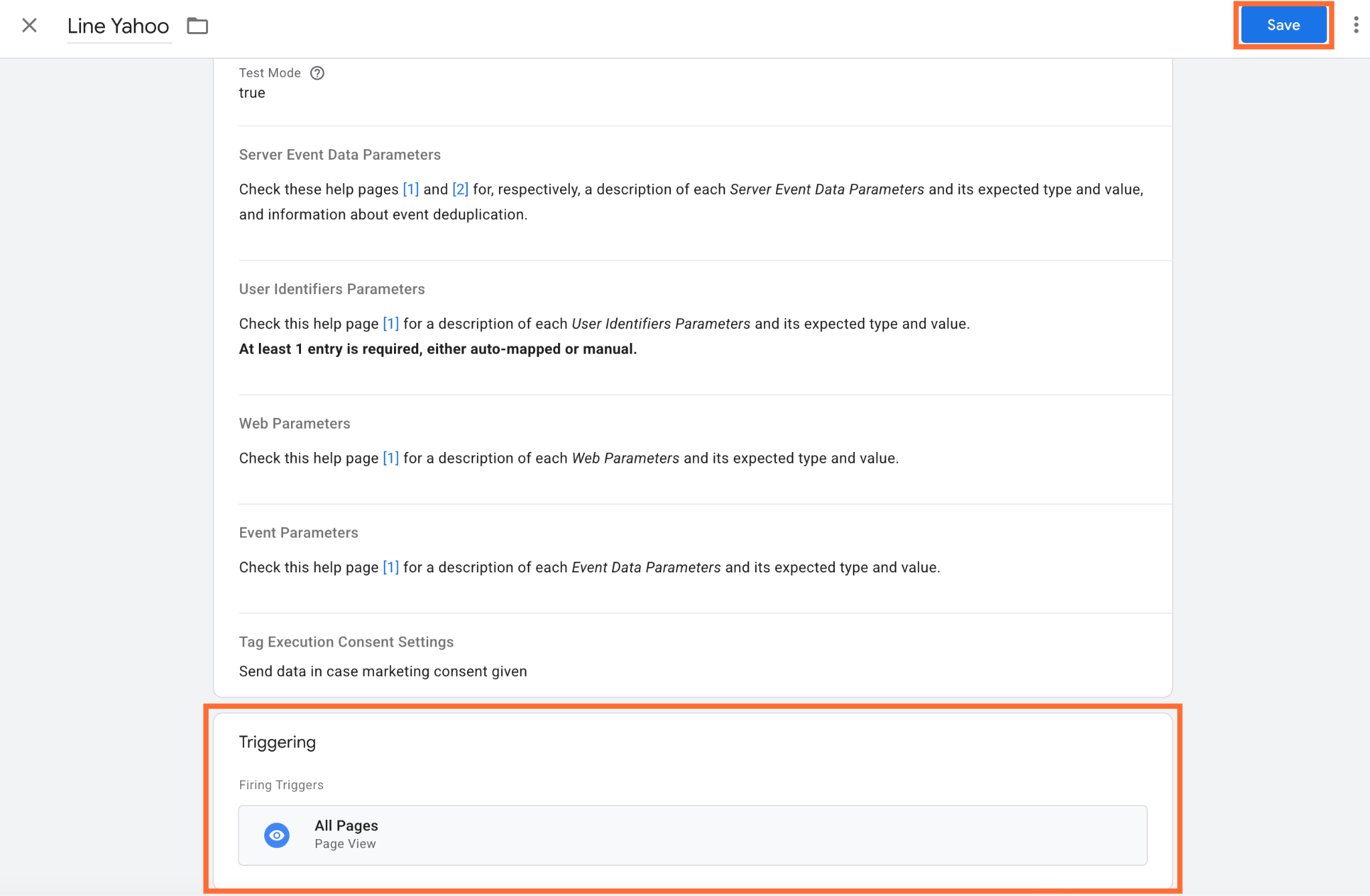
Testing
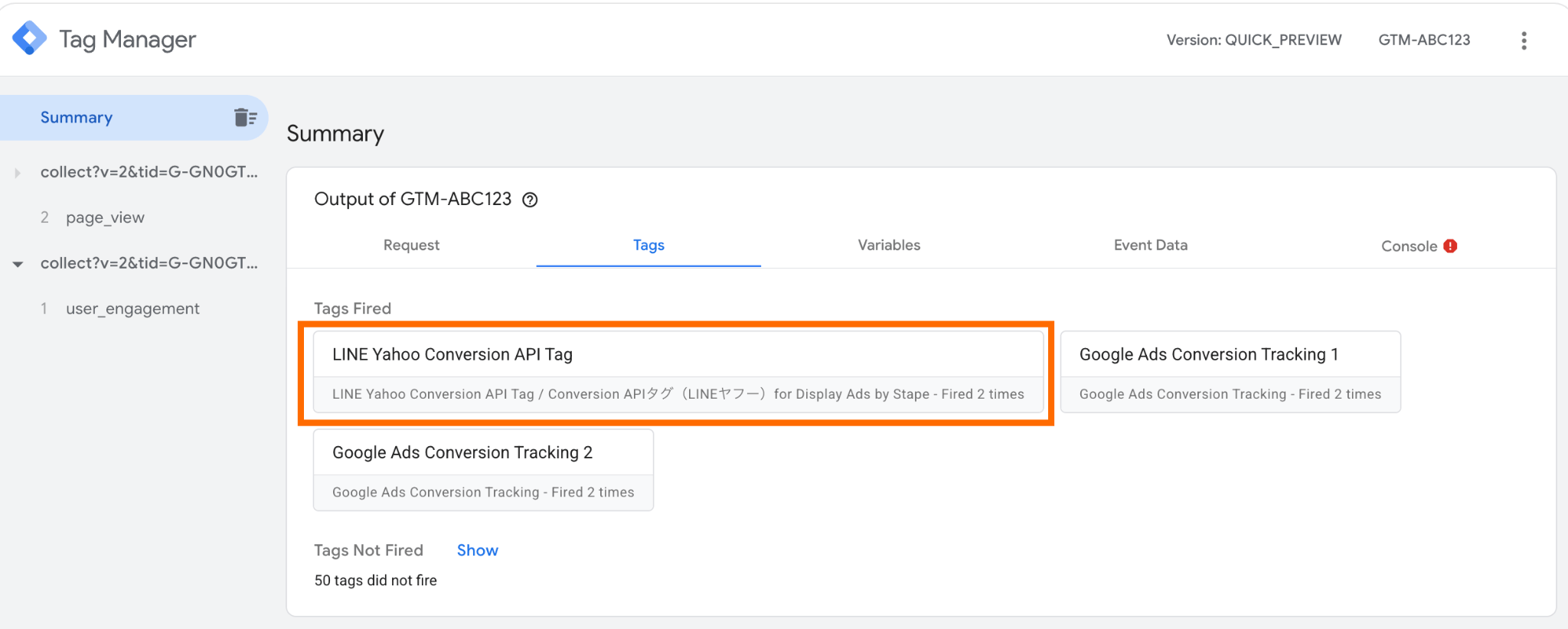
1. In GTM, open the Preview mode and do some actions on your site to trigger the events. Confirm that the tag is firing.
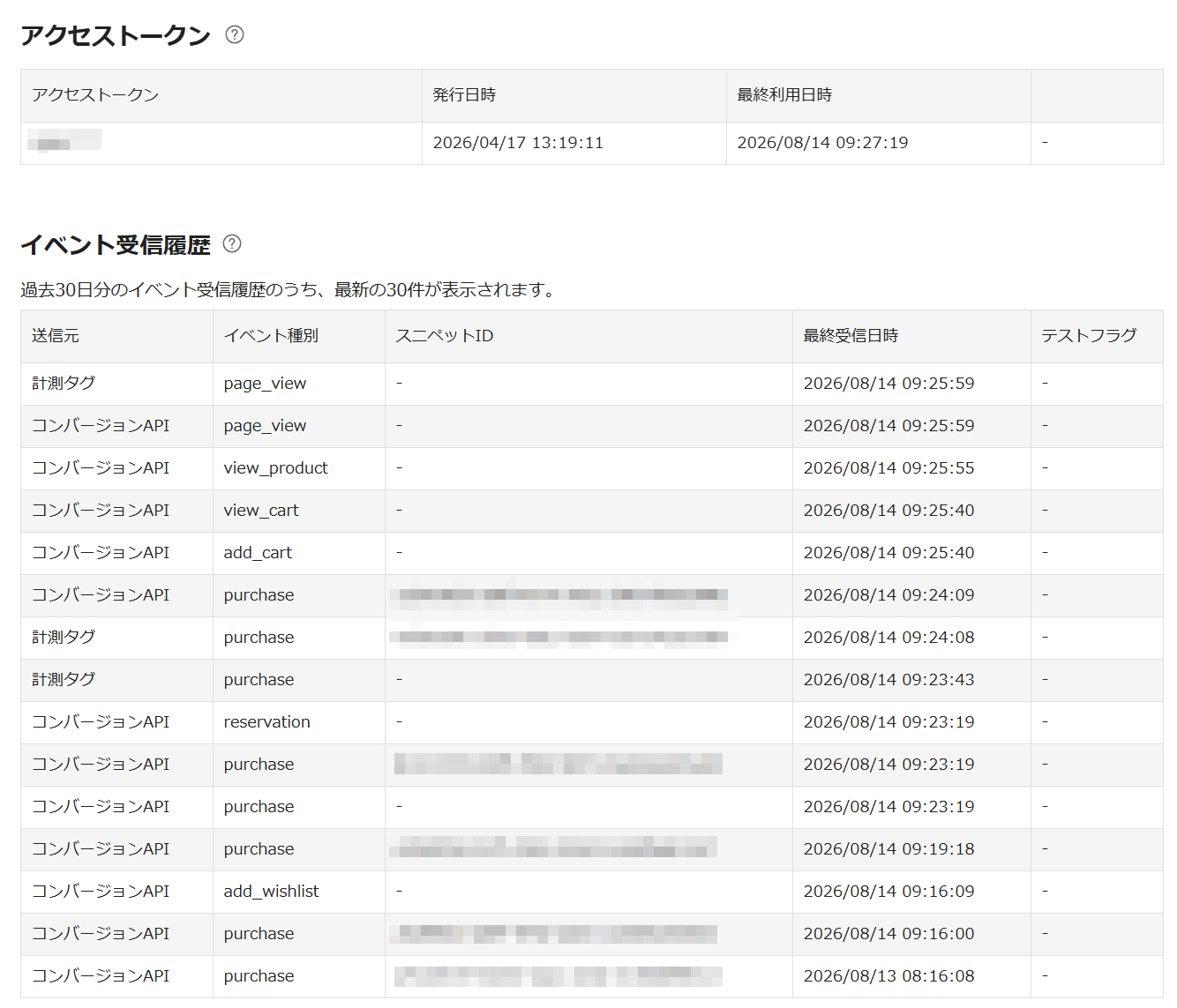
2. In the Campaign Management Tool, go to Tools(ツール) → Measurement Tags(計測タグ) and confirm that events are flowing.
Was this article helpful?
🍽 Table of content:
Comments