Yotpo tag
Yotpo tag by Stape is a custom Google Tag Manager (GTM) server-side template designed to send tracking data directly from a server container to Yotpo Core API or Yotpo Loyalty & Referrals API.
With the Yotpo tag you can:
- Use two Yotpo APIs – each tag can be configured for both Core API and Loyalty & Referrals API.
- Automatically manage tokens – the token is regenerated if it has expired, without an extra tag or variable.
- Automatically check data for fraud – the tag auto-maps IP address and User Agent from the incoming event data for the Loyalty API endpoints that use them, unless you map them manually.
- Control consent – the tag supports a built-in
ad_storageconsent check to respect user consent before firing.
Before you begin
To complete this setup, you will need to create a sGTM container and send data from the web to the sGTM container. You will also need an active Yotpo account and obtain:
- App key and API secret for Core API.
- API key and GUID for Loyalty & Referrals API.
How to set up Yotpo tag
- 1.
- 2.Go to Google Tag Manager and open your server container.
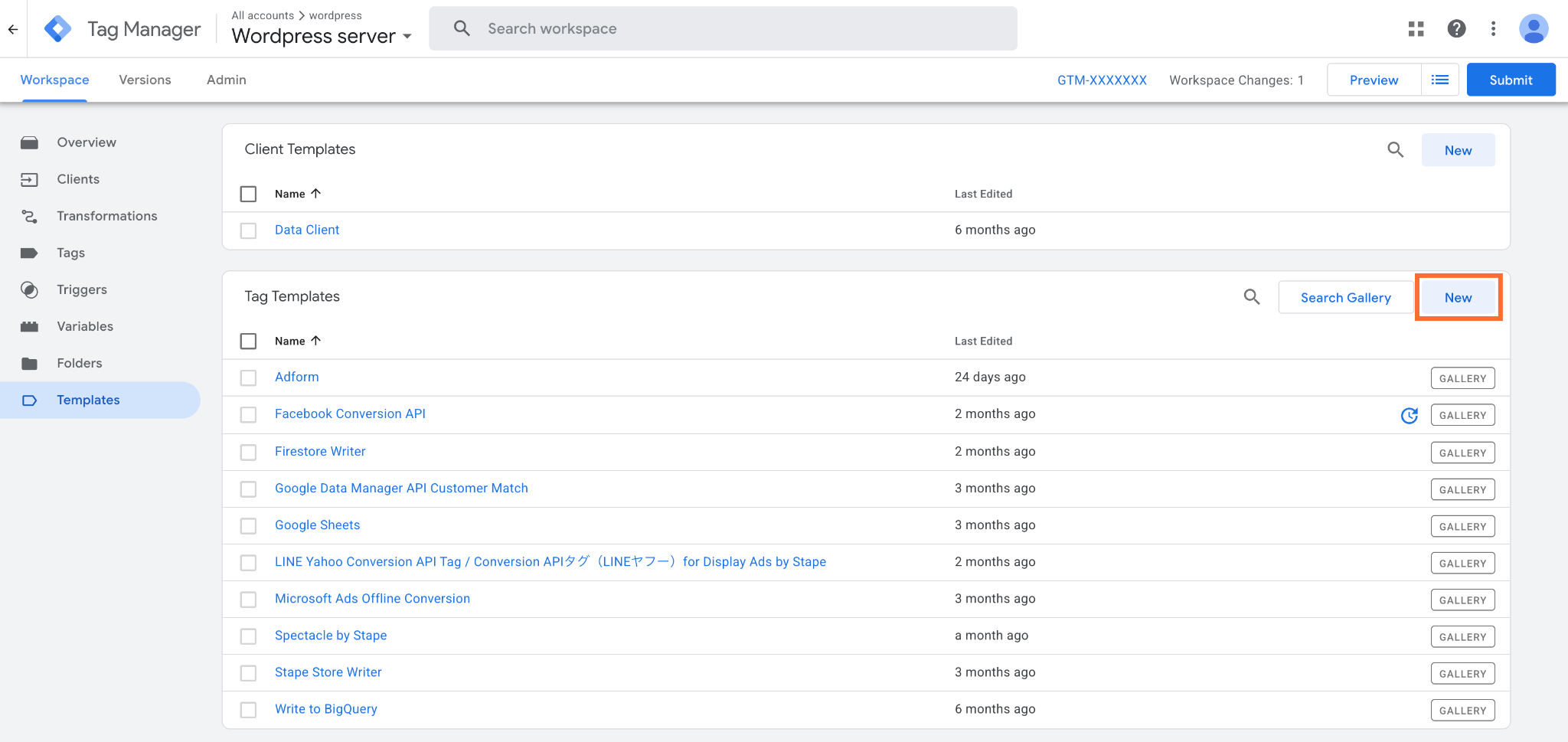
- 3.Go to Templates, and under Tag Templates, click New.
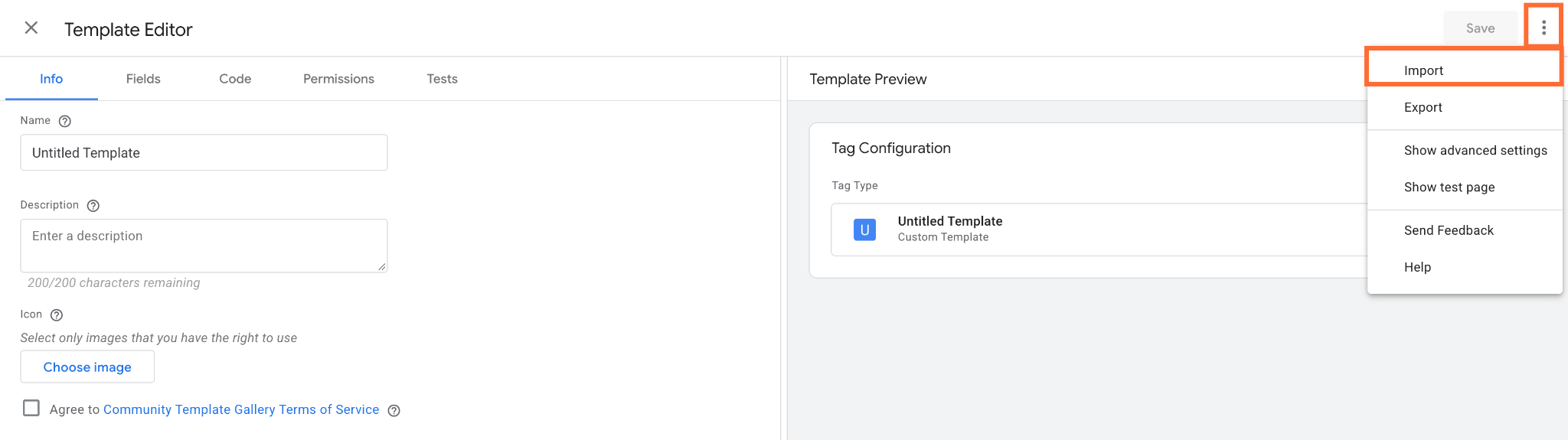
4. At the top-right, click three dots → Import.
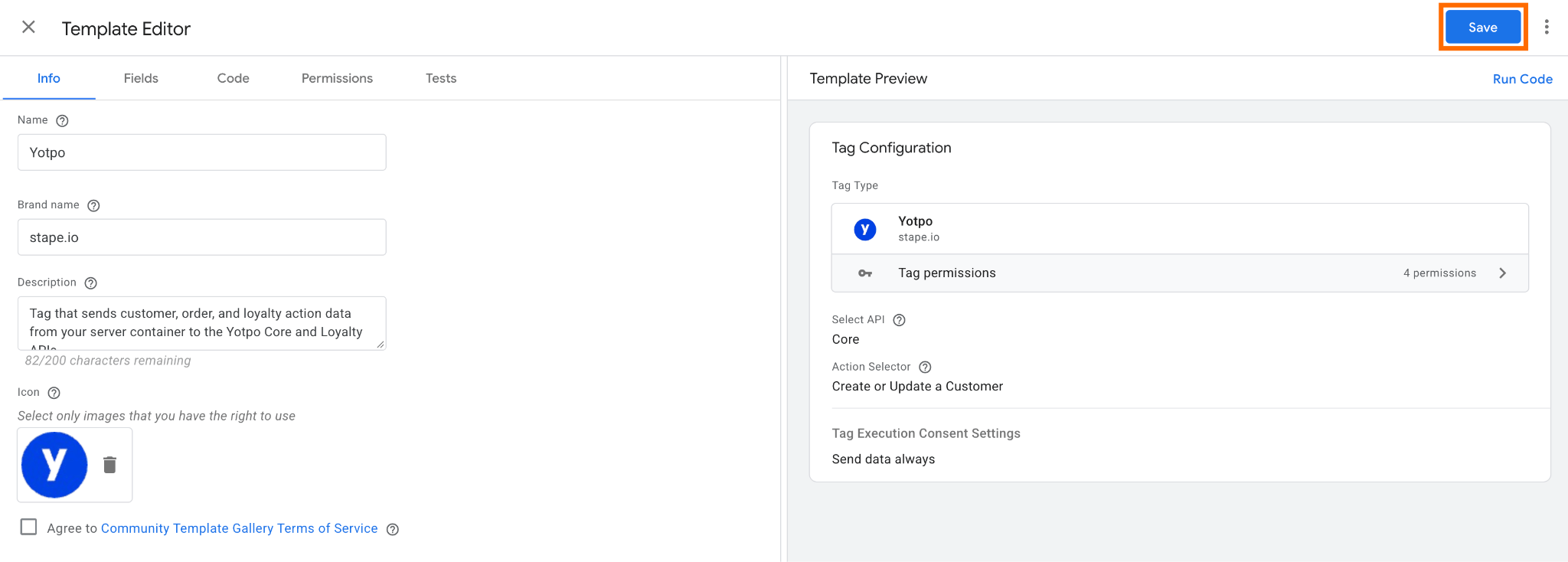
5. From the unzipped folder, select the template.tpl file.
6. Click Save.
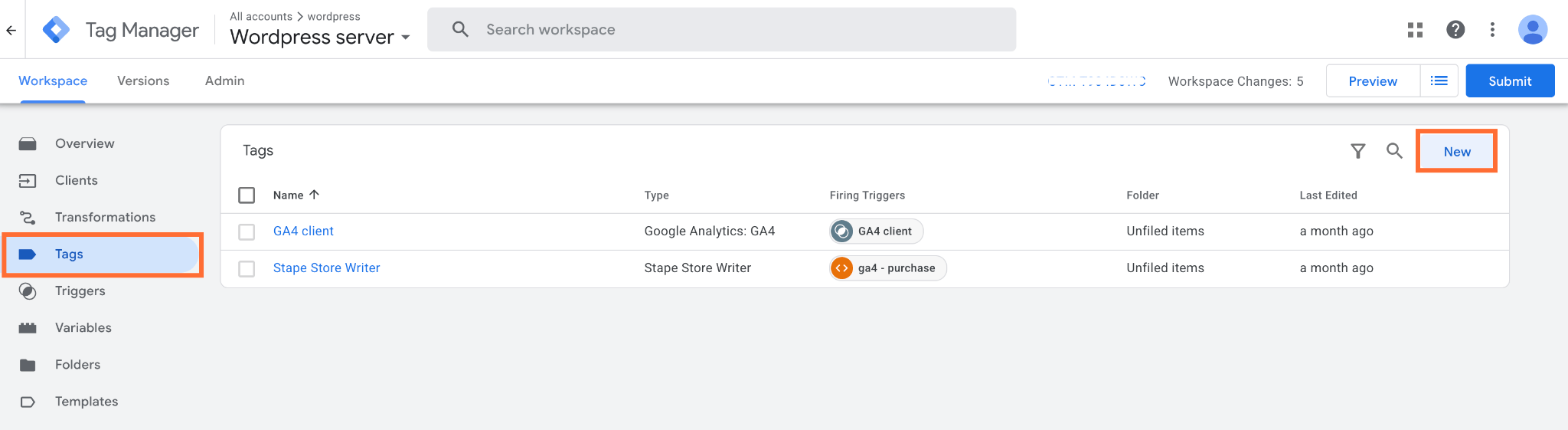
7. Go to Tags and click New.
8. Click Tag Configuration and select the Yotpo tag.
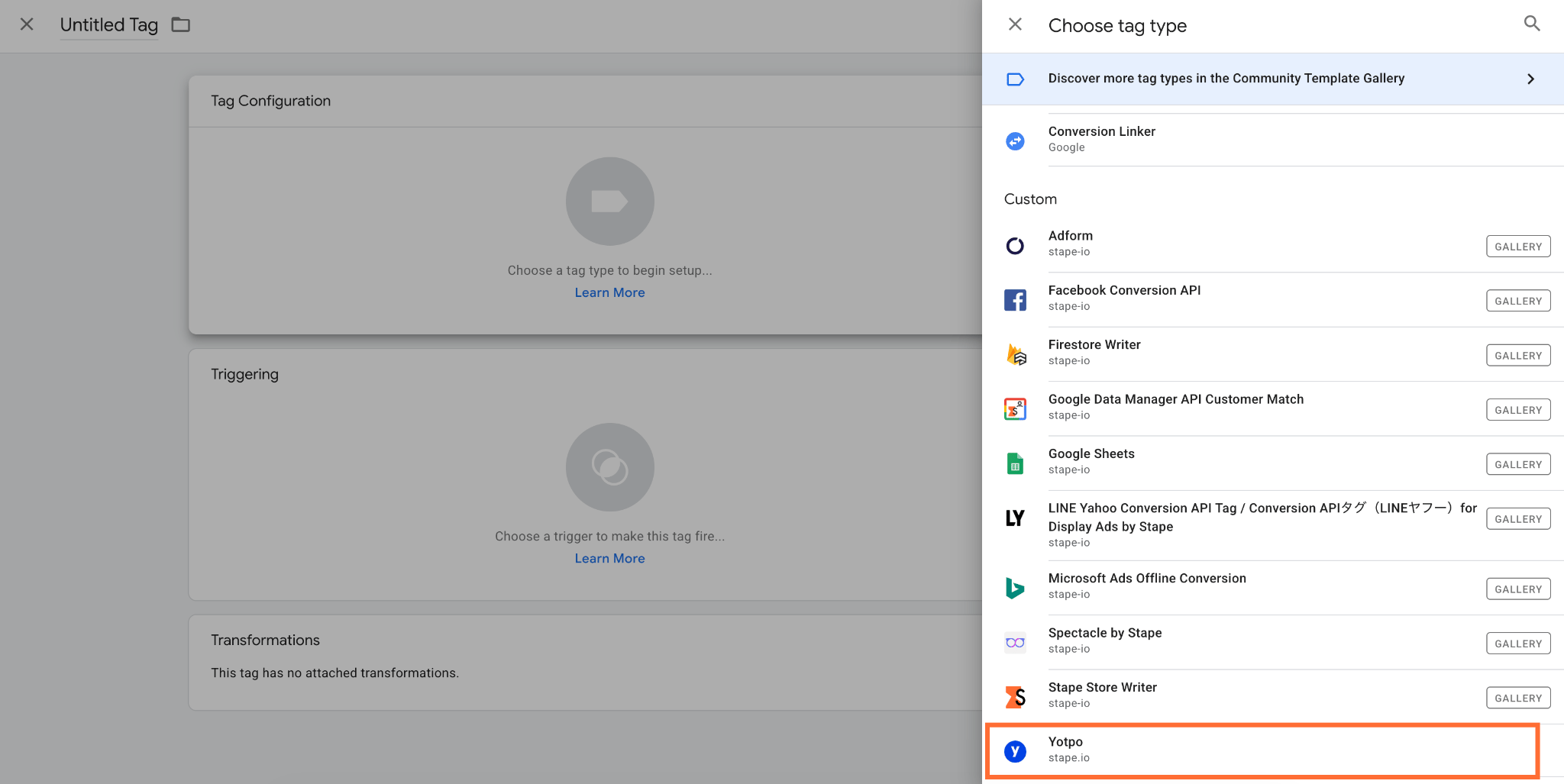
9. Select API:
- Core API – send orders, fulfillments, and customer identities into Yotpo Reviews, UGC, and SMSBump.
- Loyalty – award reward points, log referral actions, or manage loyalty VIP tiers.
10. In Tag Execution Consent Settings you can control whether a tag fires and sends HTTP request data based on the user's consent status:
- Send data always – the tag fires and sends data to the API on every trigger, regardless of whether consent was granted or denied.
- Send data in case marketing consent given – the tag safely aborts firing if
ad_storageconsent (Google Consent Mode or Stape's Data Tag parameter) isn’t granted.

11. In Advanced Settings you can add additional metadata. For more information see the Google documentation.
12. Select a trigger that fits the data you send. For example, for Create or Update a Customer you can set up the purchase trigger.
13. Click Save.
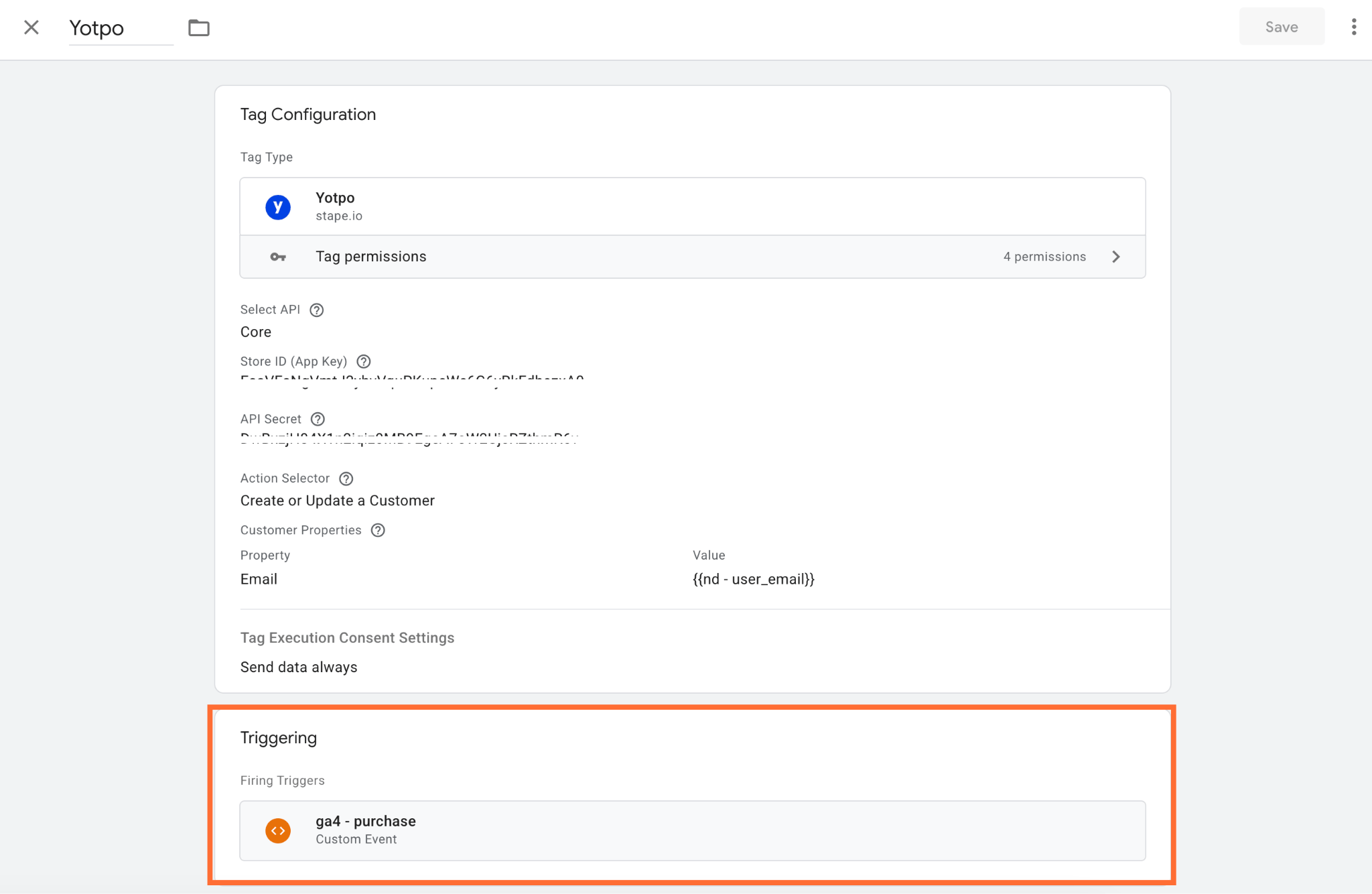
Testing
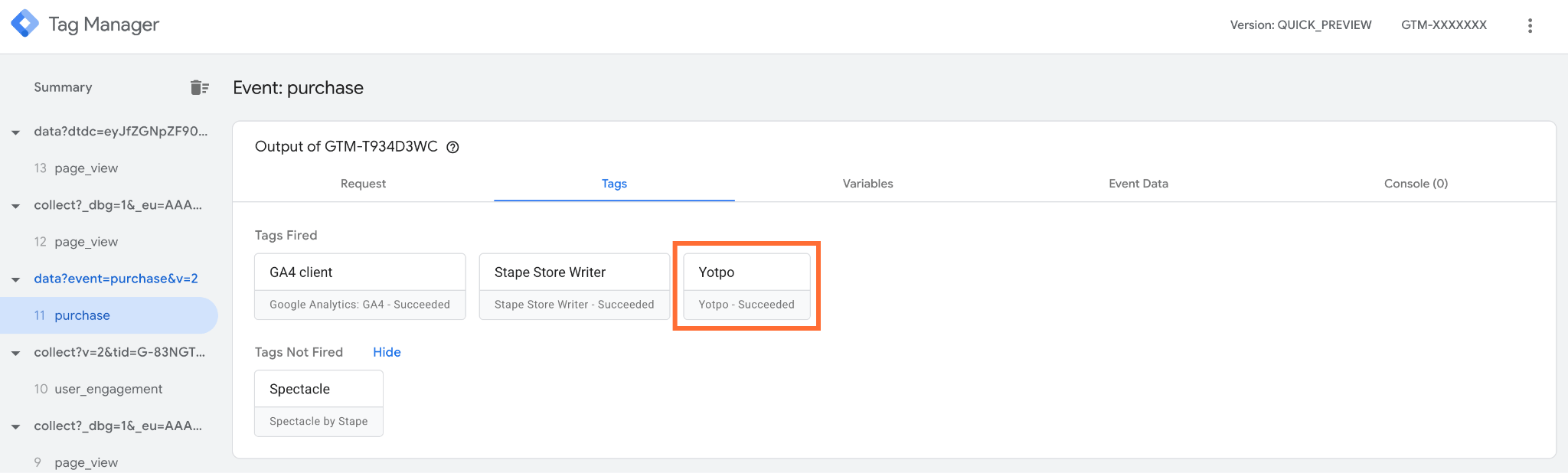
1. In GTM, open the Preview mode and do some actions on your site to trigger the events. Confirm that the tag is firing.
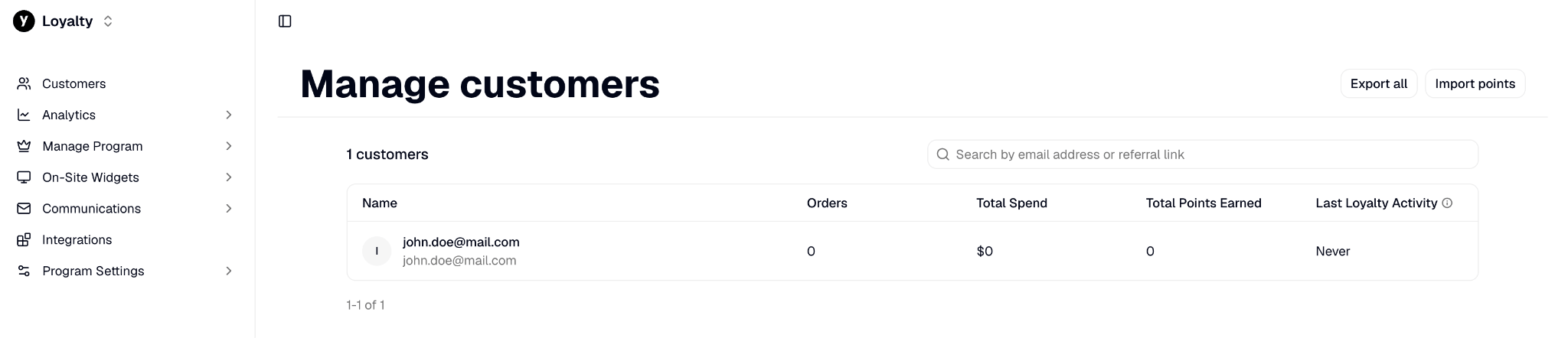
2. In the Yotpo account select which data you want to see. For example, to see your new customer, go to Customers. Confirm that new data appears
Was this article helpful?
🍽 Table of content:
Comments