Tapfiliate tag
Updated Oct 22, 2026
Tapfiliate tag by Stape is a custom Google Tag Manager (GTM) server-side template designed to send tracking data directly from a server container to Tapfiliate's REST API.
With the Tapfiliate tag you can:
- Send clicks, conversions, and customer records – the tag supports three event types – Page View, Conversion Track and Customer Create. Create up to three tags from the same template, each with its own trigger.
- Track clicks with a cookie – Page View reads the referral code from the
refURL parameter or existingtapfiliate_cidcookie. If missing, it saves the click ID totapfiliate_cidfor Conversion Track and Customer Create later usage. - Automap – each event type can automatically map its own set of fields from the incoming Event Data. Any value entered manually always overrides the corresponding auto-mapped value.
- Control consent – the tag supports built-in
ad_storageconsent check to respect user consent before firing.
Before you begin
To complete this setup, you will need to create a sGTM container and send data from the web to the sGTM container. You will also need an active Tapfiliate account and obtain API key.
How to set up Tapfiliate tag
- 1.
- 2.Go to Google Tag Manager and open your server container.
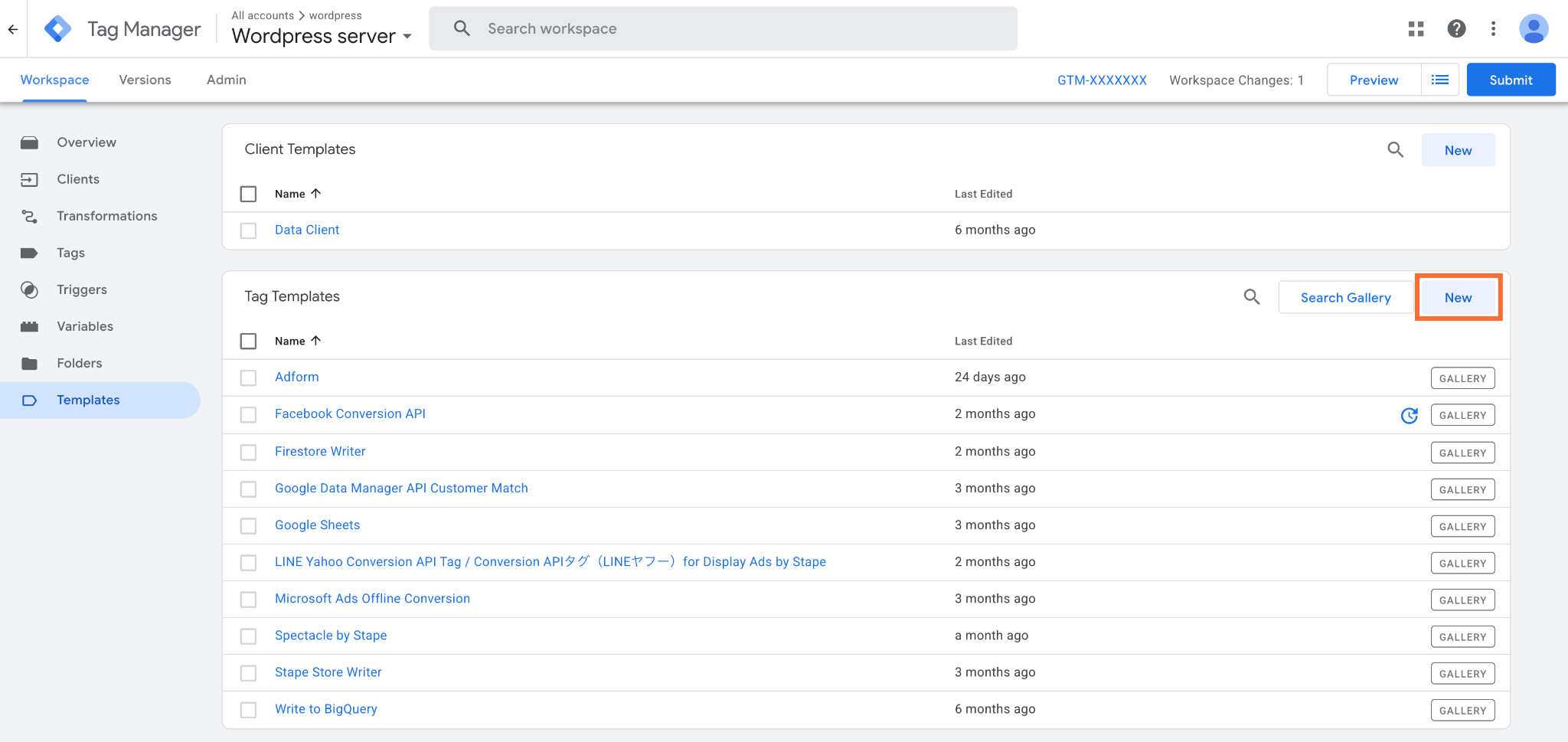
- 3.Go to Templates, and under Tag Templates, click New.
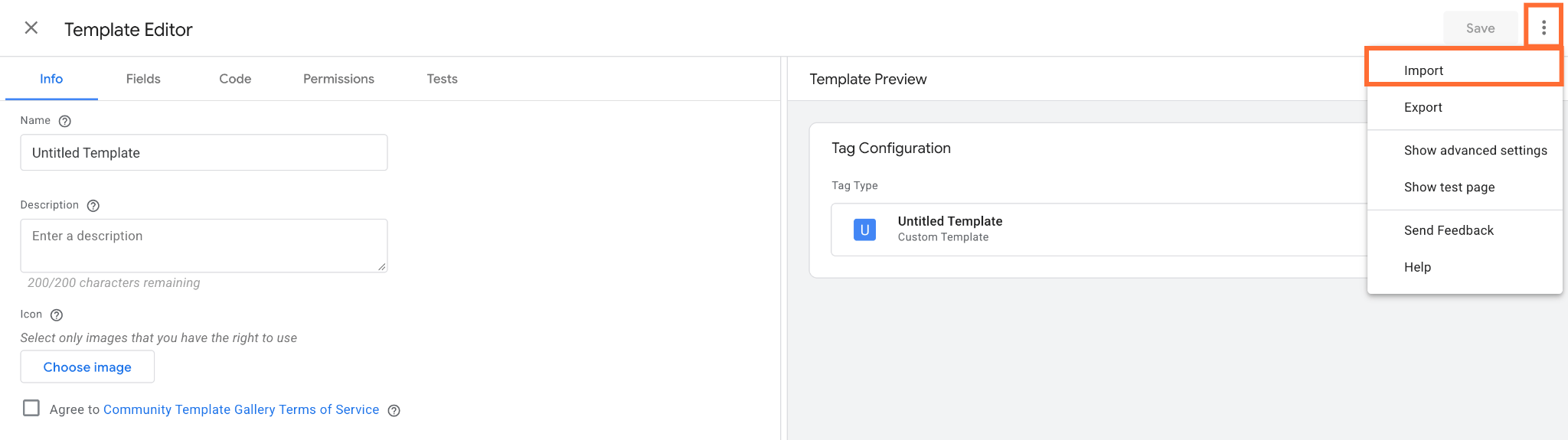
4. At the top-right, click three dots → Import.
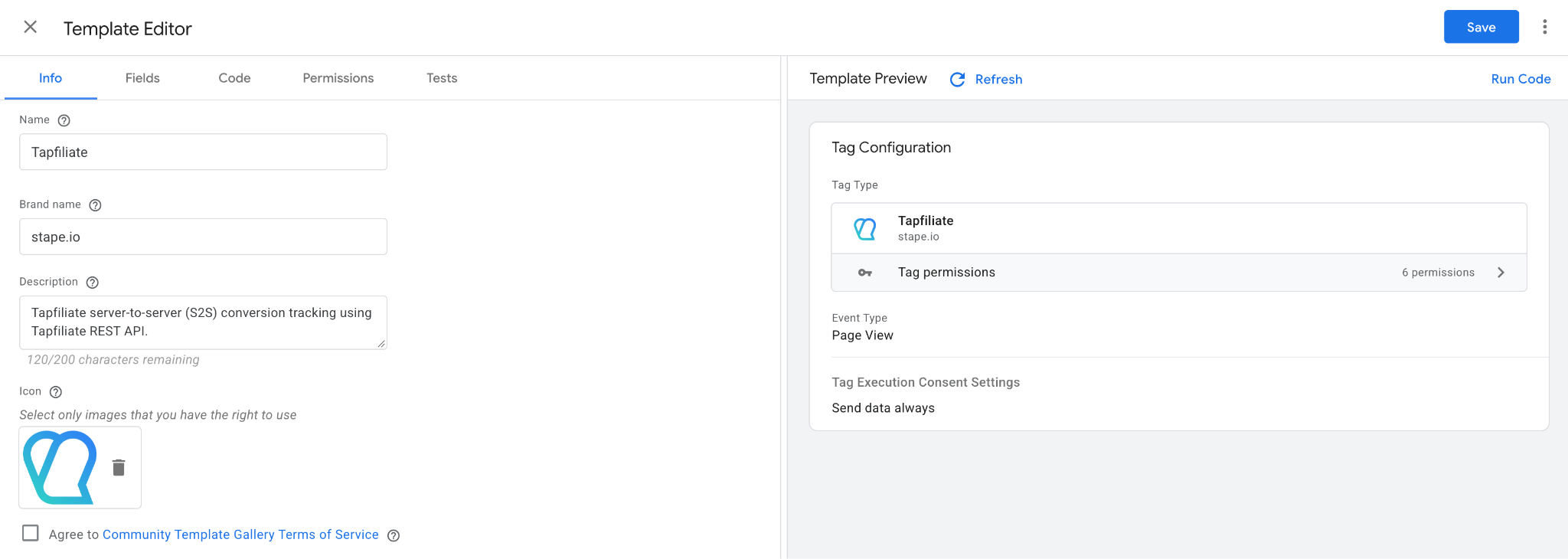
5. From the unzipped folder, select the template.tpl file.
6. Click Save.
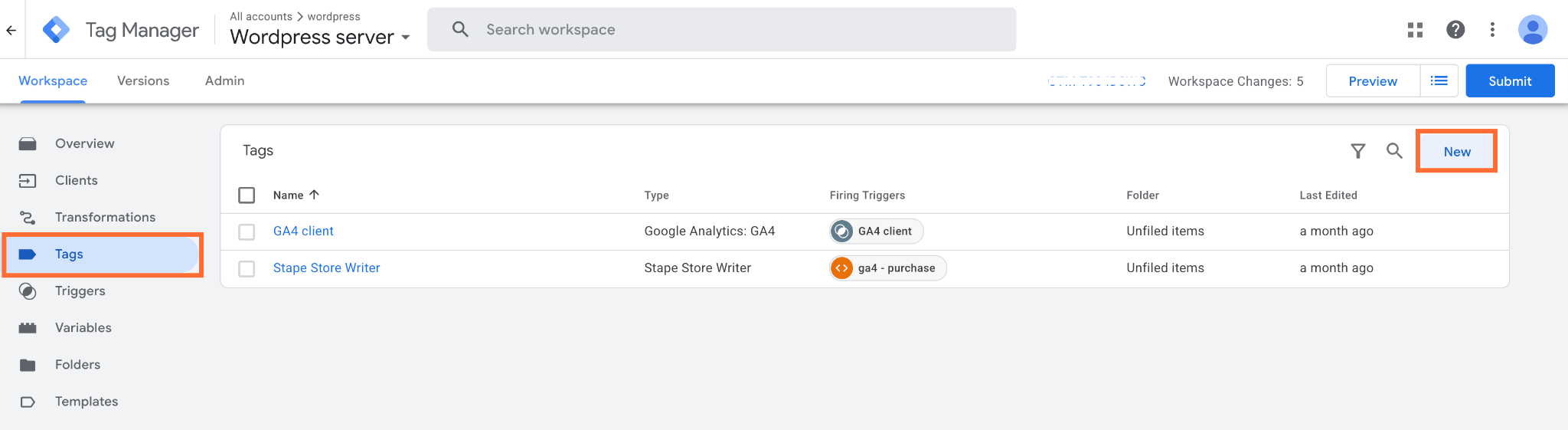
7. Go to Tags and click New.
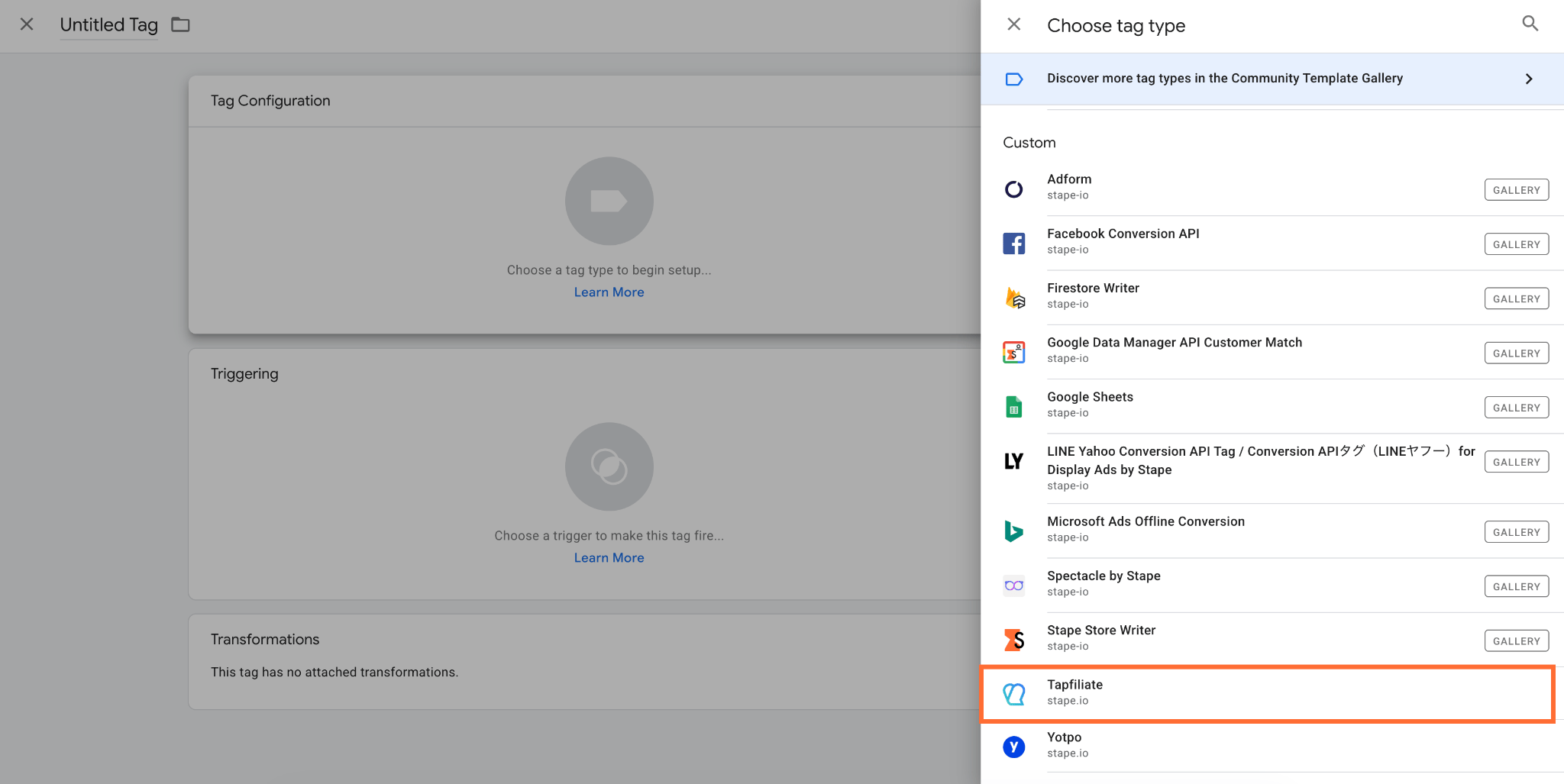
8. Click Tag Configuration and select the Tapfiliate tag.
9. Select Event Type:
- Page View – creates the record of a visit that came from an affiliate's referral link. It reads the referral code from the
refURL parameter, then it calls the/clicks/endpoint of the Tapfiliate REST API. The returned Click ID is stored in the first-party cookietapfiliate_cid. Conversion Track and Customer Create later reuse the cookie to link their data to the click. - Conversion Track – records a sale, lead, or other conversion that an affiliate's click led to, and sends it to Tapfiliate's
/conversions/endpoint. - Customer Create – creates a customer in your Tapfiliate account by calling the
/customers/endpoint.
Important
Ensure Page View runs prior to Conversion Track or Customer Create during a visit so that the tapfiliate_cid click ID cookie is present. Each of the three event types should be set up as individual tags with dedicated triggers.
10. In Tag Execution Consent Settings you can control whether a tag fires and sends HTTP request data based on the user's consent status:
- Send data always – the tag fires and sends data to the API on every trigger, regardless of whether consent was granted or denied.
- Send data in case marketing consent given – the tag safely aborts firing if
ad_storageconsent (Google Consent Mode or Stape's Data Tag parameter) isn’t granted.

11. In Advanced Settings you can add additional metadata. For more information see the Google documentation.
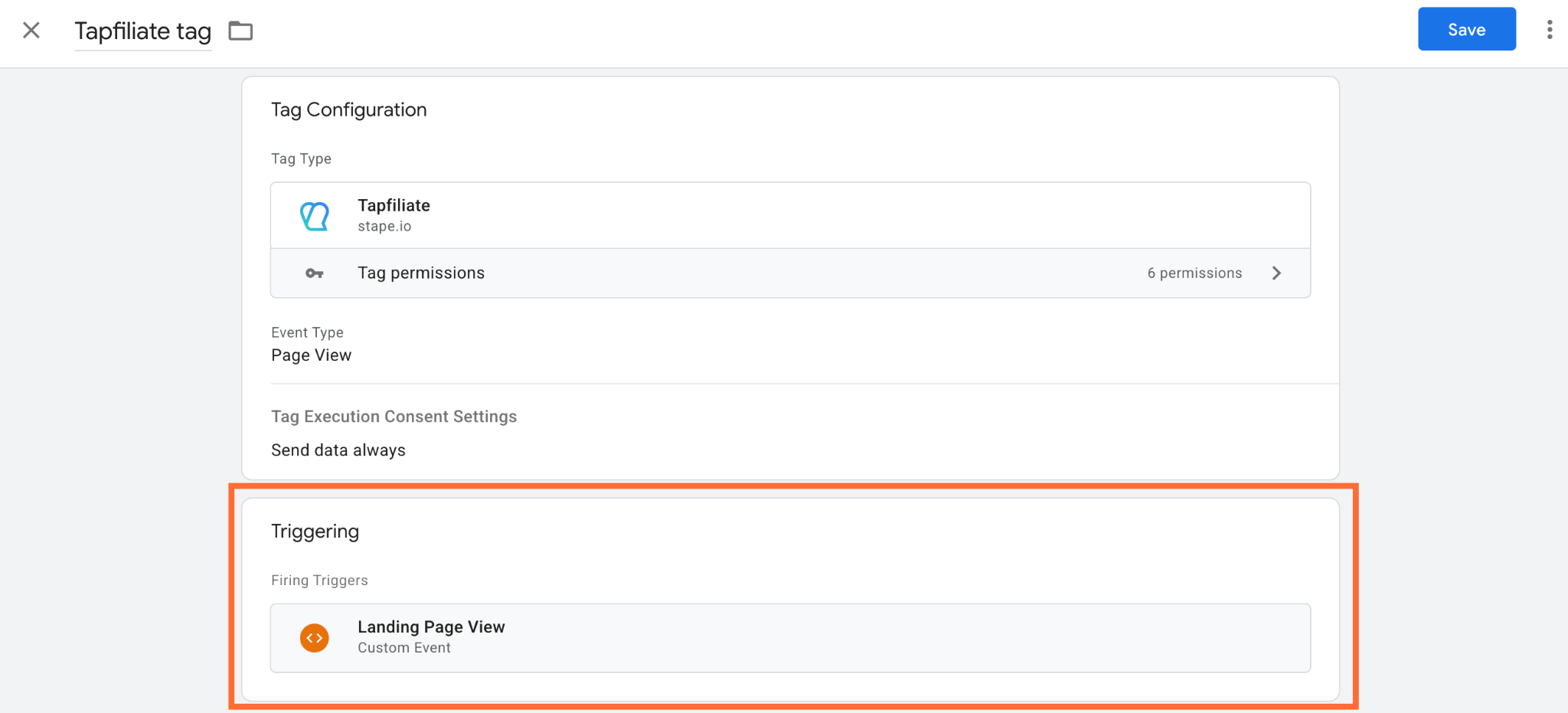
12. Select a trigger. For Page View, you should select a trigger that fires on a landing page view. For Conversion Track, use a trigger for your purchase or lead event, for example a Custom Event trigger on purchase. For Customer Create use a trigger for your sign-up or lead event.
13. Click Save.
Testing
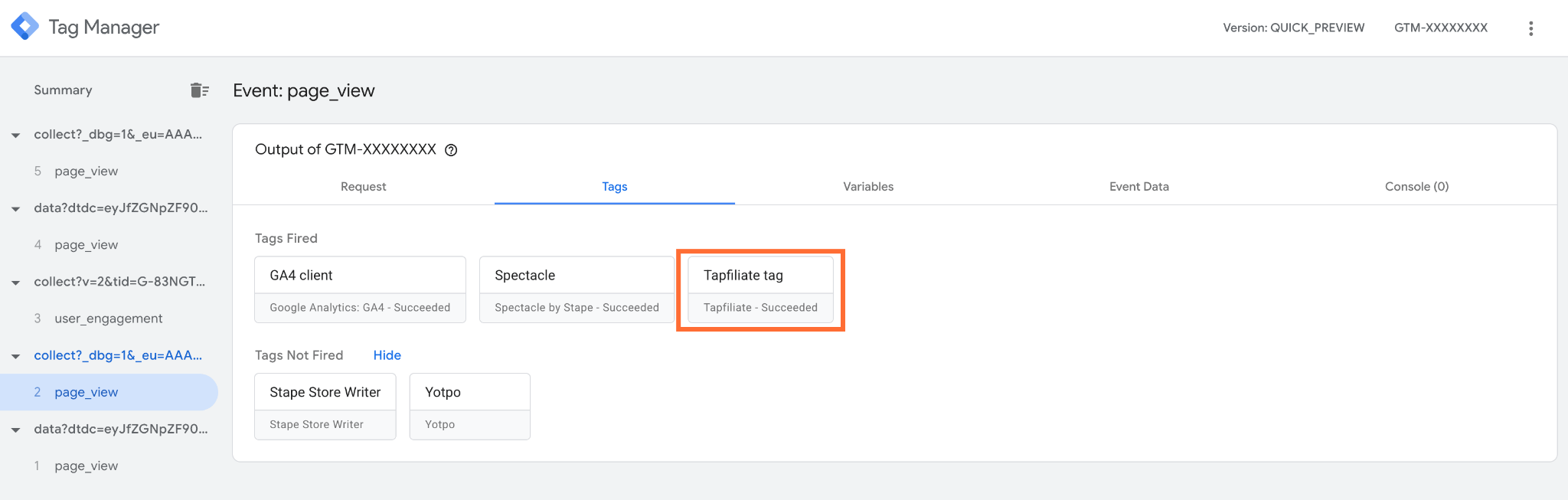
1. In GTM, open the Preview mode and do some actions on your site to trigger the events. Confirm that the tag is firing.
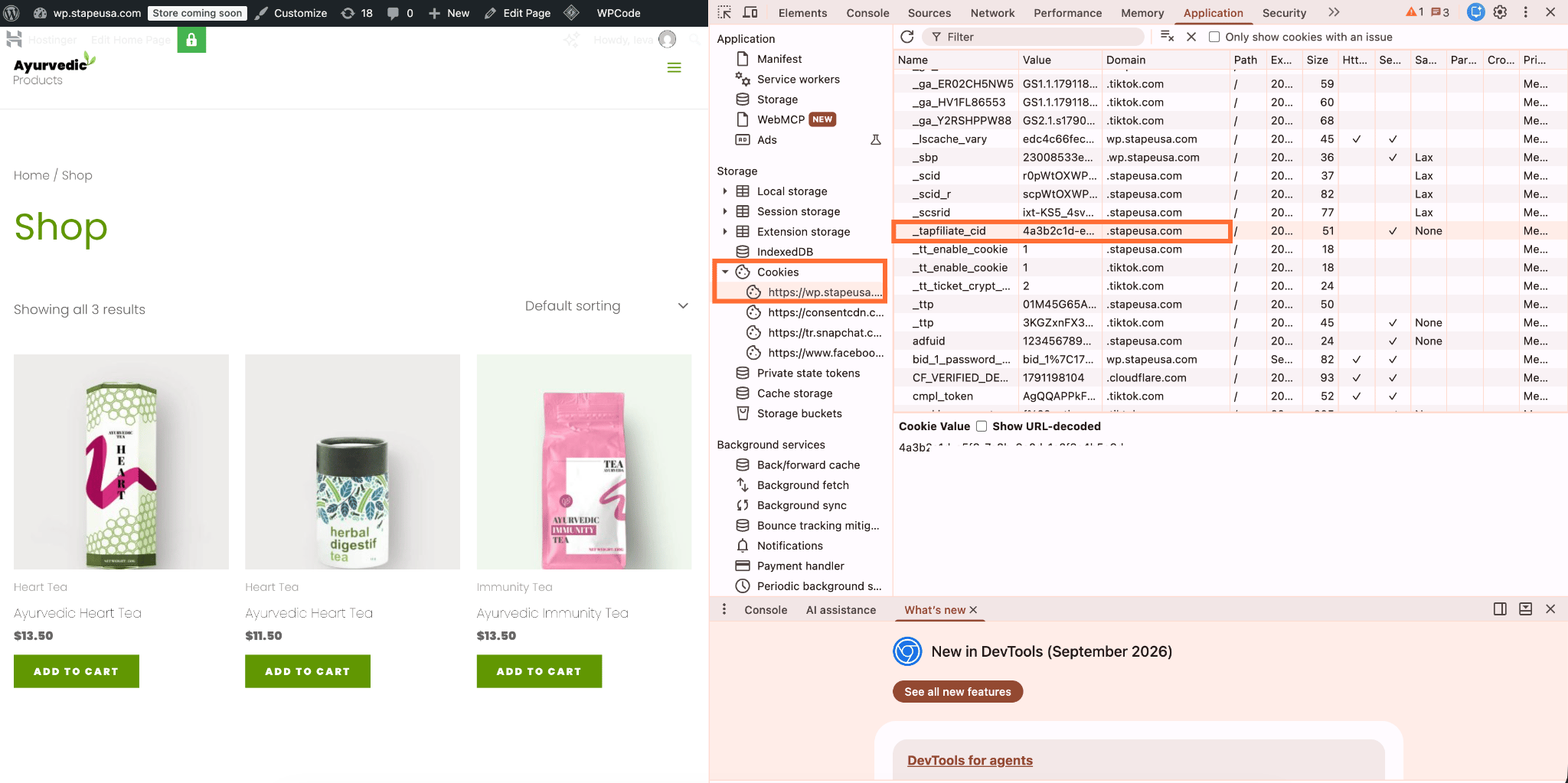
2. Go to your site → Developer Tools → Application → Cookies → your site, and check if the tapfiliate_cid is set.
Was this article helpful?
🍽 Table of content:
Comments