Spectacle tag
Updated Sep 28, 2026
Spectacle tag by Stape is a custom Google Tag Manager (GTM) server-side template designed to send tracking data directly from a server container to the Spectacle API.
With the Spectacle tag you can:
- Use core Spectacle tracking methods – the tag supports the tracking methods such as page(), identify(), track() and group().
- Manage cookies and identity – automatically manage cookies
sp__anon_id(Spectacle Anonymous ID) andsp__user_id - Extract context – automatically pull context from event data and incoming HTTP request headers: User-Agent, Page URL, Referrer URL, Campaign UTMs, Timezone and Locale.
- Control consent – the tag supports built-in
ad_storageconsent check to respect user consent before firing.
Before you begin
To complete this setup, you will need to create a sGTM container and send data from the web to the sGTM container. You will also need an active Spectacle account and obtain Spectacle Workspace ID. You can find your Workspace ID on your Workspace's settings page, it should start with ws_
How to set up Spectacle tag
1. Go to the Google Tag Manager and open your server container.
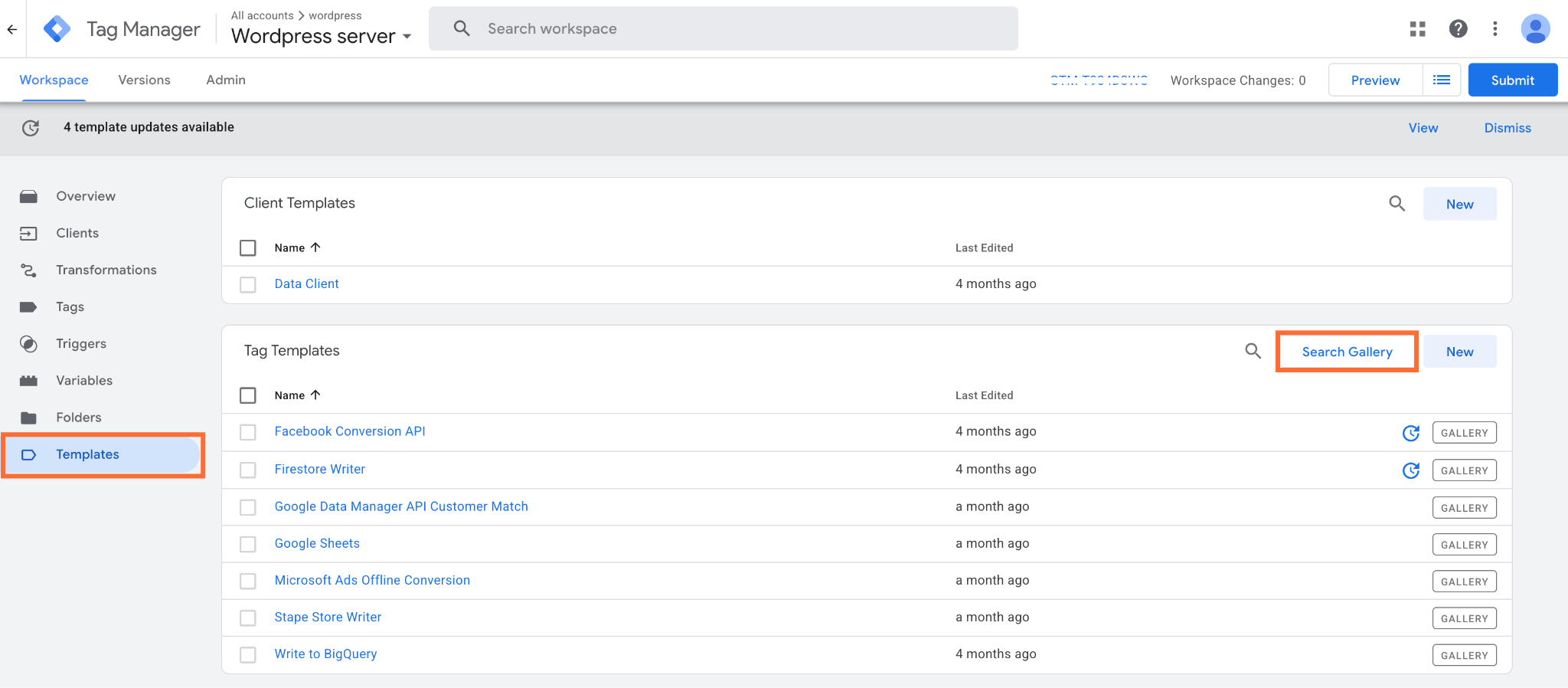
2. Go to Templates, and under Tag Templates, click Search Gallery.
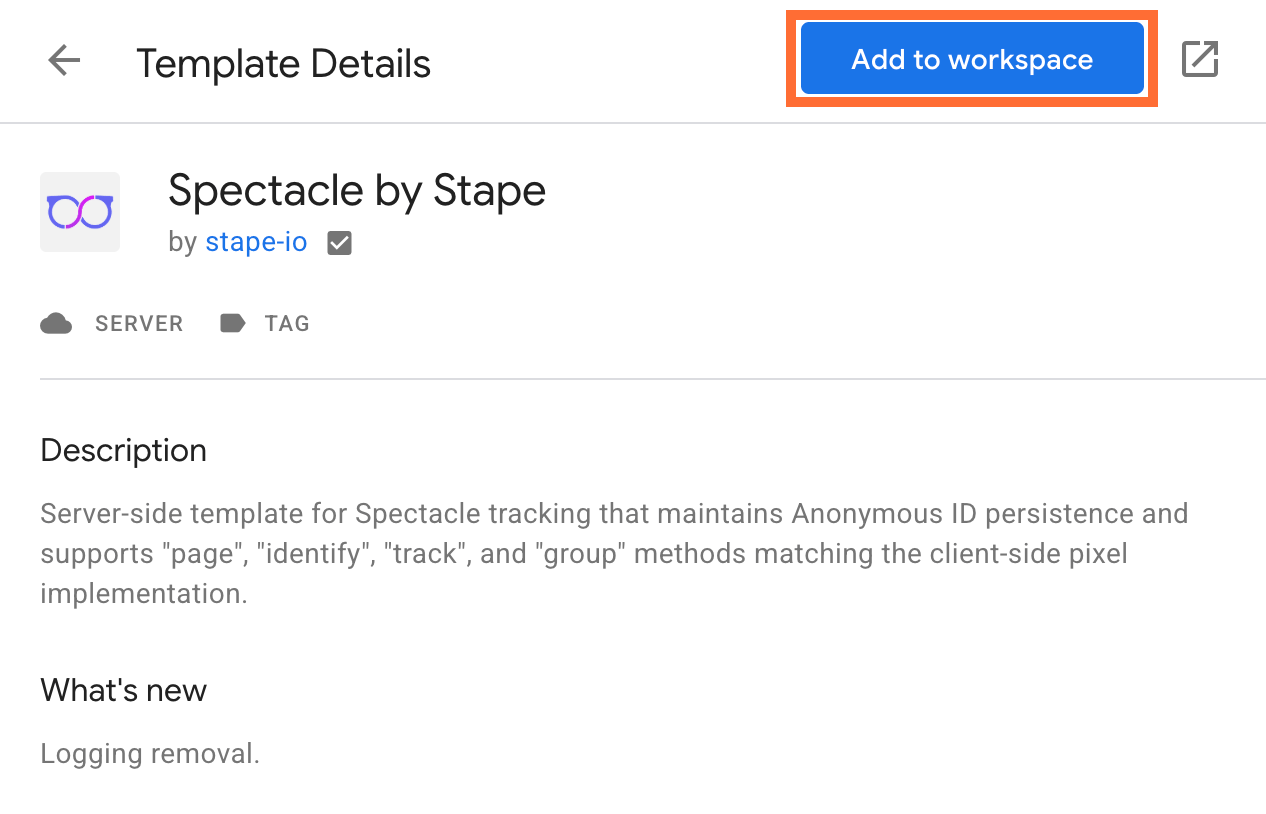
3. Search for Spectacle Tag.

4. Click Add to workspace and confirm.
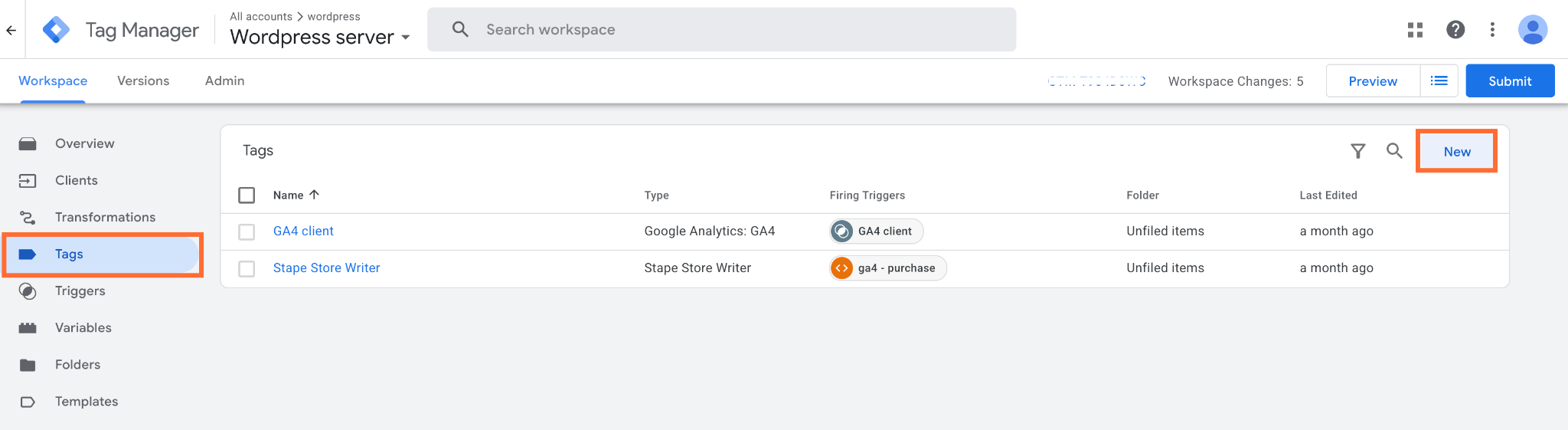
5. Go to Tags and click New.
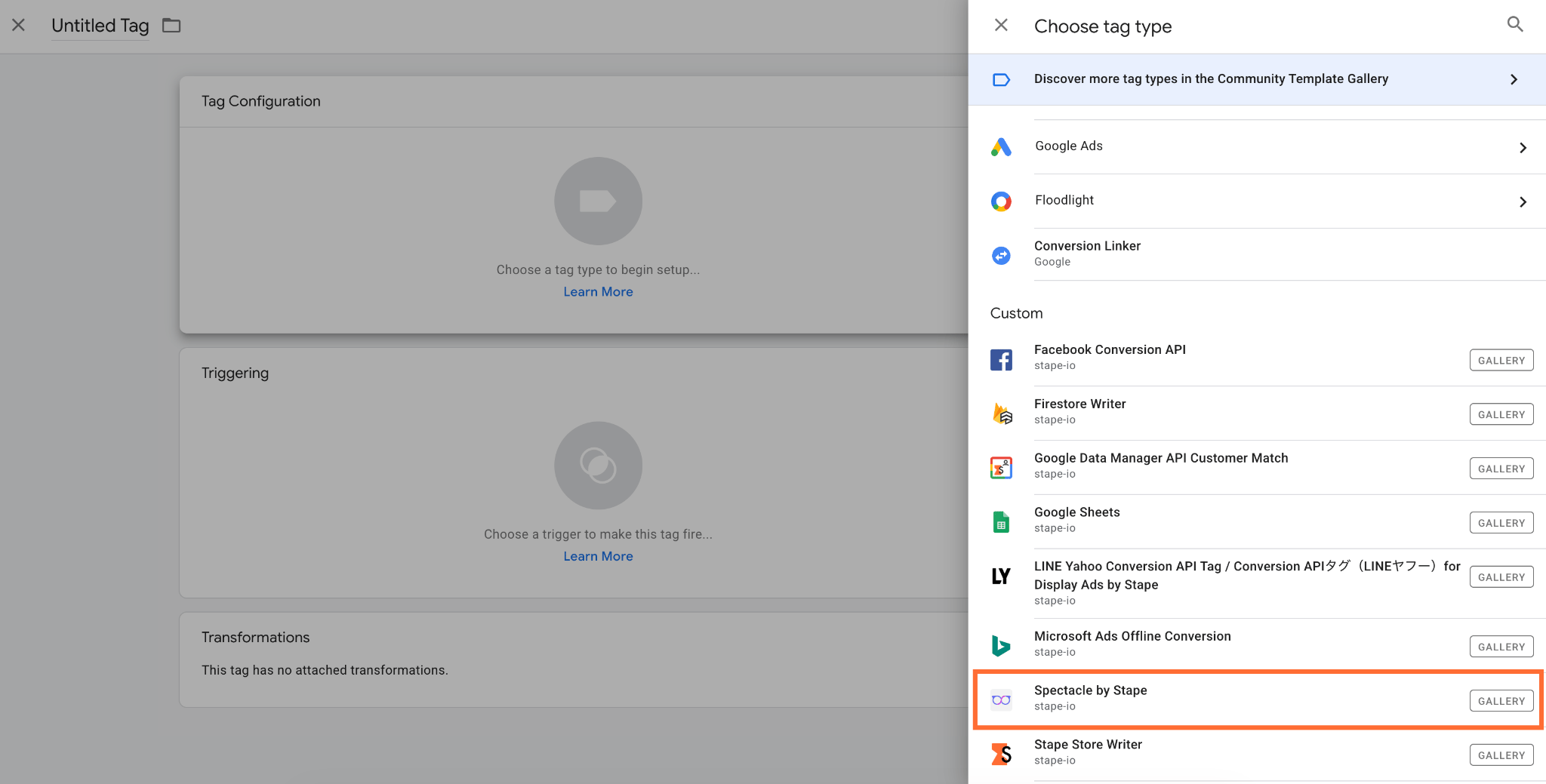
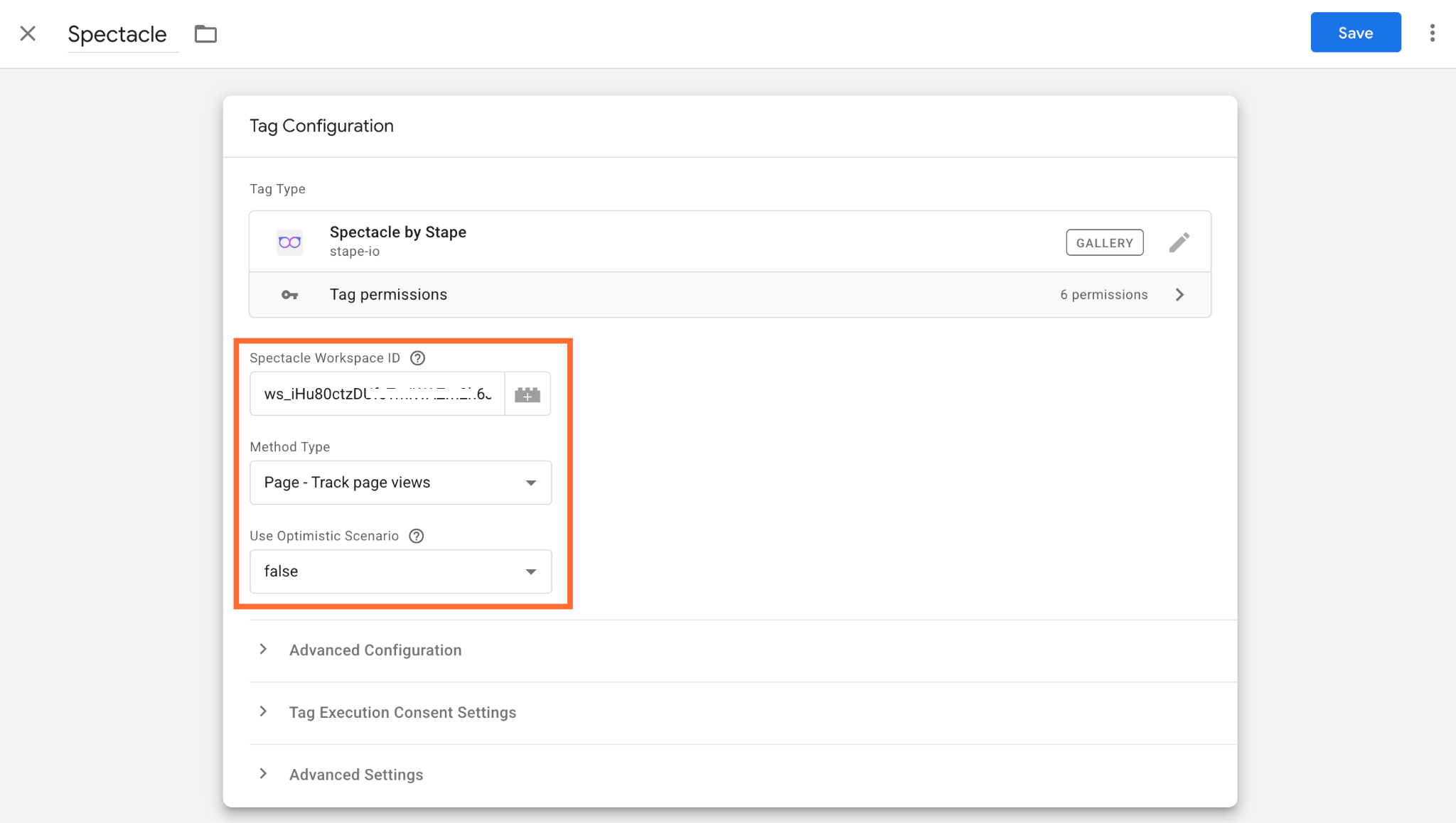
6. Click Tag Configuration and select Spectacle tag.
7. Enter your Spectacle Workspace ID.
8. Select tracking Method Type. All method types automatically inherit contextual data (User-Agent, Campaign UTMs, Timezone, Locale) and maintain cross-session identity through the sp__anon_id first-party cookie.
- Page – automatically extracts page details from incoming event data, including page URL, path, query string, title and referrer. It also parses
screen_resolutioninto screenwidthandheight. Use this on standard page load and page view events. - Identify – binds an anonymous visitor to an identified user profile and stores user-level traits. This tracking method assigns a unique identifier for the customer. Use this when a user signs up, logs in, or submits contact information.
- Track – records actions, milestones, and behaviors performed by the user. Use this on user interactions, e-commerce actions, or conversion triggers.
- Group – links an identified user to a specific organization, team, or account (commonly used in B2B / SaaS models). Use this when a user registers a company, switches workspaces, or joins an existing organization.
9. If you set Use Optimistic Scenario to true, the tag will call gtmOnSuccess() without waiting for a response from the API. This will speed up sGTM response time however your tag will always return the status fired successfully even if it isn’t.
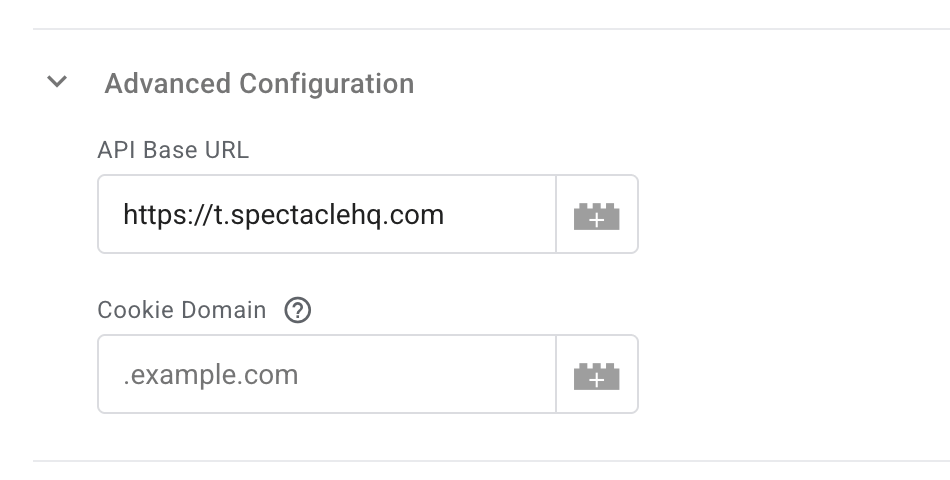
10. In Advanced Configuration you can define the following:
- API Base URL – define the endpoint destination where the tag sends tracked event requests. You can route Spectacle tracking data through a custom sub-domain or proxy to avoid ad-blockers and keep network requests strictly first-party. If left blank, the tag sends HTTP POST requests to Spectacle's standard default endpoint. For standard setups, leave this field as is.
- Cookie Domain – define which domains and subdomains have access to read and write to the
sp__anon_idandsp__user_idfirst-party cookies. If your user journey crosses multiple subdomains (for example, browsing onwww.example.com, logging in atapp.example.com, and purchasing oncheckout.example.com), setting the cookie domain to the parent domain (example.com) ensures that identifiers (likesp__anon_idorsp__user_id) persist across the entire journey.
11. In Tag Execution Consent Settings you can control whether a tag fires and sends HTTP request data based on the user's consent status:
- Send data always – the tag fires and sends data to the API on every trigger, regardless of whether consent was granted or denied.
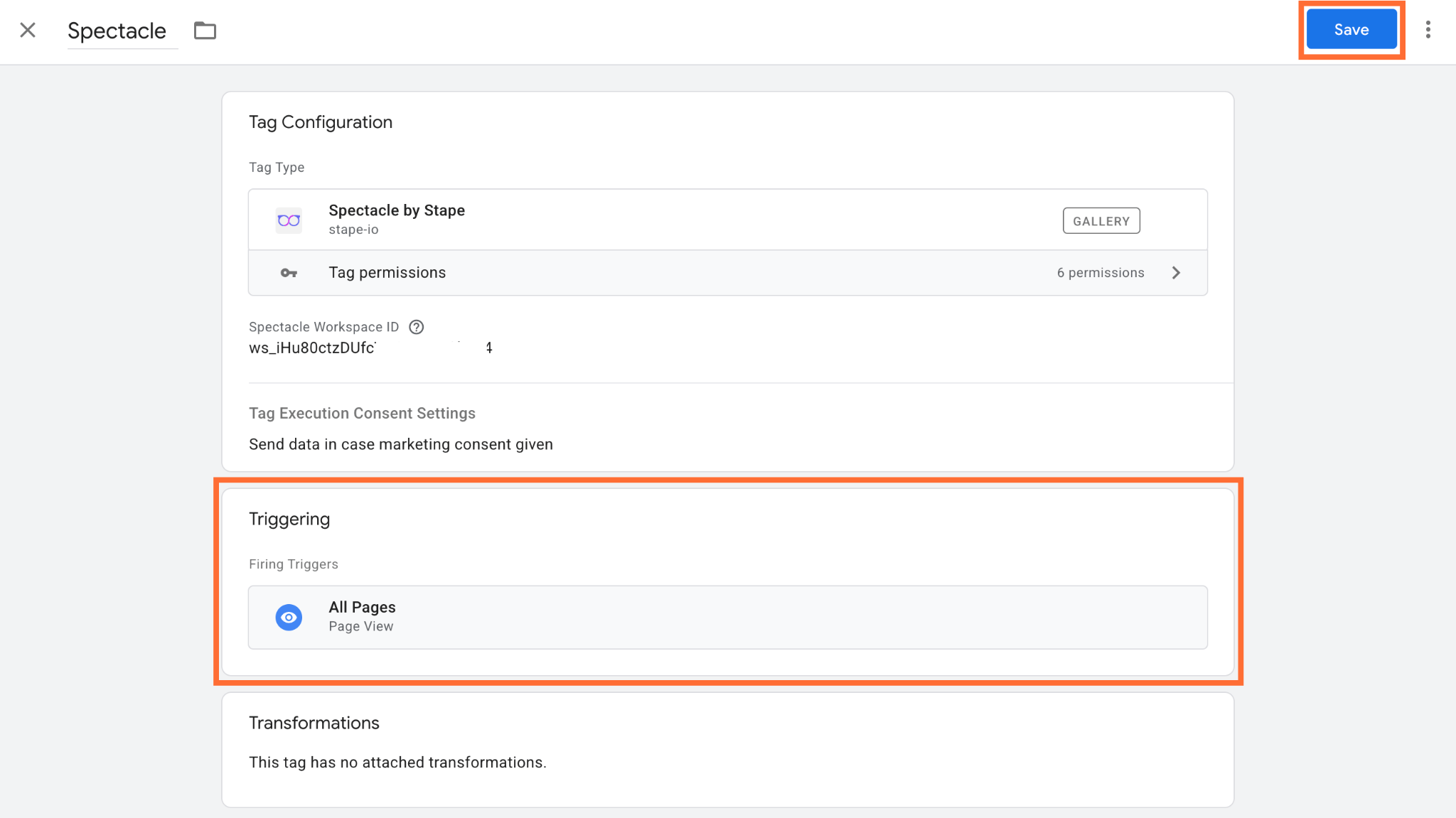
- Send data in case marketing consent given – the tag safely aborts firing if
ad_storageconsent (Google Consent Mode or Stape's Data Tag parameter) isn’t granted.

12. Select a trigger such as Page View.
13. Click Save.
Testing
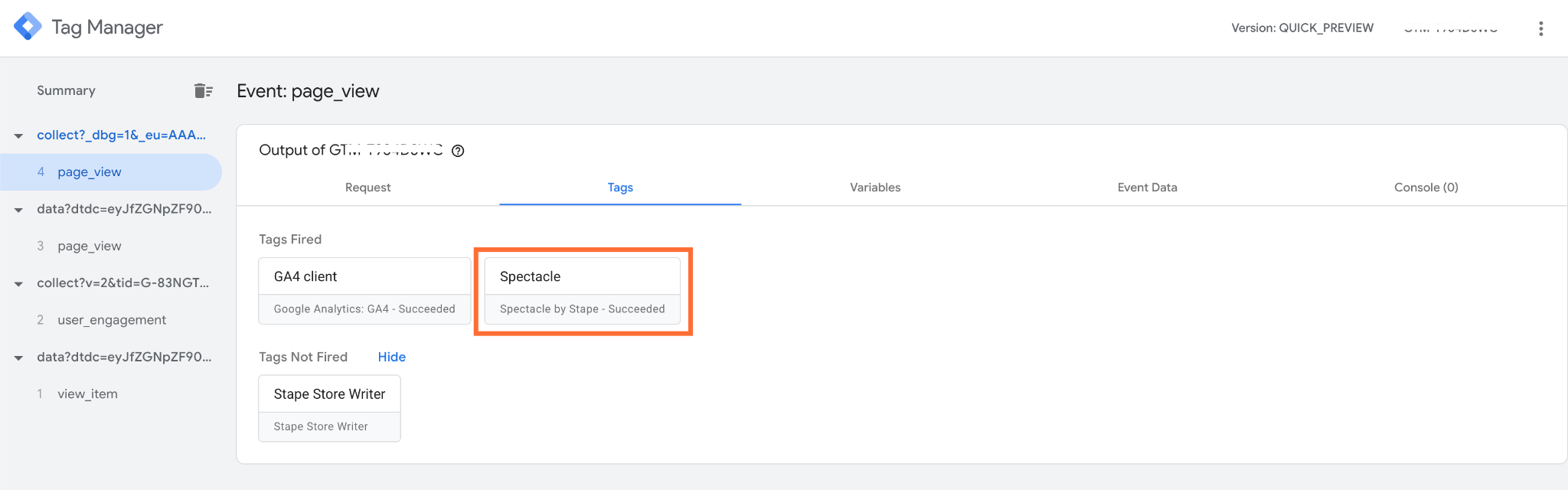
1. In GTM, open the Preview mode and do some actions on your site to trigger the events. Confirm that the tag is firing.
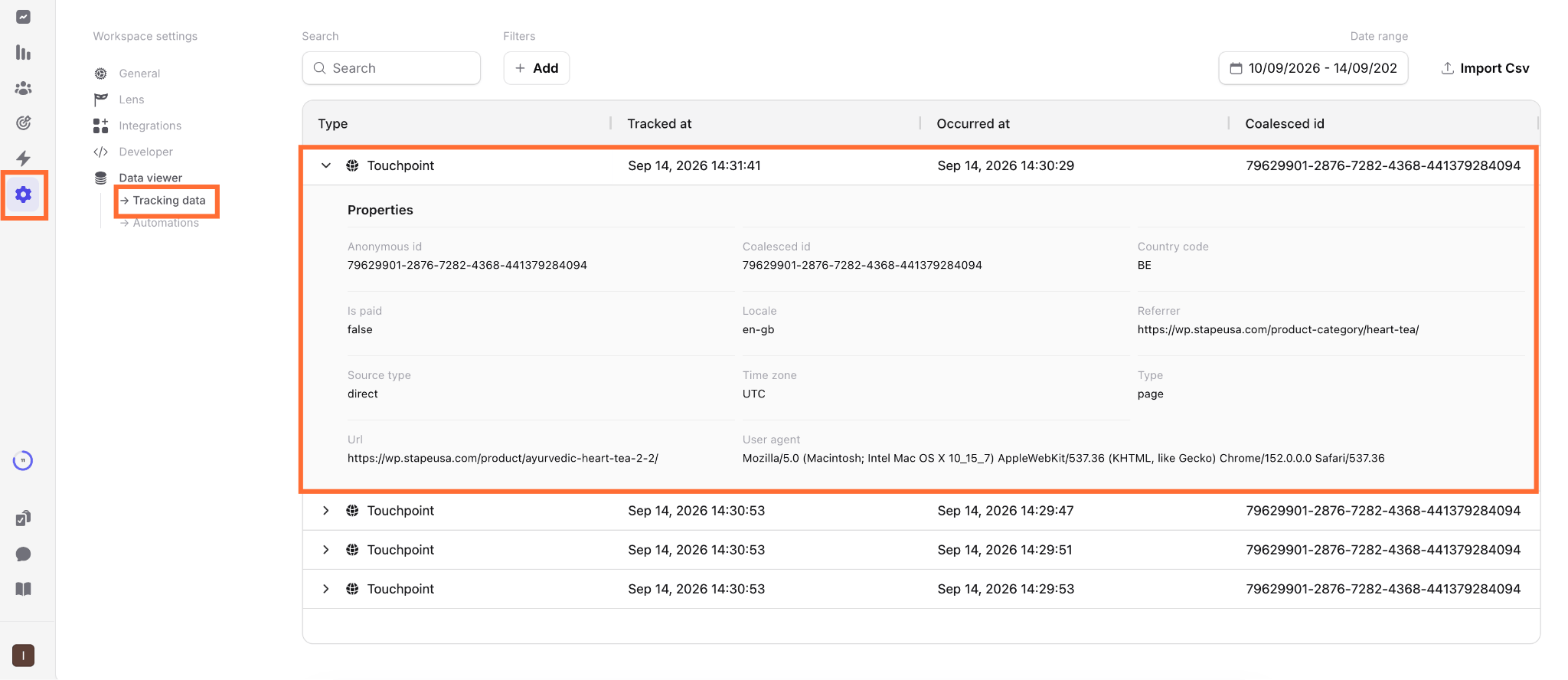
2. In the Spectacle account, go to Settings → Tracking data and confirm that events are flowing.
Was this article helpful?
🍽 Table of content:
Comments