Fix inconsistent event IDs caused by GTM tag sequencing
Written by
Uliana Lesiv
Key takeaways
- Tag sequencing in GTM helps control tag firing order, but it’s often avoided because it can cause data tracking issues, such as generating different event IDs for tags that fire on the same event.
- The issue occurs because GTM variables re-evaluate every time they’re accessed, causing unique event IDs to regenerate across tags.
- The recommended fix is to store the event ID in the dataLayer once and reuse it across all tags.
- You can push the unique event ID to the dataLayer via Custom HTML or built-in Meta Pixel functionality.
About tag sequencing in GTM
Tag sequencing is the GTM feature that allows you to specify the order of tag firing on the website. Tag sequencing is used for advanced configurations, usually when Custom HTML tags are involved, and you use them as setup or cleanup tags.
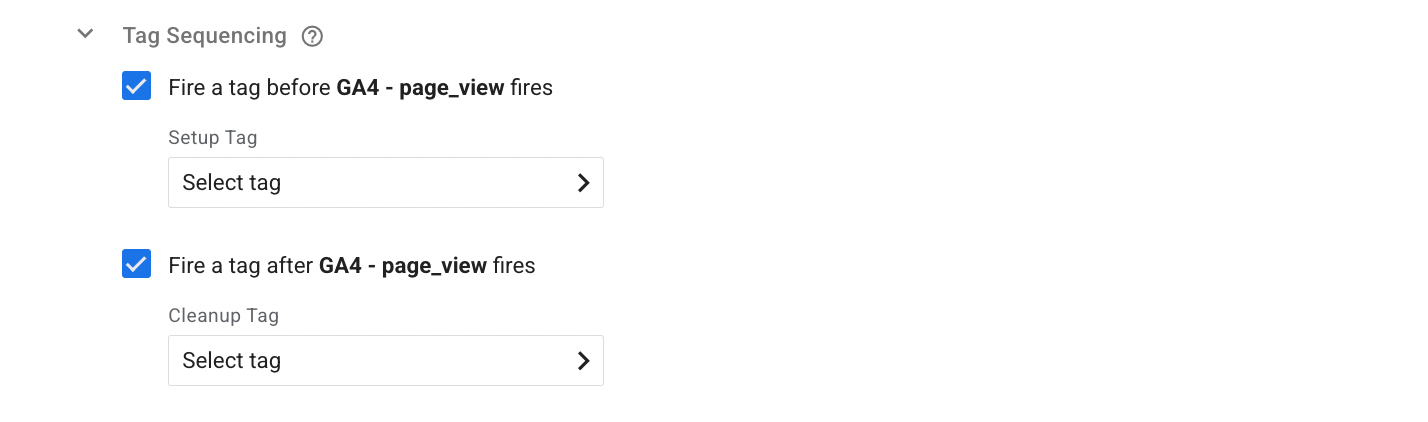
A tag sequence consists of three distinct stages:
- Setup. A prerequisite tag that must finish successfully before the main event.
- Main tag. This is the primary tag where you configure the tag sequencing. It acts as the anchor for the sequence, either waiting for a Setup tag to finish or triggering a Cleanup tag once it's done.
- Cleanup. A concluding tag that executes only after the main tag completes successfully.
However, tag sequencing is not considered the best practice while using GTM since it can cause problems connected with event deduplication in some cases, and the logic behind the feature isn't completely clear.
In fact, most tracking setups can be completed without using tag sequencing. But if you must use it for your setup, in this article, we consider a common problem users face while using tag sequencing - inconsistent event_id for tags, and how to solve this problem.
Problem while using the GTM tag sequencing
In each tag, you include the Stape’s unique_event_id variable template (or other template to generate a unique ID), which generates the ID for each event that is sent to the sGTM container and later to the platform, such as Meta. It is used to avoid event duplication.
If you set up tag sequencing with GA4 tags due to your specific configuration problem, you could notice that the unique event ID can differ for the GA4 tag (which has tag sequencing configured) and the Meta tag, although they fire on the very same event.
This can happen when you set up a GA4 tag as your main tag and use tag sequencing to add a setup tag (to prepare data) or a cleanup tag (to reset variables) to it. At the same time, you have the Meta Pixel tag configured to fire on the exact same event as the main GA4 tag.
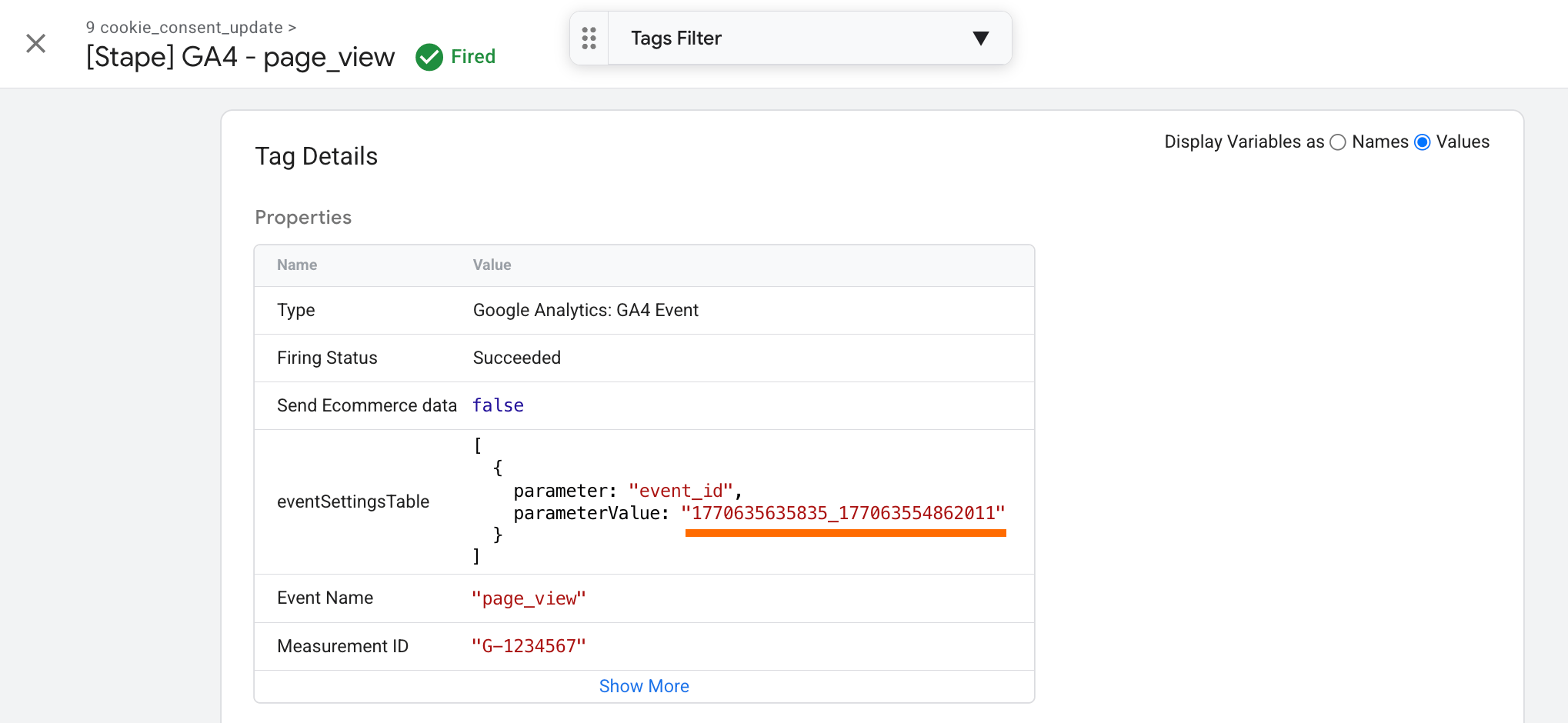
In such a scenario, you might notice that the event_id in the main GA4 tag (the tag where you configured tag sequencing) appears as follows:
In the Meta tag, the ID is different, even though the tag fired on the same event as the GA4 tag did:
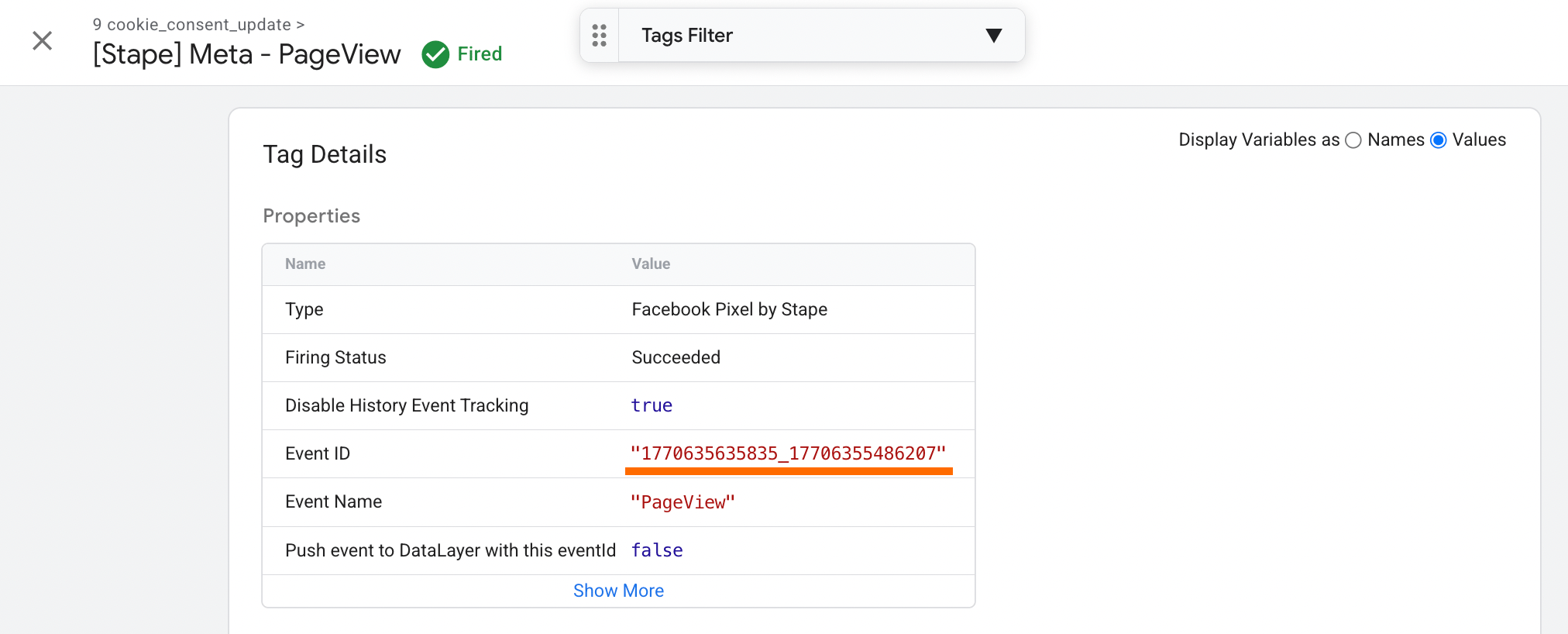
As a result, the event won’t be deduplicated due to different IDs for the same event. Both events will be sent to Meta, which impacts the targeting quality and reduces the Event Match Quality score.
💡 If you are working with Meta Ads tracking, you may also find it useful to review and implement practices for event deduplication between browser and server tracking. The following guide provides additional context on how to configure Meta events deduplication.
Why unique event ID variable resolves differently
The root of such a problem lies in how the GTM handles variables when tag sequencing is used for GA4 tags.
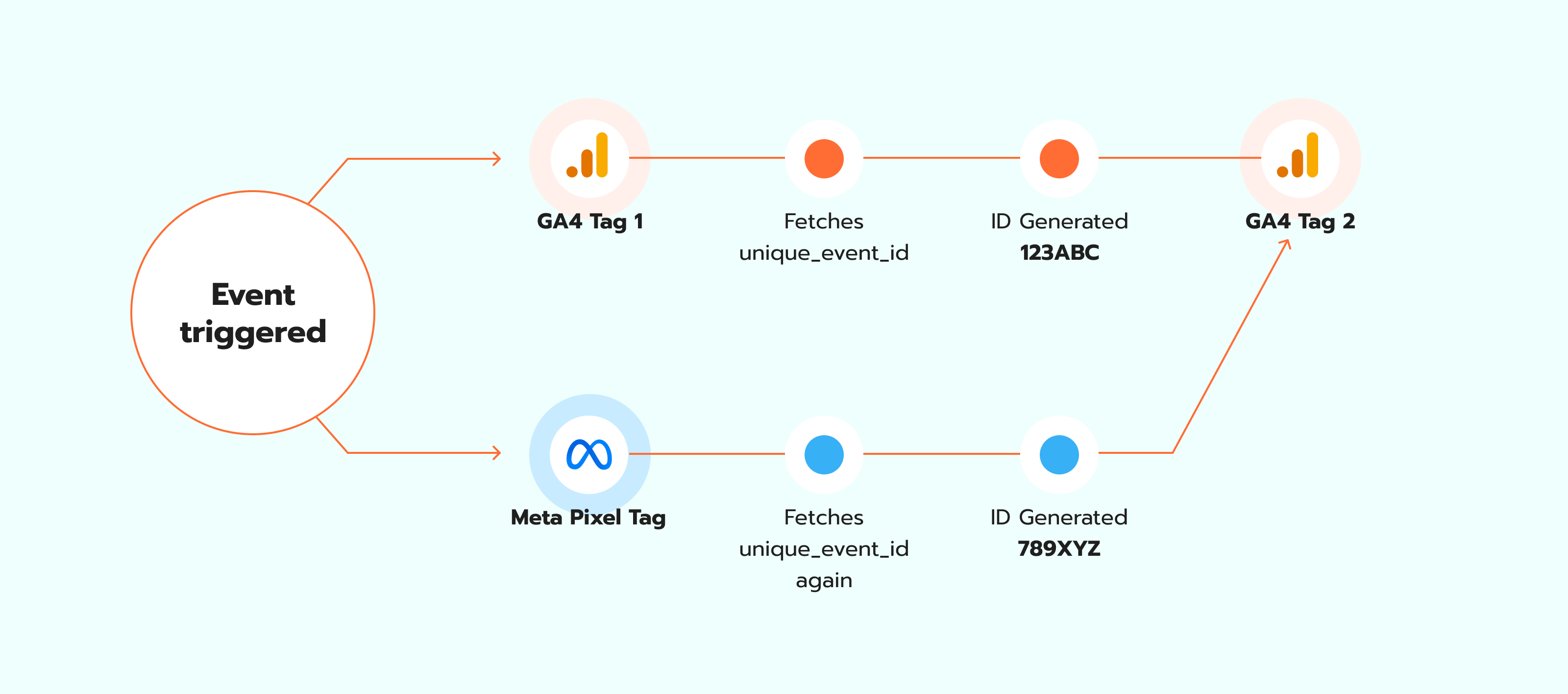
The GA4 tag is configured to fire with a sequenced tag (also a GA4 tag). The tag contains a variable that generates a unique_event_id, which is used for event deduplication.
When a user triggers the event, the GA4 requests a value from this variable. Simultaneously, the tracking tag that fires on the same event (in our case, it is the Meta Pixel tag) executes based on the same trigger and requests the same variable.
Because variables in GTM typically re-evaluate each time they are accessed, the unique_event_id is generated separately for each request. As a result, the GA4 tag receives one unique ID, while the Meta Pixel tag receives a different ID.
How to ensure consistent event IDs across tags
To fix the problem, you need to take the event_id from the dataLayer after it is initially pushed and use the ID in other tags.
Basically, you can implement the solution on your own by adding the code below as a Custom HTML tag:
<script>

window.dataLayer = window.dataLayer || [];

dataLayer.push({unique_event_id: {{Unique Event ID}} });

</script>
To grab the ID, use the dataLayer variable "unique_event_id" as in the push to dataLayer.
A simpler and straightforward way is to use a feature integrated into the Meta Pixel tag by Stape - push event to dataLayer with event_id.
🚀 Note:
At the moment, this feature is available in the Meta Pixel tag only, but we are working on adding it to other tags for popular platforms.
Here are the detailed steps on how to fix the problem with the Meta Pixel tag by Stape:
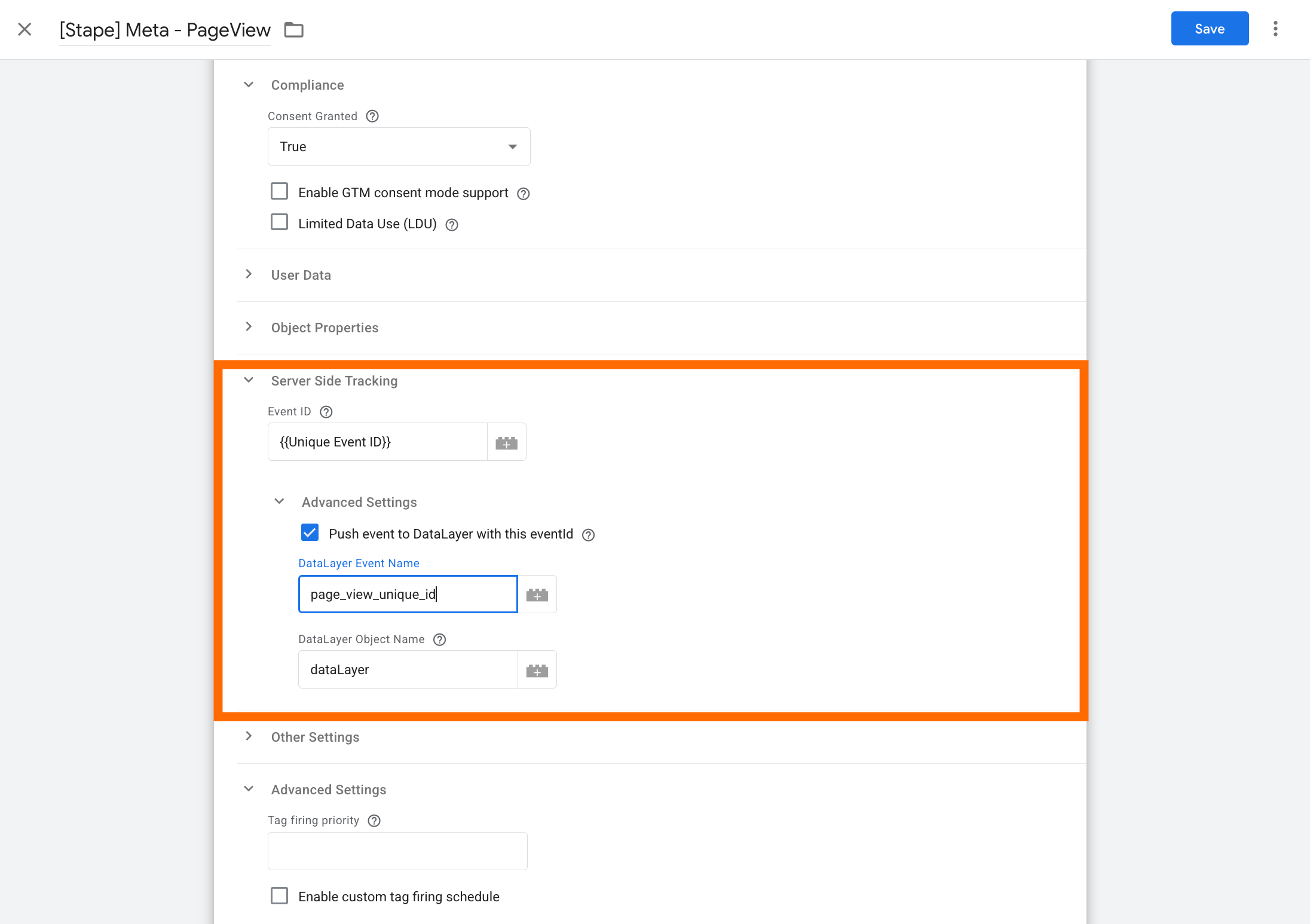
1. To activate the feature, open your Meta Pixel tag by Stape in the web GTM container → expand the section "Server-side tracking" within a tag → check the box next to "Push event to dataLayer with this eventId" and specify the dataLayer event name - it can be anything that works for you, e.g., page_view_unique_id.
The default dataLayer object name applies for most of the cases; change it only if you renamed the dataLayer object name.
Save the changes.
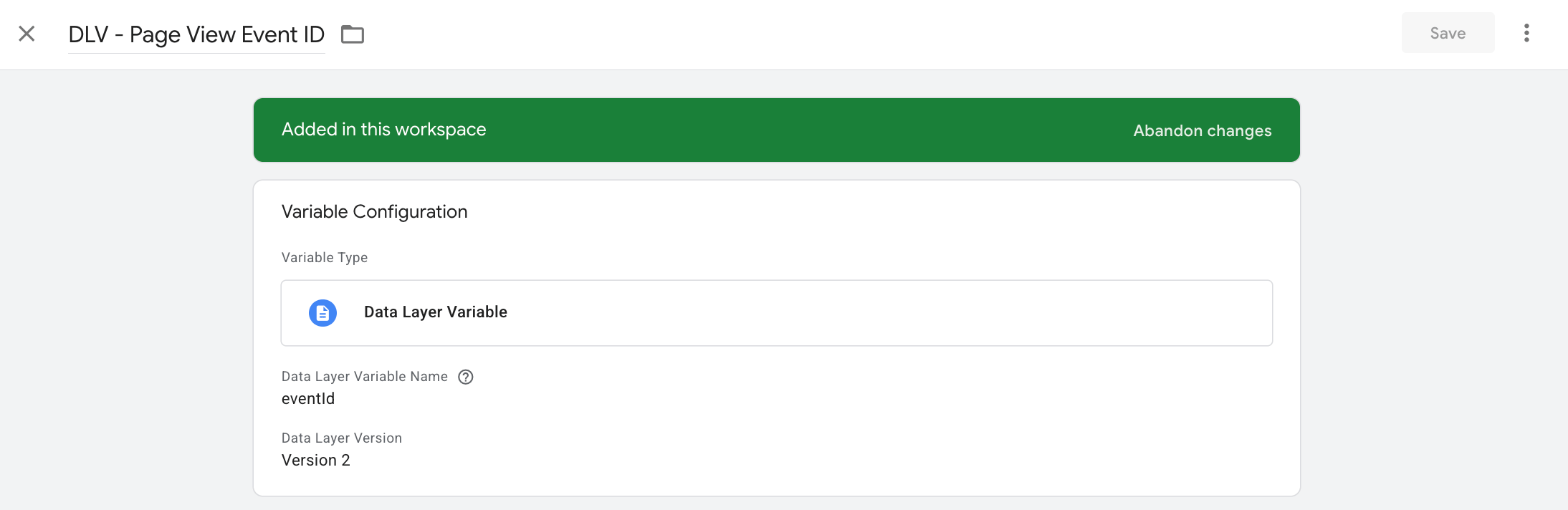
2. Create a variable that will take the value of the eventId parameter from the push do dataLayer (page_view_unique_id). The variable configurations:
- Type: Data Layer Variable
- Data Layer Variable Name: eventId (the parameter from dataLayer that contains unique_event_id)
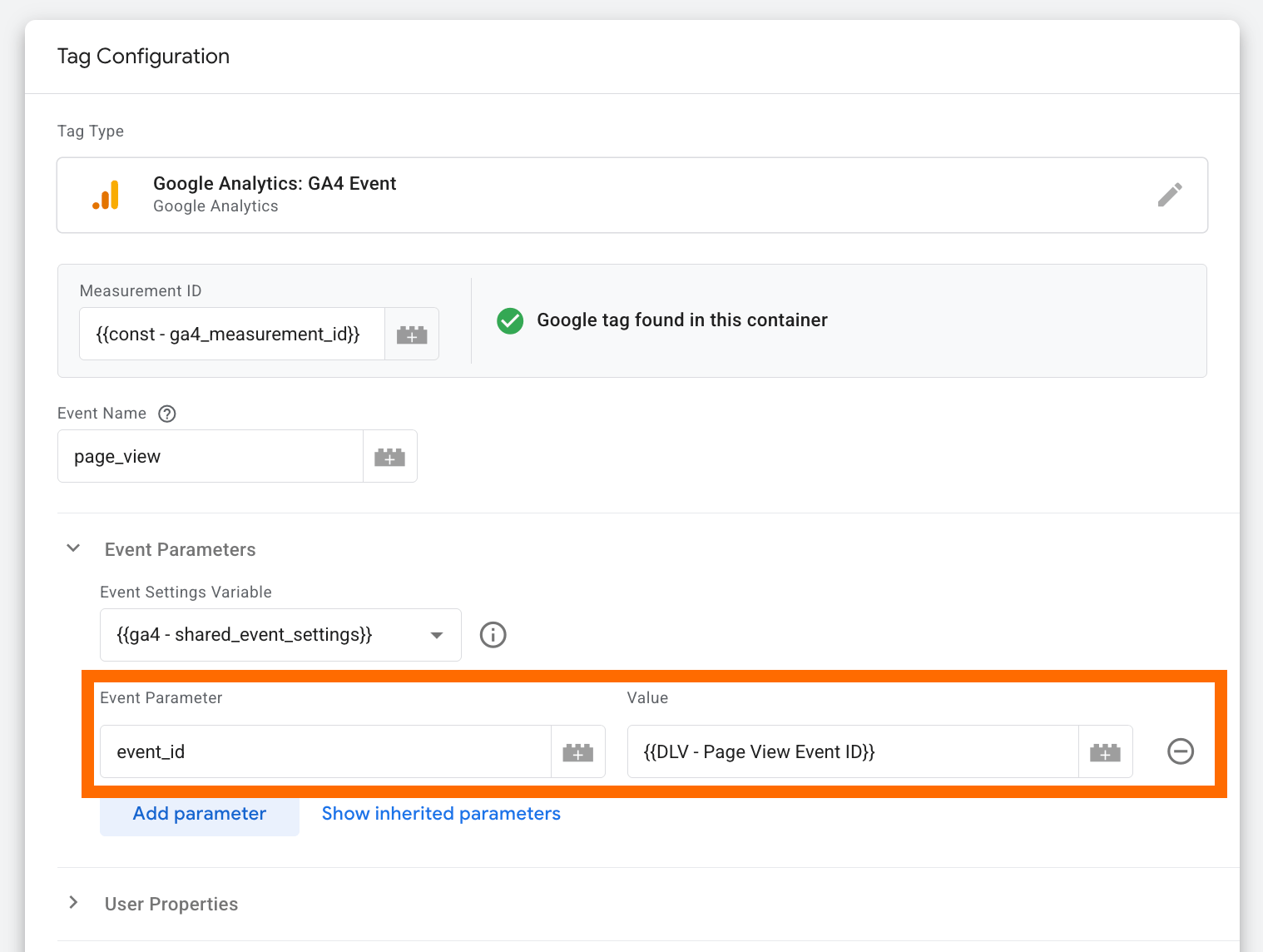
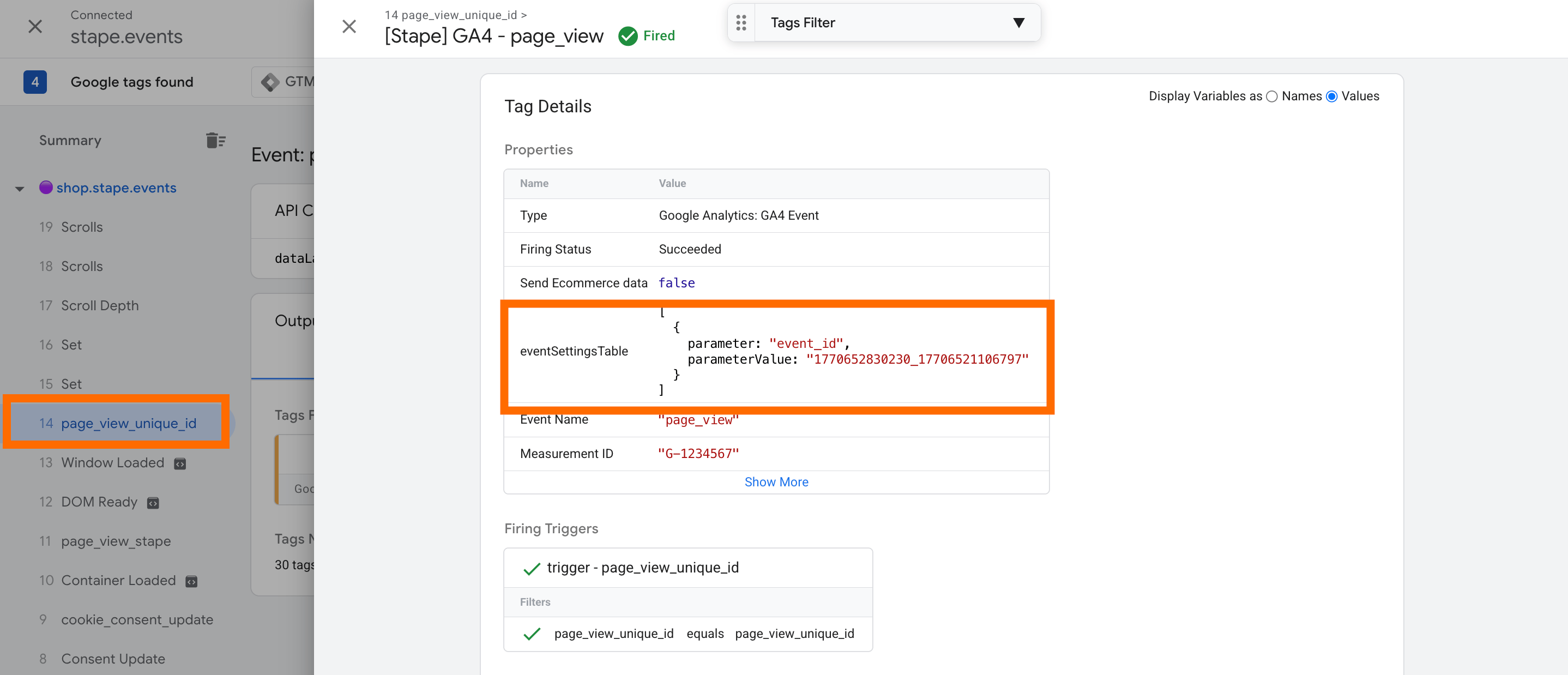
3. Replace the variable "Unique Event ID" (the same you have in the Meta tag) for GA4 tags with the variable you just created. In this way, instead of generating a new unique_event_id for GA4 tags, the variable will take the value from the dataLayer push. In the dataLayer, push will be the ID that Meta generates, so event_id in Meta and GA4 tags will be the same.
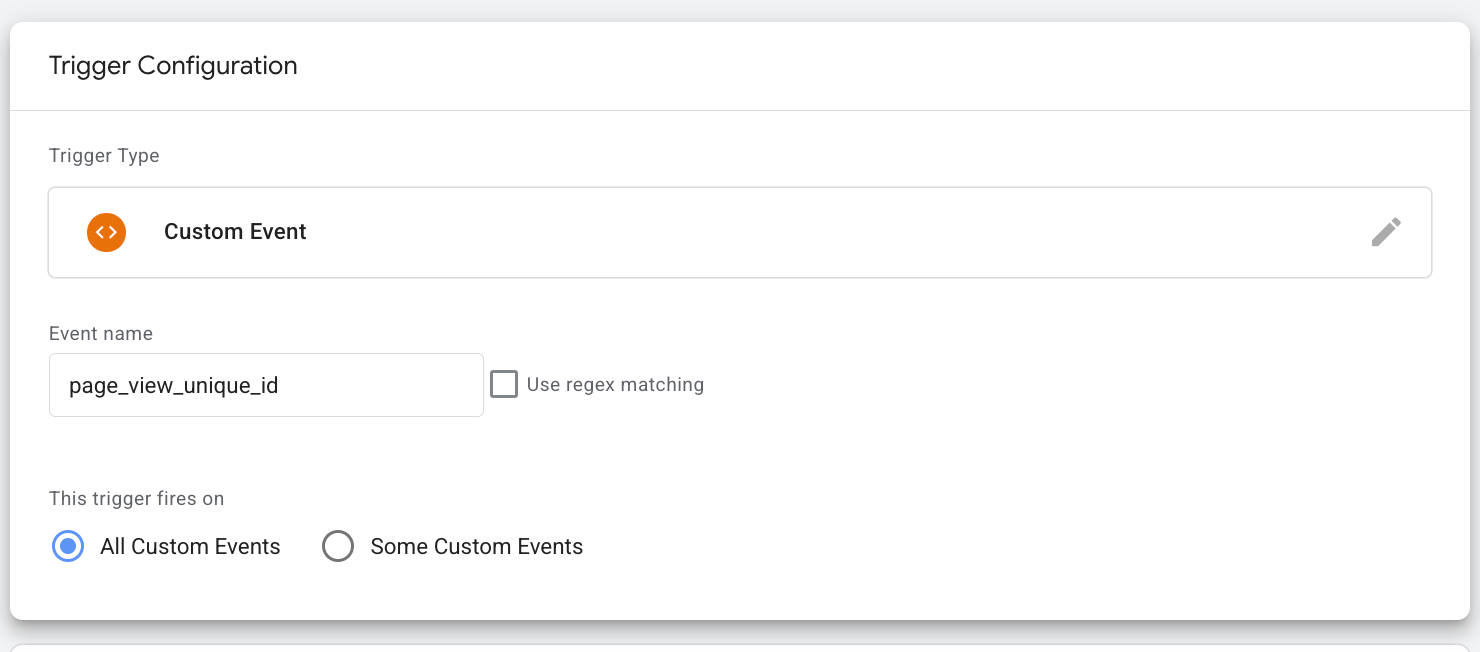
4. Update the GA4 tag triggers so they fire only after the eventId is pushed to the dataLayer, allowing the tags to retrieve the ID.
Create a new trigger with the following configurations:
- Trigger type: Custom trigger
- Event name: must be the one you specified in the Meta tag as DataLayer Event Name. In our case, it is page_view_unique_id.
- This trigger fires on: all custom events
How to debug the configuration
1. Run the Preview mode in GTM and trigger the event you set as a trigger condition for the Meta tag (in our case, it was a page_view that triggered after the consent was given).
2. Navigate to the Meta tag fired and check the Event ID it has.
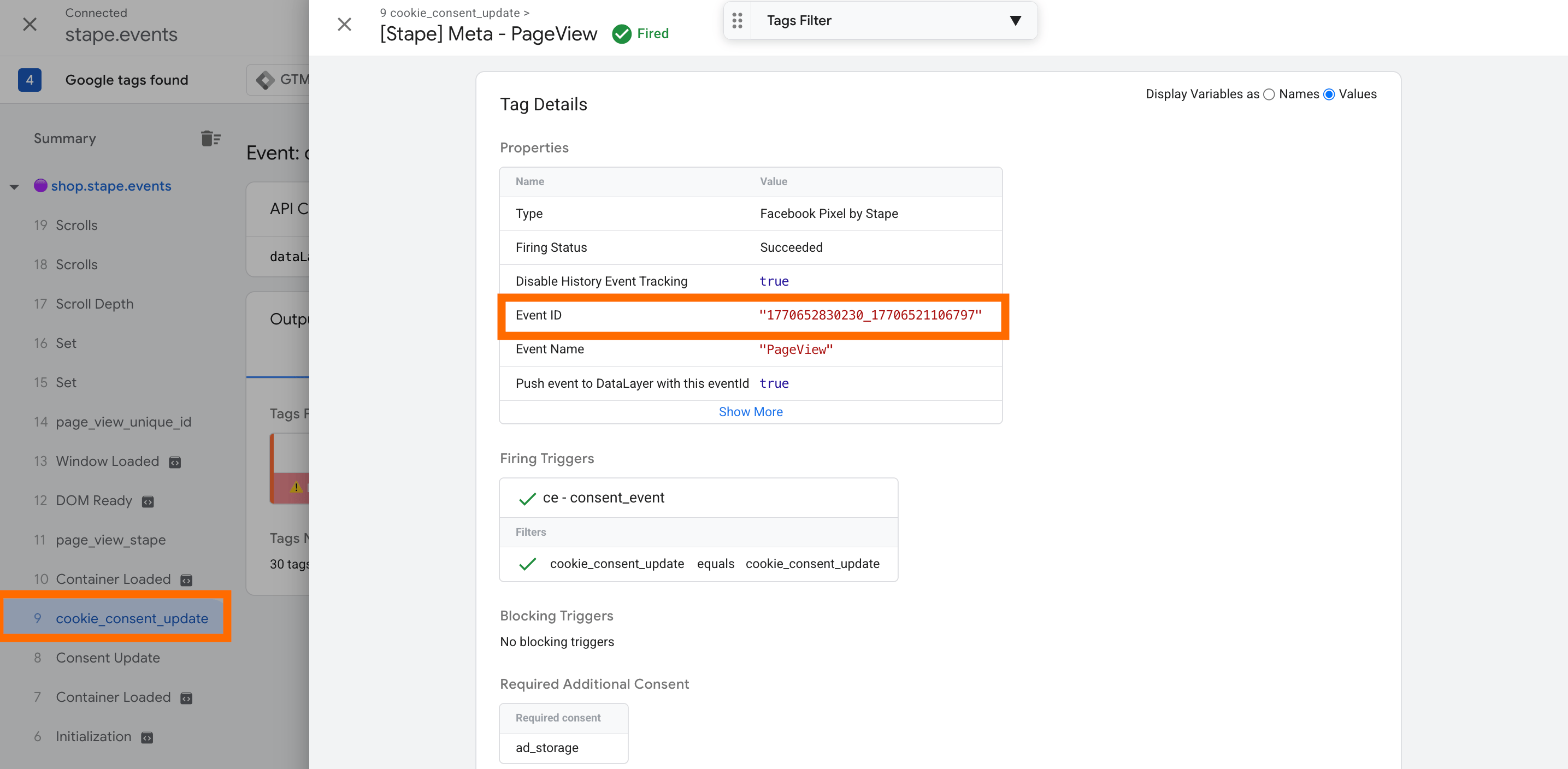
3. Then, go to the push that was sent to dataLayer (in our case, page_view_unique_id) and open the GA4 tags. The IDs must be the same as in the Meta tag.
Final words
Tag sequencing can be helpful for specific GTM setup challenges, but at the same time, it may introduce event ID inconsistencies that make event deduplication impossible. Storing the event ID in the dataLayer and reusing it across tags ensures deduplication and more accurate reporting. It will be especially helpful for advertising platforms such as Meta.
Want to try the server side?
Try for freeRecommended for you
Jul 4, 2025
Blog
How to fix GTM tags not firing with the All Pages trigger
If your tags don't fire at first touch, you risk losing UTM parameters and click IDs. Learn what may cause this issue and how to detect and fix it.
Dec 2, 2025

Comments