Nov 25, 2026
GTM best practices and tracking tags for 2026
Written by
Uliana Lesiv
Updated Sep 17, 2026 comments
Google Tag Manager is a popular tool for efficiently managing tracking scripts. In this article we will show you:
- Best practices for Google Tag Manager, from account structure and naming to access control and the Data Layer.
- Top tracking tags for web and server GTM containers that will help track campaign performance and user behavior.
So, let’s get started!
What is Google Tag Manager?
Google Tag Manager is a tagging tool that simplifies tag management. It allows you to configure and control tags on your website without directly modifying its code. It is like a command center where you can manage and set up data tracking.
Its configuration is straightforward and requires creating a GTM container and inserting two snippets on each website page. For the purpose of this article, we will consider both web and server GTM containers.
19 best practices for Google Tag Manager
Following best practices for Google Tag Manager keeps your container organized, secure, and easy to maintain as it grows. Without them, a container quickly turns into a mess of tags nobody understands, and a single wrong change can break your website.
1. Plan tracking before you implement it
Don't add tags before you know what you need to measure. Start with the business goals, then list the events that lead users toward them. For an eCommerce website, the main goal is purchases, and the events that lead to it can include product views, add to cart, and checkout start.
Turn this list into a spreadsheet of tags, events, and settings. It shows what you need from developers and helps you build a consistent naming system.
2. Structure accounts and containers properly
Google recommends using one GTM account per company and one container per website. Several containers on the same website make tracking harder to debug, and managing tags, triggers, and variables spread across them gets difficult as the account grows.
If you work with clients, make sure the client owns the container. Either ask the client to create the account and container, or create them yourself and give the client admin access. This way, the client keeps control of its tracking if the cooperation ends.
3. Create a scalable naming system
Creating a scalable naming system for GTM tags, triggers, and variables is essential for maintaining clarity and consistency as your website grows and the number of these elements increases.
The best practices for naming GTM elements include:
- Create unified naming rules. The tags/triggers/variables names should include the key data on a specific element's purpose and additional information required if someone works with it later.
- Categorize elements. They can be logically divided into groups, such as the behavior metrics setup and e-commerce tracking. Use descriptive suffixes and prefixes to differentiate them.
- Go from general to specific. Start the name with the tool or type and end with the specific action. For example, name a tag "GA4 Event - Download PDF" and the trigger that fires it "Link Click - Download PDF".
- Keep records. Notes significant changes and container setups so that someone else can refer to them in the future if necessary.
We have prepared the table that may help you structure your naming system for tags, triggers, and variables:
| GTM element | Tool/Type | Purpose | Example |
|---|---|---|---|
| Tag | GA4 | Pageview | GA4 - PageView |
| FB | Add to cart | FB - AddToCart | |
| GAds | Purchase | GAds - Purchase | |
| Trigger | Custom event | Add payment info | ce - add_payment_info |
| Page view - DOM ready | Pageview | dom - page_view | |
| All elements/Just links click | Click “Register” button | click - register_button | |
| Variable | 1st Party Cookie | Tracking email subscribers | cookie - email_subscriber |
| Custom JavaScript | Track the event’s timestamp, which will be sent to GA4 | cjs - ga4_event_timestamp | |
| Data Layer Variable | Currency tracking | dlv - ecommerce_currency |
4. Limit access with user permissions
GTM can break a website if someone publishes untested changes, so give access only to the people who deploy tags. Permissions are set at the account and container levels. At the container level, you can choose from four options:
- Read: view tags, triggers, and variables without changing them.
- Edit: create workspaces and make edits, but not create versions or publish.
- Approve: create versions, but not publish.
- Publish: full rights, including publishing.
Give the Publish permission only to the team members who know GTM best, so changes are reviewed before going live.
For extra security, administrators can require 2-step verification before users modify custom JavaScript variables, custom HTML tags, and user settings. To enable it, click Admin → Account Settings, select Require 2-step login verification for certain operations, and click Save.
5. Use workspaces for teamwork
Workspaces let several people work on separate sets of changes in the same container at the same time. Each workspace starts as a draft copy of the latest container version, so teammates can build and test their tags without affecting each other.
Before you create a version, update your workspace with the changes that others have published. If GTM finds conflicts, resolve them before publishing.
6. Avoid loading all scripts with a tag manager
GTM isn't the best choice for loading visual or functional elements of the website, such as cookie banners or hero images. Relying on a tag manager for these elements can introduce delays, negatively affect user experience, and increase metrics like LCP and CLS in PageSpeed Insights. So, using third-party solutions to set up such elements is better.
7. Set up Data Layer
Data Layer is a more advanced concept for data tracking, but it is often omitted. It helps you set up flexible event tracking and ensure reliable data collection. In addition to tracking specific elements of your website that auto-event listeners can't capture, you can create a stable source from which the GTM container retrieves data instead of relying on HTML DOM.
Prefer the Data Layer over DOM scraping, because scraping breaks when the page structure changes. If you need to track a specific element, ask developers to add a unique ID or a data- attribute to it, so GTM can identify it reliably.
Keep sensitive data out of the Data Layer. Any script on the page can read it, so never push passwords, card numbers, or other personal data.
| Our guide on Data Layer covers its use cases, set up process, testing, troubleshooting, and more. |
8. Use constant variables
Constant variables are helpful if you need to enter specific data (such as GA4 Measurement ID or Pixel ID) multiple times for different tags. If you need to change this data, you can adjust it only in one place (constant variable), and the changes will be applied to all the tags.
You can create constant variables by going to Variables → New → "Constant" as the Variable type.
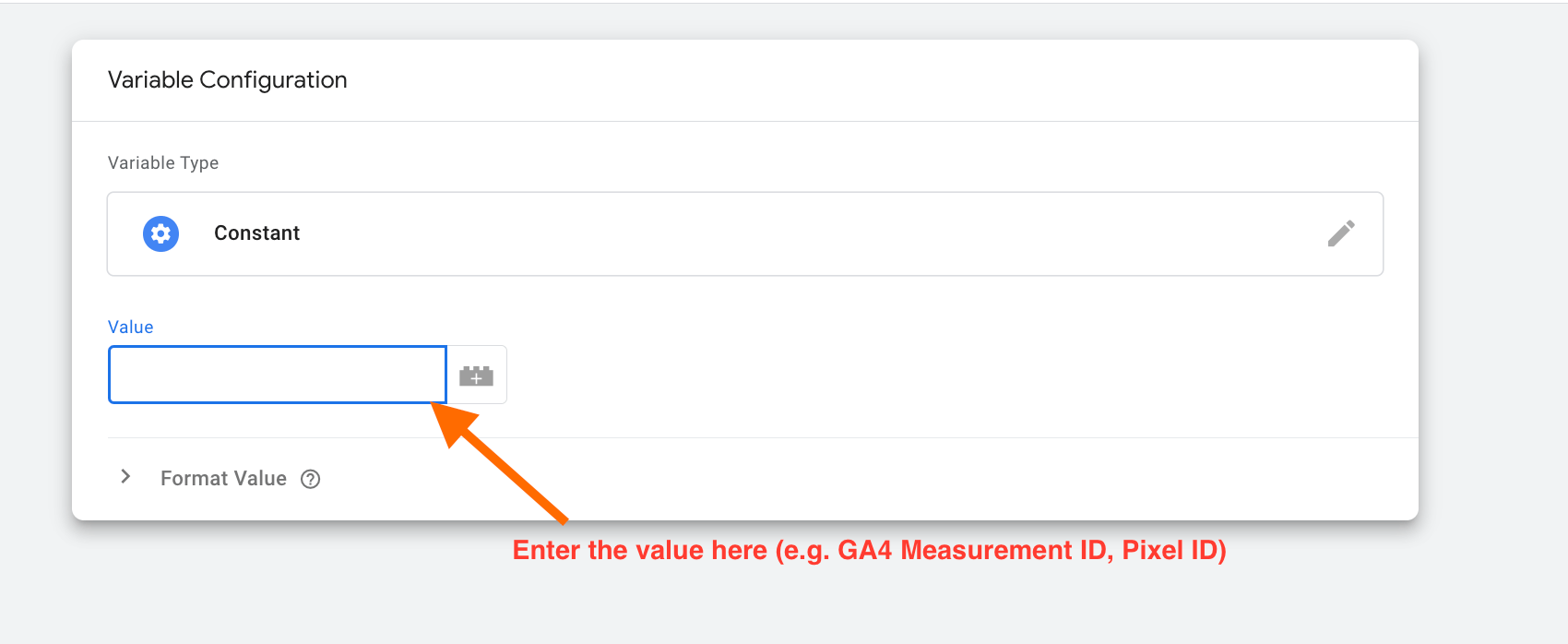
You can also use Stape's pre-built templates for different platforms. Please note that they are created for both web and server GTM containers. Here is the list of platforms we have prebuilt templates for:
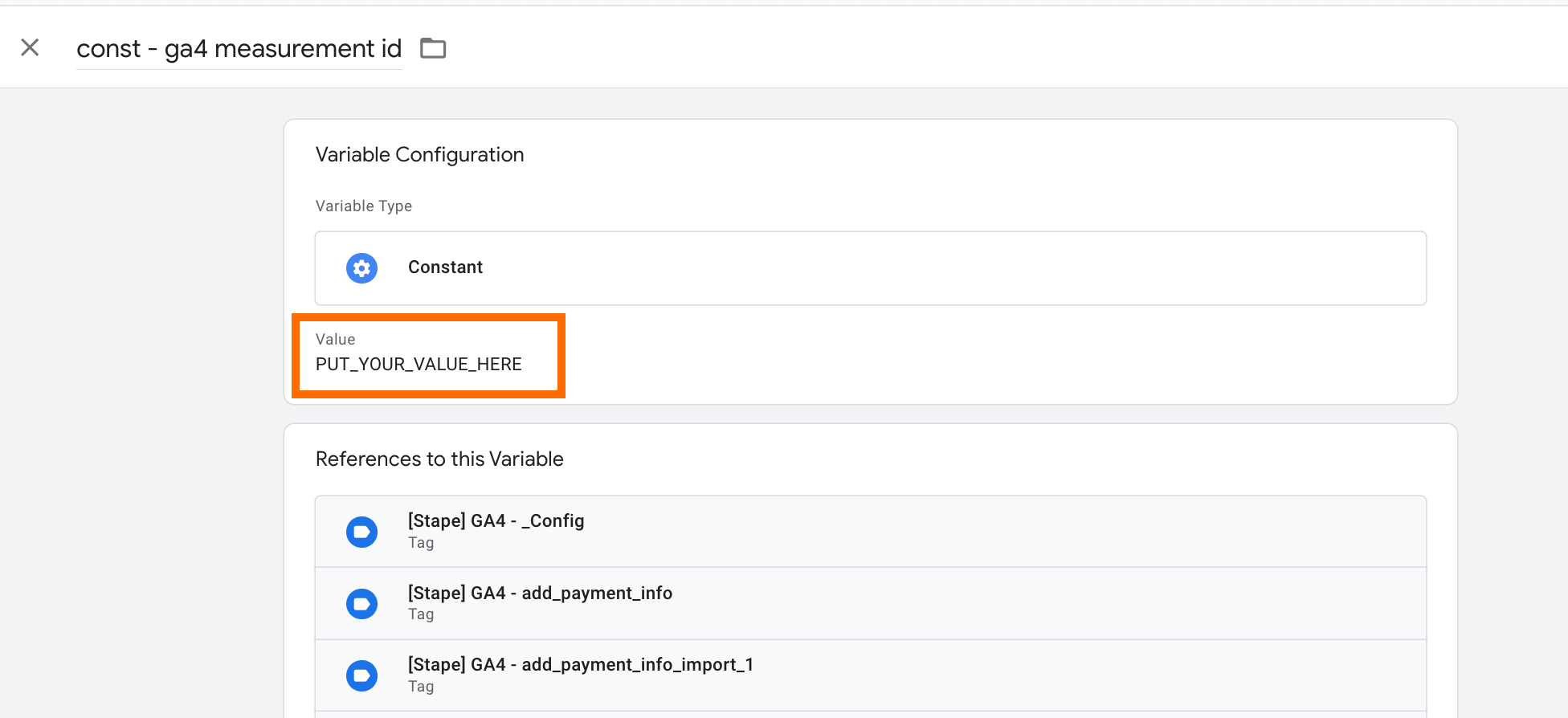
Pre-built templates include tags, triggers, and GA4, Meta, and Google Ads variables. As for the constant variables, you will receive the template where you just need to put your value:
9. Use lookup and regex tables
A lookup table is a variable that returns a value based on the value of another variable. It can replace several almost identical tags with one and keep your container neat.
For example, use a lookup table with the Page Hostname variable to send data to one GA4 measurement ID on the live website and another on the development website. This way, test traffic doesn't mix with real data.
A regex table works the same way, but its conditions support regular expressions, so it can handle more complex matches.
10. Reduce the number of custom HTML tags
Custom HTML tags are a flexible solution for setting up custom data tracking. They allow you to add tracking scripts to the page, but in some cases, having many such tags may result in layout shifts.
When this element is inserted, the browser must recalculate the size and position of all elements on the page. Frequent recalculations can degrade website performance.
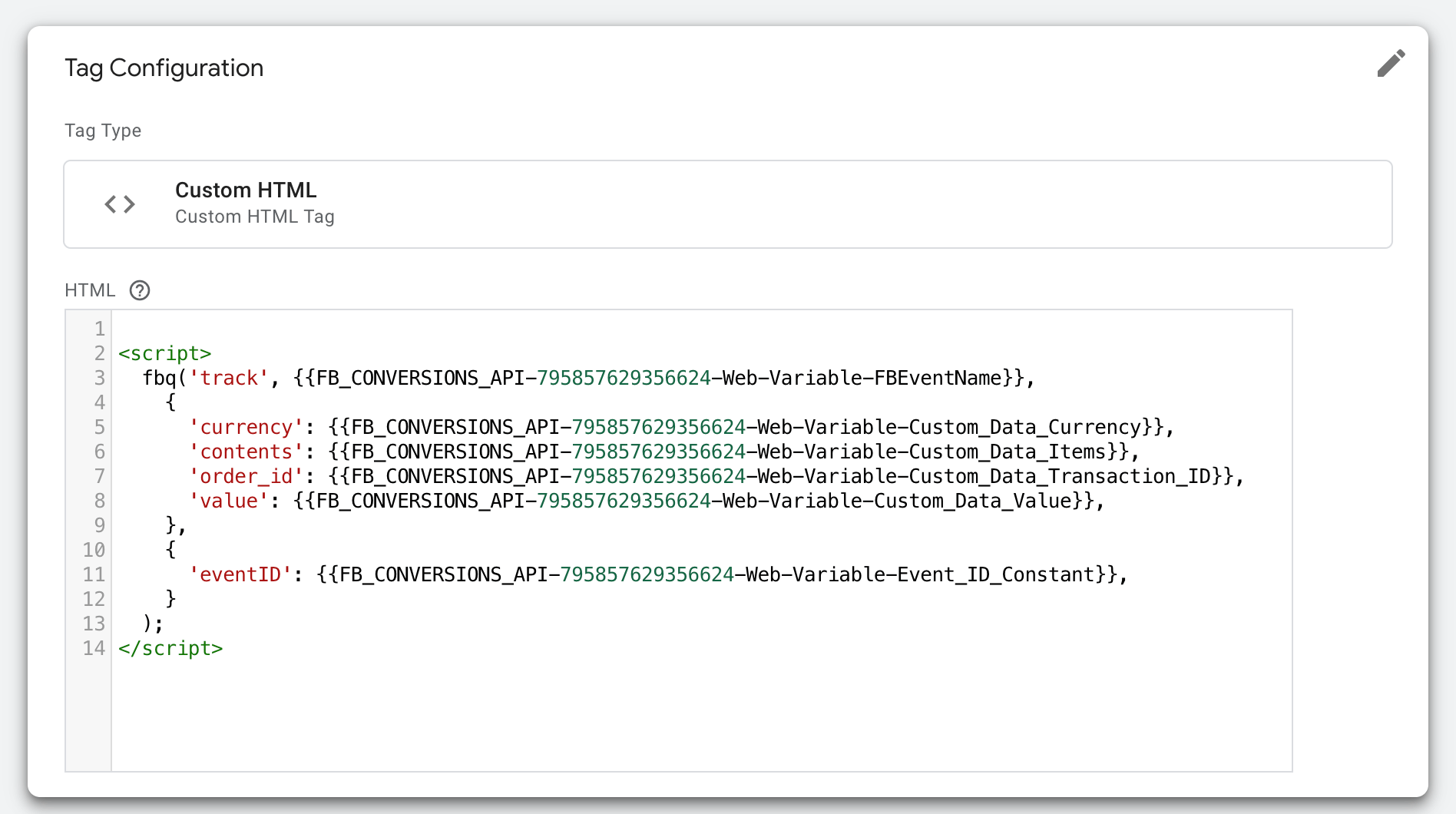
When possible, use templates from the GTM template gallery. Custom templates operate within a sandboxed JavaScript environment. They are optimized to work more effectively with your website's Content Security Policy (CSP), which helps website developers restrict potentially harmful actions JavaScript can perform on a site.
11. Implement allow and deny lists
Allow and deny lists are used to restrict certain tags, triggers, or variables on the website. This can be helpful for security. For example, prevent GTM users from adding specific tags to maintain code stability or control data collection.
Implementing allow and deny lists is done through the Data Layer. You can find more details on the setup in Google's documentation.
<script>

window.dataLayer = window.dataLayer || [];

dataLayer.push({

  'gtm.allowlist': ['<id>', '<id>', ...],

  'gtm.blocklist': ['<id>', '<id>', '<id>', ...]

});

</script>
12. Use a separate container for AMP pages
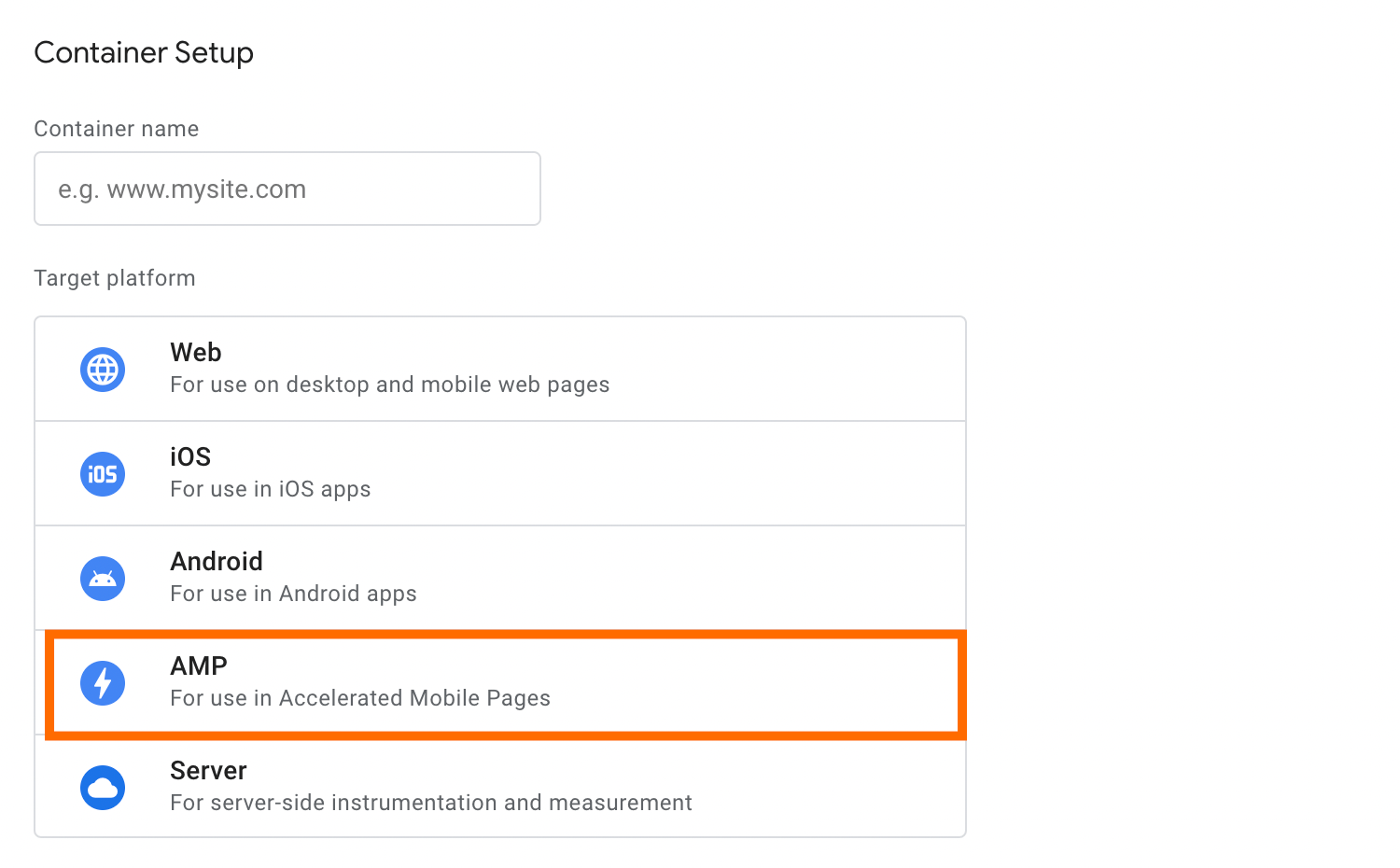
GTM supports Accelerated Mobile Pages (AMP) through a dedicated AMP container type. If your website uses AMP, create an AMP container, add its snippets to your AMP pages, and use AMP variables instead of the Data Layer.
13. Monitor PageSpeed Insights
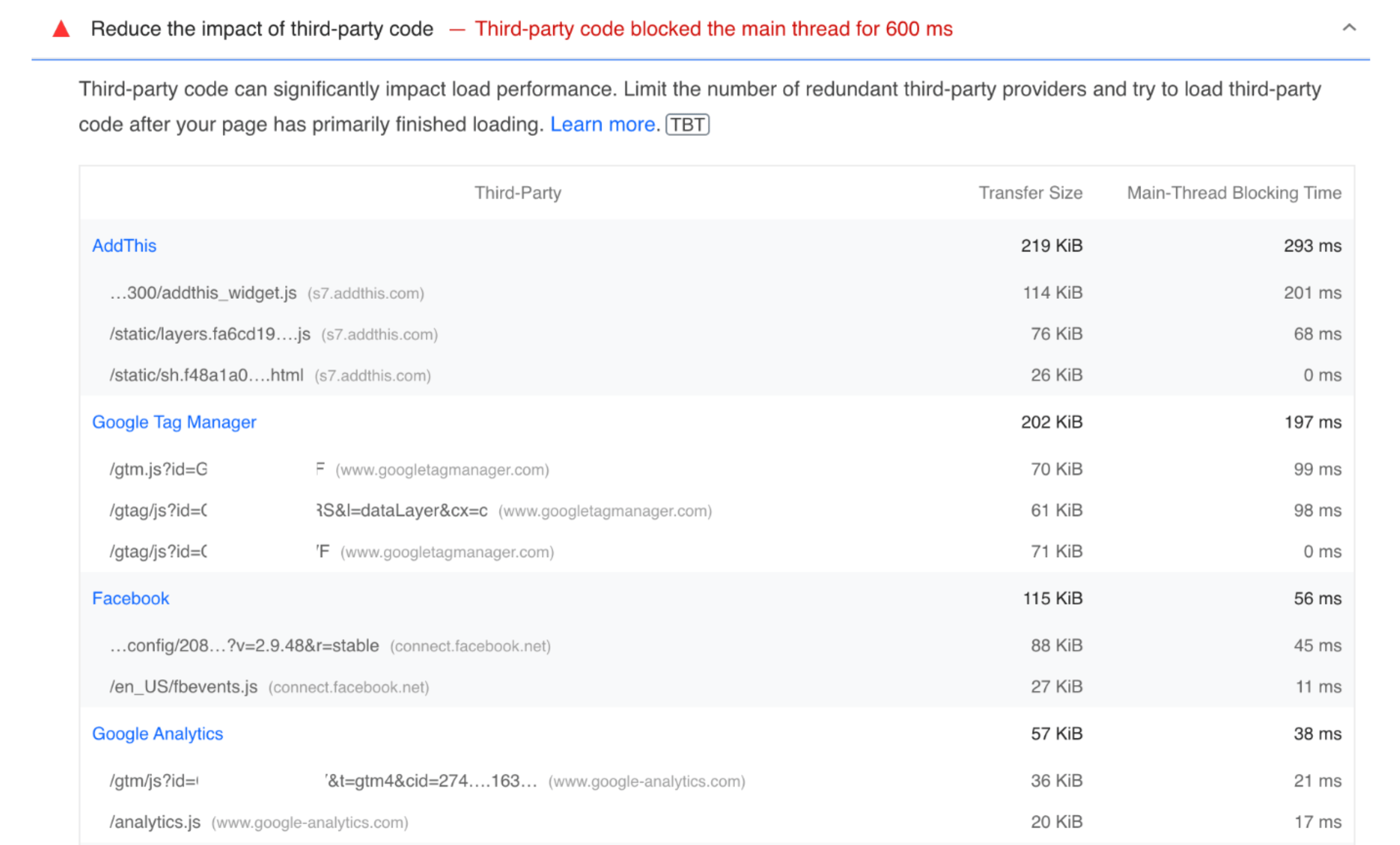
When you make bulky updates in GTM, such as adding multiple elements, especially custom HTML tags, check how they affect website performance. Every additional piece of code may negatively impact page speed. So be sure to roll back the GTM updates if you see a negative impact on the website performance.
Often, the problem can be in the JavaScript files of GTM that impact the page load time.
14. Conduct container audit
Regularly reviewing GTM is the best practice for maintaining an efficient and error-free setup. Auditing the GTM container will allow unnecessary elements to be deleted, resulting in faster website load.
For this purpose, you can use GTM Tools, which was created by Simo Ahava and relaunched and fully supported by Stape some time ago. With its help, you can conduct a comprehensive container audit, visualize container set up, delete or clone specific elements.

15. Test with other tools
In addition to testing set up via GTM, it is worth double-checking it in other tools. For example, if you configure tracking for Google Analytics 4, use its DebugView. For manual real-time configuration check and troubleshoot use Tag Assistant. This way you can be sure that the tracking you've configured works smoothly.
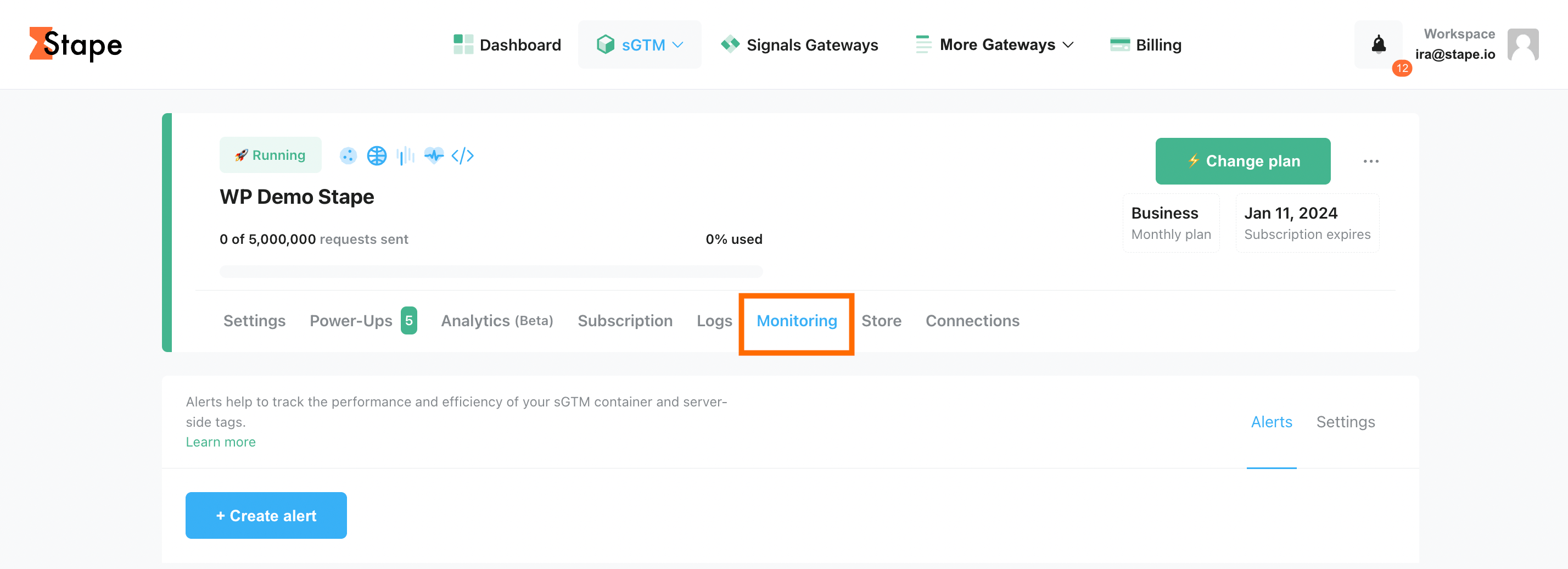
If you are using Stape, you can also try our Monitoring feature. With its help, you can easily monitor your GTM setup, as when developers update the website, some actions can negatively affect data tracking or break it.
16. Run old and new tracking in parallel
When you migrate from hard-coded tracking to GTM, don't remove the old code right away. Let both run for about a week, with GTM sending data to a separate Google Analytics property. Then compare the reports: the numbers should be within 1–2% of each other. If the gap is bigger, check your implementation.
After you verify the data, remove the hard-coded tags. Otherwise, pageviews and events will be counted twice.
17. Write clear version names and publish in small chunks
Name every container version and add notes before you publish it. Six months later, you won't remember what you changed and why. Good version notes include:
- Who: who requested and who published the change.
- What: which tags, triggers, and variables were added or changed.
- Why: the reason for the change.
Publish in smaller chunks, too. For example, implement GA4 first, then Google Ads, then Meta. If one tag is set up incorrectly, you can roll back only that change instead of disabling everything. Smaller versions are also easier to test.
18. Make GTM preview easier to navigate
Reading data can be tricky, and navigating the preview can become overwhelming in large containers with multiple active tags. To make a GTM preview navigation more manageable, use browser extensions such as Stape GTM Helper.
GTM Helper extension will allow you:
- Improve clarity of incoming and outgoing JSON requests with the JSON formatter.
- View query parameters in URL requests using the Request URL formatter.
- Navigate popular tags (Meta, GA4, Google Ads, Microsoft, etc.) with color-coded types and statuses.
- Verify consent statuses in server GTM to troubleshoot tag-related issues.
19. Consider using server-side tagging
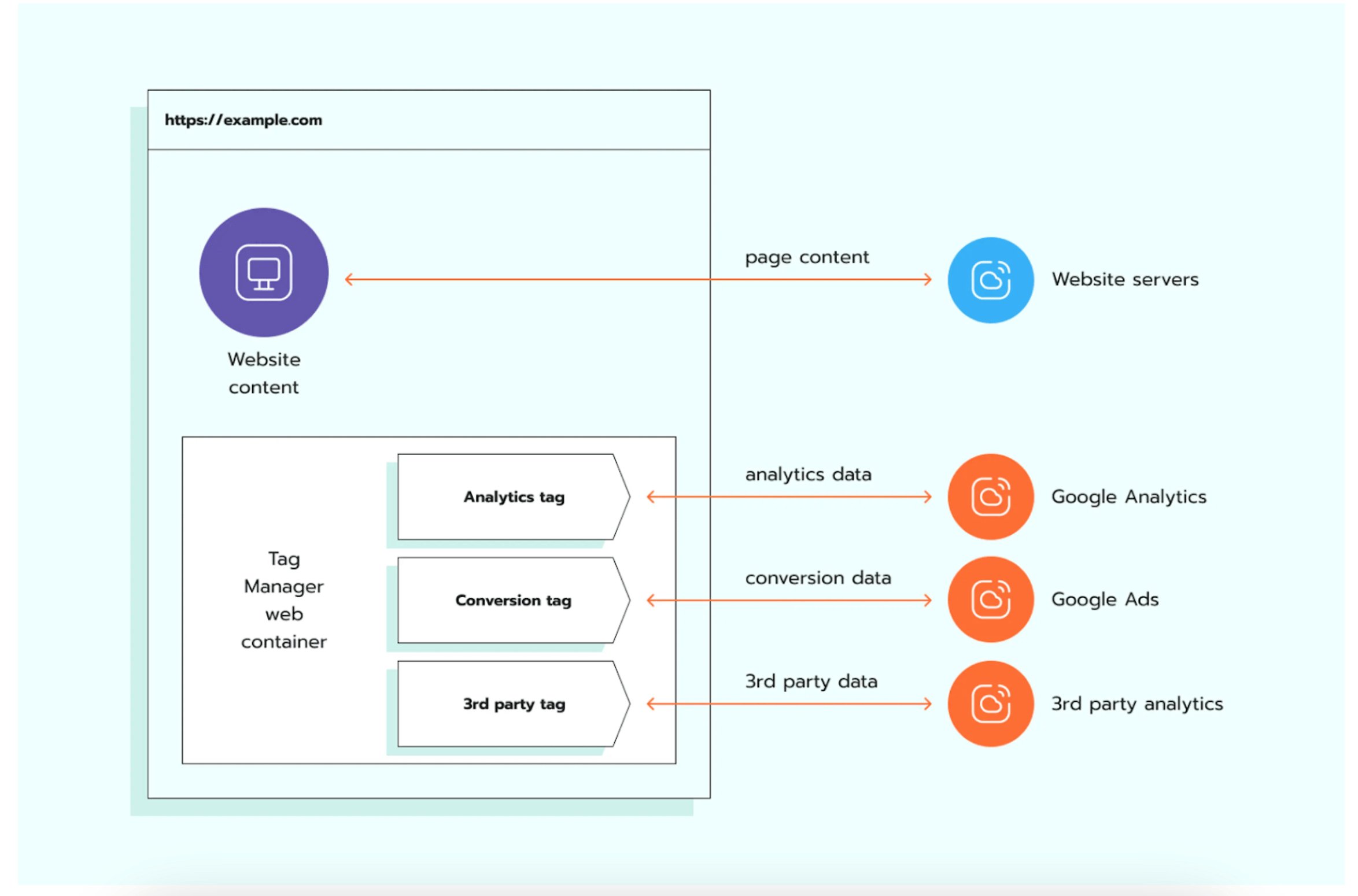
If you don't use server-side tracking instead of client-side tracking, switching to it is worth considering, especially in the age of data regulations and the need for greater control over the data to comply with them. This approach removes vendor code from the client and shifts processing from the client to the server.
Server-side tagging is highly flexible in setup and provides numerous benefits, including resistance to ad blockers and browser restrictions such as ITP, security, and data control.
11 popular tracking tags for GTM
Tags for analytics tools
Google Analytics
Type: web and server
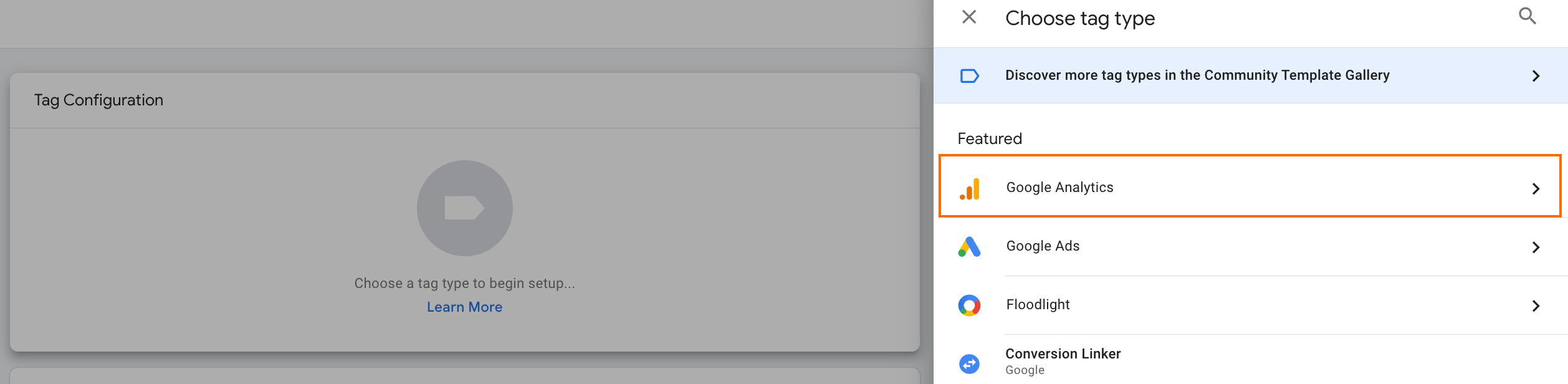
Google Analytics 4 remains one of the most popular analytics tools. Using tags, you can set up pageviews, traffic, and events such as button clicks, scrolls, and downloads. That's an essential tag for gathering insights into user interactions and behavior on your website.
The tag is available for both web and server GTM containers. It is found when you choose the tag type when creating a new tag.
Check out our detailed guide on how to set up server-side Google Analytics 4 tracking.
Mixpanel
Type: web and server
If you use Mixpanel for data tracking, a few tags are available for web and server GTM containers. Both communicate with Mixpanel API allowing you to implement Mixpanel through the Tag Manager interface rather than directly in code.
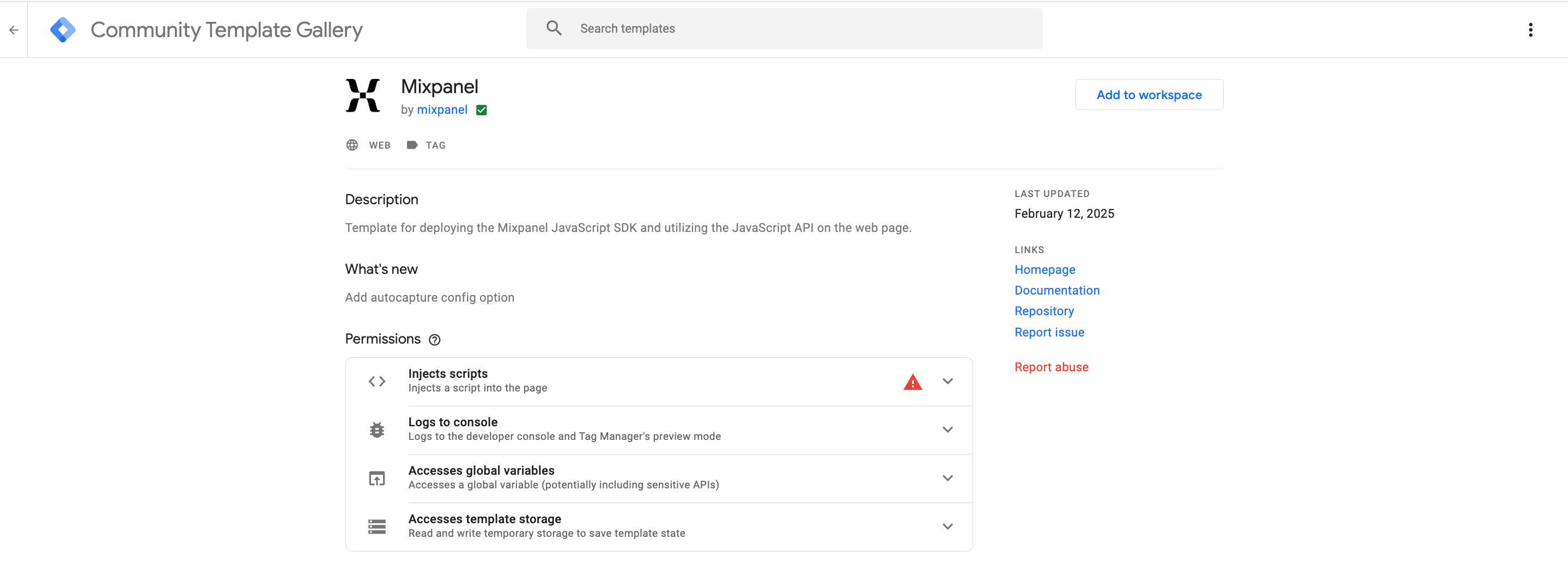
Mixpanel has developed a Mixpanel tag for web containers, which can be found in the GTM template gallery.
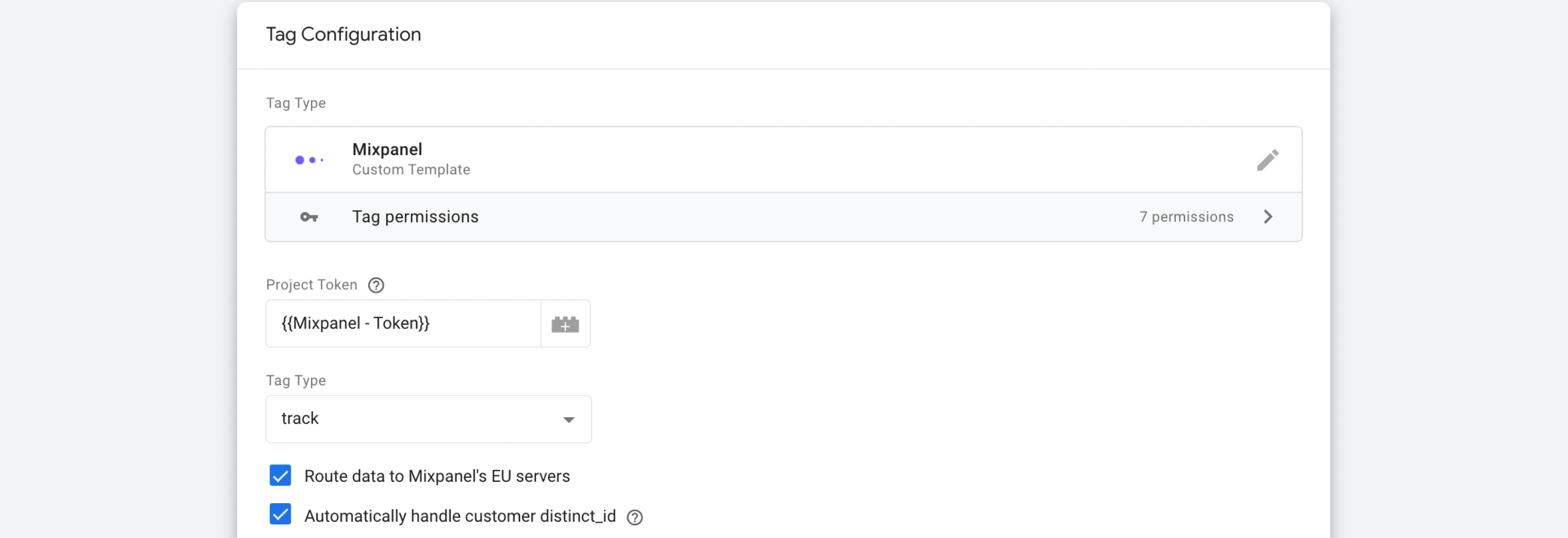
As for the Mixpanel tag for server GTM container, you can use the one developed by Stape. For the detailed set up guide, please check our article on configuring the Mixpanel tag.
Matomo
Type: web and server
Matomo became even more popular after Google Universal Analytics sunset. It is a free, open-source platform that provides tools to track user interactions on a website. If you use Matomo tracking, there are numerous GTM tags can facilitate the tracking process.
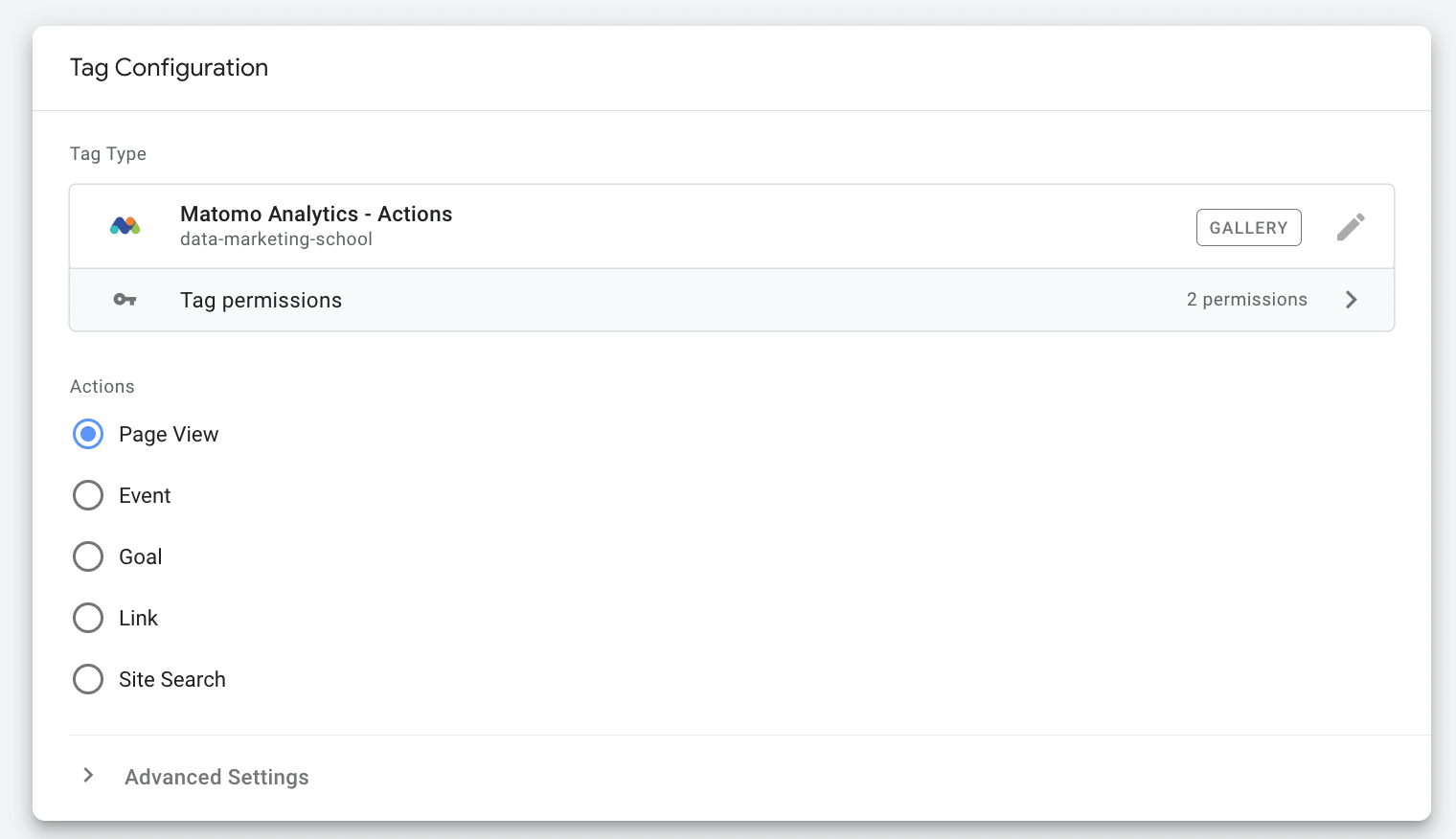
As for the tag for web GTM container, Matomo Analytics - Actions tag is the most versatile as it includes the tracking of different actions (page view, events, goals, links and site searches) compared to other available tags that are focused on the specific actions tracking.
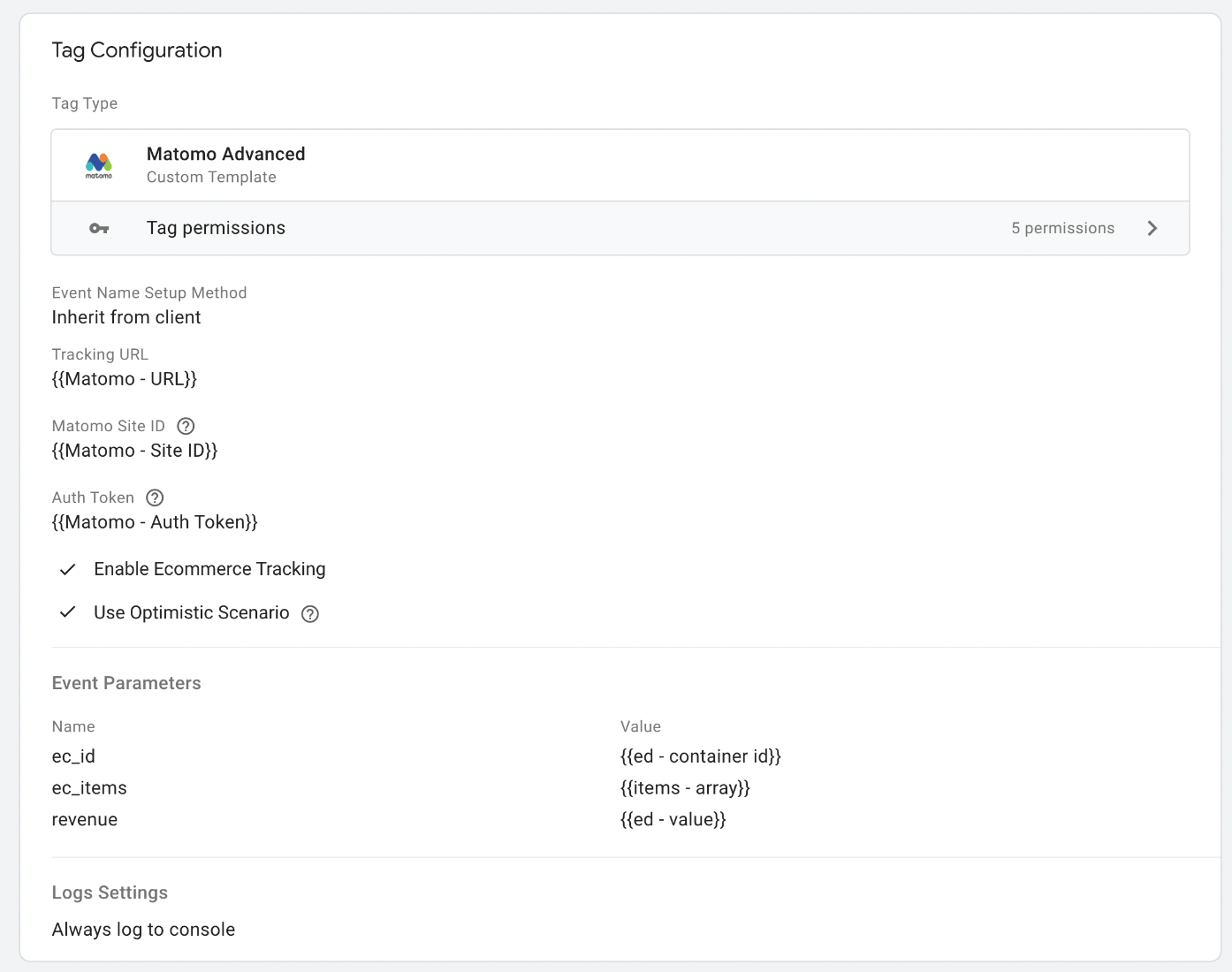
If you are using server GTM container, try Stape's Matomo Advanced tag. With its help, you can track pageviews and events, including e-commerce. Check our article on tag configuration for more details.
Google Ads tracking
Google Ads Conversion and Remarketing
Type: web and server
Google Ads Conversion Tracking tag is crucial for evaluating the performance of your Google Ads campaigns. So, you can refine your Google Ads strategy. In addition, if you run remarketing campaigns, you should add Google Ads Remarketing tag. Establishing this reliable data foundation via Tag Manager is considered one of the essential best practices for Shopify Google Ads, ensuring your eCommerce conversions are accurately attributed. Similarly, implementing a reliable server side tracking solution for WooCommerce or any other platform secures these vital campaign insights.
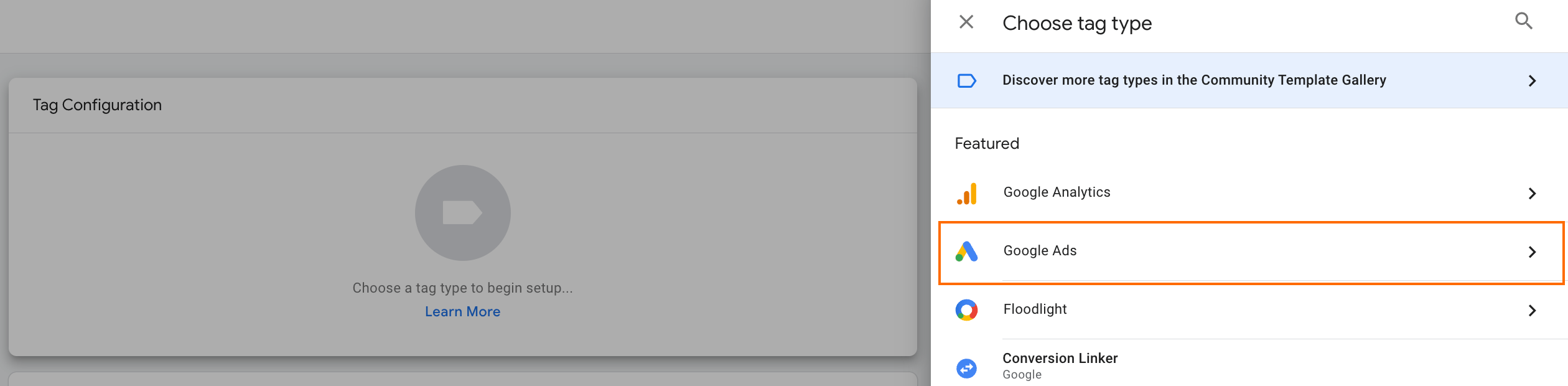
Similar to the Google Analytics tag, the Google Ads Conversion Tracking and Remarketing tags can be found in web and server GTM containers when you select the tag type.
We have a detailed guide for setting up server-side conversion tracking in Google Ads, including configuring Enhanced Conversions and remarketing tracking.
Facebook tracking
Type: web and server
Depending on your tracking method (client-side or server-side), there are two data gathering tools: Facebook Pixel and Facebook Conversions API. Both have the same purpose - gathering data on Facebook and/or Instagram ad campaigns.
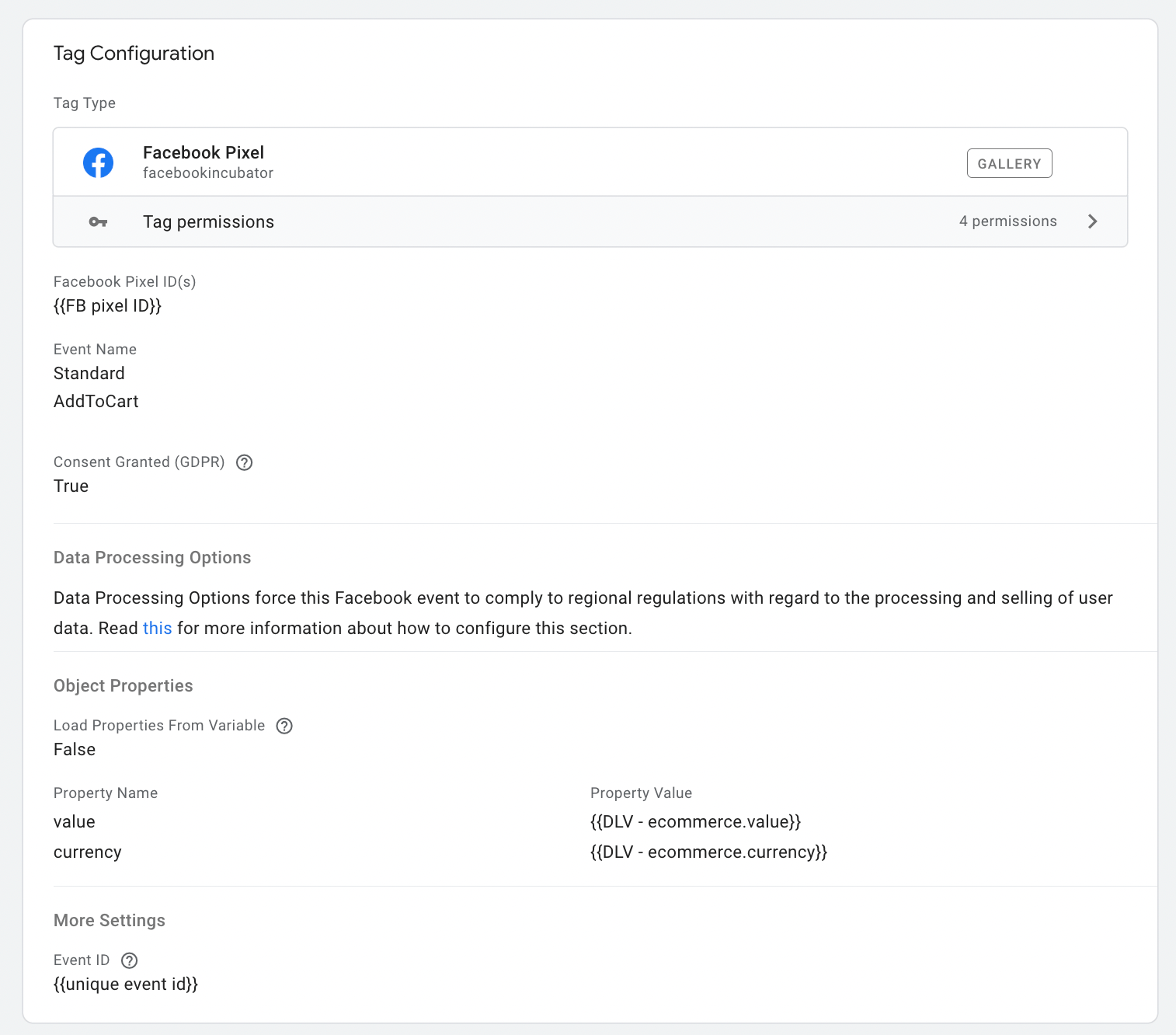
If you are using a web GTM container, you can opt for the Facebook Pixel tracking tag from the GTM template gallery. After adding the Meta Pixel script to your website, you can effectively manage data collection with this tag.
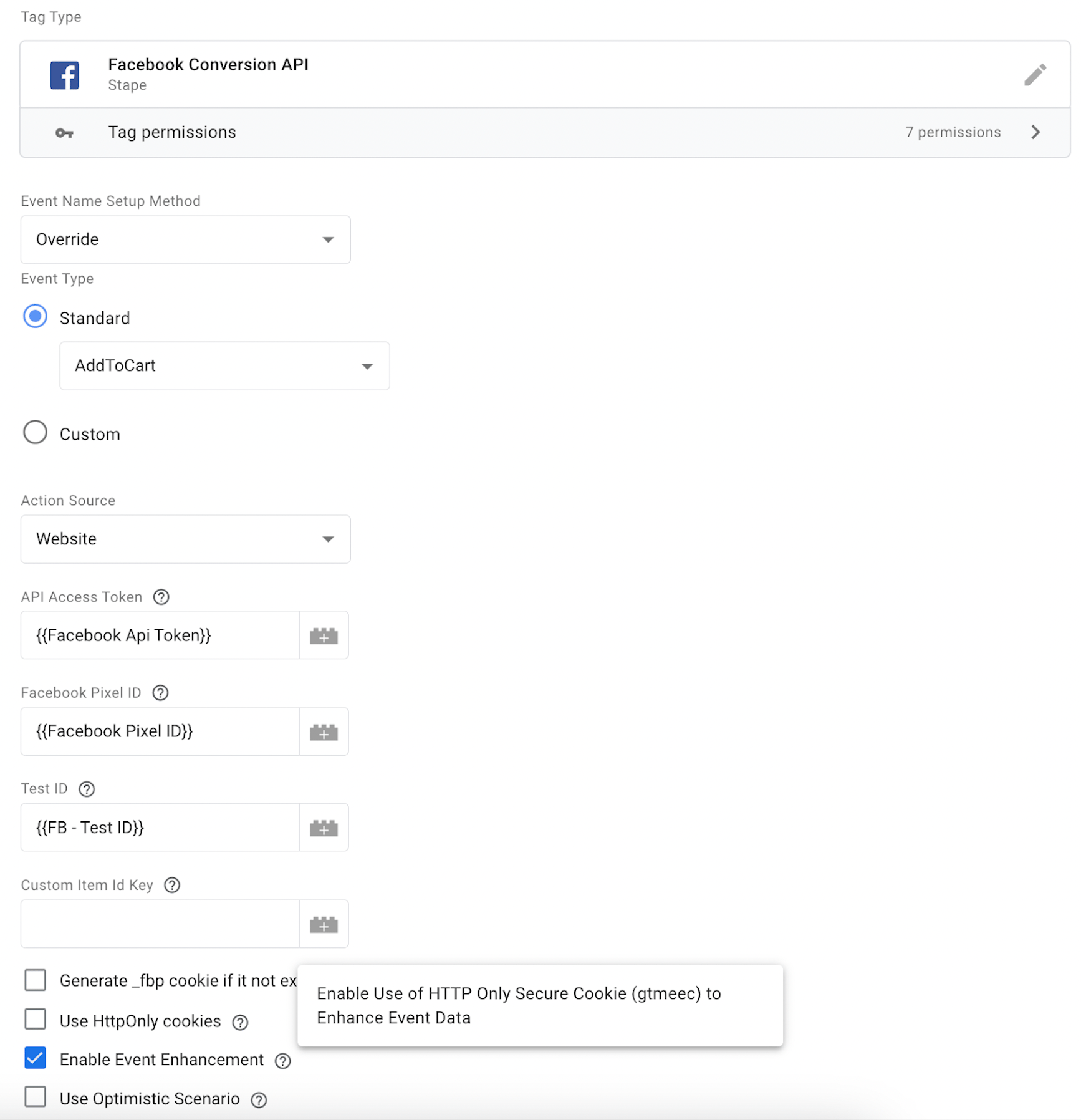
For the server GTM container, you can use the Facebook Conversions API tag developed by Stape. Please note that Meta recommends tracking events using Facebook Pixel and Conversions API, so you must also set up event deduplication for precise data tracking.
LinkedIn tracking
Type: web and server
Similar to Facebook, LinkedIn has a tracking pixel. GTM templates will facilitate data tracking if you run LinkedIn ads.
For a web GTM container, you can use LinkedIn InsightTag 2.0 after adding tracking code to the website. However, some users notice that the tag's performance slows down website load, so it's worth doing website speed testing before and after implementing the tag.
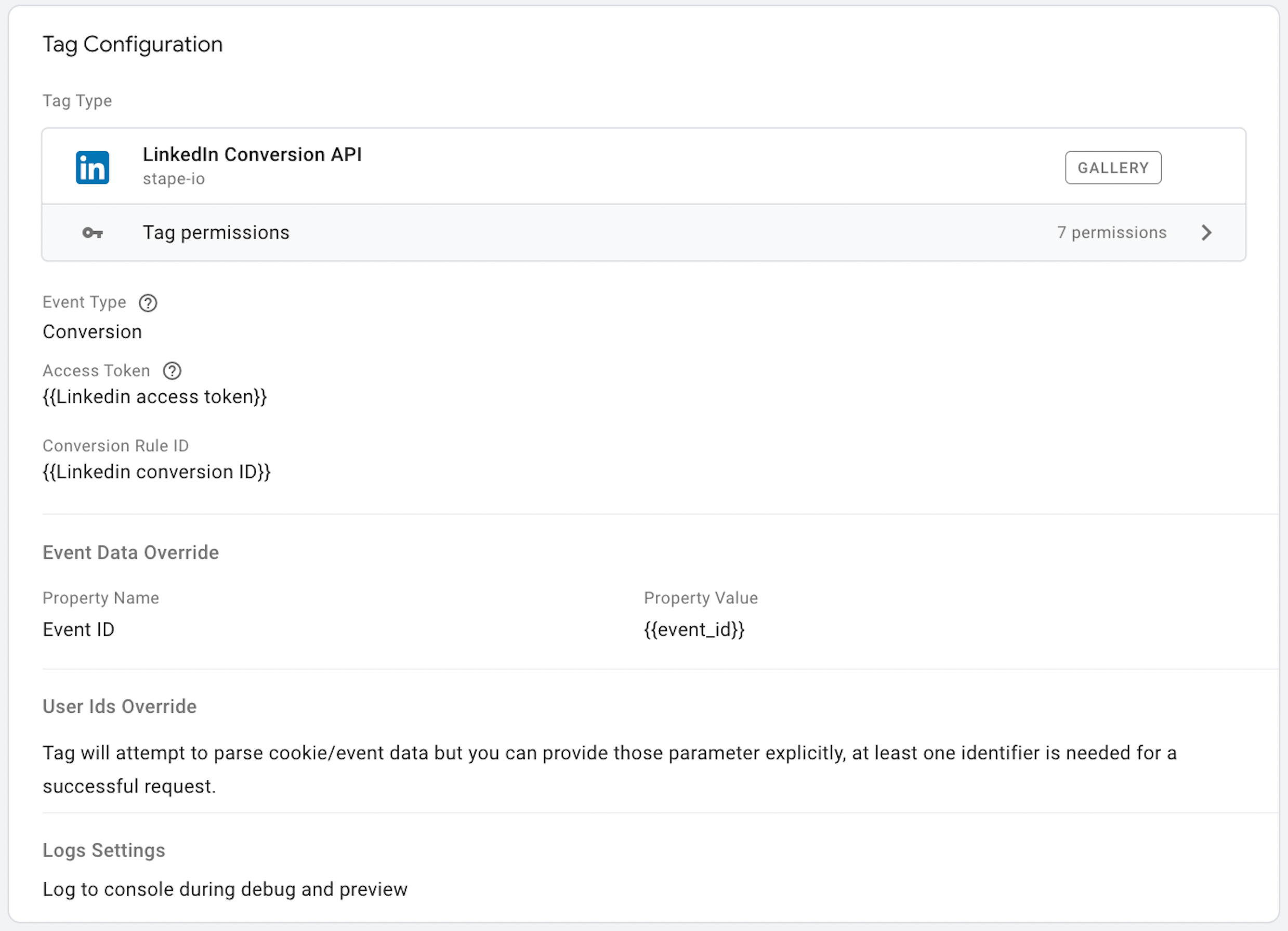
If you are using a server GTM container, try the LinkedIn Conversion API. Integrating the Conversion API will improve your web pixel tracking and make it more resistant to ad blockers and the latest ITP updates. Check out our guide on setting up the LinkedIn Conversion API Tag for server GTM for more details.
Email marketing tags
Most email marketing services don't have their own rebuild GTM templates, especially for web GTM container. So, in the sections below, we consider the available templates for the most popular platforms. If there is no template for a web GTM container, creating a custom HTML tag that fits your needs would be a good solution.
Mailchimp
Type: server
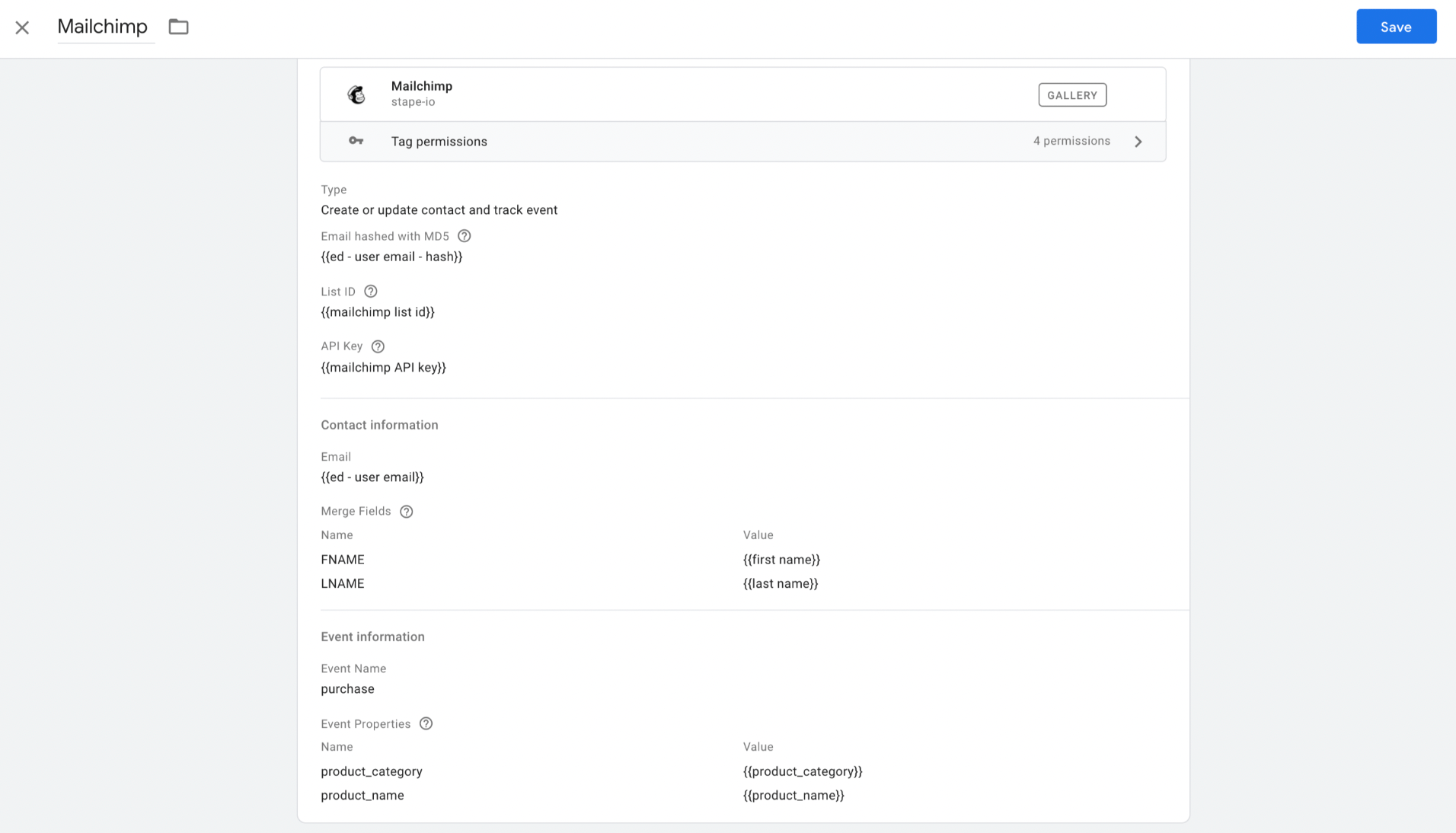
Mailchimp Event Track is a tag that works for the server GTM container. With the help of a tag you can track events and create or update contacts. Check how to connect your website to the Mailchimp using a tag.
Klaviyo
Type: web and server
Integrating your site with Klaviyo is crucial if you run email campaigns. By sharing data with Klaviyo, you can better segment lists, automate campaigns and send personalized emails.
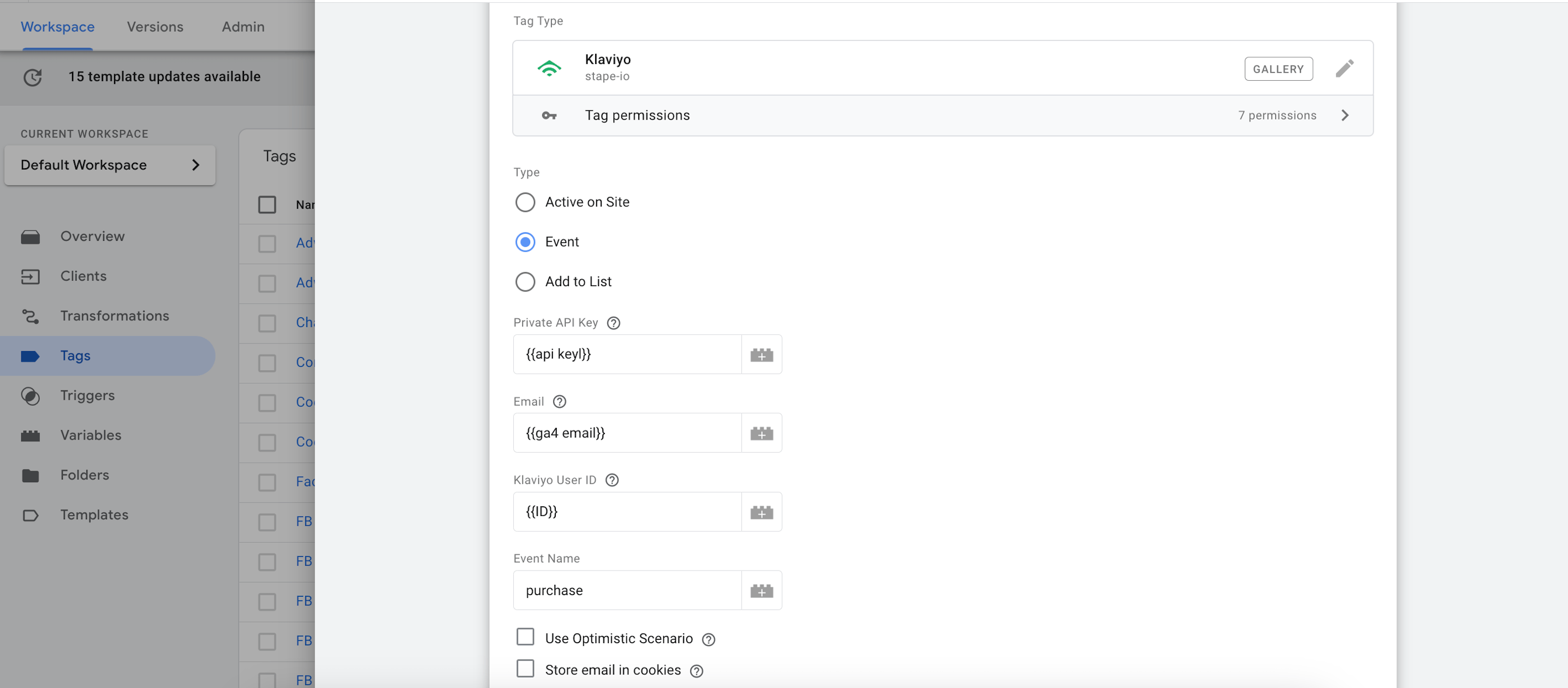
Klaviyo Identify is a tag for a web GTM container that sends user identification to Klaviyo. In most cases, it can be more convenient than custom HTML.
The Klaviyo tag can be used for the server GTM container. It allows you to add new users, track user activity on the website, and send events and parameters. For details, see the detailed guide on how to set up the Klaviyo tag.
Brevo
Type: server
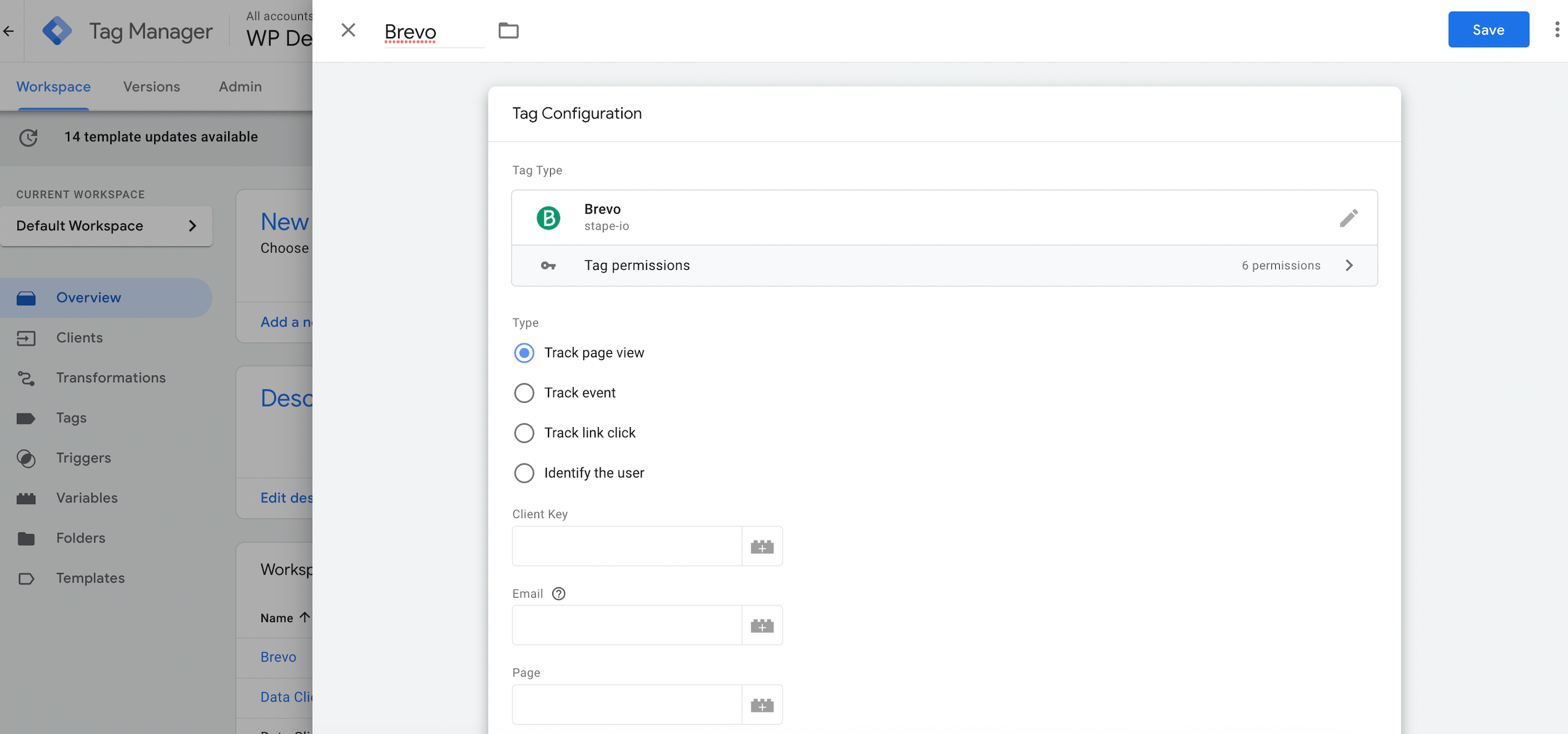
Like Mailchimp, integrating with Brevo using a prebuilt template is only possible for the server GTM container. To create such an integration, use the Brevo tag. The Brevo server GTM tag allows for the tracking of events, page views, link clicks, and user identification.
SendGrid
Type: server
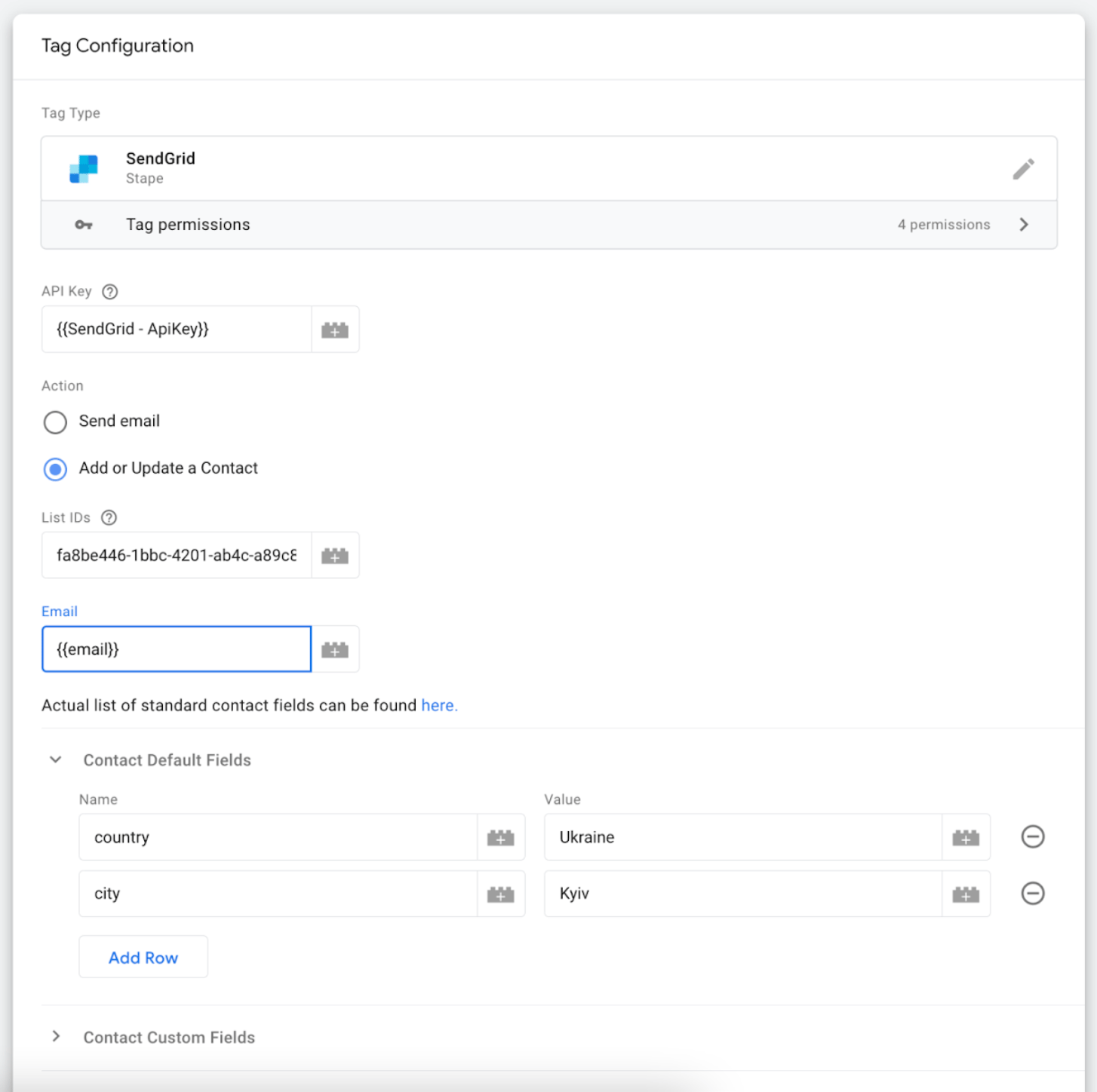
SendGrid is a popular solution for those needing to send large emails. Similar to other email marketing services, SendGrid has a prebuilt template for a server GTM container only. The SendGrid template allows sending messages from SendGrid and adding/updating contacts using the server GTM container.
For a detailed guide on how to set up SendGrid tag check our guide.
| Want a complete overview of all analytics and ad trackers firing on your website? Test it now with Stape’s free Website Tracking Checker. The tool shows you how well your website analytics tracking aligns with modern best practices and highlights opportunities to improve data quality for your analytics systems and ad platforms. Digital marketers and agencies can run fast tracking audits, use the report as a checklist to double-check implementations, and win more clients with proof of server-side tracking value. |
Final thoughts on best practices for Google Tag Manager
In this article, we covered best practices and listed tags that work for web and server GTM containers. These tags are enough to track the performance of different platforms and on-site behavior. By applying best practices for Google Tag Manager, such as a clear account structure, structured naming conventions, controlled access, fewer Custom HTML tags, and server-side tracking, businesses can maintain a well-organized, secure, and high-performing GTM setup that doesn't affect website performance. Additionally, server-side tracking provides improved data control and security. Regular audits and performance monitoring with GTM Tools ensure efficient data tracking configuration.
If you're putting these best practices into action, consider improving your skills with a GTM certification. You will learn how to make setups, validate implementation across web and server containers, and present your expertise to stakeholders.
Want to start on the server side?
Try for freeRecommended for you
Blog
Data trends in digital marketing for 2026
Explore key 2026 digital marketing trends like first-party tracking, offline data, trust building, etc., plus common challenges and solutions to choose from.
Aug 18, 2026
Blog
Marketing attribution models: which one to choose in 2026
Compare marketing attribution models, learn which one fits your business, and use it for cross-channel optimization and data-driven decisions in 2026.
Nov 27, 2026

Comments