Sep 14, 2026
Everyone's talking about Google Data Manager: do you really need it?
Written by
Manisha Mistry
Published Oct 22, 2026 comments
Over the last few months, from LinkedIn posts to measurement communities and conferences, one of the most common topics of discussion has been Google Data Manager (and the Data Manager API).
Now it is important to know that Data Manager isn't brand new. It was actually introduced back in October 2023, and the Data Manager API became generally available in October 2025.
So why is everyone talking about it now?
That's because in April 2026, Google started requiring us to use the Data Manager API for new Customer Match setups instead of the Google Ads API, and in June 2026 for offline conversions too. On top of that, at Google Marketing Live 2026, there was a big focus on data strength, and Data Manager was one of the tools Google focused on.
As much noise as there is about Data Manager, many of us haven't had the time to dig into it, and the questions I hear most are:
Do I need it? Does it replace my server-side setup? And how do I even decide if I should use it?
I will be the first to admit that I had the same questions when Data Manager first came out, and I still do every time a new enhancement is released. So to help us all cut through the noise, in this blog I'll walk through:
- Basics: what Data Manager actually is in plain English;
- Options: the two ways you can use it;
- Use cases: three use cases where Data Manager can make a difference;
- Decision guide: a flowchart to help you decide if you need to use it.
Let's dive in.
What Google Data Manager is in plain English
To help you understand what Google Data Manager is, let's start with Google's official definition of the Data Manager UI:
Google Ads Data Manager is a data import and management tool with a point-and-click UI experience that lets you bring your customer data from outside of Google and activate it in Google Ads.
And the official definition of the Data Manager API is:
The Data Manager API lets you send audience and conversion data to multiple Google advertising products with a single call.
So what do those definitions actually mean?
The way I understand it is you use Data Manager to send first-party data from your client's own systems, like their CRM or backend systems, into Google Ads. For example, when your client closes a sale from an online lead, you can use Data Manager to send that sale to Google Ads (and potentially GA4).
Now you might be wondering, why should we do that and why is Google rolling this out now?
Your robust data fuels predictive insights and supercharges your bidding and audience capabilities across Google's channels.
Basically, Google is saying that if you give Google Ads better data, its bidding and audiences perform better, which is something most advertisers want.
Finally, it is important to know that right now Data Manager is mainly used with Google Ads. That said, it can send data to GA4 as well, but based on what I have heard so far, it is still early days, and Google is still working on it as a true replacement for Measurement Protocol.
The two ways to use Data Manager
At this time, there are two ways to use Data Manager, but before we dive into those, let's answer the question most asked about Data Manager and server-side tracking, which is....
Does Data Manager replace your server-side tracking setup?
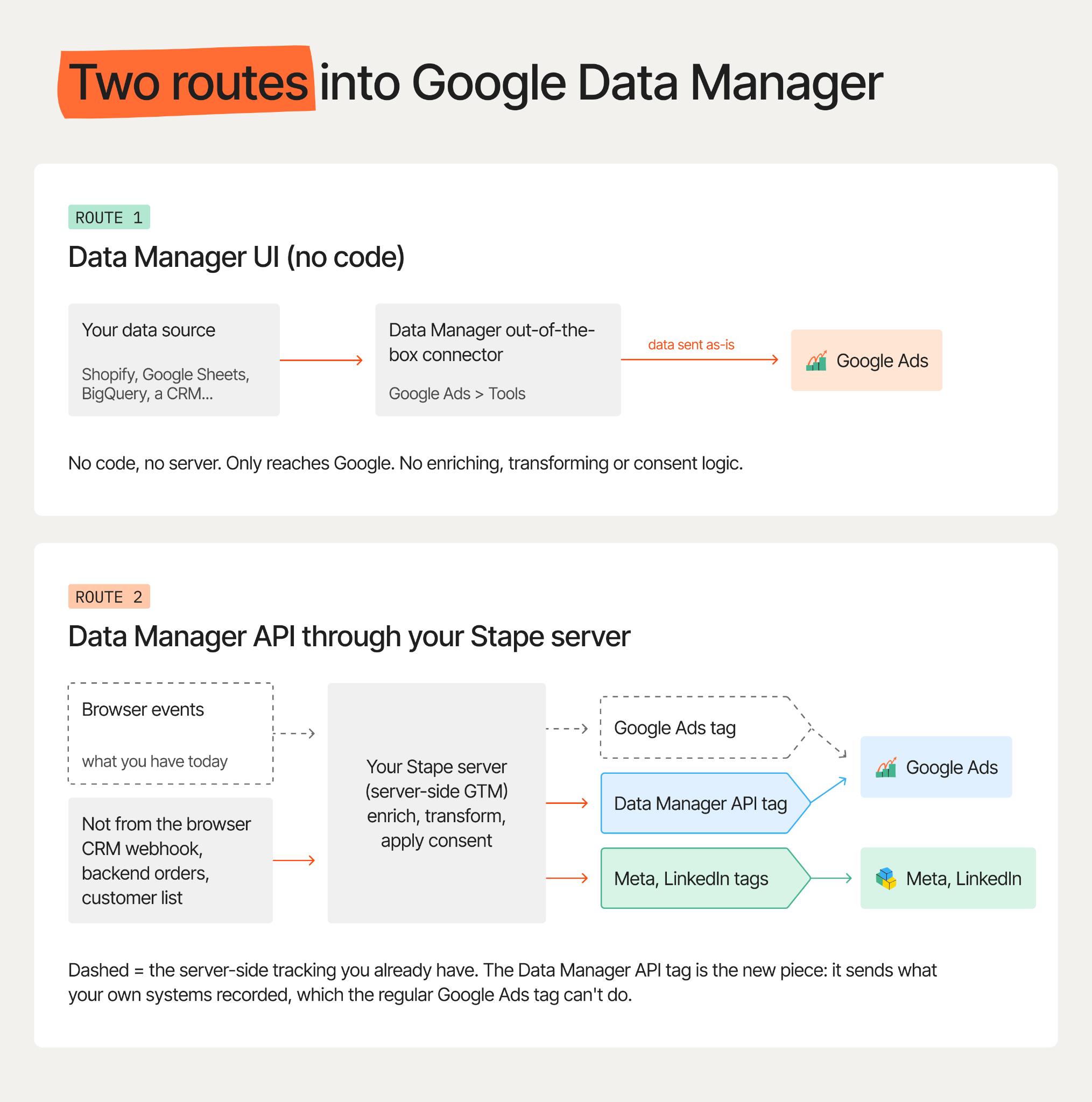
This has to be the most asked question about Data Manager that I have received, so let's break it down. With server-side tracking, you use the Google Ads client and server-side tags to send Google Ads behaviors the browser collects on your website. In so many words, your server-side tracking is collecting online behaviors (leads, video views, and more) and sending those to Google Ads through a server connection. It does that well, and Data Manager does not replace that.
Instead, Data Manager picks up after that point, as you use it to send data your client collects in their own systems to Google Ads. For example, offline sales, customer lists, and more.
So, in summary, Data Manager doesn't replace server-side tracking; it adds to your setup.
Now that we understand how server-side tracking and Data Manager work together, let's dive into the two ways to use Data Manager.
Option 1: Data Manager UI
The Data Manager UI is a great no-code, no-server option to get your first-party data to Google Ads. To access the Data Manager UI, you need to log into your Google Ads account and go to Tools → Data Manager. From there, you will be able to see if an out-of-the-box connector is available for your backend, and if it is, just follow the steps.
Now it is important to know that if you use the Data Manager UI, you can't transform, enrich, or apply consent logic before you send your data. Basically, you have to send the data as-is with no modification.
Option 2: Data Manager API
The Data Manager API is the option you use when you need to enrich, transform, or apply consent logic to your data before you send it to Google Ads, or when an out-of-the-box connector is not available for your backend system.
If you plan to use it directly through Google, you do need to set up a Google Cloud project, enable the required APIs, and write some code. You can find detailed steps from Google on their Set up API access support page.
That said, Stape released a way to use the Data Manager API with no Google Cloud project or code. All you have to do is connect your Google account in Stape's UI (see Data Manager API connection documentation) and then set up your Stape Data Manager API tags and triggers in your server container. In my opinion, using the Stape Data Manager API connection is way easier than going through all the Google Cloud project setup.
Which option should you use?
Usually, when I mention the two setup options, the next question that follows is...
Which option should I use?
The answer to that really depends on your use case and backend systems. That said, here is what I usually recommend when someone asks me that question.
If you are just getting started and want to send first-party data, like offline conversions, to Google Ads, use the Data Manager UI as long as Google has an out-of-the-box connector for your backend system. Just know that you have to send the data exactly as-is; no transformation, enrichment, or consent logic can be applied.
On the other hand, if you are already using Stape server-side tracking, an out-of-the-box connector is not available for your backend system, or you want to enrich, transform, or apply consent logic to your data, then use the Data Manager API through Stape. I highly recommend not diving into the Google Cloud project route, as it can usually get complicated fast.
So, to summarize, if you don't already have Stape server-side running and Google has an out-of-the-box connector available, go down the UI route. If not, then use the Data Manager API through Stape.
Three use cases for the Data Manager API
Now that we have covered what Data Manager is and the two ways you can use it, let's dive into three common use cases for the Data Manager API at this time. Before we dive into them, it is important to know that Google plans to continue to enhance Data Manager, so these use cases can change over time.
Use case 1: online leads to offline conversions
Many of us have worked with clients whose websites are used to gather leads, and then the actual sales cycle happens offline. For example, think of service-based businesses or SaaS companies that close their sales offline sometimes weeks after the lead was generated.
I personally have worked with these clients, and one of the questions I always get is...
How can we tell Google Ads which leads converted?
This is a real problem, as you want to gather leads, but at some point you need to tell Google Ads, of the 100 leads it generated, which ones actually converted. This is where the Data Manager API and Stape server-side tracking can help. You can have your CRM send the conversion to your server and then use Stape's Data Manager API tags to send those offline conversions to Google Ads. Additionally, as you are using the Data Manager API, not the UI, you can transform, enrich, or add consent logic before you send that data off to Google Ads.
Use case 2: strengthen your online conversions
This use case is one of the most interesting use cases for the Data Manager API, as it allows you to enhance the data Google Ads receives on a conversion within 24 hours. For example, say your client is an eCommerce store that sends purchases to Google Ads. Your server-side tags do the job of sending what the browser collected about the purchase to Google Ads at the time of the purchase.
That said, the browser doesn't always capture everything about the conversion, so this is where the Data Manager API can help. Using Stape server-side tracking and the Data Manager API, you can take additional data from your client's backend and send it to Google Ads. This additional information could be user identifiers, more complete transaction information, an updated conversion value, or additional customer data.
Now it is important to know that to ensure Google Ads updates the right conversion, you need to send the data to the same conversion action with the same transaction ID, as that is what Google Ads uses to match the data to the right purchase and not double count it.
So that raises an interesting question...
Could you send online conversions through the Data Manager API without the Google tag at all?
I have pondered this question, and based on everything I have read and discussed with others, it appears you could. But it is not a standard use case in Google's documentation, so I suggest testing it if you want to try it.
Use case 3: upload customer lists to Google Ads
This use case is a very common one, as many businesses have a list of past customers either in their CRM or email marketing tool. By using the Data Manager API to upload that list to Google Ads, the client can then:
- Exclude existing customers from "first purchase" campaigns;
- Target past buyers with repeat-purchase ads;
- Give Google's AI a better signal of what a good customer looks like.
Additionally, as you are using the API, not the UI, you can transform, enrich, or add consent logic to the data before you upload it to Google Ads. To get started with your setup, check out the Customer Match guide that will walk you through the details.
How to decide: the flowchart
Now that we have covered what Data Manager is, the two ways to use it, and the three use cases, it is time to help you answer the question...
Do I need to use Data Manager?
To help answer that question, I have a flowchart that I currently use with anyone who brings this question to me. Simply start at the top and work your way through each question, one data source at a time.
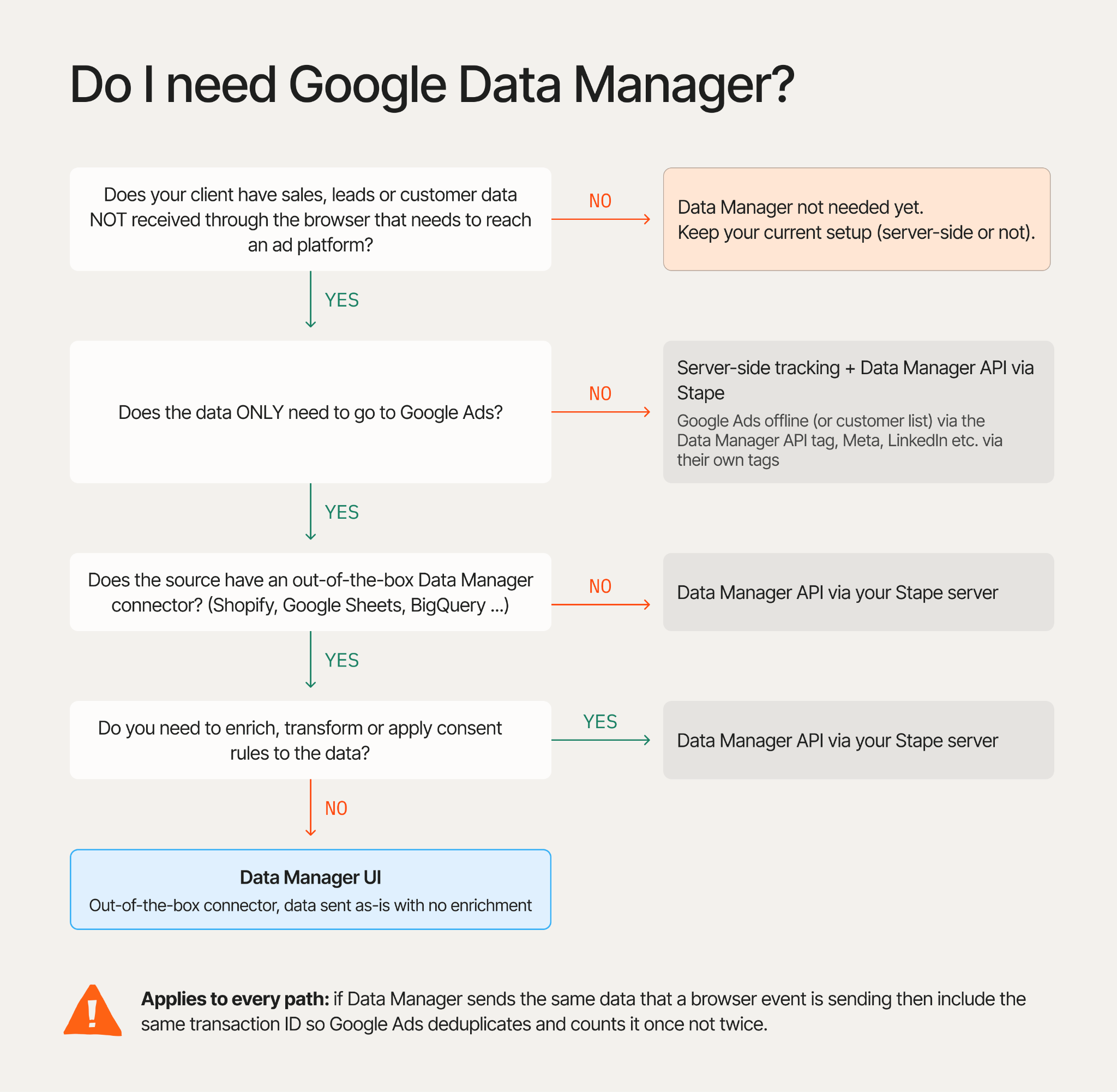
Finally, it is important to remember that if Data Manager is sending the same conversion a browser tag already sent, include the same transaction ID, so Google Ads counts it once, not twice.
Wrapping up
So there you have it, we dived into what Data Manager is, the two ways you can use it, the three current use cases where it can make a difference, and a flowchart to help you decide if you need to use it. Now let's go back to the question from the top...
Do you really need Google Data Manager?
Well, it all comes down to this: if your client has sales, leads, or customer data in their backend systems that needs to be sent to Google Ads, then yes, it may be time to look into Data Manager. Just remember that Data Manager is not a replacement for server-side tracking. Instead, it is an additional layer you add on to send data to Google Ads and potentially GA4 in the future.
For a next step, pick one client, list out their backend systems that store sales or lead data, and run each one through the flowchart to decide if you need to dive into Data Manager today. I'm guessing you'll find at least one place where Data Manager can help.
Want to start on the server side?
Try for freeRecommended for you
Sep 17, 2026
Blog
Track Google Ads Conversions using Data Manager API
Google Data Manager API is a tool for the management and integration of first-party data within Google Ads. It simplifies data sending by using a direct API call.
Sep 14, 2026

Comments