Google Ads Conversion Improver tag
Updated Nov 20, 2026
The Google Ads Conversion Improver tag by Stape helps you recover conversions that Google Ads may have missed or not yet attributed from your server Google Tag Manager (sGTM) container. It uses the Google Ads Conversion Adjustments API to check whether a conversion has already been attributed and, if not, resends it through the Google Ads Offline Conversion API.
- The tag checks existing conversion attribution using a unique Order ID before resending a conversion, helping prevent duplicate reporting in Google Ads.
- It supports delayed conversion checks, enhanced conversions using hashed email or phone identifiers, and cart data with product details, quantities, and prices.
- It lets you configure source and destination conversion actions, Google Ads account IDs, conversion values, currency, timestamps, and Google Click IDs (GCLID, GBRAID, and WBRAID) to improve conversion attribution.
Before you begin
To use this tag, you'll need Google Tag Manager web and server containers, as well as a configured server container and custom domain in Stape. Please follow these guides if you don’t have any of those:
In addition, you’ll need to configure sending data to the server GTM container. The most popular options for sending data to sGTM are Google Analytics 4 and Data Tag/Data Client. For more information, read the Send data to server container article.
Important: The tag should ideally run 8–23.5 hours after the original conversion to give Google Ads time to process it. A delayed request can be implemented using Stape Request Delay, Firestore Request Delay, or your own custom solution. Order ID is a required parameter, and the same Order ID must be passed in both the original and delayed requests.
How to set up the Google Ads Conversion Improver tag
1. Add the Google Ads Conversion Improver tag template in the server GTM container by importing it from the Template gallery:
- Search for the Google Ads Conversion Improver tag by Stape in the Google Tag Manager Template Gallery.
- Click Add to workspace.
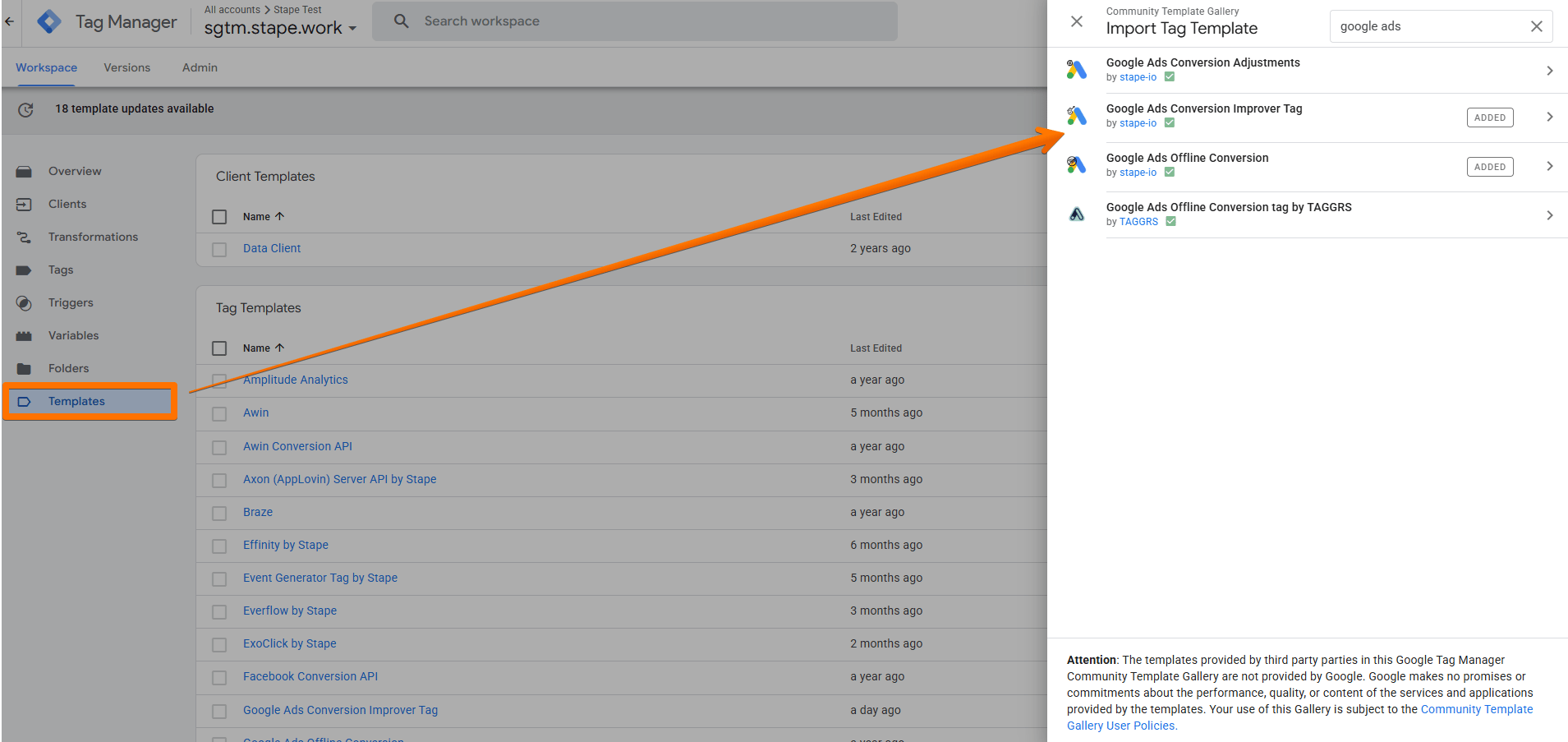
2. Create the Google Ads Conversion Improver tag:
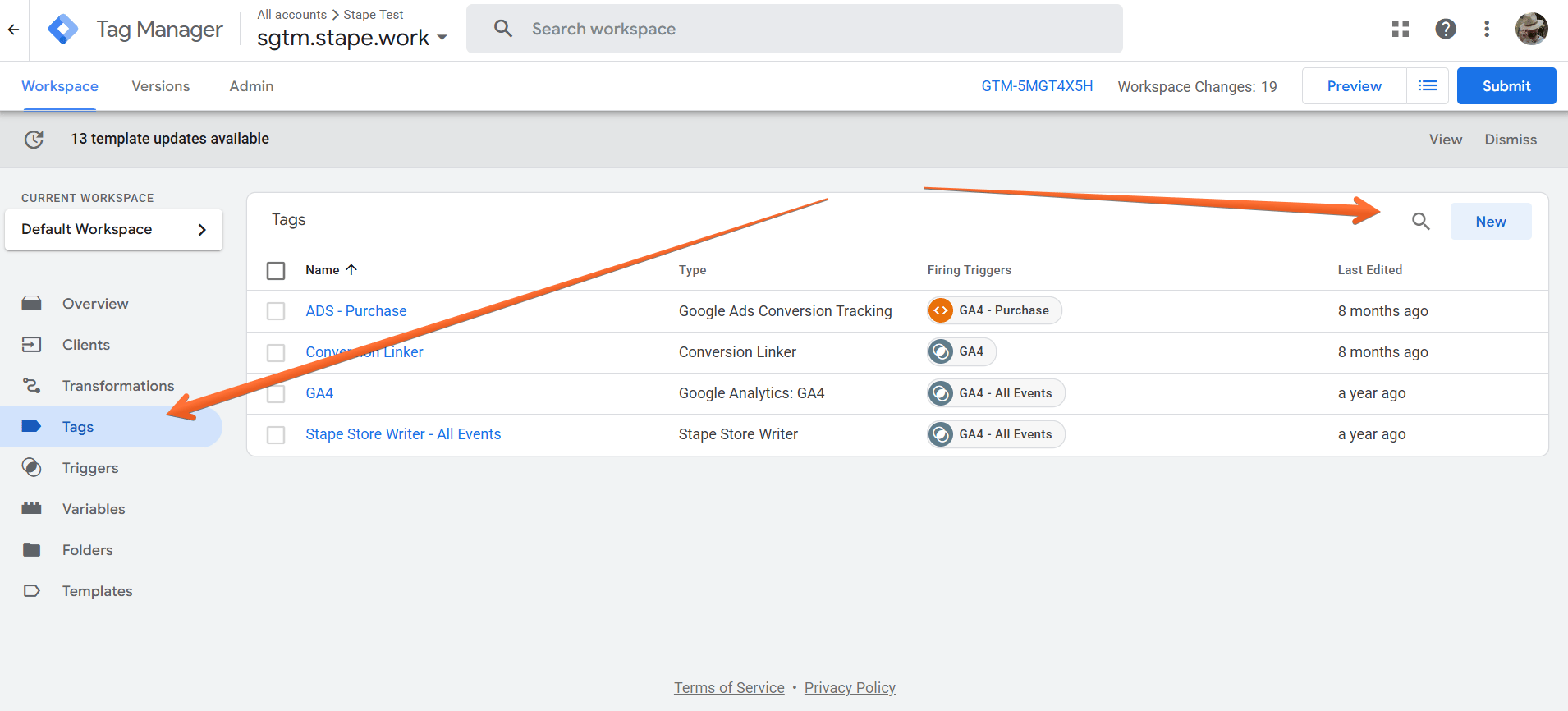
- Go to the Tags menu → click New.
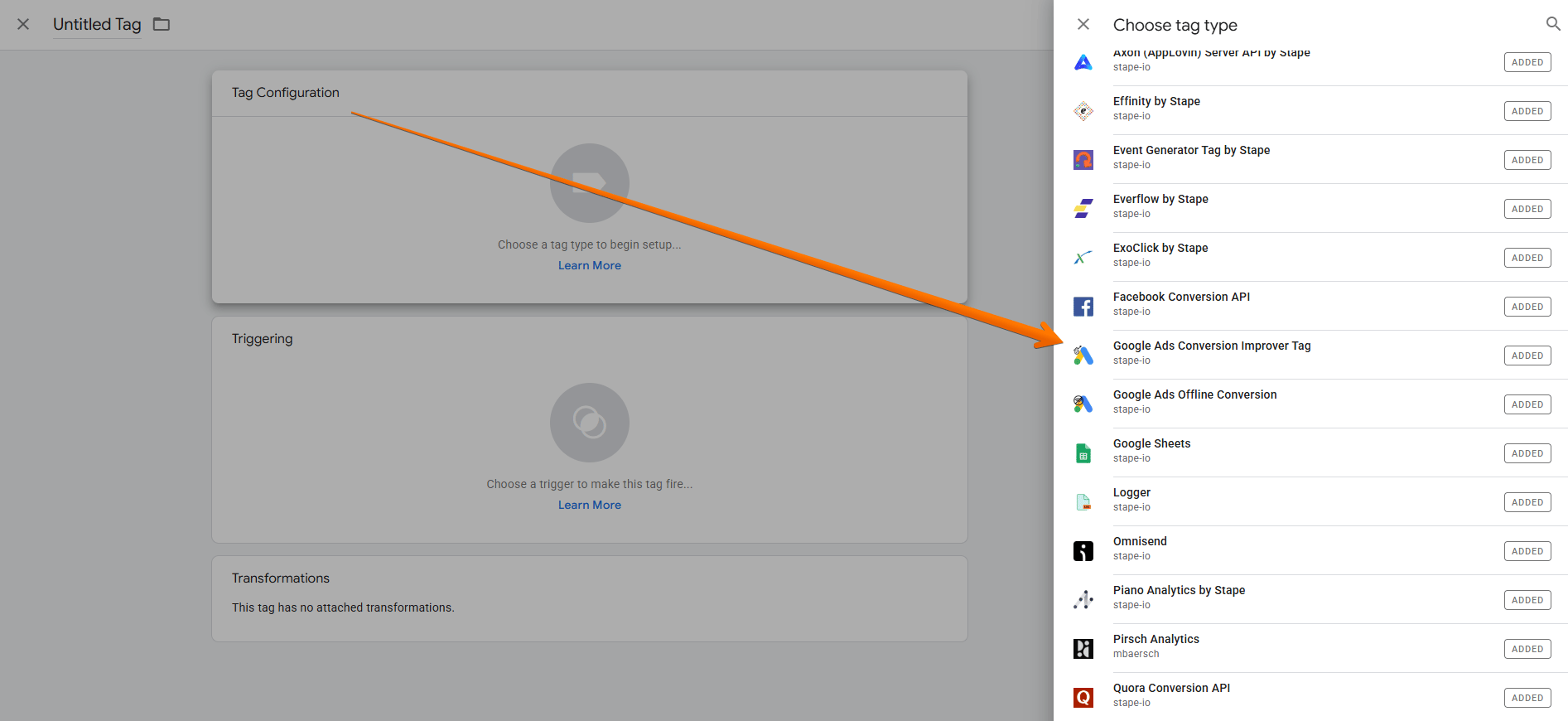
- Click Tag Configuration → select Google Ads Conversion Improver.
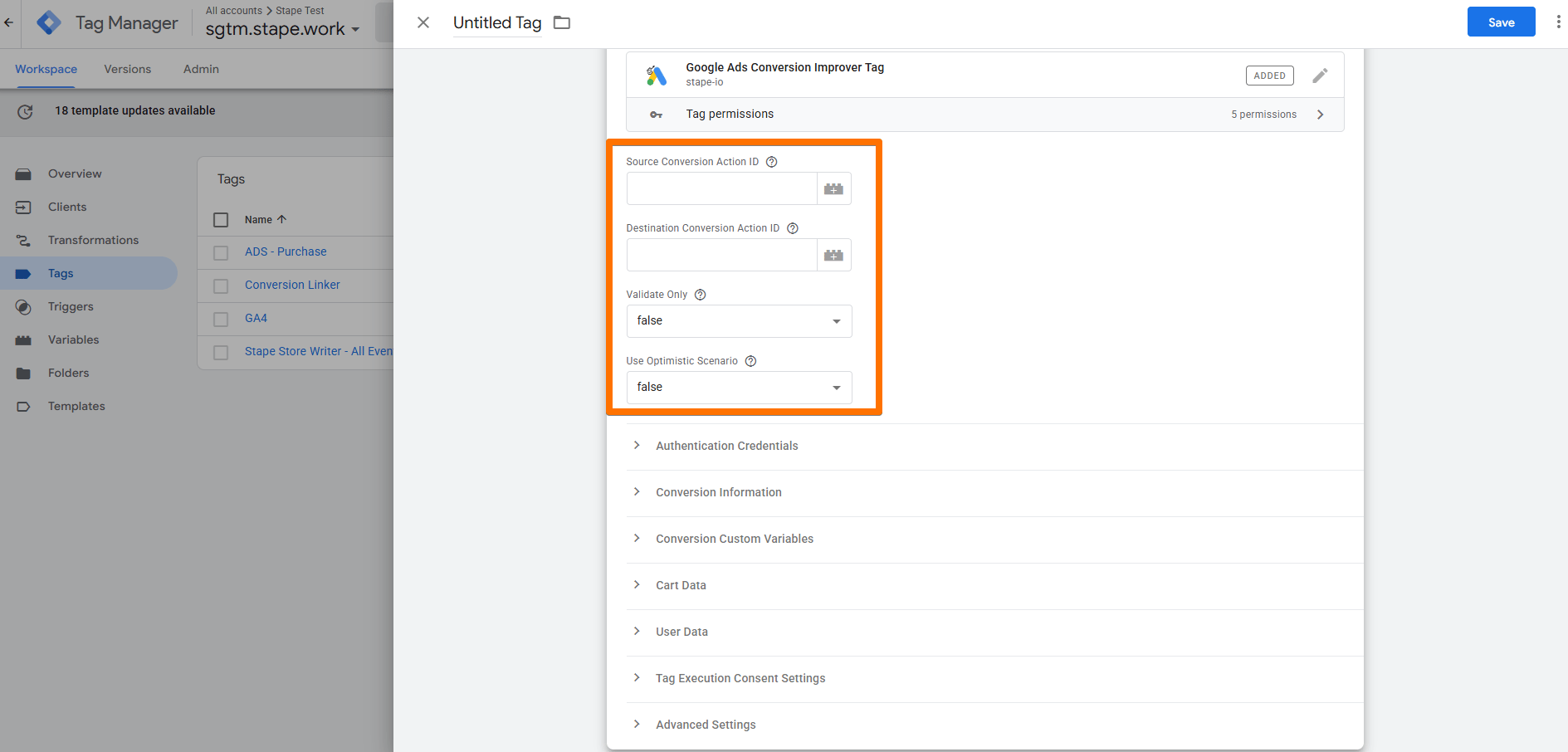
3. Configure the Google Ads Conversion Improver tag:
- Source Conversion Action ID - the Conversion ID used to check whether it has already been attributed in the Google Ads account. It uses the Conversion Adjustments Google Ads API. Located in the Google Ads account → Goals → Conversions → Summary → access the desired Conversion Action. The Conversion ID is in the
ctIdURL query parameter in your browser. Learn more in the documentation on Google Ads conversions. - Destination Conversion Action ID - the Conversion ID that will receive the conversion if the Source Conversion ID hasn't been attributed in the Google Ads account. It uses the Offline Conversion Upload Google Ads API. Located in the Google Ads account → Goals → Conversions → Summary → access the desired Conversion Action. The Conversion ID is in the
ctIdURL query parameter in your browser. Learn more in the documentation on Google Ads conversions. - Validate Only - used for Offline Conversions Upload. If true, the request is validated but not executed. Only errors are returned, not results. Learn more in the guide on UploadClickConversions.
- Use Optimistic Scenario - the tag will call
gtmOnSuccess()without waiting for a response from the API.
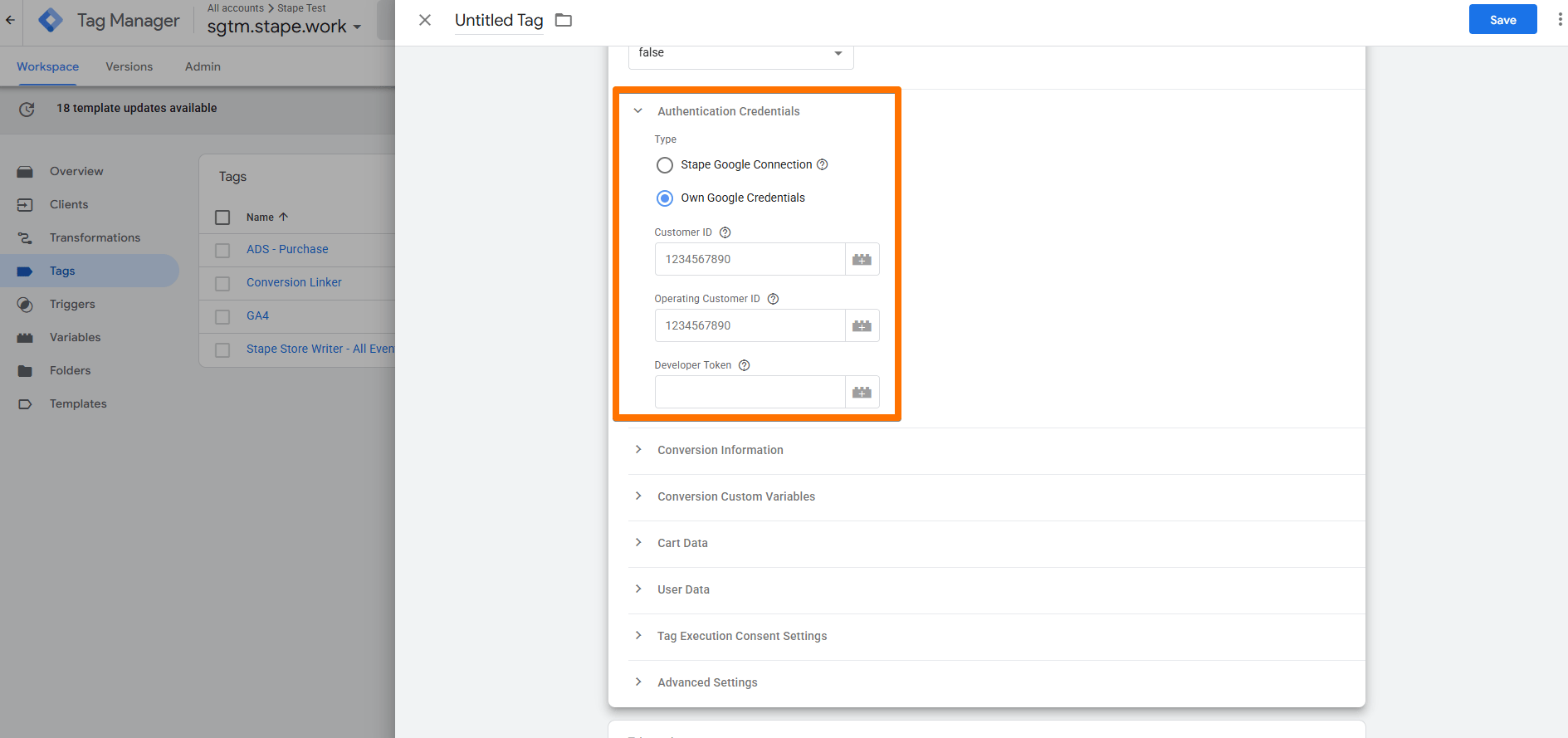
- Authentication Credentials - settings for authorization:
- Type - The Google Ads MCC account ID used for authorization. If you use Stape, select Stape Google Connection and enable the Google Connection in the container settings. Learn more in the guide on Stape’s Google Ads Connection. Otherwise, select Own Google Credentials and provide your Google Ads Developer Token.
- Customer ID - Google Ads account ID used for authorization (without hyphens). Can be the same as Operating Customer ID. Learn more in the guide on Stape’s Google Ads Connection and in Google’s guide on API call structure.
- Operating Customer ID - Google Ads account ID that will receive conversions (without hyphens). Can be the same as Customer ID. Learn more in the guide on Stape’s Google Ads Connection and in Google’s guide on API call structure.
- Developer Token (available if you select Own Google Credentials as Type) - this is an advanced setting, as obtaining a Google Ads API Developer token is pretty complicated. For more information please refer to Google’s guide on Developer Tokens.
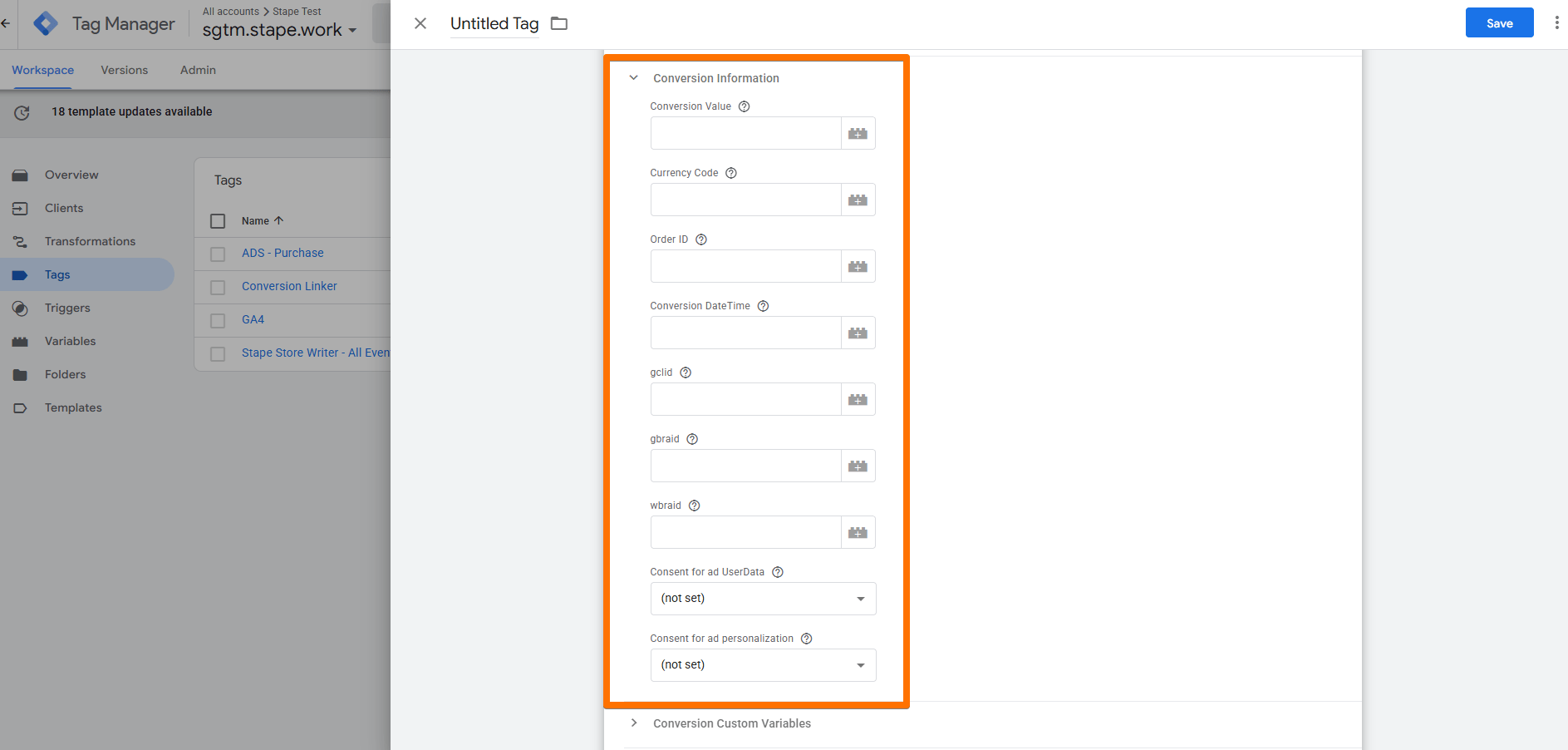
- Conversion Information - configure which of the conversion data the tag should deliver:
- Conversion Value - The value of the conversion for the advertiser. If not set, the tag will try to collect it from the Event Data parameters (
conversionValue,value,x-ga-mp1-ev,x-ga-mp1-tr, or the summed value from the items array), in this order. - Currency Code - the currency associated with the conversion. This is the ISO 4217 3-character currency code, such as USD, EUR. If not set, the tag will try to collect it from the Event Data parameters (
currencyCodecurrencyor the currency from the items array), in this order. - Order ID - the order ID associated with the conversion. An Order ID can only be used for one conversion per conversion action. If not set, the tag will try to collect it from the Event Data parameters (
orderId,order_id,transaction_id), in this order. If you don’t have a true order ID, you must generate apseudo-IDand pass it to the tag. This same ID must also be sent in your delayed request, so the lookup and validation work correctly. - Conversion DateTime - the date time at which the conversion occurred. Must be after the click time and the timezone must be specified. The supported formats are
yyyy-mm-dd hh:mm:ss+|-hh:mm(such as "2019-01-01 12:32:45-08:00") or Unix timestamp (in seconds or milliseconds). If not set, the tag will try to collect it from the Event Data parameter (conversionDateTime) and will fall back to the current time if none is found. - gclid - the Google Click ID associated with this conversion. If not set, the tag will try to collect it from the Event Data parameter (
gclid). - gbraid - the click identifier for clicks associated with app conversions and originating from iOS devices starting with iOS14. If not set, the tag will try to collect it from the Event Data parameter (
gbraid). - wbraid - The click identifier for clicks associated with web conversions and originating from iOS devices starting with iOS14. If not set, the tag will try to collect it from the Event Data parameter (
wbraid). - Consent for ad UserData - this represents consent for ad user data.
- Consent for ad personalization - This represents consent for ad personalization. This can only be set for
OfflineUserDataJobServiceandUserDataService.
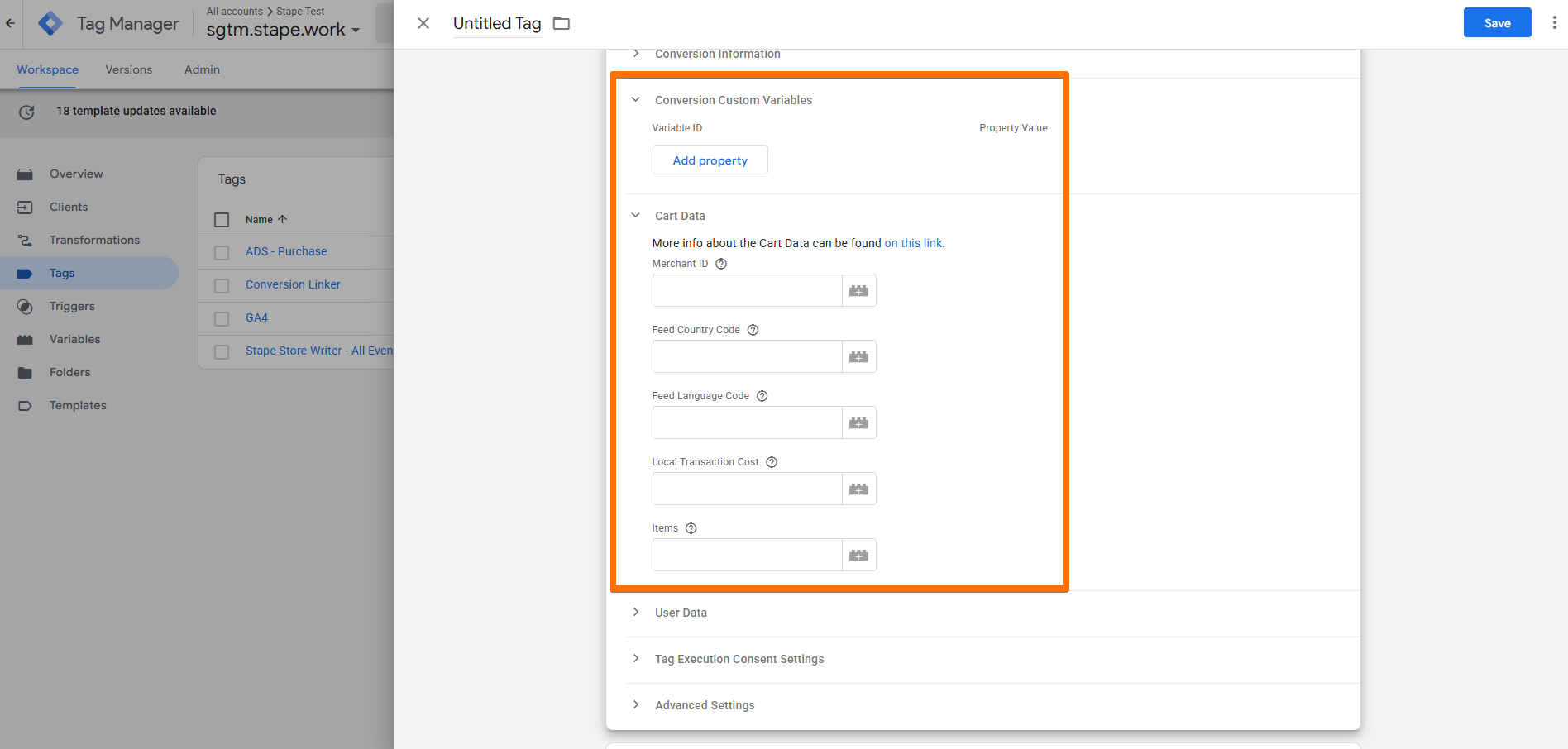
- Conversion Custom Variables - allows you to pass custom variables with the tag.
- Cart Data - allows you to pass Cart Data with the tag:
- Merchant ID - the ID of the associated Merchant Center account. If not set, the tag will try to collect it from the Event Data parameter (
merchantId). - Feed Country Code - the ISO 3166 two-character region code of the Merchant Center feed. If not set, the tag will try to collect it from the Event Data parameter (
feedCountryCode). - Feed Language Code - the ISO 639-1 language code of the Merchant Center feed. If not set, the tag will try to collect it from the Event Data parameter (
feedLanguageCode). - Local Transaction Cost - the sum of all transaction-level discounts, such as free shipping and coupon discounts for the whole cart. The currency code is the same as that in the
ClickConversionmessage. If not set, the tag will try to collect it from the Event Data parameter (localTransactionCost). - Items - the data of the items purchased. If not set, the tag will try to collect it from the Event Data parameter (
items).
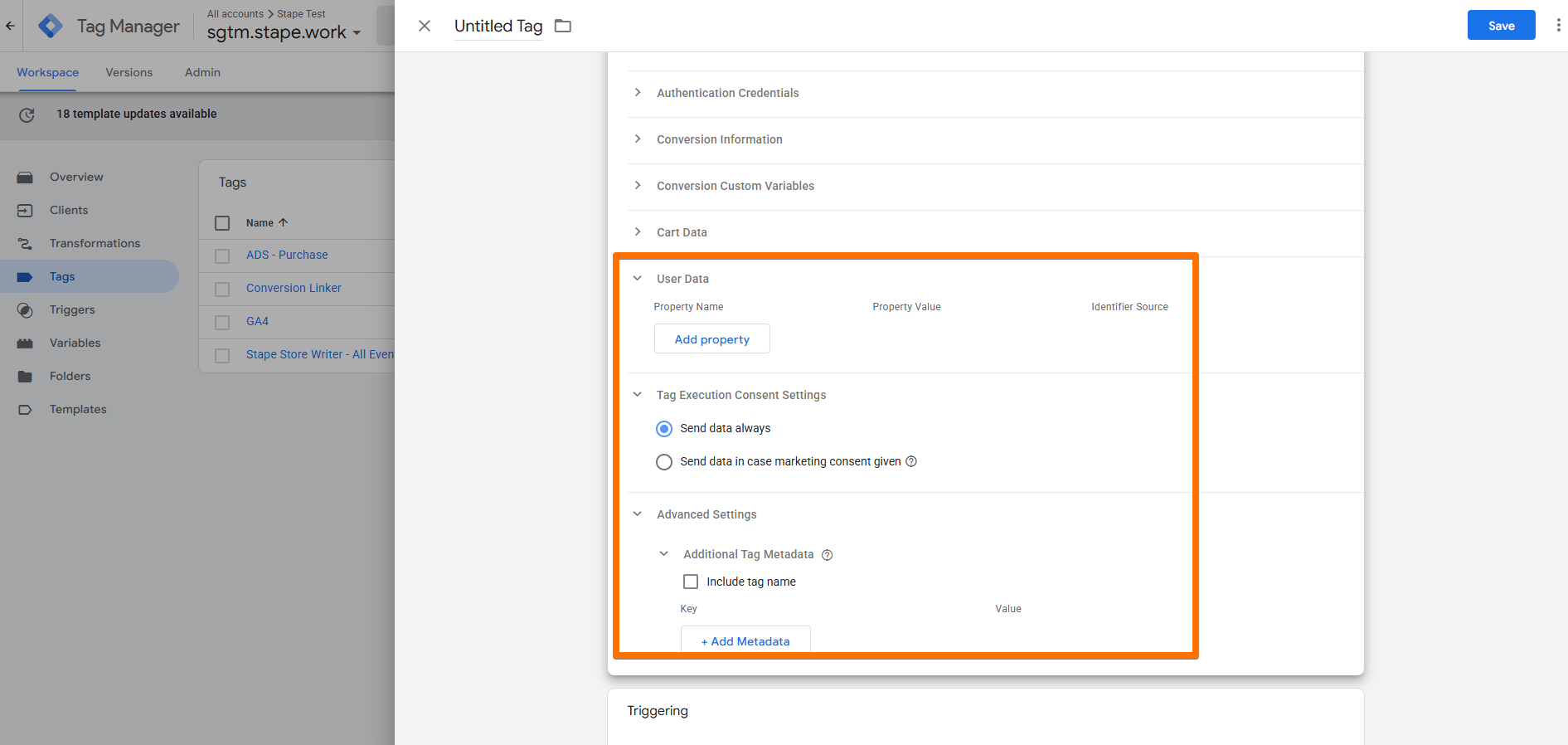
- User Data - provide customer identifiers, such as email address, phone number, or other supported user information, to improve conversion matching in Google Ads.
- Tag Execution Consent Settings - choose if you wish for the tag to wait for marketing consent from the user before firing.
- Advanced Settings (Additional Tag Metadata) - specify additional tag metadata to be included in the event data when the tag is fired.
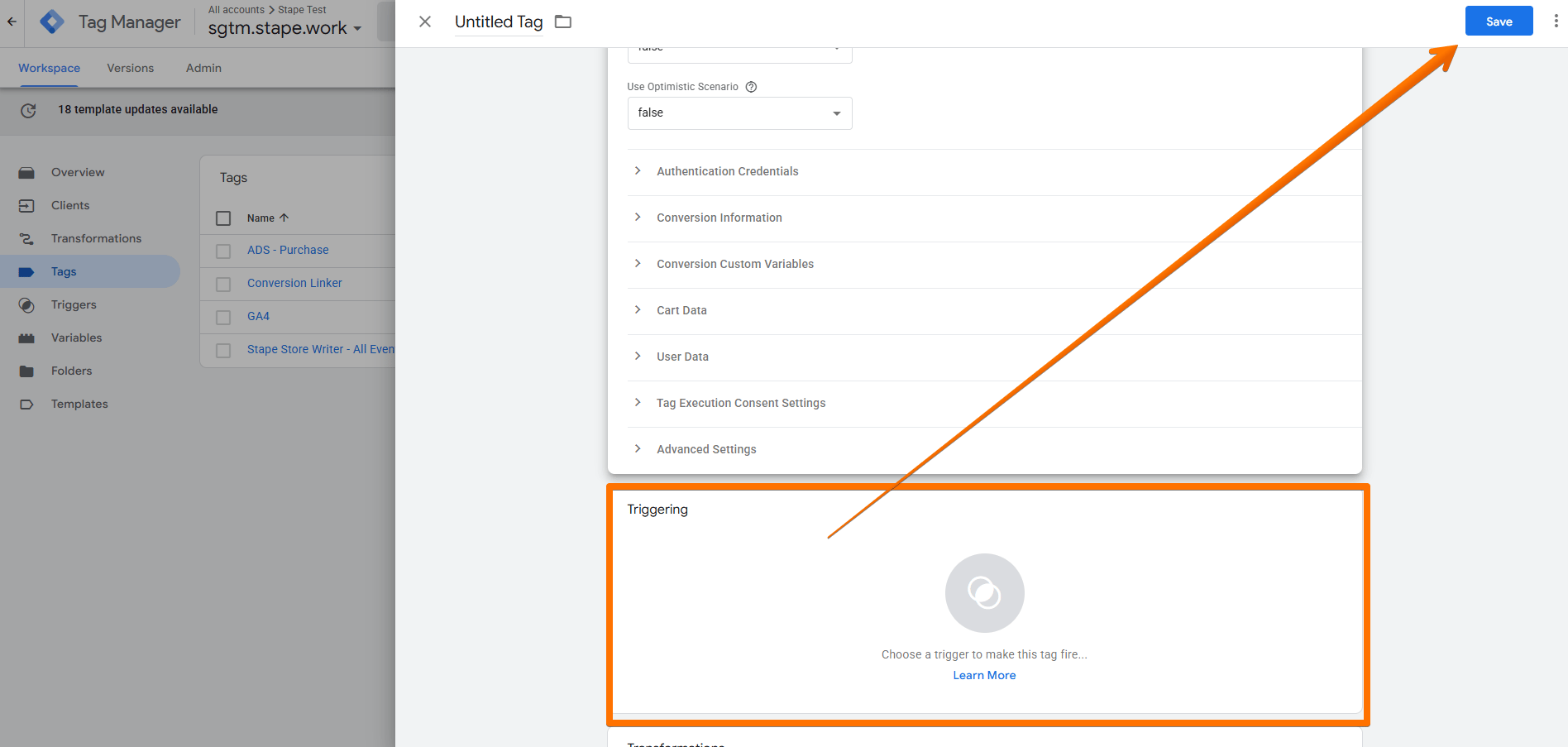
4. Add the Trigger for the tag, give it a descriptive name, and click Save.
Testing
You can test the configurations in Google Tag Manager. Click on Preview, trigger the event on your website with actions like viewing a page or completing a transaction, and check whether the tag has fired.

Find out more about debugging and monitoring server-side tracking configuration in our guide.
Was this article helpful?
🍽 Table of content:
Comments