Jul 20, 2026
Claude MCP guide: use cases, setup & best practices
Written by
Uliana Lesiv
Updated Aug 19, 2026 comments
Key takeaways
- MCP allows Claude to interact with external systems like GA4, Google Ads, GTM, CRMs, and APIs through a unified standard way.
- Repetitive tasks such as reporting, tagging, or data extraction can be automated through MCP servers.
- Marketers, analysts, and agencies can use MCP without deep programming knowledge.
- With MCP, Claude can coordinate actions across multiple tools within its interface.
- Remote MCP servers are easier to scale and maintain, while local servers offer higher system-level control.
- Adding Claude Skills for routine tasks is a good practice to avoid unexpected prompt results.
- Testing environments and controlled access help prevent unintended changes in prod systems.
What Is Claude MCP?
Claude MCP (stands for Model Context Protocol) is an open, standardized way created by Anthropic that allows Claude to connect to multiple external tools, applications, and data sources at the same time.
With MCP configured, you can turn Claude from a standalone chatbot into an AI solution that can manage external tools (like Google Tag Manager, Google Analytics 4, databases, file systems, or APIs) through a unified interface.
Claude MCP server use cases
Claude MCP servers are made not only for developers. In fact, to configure the MCP server, you don't really need a programming background.
For example, Stape's clients (who are usually tracking specialists, marketers, and agencies) use the MCP servers for workflows and repetitive tasks automation. Here are some examples of when you may need to configure MCP servers:
Data access and retrieval
By connecting to tools like Google Analytics 4, CRM systems, or email marketing platforms, Claude can pull campaign performance data and provide short summaries. Instead of manually building reports, marketers can ask in natural language for insights like “Which campaign performed best last week and why?” and get a structured explanation with supporting metrics.
Google Tag Manager management
With a GTM MCP server, Claude can help you create new tags, set up triggers based on user behavior, manage variables and data layers, audit existing container configurations, etc.
Instead of manually navigating the GTM interface, you can describe within a chat what you need, and Claude will trigger GTM actions using MCP tools.
Google Ads campaign management
With a Google Ads MCP server, Claude can retrieve campaign metrics, analyze performance across time periods, identify underperforming campaigns, and investigate changes in spend and ROAS through natural language prompts instead of manual navigation in the Google Ads interface.
Cross-tool workflows
You can connect multiple systems within your Claude account with the help of MCP. Here is an example of a cross-tool marketing workflow:
Identify a drop in GA4 conversions → Check the GTM configuration for tracking issues → Suggest fixes in GTM setup → Validate changes across environments
Server-side tracking infrastructure management
For businesses having server-side tracking configured, MCP servers can simplify infrastructure management.
For example, Stape has developed the Stape MCP server. After configuring it, Claude can create and manage server-side GTM containers and help debug tracking issues. This can reduce dependency on manual setup.
How Claude works with MCP servers
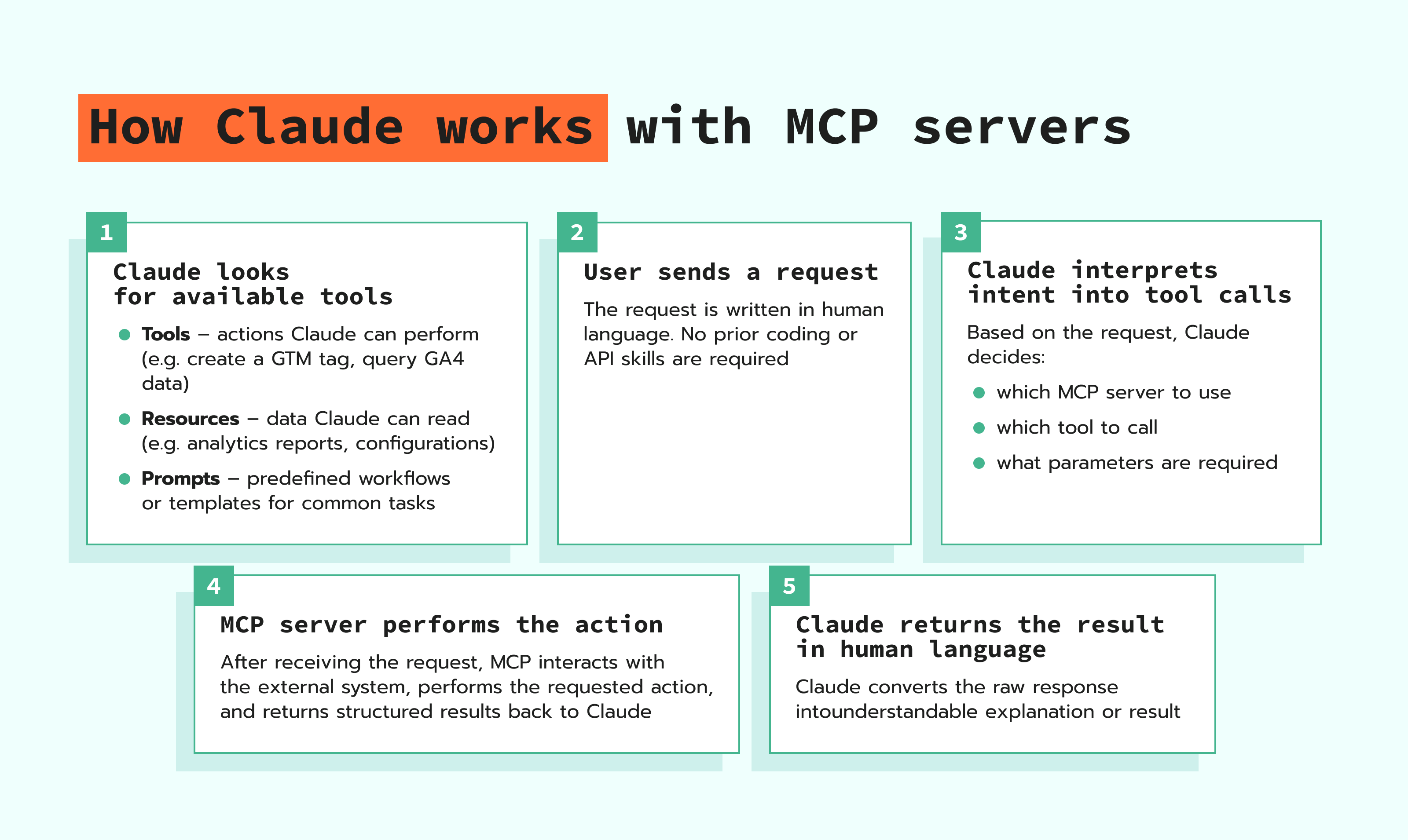
Claude connects to MCP servers through a client-server system that allows it to access external tools. Instead of calling APIs or relying on hardcoded plugins, Claude communicates through the MCP, which standardizes how tools are used.
Local vs remote MCP servers
MCP servers for Claude are divided into two categories: local (stdio-based) and remote (HTTP-based). Both have the same purpose - to connect Claude to external tools; however, they differ in how they are deployed, accessed, and maintained.
Local MCP servers run directly on your computer or within your local environment, without the need for external hosting. Claude communicates with them through standard input/output (stdio).
Remote MCP servers run on external infrastructure and are accessed over the network using HTTP-based protocols. So, you need to have a URL endpoint that will be accessed whenever you need to perform some actions via MCP.
Here is a quick comparison of local and remote servers:
| Feature | Local MCP server | Remote MCP server |
| Where it runs | On your own machine/environment | Cloud/external server |
| Setup complexity | Medium-high | Low |
| Requires extra manual installation | Yes.You need to install a runtime, download the MCP server package, and configure it in Claude Desktop or Claude Code | No. Just configure the server in Claude Desktop or Claude Code and connect via URL when needed |
| Best for | Developers, local tools | Business and marketing teams, SaaS integrations |
Bottom line:
Remote MCP servers are better for most users because they are easier to set up, easier to scale, and better suited for SaaS tools. Local MCP servers are better when you need deep system access, local execution, or development-level control.
Where to get Claude MCP server configs?
1. Official/partner connectors (inside Claude)
Anthropic provides a list of approved “connectors” (these are remote MCP servers managed by third parties or Anthropic partners).
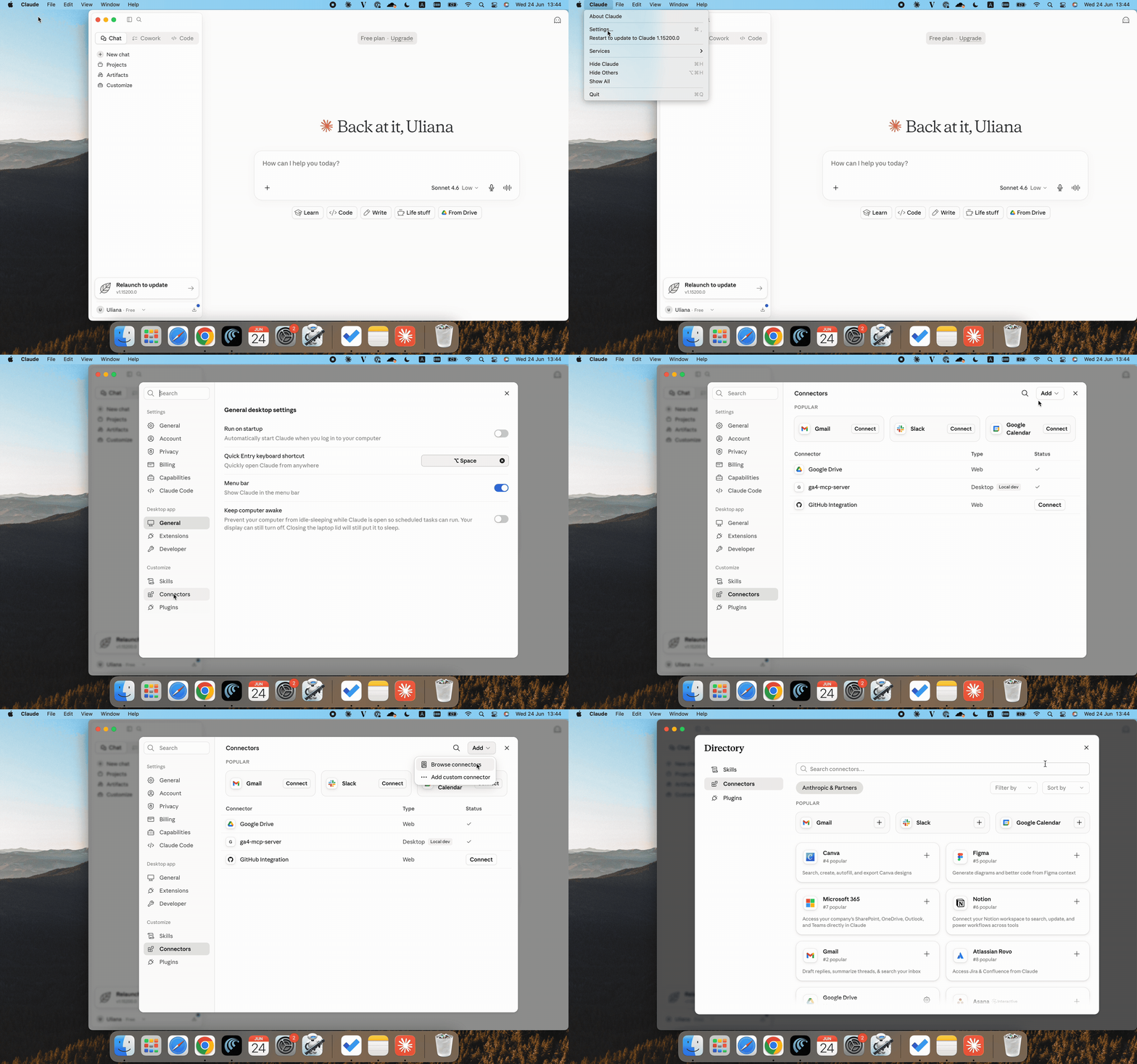
You find them inside Claude Desktop (below, we cover how to configure it) → Settings → Connectors → Browse connectors.
2. Public MCP servers from companies (like Stape)
Companies can provide their own remote MCP endpoints. That's actually what Stape does - our developers create free MCP servers for tools like GTM, Google Ads, GA4, or Stape itself, so you can easily manage your accounts on these platforms.
Similar solutions are also available on other platforms. If you need to automate the flow for some specific tools, check their official website. If they have MCP servers, they must be talking about it and providing documentation.
See the up-to-date list of MCP servers provided by Stape on the MCP page.
3. Community/self-hosted remote MCP servers
Developers can also deploy their own MCP servers using Cloudflare Workers, Node.js + HTTP server, Docker on a VPS, etc. These are often shared via GitHub.
Are remote MCP servers free?
It depends on who owns them.
Many MCP servers are GitHub-hosted and community-maintained. They are free, but you may be charged for hosting (if self-hosted). Some third-party platforms like analytics/dev tools can offer free-tier access, with a limited number of requests.
So, it will vary based on the platform. Check the tool description to avoid any hidden charges.
Claude Desktop vs Claude Code MCP servers
Both Claude Desktop and Claude Code support MCP servers, but they are designed for different workflows. In core, the underlying MCP concept is the same, but the way you configure and use MCP servers depends on which Claude product you are working with.
Claude Desktop is an app created for general use (research, analytics, everyday AI assistance). MCP servers in Claude Desktop are configured through a settings file called claude_desktop_config.json. In this setup, MCP servers are defined once and then automatically loaded when the desktop app starts.
Claude Code is a terminal-based developer tool created for coding workflows. MCP support is built directly into the Command-Line Interface (CLI) environment. It means servers are typically added, managed, and used through command-line instructions.
Bottom line:
Claude Desktop is best for simple, UI-driven use of MCP for tools like GA4 and GTM. Claude Code is best when MCP needs to be part of a developer workflow that includes code, automation, and system-level access.
For the purpose of this article, we will focus on how to configure Claude Desktop below.
How to add the MCP server in Claude
Check the prerequisites for using MCP servers
✅ Installed Node.js with an up-to-date version (v18 or higher)
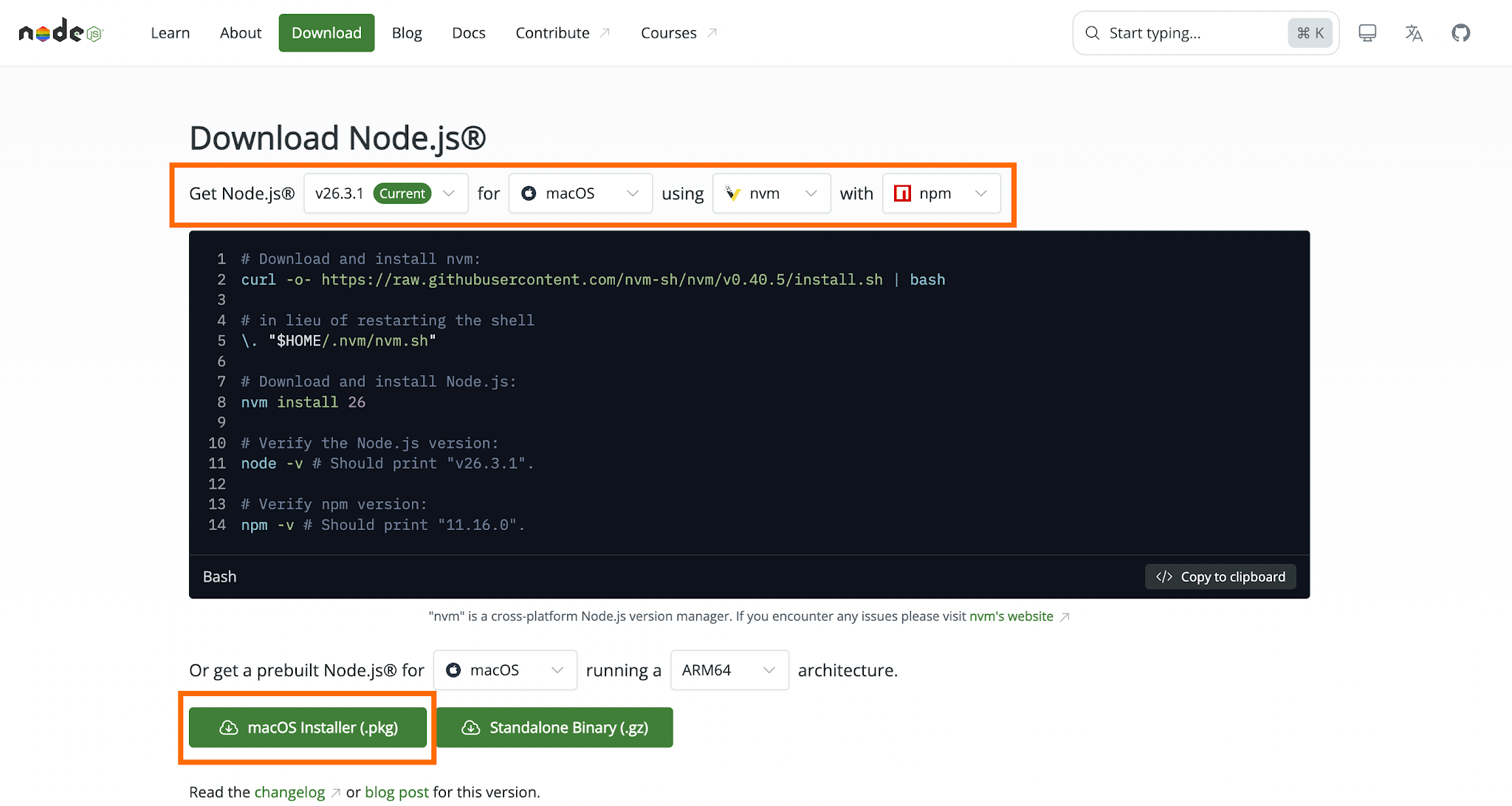
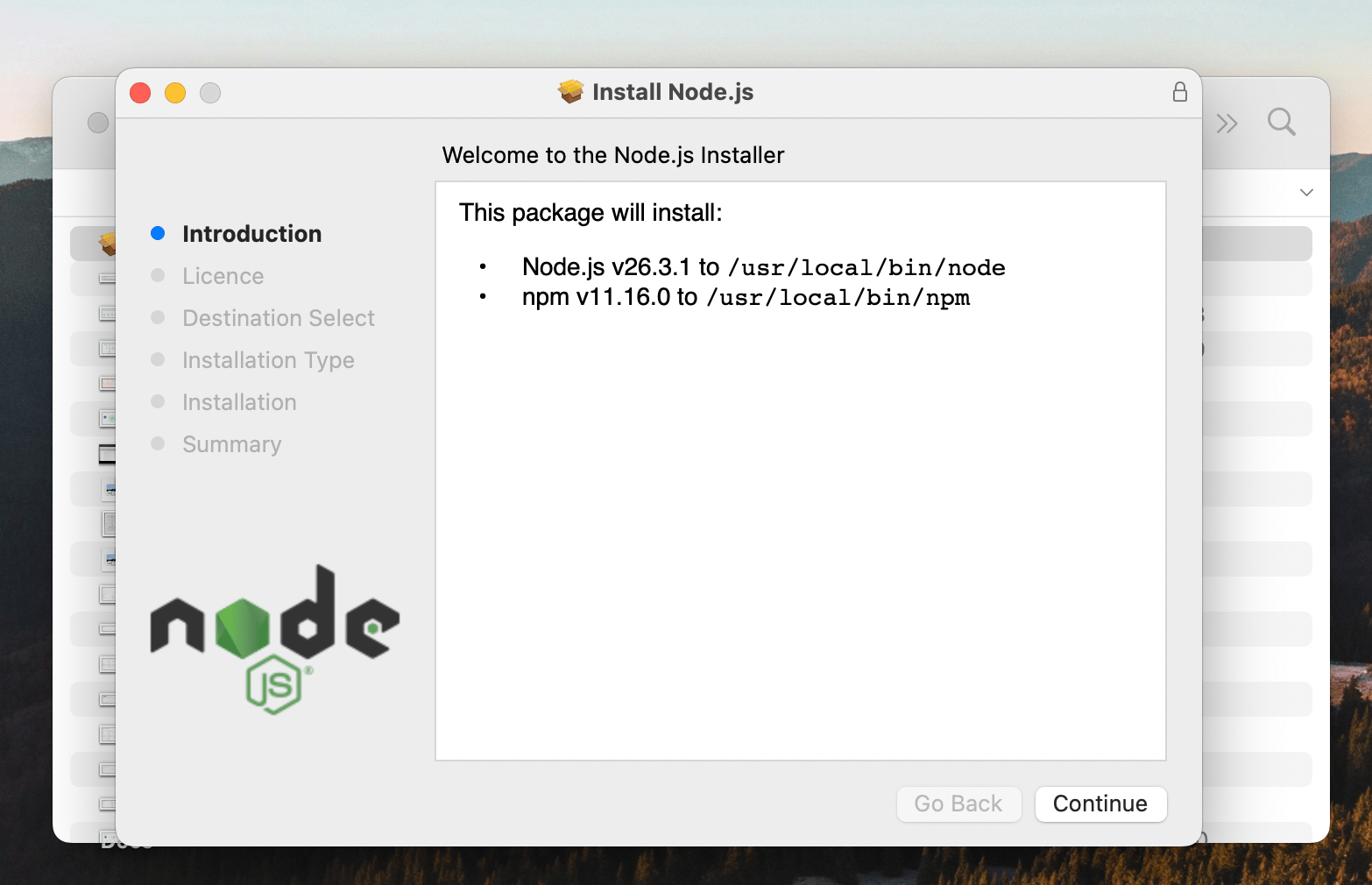
If you don't have it configured yet, follow the download link from Node.js and select the following options before downloading the installer package:
- Select the new version (at the moment of writing the guide, it's v26.3.1)
- Your operating system
- You may keep nvm and npm - it's more crucial for developers. nvm allows them to switch between different Node.js versions, and npm is required for installing existing libraries instead of writing them manually.
Then click on Installer.
Open the file that was downloaded and follow the instructions.
✅ Sufficient access to the target tool
You need to have access to edit within the specific tool you use the MCP server for. Without proper permissions, Claude can connect to the server but won’t be able to perform actions.
Install the Claude Desktop
Go to Claude's download page and download the version for your operating system.
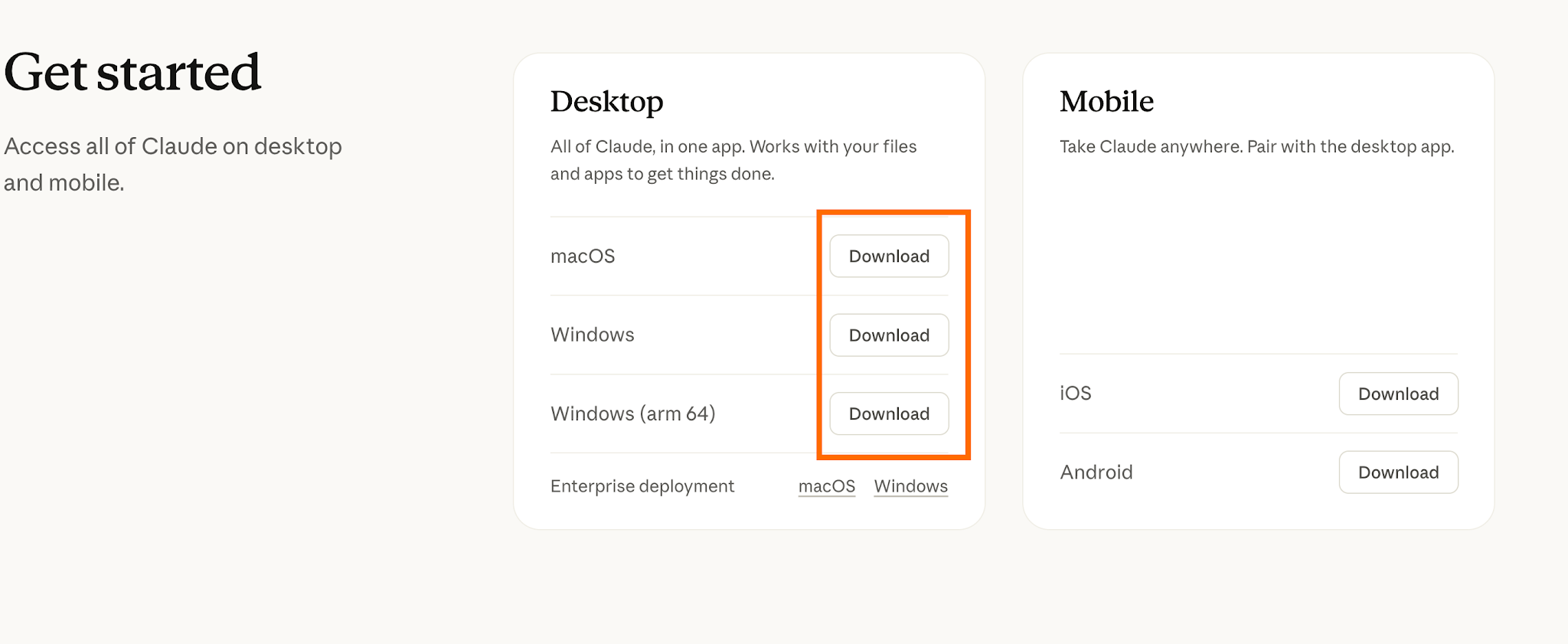
Open the file that was downloaded to complete the installation and sign in with your account to start using Claude Desktop.
Example of MCP server configuration
As an example, we will consider a free MCP server for GTM developed by Stape. The logic for configuring any other remote MCP is basically the same.
We’ll cover two ways to configure an MCP server:
- 1.Using HTTP connection - generally a better option, as long as your MCP client supports it. It prevents a lot of bugs and is way easier to install.
- 2.Using mcp-remote - more complicated and error-prone, but can be the only option for some MCP clients (or if you specifically wish to use it for your setup).
How to configure the MCP server using HTTP connection
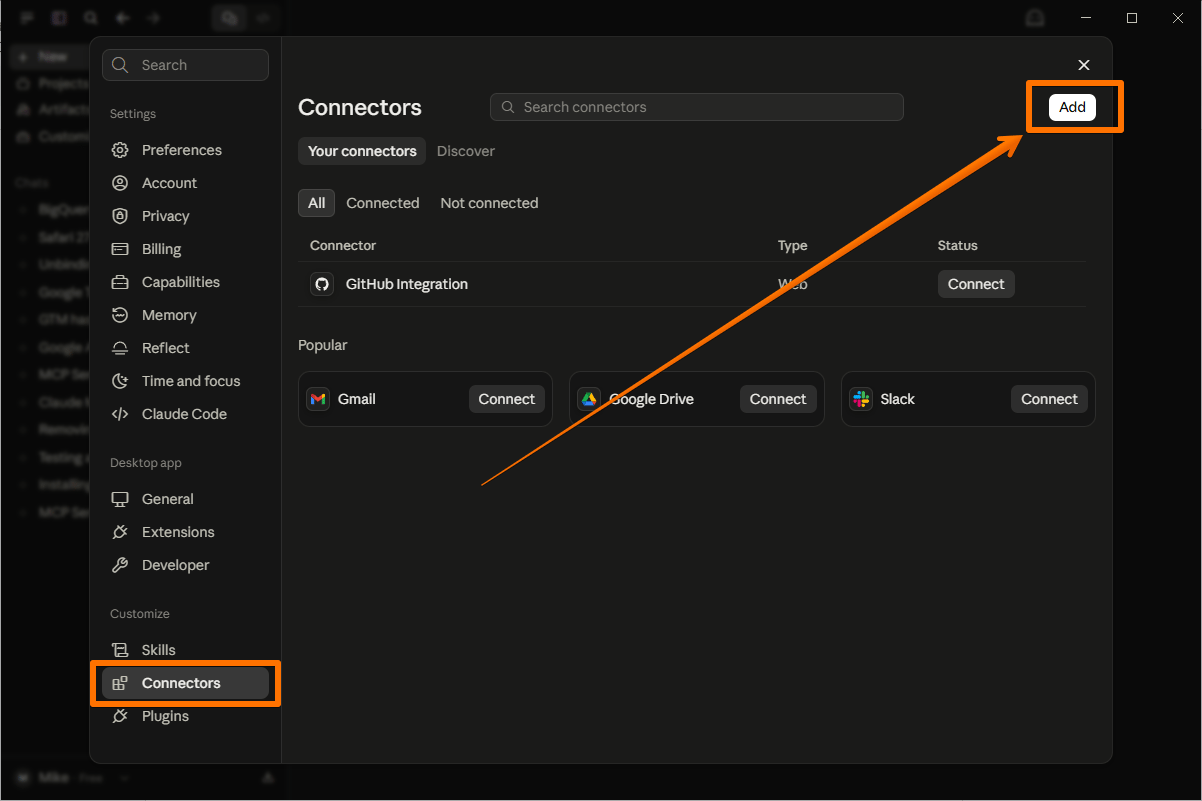
1. Open Claude Desktop and go to File → Settings → Connectors → click Add to create a custom connector.
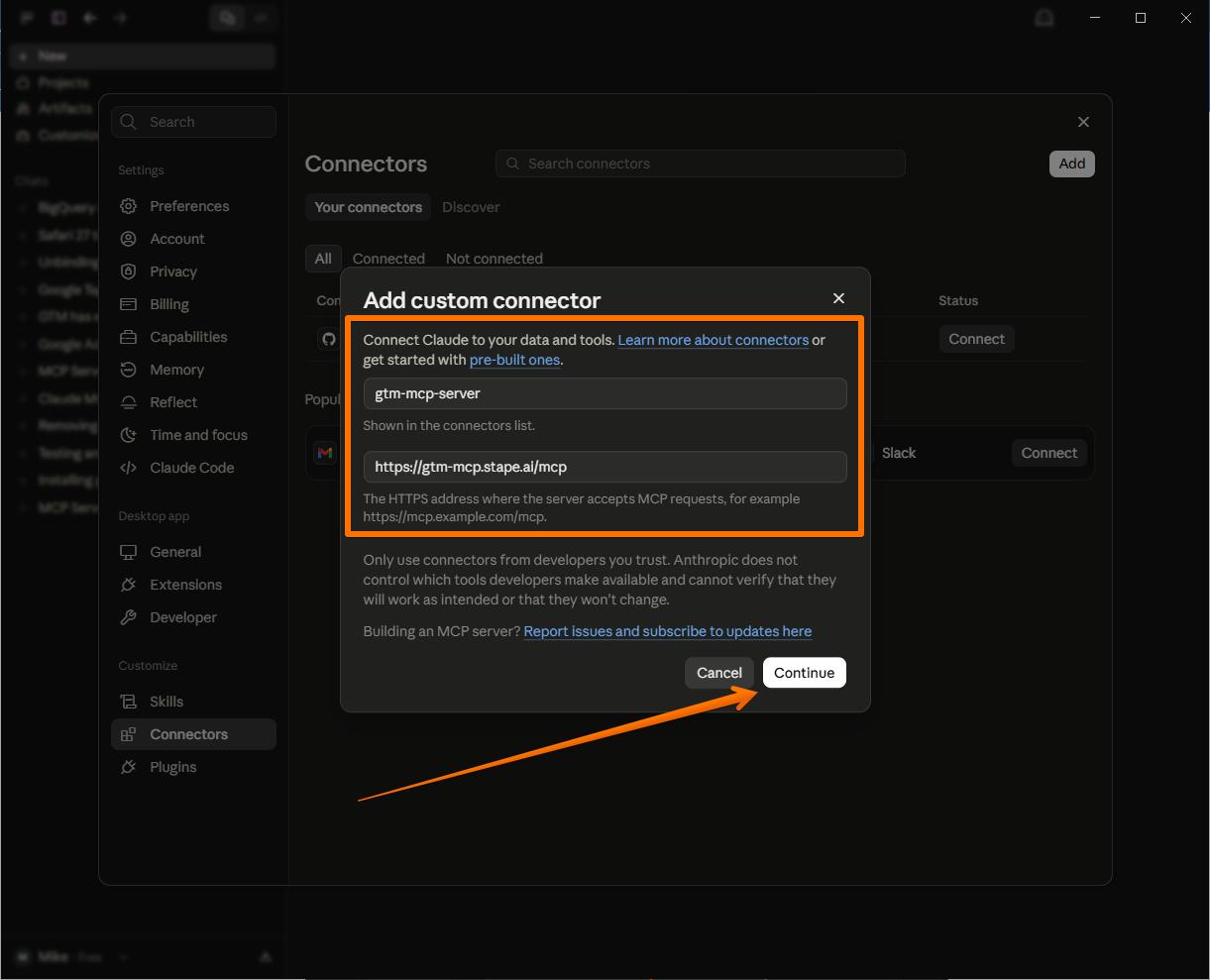
2. Set the name to gtm-mcp-server and the URL to https://gtm-mcp.stape.ai/mcp, then click Continue.
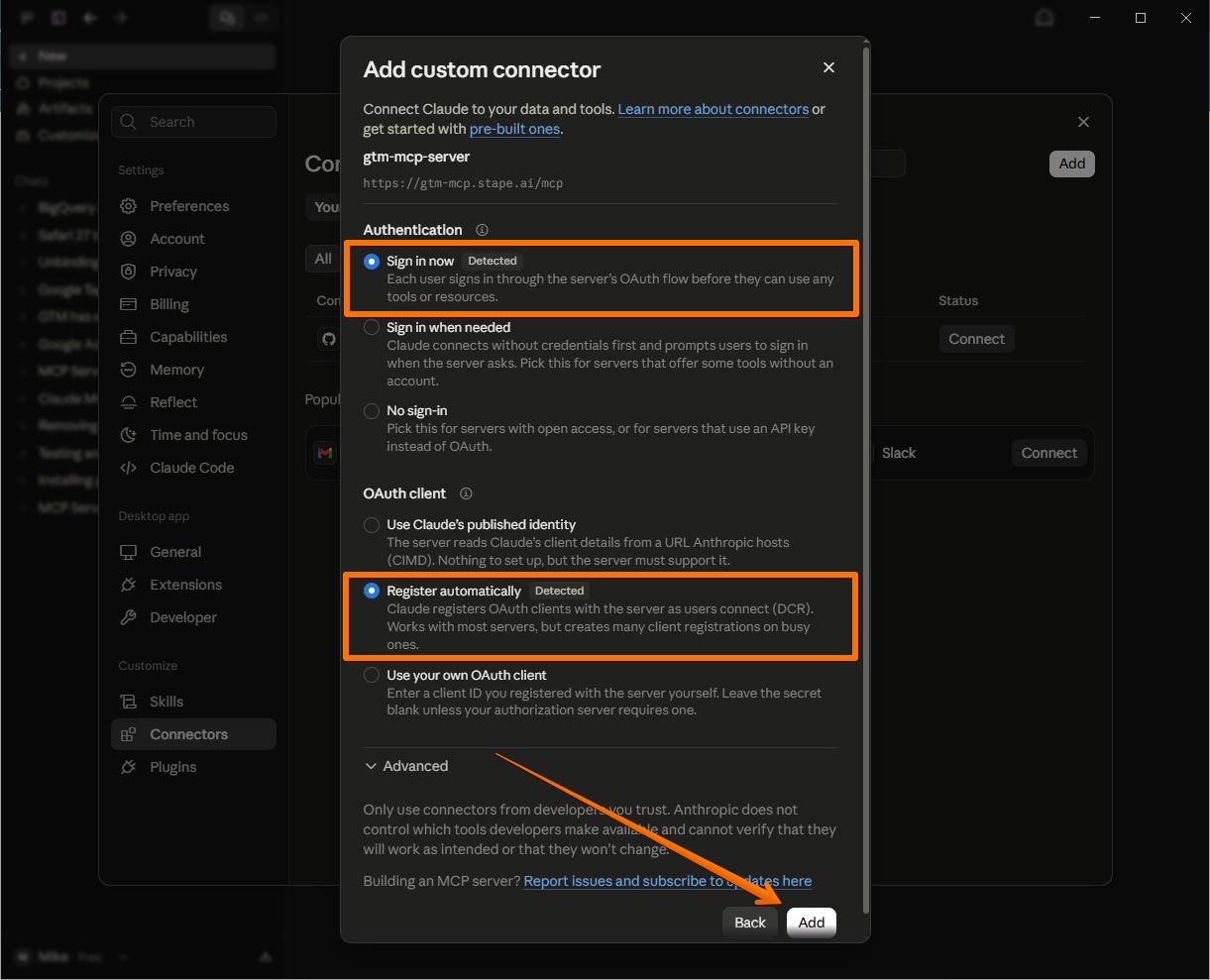
3. For Authentication, select Sign in now → for OAuth client, select Register automatically → click Add.
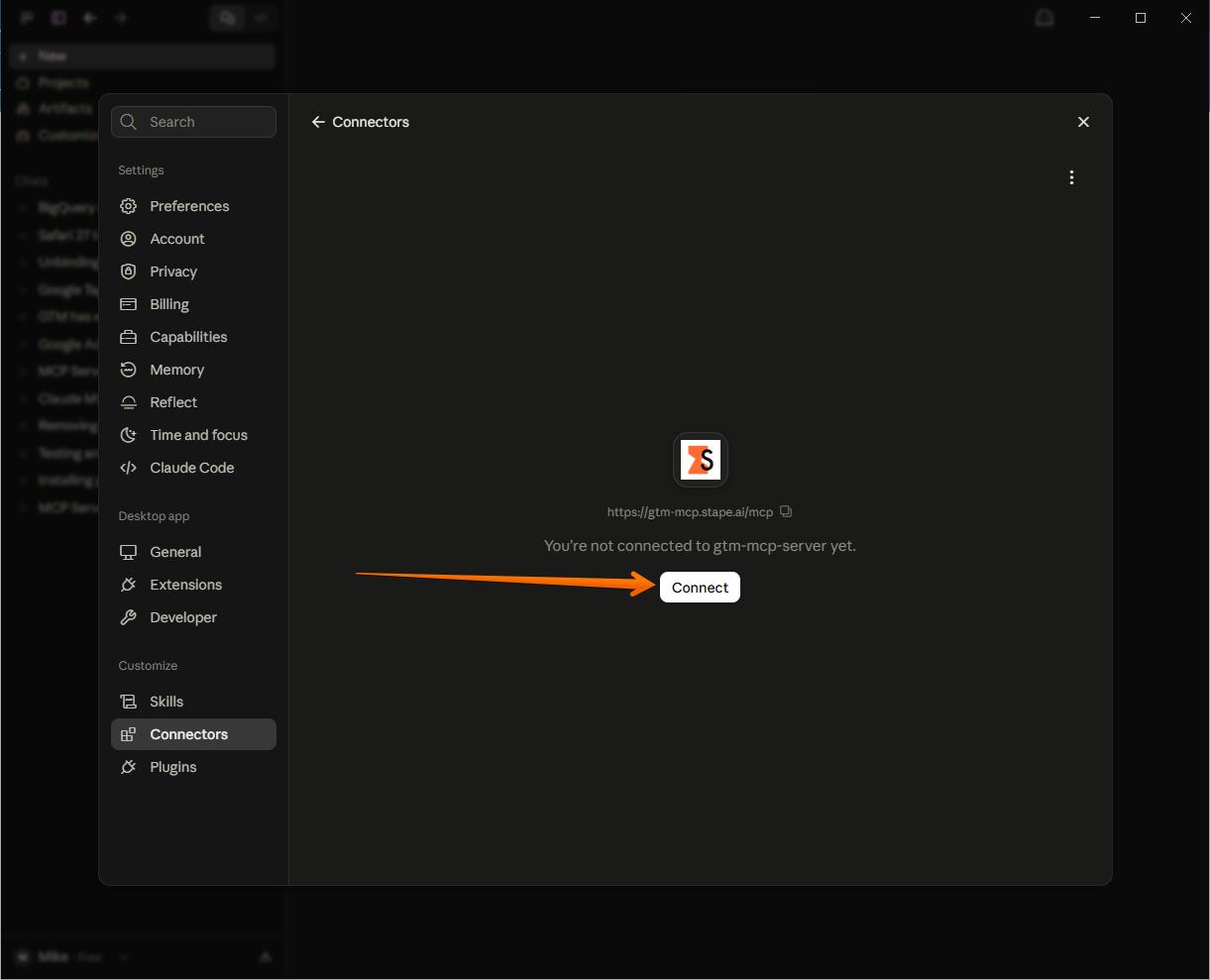
4. On the new screen, click Connect (or click the new connector in the Connectors list).
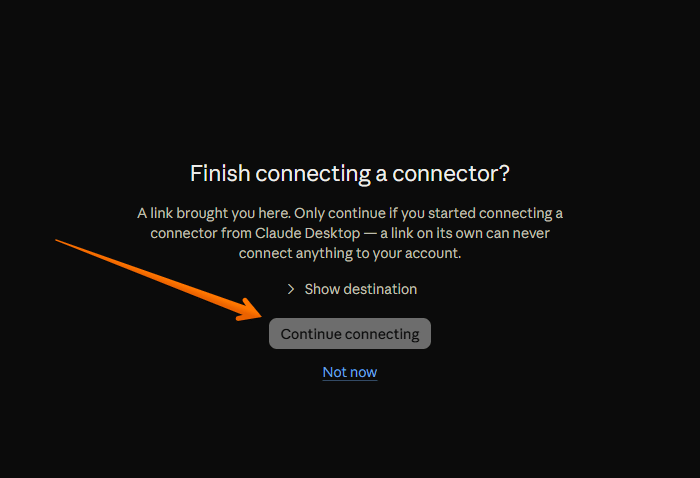
5. A new browser page will open - click Continue connecting and go through the Google OAuth flow.
6. After the access is granted, the tool will be available for your use.

7. Now you can type your request via chat. To verify that it’s working, just type any query related to your GTM account, like “List all my GTM entities” or “What's the total number of events across all sites this month?”
How to configure the MCP server using mcp-remote
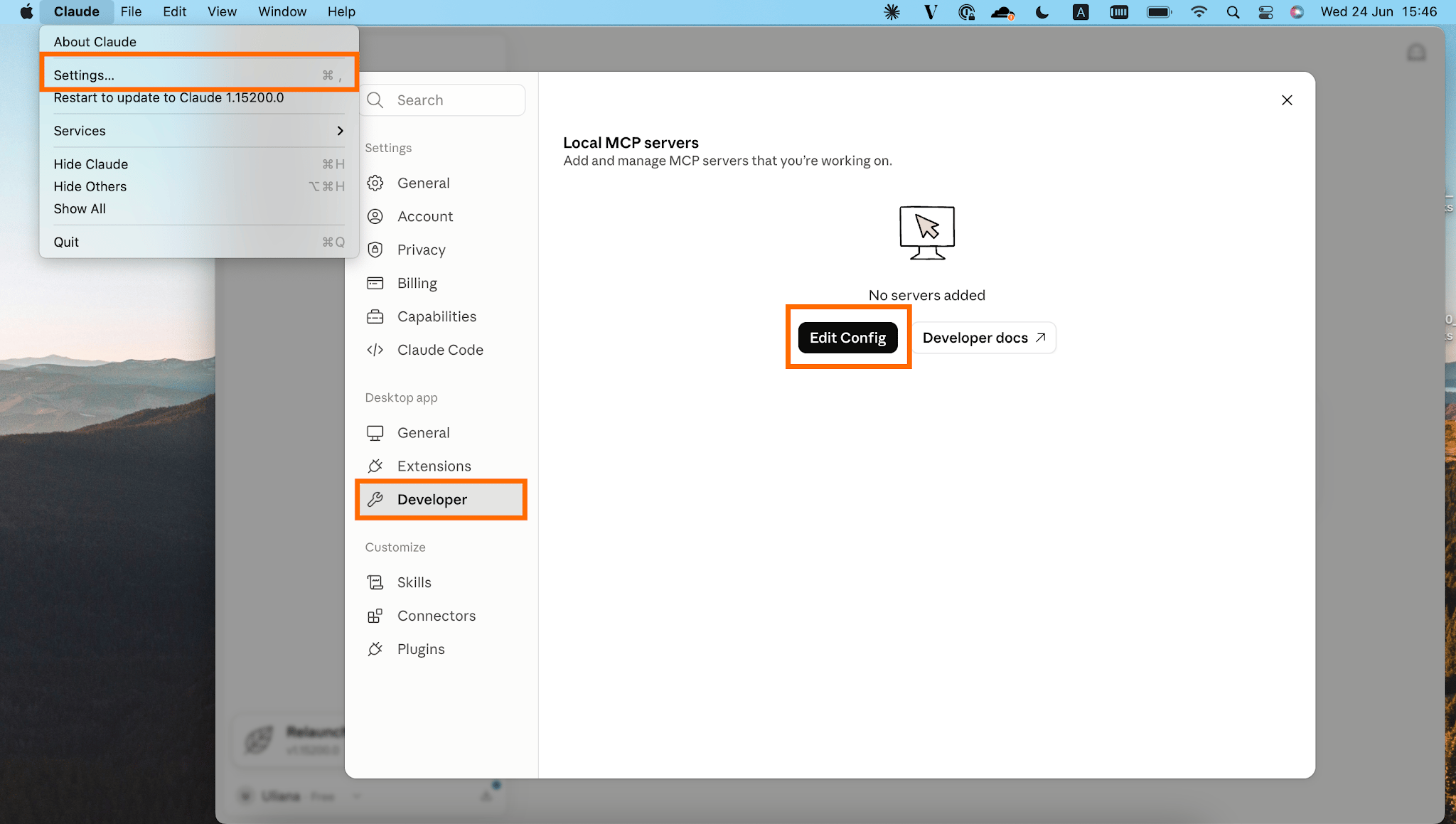
1. Open Claude Desktop and navigate to Settings → Developer → Edit Config → open desktop JSON file called claude_desktop_config.
This opens Claude's JSON configuration file, which is where Claude stores information about the MCP servers it can connect to. Every MCP server that you want Claude to use must be defined in this configuration file.
2. Replace the file content with the following configuration.
{
  "mcpServers": {
    "google-tag-manager-mcp-server": {
      "command": "npx",
      "args": [
        "-y",
        "mcp-remote",
        "https://gtm-mcp.stape.ai/mcp"
      ]
    }
  }
}
3. Save the changes by pressing Cmd + S.
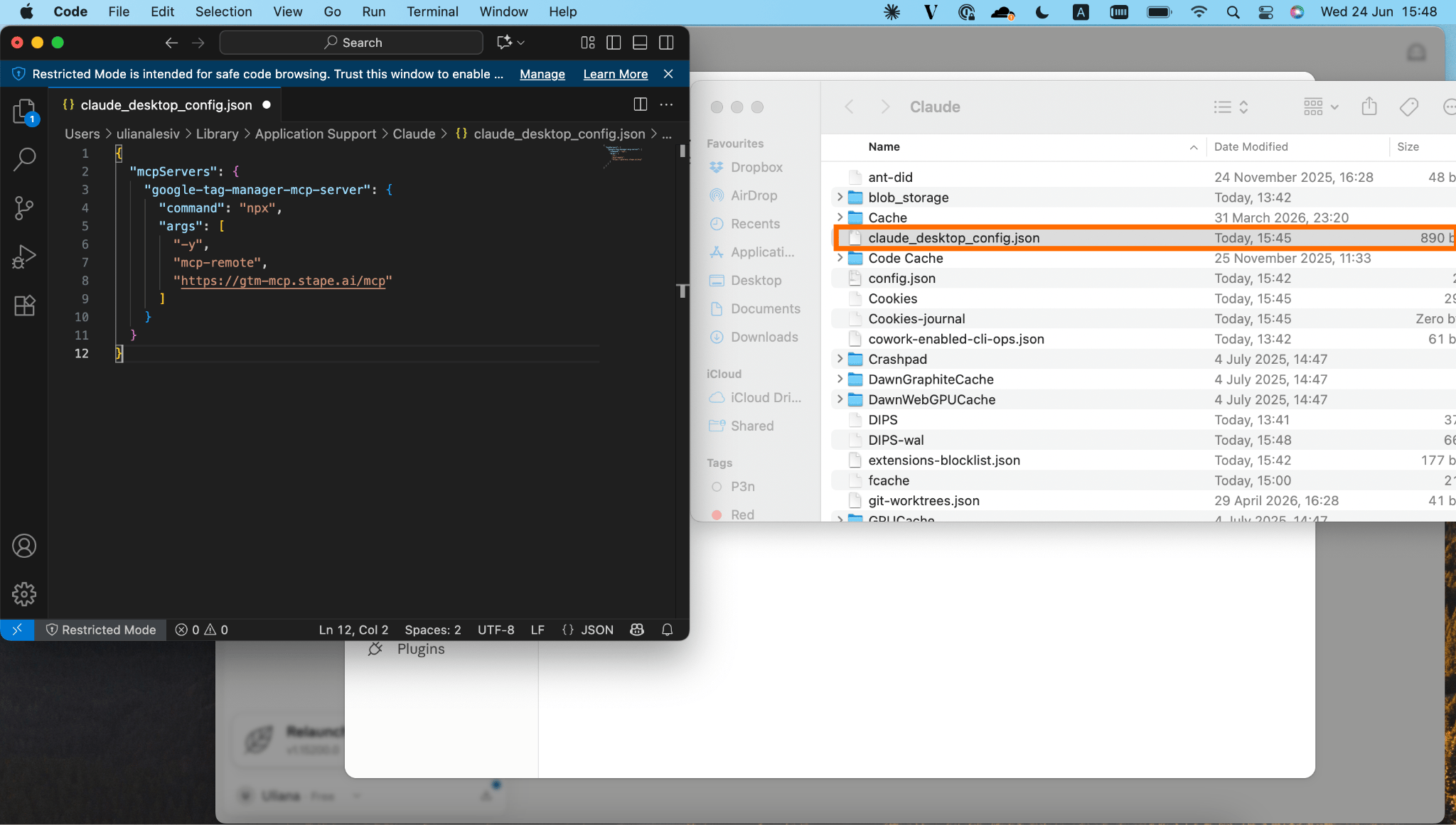
3. Restart Claude. When Claude starts again, it will attempt to connect to the added MCP server.
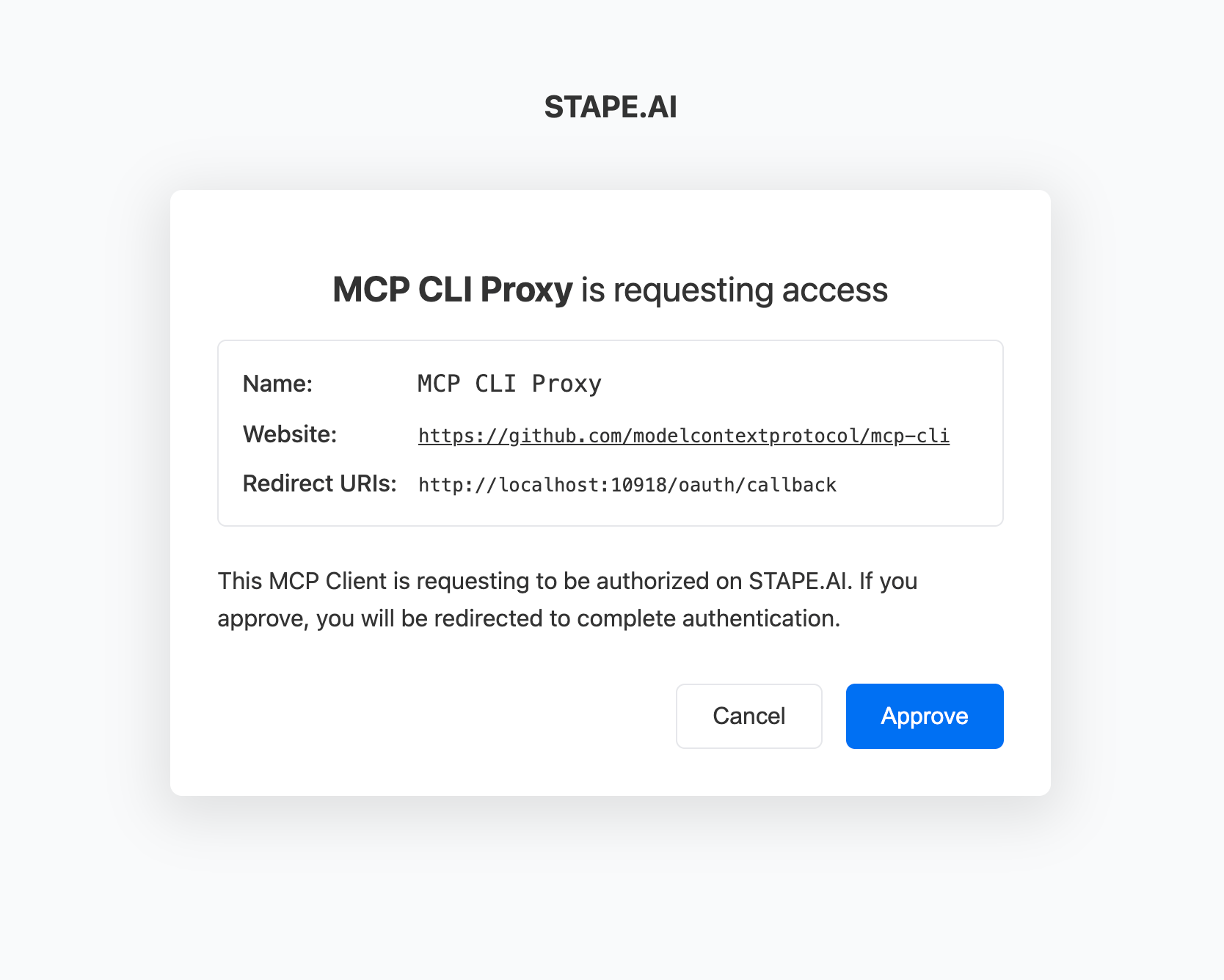
4. Authenticate with OAuth.
A browser window will open showing your OAuth login page. Complete the authentication flow to grant Claude access to your MCP server.
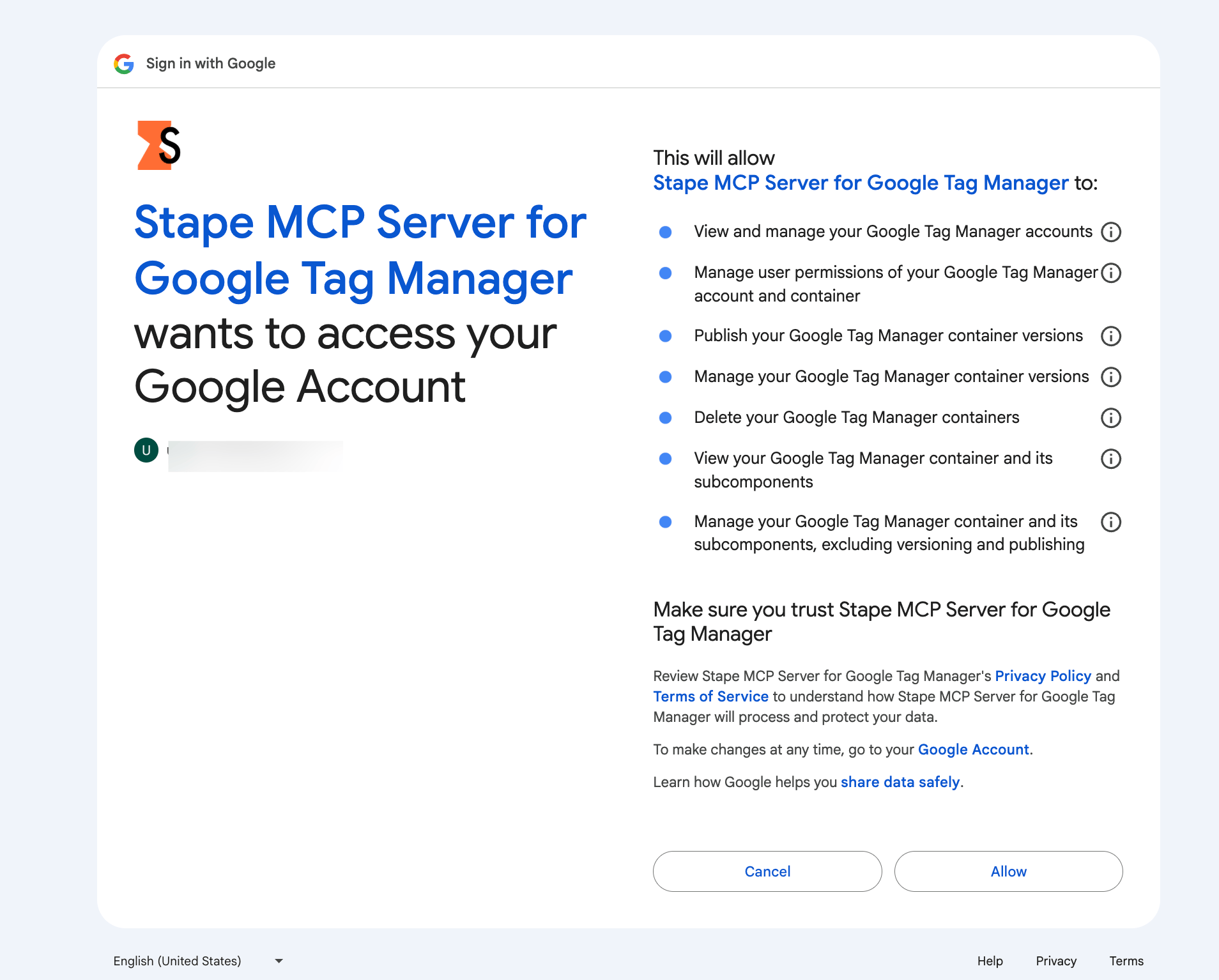
5. After you grant access, the tools will become available for you to use.

5. Now you can type your request via chat.
In Settings → Developer, you will see the status Running next to google-tag-manager-mcp-server. If you encounter any problems with configuration, refer to the troubleshooting section below.
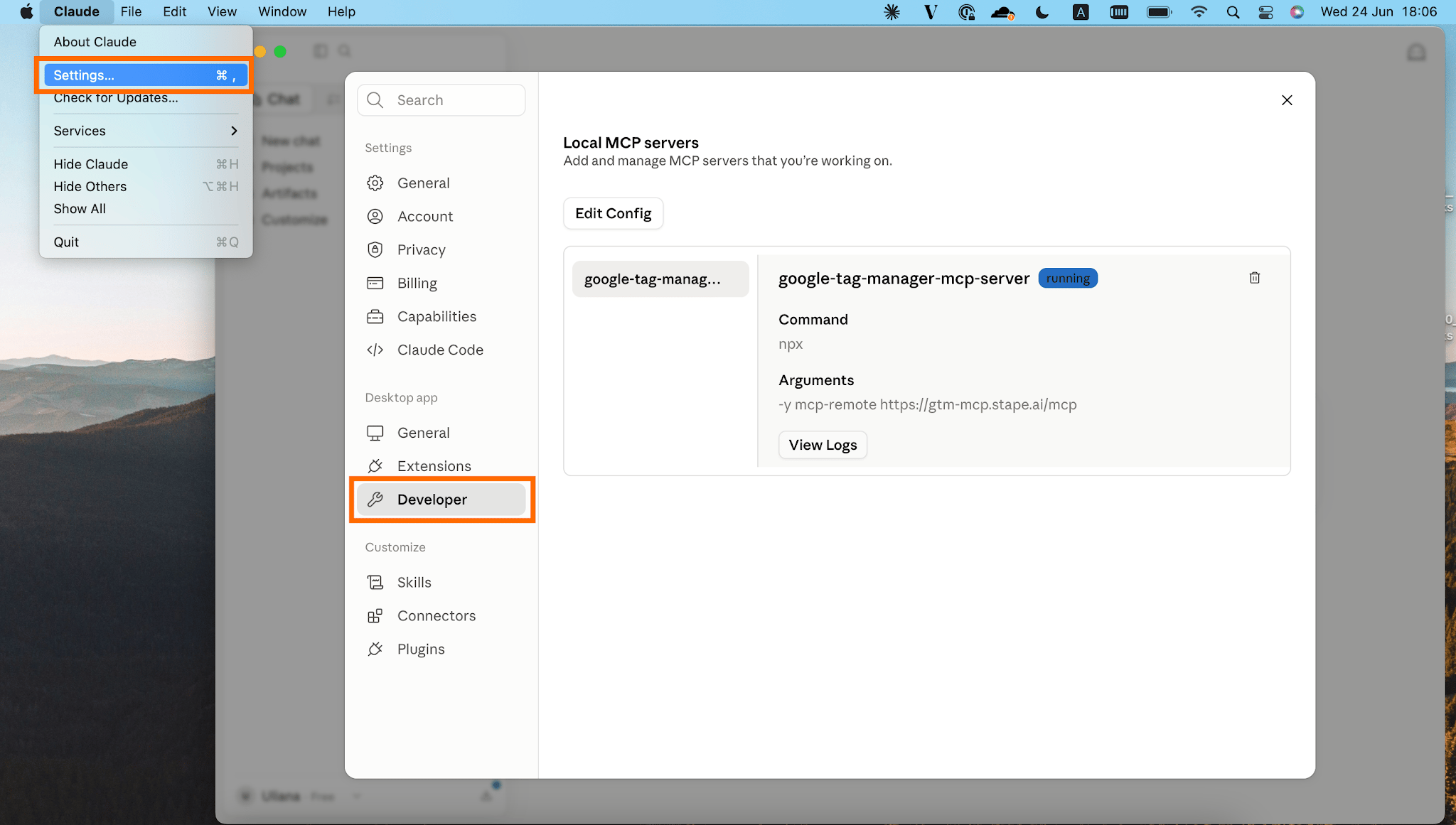
So, as shown in the example of the GTM MCP server, the configuration is pretty simple and doesn't require any programming skills.
Let's also consider in detail what the config code means and what it does.
This config tells Claude to:
- Use npx to run the connection helper;
- Use mcp-remote to connect to a remotely hosted MCP server;
- Connect to the endpoint at https://gtm-mcp.stape.ai/mcp (it will be different for each MCP server)
{
  "mcpServers": {
    "google-tag-manager-mcp-server": {
      "command": "npx",
      "args": [
        "-y",
        "mcp-remote",
        "https://gtm-mcp.stape.ai/mcp"
      ]
    }
  }
}
But some MCP servers may ask for an API key. As an example, Stape MCP. In this case, the code will slightly differ.
"--header", "Authorization: ${your_stape_api_key}" appears - it adds an HTTP Authorization header to every request sent to the server. This API key allows the MCP server to identify your account and determine which Stape resources Claude can access.
In such a case, the configuration is the same; you just need to specify your API key.
{
  "mcpServers": {
    "stape-mcp-server": {
      "command": "npx",
      "args": [
        "-y",
        "mcp-remote",
        "https://mcp.stape.ai/mcp",
        "--header",
        "Authorization: ${your_stape_api_key}"
      ]
    }
  }
}
List of free MCP servers for marketing and data specialists
MCP servers are gaining popularity among different specialists (not only developers), since they can help optimize workflows and get some tasks done way quicker than doing them manually.
Below are some of the most useful free MCP servers for marketing and data specialists.
| Tool/platform | Examples of MCP server implication | Config guide |
| Google Tag Manager | - Create or modify tags/triggers/variables - Manage accounts and workspaces - Audit container configurationsIdentify unused or duplicate assets - Document your entire tracking setup | GTM MCP server configuration guide |
| Google Analytics 4 | - Generate traffic and conversion reports - Compare performance across time periods - Analyze campaign performanceIdentify trends and anomalies - Investigate sudden drops in traffic or conversions | GA4 MCP server configuration guide |
| Stape | - Manage server-side tagging containers - Create and organize environments - Access and review account configurations - Monitor your tracking infrastructure - Retrieve information about containers and services | Stape MCP server configuration guide |
| Google Ads | - Summarize campaign performance - Compare results across time periods - Identify underperforming campaigns - Investigate changes in conversions - Analyze changes in spend and ROAS | Google Ads MCP server configuration guide |
Troubleshooting the MCP server configuration
MCP remote stores all the credential information inside ~/.mcp-auth (or wherever your MCP_REMOTE_CONFIG_DIR points to). If you're having persistent issues, try running:
rm -rf ~/.mcp-authIt will clear any locally stored state and tokens. Then restart your MCP client.
Best practices to manage MCP tools
Claude Skills alongside the MCP servers
Claude's skills are basically reusable instructions that Claude should use when performing specific types of tasks. They are used for repetitive tasks. With their help, you can package your preferred workflows, rules, and standards into a “Skill” instead of rewriting long prompts every time.
Why it's best practice:
You may have noticed that AI agents may hallucinate and provide unexpected results. Skills provide the "frame" for Claude to execute the actions you need, minimizing the space for AI's "creativity". It's especially helpful if the tasks are executed by different team members. With Skills, the instructions will be unified for the specific task.
Follow the guidelines below to create a precise rule for Claude Skills:
- Keep Skill focused on a single workflow
A Skill should solve one repeatable task, not multiple unrelated problems.
- Make sure trigger conditions are max clear
A good Skill description should include: task type, when it should be used, where it should be used, which MCP server is used, expected input signals (e.g., “GTM audit”, “tracking review”, “GA4 issue”)
- Separate “rules” from “execution logic”
The separation provides better consistency across the MCP-included workflows.
Rules (how Claude should behave) must include naming conventions (if such are required), output format, and validation requirements. Execution logic (what Claude should do) stands for the specific steps that must be conducted and checklists that must be followed while performing the task.
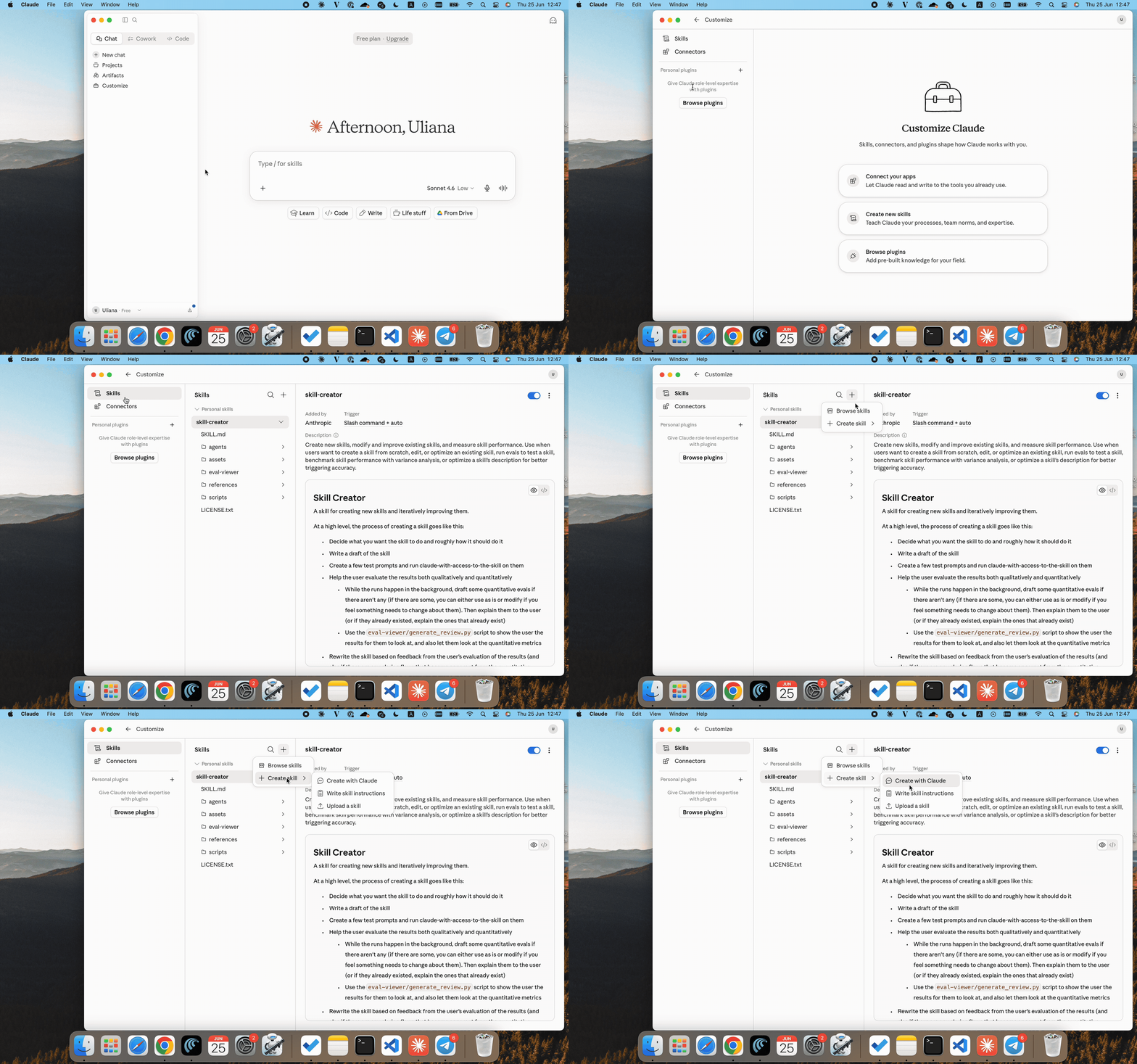
To add the skills, click on Customize → Skills → click on the plus next to Skills → browse the available skills or create your own skill.
Separate testing and production environments
Avoid giving Claude direct access to the production environment while testing different prompts. Instead, create testing environments where you can try new prompts, validate configurations, test automated workflows, and experiment with new MCP servers.
Why it's best practice:
Mastering a prompt or skill that will do exactly what you need may take time. It can cause some changes that can be difficult to follow and reverse directly in production.
For a deeper look at what can go wrong when Claude has live GTM access – and the six controls that keep a session from turning into an unreviewed production change – see AI in Google Tag Manager: give it access, not control.
Keep the config file compact
As you add more MCP servers, your claude_desktop_config.json file can quickly become difficult to manage. To keep things organized, remove old or unused server configurations and group related tools together.
Why it's best practice:
When you need to do some configuration file operations (such as removing MCPs that are no longer needed), the readability of the config file becomes critical. A compact structure makes it much easier to identify active and inactive servers and reduces the risk of deleting or modifying the wrong entry.
For example, you want to add GTM and GA4 MCP tools. Instead of adding some kind of code that will be longer:
[{
  "mcpServers": {
    "google-tag-manager-mcp-server": {
      "command": "npx",
      "args": [
        "-y",
        "mcp-remote",
        "https://gtm-mcp.stape.ai/mcp"
      ]
    }
  }
},
{
  "mcpServers": {
    "ga4-mcp-server": {
     "command": "npx",
      "args": [
        "-y",
        "mcp-remote",
        "https://mcp-google-analytics.stape.io/mcp"
      ]
    }
  }
}]
You can add a more compact version of the same code:
{
  "mcpServers": {
    "gtm": { "command": "npx", "args": ["-y", "mcp-remote", "https://gtm-mcp.stape.ai/mcp"] },
    "ga4": { "command": "npx", "args": ["-y", "mcp-remote", "https://ga4-mcp.stape.ai/mcp"] }
  }
}
Final words
Configuring MCPs in Claude can significantly simplify the work of marketing and data specialists, since it can handle many repetitive operational tasks automatically. At the same time, building a reliable and scalable system (especially one that consistently delivers the expected outputs) is challenging. It requires careful setup, clear prompt design, and adherence to best practices to avoid issues in production environments.
Want to start on the server side?
Try for freeRecommended for you
Sep 8, 2026
Blog
Understanding AI browser tracking: marketer and analyst guide
AI browsers mimic Chrome, skewing your data. Check tracking challenges and why identifying AI-driven traffic often remains uncertain.
Feb 6, 2026

Comments