Sep 16, 2026
How to configure the MCP Server for Google Analytics 4
Written by
Uliana Lesiv
Updated Sep 8, 2026 comments
Key takeaways:
- The GA4 MCP server lets your AI app send requests directly to GA4 - returning reports, running commands, or querying dimensions and metrics.
- You only need Node.js (v18+) and an MCP-compatible AI client to configure it.
- Setup is done by adding the GA4 MCP server entry in the client's config file.
- You can also connect GTM and/or Stape MCP servers along with the GA4 MCP server; we show how to do it.
- After restarting the AI app, you authenticate with your Google account to grant access.
- A Running status confirms successful setup.
How the GA4 MCP server works
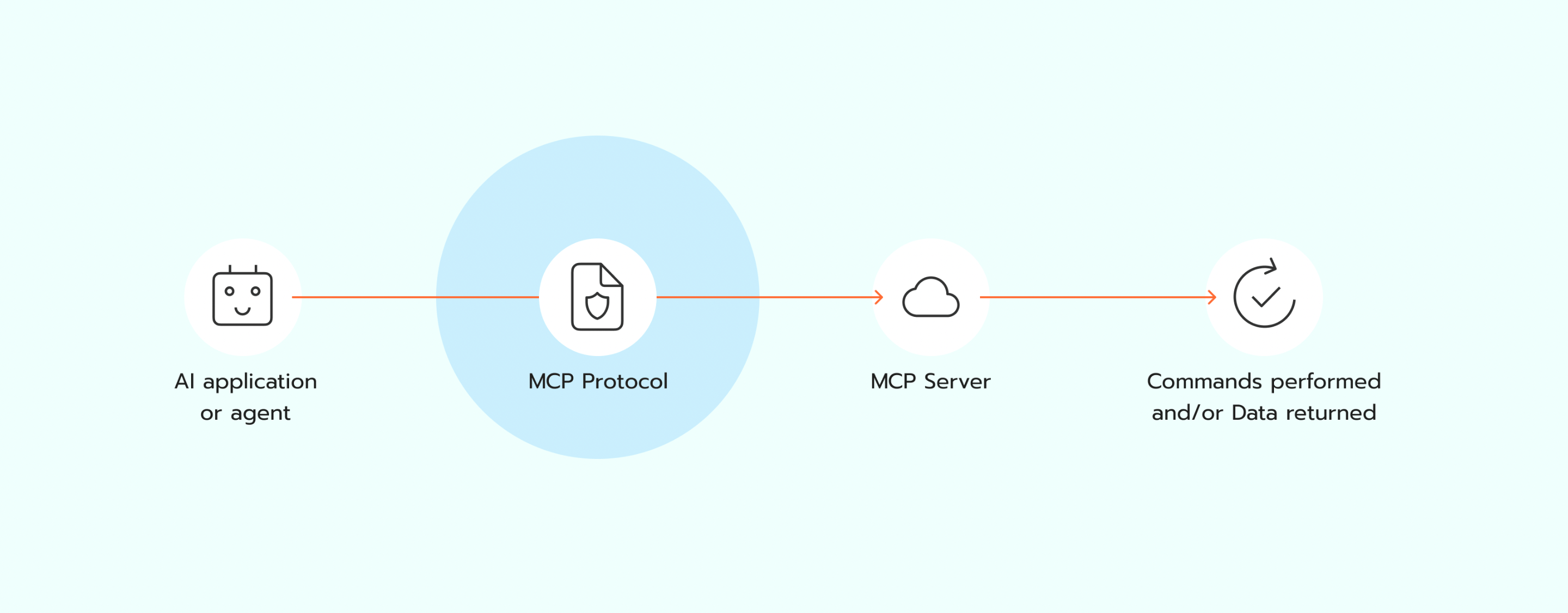
After you set up the MCP Server (Google Analytics MCP Claude), you can enter any request directly into your AI app (such as the Claude app). That request is then passed to the MCP Server through the MCP Protocol, the standard communication protocol for AI tools. Once the server receives the requests, it processes them, executing actions, running commands, or returning the requested data.
Once the server receives the requests, it processes them, executing actions, running commands, or returning the requested data. Available tools include querying dimensions and metrics, allowing users to analyze user behavior and traffic sources.
🐶 Do you use Claude for the MCP server configuration? If you're new to this topic, our guide to Claude MCP explains how AI assistants connect to external tools like GA4, GTM, and APIs, along with best practices for using MCP with Claude.
Use cases of Google Analytics MCP Server
The requests can cover nearly all GA4 reporting and administrative operations, including (but not limited to):
- Run GA4 reports. Retrieve historical and segmented data (dimensions, metrics, filtering, ordering), including analysis of conversion rates, average session duration, and traffic source performance.
- Get real-time reports. View current, up-to-date user activity on your site or app and analyze events in real time to identify trends or issues quickly.
- Generate GA4 account summary. Receive a complete list and overview of all properties you have access to.
- List Google Ads accounts connected to GA4. Returns a list of the Google Ads accounts linked to a specified GA4 property.
- Fetch property annotations. Retrieves the annotations (notes for specific dates/periods) created on a specified GA4 property.
Pre-requires
To configure the Google Analytics MCP Claude server, you will need an AI app or agent. In our example, we’ll use the Claude app. See installation instructions for other services.
How to configure Google Analytics 4 MCP Server?
We’ll cover two ways to configure an MCP server:
- 1.Using HTTP connection - generally a better option, as long as your MCP client supports it. It prevents a lot of bugs and is way easier to install.
- 2.Using mcp-remote - more complicated and error-prone, but can be the only option for some MCP clients (or if you specifically wish to use it for your setup).
How to configure the MCP server using HTTP connection
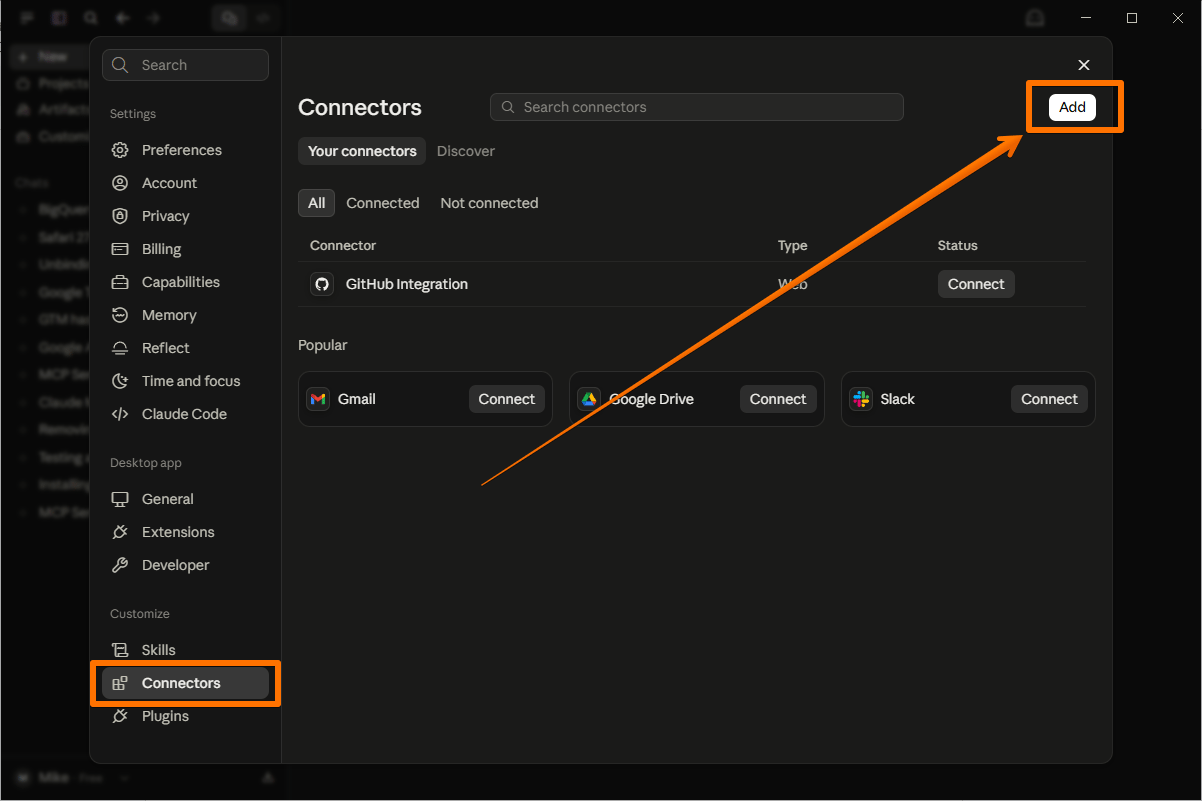
1. Open Claude Desktop and go to File → Settings → Connectors → click Add to create a custom connector.
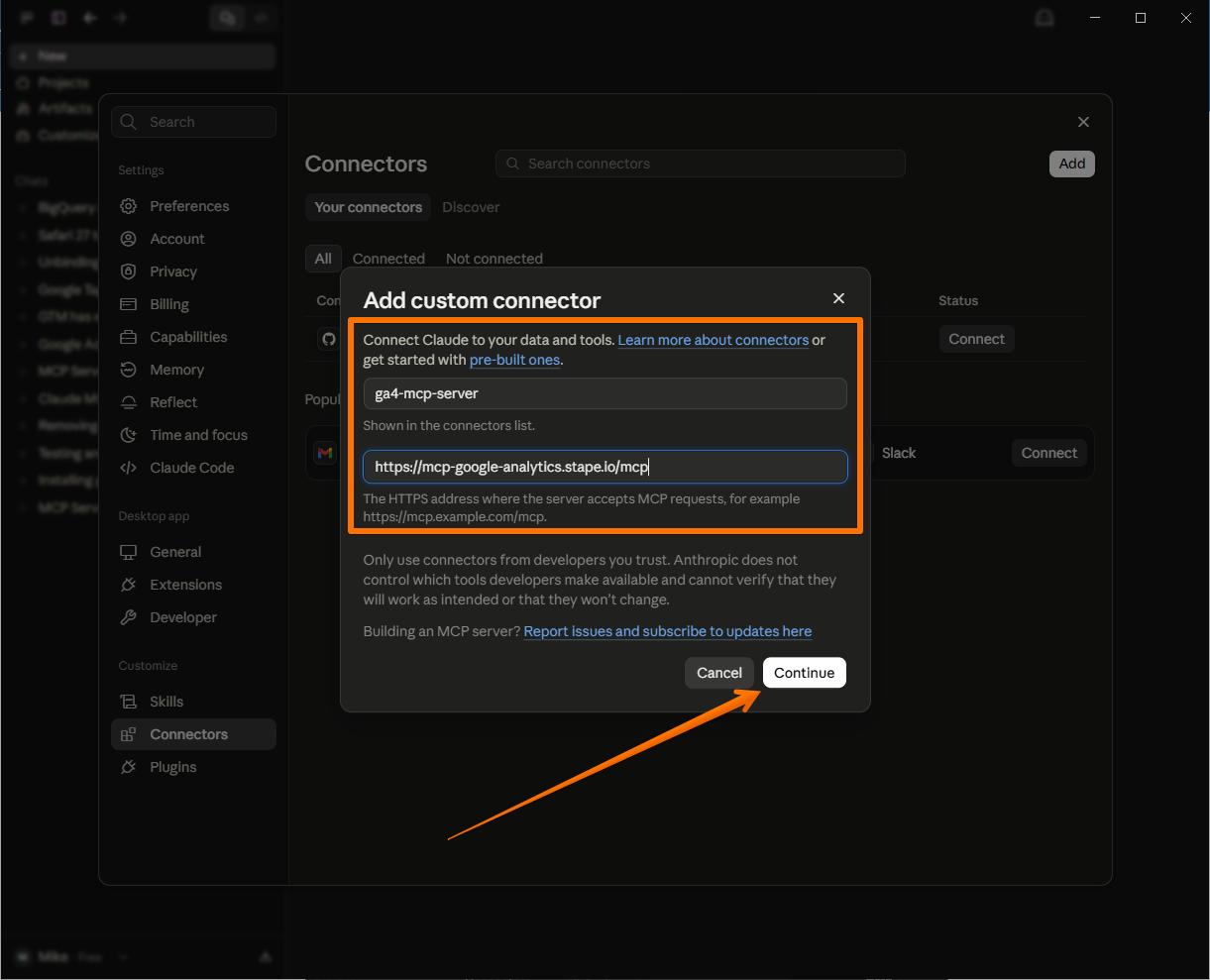
2. Set the name to ga4-mcp-server and the URL to https://mcp-google-analytics.stape.io/mcp, then click Continue.
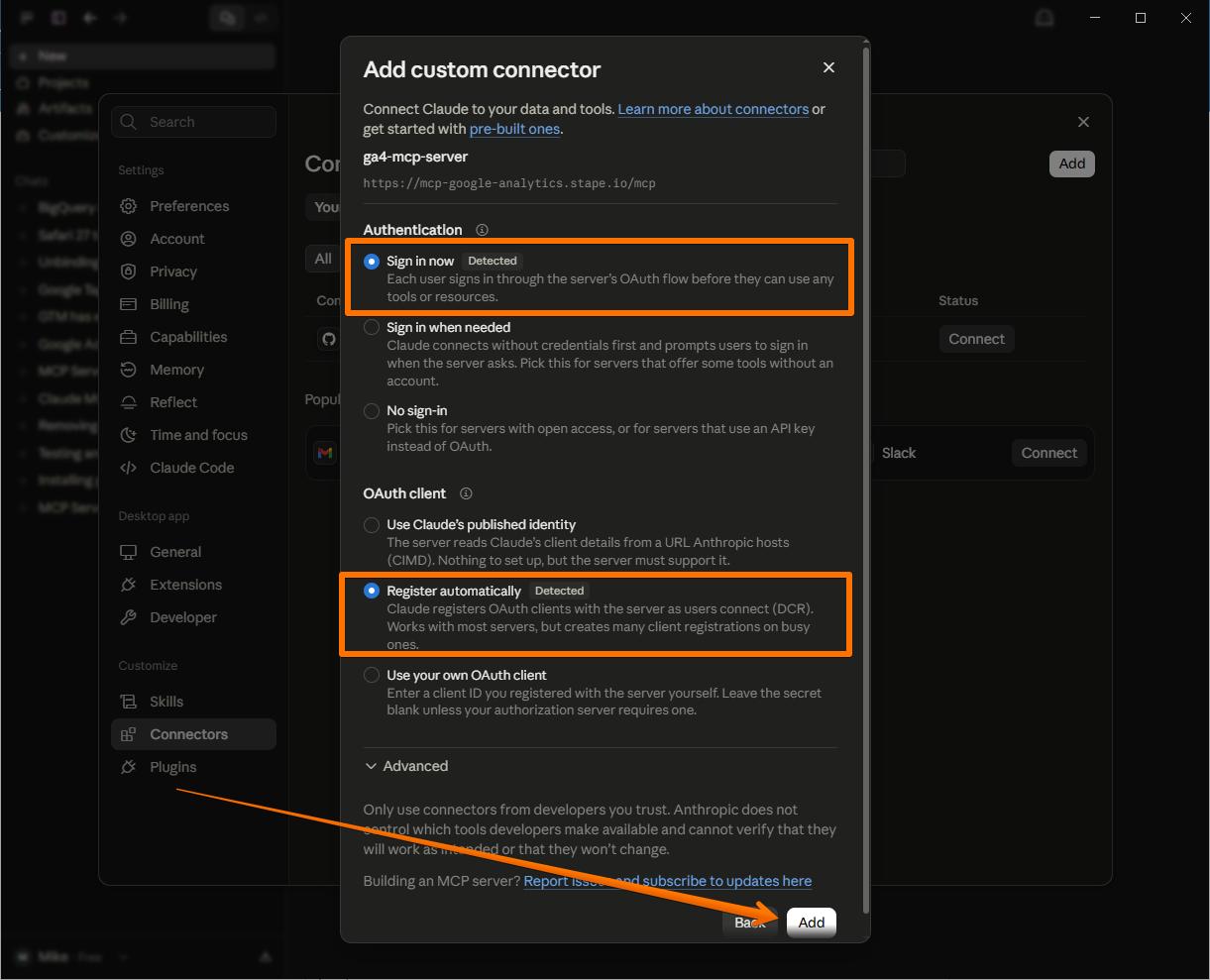
3. For Authentication, select Sign in now → for OAuth client, select Register automatically → click Add.
4. On the new screen, click Connect (or click the new connector in the Connectors list).
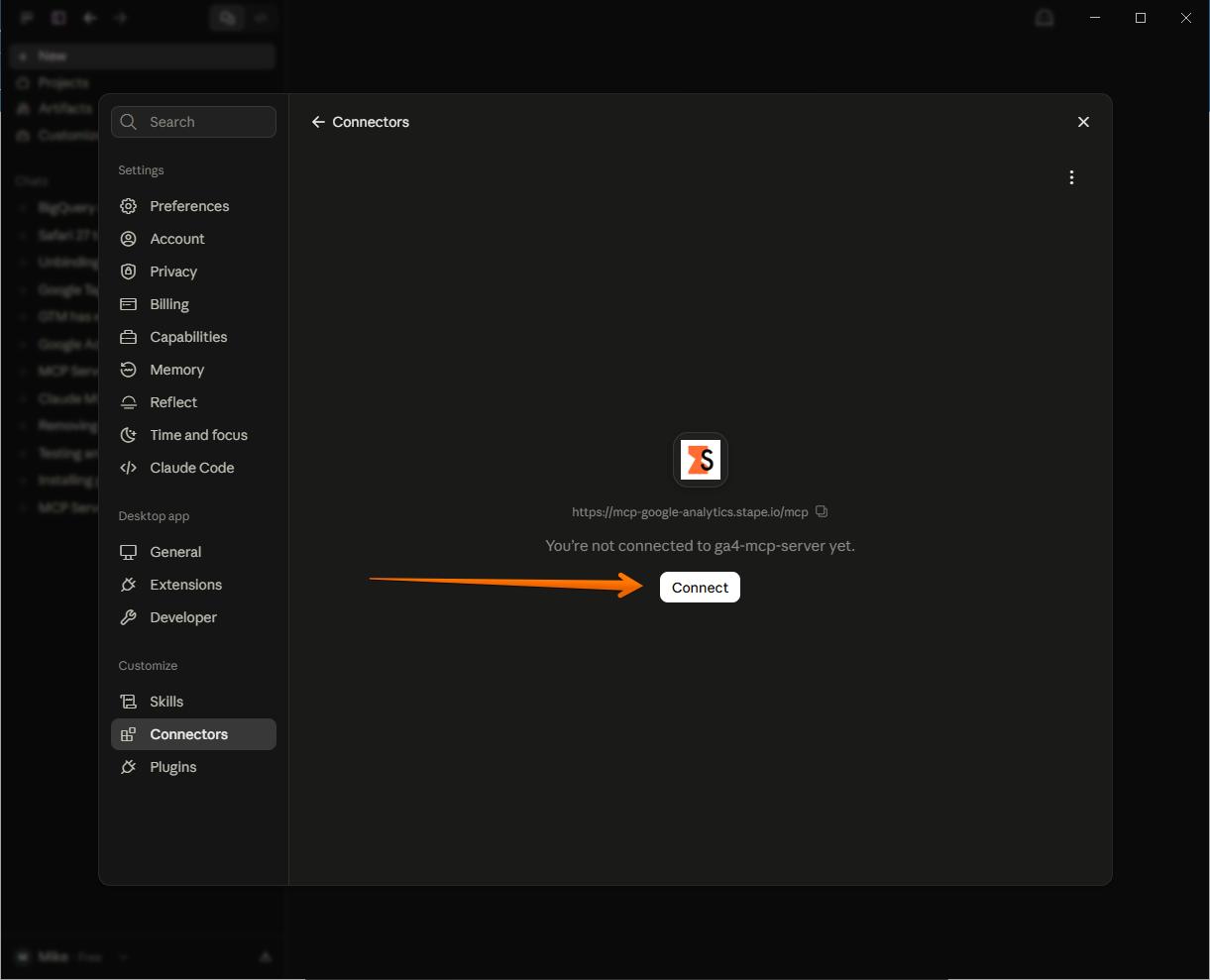
5. A new browser page will open - click Continue connecting and go through the Google OAuth flow.
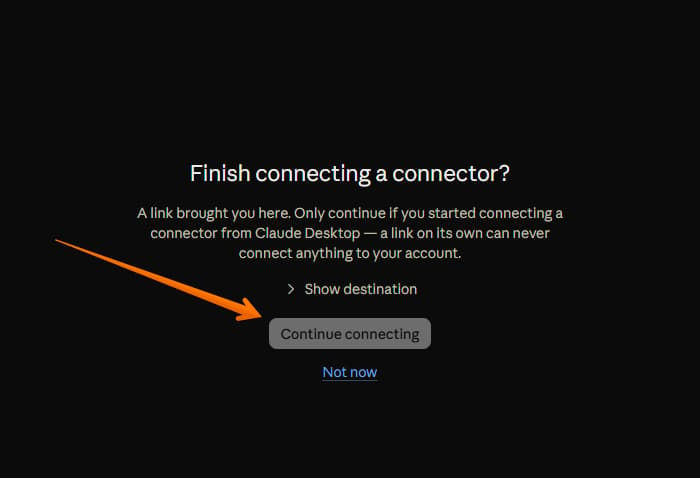
6. After the access is granted, the tool will be available for your use.

7. Now you can type your request via chat. To verify that it’s working, just type any query related to your GA4 account, like “List all my GA4 entities” or “What's the total conversions across all sites this month?”
How to configure the MCP server using mcp-remote
1. Open Claude Desktop and go to Settings → Developer → Edit Config.
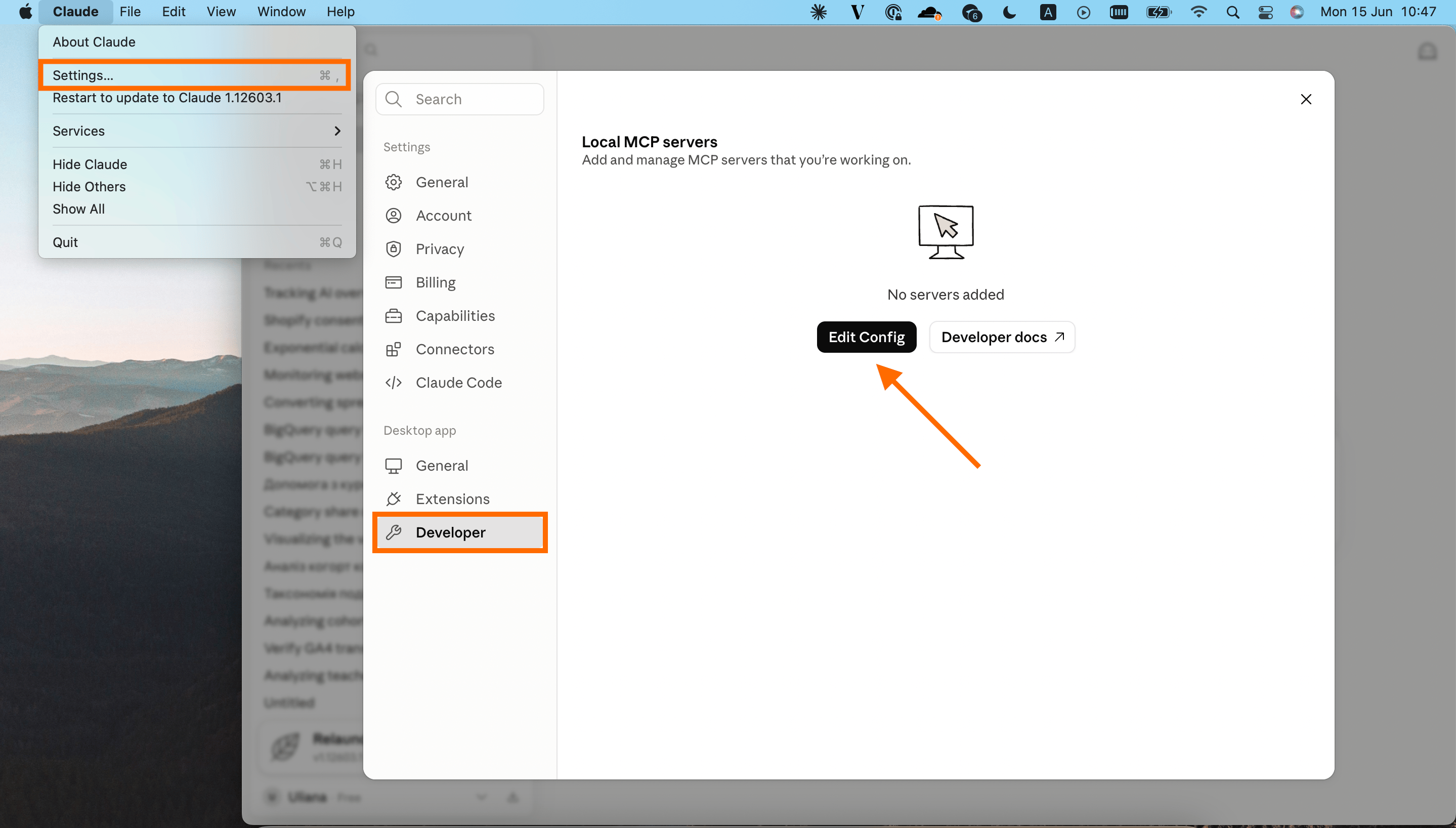
2. Open the configuration file that controls what MCP servers Claude can access and add the following configuration:
{
  "mcpServers": {
    "ga4-mcp-server": {
     "command": "npx",
      "args": [
        "-y",
        "mcp-remote",
        "https://mcp-google-analytics.stape.io/mcp"
      ]
    }
  }
}
Save the changes (Command + S).
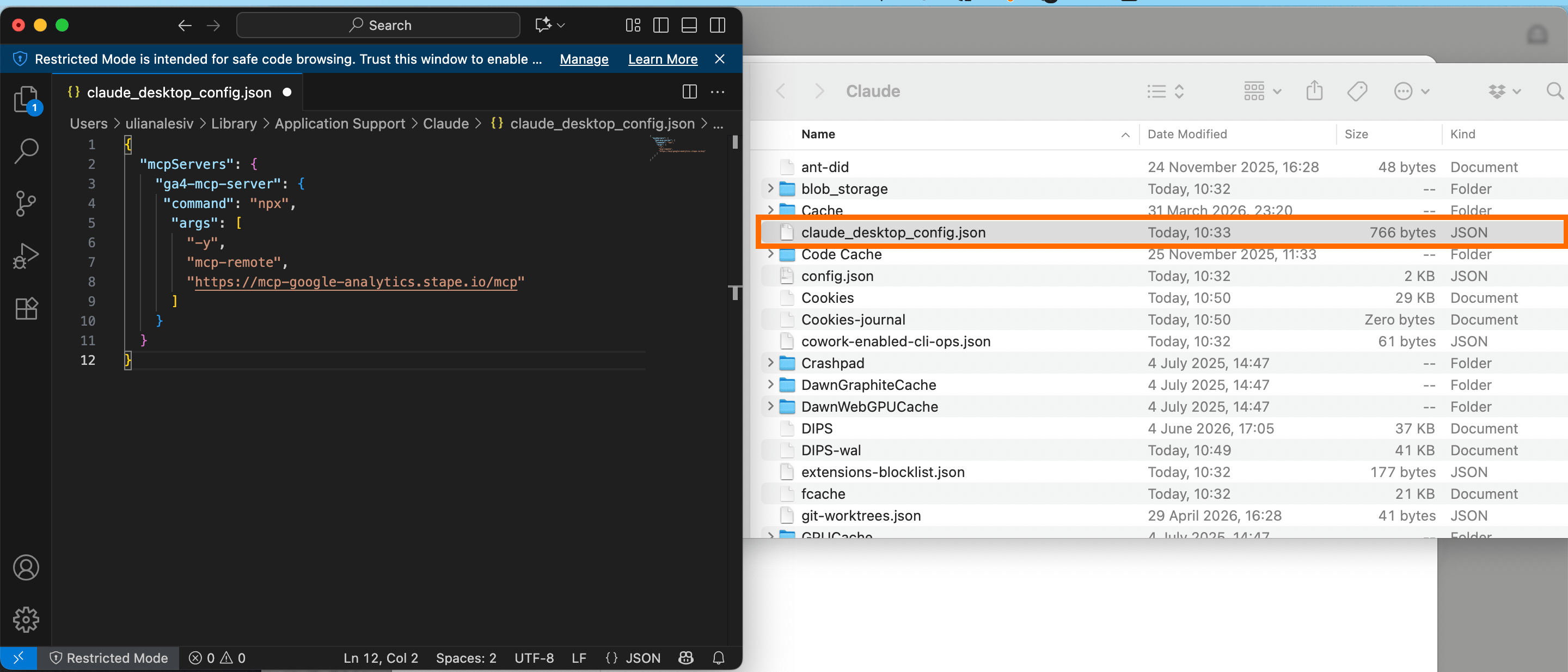
Please note: if you are already using or would like to install MCP servers for other platforms, such as Google Tag Manager and/or Stape, you will need to update the configuration code by adding other MCP's code.
3. Restart Claude Desktop.
4. Once restarted, a browser window will be open. Select the Google account that has access to the Google Analytics property you want to modify with the MCP server. Complete the authentication flow to grant Claude access to your MCP server.
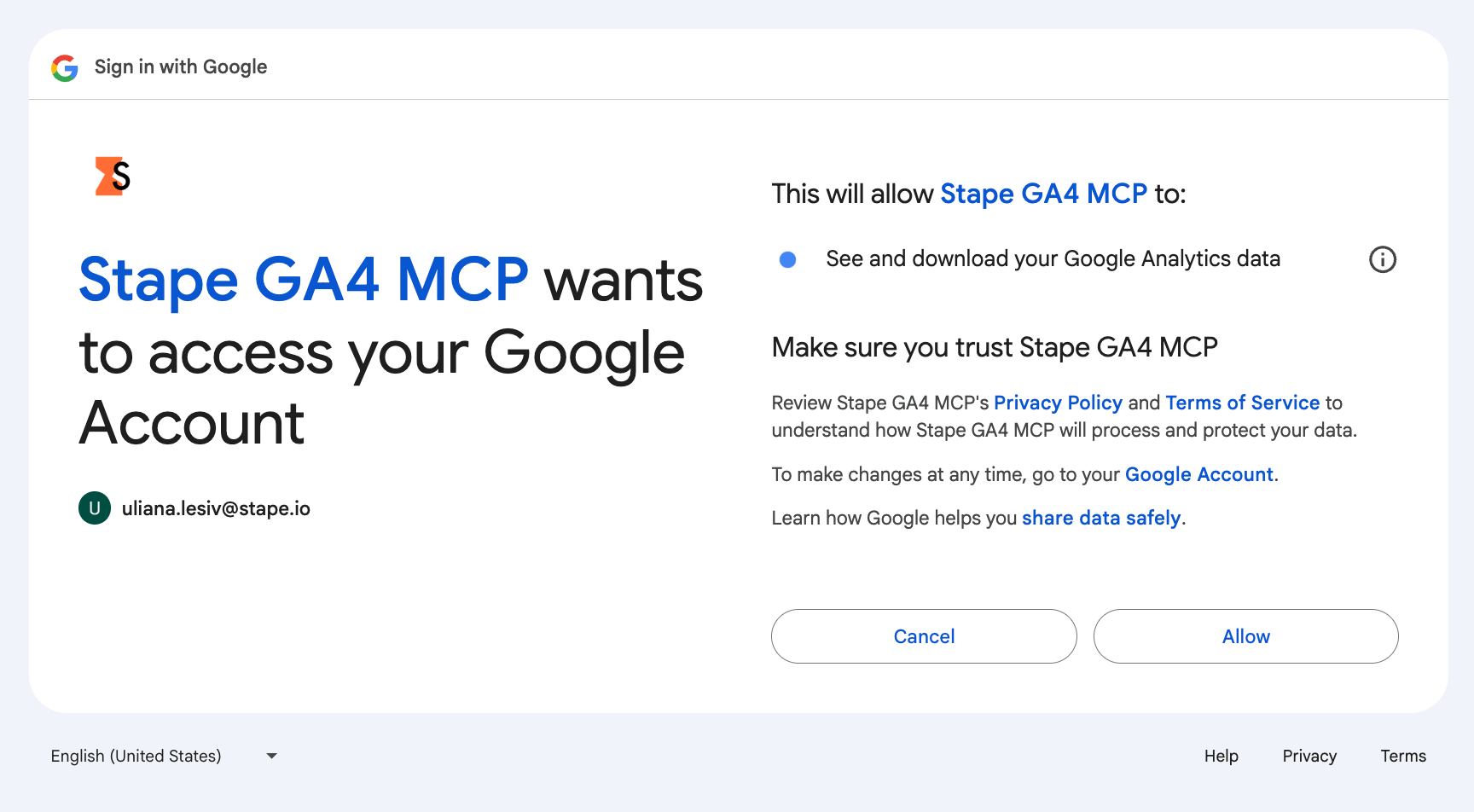
Once access is granted, the tool will be available for your use (just ensure you have a working GA4 installation capturing active events on your property).

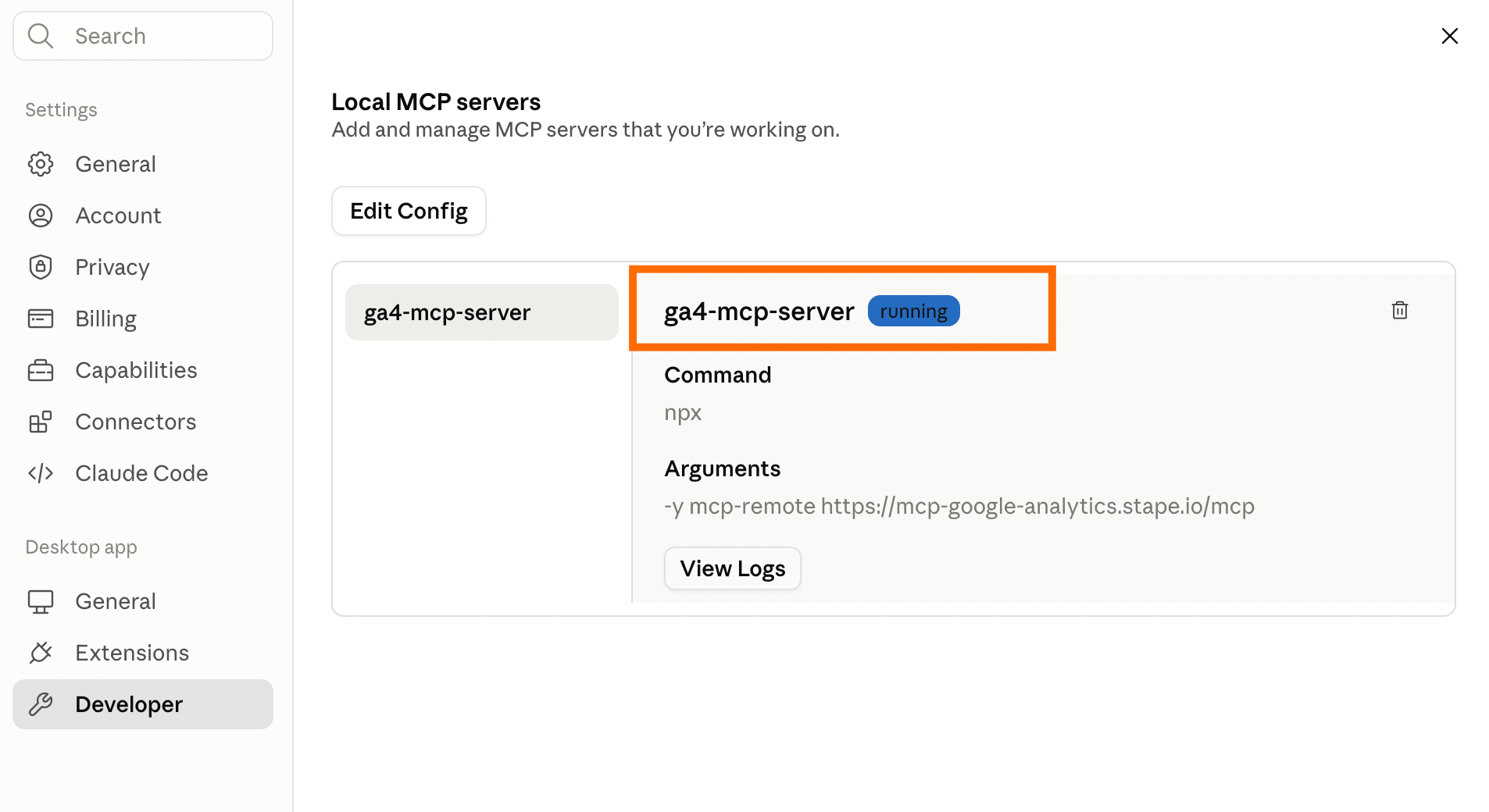
In Settings → Developer, you will see the status Running next to ga4-mcp-server. In case of problems with the setup, refer to the troubleshooting section below in this guide.
Troubleshooting GA4 MCP server configuration
MCP Server name length limit
Some MCP clients (such as Cursor AI) have a 60-character limit on the combined length of the MCP server name and the tool name. If your configuration uses a long server name (for example, ga4-mcp-server-your-additional-long-name), some tools can be hidden or filtered out.
To prevent this: use shorter MCP server names in your configuration (e.g., ga4-mcp-server).
The MCP cache
mcp-remote stores credential data in ~/.mcp-auth (or in the directory defined by your MCP_REMOTE_CONFIG_DIR). If you encounter persistent issues, try clearing the cached state and tokens.
To clear the cache, run the following command:
rm -rf ~/.mcp-authAfterward, restart your MCP client.
Before you connect GA4 to a wider AI workflow: the GA4 MCP server is often paired with the GTM MCP server for cross-tool auditing and reporting. If you're doing that, it's worth reading AI in Google Tag Manager: give it access, not control – it explains how to verify GTM changes independently using GA4 data, rather than trusting the AI's own summary.
Want to start on the server side?
Try for freeRecommended for you
Sep 2, 2026
Blog
What is event tracking in GA4: a guide to boosting your data insights
GA4 event tracking helps monitor user interactions, analyze data, and optimize marketing strategies. Set up accurate data collection with ease!
Sep 16, 2026

Comments