AI in Google Tag Manager: give it access, not control
Written by
Luc Nugteren
Connecting an AI assistant to Google Tag Manager takes about ten minutes. A config file, a login screen, and a model like Claude can read your container, build tags and rename half your variables.
That connection runs over MCP, short for Model Context Protocol: an open standard from Anthropic that lets an AI assistant talk directly to an outside tool, the way one piece of software talks to another through an API. Stape publishes free MCP servers for GTM, GA4, Google Ads and Stape itself.
Controlling it is the part nobody writes about. Because the same connection that fixes your naming convention in one pass also drops a consent setting on a purchase tag. Silently. And then tells you the job is done.
You don't control an AI assistant with a better prompt. You control it with what you connect it to.
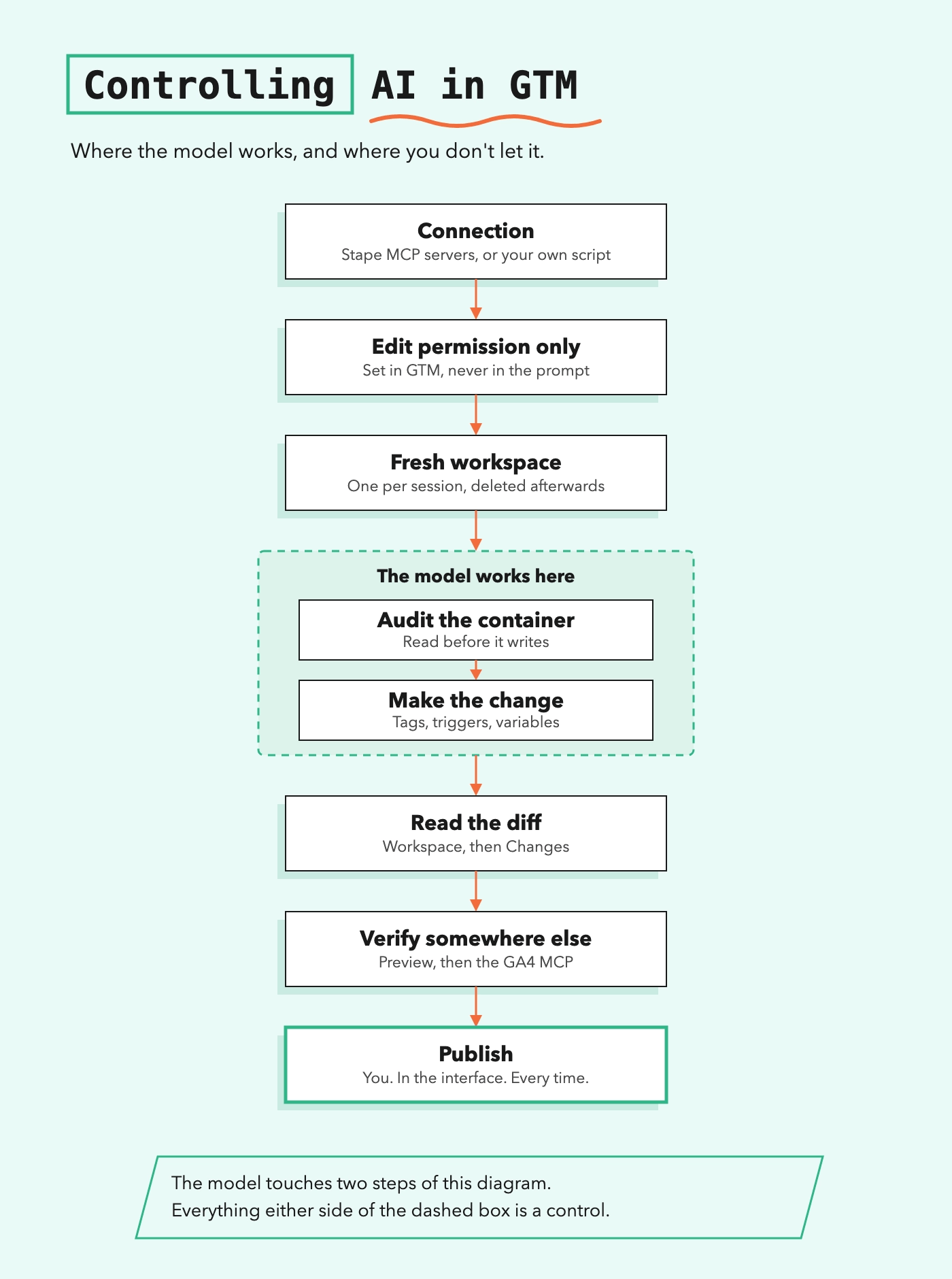
Why this needs controls
A model optimizes for a plausible, complete-looking result. In GTM, plausible and correct look identical from the outside. The tag exists. Right name. Right trigger. Reports as created. Missing the one field that mattered.
Three things make that worse in GTM than almost anywhere else:
- Nothing visibly breaks. A misconfigured tag doesn't error out. It fires, sends something, the platform accepts it.
- The confirmation comes from the thing being audited. "Configured correctly" is written by the same reasoning that made the mistake.
- Publishing is instant and global. No staged rollout. A version goes live for every user at once.
So the goal isn't preventing mistakes. It's that none of them reach production unread.
1. Choose your connection
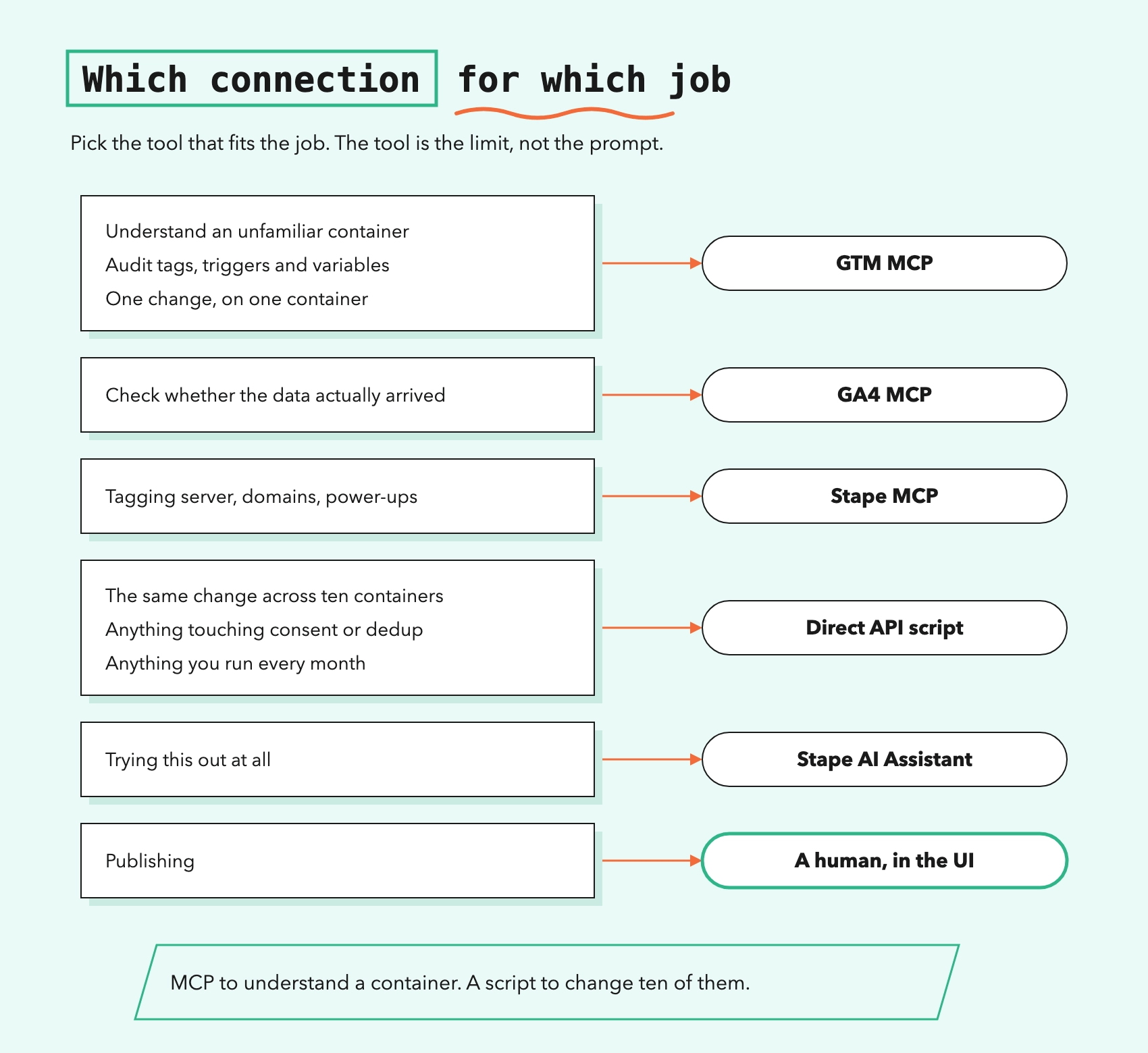
This sets the ceiling on everything else. A model on a full GTM MCP server has every container operation available at all times, and the only thing between it and any of them is its own judgement. A model running your script does what the script does. Nothing more.
Stape's MCP servers
Four, all free, and not equal in risk:
- GTM MCP. Tags, triggers, variables, workspaces, versions, permissions. The widest reach of the four.
- GA4 MCP. Reports, real-time data, annotations. Mostly reading, so the safest place to start.
- Stape MCP. The tagging server: containers, custom domains, power-ups.
- Google Ads MCP. Campaign performance, real-time spend data, account overviews.
Setup is the Claude desktop app plus Node.js, a free tool you install once and never think about again. Then Settings, Developer, Edit Config, and one block per server:
{
  "mcpServers": {
    "google-tag-manager-mcp-server": {
      "command": "npx",
      "args": [
        "-y",
        "mcp-remote",
        "https://gtm-mcp.stape.ai/mcp"
      ]
    }
  }
}
Restart, authenticate with your Google account, and confirm the server shows as Running.
These are for exploration, auditing across tags and triggers at once, and one-off changes. Also for coverage: the GTM API only reaches the container, while these four reach GA4 reporting and your tagging server too.
But they are suboptimal for anything you do more than twice. Every session starts from zero, so every session is a fresh chance to decide differently than last time, and a container in raw export form is an enormous file the model must read in full before helping with any of it.
A direct API connection
For changes you repeat, skip MCP. Your credentials go in a .env file, a local text file holding your API keys, and the operation lives in a short script you read before it runs. That buys you four things MCP cannot: the same result every time, a change reviewed as code before it exists in GTM, one script across ten clients, and anything the model reliably gets wrong written into that script once instead of guessed every session. The cost is that you have to build it.
Stape's AI Assistant
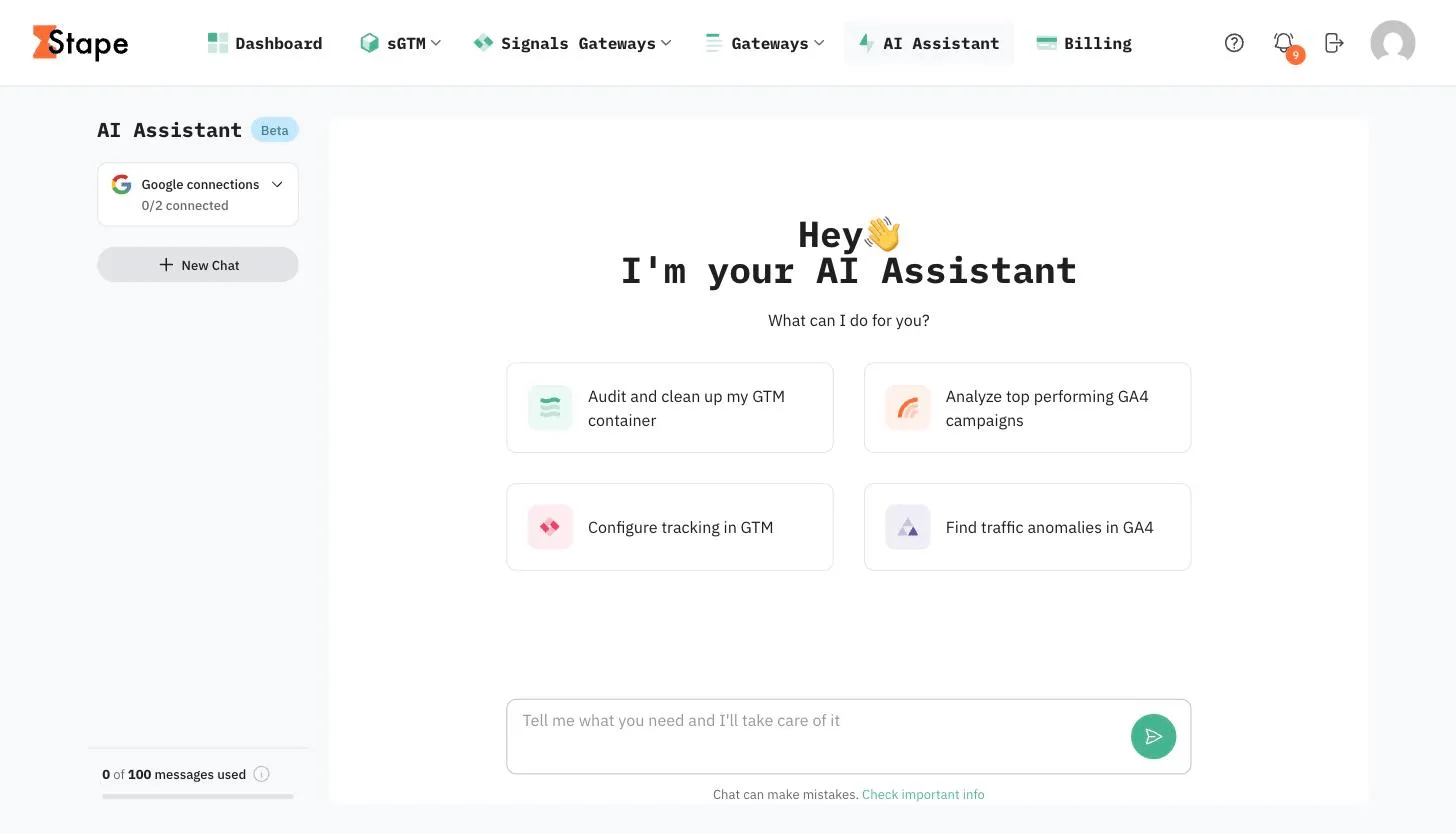
Same capabilities in the browser, paid, capped at 100 messages a month. Nothing installed, no credentials on your machine. The obvious start for anyone evaluating this, and for team members who shouldn't handle API keys.
Read more about AI Assistant.
Which connection to choose?
The connection you pick is the first control. Everything after it is damage limitation.
2. Scope the permission, not the prompt
The most important step here, and it takes only a few minutes.
A prompt is a request. The model usually follows it, and may also decide the most helpful next action is the one you forbade. A GTM permission is enforced by Google on the API, regardless of what the model concludes.
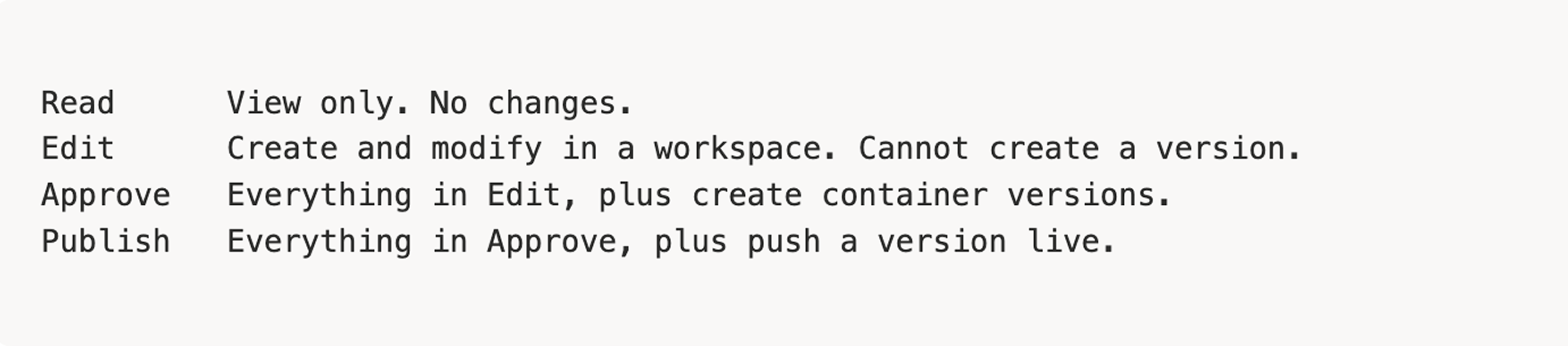
Give the AI account Edit rights. Nothing higher. Use a dedicated Google account for AI work, added in GTM > Admin > User Management, with container access rather than account access, which would expose every client in that account.
Don't authenticate as yourself. That hands the model your own permissions, which on most client containers includes Publishing rights.
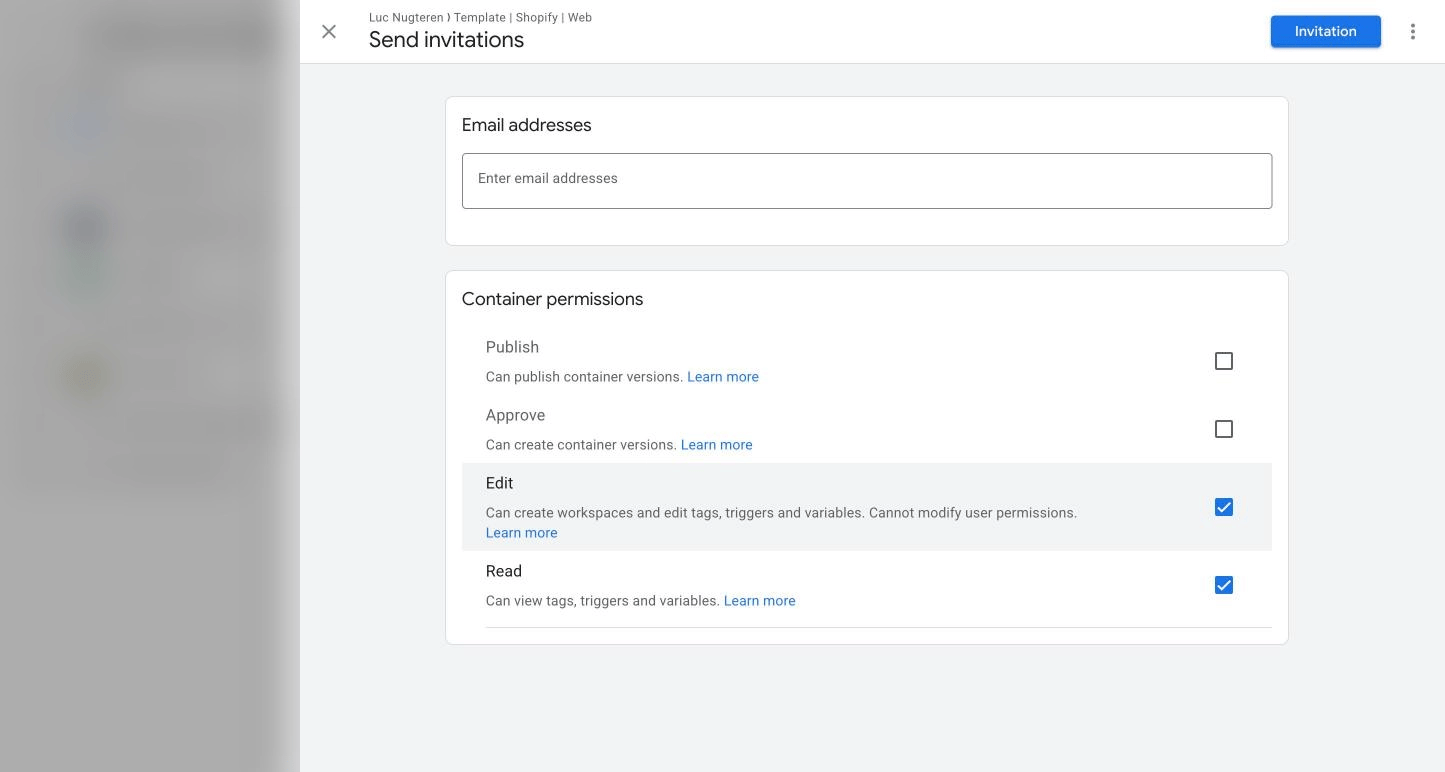
The worst outcome is now a messy workspace. Not a live container.
3. One workspace per session
New workspace before each session, named after the task, for example 2026-08-consent-audit.
Abandoning is then free. Forty minutes in, if the model has misread the container, you delete the workspace and every change disappears at once. No unpicking which of thirty edits to revert.
GTM's free tier allows three workspaces per container, so delete as you finish.
4. Check the container, not the summary
The model's closing summary comes from the same reasoning that produced the changes. If it believed it set consent settings and didn't, the summary says it did. Not a lie, just not independent.
Start in the Workspace, then look at Changes. Be clear about what that gives you: which objects were added, modified or deleted, and by which account. Not what changed inside them. So treat the list as your starting point rather than your review.
Two checks catch most of it.
Consent, every tag at once. Open the Consent Overview from the shield icon on the Tags screen. It splits your tags into Consent Not Configured and Consent Configured, with built-in and additional consent shown per tag. One screen answers the question you would otherwise chase tag by tag.
Then open each changed tag, for the fields the overview doesn't cover:
- Trigger exceptions, silently dropped whenever a tag is rebuilt rather than edited. Your bot filtering and duplicate-fire protection go with them.
- Variable references, for a new variable duplicating one you already had.
- Anything deleted. A deletion the model didn't mention is the strongest signal the session went somewhere you didn't intend.
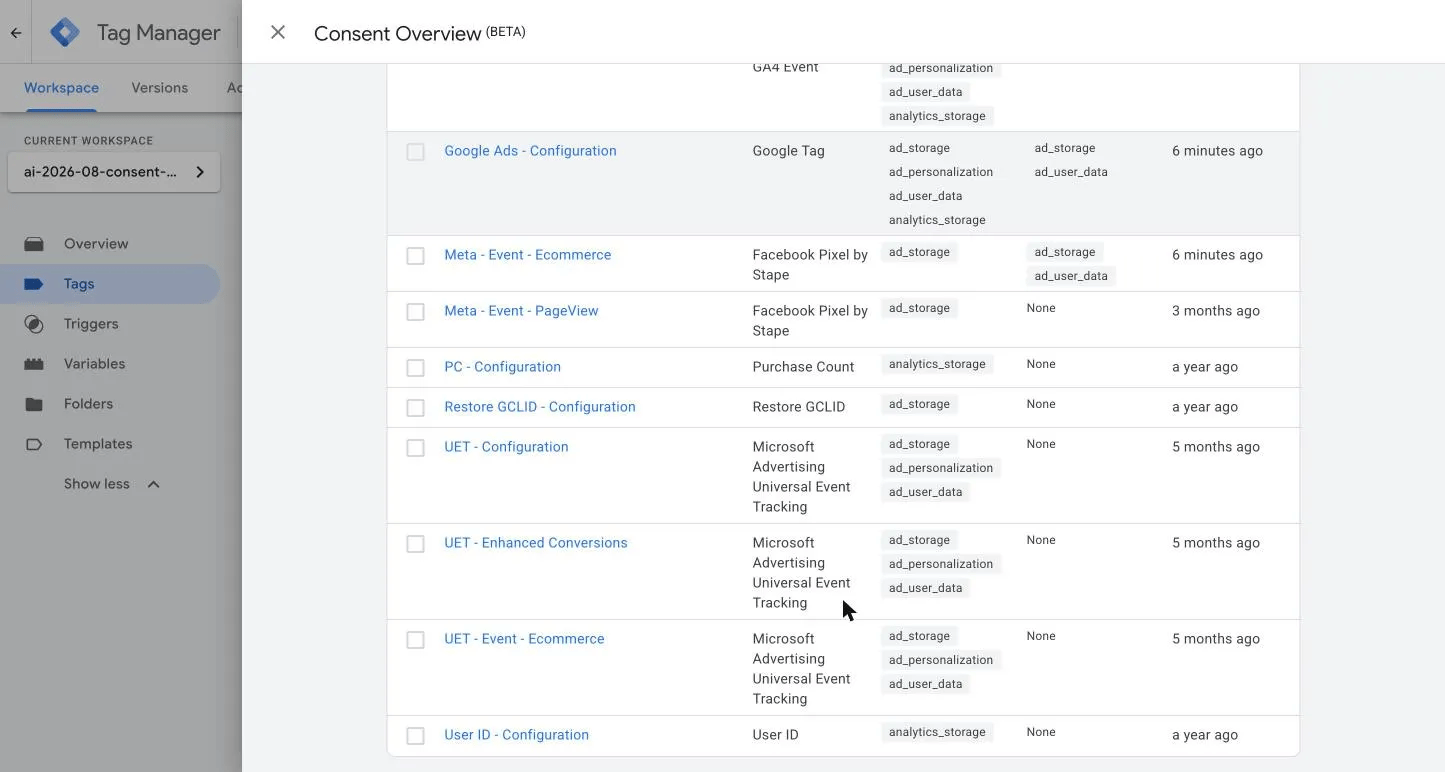
If you didn't open the change, you didn't approve it.
5. Verify with a different tool
AI tells you what the configuration says. Not what actually happened.
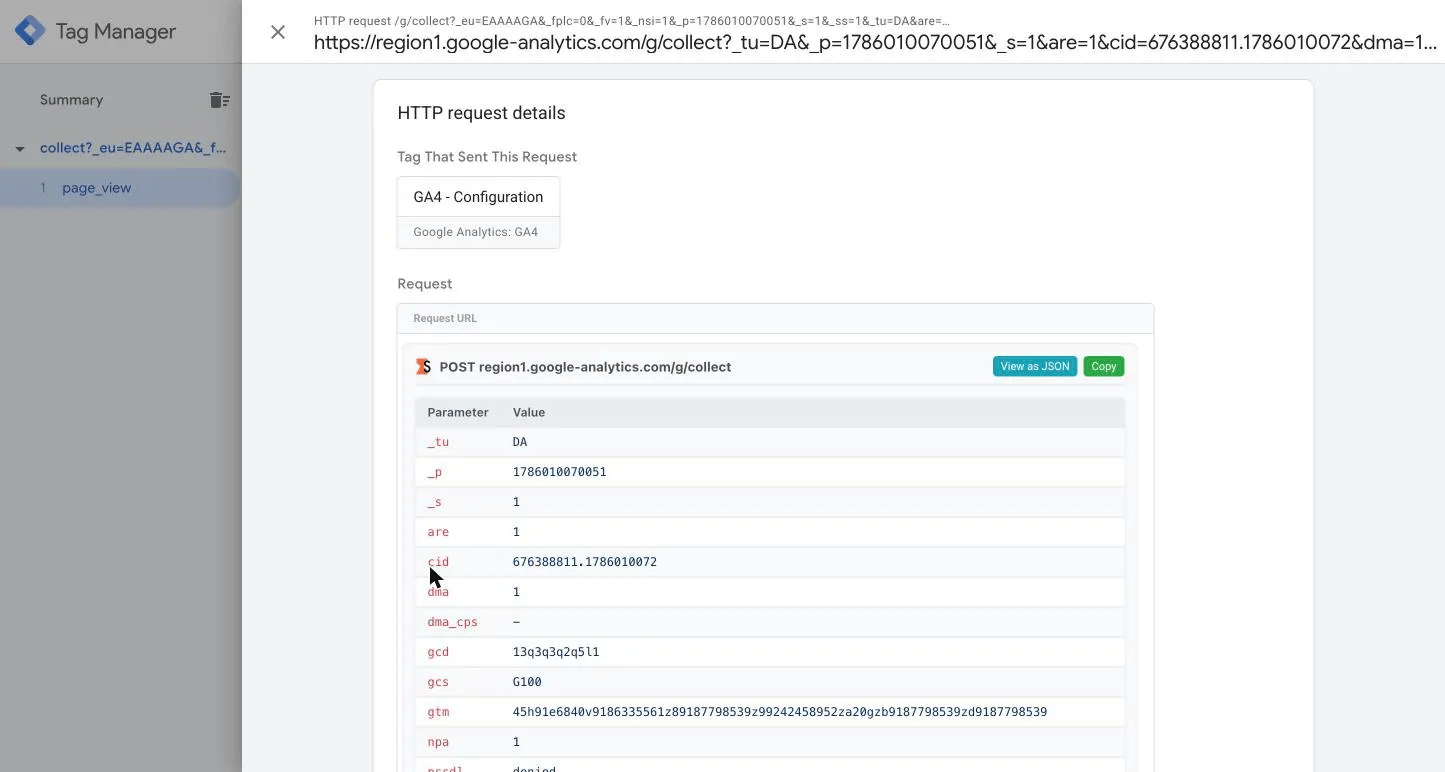
Preview the web container and confirm the tag fires on the expected event, and only that one. Preview server GTM and look at the outgoing request rather than the tag status. Then leave the tool entirely: the GTM MCP made the change, so let the GA4 MCP confirm the data arrived.
Two independent sources agreeing is a check. One source asked twice is an echo.
Three cases a configuration review alone would pass:
- A Meta Conversions API tag with no
event_id, so browser and server never recognize each other as the same event and conversions double. - A Google Ads conversion firing on
purchaseand again on a thank-you page reload, because the trigger has no exception. - Enhanced Conversions reading a field the dataLayer doesn't contain. Fails silently, reports nothing.
6. Encode it in a skill file
Rules you have to remember are rules you eventually skip. A skill file is a plain text file of your conventions that the assistant reads at the start of every session. Same idea as a brand style guide handed to a new copywriter: written once, followed every time.
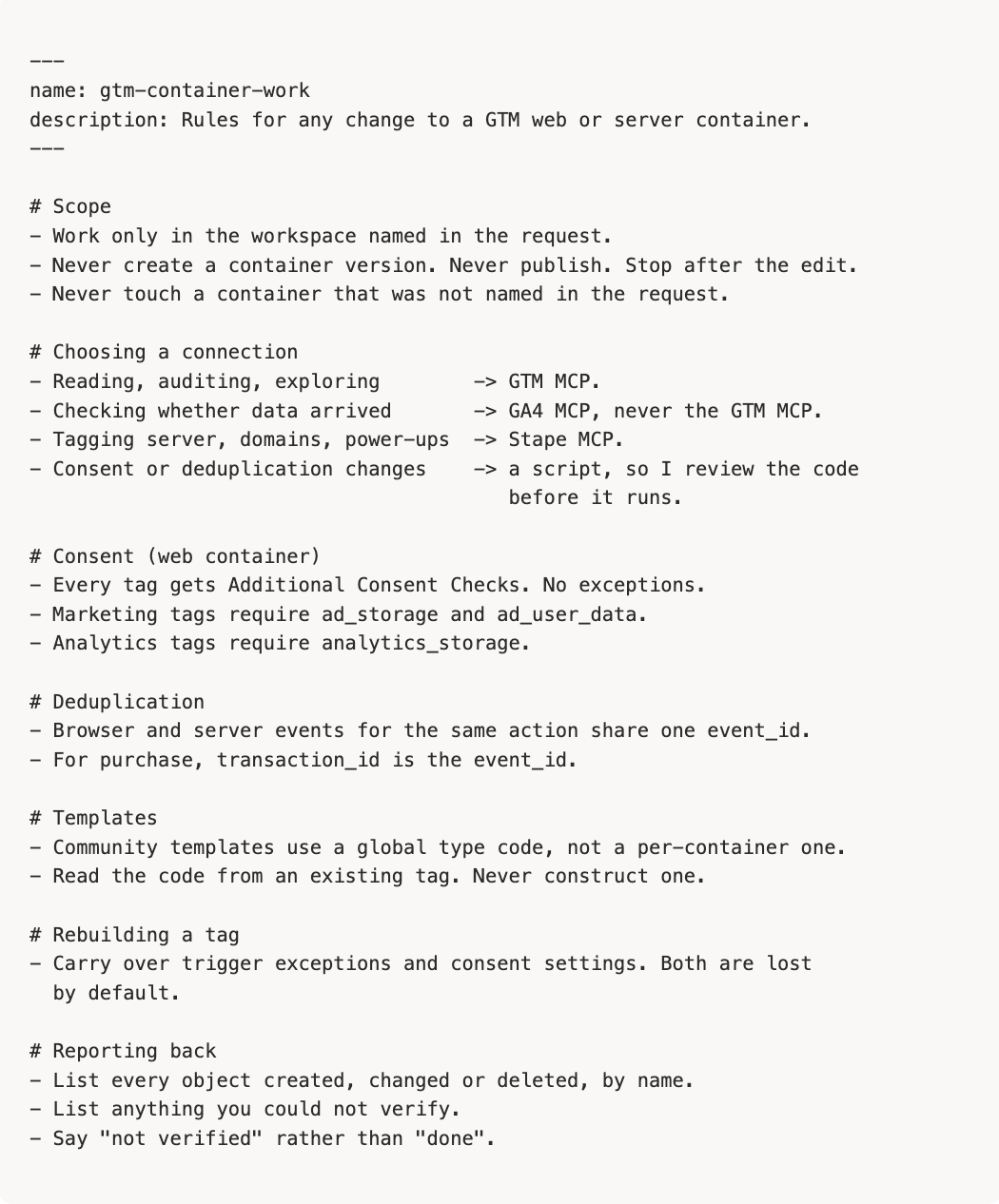
The routing section is where connection choice stops being a judgement call. The reporting section matters more than it looks: telling the model to separate what it did from what it confirmed produces noticeably more honest output, and hands you a shortlist of what to check in preview.
What AI reliably gets wrong in GTM
Community template type codes. Tags from the Community Template Gallery reference their template by a type code, and the intuitive assumption is that it's scoped per container, something like cvt_<containerId>_<templateId>. It isn't. The gallery carries a single global code, cvt_KFNBV in form. A model reasoning from first principles builds the per-container version, the API accepts it, and the tag fails to resolve.
Consent settings. New tags default to no additional consent checks, and the model rarely sets them unless told explicitly, every time. The most direct legal exposure on this list.
Deduplication. Asked to add server-side tracking for an event already firing in the browser, models build a reasonable server tag with no shared event_id. Both get counted, conversions roughly double, and it looks like a spectacular migration until you reconcile against the backend.
Confident non-verification. "I have verified the tag is firing correctly", from a model with no ability to open your website. It has no way to know, and "verified" is simply how a report like that normally ends.
Conclusion
Whether AI can build a tag was never the interesting question. It can. The question is what your setup does on the day it builds one wrong, and that's decided before the session starts.
Set up this way, AI is genuinely useful in GTM. Set up without it, you've given edit rights on a live measurement stack to something that can't check its own work and will tell you it's done anyway.
Want to switch to the server side?
Try for freeRecommended for you
Sep 30, 2026
Blog
Claude MCP guide: use cases, setup & best practices
Claude MCP connects Claude to external tools, enabling automated reporting and cross-platform workflows. Learn how it works, the configuration, best practices.
Aug 19, 2026

Comments