How to use AI Assistant
Updated Sep 14, 2026
Before you begin
To use AI Assistant, make sure that:
- Your account is Standard and is in the Global location.
- You've added a payment method to your account and have at least 1 product.
If either condition isn't met, the AI Assistant button won't be available in the menu.
How to use the assistant
- 1.Log in to your Stape account.
- 2.On the top-level menu click AI Assistant.
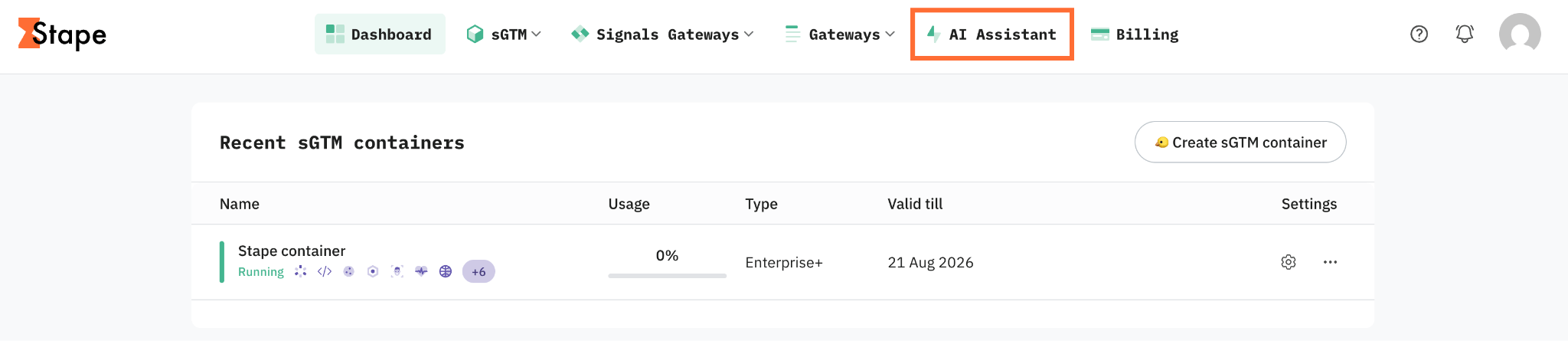
3. You’ll be redirected to a full-screen chat interface.
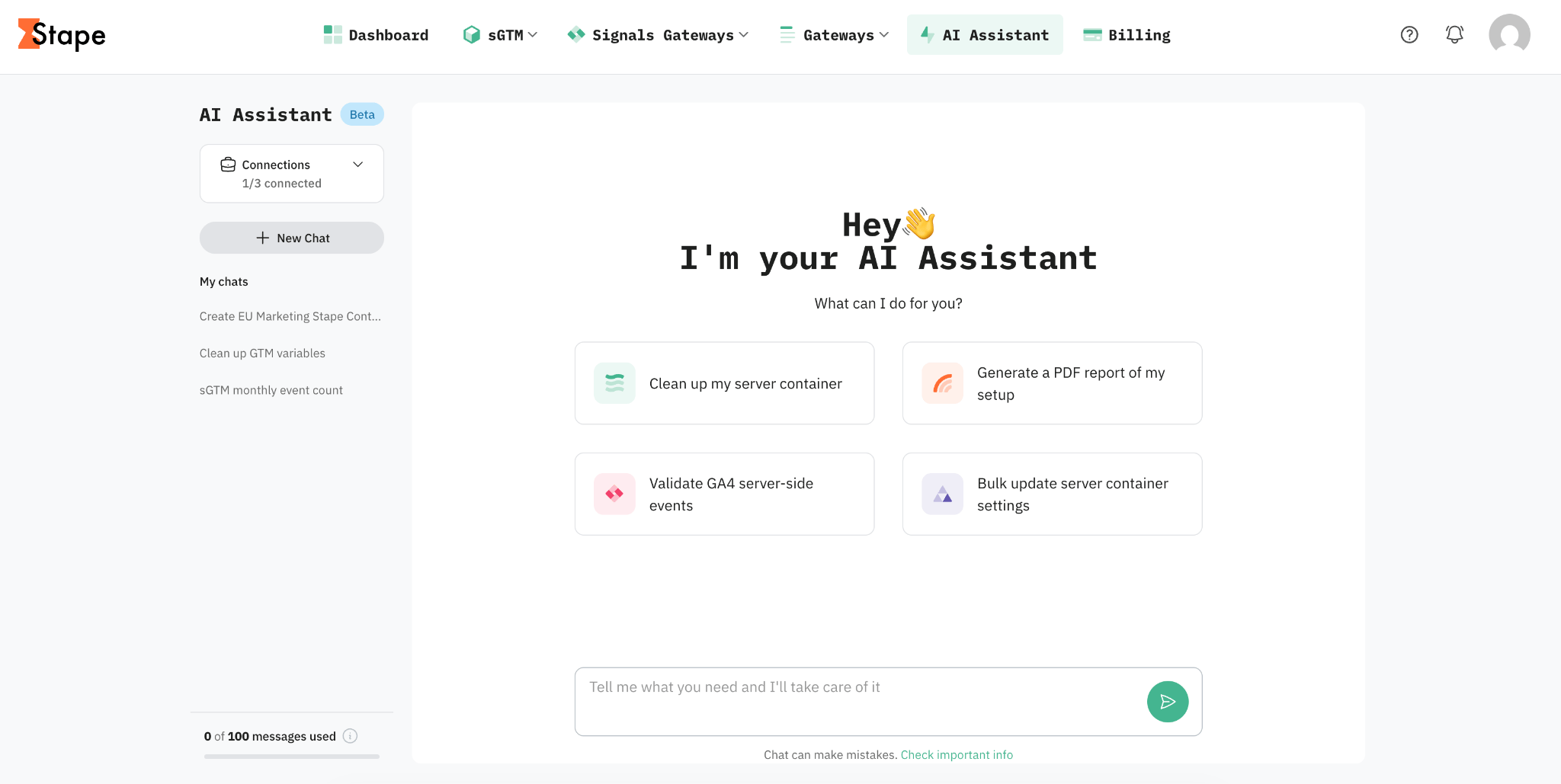
4. Type your request in the message box at the bottom of the screen, or click on one of the suggested prompts. Here are some prompts you can try to get you started:
- “Create a new sGTM container named My Web Store.”
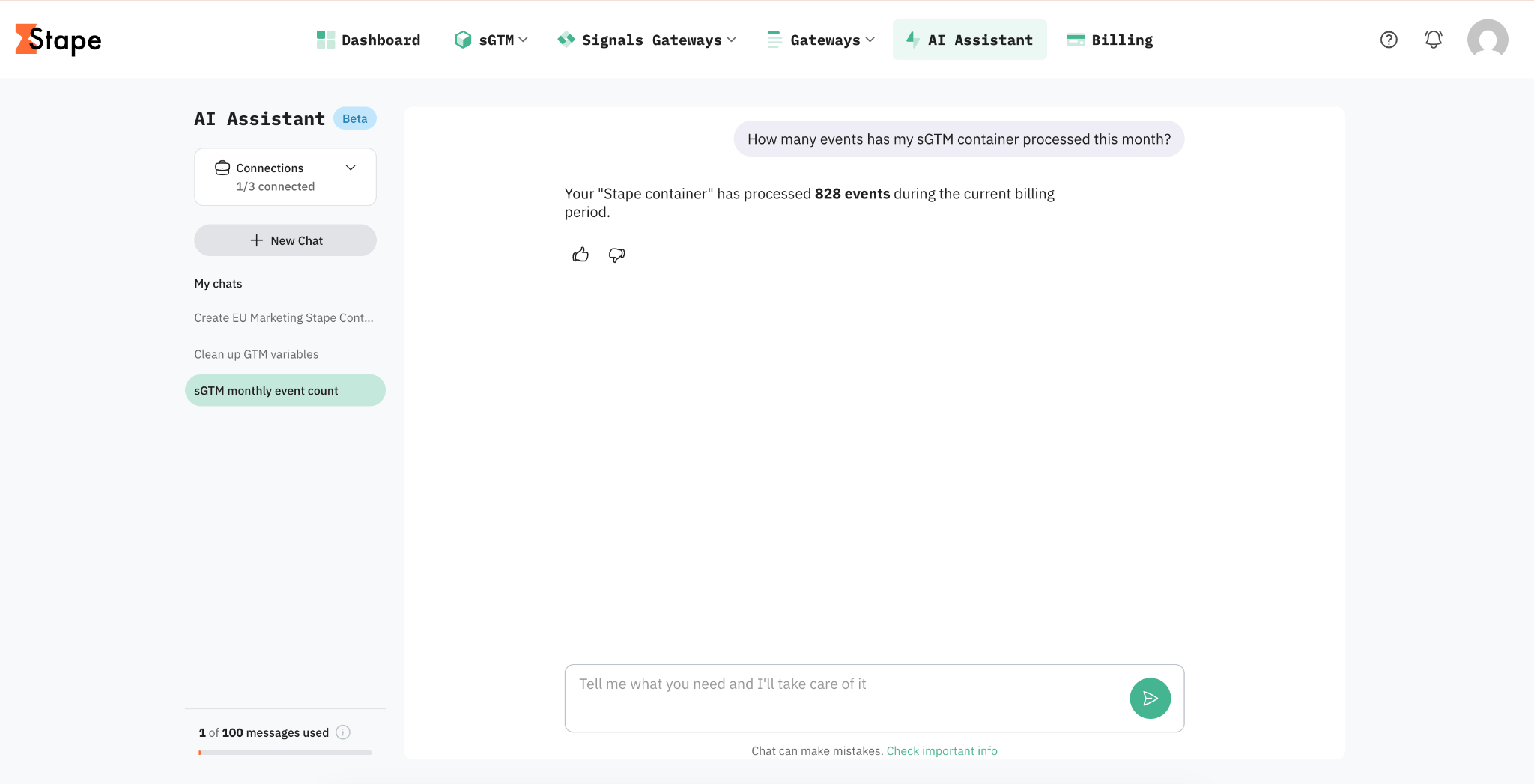
- “How many events has my sGTM container processed this month?”
- “Which power-ups do I currently have active?”
- “What is my sGTM container billing plan and usage?”
You can continue the conversation naturally – ask follow-up questions, request changes, or ask the assistant to explain what it did. Each new chat is automatically named based on your first message, so you can easily find it again later.
Note:
We kindly ask you to use the like/dislike buttons on any AI Assistant response to give feedback. This helps improve the quality of future answers.
Connect your Google accounts
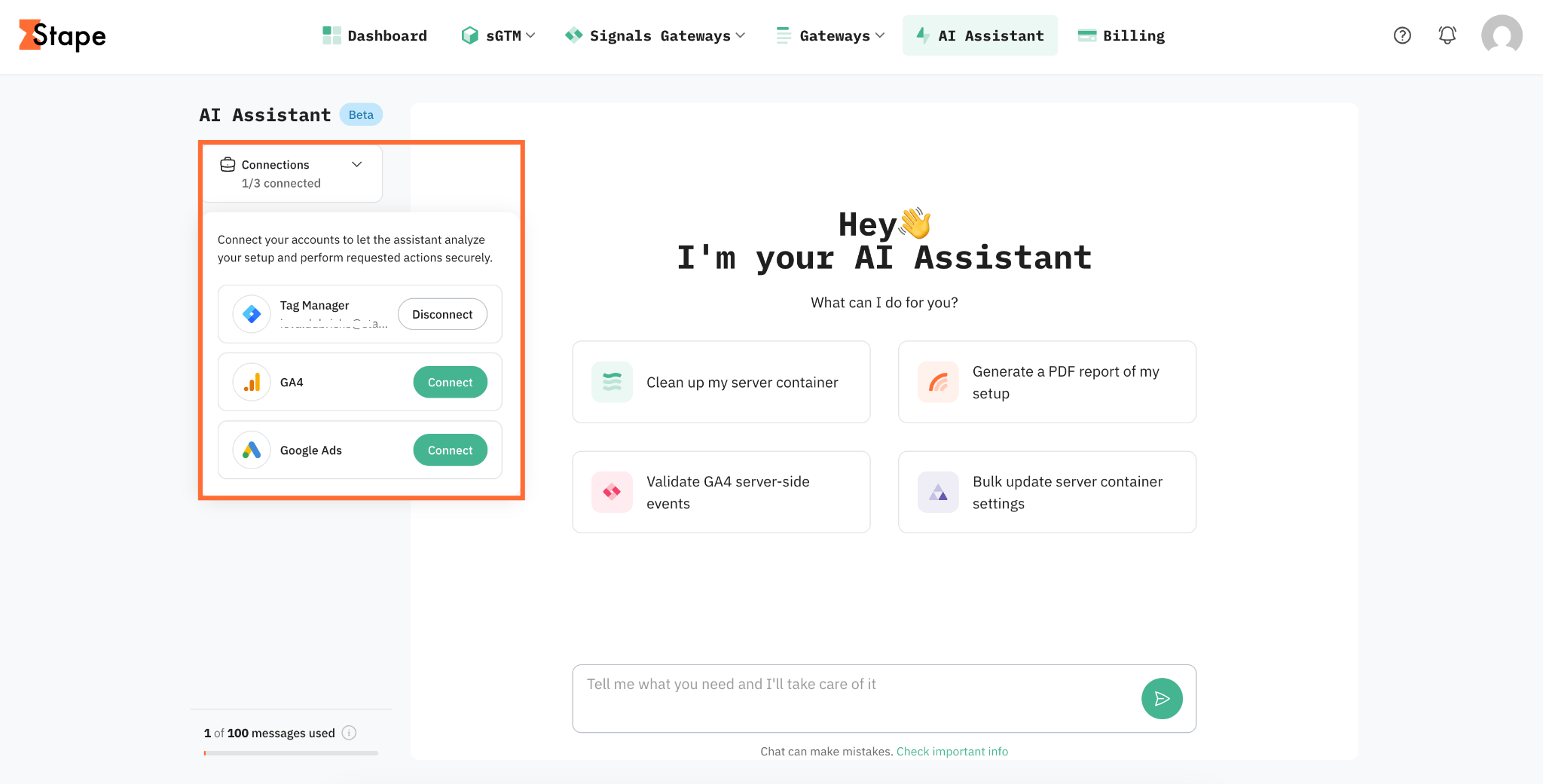
To let AI Assistant take actions in GTM containers or analyze your GA4 data, connect your Google account from the Google connections panel:
- 1.Click Google connections.
- 2.Choose to connect Tag Manager, GA4 or Google Ads.
3. Grant access for Stape by clicking Approve.
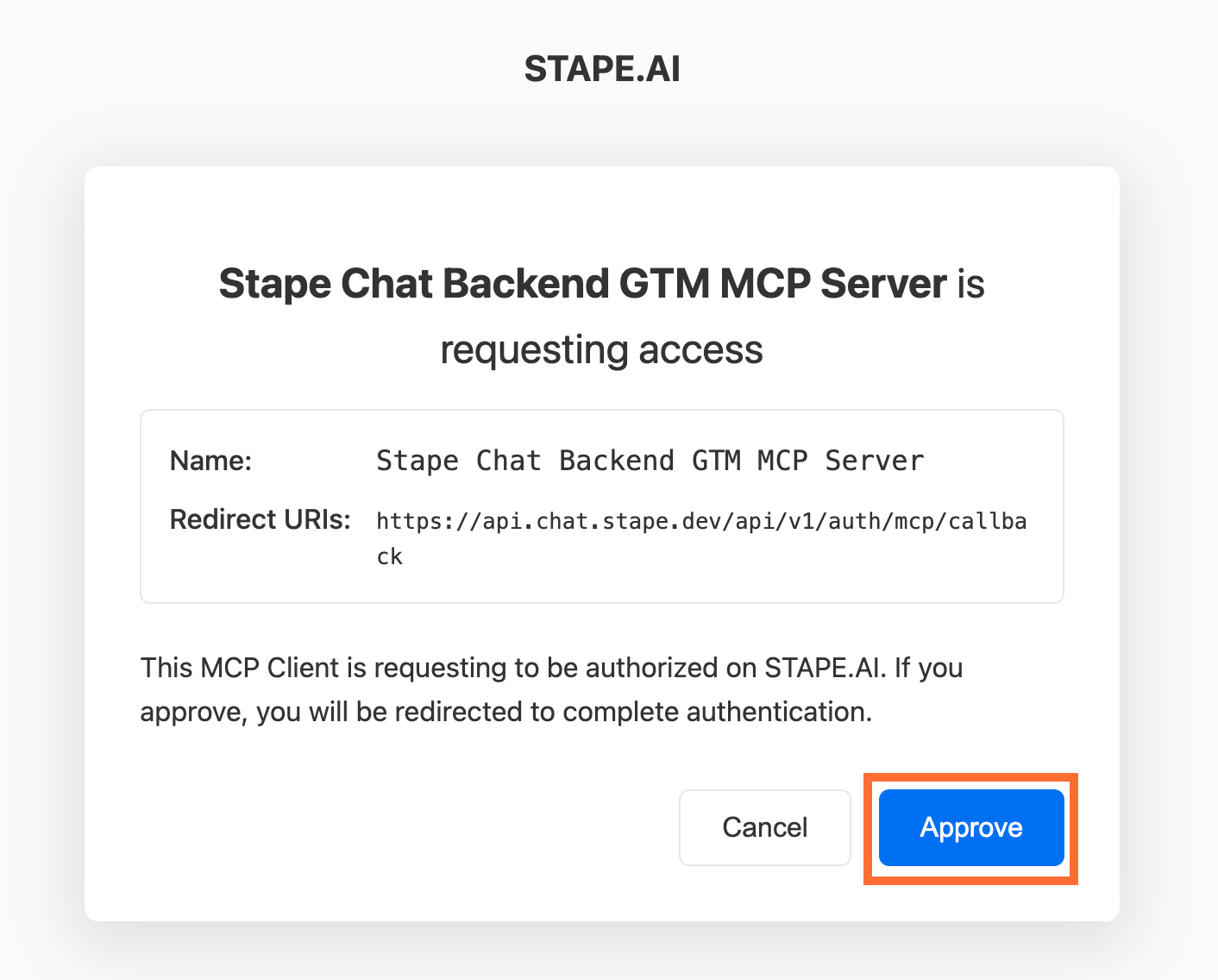
4. Sign in with your Google account and grant the requested permissions.
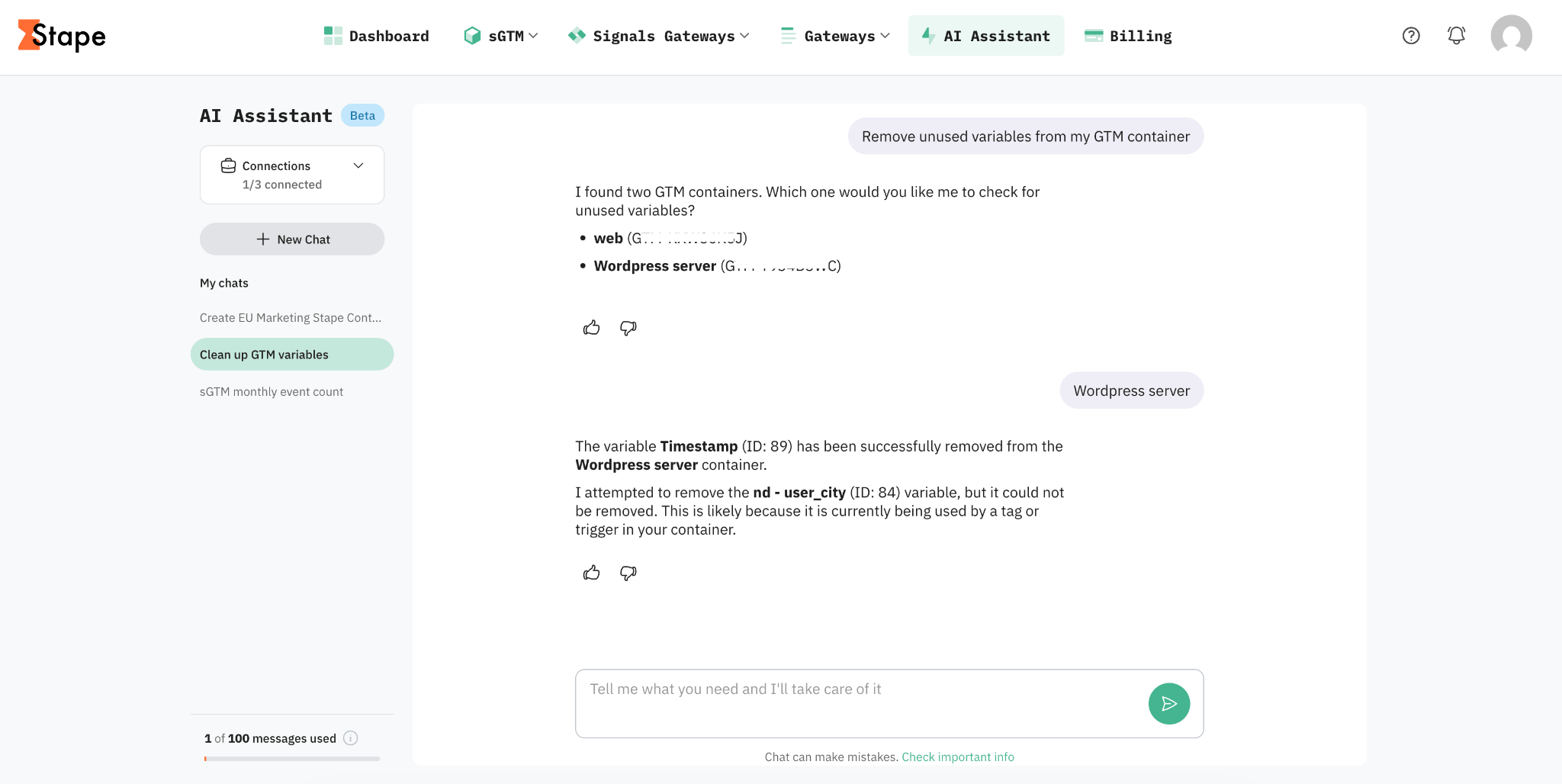
5. Now the AI Assistant can do actions on your GTM or GA4 account. Here are some prompts you can try to get you started:
- "Remove unused variables from my GTM container"
- "List all tags in my connected Google Tag Manager container"
- "Add all GA4 tags and variables to a GA4 folder"
- "Analyze my GA4 data for unusual traffic patterns"
- "Verify that my server-side Google Ads tags have the correct firing triggers and event mappings"
Notes:
- You can connect one GTM account and one GA4 account at a time.
- These connections apply to your entire AI Assistant space – every chat you create can use them, not just the one you were in when you connected.
- To switch Google accounts, disconnect the current one first, then connect a new one.
Was this article helpful?
🍽 Table of content:
Comments