Shopify same-origin tracking: checkout limits and fixes
Written by
Uliana Lesiv, Dan Murov
Key takeaways
- Same-origin tracking can work on Shopify storefront pages, but checkout tracking may need a different config since the execution environment and available APIs can differ.
- A same-domain URL doesn't always mean a request is truly same-origin in Shopify checkout.
- Shopify's Web Pixel sandbox will block fetch/XHR requests when they target your own domain.
- Image and beacon requests may work where fetch and XHR fail due to sandbox restrictions.
- Service workers cannot reliably bypass Shopify checkout tracking limitations.
- The most reliable Shopify setup is hybrid: same-origin for storefront, subdomain for checkout.
- Checkout tracking requires routing logic that dynamically switches tracking endpoints.
What is the same-origin method?
The same-origin method routes server-side tracking requests through your website's domain rather than a separate tracking subdomain.
It defines when two URLs belong to the same web origin. An origin consists of three components: scheme (https:// or http://), hostname (e.g., shop.example.com), and port (for example, 443 for HTTPS).
The URL path is a separate component of a URL and does not determine its origin. For instance, these URLs have the same origin, although the second one has a path:
https://shop.example.com/https://shop.example.com/metrics
The same-origin approach is useful for server-side tracking setups because, in this way, the requests are routed through the website's own domain. It helps maintain first-party cookie functionality and reduces the impact of browser privacy restrictions.
However, sharing an origin at the URL level does not guarantee that every browser environment or platform will allow a request to that endpoint. For example, Shopify checkout, which we cover in detail in this guide.
What is the sandbox in Shopify, and how does it affect tracking?
Shopify checkout tracking runs in a more restricted environment than the storefront. Depending on the checkout implementation, the scripts may run with restrictions on network requests, browser APIs, and interactions with other origins.
These restrictions apply to your tracking implementation in the checkout sandbox and also affect how the tracking solutions work.
Among the most common restrictions that any tracking specialist could notice is that, by default, you can't see the checkout events in GTM Preview while testing the setup. It happens because the GTM container snippet is loaded into the checkout sandbox, and GTM Preview just doesn't know where to look for the container. To enable GTM debug on checkout, the tracking code must be loaded into the parent page for your own browser session. The Stape GTM Helper Chrome extension allows you to do it in a few clicks.
The GTM Preview limitation is only one example of how Shopify's checkout environment differs from the storefront pages. Behind the scenes, sandbox restrictions also affect how browsers handle communication between domains, which impacts tracking using same-origin domains.
Same-origin domain on Shopify checkout pages
A same-origin endpoint is a useful approach for tracking on the storefront, but it has limitations during Shopify checkout.
When a Shopify checkout pixel attempts to send a request to the same-origin endpoint (e.g., a GA4 event in the format https://shop.stapedesk.com/metrics/g/collect), the browser console may report an error similar to the one in the screenshot below:
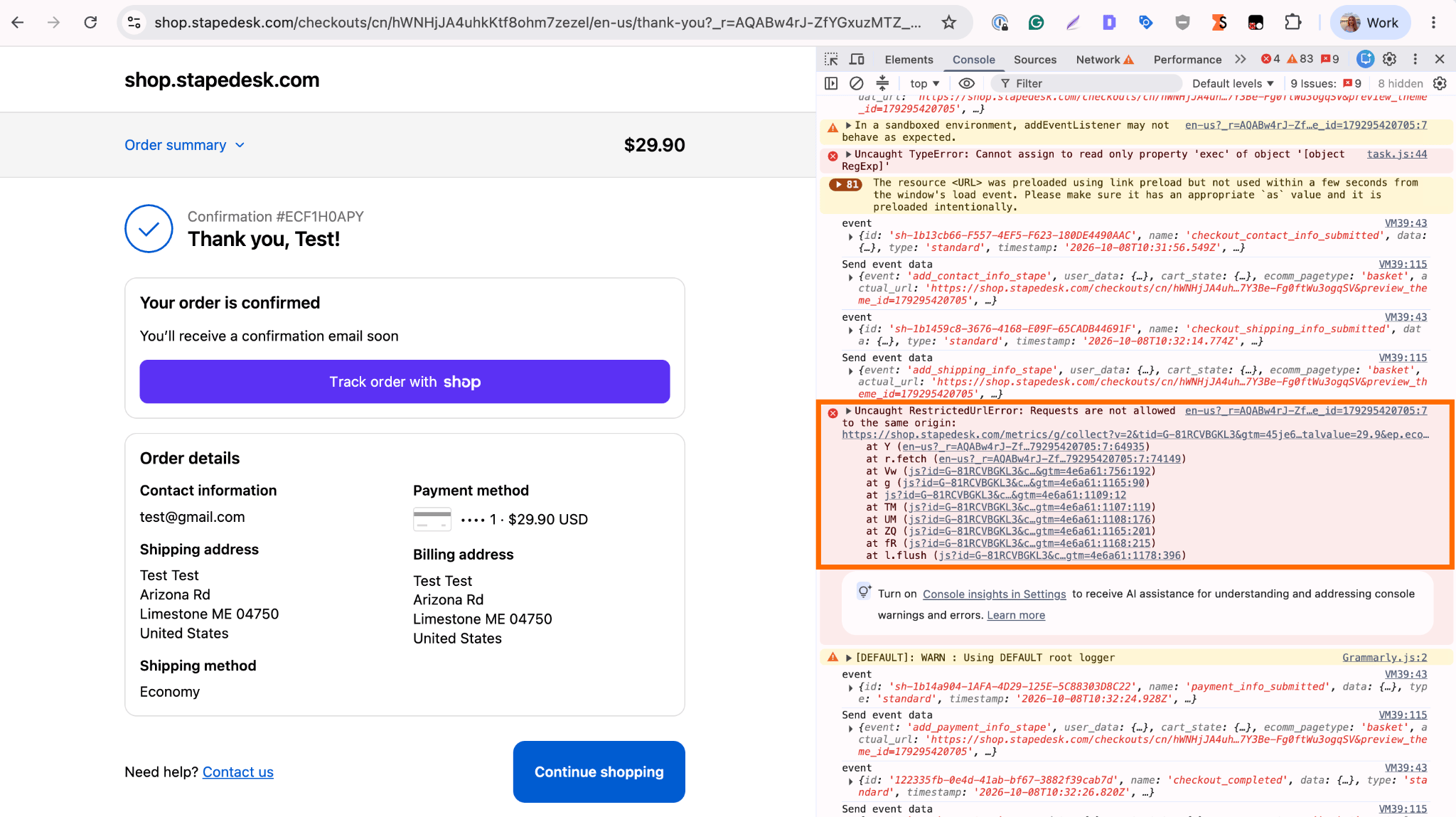
In our test, the request failed with a RestrictedUrlError, which indicates that the checkout pixel tried to make the XHR/fetch request to the same domain where the storefront is running, but the request was rejected by the Shopify pixel runtime before the browser sent the request.
What does Shopify's documentation say?
Such an error was reported in the Shopify Community, but at the moment Shopify's documentation doesn't directly document the exact rule that blocks same-origin requests on checkout.
However, Shopify has information on the underlying architecture that can explain why it happens. According to Shopify's page about web pixels, Shopify loads Web Pixels inside a sandboxed environment in the visitor's browser, as mentioned earlier.
This means that a checkout pixel doesn't execute with the same capabilities as other scripts added directly to the Shopify theme. The pixel runs inside Shopify's controlled runtime, which applies restrictions to browser APIs and network requests.
Because of this, requests made by a Web Pixel are evaluated according to the rules of the sandbox environment where the pixel is running, not only by looking at the destination URL (the URL that receives the request).
Although the destination URL (your same-origin domain) belongs to the same domain as the storefront, the request is not made by ordinary storefront JavaScript. It is initiated from Shopify's Web Pixel sandbox environment.
The key point is that "same domain" doesn't always mean "same execution context." A URL that is same-origin from the merchant's storefront perspective may still be restricted when accessed from Shopify's Web Pixel sandbox.
Testing Shopify checkout pixel request restrictions
The following test shows that Shopify's Web Pixel sandbox doesn't simply block all requests to the storefront domain. Instead, the restriction applies specifically to programmatic HTTP requests such as fetch() and XMLHttpRequest.
During the test, the checkout events were triggered on two setups in a Shopify store – same-origin endpoint and tracking subdomain. A comparison of the request types shows the behavior:
| Request type | Same-origin endpoint | Tracking subdomain |
|---|---|---|
| Image GET | Allowed ✅ | Allowed ✅ |
sendBeacon | Allowed ✅ | Allowed ✅ |
fetch POST | Blocked with RestrictedUrlError ❌ | Allowed ✅ |
| XHR POST | Blocked with RestrictedUrlError ❌ | Allowed ✅ |
This could explain why tracking approaches based on image pixels (your page_views, which are mostly GET requests) may work, while server-side tracking implementations using fetch() to a same-origin endpoint can fail.
It seems that GET and beacon requests are just not routed through Shopify's own wrapper on XHR and fetch, and as such could be silently limited at any point in the future, assuming this is an oversight. This, of course, is speculative.
Service workers for Shopify checkout event tracking
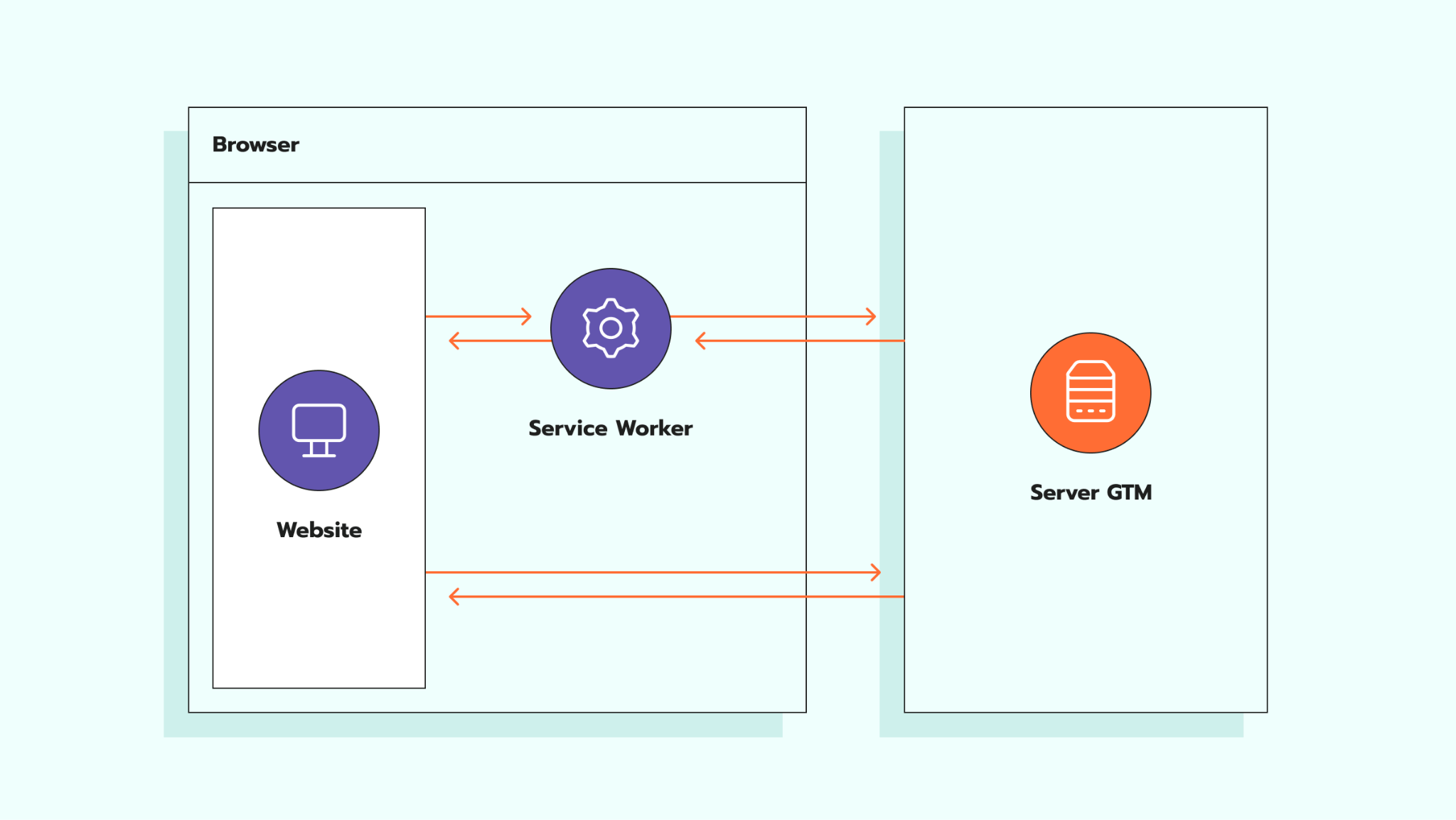
A service worker is a JavaScript file that runs separately from the main browser page. It is commonly used for features such as offline support, caching, and intercepting network requests.
In the context of Shopify checkout tracking, it can intercept network requests and help handle them even when page behavior is interrupted. That's the solution Google Analytics 4 uses to help reduce the loss of tracking requests.
However, since you don't explicitly control which event will be sent via worker and this is not the use case GA4 introduced them for, they are not to be relied on for tracking Shopify checkout events. You can catch a few checkout/purchase events – sure, and it may seem like everything is working, but that's pure luck – test some more.
Why same-origin would provide no intended benefits on Shopify checkout
Even if same-origin requests are not blocked in Shopify custom events sandbox, its practical benefits would be limited due to Shopify's sandbox environment (yes, again).
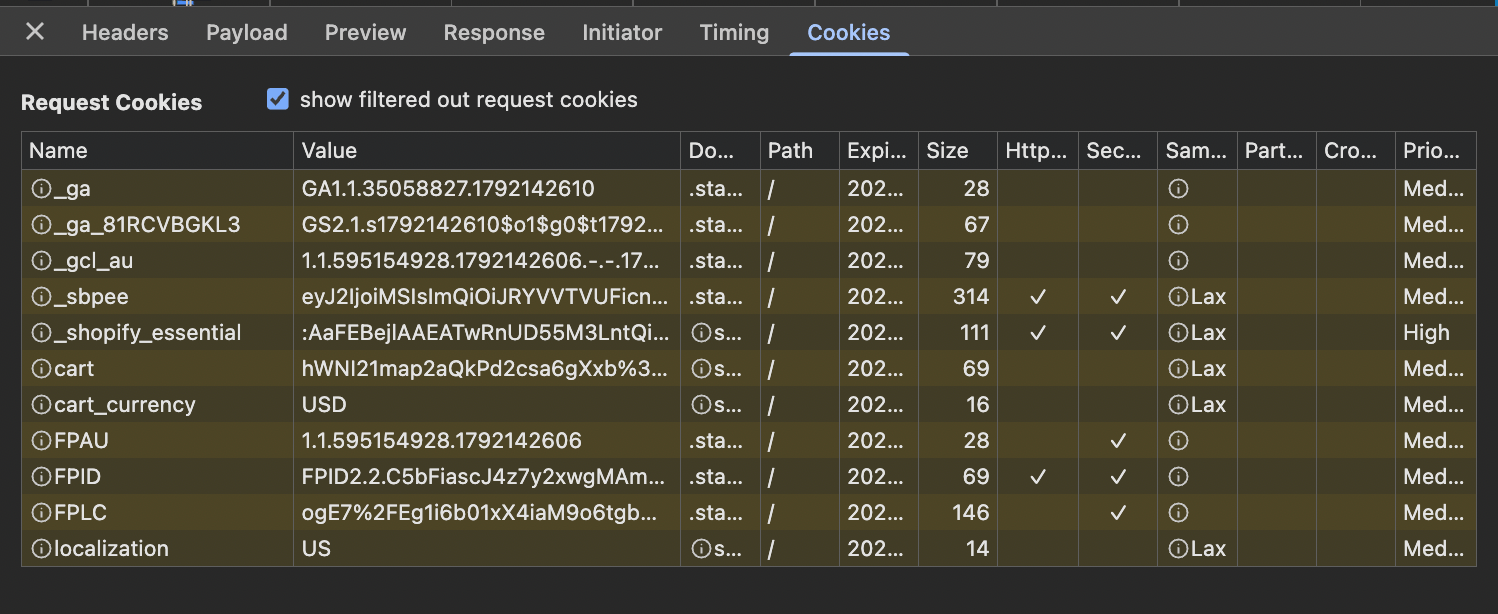
The same-origin approach is beneficial in particular because it allows setting cookies to their intended lifetimes in ITP and similar environments. But in the checkout sandbox, the cookies will not be carried in your tracking requests; similarly, setting them with responses will not fly either. That's why our Data Tag includes the Send Common Cookies option, which adds the cookies to the request payload.
Because the sandbox iframe is set without allow-same-origin, the browser gives it an opaque origin, so it always appears as null. It happens even when the iframe is served from the shop's own domain and regardless of whether the request explicitly sets 'credentials: include' or 'mode: cors.' As a result, the browser considers these requests as cross-site when handling cookies. In layman's terms, the browser treats the associated cookies as third-party.
Simo Ahava has detailed this cookie issue on Shopify checkout back in 2024.
The recommended approach for Shopify website tracking
For Shopify stores having server-side tracking configured, the recommended approach is to use a hybrid approach:
- same-origin approach on the storefront;
- standard subdomain routing for checkout.
For the storefront, same-origin tracking provides the expected benefits (improved first-party request routing, cookie handling, and tracking resilience) because the tracking requests are sent from the same domain context as the website.
However, Shopify checkout has restrictions that don't allow the same-origin approach to perform the same way as on the storefront. So, the standard subdomain routing is more appropriate. Routing tracking requests through a dedicated tracking subdomain can avoid this specific restriction, allowing these requests to reach the tracking endpoint.

Shopify website tracking configuration
Same-origin domain setup for storefront
The same-origin setup for Shopify storefront can be configured using different DNS and infrastructure providers. The exact configuration depends on the provider you use.
For example, Cloudflare provides an Orange-to-Orange (O2O) integration that allows traffic to be routed through both the merchant's Cloudflare zone and Shopify's Cloudflare infrastructure. This provides extra control over traffic handling and keeps your domain as the entry point at the same time.
Other providers may offer similar solutions through reverse proxy, CDN, or custom hostname functionality, but the configuration steps and supported features can differ between platforms.
If you use Cloudflare, we provide a detailed step-by-step guide for configuring the same-origin domain for Shopify.
Subdomain setup for checkout
For Shopify checkout, use a standard subdomain configuration.
Unlike a same-origin setup, subdomain config requires adding the DNS records to connect the subdomain to your server-side tracking provider.
The detailed configuration steps, including required DNS records and settings, are available in our guide on adding a subdomain.
GTM tags and variables setup
Once your storefront and checkout tracking domains are configured, you need to set up GTM to send event data to your server-side container.
1. Configure Data Tag and Data Client
In your web GTM container, add and configure the Data Tag template. This tag sends event data along with configured parameters to your server GTM container.
In the server GTM container, install and configure the Data Client. The Data Client receives and parses requests from the Data Tag. In this way, the incoming event data becomes available to the server GTM tags.
For detailed configuration guidelines for the Data Tag and Data Client, refer to our article.
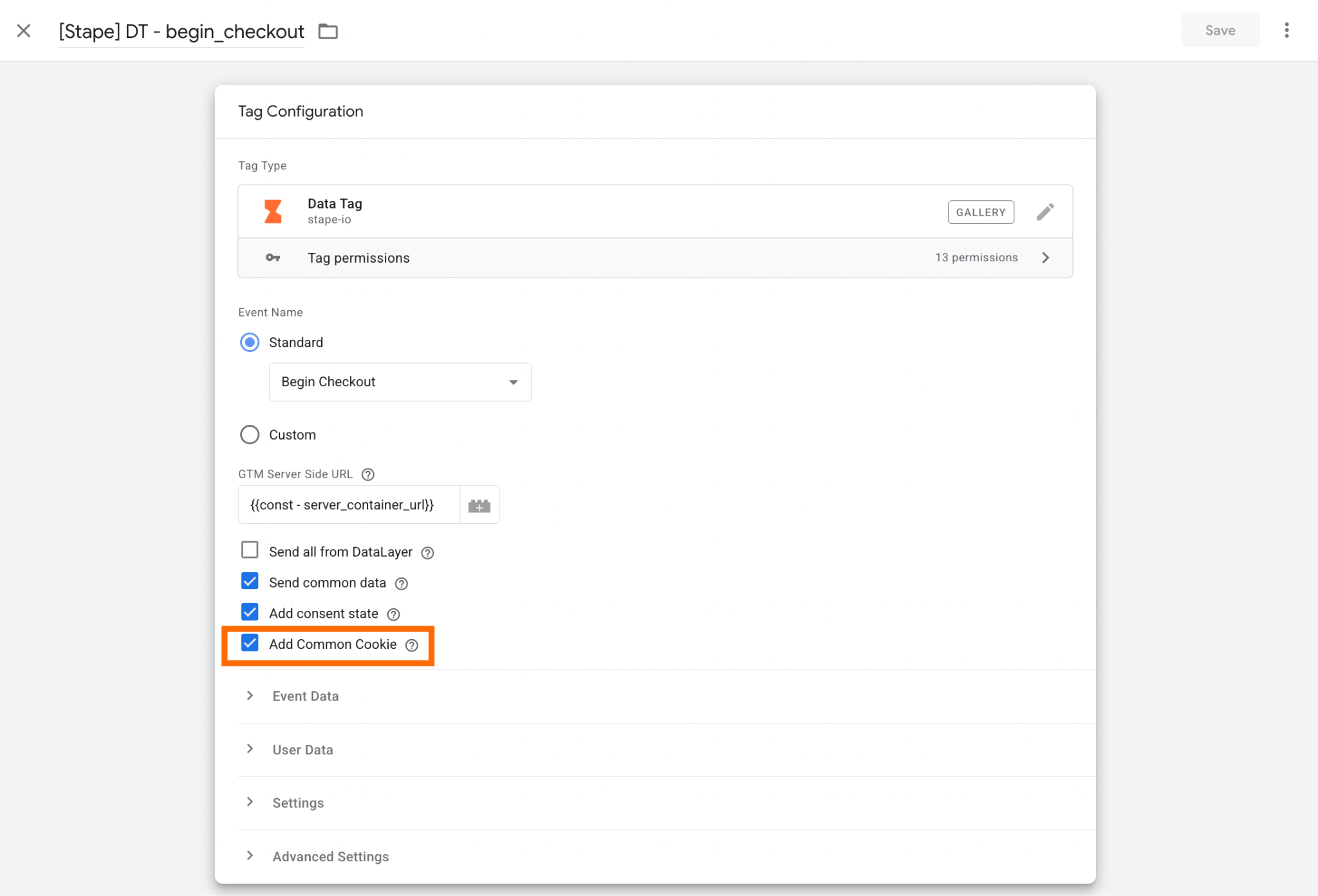
2. Enable "Add Common Cookies" in Data Tag
This option sends commonly used browser cookie values along with the event data. They are important for attribution, user identification, and conversion tracking, particularly when Shopify checkout events run in an isolated environment with restricted access to storefront data.
Enable this option for each Data Tag that should fire on the checkout page.
3. Configure the RegEx Table variable
The domain selection logic is handled in the web GTM container because this decision must be made before the request is sent. Then, the server container receives requests from the selected endpoint and continues processing them using the configured clients and tags.
To set the logic, use the RegEx Table variable.
3.1 To configure it, go to the Variables section in web GTM → click New → select RegEx Table as the variable configuration.
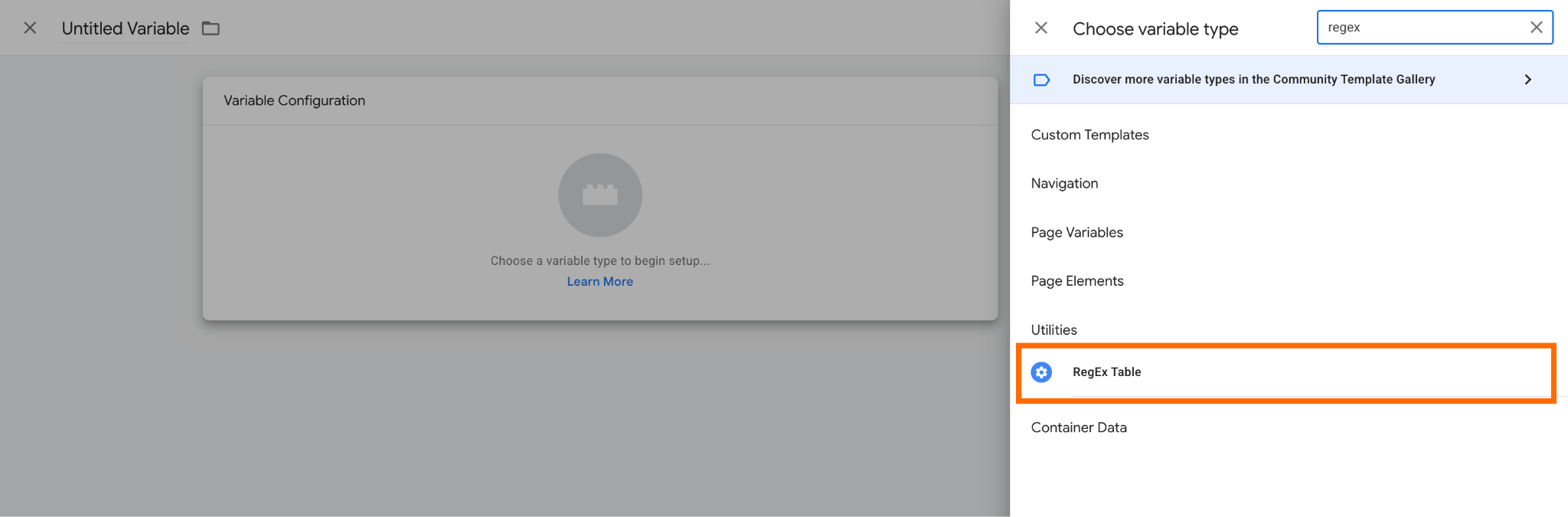
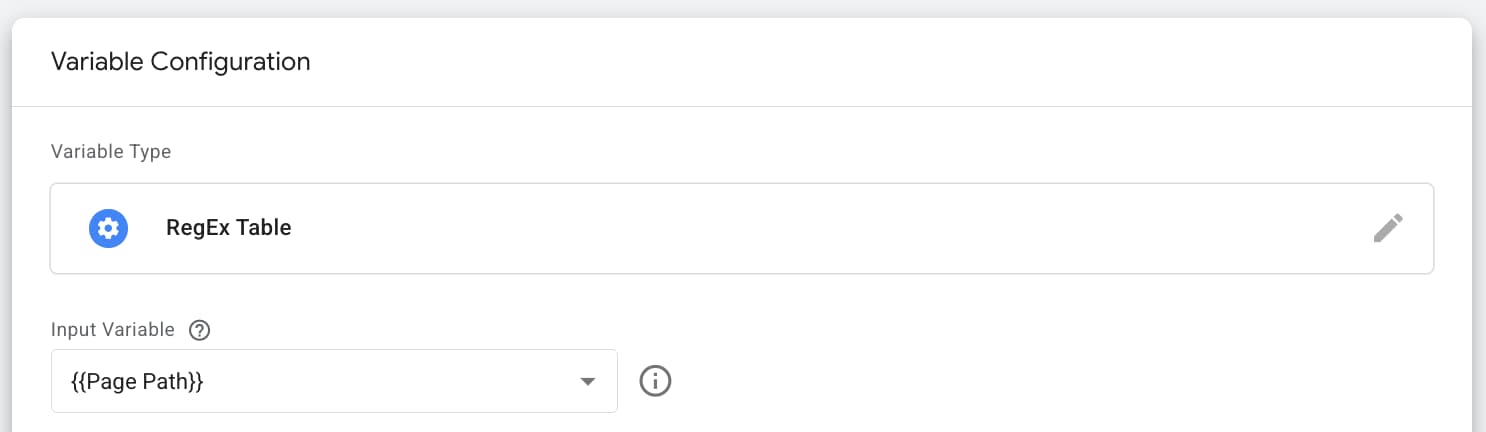
3.2 Select an Input Variable for the variable.
The specific condition will depend on your Shopify website flow. In our case, the checkout and thank-you pages are hosted on the same domain, but the Page Path differs.
If you need more details on how to find the Input Variable for your Shopify website, click on the collapse element below:
Specify the Input Variable (in our case, Page Path).
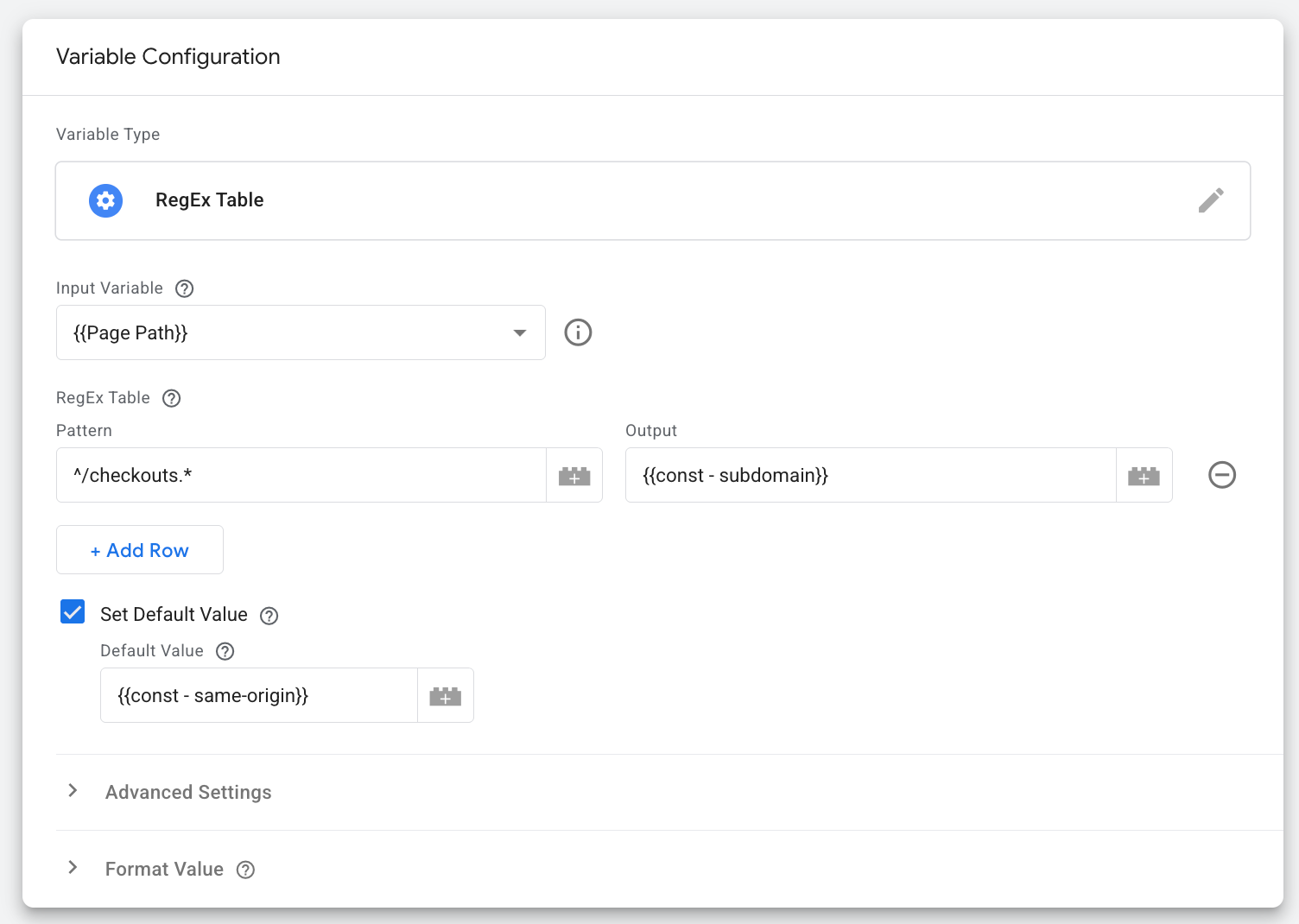
3.3 Enter the pattern and required output.
Enter the Pattern using Regular Expressions.
For our flow, the following regex works:
^/checkouts.*Match any string that starts with /checkouts, regardless of what comes after it.
As the Output, specify your subdomain that should be used for tracking in the sandboxed environment.
If a value is used across multiple GTM entities, define it once as a constant variable and reuse that variable wherever needed.
Check the box Set Default Value and add a variable containing your same-origin domain as Default Value.
Here's an example of variable configuration:
Save the changes.
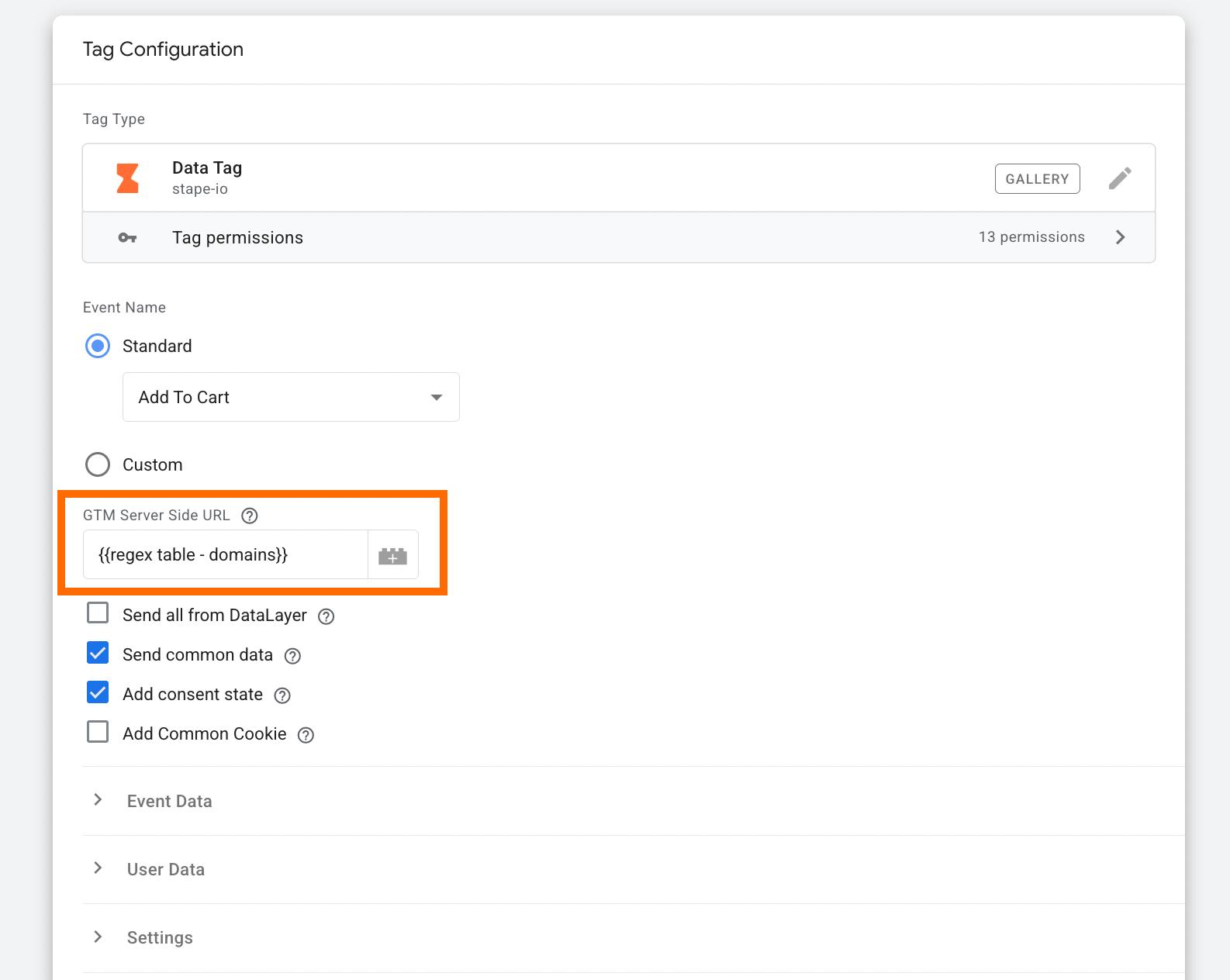
4. Update the tags with a RegEx Table variable
Replace any hardcoded same-origin URL values or variables containing the same-origin URL in your tags with the RegEx Table variable.
The variable will automatically return the correct domain based on the current page context, ensuring that requests from storefront and checkout environments are routed through the appropriate endpoint.
Below is an example. Review the tags in your web GTM container and update where needed.
Test the Shopify website tracking configuration
Verify that the tracking setup works correctly across both the storefront and checkout environments.
To see the debugging details, click on the corresponding collapsible element below:
Final words
Shopify checkout tracking is challenging, in particular, in the context of server-side tracking. The same-origin approach provides all the benefits on storefront pages, but the checkout environment has sandbox restrictions that don't allow the same approach to work properly.
The best solution for now is to adapt your tracking architecture to Shopify's environment: keep the same-origin setup where it brings value and use a standard subdomain approach for checkout events. With the correct GTM configuration and testing process, you can maintain accurate tracking across the whole user journey.
Stay tuned for updates from Stape. We're constantly working to improve server-side tracking solutions and keep up with changes in the Shopify ecosystem. We know how important accurate tracking is to your business, and we're looking for better ways to overcome these challenges and share our latest findings with you!
Want to start on the server side?
Try for freeWritten by
Was this article helpful?
Recommended for you
Blog
Shopify tracking: debunking common myths and misconceptions
Debunk 4 Shopify tracking myths and learn how to track checkout events with Custom Web Pixels, automate GTM setup, customize data, and debug checkout.
Oct 19, 2026

Comments