Shopify tracking: debunking common myths and misconceptions
Written by
Uliana Lesiv
Key takeaways:
- Shopify’s checkout restrictions don’t mean checkout tracking is impossible. Custom Web Pixels can be used to collect checkout events without relying on native apps.
- You don’t have to configure every Shopify tracking event manually. Tools like Setup Wizard can automate much of the GTM setup.
- Native Shopify apps are convenient, but they offer less control over how tracking data is collected, transformed, and routed than a GTM-based setup.
- Shopify’s checkout sandbox affects how GTM Preview works, but there are ways to debug checkout tracking using tools such as Stape GTM Helper.
- Combining GTM with server-side tracking can give you greater control over data, privacy, customization, and debugging across your Shopify store.
With Shopify’s checkout restrictions and sandboxed environment, tracking experts often face challenges when trying to build convenient, consistent tracking across all store pages.
These limitations have also led to a number of misconceptions about what is and isn’t possible when configuring Shopify tracking. Some of these myths are based on outdated information, and others come from real Shopify limitations that have been interpreted too broadly.
In this article, we’ll bust some of the most common Shopify tracking myths. Each myth has some truth behind it, so we’ll look at why it exists, what causes the misunderstanding, and which solutions can help you overcome the underlying tracking challenge.
Myth 1. You can track Shopify checkout only with native apps
Why this myth exists:
In August 2024, Shopify checkout.liquid was deprecated. Instead, Shopify introduced Checkout Extensibility with additional checkout customization methods, and the script injections stopped working as they used to. Because JavaScript can no longer be pasted directly into the checkout settings, many merchants assumed that Shopify App Store integrations were the only option to collect data on the checkout page.
The reality:
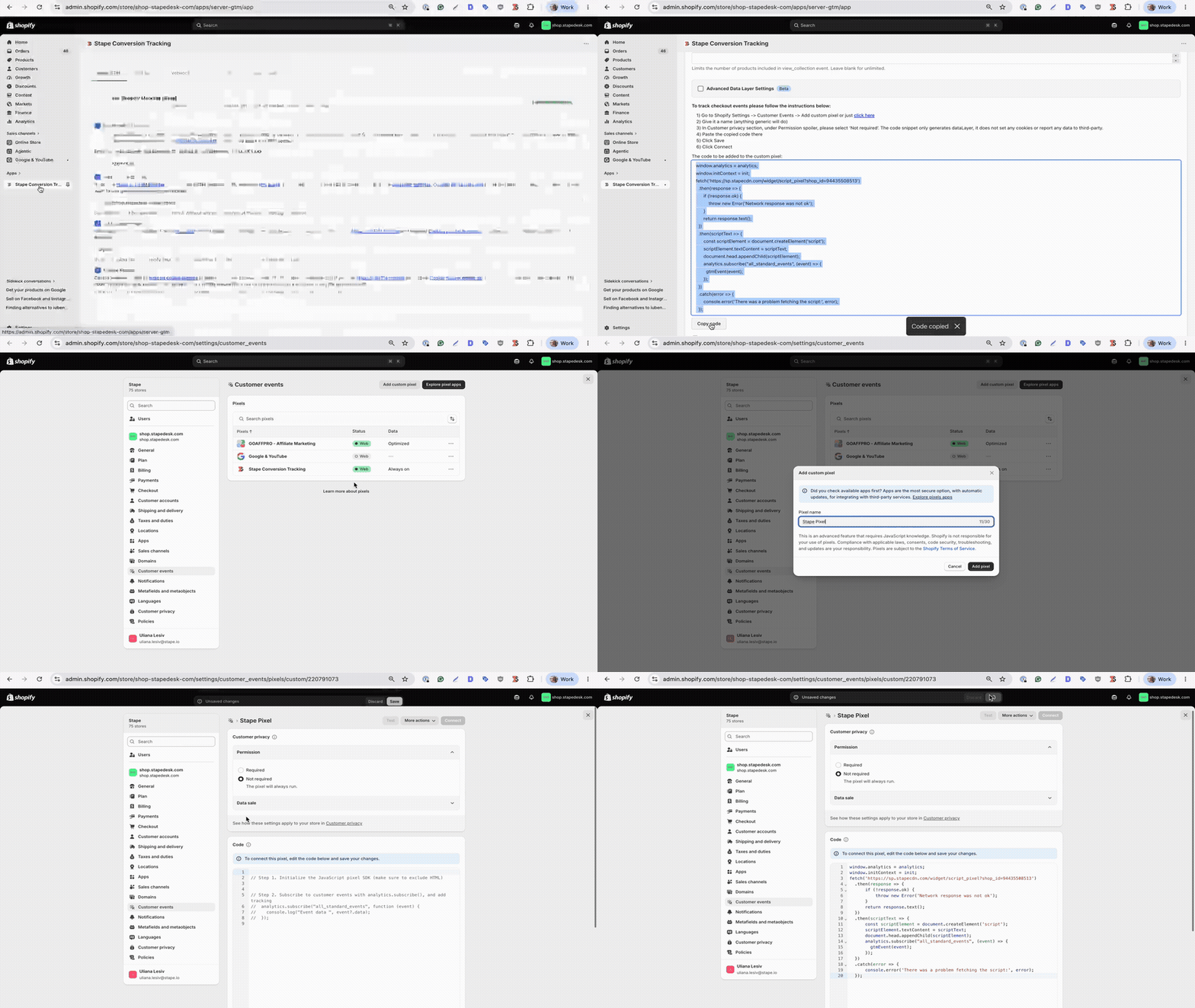
Native apps aren’t the only way to track events on the checkout page. You can track checkout activity using the Web Pixels API and Custom Web Pixels. A Custom Web Pixel can be used to pass Shopify customer events into a GTM tracking setup.
Note:
The sandbox has limitations compared with running GTM directly in the storefront, but they can be easily eliminated, which we explain below.
Stape Conversion Tracking app for Shopify provides the code for a Custom Web Pixel to track checkout page events. The configuration takes a few minutes to complete.
Myth 2. GTM + Stape tracking requires you to configure every Shopify event manually
Why this myth exists:
Configuring tracking with GTM is generally associated with manual entities (clients, tags, triggers, variables) setup. For many users, it seems frustrating and takes a lot of time.
The reality:
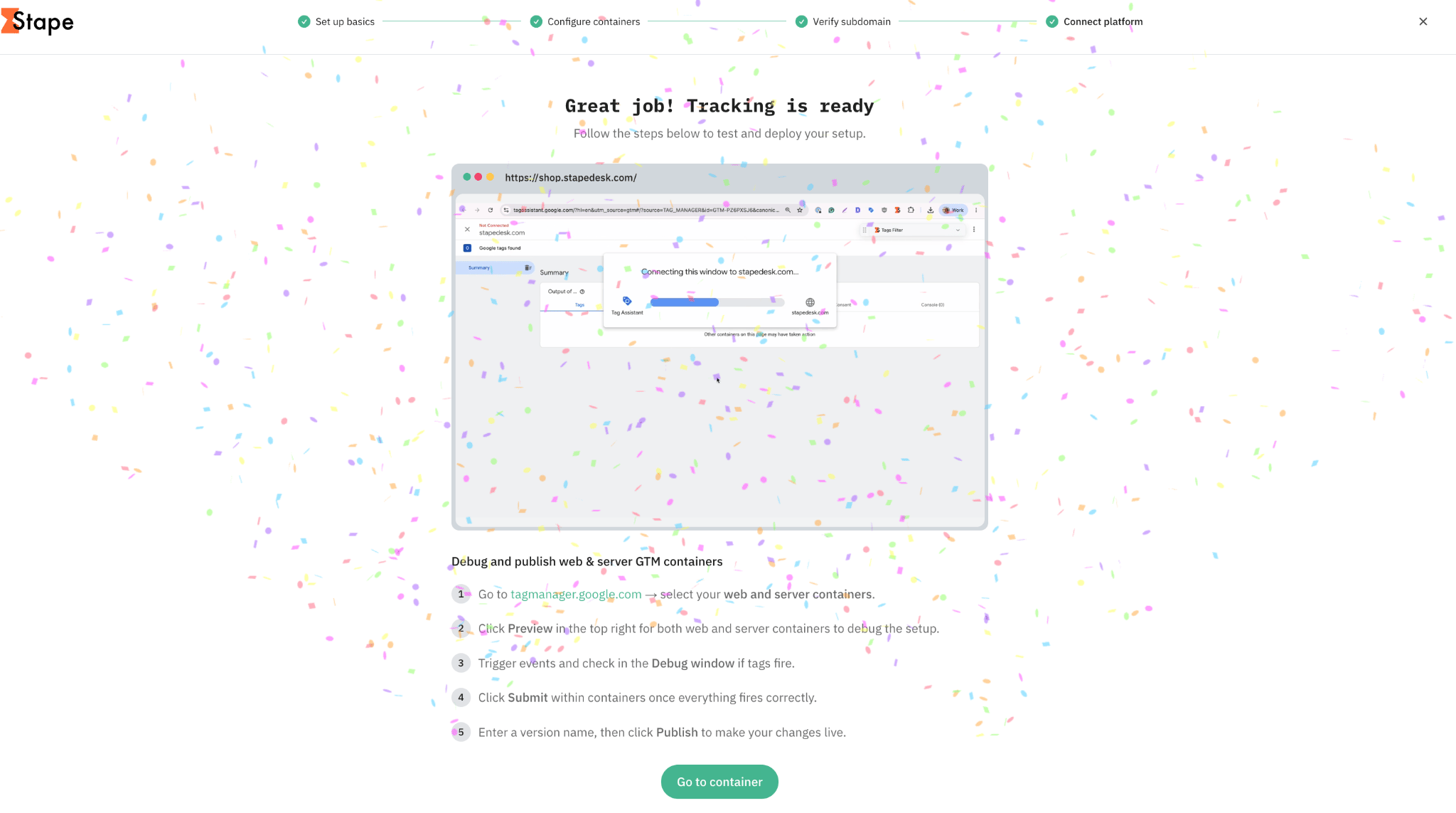
You don’t have to create basic events for a Shopify store from scratch. On the market, there are already solutions that allow you to do the GTM setup automatically and in bulk, if you need. For example, Setup Wizard. That’s a free solution available for users who have a Stape account. It generates ready-to-use web and server GTM container templates to track user activity and send data to third-party platforms you need.
While most of the steps are automated, those that require some manual input from your side are guided in detail within Setup Wizard’s interface.
Myth 3. Native Shopify apps give you the same tracking control as GTM
Why this myth exists:
App developers market native Shopify apps as an "all-in-one" tracking solution. Because these apps easily connect to Meta, TikTok, or GA4 with a few clicks, a lot of users assume they provide the same level of flexibility as custom GTM containers.
The reality:
Native apps work as "black boxes". Their logic is fixed, and you cannot modify how data is structured, filtered, or routed. GTM (especially combined with server GTM and Stape’s app for Shopify) grants more control over your data pipeline:
✅Before the data is sent to platforms like GA4, Meta, Google Ads, and others, you can redact sensitive personal data (PII), rewrite parameter names, or enrich data before sending it.
✅Control when and under which conditions tracking is triggered to implement your consent and data-handling requirements. In addition, you can transparently monitor incoming and outgoing requests and inspect what data is processed through the server container using features like Logs.
✅Build tailored tracking flows, advanced tag triggers, and complex deduplication logic to meet your store's needs. That’s a kind of flexibility that native apps don’t offer.
Myth 4. GTM Preview isn’t available for debugging the Shopify checkout
Why this myth exists:
When launching GTM Preview on a Shopify checkout page, the debug console doesn’t connect and doesn’t show firing tags. It happens because the sandboxed iframe isolates the Web Pixel script context from the parent window.
The reality:
There's a workaround to debug the checkout page of a Shopify store using GTM. The most convenient way to do it is using a free Stape GTM Helper Chrome extension.
With the extension's help, you can manually insert the GTM snippet on the checkout page for it to appear in Preview mode:
- 1.Enable the Shopify Sandbox dataLayer setting.
- 2.Follow the instructions to set up the GTM script injection.
- 3.The Shopify checkout page now appears in Preview mode.
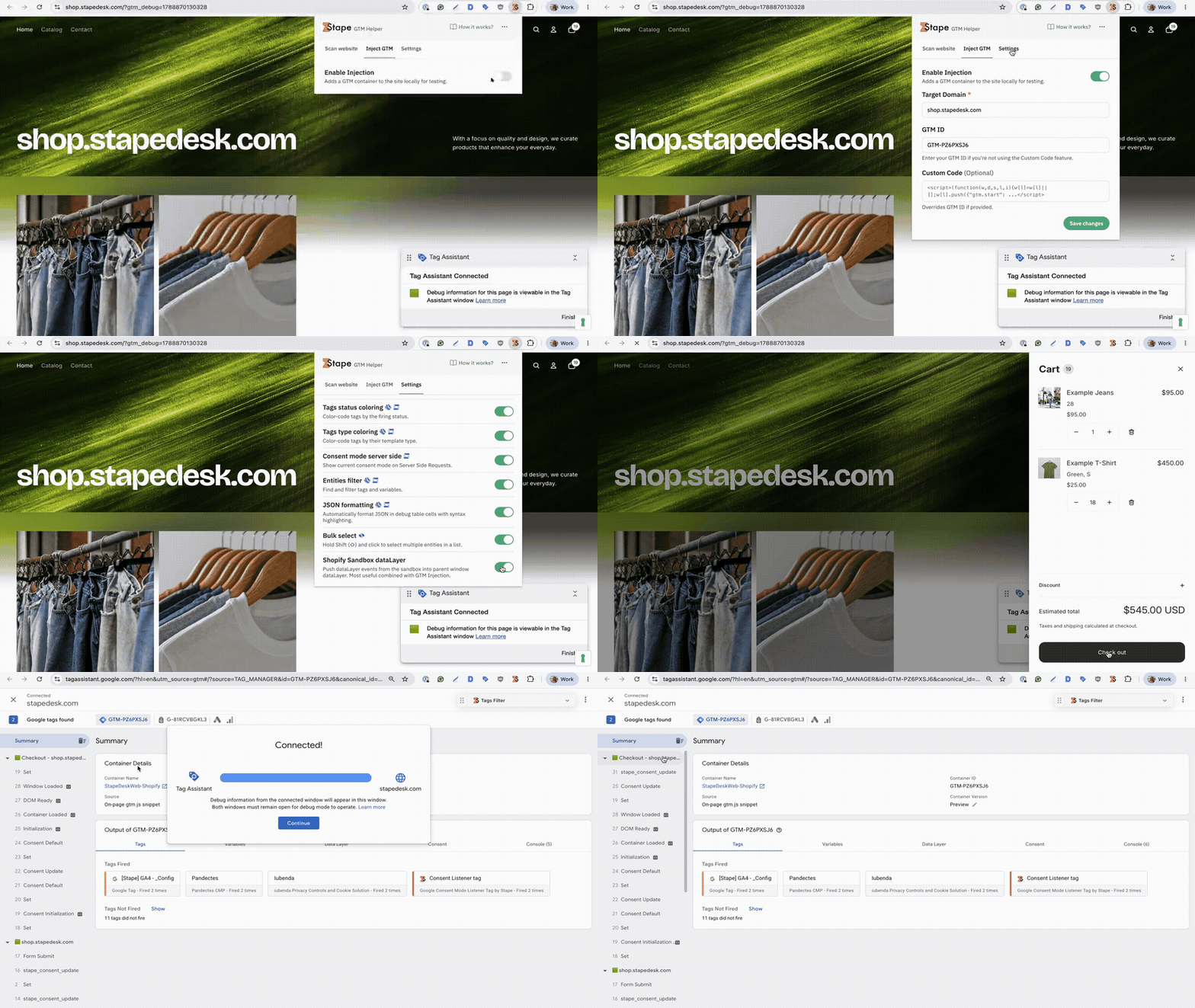
Besides this feature, the Chrome extension developed by Stape can help make the debugging process with GTM more convenient. It visually organizes debug logs by color-coding tags, auto-formatting complex JSON and URL request payloads into easy-to-read tables. The extension displays server-side consent states and filters specific tags or variables. Find out more about GTM Helper by Stape features in our blog post.
Shopify's checkout sandbox affects more than GTM Preview. It can also restrict how tracking requests are sent to your server-side tracking endpoint. Learn more about Shopify's same-origin tracking limitations and how to configure a hybrid setup for the most efficient data tracking.
Final words
Shopify tracking has real limitations, but they don’t mean you have to compromise on the quality or flexibility of the data collection process. Most of the confusion comes from mixing up what Shopify no longer allows with what can still be achieved using the right tracking setup.
If you need more control over your data, advanced customization, or better visibility into how events are collected and sent, combining GTM with the Stape Conversion Tracking app for Shopify can give you more options than using native apps.
With the right tools and configuration, you can track checkout activity, automate much of the setup, and debug your implementation without manually working around every Shopify limitation.
Want to start on the server side?
Try for freeRecommended for you
Blog
How to set up GTM on Shopify (all options explained)
Learn how to set up Google Tag Manager on Shopify for accurate ecommerce tracking, better data quality, and reliable analytics with this detailed guide.
Sep 17, 2026

Comments