Jul 31, 2026
Integrate Facebook with Odoo for automated lead tracking
Written by
Uliana Lesiv
Published May 15, 2026 comments
Key takeaways
- Facebook campaigns (including Lead Ads) can be automatically synced with Odoo CRM in real time, so you don't need to manually upload CSV files in Meta.
- Odoo Facebook integration helps centralize lead management and improve sales workflow automation.
- Server-side tracking improves data accuracy by reducing the impact of ad blockers and browser restrictions. In addition, the businesses can control what user data is shared with Meta and other platforms.
- Webhook automation allows Odoo CRM to trigger events when lead stages change automatically. Sending the lead stage updates back to Meta helps optimize campaigns for qualified leads and sales outcomes.
- Stape provides free solutions for Facebook-Odoo website integration.
🤔 Before starting: keep in mind that the provided solutions in this article (Odoo CMS and CRM apps) work not only for Meta. If you need to integrate other platforms, you can easily do it with the help of the apps (we explain nuances and the config process in this article below).
Integrate Facebook with Odoo: available solutions comparison
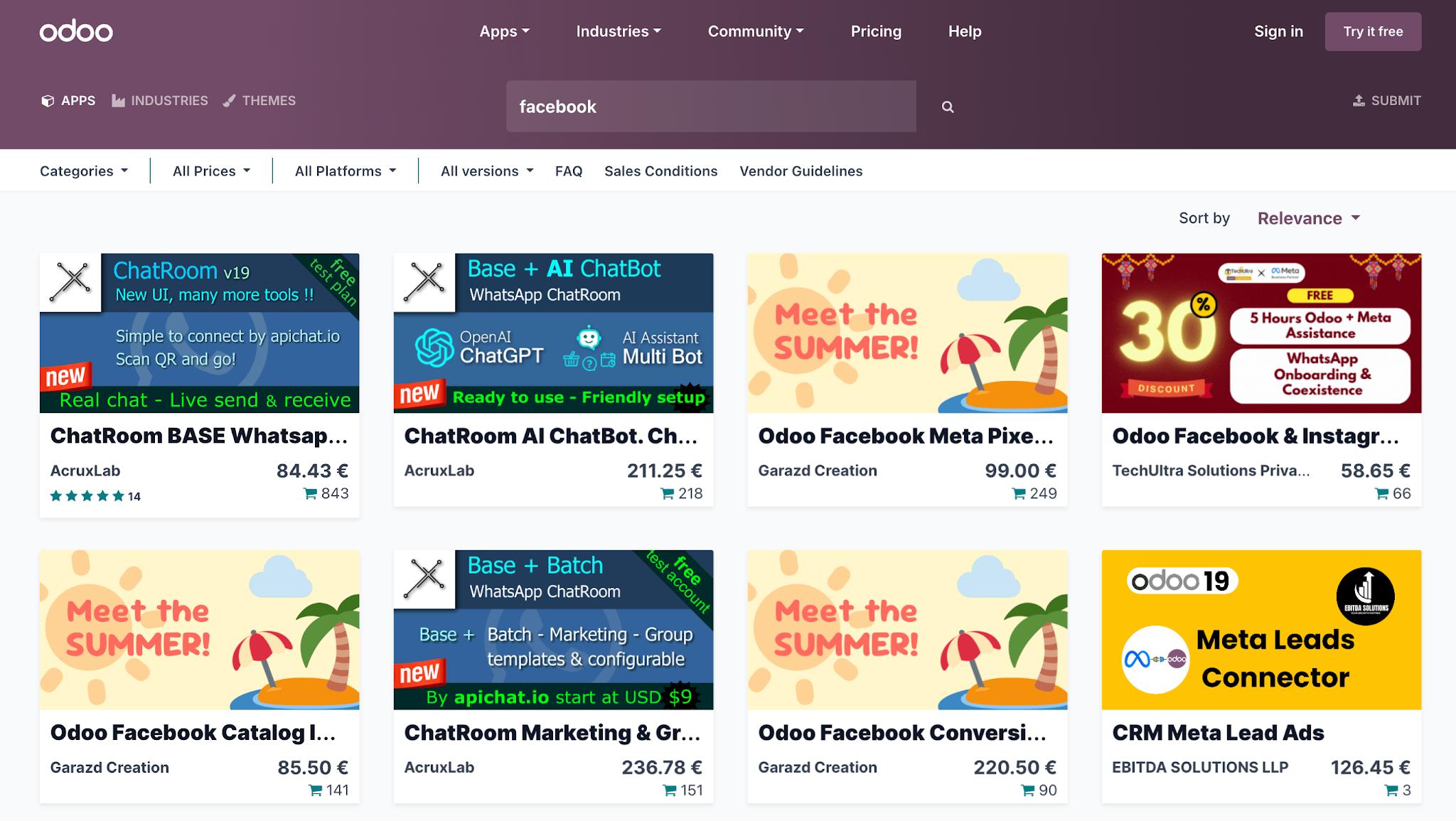
There are multiple solutions available on the Odoo marketplace (Odoo CRM modules or apps) that allow you to integrate Facebook with the Odoo website. The nuance is that most of them are paid. The price is around $130 on average.
You still can find some free solutions for Facebook integration, but a frequently met drawback is the lack of customization and control over data sent to platforms such as Meta. It can be a problem if you target an EU audience with strict data privacy regulations (like GDPR).
To meet the tracking needs of Odoo website owners (in particular, our clients), the Stape team has developed a free app for Odoo CRM. It allows you to easily integrate Facebook with your Odoo CRM and do the following:
- Send Facebook Leads to Odoo in just a few clicks
- Automatically send the webhooks to Meta when the lead stage changes
Due to the support of server-side tracking, you can gain higher data accuracy and more control over the data that third-party platforms receive.
Here is how it works:
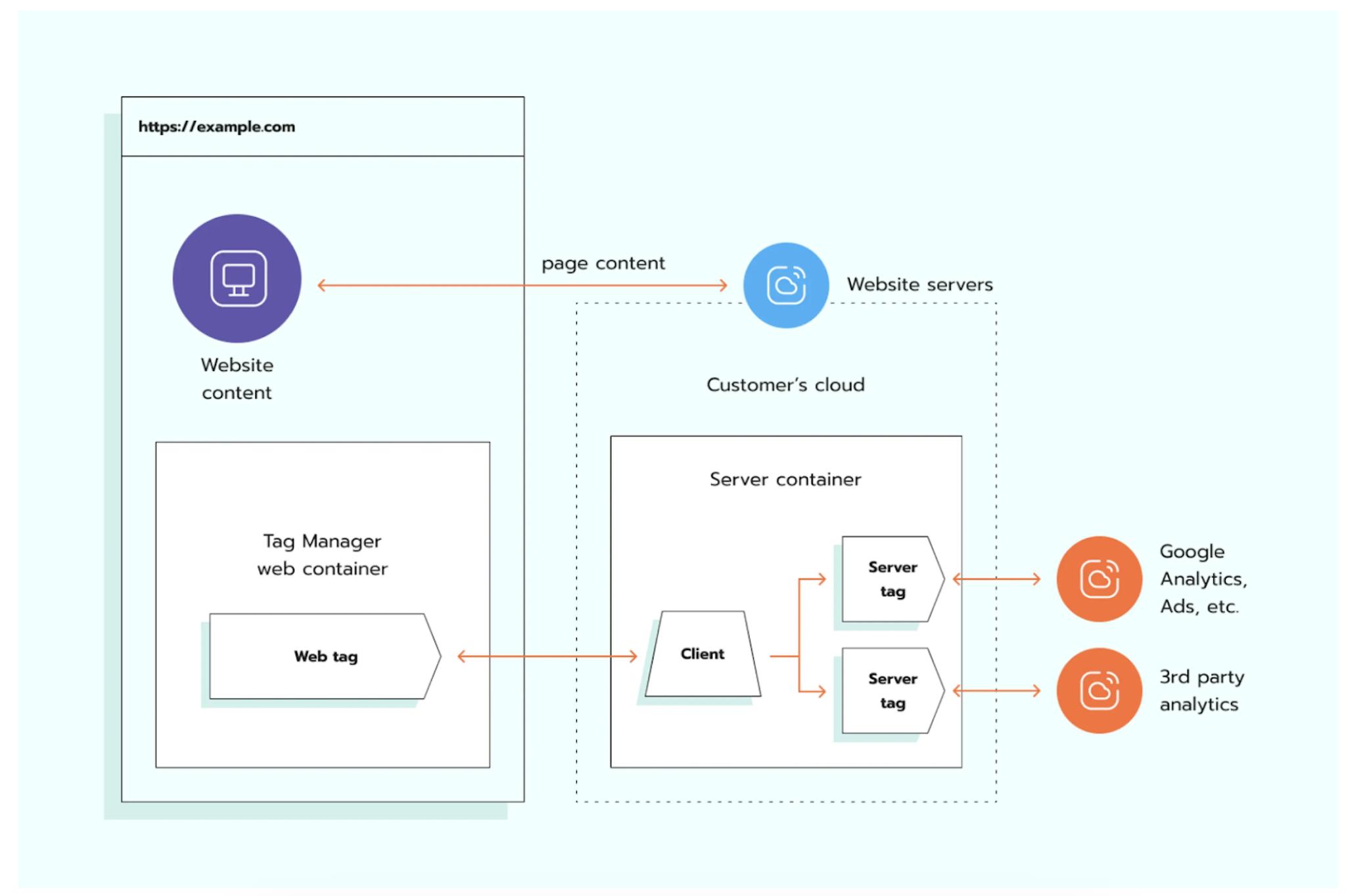
The tracking scripts collect the user and conversion data from the website and send it to a cloud-based server. The server then processes and forwards this information to third-party platforms.
In this setup, the cloud server acts as an intermediary between the website (or other data sources) and external tracking vendors. Due to this "intermediary," you can collect data more precisely, minimizing the impact of ad blockers and browser restrictions (ITPs) on your data collection.
While configuring the app (consider in detail below), you can exactly specify what user and event data should be sent to Meta when the lead stage changes. In this way, you get more control over what user data from your CRM can be sent to other platforms.
As we mentioned earlier, the app is completely free, but you need to have some server-side solution in place. The app provides the following configuration options: Meta CAPIG, Signals Gateway, and server GTM.
We've got 7-day trials for both Gateways, as well as a free plan for sGTM hosting, to see whether it works for your business. Check the details on the pricing page.
You can opt for the solution that will be a better option for the specific businesses' needs. If you're considering the implementation of server-side tracking and the Odoo CRM app for Facebook integration, expand the collapse element below for the methods comparison.
Stape's solutions for complex Facebook tracking for the Odoo website
Facebook Pixel integration
To integrate the Facebook Pixel into your website, you need to do the following steps (we provide detailed guides on each step):
- Configure Facebook Pixel tag for web GTM - at this step, you should create Facebook Pixel and add the tag to the web GTM;
- Configure server-side tracking solution for Meta (Meta CAPI, Meta CAPIG, Signals Gateway) - especially important if you would like to configure Odoo CRM app from Stape to connect Facebook Leads and send webhooks when lead stage changes.
- Add the web GTM snippet to your website pages (opt for a free Odoo CMS app, if you're using another CMS, pick the appropriate one from the list of CMS apps; if your CMS isn’t on the list, please search on the platform marketplace, you need a solution that automatically inserts GTM snippet on every website page) - in the first step, you've added the Facebook Pixel tag to the GTM, and now, the GTM tracking snippet should be integrated with your website to start tracking data.
Connect Facebook Lead Ads with Odoo CRM
Instead of exporting leads from Facebook and importing them into the CRM manually, new leads can automatically be sent to Odoo CRM in real time.
The automation helps sales teams respond faster to incoming leads and reduces the risk of missing potential customers. It also centralizes lead data inside Odoo CRM, so customer communication management becomes easier, and opportunity stages are tracked more conveniently.
Facebook Lead Ads collect leads directly within Meta and automatically transfer them to your CRM. As leads progress through the sales pipeline, the app sends lead stage updates (e.g., qualified or converted leads) back to the Meta Dataset. Meta can then use this enriched CRM data to improve campaign optimization, audience targeting, and overall advertising performance.
Send webhook when lead stage changes
One of the most beneficial automation features in a Stape Conversion Tracking app for Odoo CRM is sending data on changes to Meta when lead stages change inside Odoo CRM. Without the app, you would need to upload CSV files manually to Meta or use the webhooks. Both these methods are less convenient and take more time than configuring the app once.
This feature is especially useful for businesses running Facebook Lead Ads campaigns. You can send deeper funnel events back to Meta through the Conversions API/CAPIG/Signals Gateway. This allows Facebook to optimize ad targeting based on qualified leads, sales opportunities, or actual customers rather than just form completions.
Conversions API for CRM and the conversion leads performance goal together deliver on average 21% lower cost per quality lead.
(Source: Based on an A/B test of 1,031 advertisers running Conversions API for CRM-integrated instant form campaigns using the conversion leads performance goal between Jul 28-Aug 11, 2025)
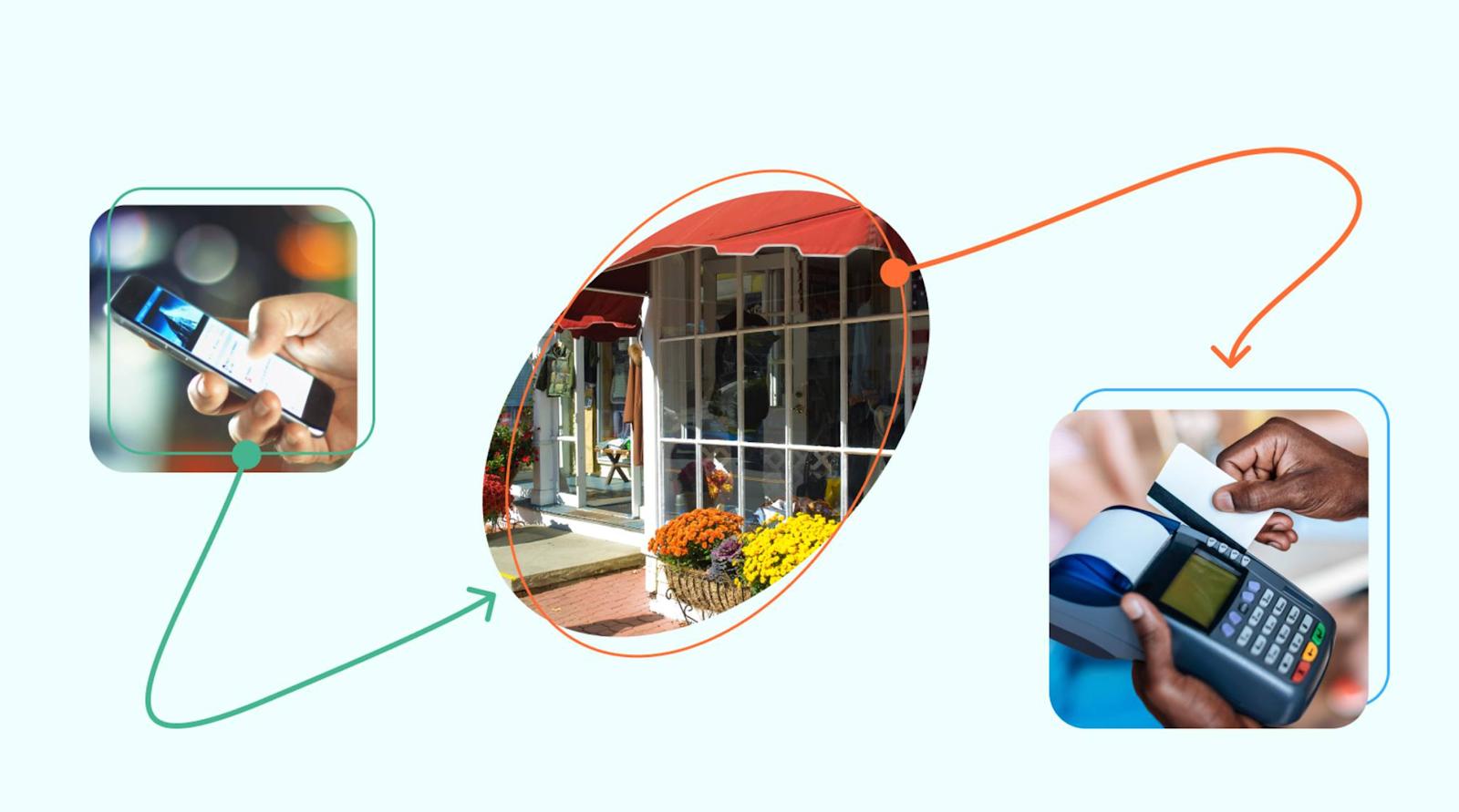
Another use case where the Odoo CRM app will be a handy solution is when businesses generate a lot of conversions offline, for example, through phone calls, meetings, or in-store purchases, after initial engagement with online ads. With the app, the data will be automatically synchronized across platforms.
If offline conversions are your business case (e.g., due to online and offline stores), you might be interested in running campaigns on Meta, such as Omnichannel ads. Omnichannel is a business strategy that connects online and offline touchpoints into a single customer view.
How to configure Odoo CRM-Facebook integration
App installation
1. Install the Stape Conversion Tracking app for Odoo CRM from the Odoo app store.
There are two installation options:
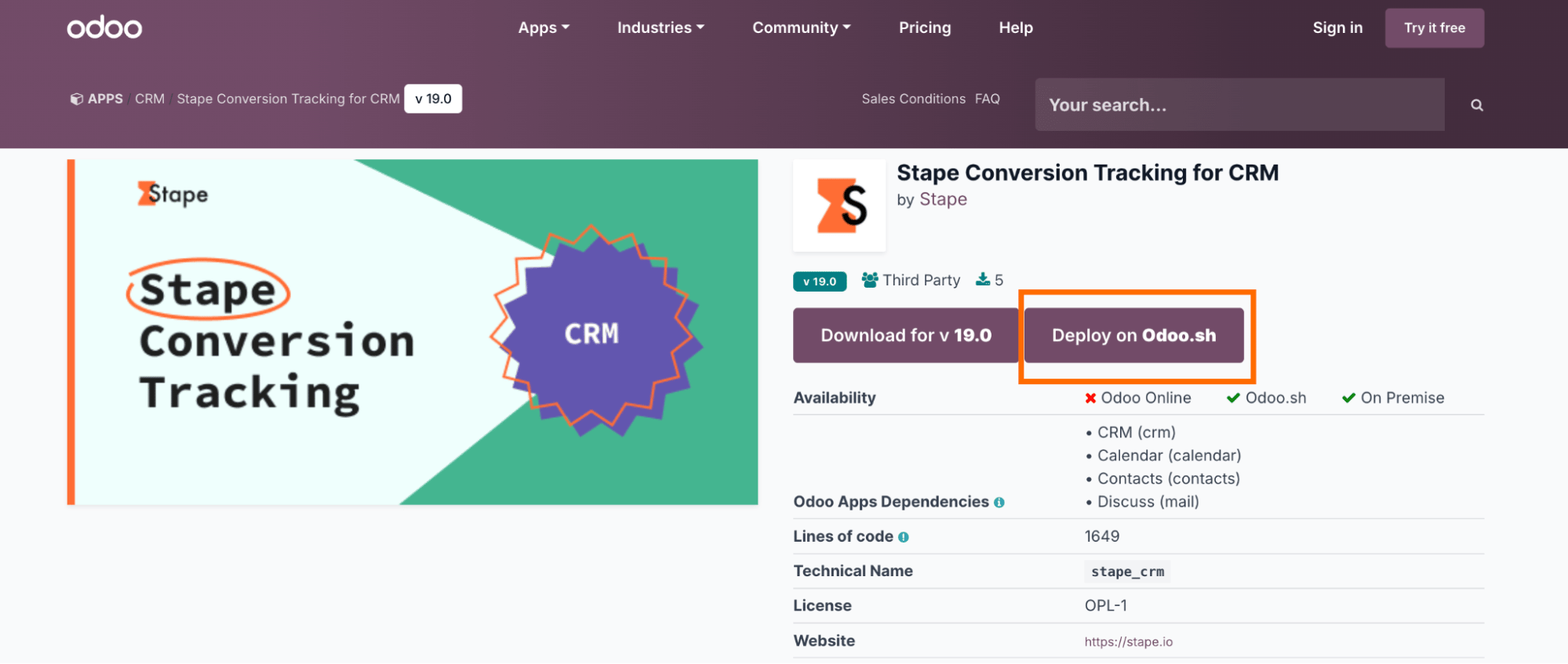
- Deploy on Odoo.sh
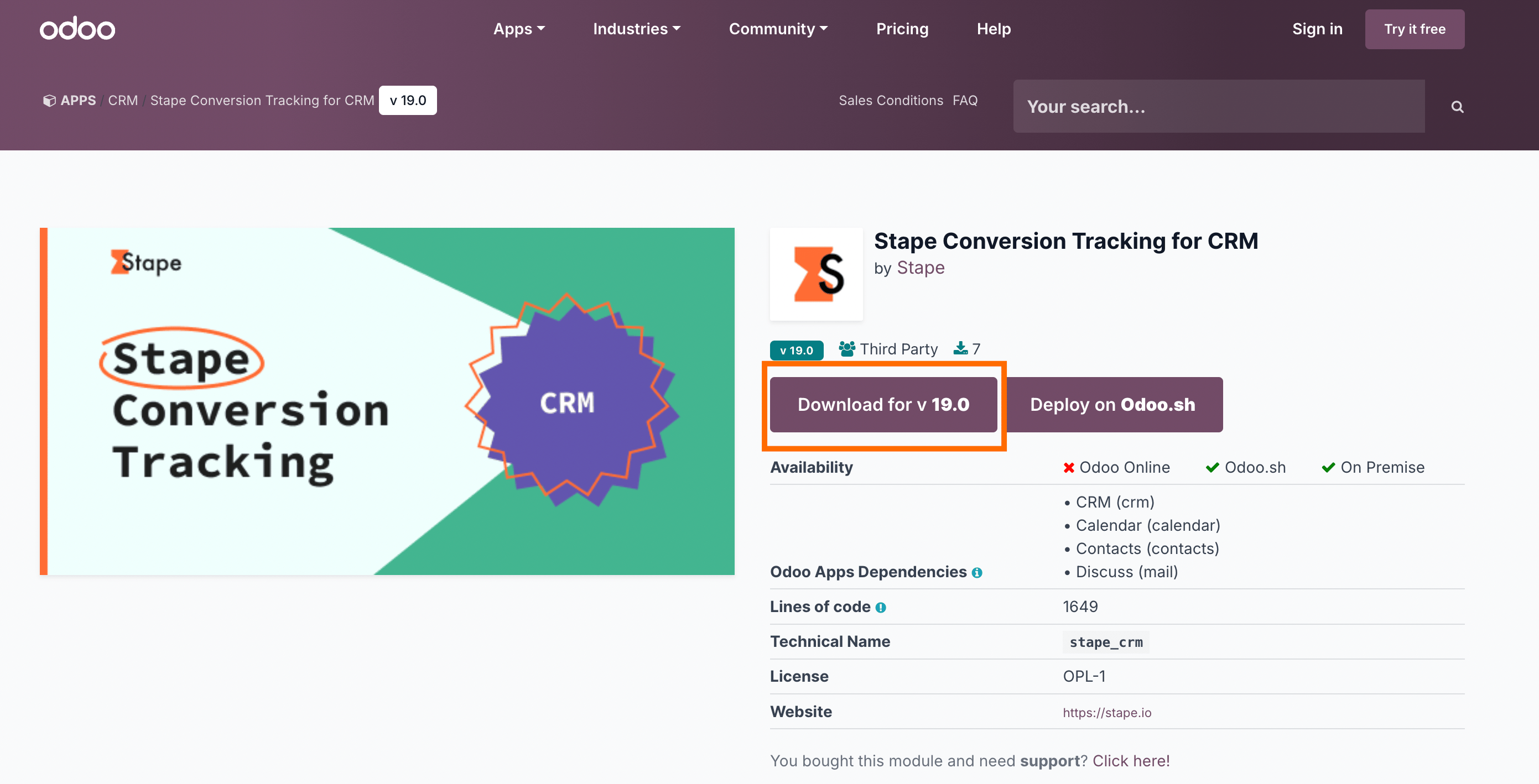
- Download app (On-Premise installations)
To deploy on Odoo.sh, do the following:
Click on Deploy on Odoo.sh → Sign in to your GitHub account and install the app.
For On-Premise installations:
On the app store page, click Download for v19.0
Extract the downloaded .zip archive into your Odoo addons/folder on your server.
Restart your Odoo server.
In Odoo, go to Apps → Update Apps List, then search for Stape Conversion Tracking for CRM and click Install.
2. Configure the app after installation.
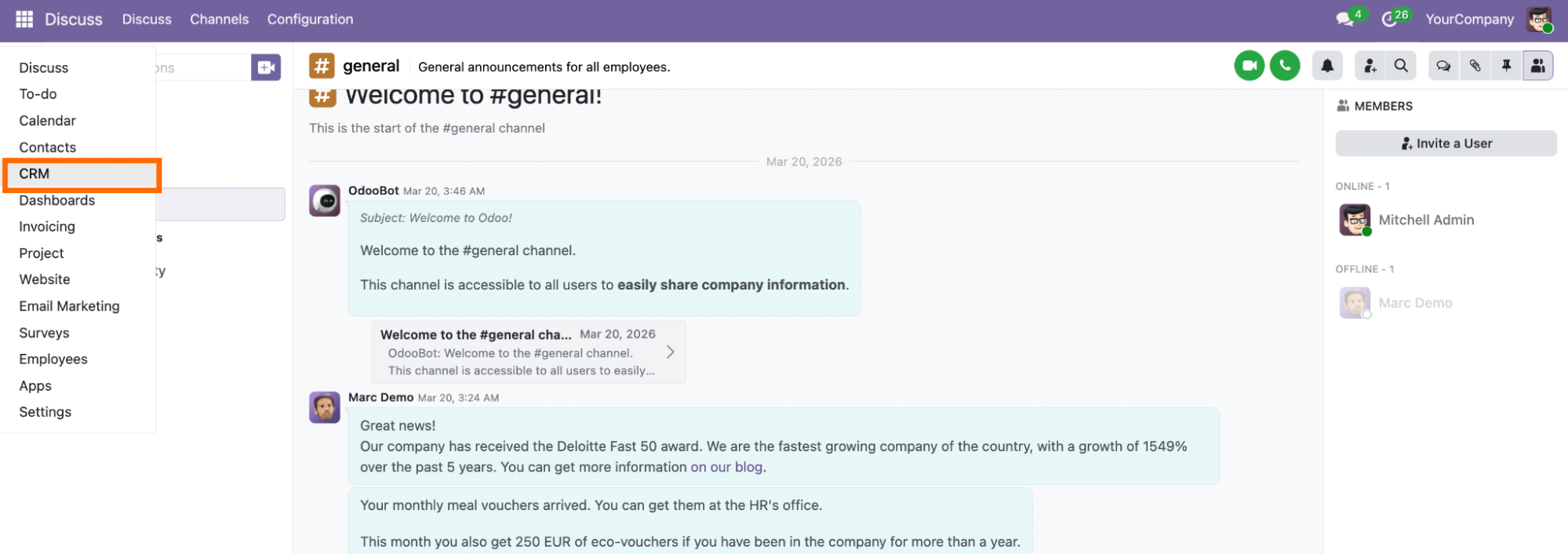
Open the CRM module.
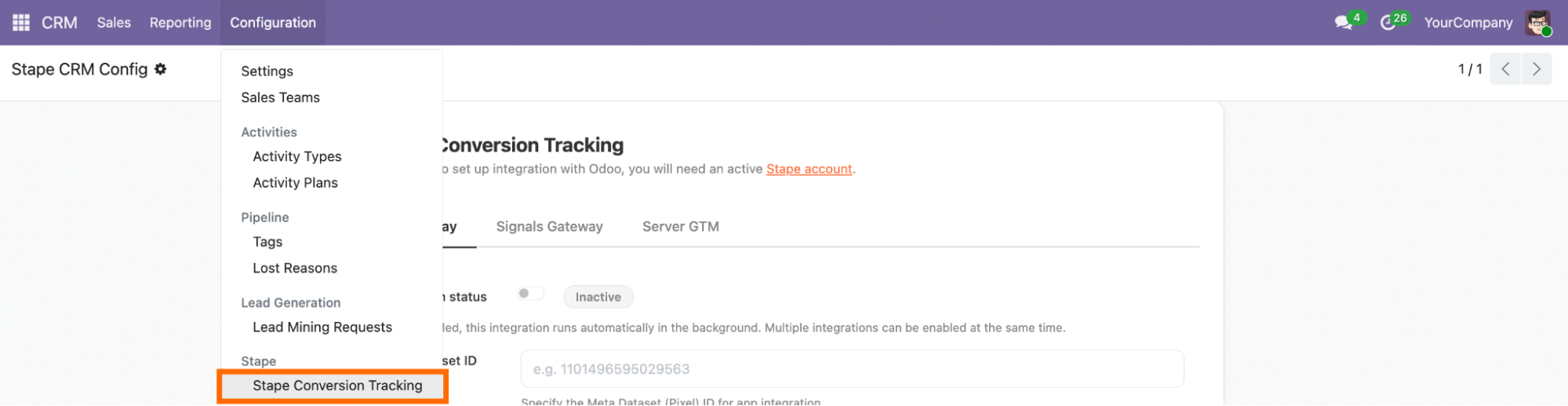
Then click on Configuration → scroll to find Stape Conversion Tracking → click on it.
Integration methods and their differences
The Odoo CRM app by Stape provides 5 different integration methods for sending lead and Opportunity data to your marketing platforms.
| Note: you can configure multiple tabs/methods; each one runs on its own. |
Server Google Tag Manager (sGTM)
This method integrates directly with your server-side Google Tag Manager container. It gives you full control over how data is processed and routed.
Server GTM is best for tracking setups that require custom logic or integrations with other platforms that Signals Gateway doesn't provide. It offers the highest level of customization and control, but requires more technical setup and ongoing management.
Customer Match (Google Ads)
It sends CRM audience and Opportunity data directly into Google Ads, where it is used to create and update Customer Lists for targeting and remarketing.
Customer Match is best for users who run Google Ads campaigns and want to build and automate Google Ads audiences based on CRM activity, such as leads, opportunities, and customer lifecycle stages.
Meta Custom Audiences
The method focuses on syncing CRM data to Meta Custom Audiences for retargeting and segmentation. Once configured, it sends data about users who have already interacted with your website or CRM to Meta, so you can target them based on their stage in the customer journey.
Meta Custom Audiences is best for advertisers who want to retarget and re-engage users who have already interacted with their business.
Meta Conversions API Gateway (CAPIG)
This integration is built for Meta platforms such as Facebook and Instagram. It sends CRM event data directly to the Meta Conversions API.
Meta CAPIG is best for users who only need to track offline conversions and events in Meta. It is the most direct and simplest way to connect CRM data to Meta, but it is limited to Meta's ecosystem.
Signals Gateway
Signals Gateway is the unified routing solution. Instead of sending data separately to each platform, you send it once to Stape and then distribute it to multiple destinations.
Signals Gateway is best for users who, besides Meta, want to connect a few other platforms and look for a balance between simplicity and flexibility. Signals Gateway is more powerful than CAPIG (as it provides the option to add other platforms), and easier to configure than server-side GTM.
Configure the app based on the configuration method
❗Before you begin, keep in mind that Stape's app can run multiple integrations at the same time. Each integration has its own tab with an Activate integration switch; turn it on for any integrations you want to send data to.

Integration method depends on your tracking setup and goals, and/or on your current experience with Stape. Click on the section below that corresponds to the tracking method you use:
Final words
Integrating Facebook with an Odoo website can help businesses automate lead management, improve conversion tracking, and create a more connected data flow. Instead of handling leads manually, you can centralize customer data inside Odoo CRM and automate how information is shared across platforms.
Another advantage of integrating Facebook Lead Ads with Odoo CRM is using CRM data for campaign optimization. After sending lead stage updates and conversion events back to Meta, you can improve audience targeting and optimize campaigns.
A well-configured Facebook and Odoo integration can help businesses reduce manual work, improve attribution accuracy, automate workflows, and build a more effective lead management process.
Want to start on the server side?
Try for freeRecommended for you
Blog
Stape's Conversion Tracking CRM Apps: use cases and benefits
Stape's CRM apps for CRMs automatically send lead statuses updates from CRM to platforms such as Meta and Google Ads, improving campaign performance and audience targeting.
Sep 14, 2026

Comments