Sep 29, 2026
What is Signals Gateway & Setup Guide
Written by
Ivanna Holubovska
Updated Sep 26, 2025 comments
Meta's Signals Gateway is a comprehensive solution that simplifies sending first-party data from any origin to any destination, streamlining data flow across platforms. It integrates multiple data sources into one tool, providing seamless control over your data flow and ensuring efficient sharing across various platforms.
Benefits of Signals Gateway
1. All-in-one place control.
Signals Gateway offers a centralized environment where all your data management and sharing needs are handled in one place. It ensures a smooth and efficient flow of information from any source to any destination without the need for multiple tools or platforms.
2. No technical skills required.
You can quickly set up and customize configurations to fit your specific requirements without any coding expertise. The intuitive interface lets you manage data tracking seamlessly, removing the reliance on specialized developers. As a result, you can allocate your budget more effectively.
3. First-party data maximization.
First-party data offers greater control over privacy and compliance, and since it comes from your own audience, it helps create more targeted campaigns that resonate better with your customers, ultimately leading to higher engagement and return on investment.
How does Signals Gateway work?
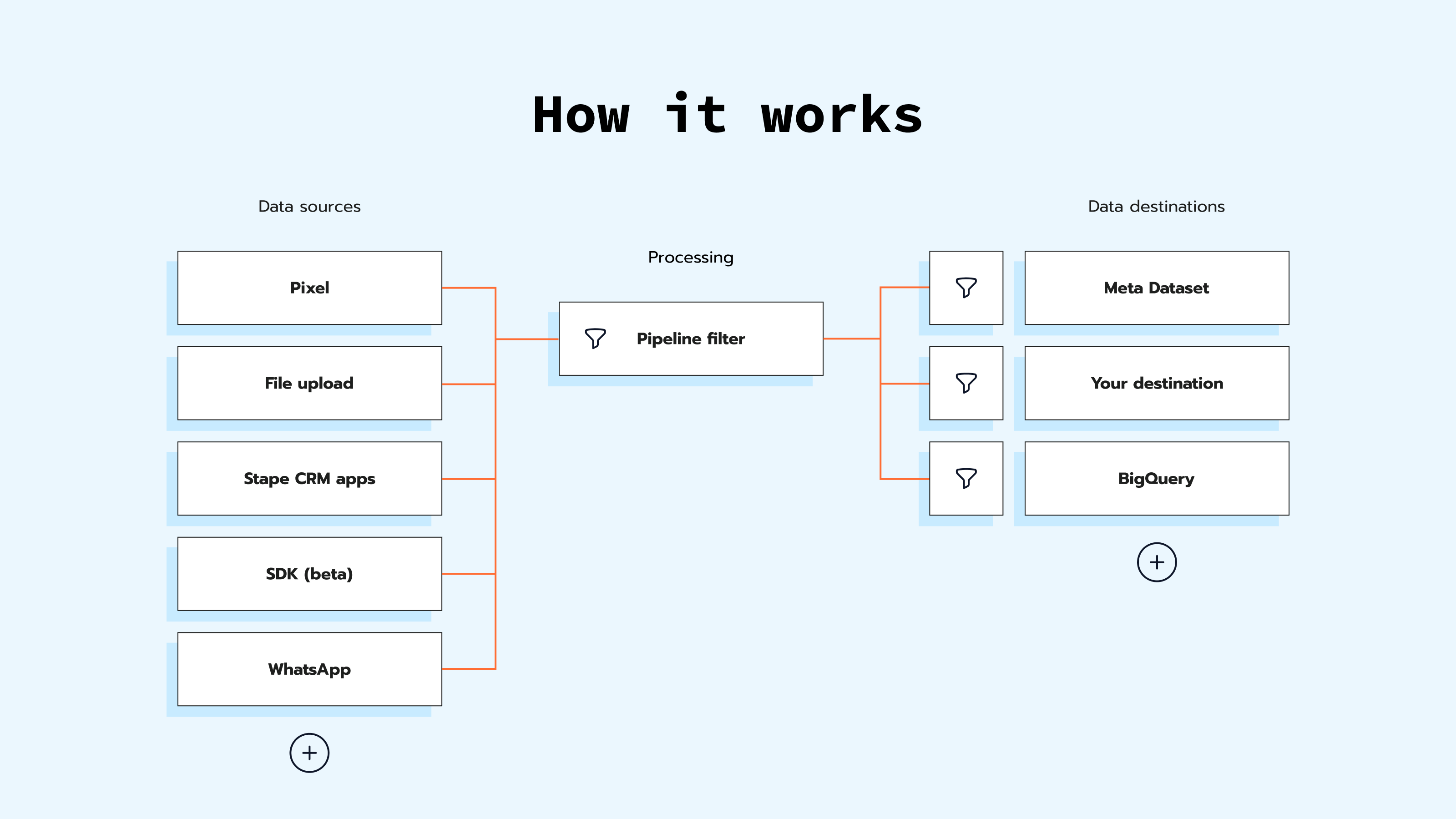
Your Signals Gateway Pixel, SDK, offline uploads, and CRM integrations share data exclusively to your own cloud server. These data sources are centralized within your Signals Gateway, giving you full control over where the data is sent, whether to Meta or another destination. With the customized connector, Signals Gateway simplifies sharing data with any platform. Additionally, Signals Gateway offers a built-in integration with Google BigQuery, which helps you to run data analyses.
In practice, you can use the Signals Gateway Pixel to send events and user data it collects to non-Meta destinations. Currently, the variety of destinations is limited, but it is expected to expand in the near future. You can choose which events you want to exclude from being sent to these destinations in the pipeline.
Update: Besides other sources, Signals Gateway also supports the WhatsApp Conversions API. Check how it works and best practices in our news post.
Stape hosting for Signals Gateway
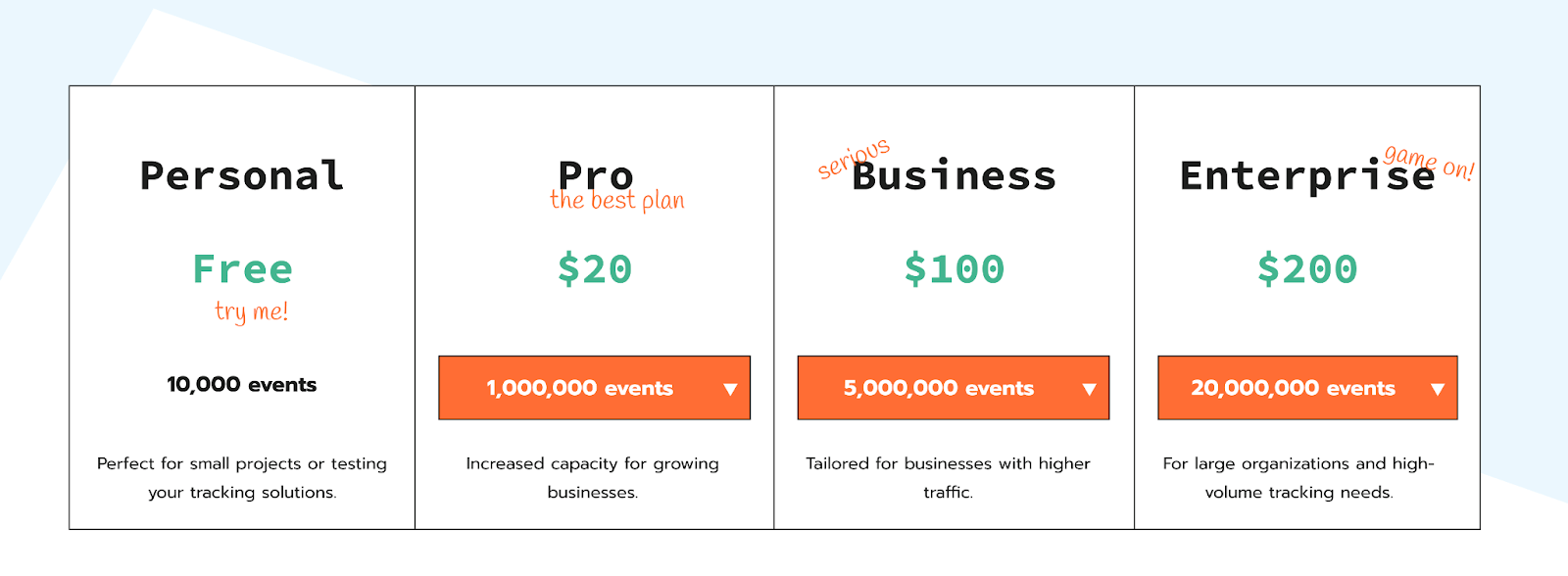
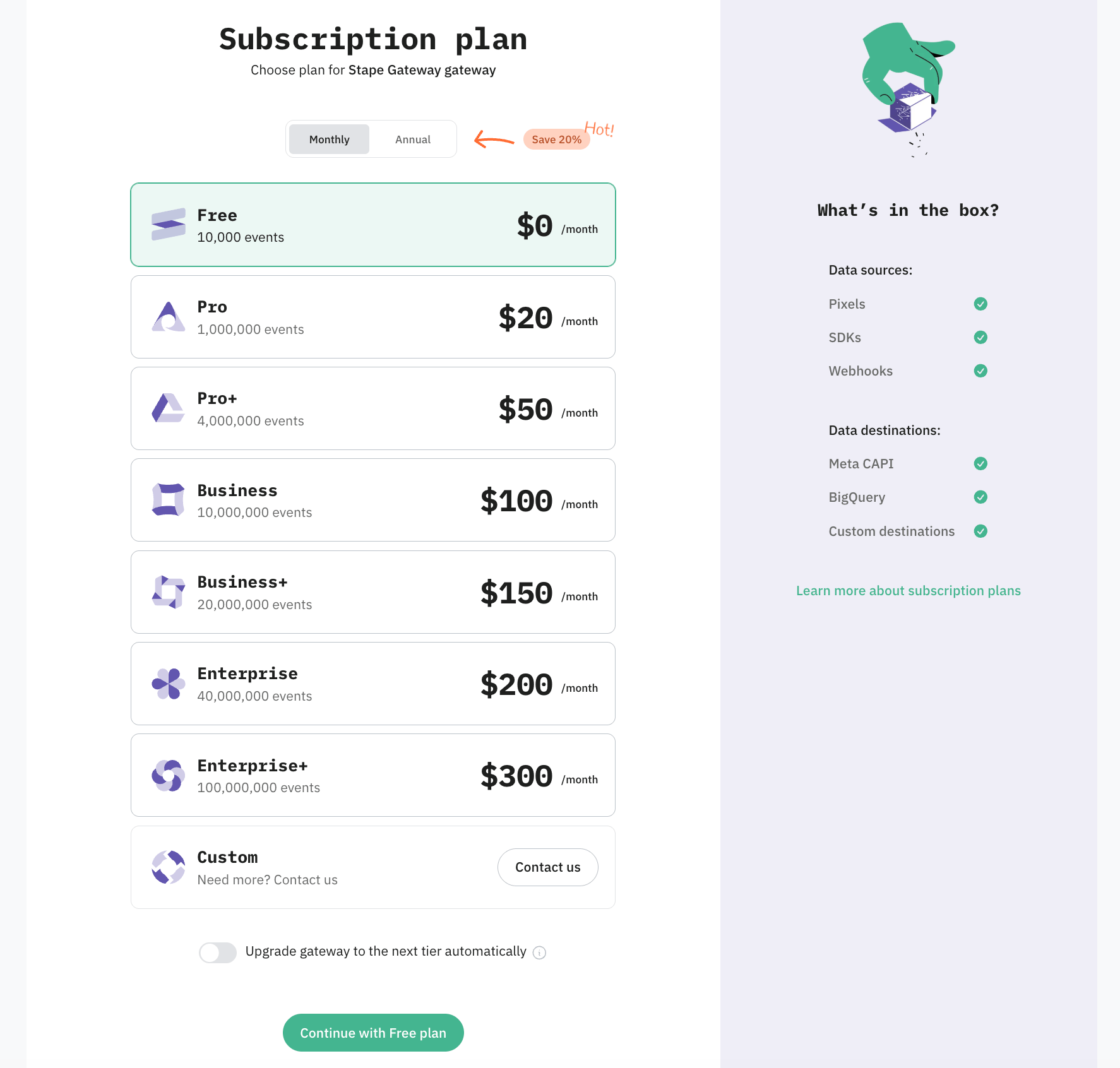
Stape offers a variety of pricing plans to suit your needs: Free, Pro, Business, and Enterprise.
Prices start from 20$ a month for 1 000 000 events. And if you choose a yearly plan – it will cost you only 17$ a month on a Pro plan.
Our Free plan allows up to 10,000 events per month. No credit card required!
You can also use the pricing calculator on our website to help determine which plan is the best fit for your site.
How to set up Signals Gateway?
In order to set up Signals Gateway please follow these steps:
- 1.Create Signals Gateway on Stape.
- 2.Create your first data connection.
- 3.Route traffic through your own domain (recommended).
- 4.Test your setup.
Before you begin
You need to setup a dataset in your Meta Events Manager.
Step 1 | Create Signals Gateway on Stape
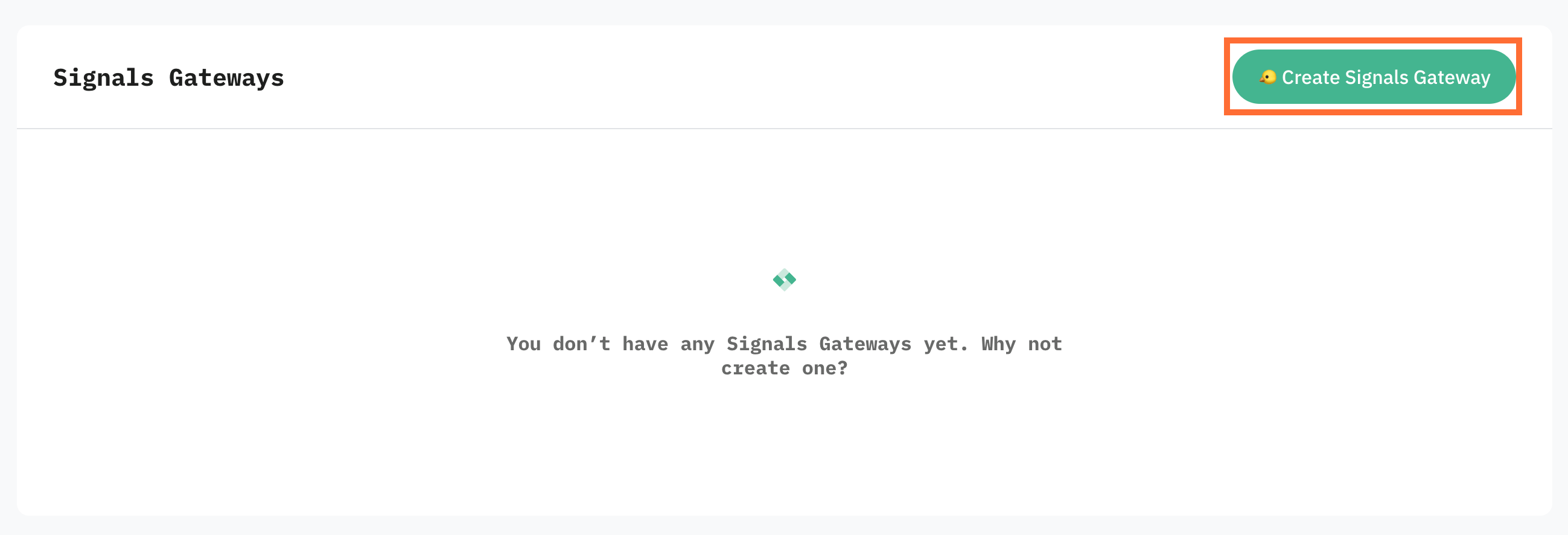
- 1.Log in to your Stape account and click Signals Gateway in the dashboard.

2. Click Create Signals Gateway.
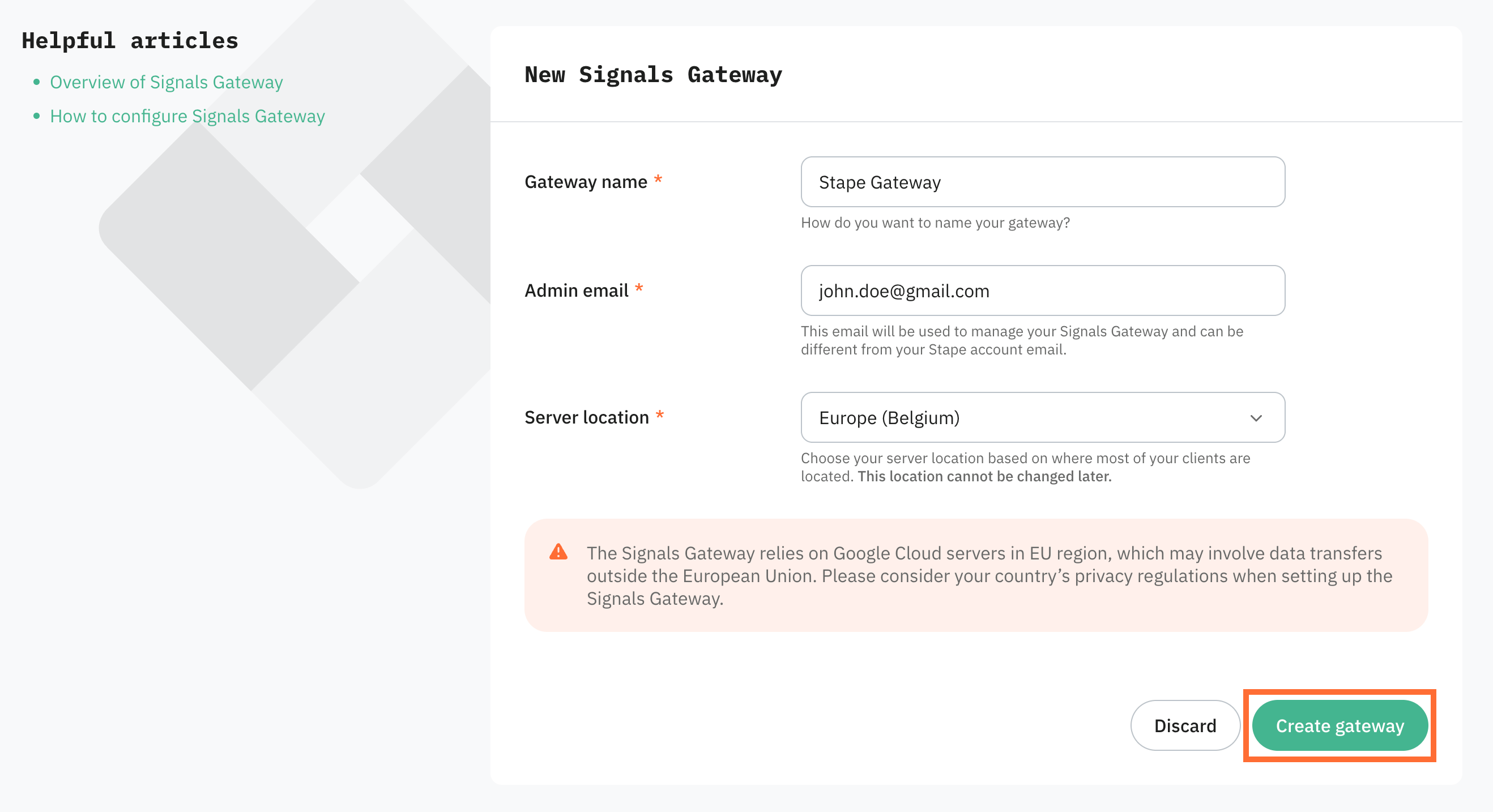
3. Fill in:
- Gateway name - a descriptive label.
- Admin email - the account you'll use to log in to Signals Gateway. It can be different from your Stape login.
- Server location - pick the region closest to the majority of your traffic.
4. Click Create gateway.
5. Select a subscription plan and click Continue.
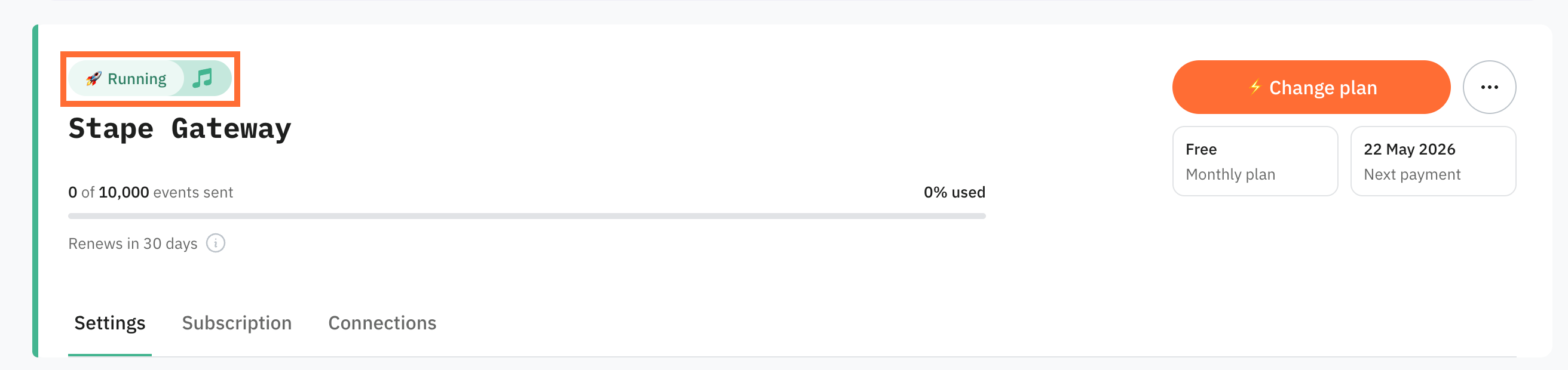
6. Wait for the gateway status to change to Running.
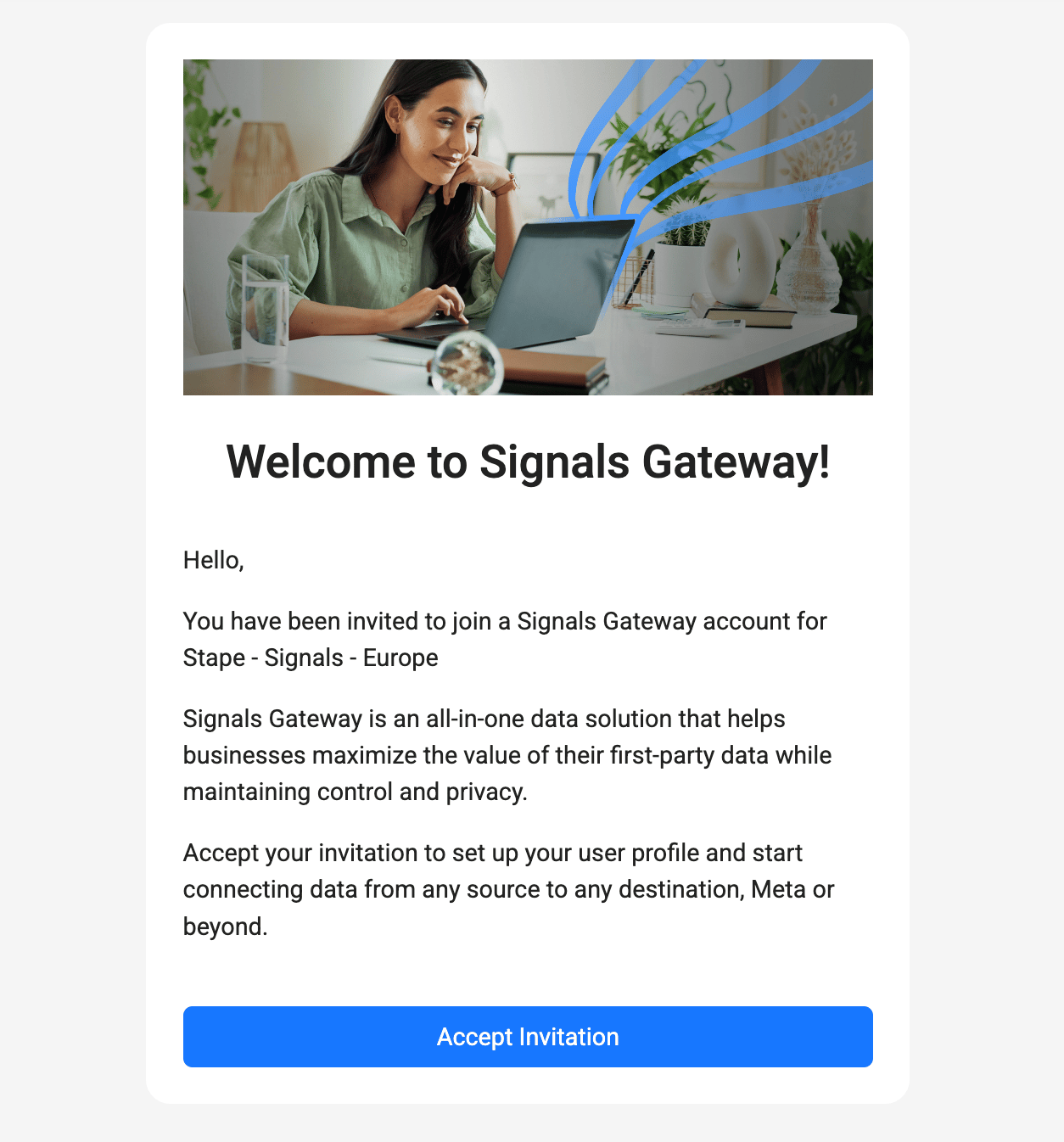
7. Open the invitation email sent to your admin address and click Accept Invitation.
Tip
Didn't receive the email? Click Finish Signals Gateway setup from the Gateway's menu on Stape, it opens the same flow.
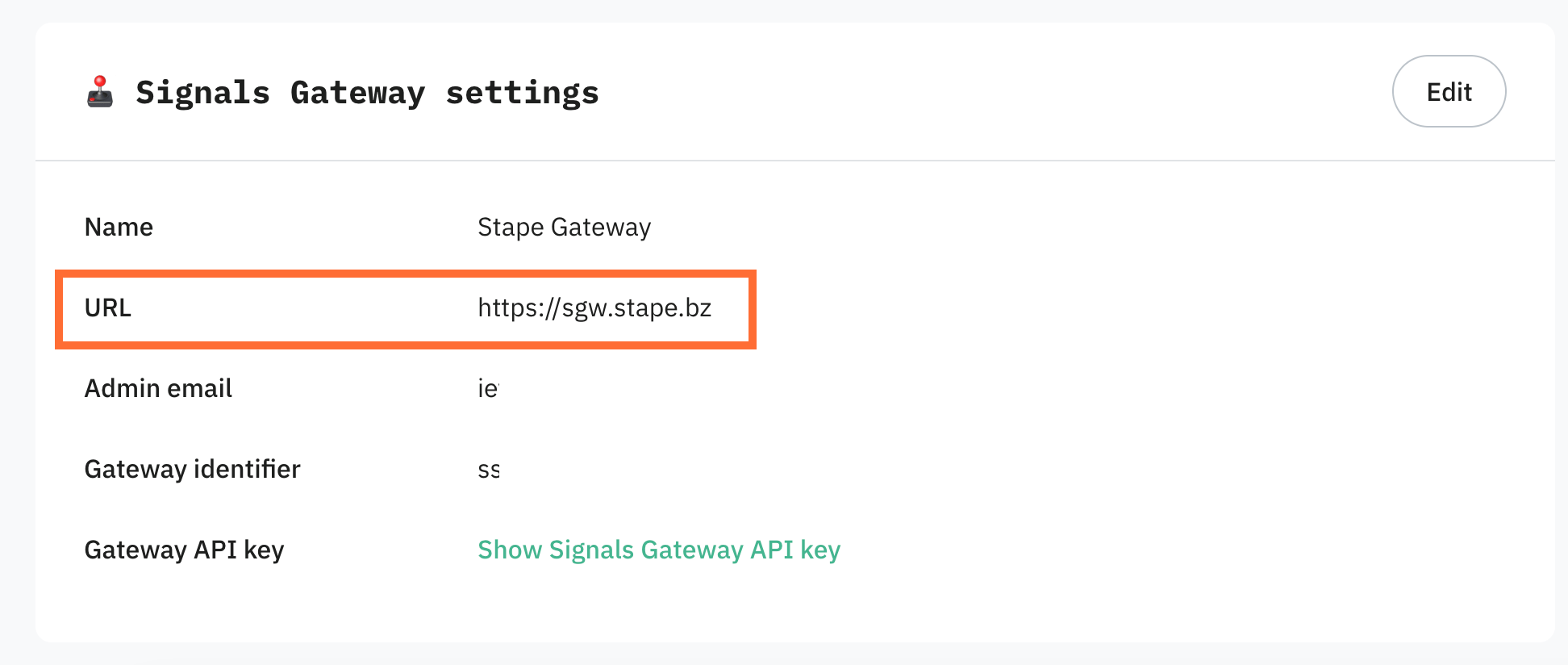
8. Save your admin URL. Once the gateway is running, copy the URL shown in the Signals Gateway settings. That's your permanent login link, bookmark it. You'll log in with the admin email and the password you're about to set.
Step 2 | Create your first data connection
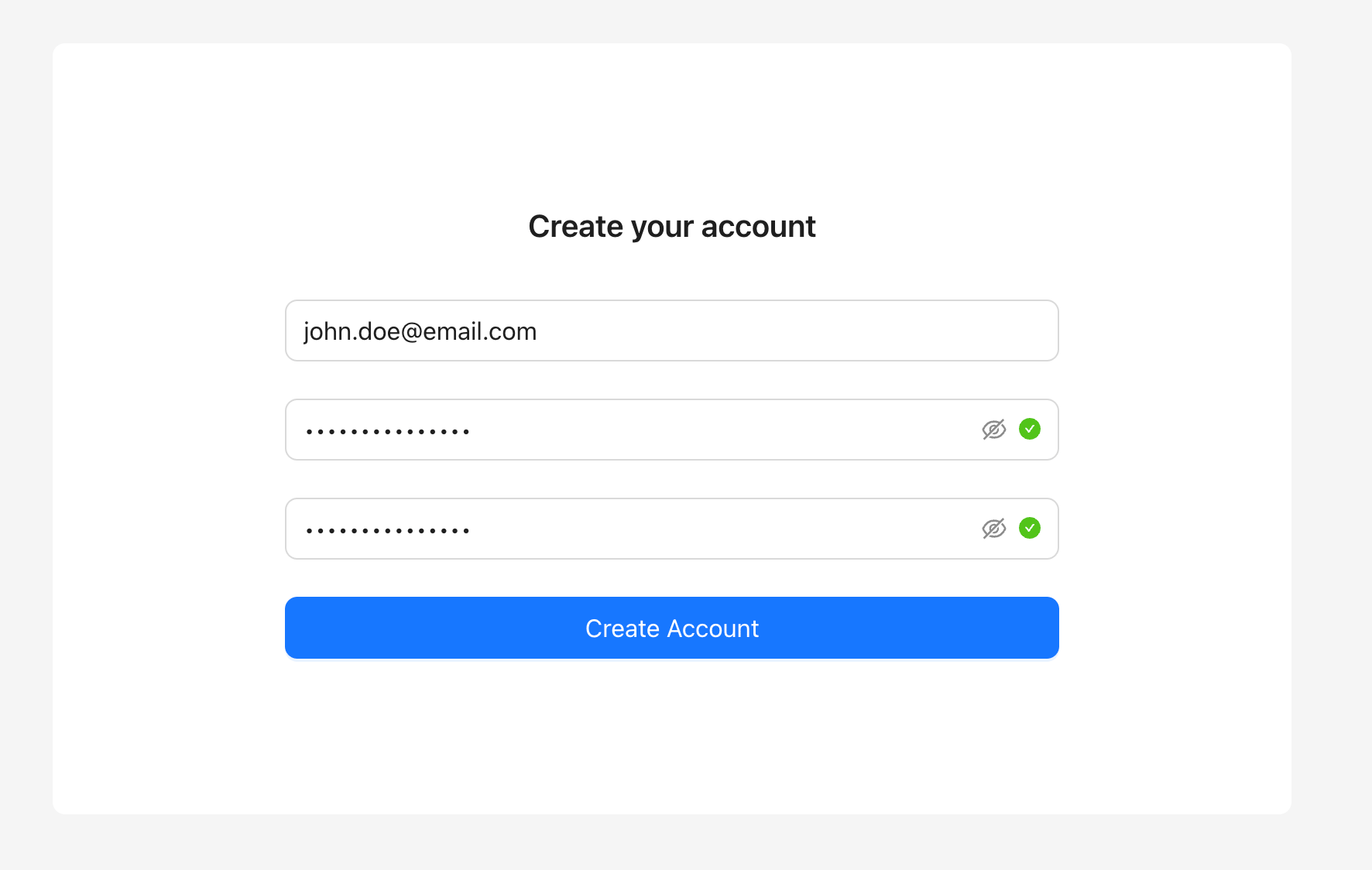
- 1.Log in to the gateway with your admin email, set a password, and click Create Account. Stape never sees this password, store it somewhere safe.
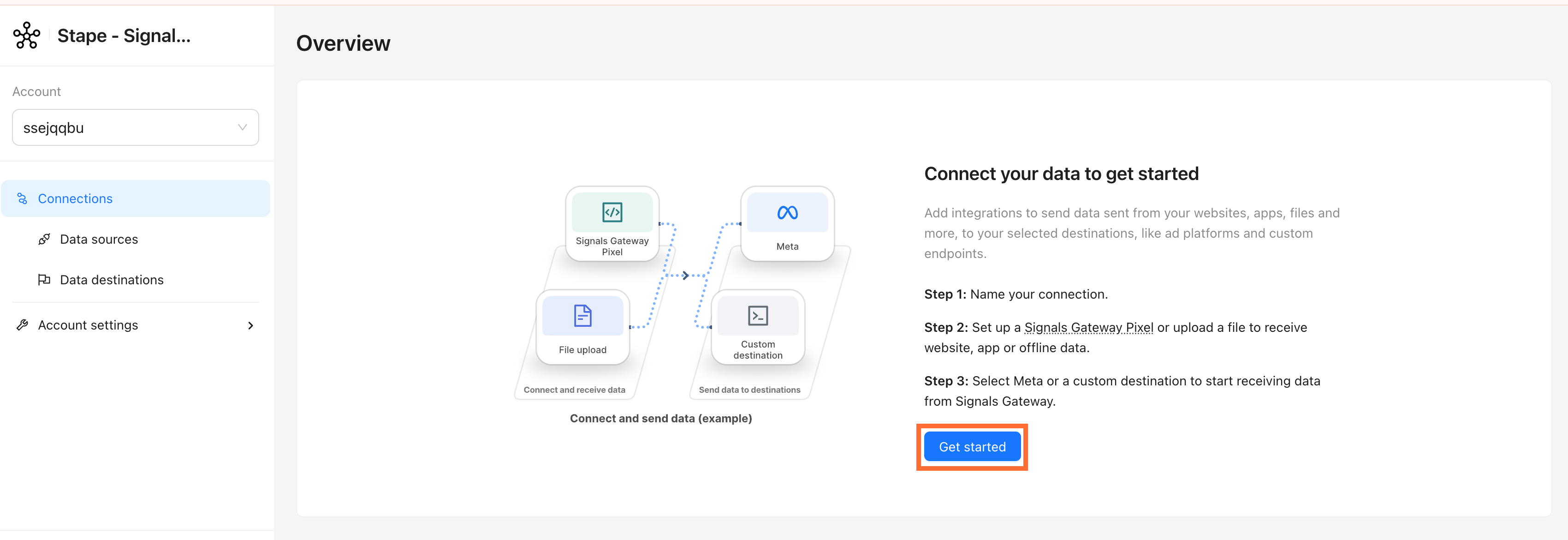
2. Click Get Started.
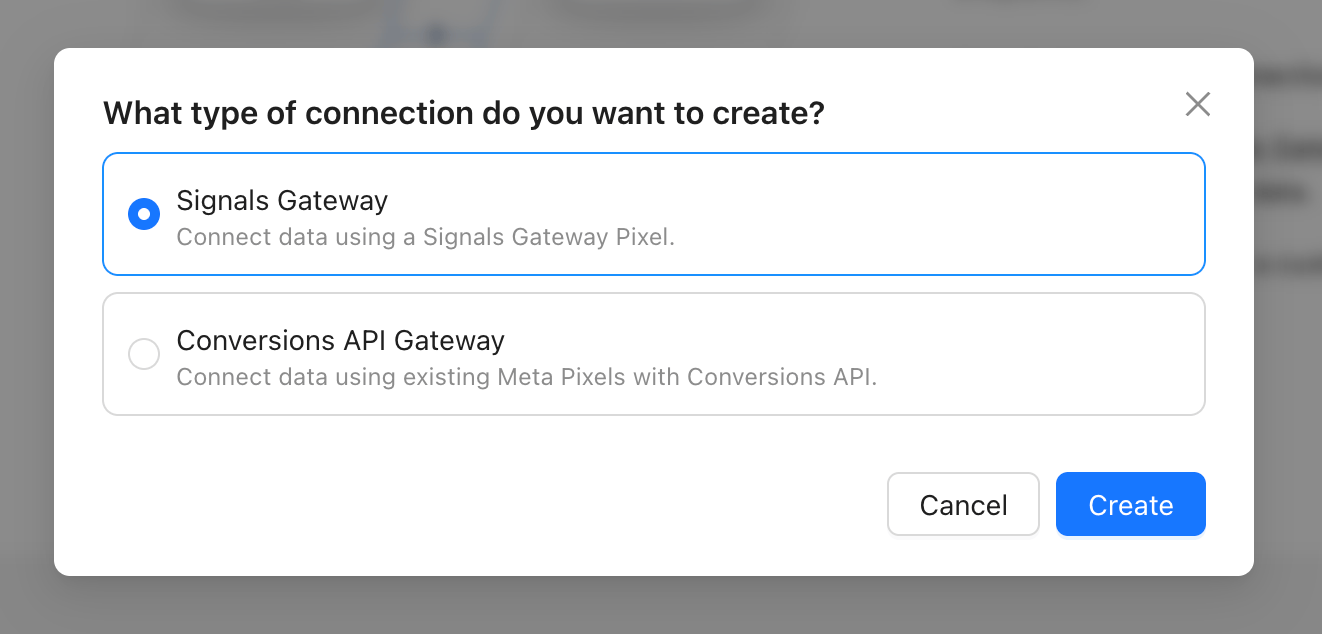
3. Pick the connection type that matches your use case:
- Signals Gateway - you want Stape to generate a new Pixel and handle Meta CAPI for you. This is the best option if you’re new to this.
- Conversions API Gateway - you already have a Meta Pixel and just want to add server-side CAPI on top of it.
Click Create.
Step 3 | Route traffic through your own domain (recommended)
Routing Signals Gateway through a subdomain on your own site measurably improves match quality and reduces ad-blocker loss.
- 1.Go to Account settings → Data routing → Optimize.
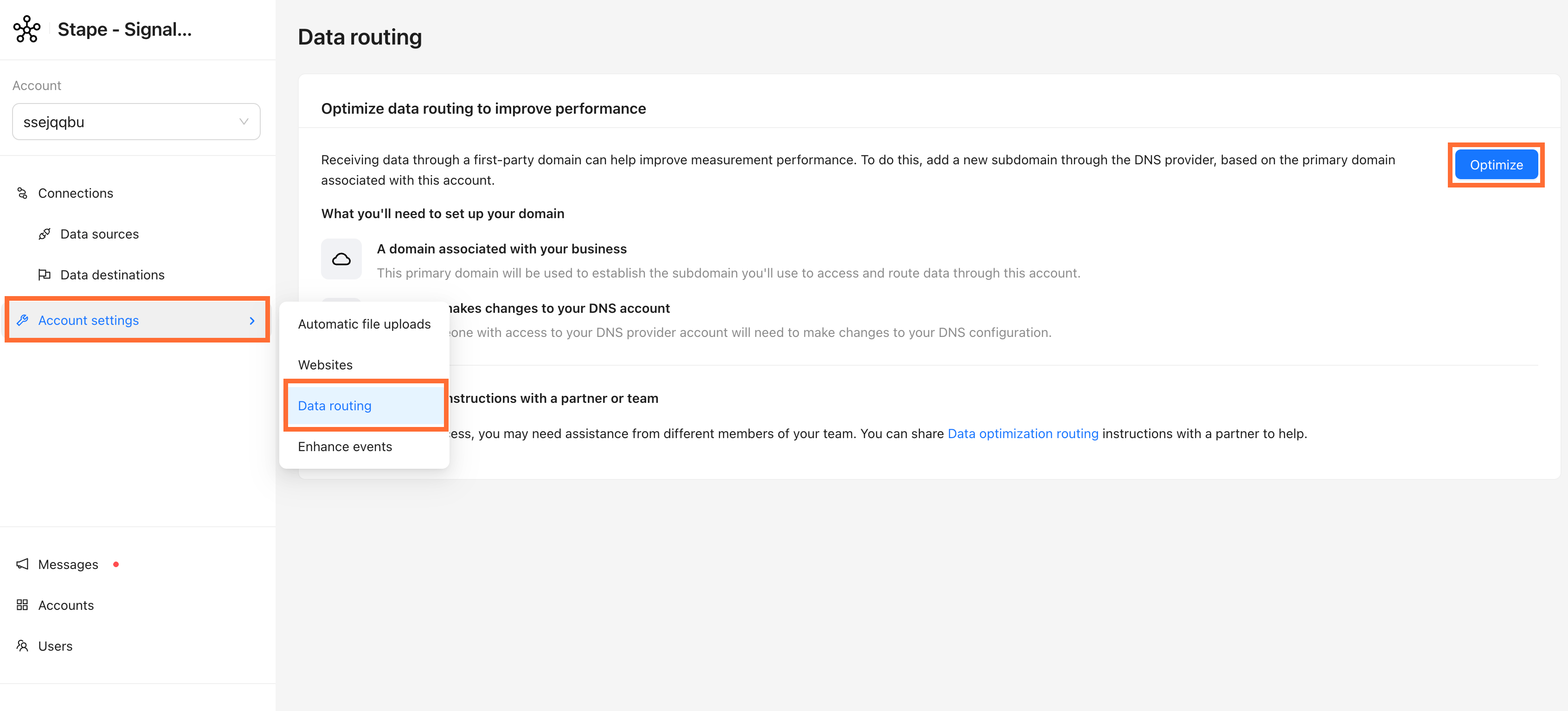
2. Copy the Signals Gateway domain shown on the pop-up.
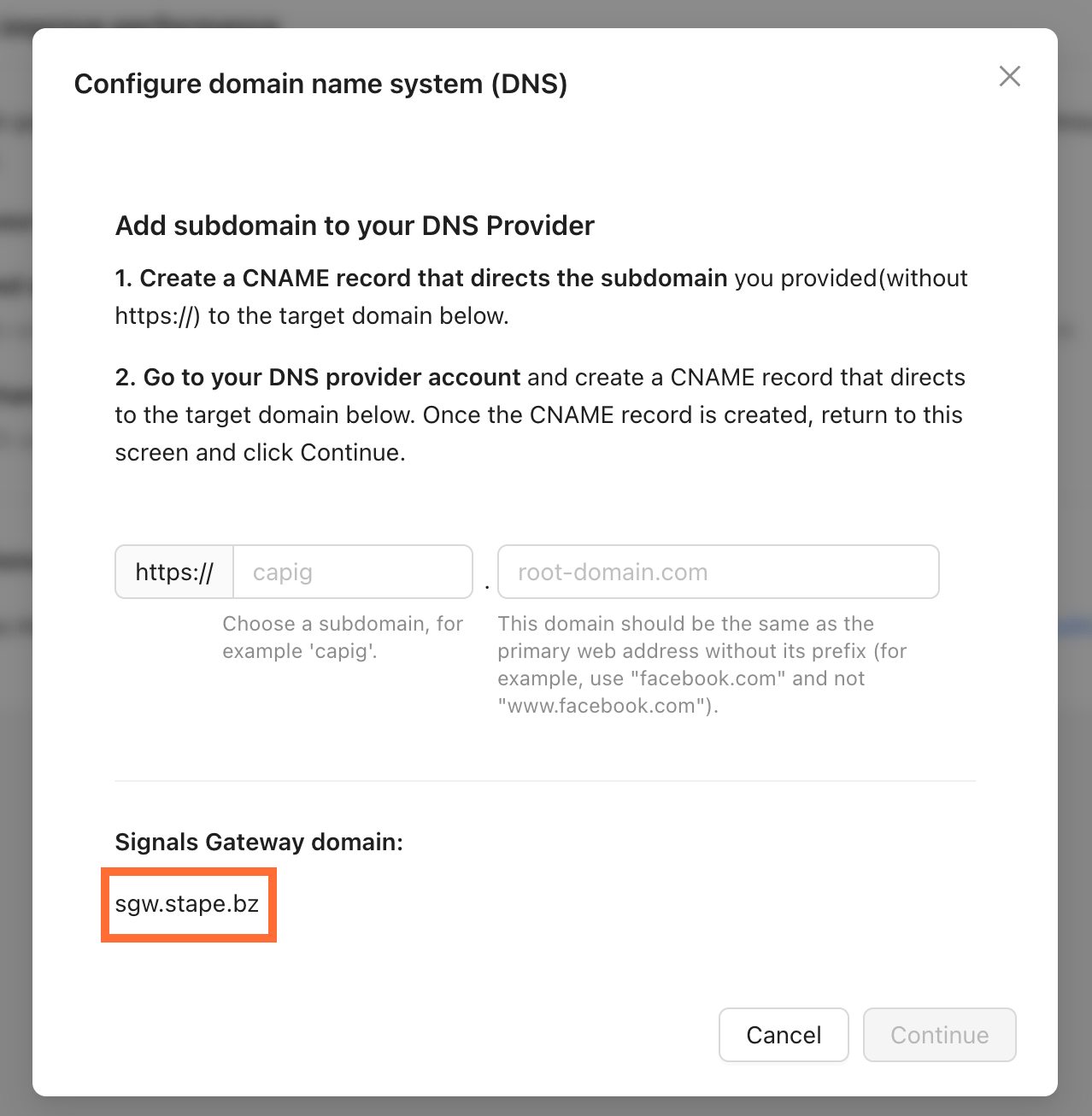
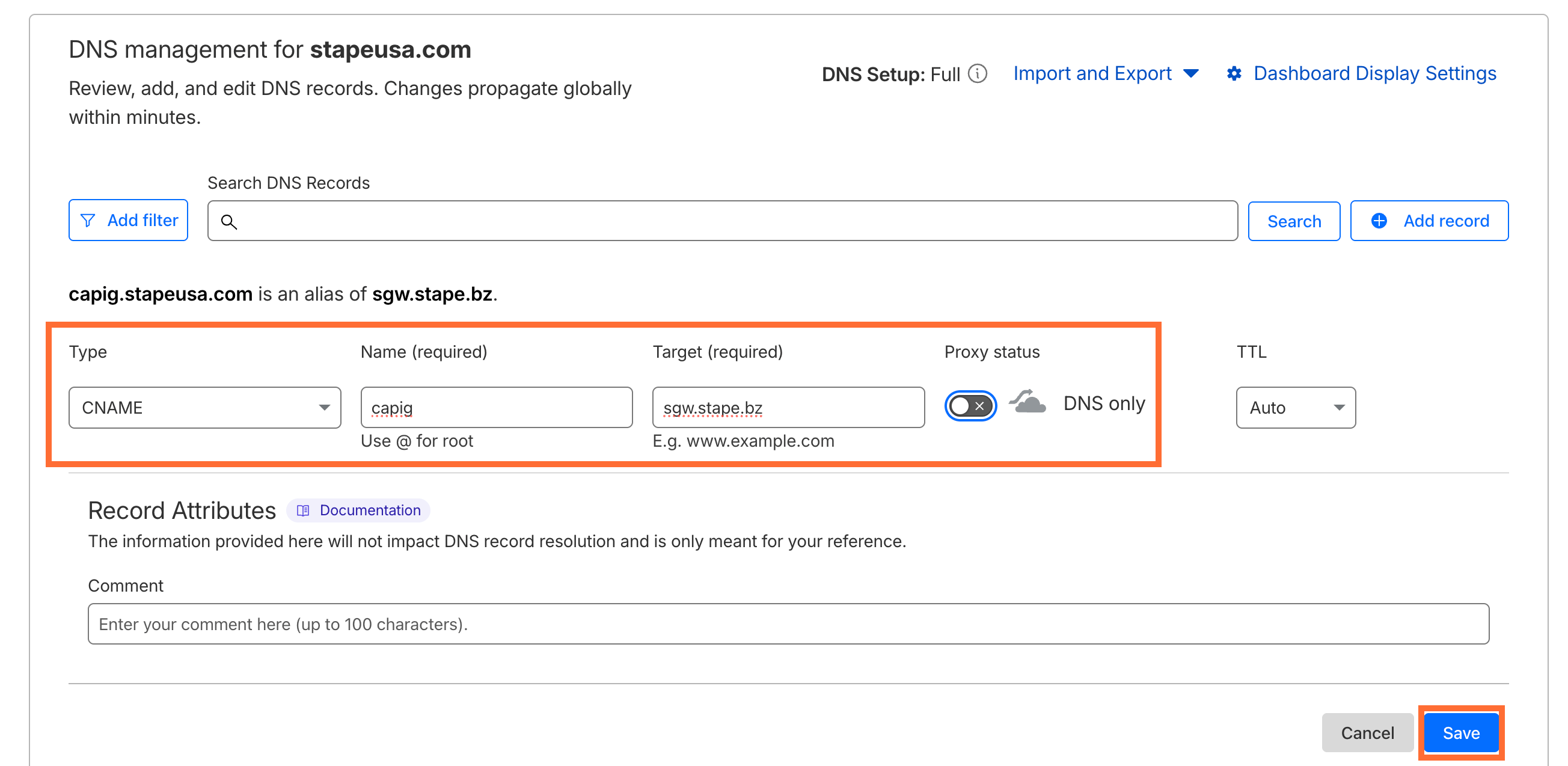
3. In your DNS provider (in our case Cloudflare), add a new record:
- Type -
CNAME - Name -
capig(or any subdomain of your choosing, e.g. events, metrics) - Target - the domain you copied in step 2
- Proxy status - off
Click Save.
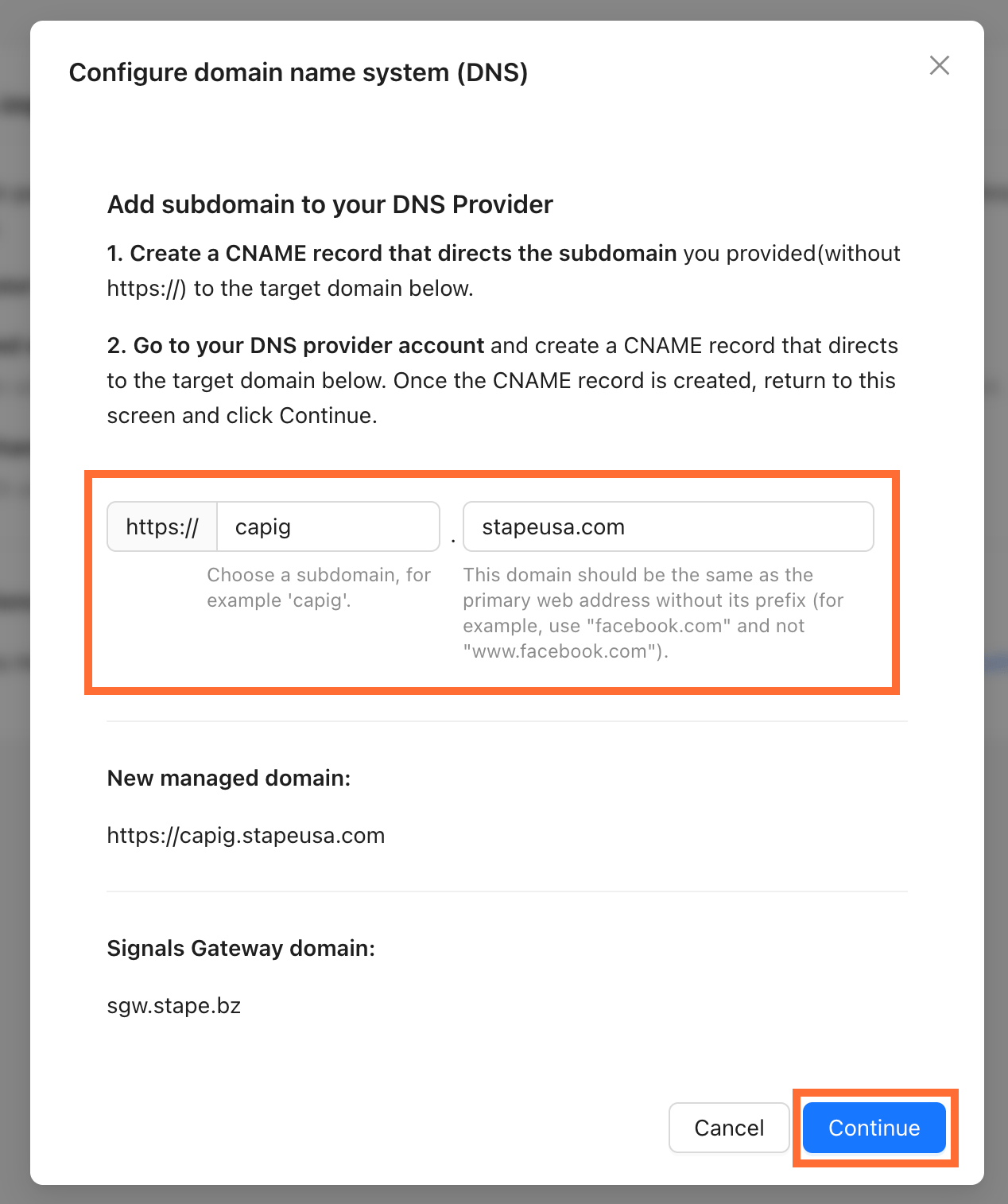
4. Back in Signals Gateway, enter your subdomain and root domain, then click Continue.
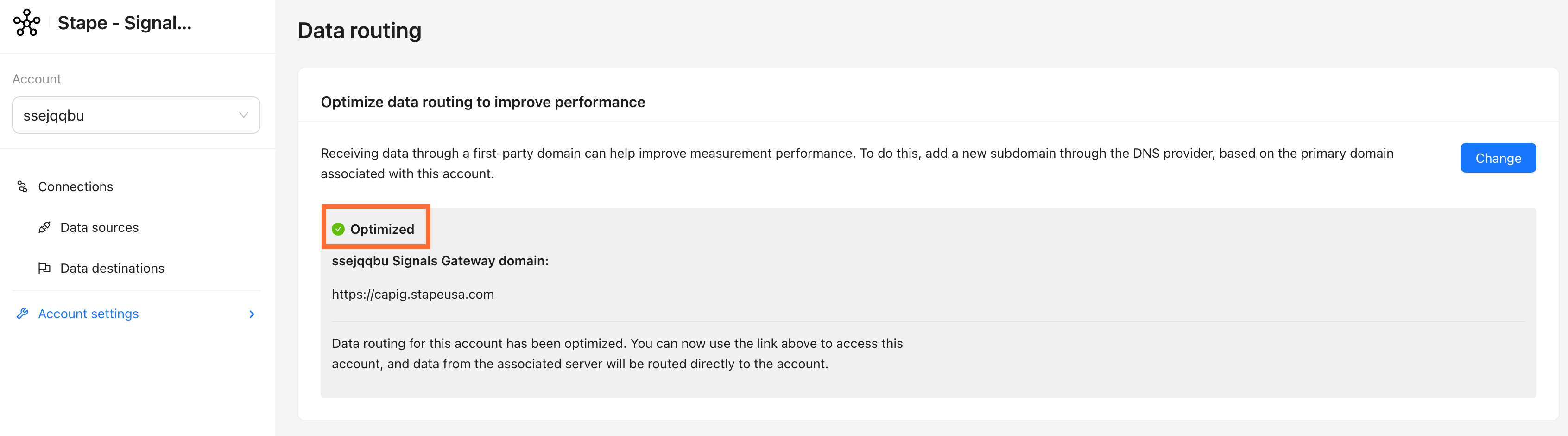
5. The subdomain will appear with a green Optimized indicator once DNS has propagated.
6. Your Signals Gateway Pixel is now reachable at your custom domain, but your GTM tag or site code still points to the old Stape host. Go to your Pixel → Setup guide tab. The snippet and values shown there will already reflect your custom domain. Use them to update whichever installation method you used:
6.1. For GTM template:
- In GTM, open your Signals Gateway Pixel tag and update Signals Gateway Pixel Script URL.
- Save the template.
- Publish the GTM container.
6.2. For the Custom HTML method:
- Copy the complete updated snippet.
- Paste it in your GTM Custom HTML tag (or directly in your site's )
- Save and publish. If the snippet is hardcoded in your site template, clear your page cache after saving.
Optional configuration
Edit or add data sources
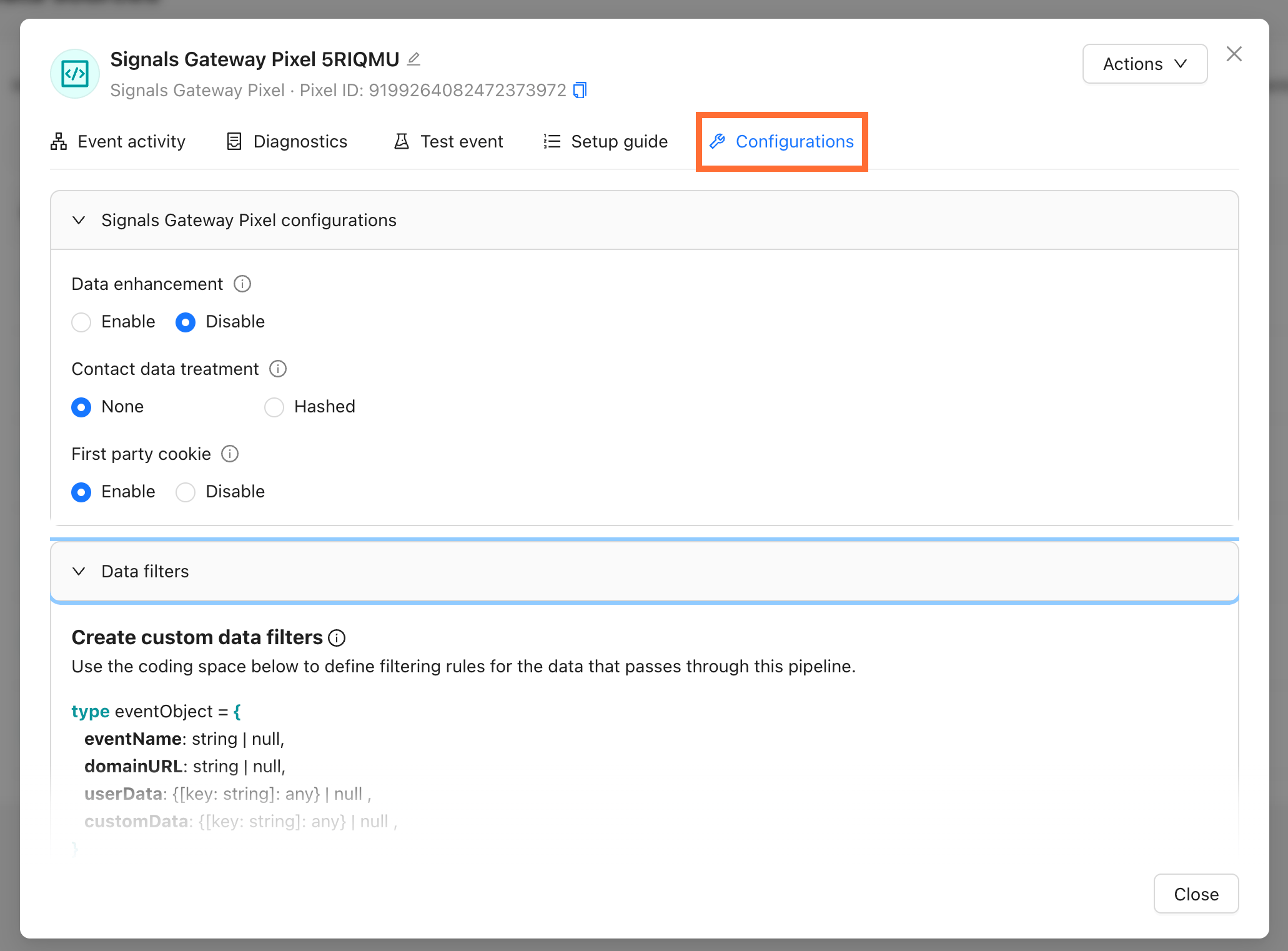
Click an existing Data source and go to the Configuration tab to change its settings, such as:
- Data enhancement - allow to send advanced matching data with your events
- Contact data treatment - you can choose to hash contact data upon collection using the SHA-256 format. Data that is hashed can’t be reverted to its original form and can’t be used by some data destinations or for audience creation.
- First-party cookie - enabling the use of first-party cookies events can help improve matching.
Also, you can tweak Data Filter to set how incoming data is processed before being forwarded to destinations.
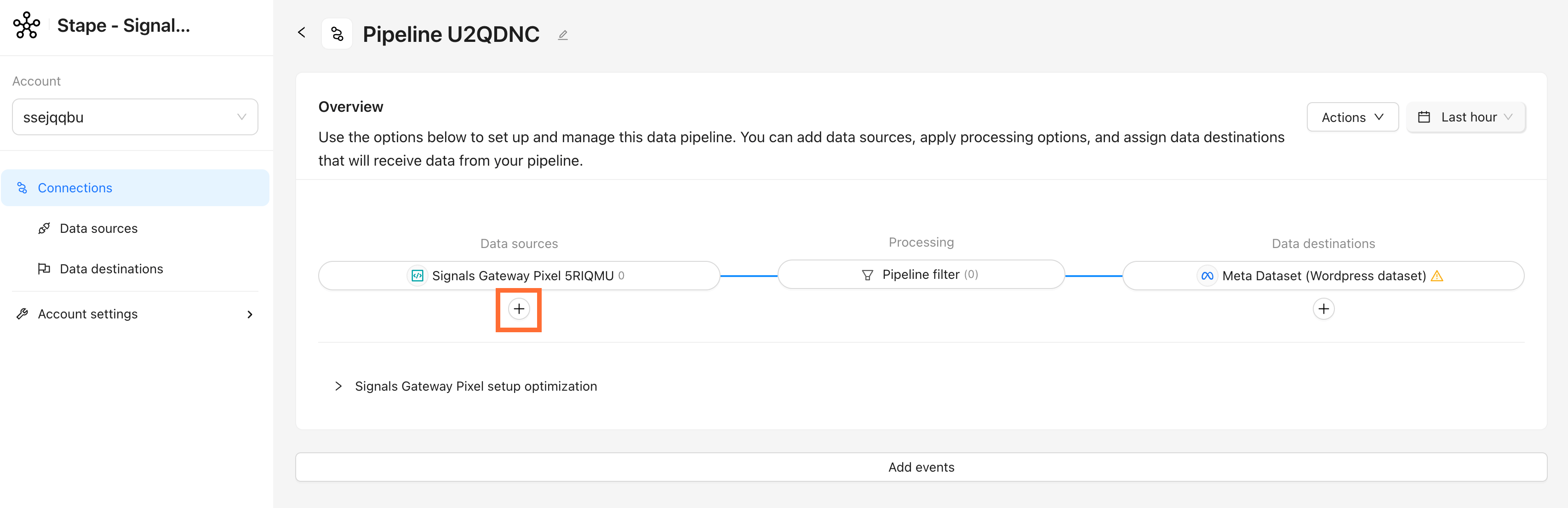
Click + under Data sources to add a file-based source, either automatically via scheduled upload or manually. For detailed instructions read the Add offline events to Signals Gateway article.
Pipeline filter
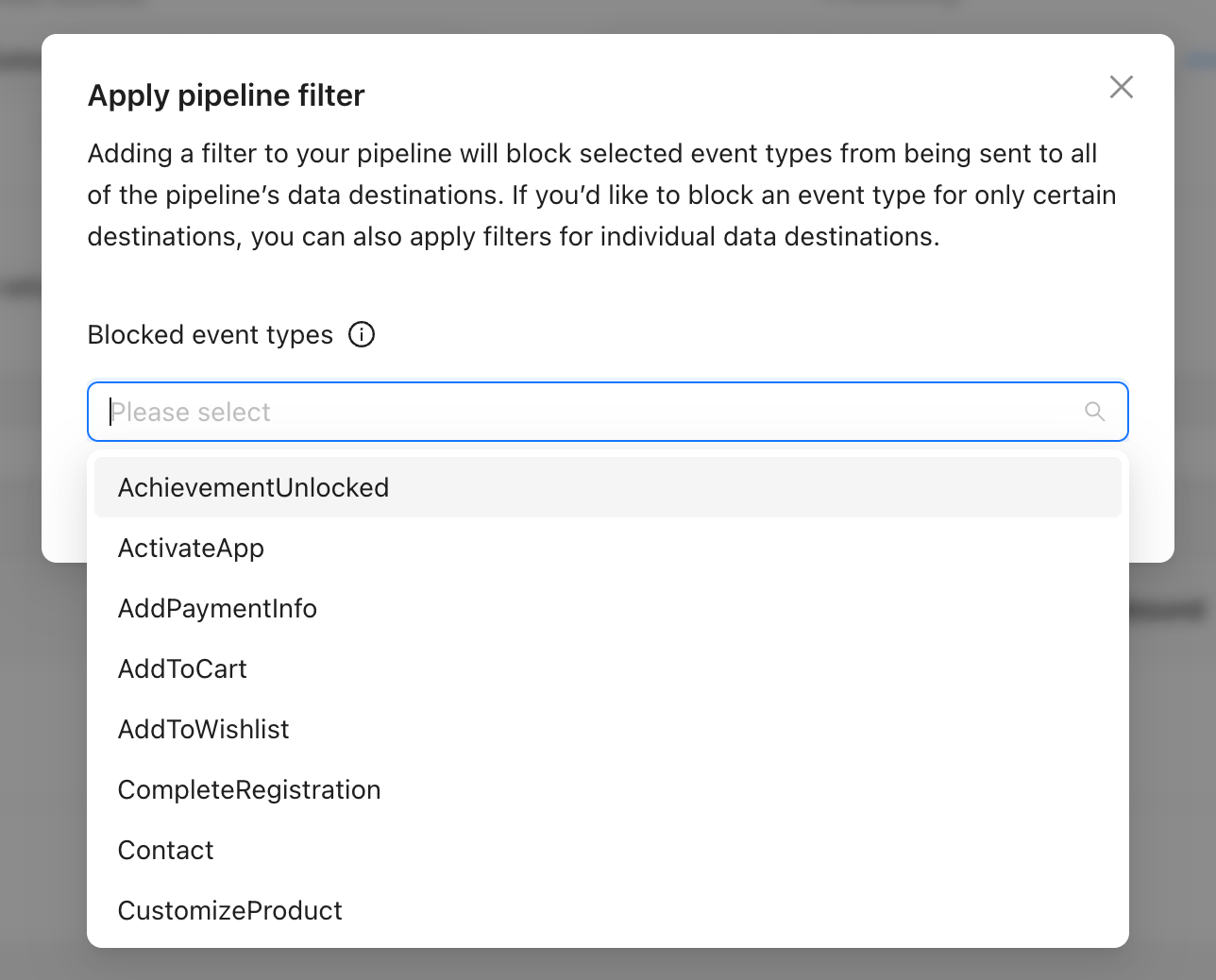
Click on the Pipeline filter in the pipeline’s dashboard to block specific event types from reaching any destination on this pipeline. Useful for suppressing test events or PII-heavy events.
CRM integrations
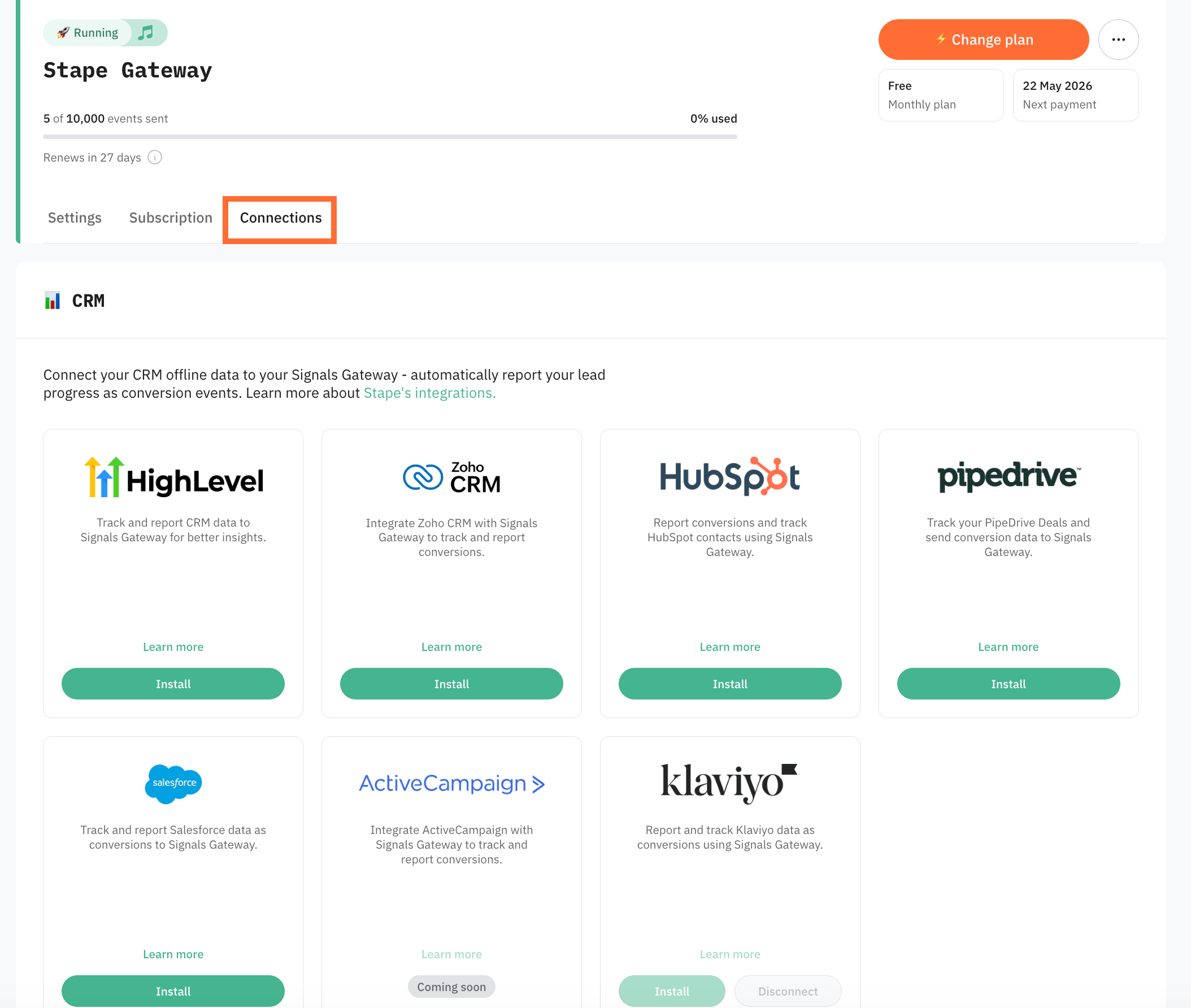
Stape's CRM apps push your CRM pipeline stages into Meta as conversion events, without needing to route them through your website.
CRM integrations are configured from the Connections tab inside Signals Gateway. Read more in Stape's Conversion Tracking CRM Apps: use cases and benefits.
Testing
Check the following:
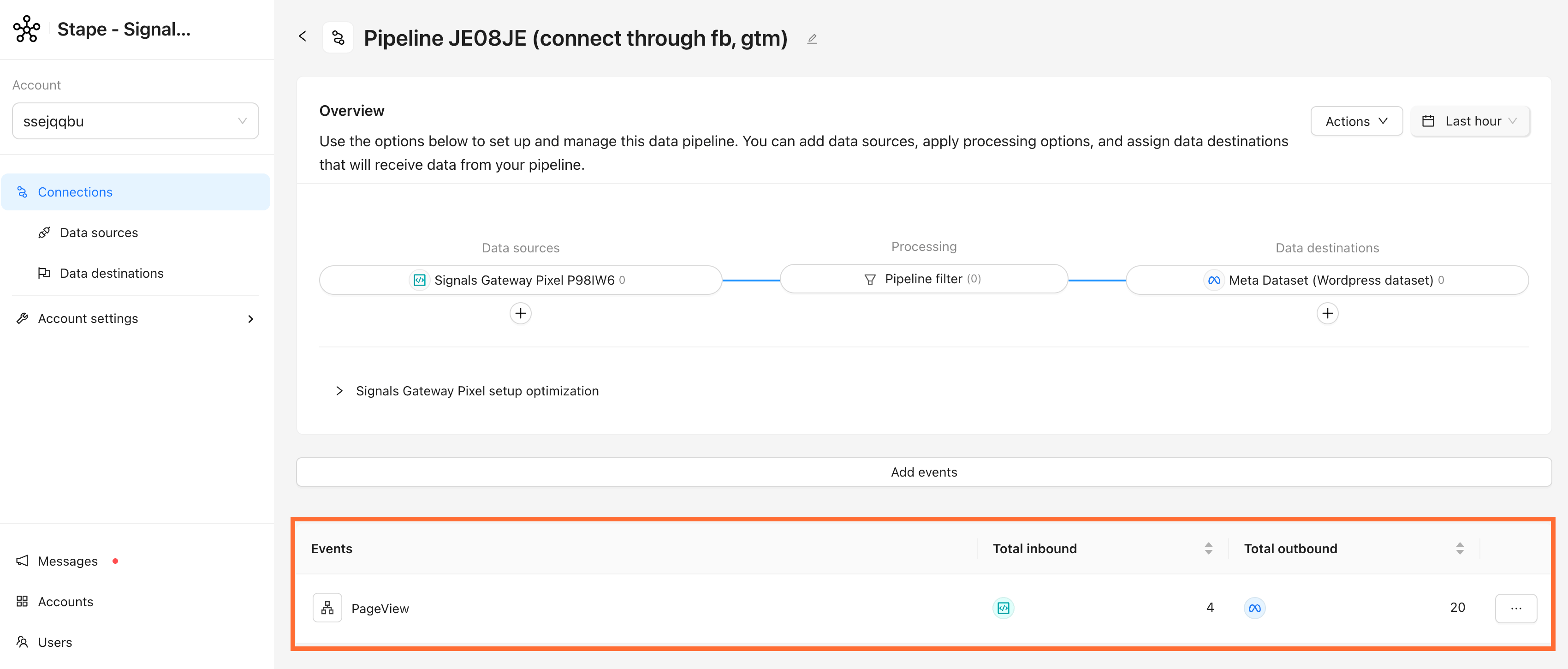
- Events in the Signals Gateway. Open your pipeline's dashboard, the event counter in Data sources should start moving within a few minutes of live traffic.
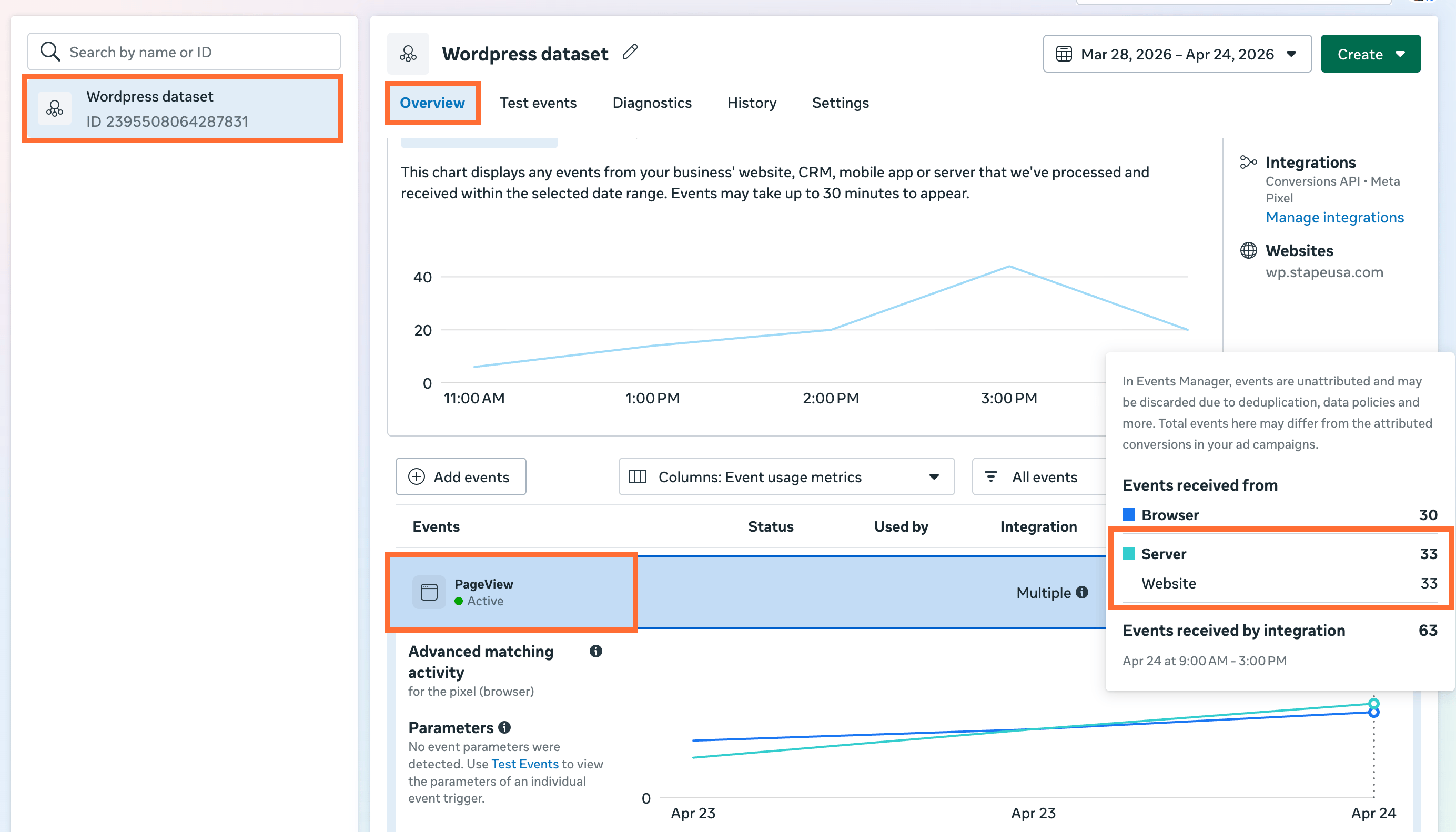
- Events in Meta Events Manager. Open the connected dataset → Overview. You should see events arriving with the server parameter populated.
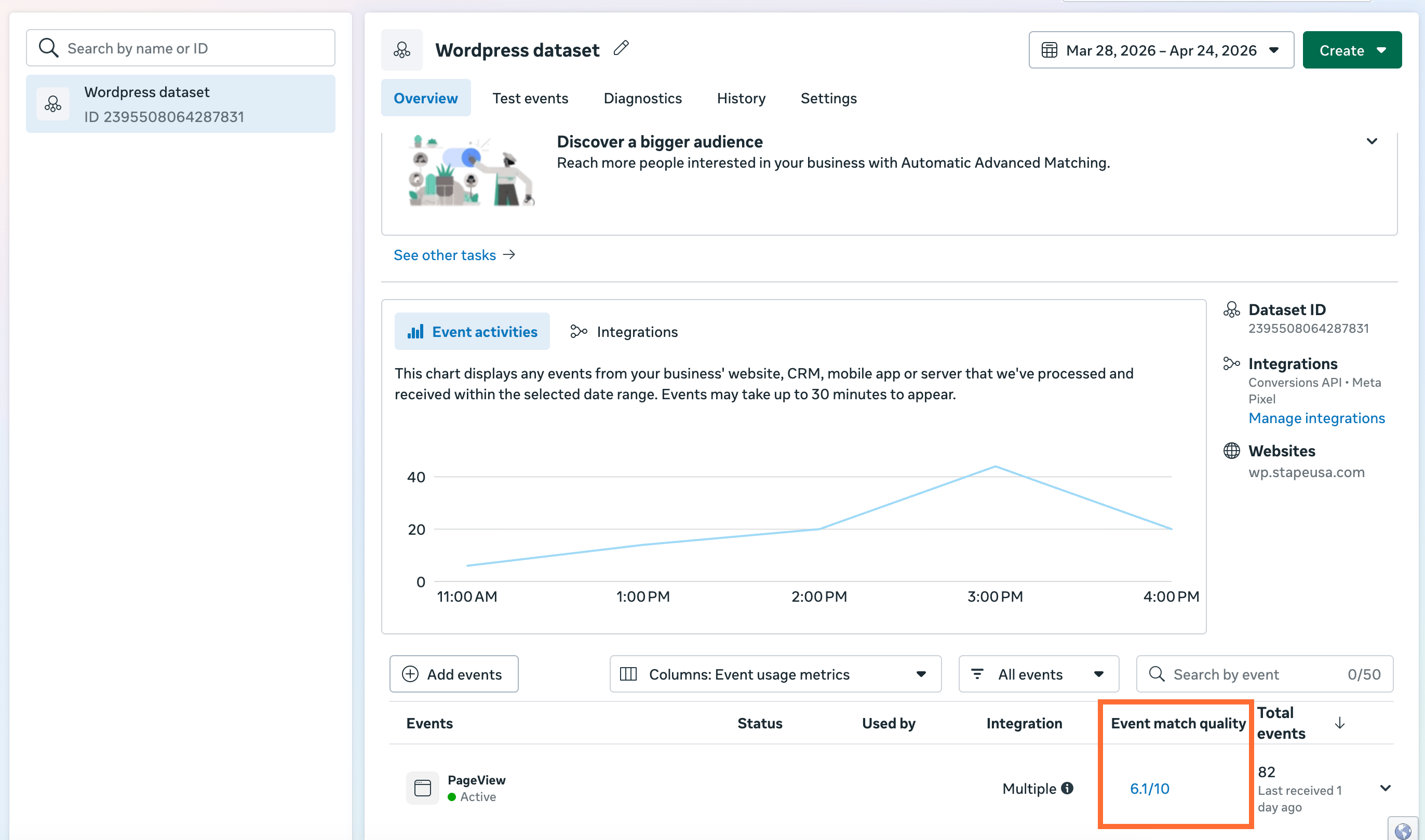
- Event Match Quality. In the Events Manager, check EMQ for each key event. Expect ≥ 6.0 once advanced matching data is flowing. If the score is <6.0, read Facebook Event Match Quality – what it is and how to increase it.
Conclusion
Signals Gateway offers a simple solution for establishing server-side tracking. Say goodbye to the hassle and expense of complicated configurations. With Signals Gateway, you can have it up and running, even if you’re not tech-savvy. Ready to give it a try? Start with a free plan today!
Would like to try Signals Gateway?
Start with a Free plan! Click on <BannerAnimation>Try for free </BannerAnimation> to register on Stape and create Signals Gateway.
Try for freeRecommended for you
Blog
How to set up Meta Conversions API Gateway
Set up Meta CAPI quickly with the CAPI Gateway. The tool simplifies server tracking, allowing even non-technical users to connect pixels and improve measurement.
Aug 4, 2025

Comments