May 20, 2026
AI that actually helps with measurement: Stape's AI Assistant and three free MCP servers
Written by
Manisha Mistry
Published Jul 23, 2026 comments
Open LinkedIn, YouTube, or any other platform, and AI is everywhere, and everyone is using it in some shape or form.
Here's the thing though.
A lot of what is talked about is AI for content generation, LinkedIn posts, building tools, or a website. This is all fine, but if you spend your days like me inside Google Tag Manager (GTM), Google Analytics 4 (GA4), and a server-side container, none of that helps you. You're sitting there watching everyone else automate their workflow and think: where does AI actually fit into my day-to-day measurement work?
I'm Manisha Mistry, the Technical Director at MeasureU, and this is the question I get asked a lot lately. It's not usually "should I use AI" – it's more "how can I speed up my measurement workflows using AI?".
This is where Stape's new AI Assistant and the three free (yes, free) MCP servers come in. I've taught these MCP servers during two MeasureU live workshops now, and I use them daily for client work. They were the first AI tools I've used that actually integrated the measurement tools I already worked in.
In this blog, I'll walk through:
- What an MCP server actually is and how it works;
- The three MCP servers available on Stape (all free) and what each one does;
- Stape's new AI Assistant, what it does, and where to find it;
- When to use the MCP servers versus the AI Assistant, with some live use cases.
Let's dive in.
What an MCP server is and how it works
MCP stands for Model Context Protocol, and it's a standard way for a large language model (LLM) to communicate with the tools you already use.
If you have read or watched anything about MCPs on LinkedIn, you've probably seen it compared to a USB-C port. One universal plug, any device. While I understand why that comparison is not technically wrong, I'm not a fan of it, because it tells you nothing about what is actually happening under the hood. And that understanding is what makes you good at using these tools.
So let me explain it the way I explain it in my workshops.
Before MCP: the AI that hands you a to-do list
We've all tried this before – you go to your LLM and say: "Schedule a 30-minute meeting with Tim for next Wednesday at 5 pm".
The LLM – this can be Claude, ChatGPT, or Gemini – thinks about the task, and in the early days of LLMs it would come back with a set of instructions. For example, telling you to send him an invite through your calendar application of choice with some detailed steps.
This is all great, but I could have handed those instructions to anybody. It didn't actually do anything for me – it just handed me a to-do list back. Nothing was checked off my list.
After MCP: the AI that books the meeting
Now let's dive into the same prompt, but this time let's add in an MCP server that has two tools available to it: contacts and calendar.
In this case, just like before, I ask the same question: "Schedule a 30-minute meeting with Tim for next Wednesday at 5 pm".
Here is where things change: this time the LLM stops and thinks, "Okay, I need to schedule a meeting. Do I have tools that can help?" It calls out to the MCP server and asks about tools. The server responds, offering up two tools: contacts and calendar. The LLM then makes a plan using those tools, tells the server what to do, and the server goes and does it.
The key difference is that this time the meeting actually gets booked as the LLM uses the MCP server to determine Tim's email and schedule the meeting in my calendar. This time something is actually checked off my to-do list.
Why this matters if you do measurement
That meeting example is handy because we've all booked one, but the tools in it – contacts and a calendar – are everyday tools.
Now swap them out for the tools you actually use daily for measurement, like GA4, GTM, or Stape. If you had MCP servers for those tools, you could use Claude to help with measurement work. For example, you could have it create tags, triggers, variables, stand up a server container, or check what is actually firing in GA4. Not a set of instructions telling you how to do it, but the LLM itself doing some of the manual work for you.
That is the impact MCP servers for measurement tools can have on your day-to-day measurement work, where instead of you doing the mundane, repetitive parts of building, you can hand off and then validate, rather than click through by hand every single time.
And that is exactly what you get with Stape: three MCP servers, one for each of those tools. So let's dive into each one.
The three MCP servers by Stape
Stape currently offers three MCP servers, completely free and all open source. I'll say it again – I am thankful Stape offers these to the community.
The GA4 MCP server
The first one is the GA4 MCP server. You can use this one to do a variety of tasks such as:
- Run reports in GA4 against specific dimensions and metrics;
- Run real-time reports to see what's happening right now;
- Generate an account summary to get a breakdown of the properties in that account;
- Check whether Google Ads accounts are linked;
- Fetch annotations from GA4.
I personally use this one a lot to get quick reports from GA4, check if new events are firing after they've been live for a day or so, or generate a summary of annotations over a time period. You can install the MCP server by following the steps on the Stape GitHub repo. If you're someone who goes into GA4 to do quick validation regularly, I recommend trying this MCP server.
The GTM MCP server
Next up is my favorite one (I know I shouldn't have favorites), the GTM MCP server, as it changed my week-to-week workflow the most. This one gives you the power to use Claude (even Claude Chat; we are not diving into Claude Code here) to do the following:
- Audit your Google Tag Manager container;
- Query what tags and triggers are set up;
- Query what variables are set up;
- Get a full breakdown of how the container is currently configured;
- Create tags, triggers, and variables;
- Spin up a brand new GTM container, properly structured, in minutes.
One thing I want to clear up, because I was DM'd about it constantly after the last workshop: you do not need Stape, and you do not need server-side, to use the GTM MCP server. This works perfectly well on a plain web GTM container and can really change your day-to-day GTM workflow.
For example, in our last workshop, one of our members showed us how she used the GTM MCP server to set up tags and triggers for something she had no data layer for. She had a page full of project cards with no way to see who was clicking which card, and by talking it through with Claude she had the tags and triggers scoped, tested, and published in about 30 minutes – work she reckoned would have taken her hours by hand.
So if your day-to-day includes GTM work, this is the MCP server you need to install, and you can learn about the installation at Stape’s GitHub repo.
The Stape MCP server
Finally, the last MCP server for our server-side friends (like me) reading this blog is the Stape MCP server. This MCP server handles the infrastructure for your Stape containers. Using it, you can do the following:
- See what containers are set up in your Stape account and check their status;
- Spin up a new Stape container and configure its code settings;
- Add custom domains to a container and validate them;
- Toggle and configure power-ups like Cookie Keeper, Anonymizer, and Proxy Files;
- Set container schedules to help control cost;
- Pull usage and billing details per container, and adjust plan tiers.
One thing worth flagging: if you have multiple Stape accounts, each Stape account needs its own configuration setup in Claude. So if you are running server-side, this is the MCP server for you, and you can learn about the installation at Stape’s GitHub repo.
If you want to learn more about setting up these MCP servers and get some Claude skills too, consider my MCP workshop.
What you need to run them
Now that we covered each MCP server in detail, it's important to know that to use them, you need the Claude Desktop app installed along with Node.js on your machine. The Node installation can get tricky, but once you have Node.js installed, all three MCP servers connect to Claude Desktop pretty quickly.
I would also strongly recommend a paid Claude plan, as using these MCP servers means going back and forth with Claude, asking, checking, refining. Having now taught these servers across two MeasureU workshops, and having watched a lot of people set them up live, the pattern is consistent. The free plan runs out of tokens before you get anything meaningful done. You want at least a Pro account that usually runs around $20–30 a month, but that can change.
All three MCP servers together
Once you have set up and connected all three MCP servers, you have a line into every part of your measurement stack.
The Stape and GTM MCP servers can handle the building, which includes standing up your server-side container, configuring the domain, creating your tags and triggers, auditing what is already there, and potentially publishing when you are ready. Then the GA4 MCP server handles the data check to ensure events are firing and data is being collected.
One rule I always teach in my workshop is validate, validate, and validate. These servers are fast, and they are useful. They are not infallible, so you need to remain in the loop and validate what they set up or report back.
All three are free and open source, and I teach the full step-by-step setup for all three at MeasureU.
What is Stape's new AI Assistant?
The three MCP servers have been around for a few months now, and many are using them daily. More recently, Stape launched something a bit different: the AI Assistant. First, it's important to know that the AI Assistant is still in beta and that it's not a replacement for the MCP servers. Think of it as an easier, no-install way to do some of the functionality the MCP servers can do.
The AI Assistant lives directly inside your Stape account, so you need a paid Stape account to access it.
Out of the box, you can use it to query your Stape setup, but you can also connect it to your GA4 and GTM accounts, and query those too. It can answer questions about your setup, but it can also stand up Stape containers, spin up server-side containers, and set up tags and triggers in GTM.
To access it, log in to your Stape account and look across the top bar, and you will see AI Assistant.
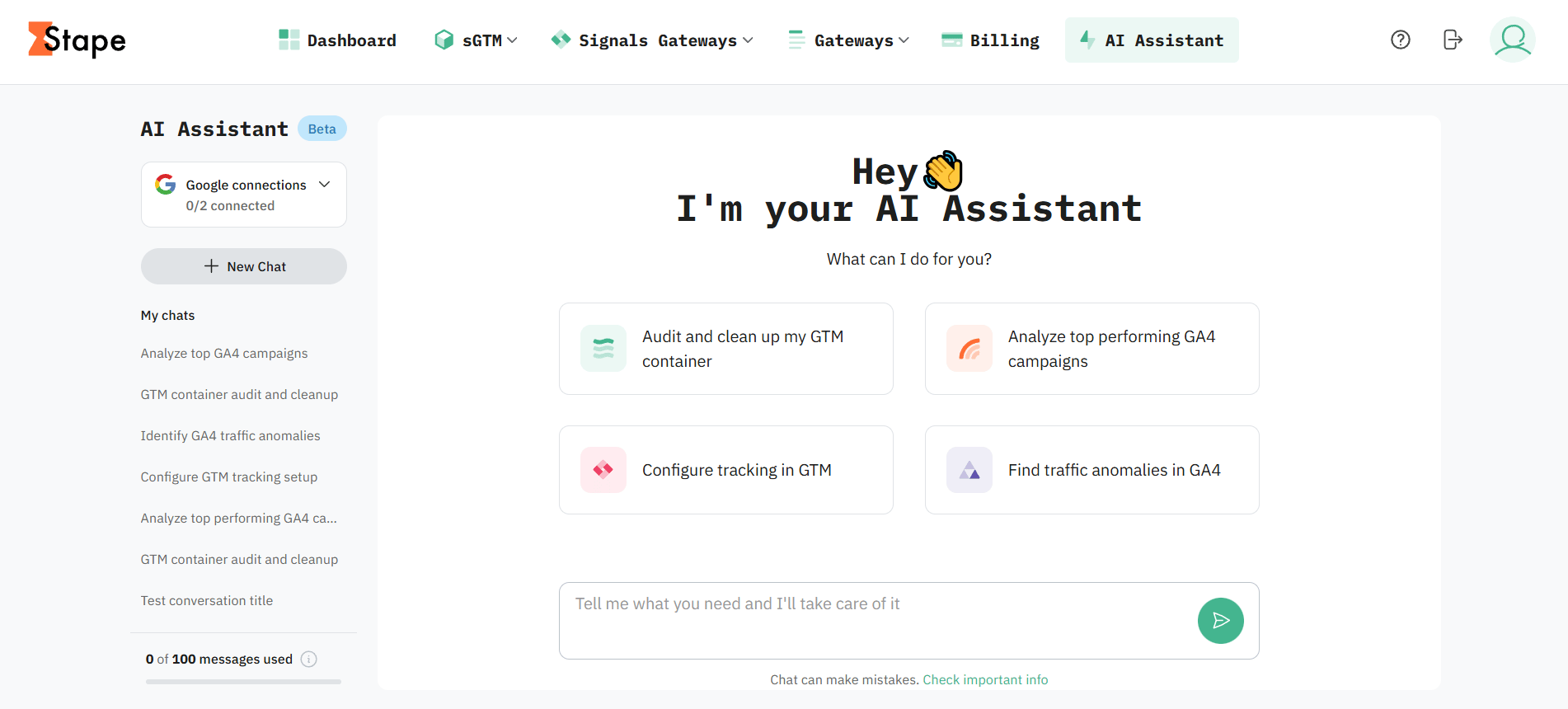
Simply click on it, type your question into the prompt box, and it comes back to you with a reply. Connecting your GA4 and GTM takes no more than two minutes – all you have to do is authenticate with the Google account that has access to them.
You can find a full walkthrough in the AI Assistant documentation if you want to go deeper on the setup.
Using the MCP servers vs. the AI Assistant
Now that we've covered both Stape's MCP servers and AI Assistant, the most obvious questions are: "When should I use which one? Are they competing? Do I need both, or can I get away with one?"
These are fair questions, and ones I've been thinking about a lot since the launch of the AI Assistant. Truth is, it's not that simple to decide which one you should use or select for your use case, so to help you understand, I broke down the difference between the two in the table below.
| AI Assistant | MCP servers | |
| Lives in | Your Stape account | Claude Desktop app |
| Setup | None. It's connected to Stape automatically, and you can connect GTM and GA4 in about two minutes | Install Node.js, then a one-time setup per server |
| Access | Read and write to Stape, GTM, and GA4 | Read and write to Stape, GTM, and GA4, plus any other tool Claude is connected to |
| Reach | The properties you have connected | Every container and property your account can access |
| Repeatable and automatable | No | Yes, using Claude Skills and scheduled tasks |
| Cost / limit | 100 messages a month, included in your Pro subscription | Claude subscription plus your token usage |
It all comes down to your specific need – if you want to get started fast, the AI Assistant is great for that. There's no setup, and you can dive right into prompting. That said, if you're doing similar work daily and want a repeatable, automatable process, the MCP servers shine there, as you can leverage Claude Skills to create those repeatable processes.
A known bug worth knowing about
I would be doing you a disservice if I skipped this one.
After teaching these servers a few times now, there is one consistent pain point members mention with the Stape MCP servers, and that is authentication. For the MCP servers to access your GTM and GA4 accounts, the server authenticates through a browser popup. Currently, the way the functionality works causes that popup to fire more often than it should and sometimes even when you are not actively using the servers.
It can be annoying, but to me it's a small downside for a big upside you get from using these MCP servers.
Don’t hesitate to contact Stape support at support@stape.io if you have any questions, issues, or suggestions regarding the feature.
Use cases
Now that we understand what we need to know about the MCP servers and AI Assistant, let's get into the fun part: using these MCP servers for client work. I've listed three use cases I use daily with these MCP servers for our own client work at MeasureU. I recommend that once you set up the MCP servers, you try each use case and then adopt what works for your day-to-day.
Use case #1: Audit a GTM container
We all take on new clients, and one of the first things we have to do is audit their GTM. Most of us have a standard process for an audit; that said, some containers are larger than others.
This is where the GTM MCP server really helped. Instead of executing the audit manually like I have a dozen times, I decided to train Claude on my process and lean on the MCP server to access GTM. Once I did it a few times in Claude chat, I worked with Claude to build a repeatable skill that would execute the audit on any GTM container I have access to. This was truly a time saver for me, as now I can get access to a new GTM container with like 300+ tags on Monday, and by Monday afternoon I have a full audit of the container completed using my process. My job is to review and validate it quickly and make the call on whether to proceed with this client or not.
Plus, as an added bonus, we share skills like these during our MeasureU MCP workshop, so our members get the same benefit without the build.
Use case #2: Stand up a new client (Stape + GTM)
This is where having more than one MCP server starts to make a difference and help a lot.
Every so often we take on a new server-side client. For that client, I usually need to spin up a new server in Stape, set up a new GTM server container, update the web container GA4 config tag, and add in the GA4-related tags/clients in the GTM server container. It's a pretty set process, so this is again where Claude can help, and with time you can build a Claude skill (you know I have).
The way it works is using the Stape MCP server, you spin up the Stape server, then using the GTM MCP server you spin up the new server container in GTM. Then, using both, you work through your configuration setup for the server along with tags, triggers, and variables. Once you do this a few times, you start working to build a skill from your process, and then you have a repeatable setup skill that you can use on any client.
One important note: for all my Claude skills that make changes to GTM, I always tell it not to publish. It's allowed to build in a new workspace, but leave it unpublished, so that I can then go validate it. This is a personal choice, as I like to validate what AI does, and it's what I advise during our MCP workshops.
Use case #3: Document a GTM change
This one is my favorite use case for the GTM MCP server, and was one of the first GTM Claude skills I built, as I really am not good at this manually.
We've all published a container change, and then months later, we're wondering why we made that change or what changed. Documentation is your friend in these cases, but if you're like me, it's not something I do well. I know I should do it, and I try to do it, but with so many things on my list, it usually gets done quickly or skipped.
So this is where I decided to see if Claude and the GTM MCP server could help me – and it did.
Now, after I publish a new container version, I go into my Claude (usually my Claude Code) and prompt it that I have published changes in a specific GTM container. I usually give it the link to that container, and I ask it to summarize the changes that were published. Then it presents me with a summary of the changes, which I review live in chat and just voice over any updates required. Once I approve the summary, it then updates my GTM Change Tracking Log in Google Sheets for that client and adds a note in the corresponding client ClickUp task.
This has been a big improvement for me when it comes to documentation, as I actually do it well now.
It's important to know that this use case is only possible because, in addition to the MCP servers mentioned above, I also have my Claude Code connected to my Google Drive and to ClickUp, so it can update those two systems. That said, that is the power of using multiple MCP servers to do your day-to-day workflows.
Wrapping up
So there you have it – we dived into Stape's three free MCP servers and how, once you connect them to Claude, they can help you with auditing a GTM container, spinning up a new server and GTM server container from scratch, updating your documentation, and much more. As I've continued to use these MCP servers over the last year, I keep finding new use cases for them, and I love watching our members at MeasureU find their own use cases over time too.
So as a next step, my recommendation is to set these MCP servers up in your Claude and start small. Pick one thing you do regularly – for example, an audit – and try that as a starting point. Then once that clicks, slowly go from there and add the next one.
That said, if setting up the MCP servers feels like a lot right now, it's totally fine. Start with Stape's new AI Assistant instead; just remember it's still in beta. Use it to get your hands wet with AI and measurement, and then when you're ready, come back and install the MCP servers.
Either way, you get to start using AI with your measurement and set up repeatable processes you can use again and again. So what are you waiting for – dive in, and if you get stuck, drop a comment below.
Recommended for you
Jun 15, 2026
Blog
Claude MCP guide: use cases, setup & best practices
Claude MCP connects Claude to external tools, enabling automated reporting and cross-platform workflows. Learn how it works, the configuration, best practices.
Aug 19, 2026

Comments