Sep 28, 2026
How to audit Google Tag Manager setup for better data
Written by
Maryna Semidubarska
Updated Sep 2, 2026 comments
Key takeaways:
- A Google Tag Manager (GTM) audit involves reviewing whether the container collects the right data and sends it to the right destination.
- Tools such as GTM Helper, Website Tracking Checker, GTM Tools by Stape, and Chrome DevTools with GTM Preview Mode can help find tracking problems.
- A complete audit should also check duplicate events, missing parameters, access permissions, consent behavior, and server container requests.
- After a fix, your setup should be tested across the main user journeys before publishing the updated container.
When GTM sends incorrect or incomplete data, marketing platforms receive the wrong signals. This can distort conversion reporting, attribution, automated bidding, and audience creation, leading to weaker campaign results and lower ROI.
A GTM health check helps to fix that and covers tags, triggers, variables, consent settings, data layer events, and server container requests.
What is a Google Tag Manager audit?
A Google Tag Manager audit is a structured review of the GTM setup. It covers account access, container installation, the data layer, tags, triggers, variables, consent settings, platform destinations, and testing procedures.
The goal is to compare the tracking plan with what happens on the website. This includes confirming that each important action creates the correct event, each tag fires at the right time, events are not duplicated, and the container is clearly organized for future updates.
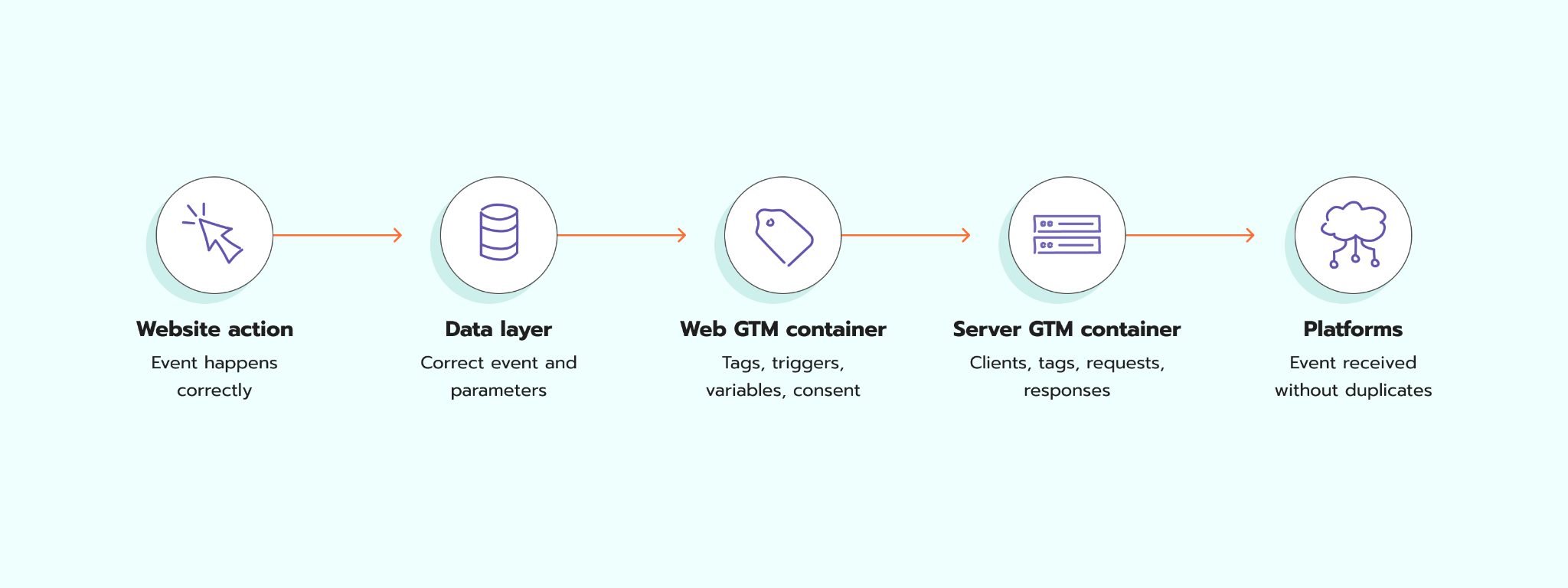
An audit can cover a web container, a server container, or both. When both are used, the review must follow requests from the browser to the server container and then to the final platform.
Benefits of Google Tag Manager auditing
- More accurate reporting. The audit finds missing events, duplicate conversions, incorrect parameters, and tags that fire on the wrong pages.
- Safer campaign optimization. Advertising platforms receive cleaner conversion signals for bidding, attribution, remarketing, and audience creation.
- Faster troubleshooting. Clear naming, documentation, and fewer unnecessary entities make errors easier to find.
- Better consent control. The audit confirms that tags respect the visitor’s consent choice.
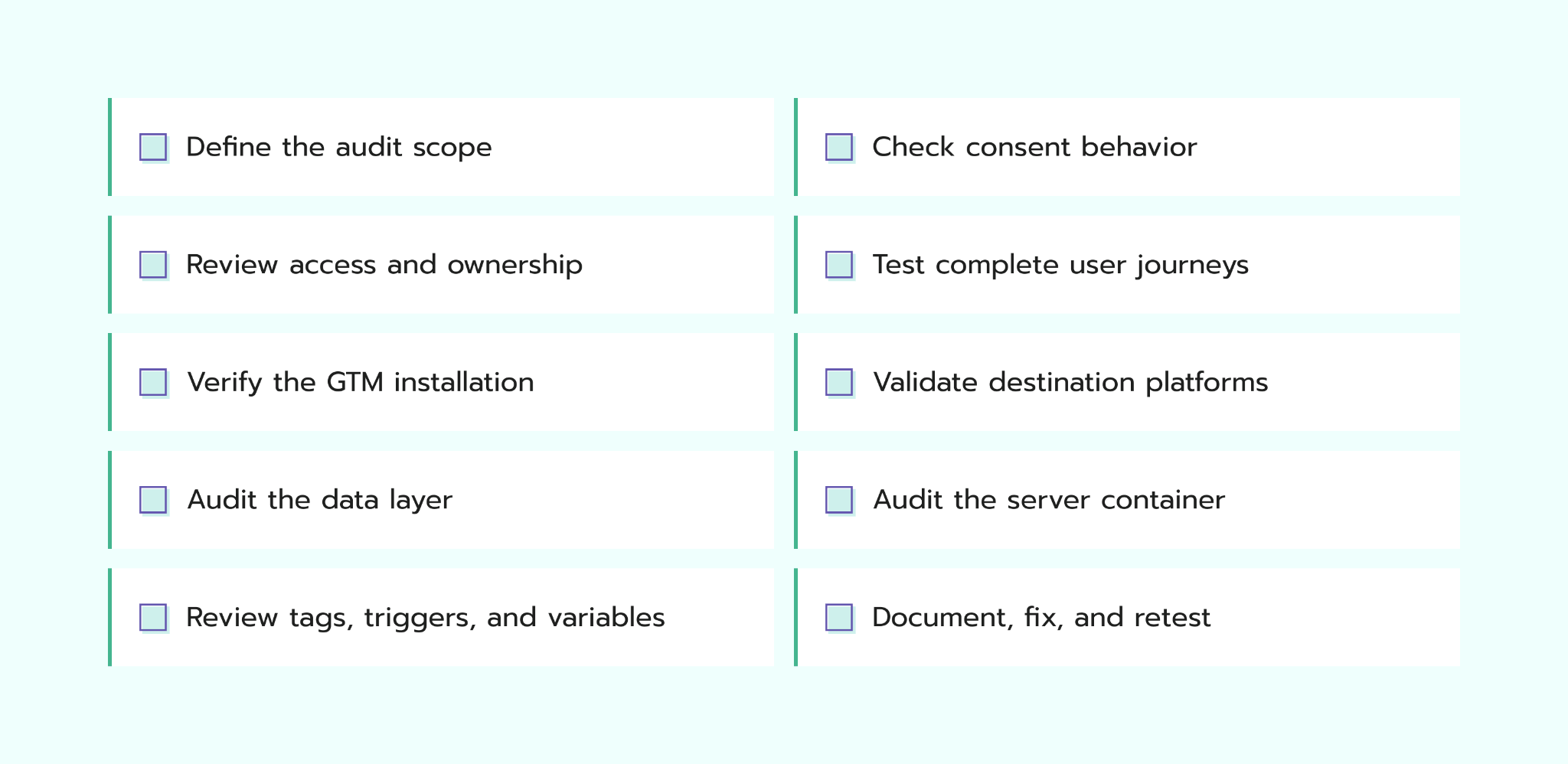
How to audit your GTM setup: checklist
A tracking audit should follow the tracking flow in order. Start with the business requirements, then have a look at the website implementation, container logic, and data received by each platform.
1. Define the audit scope
List the website actions that matter to the business, such as form submissions, registrations, purchases, subscriptions, calls, and downloads.
For every action, record the event name, required parameters, destination platforms, trigger condition, and data source. This confirms that the setup tracks what the business needs, not simply that a tag fires.
Also confirm whether the setup uses a server container and whether you have access to it. If no server container is used, skip the server container audit. If one is used but you do not have access, record this as a limitation of the audit.
2. Review ownership and access
Check that the company controls the GTM account and that trusted internal users have suitable administrator access. Remove former employees, expired agency accounts, and users with more permissions than their role requires.
Review the live version, unpublished changes, version names, and descriptions.
3. Verify the container installation
Confirm that the correct GTM container ID is installed on every page where tracking is required. If the website uses different page templates, check each page type separately, such as product, category, blog, landing, and checkout pages. Verify both parts of the web container snippet: the <script> code in the <head> and the <noscript> code immediately after the opening <body> tag. Also confirm that staging and production use the intended containers.
Look for duplicate installations. The same GTM container may load twice, or a Google Analytics 4 (GA4) tag may run through GTM and directly in the website code. This can create duplicate page views and conversions.
4. Audit the data layer
The data layer passes website information to GTM. Review it before judging the tags because a correctly configured tag cannot repair missing source data.
Make sure that event and parameter names are consistent, values are available before tags fire, and one action does not push the same event several times. Purchase events should include a unique transaction ID, value, currency, and product data where required. For single-page applications, where the URL and page content can change without a full reload, confirm that GTM sends a new page_view event when the user opens a new page or screen.
The website should use one data layer and must not overwrite it during the session. Use Preview Mode to inspect each message and compare its values with the action that created it.
5. Review web container tags, triggers, and variables
Open each tag and confirm what it sends, where, and when it fires. Check the trigger, variables, and consent settings. Remove unused tags and fix duplicate events, broad triggers, or missing values.
Pay extra attention to Custom HTML tags because they contain manually added code. See whether one of the GTM templates by Stape can perform the same task without manually pasting code into the container.
Use clear, consistent names for tags, triggers, variables, folders, and templates. Each name should show the platform, event, and purpose.
6. Check consent behavior
Test the website before a visitor makes a consent choice, after they accept or reject cookies, and after they change their choice. In GTM Preview mode, review the Google Consent Mode V2 values for ad_storage, analytics_storage, ad_user_data, and ad_personalization at each stage. Confirm that the consent management platform sets the default consent state before Google tags run and updates it after the visitor responds.
Make sure the cookie banner has options for the visitors to accept, reject, or customize cookies and that each choice sends the matching consent state to GTM. Incorrect or late consent settings can cause data collection to conflict with the visitor’s choice. They can also reduce the conversion data available for reporting, attribution, audience creation, and campaign optimization.
7. Test complete user journeys
Go through each important customer journey from start to finish, such as submitting a form, creating an account, or completing a test purchase. Check that every expected event fires once and sends the correct data.
Repeat the tests across devices, browsers, consent states, failed payments, page refreshes, and back-button use.
8. Audit the server container
Skip this step if your setup doesn’t include a server container in Google Tag Manager. If you do have one, confirm that web requests are sent to the correct server container URL or custom domain.
Need help with the setup? Follow our guides to set up a tagging server URL and add a custom domain to your server container.
In sGTM Preview mode, check the client assigned to each request, the available event data, the tags activated, and the response received from each destination. Inspect the browser Network and Console panels for failed requests, incorrect transport URLs, Content Security Policy blocks, and Cross-Origin Resource Sharing errors.
9. Validate data in destination platforms
GTM Preview Mode shows which tags fired and what data they used.
Go over GA4 DebugView and Realtime, Google Ads conversion diagnostics, Meta Events Manager, or the relevant platform tool. Compare event names, values, currencies, transaction IDs, and required parameters.
10. Document, fix, and retest
Record each issue with its impact, evidence, recommended fix, and owner.
In GTM, create a separate workspace for the audit fixes. Test each change in Preview Mode, review the workspace changes, and retest the main user journeys. Publish only after everything works correctly, using a clear version name and description.
5 most popular GTM audit solutions
| Tool | What it does | Best used for |
| GTM Preview Mode and Tag Assistant | Connects the website to Google Tag Assistant and shows data layer events, variables, trigger results, tag firing order, and consent information. | Manually testing whether the correct tags fire with the expected data before publishing. |
| Stape GTM Helper | Preview mode data is displayed in a structured view, with visual highlighting for GTM entities and readable formatting for requests and event data. | Reviewing complex web and server container setups with highlighted data in a clearer structure. |
| Website Tracking Checker | Scans a website URL to identify active analytics and advertising tools, browser and server-side tracking, cookie settings, and tracking scripts that affect page speed. | Getting overall score of the tracking setup and tips on how to improve the tracking configuration. |
| GTM Tools by Stape | Inspects and visualizes web and server GTM containers, showing how tags, triggers, and variables connect. It also helps find unused elements and manage several container items in a bulk. | Auditing large containers, cleaning up unused entities, and reviewing container structure. |
| Chrome DevTools | Shows tracking requests in the Network panel and JavaScript or browser security errors in the Console. You can inspect where a request was sent, what data it contained, and what response was returned. | Finding blocked requests, incorrect tracking URLs, missing event data, and scripts that fail to load. |
How Stape can help you with a GTM audit
You do not need a Stape account to start using Stape solutions. Stape GTM Helper, GTM Tools, and Website Tracking Checker are available without one.
When you create a Stape account and host your server container on Stape, you receive a wider set of tools for ongoing checks. With Logs, you can review incoming and outgoing requests and investigate missing data or platform errors. With Monitoring, you can set alerts for server errors and unexpected changes in event volume, so you can respond sooner without checking the setup manually every day. You can also configure a custom domain for first-party cookies and select Stape power-ups for specific data control or debugging needs.
How to use Stape AI Assistant for a GTM audit
Stape AI Assistant is an AI chat available inside the Stape account. It can answer questions about Stape and, after you connect Google Tag Manager and other platforms, review information from the selected GTM containers and other supported platforms. You can use it to get an overview of a container, examine its structure, and find areas that need a closer manual check.
Start with a read-only request so that the AI Assistant analyzes the setup without changing it. For example:
"Analyze this GTM container for duplicate or similar tags, broad triggers, unused variables, inconsistent names, and consent configuration that needs review. Do not create, edit, delete, or publish anything. Return the findings in a table with the entity name, issue, impact, and recommended action."
AI Assistant can also perform supported actions in connected accounts. Review every proposed change, apply fixes in a dedicated workspace, and leave them unpublished until testing is complete. Then test the updated setup in GTM Preview Mode, Chrome DevTools, and the destination platforms.
The chat can inspect information from connected accounts and containers, while browser and platform testing confirms what happens during complete user journeys. This includes data layer timing, consent updates, network requests, event parameters, and event delivery.
When to do a GTM audit
A GTM audit is useful whenever the website or tracking setup changes. It also helps find older issues before they affect reporting and campaign optimization.
Dan Murov, Product Manager at Stape, says the following about how often one should do a GTM audit: The short answer - regularly. GTM containers are tools, and any tools need some maintenance, even more so if container custody is shared by multiple people/teams. I'd like to encourage people not to be scared by the term “audit” and think of it as a hygiene exercise; it’s a routine thing, and most findings are hardly exotic - they are duplicate entities, unreferenced variables, and redundant triggers, legacy JavaScript variables and templates that have not been updated for a long time. One not-so-obvious matter I’d look into is tag sequencing, which is a source of pain a lot of times.
Run an audit:
- Before launching a new website or tracking setup. This confirms that important actions create the correct events before the data reaches marketing platforms.
- After a redesign, CMS migration, checkout update, or consent banner change. These updates can affect the data layer, page paths, and trigger conditions.
- When reports show missing data, unexpected changes, or duplicate conversions.
- After adding a new marketing platform, making important tag changes, or adding a server container.
- When an employee, agency, or vendor takes over or leaves the account. This keeps ownership and access permissions up to date.
- As part of regular maintenance. A setup that changes often needs audits more frequently than a stable one. For server-side containers, an audit works best as one part of a broader ongoing maintenance routine, with log checks and event monitoring filling the gaps between audits.
Typical mistakes when doing a GTM audit
- Starting without a tracking plan. A tag can work correctly while tracking the wrong action. Compare the container with the events the business needs and the data each platform should receive.
- Treating a fired tag as final proof. Preview Mode confirms that GTM ran the tag, but it does not confirm that the platform received the event with the correct data. Check the request and the destination platform as well.
- Testing only a successful journey. Also test rejected consent, failed forms or payments, page refreshes, back-button use, and repeated actions. This helps find missing and duplicate events.
- Looking only inside GTM. Tracking can also be installed directly in the website code, through a CMS plugin, or in another container. Check website scripts and browser requests for tracking outside the audited container.
- Skipping the server container. If the setup uses sGTM, follow the full request flow in server container Preview Mode. Check the incoming request, client, event data, tags, outgoing request, and platform response.
- Changing too much at the same time. Record the findings first, keep related fixes small, and apply them in a separate GTM workspace. Retest each group of changes before publishing.
- Relying only on automated tools. Scans and AI can point to possible issues, but they cannot confirm every user journey. Complete the audit with manual tests and checks in the destination platforms.
FAQs
Want to join the server side?
Try for freeRecommended for you
Blog
Simple tracking testing with Google Tag Manager Environments
Learn what Google Tag Manager Environments is and how to use Custom Loader with GTM Environments to test server-side tracking.
Jun 23, 2026

Comments