Sep 16, 2026
Tracking lead quality from CRM to GA4
Written by
Usman Qureshi
Published Sep 14, 2026 comments
Key takeaways
- Form submissions alone are an incomplete performance signal. Two campaigns can produce identical submission counts while delivering completely different business outcomes, so optimizing purely on form fills can mislead both teams and ad platforms.
- Tracking the complete sales funnel in GA4 by sending subsequent CRM lifecycle updates, such as
qualify_lead,working_lead, andclose_convert_lead, to your analytics platforms reveals true pipeline value and conversion quality. - Connecting delayed CRM events to original visitors is the primary challenge because web sessions expire long before sales cycles conclude, so you must capture and maintain persistent identifiers, such as email,
_ga - Stape's Enricher power-up helps solve the data-stitching problem by storing user identifiers from the first website interaction and automatically appending them to later CRM webhooks, successfully attributing offline sales outcomes to the original web traffic.
- For delayed CRM events, Data Store is more reliable than cookie-based storage since cookies can be cleared before a long sales cycle ends. Email address is the most practical matching key, but technical identifiers like
_gaorFPIDcan be saved into hidden CRM fields at submission time as a fallback. - CRM lifecycle updates can reach sGTM either through Stape's native CRM apps or a custom direct webhook. Whichever method is used, only safe reporting parameters (e.g.,
lead_id,value,currency,event_source) should be forwarded to GA4; user data used for internal matching should stay out of GA4 event parameters.
Form submission is generally a primary conversion for most lead-gen websites. Easy to track in GA4 and other platforms, as well as to use for analyzing campaigns, landing pages, and how traffic sources perform.
This is how things have been for quite a long time, but the only problem is that it only measures the beginning part of a lead's journey, which can be long depending on the sales cycle.
Two campaigns could each generate 50 enquiries while producing completely different business outcomes. One might generate a large number of irrelevant, duplicate, or unqualified leads. The other might generate fewer submissions but result in more sales opportunities and closed deals.
So, if measurement stops at the initial form submission, both GA4 and the advertising platforms are being asked to optimize using an incomplete signal, which could even be a low-quality signal if the leads are not high-quality.
But the information needed to measure the real outcome usually exists elsewhere. Where? Often in the CRMs.
Once a lead enters HubSpot, Salesforce, Pipedrive, HighLevel, or any other CRM, its status can change as the sales process progresses. A new enquiry might become a qualified lead, then an opportunity, and eventually a closed deal.
So the only way you can get the whole picture is if you send back those lifecycle changes to your analytics and/or ad platforms rather than using only the initial form submission as the end-all, be-all event.
Instead of measuring only an initial lead submitted event, for example, the tracking plan can include events such as qualified lead, opportunity created, and closed won, and these could be mapped to what would be available in GA4.
The difficult part is maintaining the connection between these later CRM events and the user who originally visited the website. Identifiers captured during the website visits need to remain available when the CRM sends an update, whether it's hours, days, or potentially weeks later, depending on the sales cycle for the business.
This is where sGTM and tools such as Stape's Enricher power-up can be pretty useful. Enricher can match incoming events to sGTM using identifiers such as email, _ga (GA4's cookie), FPID (Stape's cookie for GA4), and Stape-specific IDs, then add previously stored identifiers to later CRM, webhook, or offline events before the tags fire to their destination.
In this blog, we'll build a simple lifecycle flow from the initial website lead to the CRM updates. Let's get started!
Why are form submissions not enough?
Hear me out: a form submission is still useful because it tells you that someone completed the initial step in the lead journey, which is good enough for most businesses to get started.
The only problem is that it is generally a little too early in the sales process to be a lot more meaningful. A form submission does not mean that the person is a quality lead, e.g., they are ready to speak to sales, are inside the right service area, or likely to become an actual customer.
When lead-generation reporting stops at the form submission, here are a few things that can go wrong:
- Teams are happier with more leads regardless of quality, e.g., a campaign can be generating a lot of form submissions, but that doesn't mean all of them also become customers. So, the numbers look good on the platforms even if they don't do much for the business.
- Platforms optimize campaigns to get those users who are likely to submit the form, not necessarily those who would also become customers. This is because the only signal being sent back is a form submission, then the platform is blind and doesn't know what type of people become real customers.
- A false sense of higher conversion is attributed to landing pages. Yes, they do convert, but that depends on messaging, type of forms, offer, etc., and with that, they could be sending unqualified leads to salespeople.
- The true funnel stays in the shadows. So, you might be tracking the funnel of your multi-step forms, but that’s just what’s on the surface. The deeper layer remains disconnected somewhere in the CRM, where actual business is often done.
A much better way would be to keep the initial form submission as the first step and then also stitch the user with the later CRM lifecycle stages to give a fuller picture. For example:
| Lead lifecycle stage | Update when |
|---|---|
generate_lead | website form submitted |
qualify_lead | CRM marks the lead as qualified |
working_lead | sales team starts working the lead |
close_convert_lead | lead becomes a customer |
close_unconvert_lead | lead is closed as not converted |
See, now you have a full view of what happened to that initial form submitted, and this data can also be fed to the advertising platforms.
GA4 lead lifecycle events
Once the lifecycle stages are clear internally, the next step is deciding how those stages should appear in GA4. This isn't the difficult part, as GA4 already has recommended events for different CRM stages. Those later updates should usually come from the CRM. A practical split looks like this:
| GA4 Event | Source | Purpose |
|---|---|---|
generate_lead | Website | Captures the initial form submission |
qualify_lead | CRM | Confirms the lead meets your qualification criteria |
working_lead | CRM | Shows that sales has started actively working the lead |
close_convert_lead | CRM | Records that the lead became a customer |
close_unconvert_lead | CRM | Records that the lead was closed without converting |
For the initial form submission event, Google's recommended generate_lead event is generally pretty good to use.
For the later CRM stages, it's better to use GA4's lead lifecycle event names, as it keeps the tracking model close to Google's recommended structure and also powers the internal reports, just like the eCommerce reports do.
Although the naming could still be customized for the team using the data, if the sales team thinks in terms of qualified_lead, opportunity_created, closed_won, and closed_lost, or any other names, for that matter.
The important part is to stick to consistent naming conventions across all the platforms so it's easier to manage and understand. For example, the first website event might include:
Event name: generate_lead
lead_id: TEST-CRM-001
lead_source: blog_form
lead_type: blog_demo
value: 100
currency: GBP
The lead_id can be pretty useful because it gives you a unique ID for QA and debugging. In a real-world setup, this might be the CRM contact ID, deal ID, enquiry ID, or another unique lead identifier.
The value of the lead depends on the business. Some teams assign an estimated value to each lead stage depending on what it means to the business, while others only assign revenue or value once the lead actually converts, which might be more practical. For example:
| Event | Example value logic |
|---|---|
generate_lead | Estimated value of a new lead |
qualify_lead | Still estimated value but higher than a new lead |
working_lead | Pipeline-weighted value or left blank |
close_convert_lead | Actual sales value/revenue |
close_unconvert_lead | Generally no value, or a reason for loss |
In GA4, you can then decide which stages should be marked as key events, aka conversions. You can keep generate_lead as a key event for volume reporting, but use qualify_lead or close_convert_lead as a solid base for lead quality.
Following these conventions is helpful because Stape's Enricher and sGTM are part of transporting the data from one point to another and, well, enriching it along the way, but the clean reporting still depends on clear event names and realistic values.
But naming the lifecycle events is the easy part here. The harder part is making sure the later CRM events can still be connected to the original website journey, and that's what we are going to explore next.
Connecting CRM updates and website journey
When a visitor submits a form, GA4 may have access to useful identifiers, e.g., its own client ID, session, as well as campaign-related info if UTMs are available.
But the CRM on the other side of the wall sees a different version of the same person. It can store their name, email address, phone number, company, lead status, lifecycle stage, value, sales owner, and any other geographic or demographic info.
Now, that info is useful for your sales dept, but it does not tell GA4 which website visitor, campaign, or original lead journey the CRM update belongs to. For example, the website might capture the initial lead like this:
generate_lead
lead_id: TEST-CRM-001
_ga: GA1.1.123456789.123456789
landing_page: /crm-lead-tracking
utm_source: google
utm_medium: cpc
utm_campaign: crm_lead_test
Later, the CRM might know this:
lead_id: TEST-CRM-001
email: test@example.com
lifecycle_stage: qualified
deal_value: 4500
currency: GBP
Even though both data points describe the same lead, they live in different places. The website event has the web analytics and campaign info, whereas the CRM event has the sales outcome. Lead-quality tracking depends on stitching those two sides, and that's why identifiers can be super helpful.
A CRM lifecycle event such as qualify_lead or close_convert_lead should include at least one reliable identifier that can be matched back to the original source when a user became a lead. This is often a CRM contact ID, deal ID, lead ID, email address, user ID, or any other unique ID captured the first time a form is submitted.
Without that identifier connecting the two systems, GA4 can still receive the CRM event, but the event becomes independent, not connected to the original user, which isn't very useful. You might know that some lead was qualified or closed, but not be able to reliably connect it back to the original person and/or their traffic acquisition source.
So, a robust setup needs to answer three questions when the tracking is being planned:
- 1.What identifiers are available and captured when a user submits the form?
- 2.Are those identifiers, or any one of them, also available when the CRM sends lifecycle updates?
- 3.Can sGTM use that identifier to enrich and dispatch the CRM event correctly?
This becomes even more important when there is a delay between the original form submission and the final CRM stage. A lead may be qualified the same day, but an opportunity or closed deal might happen days, weeks, or even months later.
By that point, the original browser session is obviously long gone. So, the CRM event needs a way to reconnect with the identifiers that were captured the first time. It is also important to note that user matching is different from session attribution.
Sending a later CRM event back to GA4 can help give better user- and event-level data, but it does not mean that GA4 will consider a deal closed weeks later under the original website session.
Session attribution in GA4 has its own rules and certain timing limitations. For longer sales cycles, the practical solution is to preserve the lead relationship, send accurate lifecycle events into GA4, and make them available for reporting and optimization.
In simple terms, the CRM knows what happens to the lead and the website tells you where the lead came from. Lead-quality tracking becomes more useful when those two views can be connected without relying on the browser session still being active, and sessions generally aren’t as long as sales cycles.
One way to do this is to pass identifiers into the CRM and send them back with each lifecycle update. Another approach is to let the server-side tagging store and reuse identifiers from earlier website visits/conversions, then enrich later CRM events when a match is found.
This is where Stape's Enricher becomes useful because instead of treating every CRM update as a completely separate event, Enricher can help stitch it with identifiers captured earlier in the journey before the event is sent to GA4, so a more complete picture can be painted.
How Stape Enricher helps stitch CRM events
Once your website and CRM have a shared ID for the same user, the next challenge is making that ID useful inside the server-side tagging flow.
Enricher stores data from incoming requests to sGTM and uses it to enrich future requests with missing or incomplete information. In this case, the original website event can help build a user profile, while the later CRM event can use that stored profile to recover identifiers that may be missing from the CRM's payload to sGTM. It can recognize returning users and enrich the events they trigger using user data collected earlier.
For instance, when the website tracks the first generate_lead event, the request may contain the GA client ID, FPID, ad click IDs, UTM parameters, and, where appropriate, user data like email address, phone number, etc. Enricher can store these identifiers from that request from web GTM to sGTM.
Later on, the CRM may send a lifecycle update such as qualify_lead. That CRM event may include the lead's email address, lifecycle stage, value, and currency, but it may not include the original GA identifiers or any ad click IDs. If Enricher can match the incoming CRM event in sGTM to data collected earlier, it can automatically fill in the missing identifiers before the event is sent to GA4, so it can attribute it to the same user.
A simplified step-by-step flow can look like this:
1. Website tracks and sends the following to sGTM with generate_lead event:
email_address_ga/FPID_gcl_aw_fbp/_fbc
2. Enricher stores selected identifiers.
3. CRM later sends qualify_lead event to sGTM with these parameters:
email_addressvaluecurrency
4. Enricher matches the CRM event and exposes the stored profile data to the current event.
5. sGTM dispatches qualify_lead to GA4.
Stape's matching order in Enricher starts with the email_address parameter from the standard payload fields, then falls back to identifiers such as the _sbp cookie (Stape's own), FPID (GA4 cookie set by Data Client), _ga (GA4), _dcid (for Stape's Data Client), and the stape-user-id header.
This means the email address is often the most practical matching ID or key for CRM lifecycle updates, because it can exist in both the original form submission and the later CRM record.
A parameter like lead_id is still useful, but as we said earlier, it is mainly there for QA, debugging, and reporting. Enricher matching should be planned around the identifiers it supports and stores.
In a real-world implementation, the matching strategy should be decided before the CRM webhook, CRM app, or server-side tag mapping is finalized/implemented.
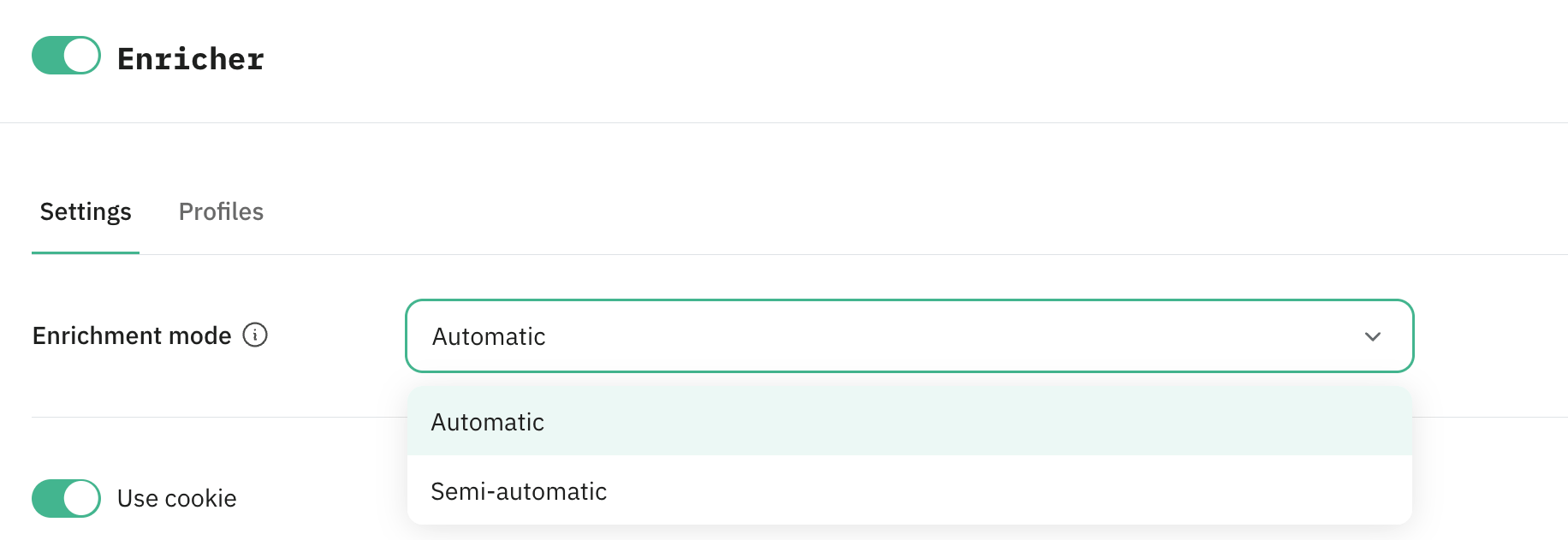
Coming to Enricher's configuration, it can work in two modes:
- 1.Automatic - this is applied by default, where Enricher maps data to standard parameters for GA4
/g/collectand Data Client/datarequests, so most tags can parse and use that data without any additional configuration. This is understandably easier to work with as it does most of the work. - 2.Semi-automatic - enriched data is added as custom parameters prefixed with
enricher_, making those fields available in Event Data for custom mapping logic. This is a bit more custom, so unless there's a proper use case, I'd avoid it.
For CRM-to-GA4 tracking, the storage method is also important. Enricher can store data in an encrypted _sbpee cookie, in Data Store, or both.
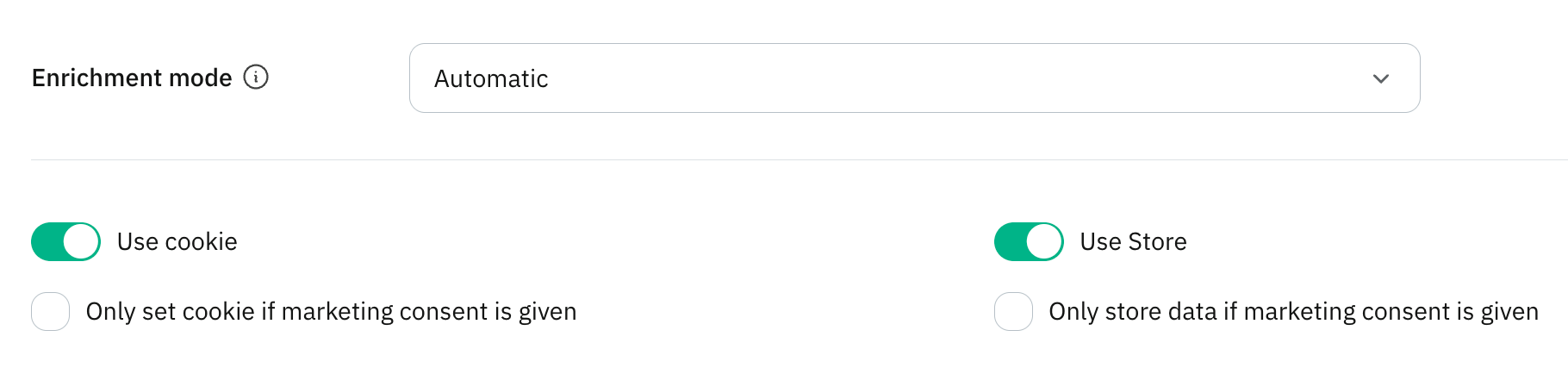
Cookie storage can be useful, but it is less reliable because, as you know, cookies can be deleted by the user or their browser due to increased privacy checks.
Data Store stores the data in Stape's built-in NoSQL database and can be pretty reliable for enrichment, although it counts toward the subscription usage quota, so bear in mind the added costs - nothing good is ever free, is it?
In fact, for delayed CRM lifecycle events, Data Store is an even more relevant option because the update may happen later and arrive from a webhook, CRM app, or external data stream rather than from the visitor's browser.
Store Store is also a good option for cross-device, cross-session, and offline matching, because cookie mode is more device/browser reliant. But using both of them can be great for a better match rate.
Data Store does more than just Enricher matching. Discover how it can also help you solve cart recovery, advanced personalization, and ITP restrictions in our complete guide to Data Store use cases.
This part of the setup should also be consent-aware. For GA4 requests, Enricher uses Consent Mode V2 parameters, and for Data Client requests it uses the consent_settings object.
So, if consent is required, make sure storage and enrichment only happen when the appropriate consent has been granted, and above all, user consent is respected.
Now your CRM update becomes a lead-quality event that can carry enough identity context to be useful in GA4 and, where needed, other platforms too.
Let's put it all into a simple example.
Example flow: from generate_lead to close_convert_lead
A visitor lands on the website from a paid campaign and submits a lead form. At this point, the website can send the first GA4 lead event: generate_lead.
For testing purposes, the event could include parameters like:
lead_id: TEST-CRM-001
lead_source: blog_form
lead_type: blog_demo
value: 100
currency: GBP
At this step, the goal is not just to send generate_lead to GA4 but also to make sure the identifiers needed for later matching are available to the sGTM. Depending on the implementation, this could include GA4's client ID, FPID, any ad click IDs, user data such as email address, phone number, etc., and any other identifiers that are allowed and also useful for the business. The flow then looks like this:
- 1.The visitor submits the form.
- 2.The website sends
generate_leadfrom web GTM. - 3.Server-side GTM receives the event.
- 4.Enricher stores selected identifiers (or all of them).
- 5.Lead is created or updated in the CRM.
Later, the CRM updates the lead. For example, the sales team reviews the enquiry and confirms that it is a qualified lead (yay!). The CRM can then send a lifecycle update to sGTM via webhook: qualify_lead. That CRM event may include:
lead_id: TEST-CRM-001
email_address: test@example.com
value: 500
currency: GBP
event_source: crm
If Enricher can match that CRM event to the earlier website activity of the visitor, it can add back the selected identifiers before the event is sent to GA4, which then receives qualify_lead as a lifecycle event for the same user, not just another stand-alone server event.
The same process can repeat as the lead moves through the sales process:
| Stage | Example GA4 event | Sent from |
|---|---|---|
| Form submitted | generate_lead | Website |
| Lead qualified | qualify_lead | CRM |
| Sales starts working the lead | working_lead | CRM |
| Lead becomes customer | close_convert_lead | CRM |
| Lead is closed without converting | close_unconvert_lead | CRM |
For example, when sales starts actively working the lead, the CRM might send:
working_lead
lead_id: TEST-CRM-001
value: 1500
currency: GBP
event_source: crm
And when the deal is won, the CRM might send:
close_convert_lead
lead_id: TEST-CRM-001
value: 4500
currency: GBP
event_source: crm
This gives GA4 a much better view of the lead journey. The original website event still exists, but it is no longer the only major conversion event. GA4 can now receive later CRM outcomes that show whether the lead was actually valuable.
A simplified architecture looks like this:
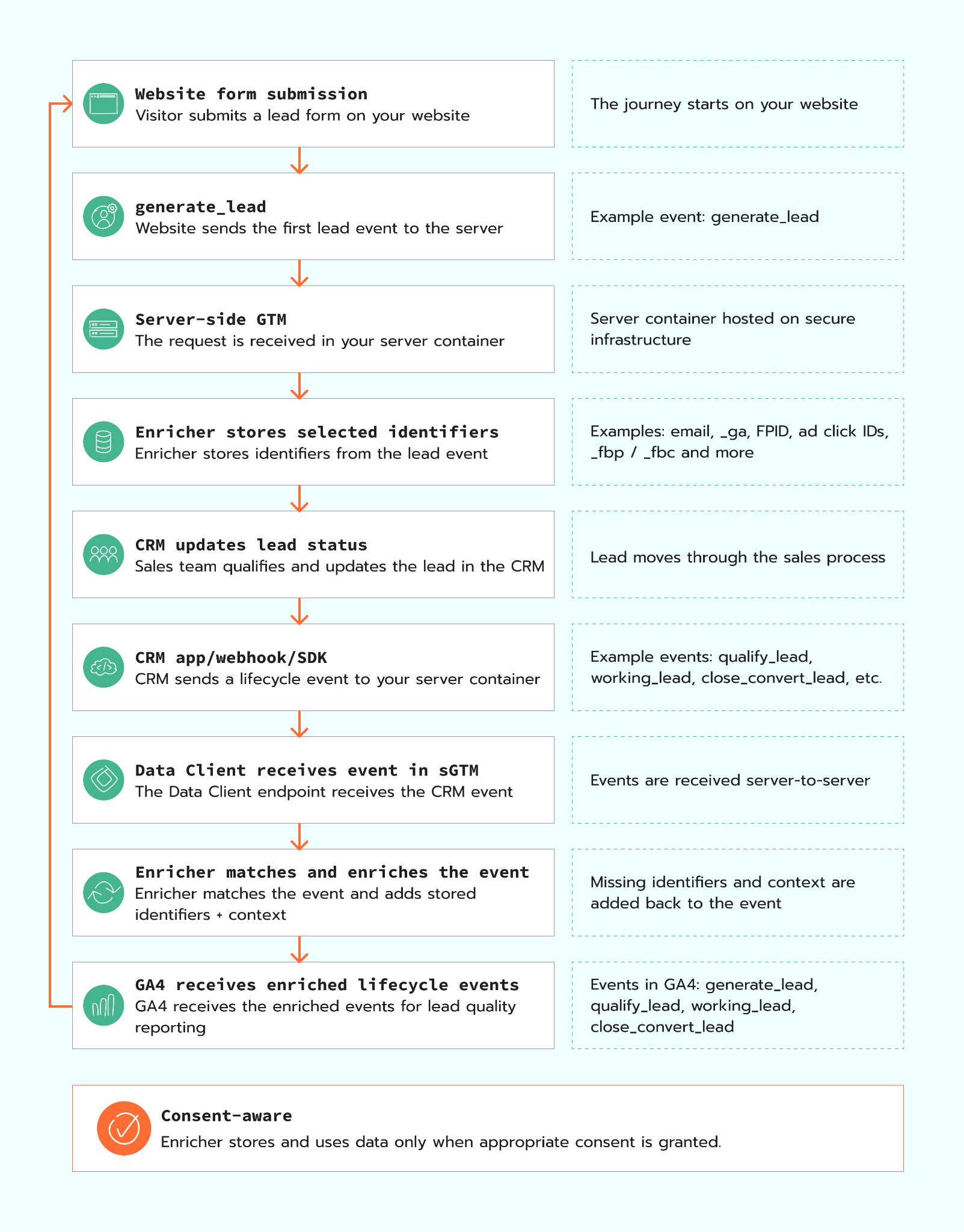
This is also where testing becomes somewhat easier. In sGTM Preview, you can check whether the website event is received, whether the CRM or webhook event is claimed by the Data Client, and whether the final GA4 tag fires with the expected event name and parameters.
For a test setup before the real implementation, you do not need to wait for an actual sales cycle. You can use a test lead and simulate the lifecycle updates one by one to see how the data shows up in Enricher as well as GA4. The important part is that each event uses the same planned matching identifiers and follows the same naming convention you would use in a real implementation.
In GA4, the final result should be a lead journey that is easier to analyze:
- 1.
generate_lead - 2.
qualify_lead - 3.
working_lead - 4.
close_convert_lead
Time to run a few tests to show how it comes through to GA4.
Testing the CRM-to-GA4 flow
There are two practical ways to test the CRM-to-GA4 flow. The first is through one of Stape's CRM apps, which is the cleaner option when your CRM is supported.
The second is a direct webhook, which is useful when your CRM is not supported by a Stape app yet or when you want full control over the payload.
Notes for both options
Some important things to keep in mind for both options before we wrap it up:
- 1.sGTM preview - to preview webhook data in sGTM, you have to use Stape's sGTM Preview Header config. For manual webhooks, you have to first ensure
X-Gtm-Server-Previewis added in the request header. - 2.Using stable identifiers - in Zoho's test, the
lead_idis a timestamp, but in the actual implementation,lead_idshould be a stable CRM Lead ID, Contact ID, Deal ID, or another persistent identifier. This makes it easier to join multiple lifecycle updates for the same lead, such asqualify_lead,working_lead, andclose_convert_lead. - 3.Consent signals - if the CRM lifecycle event is sent to GA4 with a valid client ID, GA4 may use consent from the original website session. But when the event is coming through Data Client and may be enriched, stored, or routed to ad platforms, it is safer to pass consent explicitly, for example through a
consent_settingsobject. - 4.Whitelist data - CRM app and webhook payloads can include email address, phone number, name, and other user data. These may be useful for matching inside sGTM or Enricher, but they should not be sent to GA4 as event parameters. The GA4 tag in sGTM should whitelist only the fields needed for reporting.
- 5.Use GA4 client ID - if Enricher makes
_ga,FPID,_dcid, or another identifier available, do not blindly send those as normal GA4 event parameters. Where appropriate, the GA client ID should be used as the GA4 client identifier, while fields likelead_id,lead_status,event_source, value, and currency are sent as reporting parameters. - 6.CRM-to-GA4 lead-quality stitching - make sure the initial website lead event reaches sGTM and contains at least one matching identifier that will also exist in the CRM later. Email is often the easiest one, but if email is not available or cannot be used, technical identifiers such as
_ga,FPID,_dcid, orstape-user-idcan be saved into hidden CRM fields and sent back with lifecycle updates.
Enricher will only enrich a CRM event when it can match the incoming request to an existing profile. If the only request Enricher ever receives is the CRM webhook, it can store CRM fields such as email or phone, but it will not have the original GA client ID, FPID, click IDs, or campaign context unless those were captured earlier from the website session or saved into the CRM and sent back later.
And that's all for today, folks!
Conclusion
Wow, you really want to enrich the data, don't you? Well, you've made it so far and, considering it can be quite useful, I would suggest you should look into this sort of setup whenever the odds are in your favor.
To cap it off, form submissions are still worth tracking even if they are the initial contact by the user, but they should not be the only action used to measure your lead-gen campaign's performance.
A generate_lead event can tell GA4 that someone submitted a form, but it cannot tell you on its own whether that lead was useful, qualified, worked by sales, or converted into a customer. That information lives in the CRM.
By sending lifecycle updates such as qualify_lead, working_lead, and close_convert_lead back to GA4, you can build a better view of lead quality after the initial contact. The website captures the first interaction, the CRM captures the business outcome, and server-side GTM helps connect the two.
Stape Enricher makes this setup more practical by storing selected identifiers from earlier events, using them to enrich later CRM or webhook events when a match is found, and updating the profile when new useful data becomes available, e.g., City, Country, Postcode, etc.
This means that the CRM update does not have to arrive as a completely isolated server-side event. It can carry the info needed to make the event more useful for GA4 reporting and, where appropriate, other platforms including any ad platforms.
The key is to plan the setup properly by following these practices:
- Use clear lifecycle event names.
- Decide which stages should be sent to GA4.
- Capture a reliable matching identifier at the form submission stage.
- Use Enricher to store and reuse relevant identifiers.
- Send CRM updates through Data Client, webhooks, CRM apps, or SDKs.
- Whitelist only the safe reporting parameters that should go to GA4, not everything.
Once all this is in place, GA4 can move beyond counting form fills only. It can start showing which campaigns contributed to real pipelines or customers. And just like that, now you’ve got a lot more realistic business context to analyze the data in GA4.
Want to start on the server side?
Try for freeRecommended for you
Aug 20, 2025
Blog
Stape's Conversion Tracking CRM Apps: use cases and benefits
Stape's CRM apps for CRMs automatically send lead statuses updates from CRM to platforms such as Meta and Google Ads, improving campaign performance and audience targeting.
Sep 14, 2026

Comments