Sep 28, 2026
Stitching users across sessions with Stape just got easier
Written by
Manisha Mistry
Updated Aug 31, 2026 comments
Key takeaways
- User stitching, connecting a visitor's activity across sessions and devices, is fundamental to accurate tracking and stronger ad platform performance.
- Enricher power-up automates server-side user stitching at the infrastructure level, so you no longer need to manually configure the Stape Store Writer tag and Lookup variable.
- Rather than guessing, Enricher matches deterministically, checking six identifiers in strict order: email (primary),
_sbp,FPID,_ga,_dcid, andX-Stape-User-Id. - Once a match is found, Enricher fills in whatever user data is missing, including PII and ad platform click IDs like
_fbpandgclaw, on downstream events before your sGTM tags fire, without overwriting anything already there. - You can run Cookie mode (
_sbpee) for free, device-bound stitching, or Data Store mode for cross-device, cross-session, and offline matching, though the latter counts toward your subscription cost. Running both together is the recommended setup. - Enricher's biggest wins show up in boosting Event Match Quality (EMQ) scores, connecting offline and webhook conversions back to online user behavior, and closing cross-device tracking gaps.
- It's available on the Pro plan or higher, takes just a few clicks to set up, and includes a consent toggle that automatically respects Consent Mode V2 parameters.
If you've been doing server-side tracking for a while, you've probably built some version of user stitching yourself (I know I have a few times!). You captured an email when a user submits a form and stored it somewhere like Data Store. Then you pull back in that user data on every event that came after it or use it for cross-device tracking. It works, takes tons of time, but many of us know we need to do this to help improve our ad platform performance and provide them with useful data.
I'm Manisha Mistry, the Technical Lead at MeasureU, and I have done this setup a few times and know it can be a lot to set up and maintain. The pattern is always the same: capture the information, use a Stape Store Writer tag to save it, a Stape Store Lookup variable to pull it back, and then you repeat that for every identifier and every downstream platform.
Last month, Stape released the Enricher power-up, and it changed how I think about this entire workflow. Enricher does what we all have been doing manually, as it handles all of that stitching for us and makes user stitching almost too easy.
In this blog, I'll walk through what Enricher actually changes, how the matching works under the hood, the six (I know six) identifiers it tries to match on, and common use cases.
What Enricher power-up actually changes
The easiest way to understand the Enricher power-up is to compare it to what most of us are doing currently.
Standalone Data Store setup for user stitching:
- You write user data to Store using the Store Writer tag.
- You look up user data in Store using the Store Lookup variable.
- It is working, but it can take time to set up and manage.
Data Store via Enricher power-up:
- Stape extracts identifiers from incoming requests, stores them, and re-attaches them to future requests before your sGTM clients and tags fire.
- The enrichment happens at the infrastructure level, and your tags just see a fully enriched event arriving at the server.
My take... it is like MAGIC (but that is just my take). That said, let's dive into how it works and how it matches.
How it works
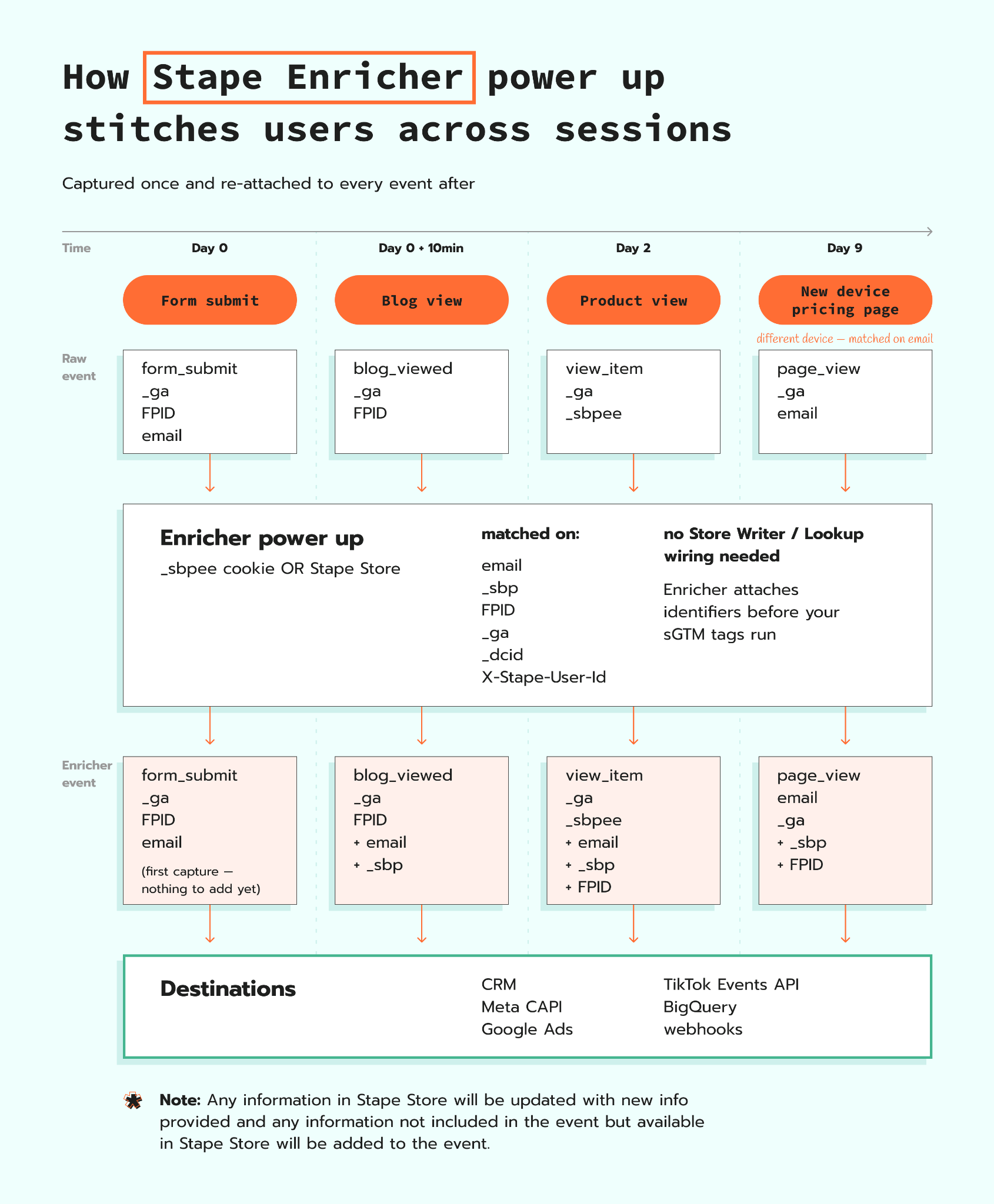
Whenever I need to understand something well, I like to visualize it, so below is a visualization of how the Enricher power-up will enrich data for all events once a user submits their information on a website and it is exposed in the event/data tag.
As visualized in the diagram, across all four columns, once the data is exposed, the Enricher power-up captures the user data and re-attaches it to every event after that point. It doesn't matter if the user is on a new session or device. As long as one of the six identifiers matches, Enricher's job is to match on the user, capture/update the user profile, and enrich any events downstream with user data that it is missing.
The column I want to call out is Day 9, where the visitor returns to the website on a completely new device and re-submits the same email. As Data Store can match on email, it will pull forward the full user profile, update the incoming event with any user data it is missing, and update the stored user profile with any new information.
The six identifiers Enricher matches on
This is the part that really impressed me about the Enricher power-up. Most times when I set up user stitching, I match on email or an ID, or both. Enricher takes this to the next level by offering the ability to match incoming events on any one of these six identifiers:
email- the primary identifier_sbp- Stape's app cookieFPID- first-party cookie ID_ga- GA4 client ID_dcid- Stape Data Client IDX-Stape-User-Id- Stape's User ID power-up identifier
Here is where I want to pause for a second, because the six identifiers above are what the Enricher power-up uses to match a user to an existing profile. That said, what Enricher stores in that profile is a much larger list, and what makes it so useful for downstream ad platform tracking.
Once Enricher finds a match on any one of the six identifiers, it stores everything you make available through your data/event tags into the user profile. That can include first name, last name, phone number, city, country, region/state, postal code, street, date of birth, gender, along with platform-specific click IDs for Meta (_fbp, _fbc), Google Ads (gclaw, fpgclaw), TikTok (ttp, ttclid), LinkedIn (liFatId), Pinterest (epik), and Snap (scclid, scid).
Then, when a future event comes through and matches on any one of the six identifiers, Enricher checks what is missing from the event and fills in the missing user data from the stored profile before your sGTM tags fire. This helps ensure your Meta CAPI tag, Google Ads conversion tag, and TikTok Events API tag end up with the click IDs and hashed user data, even on events that arrived at the server with almost no user data.
How the matching actually works
Before I wrote this blog, I wanted to understand how the matching across those six identifiers actually worked under the hood. So I hopped on a call with Dan Murovtsev, Stape's very own Product Manager. In his exact words, Enricher uses a deterministic approach when it comes to matching.
That means the Enricher power-up is not guessing or doing a 'contains match,' it is doing an exact match in a specific, hierarchical order to match the user on the site to the user data available.
The order goes as follows:
- 1.
email - 2.
_sbp(Stape's app cookie) - 3.
FPID - 4.
_ga(GA4 client ID) - 5.
_dcid(Stape Data Client ID) - 6.
X-Stape-User-Id
Enricher checks each identifier in the order outlined above on every incoming event. The first identifier that finds an exact match wins, and the stored user profile is used to fill in whatever user data is missing from the incoming event before your sGTM tags fire.
Additionally, the Enricher power-up is designed to keep data updated. This means when a new value for any user data shows up, like a new _ga, FPID, or email, Enricher treats that as the source of truth and updates the stored user profile. So, in a nutshell, the latest value replaces what was there before. I actually tested this myself by deleting the _ga cookie for a user that already had a profile created by the Enricher power-up, and the moment a fresh _ga came through, the stored profile updated to the new value.
| One important note: this newest-wins behavior applies only to the user data stored by the Enricher power-up. On outgoing events, the Enricher power-up only fills in user data that is missing, it doesn't overwrite any existing user data already attached to the event. |
Cookie or Store - which option?
The Enricher power-up gives you two storage options, and it is important to understand each option so you can make the right call with your client.
Cookie mode (_sbpee)
What changes: Enricher power-up writes a _sbpee cookie on the visitor's device when it captures identifiers, and re-reads that cookie on every event.
What does not change: your server cost remains the same, as the cookie is stored on the visitor's device, not Stape's infrastructure.
The trade-off: like any cookie, the cookie created by the Enricher power-up is device-bound, so a visitor on a phone and a laptop are two separate _sbpee cookies. Additionally, cookies can be deleted, and you don't get the benefit of cross-device or offline tracking.
Data Store mode
What changes: Enricher power-up writes the captured identifiers into Data Store on Stape's infrastructure, and matches incoming events against the full Store on every request.
What does not change: anything about your existing Store setup is untouched. The Enricher power-up just reads and writes to the same Store you've always had access to.
The trade-off: as always, using Data Store counts toward your subscription cost, so you will incur a cost. That said, that cost gets you cross-device, cross-session, and offline matching that doesn't depend on the visitor's cookies surviving, and the ability to pull offline data in via the Profiles CSV upload.
The recommendation
Cookie (_sbpee) | Store | |
|---|---|---|
| What it is | Cookie on the visitor's device | Data in Data Store |
| Cost | Free | Counts toward subscription cost |
| Persistence | Lifetime extends with Cookie Keeper | Persists until you remove it |
| Cross-device | No – device-bound | Yes |
| Best for | Within-session, same-device stitching | Cross-device, cross-session, offline → online |
After working through this with Dan, the recommendation from Stape and me is straightforward: run both if your plan and budget allow it. Cookie gives you the functionality, and Store gives you a fallback along with cross-device and offline matching.
Use cases
Now that we understand how Enricher works under the hood, let's dive into use cases where the Enricher power-up will make an impact for most of us. It is important to know that none of these are new ideas, many of us have been solving these same use cases using Data Store.
Use case 1: improve event match quality (EMQ)
Many of us have been on that call with a client where the topic of discussion is a warning in the Meta or Google Ads platform on a low EMQ score. It is never a fun call, and it usually happens when an event arrives in your sGTM container, and it is missing identifiers like email or phone number.
This is where Enricher can help, as when an event arrives, the Enricher power-up can check if it has user data stored for the user using one of the six identifiers. Then, if it does, it will fill in the missing user data, like hashed first name, last name, and phone, on the event before it goes downstream to Meta CAPI, Google Ads, and other platforms. This, in turn, improves the data being sent to the ad platforms and can help improve match quality.
Use case 2: connect online activity with offline conversions
This has to be the use case many of us are excited about, especially for any of our clients with webhook events or offline conversion uploads. Without the Enricher power-up, when a CRM webhook, offline conversion upload, or any other event from outside the browser arrives at the server, we usually only have user data such as email, phone number, and maybe name, but none of the cookie identifiers that tie that user back to the user's web behavior.
With the Enricher power-up on, the moment the offline event hits the server, it will try to match the user by email. If it finds a match, then it will fill in the missing user data from the stored profile, like _ga, FPID, _sbp, the platform click IDs, and more. That means now your Meta CAPI tag for an offline event can include the same identifiers as your Meta online events, which will improve your EMQ score.
This also works in the reverse direction using the Profiles tab in the Enricher power-up, where Stape allows you to upload an export of user data. Once uploaded, Enricher can match user data submitted online to profiles uploaded using email as the matching criteria.
Use case 3: cross-device tracking
I am guilty of doing this all the time, so I really find all the ways you can track someone visiting your site really interesting!
I start in Safari on my mobile, then a few hours later I jump on my laptop and add to cart, but wait, let's not finish there. I switch back to my phone later and complete the purchase. Seriously, I can't be the only one who does this again and again. Here's the thing, as a tracking professional, I know that without stitching, your tracking is broken or incomplete, as you can't tie my activities together across all these devices and sessions.
This is where Enricher shines.
As long as I use the same identifier, like email, across all devices/sessions, it can match me from the Data Store, and every event after that point will include the enriched user data. This will include events we send to Meta and Google Ads, so that can help improve our EMQ.
Setting it up
Now that we understand how Enricher works and the use cases it can help with, let's dive into the setup. I have to say, this is yet another area I was impressed with, as it was so straightforward. It only takes a few steps, and as long as you have the data available in a data/event tag, you're good to go.
Steps to set up the Enricher power-up
1. Log in to your Stape account and select your sGTM container from the dashboard.
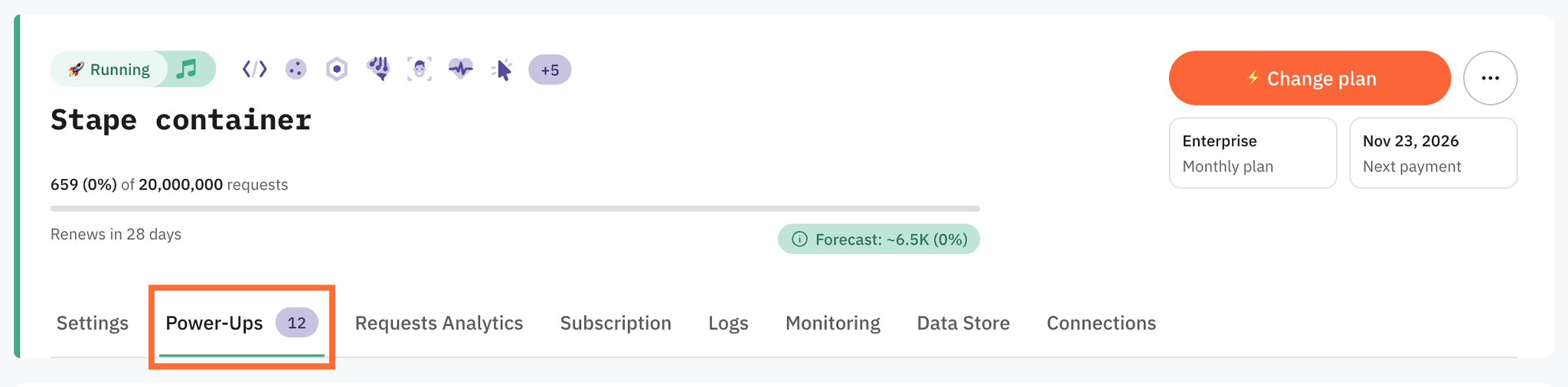
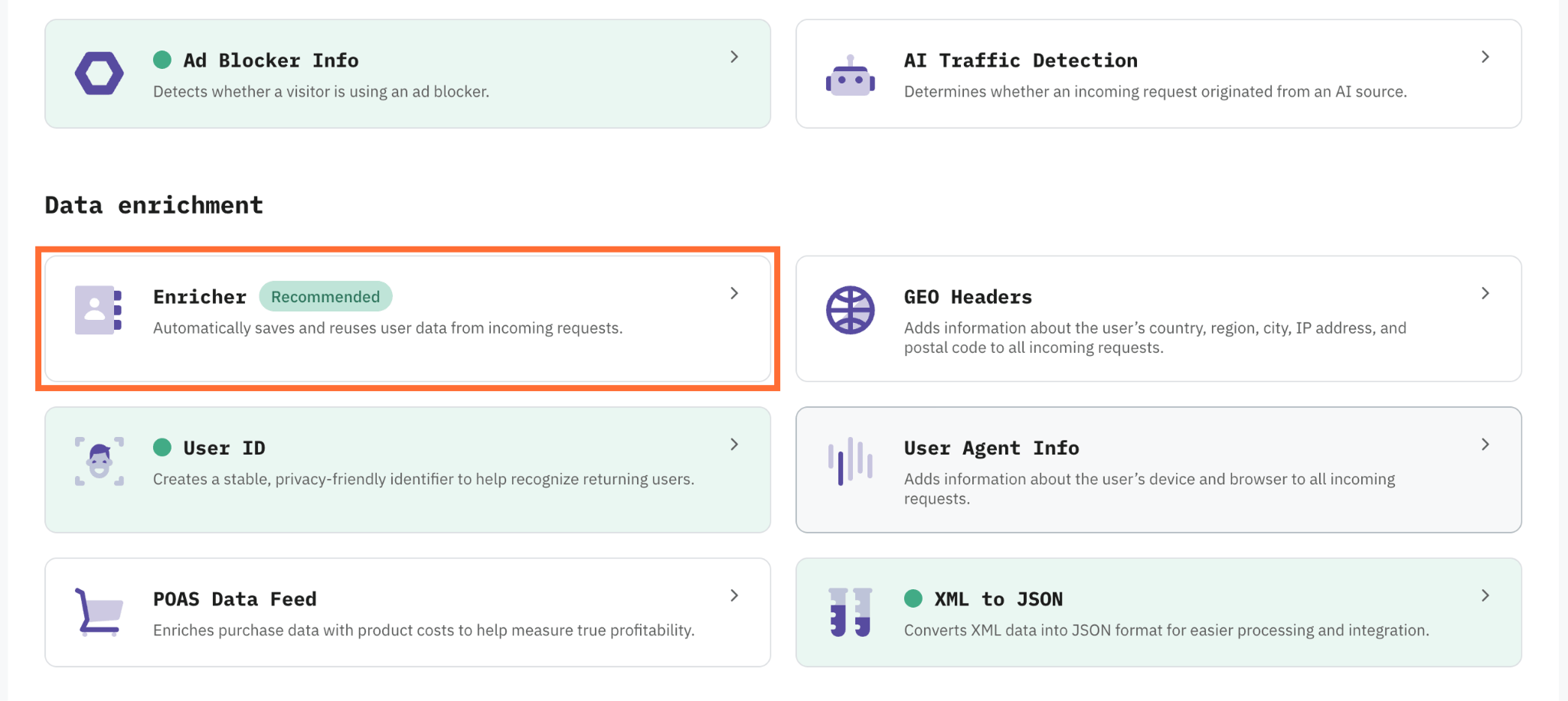
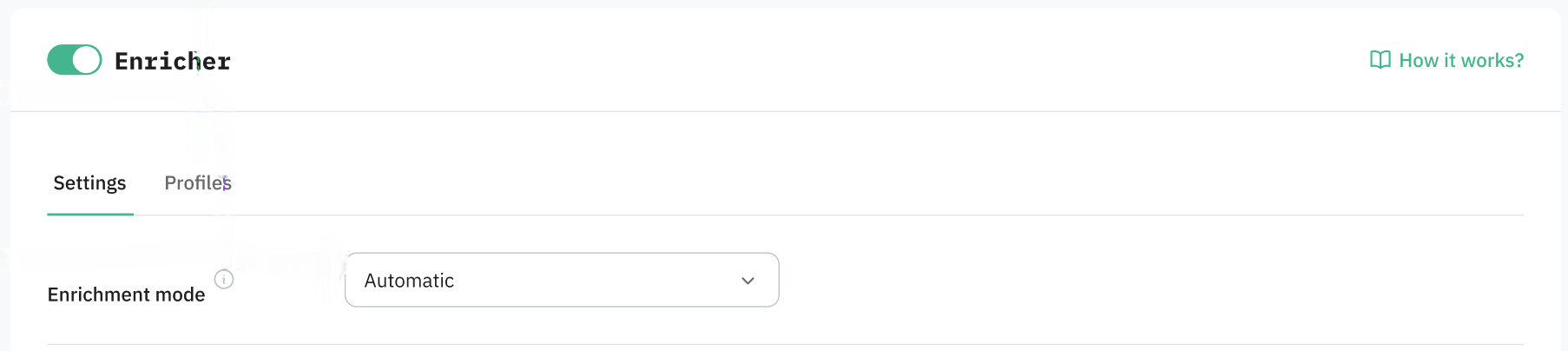
2. Go to Power-ups, scroll down to the Data enrichment section, and click on the Enricher panel.
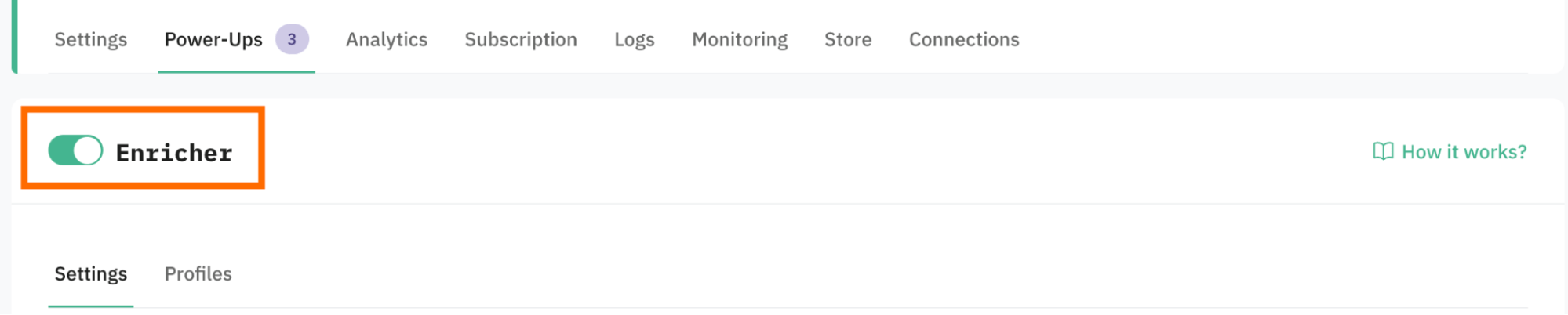
3. Toggle the Enricher switch to enable it.
4. Select the Enrichment mode:
- Automatic (applied by default) - the data from the Enricher power-up will be mapped to standard parameters for /g/collect (GA4) and /data (Data Client) requests. As a result, the majority of tags will automatically parse and use this data without any additional configuration.
- Semi-automatic - the data from the Enricher power-up will be added as custom parameters prefixed with
‘enricher_{standard_parameter_name}’.These parameters will be available in the Event Data, allowing you to configure your own logic on how to use the enriched data points.
Note:
Based on the Enrichment mode, the data is added using the different parameter keys, which we outline further down this guide.
The following request parameters are currently used to identify a user. They are evaluated in the order listed below, from highest to lowest priority:
- 1.
email_addressparameter (from the standard payload fields) - 2.
_sbpcookie (set by Stape CMS apps) - 3.
FPIDcookie (set by GA4) - 4.
_gacookies (set by GA4) - 5.
_dcidcookie (set by Data Client) - 6.
stape-user-idheader (provided by the Stape Power-Up)
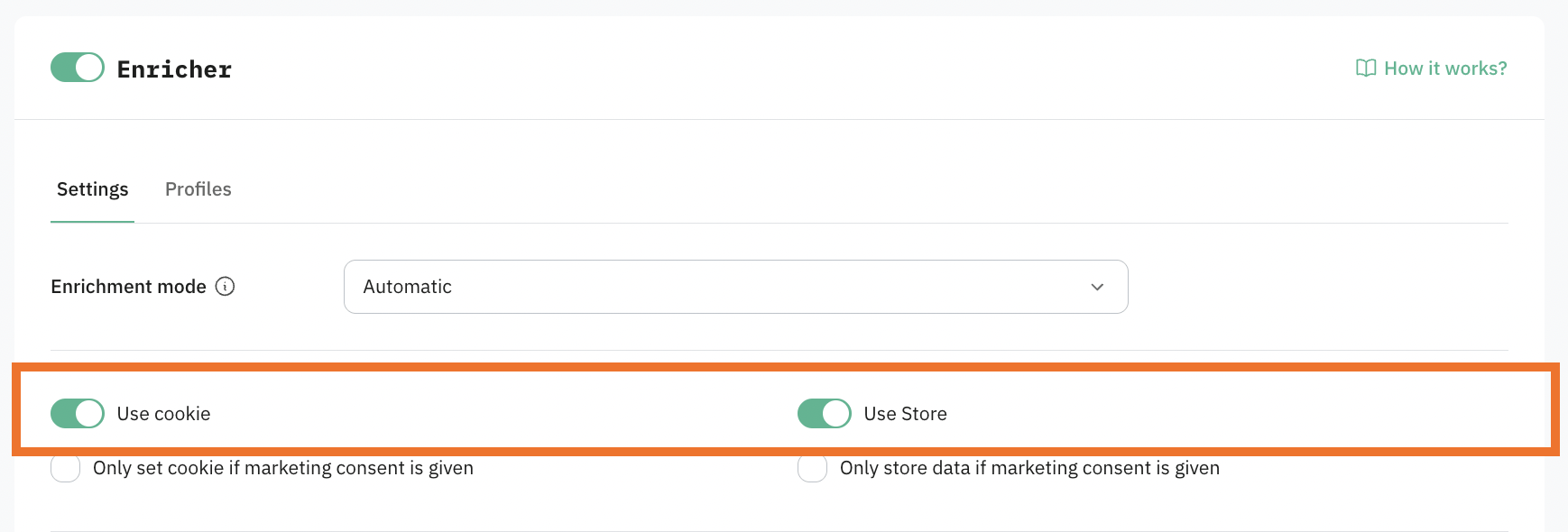
5. Select a method for storing user data by enabling the toggle next to the method. You can also use both.
- Cookies - if you opt for this method, a cookie called
_sbpeewill be generated, and the user's data will be stored in this cookie. This is a less reliable method than Data Store, as cookies can be manually deleted by the user. - Data Store - a built-in NoSQL database; with this method, users' data will be stored in the database and used to enrich incoming events. Storing data in a database is more consistent and reliable than using cookies, but it also comes at a cost - the stored data counts toward your usage quota within your subscription plan.
| Note: if you opt for Data Store, you will need to activate the feature to start using it. We describe Data Store in detail in our other article. |
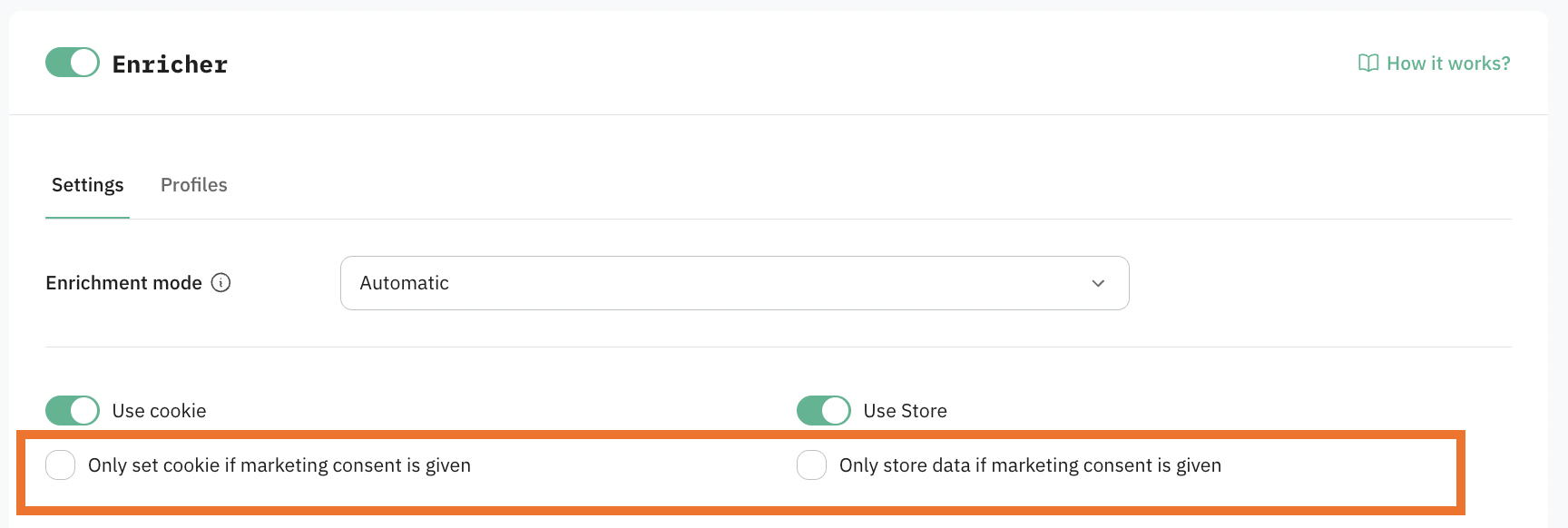
6. Configure how the power-up will work with consent.
If you need the power-up to be compliant with data regulations (especially if you target EU countries or some US states that have mandatory data protection laws), click on “Only set cookie/store data if marketing consent is given”. If enabled, Consent Mode V2 parameters are used for /collect requests, and the consent_settings object is used for /data requests.
After enabling this option, the event data won't be enriched with the user data you already have for cases when a user didn't give consent to process the data.
Be sure to update your cookie policy and cookie banner. Because the power-up sets a _sbpee cookie to store encrypted user data, you must provide users with an explicit opt-in choice.
7. Select data points from the list.
These are parameters that will be saved in a cookie/Data Store (depends on the power-up configuration method you've selected). Later, the data will be used to enrich events/incoming requests.
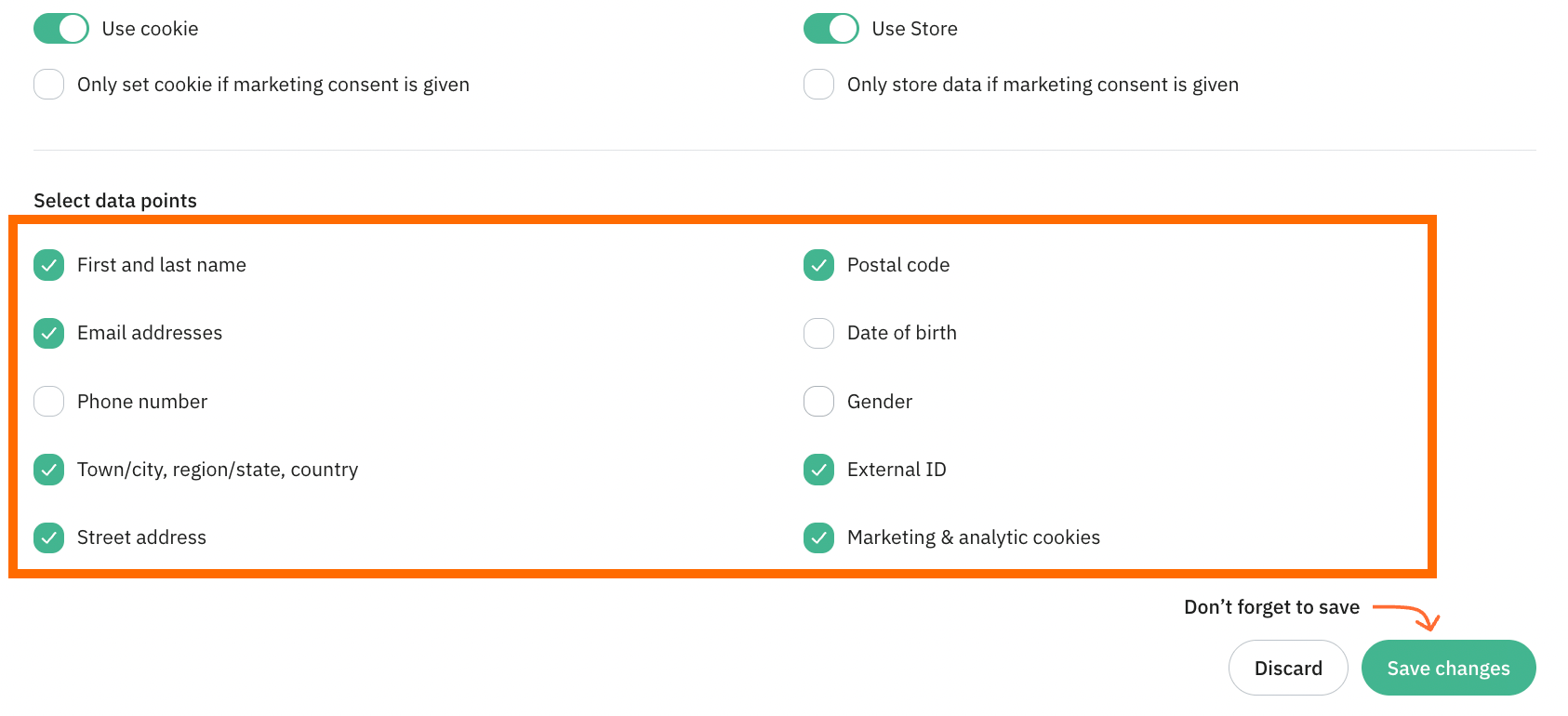
These parameters define what information will be available for event enrichment in both Automatic and Semi-automatic modes.
After selecting datapoints, the behavior depends on the enrichment mode:
- In Automatic mode, the selected data is automatically used to enrich incoming events in sGTM without any additional configuration.
- In Semi-automatic mode, the selected data is stored and attached to events, but you must explicitly map it in your sGTM tags using Event Data variables before it can be used.
For the Semi-automatic mode, you must manually create and use Event Data variables in your sGTM tags. These variables must correspond to the datapoints selected in the Enricher power-up. Here is an example of sGTM tag config:
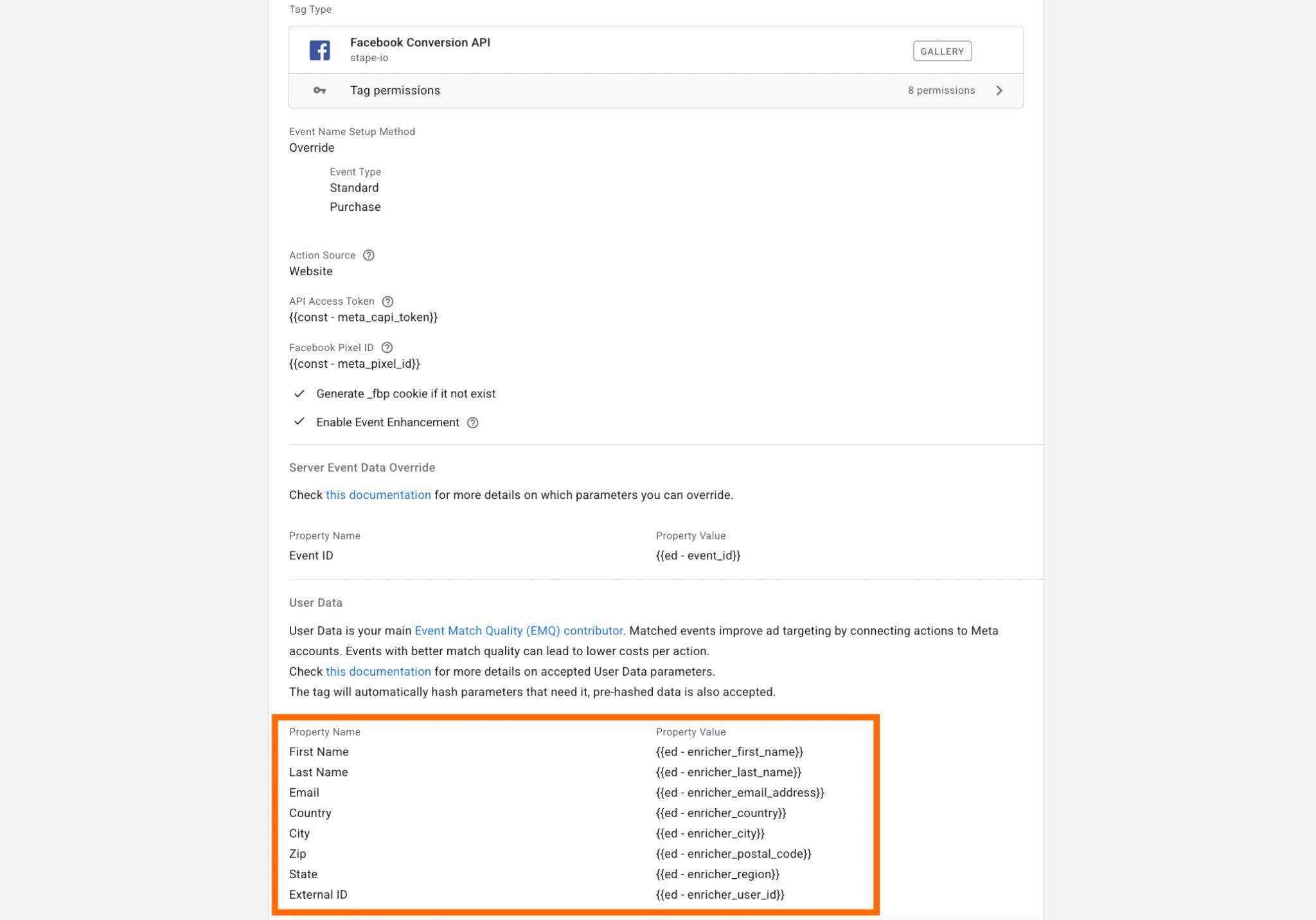
The Key Path in the Event Data variable must start with enricher_. Based on the request type (/g/collect or /data), the path will differ; refer to the table below:
| Data Store/Cookie key | Event data parameters in /g/collect requests | Event data parameters in /data requests |
|---|---|---|
| email_address | enricher_ep.user_data.email | enricher_email_address |
| phone_number | enricher_ep.user_data.phone_number | enricher_phone_number |
| first_name | enricher_ep.user_data.address.0.first_name | enricher_first_name |
| last_name | enricher_ep.user_data.address.0.last_name | enricher_last_name |
| city | enricher_ep.user_data.address.0.city | enricher_city |
| country | enricher_ep.user_data.address.0.country | enricher_country |
| region | enricher_ep.user_data.address.0.region | enricher_region |
| postal_code | enricher_ep.user_data.address.0.postal_code | enricher_postal_code |
| street | enricher_ep.user_data.address.0.street | enricher_street |
| date_of_birth | enricher_db | enricher_db |
| gender | enricher_gender | enricher_gender |
| external_id | enricher_user_id | enricher_user_id |
For automated Enrichment mode, the enriched data is added using the following keys in the cookie/Data Store. There are some differences between parameters for /g/collect and /data requests, displayed in the table below:
| Data Store/Cookie key | Event data parameters in /g/collect requests | Event data parameters in /data requests |
|---|---|---|
| email_address | ep.user_data.email | email_address |
| phone_number | ep.user_data.phone_number | phone_number |
| first_name | ep.user_data.address.0.first_name | first_name |
| last_name | ep.user_data.address.0.last_name | last_name |
| city | ep.user_data.address.0.city | city |
| country | ep.user_data.address.0.country | country |
| region | ep.user_data.address.0.region | region |
| postal_code | ep.user_data.address.0.postal_code | postal_code |
| street | ep.user_data.address.0.street | street |
| date_of_birth | db | db |
| gender | gender | gender |
| external_id | user_id | user_id |
Among the data points, there is also Marketing & analytics cookies.
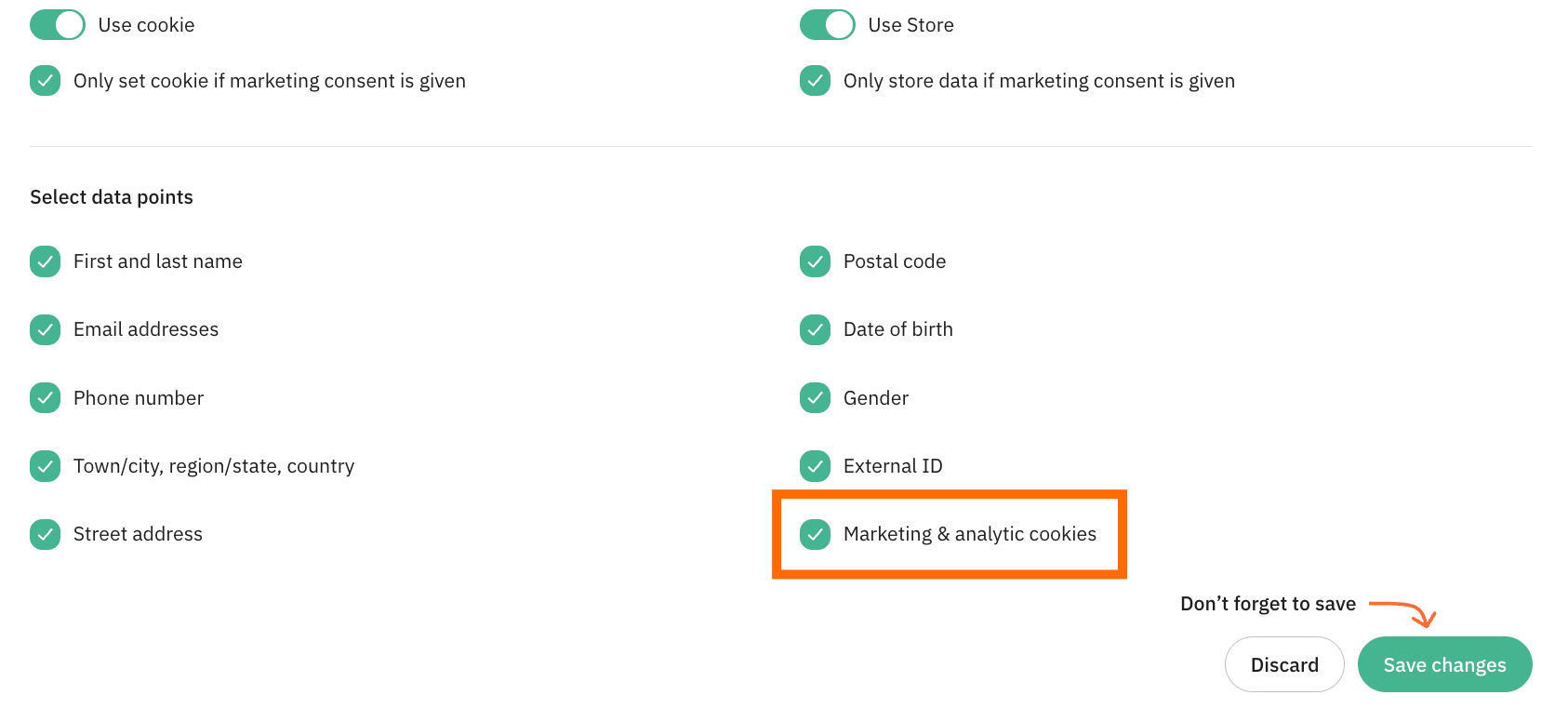
In the table below are listed the Marketing & analytics cookies we use to identify the user (if you opt for “Marketing & analytics cookies” as a data point), as well as the parameters that will be available in the incoming requests in sGTM.
| Cookie name | Event data parameters in /g/collect and /data requests for automated Enrichment mode | Event data parameters in /g/collect and /data requests for semi-automatic Enrichment mode |
|---|---|---|
| _fbp | _fbp | enricher_fbp |
| _fbc | _fbc | enricher_fbc |
| _ttp | _ttp | enricher_ttp |
| ttclid | ttclid | enricher_ttclid |
| li_fat_id | li_fat_id | enricher_li_fat_id |
| _epik | _epik | enricher_epik |
| _scclid | _scclid | enricher_scclid |
| _scid | _scid | enricher_scid |
| FPGCLAW | FPGCLAW | enricher_FPGCLAW |
| _gcl_aw | _gcl_aw | enricher_gcl_aw |
| FPID | FPID | enricher_FPID |
| _ga | _ga | enricher_ga |
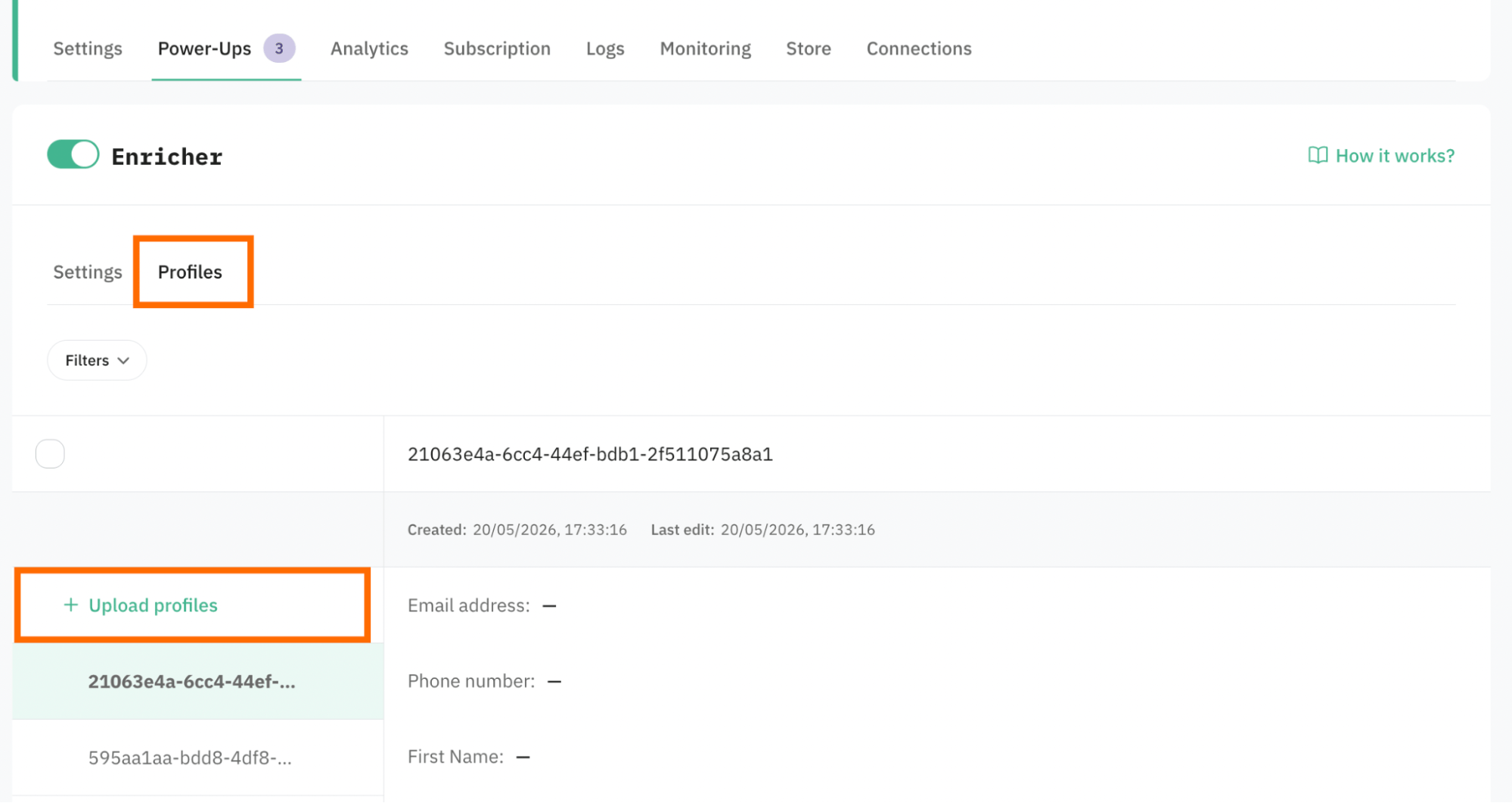
8. If you opt for the Use store option, the tab Profiles is available for you.
It gives the ability to upload a CSV with profile data (for example, uploaded from the CRM/CMS). If the profiles are uploaded, the power-up will take the data you provided and try to match it with online data activity, creating a more complete user journey.
To upload profile data, click Upload profiles and select your file.
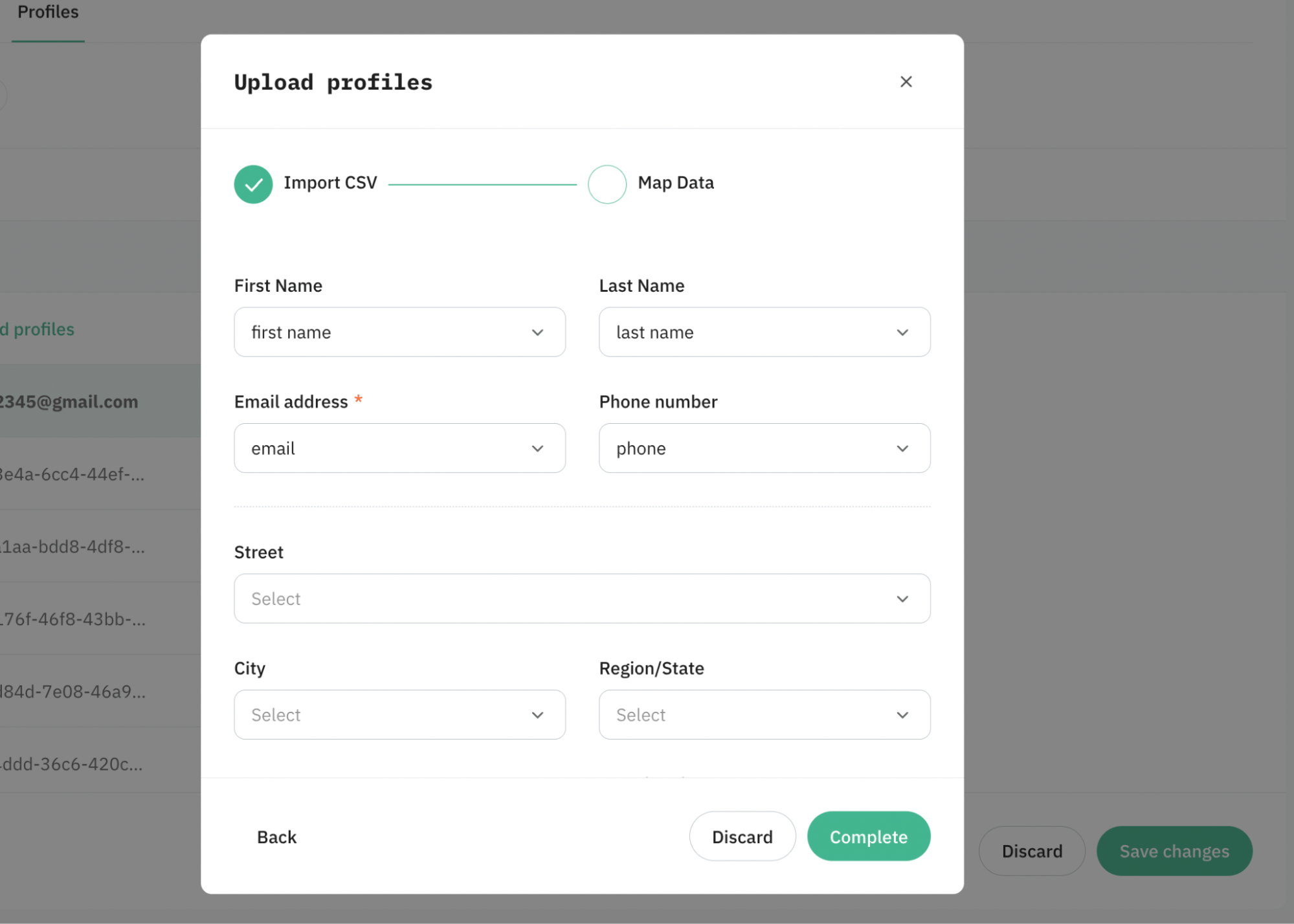
Map the fields within the power-up with the dataset uploaded. Please note: the email address is a mandatory parameter, since it's a primary user identifier.
During CSV upload, email addresses are validated before the import starts. If the file contains invalid or unsupported email addresses, the upload will fail, and an error message will be displayed.
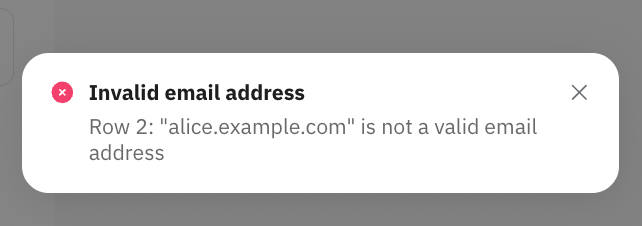
Also, during CSV upload, all field values are validated according to the limits defined in the table below. If a value exceeds the maximum allowed length, it will be silently truncated to fit within the limit (no error is returned).
| Parameter | Max allowed length |
|---|---|
| PhoneNumber | 32 chars |
| FirstName | 64 chars |
| LastName | 64 chars |
| City | 64 chars |
| Country | 64 chars |
| Region | 64 chars |
| PostalCode | 32 chars |
| Street | 128 chars |
| DateOfBirth | 32 chars |
| Gender | 16 chars |
| ExternalID | 64 chars |
9. Once configured, click Save changes.
Test the setup
To test the configuration, use the GTM preview.
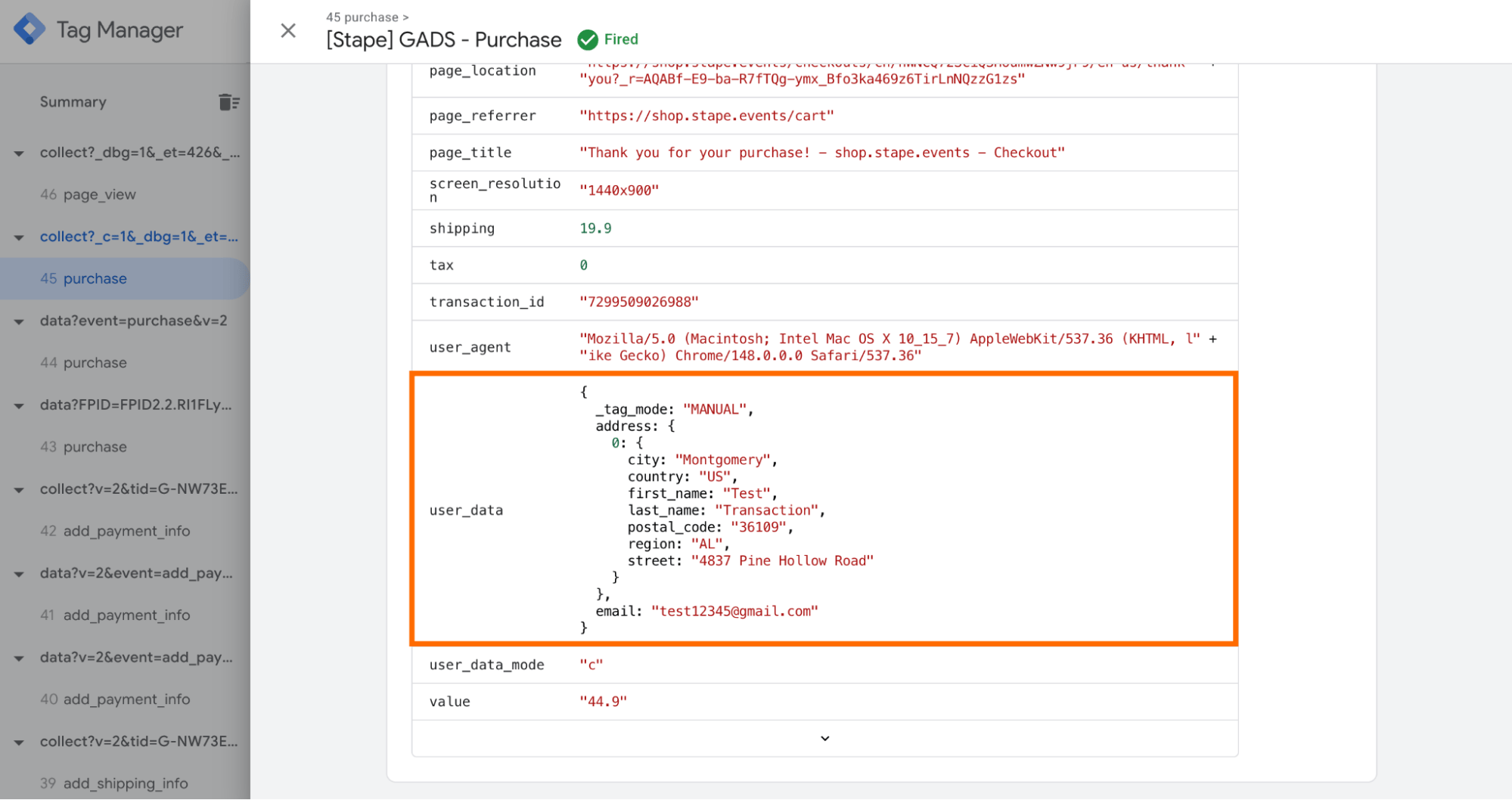
- Authorize on your website and trigger some event. In the GTM preview, you should see your data available after authorization (email, phone, first and last name, etc., based on the configurations):
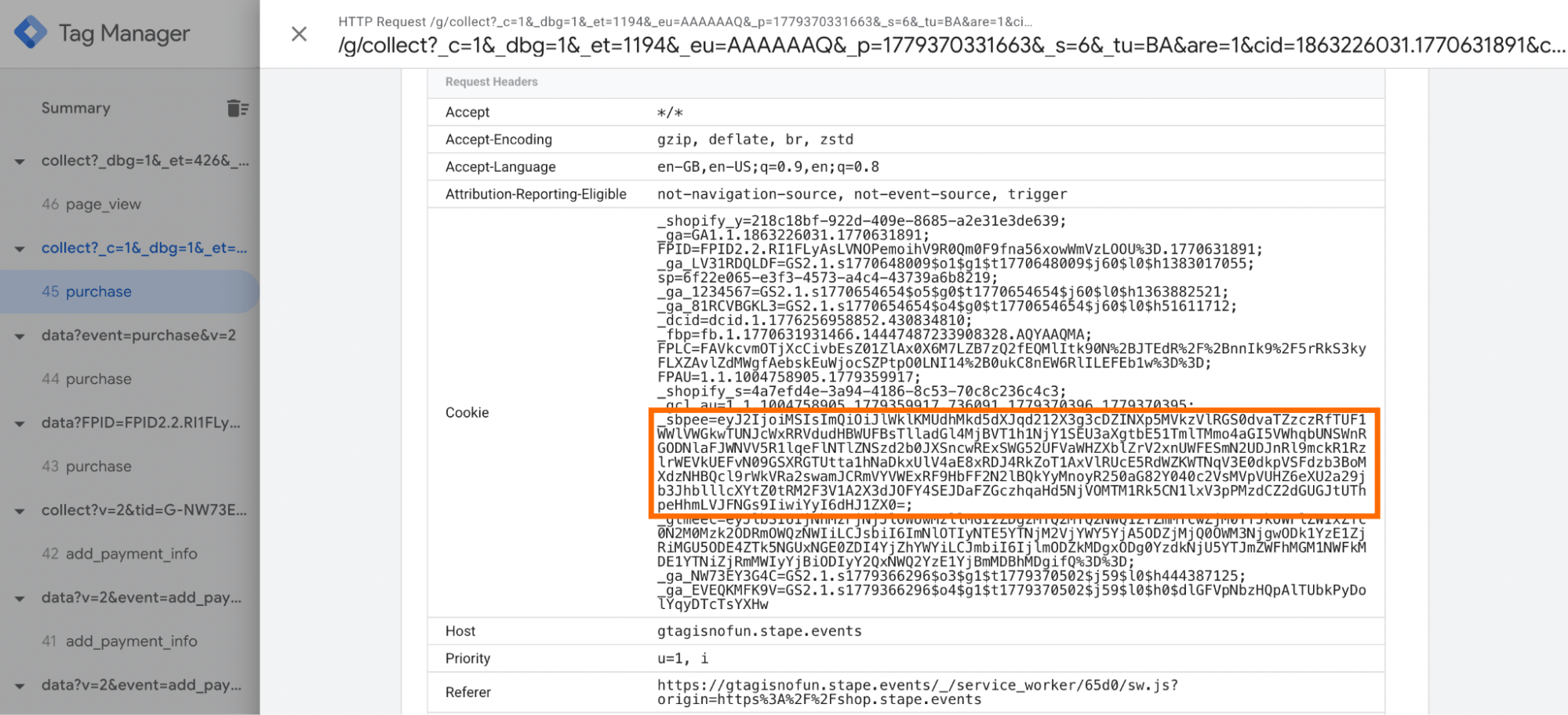
As well as the _sbpee cookie that stores the user data (all the user data is encrypted for security):
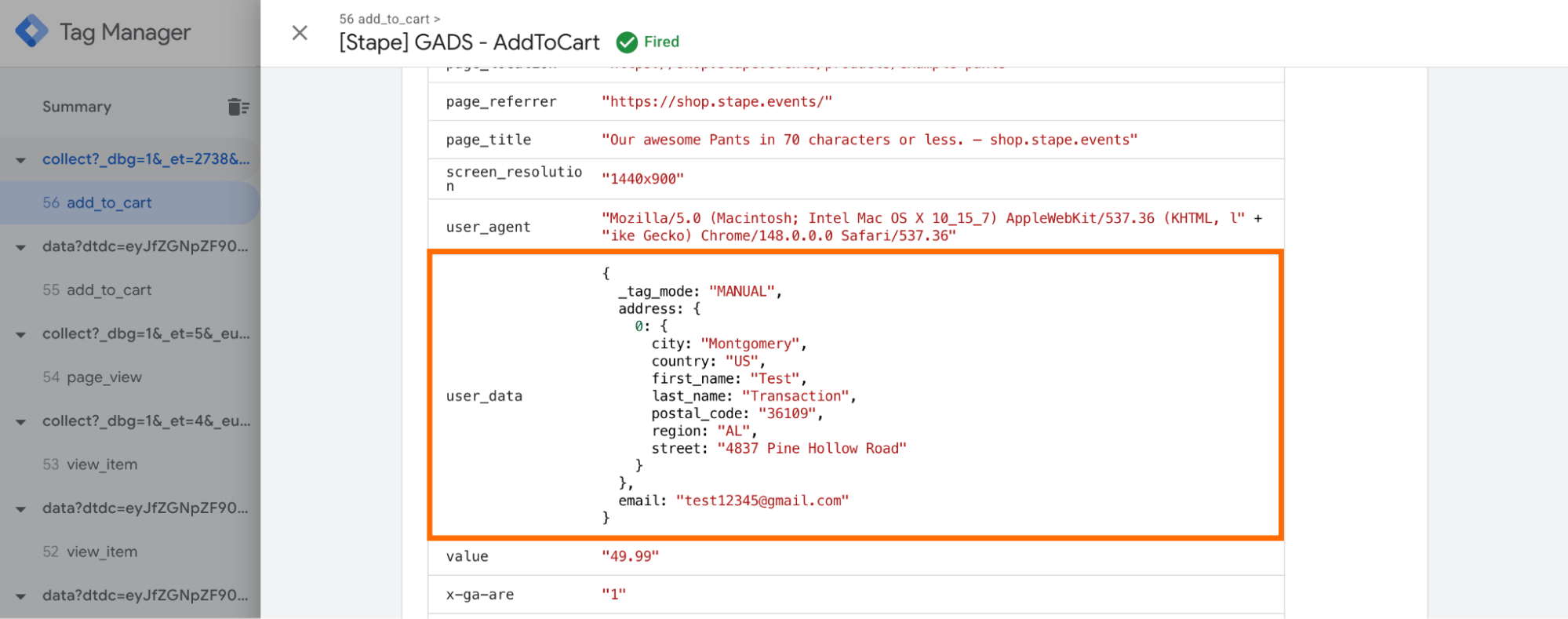
- Log out of your website and trigger another event, check the request you received. If everything is set correctly, you’ll see in the tag details additional parameters that you didn’t specify directly on the new page (like email, first, and last name - it depends on your configurations).
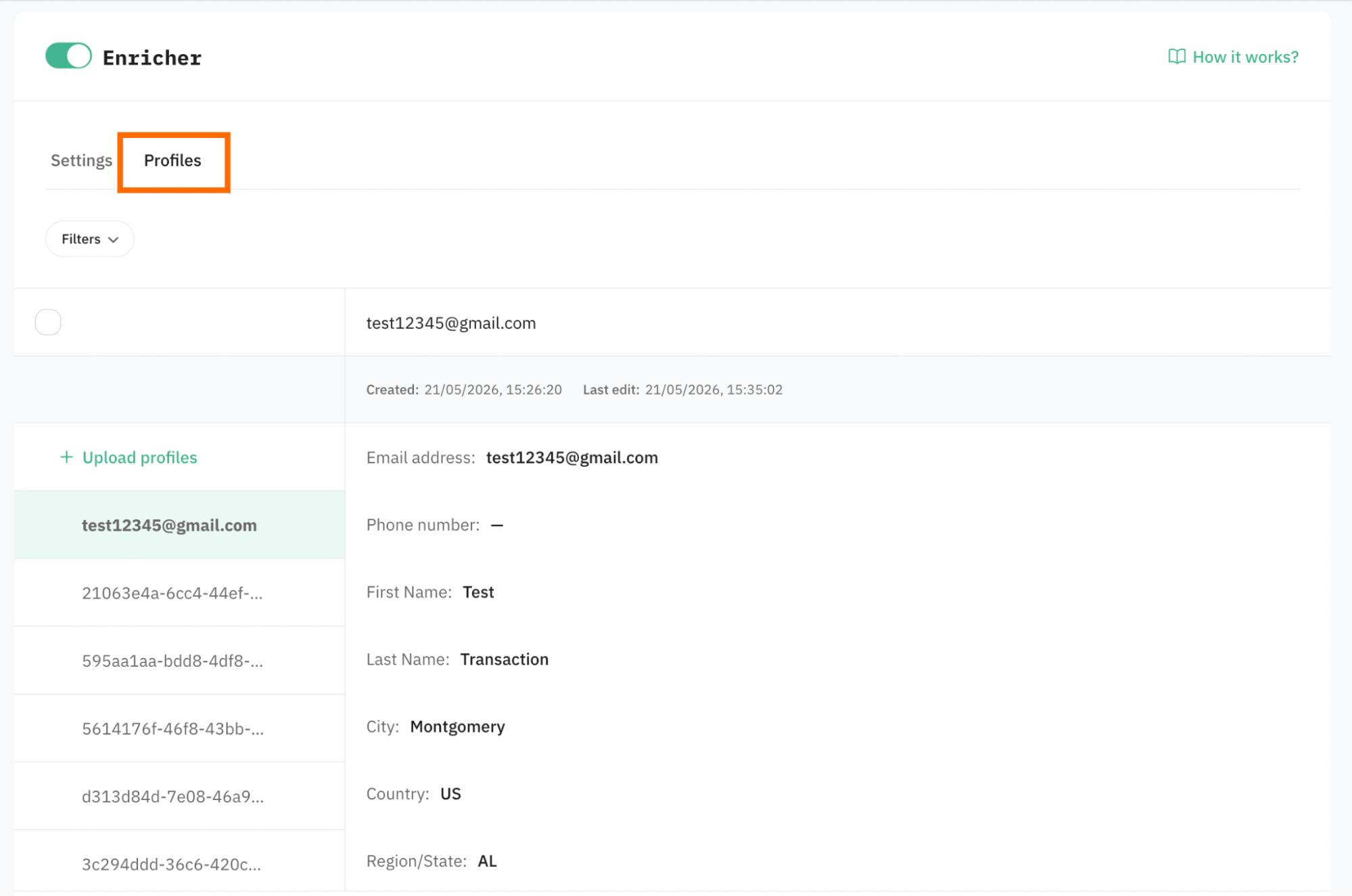
If you use Store as a config method, you can also use the Profiles tab within Enricher power-up to see that data was added to the Store.
Wrapping up
After testing the Enricher power-up on my own setup and talking to a handful of my measurement peers, we all are equally excited. Stape has truly built yet another feature that is going to save us a lot of time and help us improve the signals and data we send to our ad platforms.
If you have been running Data Store and stitching users together across sessions/devices the old way, my recommendation is to turn on the Enricher power-up today. Test it out and see how it works for your setup, even if you only use the cookie option to start. Over time, as you and your client see the wins, aim to turn on Data Store and truly start stitching users together across devices.
So what are you waiting for? Go turn on that power-up and power up your tracking.
Want to start on the server side?
Try for freeRecommended for you
News
[Stape webinar] Better tracking signals with Enricher: real use cases for marketers and agencies
Join Stape’s webinar to learn real server-side Enricher use cases for improving event match quality, offline attribution, cross-device tracking, and customer data enrichment.
Jun 10, 2026

Comments