Sep 16, 2026
How to track Shopware conversions server-side with Stape
Written by
Uliana Lesiv
Published Apr 22, 2026 comments
Key takeaways
- Extensions make integration faster and easier to manage, but a lot of solutions in the Shopware store are paid or subscription-based.
- Stape provides a free alternative to track data using GTM, in particular, the server GTM container.
- Stape Conversion Tracking extension automates GTM integration and enables server-side tracking without custom development. It’s a suitable solution for both merchants and agencies.
Shopware conversion tracking: available options comparison
Adding the GTM snippet manually
If you are adding the GTM snippet manually on your own, it can be completely free, while extensions are often paid. However, besides a lot of manual work, you would also need to build your own data layer (a block of code that sends product data from Shopware to GTM).
If the GTM snippet is manually embedded, there is always a risk that it will be overwritten or conflict with future changes. Extension-based or native integrations are typically created to hook into stable extension points within the platform.
Standard extensions available in the Shopware store
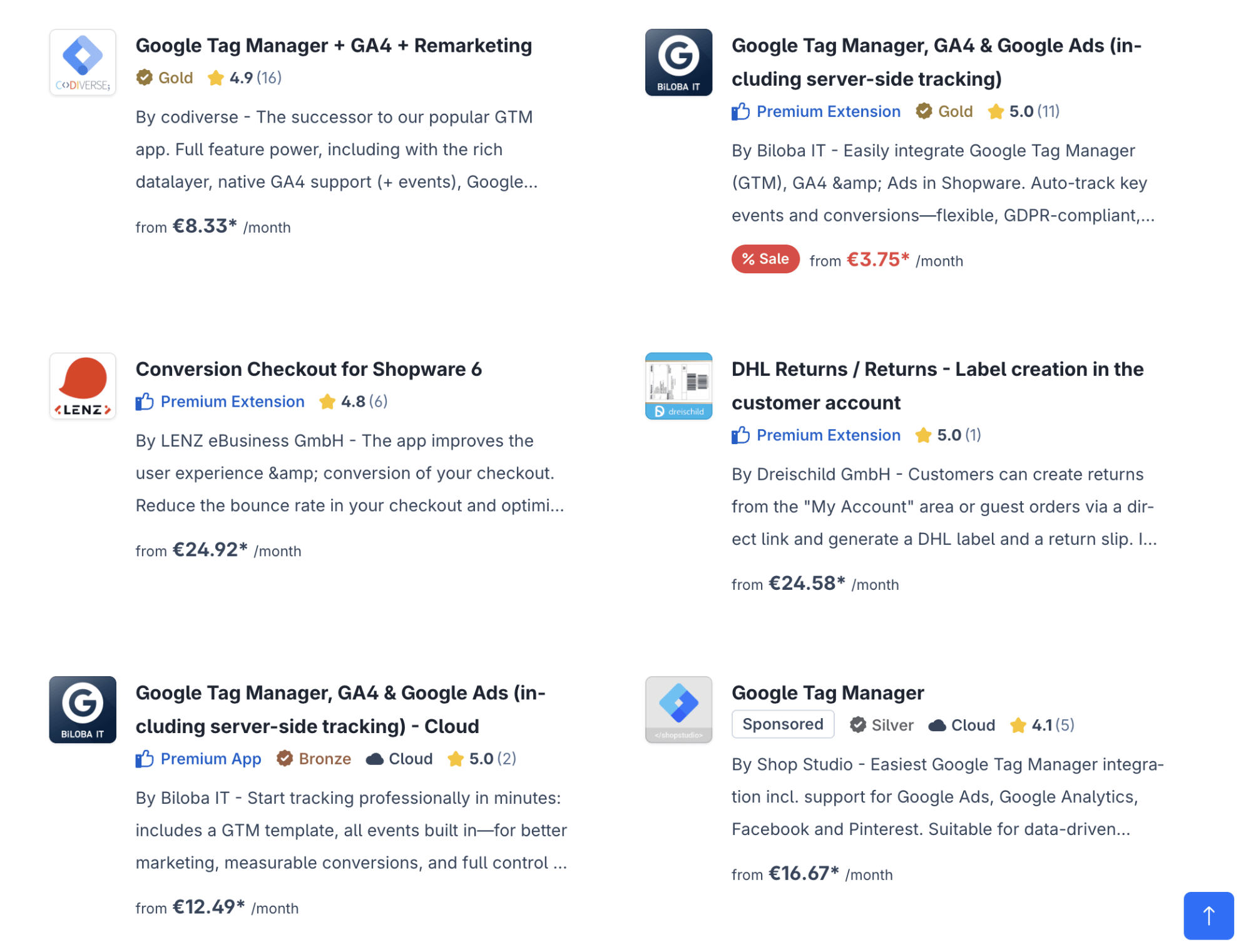
Shopware offers a lot of extensions for conversion tracking, including integrations for Google Analytics, Meta Ads, and other marketing platforms. You can configure the extensions separately for each platform or opt for the extension to integrate the GTM container and track the platforms you need via GTM.
The trade-off here is the recurring cost - most of the extensions on the Shopware store are paid. If you search for extensions for some platforms, you may find free solutions (e.g., a native solution from the Shopware platform for GA4).
While you can find free GTM extensions in the Shopware store, they often handle only the basic script integration, without high customization.
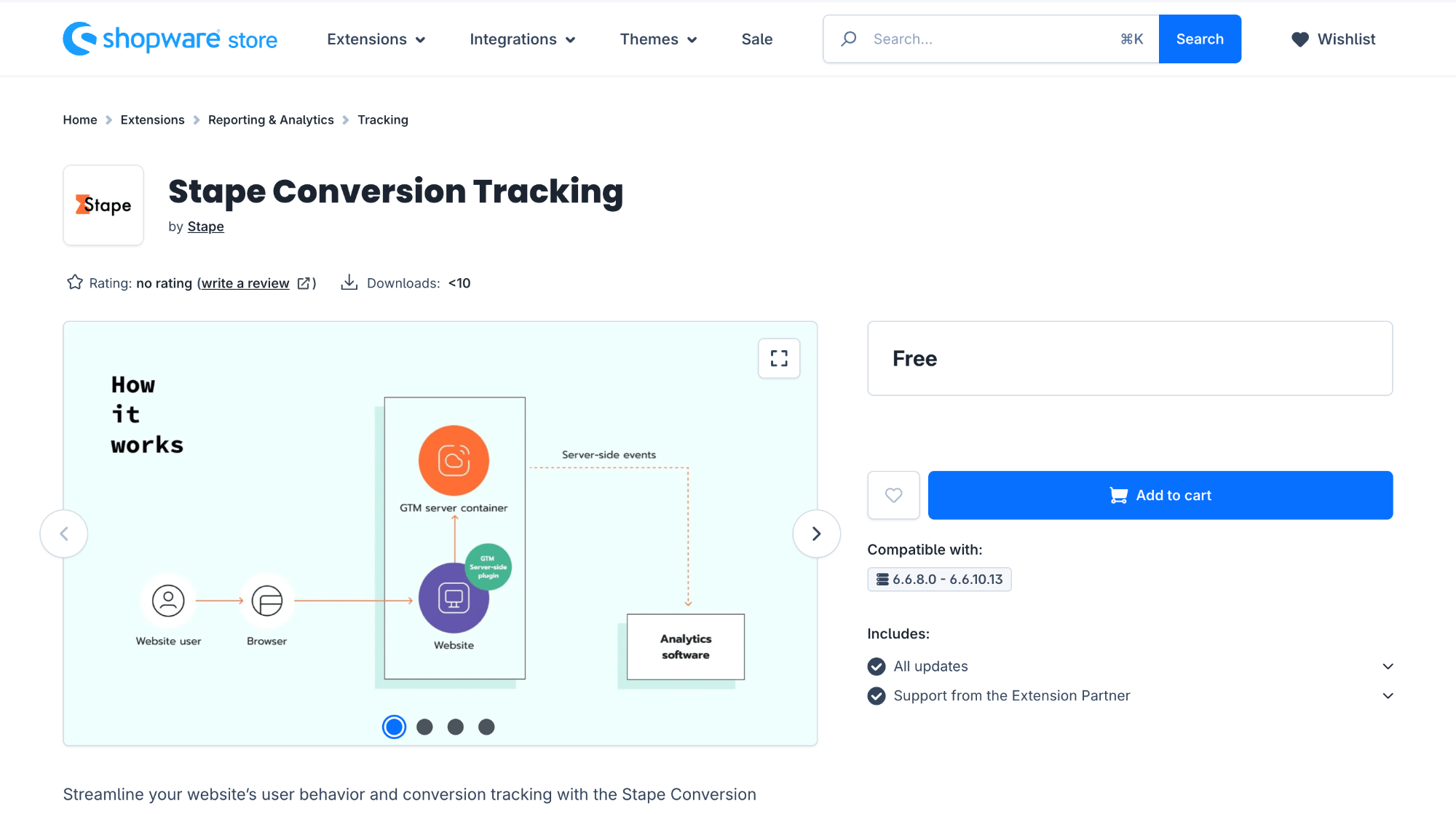
Stape Conversion Tracking extension for Shopware
Stape offers a free, full-featured extension. It provides the following:
- automatically inserts the GTM snippet into every page of your website;
- integration between a Shopware store and server-side tracking infrastructure using Stape.
You can use it to add GTM code to every page only if needed.
The main purpose of the extension is to be a facilitating part of server-side tracking implementation. The server-side tracking itself provides more reliable data tracking that is less affected by ad blockers and browser restrictions. This results in a more complete view of your marketing and product performance. The approach is especially valuable for stores running paid advertising campaigns.
✍️Note:
If you don’t track data on the server-side, you can test how it works for you right now! We provide a free plan for websites with up to 10,000 requests per month.
Benefits of the Stape Conversion Tracking extension for Shopware

The key benefit of the Stape Conversion Tracking extension for Shopware is server-side tracking implementation without complex setup.
Switching to server-side tracking provides multiple benefits for the business:
- Improved data accuracy. After shifting data processing from the user’s browser to a server, the data loss caused by ad blockers and browser restrictions is minimized.
- Extend cookie duration and enhance attribution accuracy. With server-side tracking and Stape’s Cookie Keeper power-up, cookies can persist beyond typical browser limitations. So, you can track user journeys over a longer timeframe and attribute conversions more precisely across your channels.
- Recover more conversions and maximize ROAS from your paid campaigns. By sending key ecommerce events like purchases and checkouts through server-side tracking, the extension captures conversions that might otherwise be lost. This way, you get more precise data and optimize ad campaigns more effectively, improving the return on ad spend.
- Enrich your data with webhook-based tracking. The extension allows you to send webhooks and add backend or offline data to the dataset. It gives you a more complete and reliable dataset for analysis and decision-making.
- More accurate conversion attribution. Server tracking can prolong cookies' lifetime, so the system can identify the channel conversion that came from more accurately. This is a helpful feature for estimating the effectiveness of marketing campaigns.
- Higher user privacy and compliance. With server-side tracking, you get greater control over what data is collected and shared. Sensitive information can be anonymized or filtered before being sent to third-party platforms. In this way, you can meet data protection standards and maintain reliable data tracking.
If you need to pitch the switch to server-side tracking, the article on how to pitch server-side tracking to clients provides practical arguments and real-world examples of how server-side tracking improves data accuracy, attribution, and campaign optimization.
Use cases of the Stape Conversion Tracking extension for Shopware
Simplify Google Tag Manager implementations in Shopware
Instead of manually configuring data layers and tracking scripts, the extension automatically:
- Pushes ecommerce events to GTM
- Standardizes event structures
- Supports both client-side and server-side tracking
With the extension, you can more easily maintain a clean and scalable tracking setup.
Server-side tracking implementation without custom development
Setting up server-side tracking from scratch is technically demanding. The Stape extension provides a ready-to-use connection to a server-side tracking infrastructure using Stape server GTM hosting.
It will be especially valuable for:
- Agencies managing multiple client stores
- Merchants without in-house developers
With the extension, you can quickly start benefiting from the server-side tracking configuration.
Shopware 6 Google Ads conversion tracking with higher accuracy
When you send data (such as purchase or checkout events) through server-side infrastructure using the extension, you can minimize the data loss typically caused by ad blockers and browser restrictions. This results in more complete conversion data and more reliable ROAS measurement.
Real-life case:
ZweiDigital managed to improve ROAS by 32% for their client by implementing a server-side tracking solution for tracking Meta Ads conversions.
Reliable data tracking even while scaling
As a Shopware store grows, tracking issues can become more noticeable due to increased traffic, multiple user journeys, and more complex marketing setups. In such cases, client-side tracking becomes less consistent and leads to incomplete or inaccurate reporting.
The Stape Conversion Tracking extension for Shopware helps maintain stable and reliable tracking even as your store grows. The events are processed through server-side infrastructure. This reduces the risk of data loss caused by ad blockers or browser restrictions.
Configure the Shopware conversion tracking with Stape's extension step-by-step
1. Install the Stape Conversion Tracking extension for Shopware from the Shopware store.
Click “Add to cart” → log in to your Shopware account and download the app for free.
Note: the extension is currently compatible with 6.6.8.0 - 6.6.10.13 Shopware versions.
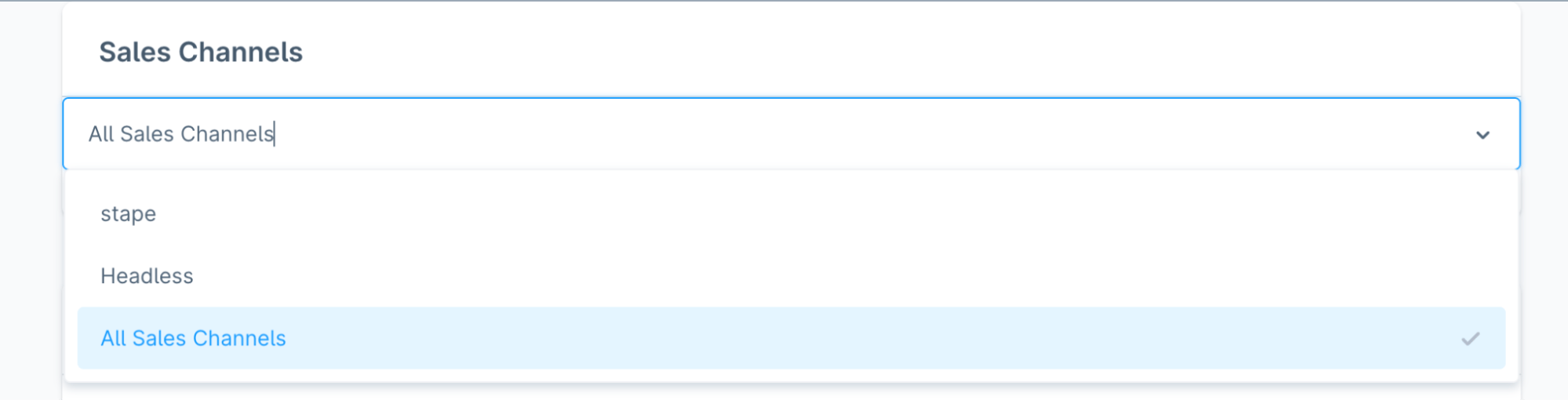
2. Configure the extension's settings.
2.1 Select the “Sales Channels” you need to configure the extension for from the drop-down list. By default, the extension will be configured for all the sales channels.
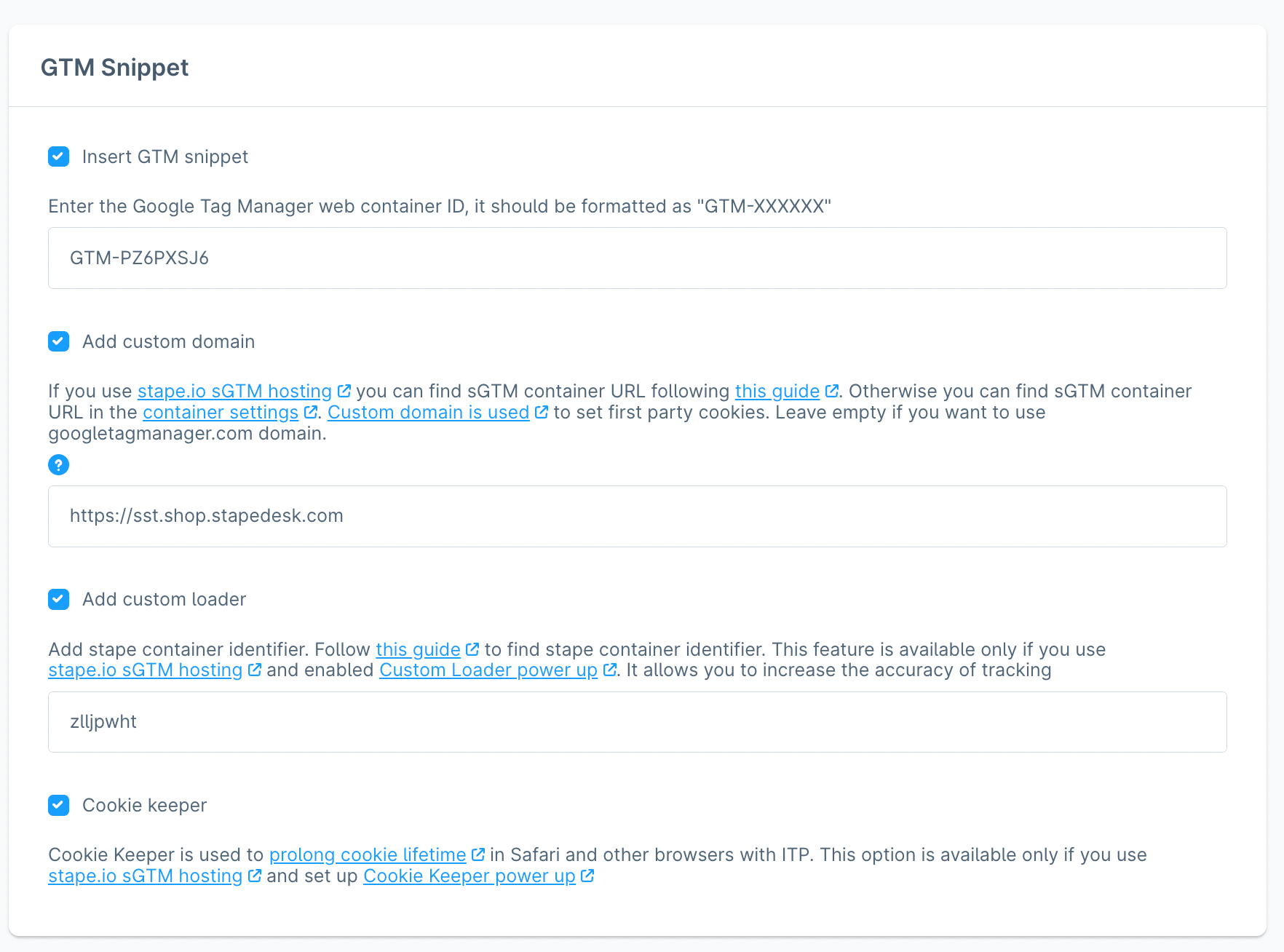
2.2 GTM Snippet section.
- Insert GTM snippet - check the box to automatically add the GTM tracking snippet on all pages of the Shopware shop.
Add the GTM web container ID. The format should be the following: GTM-XXXXXXX. Here’s how to find the web Google Tag Manager (GTM) ID.
- Add custom domain - check the box if you have a custom domain configured for enhanced data protection against ad blockers and browser restrictions. If you don’t have a subdomain, follow the instructions to
Add the domain URL - follow the detailed instructions on how to find the server container URL for sGTM container in our guide. The custom domain must be specified in the following format: https://gtm.example.com
- Add Custom Loader - check the box to increase protection against ad blockers. And add the identifier of your Stape container. For more detailed instructions, follow Stape’s guide on how to find the Stape container identifier.
- Cookie Keeper - check the box to prolong cookie lifetime in Safari and other browsers with ITP. The option is available if you have Cookie power-up configured.
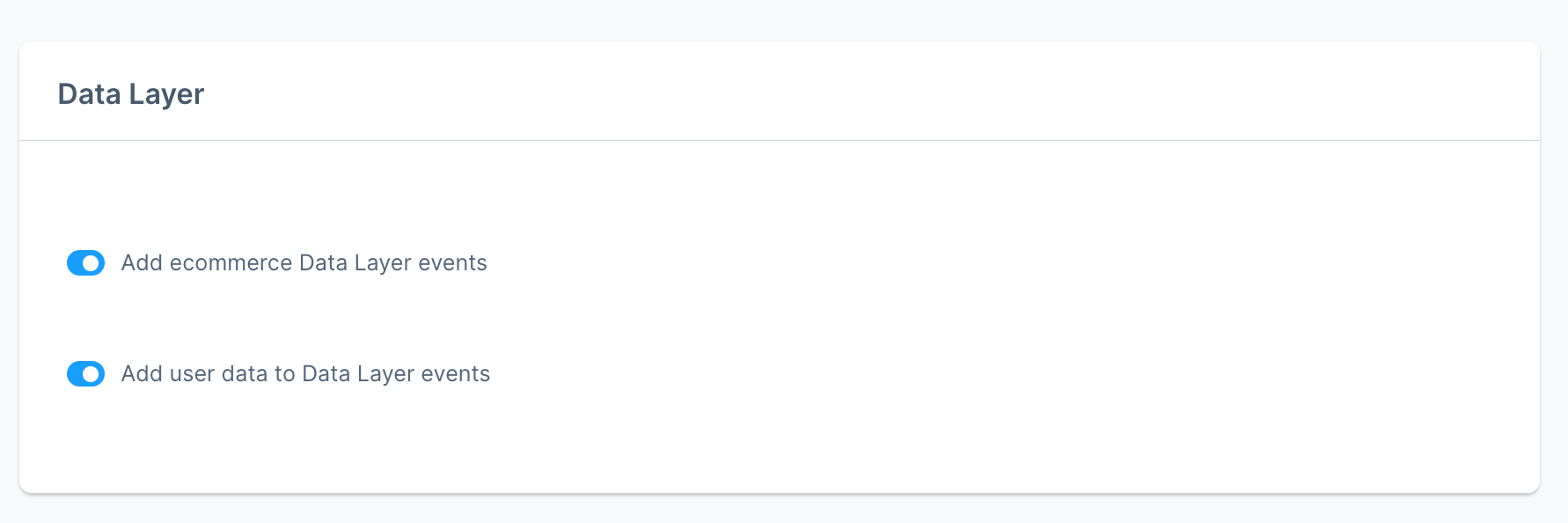
2.3 Data Layer section.
Use the toggles in this section to activate Data Layer events. These events help you capture additional product and user details for more complete data.
Find a list of Data Layer events and their payload that the Stape’s Conversion Tracking extension generates here.
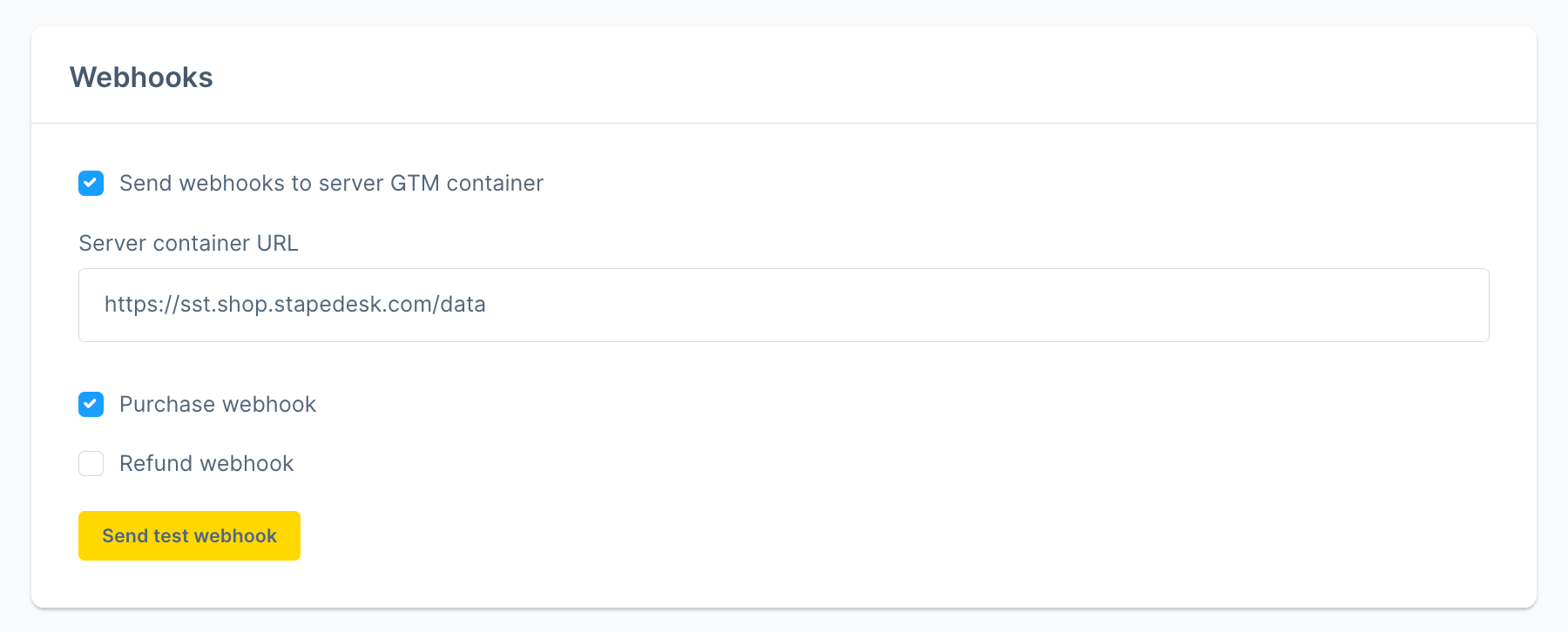
2.4 Webhooks section.
Configure webhooks to send data to a specific URL for events like purchases and refunds.
Enter your server container URL and add the path for your sGTM custom domain (e.g., https://sst.example.com/data). Toggle the fields for the events you need to track.
For more details, check our guides on using and debugging webhooks below:
Click “Save”.
3. Configure sending data to the server Google Tag Manager container.
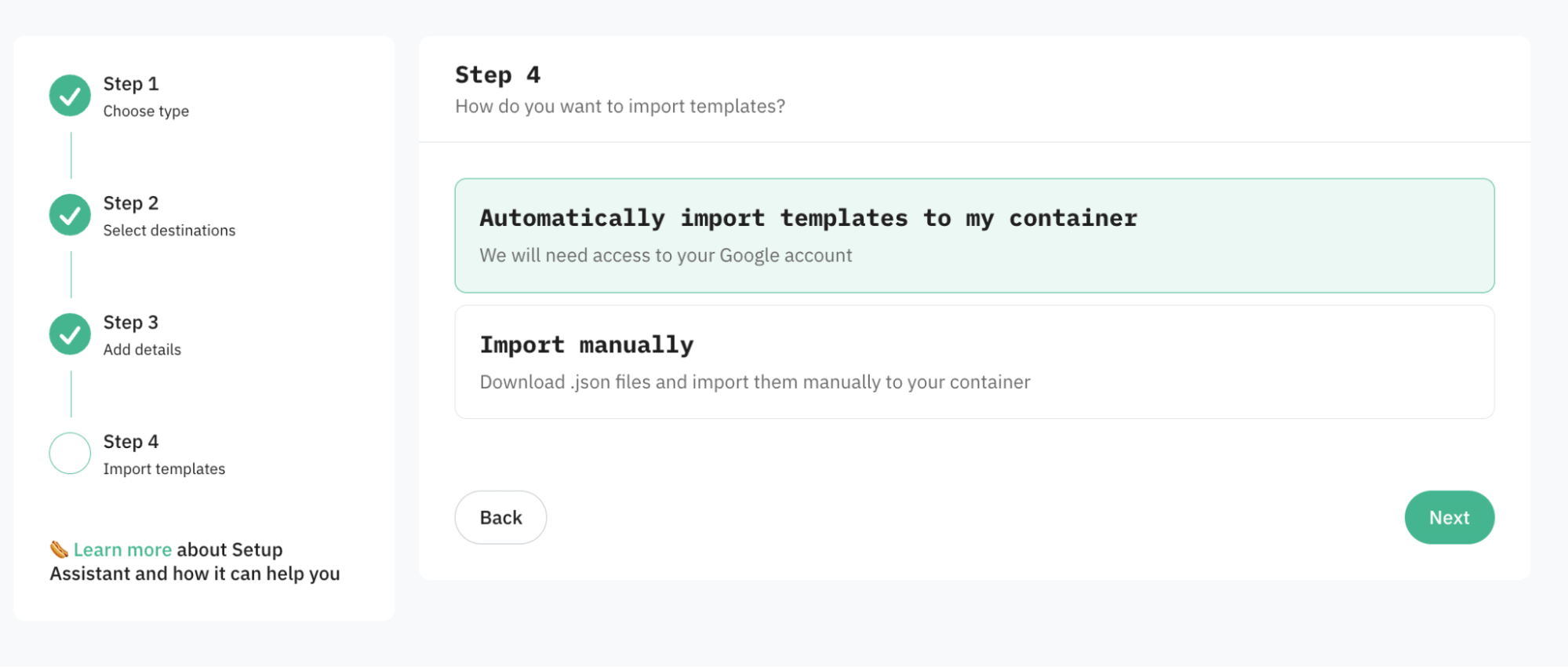
Select one of the two popular ways to do it:
4. Set up server-side tracking for the platforms you use.
Configure server-side tracking for the platforms you need. We have prepared a list of platforms that support server-side tracking. You can configure them manually or use Setup Wizard to automatically add all the required tags/triggers/variables/clients in your GTM containers.
5. Debug the configuration.
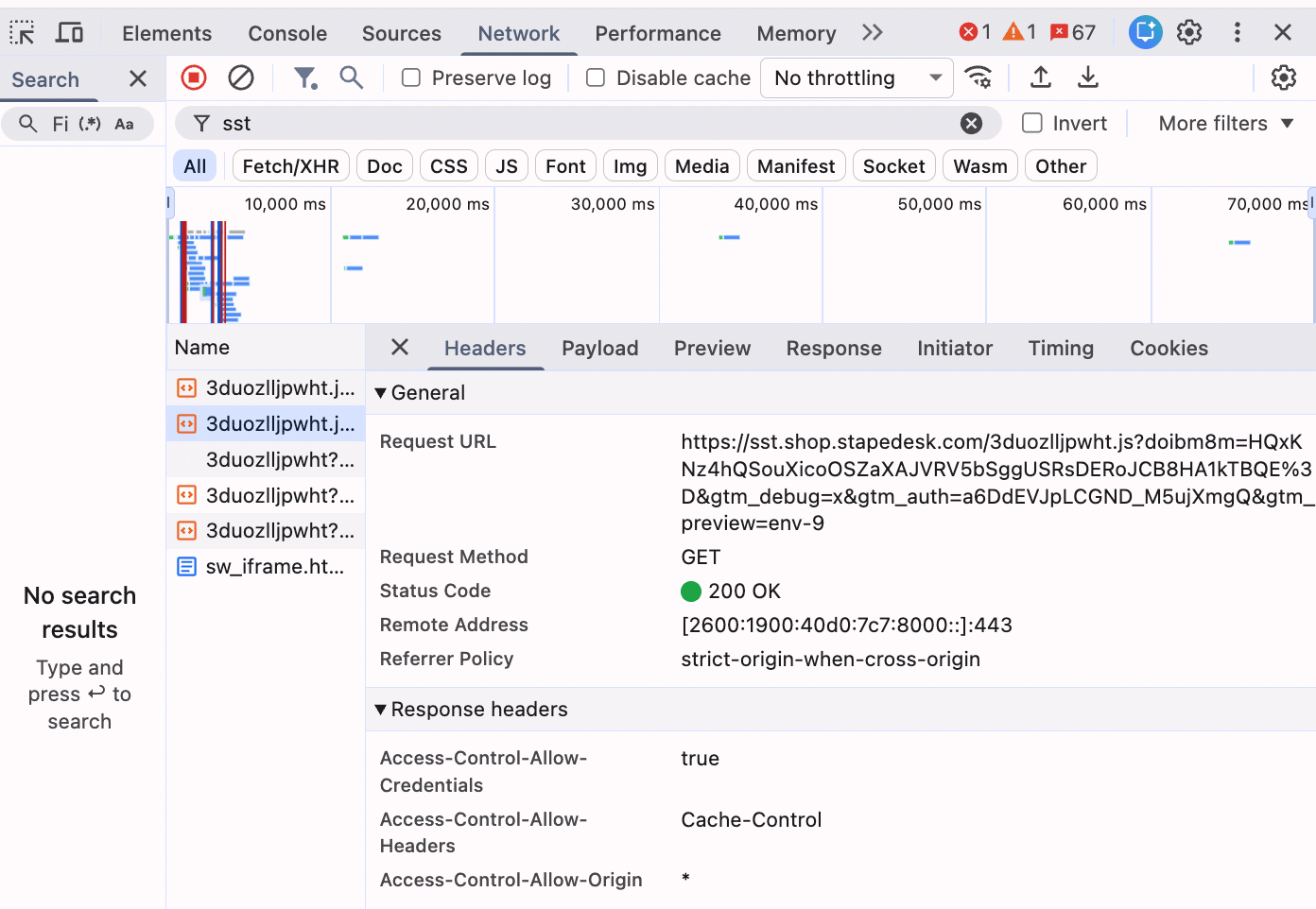
Verify that your container is properly loaded on the site.
To do this, open any page on your website, launch the browser console, and go to the Network tab. Then filter requests by your subdomain or tagging server URL. You should see a request similar to the one in the screenshot, with a 200 status code, confirming it loaded successfully.
Final words
Choosing the conversion tracking setup in Shopware depends on your budget, technical capacity, and long-term marketing goals. Manual GTM implementation can be a cost-free and flexible option, but it requires ongoing development effort, custom data layer setup, and maintenance to avoid conflicts with future updates. Extension-based solutions from the Shopware store are easier to implement and maintain, but they often come with recurring costs.
For merchants who want more reliable and scalable tracking, server-side solutions provide improved data accuracy and reduce the impact of ad blockers and browser limitations. Tools like the Stape Conversion Tracking extension simplify implementing server-side tracking.
Want to join the server side?
Try for freeRecommended for you
Blog
Stape's Conversion Tracking CRM Apps: use cases and benefits
Stape's CRM apps for CRMs automatically send lead statuses updates from CRM to platforms such as Meta and Google Ads, improving campaign performance and audience targeting.
Sep 14, 2026

Comments