Aug 23, 2026
A practical guide to bot-proofing your ad bidding
Written by
Luc Nugteren
Published Jul 30, 2026 comments
Most tracking setups treat bot traffic as a reporting problem. You notice sessions climbing without revenue following, you switch on a filter in GA4, the graph looks calmer, and you move on.
That fixes the report. It does nothing about the part that actually costs money.
Every bot that reaches a conversion tag gets forwarded to Google Ads and Meta exactly like a real customer. Those platforms then use it as training data. And unlike a missing conversion, which is simply less signal, a bot conversion is wrong signal: it teaches the algorithm that a traffic pattern which will never buy is a pattern worth finding more of.
This guide covers why that distinction matters, and the exact setup for filtering bots at every layer, from the edge down to your offline conversion uploads, using server-side Google Tag Manager (sGTM) and Stape's Bot Detection power-up.
Why bot traffic breaks bid optimization
There is a long-running argument about how much conversion data really changes an ad platform's behaviour. The honest answer for missing conversions is: less than most people claim. An algorithm learning from thousands of events does not fundamentally change because you recovered another 20% of the same signal. That is a volume problem, and volume problems get absorbed.
Bot conversions are a different category. They are a labelling problem.
- Smart Bidding builds its predictive model from whatever was marked as a conversion.
- Every bot lead in that set teaches the model that the pattern behind it is worth pursuing.
- Broad match, Demand Gen and Performance Max then explore toward exactly that traffic, because the feedback loop says it converts.
- Remarketing lists and lookalikes or similar audiences get seeded with non-humans, so the contamination spreads into targeting as well as bidding.
Your reported CPA drops while your real CPA rises, which is the worst possible combination for decision-making.
Severity depends heavily on your model:
- Lead generation is the worst case. A form submission costs a bot nothing, so bot conversions can become a meaningful share of total conversions. This is where bidding genuinely degrades.
- Ecommerce gets off easier. A bot rarely completes a real payment, so your purchase conversion stays relatively clean. But your
view_itemandadd_to_cartevents, your audience lists, and any campaign optimizing toward upper-funnel actions still get polluted.
The practical rule: the further up the funnel your conversion action sits, and the cheaper it is to complete, the more bot filtering is worth to you.
System overview: what we're building
Bot filtering works best as layers, not as a single switch. Each layer catches what the one before it missed, and each sits at a different cost point:
- 1.Measure first. Stape's Bot Detection can label every request without acting on it, so you size the problem before changing a single tag.
- 2.Then enforce, either per tag inside sGTM or at Stape before the request reaches your container at all.
- 3.Support it at the edges. Cloudflare removes datacenter traffic before it costs you anything, and form-level protection stops bots becoming leads in the first place.
- 4.Stay clean on the way out. Offline uploads can reintroduce spam you already filtered. GA4 settings come last, because that is reporting, not signal.
Step-by-step configuration
1. Measure first: run bot detection in reporting mode
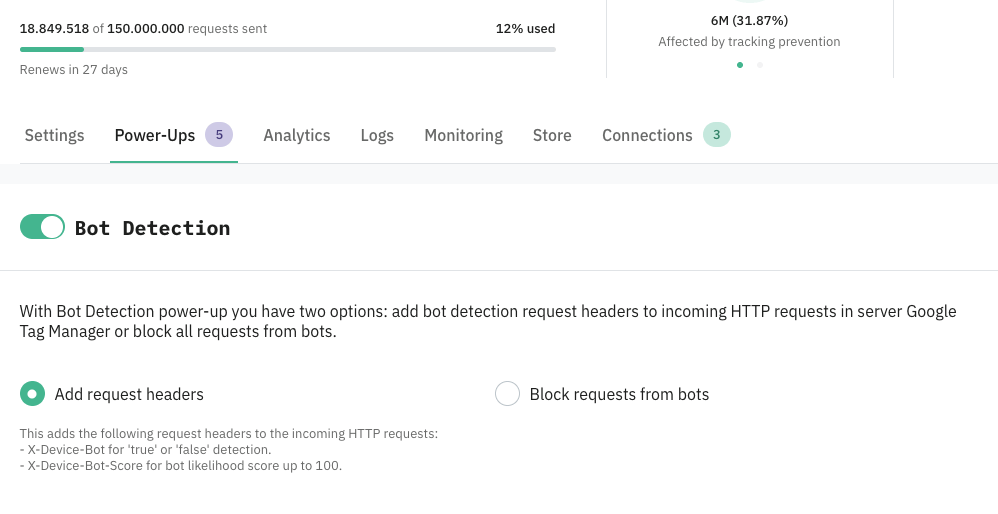
Enable the Bot Detection power-up in your Stape tagging server. It is available on the Pro plan and higher.
The power-up adds two headers to every incoming request.
The score bands matter, because they are not all equally actionable:
- Below 50: highly likely to be a real human user.
- 50 to 75: suspicious. Some signals point to a bot, but not conclusively.
- Above 75: confirmed bot traffic.
Leave blocking switched off for now. In this mode Stape only labels traffic, it does not act on it.
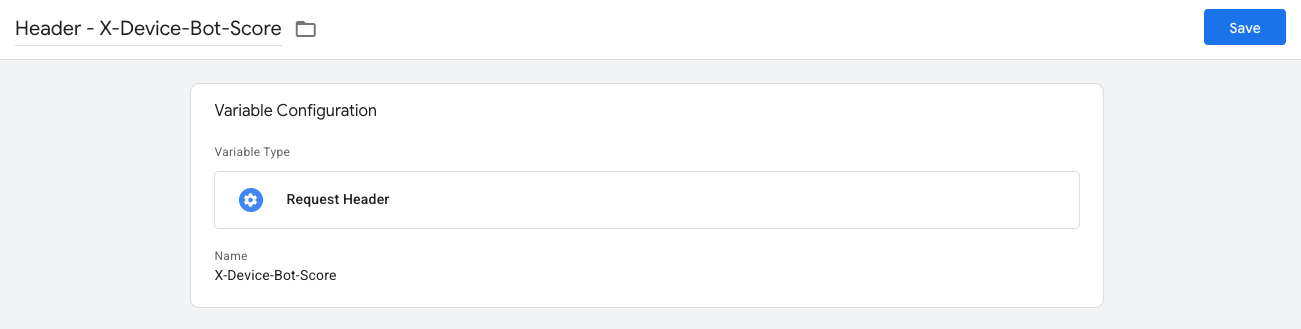
Next, surface that label in your reporting. In sGTM, create a User-Defined Variable of type Request Header that reads X-Device-Bot-Score, and add it to your GA4 tag as an event parameter:
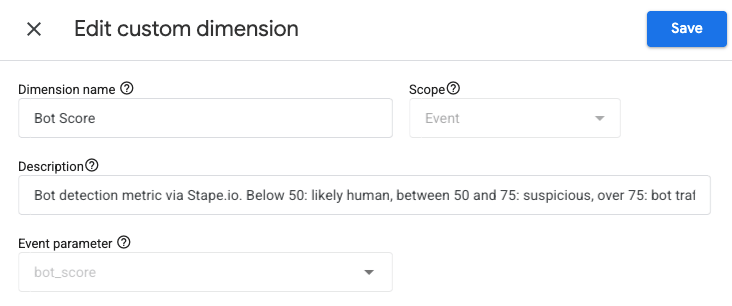
Then register bot_score as an event-scoped custom dimension in GA4, so the parameter becomes reportable.
Now let it run for one to two weeks.
You are looking for three things: what share of sessions score above 75, which channels and landing pages they concentrate in, and whether any of them are reaching your conversion events.
That last one tells you whether this is a reporting annoyance or a bidding problem.
Do not skip this phase. Blocking without measuring means you will never know what the filtering actually bought you, and you will have no baseline if you later block something you shouldn't have.
2. Filter per tag inside sGTM
The most controlled way to enforce is inside the container, tag by tag.
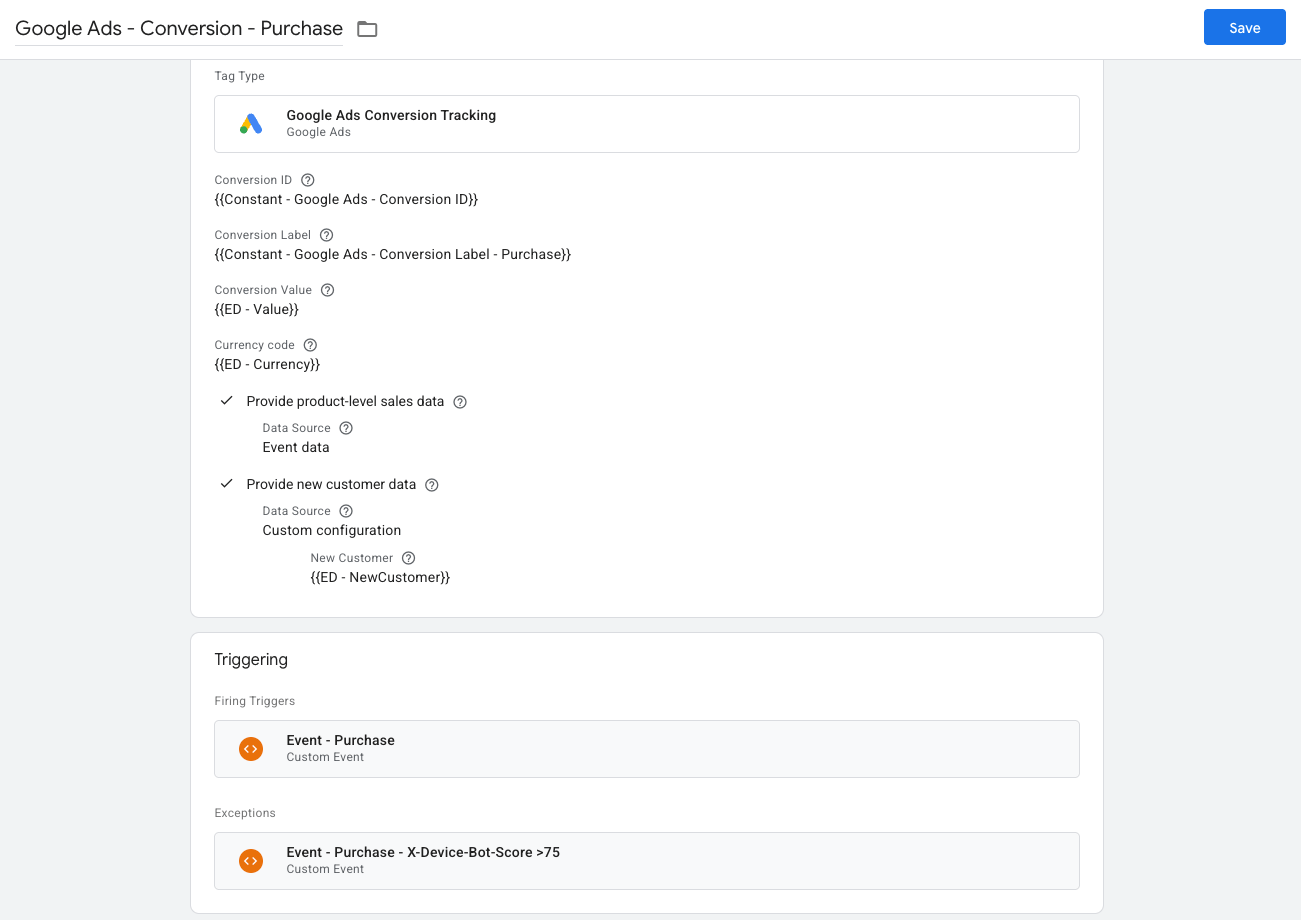
You already built the score variable in step 1. Create a trigger that fires on your conversion event and a high bot score, then attach it as a trigger exception on the tags you want protected:
Trigger name:  Event - Purchase - X-Device-Bot-Score >75
Trigger type:  Custom Event
Event name:    purchase
Condition:     Header - X-Device-Bot-Score  greater than  75
Use the score rather than the true/false X-Device-Bot header. It costs you nothing extra and it leaves the threshold in your hands.
Which settles what to do with the 50 to 75 band, the one genuinely awkward decision in this setup. Do not block it. Let it reach GA4 so it stays visible, keep it out of nothing else, and treat it as a watchlist rather than a verdict. If a large share of that band also reports a 0x0 screen resolution, you have two independent signals agreeing and can safely drop your threshold to 50. If it does not, leave it at 75 and accept that some bots get counted. That is the cheaper mistake.
Apply the exception to every tag except GA4: Google Ads conversions, Meta CAPI purchase and lead events, and any other ad platform tag. Leaving GA4 out is deliberate. Bots keep landing in your reporting, so you can carry on measuring, while nothing reaches a bidding algorithm.
The advantage of this approach is granularity. You can let a labelled bot through to GA4 for continued measurement while blocking it from ever reaching Google Ads. That is often the right compromise during the first month.
3. Block at Stape, before sGTM
Once you trust the data, you can let Stape enforce it upstream. Switch blocking on, and requests scoring above 75 are rejected before they reach sGTM, on the /collect (GA4) and /data (Data Tag) paths.
Two benefits over per-tag filtering:
- 1.Nothing has to be maintained inside GTM. New tags are protected automatically.
- 2.Blocked requests never hit your container, so they do not count toward your request volume. If you pay per request, this layer pays for itself.
The tradeoff is that it is all or nothing at the request level. You lose the ability to keep measuring bot traffic in GA4, because it never arrives. This is why the measurement phase comes first.
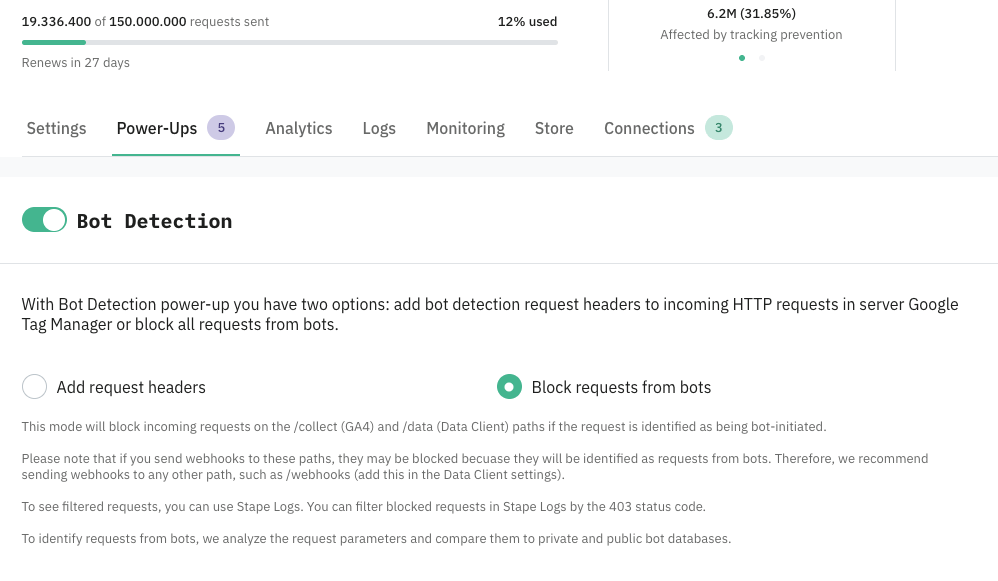
Important:
Read the caveats section before enabling this. Blocking has a real side effect on webhooks.
4. Filter on screen resolution
Bot Detection will not catch everything, and one of the strongest remaining signals costs you nothing.
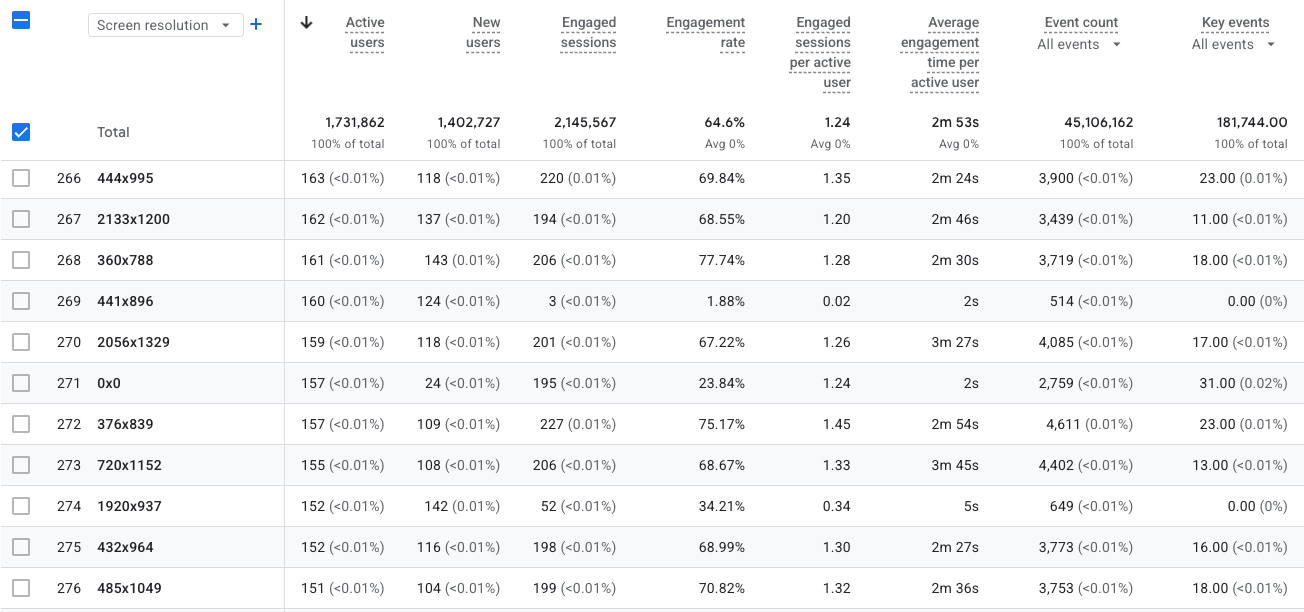
A screen resolution of 0x0 is close to a guarantee that no human is present. Headless browsers and scripted clients frequently report no viewport at all, and older headless Chrome defaults to a small fixed size such as 800x600.
You can act on this in both places:
- In sGTM: the GA4 client exposes
screen_resolutionin event data. Add a trigger exception on your conversion tags where it equals0x0. - In GA4: screen resolution is a built-in dimension. Use it to build an exploration, confirm the pattern, and cross-reference it against your
bot_scoredimension.
Check the overlap between the two before you rely on either. If everything scoring above 75 also reports 0x0, you have a simple confirmation. If they catch different traffic, you now have two complementary filters instead of one.
Be careful with the fixed resolutions. Real devices do use 800x600 occasionally, so treat it as a signal to combine with others, not a standalone block rule.
Expect the volume to be small. In the report below, 0x0 sits well under a percent of users. That is not a reason to ignore it: this filter is about precision rather than reach, and those sessions were still credited with key events. Sort the same report by average engagement time and you will usually surface two or three other resolutions showing the same two-second pattern, worth investigating before you block anything.
5. Block datacenter traffic at the edge
The cheapest bot to handle is the one that never reaches your site. If you run Cloudflare, a WAF custom rule removes a large share of automated traffic before it costs you a page load, a tag, or a server request.
Most low-effort bot traffic originates from a handful of hosting providers. Blocking by ASN is more durable than blocking individual IPs, which rotate constantly. The full rule:
Rule name:  Challenge datacenter traffic
Action:     Managed Challenge
Expression:

(ip.geoip.asnum in {16509 14618 8075 14061 24940 16276 20473 63949 45102 132203})
and not cf.client.bot
Those ASNs cover the providers most automated traffic runs on:
- Amazon AWS (16509, 14618),
- Microsoft Azure (8075),
- DigitalOcean (14061),
- Hetzner (24940),
- OVH (16276),
- Vultr (20473),
- Linode/Akamai (63949),
- Alibaba (45102),
- Tencent (132203).
The not cf.client.bot clause is the part people forget, and it is the one that matters most. Cloudflare uses cf.client.bot to identify verified bots: Googlebot, Bingbot, and other crawlers you actively want on your site. Without that exclusion you will block search engine crawlers from a cloud IP range and quietly damage your organic visibility.
Start the rule on Managed Challenge rather than Block. Watch it for a few days in your firewall events, confirm you are not challenging real users, and only then escalate to Block.
One interaction to think about before you enable this, and it catches people out precisely because it is the setup this guide otherwise recommends. If you run a same-origin tagging server, your sGTM endpoint sits behind the same Cloudflare zone as your website. Server-to-server traffic hitting that endpoint, Shopify Flow webhooks, payment provider callbacks, CRM postbacks, originates from exactly the datacenter ASNs this rule challenges. A rule written for your website will happily block your own webhooks.
Two ways to avoid it, and you want one of them in place before the rule goes live:
- 1.Add a preceding Skip rule for your tagging path (for example
http.request.uri.path contains "/webhooks"), so server-to-server calls bypass the challenge entirely. - 2.Or scope the ASN rule so it never applies to your tagging path in the first place, by appending
and not http.request.uri.path contains "/your-tagging-path"to the expression above.
The same applies to uptime monitors and any scheduled job that calls your site from a cloud IP.
If you need to stop a small number of specific offenders instead, Stape's Block Request by IP power-up handles up to 30 addresses without touching your CDN configuration.
6. Protect your forms
For lead generation this is the highest-value layer, because it stops a bot from ever becoming a conversion.
Honeypot field. Add an input that is hidden from humans via CSS, never via type="hidden", which bots detect easily. Real users cannot see or fill it. Any submission where it contains a value is automated.
Minimum time to submit. Stamp the form when it renders and compare on submit. A genuine enquiry takes longer than a few seconds.
Both together, in the markup:
<div>
  <label>Company website
    <input type="text" name="website" tabindex="-1" autocomplete="off">
  </label>
</div>


<input type="hidden" name="rendered_at" value="1721556000">
And the check on your server, before anything is recorded as a lead:
const elapsed = Date.now() / 1000 - Number(body.rendered_at);

if (body.website) return reject('honeypot filled');
if (elapsed < 3)  return reject('submitted too fast');
Validate server-side, then fire the event. This is the change that matters most, and the one most setups get wrong. Do not push generate_lead to the dataLayer on form submit. Push it after your backend has accepted the submission and passed its checks. The conversion event should represent a validated lead, not a button click.
If you want a third signal, Cloudflare Turnstile or reCAPTCHA v3 return a score you can evaluate server-side in the same validation step.
7. Keep bots out of your offline conversions
Filtering the browser path is wasted effort if you upload the same junk two weeks later.
If you run offline conversion tracking, your CRM is the last place bot leads hide. A bot-submitted lead gets a status of spam, junk or disqualified in your CRM, and then gets included in the upload anyway because the export query only filters on "has a GCLID".
Fix it in the export query, not after the fact:
WHERE gclid IS NOT NULL
  AND lead_status NOT IN ('spam', 'disqualified', 'unqualified')
  AND stage_reached >= 'contacted'
That second condition is the bot filter. The third is a free upgrade: uploading only leads that reached a real stage improves your signal well beyond bot removal. Apply the same rule to Enhanced Conversions for Leads, because uploading hashed user data for a bot lead is worse than uploading nothing.
8. Clean up GA4 last
GA4 belongs at the end, because it is reporting hygiene rather than signal quality. It is also the layer most people mistakenly start with.
It helps to be precise about what GA4's built-in filtering actually does:
- It checks every hit against the IAB/ABC International Spiders and Bots List.
- It only catches bots that identify themselves in their user agent, such as Googlebot and Bingbot.
- It cannot be turned off, and it applies automatically.
- It never reports what it removed. There is no view of excluded traffic, so you cannot audit or size it.
- It misses headless Chrome with a spoofed user agent, residential proxy scrapers, and any crawler not yet catalogued, which includes most recent AI crawlers.
In other words, it handles the polite bots. Everything this guide addresses is the traffic that list will never contain.
What is worth configuring in GA4:
- Define internal traffic and exclude your own IP ranges, your agency's, and your developers'.
- Exclude the datacenter ranges you identified during the measurement phase.
- Keep the
bot_scorecustom dimension in place after you start blocking, so you retain visibility into what is still getting through.
Caveats
- Blocking can break your webhooks. This is the one that causes real damage. When automatic blocking is enabled, any request scoring above 75 is rejected, and server-to-server webhooks can score high because they have no browser characteristics at all. If you use Shopify Flow webhooks for purchase or draft-order tracking, those can be blocked along with the bots.
- The fix is straightforward: send webhooks to a custom path such as
/webhooks. Custom paths bypass automatic bot blocking, which applies to/collectand/data. Verify your webhook traffic still arrives immediately after enabling blocking, not a week later when you notice conversions missing. - Shopify analytics will not match. Shopify's own analytics receives nothing from your sGTM container. It tracks independently. So no matter how aggressively you filter bots server-side, those sessions remain in your Shopify session counts and your Shopify conversion rate. Expect a widening gap between GA4 and Shopify after you enable filtering, and do not spend a day debugging it. It is the filtering working as intended in one system and not existing in the other.
- Over-blocking costs more than under-blocking. A false positive is a real customer whose conversion never gets recorded, whose remarketing cookie never gets set, and who may be blocked from your site outright. A bot that slips through is a rounding error in your data. Better to report on a small percentage of bot traffic than to block a percentage of real traffic. This is also why the 50 to 75 band exists: those requests are genuinely uncertain, and blocking them wholesale will catch real users.
- Consent still applies. Bot filtering does not change your consent obligations. The score is a signal about the request, not a licence to process data you otherwise could not.
Validation and testing
Before you consider this finished:
- Confirm
X-Device-BotandX-Device-Bot-Scoreare visible in sGTM preview mode on a live request. - Confirm
bot_scoreis arriving in GA4 and populating the custom dimension. - Fire a test conversion and confirm your trigger exceptions do not block it.
- Send a test webhook to your custom path with blocking enabled and confirm it arrives.
- Check your Cloudflare firewall events for challenged or blocked requests that look like real users, and for any verified crawler you accidentally caught.
- Submit a genuine form slowly and confirm the lead is accepted and
generate_leadfires. - Submit a form in under two seconds and confirm it is rejected and no event fires.
- Compare conversion volume in Google Ads for the two weeks before and after. A small drop is expected and healthy. A large drop means you are blocking real users.
- Then close the loop you opened. Two weeks after enforcing, run the same
bot_scorereport you built in step 1 and compare it against your baseline. You are looking for the share of high-scoring traffic reaching key events to be near zero. If it is not, something is still routing around your exceptions, and the report will tell you which events.
Conclusion
Bot filtering is usually framed as a data cleanliness exercise. It is really a bidding exercise.
Your reports being wrong is annoying. Your bidding algorithm being trained on traffic that will never buy is expensive, and it compounds, because the platform keeps spending to find more of what you told it was good.
The setup that works is layered and, importantly, measured first:
- Stape Bot Detection in reporting mode, so you know the size of the problem before you touch anything.
- sGTM triggers exceptions for granular control over which tags bots can reach.
- Stape blocking once you trust the scoring, which also cuts your request volume.
- Cloudflare at the edge for the obvious datacenter traffic, with verified bots allowlisted.
- Form-level protection so bots never become leads in the first place.
- Clean offline uploads, so filtered spam does not return through the back door.
- GA4 settings last, because that is reporting, not signal.
Start with measurement, enforce one layer at a time, and keep the bot score visible after you start blocking. The goal is not zero bots. The goal is that nothing which will never buy from you ends up teaching your bidding algorithm what a customer looks like.
Want to try the server side?
Try for freeRecommended for you
Solutions
Bot detection
Bot detection power-up checks if each Incoming Request inside the server Google Tag Manager is from a bot or not.
Jul 30, 2026

Comments