Data discrepancies explained: causes, how to identify and fix

Uliana Lesiv
AuthorKey takeaways:
How to spot a data discrepancy?
The first signal of data discrepancy (e.g., Google Analytics discrepancy) is a mismatch between your source of truth (e.g., Shopify, WordPress, backend) and your analytics tool (GA4).
In one Shopify + GA4 case of our client, a store captured about 95% of orders in GA4 compared to Shopify. In another client's case with WordPress setup, the data discrepancy reached ~30% missing purchase events in GA4.
So, the basic comparison of conversions recorded on different platforms has helped our client to spot a data discrepancy.
"Missing data" vs "misattributed data"
While comparing numbers between platforms, you may notice that not all data discrepancies are about missing transactions; some are about wrong attribution (e.g., a transaction is assigned to "direct" instead of affiliate).
- Check total numbers: if totals are roughly similar, but channel-level numbers look off, it’s likely misattribution (move to step 2). If numbers differ significantly, it's data loss (move to step 3).
- Look at acquisition channels in GA4:
- Does "Direct" look unusually high?
- Are paid or affiliate channels underreported?
👉 For example, you can notice that the paid search shows 200 sales in your CRM and GA4 shows only 80 from affiliate, but "Direct" shows 120 conversions.
3. Check whether the data drop is consistent across all dimensions:
To figure it out, segment and look for patterns, at data loss usually points out:
- Same % drop across devices (mobile, desktop)
- Same % drop across countries
- Same % drop across channels
👉 For example, in Shopify, you notice 1,000 orders, and in GA4: ~700 orders. All segments (by channel, countries, devices) show ~30% loss.
Each requires a completely different debugging approach.
Data discrepancy causes
Different measurement and attribution models
If you are a data tracking specialist, you must face the questions from product and marketing teams:
| Why is the number of conversions different in CRM, GA4, and Google Ads? |
If the difference isn't huge, you've probably answered: "Because platforms don’t measure performance the same way, and have different attribution models", and you could be right.
Each platform has its own logic for when a conversion is counted and how a session or user is counted. The platforms also have different attribution models (the logic, a platform decides who gets credit for a conversion).
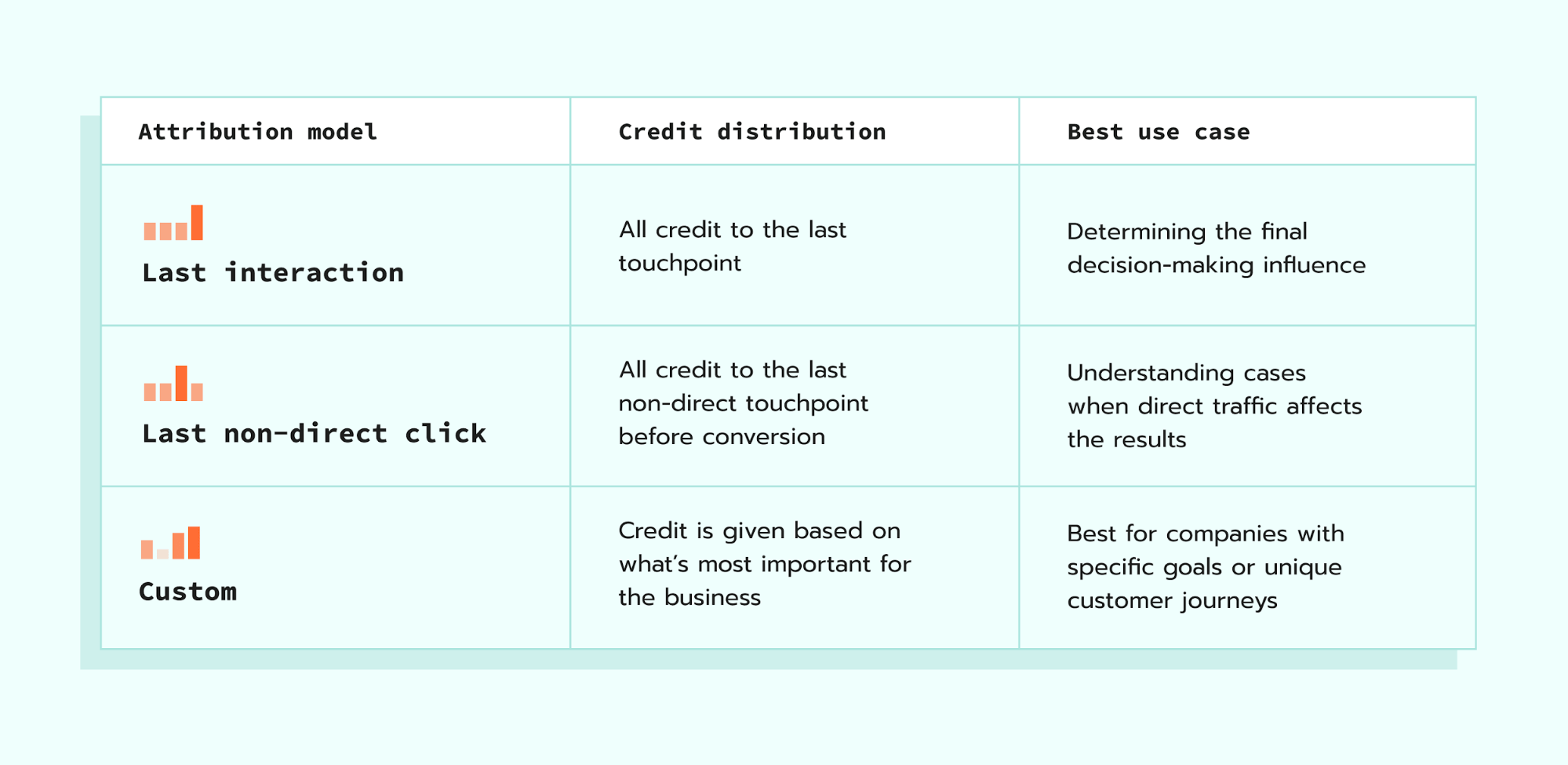
If you set the same attribution model across platforms, you still can see the difference in conversions. It happens because platforms usually offer similar naming for models ("last click" or "data-driven"), but the way they calculate and attribute transactions differ under the hood:
- Each platform sees a different part of the user journey (e.g., GA4 sees only website interactions, CRM counts final transactions only, ad platforms see only their own ad ecosystem).
- Different calculations/definitions of "click" and "session" (e.g., in GA4, the last non-direct click is used by default, in Google Ads, the last Google Ads click, in Meta, the last eligible ad interaction within its window).
- Attribution windows can’t be matched completely (some platforms allow flexible windows, while others have fixed or limited options).
Data processing delays
Different platforms process and update data at different speeds, which can create temporary mismatches in your reports. For example, in GA4, you should always pay attention to whether your data is sampled or not. Analyze only unsampled data.
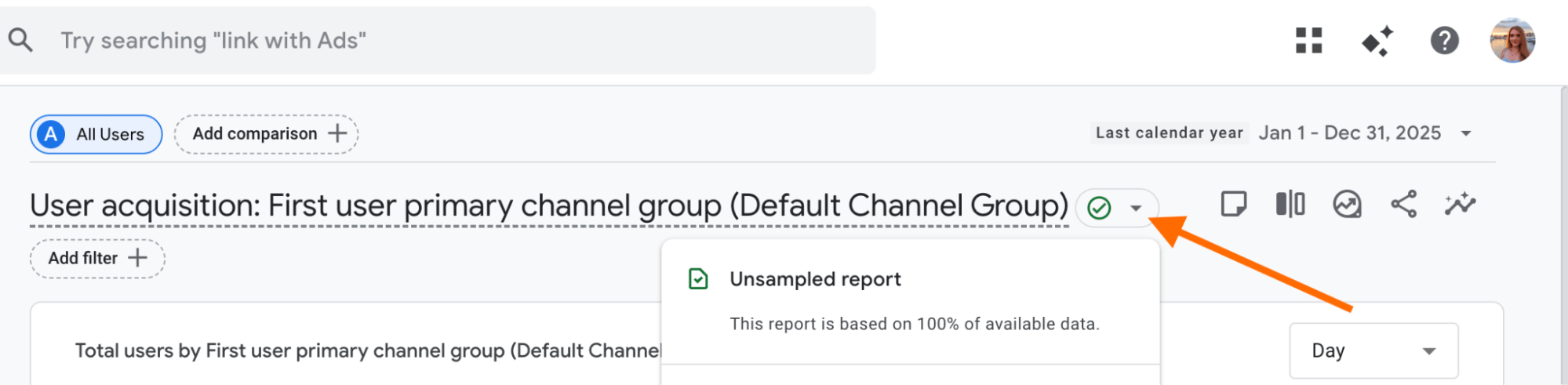
Some tools offer real-time or near-real-time reporting, but most web analytics platforms rely on processing pipelines that take time. This means that if you compare data too early, discrepancies are almost guaranteed.
So, when to check the data, so it isn't too early? If you’re analyzing data from yesterday, you’re often analyzing incomplete data. Use and analyze data that’s at least 2-3 days old.
Hidden data sources
Hidden data sources are usually transactions from physical stores. They can create data discrepancies that are easy to misinterpret if you’re only looking at frontend tracking.
The transactions that come from offline touchpoints are recorded in your backend system (CRM, CMS), but never pass through your website tracking if you don't have offline conversion tracking configured.
When some data comes from frontend tracking (browser) and some from backend/webhooks, you’re effectively combining different sources of data.
If you or your client has an offline store besides an online one, it can be a case. To start resolving data discrepancies, you need to configure webhooks that send data from your backend to GTM. There are numerous ways to do it; the easiest one is using Stape Conversion Tracking apps for CRM/CMS platforms.
Among the most popular platforms we support are Shopify, WordPress, HubSpot, HighLevel. We constantly add new apps; for the up-to-date list, please refer to the page with CRM/CMS apps.
| Real-world example: in hospitality, offline cancellations and modifications are a compounded variant of the hidden data problem. A luxury hotel group's Google Ads reports were off by 31.6% against backend PMS data, with an additional 15% of tracked conversions being ghost bookings from stays that were later canceled offline. This combination actively misdirected Smart Bidding for months until the group implemented server-side tracking to eliminate "phantom ROAS" and reduce CPA by 14.3%. |
Ad blockers and browser restrictions impact
Even with a technically correct setup, some share of your data can be lost due to ad blockers and browser restrictions. That was a case in multiple Stape clients - tracking worked perfectly in debugging mode, but still showed gaps in real reports.
In the case with WordPress and GA4, mentioned above, a similar pattern appeared: setup validated in debugging tools, but a portion of real user data never reached GA4.
Successful debugging does not guarantee complete data collection. For server-side setups, this is exactly where a structured post-launch debug sequence pays off, one that goes beyond the preview mode and into incoming and outgoing logs to confirm whether data actually left the server and reached the destination platform.
Website visitors rely on ad blockers and built-in tracking limitations (like Safari and Firefox have). Some use AI browsers, which in most cases have default configurations to block all the ads and tracking scripts. In such a case, GA4 scripts entirely prevent requests from being sent.
In the case of our client, suggested approaches that helped to reduce data discrepancy were the following:
- Using a Custom Loader power-up. It helps track script loads in a way that is difficult to detect for ad blockers.
- Configuring a custom domain. In this case, the tracking requests are served from your main domain instead of third-party ones (like Tag Manager or GA4), which are easy to detect by ad blockers.
Consent-related causes

It will be especially relevant if you target EU countries and/or some states in the USA, since they have adopted strict data privacy laws.
If users do not grant consent for tracking, analytics tools are either limited or completely blocked from collecting data. This impacts the number of users, sessions, and conversions you see in your reports.
Consent is tricky in general; here are some possible ways consent can impact your data collection:
- You see data differences across platforms because users didn't consent to data collection. In this case, it is totally okay and means you are following data regulations.
- You get partial consent from the users, and instead of conversion recording, GA4 receives "pings". It can be relevant if you are using Google Consent Mode (v2). When Consent Mode is enabled, and a user does not grant full permissions, GA4 does not stop collecting data entirely. Instead, it sends “ping" requests that don’t use cookies and don’t contain identifiable user data. Later, GA4 uses these signals as part of its modeling system, combining them with aggregated behavioral patterns.
- You have a Shopify website, and it doesn't transfer a consent status on the checkout page. Shopify’s checkout works in a sandboxed environment; it means it does not automatically inherit consent decisions made on the storefront. Without additional configuration, the default state in checkout is often stated as "denied".
- You've configured the setup incorrectly. If tags are not properly aligned with consent settings, the initial page view may fail to fire when a user first lands on the site and accepts consent. Instead, tracking only starts on subsequent page views. As a result, the original landing page is not recorded, the initial traffic source is lost, and attribution in GA4 becomes inaccurate (often defaulting to "Unassigned" in GA4 reports).
We show in detail how to troubleshoot the problems with Stape Logs in the following paragraphs.
Events duplication
Event duplication is a common problem, especially for platforms like Meta. For example, when you configure Facebook Pixel and Facebook CAPI (as Meta suggests for efficient tracking).
Without setting up a shared event identifier (such as a transaction ID or event ID), platforms cannot recognize that these events represent the same action.
In the article below, we show how to troubleshoot and fix this problem.
When is a data discrepancy okay?
Not every mismatch between analytics platforms is a problem. In fact, some level of data discrepancy is expected in any tracking setup.
It's nearly impossible to achieve 100% alignment between CRM/CMS systems and GA4 or ad platforms.
In most setups, a gap of around 10% is generally considered normal. But it will still depend on data quality (client-side or server-side tracking), tracking architecture, and whether you target the countries with data regulations, as we explained earlier.
A data discrepancy is usually totally fine if you can clearly trace its cause, for example:
- GA4 shows fewer conversions because consent is denied for part of the traffic
- Shopify shows more orders because it includes offline or backend-driven purchases
- Ad platforms show different numbers due to attribution windows
In such cases, it is not a tracking error but a measurement limitation.
What is the Stape Logs feature, and how it solves the limitations of other logs
Analyzing logs is an effective strategy to figure out the cause of the problem. Analytics dashboards only show the result, not the process of data collection. When you see a data discrepancy (e.g., GA4 vs Shopify, or GA4 vs Meta), you can confirm that something is wrong, but you cannot tell where or why it broke just by looking at reports.
In this case, Stape Logs will be helpful. It is a feature in your Stape account that lets you monitor all incoming and outgoing requests in your server-side container.
| ❗Note: the feature is available for the Pro or higher plans only. |
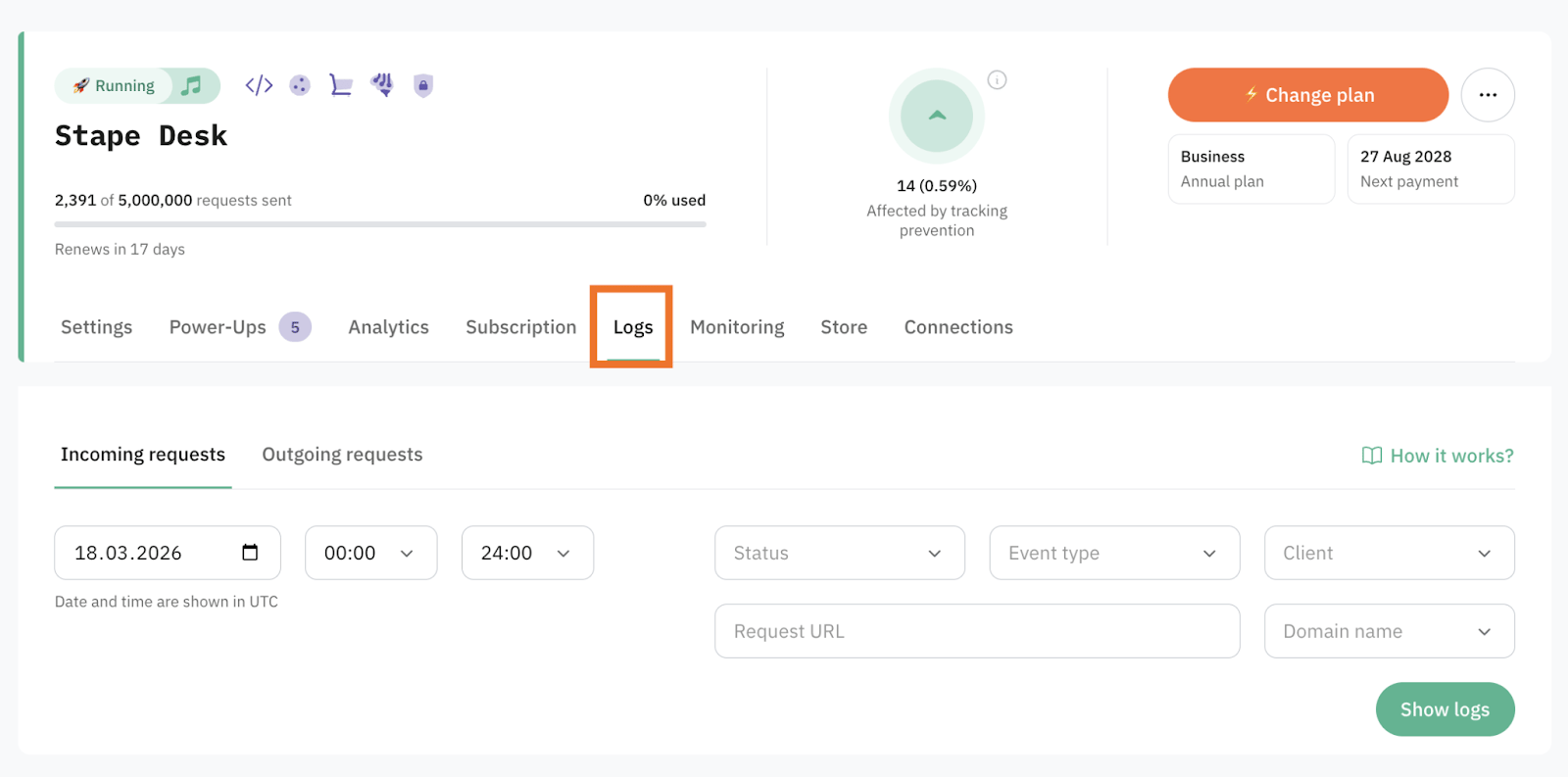
The main limitation of many server-side setups is the lack of visibility into outgoing requests. While incoming requests are usually available, outgoing data often requires additional access or support, making it hard to diagnose issues like data discrepancies.
Stape solves this by providing both incoming and outgoing logs in one place (with consent required for outgoing logs due to potential PII). This gives a full view of your data flow and makes it much easier to identify where tracking issues occur.
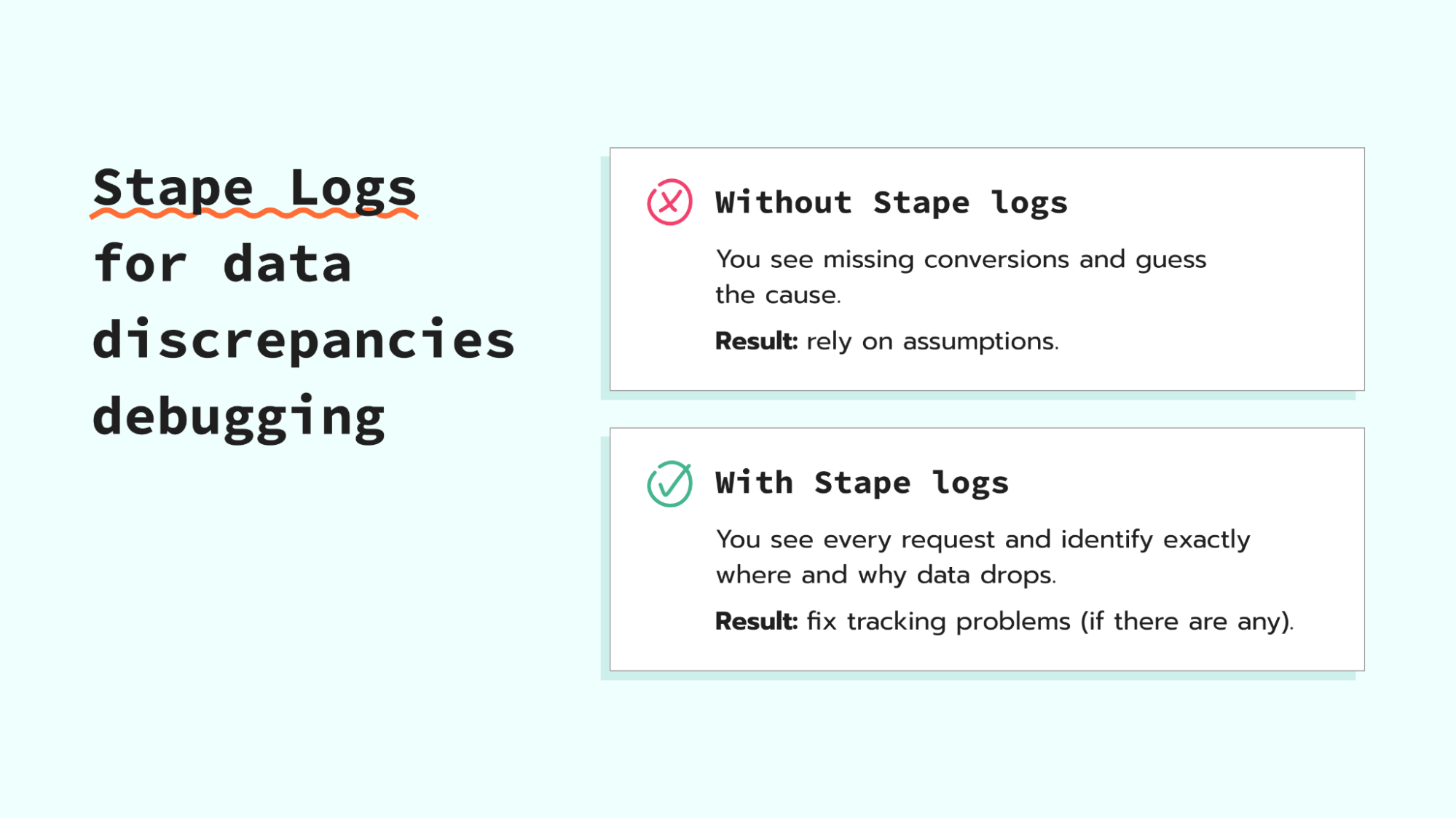
Identify the cause of data discrepancies using Stape Logs and fix the problem step-by-step
In the collapse elements below, we show in detail how to troubleshoot the issue for the most popular causes of data discrepancies:
Reason 1. Consent Mode is affecting tracking and leading to modeled conversions (conversion underreporting)
It can be a case if your target audience is from the EU, and you have Google Consent Mode (v2) enabled. In this case, you won’t see any errors in Stape Logs.
To be sure, that’s a case, do the following:
1. Check Incoming and Outgoing requests in Stape Logs. Filter them by conditions that work for the tracking issue you’ve detected. In our case, it is “purchase” in GA4.
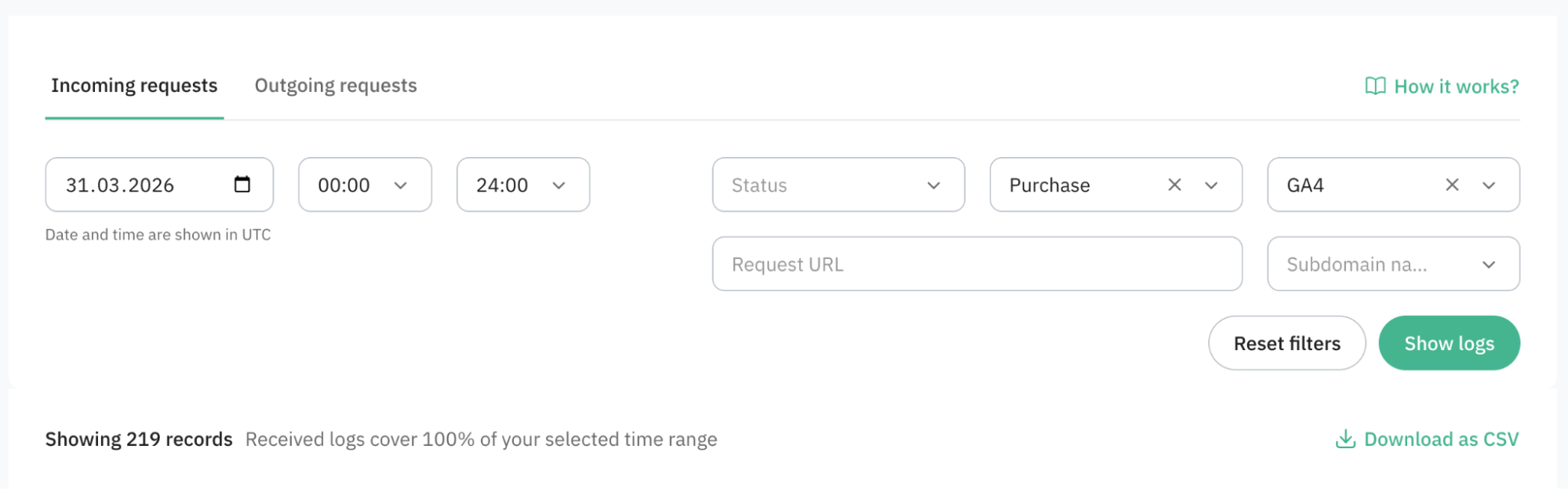
2. Compare the number of purchase logs in the Incoming and Outgoing tabs. You may notice that the number of outgoing requests is lower.
3. If the difference in the number of events between two tabs is huge, so that it would be difficult to filter manually, click “Download as CSV”. Download both Incoming and Outgoing logs. Be sure that all the logs are loaded before downloading them - click “Load more” at the bottom of the page.
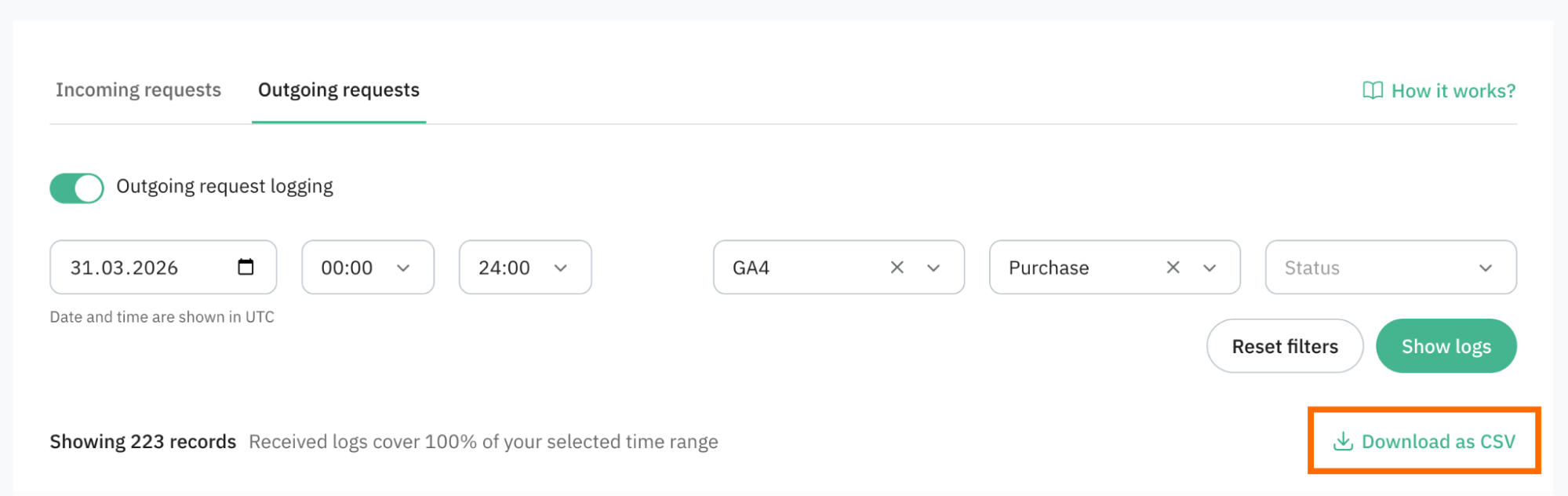
4. Extract from the URL “transaction_id”.
If you’re doing it manually, click on the arrow next to the request in column “More”. Find the “transaction_id” in the URL.
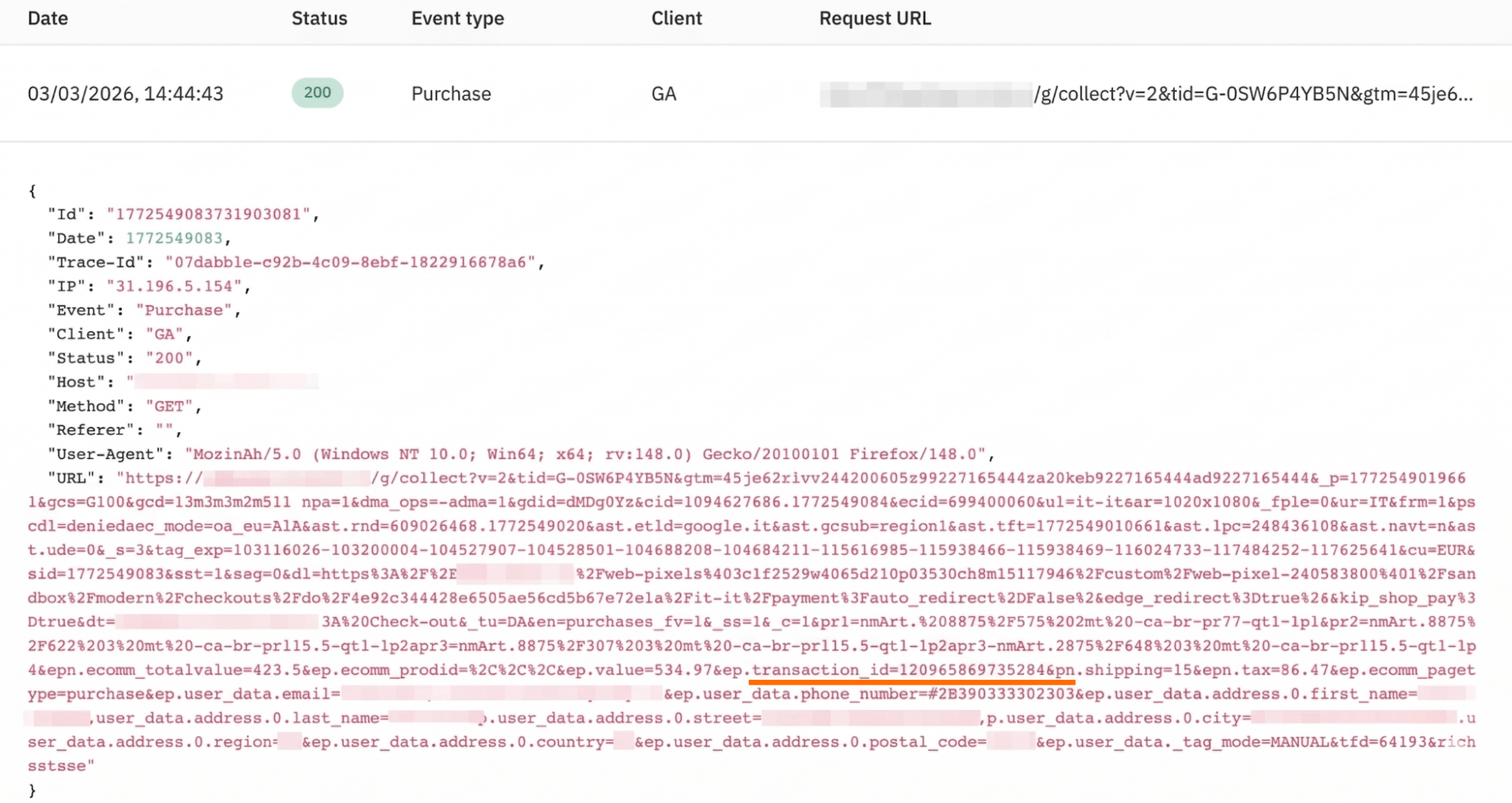
If you downloaded it as CSV, follow one of the options:
- Ask the AI agent to extract the transaction_ids from each request URL (share both CSV files).
- Upload the file to Google Sheets and use the formula.
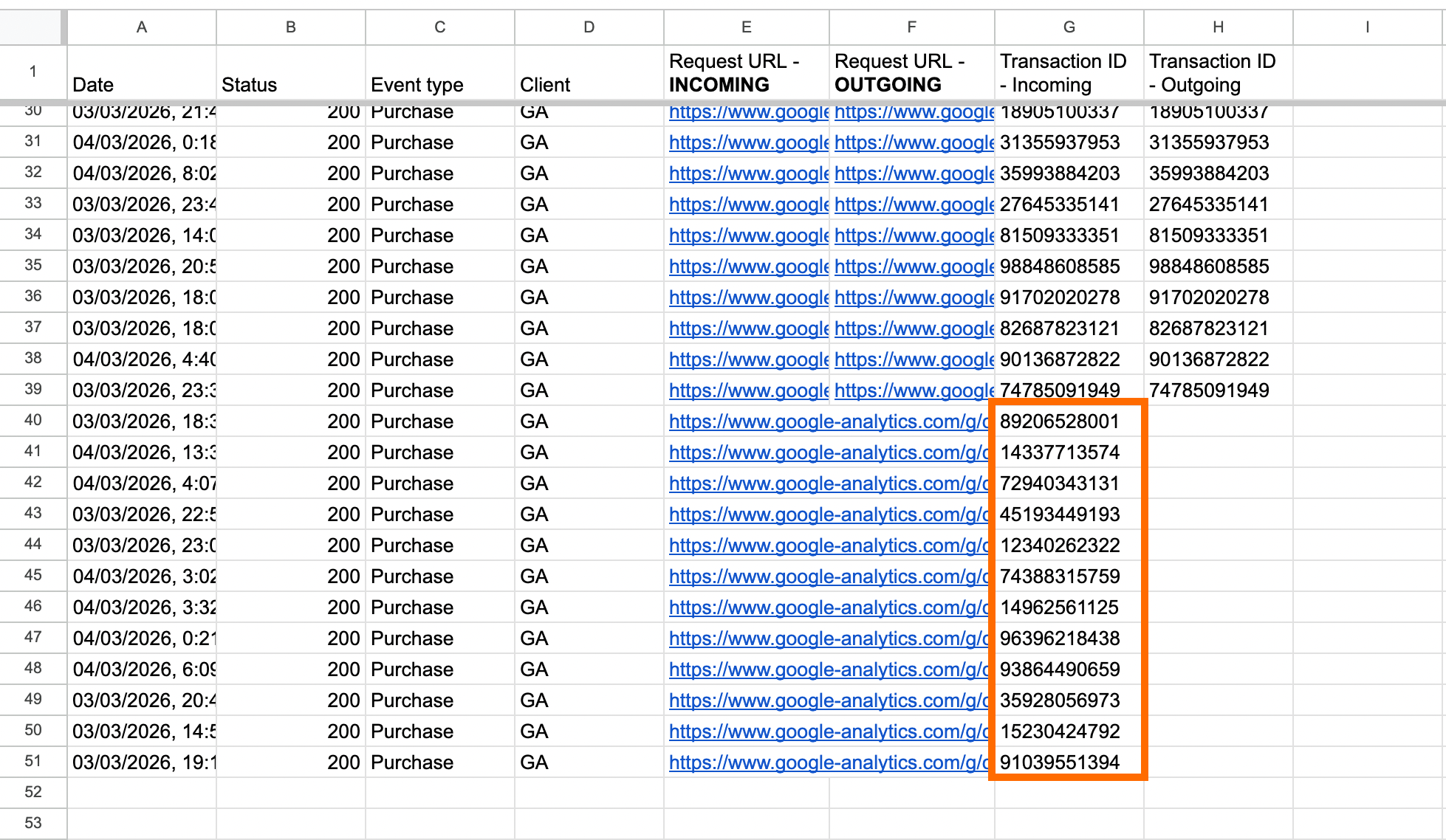
Add the URL from the Incoming and Outgoing CSV docs into one Google Sheets doc in different columns:
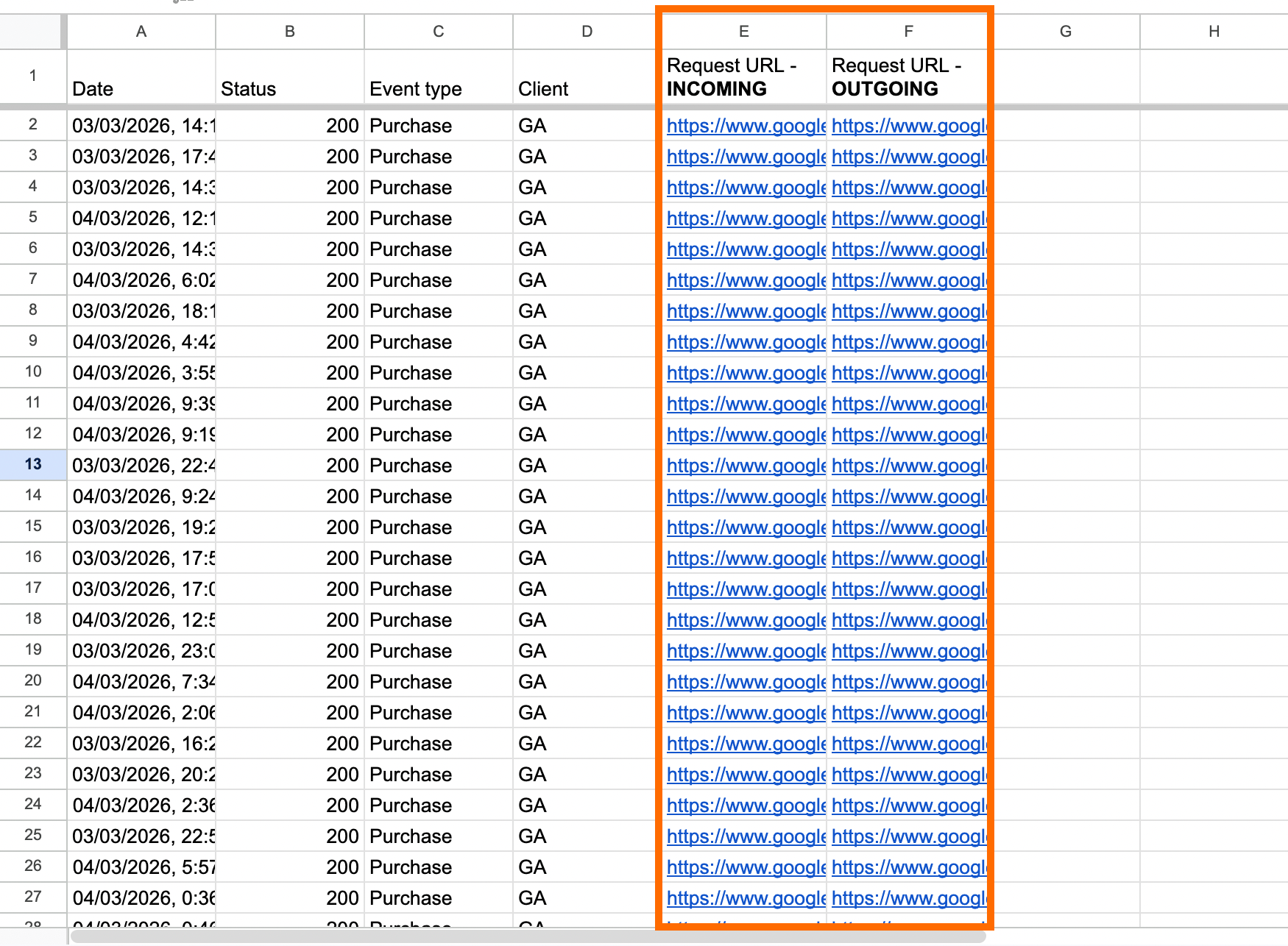
Extract the transaction_ids from both columns. We’ve used the following formula for Google Sheets to do it:
={"Transaction ID - Incoming"; MAP(E2:E, LAMBDA(row,

  IF(ISBLANK(row), "",

  IFERROR(REGEXEXTRACT(row, "transaction_id=([^&]+)"), ""))))}
So you can see the IDs that are missing in the column “Outgoing”.
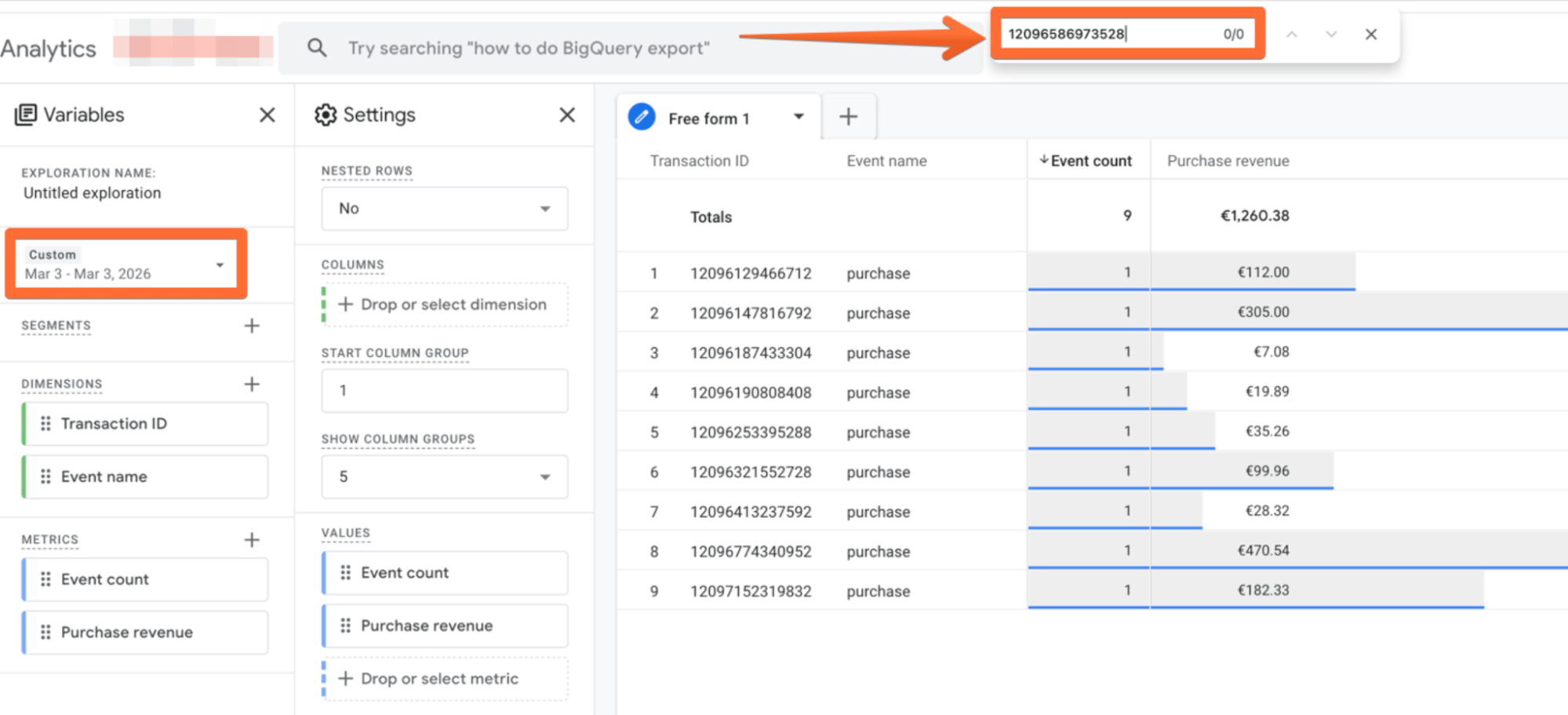
If you open the GA4 report and check the transaction IDs that were received in the specific period of time, you will also see that the IDs of incoming transactions aren’t listed on the dashboard.
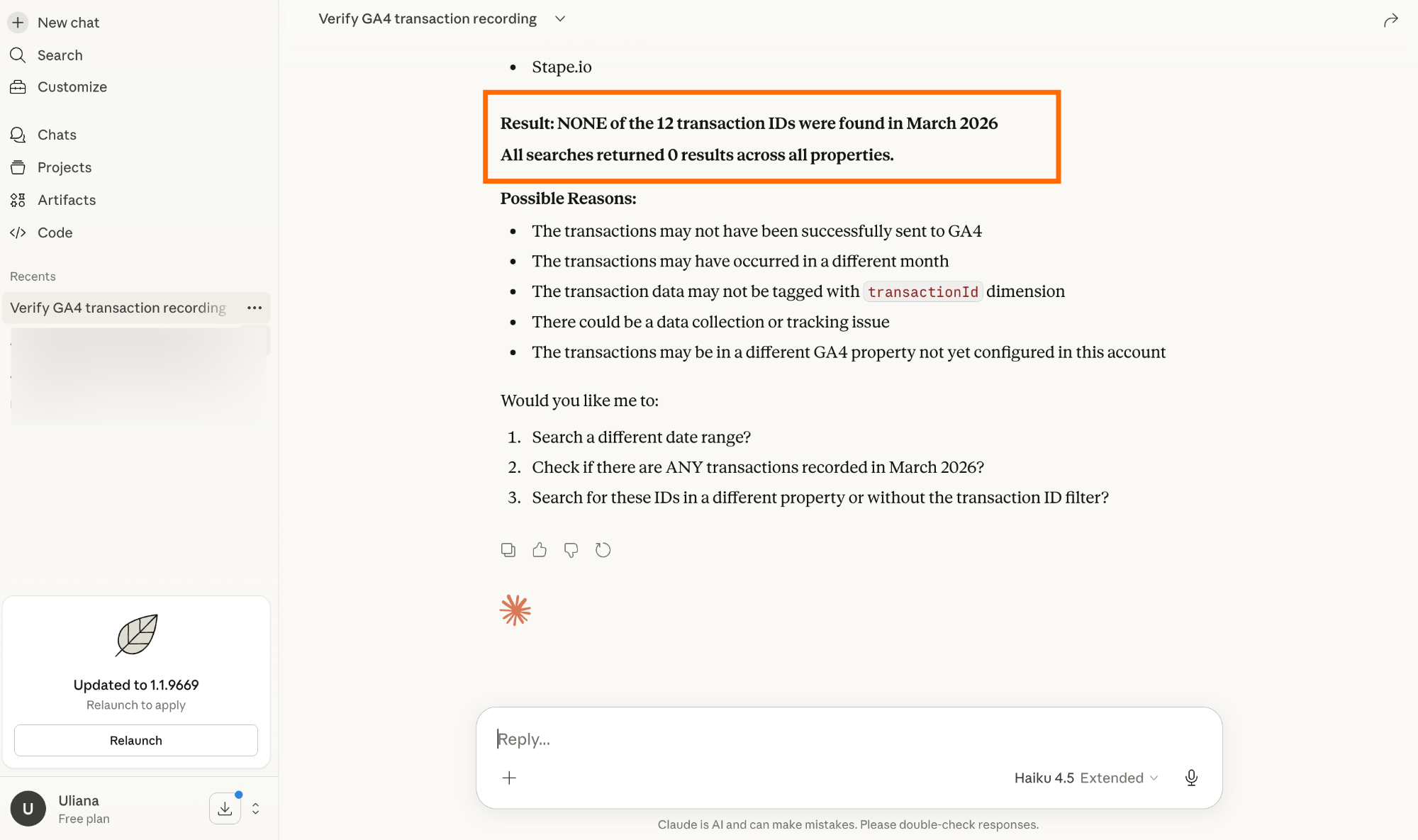
To avoid manual work, you can use the GA4 MCP server. Just specify the query for it, list the transaction IDs from logs, and ask the AI bot to check whether these IDs were recorded by GA4.
The GA4 MCP server is compatible with any type of AI agent. If you would like to configure it, follow the instructions from our guide on the GA4 MCP server.
5. Check the GCS parameter for the transactions that are missing in Outgoing requests.
The GCS parameter indicates the consent status (accepted, rejected, or undefined).
The parameter value is stored in the request URL as well:
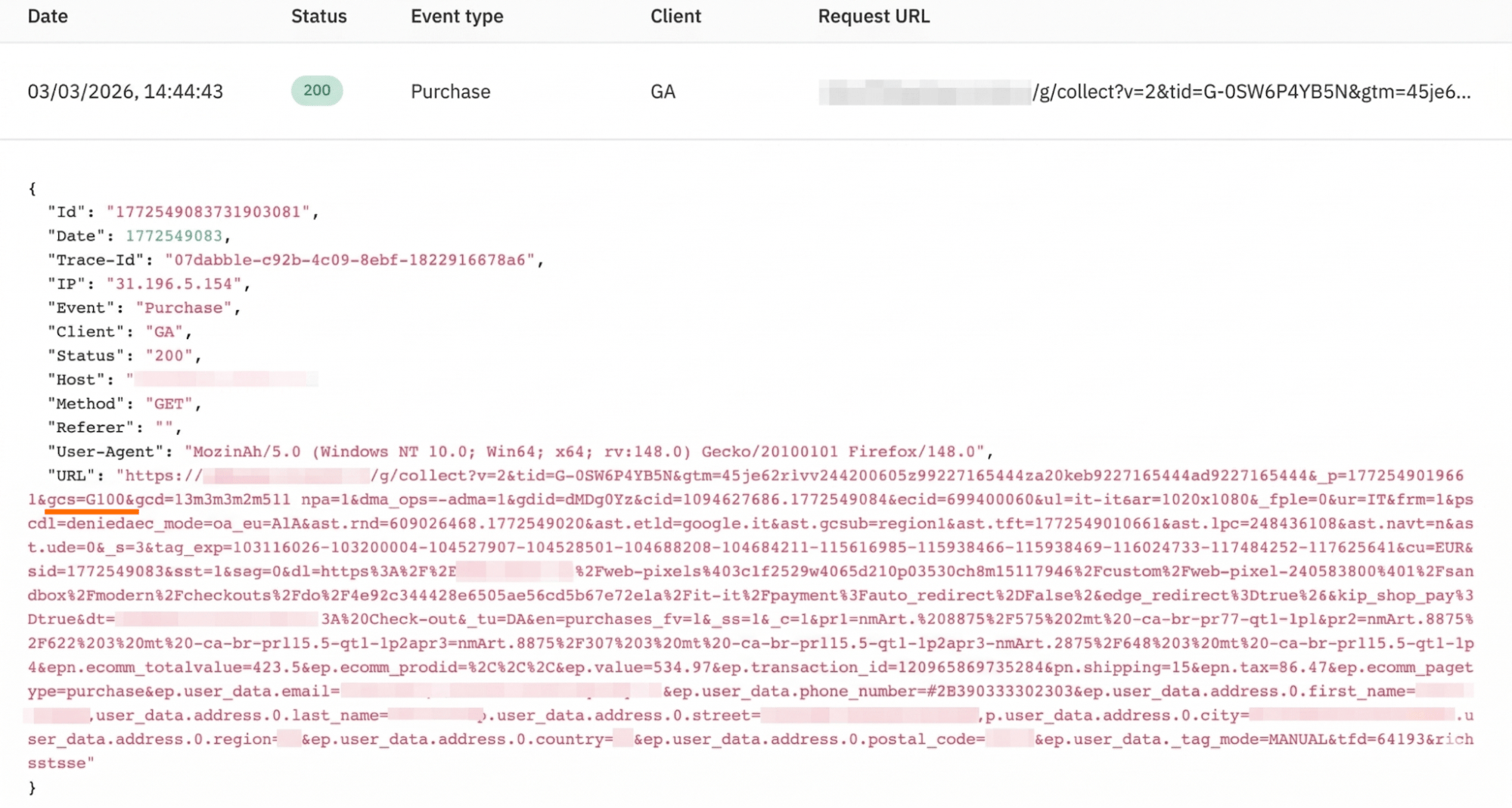
You can check it manually, using an AI agent, or using formulas in Google Sheets.
Here is the formula we’ve used:
={"GCS Value"; MAP(E2:E, G2:G, H2:H, LAMBDA(url, g_val, h_val,
  IF(AND(LEN(TRIM(h_val))=0, LEN(TRIM(g_val))>0),
    IFERROR(REGEXEXTRACT(url, "gcs=([^&]+)"), ""),
    "")
))}
And the result we’ve got:
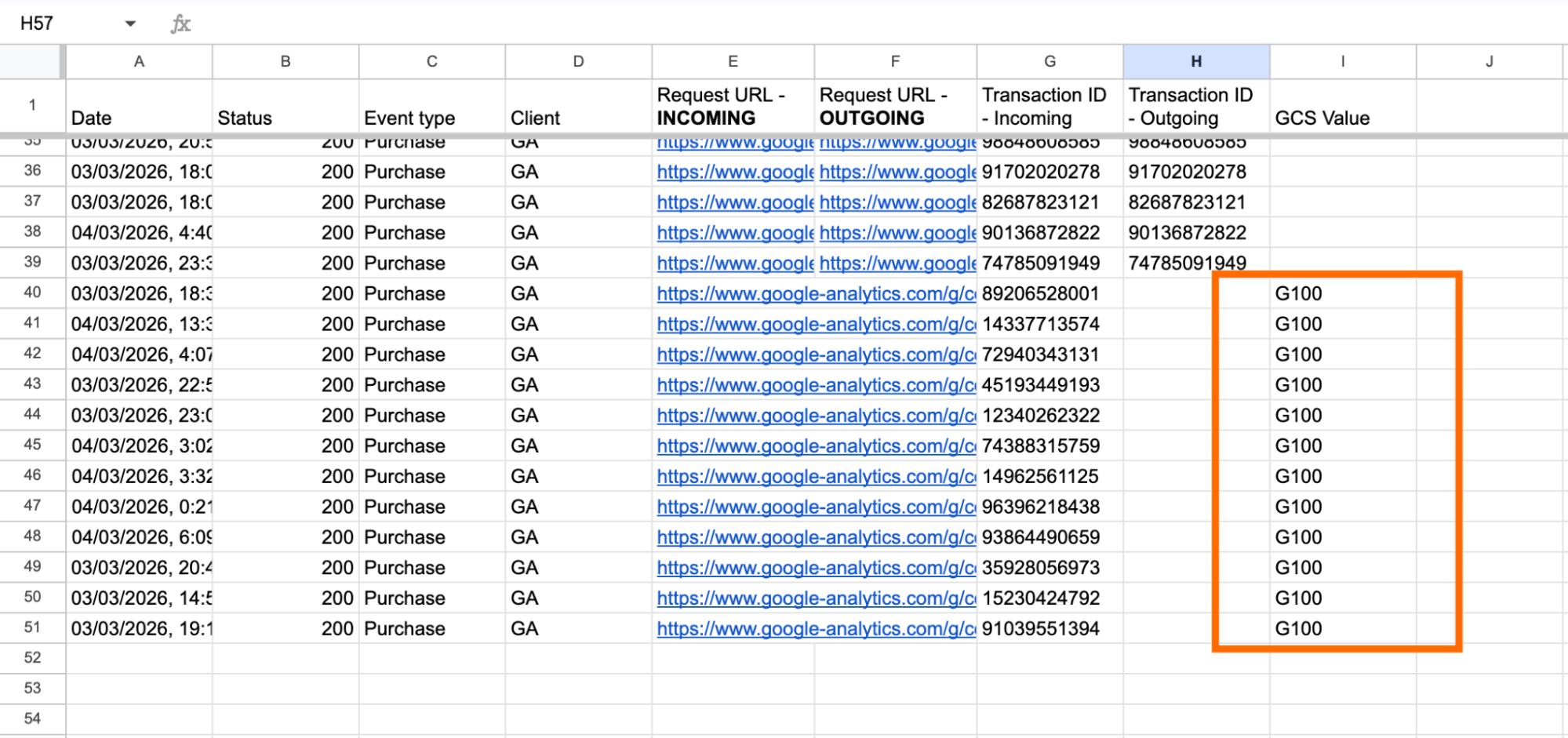
6. Check the value of the GCS parameter.
In our case, all GCS had a “G100” value, but your output may differ. Here are possible parameter values:
| Value | Meaning | Description |
| G100 | No consent | Both Ad Storage and Analytics Storage were denied. |
| G110 | Partial | Ad Storage was granted, but Analytics Storage was denied. |
| G101 | Partial | Ad Storage was denied, but Analytics Storage was granted. |
| G111 | Full consent | Both Ad Storage and Analytics Storage were granted. |
So, a logic question arises - if the consent wasn’t given or given partially, why is data still sent to GA4?
You likely see this request in logs because Google Consent Mode (v2) is enabled. When consent is denied, GA4 sends "pings" that do not use cookies. These pings are then used for basic measurement and conversion modeling. So, you won’t see them as conversions recorded, but they will be used by GA4 algorithms to model the data.
Reason 2. Incorrect consent configuration on the Shopify website (conversion underreporting)
Shopify’s checkout runs in a sandboxed environment that does not automatically carry over user consent from the storefront. Without additional configurations, the consent is by default set to “denied”. So, everything that happened on the checkout page won’t be recorded.
To see whether it’s a case via Stape logs, do the following:
Check the orders in your Shopify account over a specific date.
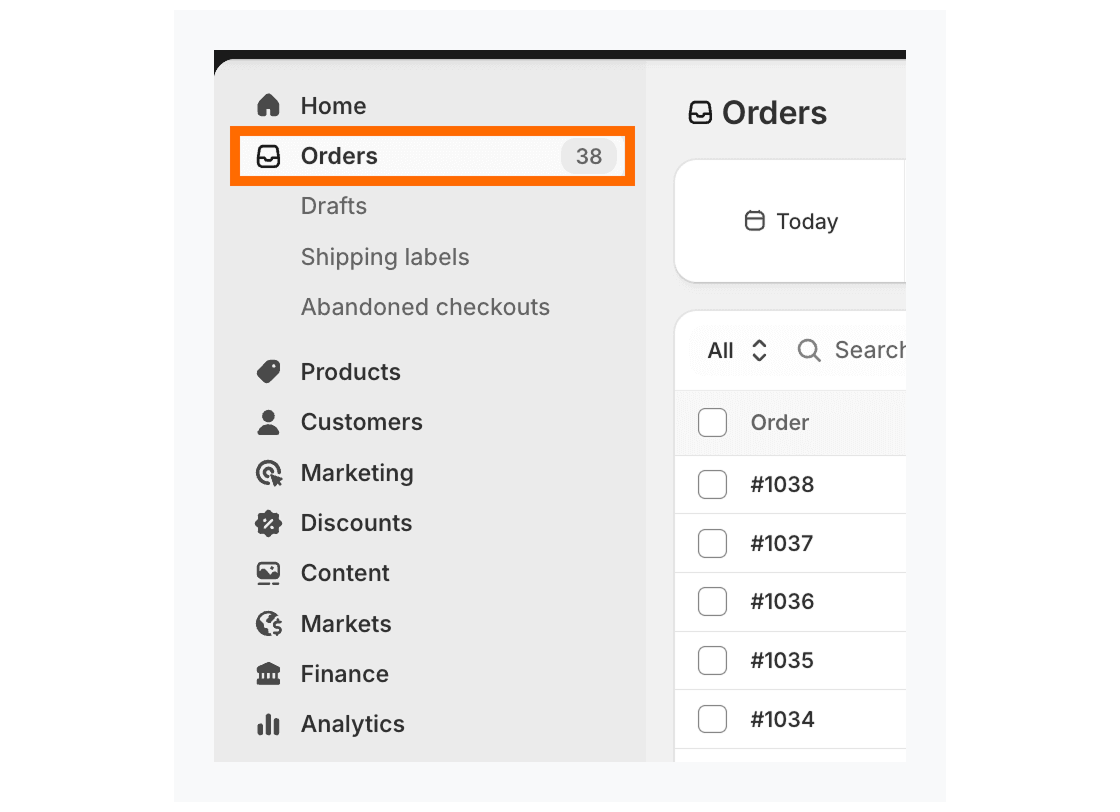
Navigate to your Incoming logs, add the filters:
- Select an event type that should trigger on the checkout page (such as begin checkout, purchase)
- Select the client you’re using to send data to the server GTM container.
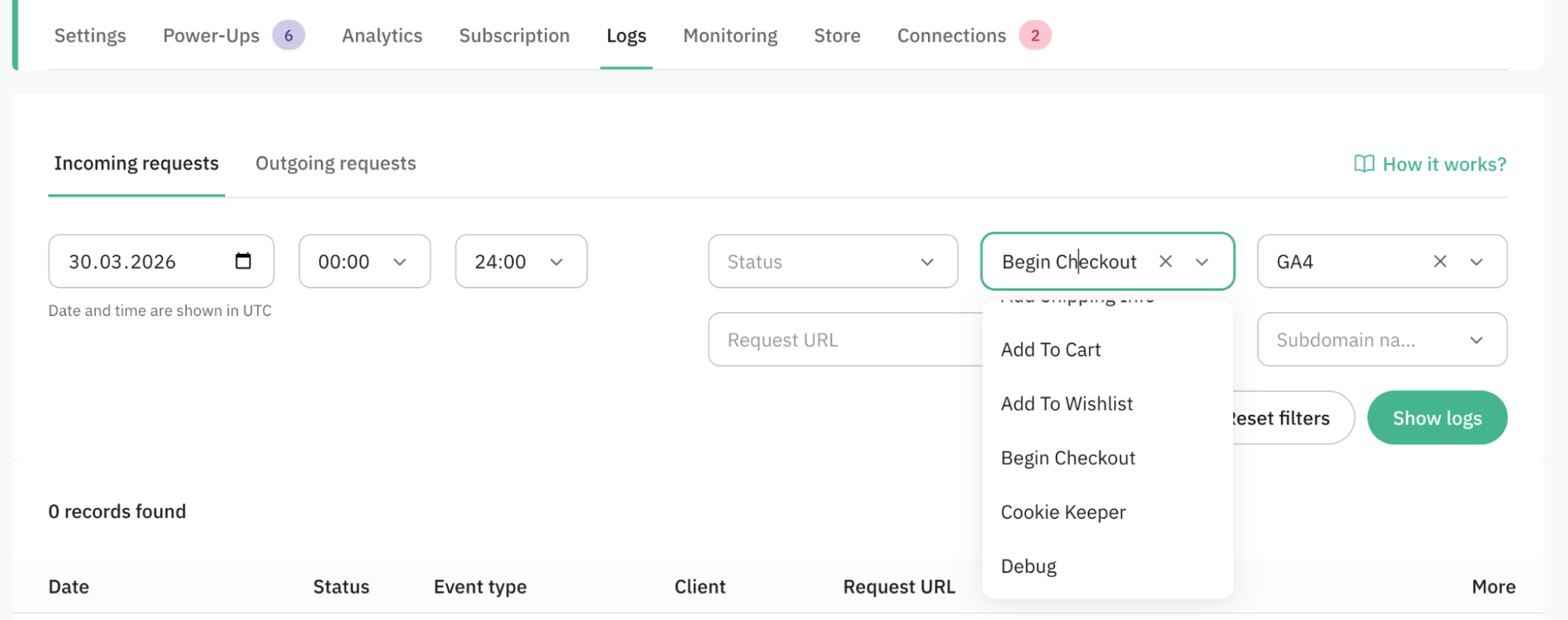
If you are using GA4, you may see some incoming requests. If you have another client configured, you’ll most likely see zero requests.
Check the request URL to see the consent status of the requests (if there are such). Look for the GCS parameter.
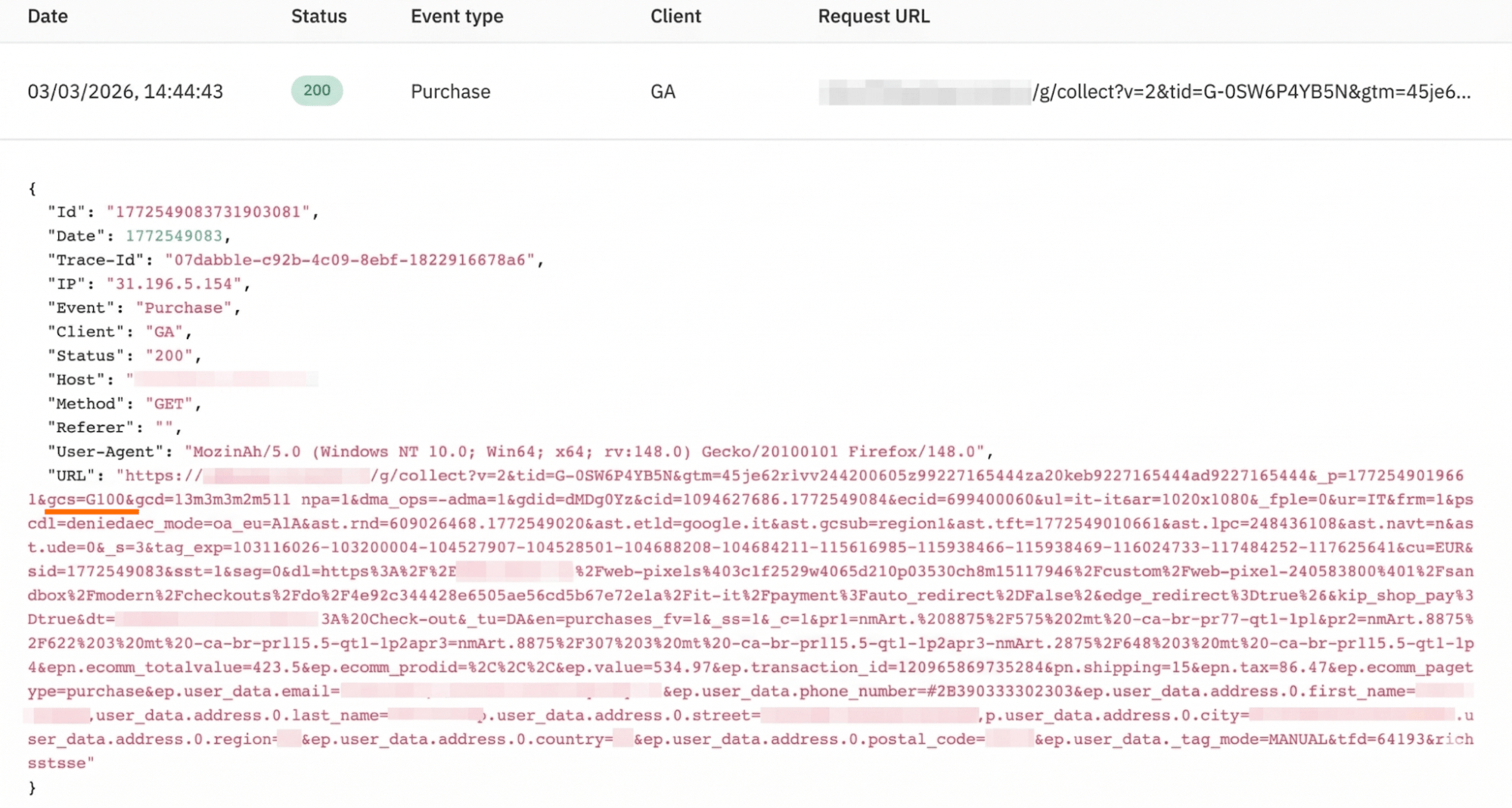
Here are possible parameter values:
| Value | Meaning | Description |
| G100 | No consent | Both Ad Storage and Analytics Storage were denied. |
| G110 | Partial | Ad Storage was granted, but Analytics Storage was denied. |
| G101 | Partial | Ad Storage was denied, but Analytics Storage was granted. |
| G111 | Full consent | Both Ad Storage and Analytics Storage were granted. |
If you see a value G100, then consent wasn’t granted (even if initially a person has provided consent), and the event wasn’t sent from your server GTM container to the platform.
To fix the problem and send the consent status on the checkout page, follow the steps:
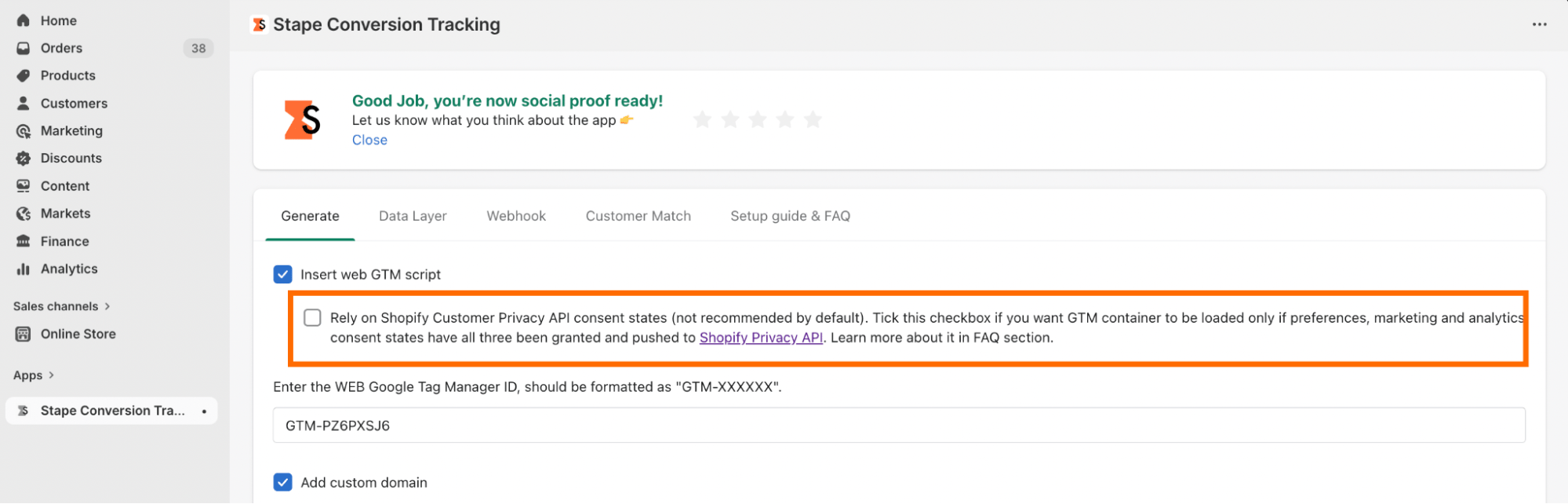
Be sure not to check the box “Rely on Shopify Customer Privacy API consent states”.
2. Create a custom pixel within the Shopify account:
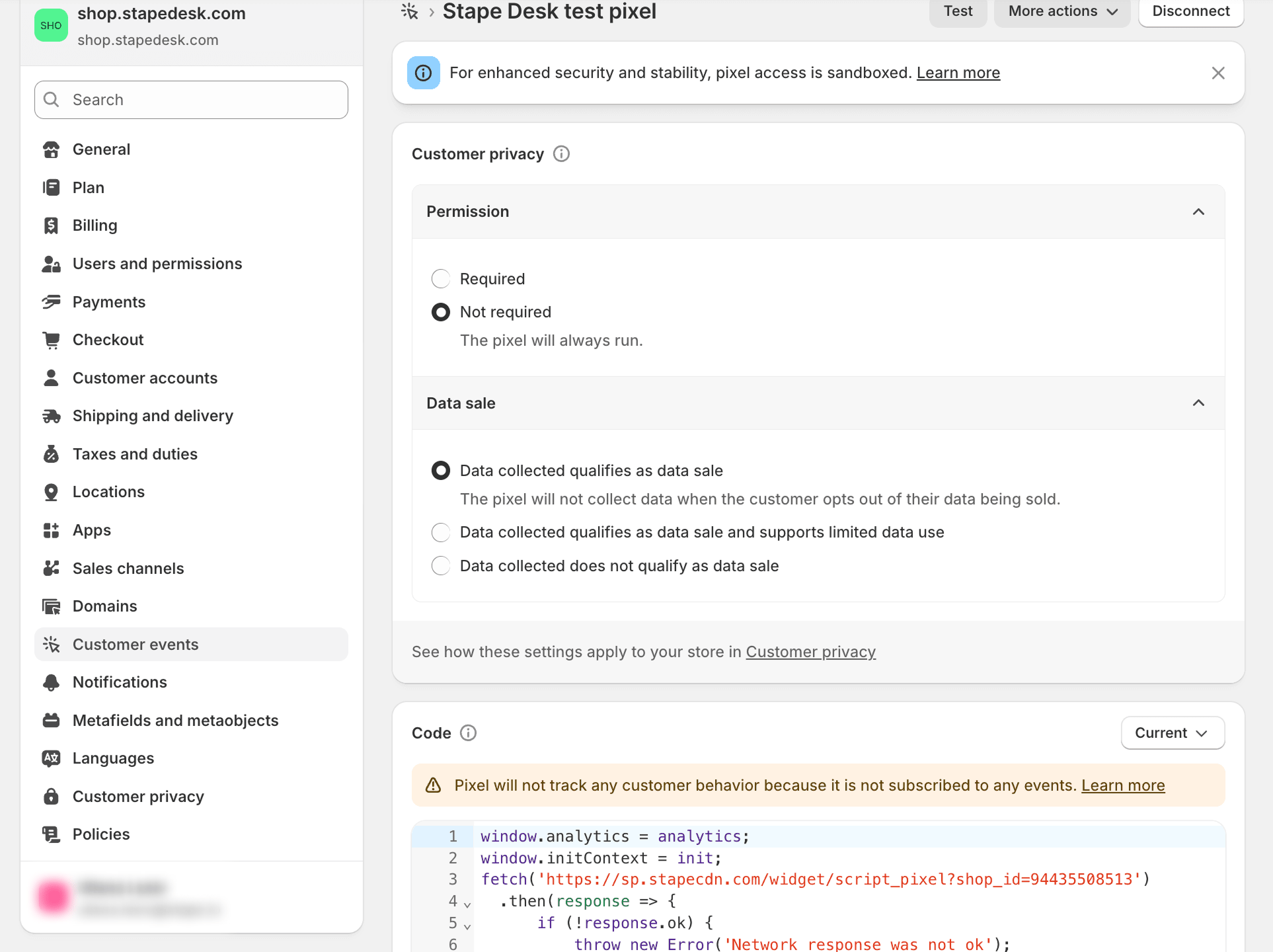
- Go to Shopify Settings → Customer Events → Add custom pixel → give it a name.
- In the Customer privacy section, under Permission, select “Not required”. The code snippet only generates dataLayer; it does not set any cookies or report any data to third parties.
- Paste the copied code from the Data Layer tab from the previous step.
- Save the changes.
3. Check whether consent status is sent to the checkout page.
Some CMPs can transfer the user’s initial consent to the checkout page, while others cannot. In those cases, any events that occur on the checkout page will not be recorded, since consent is denied by default.
To check whether your CMP sends consent status, do the following:
- Run the preview mode in the web GTM container, and prepare for debugging the checkout page in Shopify with the Stape GTM Helper Chrome extension.
In the tab Inject GTM, click Enable injection, add your domain name, and GTM ID. Save changes.
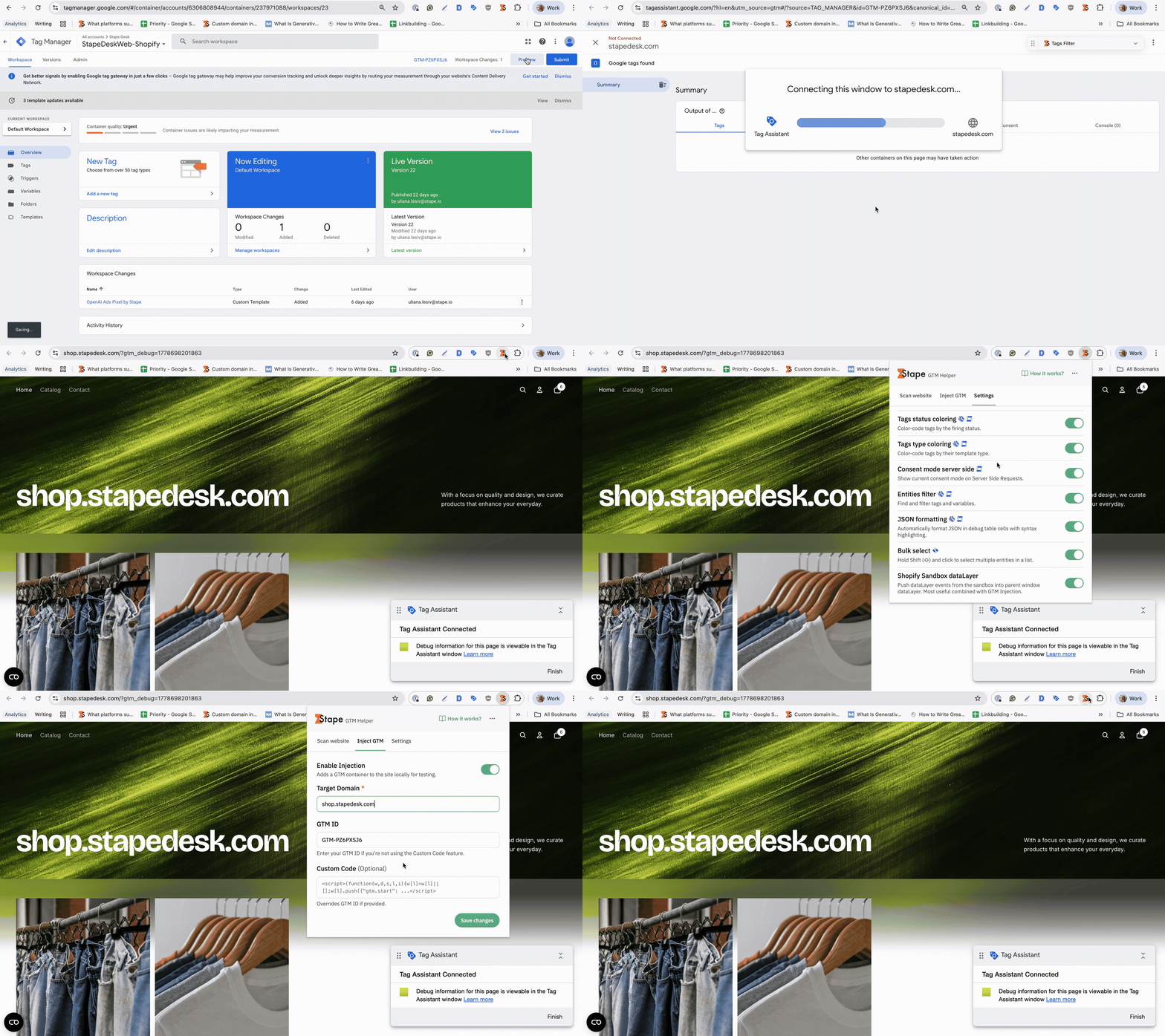
- Interact with your cookie banner (accept or deny some cookies).
- Trigger the event and check the cookie statuses in the second and third columns in the Consent tab.
They must reflect the cookie preferences specified on the cookie banner.
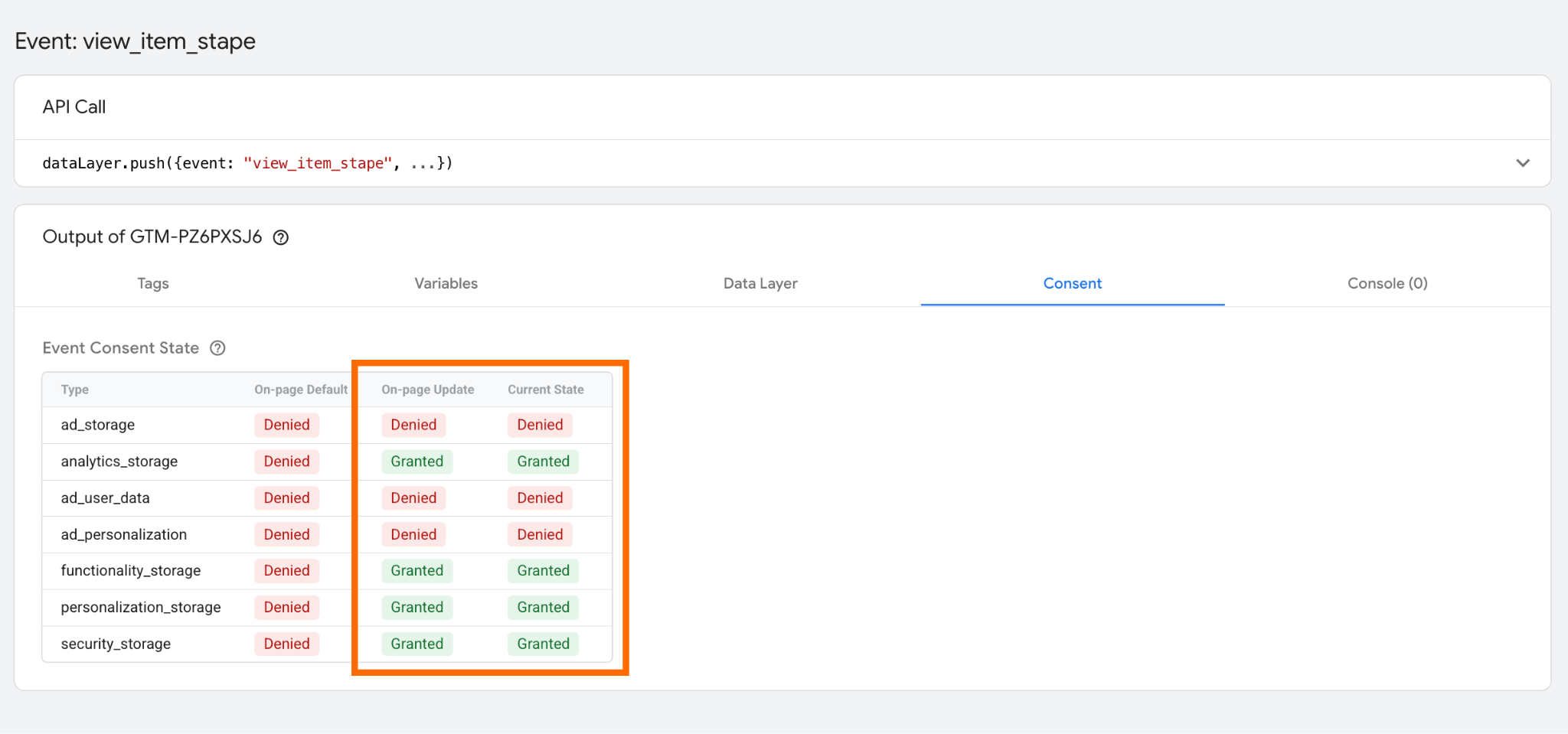
- Navigate to the checkout page. If the consent isn't transfered automatically to checkout, the status Denied will be displayed as the default and current status. The Consent Update event will never fire.
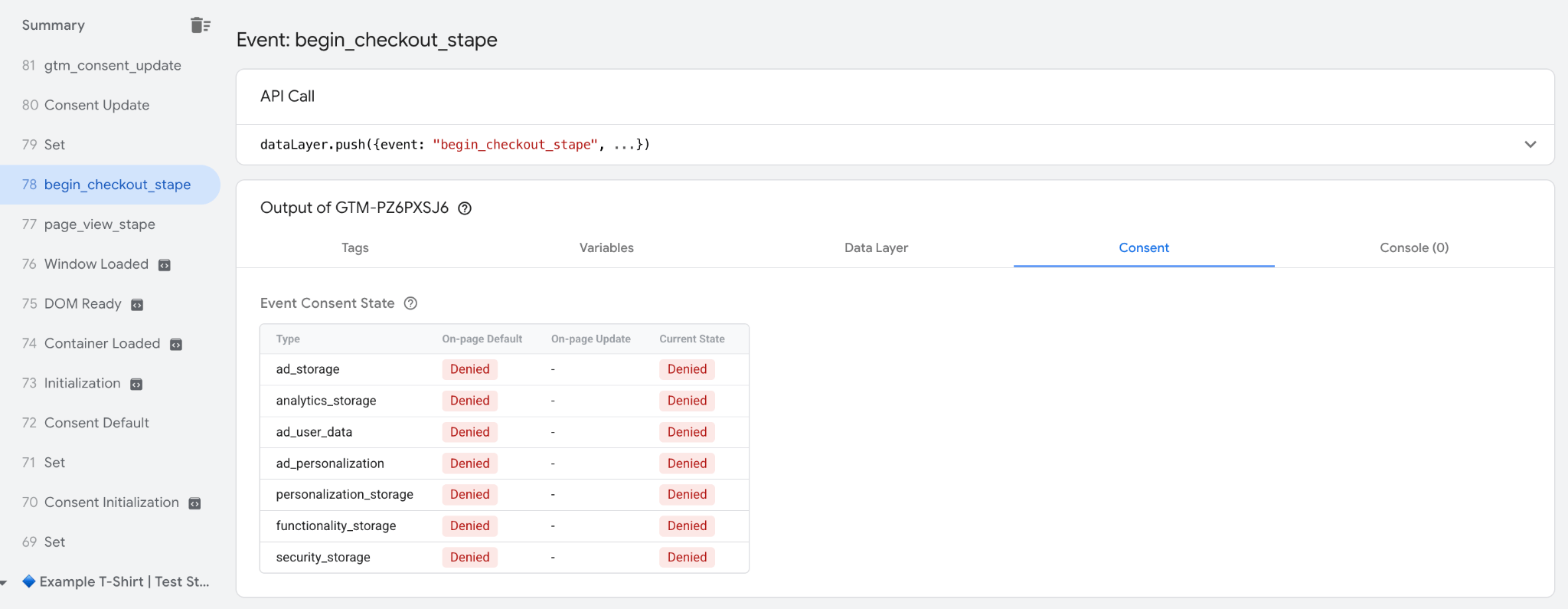
If you see false or denied in Cookie Values, you need to push the value additionally using Consent Mode (Google + Microsoft tags) by Simo Ahava.
Reason 3. Misconfigurations within GTM containers (conversion overreporting)
In Stape Logs, you can notice a discrepancy where the number of Outgoing requests exceeds Incoming requests. It is completely expected and not a cause for concern when:
- You send the data to several platforms at once. For example, one event might be forwarded to GA4, Facebook, and TikTok simultaneously. In this scenario, one Incoming request results in three Outgoing requests.
- You send the same event to 2 different Facebook Pixels, for example. In this case, the number of Outgoing requests will be higher.
When it is a problem:
- Identical events are sent multiple times to the same platform or the same pixel. This leads to duplication and can impact data accuracy and platform optimization algorithms.
To check it via Stape Logs, follow the steps below.
Scenario: You’ve noticed that the number of purchases from Meta Ads Manager is higher than in your CMS.
Navigate to Outgoing requests → use filters:
- Select the date
- Platform: Facebook
- Event type: Purchase
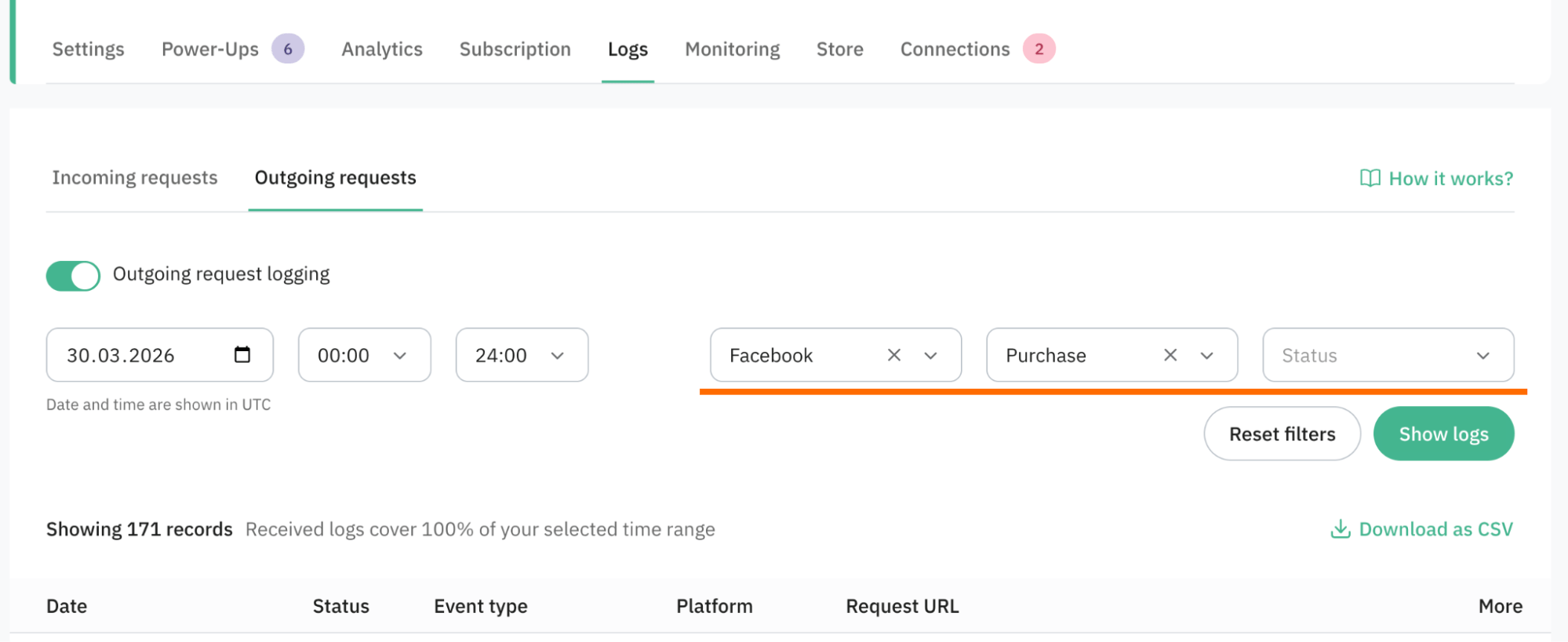
For easier troubleshooting, click “Download as CSV”. You can ask the AI agent to analyze the file by looking at the event_id and conclude whether they are duplicates.
Another way is using Google Sheets and doing the same task with formulas.
Firstly, extract the event_id from the Request URL. We’ve used the following formula to do it:
=ARRAYFORMULA(IF(H2:H="",, REGEXEXTRACT(H2:H, """event_id"":\s*""([^""]+)""")))=ARRAYFORMULA(IF(I2:I="",, IF(COUNTIF(I2:I, I2:I) > 1, "Duplicate", "Unique")))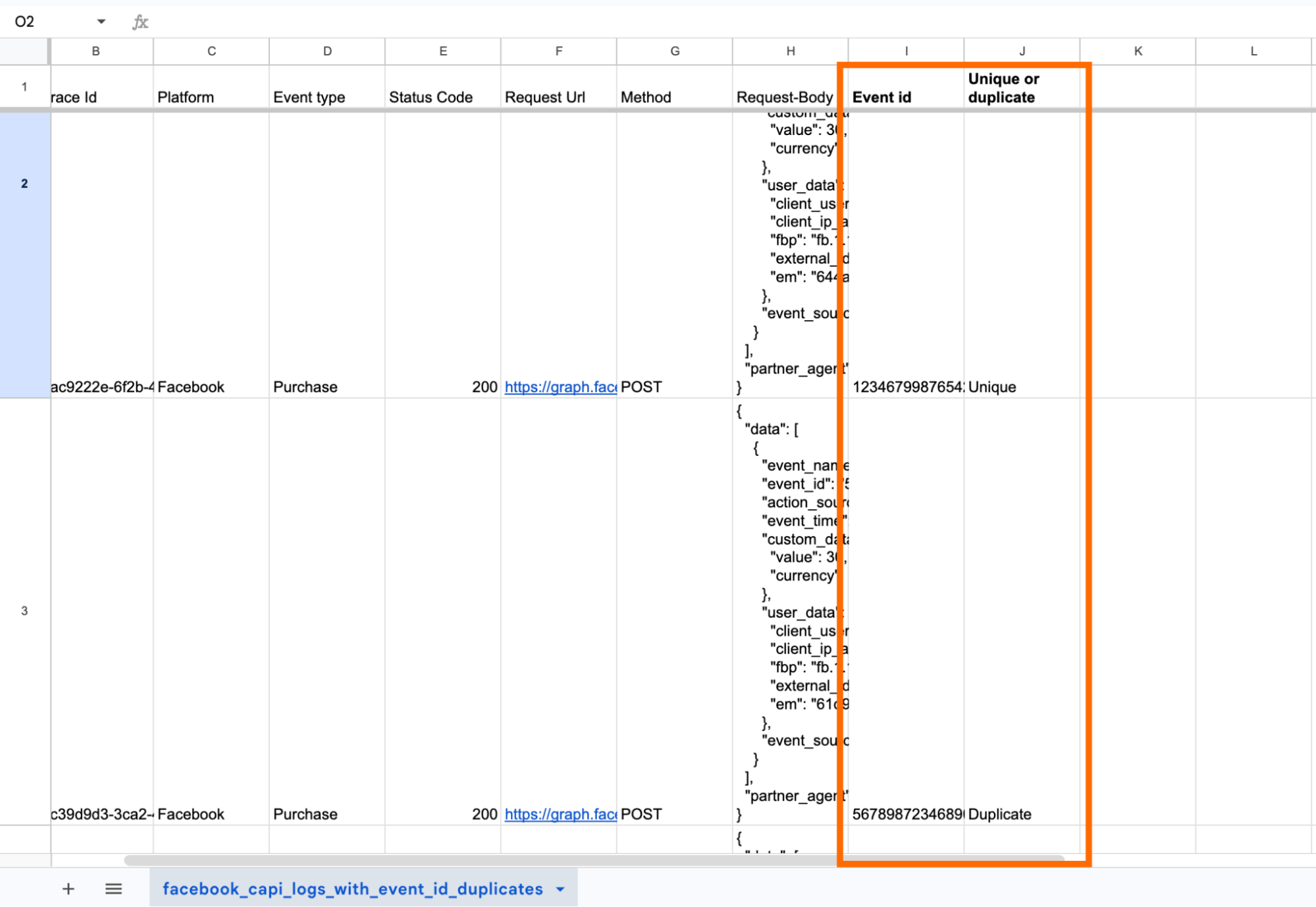
To fix the problem, you will need to fix the tags configuration within GTM. We have a detailed guide on how to set up Facebook event deduplication in Google Tag Manager.
Final words
Data discrepancies are a normal part of working with analytics, not an exception. Even when your tracking is correctly implemented, differences between GA4, CRM, and other platforms will still appear due to different attribution models, data processing delays, consent restrictions, and incomplete visibility of the user journey. The goal is not to eliminate every mismatch, but to understand what is causing it.
In most cases, a small gap between systems is expected and acceptable as long as it can be explained. Data discrepancies won’t disappear, but the confusion about why data differs can. With Stape Logs, you can see exactly what’s happening behind every conversion. Start by checking your own data flow and finding where the gap really comes from!

Comments