Viant Conversion API tag
Viant Conversion API tag by Stape is a custom Google Tag Manager (GTM) server-side template designed to send conversion events from the server container to the Viant Data Platform (VDP) Connect API.
With the Viant Conversion API tag you can:
- Send conversion data – send conversion data directly from the GTM server container to Viant's Conversion API.
- Authenticate automatically – the tag handles OAuth 2.0 authentication and automatically caches the access token to optimize requests.
- Automap – each event type can automatically map parameters from the incoming GTM event data (for example, GA4 schema) for event details, user identifiers, and purchased items.
- Hash PII – automatically hash user data like email and phone numbers using SHA-256 to meet privacy requirements.
- Control consent – the tag supports built-in
ad_storageconsent check to respect user consent before firing.
Before you begin
To complete this setup, you will need to create a sGTM container and send data from the web to the sGTM container. You will also need an active Viant account and obtain:
- Viant account ID
- Viant Advertiser IDs
- Conversion API username and password
How to set up Viant Conversion API tag
- 1.Go to the Google Tag Manager and open your server container.
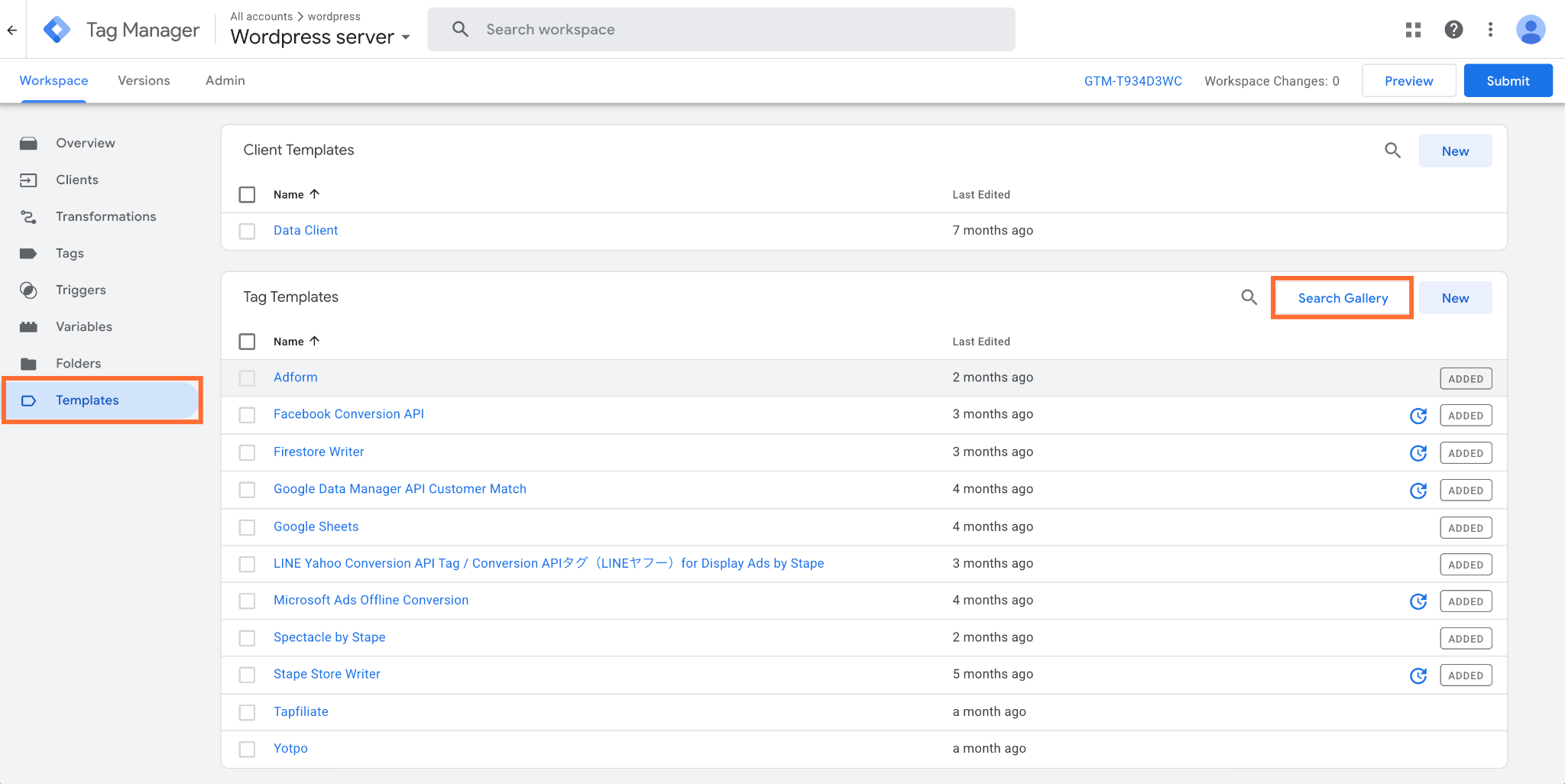
- 2.Go to Templates, and under Tag Templates, click Search Gallery.
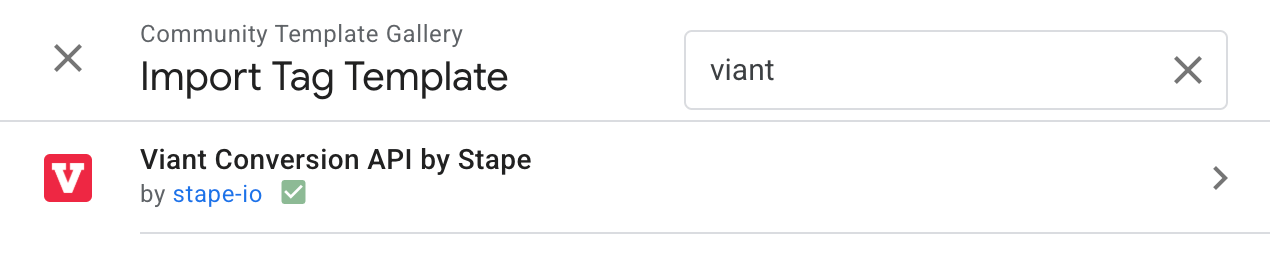
3. Search for the Viant Conversion API tag.
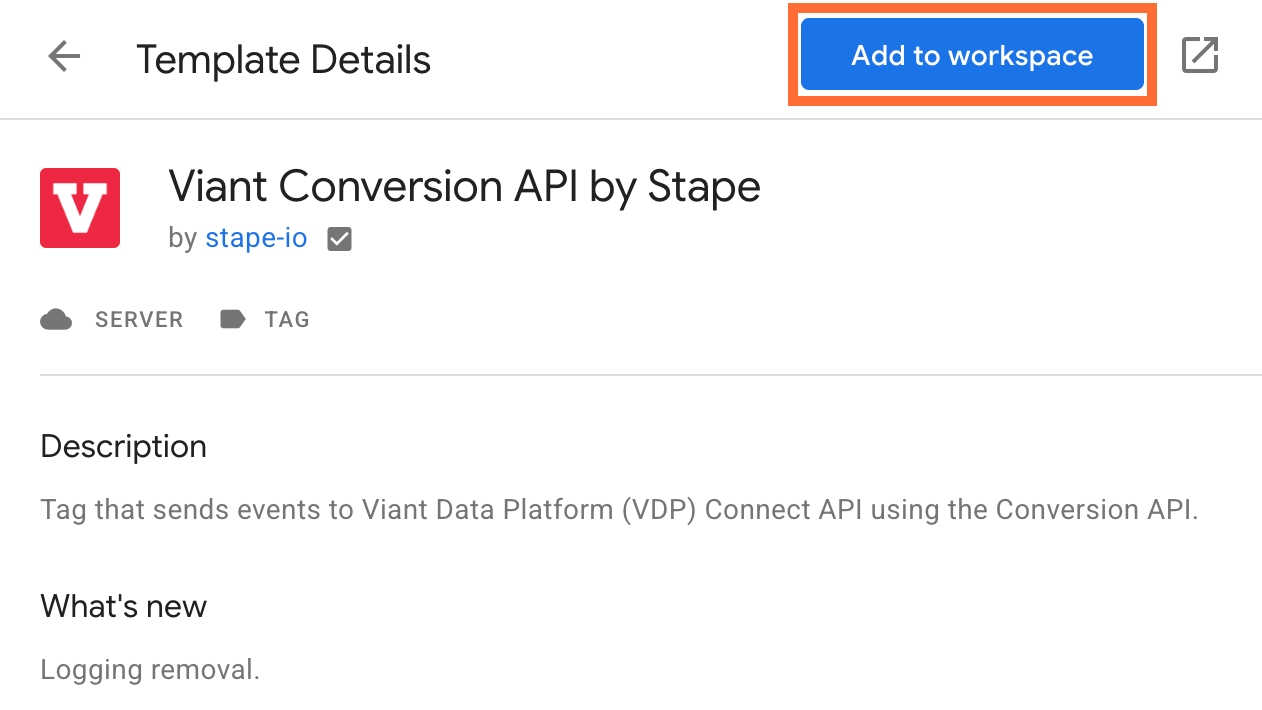
4. Click Add to workspace and confirm.
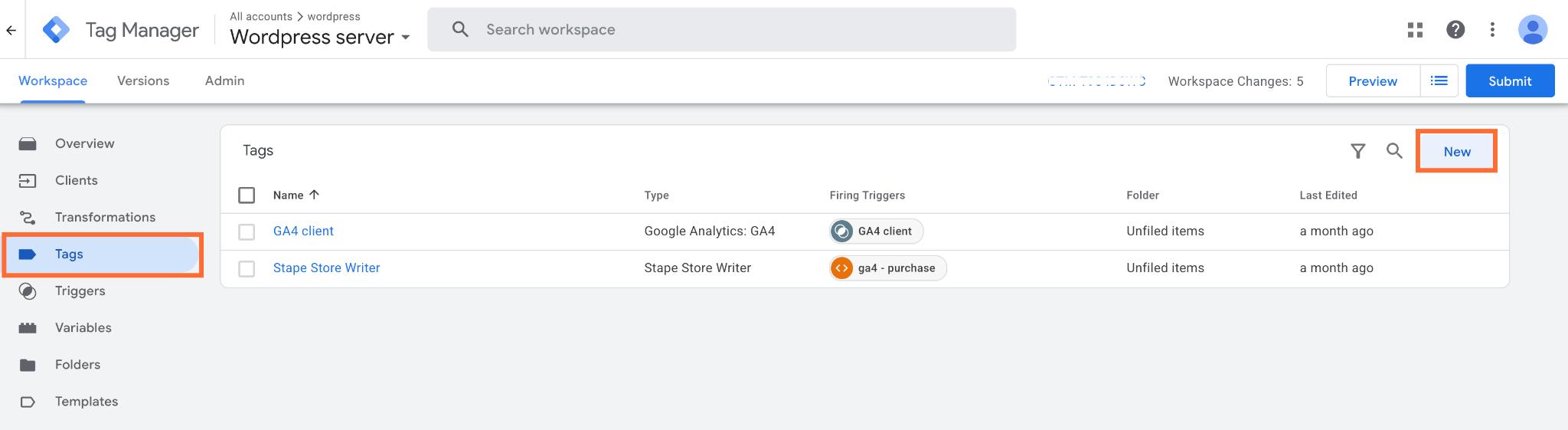
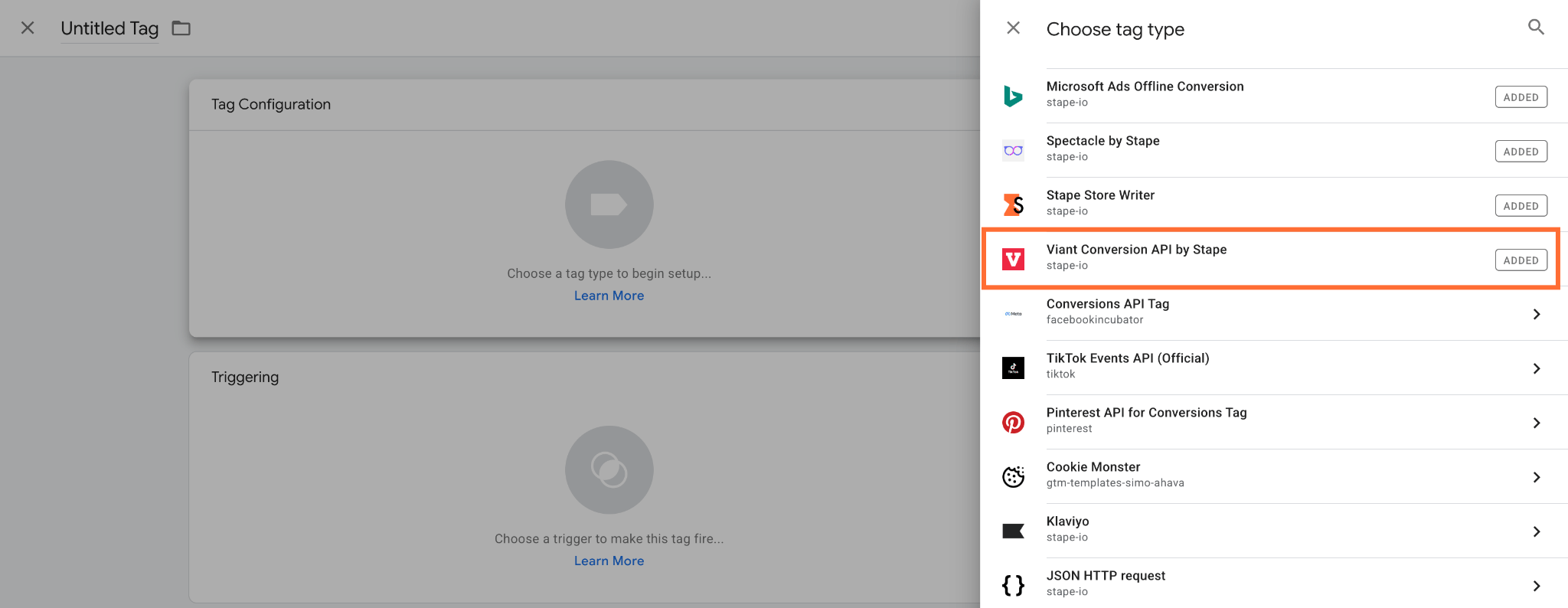
5. Go to Tags and click New.
6. Click Tag Configuration and select the Viant Conversion API by Stape tag.
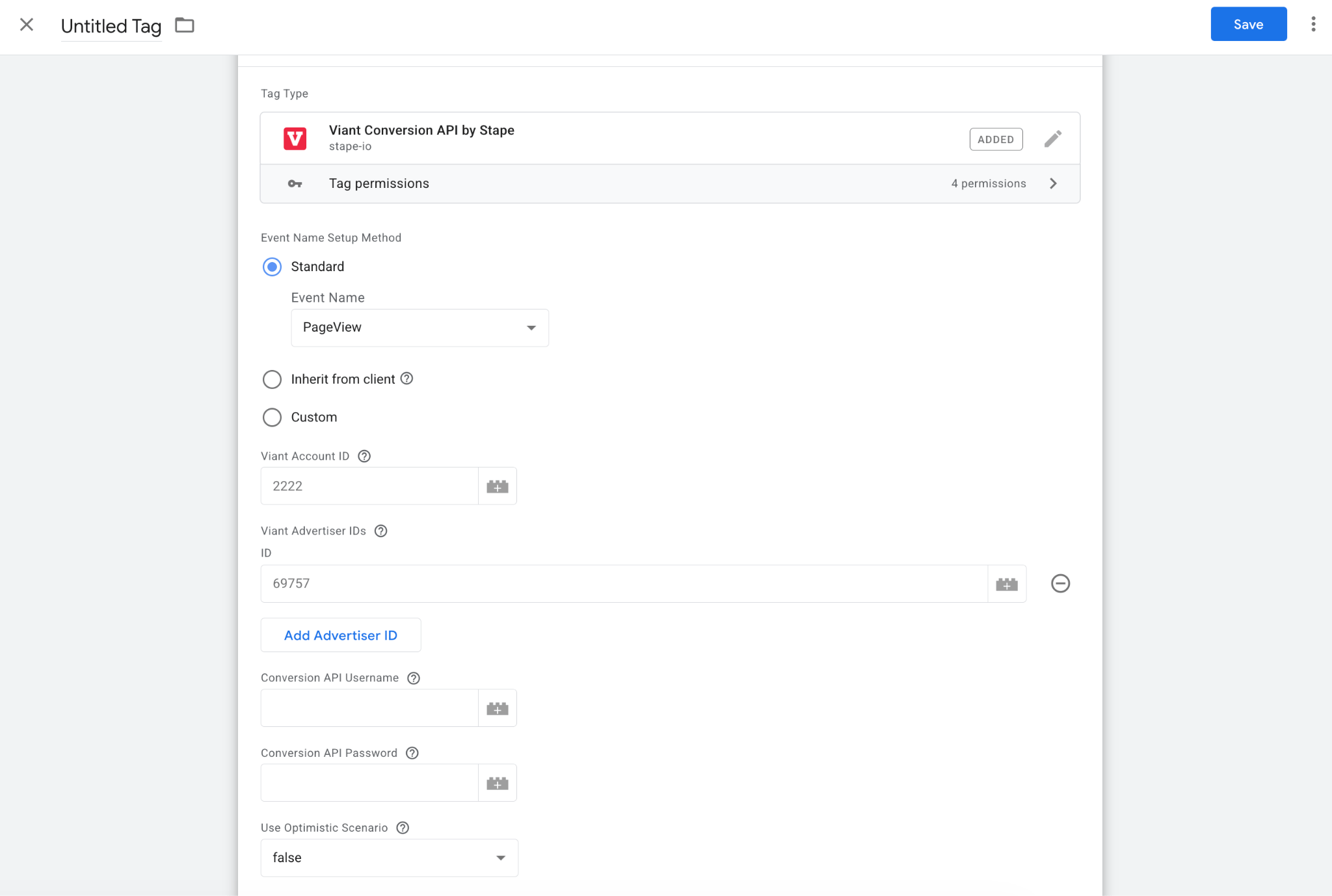
7. Select Event Name Setup Method:
- Standard – choose the event name from a dropdown. The tag sends the selected type to Viant as the conversion event type. The tag doesn't look at the incoming event, so it labels whatever fires it. For example, if you select PageView, and it’s attached to a purchase trigger, Viant gets a PageView, not a Purchase. To get only real page views, attach the tag to a
page_viewtrigger. - Inherit from client – the tag takes the event type from the GA4 event name in the incoming request. For example,
page_viewbecomesPageView,view_itembecomesItemView. It provides partial event mapping. Not all GA4 events can be mapped to Viant Conversion API events. - Custom – if none of the supported standard event names fits, and you need to use a different event name, type your own event name in the Event Name field.
8. Enter Viant Account ID.
9. Enter Viant Advertiser IDs, associated with your account.
10. Enter Conversion API Username, that was provided by Viant to be used in the Conversion API.
11. Enter Conversion API Password, that was provided by Viant to be used in the Conversion API.
12. If you set Use Optimistic Scenario to true, the tag will call gtmOnSuccess() without waiting for a response from the API. This will speed up sGTM response time however your tag will always return the status fired successfully even if it isn’t.
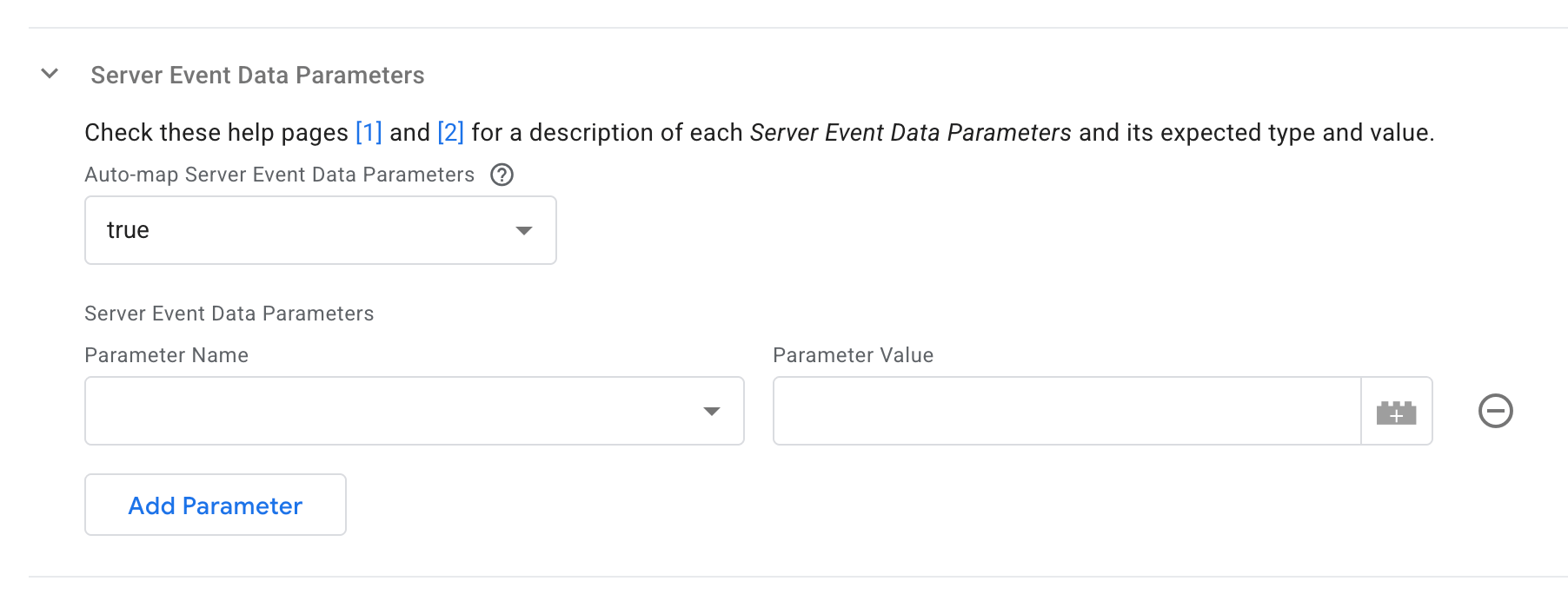
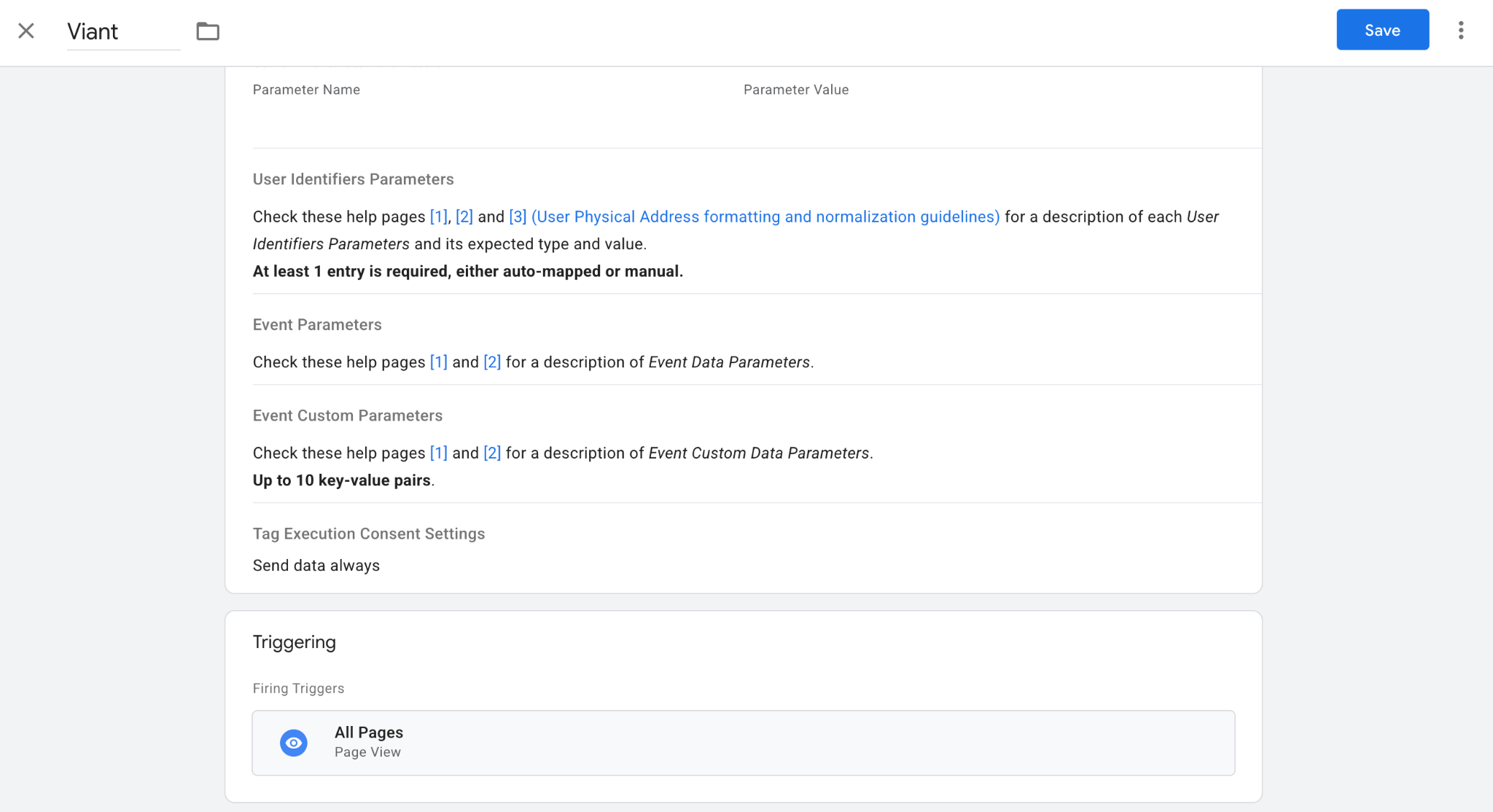
13. Under Server Event Data Parameters, the Automap Server Event Data Parameters is set to true by default, and in this case the tag sets the timestamp to the time it fired. You can additionally add server event data parameters that are listed in the Viant documentation.
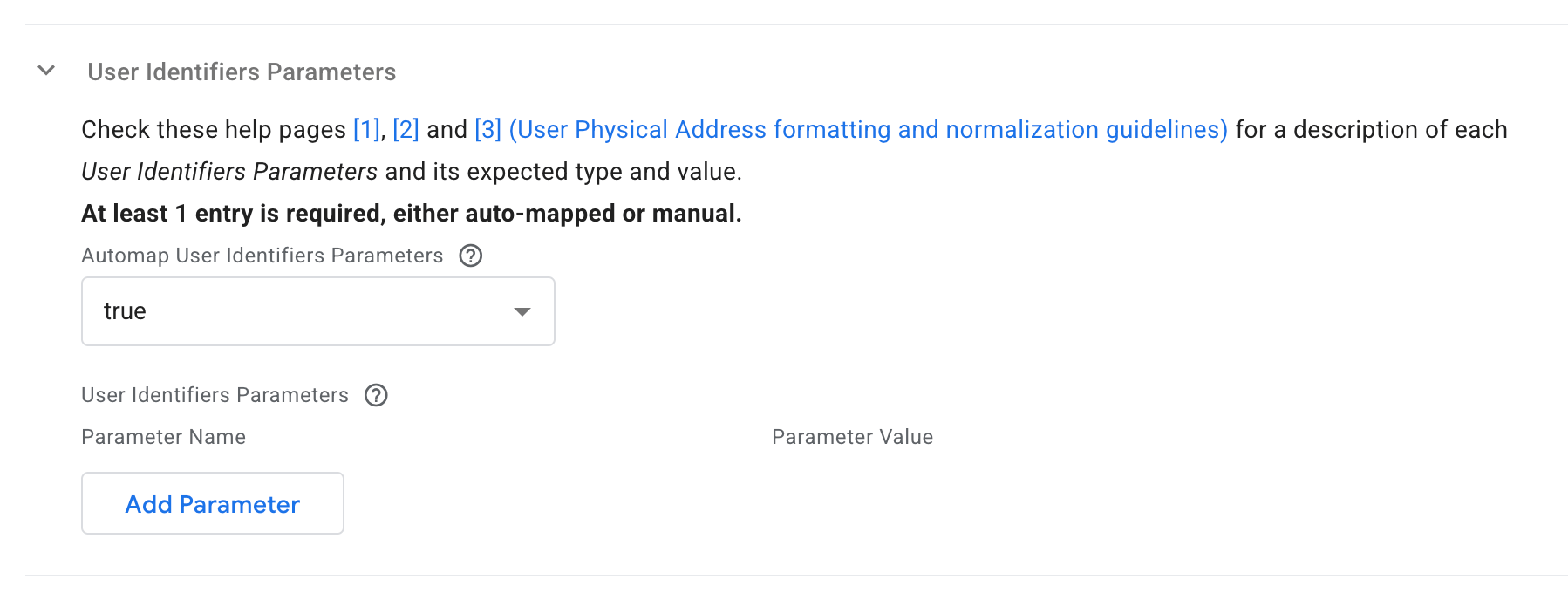
14. Under User Identifiers Parameters, the Auto-map Server User Identifier Parameters is set to true by default, and in this case the tag automatically maps user identifiers from the event data, including email, IP address, and mobile device IDs. You can manually provide user identifiers, and their values will override the automapped ones. Supported types include Email Address, Phone Number, IP Address, Mobile ID, and User Physical Address. Email, phone, and address will be automatically SHA-256 hashed. For the expected parameter type and value read the Viant documentation and Preparing your user data.
15. Under Event Parameters, the Auto-map Server Event Data Parameters is set to true by default, and in this case the tag automatically maps transaction_id, value, currency, and items from the GA4 event data object.
Enter the following:
- Custom Item ID Key – if your items carry the product ID under a different key other than
item_id, enter the key. When the tag builds Purchased Items, it reads each item's product ID from the key you enter here. - Event Parameters Object – if you already have an object, such as a variable, whose keys you want merged into the conversion data, enter that variable. The object is merged after the automapped values, so object’s keys override them.
- You can additionally add event data parameters that are listed in the Viant documentation. Those parameters will override the object and automapped parameters.
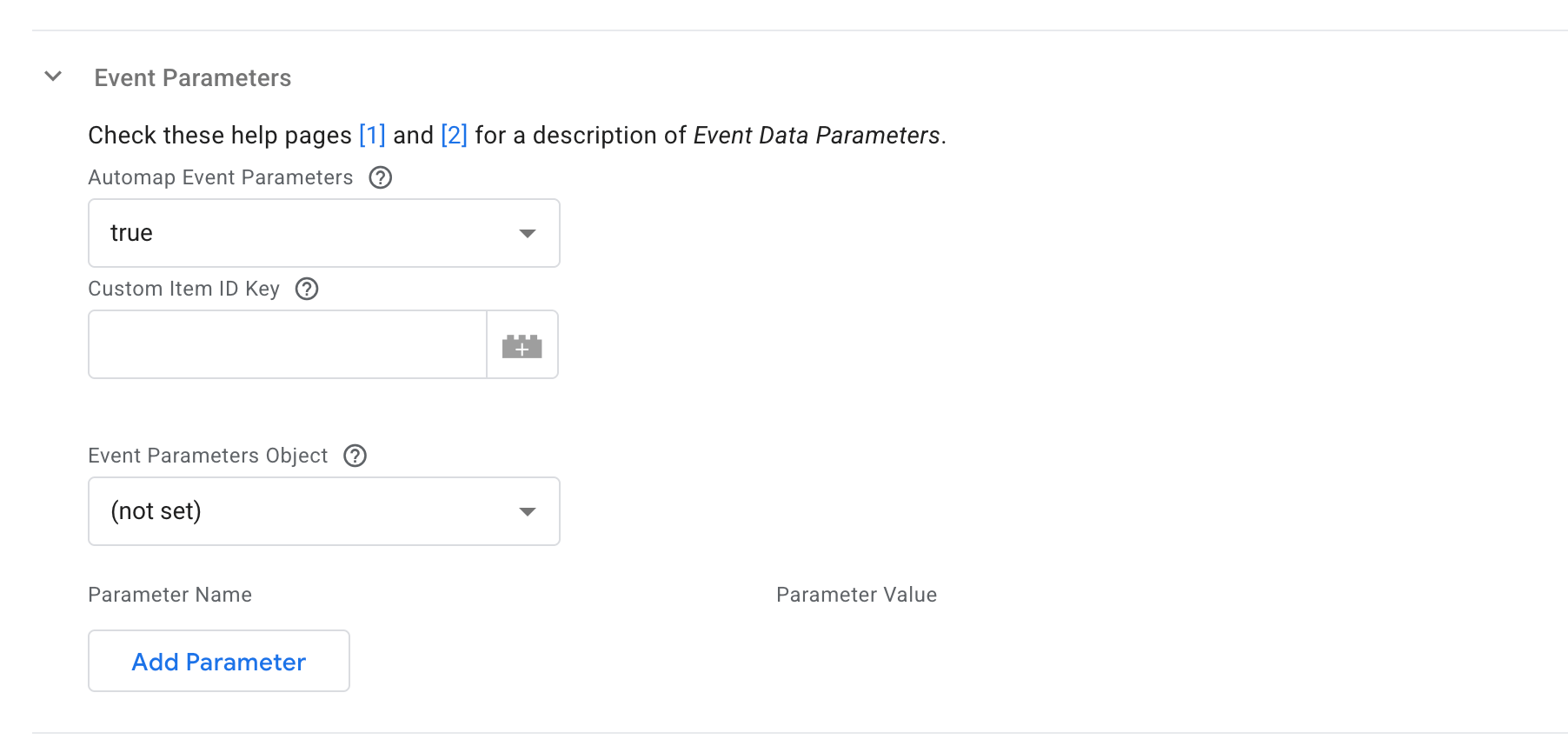
16. Under Event Custom Parameters, you can provide an Event Custom Parameters Object, such as a variable that returns an object of custom key-value pairs. If you want to send them to Viant without adding one table row per key, provide this object, the Viant will save those key-value pairs under salesData.custom. You can additionally add custom event data parameters that are listed in the Viant documentation. Those parameters will override the object. You can add up to 10 key-value pairs.
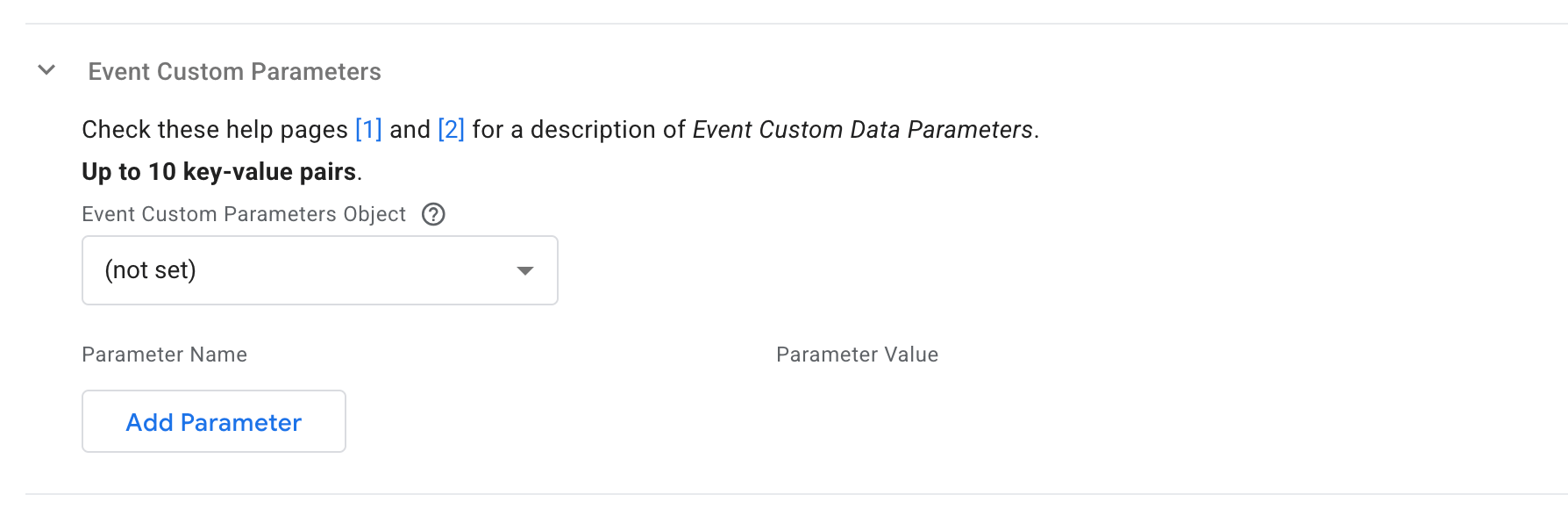
17. In Tag Execution Consent Settings you can control whether a tag fires and sends HTTP request data based on the user's consent status:
- Send data always – the tag fires and sends data to the API on every trigger, regardless of whether consent was granted or denied.
- Send data in case marketing consent given – the tag safely aborts firing if
ad_storageconsent (Google Consent Mode or Stape's Data Tag parameter) isn’t granted.

18. In Advanced Settings you can add additional metadata. For more information see the Google documentation.
19. Select a trigger. For the Standard event type, attach the tag to a trigger for the event that matches the type you picked. For PageView, use a page_view trigger. For Purchase, use a purchase trigger. If the trigger doesn't match, Viant will get the wrong type. For the Inherit from client event type use a trigger on the GA4 events you want to send, such as page_view, view_item, add_to_cart. For the Custom event type use a trigger on the one event that your custom name describes.
20. Click Save.
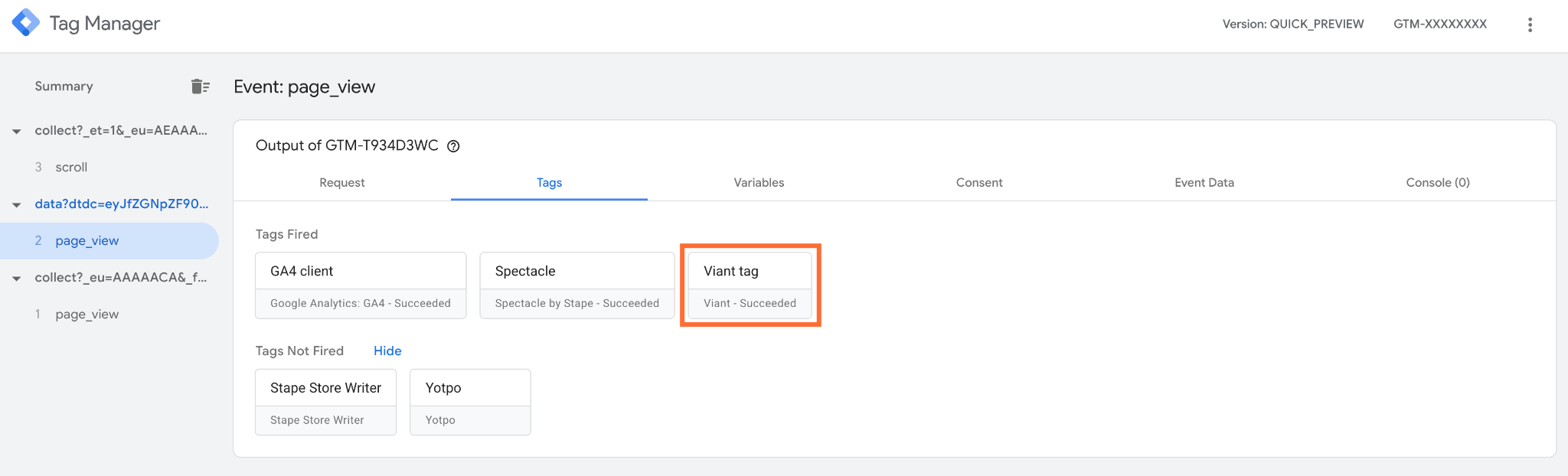
Testing
In GTM, open the Preview mode and do some actions on your site to trigger the events. Confirm that the tag is firing and in Outgoing HTTP Requests tab confirm that the request goes to https://vdp-connect-api.viantinc.com/v1/conversions
Was this article helpful?
🍽 Table of content:
Comments