Sep 14, 2026
Meta CAPI for BigCommerce via server GTM
Written by
Uliana Lesiv
Updated Jul 27, 2026 comments
Improve tracking efficiency on BigCommerce. With the BigCommerce Conversion Tracking app by Stape and Setup Wizard, you use pre-made Google Tag Manager container templates that match your BigCommerce stack and ad platforms. This way, server-side GTM and main tags are prepared for you, tracking is more reliable, and you send more complete data to platforms like Google, Meta, and TikTok without long manual setup.
Step 1. Configure server Google Tag Manager container
1.1. Open your WEB Google Tag Manager container.
Click Admin. Under the container column, click +
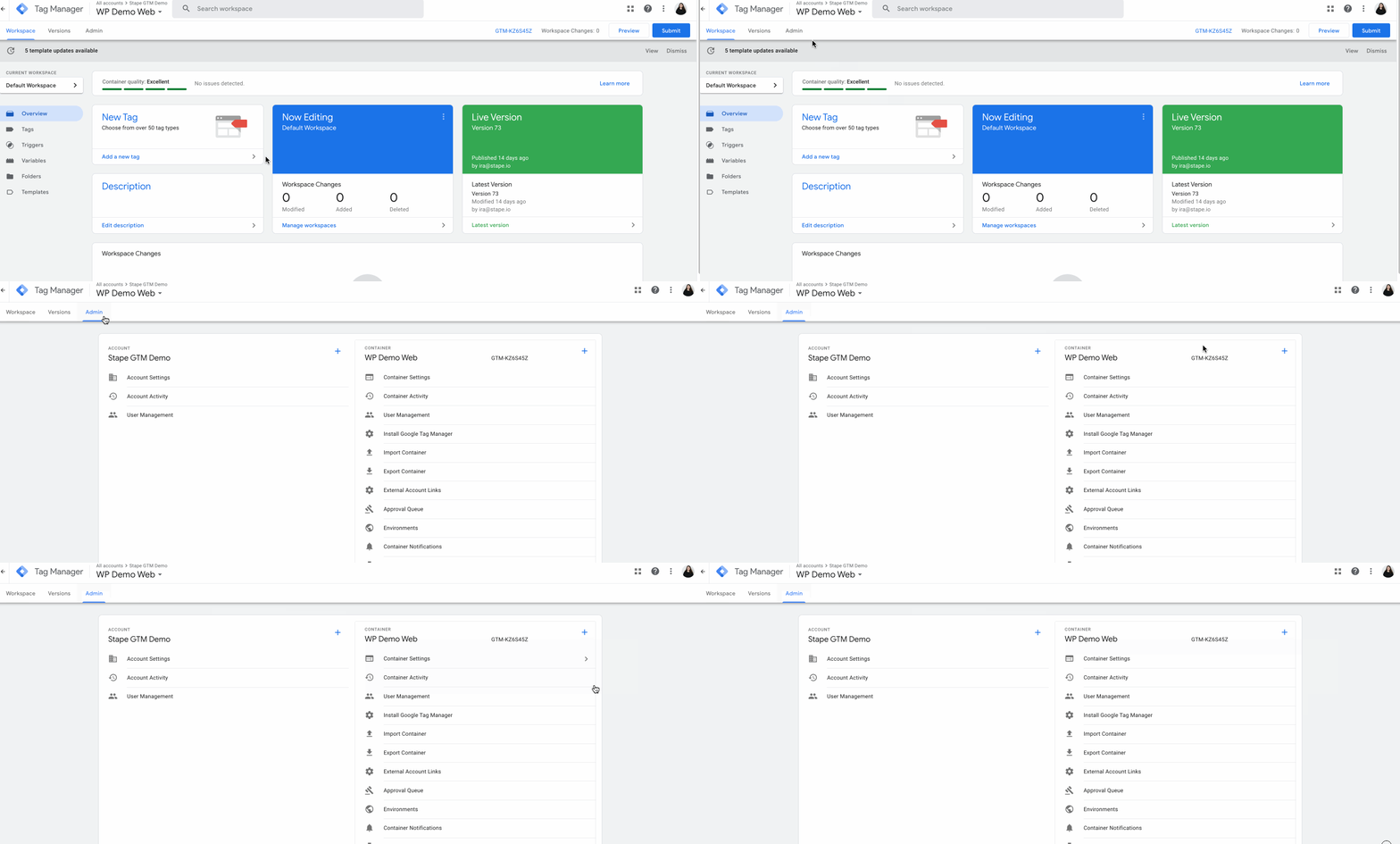
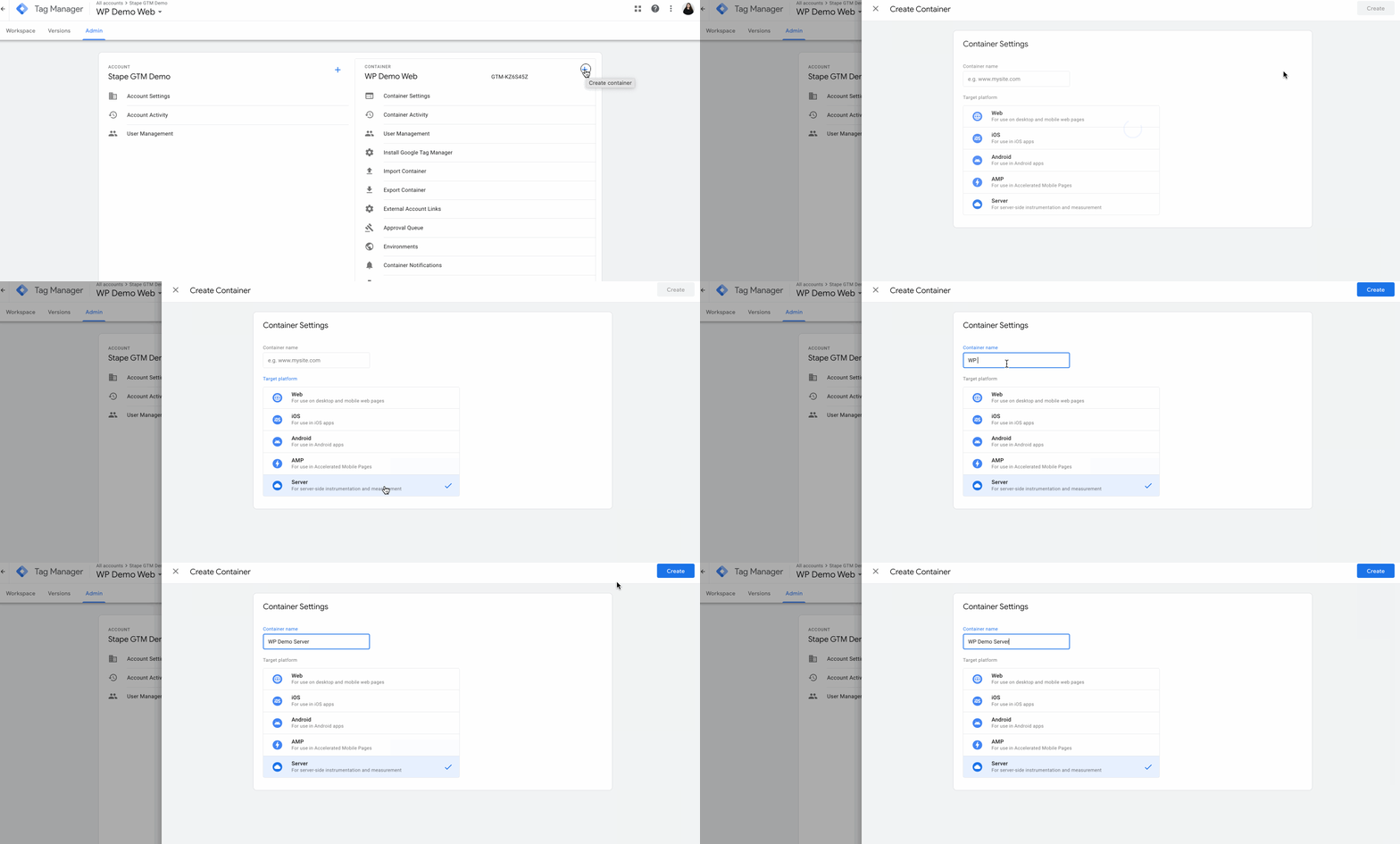
1.2. Type the container name, choose Server, and click Create.
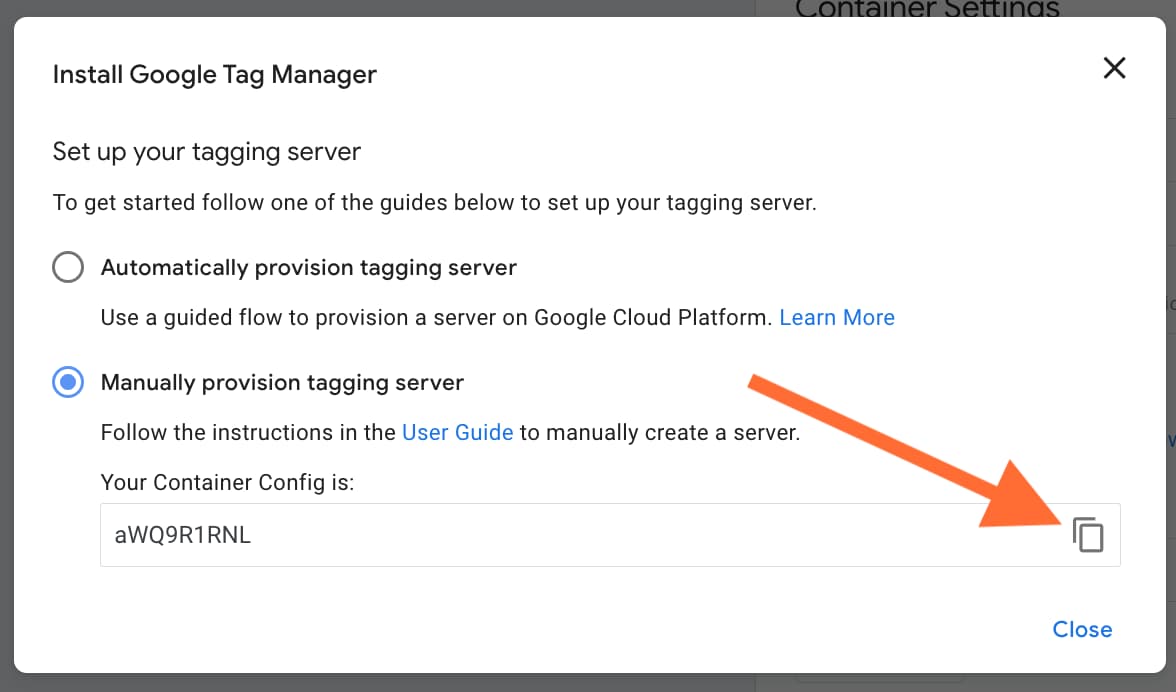
1.3. Choose Manually provision tagging server, copy your container config and paste it in any text editor. We will need it for the next steps.
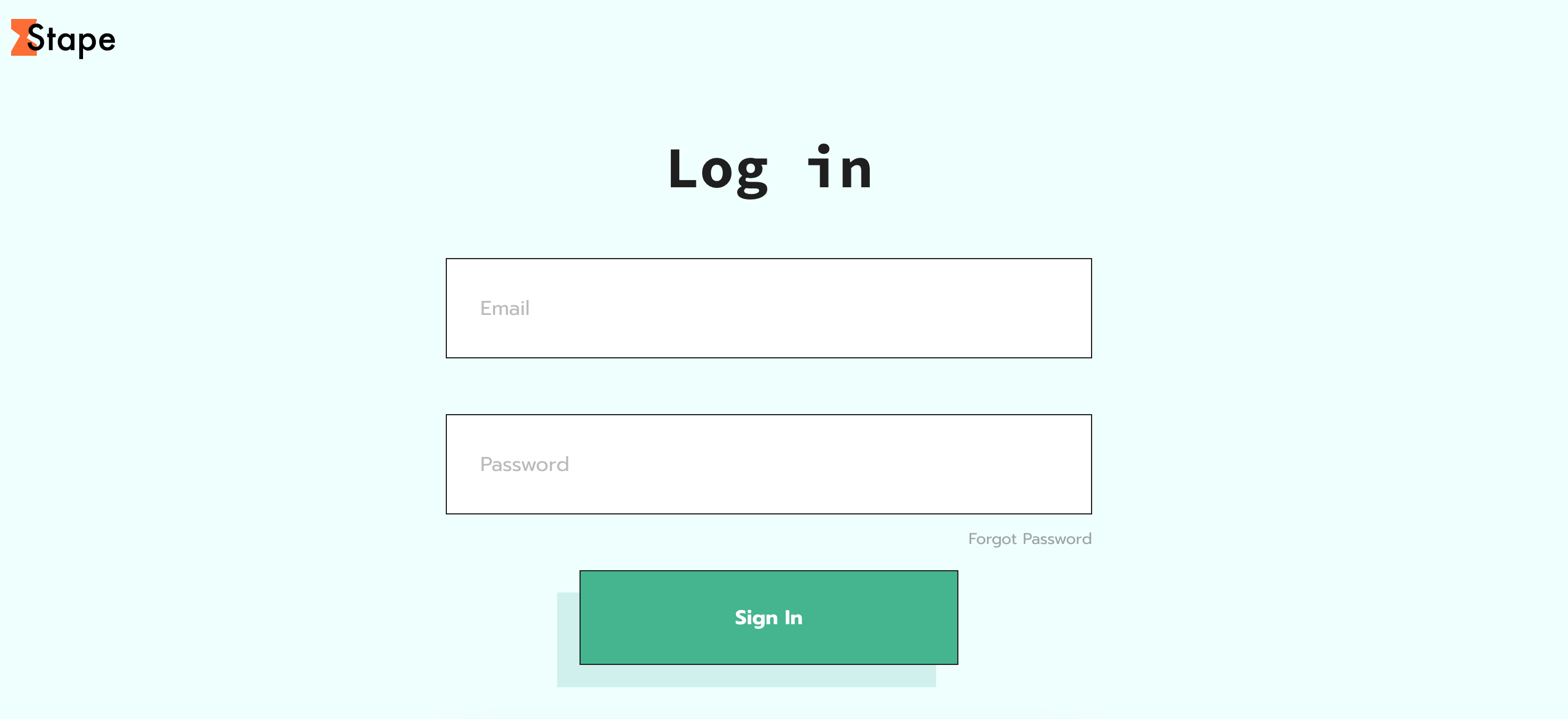
1.4. Create a Stape account or log in to your existing one.
1.5. In Stape’s admin dashboard click Create container on the top right.

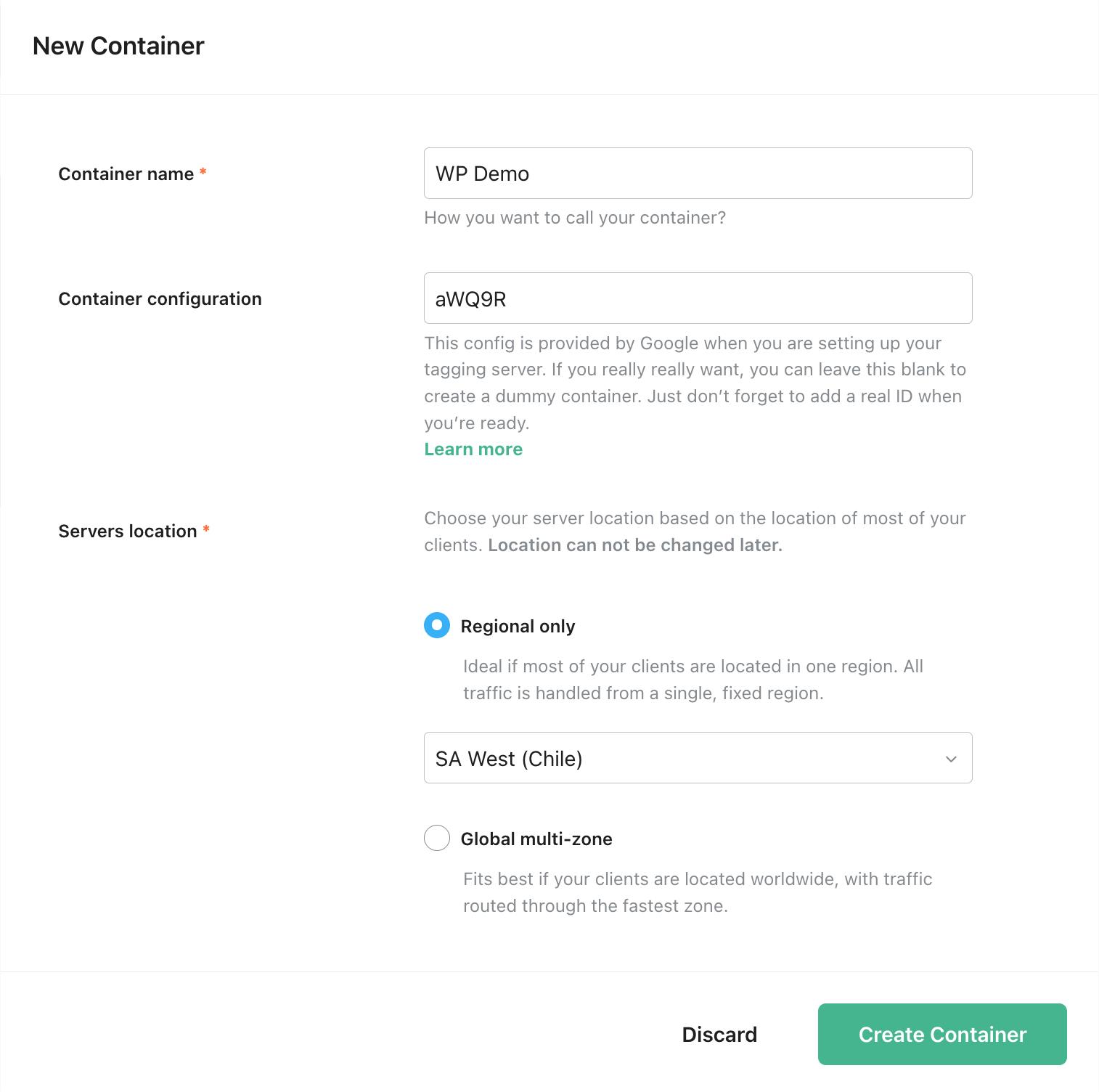
1.6. Enter your container details:
- Container name. The name does not necessarily have to be the same as the container name in your server GTM.
- Container configuration - paste Container Config that you copied from your Google Tag Manager Server Container.
- Server location - for best performance, choose the server location that’s closest to where most of your clients are. See the list of available server locations here. If you have traffic from different regions, you can select the Global multi-zone server location option. It will automatically route incoming requests to the nearest available zone based on the user’s IP address.
Then click Create Container.
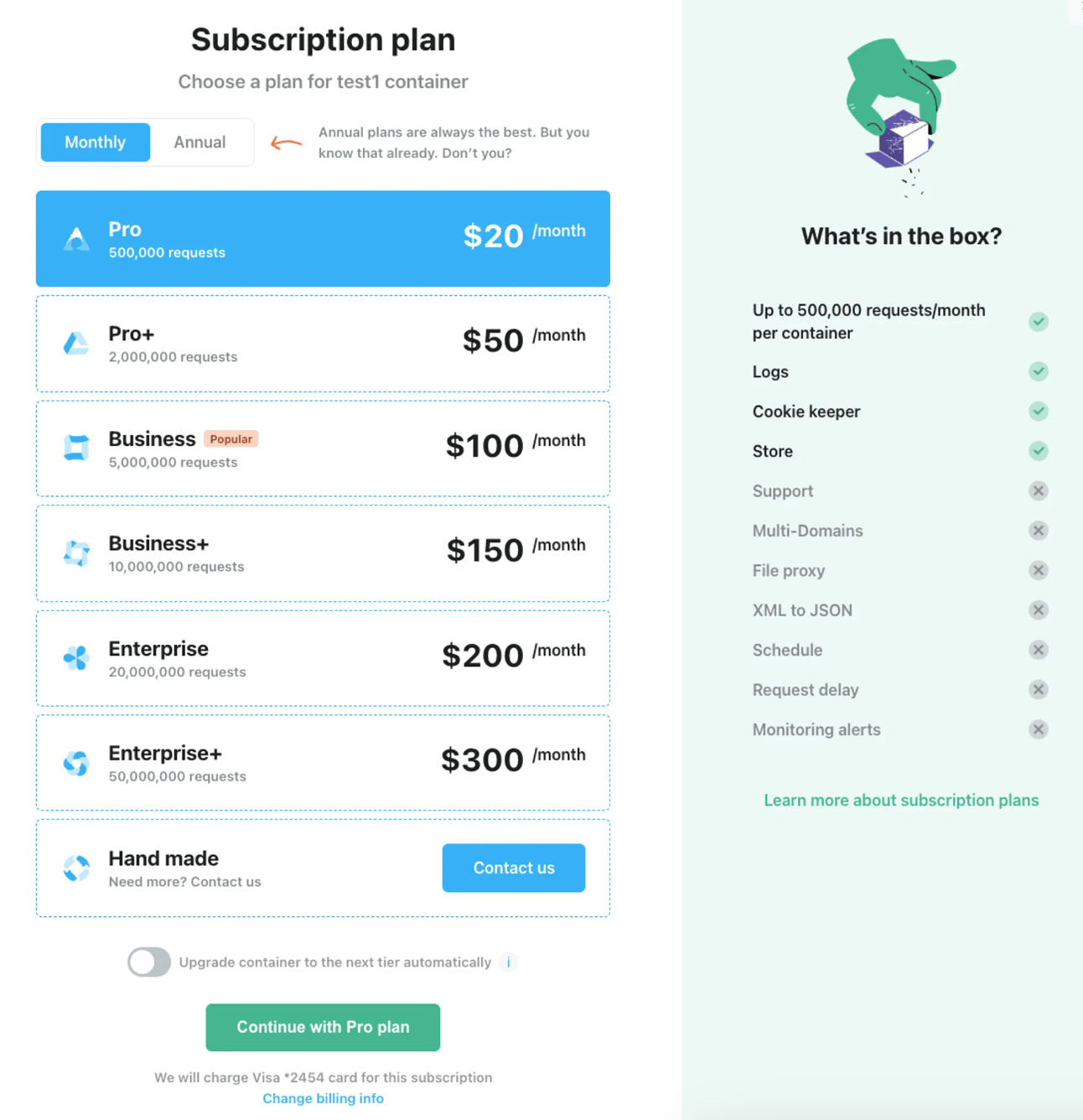
1.7. Choose a plan for your container. You can start with a Free plan.
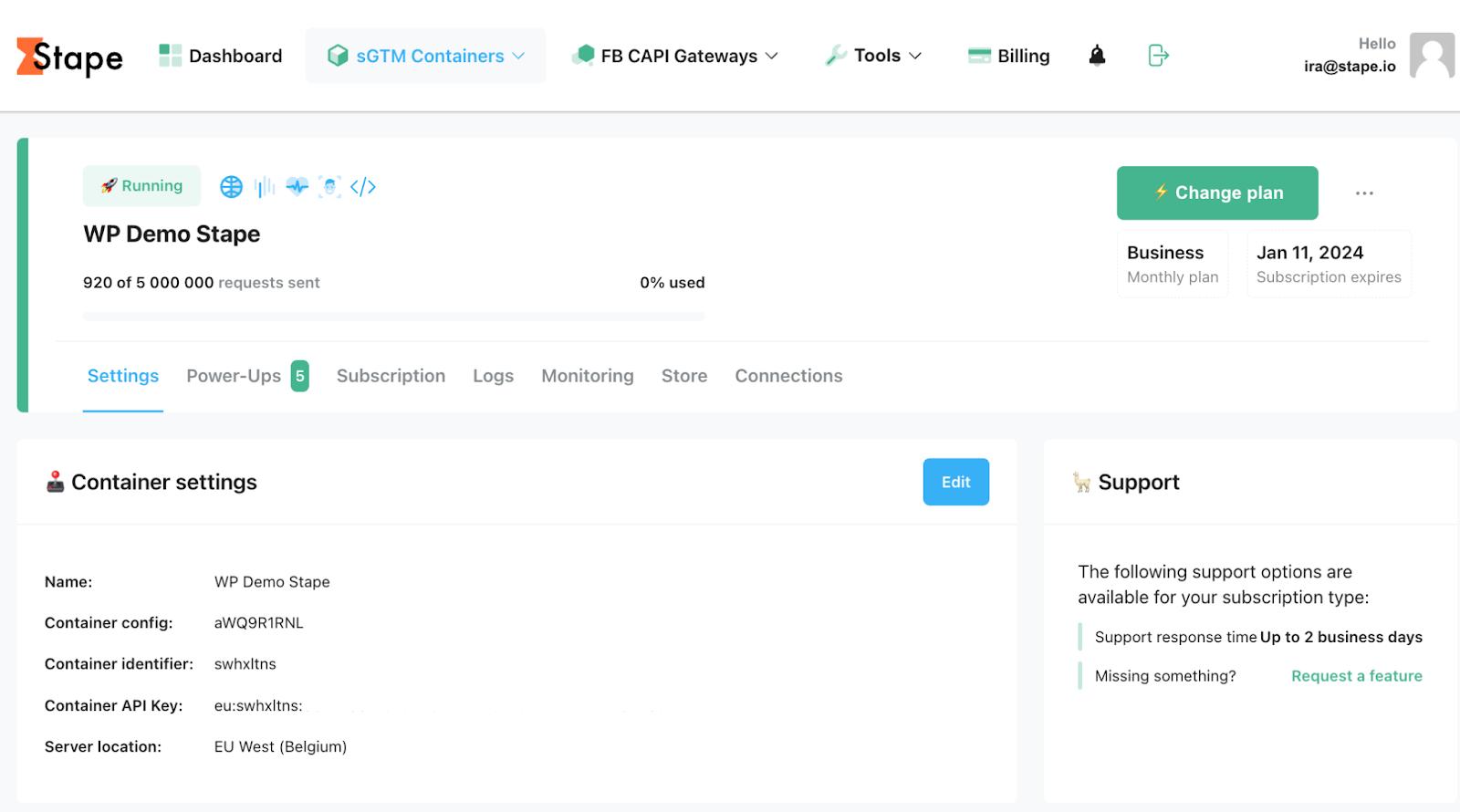
1.8. You will see the status of your container, container config, and plan name.
It takes around 5 minutes to deploy a server container. Please reload the page to update the status. If the Google Tag Manager server-side setup was done correctly, you should see the status “Running”.
Step 2. Set up Custom Loader in Stape admin
| Custom Loader modifies gtag.js and gtm.js loading paths to resist ad blockers and ITPs, potentially increasing data volume by up to 40%. |
2.1. Find and copy your WEB GTM ID in GTM.
To find GTM ID log in to your Google Tag Manager account and open a Web GTM container. In the top right corner (next to the Submit and Preview buttons) you’ll see some short text that starts with "GTM-" and then contains some letters/numbers.

2.2. Select your sGTM container from the dashboard.
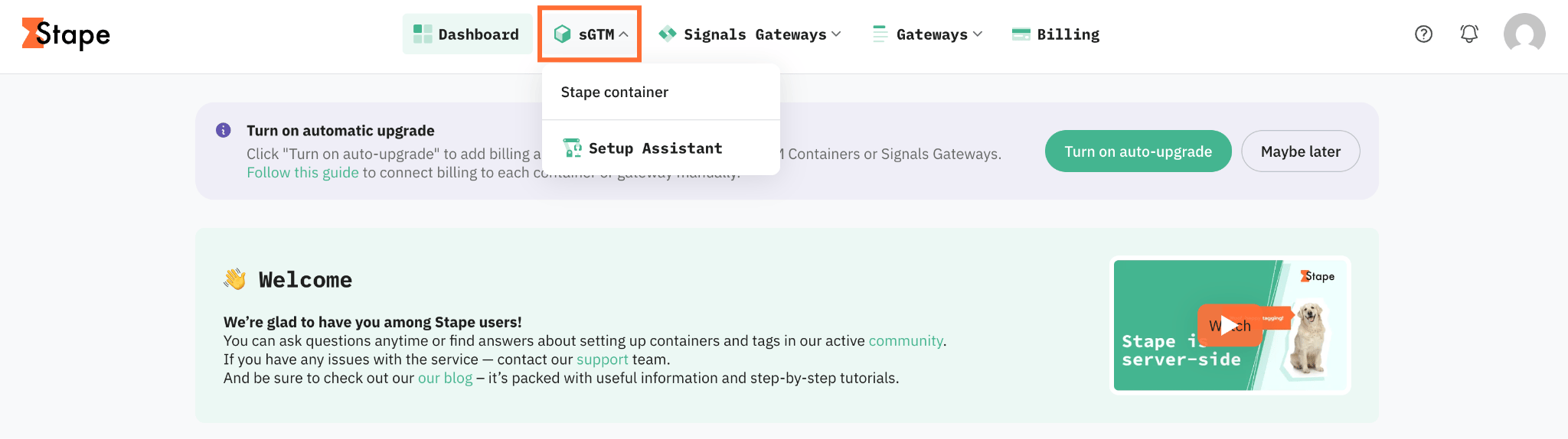
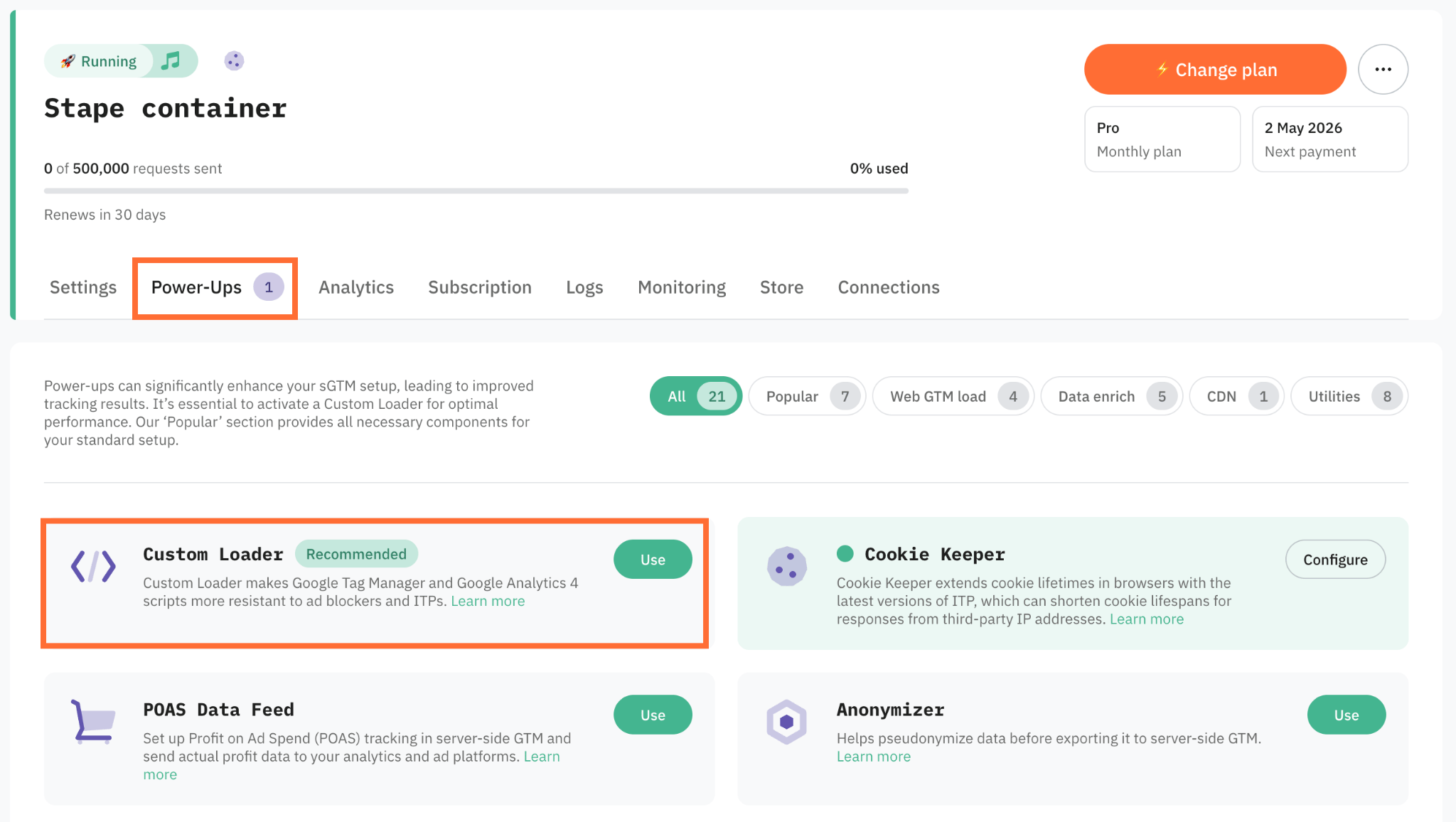
2.3. Go to Power-ups and click Use next to the Custom Loader panel.
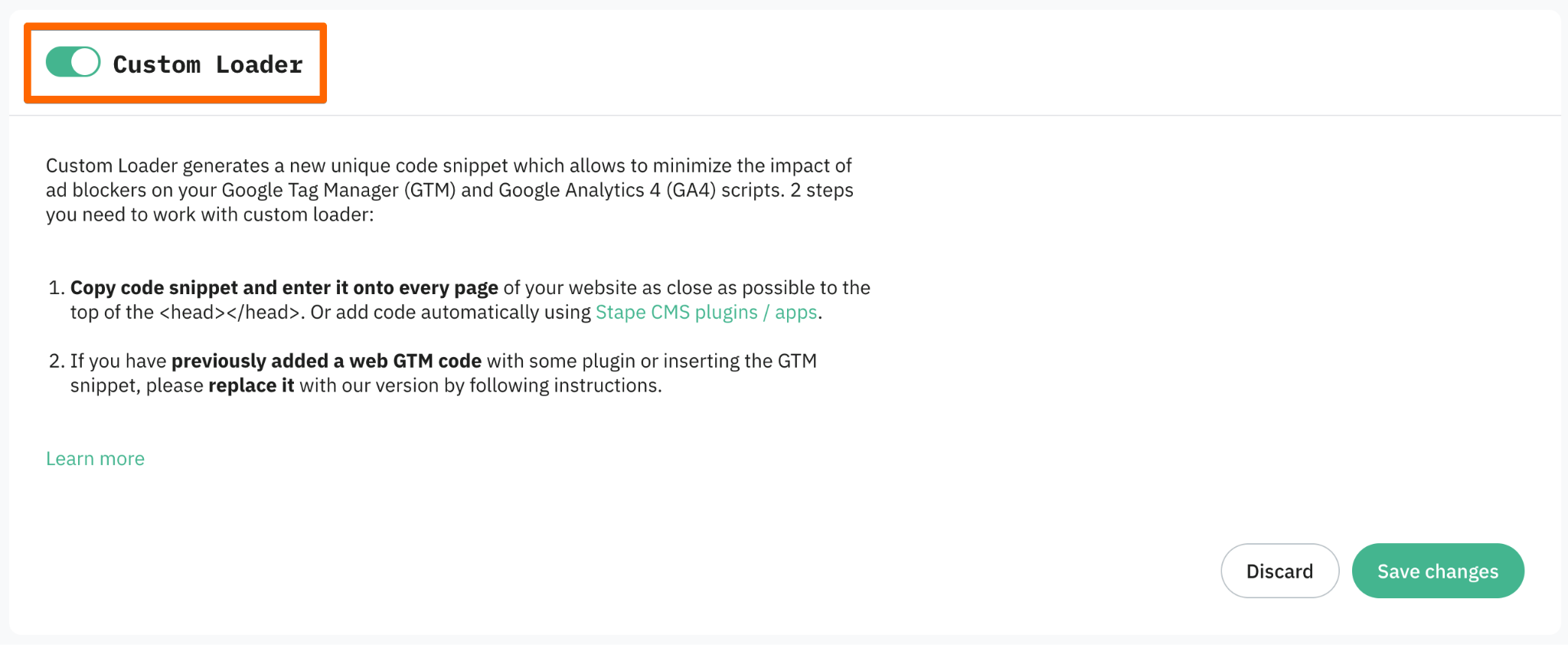
2.4. Toggle the Custom Loader switch to enable it and click Save changes.
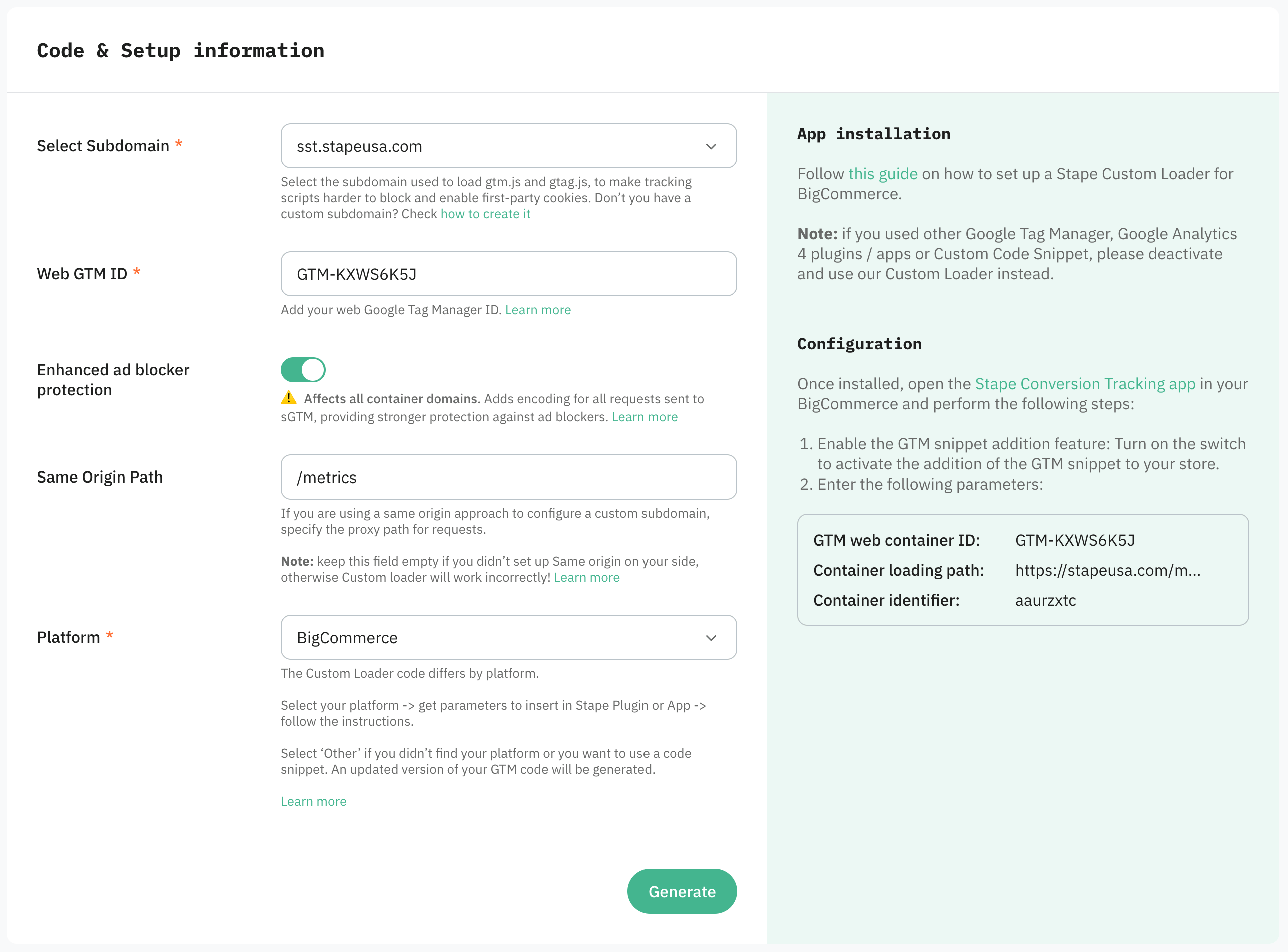
2.5. In the Code & Setup information section, configure the following settings:
- Domain - select one of the domains linked to your container.
- Web GTM ID - enter your web Google Tag Manager ID.
- Enhanced ad blocker protection - when enabled, all requests to your sGTM server are encrypted so ad blockers can’t block them based on request patterns. Learn more about the enhanced ad blocker protection.
- Same Origin Path - if you use the same-origin approach, enter the path here so both GTM and gtag.js load through it.
- Platform - select BigCommerce and click Generate. You’ll get configuration and app installation instructions in the Configuration panel. Follow the app installation guide.
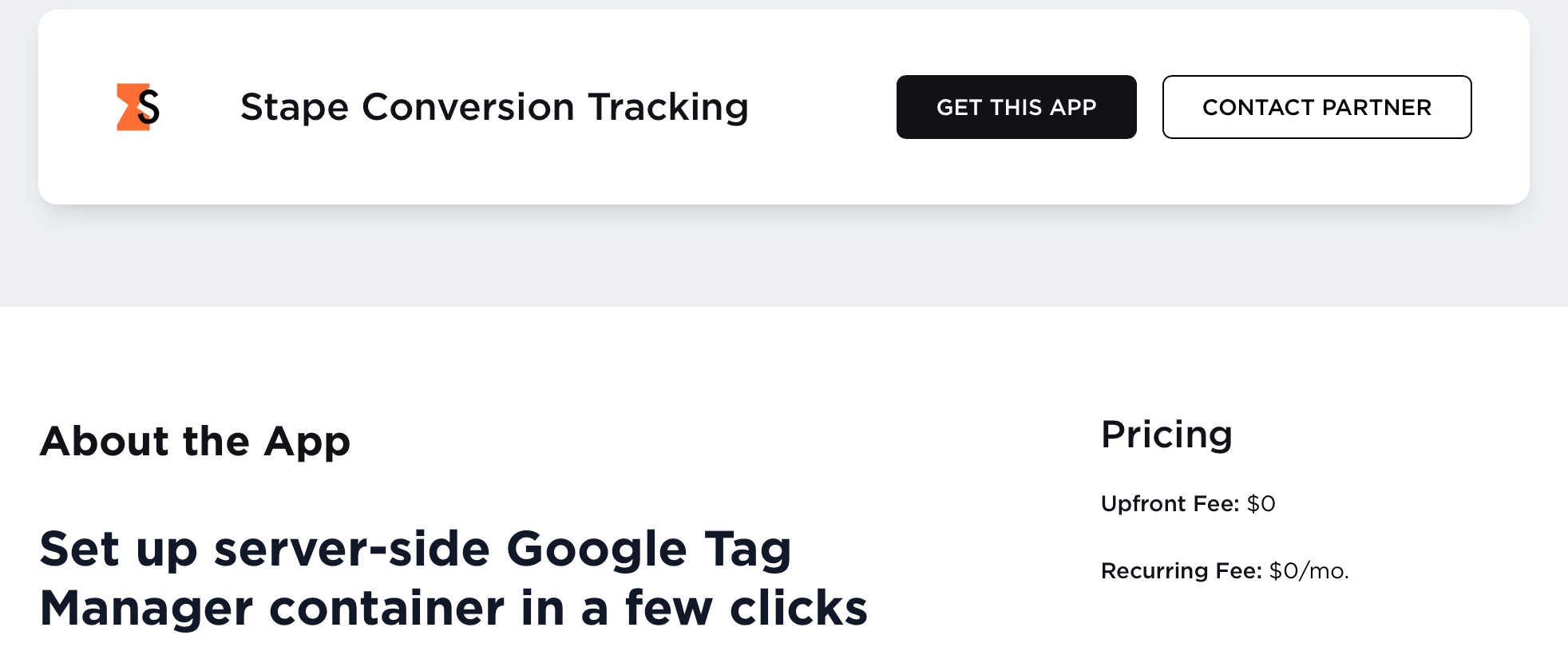
Step 3. Configure Stape Conversion Tracking app for Bigcommerce
3.1. Install the Conversion Tracking app. Click Get this app → log in to your BigCommerce account → Install.
Then, you need to complete the settings parameters in three tabs: General, Data Layer, and Webhooks.
3.2. General tab
Here, you need to add the following data:
GTM Web container ID - add the ID of Web container in the format GTM-XXXXXXX. You can find it in your GTM account in the tab “Accounts”. Click “Insert GTM snippet” to automatically add the snippet with JavaScript code to every page on your website. Custom domain - use your subdomain created for first-party cookies for the most precise tracking. If you haven’t created a subdomain yet, please see our guide on adding a custom domain to sGTM container.
- GTM Web container ID - add the ID of Web container in the format GTM-XXXXXXX. You can find it in your GTM account in the tab “Accounts”. Click “Insert GTM snippet” to automatically add the snippet with JavaScript code to every page on your website.
- Custom domain - use your subdomain created for first-party cookies for the most precise tracking.
| If you haven’t created a subdomain yet, please see our guide on adding a custom domain to sGTM container. |
- Custom loader - this feature will help increase protection against ad blockers, resulting in better data quality. Add in the field Stape container identifier. Check this quick guide to find your container identifier.
- Cookie keeper - it helps prolong the cookies' lifetime by bypassing the browsers’ restrictions.
After setting all the necessary fields, click “Save”.
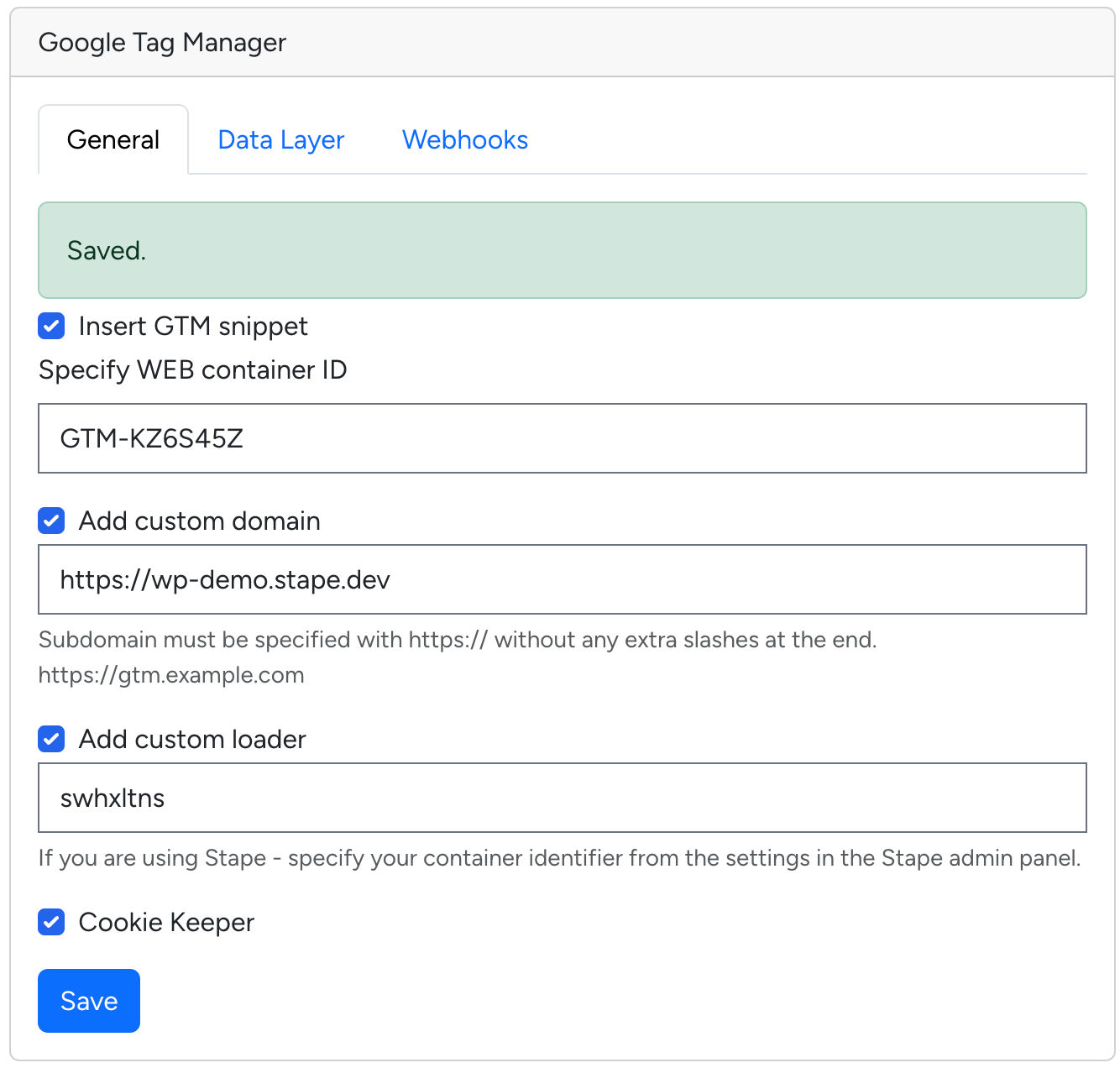
3.3 Data Layer tab
In this tab, you can add two points to the settings:
- Add ecommerce Data Layer events - it will add standard Data Layer, based on them you can configure tracking in GTM container.
- Add user data to Data Layer events - with this feature, events will include user data. You can configure the data you want to collect from your website visitors in the GTM container.
- Decorate DataLayer event name - lets you decide whether to add the _stape suffix to event names to avoid conflicts with your existing GTM setup; when it’s turned off, events keep their standard names.
Click “Save”.
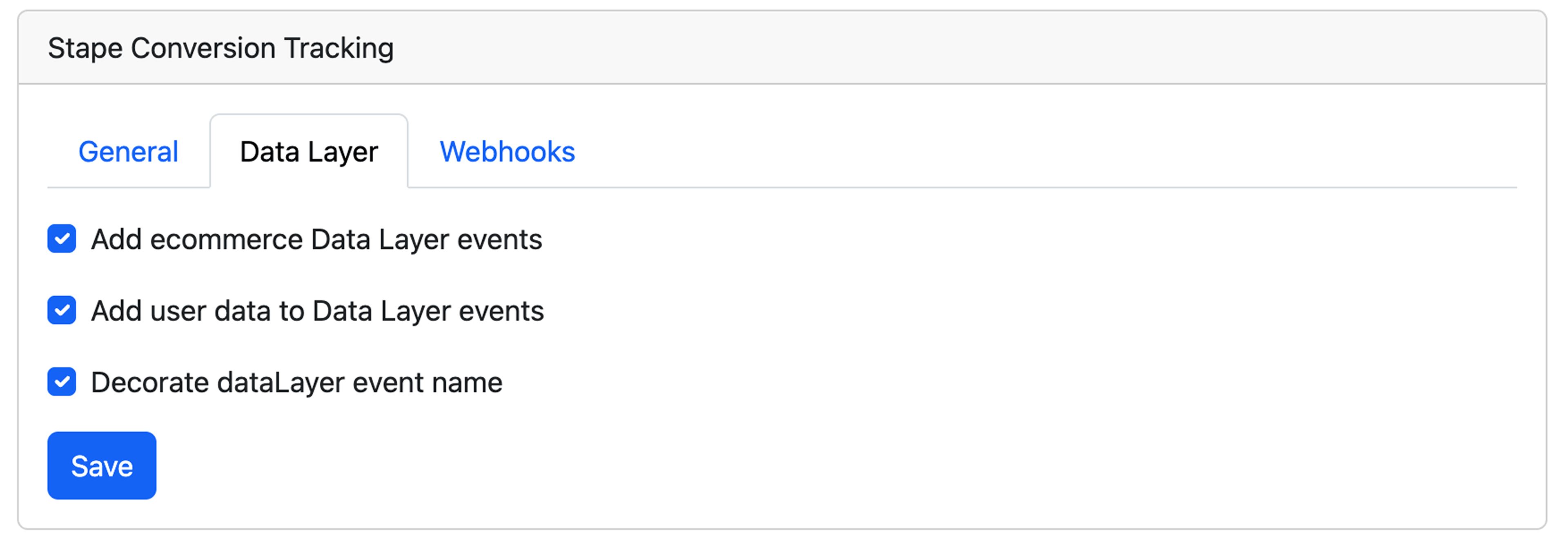
Step 4. Download and Import container templates from our GitHub
4.1. Download GTM templates for BigCommerce on our GitHub.
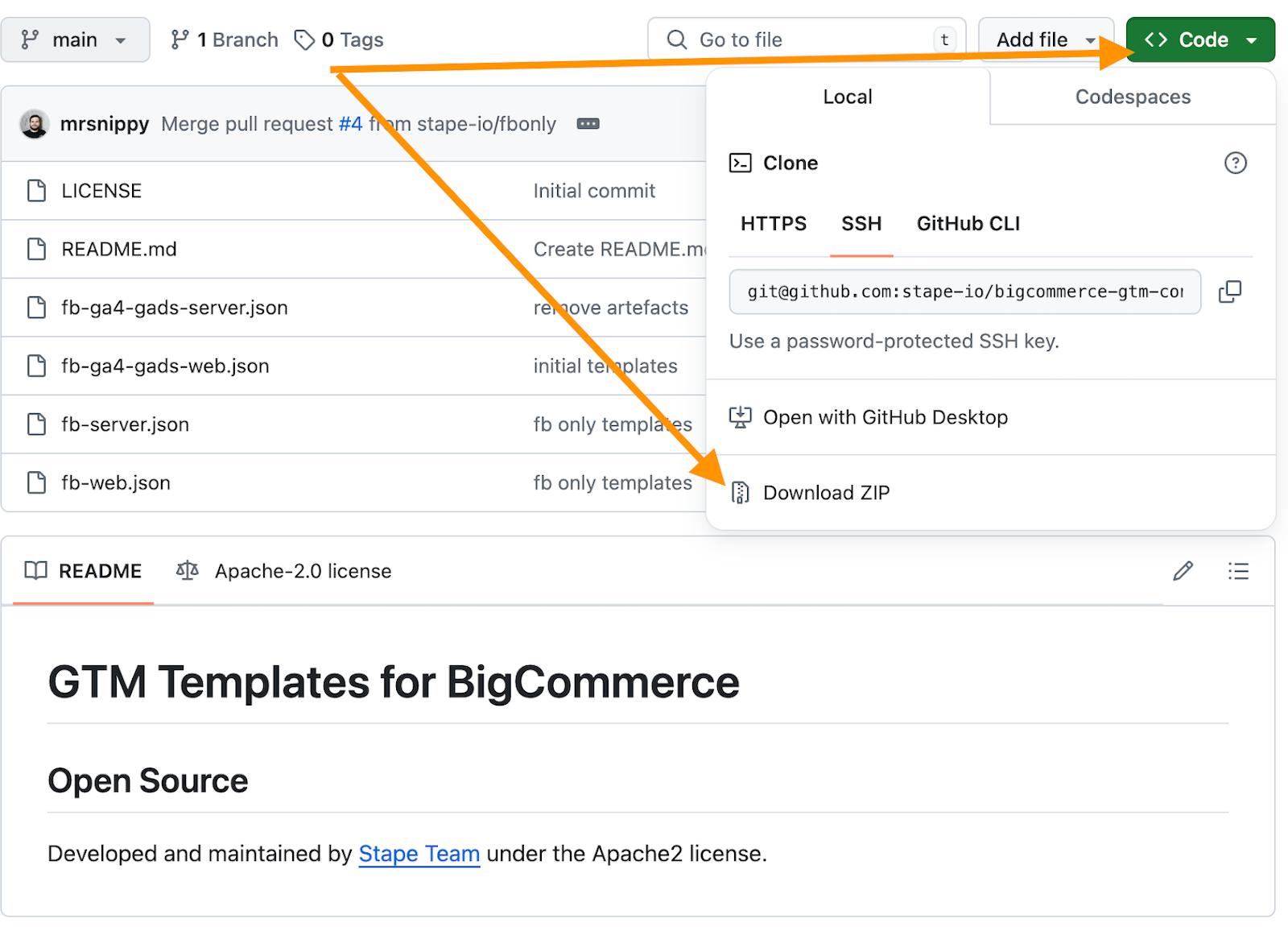
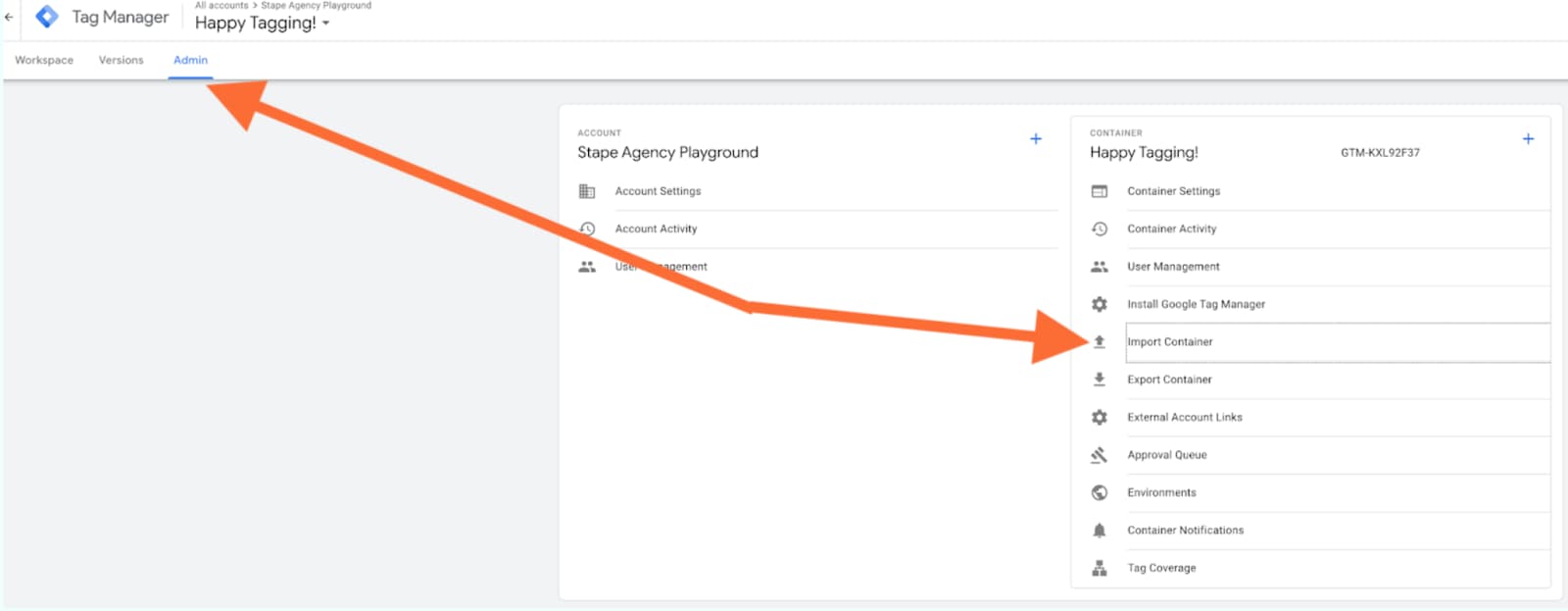
4.2. You should import the templates in both your web and server container on GTM (process is the same across the two). You need to go Admin → Import Container:
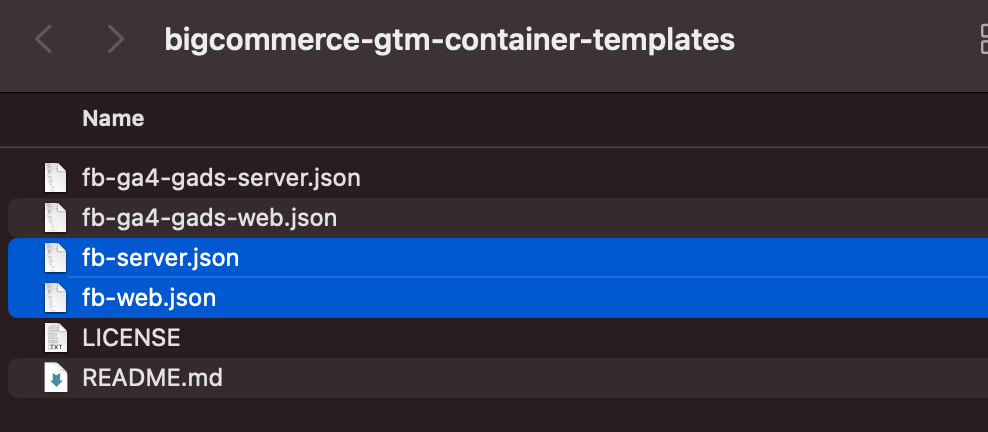
4.3. Select your template file (make sure the template matches the container type - web/server).
4.4. Pick a workspace for this import (you can create a new one for this specific purpose).
4.5. Select Overwrite or Merge.
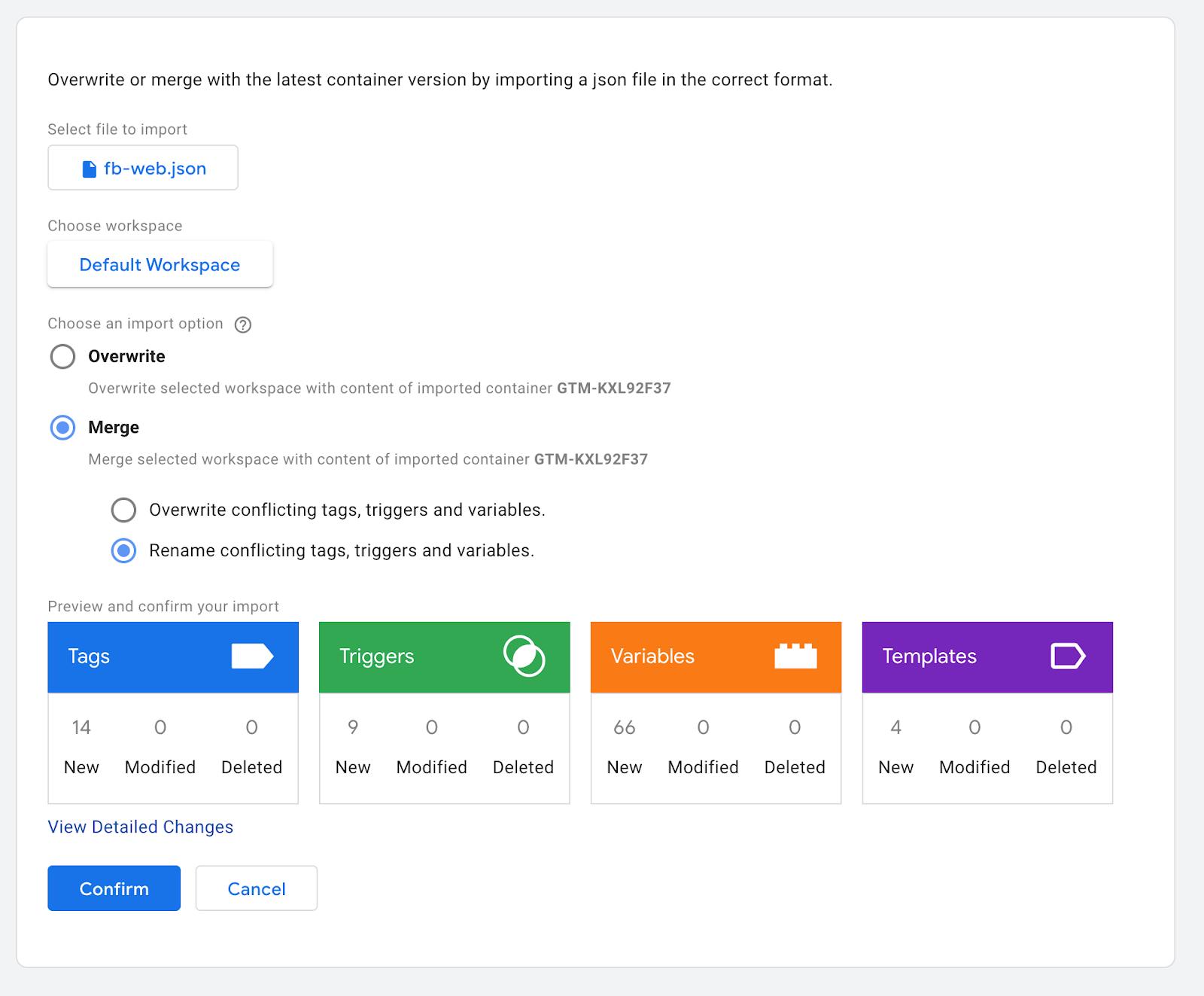
| “Overwrite” option should only be used in a fresh, empty container or if you are absolutely certain you want to do it. For this demo we’re using Merge, with “Rename conflicting tags, triggers and variables” option selected. This way, if there are any conflicts - GTM will just rename the tags, thus not touching any of the existing entities you have in your container. |
Step 5. Сonfigure GTM container templates
5.1. Templates are fully built, so triggers, payloads, and event names are all taken care of for you.
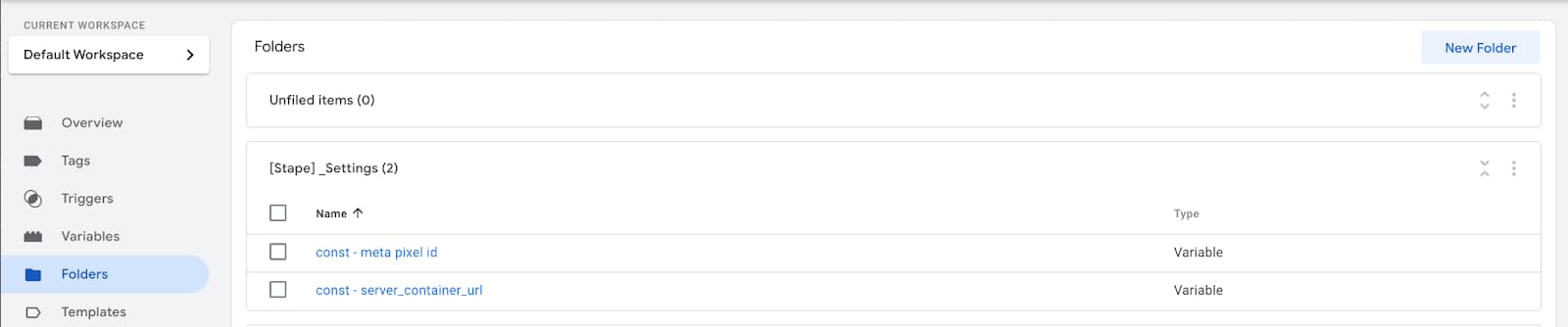
You just need to input your specific destinations, ids, API keys etc. We’ve tried to make it as comfortable as possible, so in both containers (web and server), you will find a folder called “[Stape] _Settings”.
Web
Server
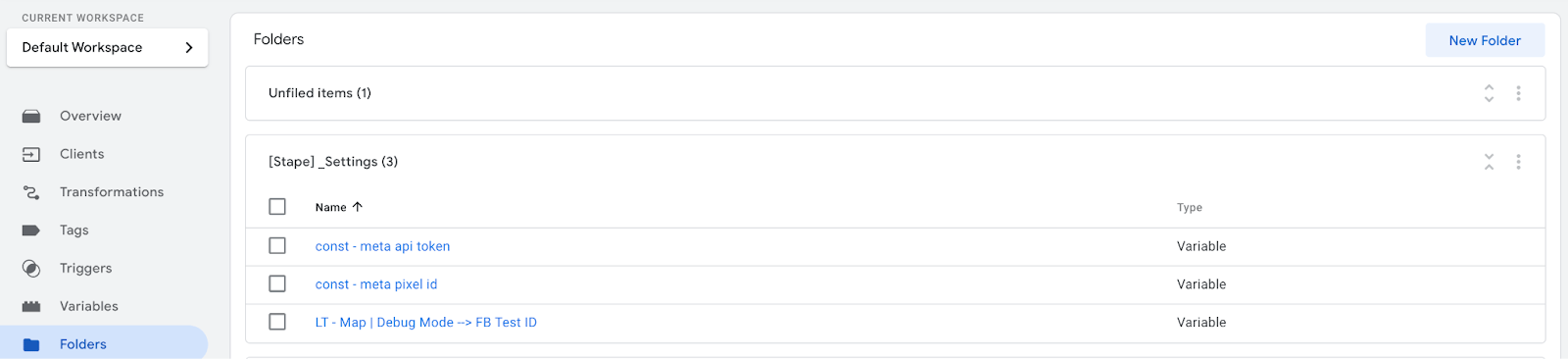
All these variables are already referenced in tags that use them; you just need to give them proper values, for example:
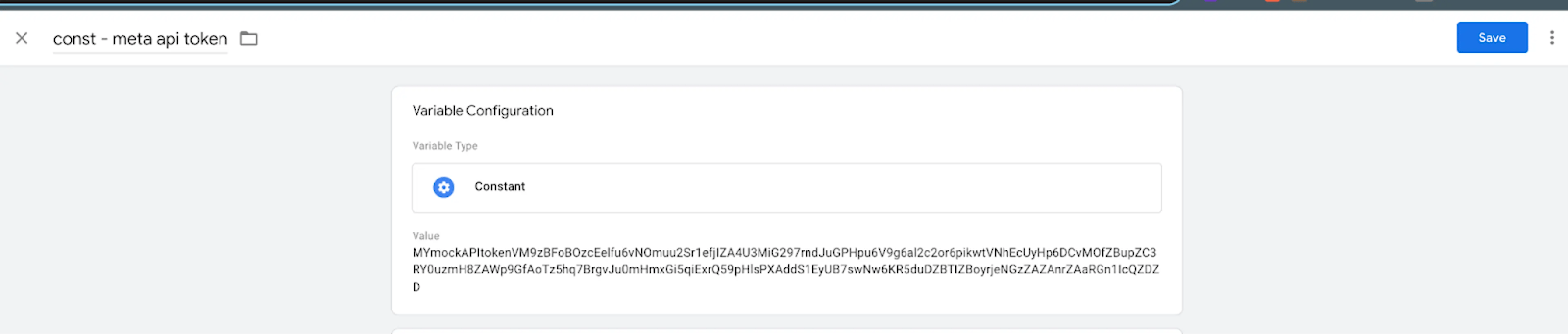
5.2. Pixel ID and API token can found in your pixel settings:
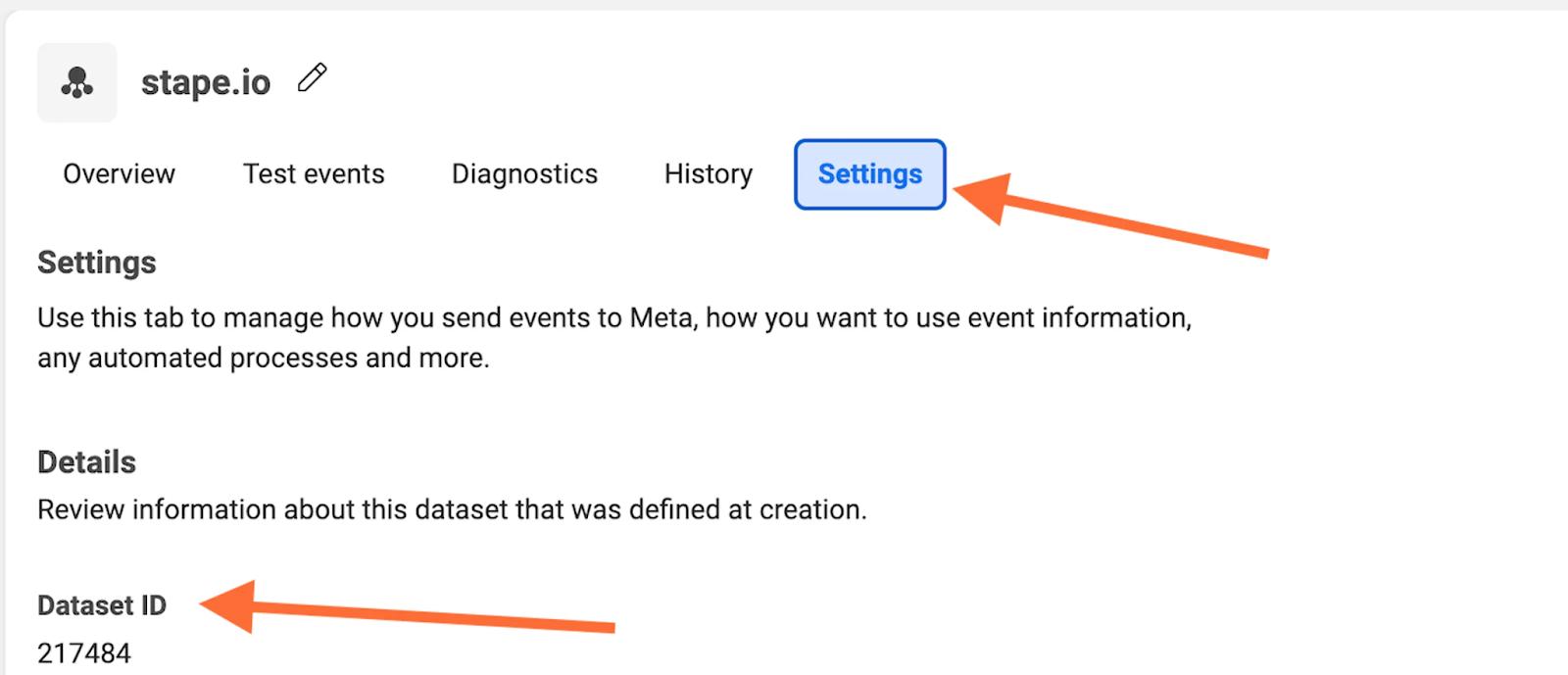
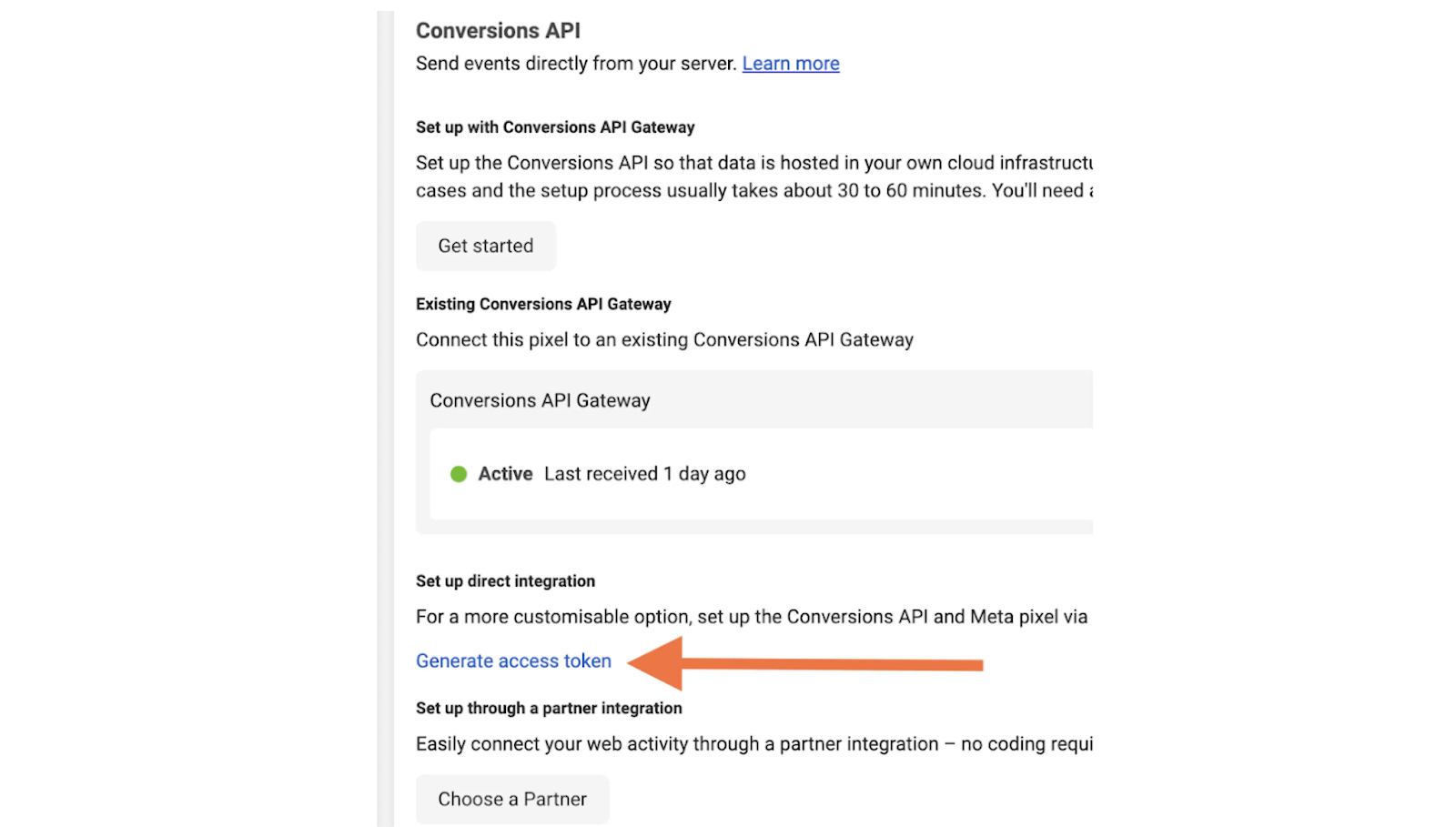
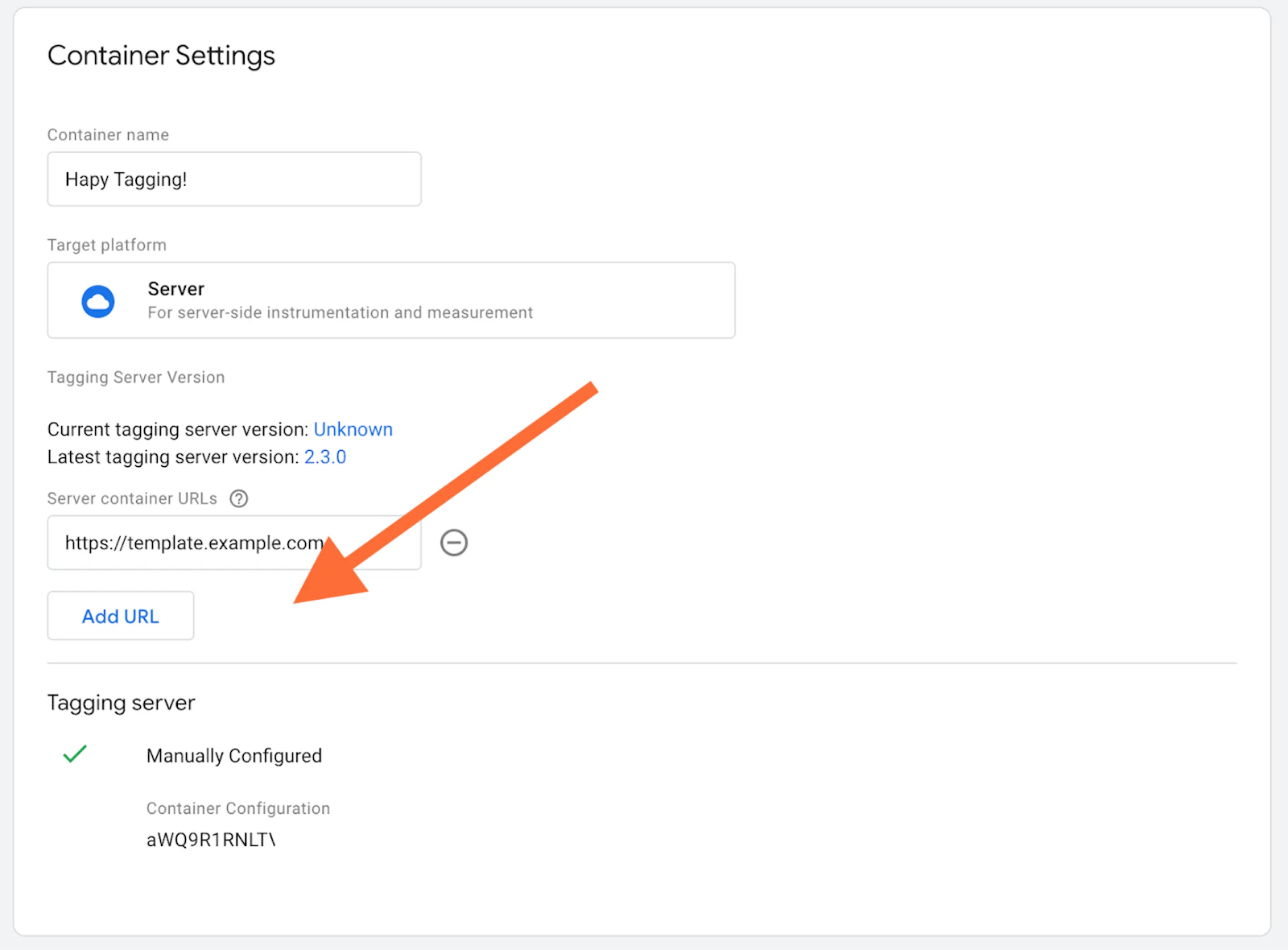
5.3. Once you’ve changed all these variables and saved them, your last step (assuming this a new container) is to add a preview URL in your server container by going to Admin → Container Settings. If the container is not new, just skip this step.
Step 6. Test the setup
Facebook provides the ability to test Browser and Server events. That is very useful if you set up Facebook pixel using GTM Server for the first time and wish to check that all data tracked correctly.
6.1. First, you need to obtain test_event_code. For this, you need to log into your Facebook manager, choose the data source that you liked to test, and open the tab “Test events”. There you will find the test event code. It can look like this: TEST2120
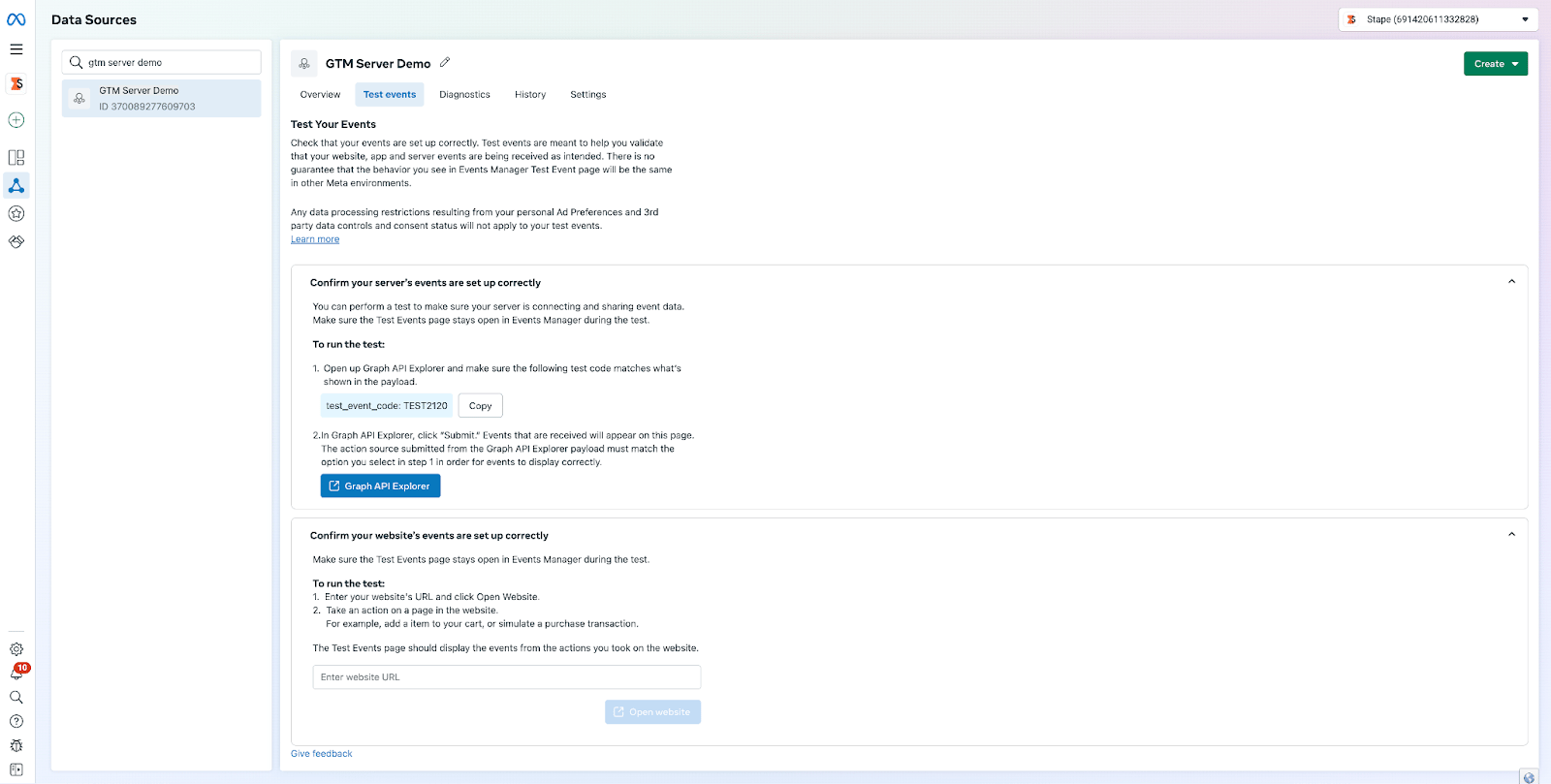
Note: TEST id will change once in a couple of hours, if your debug sessions are spread in time make sure to check the value you’re using is still valid.
6.2. Fill the LT - Map | Debug Mode → FB Test ID variable, in your server container, with the test event code that you get from the previous step.
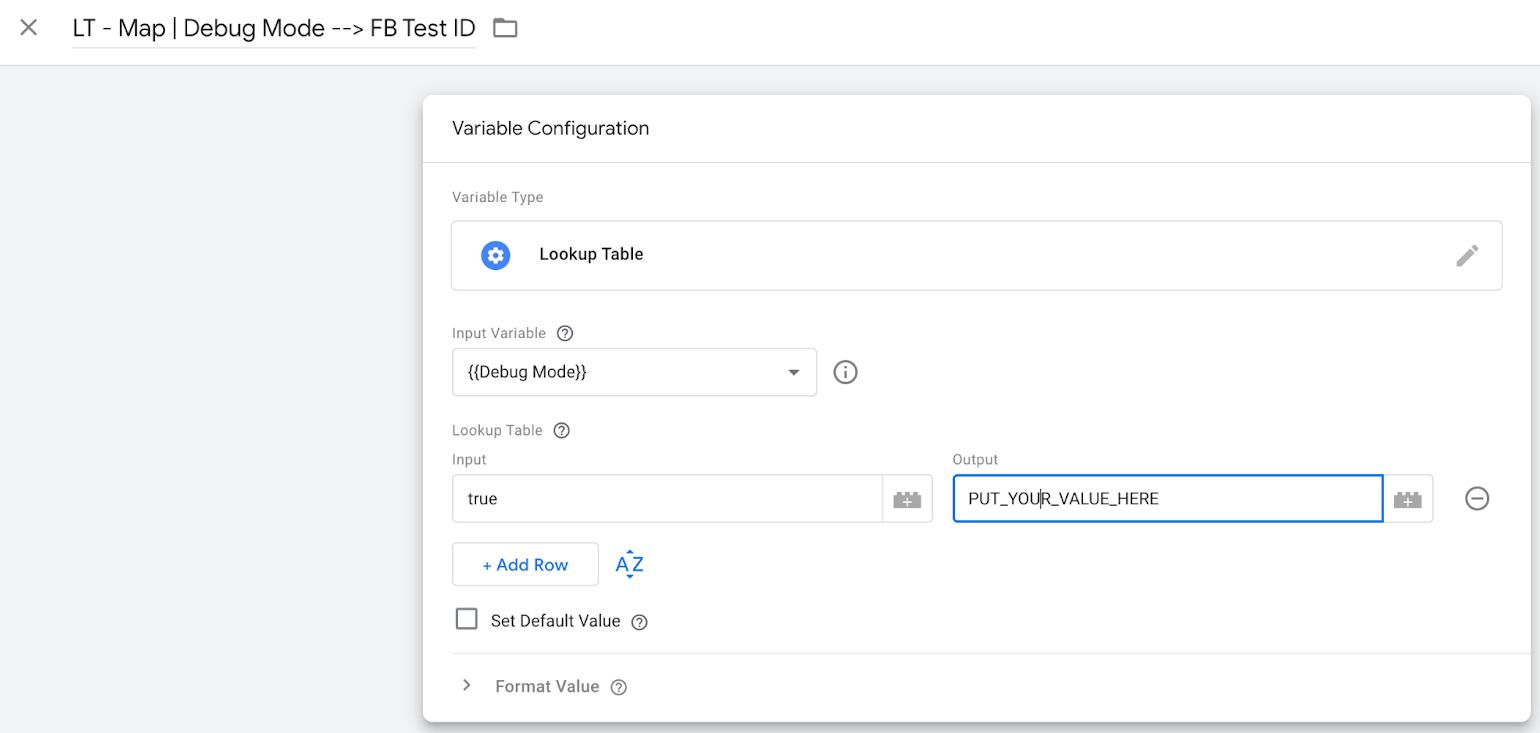
This variable is already referenced in all Facebook tags. Variable will also only populate the tag in preview mode, so you don’t necessarily need to remove it before going live.
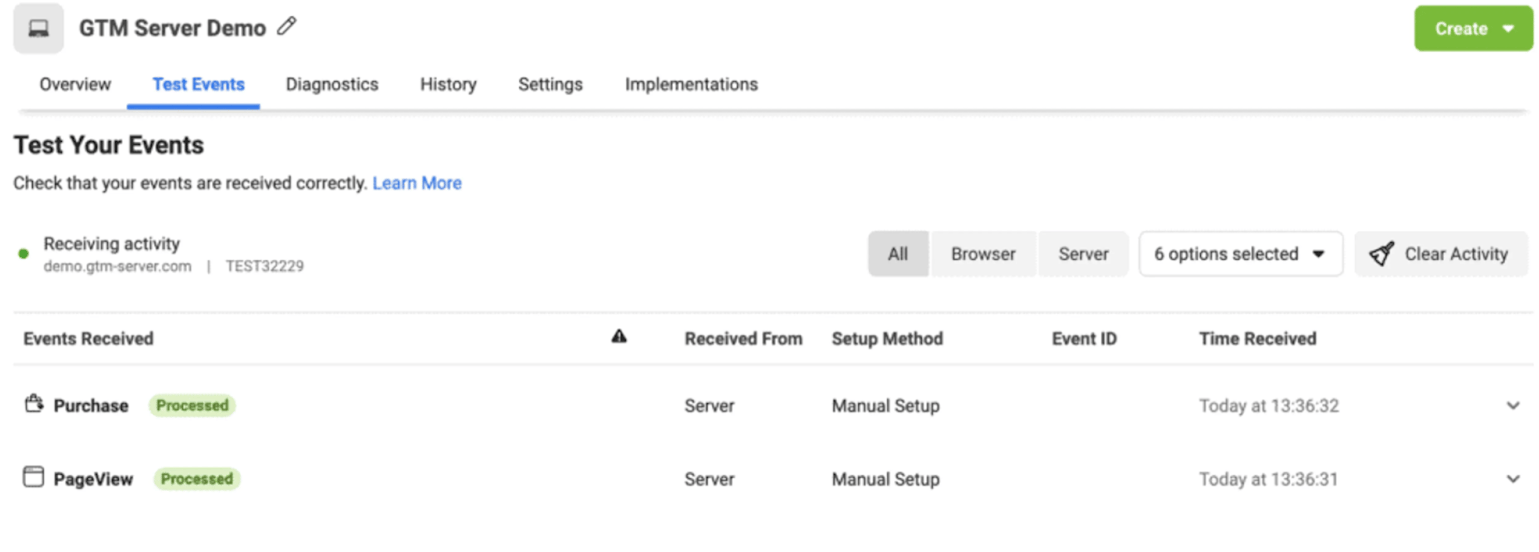
6.3. Launch preview mode on both your containers (web & server) If done right, you will see both web and server test events on the Facebook Test Event page.
Want to start on the server side?
Try for freeRecommended for you
Jul 28, 2026
Solutions
BigCommerce app
Easily add GTM snippet to all pages of your Bigcommerce website, use Stape’s Cookie Keeper power-up, add eCommerce events to dataLayer or use webhooks.
Sep 15, 2026

Comments