Sep 30, 2026
Why website tracking breaks and how to detect issues early
Written by
Uliana Lesiv
Updated Sep 2, 2026 comments
Key takeaways
- Even small changes like a removed GTM snippet or updated CSS can stop or partially break data collection without affecting website functionality.
- Selectors and DOM-based tracking are fragile and can easily break after UI changes. Event-driven tracking reduces dependency on visual elements and improves long-term reliability.
- Alerts and dashboards within the Monitoring feature allow you to spot anomalies before they impact reporting.
- For Pro plan users on Stape, regular Logs review helps identify issues before they escalate.
- Treat tracking as a system that needs continuous validation, not a one-time implementation.
Why website tracking breaks can happen
The GTM snippet was deleted by accident
Probably the most “classy” cause of broken tracking is the accidental removal or modification of the Google Tag Manager (GTM) snippet.
This can happen during:
- Website redesigns or theme updates
- Code refactoring by developers
- Migration to a new CMS
- Manual edits in the header or footer of the website
When the GTM container is missing or partially removed, no tags can fire at all. The website still functions normally, but no data is collected in the background. You can notice it if you check the analytics tools like GA4. Or if you receive the notification, which we describe in the article below.

Tracking configuration is sensitive to website changes
Many tracking setups rely on elements such as CSS selectors for tracking clicks, DOM elements, or URLs that can be dynamic.
When developers update the site code (for example, changing a button class, modifying a checkout flow, or restructuring a page layout), these dependencies can break data tracking.
The result is often not a complete failure, but partial tracking loss, where some events are still recorded while others stop working completely.
What’s the solution?
Make the tracking configuration less reliant on elements that can be changed over time. A solution that can help you do it quickly and in bulk (for multiple platforms and web/server GTM containers) is Setup Wizard.
The templates generated by the Setup Wizard are independent of selectors or the DOM structure. In the case of a lead generation website, the URLs will be used, but in the rest, the configuration is based on Data Layer events (easily added with the help of CMS apps).
The Setup Wizard does not attempt to automatically identify CSS selectors or scrape data from elements on the page. This makes your data tracking more resilient to changes on the website.
External changes
In many cases, tracking breaks because of external dependencies changing (platforms, scripts, or infrastructure) that you don’t fully control.
A good example comes from a Stape community case where a website’s tracking suddenly stopped working even though no changes were made to the tracking configuration itself. The Stape script that was responsible for sending tracking data stopped collecting and forwarding events correctly, which led to missing conversion data.
After investigation, the issue wasn’t caused by a misconfiguration or a deleted snippet. It was linked to changes outside of the website owner’s control.
So, even if your setup is correct, external systems (such as platform-level updates) can still disrupt data flow. Without monitoring, these issues are often discovered when performance reports don’t match reality significantly.
Monitoring and Logs features for spotting tracking problems
Logs and Monitoring are different tools, but to some extent, they are complementary. They solve the same core problem - visibility into your tracking.
👉 Monitoring feature provides proactive visibility and alerts.
It has two key functions.
The first one is a centralized view of your tracking pipeline health. It allows you to quickly view how well data is sent to third-party platforms. In the General tab, you get a unified overview of outgoing requests and their success rate. This makes it easy to spot issues such as sudden drops in success rate or unexpected changes in event behavior. Monitoring data is based on Outgoing Logs, aggregated into a structured and easy-to-read overview.
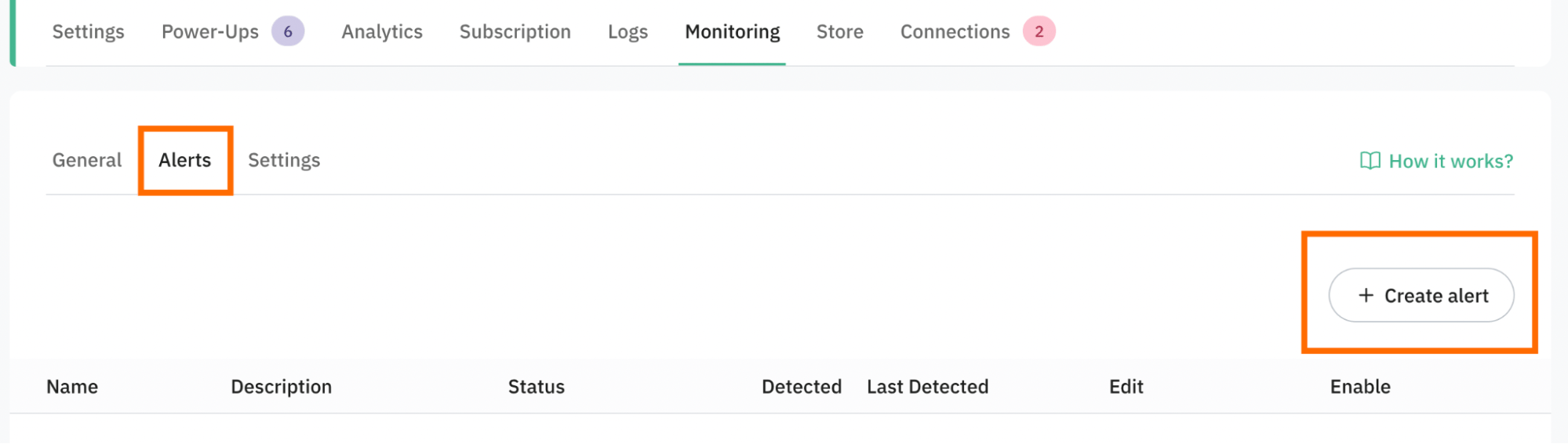
The second feature of Monitoring is its alerting system. You can configure alerts based on custom rules, so you are notified when something unusual happens (such as a drop in request success rate or abnormal traffic patterns for a specific platform). This helps you react before tracking issues impact reporting, or campaign performance. This feature is available on the Business plan or higher.
👉 Logs provide a hands-on way to analyze tracking behavior.
While Monitoring gives you a summary, Logs allow you to manually filter and inspect both incoming and outgoing requests in detail. The feature is especially helpful while problem troubleshooting (such as data discrepancies or attribution issues).
However, with Logs, you can manually create a system similar to the one the Monitoring feature provides in the General tab. You need to apply filters, select specific events, and analyze data step by step, which makes the process less convenient. Below, we provide some best practices to help you implement setup monitoring with the Logs feature.
Another Logs’ advantage is that the feature is available on lower plans (Pro and higher). It makes Logs a practical option for teams that need diagnostic capabilities, even if they don’t use Monitoring features.

The Monitoring feature: system health overview and alert configuration
General functionality monitoring
As stated earlier, the monitoring feature provides a centralized view of pipeline health, so you can get a quick assessment of tracking performance. In the General tab, users can monitor the success rate of requests sent per platform.
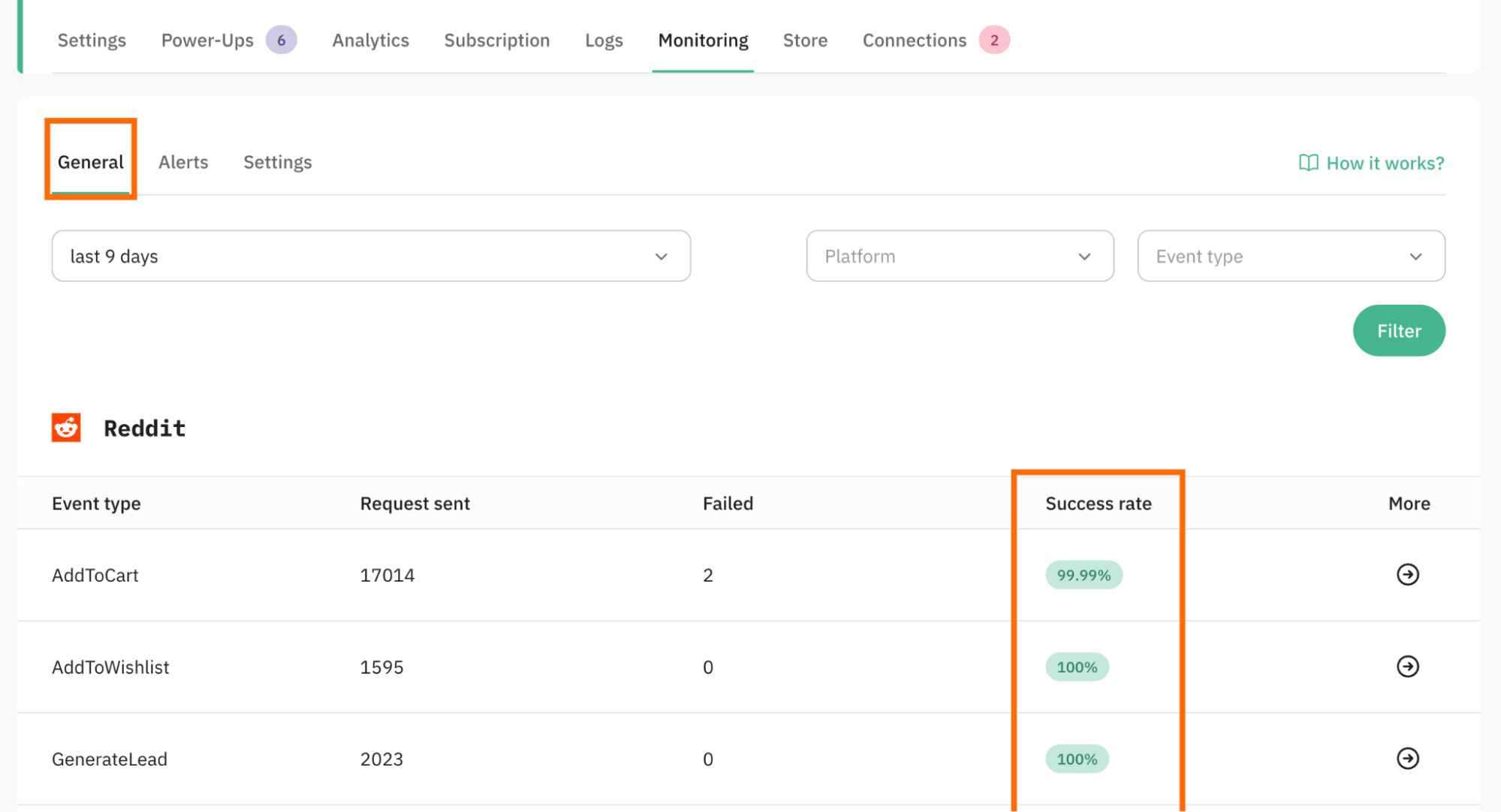
Monitoring errors in sGTM container
Monitoring the overall “health” of your sGTM container setup is a common case to quickly detect tracking issues. The focus here is on more general metrics, such as the number of incoming GA4 requests.
Monitoring alerts will be helpful when tracking breaks, for example, such as when a GTM snippet is accidentally removed from the website or when the app/plugin responsible for adding the GTM snippet is disabled. An alert will help you to notice it quickly and fix it.
The Logs feature: best practices to build an effective setup monitoring workflow
To get real value from Stape Logs, consistency matters a lot. Below, we list the best practices that can be applied in your business to make log checks a part of routine, so you can spot when something breaks more quickly:
1. Check your logs at a fixed interval (for example, once every few days or every week). It depends on the data flow volume and the “price of error” for the business. Some may need to check logs every day. Discuss it with stakeholders to come up with a data range that works for your case.
2. During checks, pay attention to 5xx errors. These are server-side errors (such as 500 Internal Server Error or 502 Bad Gateway) that indicate something went wrong on the server handling the request. Unlike client-side issues, 5xx errors usually mean your tracking infrastructure, server container, or integrations may be failing.
3. Make logs check a part of your reactive workflow. Typically, top-level stakeholders monitor metrics such as DAU/WAU and purchase volume. When a sudden drop occurs, checking Stape Logs the same day can help you quickly identify whether the issue is caused by tracking failures, server errors, or misconfigurations.
4. Export logs as a CSV file. For deeper analysis, especially when dealing with large volumes of data, exporting logs as a CSV file can make troubleshooting much easier.
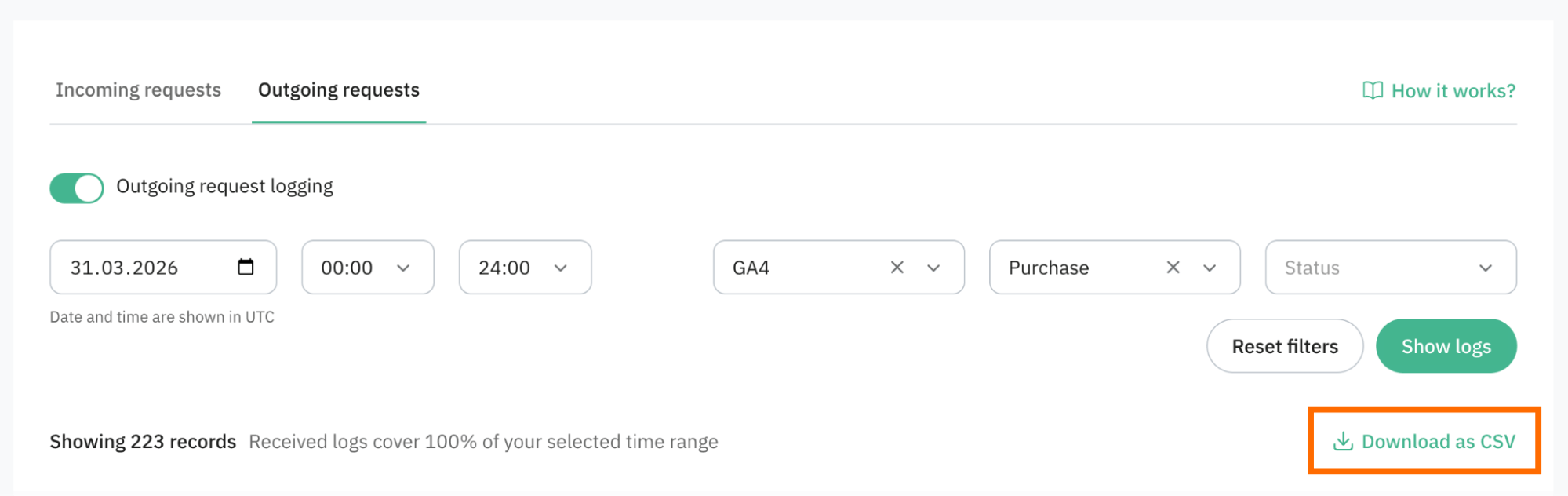
CSV exports allow you to:
- Analyze patterns at scale
- Filter and segment requests
- Investigate anomalies more efficiently
You can process this data in tools like Google Sheets, as we have shown earlier, or use AI-based tools to assist with analysis. However, be cautious: outgoing logs often contain sensitive information about your customers. Sharing such data with external tools or AI agents can pose security risks, so always review data before using AI.
5. Automate your workflow with MCP servers by Stape. Currently, Stape MCP does not provide direct access to logs. In the meantime, you can use the GA4 MCP server to quickly validate specific transaction IDs or investigate tracking behavior, as shown in this article above.
6. Implement proactive monitoring. Stape offers a monitoring feature (available on Business plans or higher) that allows you to configure alerts. These alerts notify you about anomalies before they significantly impact your data, helping you maintain more reliable tracking. We’ve overviewed the feature and provided examples in the previous section.
Not broken, but unreliable tracking
In this article, we’ve focused on spotting when the tracking stops working completely. However, not all tracking issues result in a complete failure. In many cases, tracking is still “working”, but only partially or inconsistently. This is one of the most dangerous types of failure because the data still looks valid at first glance.
One of our clients has shared in a Stape community case, where checkout events on Shopify were not consistently tracked. Some sessions recorded conversions correctly, and others failed entirely, even though the tracking setup wasn’t changed.
So, tracking doesn’t need to fully break to become unreliable. To spot a problem before it significantly affects the reports, you can configure alerts that are sent to your email when the number of conversions is lower than a baseline.
In the article on why the server GTM container is not receiving requests, we’ve described how you can configure such an alert using the Stape Monitoring feature.
Final words
The reliable tracking is not a one-time setup task, but an ongoing process of validation and maintenance. The more you treat it as an active system rather than a static configuration, the more trustworthy your analytics will become over time.
Want to start on the server side?
Try for freeRecommended for you
Sep 30, 2026
Blog
Data discrepancies explained: causes, how to identify and fix
Most data mismatches aren’t bugs - they’re limitations. Learn how to identify discrepancies, uncover missing data causes, and take control of your tracking.
Sep 2, 2026

Comments