How to add a custom domain to the Google Tag Manager server container

In this article, we will describe how to set up a custom domain within the server Google Tag Manager container. The main advantage of using a custom domain for sGTM is that it helps increase cookie lifetime by setting first-party cookies instead of third-party cookies.
How to add a custom domain inside the server Google Tag Manager container
Using a subdomain
Use a custom tagging server URL, also called a custom domain, to set first-party cookies. This URL should use the same root domain as your website. For example, if your website is `example.com`, your tagging server URL can be `ss.example.com`.
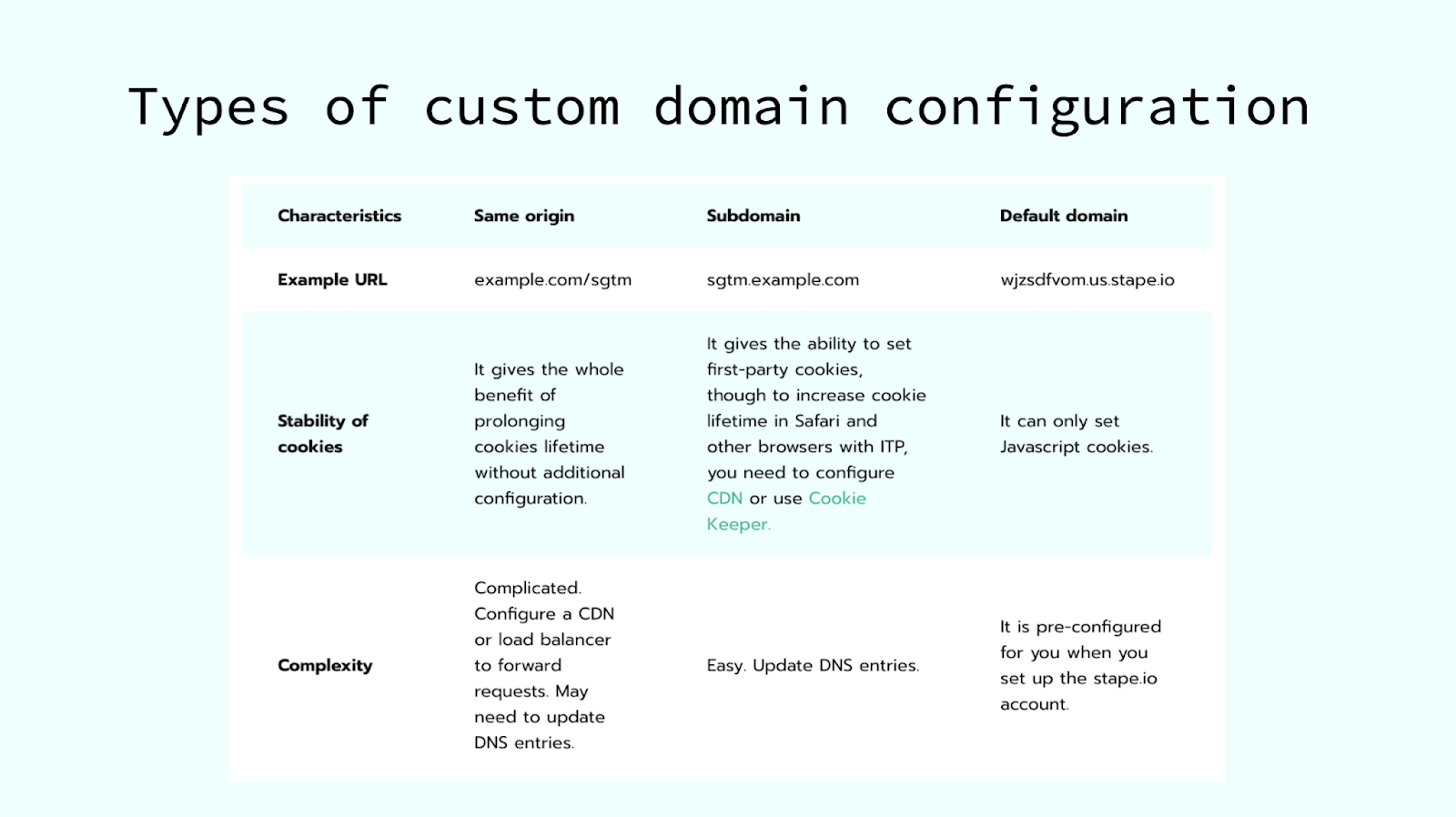
There are three ways to set up a custom domain:
- Same origin – tagging server shares the exact domain and path with your site. Read more on how to set up a custom domain with the same origin.
- Subdomain – tagging server runs on a subdomain of your root domain. In this article we will guide you through this setup.
- Default domain – no custom domain; uses the standard Stape-provided address.
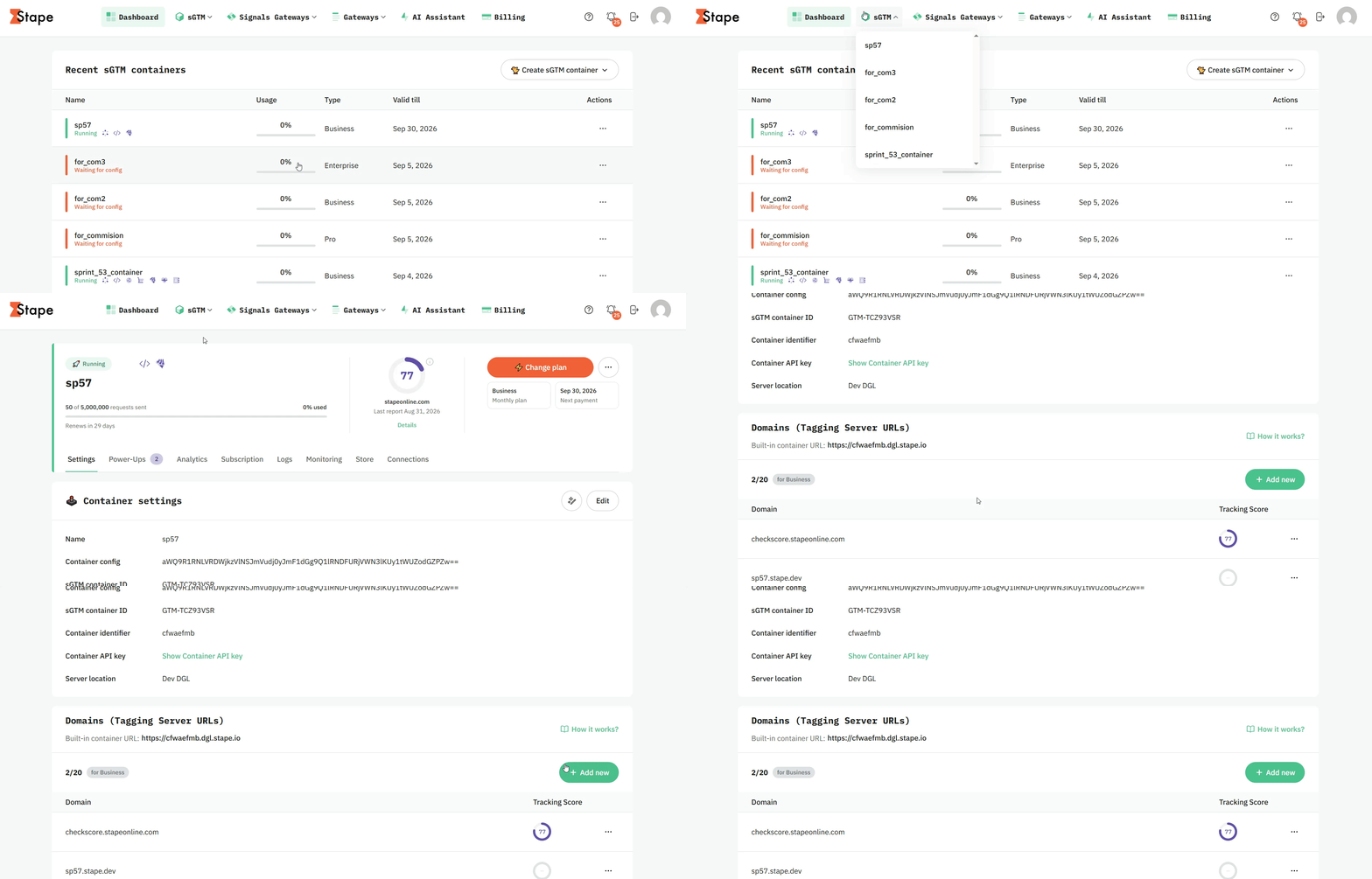
Step 1. Add your custom domain
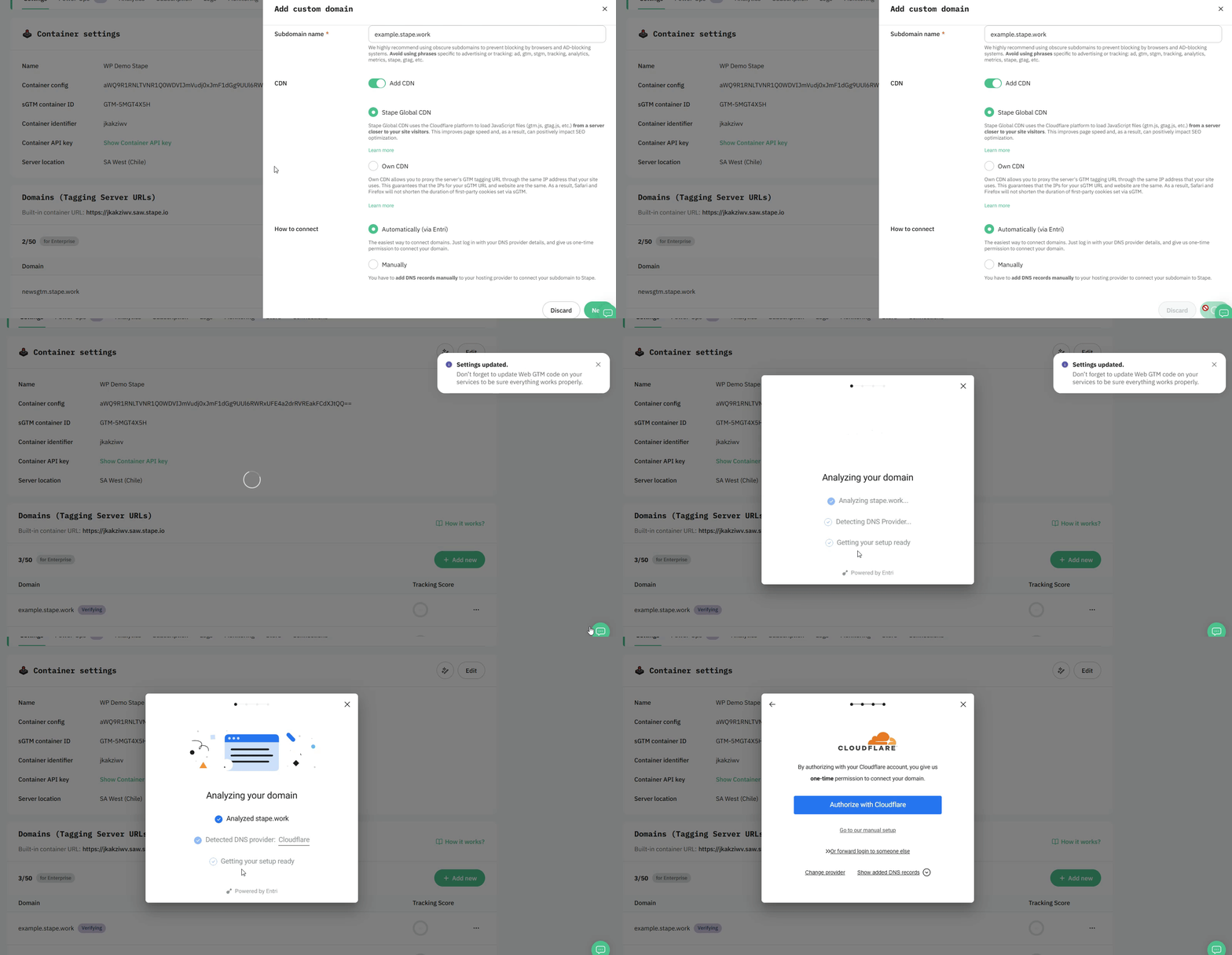
Сhoose your container on Stape, scroll down to the Domains (Tagging Server URLs) section, and click +Add new.
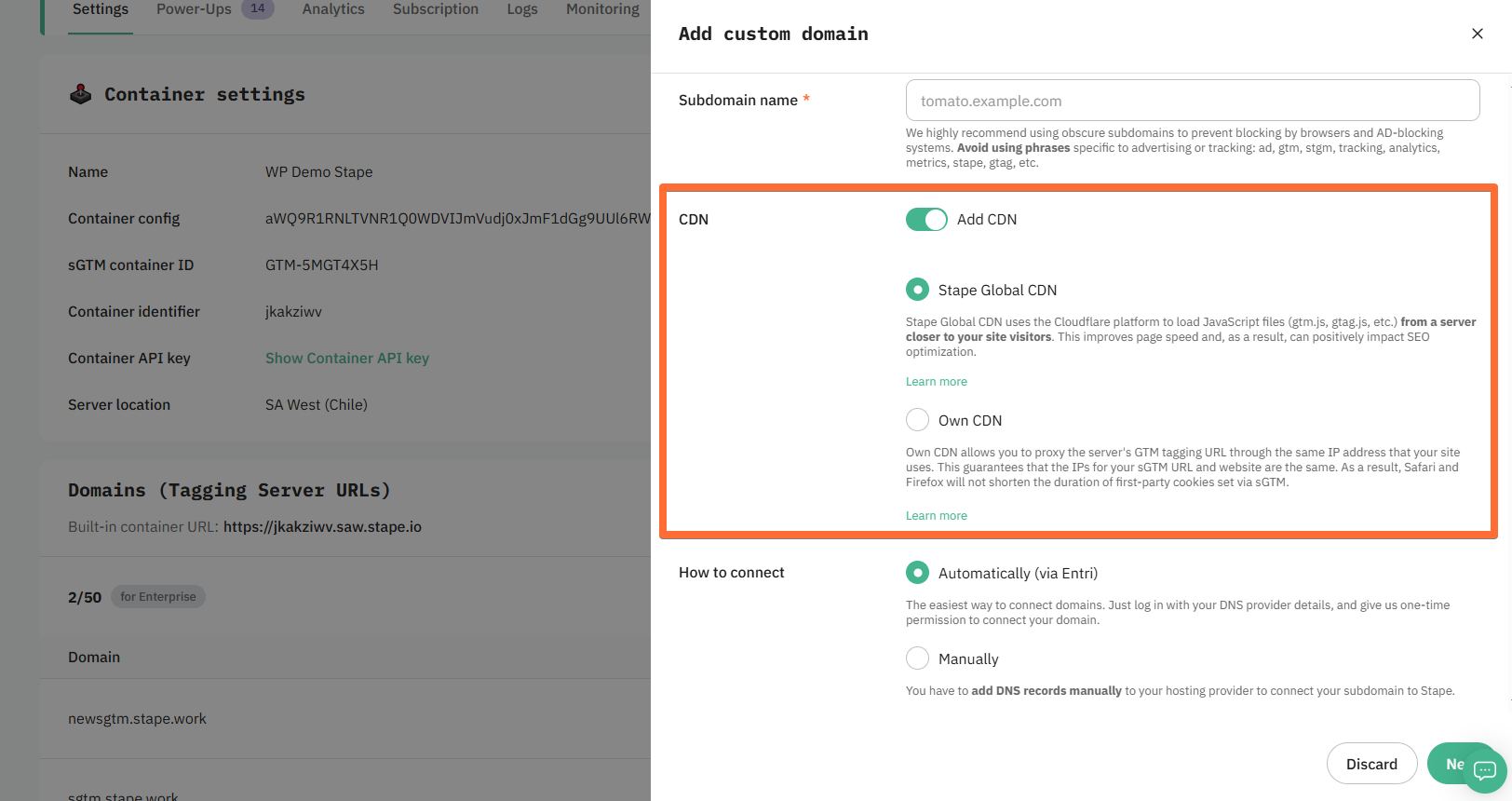
Add Subdomain name - it can be any name that works for you, just be sure to avoid using phrases specific to advertising or tracking: ad, gtm, stgm, tracking, analytics, metrics, stape, gtag, etc.
Step 2. Add CDN
A Content Delivery Network (CDN) distributes your website's assets across a global network of servers to reduce latency and improve load times for users in different locations. It is useful if your audience is geographically distributed or if you want to improve cookie tracking and data accuracy.
By default, the CDN is disabled, which means JavaScript files (like gtm.js, gtag.js, and analytics.js) are served directly from the server location where your sGTM container is hosted. Effectively, it bypasses both Stape Global CDN and Own CDN options and gives you a direct, unproxied connection between your site and the sGTM container.
| Important: please consider your country's privacy regulations before setting up a CDN. |
To enable the CDN, click the Add CDN toggle and select one of the following options:
- Stape Global CDN - loads scripts from a server closest to your website visitor's location, which reduces latency and improves page load times for geographically distributed audiences. We will use the Stape Global CDN in our setup. This feature is free and available for all Stape sGTM containers.
- Own CDN (incompatible with the Automatically (via Entri) connection option) - helps route sGTM custom domain and proxy sGTM traffic through the DNS provider of your website. In this case, the IP addresses of your website and the custom domain of the sGTM will match, and server-side cookies will be considered as first-party. As a result, it gives the ability to increase cookie duration.
Step 3. Select the "How to connect" method
Next, in the How to connect section, there are two ways of connecting a custom domain to your container:
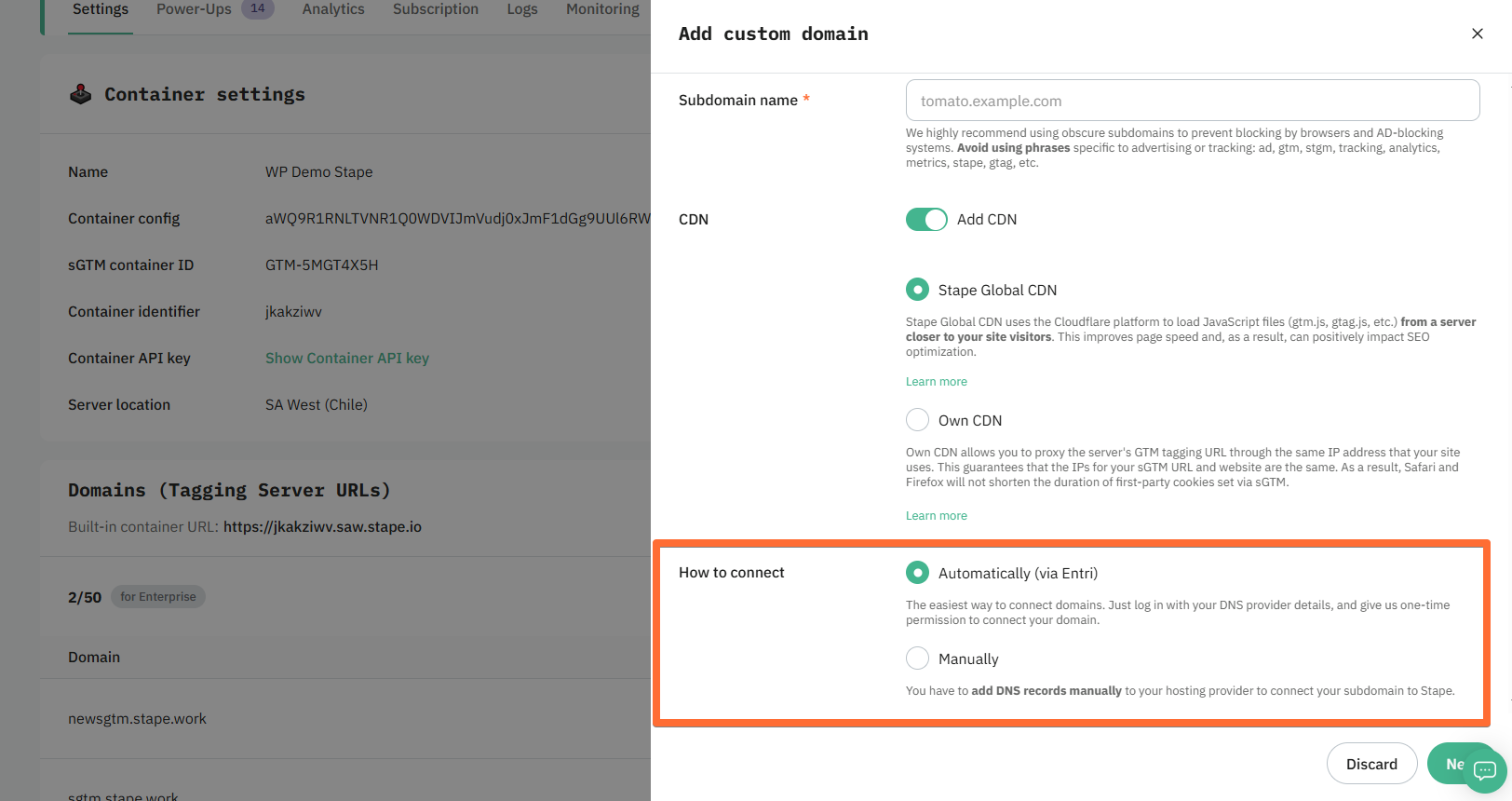
- Automatically (via Entri)
The easiest way to connect domains. Log in with your DNS provider details via Entri, and give us one-time permission to connect your domain. That's it, you can proceed directly to Step 5 to verify your domain; no manual configuration is required.
- Manually
With this option, you have to add DNS records manually to your hosting provider to connect your subdomain to Stape.
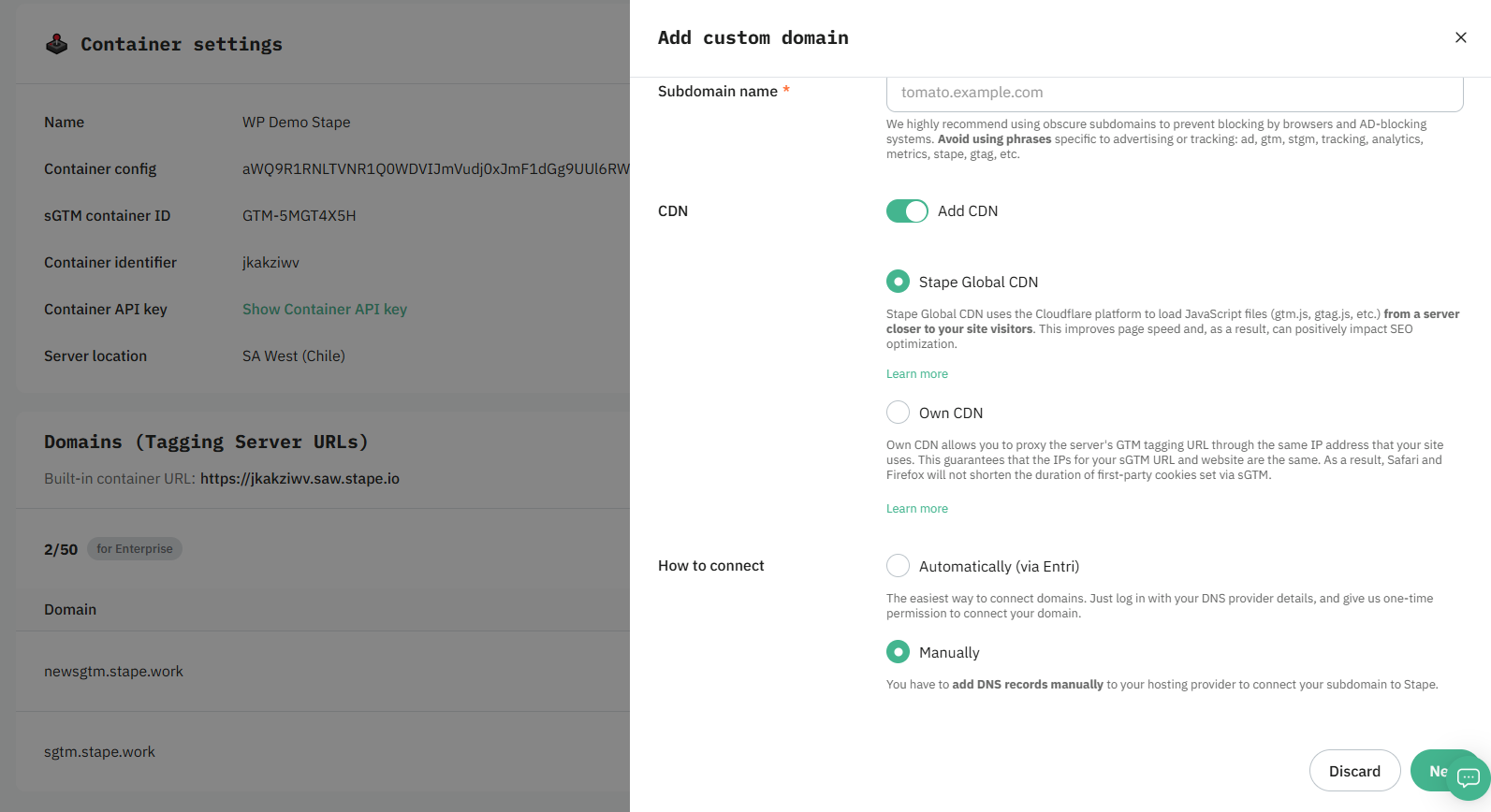
After you add a custom subdomain to your container, you will see DNS records that should be created to verify the custom domain. The DNS record depends on the server location and the CDN option you choose. In the next step, we show how to add DNS records.
Step 4. Add DNS records (for the manual connection method)
By default, subdomain verification is performed with CNAME records, but you can verify your subdomain with A and AAAA records if you need to (usually in cases when you need to avoid adding duplicated records).
We will cover both options below with a step-by-step guide on how to create records using Cloudflare. But you can use any other provider.
Adding a custom domain with a CNAME record
CNAME record(s) setup
You must create one CNAME record if you do not use Stape Global CDN and two records if you use Stape Global CDN.
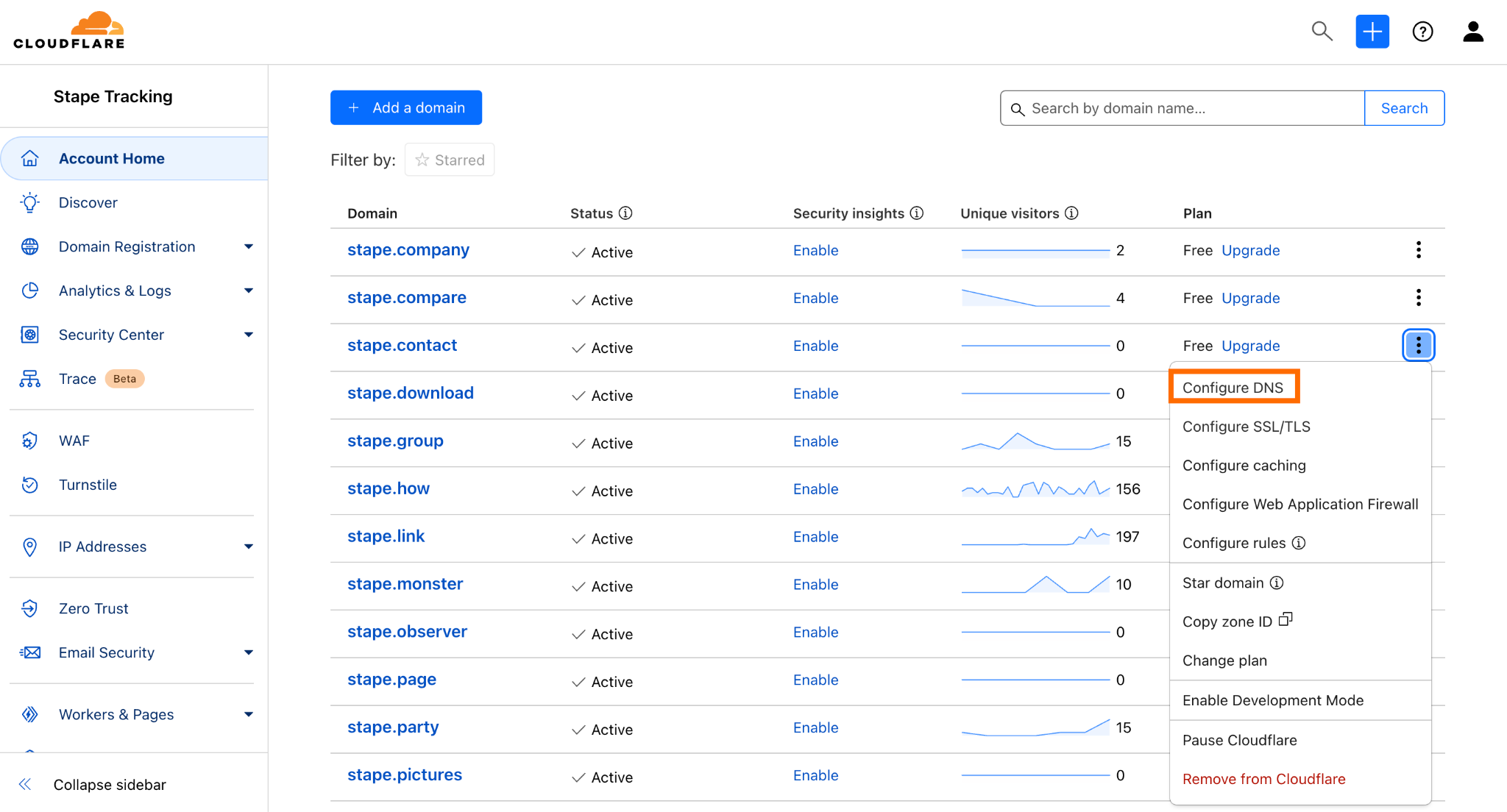
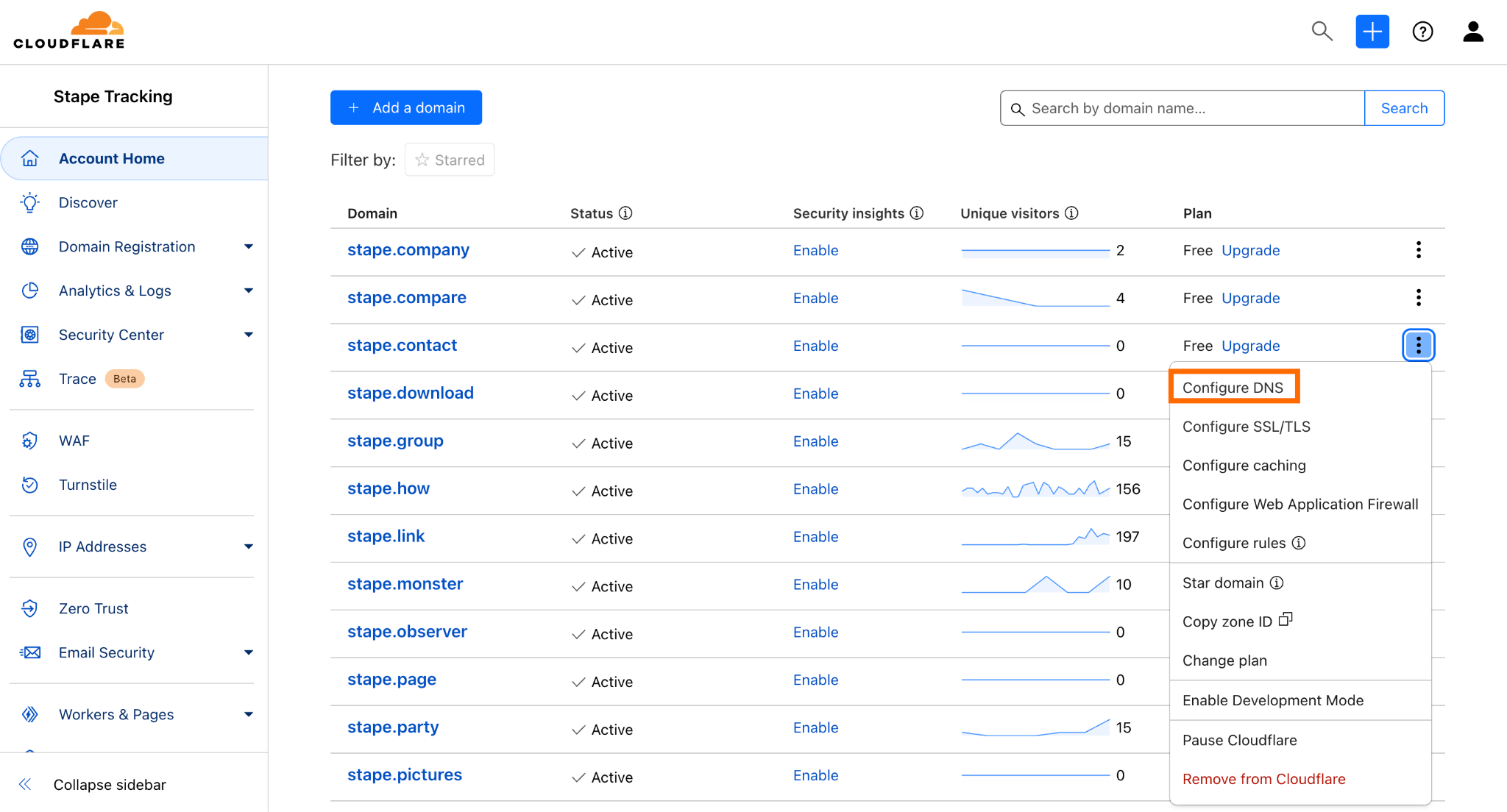
1. Log in to your domain name service and create a new DNS record for the subdomain you want to use. To do it, click three dots and choose Configure DNS next to your domain name on the account home page.
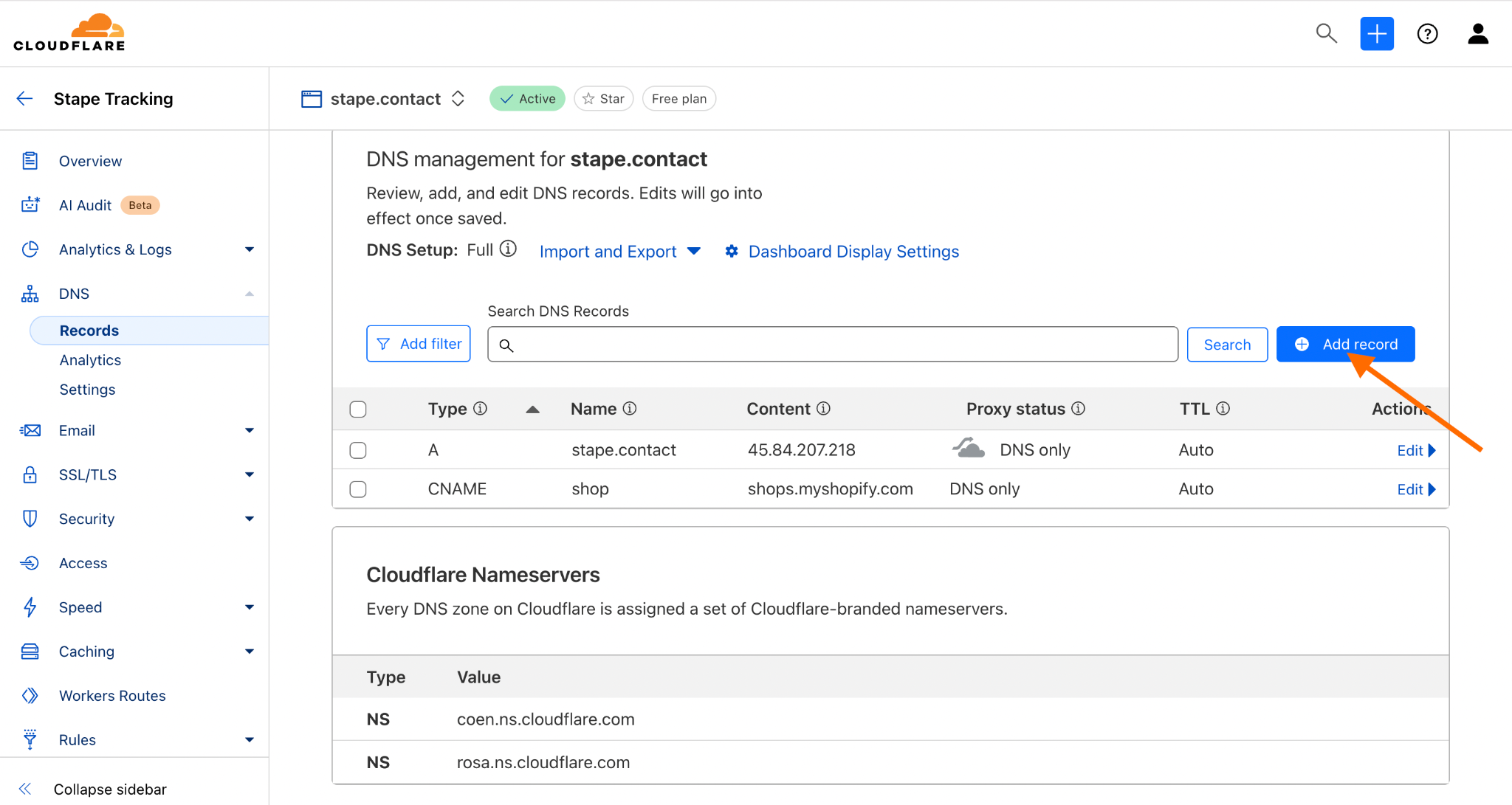
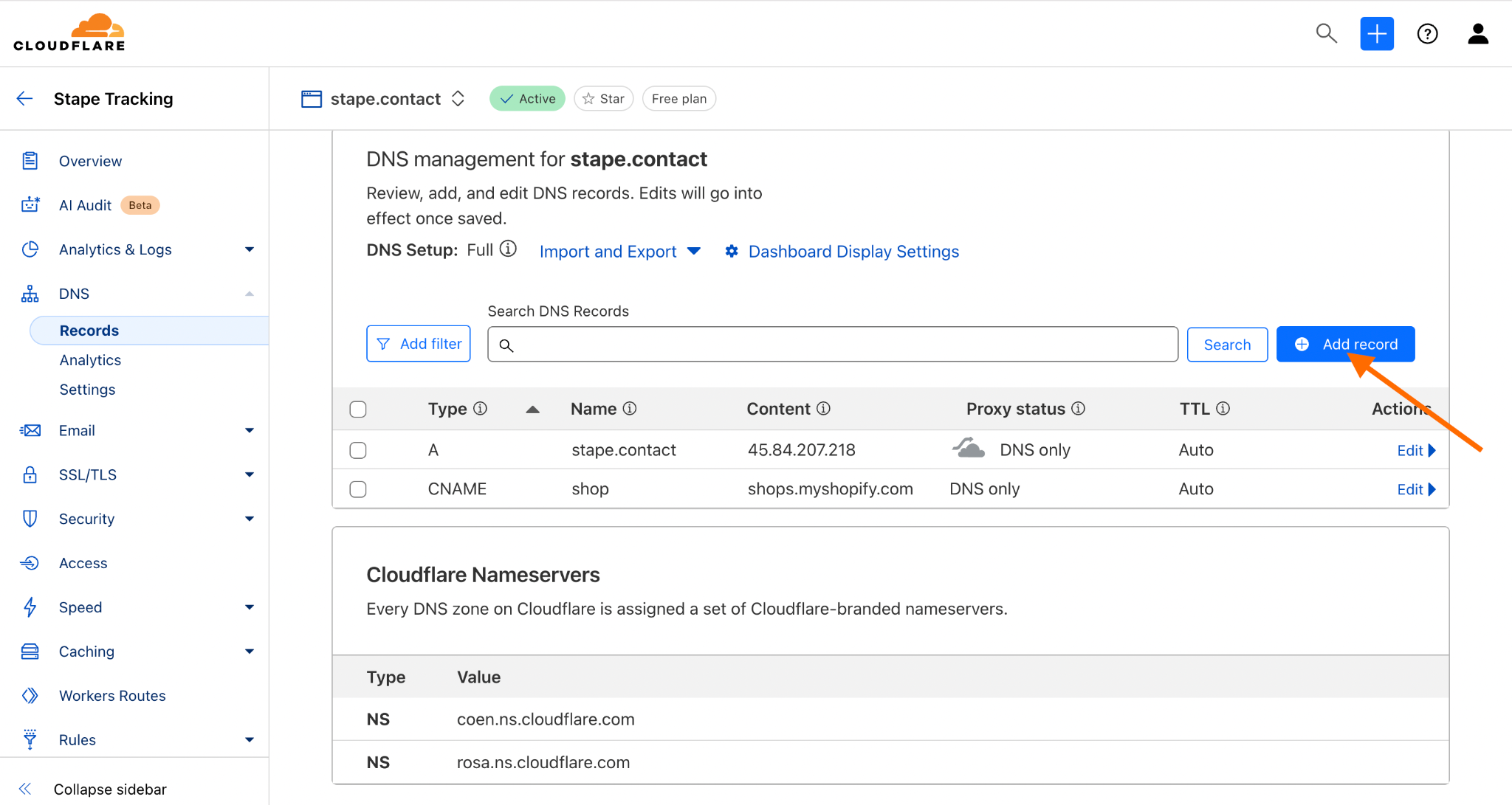
2. Click Add record.
3. Go back to your Stape account and input the record you see in the account. Make sure that the Proxy status is turned off.
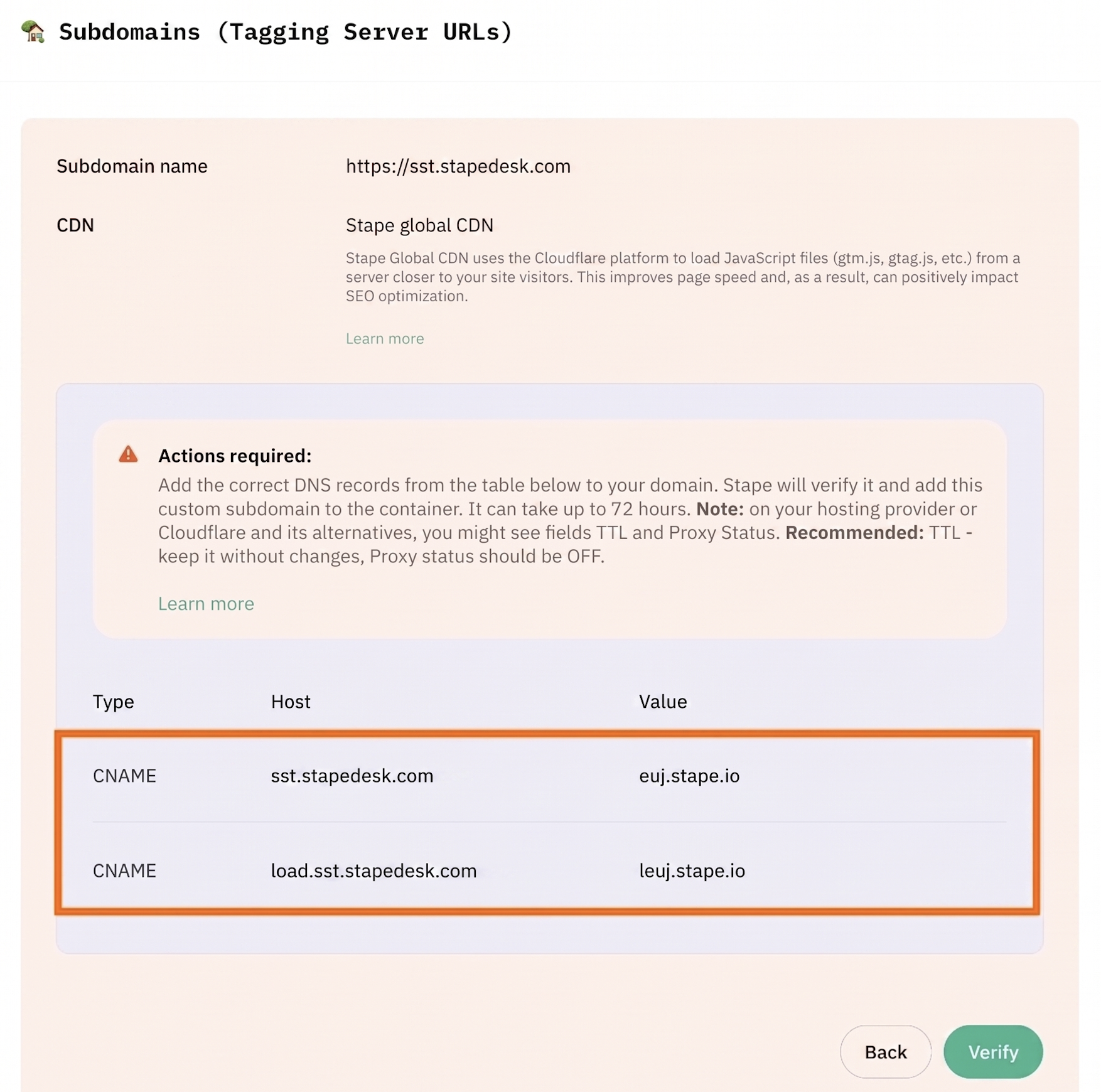
We use Stape Global CDN, so we create two CNAME records:


Adding a custom subdomain with A and AAAA records
| Please note that A/AAAA records are incompatible with enabled CDN. |
A/AAAA records setup
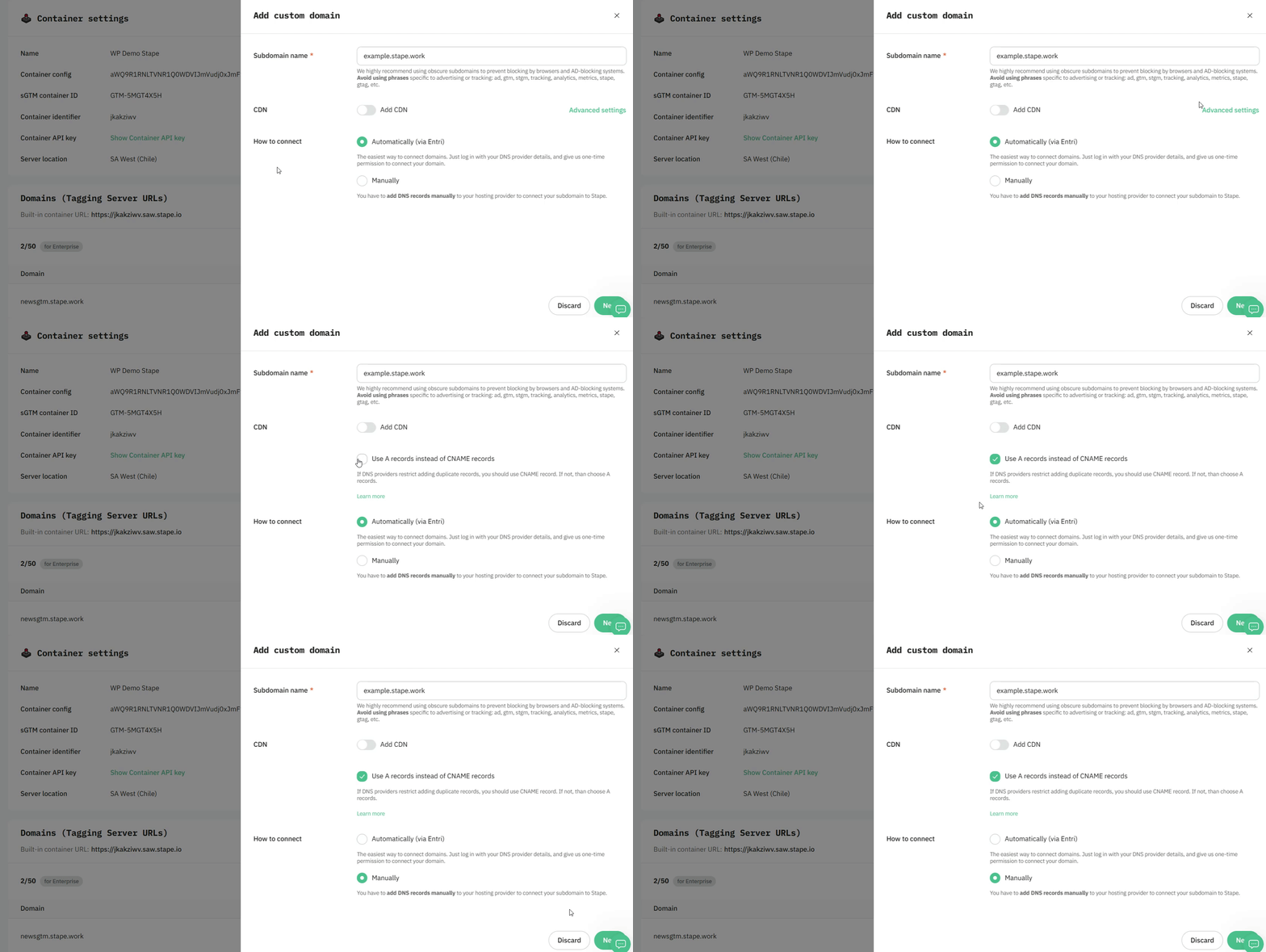
1. If you need to verify your custom subdomain using A and AAAA records, add the custom subdomain to the container and make sure that the CDN toggle is switched off.
Click Advanced settings and tick the Use A records instead of CNAME records box. You will see DNS records that you should add inside your Stape container. The DNS records you should configure vary depending on the server location.
2. Log in to your DNS account and add the records you see in your Stape account. On the account home page, next to your domain name, click three dots and choose Configure DNS.
3. Click Add record.
4. Then, create the records you see in your Stape account. Make sure that the Proxy status is turned off.
Take the values for your DNS records from the Stape account:
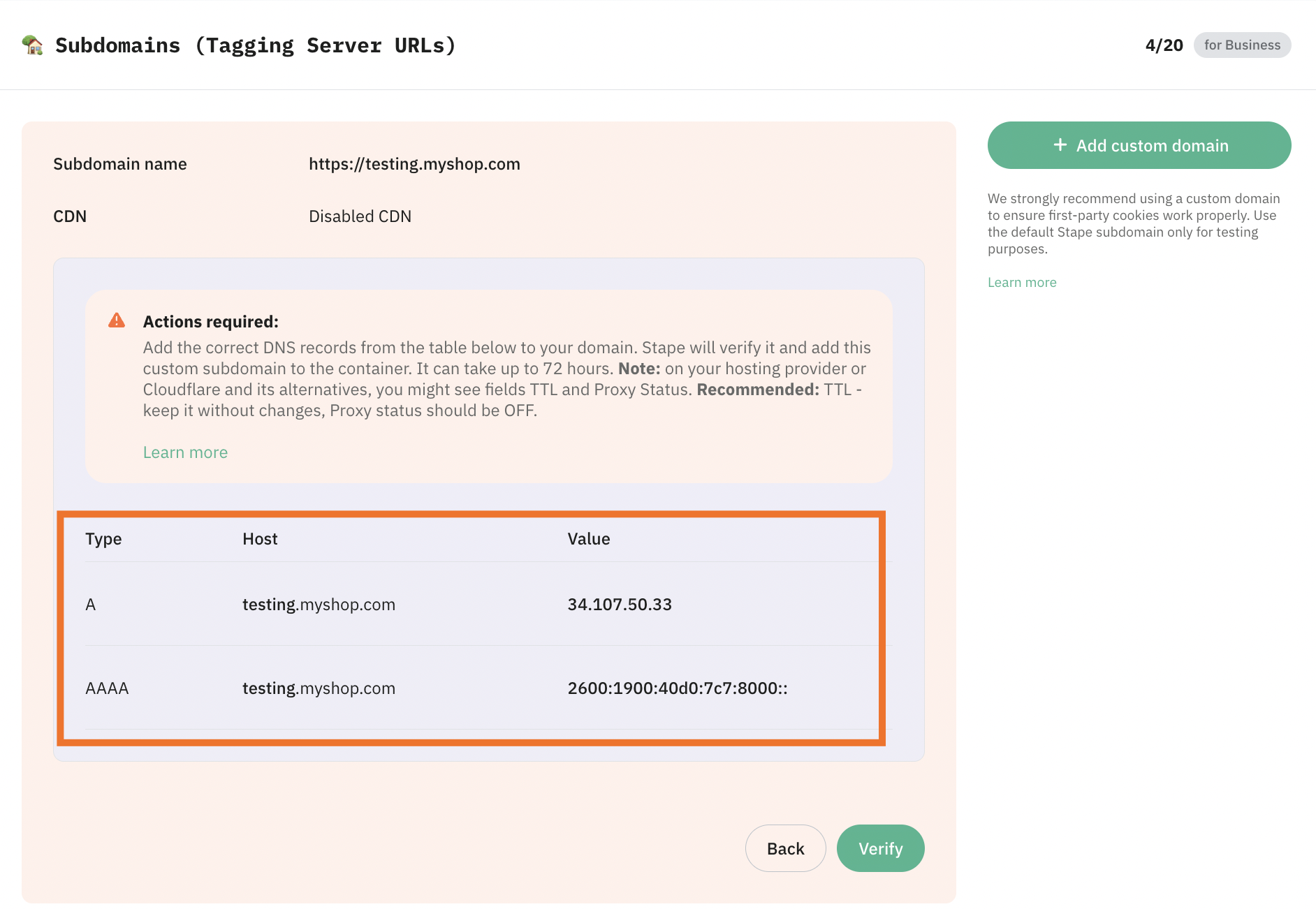
As a result, you will get two DNS records:


Step 5. Verify your domain
Once you've entered the DNS records to your DNS provider, return to the Stape container page where you've been configuring the custom domain and click Verify.
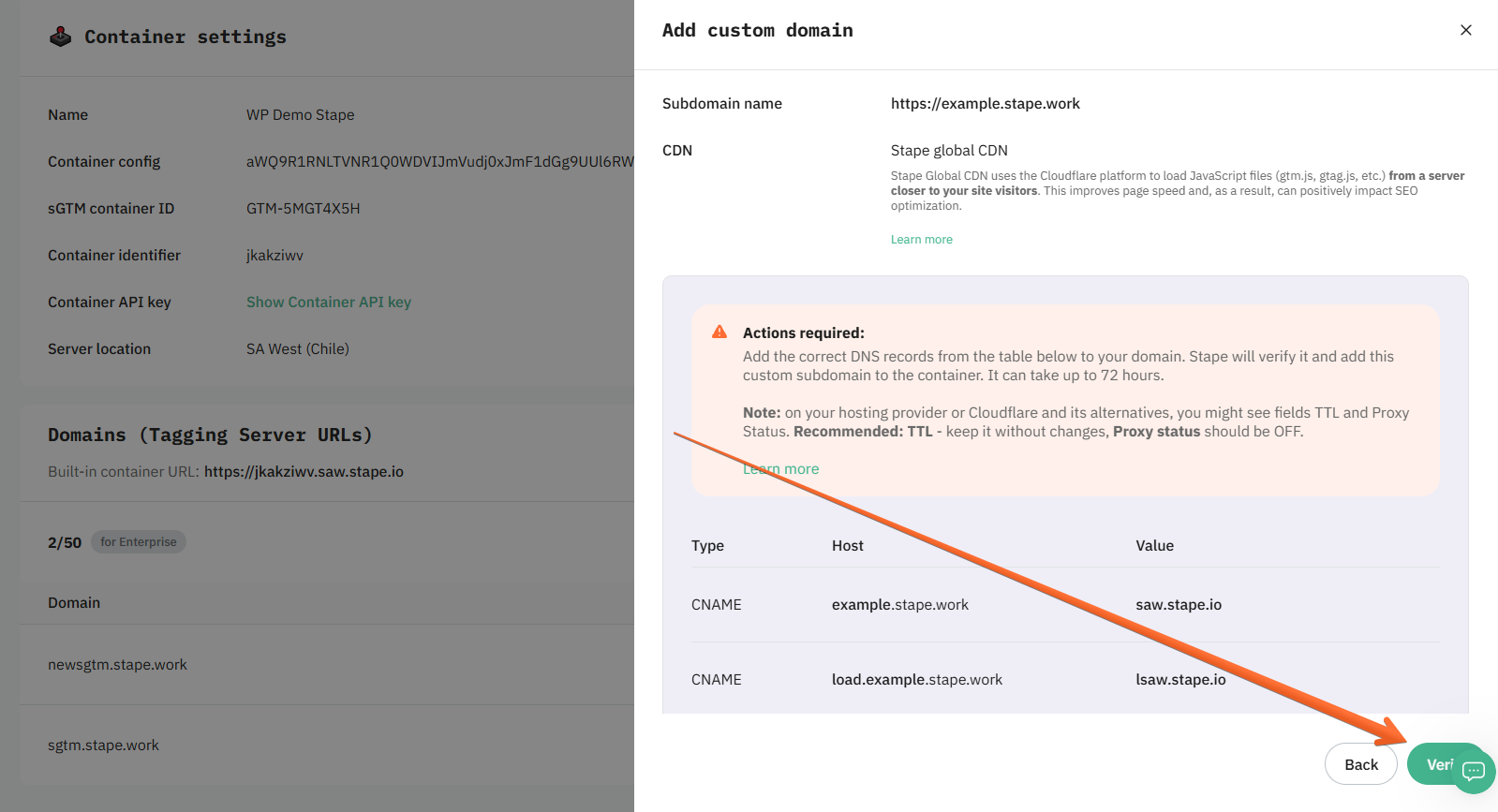
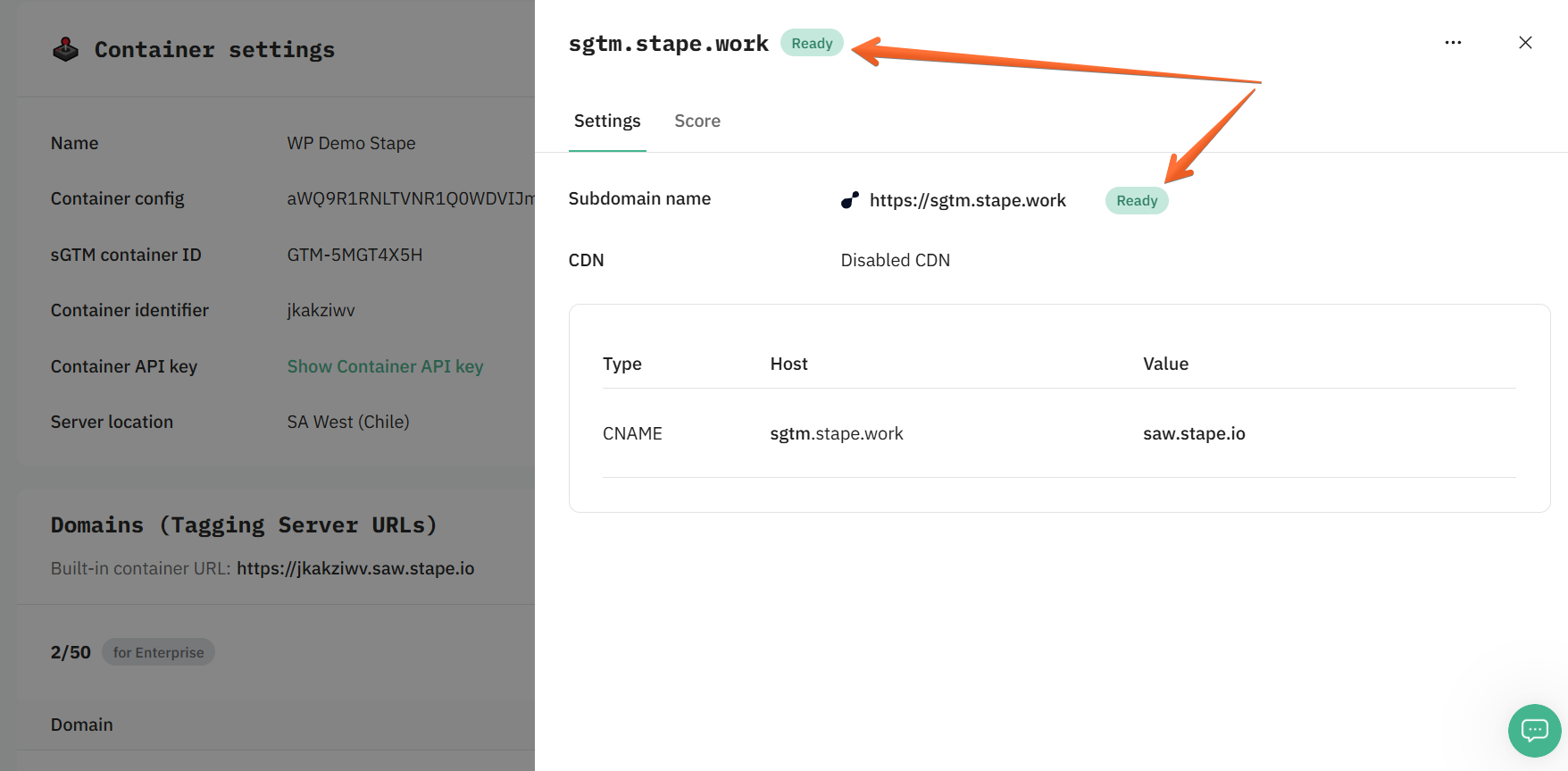
Wait for Stape to finish verifying your custom domain (when the container status bar changes from Verifying to Ready). Usually, it takes 2-3 hours to verify the custom domain. For some DNS providers, verifying records might take up to 72 hours. We will email you once the custom domain is verified or any error is detected.
If you face any problems with domain verification, please follow our guide on troubleshooting a custom domain.
Step 6. Add tagging server URL and update your website script
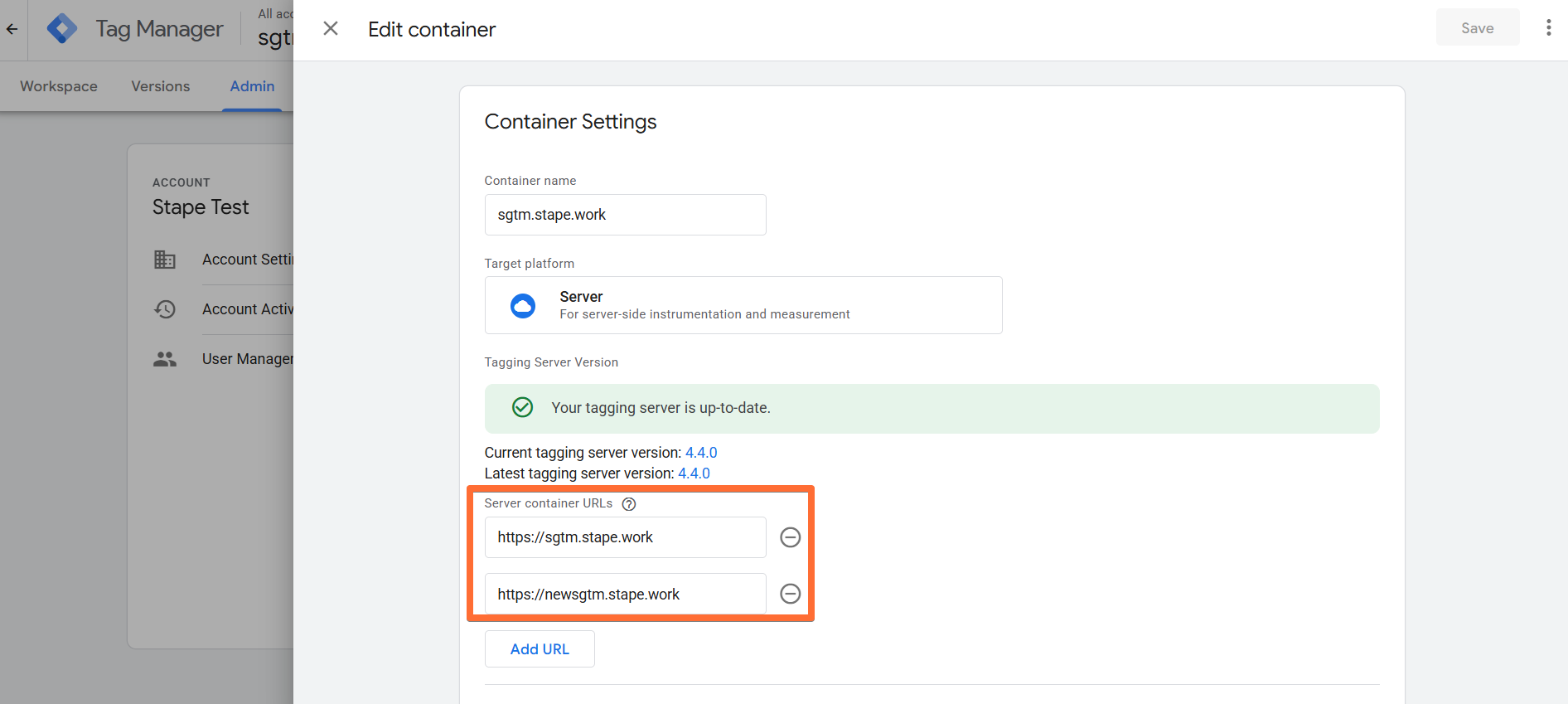
Go to your Google Tag Manager server container → Admin → Container Settings → change Tagging server URL to your subdomain.
Update the script
If you use a custom domain, updating the Web GTM script on your website is highly recommended. This tweak will load gtm.js from your domain. To do so, replace the default domain googletagmanager.com with the custom domain you set up in the previous step.
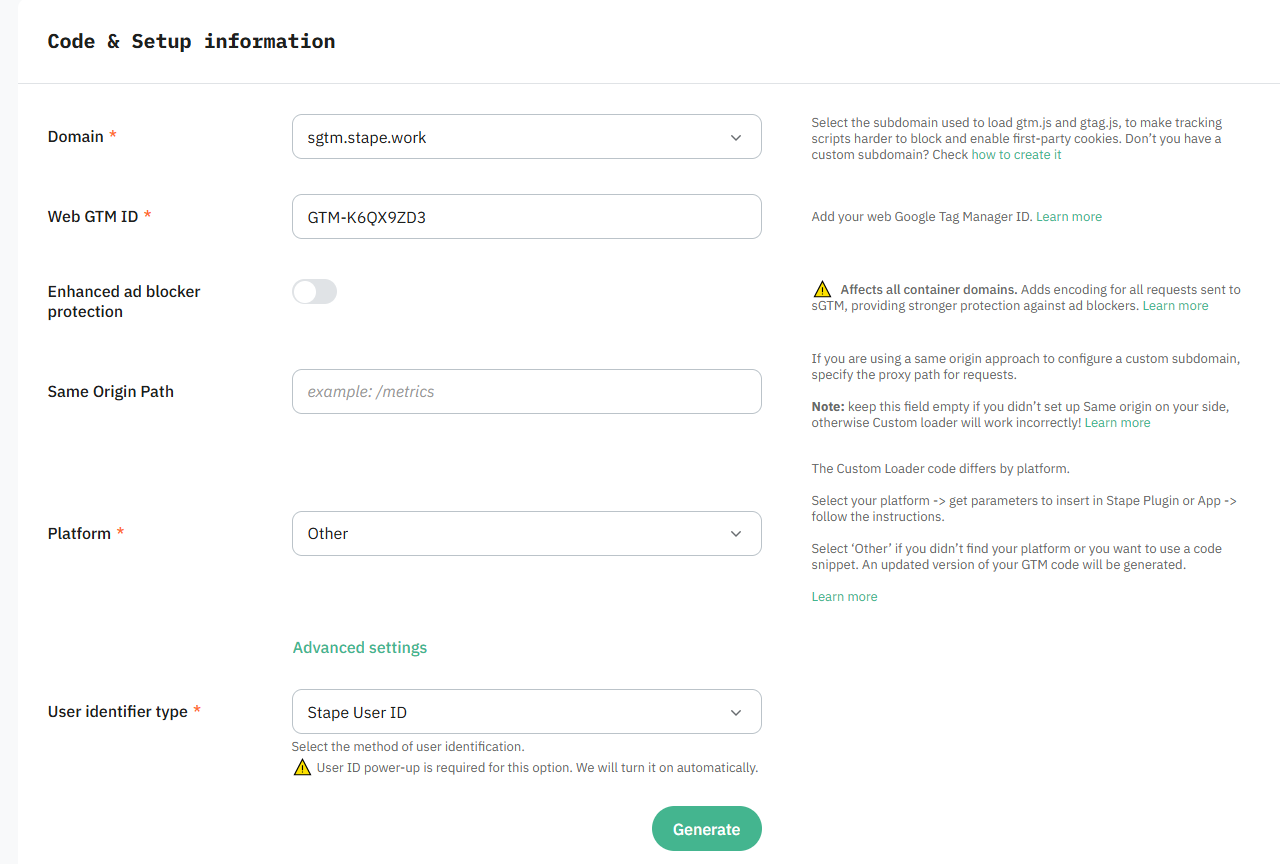
Alternatively, you can automate this process with the Custom Loader power-up. Instead of manually editing the GTM script, Custom Loader generates a ready-to-use code snippet that loads GTM and GA4 scripts directly from your custom domain. This saves your time, makes your tracking scripts more resilient to ad blockers, and assures all cookies are treated as first-party.
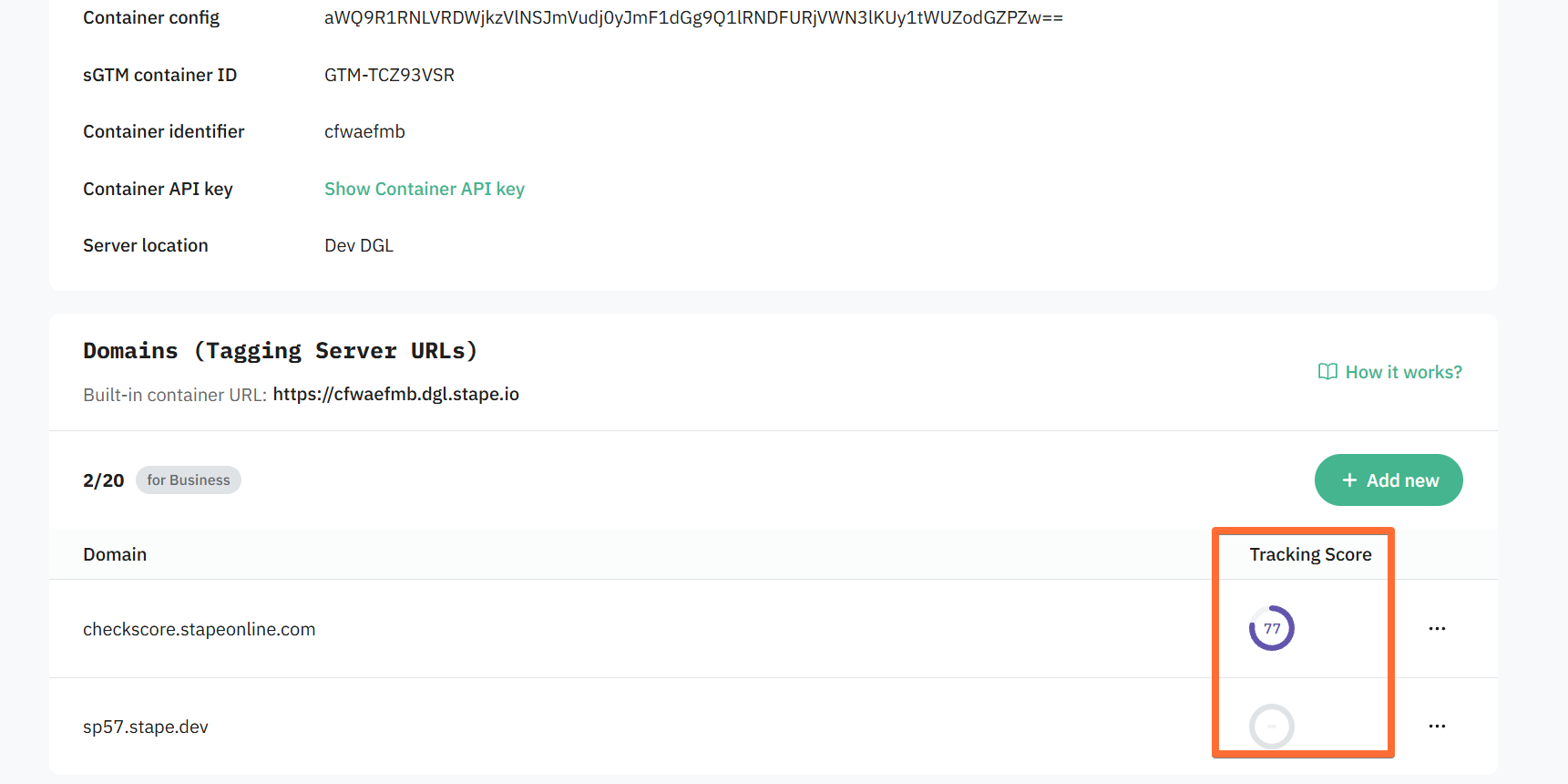
You’ll see your new custom domain in your sGTM container’s list of domains. If you’re on a paid subscription, you will also see the Tracking Score estimating the quality of your domain’s tracking setup.
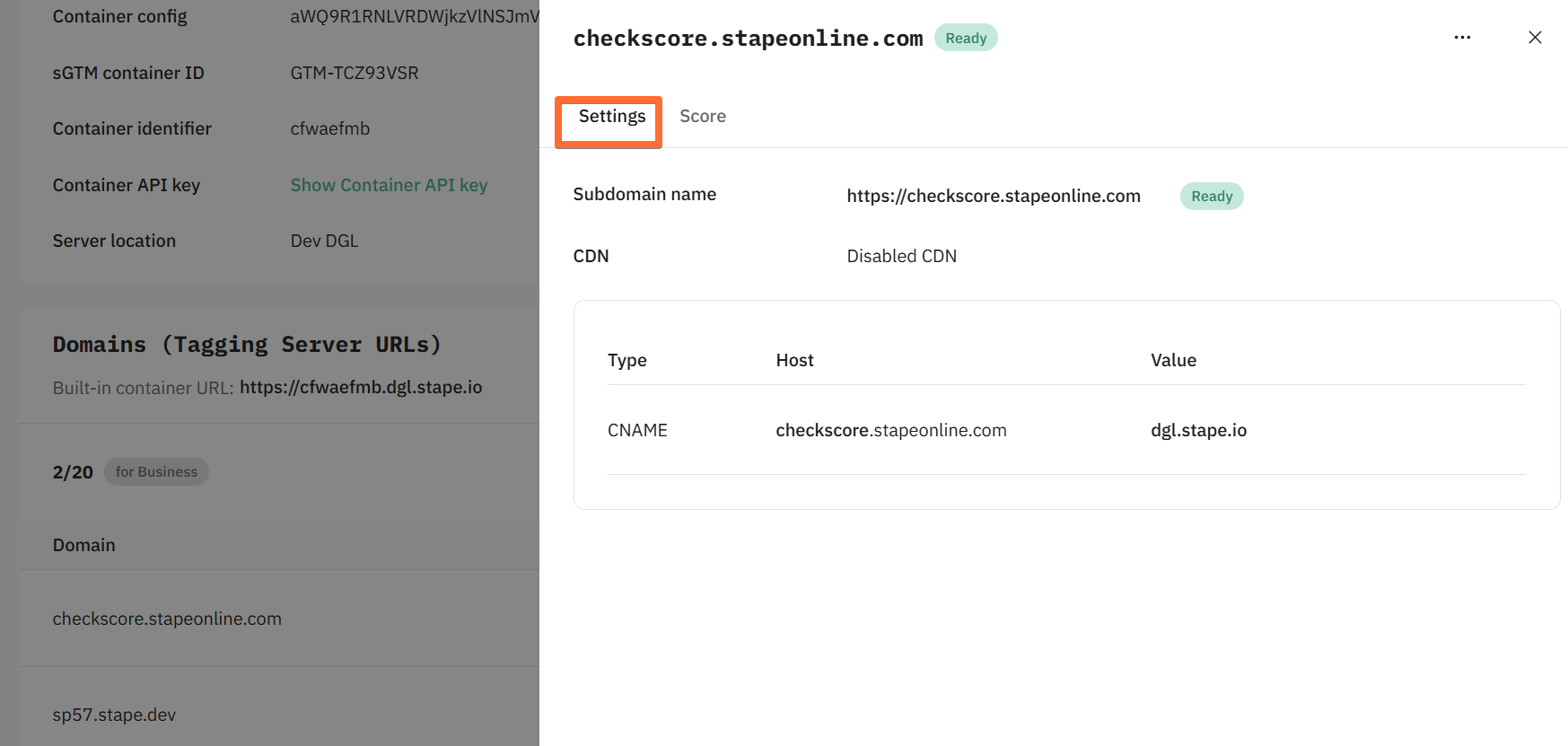
Click on your domain to access its settings:
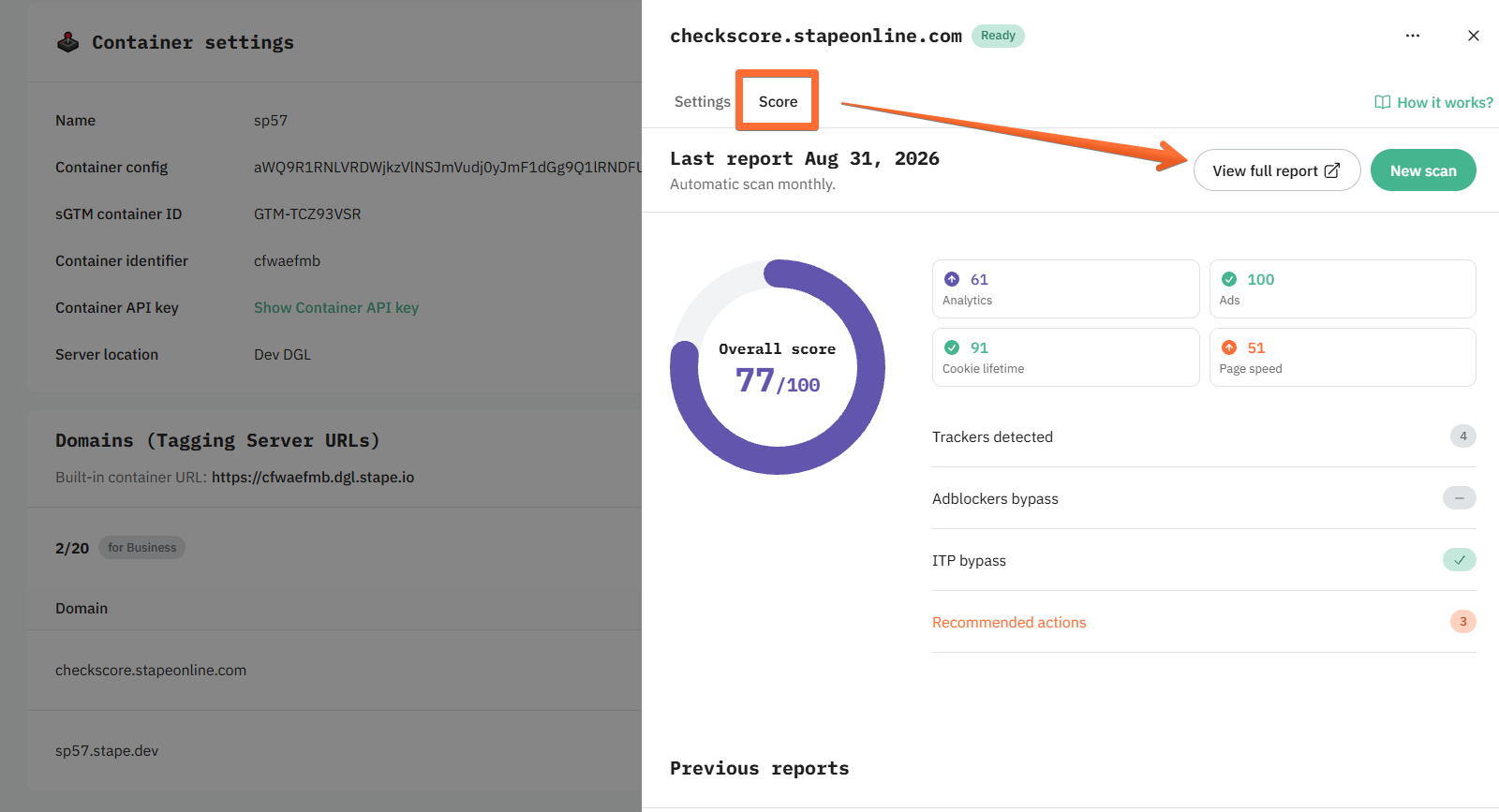
Click Score to get more information about the Tracking Score report. Tracking Score report gives you an overview of your tracking setup health. Be sure to click the View full report button to get the full information, or New scan to update the report. Learn more about what constitutes a full report in our guide.
Using the same origin
Prerequisites
Before you start, make sure you have the following in place:
- A server Google Tag Manager container set up on Stape.
- A CDN or load balancer capable of forwarding requests, through which all your site traffic is routed.
- If you use App Engine, the tagging server should run version 2.2.0 or later.
Note:
Configure same origin domain step-by-step
Depending on your infrastructure, you can configure the same origin custom domain using different platforms and services. Here are the guides for each:
Note:
Below, we'll walk through the setup using Cloudflare as an example.
For this option to work, all your site traffic must be proxied through Cloudflare – the Cloudflare Workers functionality will then allow you to proxy sGTM requests as well. You should also use SSL/TLS in Full mode; otherwise, same-origin proxying may work via a 301 redirect, which is incorrect.
Step 1. Create a Cloudflare Worker
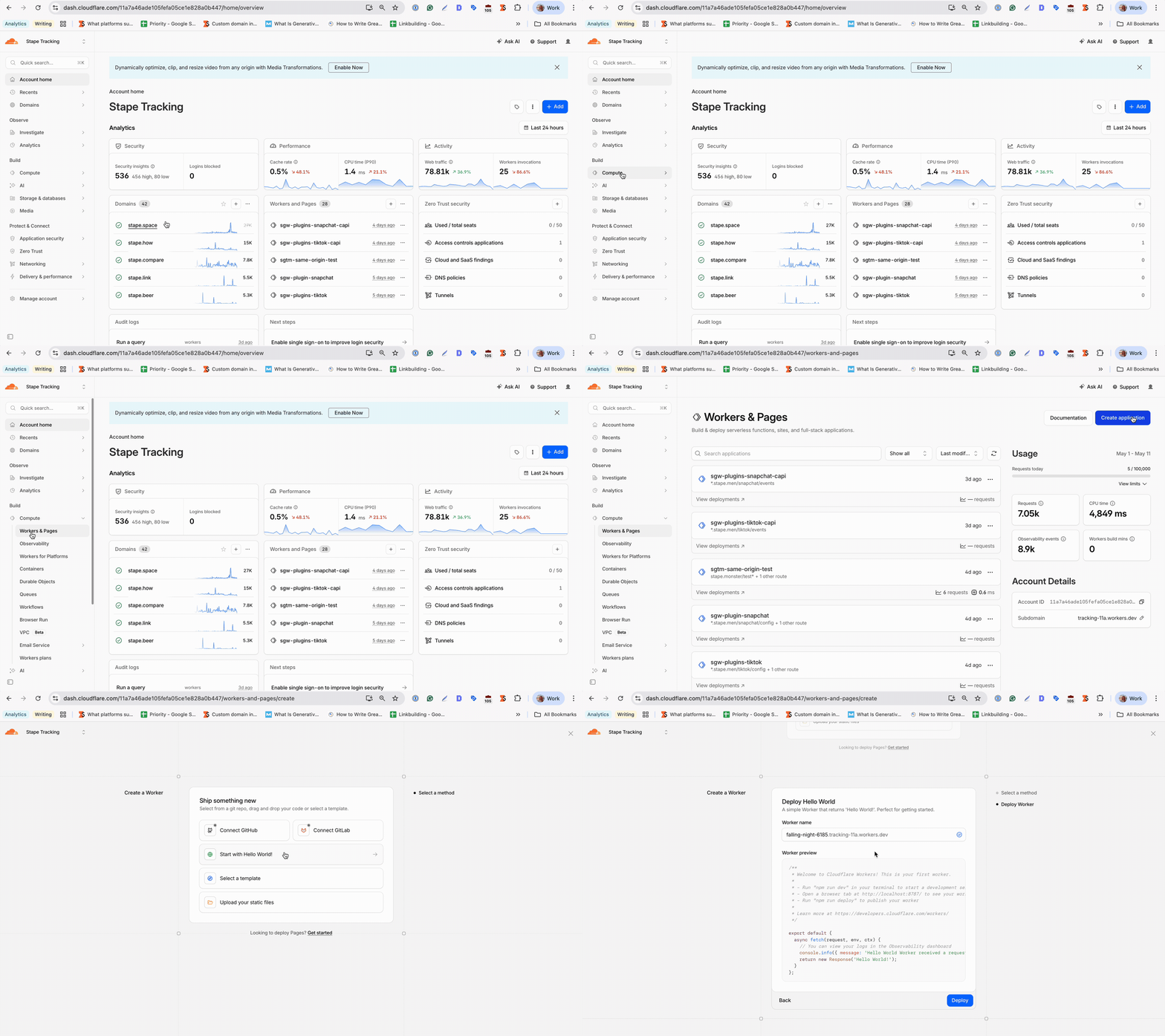
In the left sidebar, click Compute → Workers & Pages → click Create application → select the Start with Hello World! option.
Step 2. Name and deploy the worker
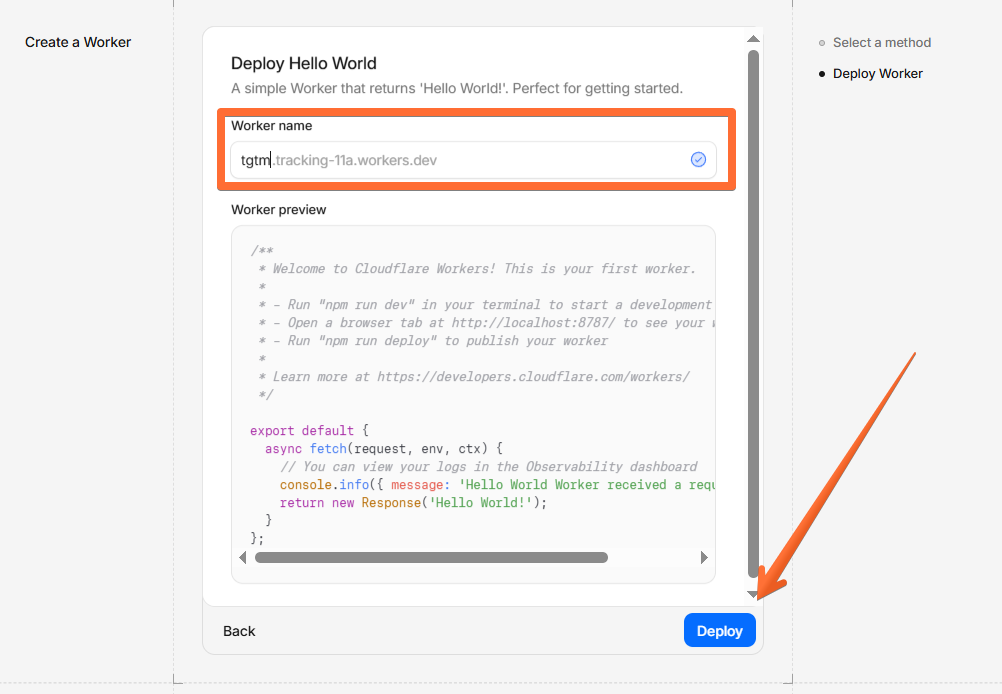
Add a worker name → click Deploy.
Step 3. Edit the worker code
Decide on the path for your sGTM custom domain – for example, example.com/sgtm, example.com/data, or example.com/metrics.
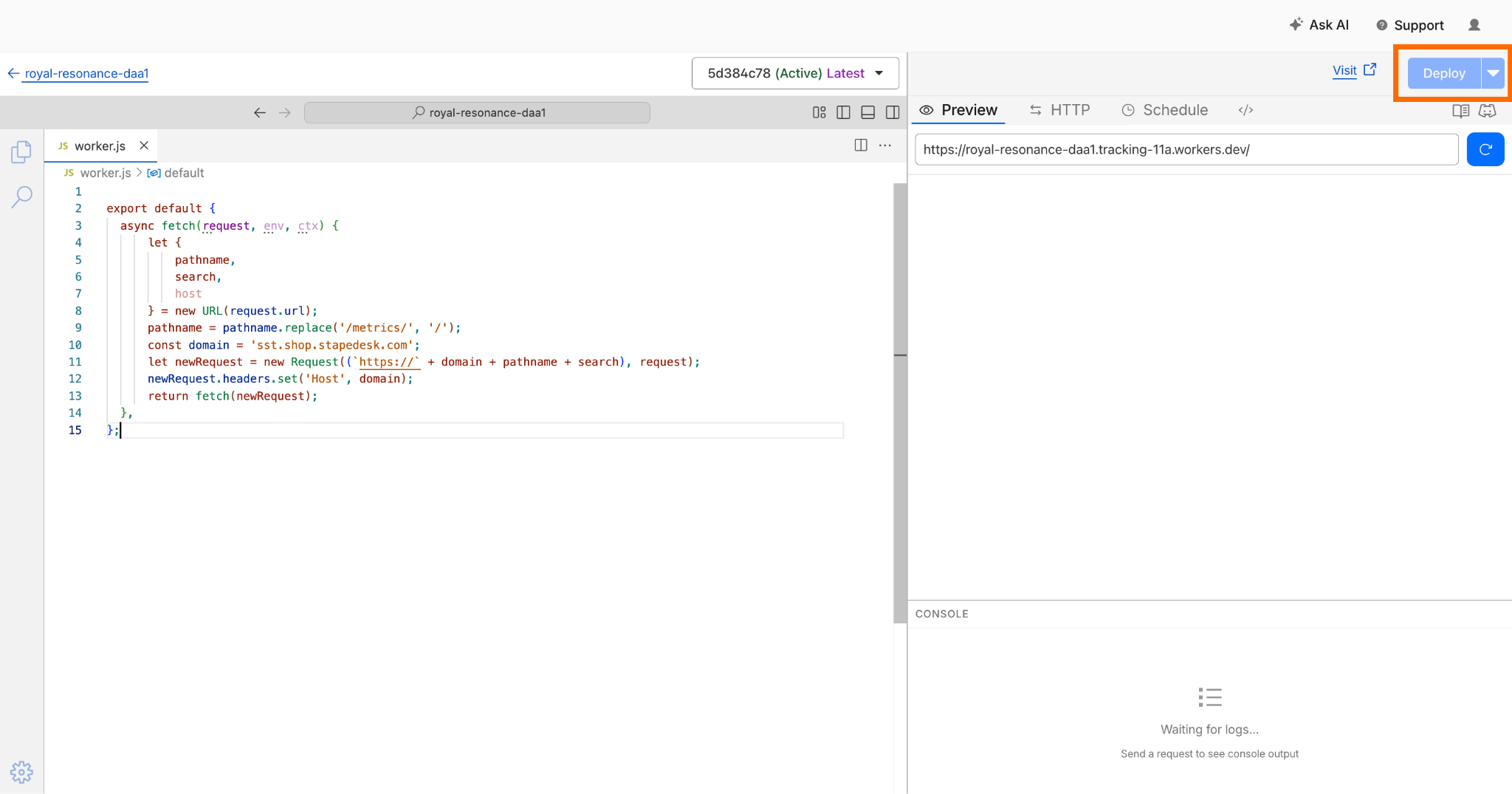
In the worker settings, click Edit code and paste in JS similar to the example below, where:
/metrics/is the path you've chosen for your server container.https://sst.shop.stapedesk.com/is your tagging server URL.
For the tagging server URL, you have two options:
- The default tagging server URL provided by Stape (e.g.,
https://wapdsrl.ca.stape.io). - The custom subdomain you've set up inside the Stape admin. Using a custom subdomain gives you two advantages: it loads
gtm.jsandgtag.jsfrom a custom path via the Custom Loader power-up, making tracking scripts unblockable, and it enables long-lived first-party cookies.
If you use a custom subdomain as your same-origin tagging server URL, make sure you've added a custom domain to your sGTM container on Stape and created the required DNS records as described here. Do not use Own CDN with the same origin domain.
export default {
  async fetch(request, env, ctx) {
    let { pathname, search, host } = new URL(request.url);
    pathname = pathname.replace('/metrics/', '/');
    const domain = 'sst.shop.stapedesk.com';
    let newRequest = new Request((`https://` + domain + pathname + search), request);
    newRequest.headers.set('Host', domain);
    return fetch(newRequest);
  },
};
Deploy and save your changes.
Step 4. Add a route to the worker
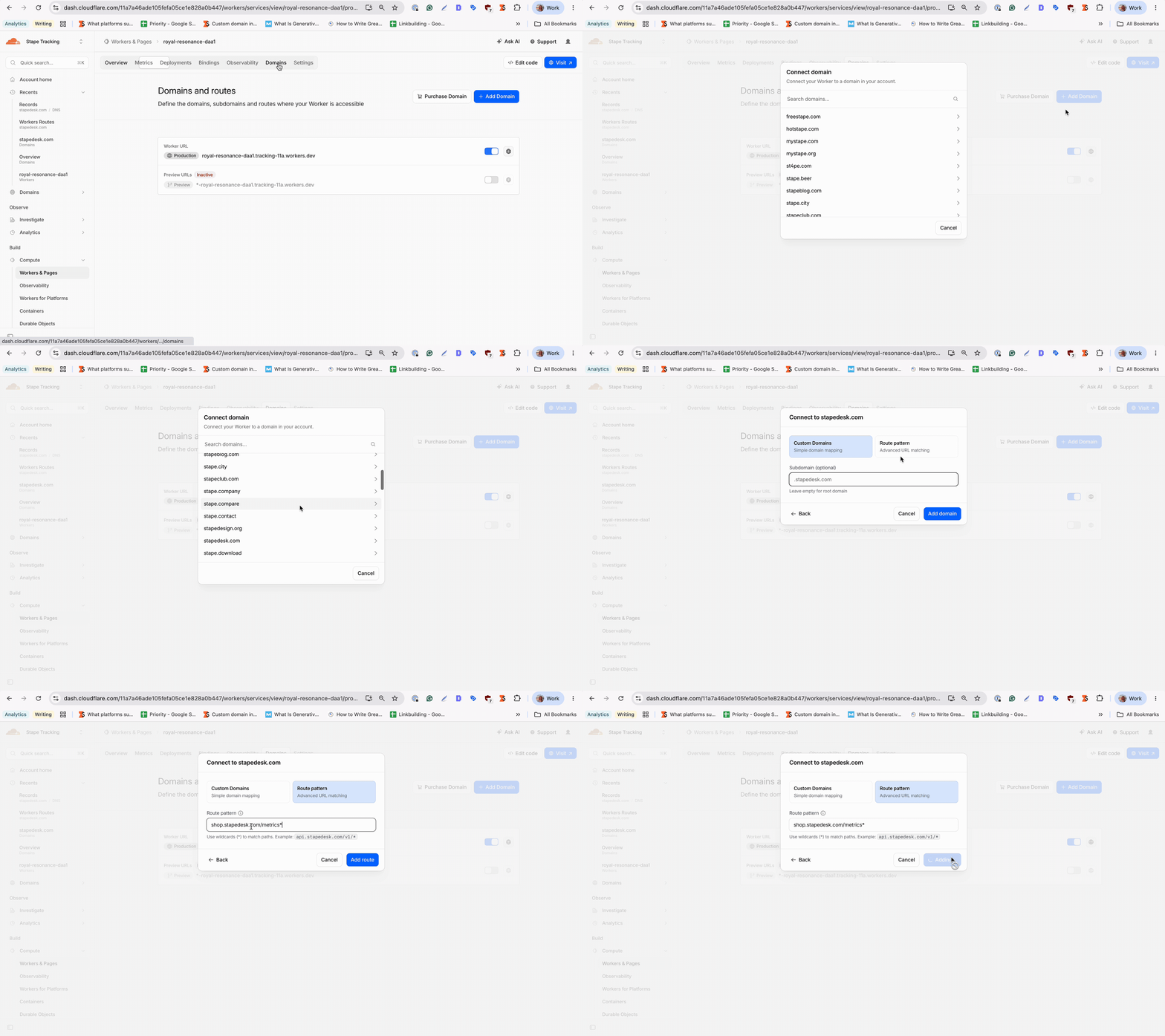
Go to your sGTM worker → click Domains → Add domain → Route pattern. Select your domain from the list and add the URL you use for the server GTM ending with * (in our example, it's shop.stapedesk.com/metrics*).
Step 5. Create a Configuration Rule
Next to your domain name, click the three dots → Configure Rules.
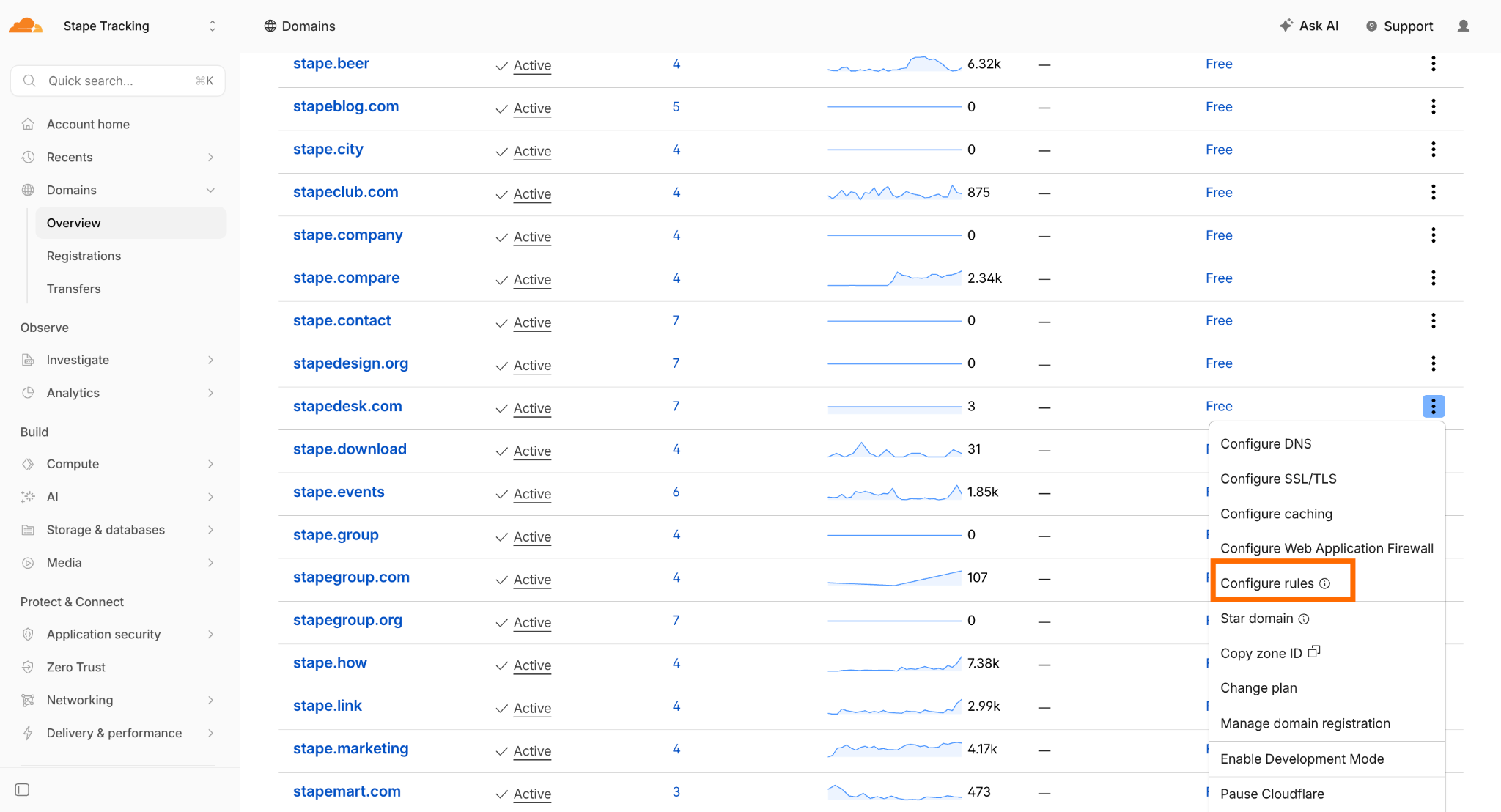
Click Create rule → Configuration Rules:
- Specify any understandable rule name, e.g., sGTM same origin.
- Select Custom filter expression.
- URI Path starts with
/metrics(update this if you're using a different path). - SSL → select the option Full.
Click Deploy.
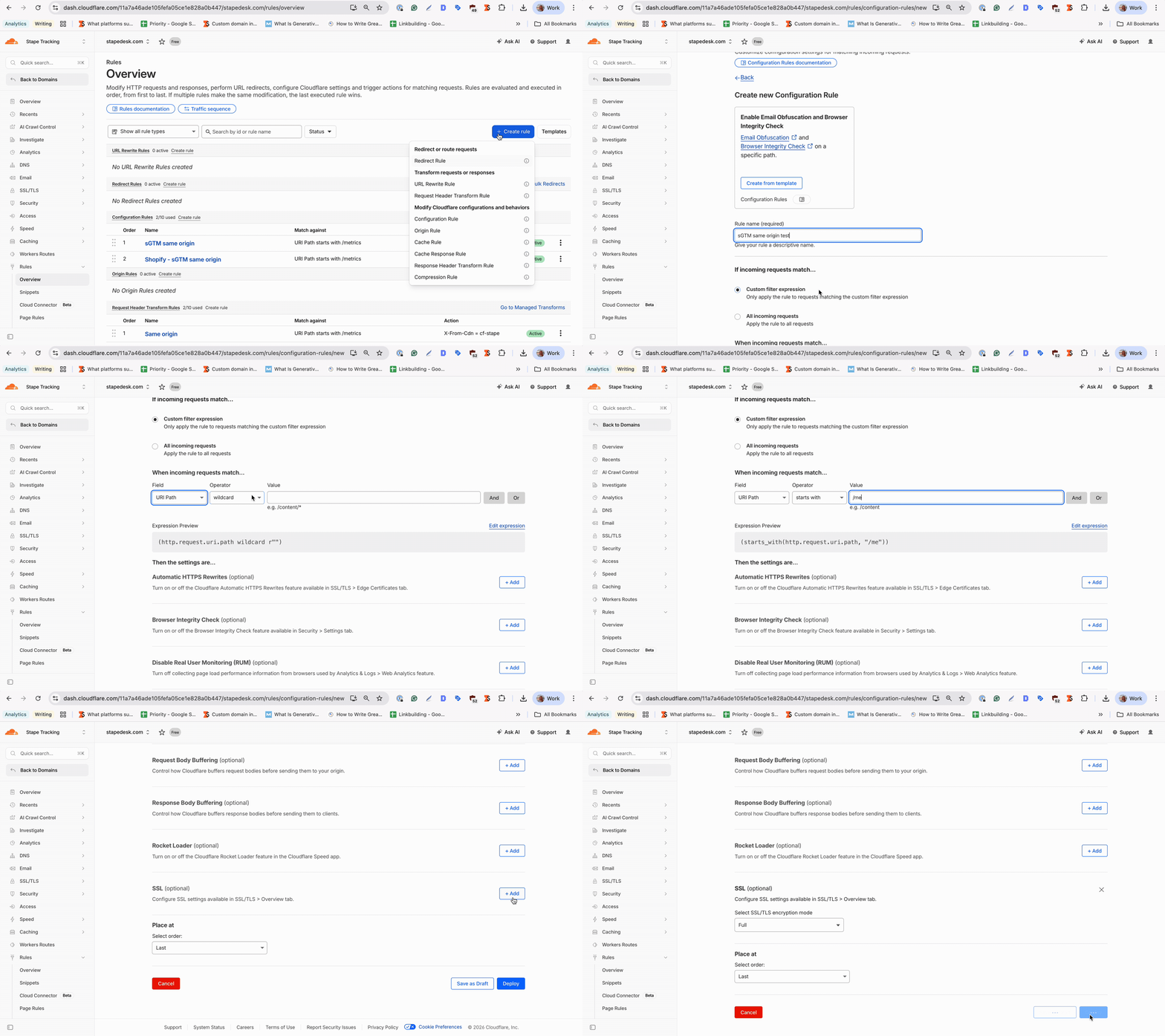
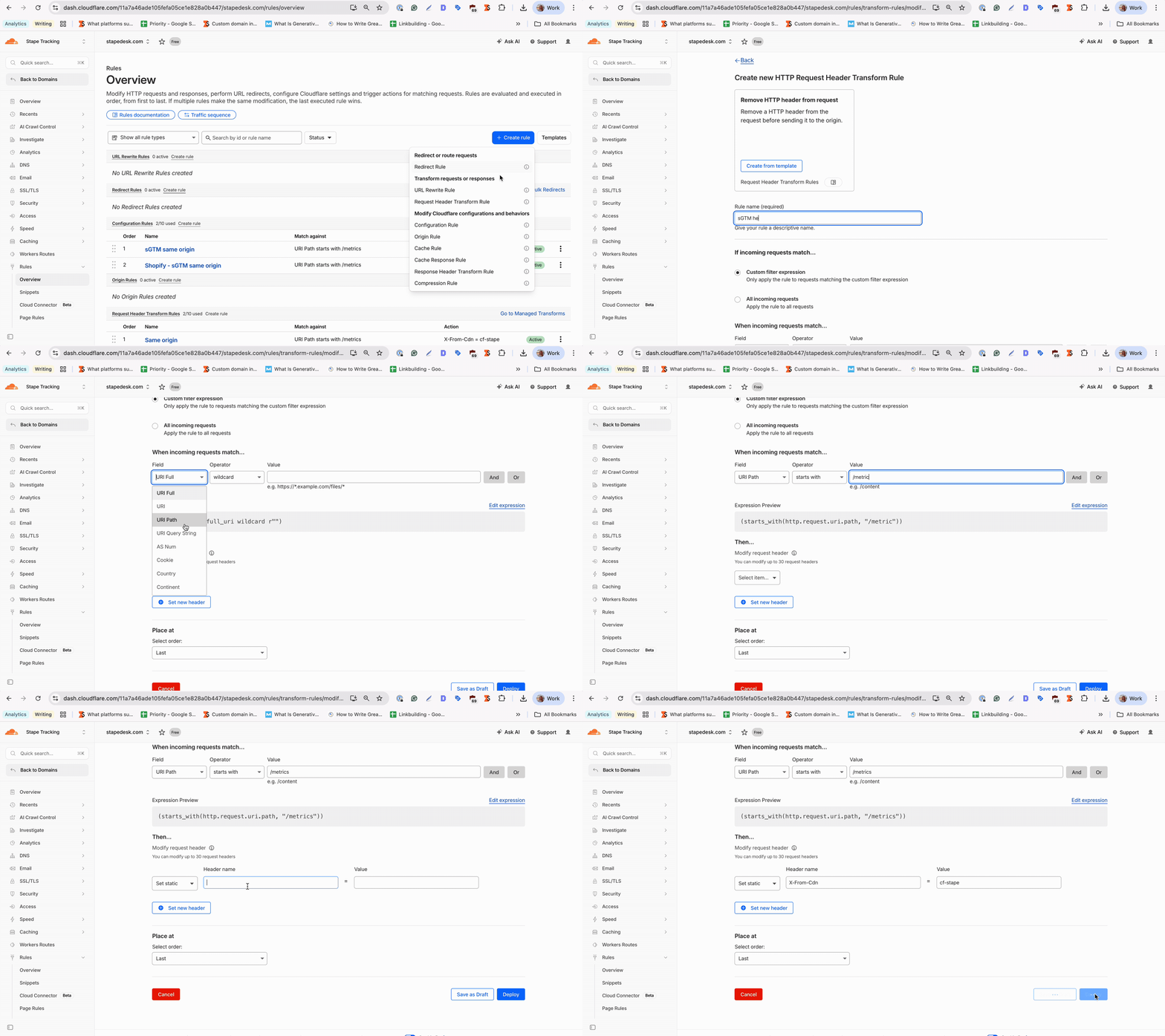
Step 6. Create a Request Header Transform Rule
Go to Rules → Overview → Create Rule → Request Header Transform Rule:
- Enter a descriptive rule name, e.g., sGTM header.
- Select Custom filter expression.
- URI Path starts with
/metrics(update this if you're using a different path). - Set a static header name
X-From-Cdnwith the valuecf-stape.
Save the rule.
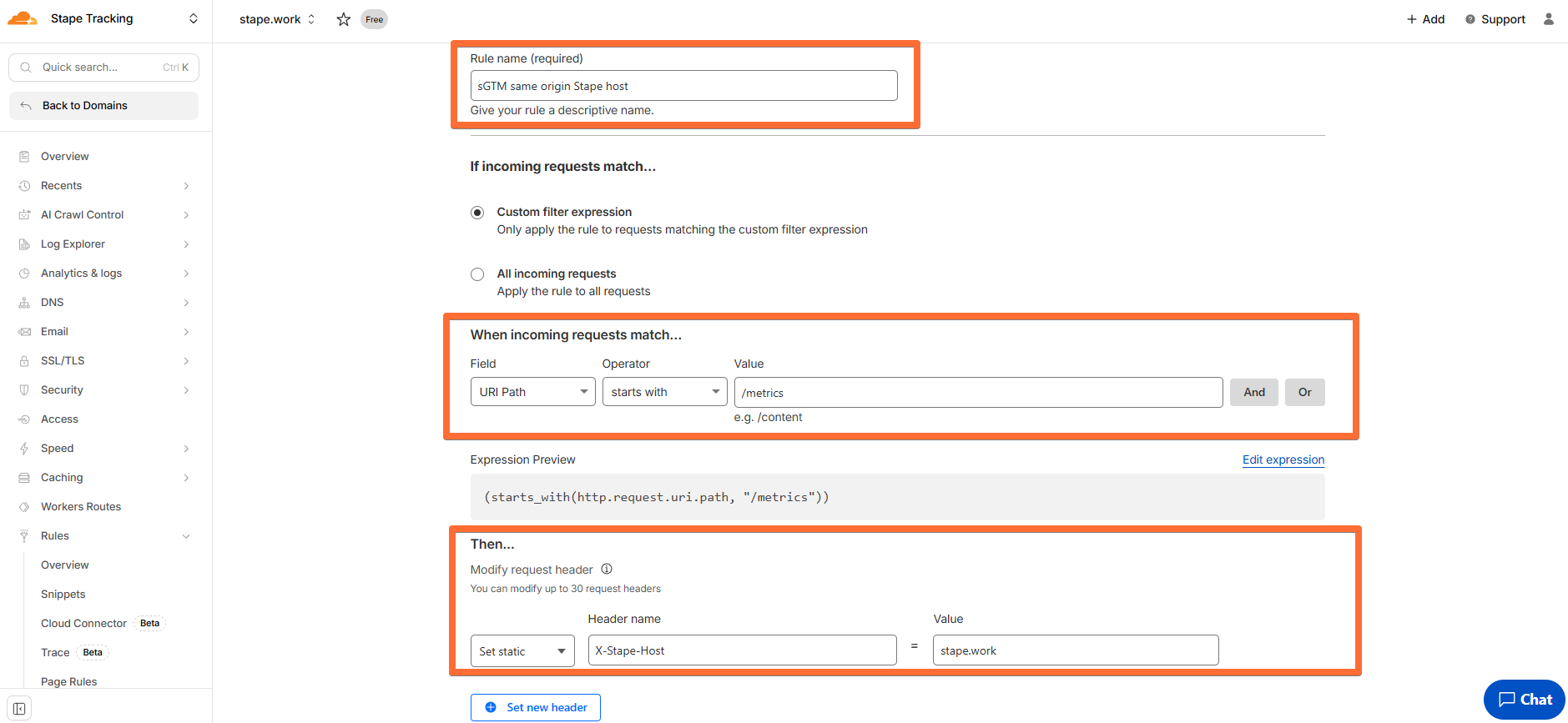
Step 6.1. Add the X-Stape-Host header (if not using a custom subdomain)
If you're not using your own subdomain and are proxying requests to the standard Stape subdomain, you also need to add the X-Stape-Host header.
Go to Rules → Overview → Create Rule → Request Header Transform Rule:
- Enter a descriptive rule name, e.g., sGTM same origin Stape host.
- Select Custom filter expression.
- URI Path starts with
/metrics(update this if you're using a different path). - Set a static header name
X-Stape-Hostwith the value of the host where events are taking place (in our example, it's stape.work).
Save the rule.
Step 7. Update Custom Loader
Once the same origin setup is done, we also recommend updating the Custom Loader power-up for ad blocker protection and implementing it on your site. Don’t forget to specify your Same Origin path in it.
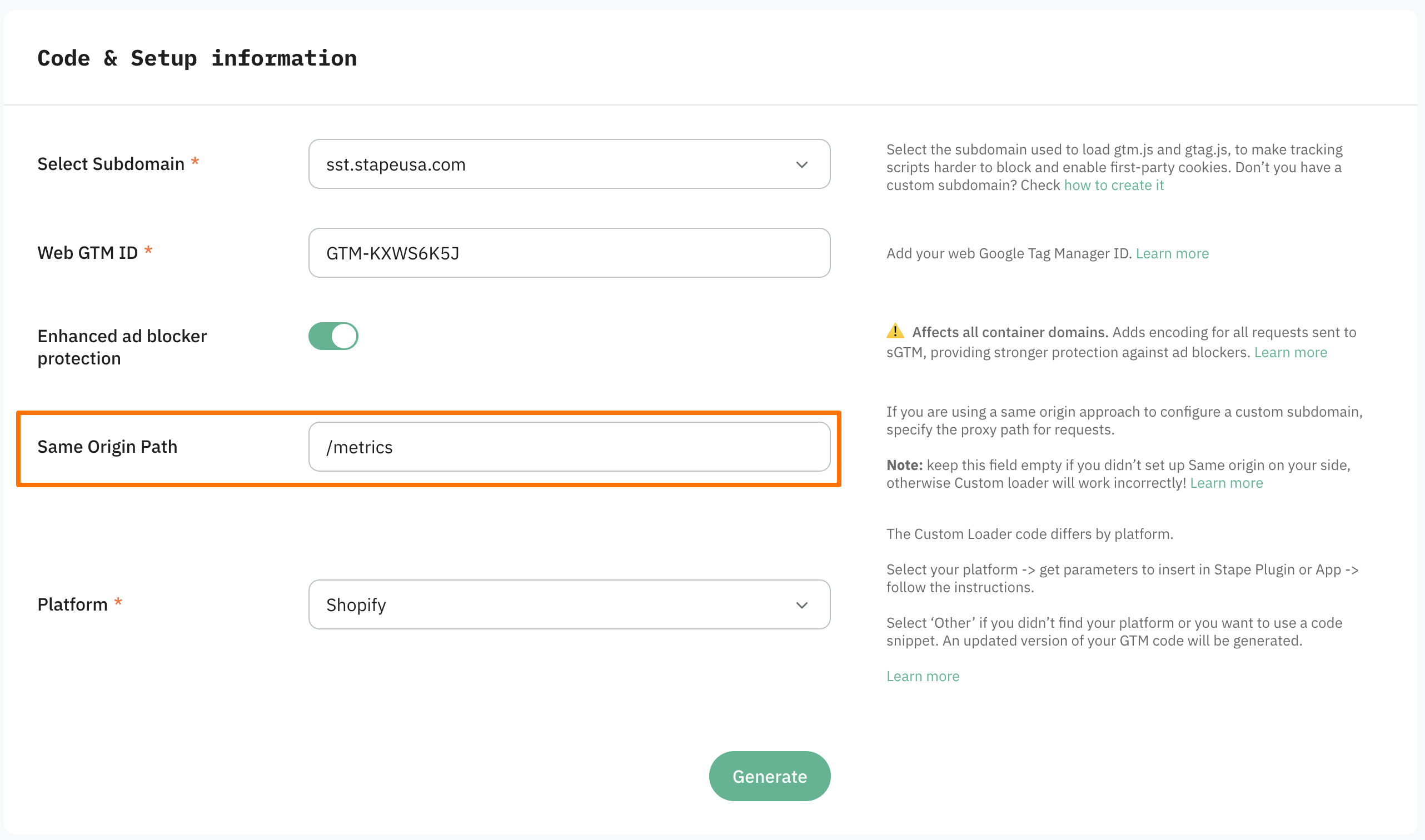
For more information, see our guide on Custom Loader.
Step 8. Add the server container URL in the web and server GTM
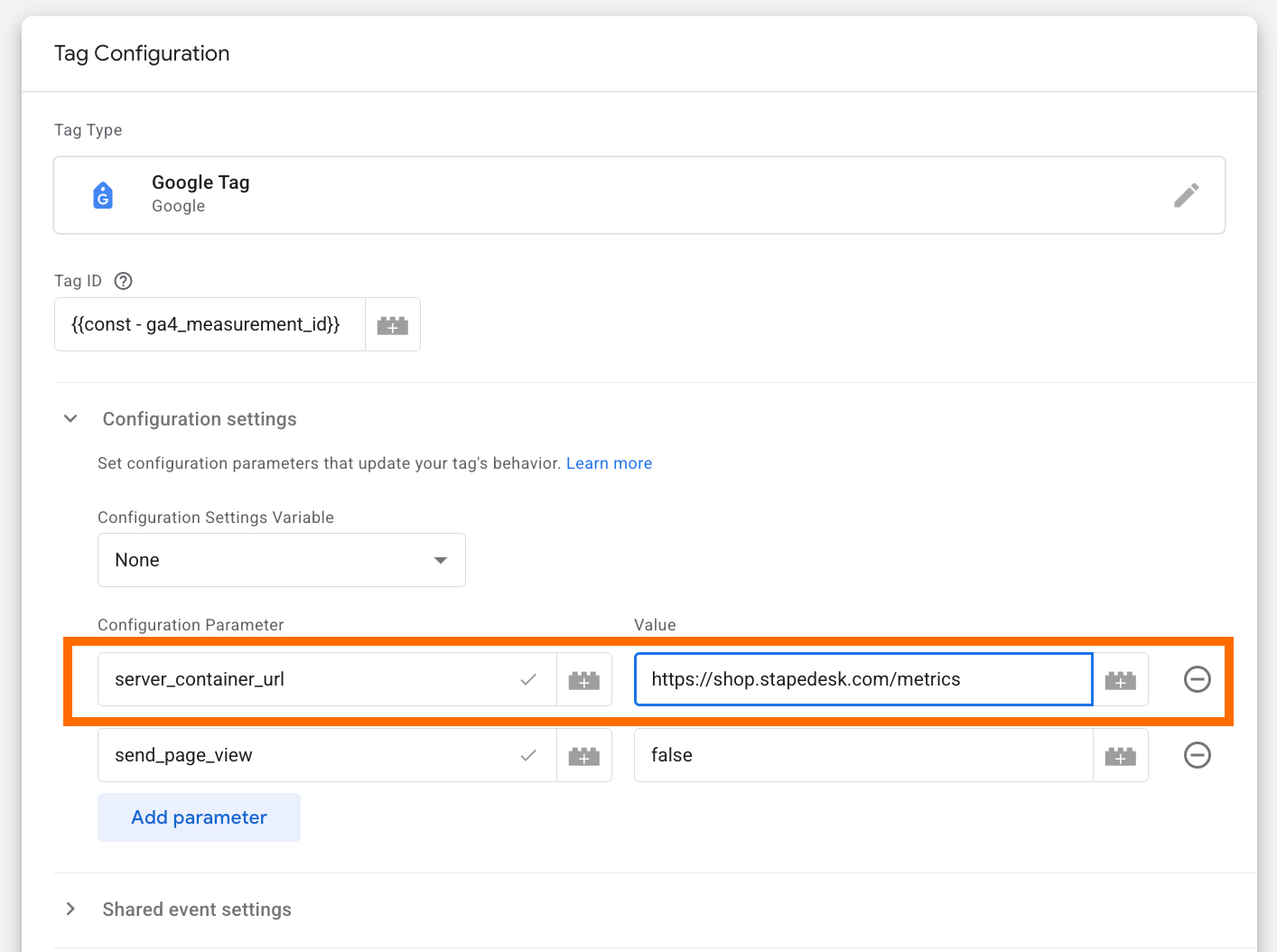
1. In your web GTM container, add Google Tag and specify your Measurement ID (any ID works for testing). Set the server_container_url to the same origin path you configured (in our example, it is https://stapedesk.com/metrics).
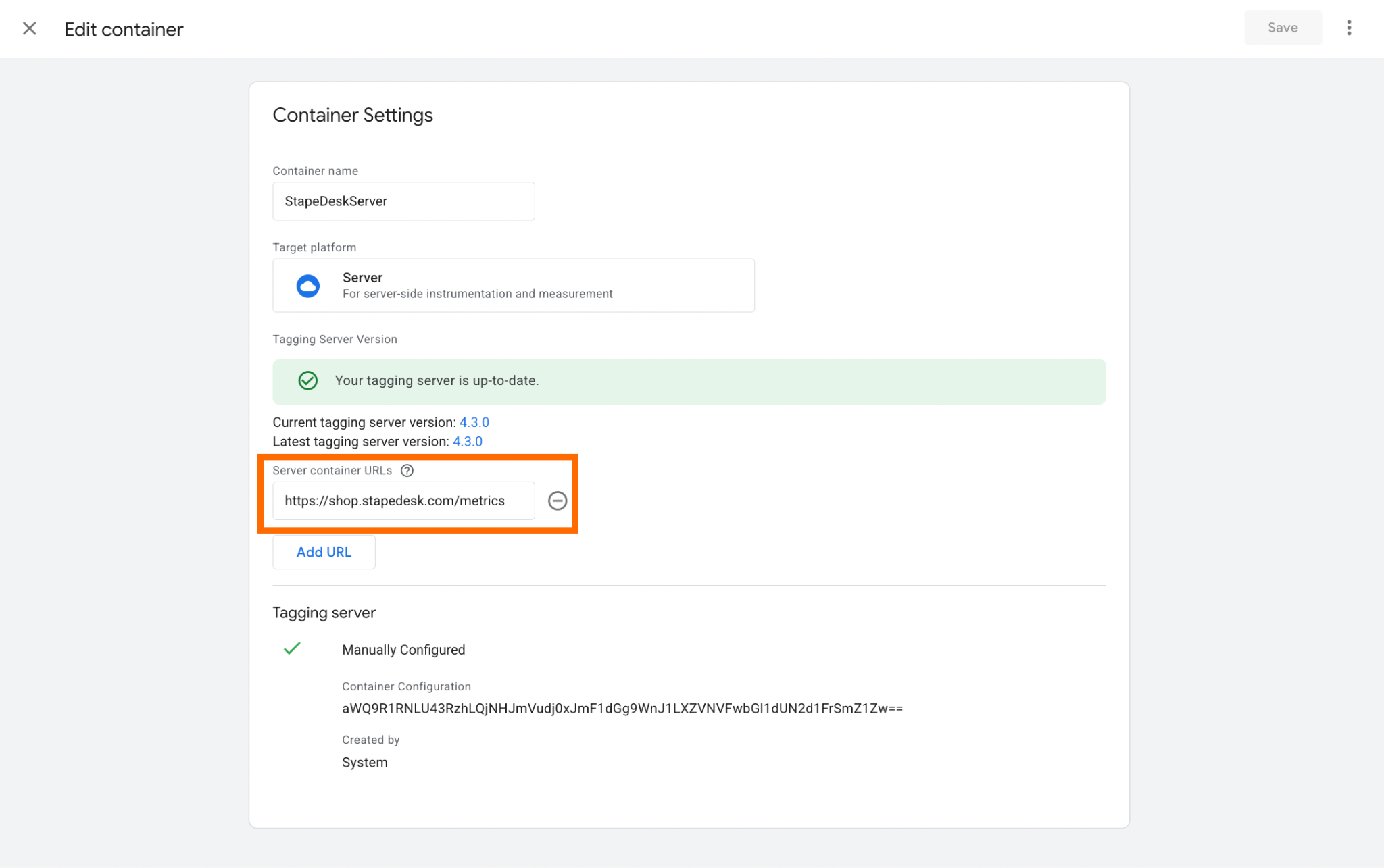
2. To streamline testing, click Admin → Container Settings → enter the path under Server container URLs.
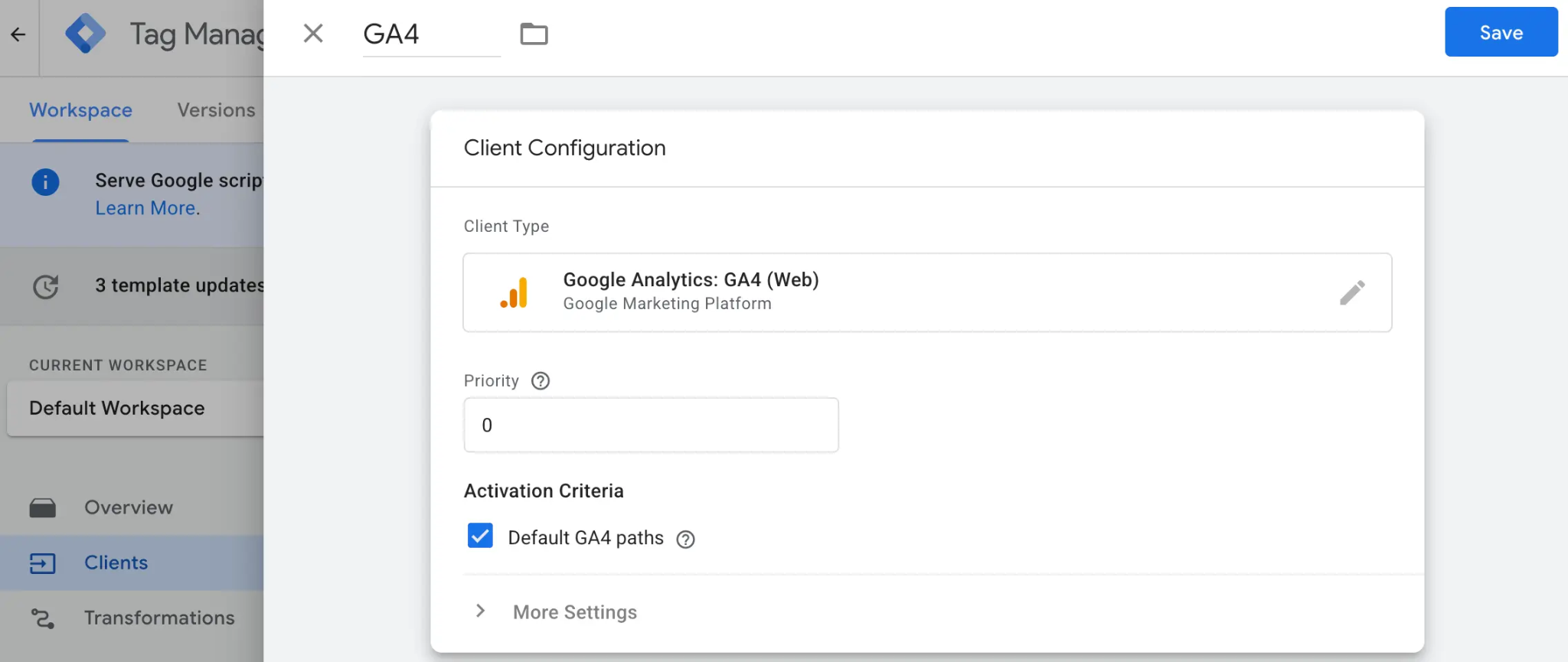
3. For the testing, the same origin domain (as we show in the step below), you will also need to configure Client (that will transmit data from the web to the server container) and Google Analytics: GA4 tag in the server GTM.
As Client, we will use GA4.
To add GA4 Client in the server GTM, open the clients’ section → Create New client → Select client type Google Analytics: GA4 (Web) → Add client name and click Save.
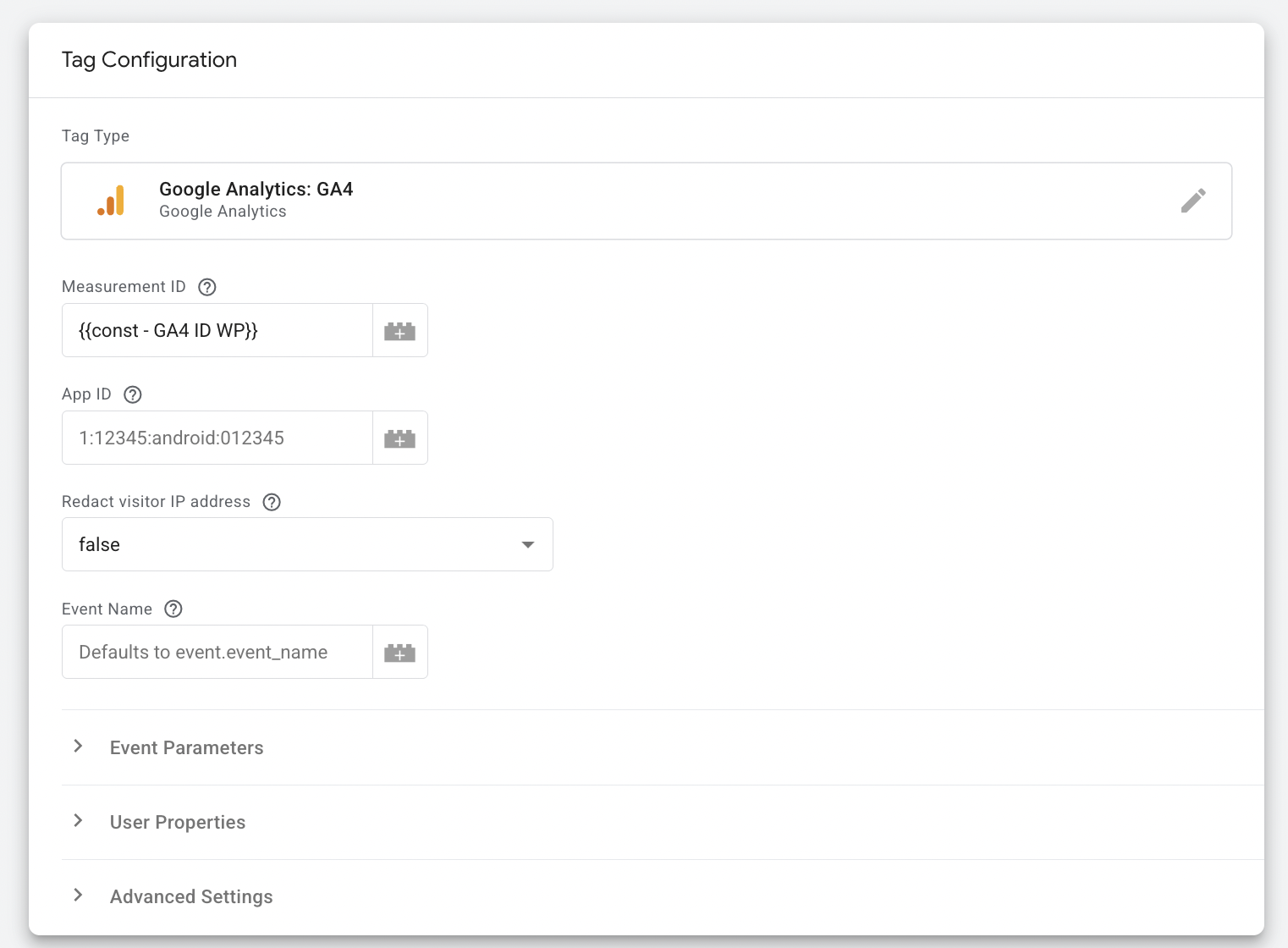
To configure the GA4 tag, add a new tag with tag configuration “Google Analytics: GA4”, and just specify your Measurement ID in the tag.
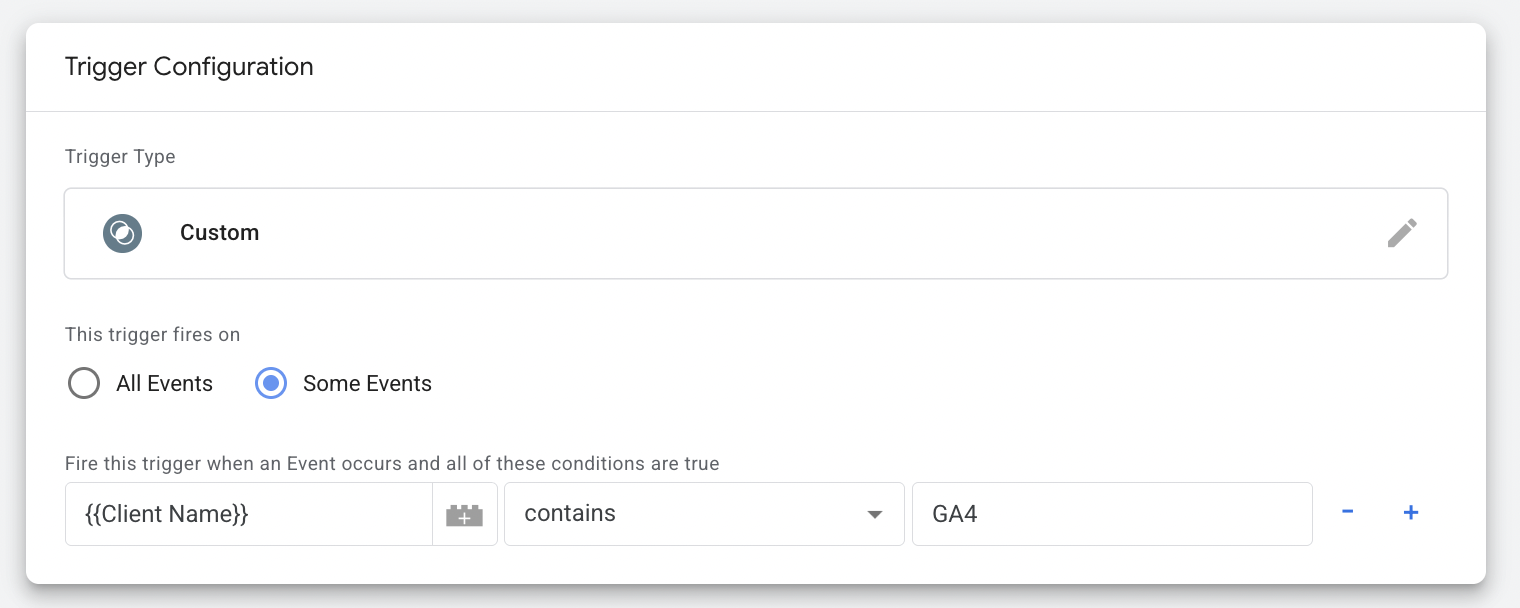
And add the trigger for a tag. It should trigger when the client name receives the requests (in our case, the Client is GA4):
Testing your Same Origin setup
Click Preview in both web and server GTM containers.
If everything is set up correctly, the server container should open in preview at the new path you created. If, for some reason, the preview doesn't open at the new path, you can manually enter it in the preview window's URL.
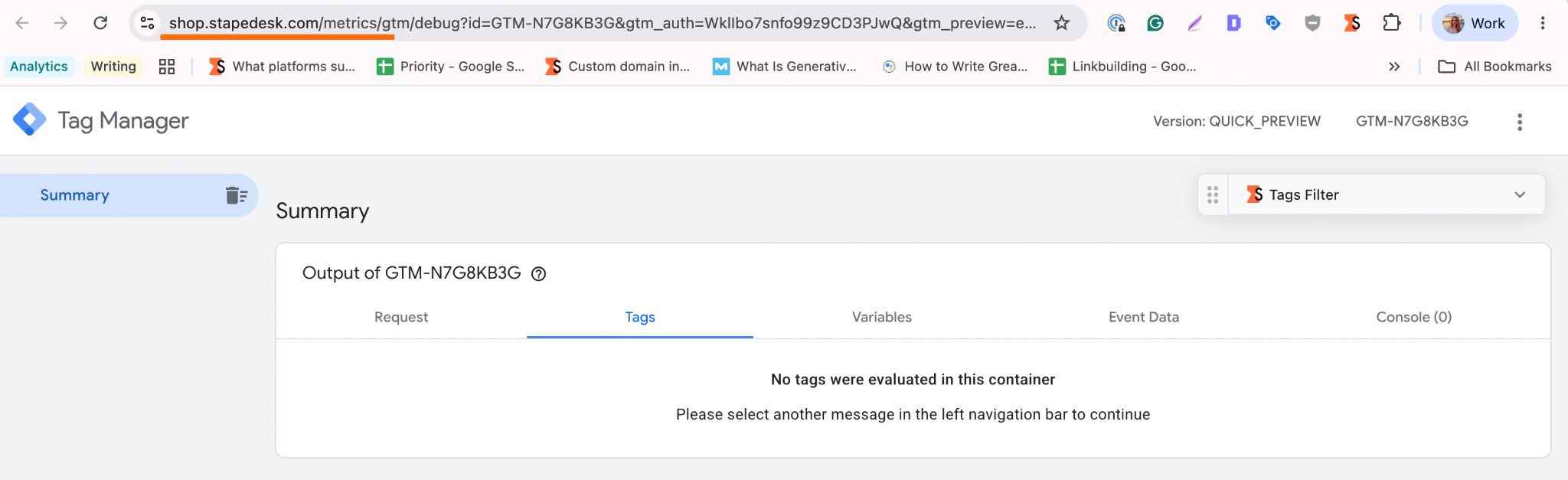
If the URL doesn't work, potential solutions are:
- In Cloudflare's DNS Records, make sure that requests to your main domain are proxied through Cloudflare.
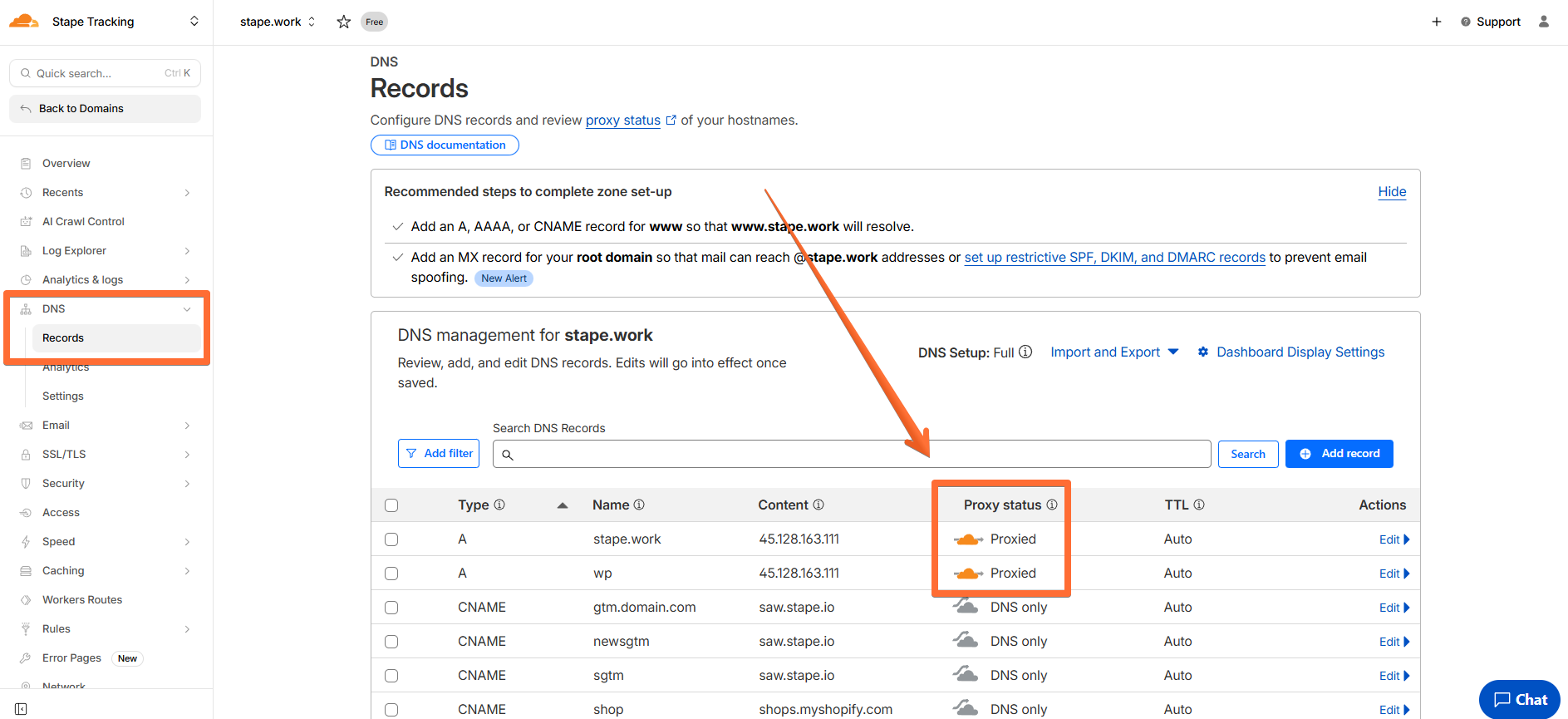
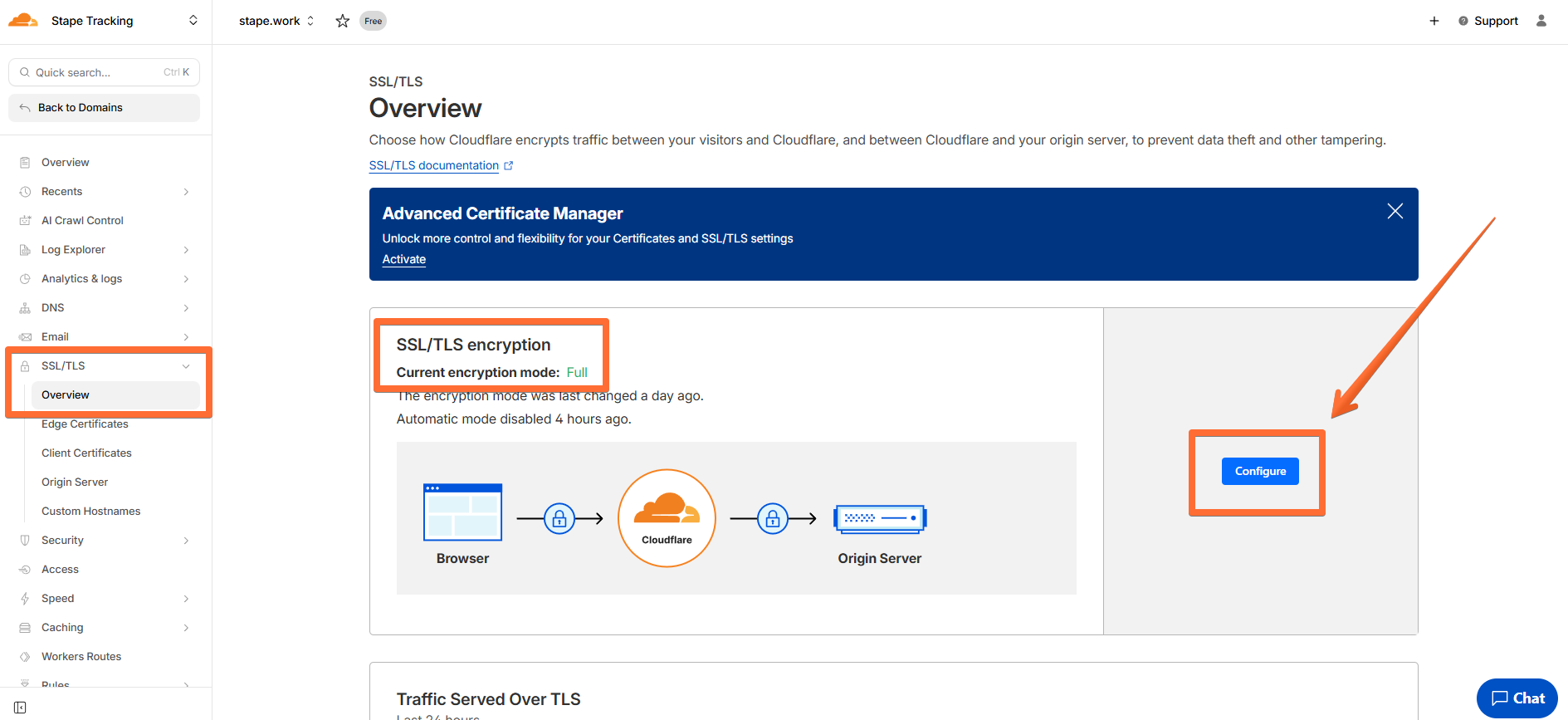
- In SSL/TLS, check that the encryption mode is set to Full. If it isn't, click Configure, select Full, and click Save. This change may take up to 24 hours, so give it enough time to update.
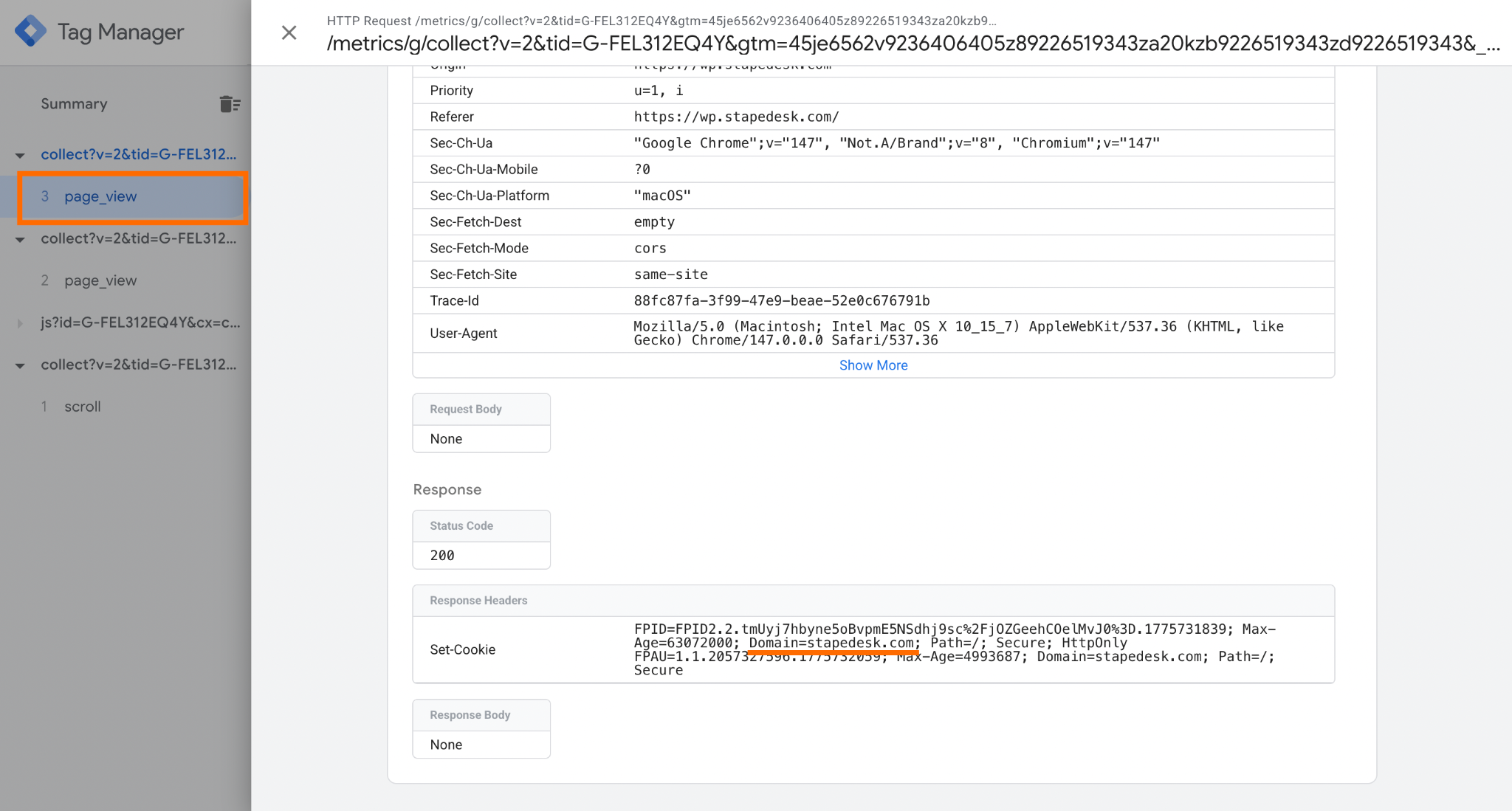
Visit your website. In the server container preview, you should now see an incoming page_view request from your website's real domain.
Conclusion
Adding a custom domain to a Google Tag Manager (GTM) server container can significantly impact the effectiveness and flexibility of your server-side tracking. In this article, we have provided two methods of custom domain implementation.
A same-origin approach offers increased security and simpler cookie management, ideal for singular, focused domains. A subdomain setup provides flexibility and performance optimization, suitable for complex or multiple domain structures. Each has its trade-offs in complexity, performance, and management. Carefully consider your technical requirements, security needs, and tracking objectives to select the most appropriate configuration for your server-side tracking.
Note that account and container management, such as knowing how to delete a Google Tag Manager account, is separate from domain configuration and worth reviewing periodically as part of good tracking hygiene.
If you have any questions, visit our helpdesk or write a ticket. Our team of experts will be happy to help you with any questions regarding Stape’s hosting and server-side tracking.

Comments