Server-side enrichment helps improve the quality and completeness of event data. With this approach, incoming requests are supplemented with additional user information that was collected earlier. This is especially valuable when events don't contain enough identifiers for analytics and advertising platforms to recognize and connect user interactions.
For example, a user may submit their email in one session, browse from another device later, or complete a purchase offline. Without sufficient identifiers in each request, platforms can't match events correctly or associate them with the right customer journey, resulting in fragmented data and less accurate attribution.
Enricher is a Stape power-up that enables server-side enrichment. It automatically stores selected user data from incoming requests and reuses it to enrich future requests when information is missing. This helps improve user matching and creates a more complete view of customer interactions across sessions, devices, and channels.
In this guide, we consider in detail the value that Enricher can bring to businesses as well as how to configure the power-up.
Problem: platforms such as Meta and Google perform better when more user identifiers are available in events. When identifiers are missing, match quality decreases.
How Enricher can solve it: Enricher helps solve this problem by enriching incoming requests with already known user information whenever available.
For businesses that invest in paid advertising, even small improvements in match quality can have a significant impact on campaign measurement and optimization.
Problem: many businesses generate revenue long after the first website visit.
A prospect may:
Download a lead magnet → Submit a form → Speak with sales → Become a customer weeks or months later
Without a way to connect these interactions, attribution data is lost.
How Enricher can solve it: Enricher helps fill the gap between different steps in the customer journey. It can connect fragmented touchpoints and enrich offline conversion events with known customer information.
This creates better visibility into which marketing activities actually influence revenue.
Problem: customers frequently switch between devices. A person might discover a brand on mobile, research on a tablet, and finally purchase on a desktop.
Without shared identifiers, these interactions often appear as separate users.
How Enricher can solve it: Enricher helps unify activity across devices since it reuses previously known identifiers, making it easier to recognise the same user throughout their journey.

To configure Enricher power-up, you need to create a Stape account if you don't have one yet. The power-up is available on the Business plan or higher.
However, you can start with the free plan to see how server-side tracking works and find out whether it's a good fit for your business before upgrading.
🤔Who is Stape?
Stape provides server-side tracking infrastructure that helps businesses collect, process, and send data to analytics and advertising platforms more reliably and securely.
Server-side tracking is especially valuable for businesses that invest in paid advertising. By moving tracking logic to the server, you can improve data collection reliability and make tracking more resistant to ad blockers and cookie limitations.
Real-life cases of our clients have shown impressive results after configuring server-side tracking:
✅ 36% more conversions recorded with server-side Google Ads tracking for the Shopify website
✅ 9+ Meta Match Quality score with server-side tracking
✅ 2.2% more GCLIDs parameters recovered on Safari iOS 26
Stape offers solutions such as:
Server-side Google Tag Manager (sGTM) hosting
Server-side Google Tag Manager (sGTM) hosting is the most flexible option if you need to configure server-side tracking for multiple platforms.
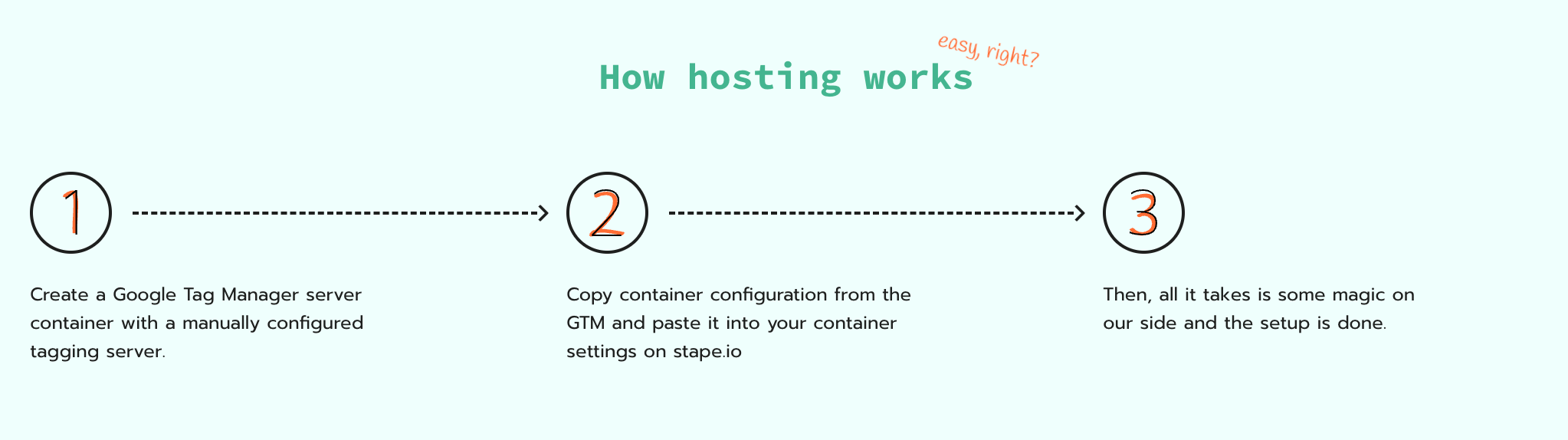
Additional tools designed to improve tracking quality and data accuracy
If you are new to tracking, Stape has a free tool called Setup Assistant. It creates GTM tags, triggers, variables, and a client based on your tracking needs and automatically sets them inside web and server GTM containers. As a result, you get ready to use the tracking setup without any manual configurations.

Stape develops power-ups that improve data quality and make data tracking configuration easier (such as Custom Loader to protect data from the impact of ad blockers, Cookie Keeper to prolong the lifetime of cookies, etc.).
In addition, you can use Stape's Website Checker for free to get a report on whether the website tracking and analytics setup is working correctly. It scans your site for common issues (like missing tags, misconfigured tracking, or blocked scripts) and highlights anything that could cause inaccurate data collection. As well, get a detailed step-by-step recommendation on how to fix the tracking problems.
➡️ Note
Before setting up your server-side Google Tag Manager container, it's important to have a web GTM container configured, because:
Please follow the official Google documentation.
1.1 Open your web Google Tag Manager container. Click Admin. Under the container column, click +

1.2 Type the container name, choose Server, and click Create.

1.3 Choose Manually provision tagging server, copy your container config, and paste it into any text editor. We will need it for the next steps.

2.1 Go to stape.io and create an account or log in.

2.2 Click Create sGTM container on the main page.

2.3 Enter your container details:
Then click Create Container.

2.4 Choose a plan for your container. You can start with a Free plan. Click Continue with a Free plan.

2.5 You will see the status of your container, container config, and plan name. It takes around 5 minutes to deploy a server container.
Please reload the page to update the status. If the Google Tag Manager server-side setup was done correctly, you should see the status Running.

Configuring a custom subdomain for server-side tracking helps improve data accuracy. Instead of sending tracking data directly to a third-party vendor domain, requests are routed through a company-owned subdomain, which can reduce the impact of ad blockers and browser privacy restrictions.
For the instructions on how to configure the custom domain, click on the collapse element below:
There are three ways to set up a custom domain:

Based on the required custom domain type, follow the instructions below:
Instead of manually setting up server-side infrastructure for the platforms you use (e.g., Meta, Google Ads, TikTok). You can use a free solution by Stape - Setup Assistant.
You just need to specify the platforms that you need to configure server-side tracking for - the web and server GTM components (tags, triggers, variables, clients) will be populated and automatically added to your containers.
Expand the collapse element below for more details:
In the Stape admin, click on the sGTM section in the menu and locate Setup Assistant. Then, click on Got it, let's go! to start answering the questionnaire.


Type - indicate your setup type. eCommerce setups focus on product tracking, while Lead Generation setups focus on form submissions and conversions.
Platform (if you select eCommerce as a type) - specify the CMS platform you are using (e.g., Shopify, WordPress, etc.). Setup Assistant can provide the appropriate templates and settings for your site, ensuring that everything works seamlessly with your CMS. If your platform is not on the list, select Other.
Consent settings - check the box if you have a consent provider. Then, select one from the list.
Note:
If you choose Other as your consent provider, you need to specify an additional event in the dataLayer that signals a change in consent status. You can usually find this information from your consent provider or by checking the sdataLayer when the consent status changes.

Select the advertising and analytics platforms you want to track (e.g., Google Ads, Meta, GA4, etc.).
Different platforms require specific tags and tracking settings. By selecting the platforms you want to track, the Setup Assistant customizes your GTM container with the necessary tags. This step ensures that your tracking setup aligns with the platforms you want to use.
Please note
If you selected the Lead generation type, enter the URLs of the "thank you" pages that users reach after completing the lead form (Lead event "Thank you" page URL) and/or after scheduling a call (Schedule event "Thank you" page URL).
Use the following format:
https://yourdomain.com/thank-you-page
To proceed, you must configure at least one field.

Please contact your developers and request the creation of a separate thank-you page if you don’t have one yet.

Enter the tracking details such as your Pixel ID, Analytics ID, or other required credentials.
This information is essential for the Setup Assistant to link your site to the respective platforms. It ensures that data is sent accurately from your website to the right destination and helps you to track conversions, user interactions, and more.
Without this step, the necessary data cannot be captured and sent to your platforms. Additionally, you can add IDs directly in your web and server containers at any time.

Regardless of the platform you need to configure, the Server Container URL field is required for all.
To find the Server GTM container URL, log in to your Stape account → navigate to the sGTM section of the menu → choose your container → Domains (Tagging Server URLs) → copy the domain name.

| We have prepared a quick guidance on how to find each necessary ID for destinations. Click on the collapse elements to see the instructions for each platform: |
Awin Merchant ID - to get the ID, log in to your Awin account → click on Account → Overview → below your account name, you will see the ID.


The configuration will slightly differ based on the type you’ve chosen (eCommerce or lead generation). Here, we show how to set up both.


Here is an example of the fields configuration for the eCommerce type:

Here is an example of the fields configuration for lead generation type:


Here is an example of Snapchat fields configuration:


Here is an example of a field configuration for TikTok:


The configuration will differ based on the type you’ve chosen (eCommerce or lead generation). In this section, we show how to set up both, and we will start with the eCommerce fields.

Here is an example of Google Ads fields configuration for the eCommerce type:

Here is an example of Google Ads fields configuration for lead generation type:

The configuration will slightly differ based on the type you’ve chosen (eCommerce or lead generation). Here, we show how to set up both. We will start with the eCommerce fields.

Here is an example of Microsoft fields configuration for the eCommerce type:

Here is an example of Microsoft fields configuration for lead generation type:


Here is an example of Pinterest fields configuration:


Choose how you want to import templates: automatically or manually. Click on Next.
1. Authorize with a Google account that has access to the GTM account you want to import templates into.
Please note

2. Select containers and corresponding workspaces into which you want to import templates and click Import templates.

Please note
3. Make sure the templates are in your web and server GTM containers. The imported templates will be neatly organized into folders starting with [Stape].

If the templates weren't imported automatically, please try importing them manually by following the instructions.
1. Click on the green buttons to download the templates.

2. Open the Web or Server GTM container, go to the Admin tab, and click Import Container.

3. Select the file you recently downloaded from Stape.
For example, the JSON file gtm-web-template you downloaded (make sure you upload the correct file that matches the container type - web or server).
Select the workspace for this import - new or existing.
4. Select Overwrite or Merge.
The Overwrite option should only be used with a new or empty container. For this demo, we are using the Merge option with the Rename conflicting tags, triggers, and variables setting enabled. This ensures that GTM will simply rename the tags without altering existing entities in your container if any conflicts arise.
5. Click Add to workspace.

6. Do the same within the server GTM container, making sure you import the JSON file named gtm-server-template.
1. Log in to your Stape account and select your sGTM container from the dashboard.
2. Go to Power-ups and click Use next to the Enricher panel.

3. Toggle the Enricher switch to enable it.

4. Select a method for storing user data by enabling the toggle next to the method. You can also use both.

5. Configure how the power-up will work with consent.
If you need the power-up to be compliant with data regulations (especially if you target EU countries or some US states that have mandatory data protection laws), click on “Only set cookie/store data if marketing consent is given”. If enabled, Consent Mode V2 parameters are used for /collect requests, and the consent_settings object is used for /data requests.
After enabling this option, the event data won’t be enriched with the user data you already have for cases when a user didn’t give consent to process the data.
Be sure to update your cookie policy and cookie banner. Because the power-up sets a _sbpee cookie to store encrypted user data, you must provide users with an explicit opt-in choice.

6. Select data points from the list.
These are parameters that will be saved in a cookie/Stape Store (depends on the power-up configuration method you’ve selected). Later, the data will be used to enrich events/incoming requests.

In the datapoints section, you should select the parameters that you are already tracking/recording with your tags. On the example of the Facebook Pixel tag, these parameters are stored in the section “User Data”.
Alternatively, you can select parameters from the list within the Enricher power-up and add parameter tracking in tags.

The enriched data is added using the following keys in the cookie/Stape Store. There are some differences between parameters for /g/collect and /data requests, displayed in the table below:
| Stape Store/Cookie key | Event data parameters in /g/collect requests | Event data parameters in /data requests |
| email_address | ep.user_data.email | email_address |
| phone_number | ep.user_data.phone_number | phone_number |
| first_name | ep.user_data.address.0.first_name | first_name |
| last_name | ep.user_data.address.0.last_name | last_name |
| city | ep.user_data.address.0.city | city |
| country | ep.user_data.address.0.country | country |
| region | ep.user_data.address.0.region | region |
| postal_code | ep.user_data.address.0.postal_code | postal_code |
| street | ep.user_data.address.0.street | street |
| date_of_birth | db | db |
| gender | gender | gender |
| external_id | user_id | user_id |
Among the data points, there is also “Marketing & analytics cookies”.

In the table below are listed the Marketing & analytics cookies we use to identify the user (if you opt for “Marketing & analytics cookies” as a data point), as well as the parameters that will be available in the incoming requests in sGTM.
| Cookie name | Event data parameters in /g/collect and /data requests |
| _fbp | _fbp |
| _fbc | _fbc |
| _ttp | _ttp |
| ttclid | ttclid |
| li_fat_id | li_fat_id |
| _epik | _epik |
| _scclid | _scclid |
| _scid | _scid |
| FPGCLAW | FPGCLAW |
| _gcl_aw | _gcl_aw |
| FPID | FPID |
| _ga | _ga |
7. If you opt for the “Use store” option, the tab “Profiles” is available for you. It gives the ability to upload a CSV with profile data (for example, uploaded from the CRM/CMS). If the profiles are uploaded, the power-up will take the data you provided and try to match it with online data activity, creating a more complete user journey.
Also, this tab will be helpful while debugging the setup, which we will show below.

Map the fields within the power-up with the dataset uploaded. Please note: the email address is a mandatory parameter, since it’s a primary user identifier.

8. Once configured, click “Save changes”.
To test the configuration, use the GTM preview.

As well as the _sbpee cookie that stores the user data (all the user data is encrypted for security):


If you use Store as a config method, you can also use the “Profiles” tab within Enricher power-up to see that data was added to the Store.

Enricher is a useful addition for server-side tracking setups. It helps minimize data fragmentation and improve visibility across the customer journey.
Reusing previously collected identifiers, the power-up improves event match quality and connects online and offline interactions. The Stape's solution gives businesses a clearer understanding of user behavior and the real impact of their marketing efforts.
Comments