Aug 7, 2026
How to set up ShareASale tag using server GTM
Written by
Uliana Lesiv
Updated May 14, 2026 comments
To set up ShareASale Google Tag Manager integration, you will need to:
- 1.Configure a server GTM container.
- 2.Set up sending data from the web to the server GTM container.
- 3.Upload ShareASale tag to server GTM.
- 4.Configure the tag. You can track pageviews or conversion events.
- 5.Add the trigger to a tag.
- 6.Test the setup.
ShareASale is one of the largest affiliate marketing networks, which connects merchants with affiliate partners. Merchants list their products or services on the platform, while affiliates promote them and earn a commission for every sale or lead they generate. The platform is used across e-commerce, SaaS, and service-based businesses.
How does ShareASale tracking work?
ShareASale tracks affiliate-driven conversions using a tracking pixel – a small snippet of code placed on the merchant's confirmation or thank-you page. When a customer completes a purchase or submits a lead form, the pixel fires and sends conversion data (transaction ID, sale amount, merchant ID, and commission details) back to ShareASale.
Alongside the pixel, ShareASale uses a click ID parameter (sscid) appended to affiliate links. This parameter is stored in a cookie on the user's browser and later matched to the conversion when the pixel fires.
However, this type of tracking can be unreliable because of ad blockers, Safari's ITP, and iOS privacy restrictions, which can prevent the pixel from firing. It means that real conversions can go unrecorded, affiliates won’t get credited, and reporting inside ShareASale analytics can become incomplete.
What is ShareASale tag?
ShareASale tag is a solution developed by Stape that allows the server-side tracking for the ShareASale platform to be set up. With its help, you can configure pageview and conversion event tracking in server GTM and send all event data directly to a ShareASale tracking server, rather than processing it on the client side.
ShareASale tracking pixel vs. ShareASale tag for server GTM
Tracking on the server side with the help of ShareAsale tag provides numerous benefits compared to ShareASale tracking pixel.
- More accurate data. As ShareASale tag uses server-side tracking, all the data collected is less exposed to browser restrictions and ad blockers.
- High data security and control. Since all the data is processed on your server instead of the website visitor's browser (like with pixel), you have more control over the data and can more easily comply with data regulations (e.g., GDPR).
- Faster website load. The tags are fixed on the server instead of the user's browser, which decreases the time a page takes to load.
| Check the complete list of server-side tracking benefits in our article. |
What you need to set up ShareASale tag
To set up a ShareASale tag, you will need to:
- Set up data flow from the web to the server GTM container. Configure server-side Google Analytics 4 or Data Tag/Data Client for the purpose.
How to set up ShareASale tag in server GTM
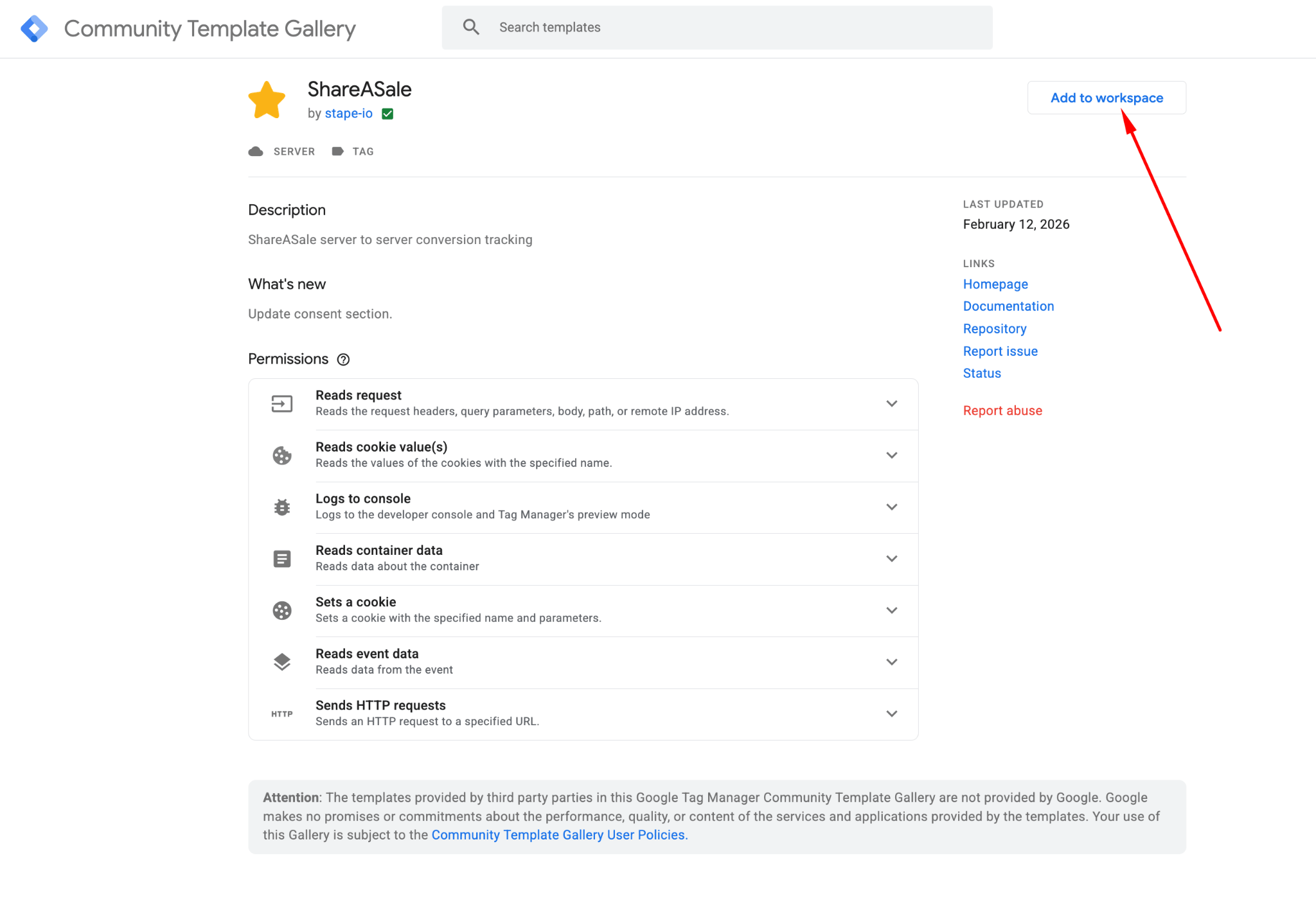
1. Add the ShareASale tag from the server GTM gallery.
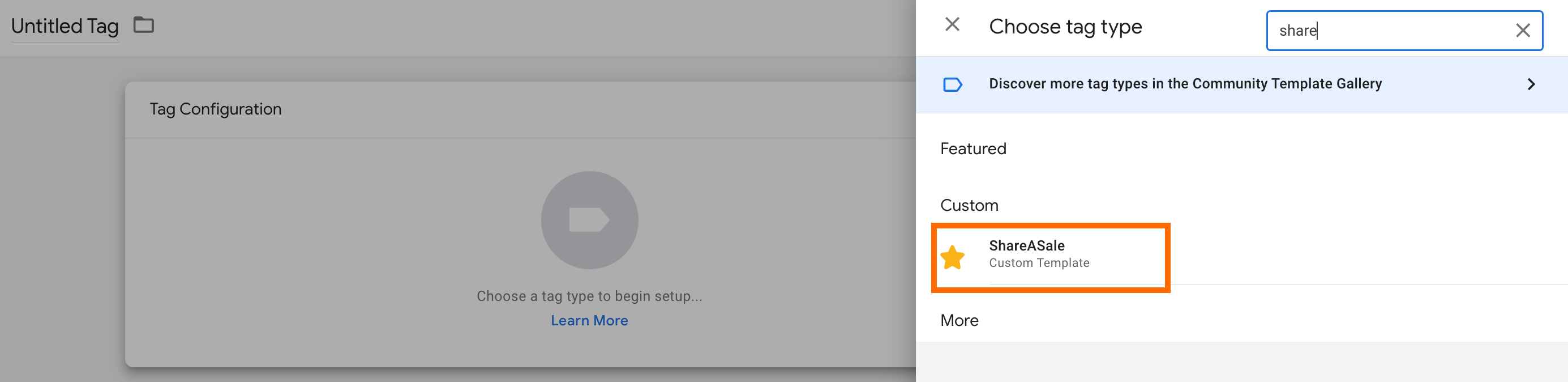
2. Create a new tag and choose "ShareASale" as tag type.
3. Configure the tag. Choose the event type you would like to track:
- PageView - stores the {
sscid} URL parameter inside the__sscidcookie. - Conversion - send a request with data about the conversion for accurate ShareASale conversion tracking.
With the PageView event type, you can also choose "URL parameter name" from the variables; by default, it will be "sscid".
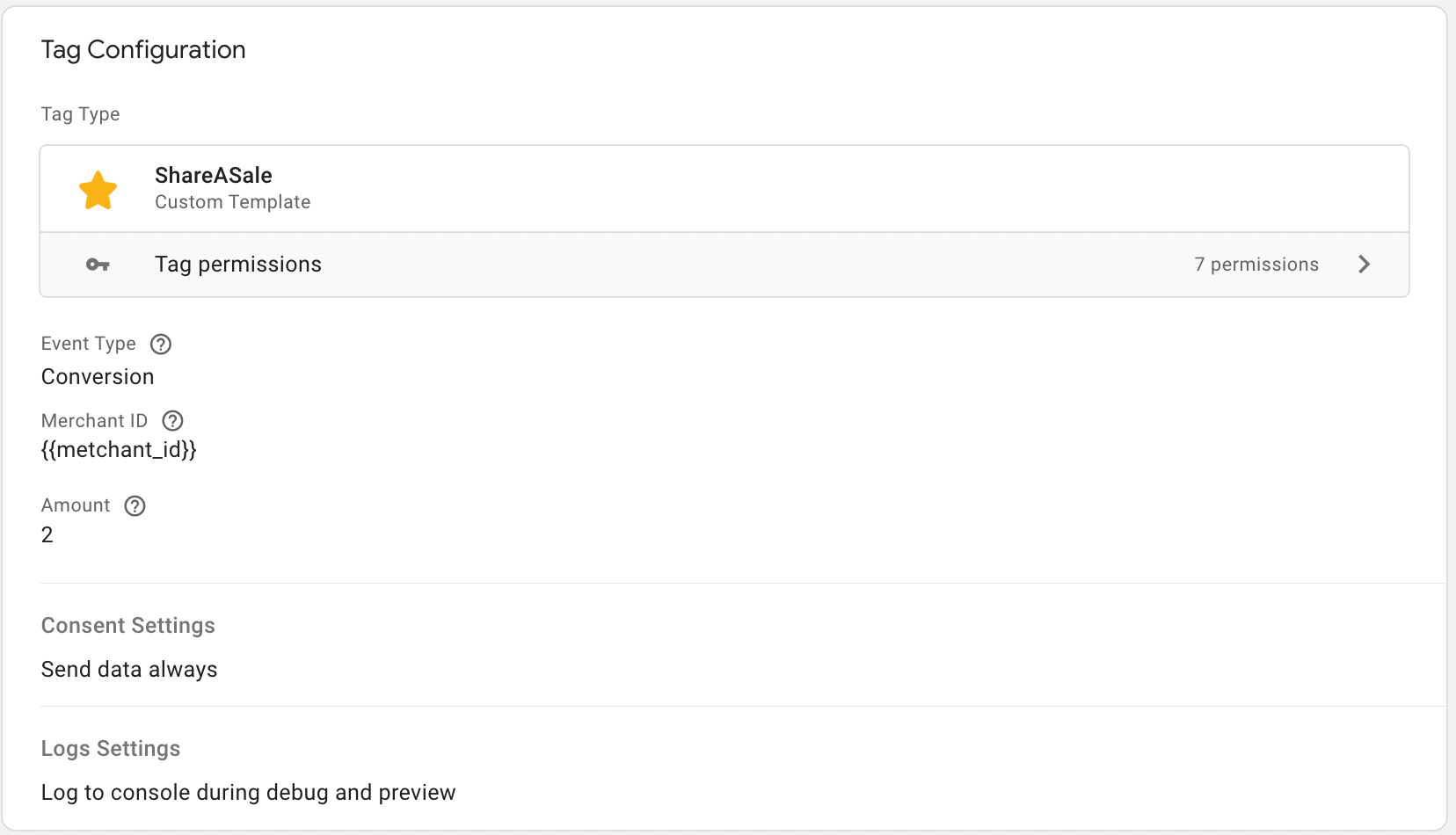
4. If you have chosen "Conversion" as event type, you will need to fill in the following fields:
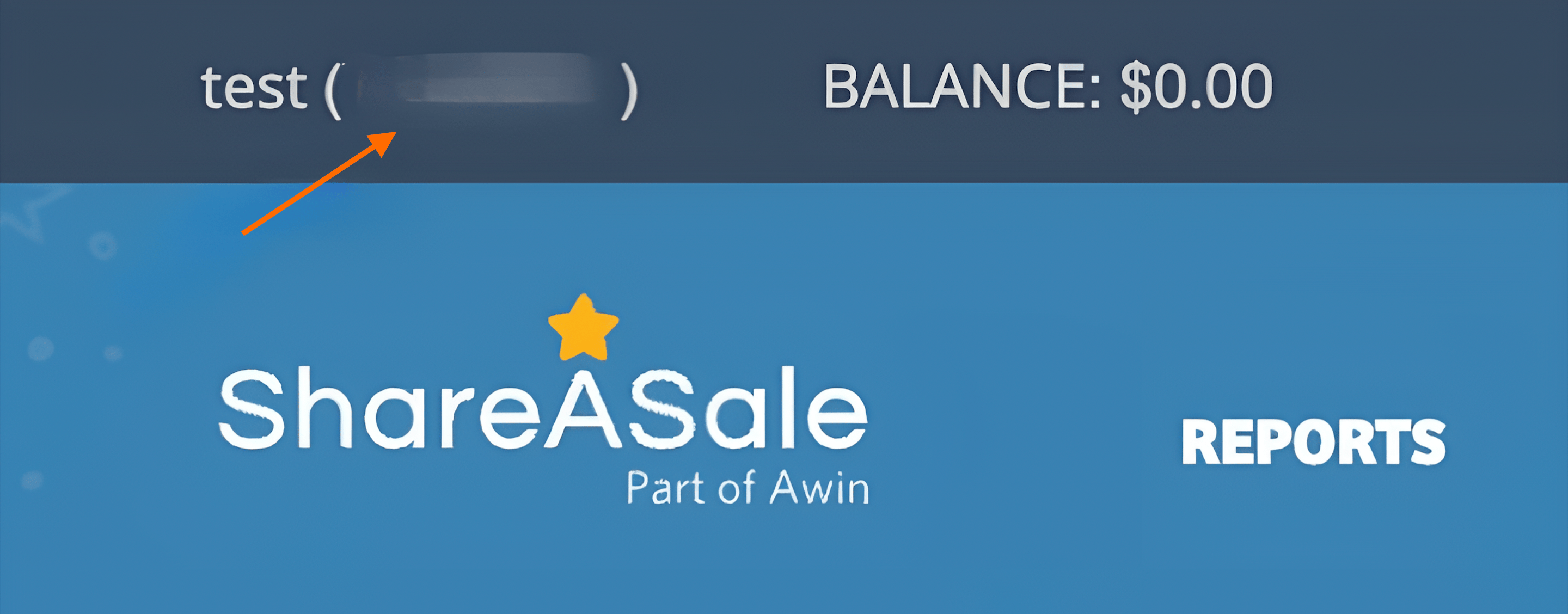
- Merchant ID - it can be found in the top left corner of your ShareASale account.
- Transaction type - this parameter is set to 'lead' or 'sale' for all lead tracking pixels.
- Amount - this parameter must be passed with a hard-coded zero amount formatted to two decimal places.
6. Add a trigger for a tag.
7. Test the setup. To do it, use both the web and server GTM preview mode. If you face any difficulties, see the detailed guide on debugging and monitoring.
To sum up
Setting up ShareASale tag for the server GTM container provides many perks, including accurate data tracking and high control over the data. With the help of tag, you track pageviews and conversion events. The configuration process is straightforward and shouldn’t take much time to start benefiting from server-side tracking!
Want to switch to the server side?
Try for freeRecommended for you
Jul 3, 2025
Blog
How to set up Quora CAPI tag using server GTM
Find out the benefits of a Quora Conversions API tag and get a guide on setting it up in a few simple steps.
Jul 3, 2025

Comments