Apr 22, 2026
April 2026 release: Stape GTM Helper update
Published Apr 22, 2026 comments
We've released some improvements to the Stape GTM Helper Chrome Extension that make debugging and managing your Google Tag Manager setups faster and more flexible, in particular for Shopify users.
Inject the GTM snippet on the Shopify checkout page
Debugging Shopify checkout tracking has always been challenging because Shopify restricts script execution and limits DOM access on the checkout. As a result, the GTM dataLayer is often not visible on checkout pages, making it harder to debug tracking.
Now, you can manually inject the GTM snippet into the Shopify checkout page using the Stape GTM Helper Chrome extension.
How it works:
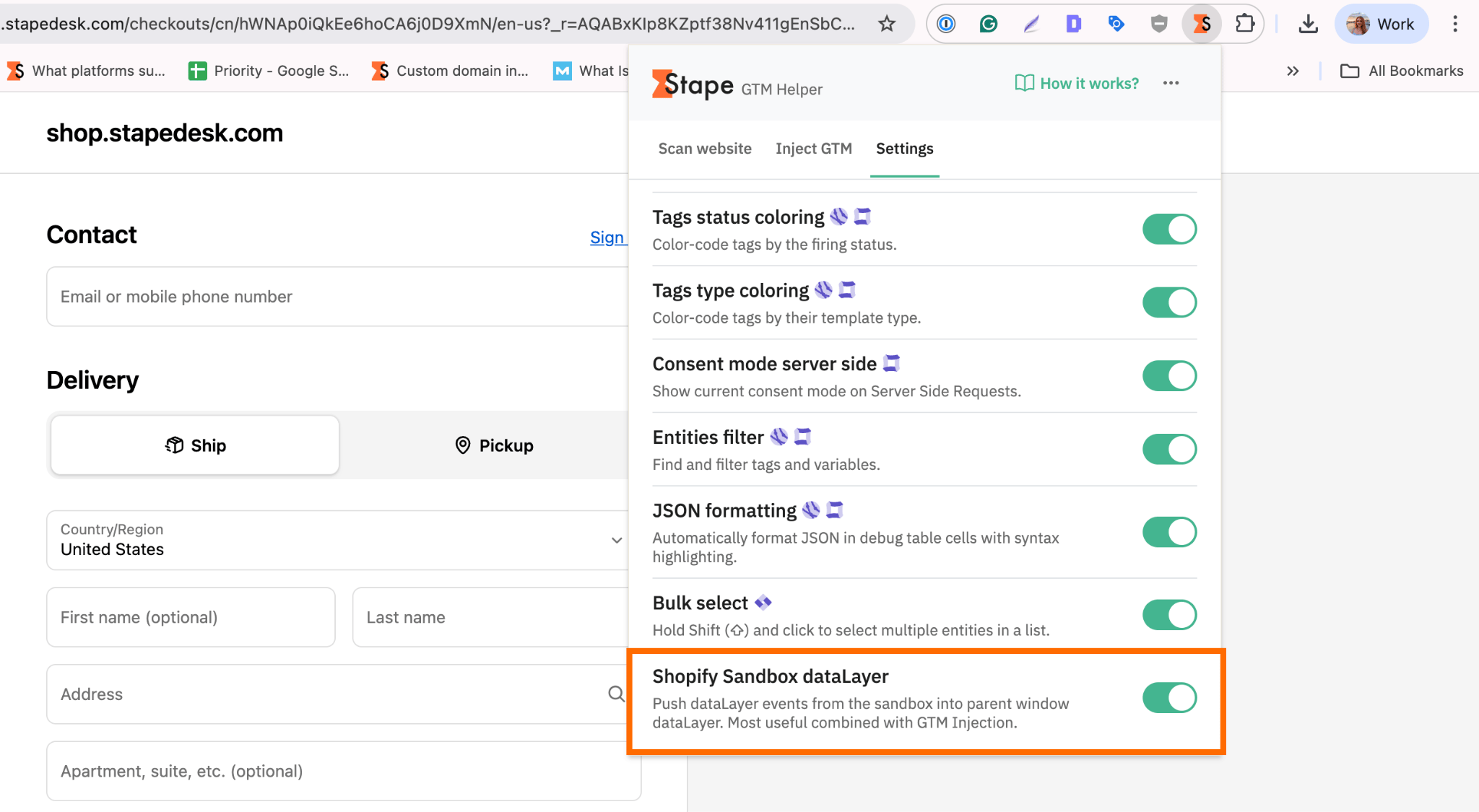
1. Open the extension Settings tab.
2. Enable the toggle Shopify Sandbox dataLayer.
3. Go to the Inject GTM tab.
4. Click Enable injection.
5. Enter your domain name and GTM ID.
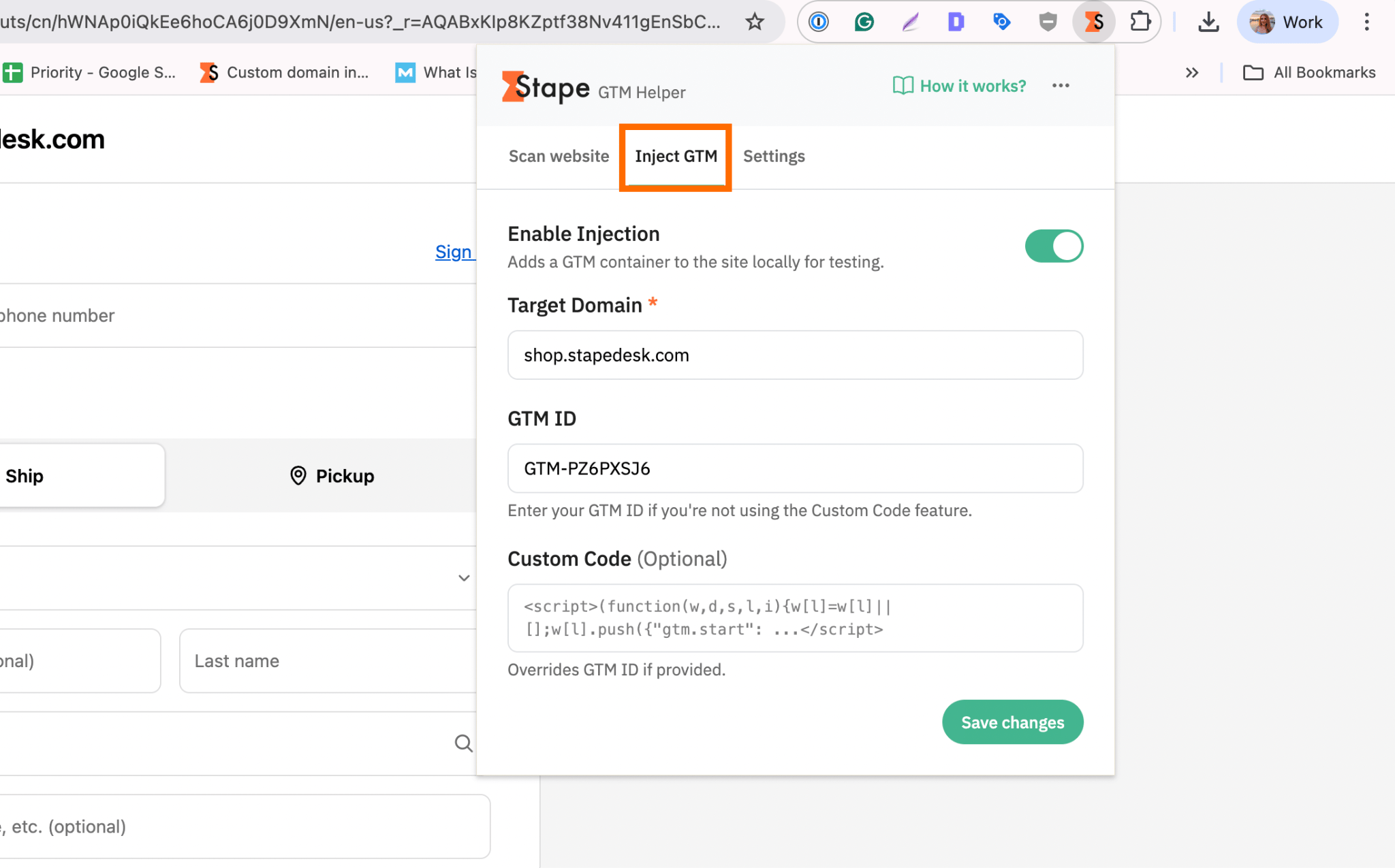
6. Save changes.
Once the feature is enabled, you can open GTM Preview and Debug mode and see events coming from the checkout page.

Website health check improvements
Now you can run website health scans more smoothly without being redirected to a separate tracking checker page.
How it works:
- Open the website you want to check.
- Open GTM Helper and navigate to the tab Scan website.
- Click Scan me.
- View a summary report instantly.
- Click View full report for detailed diagnostics and recommendations.
This makes it faster to evaluate tracking issues and overall tag health without breaking your workflow.

You can view the previous reports in the Scan history section of the extension.

Bulk select GTM entities
With the update, managing large GTM containers got easier. We've added a Bulk select feature to the extension.
How it works:
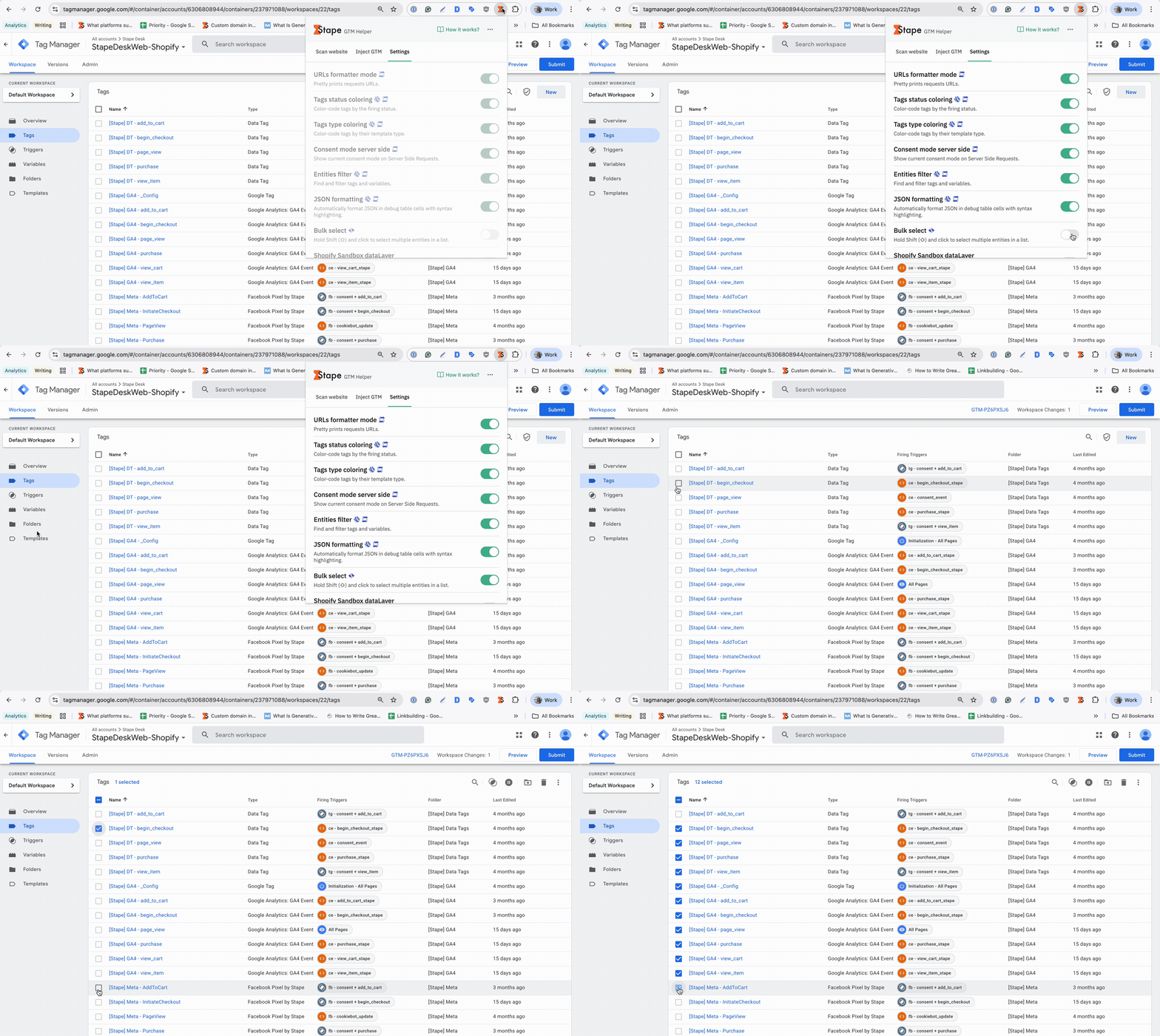
- Enable Bulk select in the extension.
- Click on any GTM entity in your container.
- Hold Shift and select multiple entities at once.

This allows you to select and manage multiple tags, triggers, or variables in one action, no need in repetitive checkbox clicking.
Faster GTM debugging with Stape GTM Helper
Inject GTM where it's restricted, bulk-select entities in seconds, and run instant tracking health checks; all from one Chrome extension built to make your debugging workflow faster and easier!
Was this article helpful?

Comments