Block Request by IP power-up
Updated Jun 24, 2026
The Block Request by IP power-up lets you exclude specific IP addresses from being processed in your sGTM container. Use it to filter out internal traffic, test environments, or suspicious sources so your analytics reflect real user behavior.
Block Request by IP is available on the Business subscription plan and higher. To check your current plan or upgrade, go to your sGTM container settings.
How to set up Block Request by IP
1. Log in to your Stape account and select your sGTM container from the dashboard.
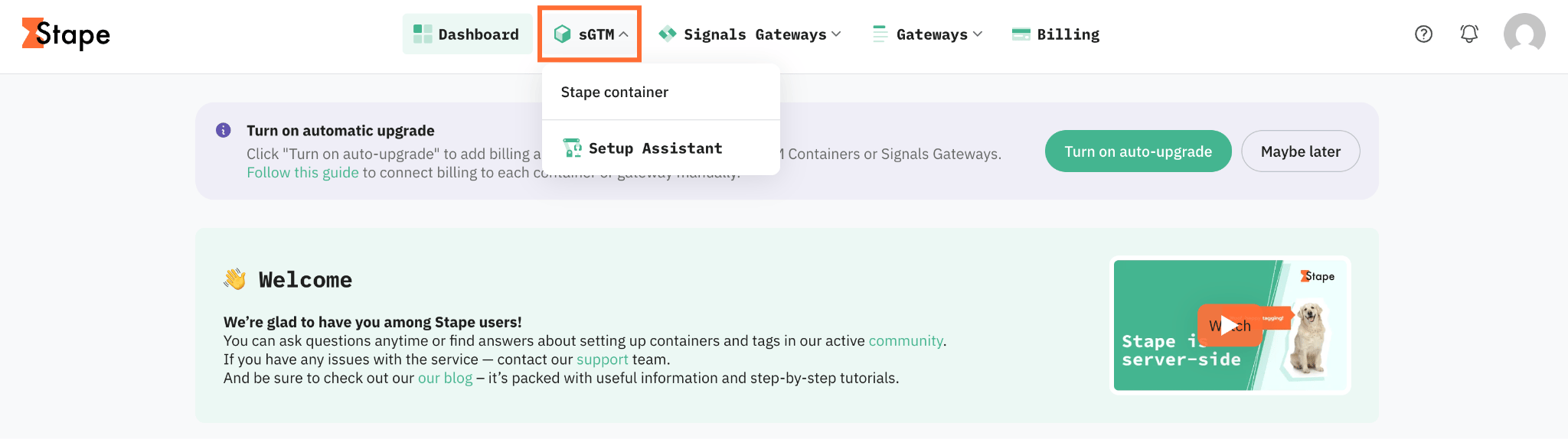
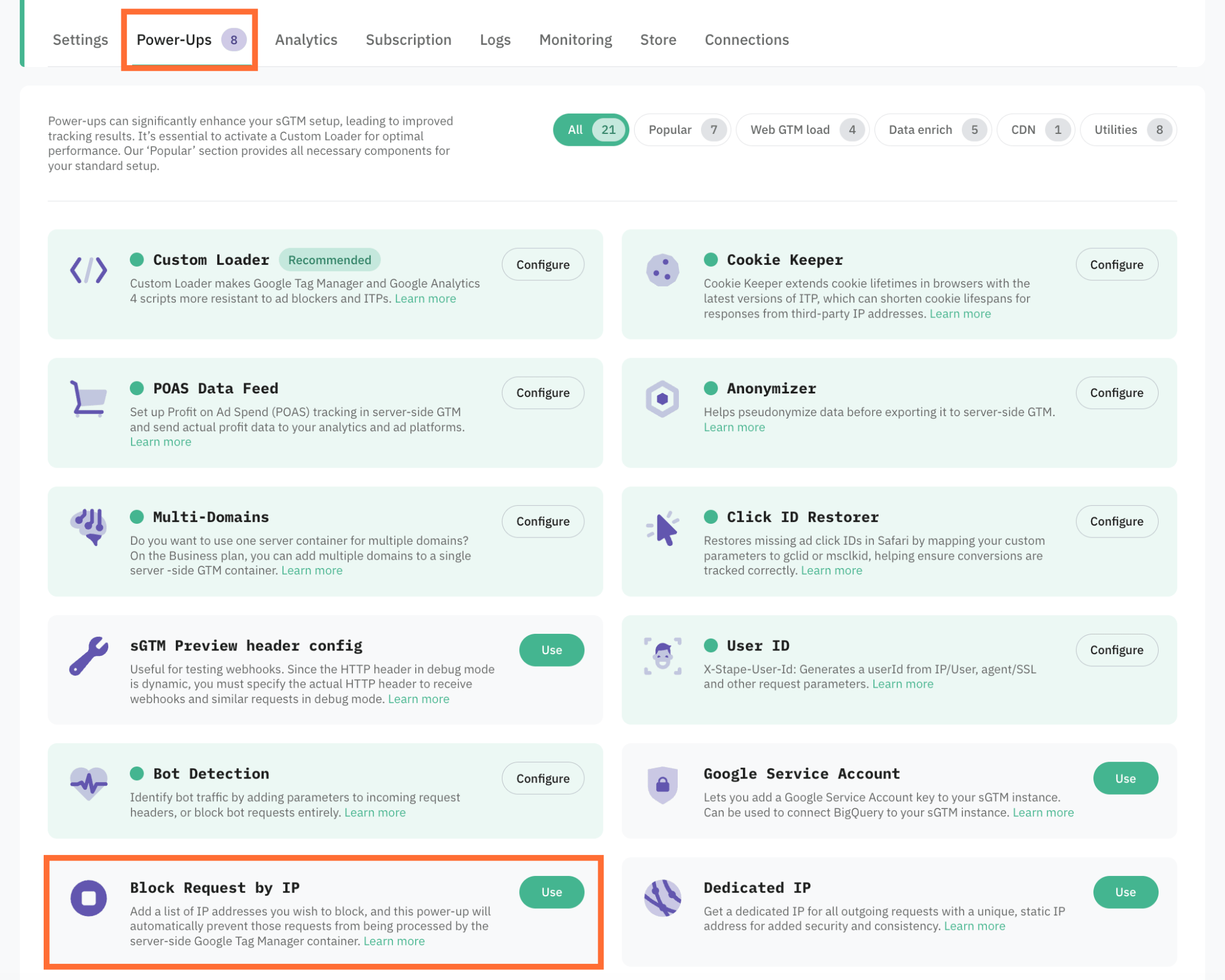
2. Go to Power-ups and click Use next to the Block Request by IP panel.
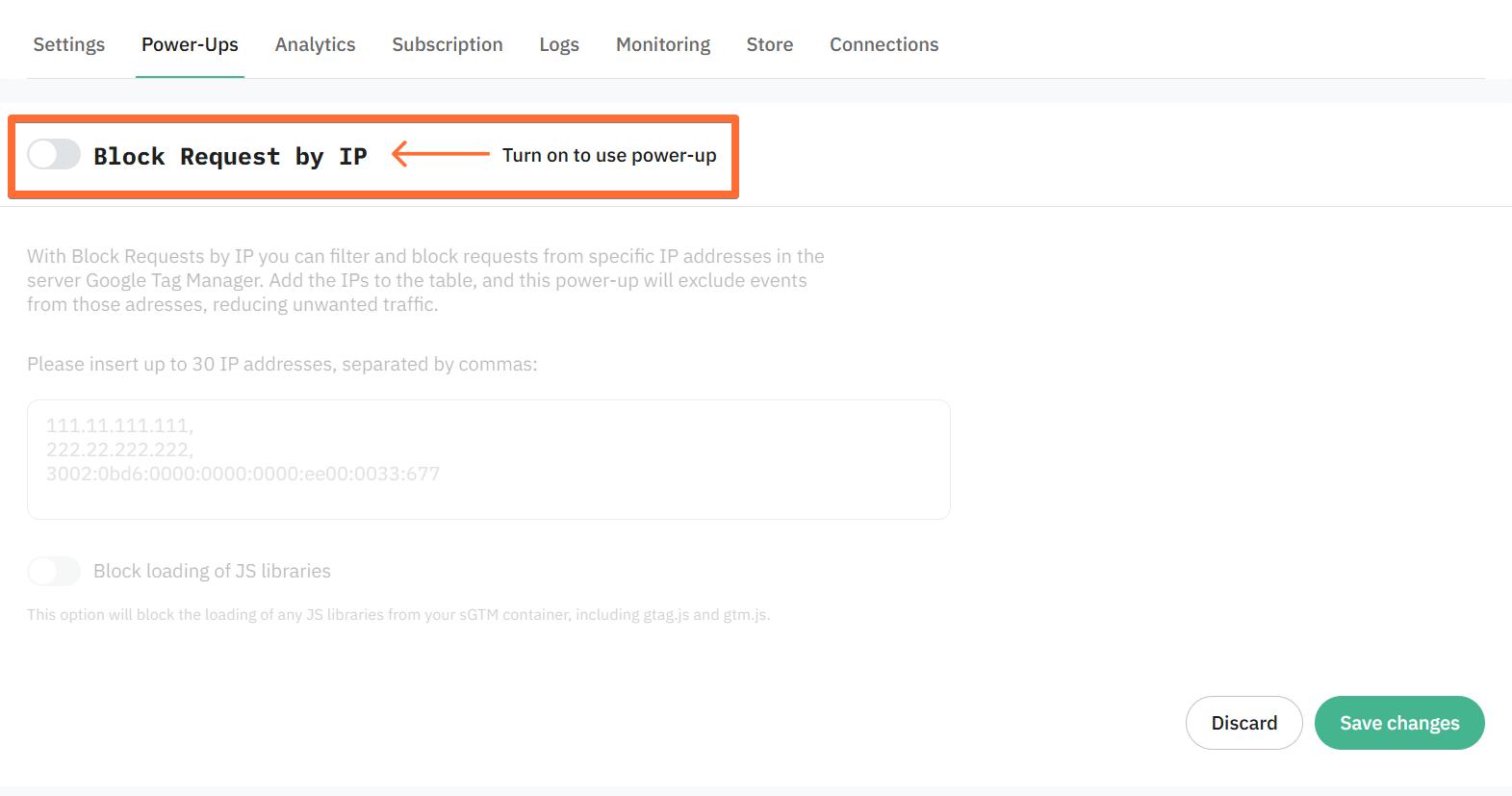
3. Toggle the Block Request by IP switch to enable it.
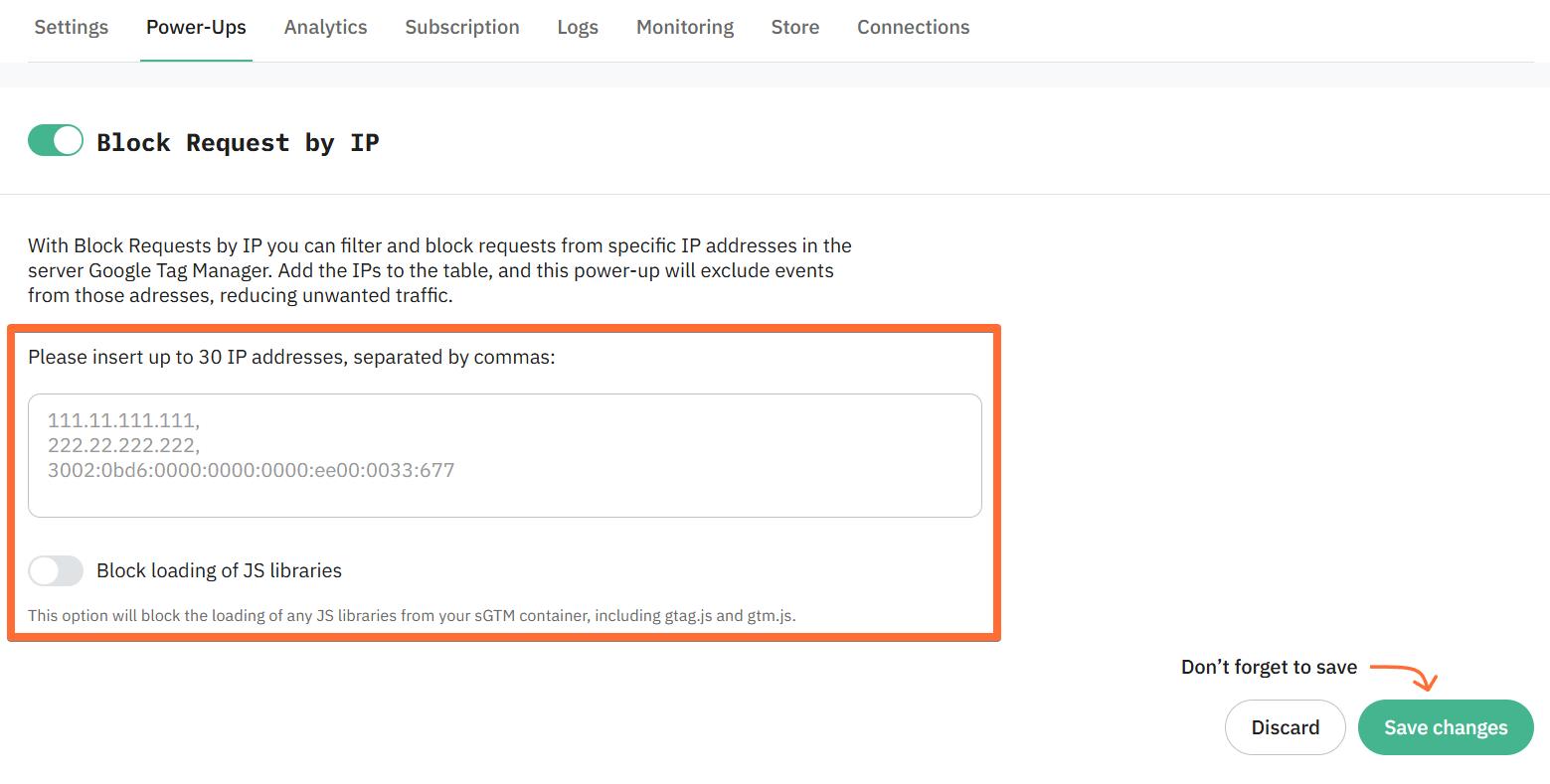
4. Enter up to 30 IP addresses you want to block.
5. Click Save changes. You can also toggle the Block loading of JS libraries switch to prevent requests containing ‘.js?’ or ‘.html?’ or ’/gtag/js?id=’ from getting loaded from your sGTM container altogether.
Testing
- 1.Add your own IP address to the block list.
- 2.Open the sGTM Preview mode.
- 3.Trigger some events on your site. If those requests don't appear, the power-up is working correctly. Remove your IP from the list when done.
Use case
A sample scenario is a SaaS company whose marketing team notices that their Google Ads conversion numbers are higher than expected. Campaign ROAS looks strong, but the sales team reports no corresponding spike in actual signups. The suspicion is that internal traffic from developers and QA engineers is being counted as conversions.
You can solve this problem by using the Block Request by IP power-up:
- 1.Start by pulling the list of IP addresses used by your internal team. Cross-reference those with raw event logs in GA4 to confirm whether hits from those addresses are appearing in your data. If you see sign-up and conversion events fired from known internal IPs, that confirms the source of inflation.
- 2.Enable the Block Request by IP power-up and add those IP addresses to the block list. To verify it's working, keep your own IP in the list, trigger a test conversion event from your machine, and check whether it appears in GTM Preview mode. If the request doesn't show up, the power-up is correctly intercepting it before any tags fire.
- 3.Once confirmed, re-run your GA4 vs. sales data comparison over the following week. If conversion counts align more closely with actual signups, the internal traffic was the culprit. With clean data flowing, your Google Ads optimization algorithms will train on real user behavior, leading to more accurate bidding and better campaign performance.
Was this article helpful?
🍽 Table of content:
Comments