Sep 12, 2025
Step-by-step guide on Microsoft Conversion API integration
Written by
Uliana Lesiv
Updated Aug 14, 2026 comments
Microsoft (Bing) has released its Conversion API. For marketers, it means that Microsoft Ads server-side tracking configuration is available for this platform. Before, the only available option for Microsoft Ads was Microsoft's offline conversion tracking. The tracking method has many disadvantages if used for reporting online conversions, so switching to server-side using this option was not the most effective solution.
In this article, we will explain how Microsoft Conversion API works and how to configure server-side tracking for this platform using Stape's Microsoft Ads UET Conversion API tag.
Get more from your Microsoft UET setup
Set up Microsoft Ads UET Conversion API tag to send more reliable conversion signals through server GTM.
Microsoft Ads UET Conversion API tag for Microsoft CAPI integration
Using the Conversion API allows you to send a server-to-server signal. Microsoft CAPI can transmit the same events as Microsoft JavaScript (Microsoft's UET tag), but from your cloud server instead of directly through the browser. By using this server-to-server setup, you can benefit from all the advantages of server-side tracking, including greater accuracy and reliability of conversion tracking, even in scenarios where cookies are limited or restricted.
CAPI configuration requires setting up Microsoft’s UET tag. To avoid duplicated events, CAPI also supports event deduplication, allowing you to include identifiers such as a hashed email or phone number. This helps Microsoft connect actions to specific users, resulting in more accurate tracking and better ad targeting later.
To simplify the process of Microsoft CAPI integration, the Stape team has developed the Microsoft Ads UET Conversion API tag.
Prerequisites
To set up the Microsoft Conversion API, you will need the following:
- A configured data stream from the web to the server container (Google Analytics 4 and Data Tag/Data Client are popular ways to do it)
- Custom domain (optional)
Step-by-step guide on Microsoft (Bing) Conversion API integration
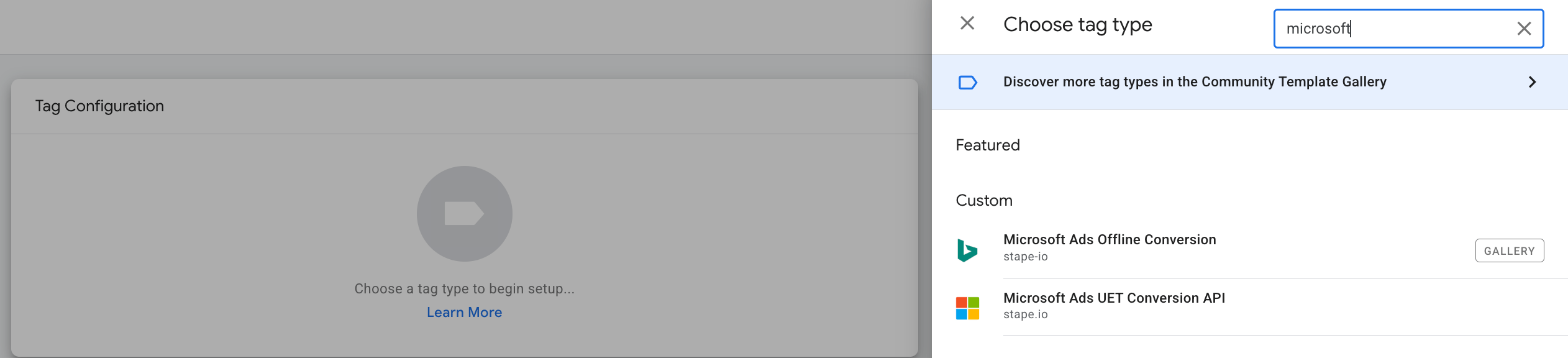
1. Add Microsoft Ads Conversion API tag to your workspace. Go to your server GTM container → Templates section → Search gallery → search for "Microsoft Ads UET Conversion API by Stape" → click "Add to workspace".

2. Create a new tag.
In the "Tags "section, click "New" → as tag configuration select "Microsoft Ads UET Conversion API".
3. Configure the tag.
Required tag settings
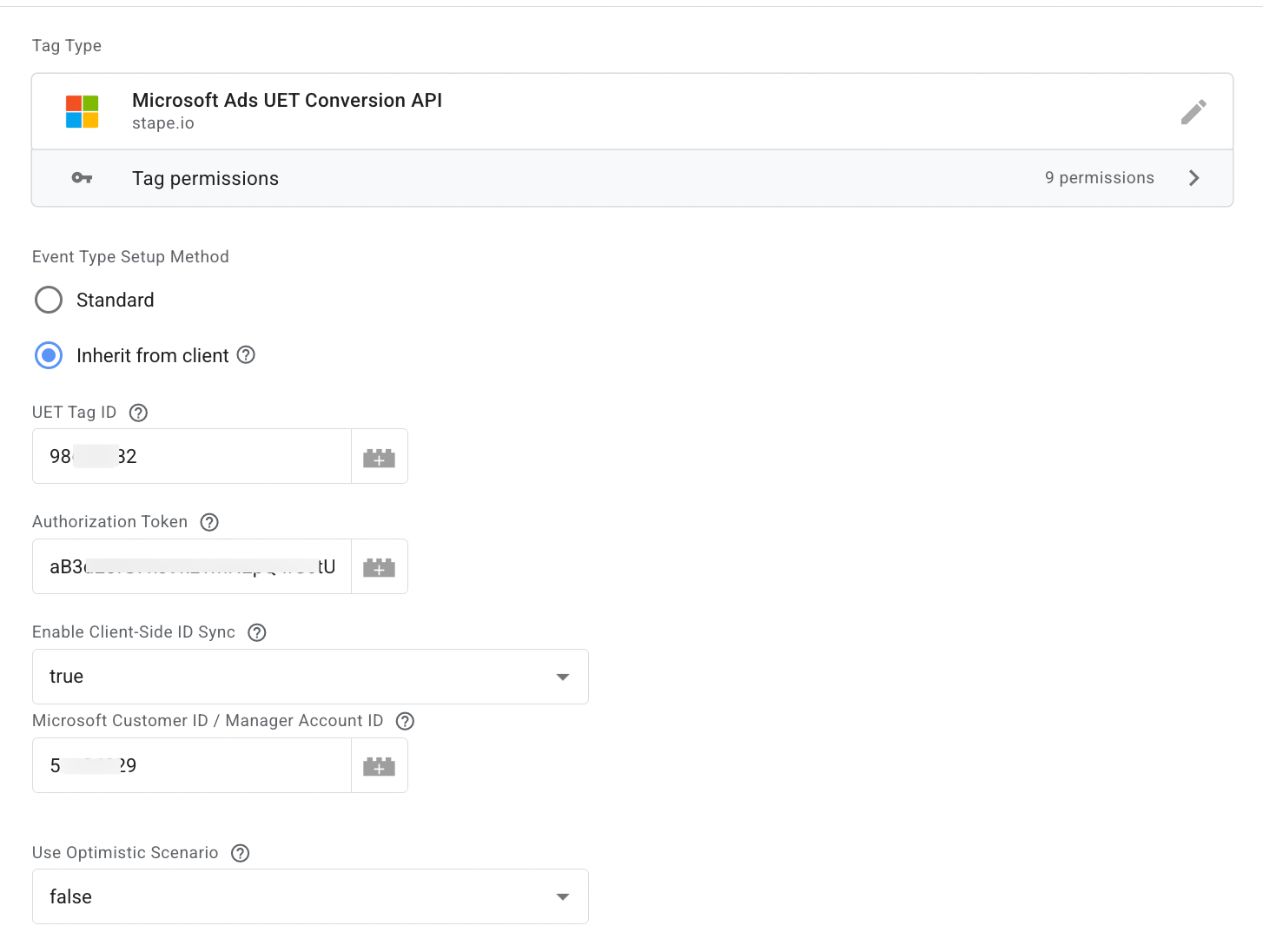
3.1 Select Event Type Setup Method - "Standard" setup method will manually configure events, while "Inherit from client" will automatically map from GA4/Data tag event payloads.
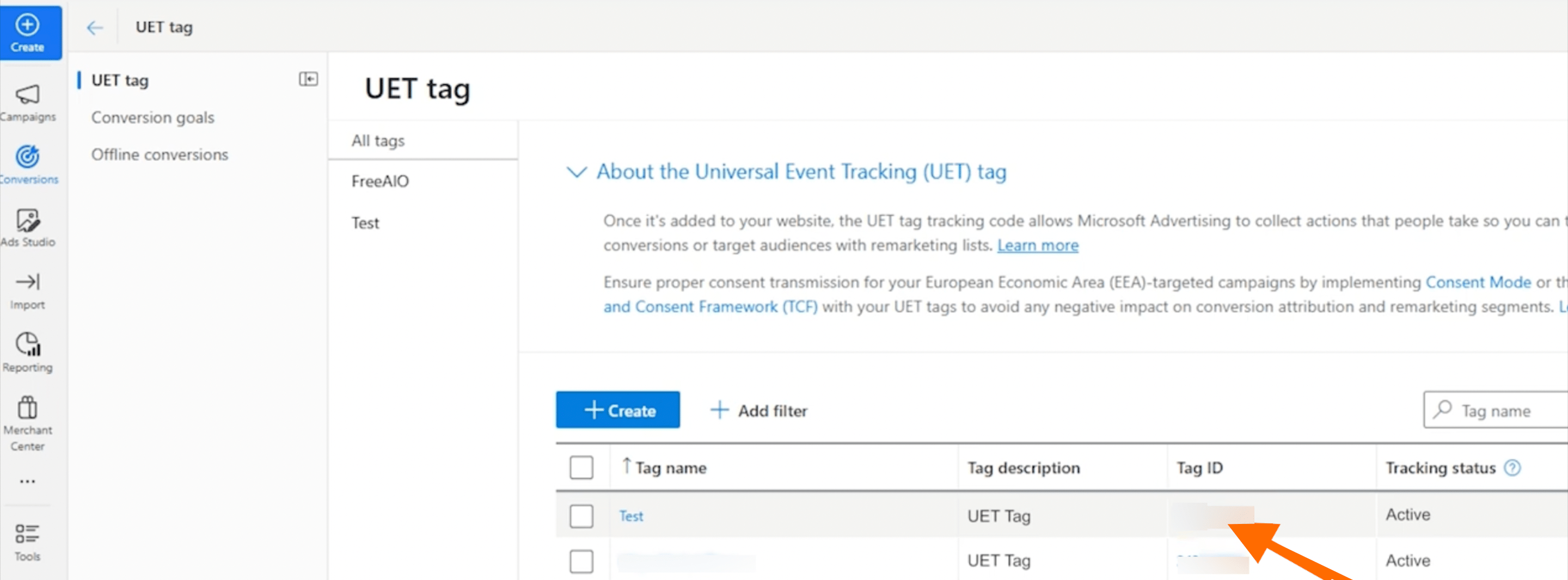
3.2 Add UET Tag ID - the value can be found in the Microsoft Ads account → Conversions → UET tag → Tag ID.
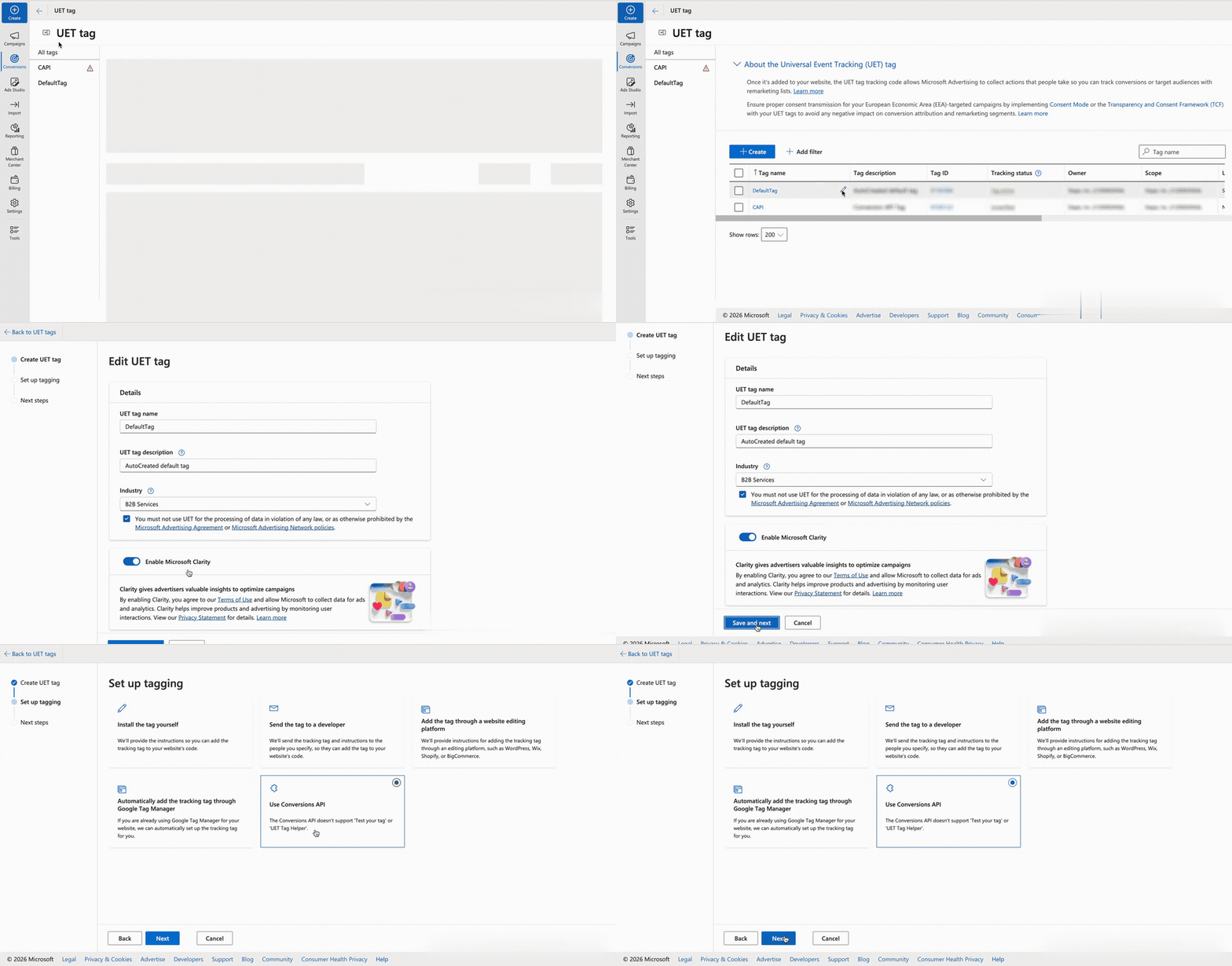
3.3 Authorization Token - enter the auth token generated in your Microsoft Ads account. To get the token value, follow the steps:
Make sure you generate the token for the same UET tag whose ID you use in this setup.
The token is tied to the specific UET tag you want to report events to. A token generated for a different UET tag won't work for the setup.
- Log into your Microsoft Advertising account → click Conversion on the left-side menu → go to the UET section → find your existing UET tag or create a new one.
- Select the UET tag you want to use → click the pencil icon to edit it.
- In the Edit UET tag section, select Save and Next.
- In the Set up tagging section, select Use Conversions API → click Next. Your Conversions API token will be generated on the next step; copy it and paste it into the tag settings.
3.4 Enable Client-Side ID Sync - strongly recommended. This allows your internal IDs to be mapped to Microsoft IDs for better user matching and remarketing via a browser pixel.
Add Microsoft Customer ID / Manager Account ID - if you have multiple Customer IDs, please use the primary Microsoft Customer ID (the one from the Manager Account). Please note, it's not the same as the UET Tag ID.
You can find the ID by looking for the cid URL parameter when visiting your Microsoft Advertising account.

3.6 Use Optimistic Scenario - if set to true, the tag will call gtmOnSuccess() without waiting for a response from the API. This will speed up sGTM response time; however, your tag will always return the status fired successfully even in cases where it is not.
Here is an example of a field configuration:
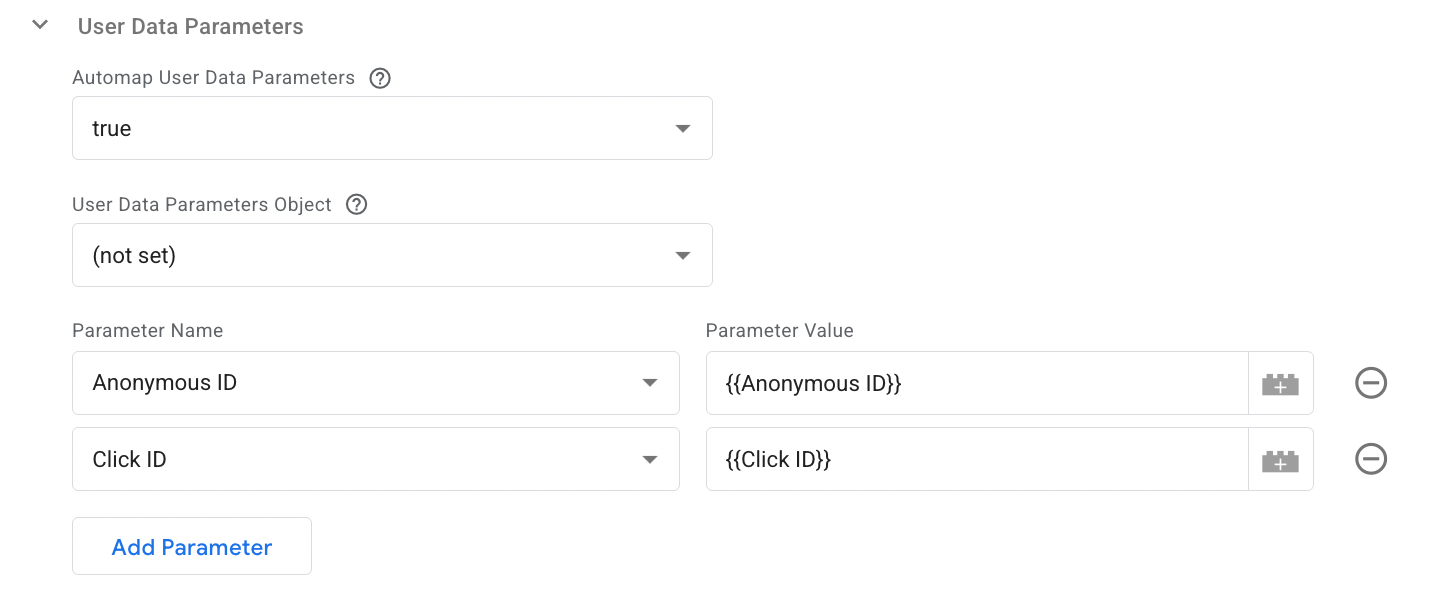
3.7 Add at least one User Data Parameter.
User Data Parameters include standard identifiers like Anonymous ID, Click ID, Email, Phone Number, and External ID (User ID). Other identifiers like IP Address and mobile device IDs (IDFA/GAID) can also be sent.
Optional tag settings
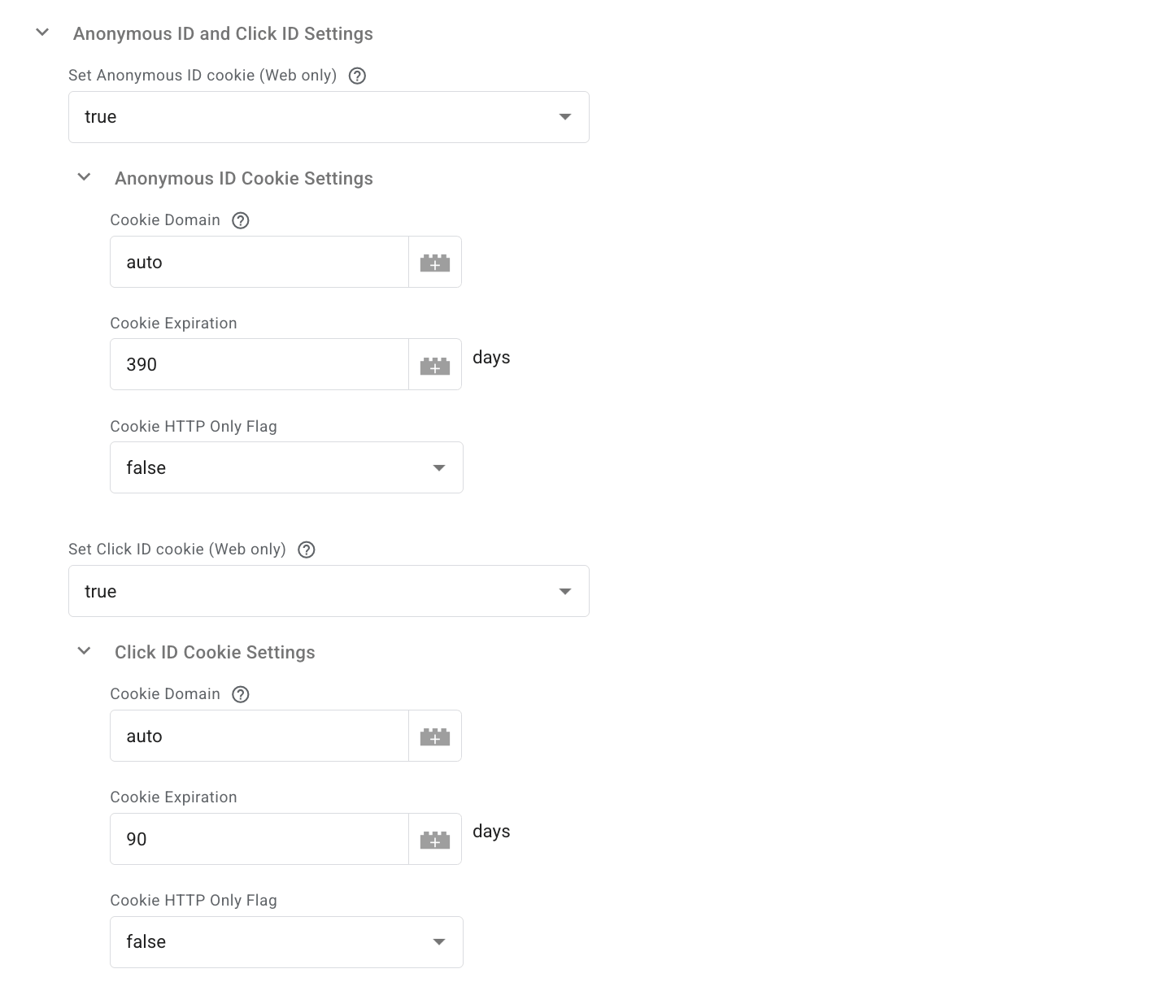
3.8 Anonymous ID and Click ID Settings section.
The tag automatically manages both the Microsoft Click ID (msclkid) and the Anonymous ID.
- Click ID (msclkid) - captured from either the URL parameter, the uet_msclkid cookie set by Server GTM, or the _uetmsclkid JavaScript cookie.
- Anonymous ID - retrieved from the uet_vid cookie set by Server GTM, the _uetvid JavaScript cookie, or auto-generated if none exists.
In this section, you can control whether the tag writes these values to cookies, as well as configure their expiration and domain.
When using server GTM, both identifiers are stored in separate cookies with names distinct from those used by the JavaScript implementation:
- Anonymous ID: uet_vid
- Click ID: uet_msclkid
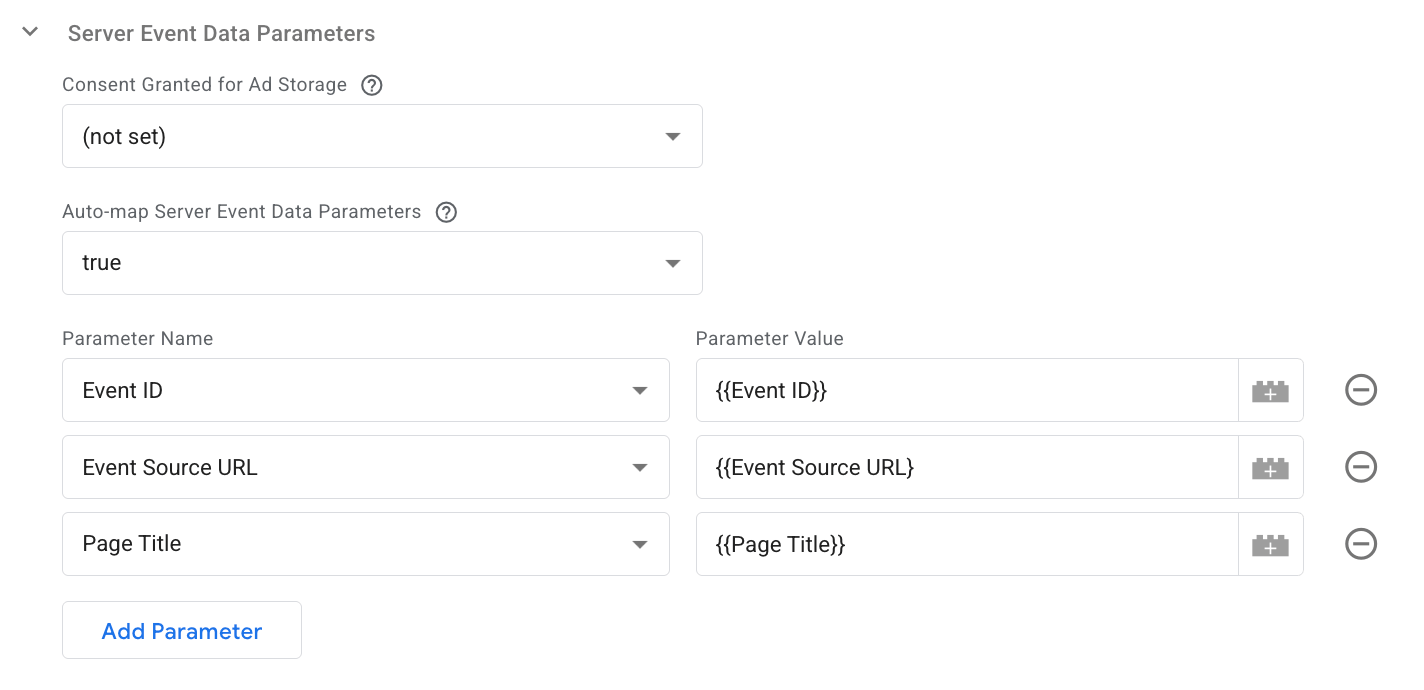
3.9 Server Event Data Parameters section.
- Parameters - includes standard fields such as Event ID, Event Source URL, Event Time, Page Title, and more.
- Auto-mapping - when enabled, the tag automatically fills these fields using incoming event data (for example, Event Source URL is derived from page_location).
- Consent - you can also indicate whether Ad Storage consent was granted for the event.
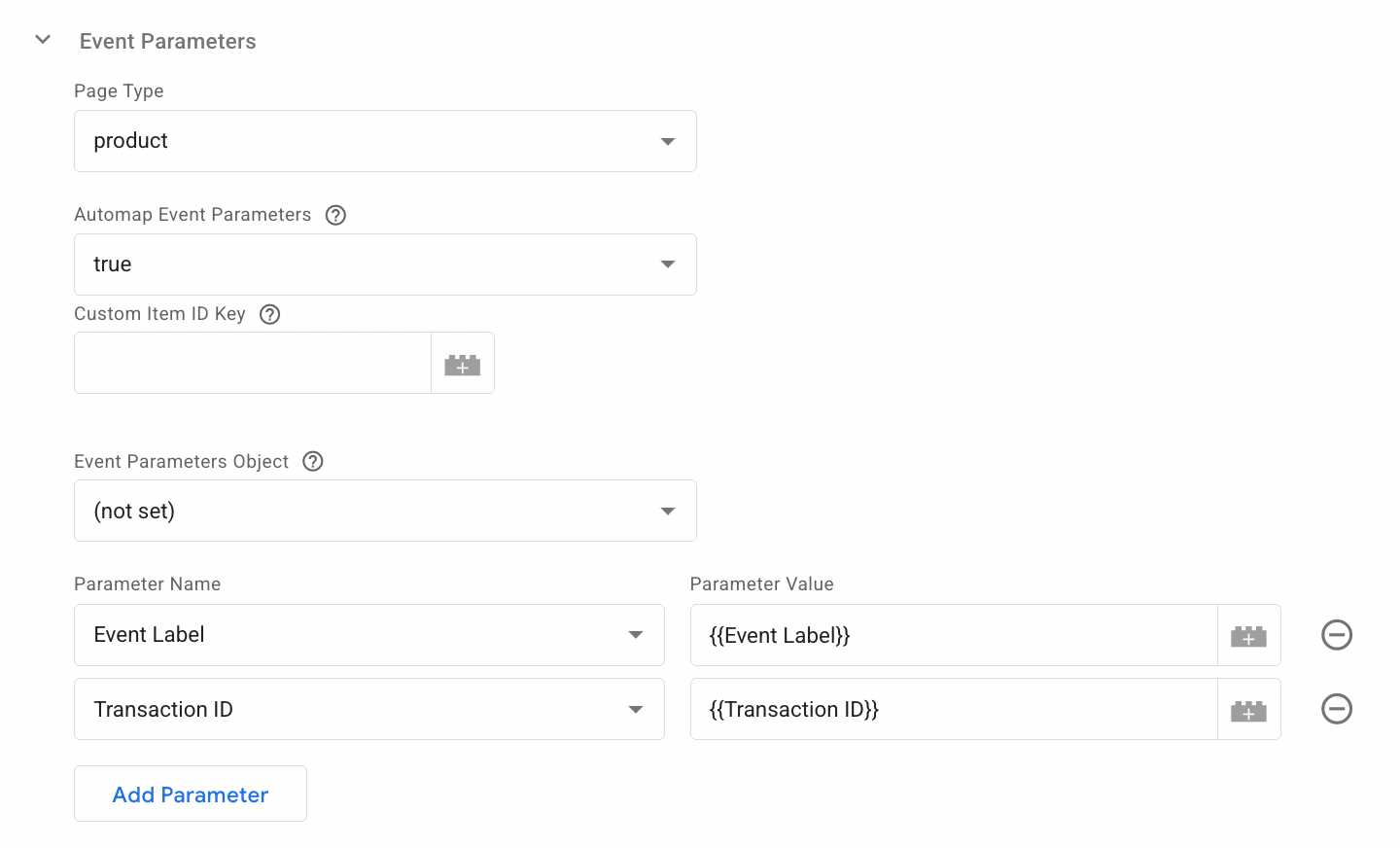
3.10 Event Parameters section.
In this section, you can specify parameters that will provide detailed information about the user’s actions.
- Page Type - select the type of page where the event occurred (e.g., home, product, cart, purchase). This is auto-mapped if inherited from a GA4 client.
- Automap Event Parameters - when enabled, the tag can automatically pull many of these fields from a standard GA4 or e-commerce event data structure (for example, Revenue Value maps directly from value).
- Event Parameters Object - cover elements such as Page Type, e-commerce details (e.g., Revenue Value, Currency, Items), and custom goal values (e.g., Event Category, Event Label), among others.
4. Add a trigger for the tag.
5. Test the configuration. You can do it in Google Tag Manager by clicking on Preview. Then trigger the event, and check whether the tag has fired.

Find out more about debugging and monitoring server-side tracking configuration in our guide.
Configure event deduplication
When you send the same conversion event through both the Microsoft UET tag and Microsoft CAPI, Microsoft Ads may receive the event twice. Without deduplication, this can result in duplicate conversions being reported and inaccurate campaign performance data.
Event deduplication allows Microsoft Ads to recognize that events received from different sources represent the same user action and count them only once. This helps keep your conversion data accurate when using both browser-side and server-side tracking.
Event deduplication can be configured via the web and server GTM tags. Follow the instructions below to configure it:
1. Go to your web GTM container → in the Tags section, locate Microsoft Advertising Universal Event Tracking.
2. Open the Tag settings section within the tag → click “Add row” / "Add parameter".
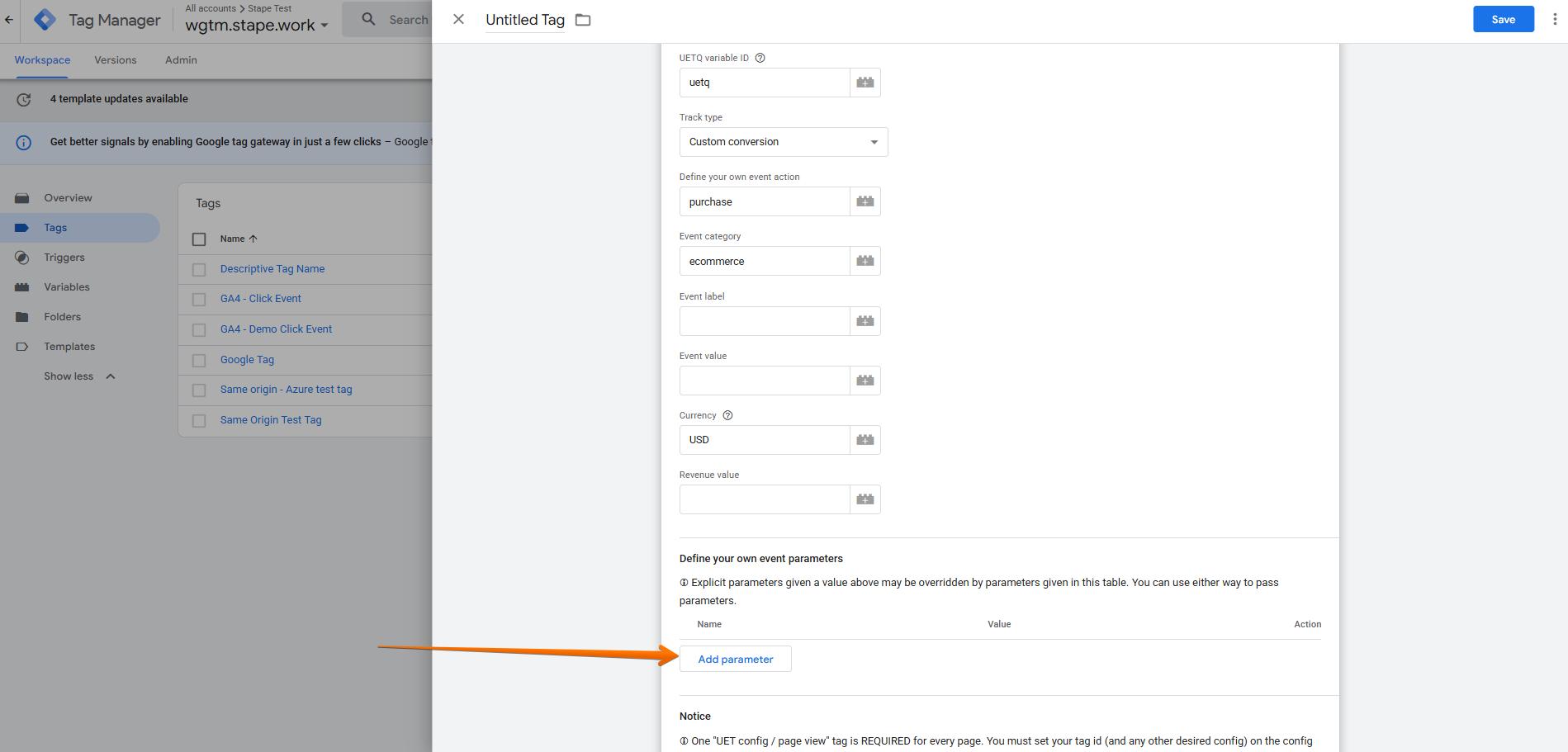
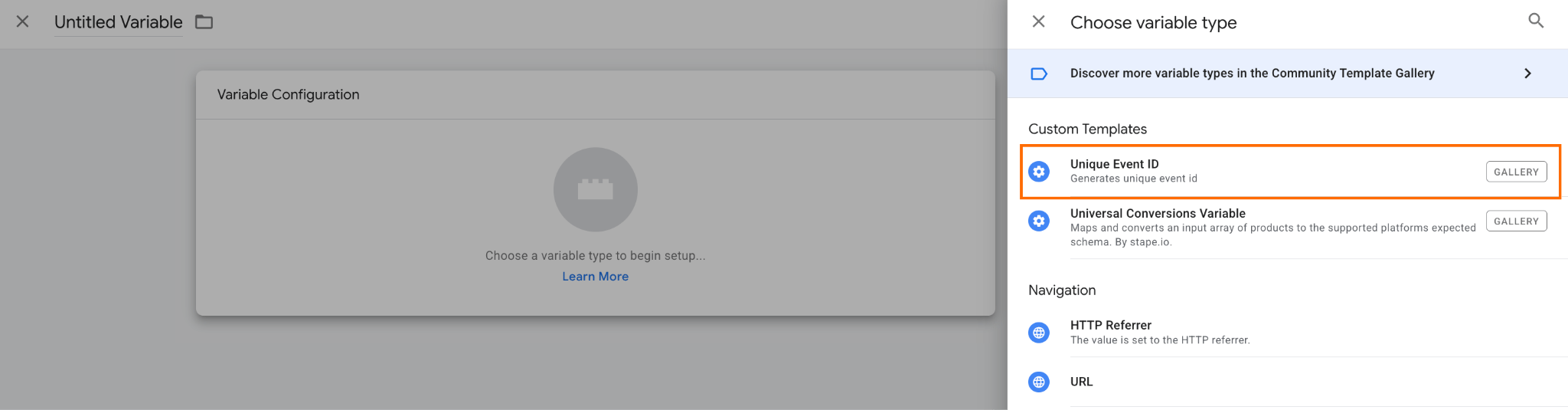
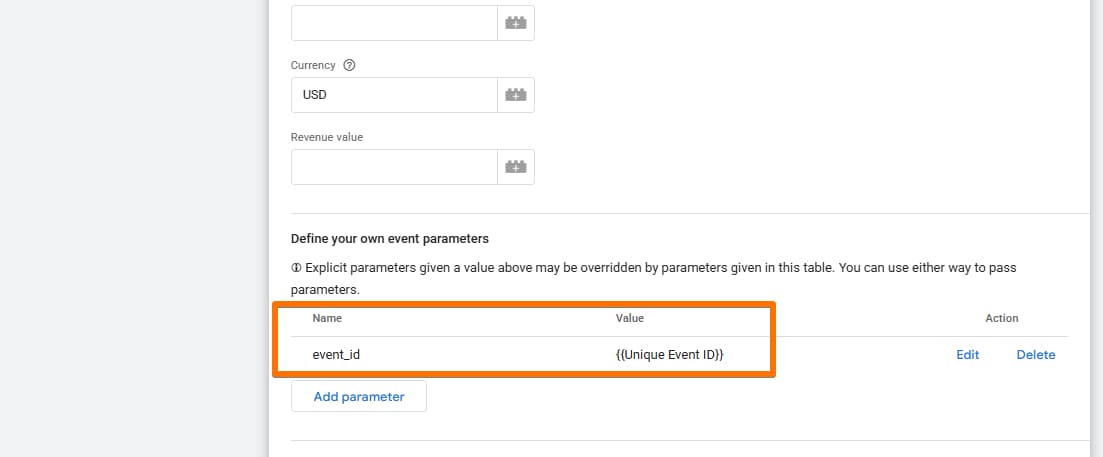
3. As the name, specify event_id as the value, and add a variable for a Unique Event ID.
4. Click “Add”.
5. Go to the server GTM container → open Stape’s tag you’ve configured, “Microsoft Ads UET Conversion API by Stape” → click on the section Server Event Data Parameter → click “Add parameter”.
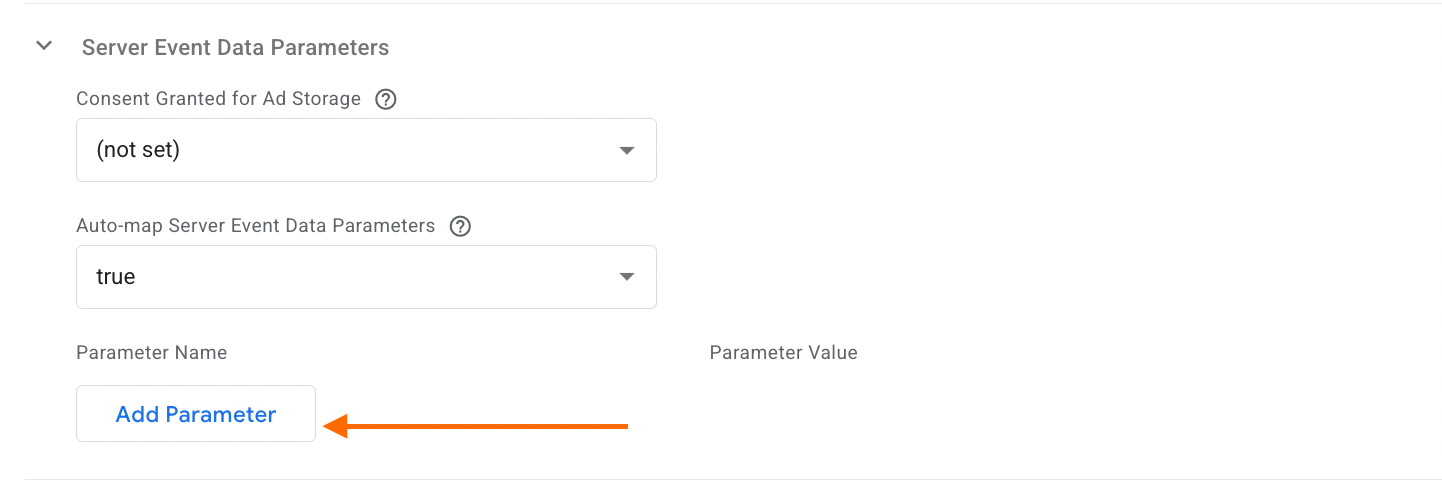
6. Select Event ID as the parameter name.
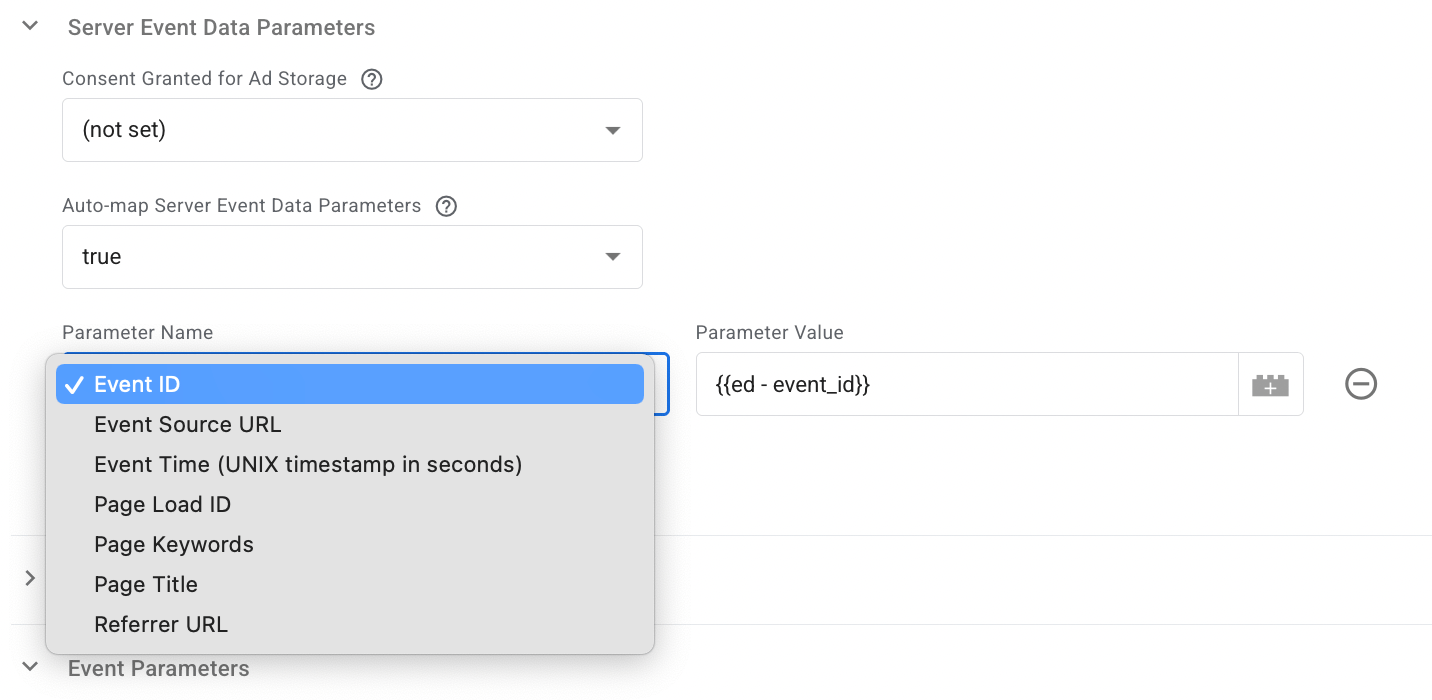
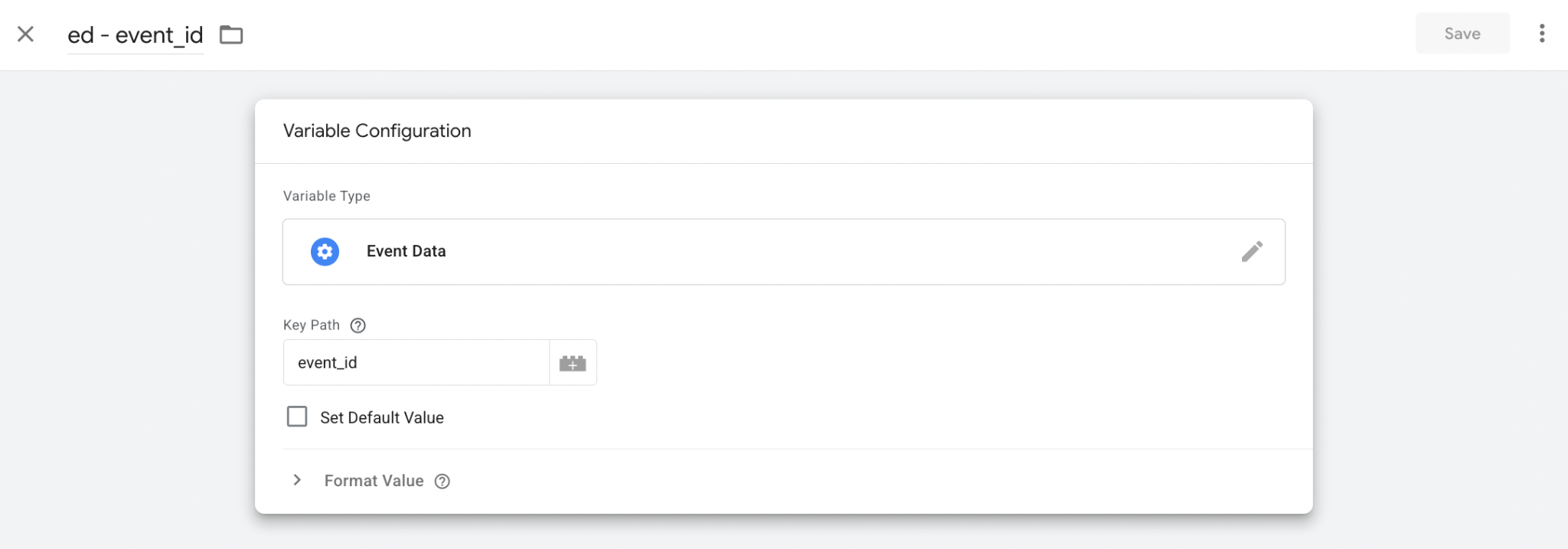
7. As a parameter value, add the variable with the following settings:
- Variable Type: Event Data
- Key path: event_id
Guides on Microsoft Ads tracking
We have covered the topic of Microsoft Ads tracking in our other articles. The guides will be helpful for data tracking configuration:
| Article | Description |
| Microsoft Ads (Bing) Offline Conversions tracking | Record and report conversions that take place outside the digital environment, such as in-store purchases driven by an ad interaction. |
| Consent Management in Microsoft (Bing) | Microsoft requires UET consent mode for GDPR compliance. Even if you switch to server-side tracking, it is mandatory to ask for consent from the user before collecting data. |
| Guide on Microsoft Bing Ads + improvement tips | The guide will be helpful for those who are just starting advertising on Microsoft. It includes a guide on running a Microsoft Ads campaign, as well as tips on how to improve campaign performance. |
Conclusion
The upcoming release of Microsoft’s Conversion API marks a significant step forward for advertisers looking to improve the accuracy of their tracking setup. By setting up Stape’s Microsoft Ads UET Conversion API tag, you can easily integrate Microsoft CAPI, reducing reliance on browser-based tracking and gaining more reliable conversion data.
Want to switch to the server side?
Try for freeRecommended for you
Sep 12, 2025
Blog
Microsoft Ads server-side tracking explained
Microsoft Ads now supports server-side tracking via Conversion API. Learn what options are available and how to choose the right setup for your needs.
Sep 2, 2026

Comments