Aug 13, 2025
Track CLTV conversions for lead generation with Google Sheets Reader
Written by
Mariia Akrybai
Updated Aug 3, 2026 comments
Tracking Profit/expected Customer Lifetime Value (CLTV) conversions is essential for the Lead Generation industry to understand the long-term value of acquired leads, optimize ad spend, and improve conversion strategies. The need for such implementation using Google Sheets Reader variable often arises when you want to achieve real-time data enrichment for value-based lead tracking.
This approach acts as a cornerstone for optimizing ad spend across your entire digital marketing portfolio. By feeding accurate CLTV data back into platforms like Google Ads or Meta, you allow their algorithms to prioritize high-value prospects rather than just high-volume traffic, ultimately increasing your return on investment.
If you’ve opted to include value-based parameters in your conversion tracking, this approach centralizes your lead-scoring data for easier maintenance. Our focus here is the technical logic of passing "expected value" via web and server GTM containers using the Stape Google Sheets Reader variable. In case you have cost adjustments or changing lead-scoring logic, you can just implement changes in Google Sheets, the tracking in GTM remains untouched.
Benefits of using sGTM to pass CLTV
- 1.Confidentiality of business logic. sGTM keeps your lead values private by preventing exposure to third parties in the browser and through the data layer or outgoing requests.
- 2.Server-side data handling. Calculations and data processing happen on the server side, meaning sensitive information never reaches the user's browser.
- 3.Protection from competitors and clients. This method keeps your internal lead evaluation strategies hidden from competitors and clients.
- 4.Supplementing existing payloads. Serves as a solution for adding important data from Google Sheets when your backend infrastructure can't send fully enriched webhook payloads.
- 5.Alternative for data stitching. Provides an effective approach to combine necessary data when backend limitations prevent direct enrichment of payloads.
| For tips on improving the quality of leads entering your funnel, see our lead acquisition marketing guide. |
Prerequisites
To start, you should use your existing internal lead scoring model; the CSV example provided below is just a template, as the actual calculations, predictions, and LTV logic are highly individual to your business and remain the responsibility of your marketing team.
Once your scoring is ready, the best way to bridge it with sGTM is via a clean dataLayer push for the generate_lead event. Providing specific lead attributes (like industry or plan type) directly in the dataLayer is much more reliable than using custom variables to scrape the website, as it ensures the Google Sheets Reader variable always finds the exact match for your calculated values.
How to set up Google Sheets Reader variable for Lead Profit/eCLTV
1. Key generation logic in Google Tag Manager.
In the web container, we need to create a unique identifier (key) via Custom JavaScript variable that we will use to search for values in the table. We use a flexible approach: if a parameter is missing, it is simply excluded from the key.
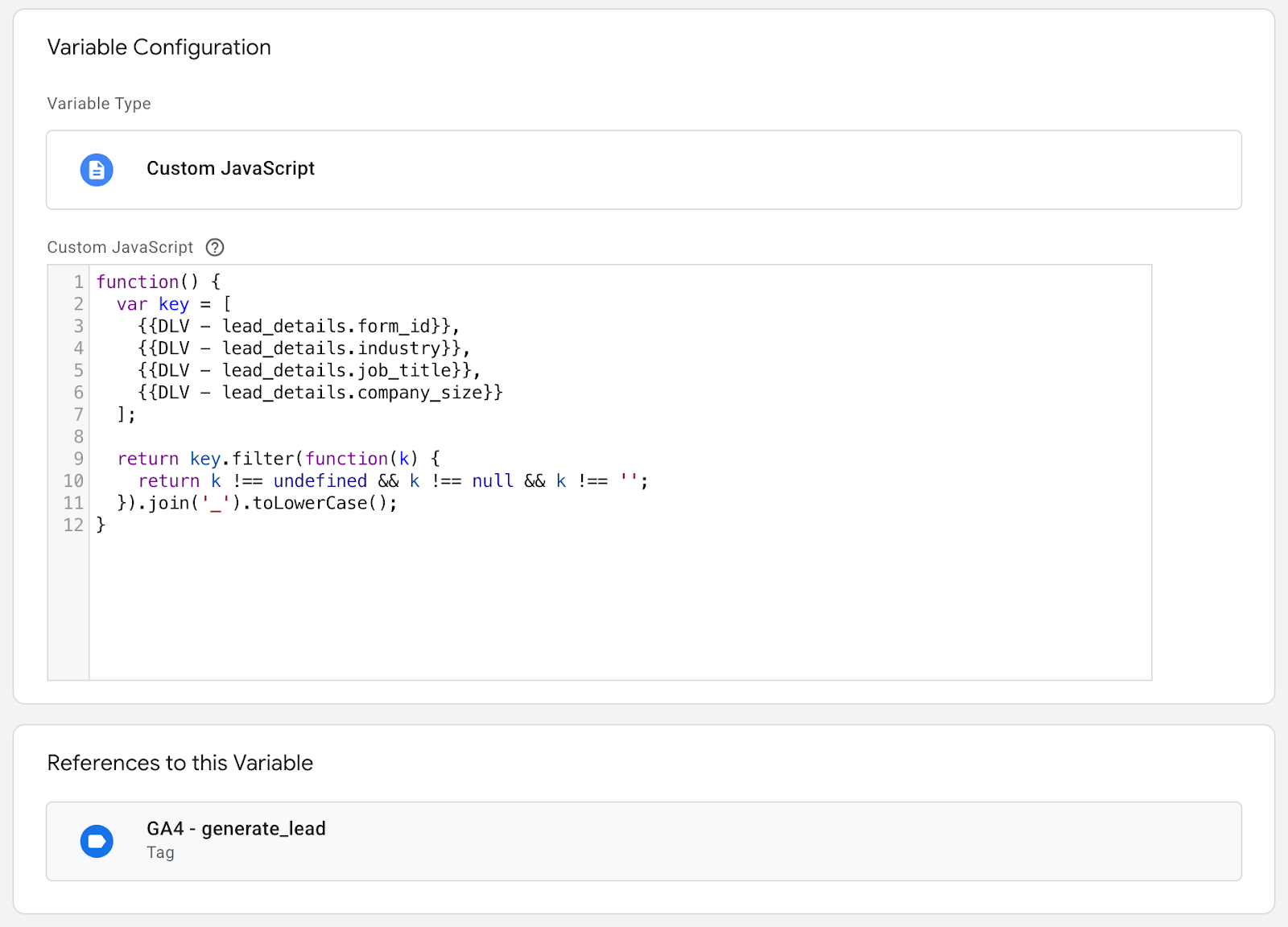
Also, we pass this parameter to server GTM via adding it to the GA4 tag.
2. Google Sheets Authorization.
For this article I use Stape hosting, so the Google Sheet authorization is done via Stape. In your Stape account go to Connections and authorize via Google account where the Spreadsheet with calculations is located.
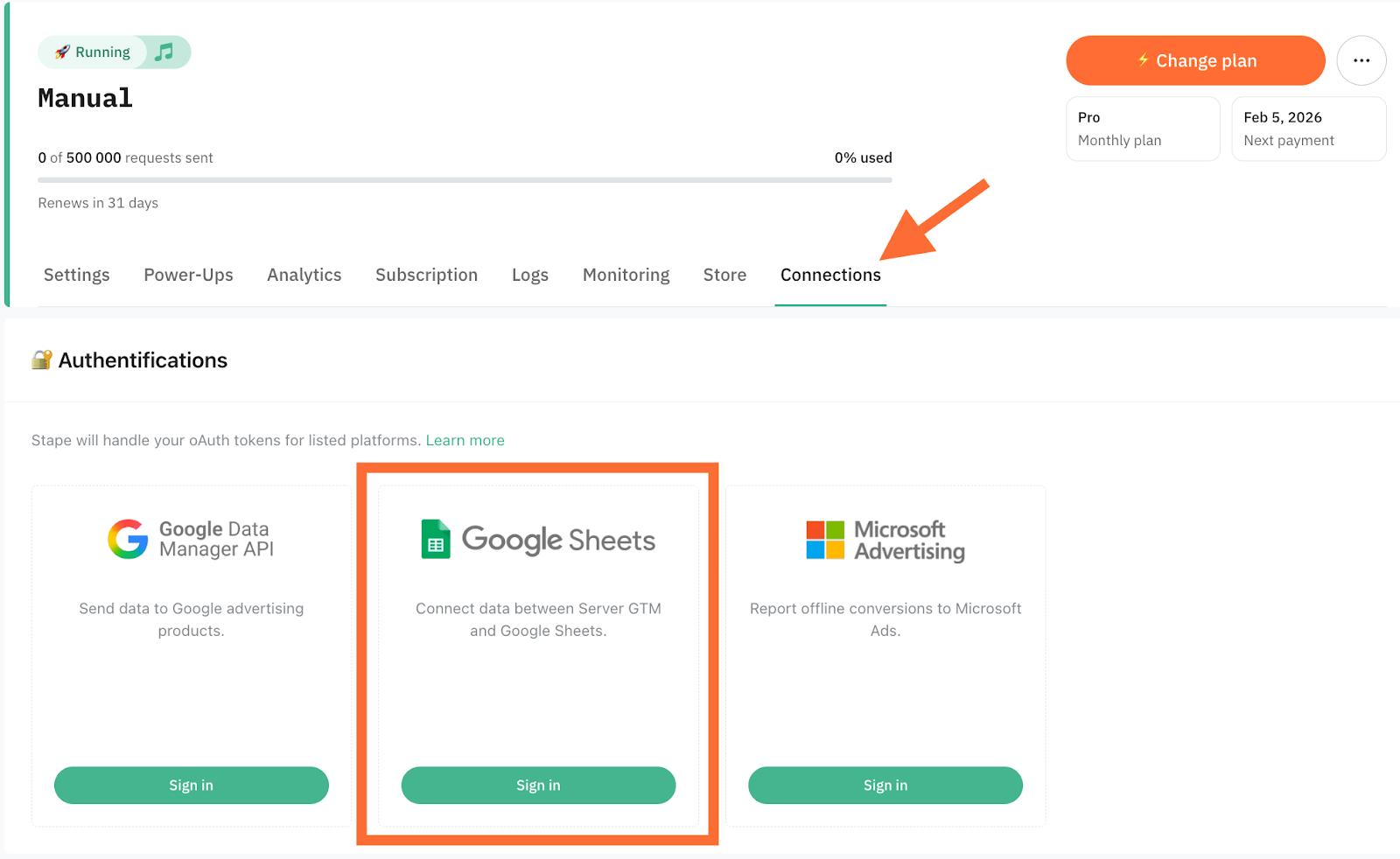
If you don’t use Stape as a hosting, you would need to set up manual access to your Google Sheets using your own credentials.
3. Configuring the Google Sheet Reader variable.
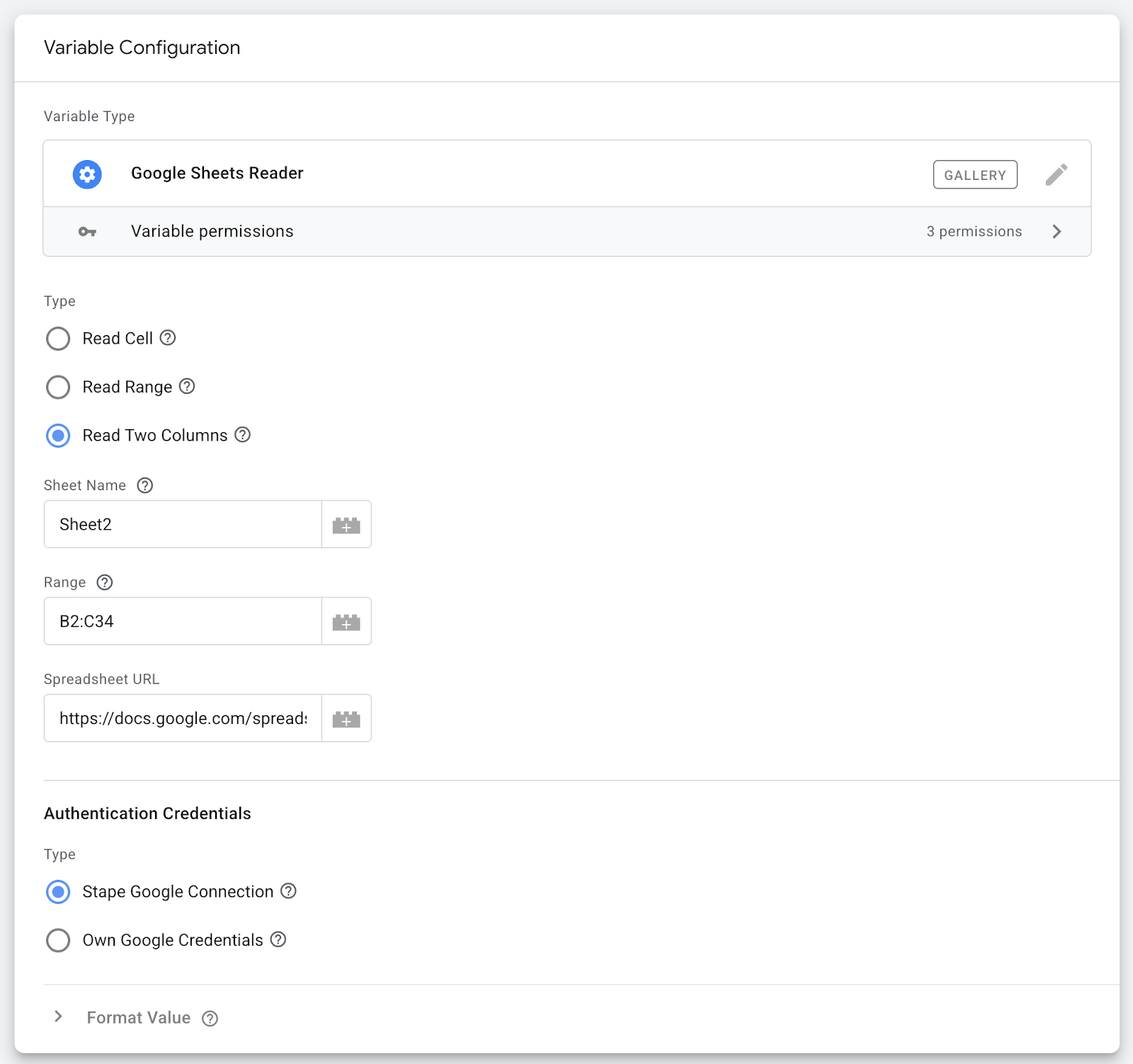
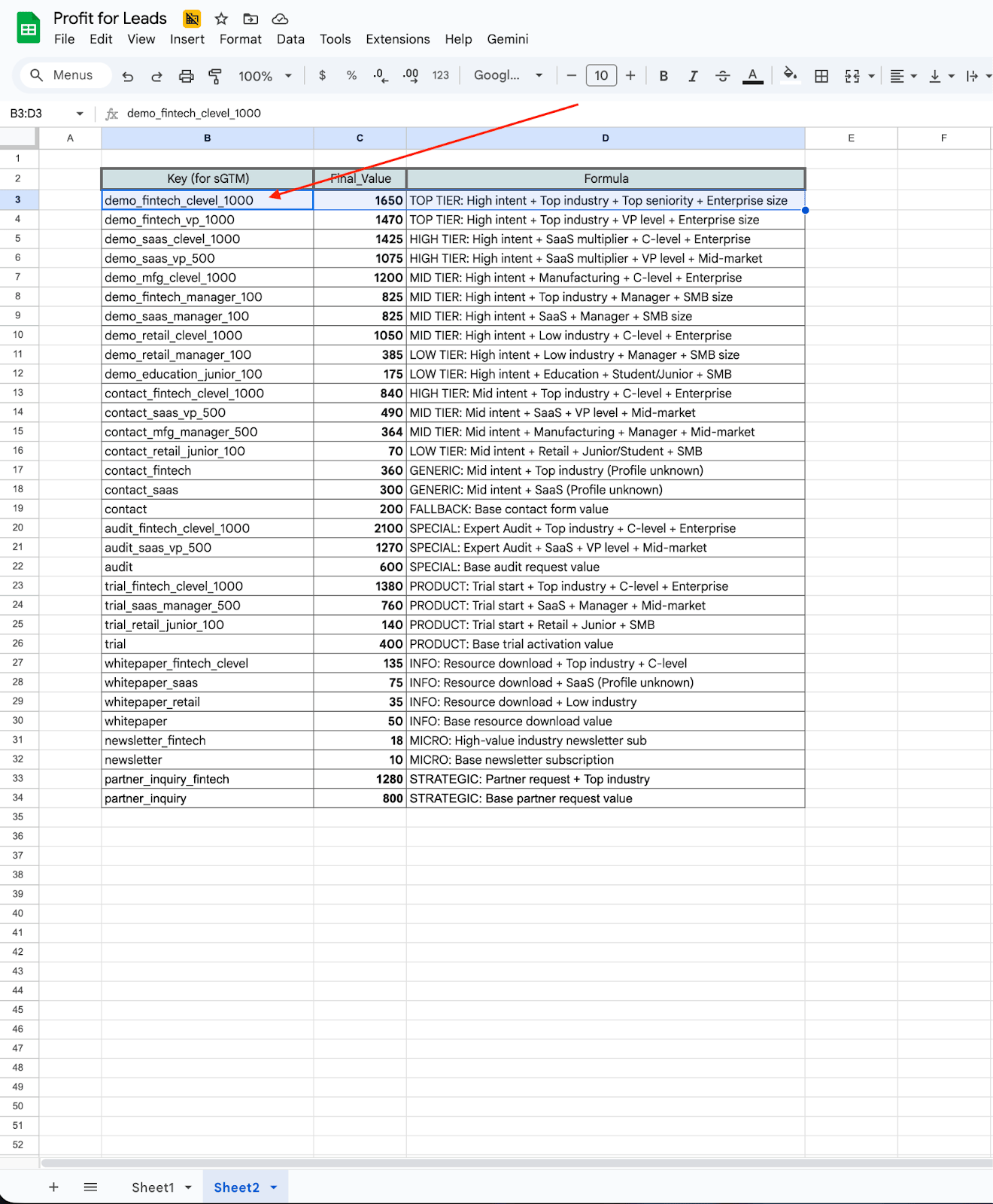
In the server container, download Google Sheet Reader variable template, create a Google Sheets Reader variable and insert all necessary data: sheet name, range (in my case from B2 to C34 cells) and spreadsheet URL.
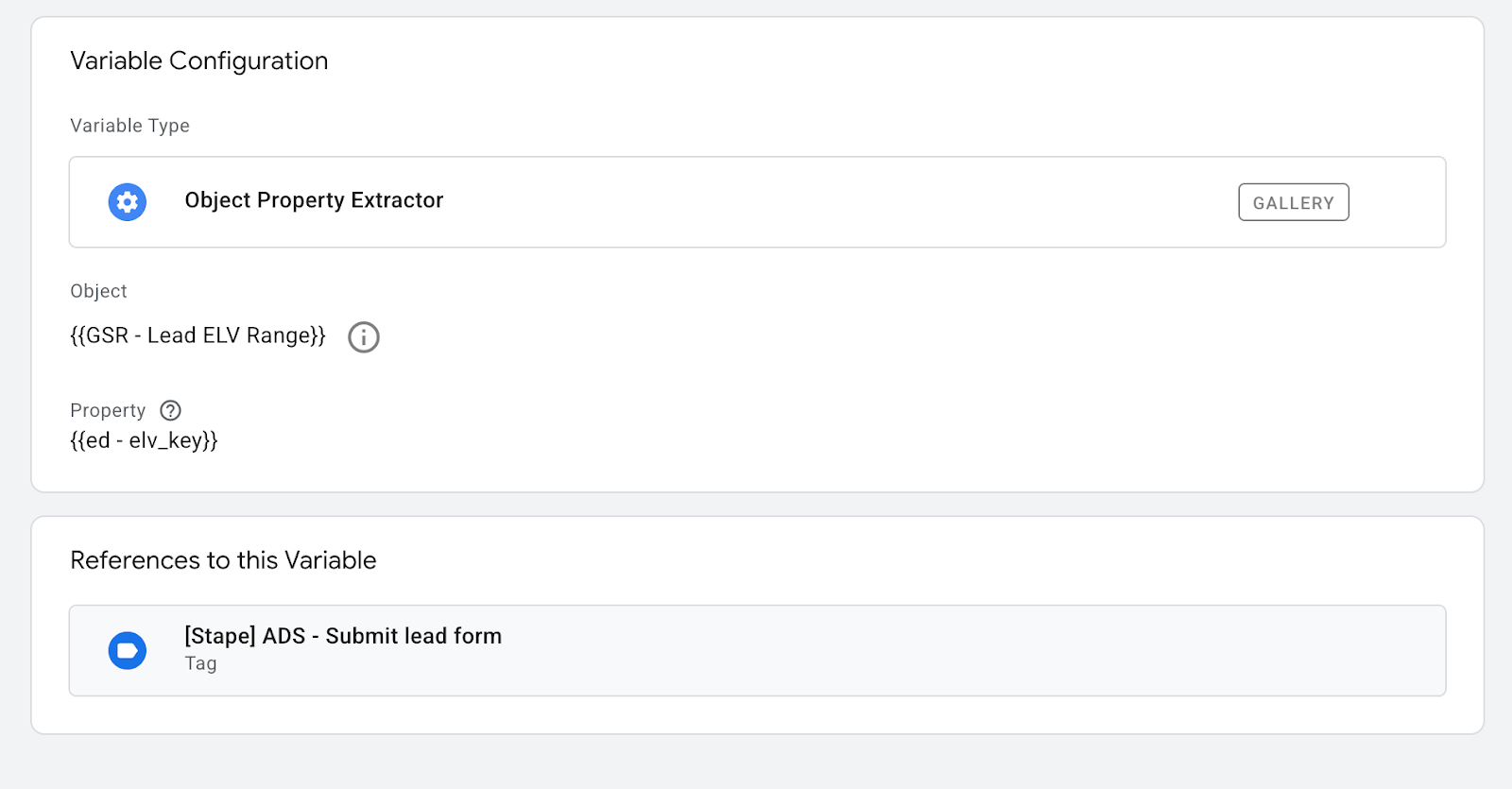
Then extract specific values from this Google Sheet range using the Object Property Extractor variable. Its template can also be found in the GTM Template Gallery. The logic here is in finding the same key as you have sent from the web, match them and get the desired result - final lead expected lifetime value.
4. Reporting Lead expected lifetime value.
In the server GTM, add Object Property Extractor variable in the Conversion value field.
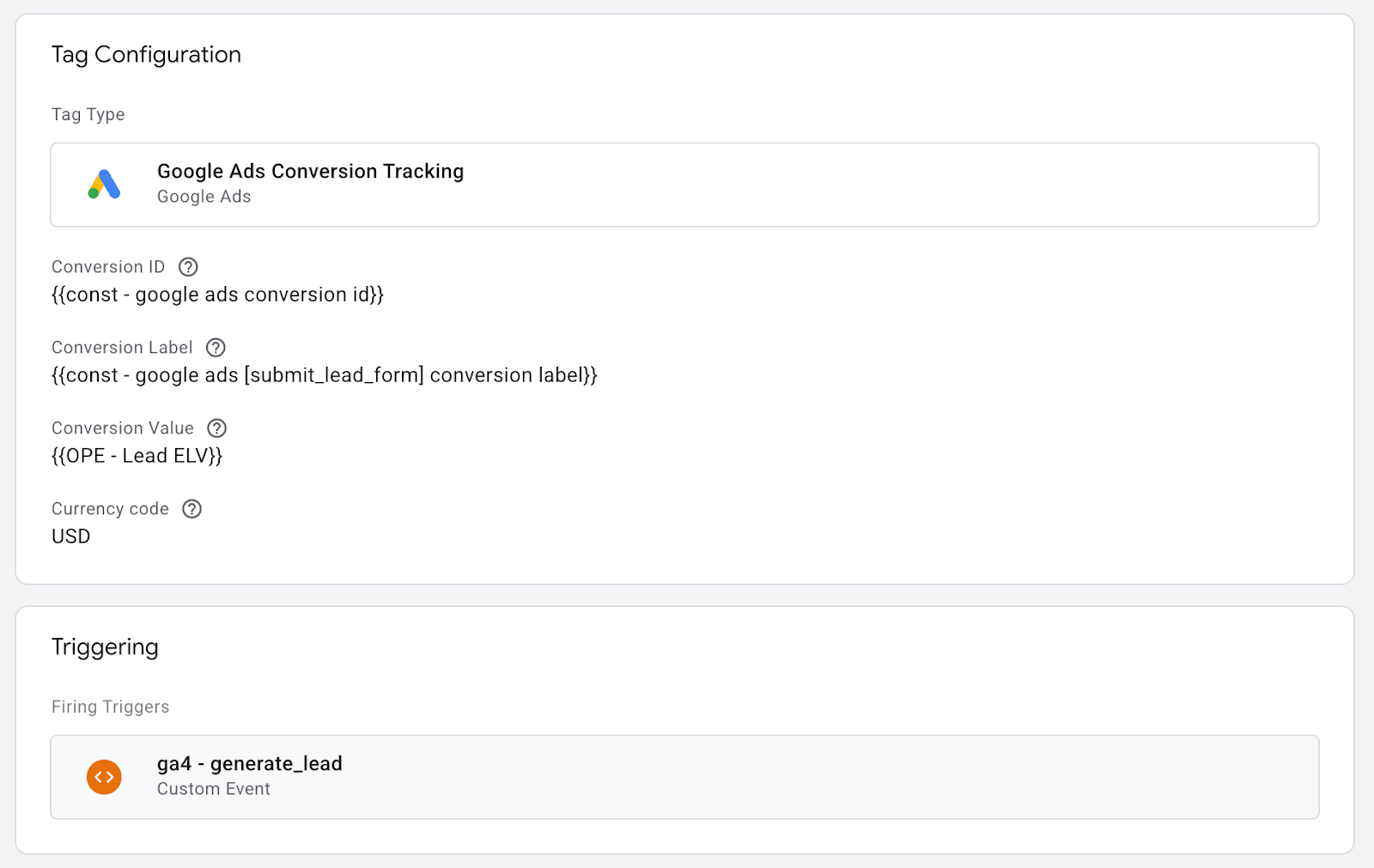
How to debug?
1. Run web and server GTM containers preview. Complete lead_generate event in web preview and check Google Sheet Reader and Object Property Extractor in server one.
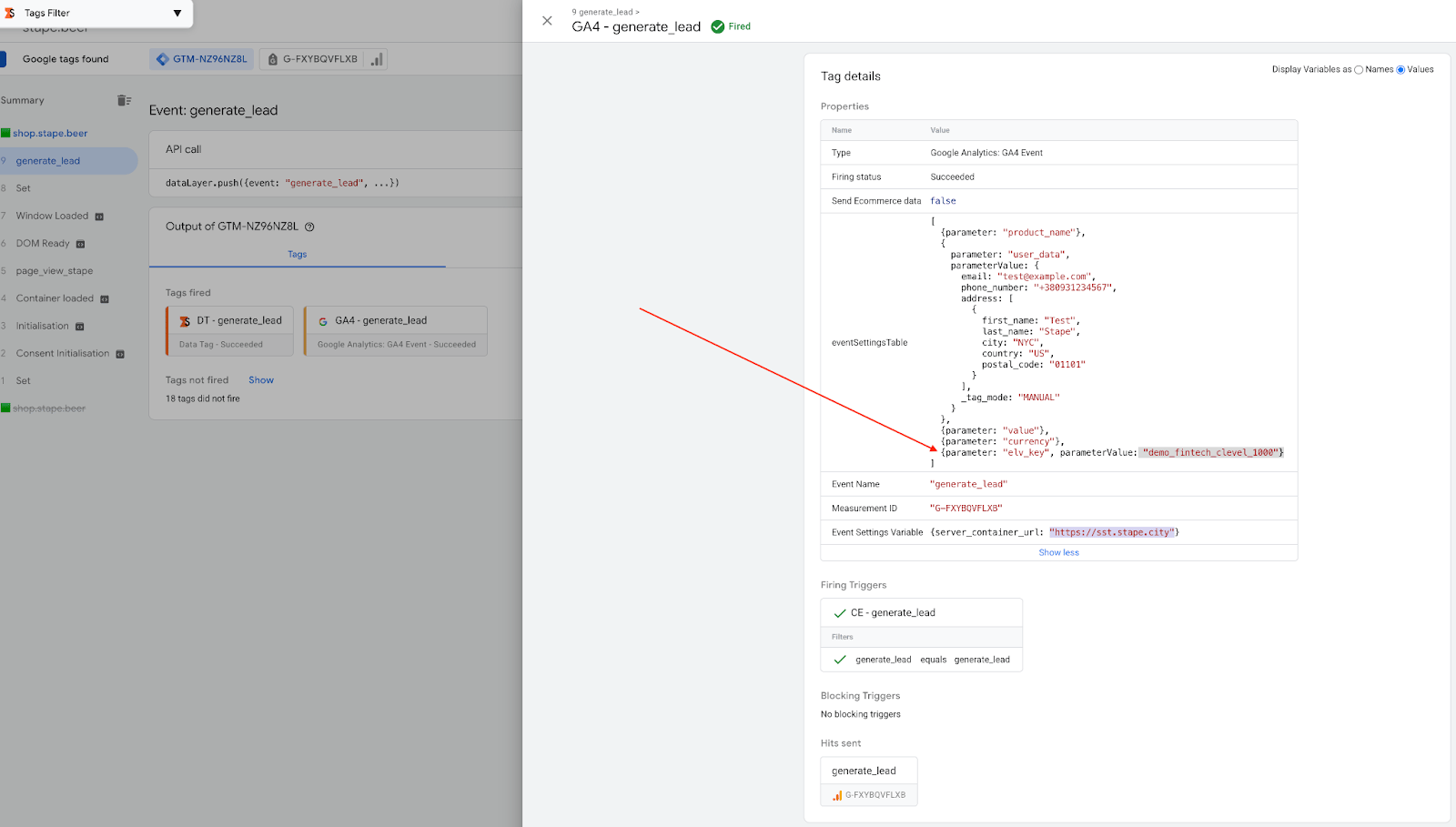
2. Compare key with keys in CSV and check expected cltv.
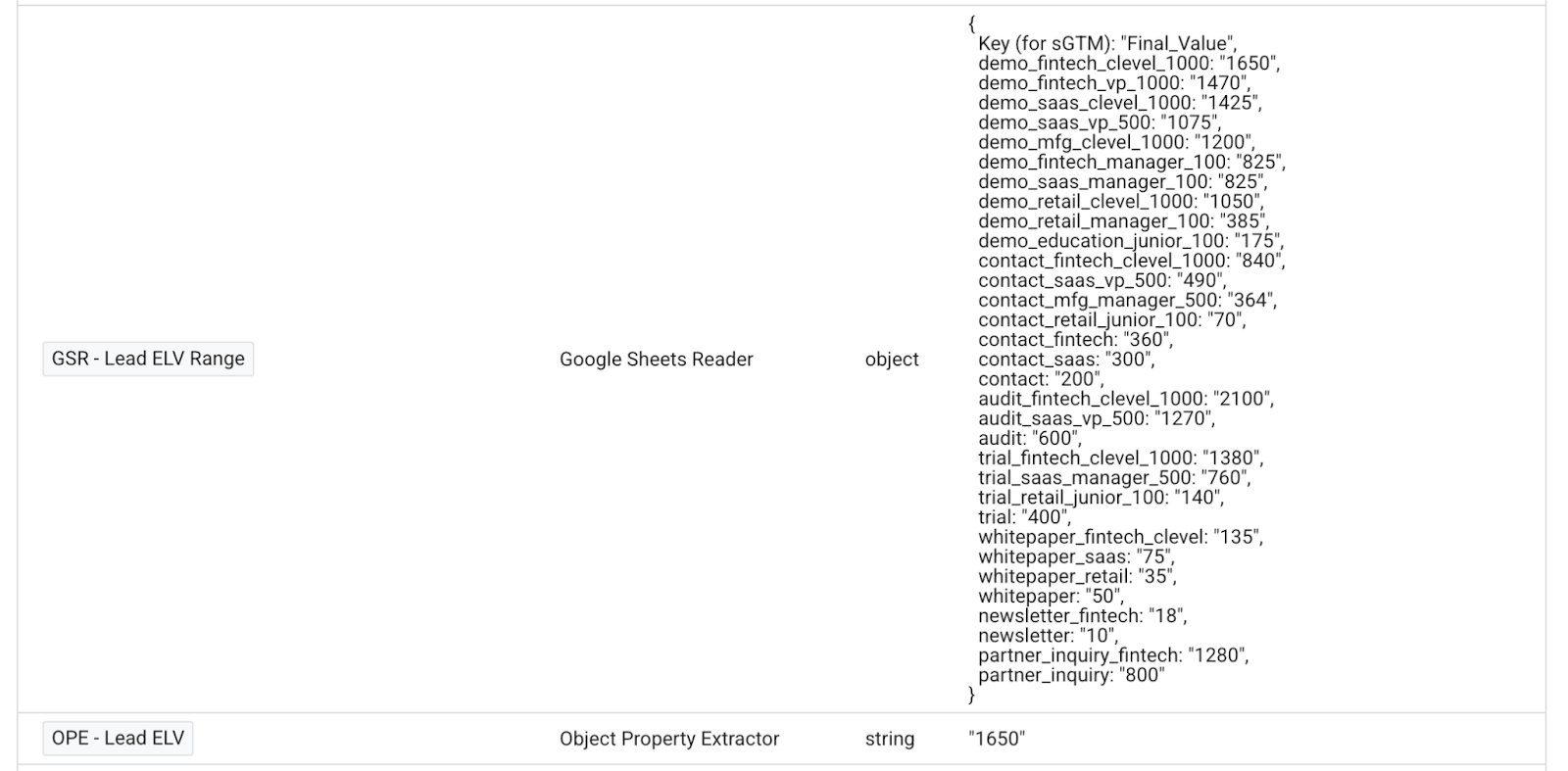
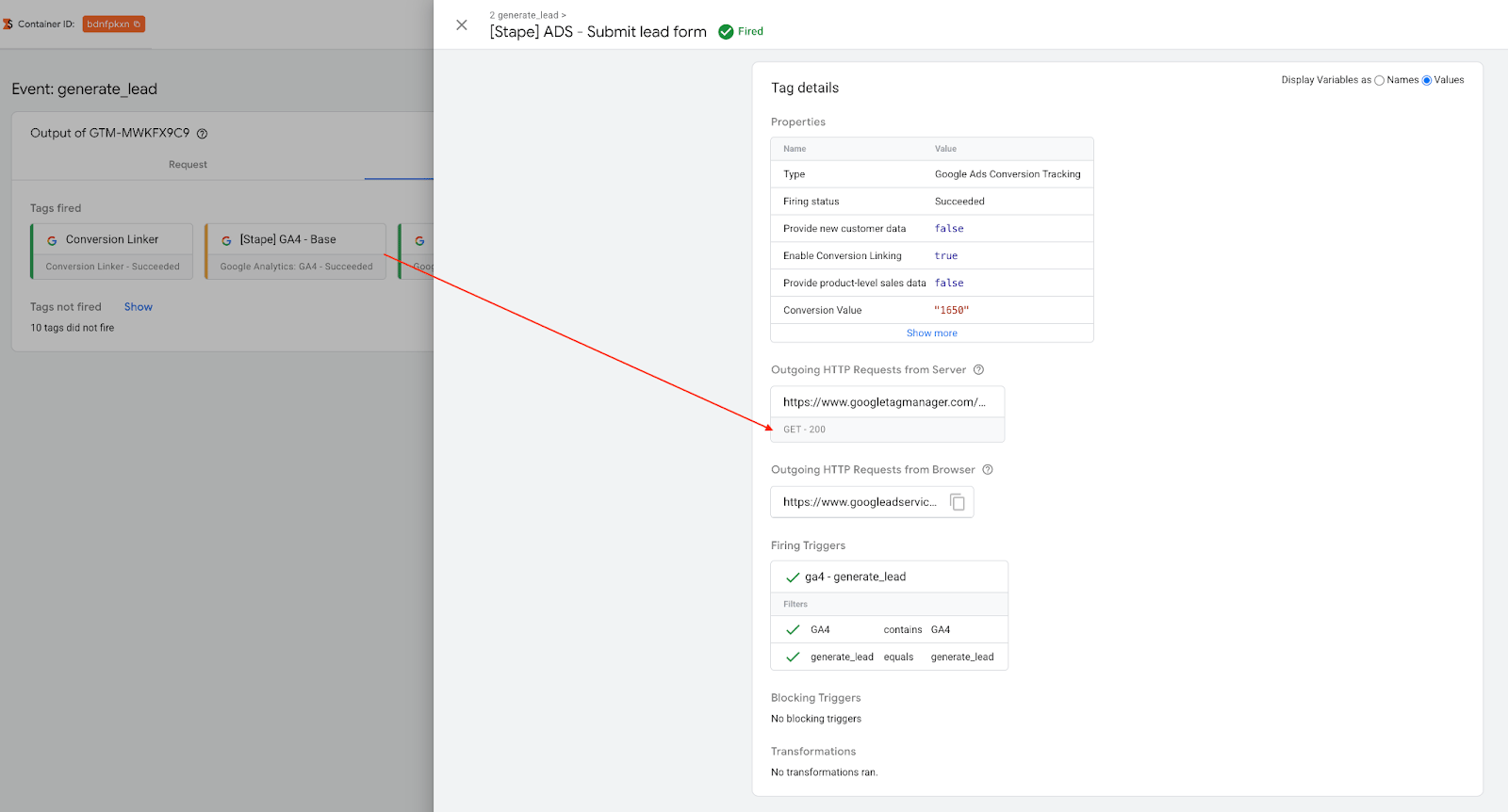
If everything’s fine with variables ensuring Google Ads value return Status Code 200, it’s a mark that requests got to the Google Ads successfully.
To sum up
As advertising strategies become more complex, so do the challenges of accurately tracking and valuing conversions.
In this guide, we demonstrated how the Google Sheets Reader and sGTM in general allow you to bridge the gap between offline-based business and online ad optimization. Our example enables you to pass high-value, sensitive lead data directly to your marketing platforms without a heavy technical background or exposing your internal margins to the browser.
This setup proves that with sGTM, you aren't limited by technology anymore; you’re able to sync any business data with your ad platforms and realize new ideas in life.
Want to try the server side?
Try for freeRecommended for you
Blog
Read data from Google Sheets to server Google Tag Manager
Read Google Sheets data directly into sGTM! This guide covers 'Read cell,' 'Read Range,' and 'Read Two Columns' variable actions for efficient data enrichment.
Jul 25, 2025

Comments