How to set up HighLevel app
Updated Jul 6, 2026
The Stape Conversions Tracking HighLevel CRM app allows you to send Opportunity status updates from HighLevel CRM to platforms like Meta, Google Ads, and others that support server-side tracking. It also transmits offline conversion data to these platforms, which can then be used to optimize campaigns and target audiences more likely to convert.
App installation
Before you start
Make sure you have a sub-account on HighLevel.
You can find your sub-account on the left-hand side of the panel in the section Sub-Accounts.
If the page Sub-Accounts is empty, click the Create Sub-Account button in the top-right corner → choose account type → choose a snapshot → add your client's address → Save.
Installation process
Install Stape Conversion Tracking HighLevel app on HighLevel's marketplace.
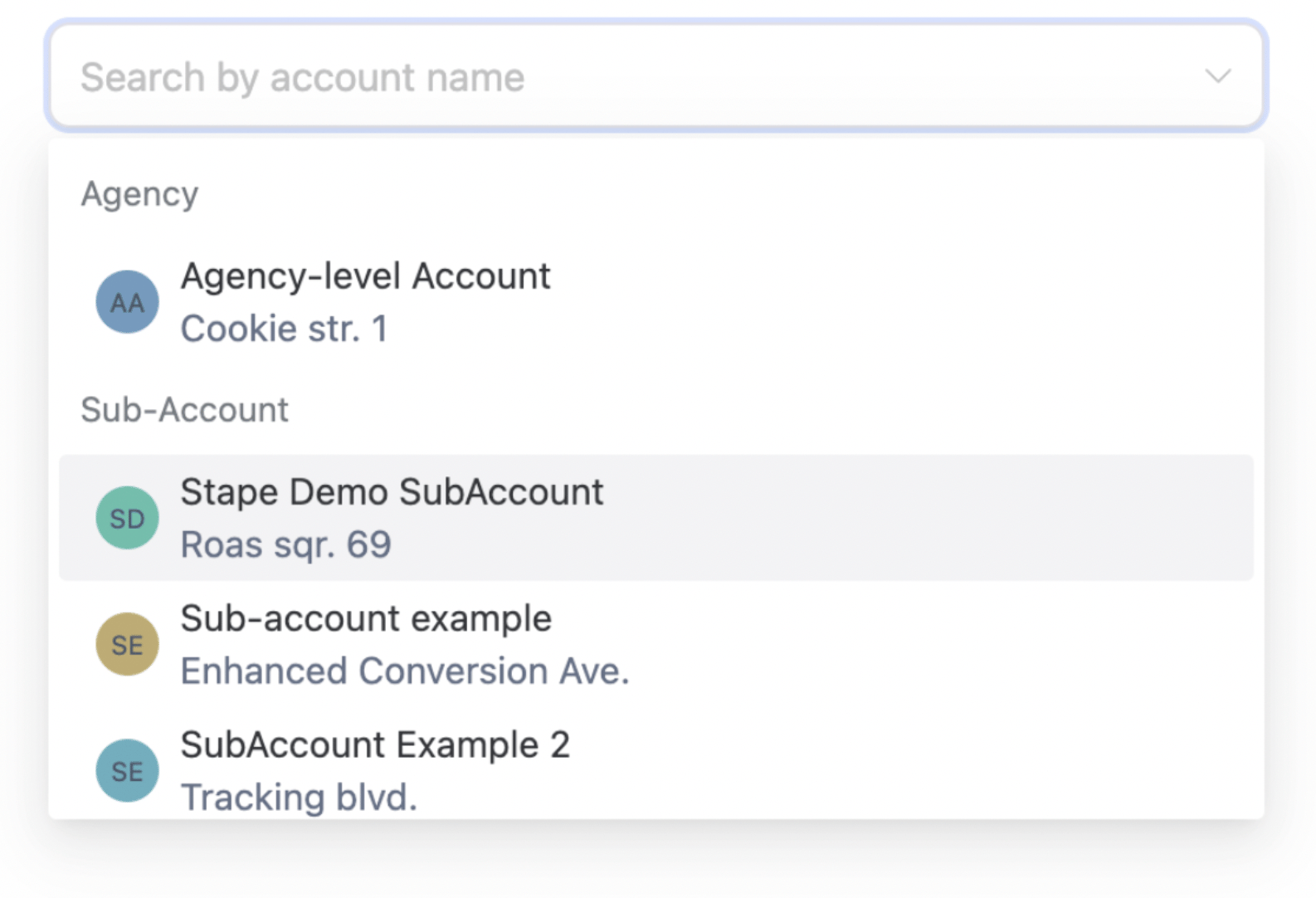
Select a sub-account you want to install the app on.
Integration methods and their differences
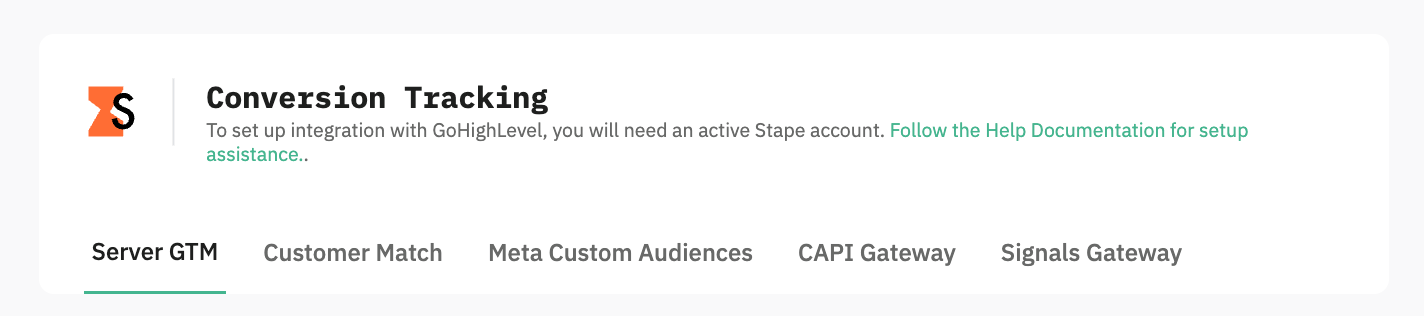
The HighLevel CRM app by Stape provides 5 different integration methods for sending lead and opportunity data to your marketing platforms.
| Note: You can configure multiple tabs/methods; each one runs on its own. |
Server Google Tag Manager (sGTM)
This method integrates directly with your server-side Google Tag Manager container. It gives you full control over how data is processed and routed.
Server GTM is best for tracking setups that require custom logic or integrations with other platforms that Signals Gateway doesn’t provide. It offers the highest level of customization and control, but requires more technical setup and ongoing management.
Customer Match (Google Ads)
It sends CRM audience and contact data directly into Google Ads, where it is used to create and update Customer Lists for targeting and remarketing.
Customer Match is best for users who run Google Ads campaigns and want to build and automate Google Ads audiences based on CRM activity, such as leads, opportunities, and customer lifecycle stages.
Meta Custom Audiences
The method focuses on syncing CRM data to Meta Custom Audiences for retargeting and segmentation. Once configured, it sends data about users who have already interacted with your website or CRM into Meta, so you can target them based on their stage in the customer journey.
Meta Custom Audiences is best for advertisers who want to retarget and re-engage users who have already interacted with their business.
Meta Conversions API Gateway (CAPIG)
This integration is built for Meta platforms such as Facebook and Instagram. It sends CRM event data directly to the Meta Conversions API.
Meta CAPIG is best for users who only need to track offline conversions and events in Meta. It is the most direct and simplest way to connect CRM data to Meta, but it is limited to Meta’s ecosystem.
Signals Gateway
Signals Gateway is the unified routing solution. Instead of sending data separately to each platform, you send it once to Stape and then distribute it to multiple destinations.
Signals Gateway is best for users who, besides Meta, want to connect a few other platforms and look for a balance between simplicity and flexibility. Signals Gateway is more powerful than CAPIG (as it provides the option to add other platforms), and easier to configure than server-side GTM.
Configure the app based on the configuration method
Server GTM
App setup
The setting process can be divided into two parts:
- Stape account data
- HighLevel CRM fields
Stape account data
You will need to fill in the following field:
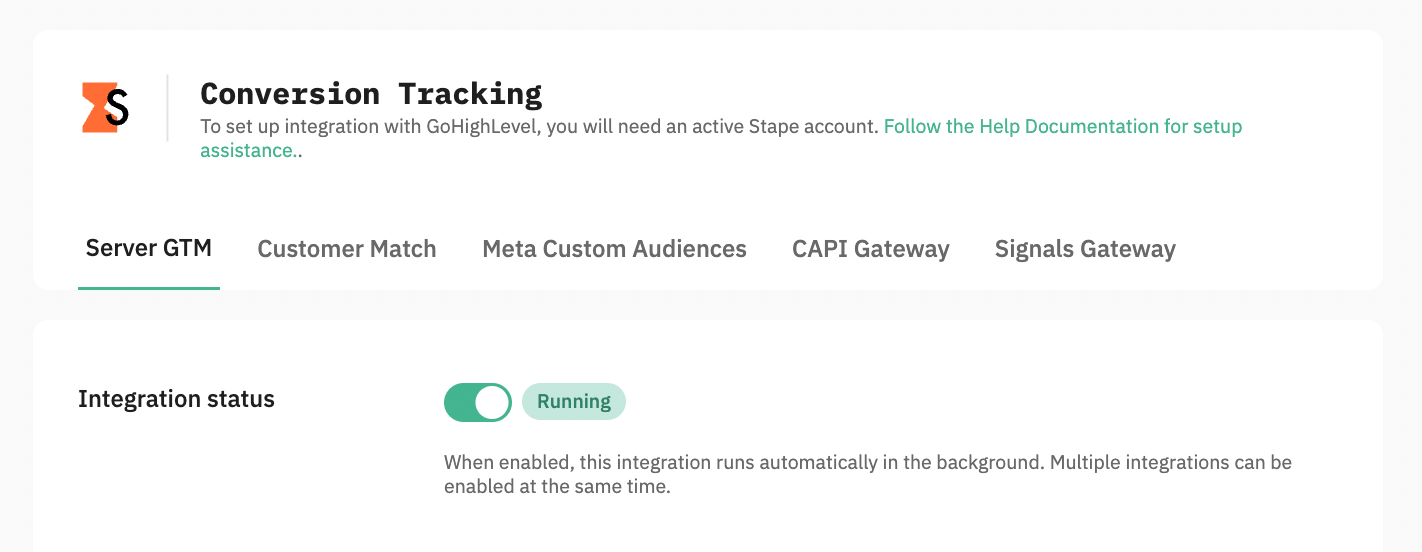
- Integration - switch Activate toggler on to enable the current integration (tab) to run in the background.
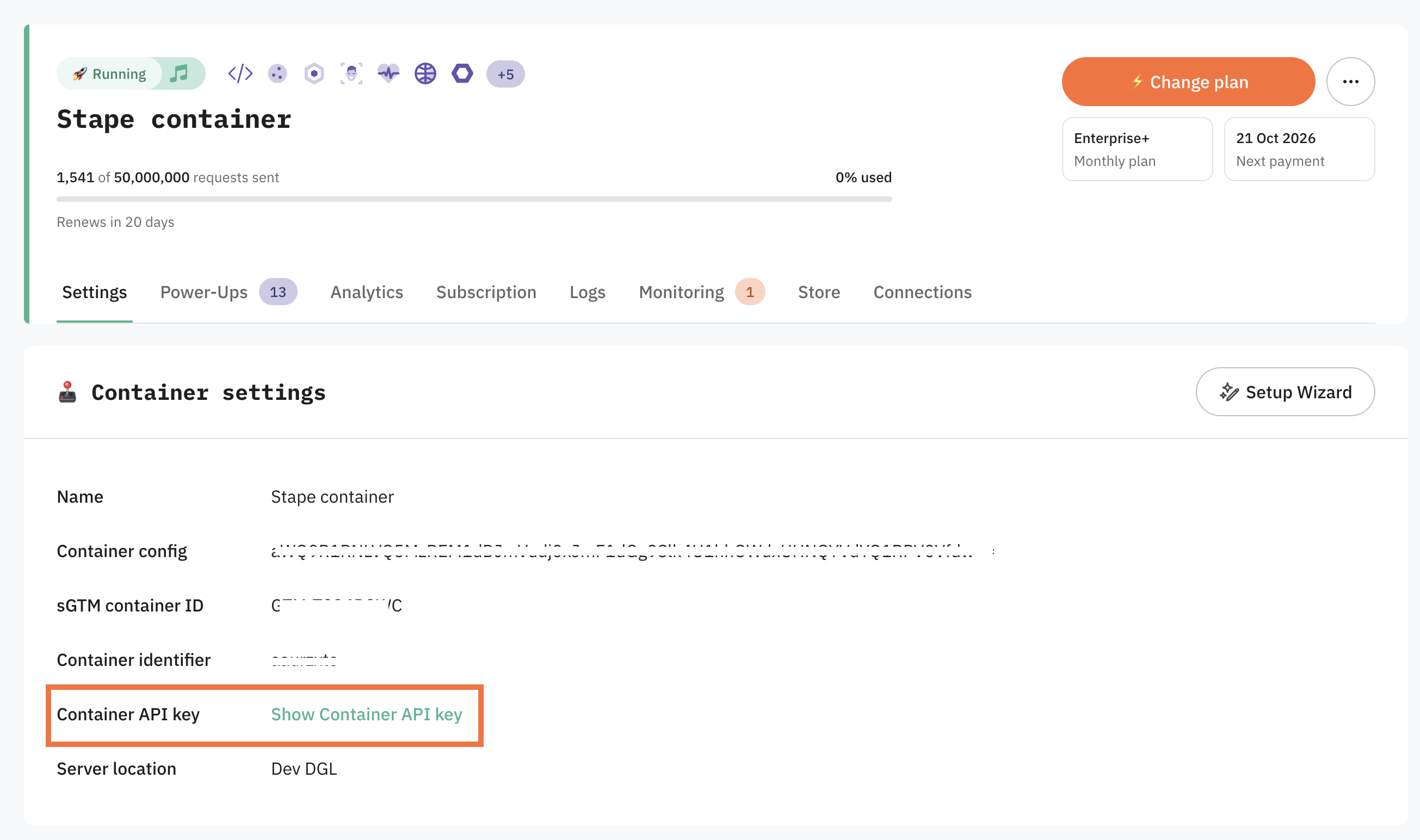
- Container API Key - an alphanumeric string value that is needed for app identification. Find Container API Key in the Container settings section of your Stape account. See the detailed instructions on where to find Container API Key.
HighLevel CRM fields
Next you need to map your CRM fields to conversion event parameters.
- (Optional) Pick a field where Meta Lead ID is stored.
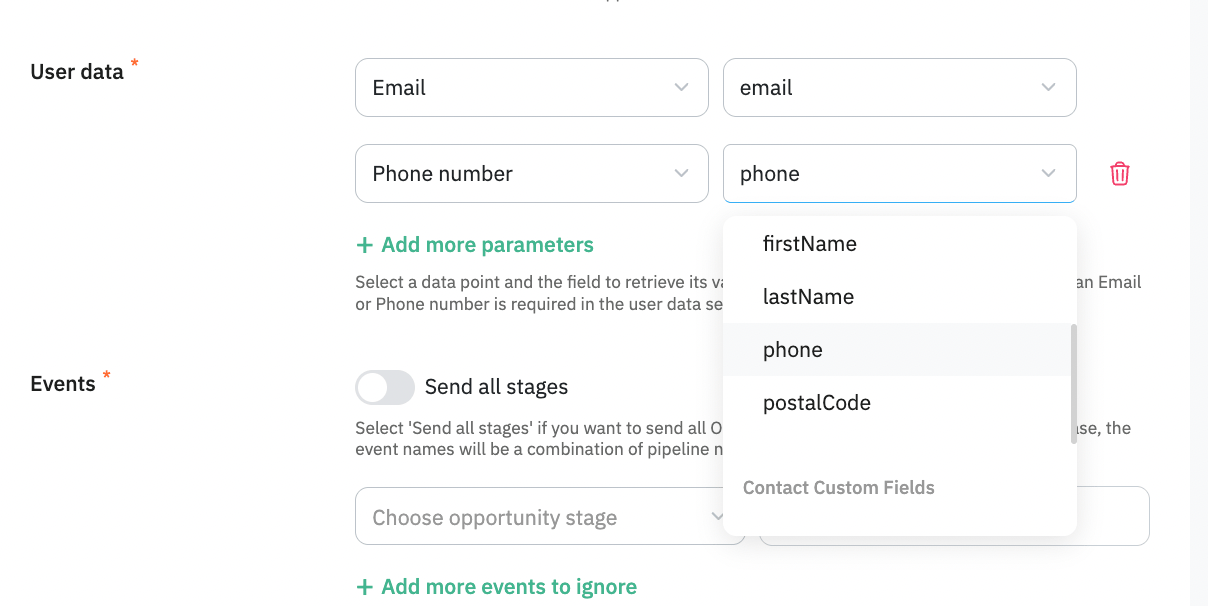
- Configure additional User data you'd like to send to server GTM, by choosing a parameter in the left dropdown and selecting an appropriate field in the right-side one.
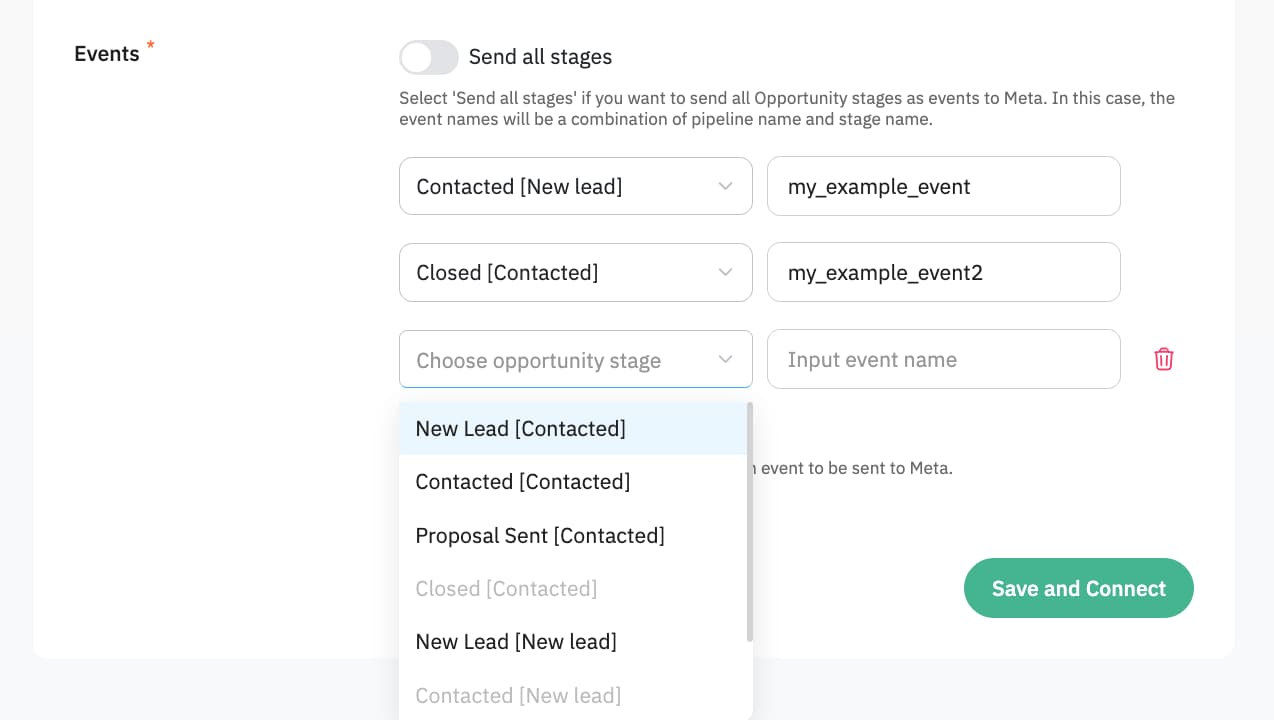
- Application sends conversion Events based on stages of your Opportunities, whenever an opportunity reaches a stage you define, a corresponding event will be sent towards your server GTM container. So we need to configure it by choosing one of two approaches:
- In the left-side dropdown, select an Opportunity stage to trigger an event; in a box to the right, type the event name you'd like to send to server GTM.
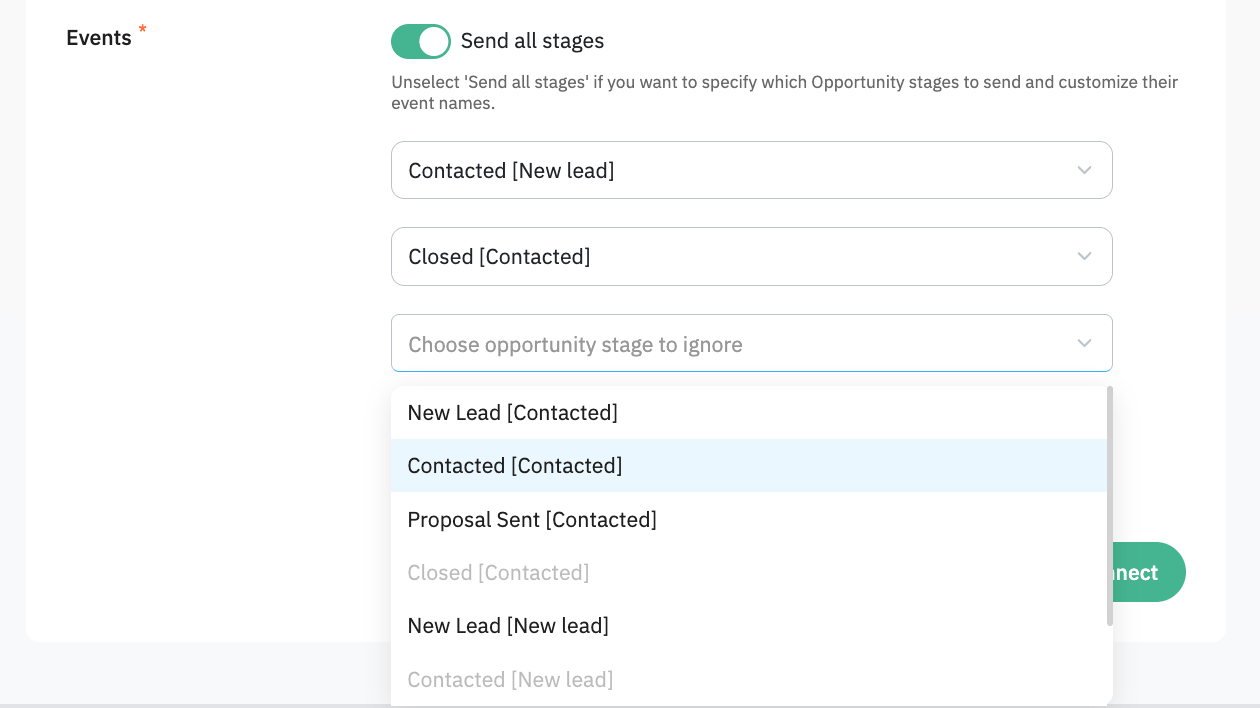
- Select the Send all stages checkbox if you want to send all Opportunity stages as events to server GTM. Events are then named automatically and consist of an Opportunity stage name. You can also select stages to ignore in this case.
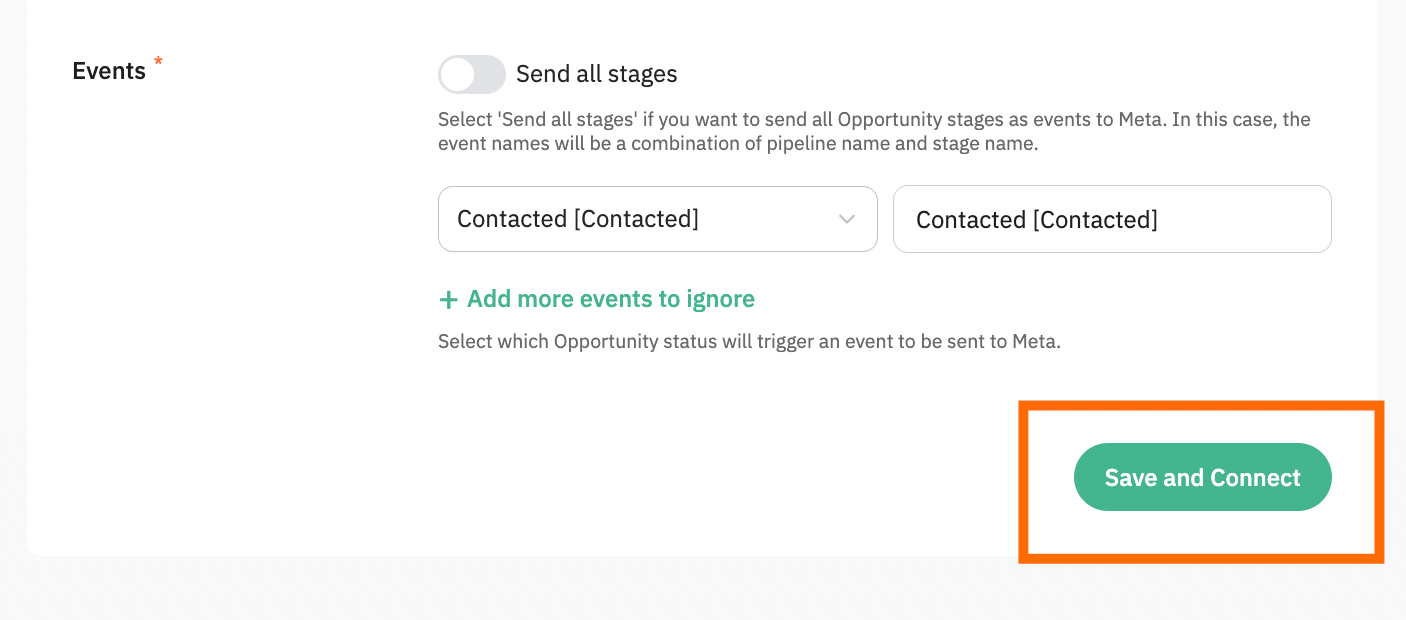
Once done, click Save and Connect. Once you see a success message your installation is complete and the application will send conversion events in the background based on your settings.
Customer Match
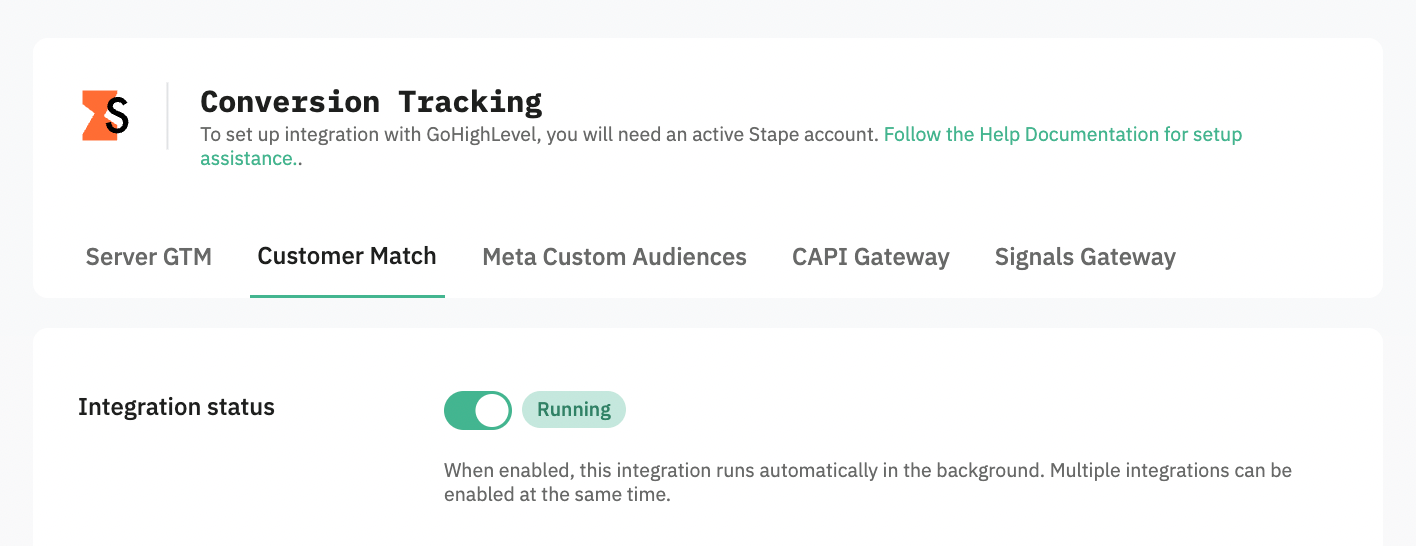
If you are using Customer Match as a configuration method for the Stape Conversions Tracking HighLevel CRM app, once configured, a new Customer List will be created in Google Ads. Please note, only Customer Lists created automatically by the Stape connection are supported.
Manually created or pre-existing lists in Google Ads will not be populated. For more info on Customer List, please check our article.
App setup
The setting process can be divided into two parts:
- Stape and Google Ads accounts data
- HighLevel CRM fields
Stape and Google Ads account data
You will need to fill in the following fields:
- Integration - switch Activate toggler on to enable the current integration (tab) to run in the background.
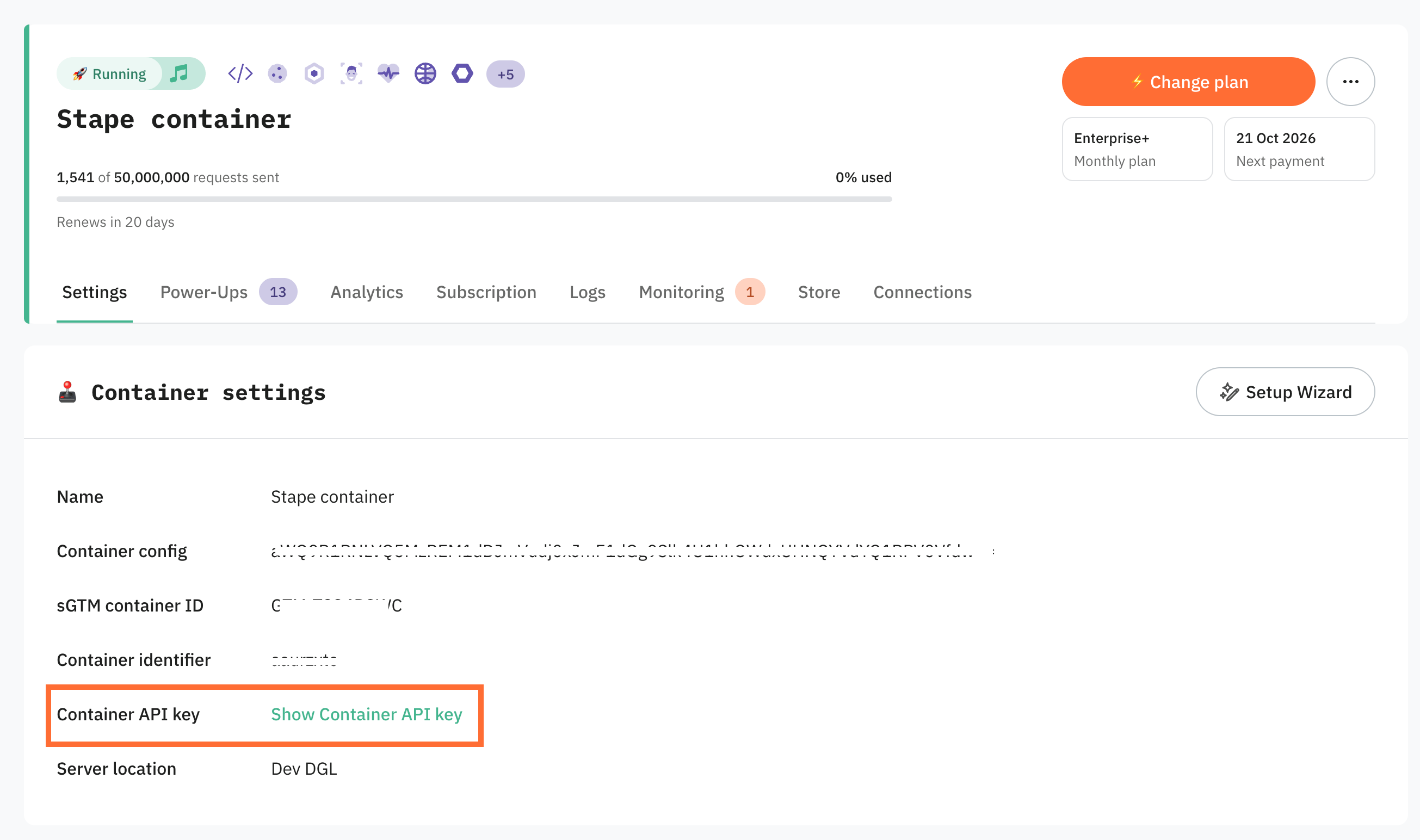
- Container API Key - a string used for app identification. Find Container API Key in the Container settings section of your Stape account. See the detailed instructions on where to find Container API Key.
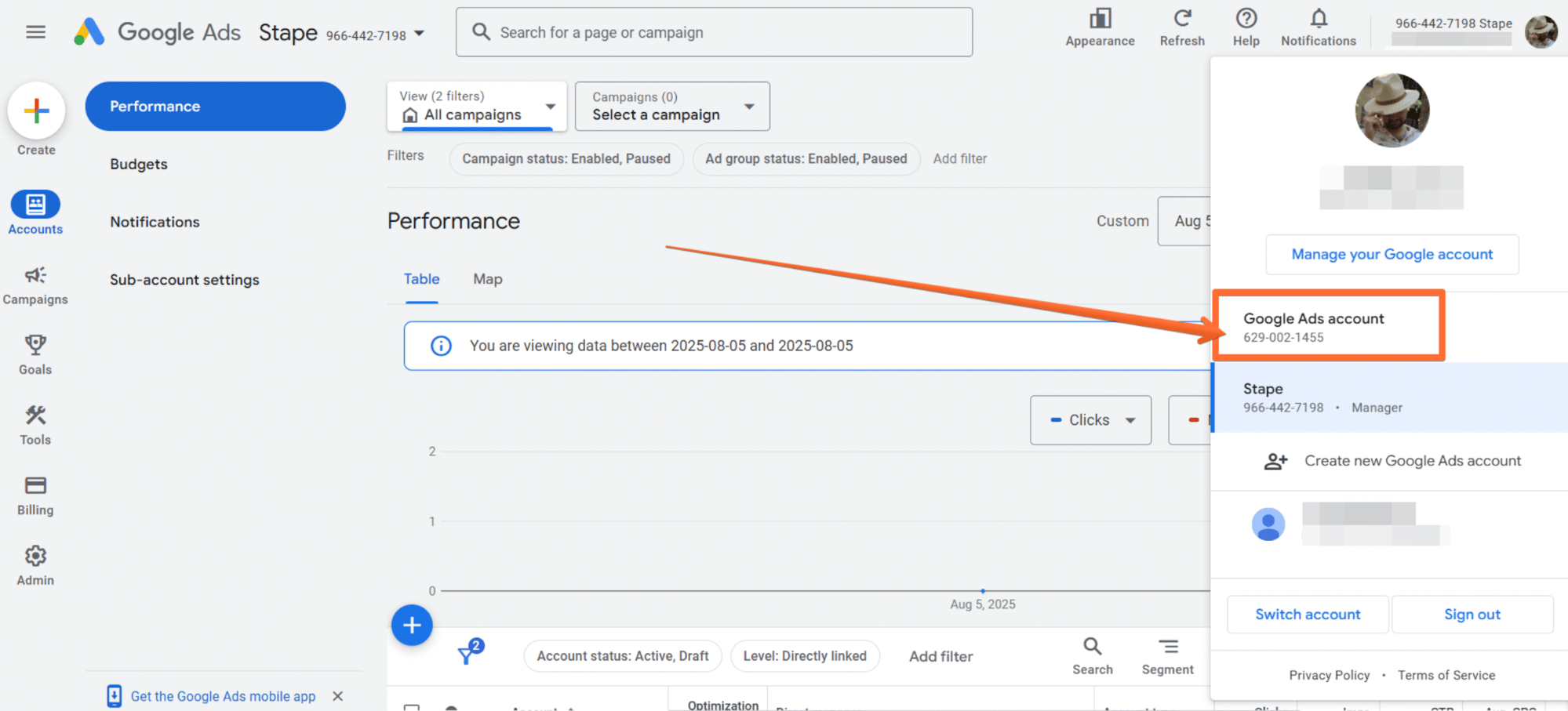
- Google Ads Operating customer ID - the ID of the Google Ads account where the Customer List will be created or updated. To get it, sign in to your Google Ads account → in the top right corner, click on your picture → copy the value.
Please make sure to remove hyphens before using the string as the Operating customer ID.
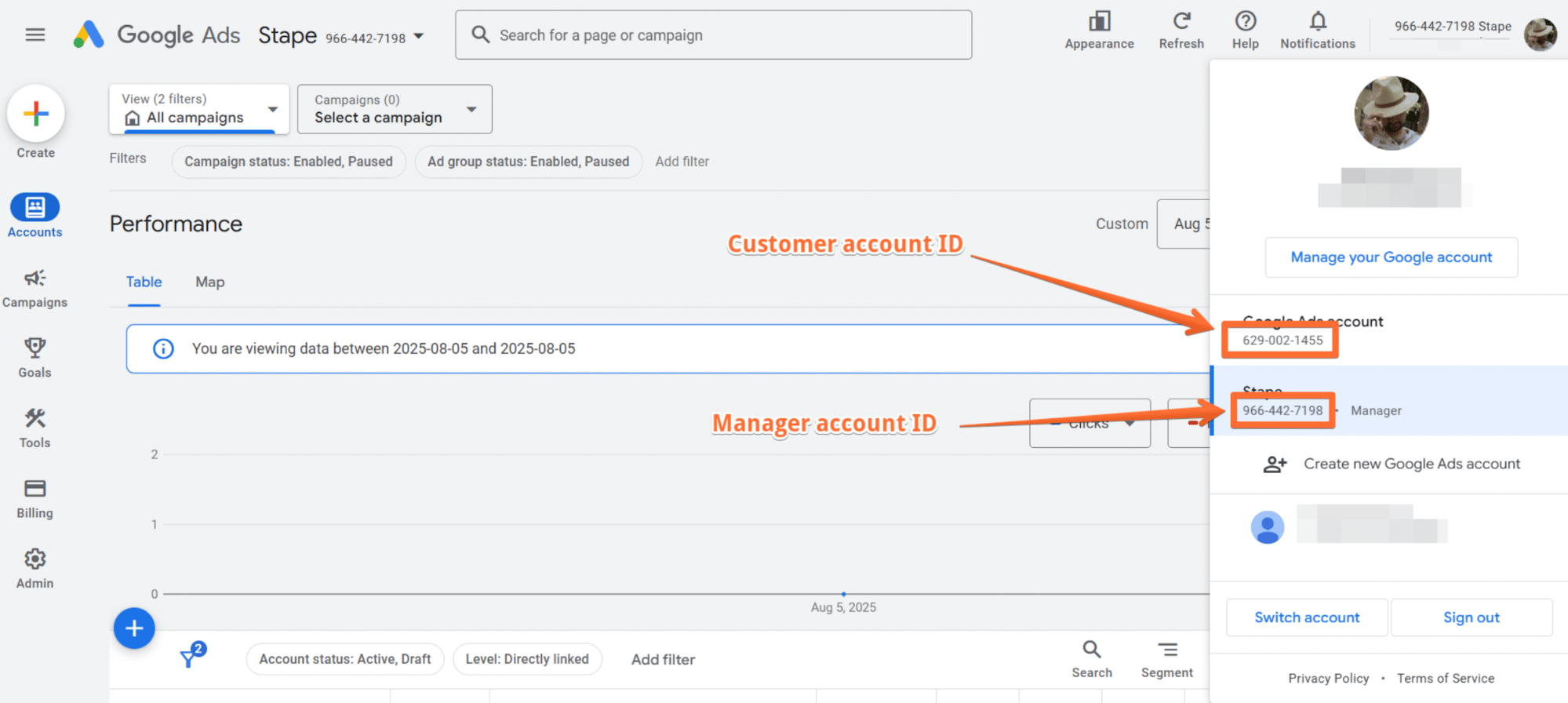
- Google Ads customer ID - stands for the ID of the account that you're using for authorization. Based on the type of account, you should copy the following values.
- If you're using your customer account, use the customer account ID.
- If you access the customer account through a manager account, use the manager account ID.
Please make sure to remove hyphens before using the string as the customer ID.
HighLevel CRM fields
Next, you need to map your CRM fields to audience member identifiers.
- User data - choose the data you want to fill the Custom Audience in Meta with, and specify user and ads data consent status from the drop-down list.
Please note: Address data will be included only if all four fields (First Name, Last Name, Region, Postal Code) have values.
- Actions & triggers - choose Action, Opportunity Status, and name a Customer List to be synced to. After configuring Customer Match in the HighLevel app, a Customer List will be created in Google Ads.
Please note: stape_ is always appended, and the name of the list must always start with stape_, e.g., stape_highlevel_purchasers.
- Backfill - if you check this box, the app will sync existing contacts using the settings in the app above. When the unchecked box is selected, it will sync only new contacts that reach the configured statuses. Unchecking later doesn't remove contacts already synced.
Once done, click Save and Connect. Once you see a success message, your installation is complete, and the application will send conversion events in the background based on your settings.
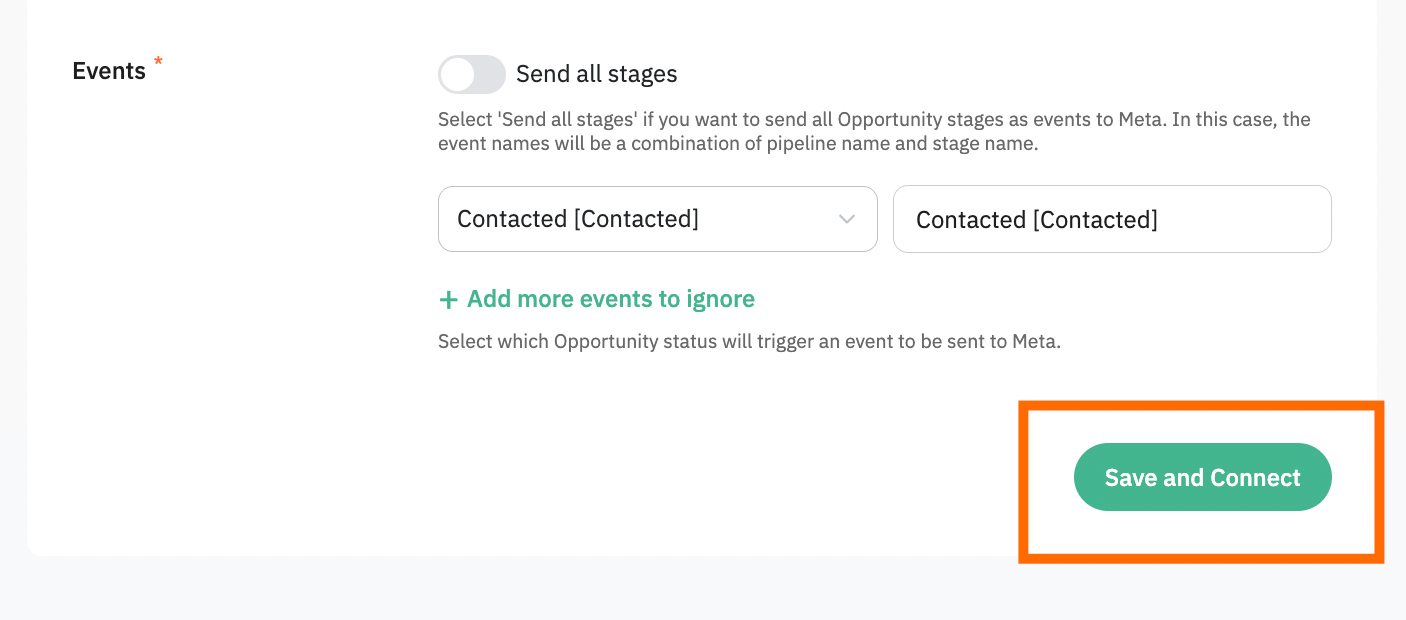
Meta Custom Audiences
If you are using Meta Custom Audiences as a configuration method for the Stape Conversions Tracking HighLevel CRM app, once configured, you will send data on users who have already interacted with your website to Meta. The platform will use the data to target users based on their specific stage in the customer journey.
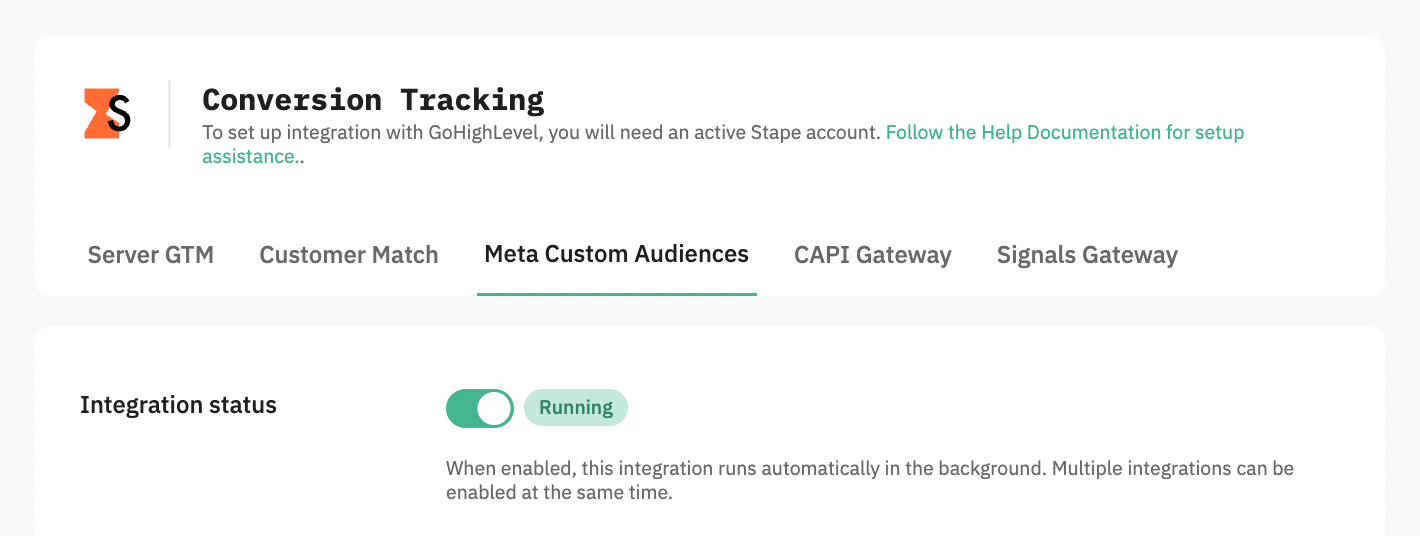
Before you start
1. Make sure you have an active Stape account with a server GTM container hosted on Stape.
If you don't have an account on Stape, please create one or log in if you already have one. In the main menu, click sGTM → Create container on the top right.
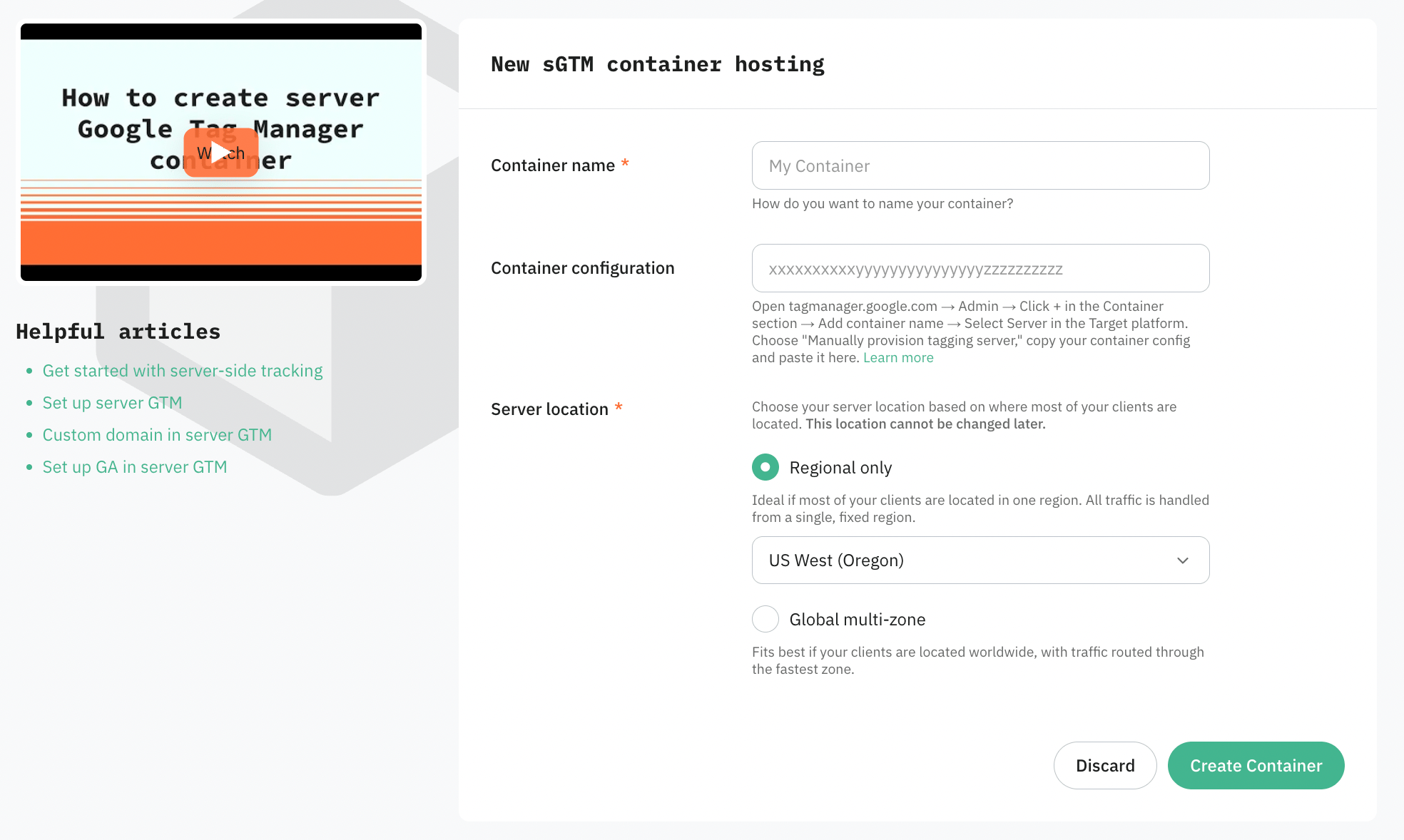
Add your container name, the Container configuration that you copied from your Google Tag Manager Server Container, and select the server location. Click Create Container.
| For more detailed instructions, check Stape's article on how to set up a Google Tag Manager server container. |
2. Create a custom audience in Meta.
We show how to do it in detail in our guide on Meta Custom Audiences in step 1.
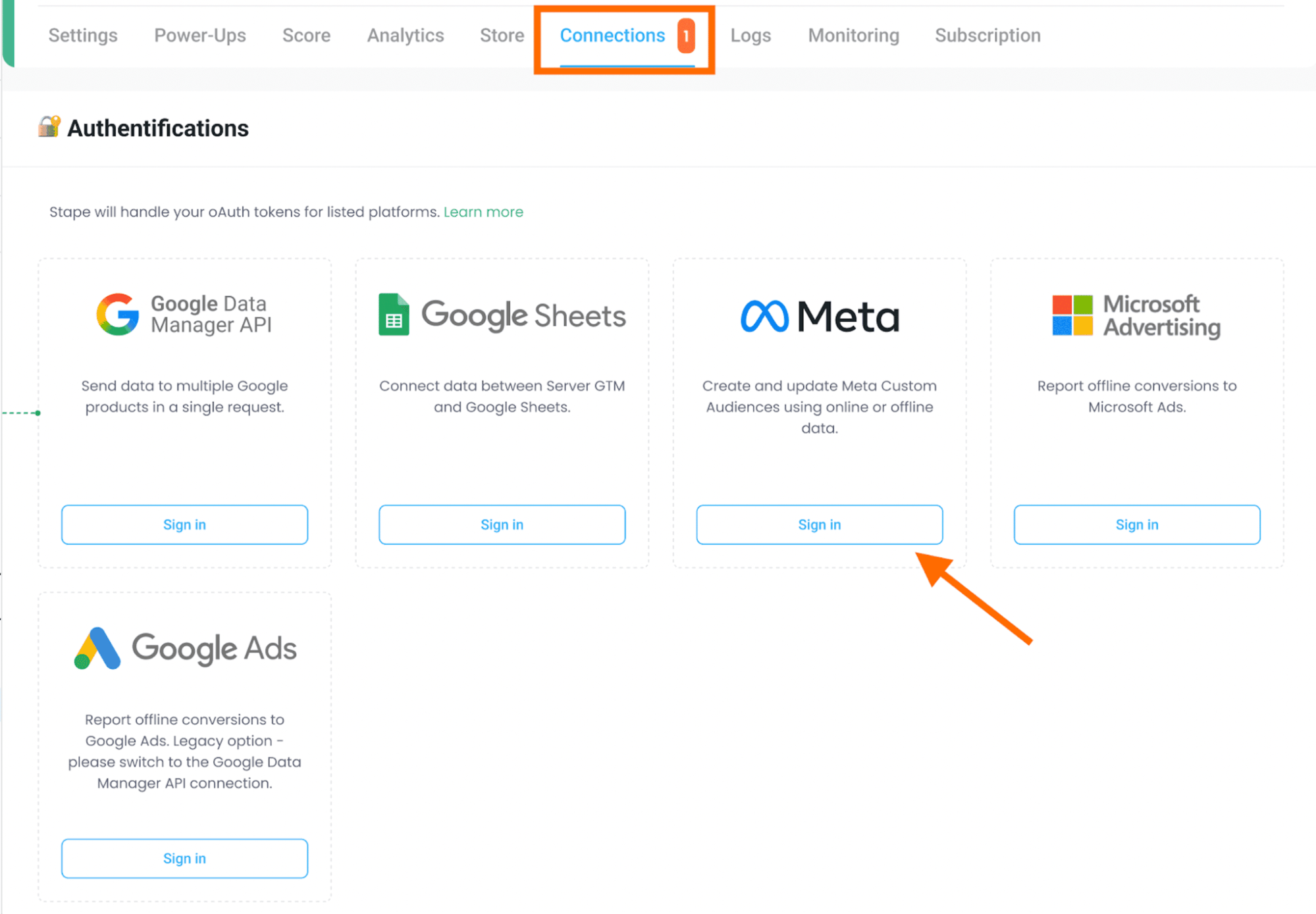
3. Enable the Meta Connection in your Stape admin account.
Open the required container, go to the Connections tab, and click Sign in next to Meta. Use an account that has access to the Meta Ads where you need to update the custom audience.
App setup
The setting process can be divided into two parts:
- Stape account data
- HighLevel CRM fields
Stape account data
You will need to fill in the following fields:
- Integration - switch Activate toggler on to enable the current integration (tab) to run in the background.
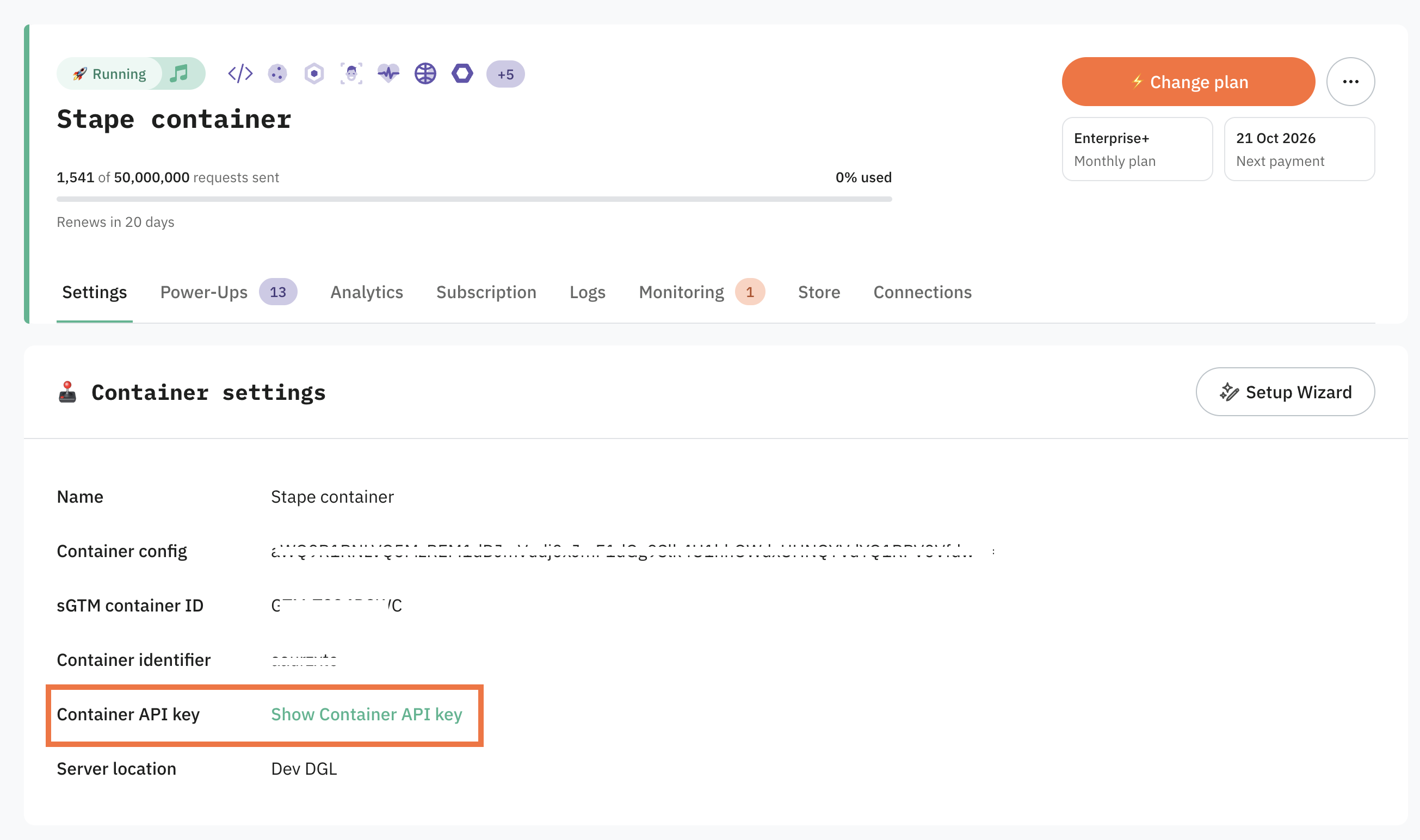
- Container API Key - a string used for app identification. Find Container API Key in the Container settings section of your Stape account. See the detailed instructions on where to find Container API Key.
HighLevel CRM fields
Next, you need to map your CRM fields to audience member identifiers.
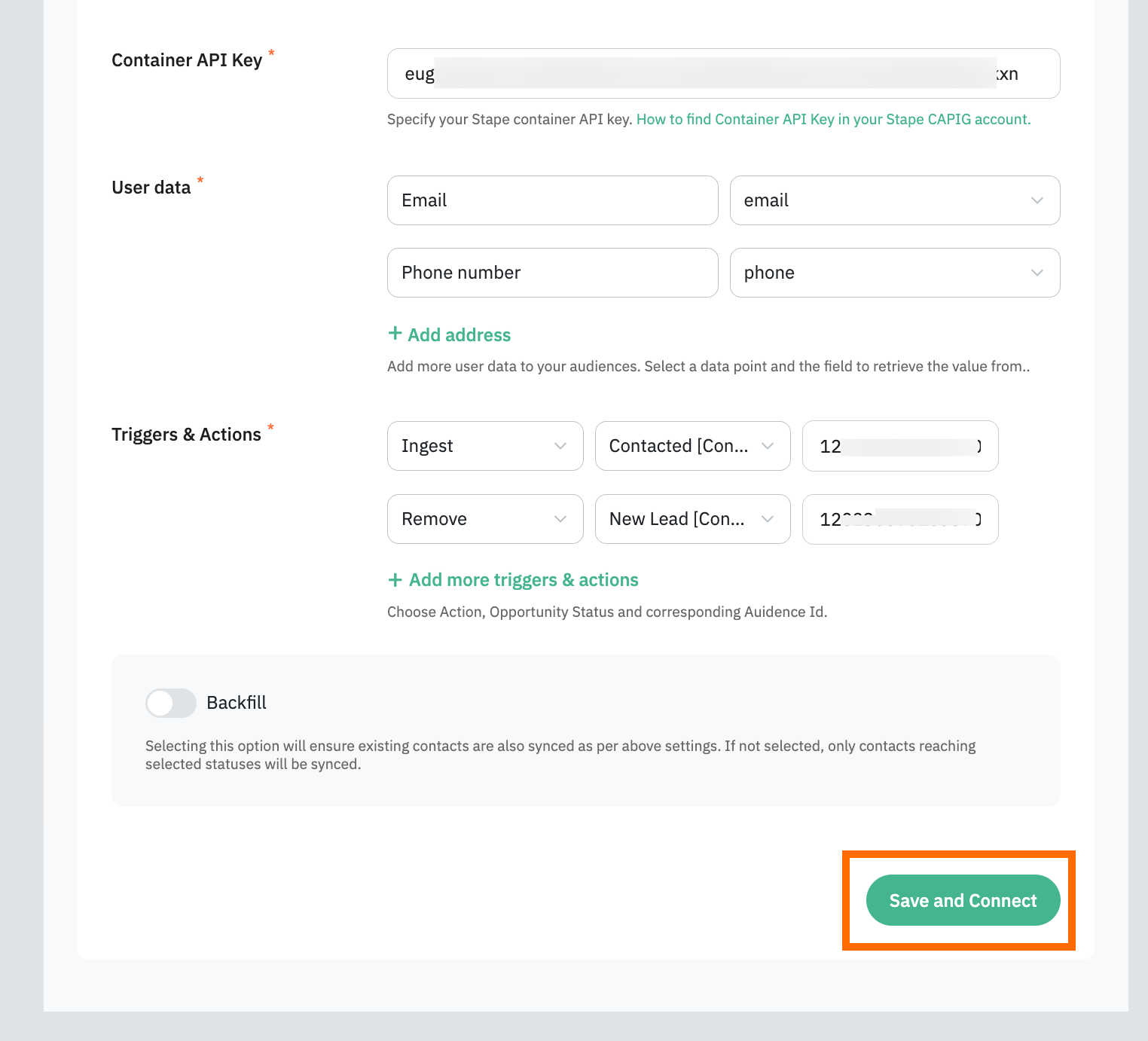
- User data - choose the data you want to fill the Customer List in Google Ads with, and specify user and ads data consent status from the drop-down list.
- Triggers & actions - choose Action, Opportunity Status, and Audience ID to be synced to (the custom audience you’ve created in Meta).
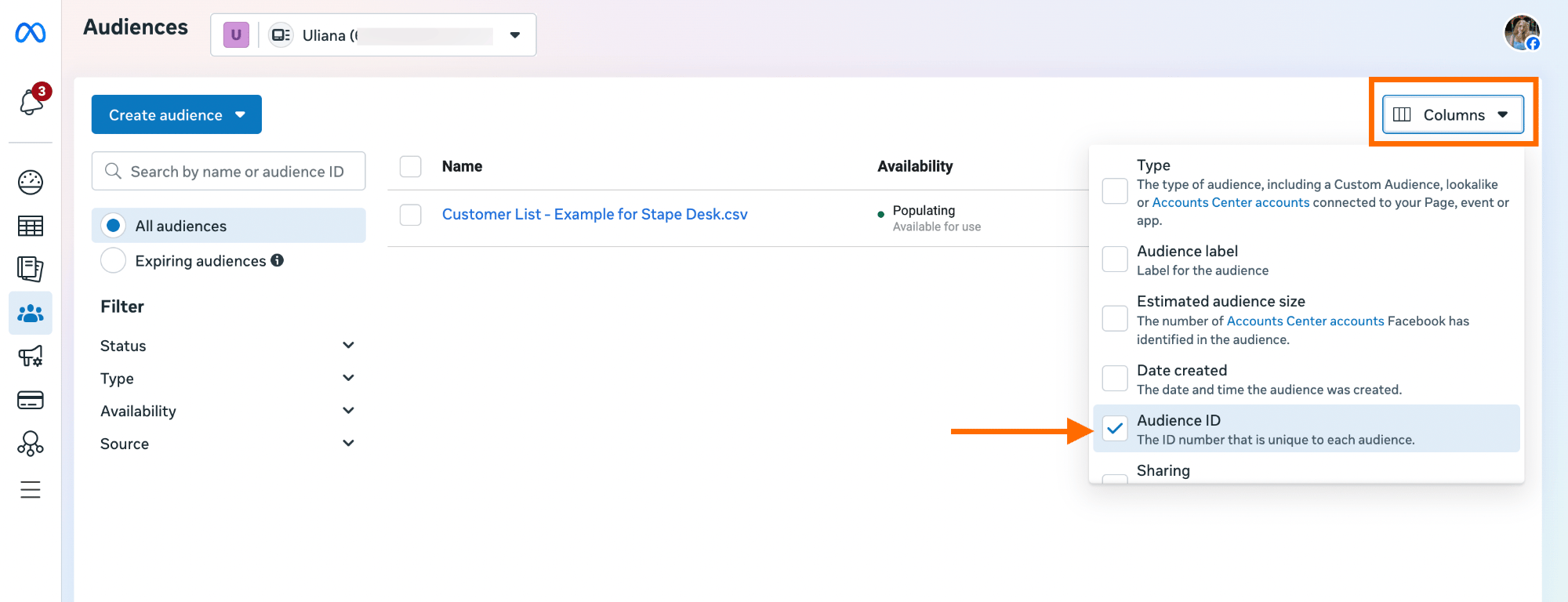
To find Audience ID - go to the Audiences section in Meta Ads, click Columns, enable Audience ID, then copy the ID of the required custom audience once the column appears.
- Backfill - if you check this box, the app will sync existing contacts using the settings in the app above. When the unchecked box is selected, it will sync only new contacts that reach the configured statuses. Unchecking later doesn't remove contacts already synced.
Once done, click Save and Connect. Once you see a success message, your installation is complete, and the application will sync audience members to your Meta custom audience in the background based on your settings.
CAPI Gateway
App setup
The setting process can be divided into two parts:
- Meta and Stape accounts data
- HighLevel CRM fields
Meta and Stape accounts data
You will need to fill in the following fields:
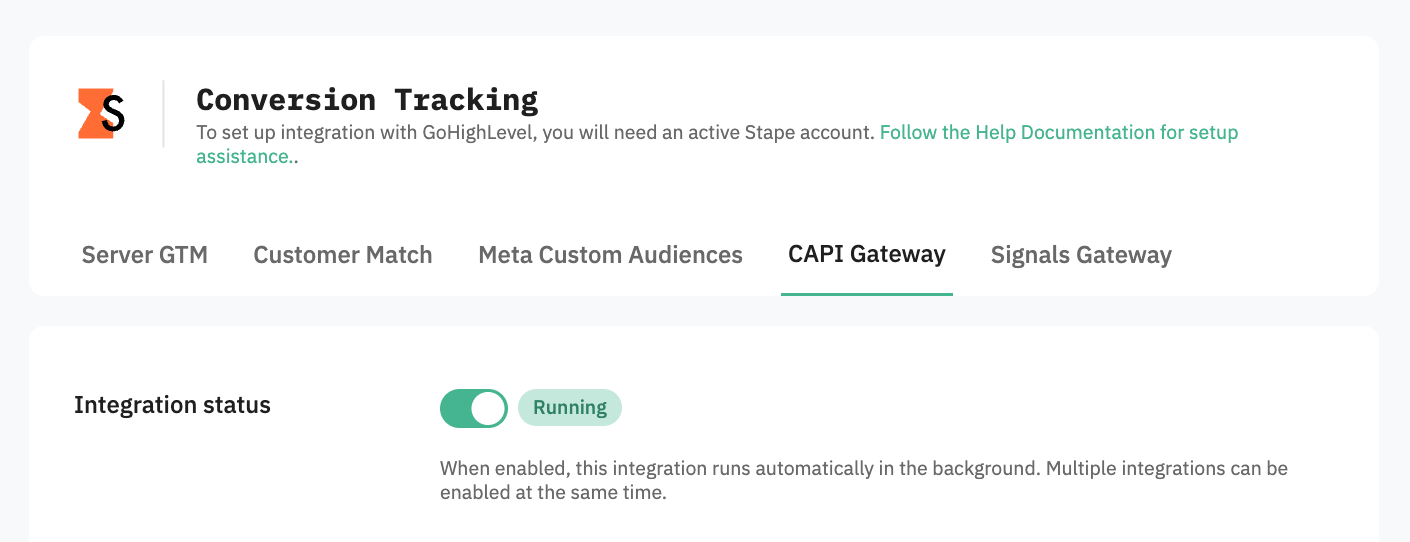
- Integration - switch Activate toggler on to enable the current integration (tab) to run in the background.
- Meta Dataset (Pixel) ID - a unique identifier that is used to configure integrations and view events in Events Manager. You can find it in your Meta account in Data Sources' Settings tab. See the detailed instruction on how to find Meta Dataset (Pixel) ID.
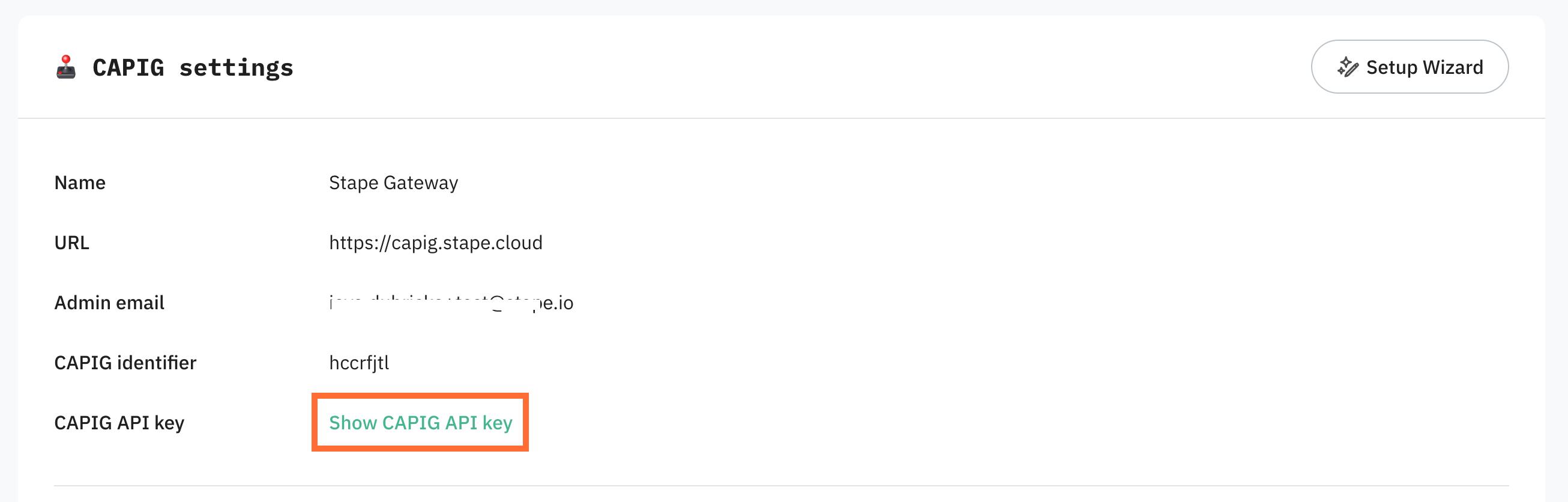
- CAPIG API Key - an alphanumeric string value that is needed for app identification. Find CAPIG API Key in the CAPIG settings section of your Stape account. See the detailed instructions on where to find CAPIG API Key.
If you haven't set up Meta Conversions API Gateway yet, see the section above.
HighLevel CRM fields
Next you need to map your CRM fields to conversion event parameters.
- (Optional) Pick a field where Meta Lead ID is stored. Note dropdown will only reflect custom fields.
- Configure additional User data you'd like to send to Meta, by choosing a parameter in the left dropdown and selecting an appropriate field in the right-side one.
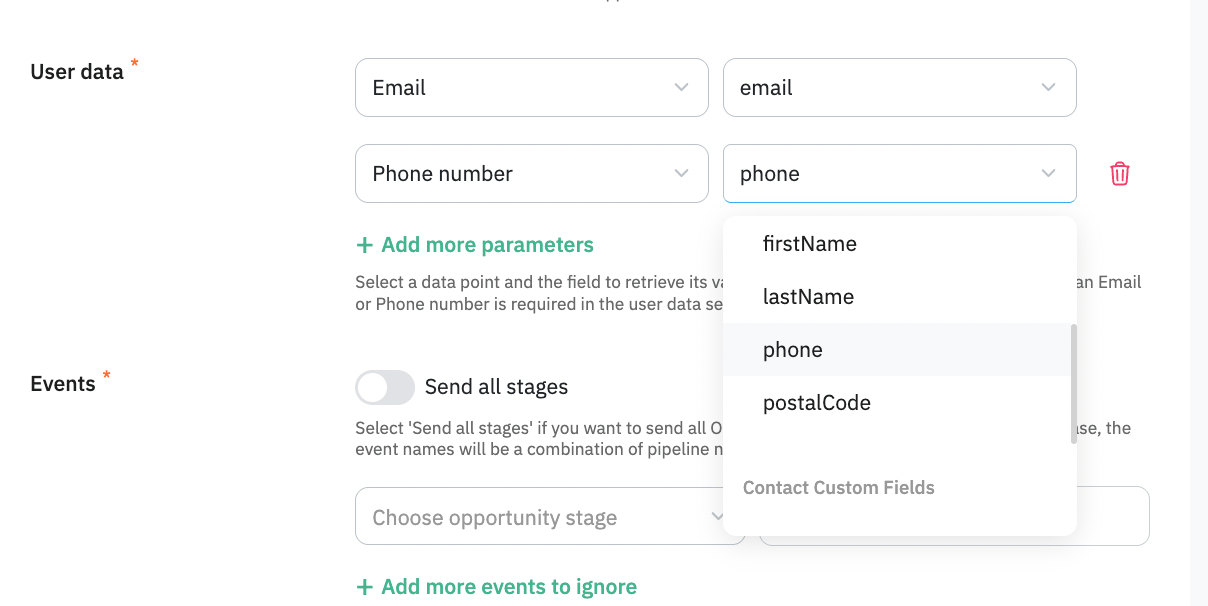
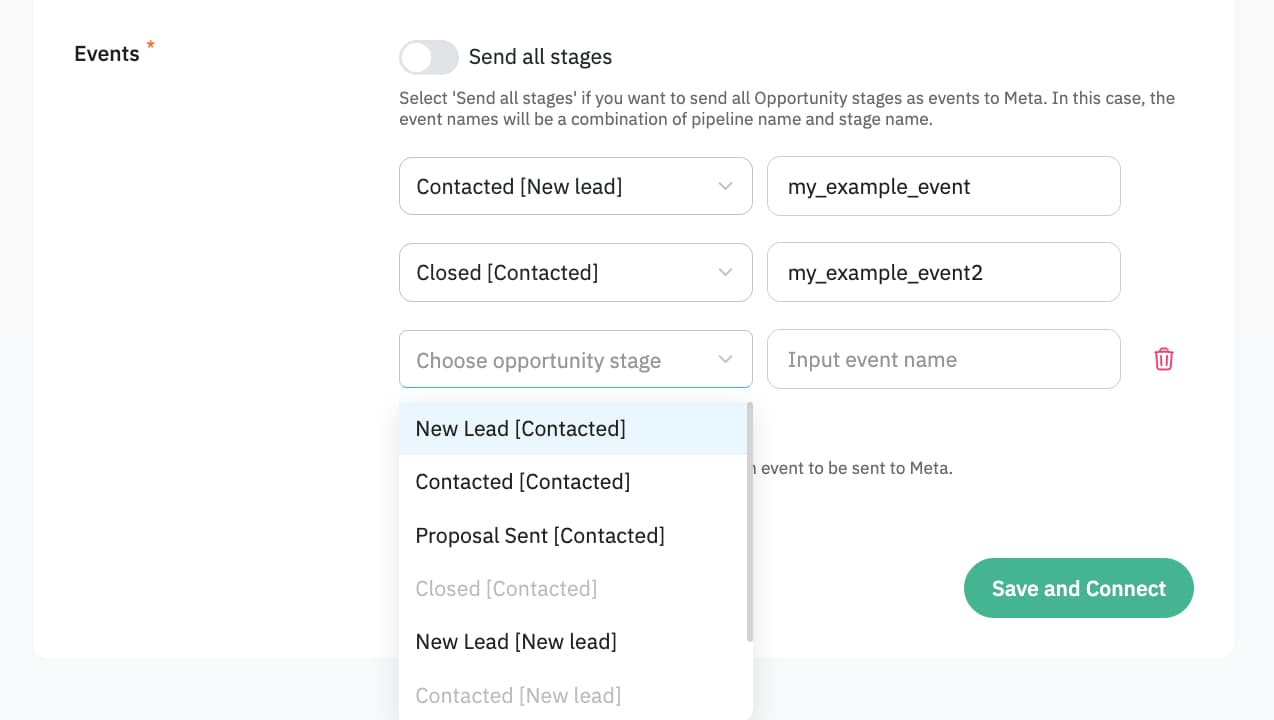
- Application sends conversion Events based on stages of your Opportunities, whenever an opportunity reaches a stage you define, a corresponding event will be sent towards your Meta Dataset (Pixel). So we need to configure it by choosing one of two approaches:
- In the left-side dropdown, select an Opportunity stage to trigger an event. In a box to the right, type the event name you'd like to send to Meta.
- Select the Send all stages checkbox if you want to send all Opportunity stages as events to Meta. Events are then named automatically and consist of Pipeline + Opportunity stage name. You can also select stages to ignore in this case.
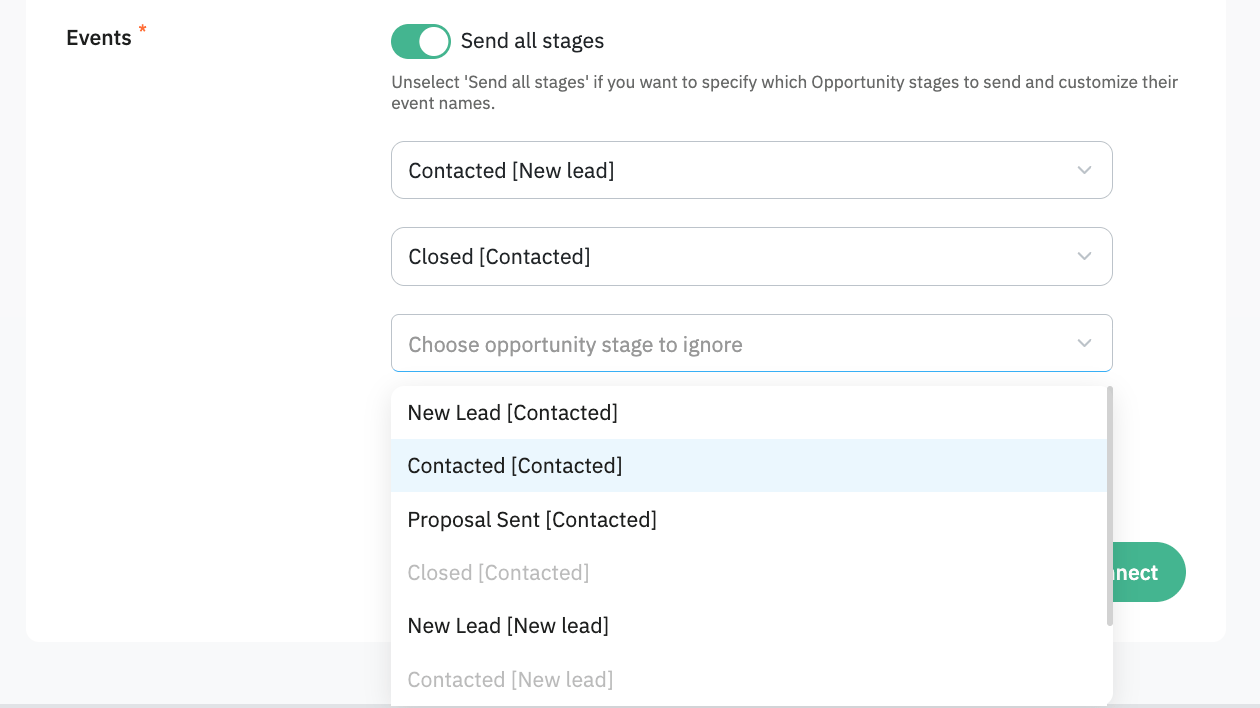
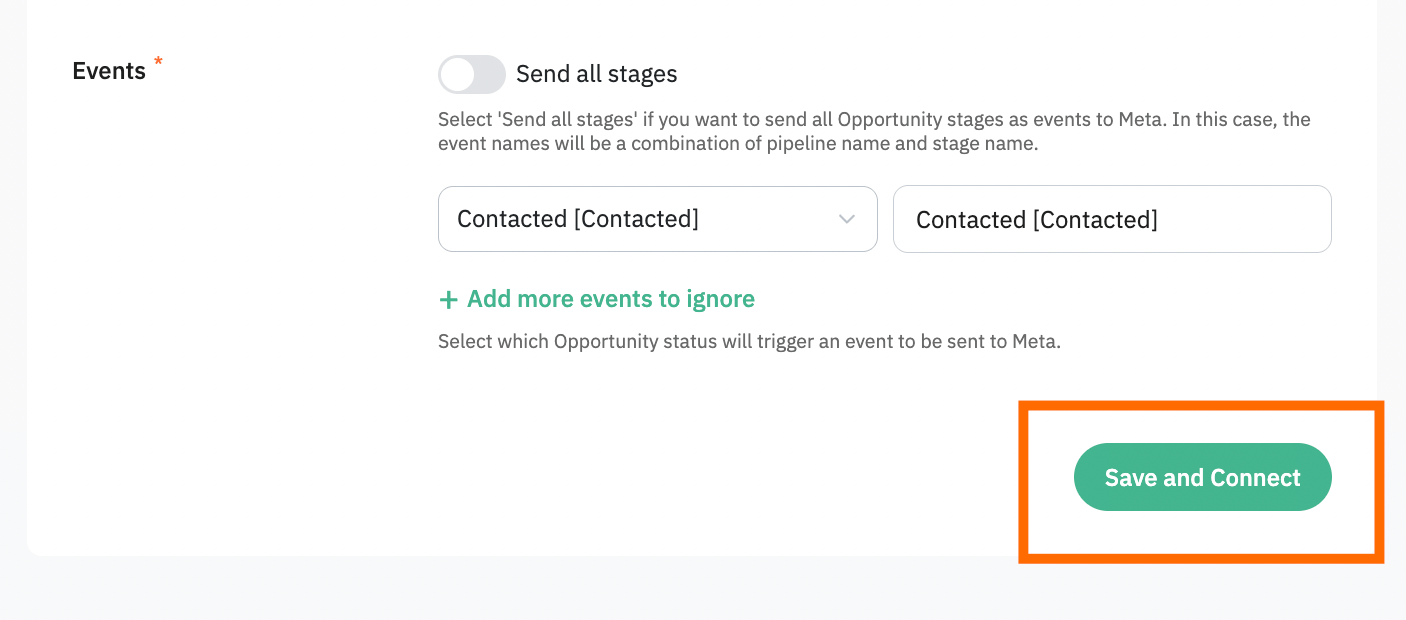
Once done, click Save and Connect. Once you see a success message your installation is complete and the application will send conversion events in the background based on your settings.
Signals Gateway
App setup
The setting process can be divided into two parts:
- Signals and Stape accounts data
- HighLevel CRM fields
Signals and Stape accounts data
You will need to fill in the following fields:
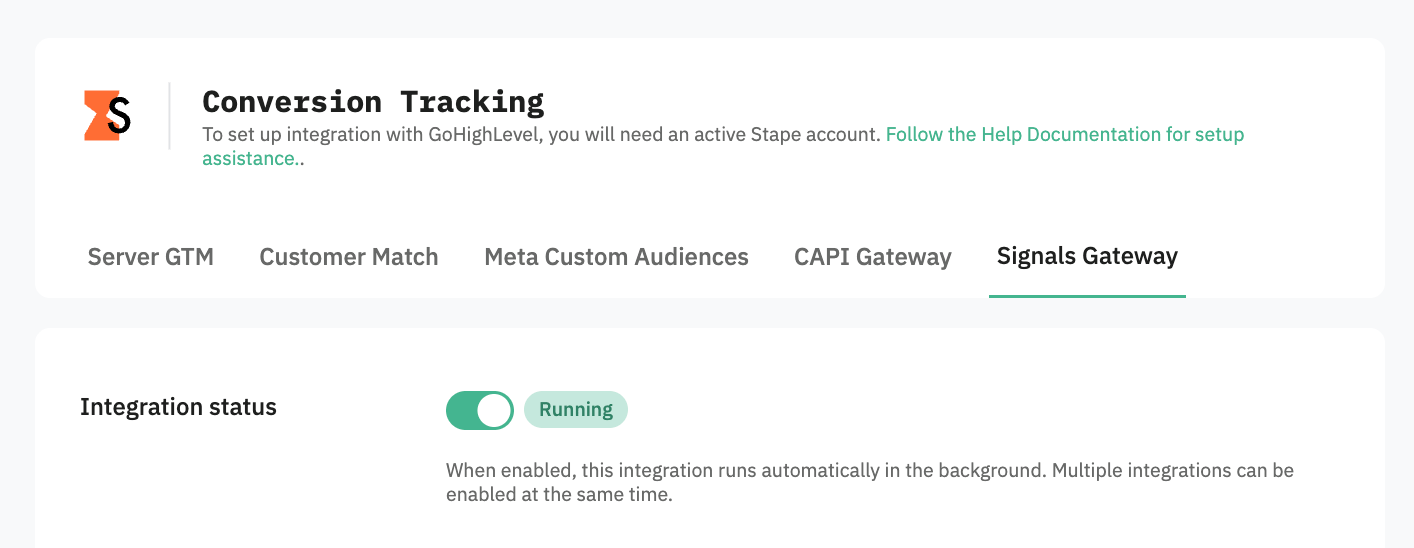
- Integration - switch Activate toggler on to enable the current integration (tab) to run in the background.
- Signals Gateway Pixel ID - a unique identifier that is used to configure integrations and view events in Signals Gateway. You can find it in your Signals Gateway account in the Data Sources tab. See the detailed instruction on how to find Signals Gateway Pixel ID.
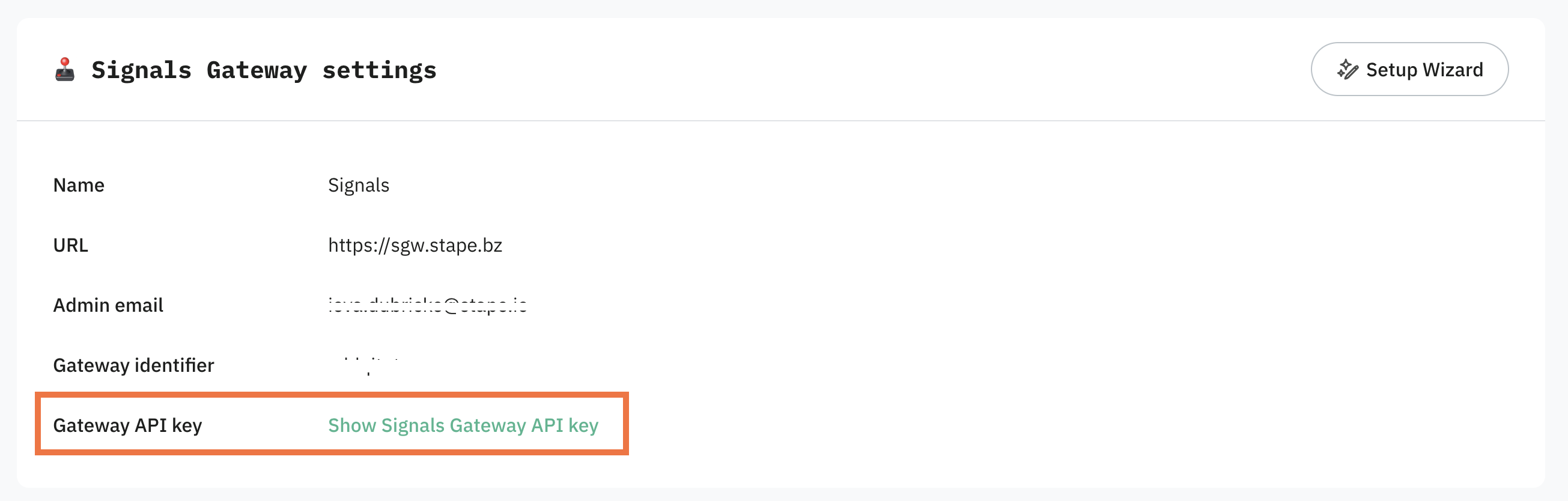
- Signals Gateway API Key - an alphanumeric string value that is needed for app identification. Find Signals Gateway API Key in the Gateway settings section of your Stape account. See the detailed instructions on where to find Signals Gateway API Key.
HighLevel CRM fields
Next you need to map your CRM fields to conversion event parameters.
- (Optional) Pick a field where Meta Lead ID is stored.
- Configure additional User data you'd like to send to Meta, by choosing a parameter in the left dropdown and selecting an appropriate field in the right-side one.
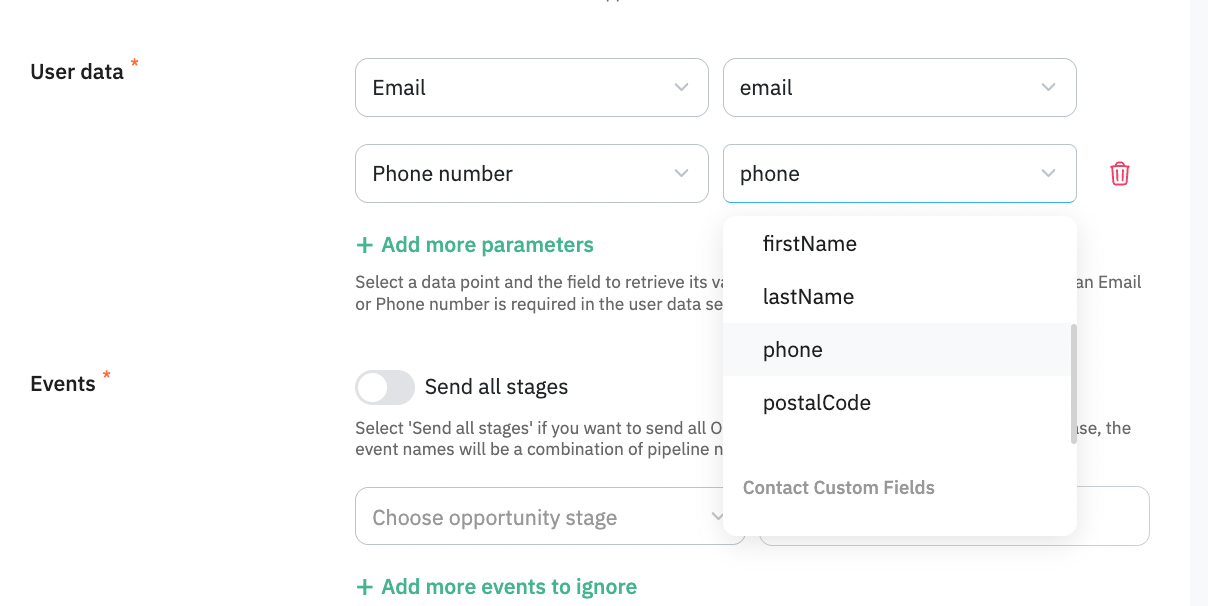
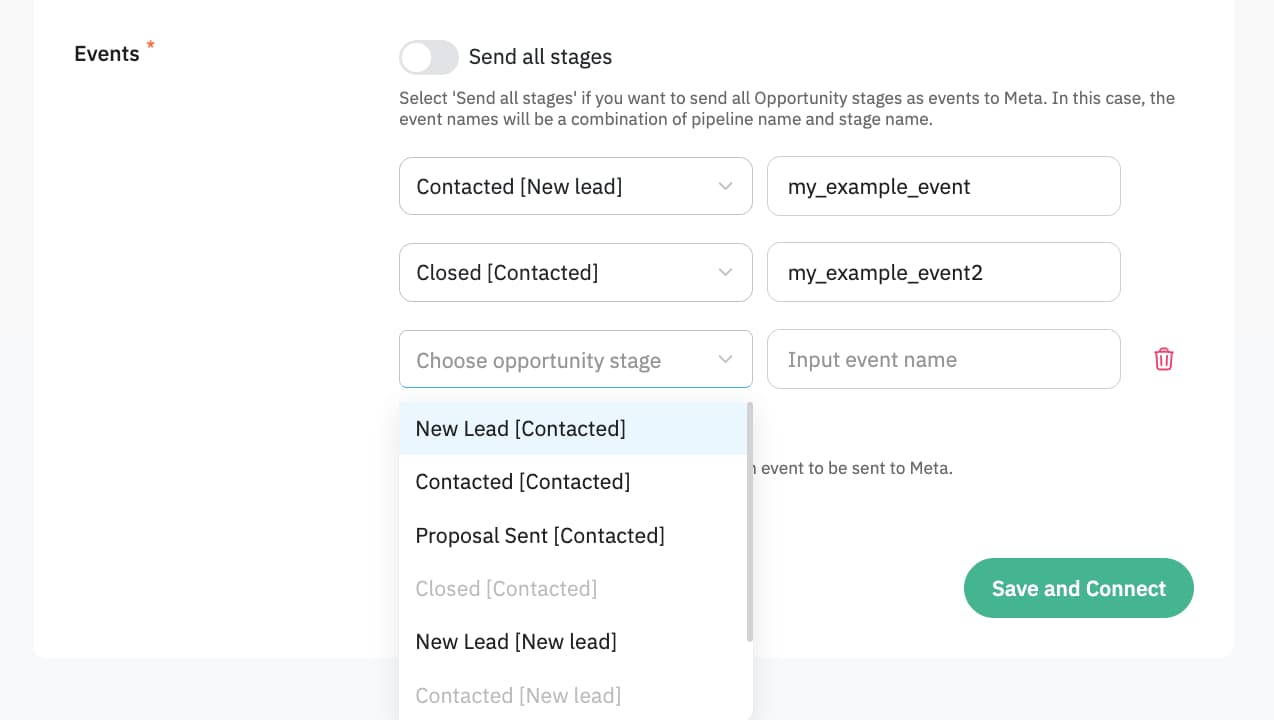
- Application sends conversion Events based on stages of your Opportunities, whenever an opportunity reaches a stage you define, a corresponding event will be sent towards your Signals Gateway Pixel. So we need to configure it by choosing one of two approaches:
- In the left-side dropdown, select an Opportunity stage to trigger an event; in a box to the right, type the event name you'd like to send to Signals Gateway pipeline.
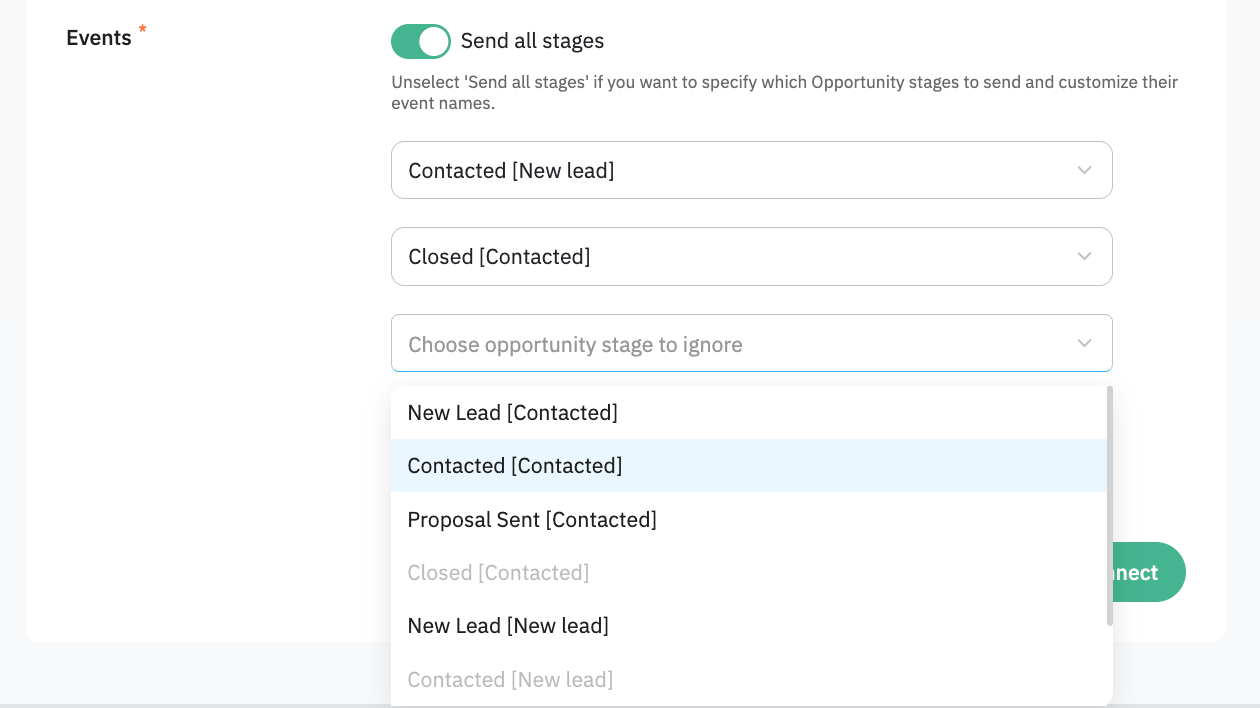
- Select the Send all stages checkbox if you want to send all Opportunity stages as events to Signals Gateway pipeline. Events are then named automatically and consist of an Opportunity stage name. You can also select stages to ignore in this case.
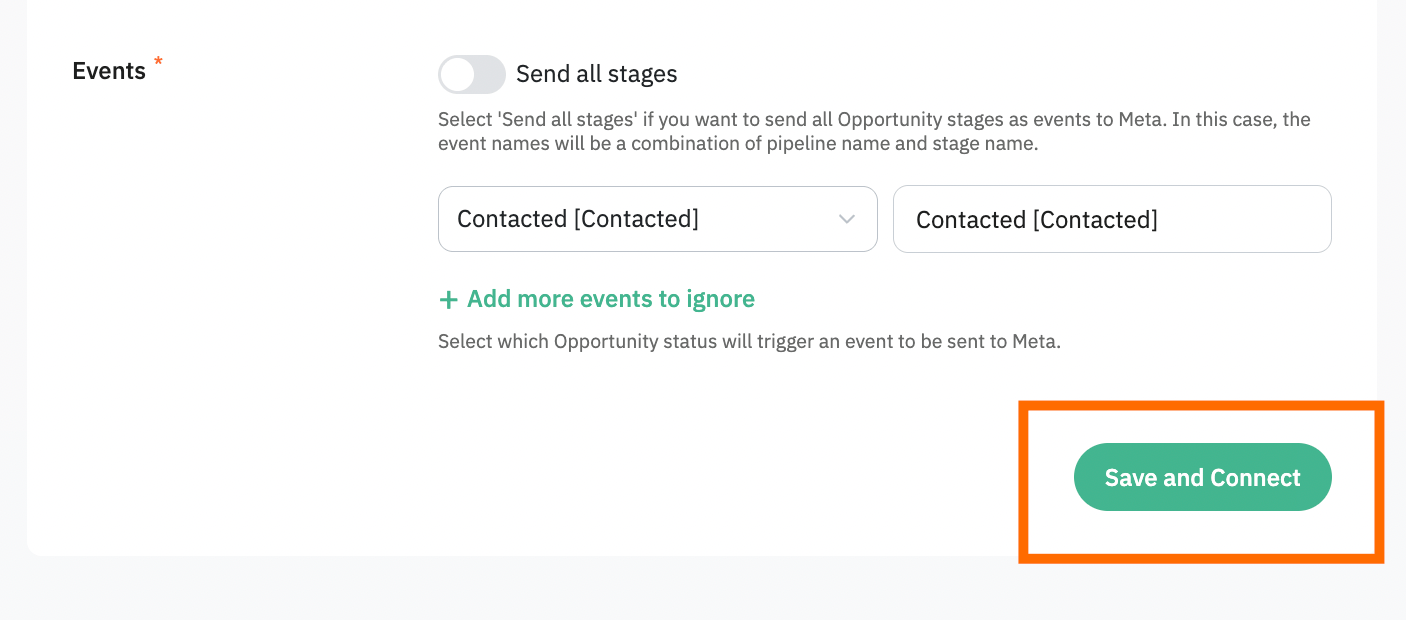
Once done, click Save and Connect. Once you see a success message your installation is complete and the application will send conversion events in the background based on your settings.
FAQ
- Is there a subscription involved to use the application?
Application is distributed for free, but you will need a functioning Stape account with active CAPI Gateway, GTM Container or Signals Gateway. It depends on your tracking setup and/or current experience with Stape.
- How does the app trigger conversion events?
Application will react to stage changes of your Opportunity entities. Triggers are configured in app settings.
- How can I make sure the app actually works?
With CAPI Gateway integration you should see events you’ve configured in your Events Manager. Please note the user interface may take up to 30 min to reflect most recent events sent.
With Signals Gateway integration you should see events you’ve configured in your Signals Gateway Data Source. Please note the user interface may take up to 30 min to reflect most recent events sent.
With server GTM integration the assumed approach for debugging is webhooks.
- Do you provide templates for server GTM integration?
Yes, you can find a pre-built server container template in our GitHub.
Was this article helpful?
Comments