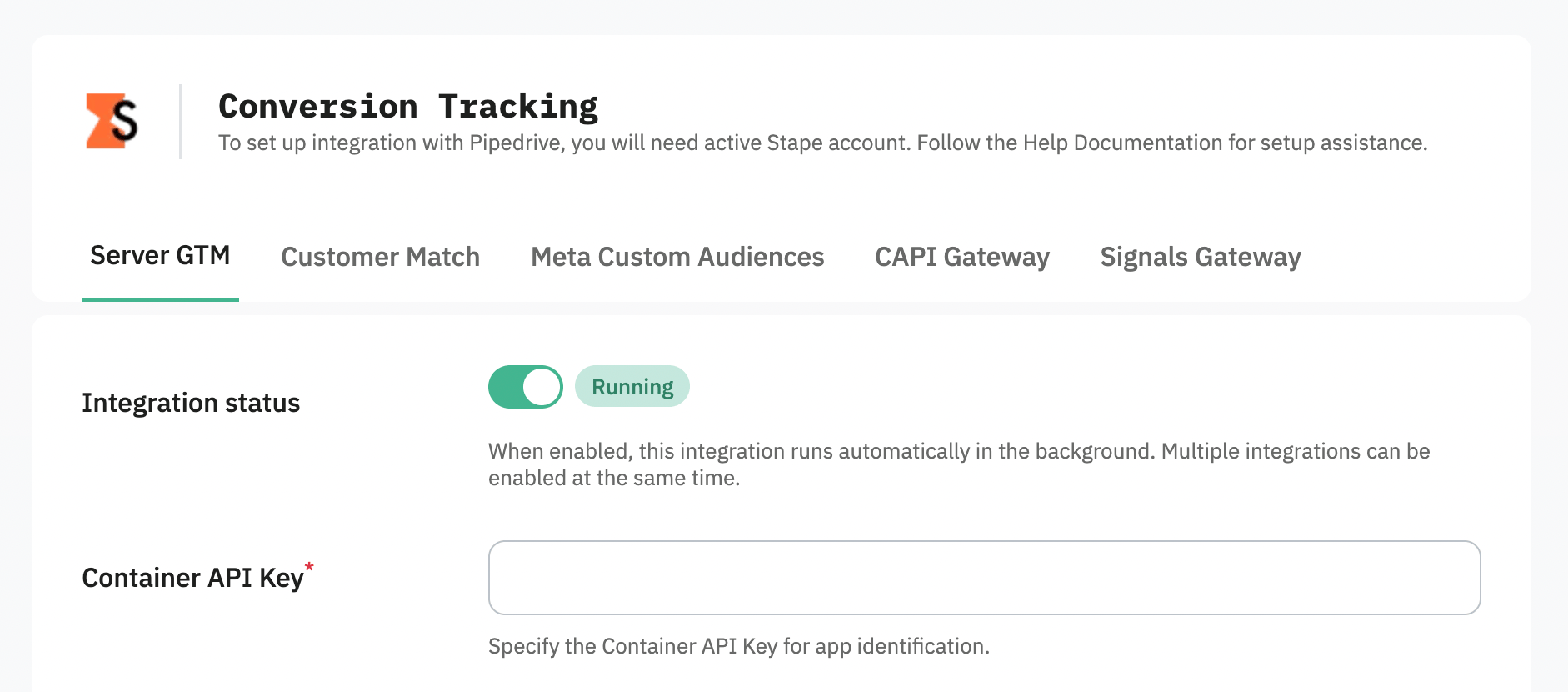
[Pipedrive] How to set up Stape Conversion Tracking Pipedrive app
Updated Nov 10, 2025
The Stape Conversion Tracking Pipedrive CRM app creates integration between Pipedrive CRM and your chosen platform. It securely transmits deal status updates via a server-side connection and also supports sending data related to offline conversions.
App installation
Install the Stape Conversion Tracking Pipedrive app.
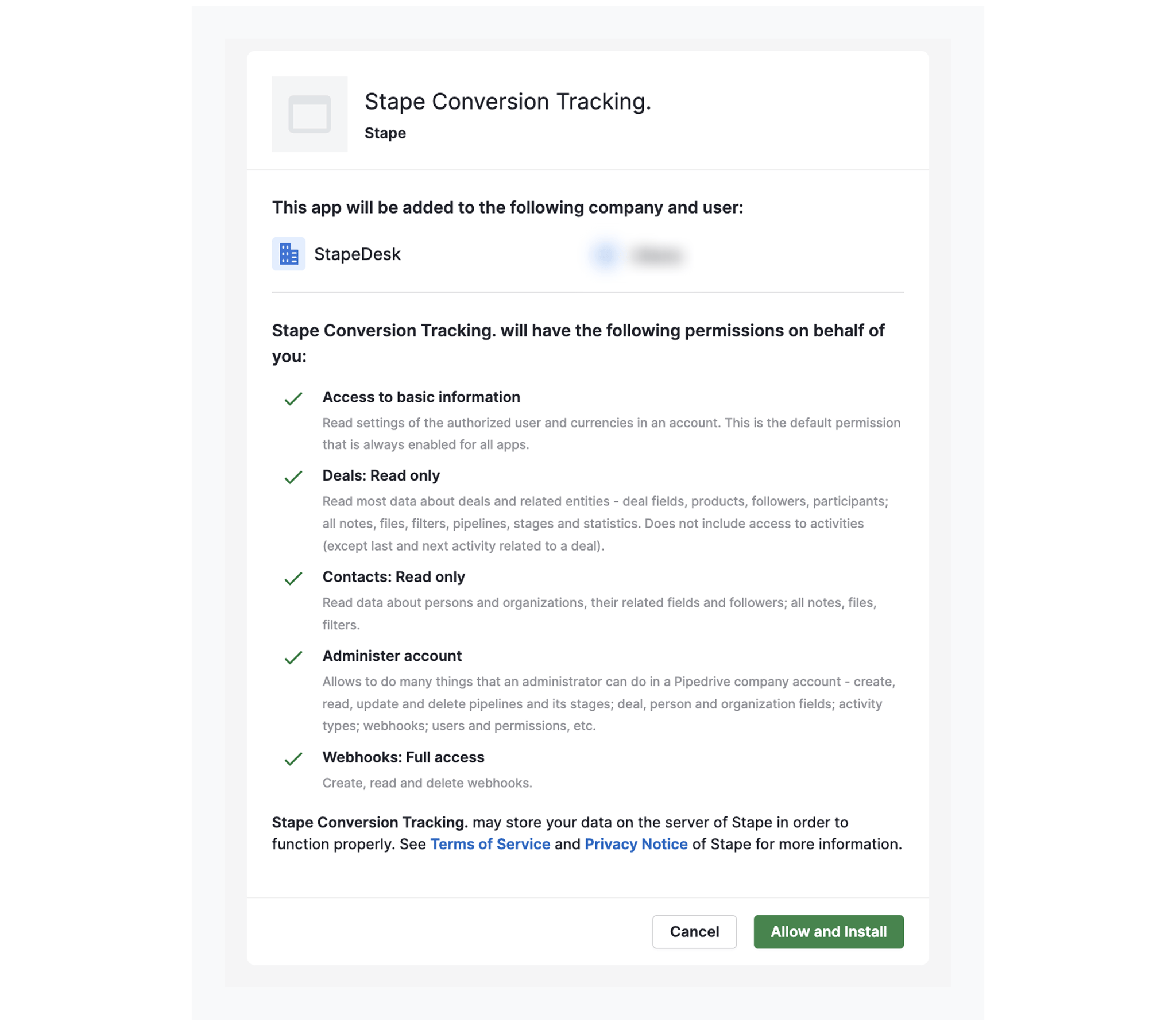
Give the app the scopes it requires:
Integration methods: CAPI Gateway, Signals Gateway or server GTM

Integration method depends on your tracking setup and goals, and/or on your current experience with Stape. Click on the section below that corresponds to the tracking method you use:
CAPI Gateway
Before you start
Make sure you have an active Stape account with Meta Conversions API Gateway
If you don’t have an account on Stape, please create one or log in if you already have. In the main menu click “More Gateways” → “Meta CAPIG” → “Create CAPIG” on the top right.

Add name, email, and server location for new CAPIG. Then, choose the subscription plan and add billing details.
After creating Meta Conversions API Gateway in your Stape account, connect your Meta Dataset (Pixel) - just click "Add data source" → authorize in Meta → select the Business Manager and Dataset (Pixel) you want to connect.

To increase the events match quality, please enable “Automatic advanced matching”.

| For more detailed instructions, check Stape’s article on how to set up Meta Conversions API Gateway. |
App configuration
The setting process can be divided into two parts:
- Meta and Stape accounts data
- PipeDrive CRM fields

Meta and Stape accounts data
You will need to fill in the following field:
- Meta Dataset (Pixel) ID - unique identifier that is used to configure integrations and view events in Events Manager. You can find it in your Meta account in Data Sources’ “Settings” tab. See the detailed instruction on how to find Meta Dataset (Pixel) ID here.
- CAPIG API Key - alphanumeric string value that is needed for app identification. Find CAPIG API Key in the CAPIG settings section of your Stape account. See the detailed instructions on where to find CAPIG API Key here.
If you haven’t set up Meta Conversions API Gateway yet, see the section above.

Pipedrive CRM fields
Next you need to map your CRM fields to conversion event parameters.
- (Optional) Pick a field where Meta Lead ID is stored. Note dropdown will only reflect custom fields.
- Configure additional User data you’d like to send to Meta, by choosing a parameter in the left dropdown and selecting an appropriate field in the right-side one.

- Application sends conversion Events based on stages of your Deals, whenever a deal reaches a stage you define, a corresponding event will be sent towards your Meta Dataset (Pixel). So we need to configure it by choosing one of two approaches:
- In the left-side dropdown, select a Deal stage to trigger an event. In a box to the right, type the event name you’d like to send to Meta.

- Select the ‘Send all statuses’ checkbox if you want to send all Deal stages as events to Meta. Events are then named automatically and consist of Pipeline + Deals stage name. You can also select statuses to ignore in this case.

Once done, click “Save and Connect”. Once you see a success message your installation is complete and the application will send conversion events in the background based on your settings.

Signals Gateway
Before you start
Make sure you have an active Stape account with Signals Gateway
If you don’t have an account on Stape, please create one or log in if you already have. In the main menu click “Signals Gateway” → “Create Signals Gateway” on the top right.

Add name, email, and server location for new Signals Gateway. Then, choose the subscription plan.

| For more detailed instructions, check Stape’s article on how to configure Signals Gateway. |
Set up the app
The setting process can be divided into two parts:
- Signals and Stape accounts data
- PipeDrive CRM fields

Signals and Stape accounts data
You will need to fill in the following field:
- Signals Gateway Pixel - unique identifier that is used to configure integrations and view events in Signals Gateway. You can find it in your Signals Gateway account in the Data Sources tab. See the detailed instruction on how to find Signals Gateway Pixel ID here.
- Signals Gateway API Key - alphanumeric string value that is needed for app identification. Find Signals Gateway API Key in the Gateway settings section of your Stape account. See the detailed instructions on where to find Signals Gateway API Key here.

PipeDrive CRM fields
Next you need to map your CRM fields to conversion event parameters.
- (Optional) Pick a field where Meta Lead ID is stored.
- Configure additional User data you’d like to send to Meta, by choosing a parameter in the left dropdown and selecting an appropriate field in the right-side one.

- Application sends conversion Events based on stages of your Deals, whenever a deal reaches a stage you define, a corresponding event will be sent towards your Signals Gateway Pixel. So we need to configure it by choosing one of two approaches:
- In the left-side dropdown, select a Deal stage to trigger an event; in a box to the right, type the event name you’d like to send to Signals Gateway pipeline.

- Select the ‘Send all statuses’ checkbox if you want to send all Deals stages as events to the Signals Gateway pipeline. Events are then named automatically and consist of a Deal stage name. You can also select statuses to ignore in this case.

Once done, click “Save and Connect”. Once you see a success message your installation is complete and the application will send conversion events in the background based on your settings.

Server GTM
Before you start
Make sure you have an active Stape account with a server GTM container hosted on Stape.
If you don’t have an account on Stape, please create one or log in if you already have. In the main menu click “sGTM” → “Create container” on the top right.

Add your container name, Container Configuration that you copied from your Google Tag Manager Server Container, and select server location. Click Create Container.
| For more detailed instructions, check Stape’s article on how to set up a Google Tag Manager server container. |
App setup
The setting process can be divided into two parts:
- Stape account data
- PipeDrive CRM fields

Stape account data
You will need to fill in the following field:
- Container API Key - alphanumeric string value that is needed for app identification. Find Container API Key in the Container settings section of your Stape account. See the detailed instructions on where to find Container API Key here.

HighLevel CRM fields
Next you need to map your CRM fields to conversion event parameters.
- (Optional) Pick a field where Meta Lead ID is stored.
- Configure additional User data you’d like to send to server GTM, by choosing a parameter in the left dropdown and selecting an appropriate field in the right-side one.

- Application sends conversion Events based on stages of your Deals, whenever a deal reaches a stage you define, a corresponding event will be sent towards your server GTM container. So we need to configure it by choosing one of two approaches:
- In the left-side dropdown, select a Deal stage to trigger an event; in a box to the right, type the event name you’d like to send to server GTM.

- Select the ‘Send all statuses’ checkbox if you want to send all Deals stages as events to server GTM. Events are then named automatically and consist of a Deal stage name. You can also select stages to ignore in this case.

Once done, click “Save and Connect”. Once you see a success message your installation is complete and the application will send conversion events in the background based on your settings.

Settings editing
If you have some changes in the funnel or you want to change the events sent to your CAPI Gateway, server GTM container, or Signals Gateway, you can always edit your app configuration.
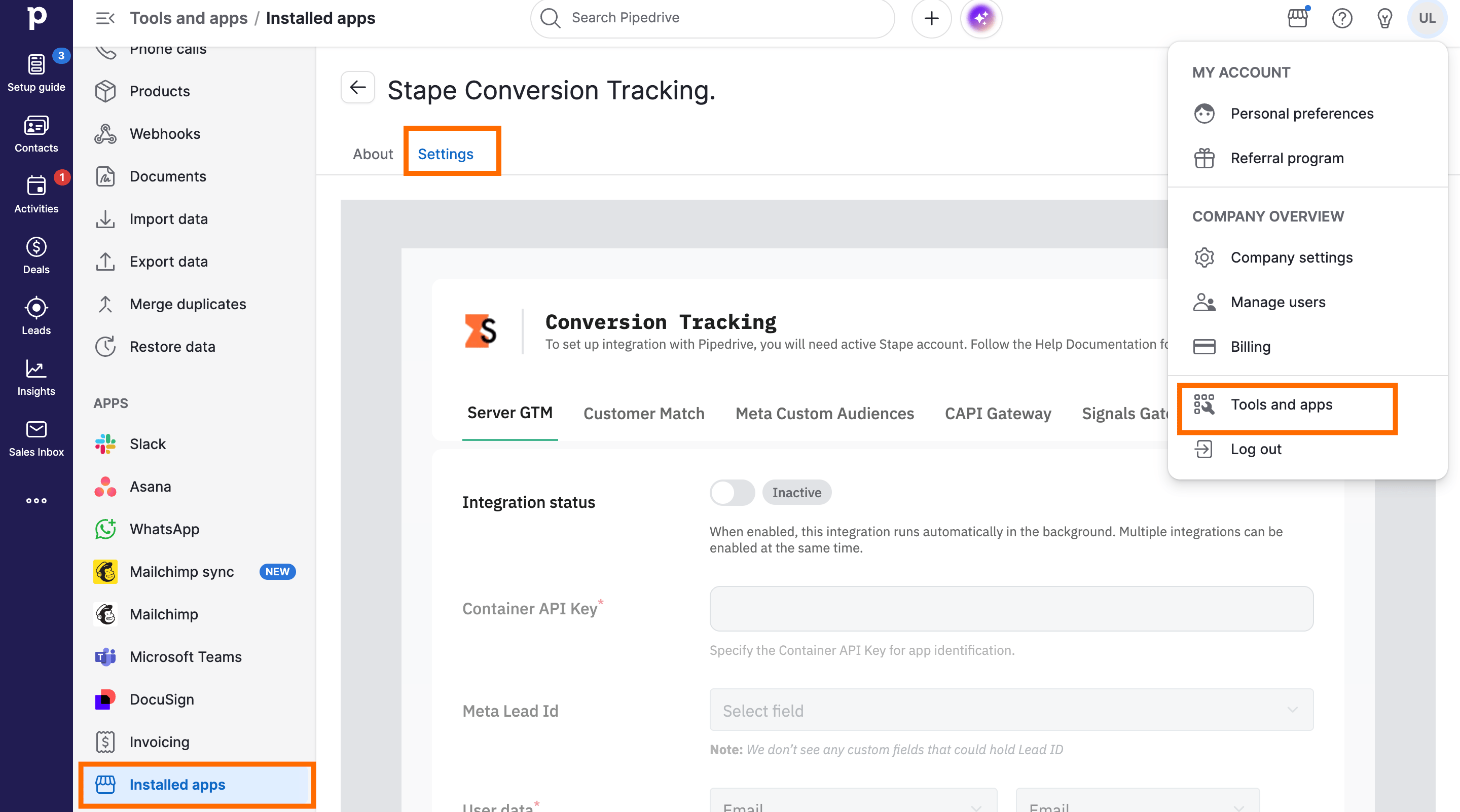
To do this, click on the menu button, then select “Tools and apps”. Navigate to “Installed apps”, select “Stape Conversion Tracking“ and click on the “Settings” tab.

Comments