What is a data layer?
A data layer is a structured JavaScript object running on your website. It safely collects information about your pages, visitors, and key user interactions, then delivers that data straight to tracking tools like Google Tag Manager (GTM). Instead of your tags pulling messy HTML data directly from the page, your site packages and pushes structured data into the data layer for GTM to read.
Data layer has these benefits:
- Reliable tracking. Your tracking won’t break whenever your website updates its design or changes HTML class names.
- Single source of truth. A single data layer event can be reused in all your destinations simultaneously from GA4 and Google Ads to Meta.
- Richer data. Pass valuable attributes that aren't displayed on the website, like internal User IDs, order IDs, or detailed item metadata.
- Accurate server-side tracking. A clean data layer ensures high-quality data streams straight to your server GTM container and onward to Conversion APIs.
How does the data layer work?
Within GTM, the data layer takes the form of a JavaScript array named dataLayer. Every time an interaction occurs (such as a customer adding an item to their cart) your website pushes an event along with all relevant context directly into this kind of array:
window.dataLayer = window.dataLayer || [];
dataLayer.push({
  event: 'add_to_cart',
  ecommerce: {
    currency: 'USD',
    value: 49.99,
    items: [{
      item_id: 'SKU_123',
      item_name: 'T-shirt',
      price: 49.99,
      quantity: 1
    }]
  }
});
Once that data is pushed, here’s what happens next:
- 1.GTM processes each
dataLayer.push(). When a push includes aneventkey, it generates a corresponding event in GTM that appears in Preview mode under that name. - 2.To trigger tags based on that event, a Custom Event trigger is set up in web GTM with a name matching the pushed
eventvalue (for example,add_to_cart). - 3.To extract values from the push, Data Layer variables are created. Because GTM retains data until it is overwritten, variables can also access values pushed earlier during the same session.
- 4.Tags linked to this trigger will fire and pass the event data and parameters to analytics platforms like GA4 and Meta, or to your server-side GTM container. For example, a GA4 event tag can send the
add_to_cartevent along with thevalueandcurrencyretrieved from these Data Layer variables.
For more information read the Google Tag Manager data layer: ultimate guide article.
How does the data layer appear on your website?
The data layer is created when the GTM snippet loads on your website, but it stays empty until your website pushes events into it. There are two ways to get events there:
- Custom implementation – a developer pastes the GTM snippet into the site's
<head>and<body>elements. That snippet creates the emptydataLayer. The developers then adddataLayer.push()code for each event you need. For more information read Google documentation. - Stape CMS apps – if your website runs on a CMS, use Stape’s apps, extensions and plugins to push ecommerce events to the data layer without developer help. The app adds the GTM snippet and pushes ecommerce events for you. They’re available for Shopify, WordPress, Magento 2, and other platforms.
How is the data layer used in server-side tracking with Stape?
Even with server-side tagging, the client-side data layer remains your starting point. Here is how the complete workflow looks like:
- 1.Your website pushes events to the client-side data layer as users interact with the page.
- 2.Web GTM tags (such as GA4 or Stape’s Data Tag) fire on the Custom Event trigger and send the event with its parameters to your Stape-hosted server GTM container.
- 3.Your server GTM container receives incoming requests through the GA4 Client or Data Client.
- 4.Server tags then process and send the data to destinations like GA4, Meta Conversions API, TikTok Events API, and Google Ads.
How to check the data layer?
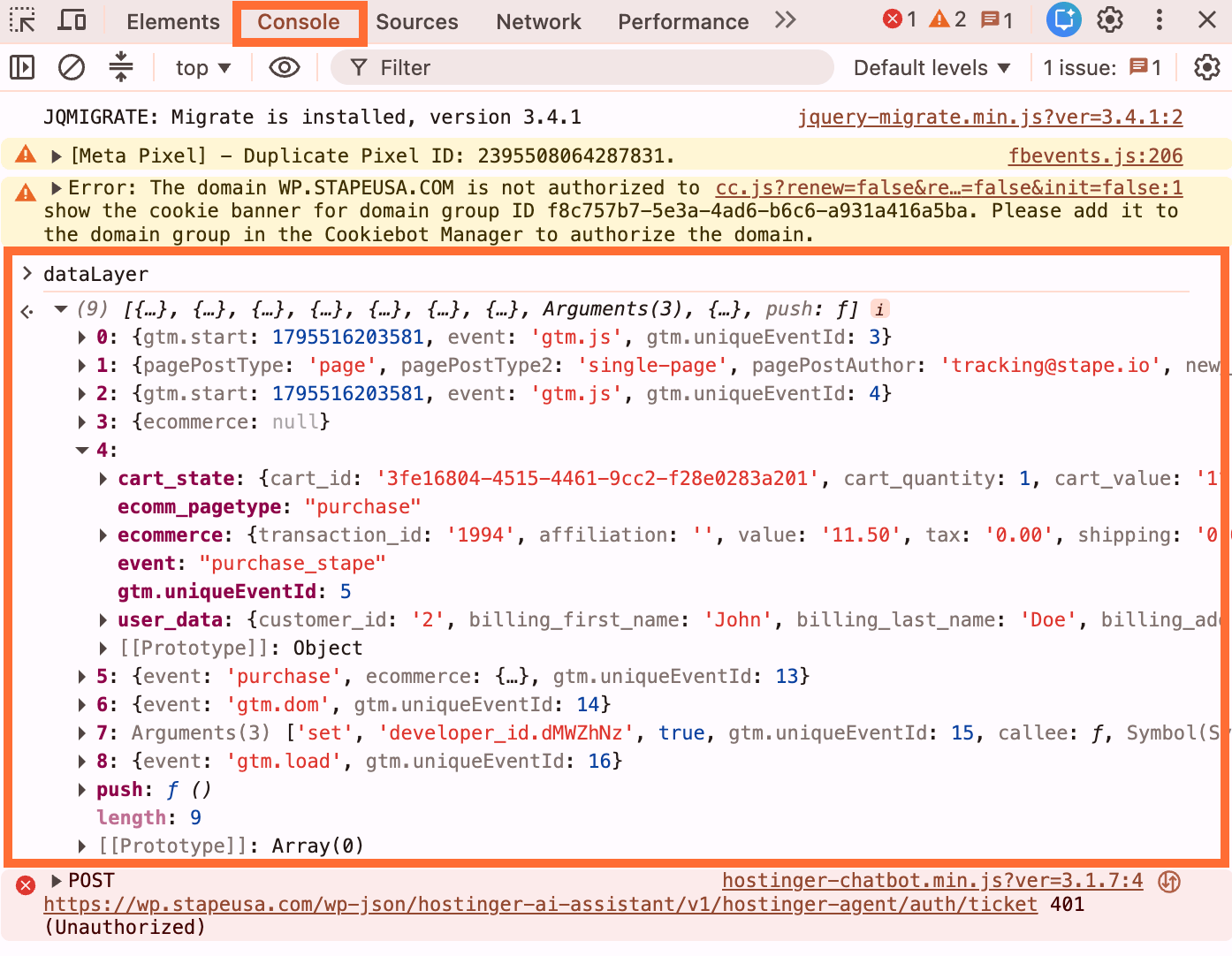
- Browser Developer Console – open your site, right-click anywhere and choose Inspect → Console. Type
dataLayerand press Enter to view a real-time snapshot of all pushed events.
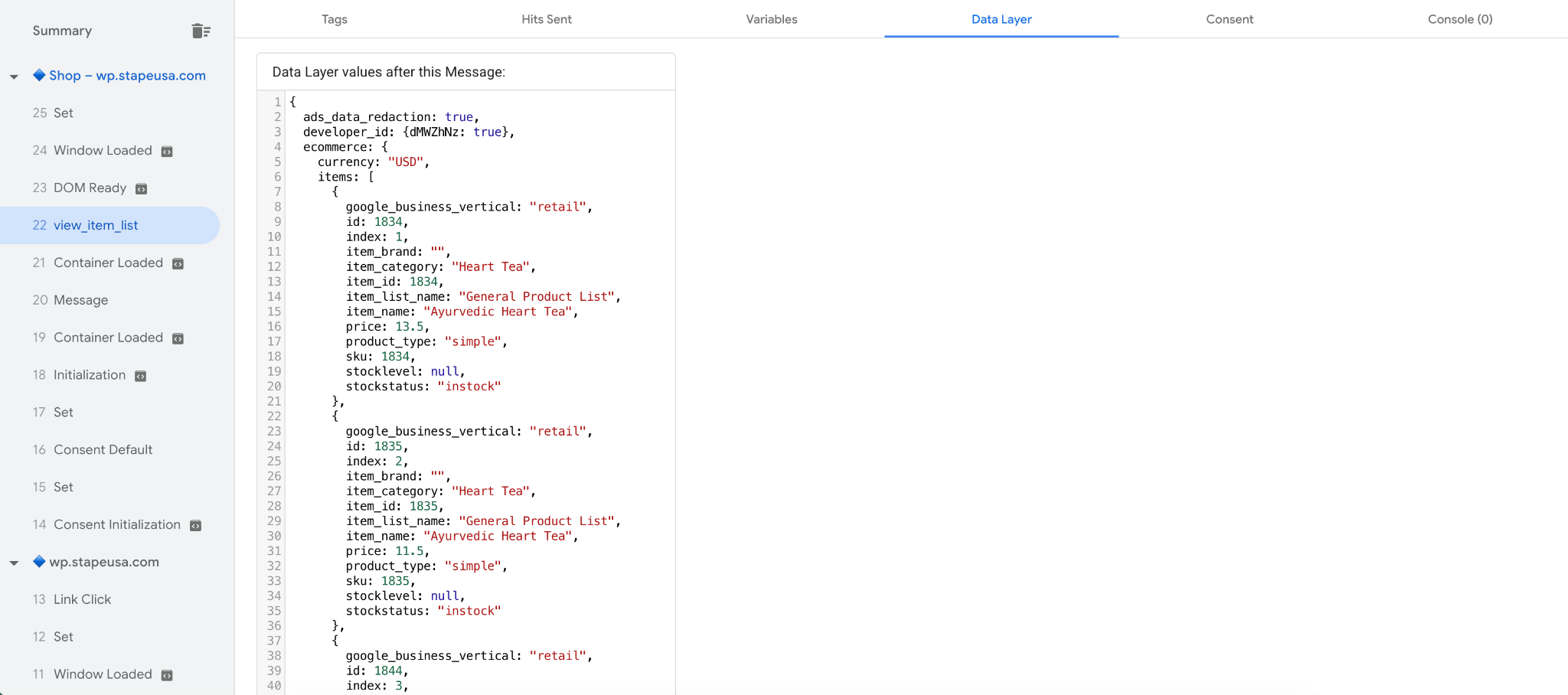
- GTM Preview Mode – launch GTM Preview, click on any event in the left-hand timeline, and navigate to the Data Layer tab to inspect the exact payload available.
Learn more:
- dataLayer in Stape CMS apps: Shopify, WordPress, Magento 2, BigCommerce, Wix, PrestaShop, Shopware, Drupal, Nuvemshop.
Was this article helpful?
🍽 Table of content:
Comments