Overview of Google Tag Manager integration for LinkedIn advertisers
Updated Oct 1, 2026
LinkedIn allows eligible advertisers to set up Conversions API (CAPI) using Google Tag Manager (GTM) directly from LinkedIn Campaign Manager. As part of this flow, you can choose automatic server-side setup with Stape. Then, Stape automatically creates and hosts a server-side GTM container and connects it to your LinkedIn Campaign Manager.
How the setup works:
- Start the conversion setup in LinkedIn Campaign Manager.
- Select Google Tag Manager as your source.
- Choose automatic server-side setup with Stape.
- Stape automatically creates and connects your server container.
- (Recommended) Review and enhance your container configuration in your Stape account.
Important
What you need to know about the LinkedIn-sponsored server container
- The integration can be created only via LinkedIn Campaign Manager.
- The integration is sponsored by LinkedIn, meaning that it is free for eligible advertisers. You cannot upgrade or change your plan manually - it scales automatically based on your container usage.
- You can have 1 Stape server container per LinkedIn Ad account (and, by extension, per Stape account).
- You can add up to 3 custom domains per container.
- Your Stape container has usage limitations:
- It is automatically disabled if it has fewer than 2,000 incoming requests/month.
- It can have up to ~190M incoming requests/month.
- The following Stape features are not available for this type of account:
- Stape Store.
- Stape CDN.
- You cannot transfer this container or attach it to Partner/Agency accounts.
Recommended Stape account configuration
Once you complete the Conversions API setup in LinkedIn Campaign Manager, your server container is created and connected through the embedded Stape flow. You can follow LinkedIn’s setup guide to confirm that everything works correctly. If you’d like to further improve your data quality and make use of the features included with your LinkedIn-sponsored container offer, consider these recommended configurations in your Stape container.
What’s inside your Stape account?
The Stape account created through the LinkedIn integration gives you access to your LinkedIn-sponsored server-side GTM container hosted by Stape, as well as the supported Stape features available for this product type.
When you open your container, you will find all the key information about it - its deployment status, activated power-ups (more on that later), number of requests sent, plan information, and tabs with additional menus.
Container settings
Container settings show key details about your container, including its unique ID, configuration, API key, and server location.
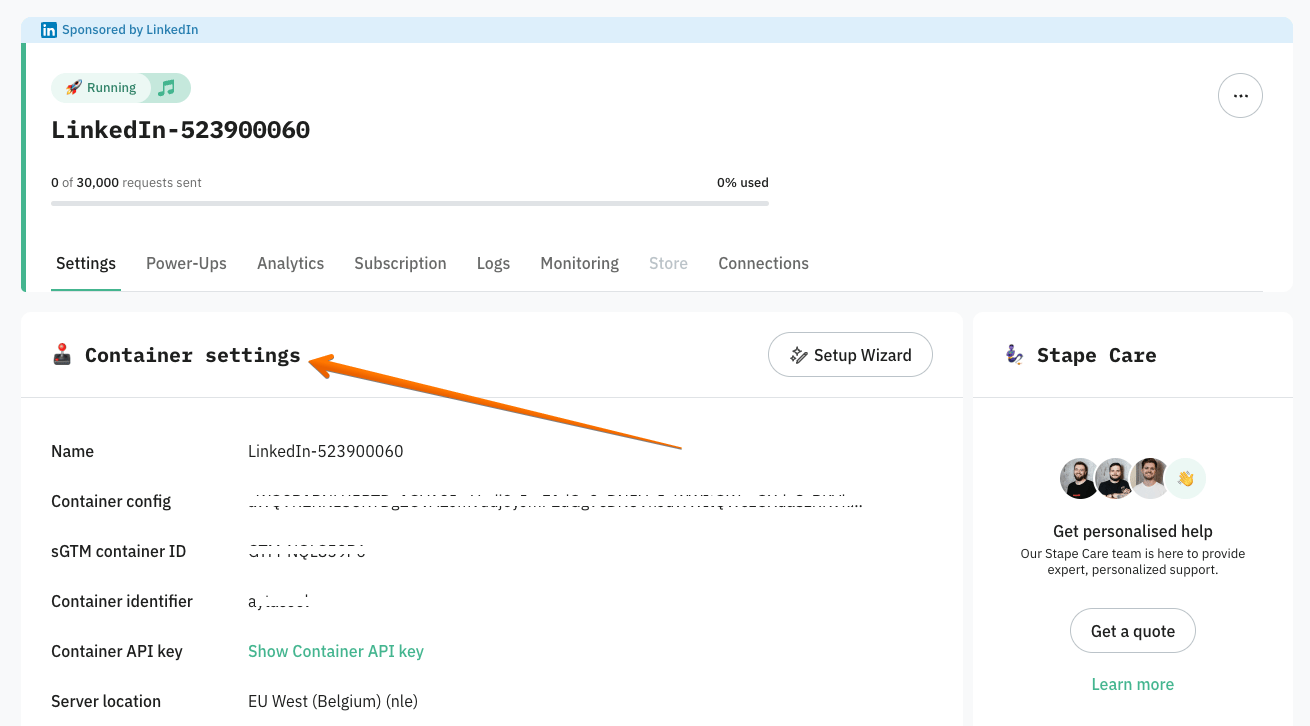
- Name: this is the name of your container. It helps you identify the specific container within your Stape account. You can edit it any time.
- Container config: this is a configuration string that defines how your container is set up. You can edit it any time. Related: How to find Container Configuration for sGTM?
- sGTM container ID: this ID uniquely identifies your server-side Google Tag Manager container. It's used to reference and manage the container.
- Container identifier: a unique identifier assigned to your container. This helps in distinguishing between different containers, especially if you have multiple containers in your Stape account.
- Container API key: this is an API key associated with your container. It allows you to interact programmatically with the container via the API. It is hidden by default for security reasons, but can be shown if needed.
- Server location: this indicates the geographical location where your server is hosted.
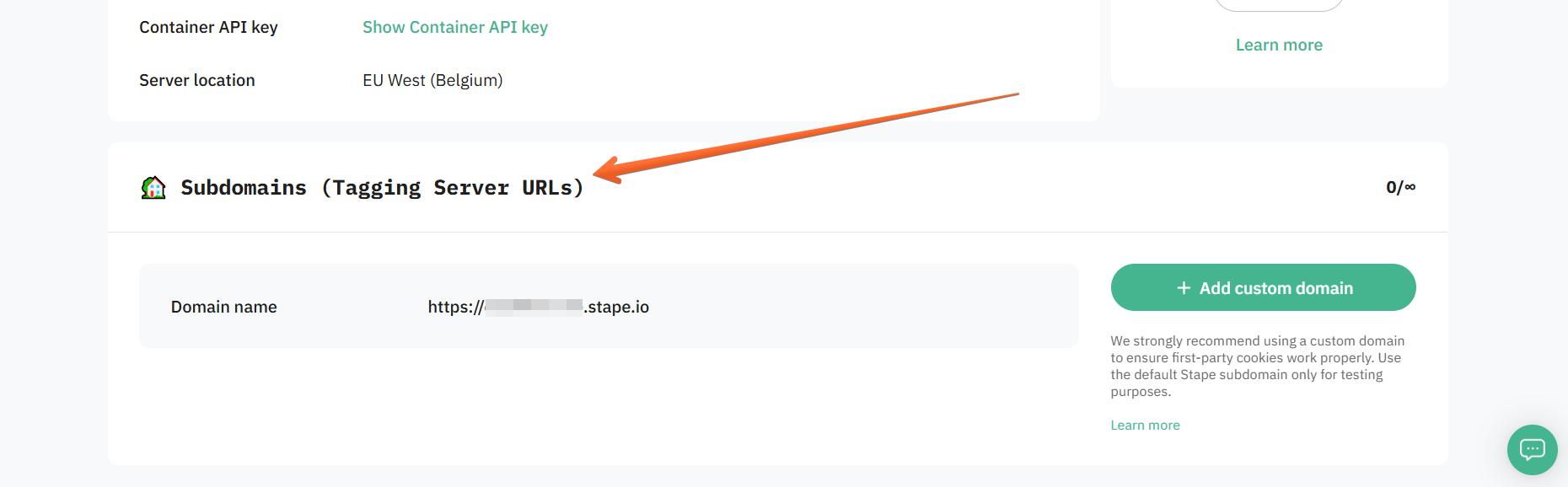
Also found in the Container settings tab is the Subdomains (Tagging Server URLs) section. It allows you to manage your tagging server URLs in sGTM, including the option to configure custom domains.
Power-ups
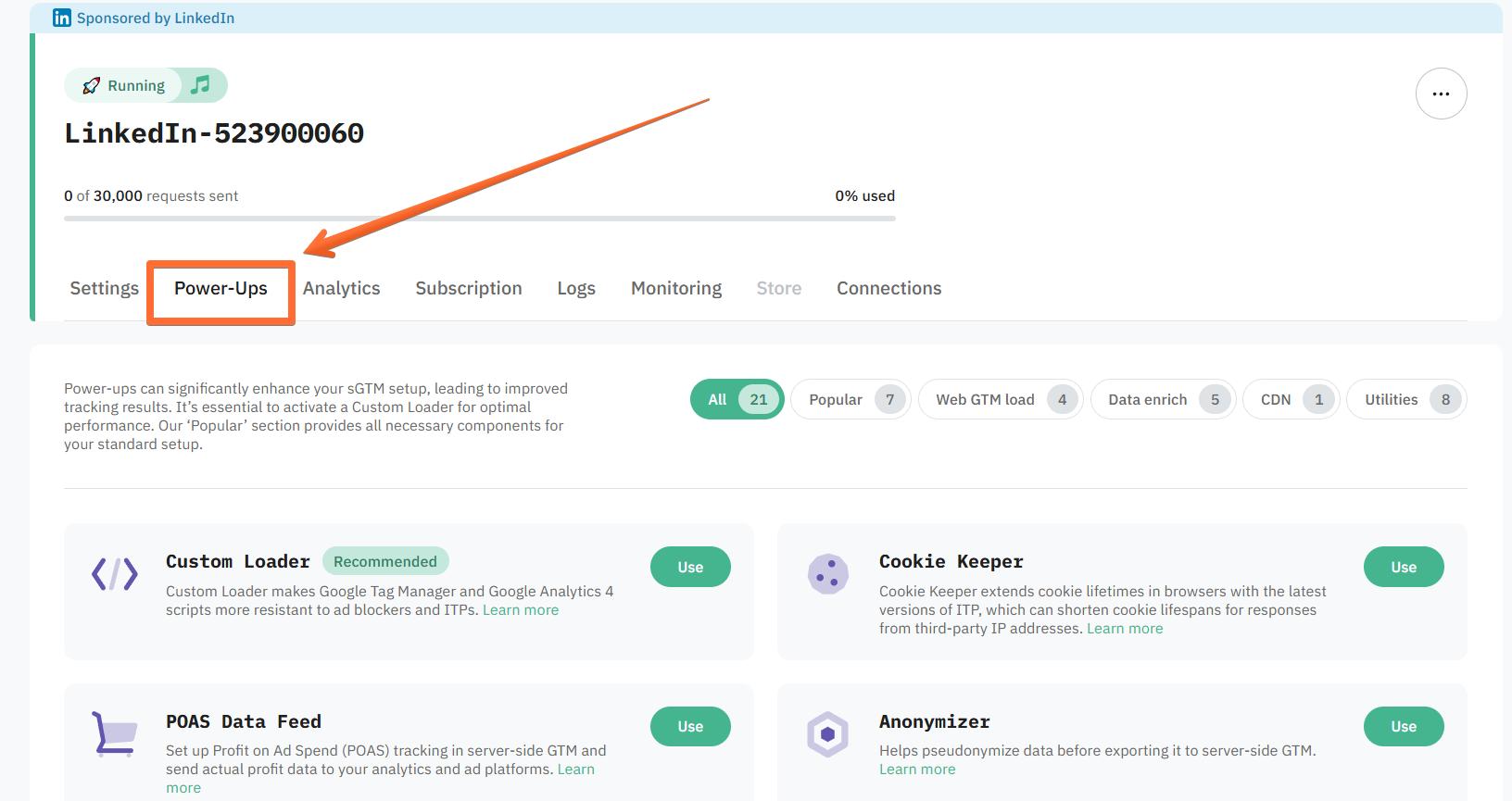
Stape Power-Ups are additional features that you can enable to enhance and broaden the capabilities of your sGTM container. Your LinkedIn-sponsored server container allows you to use most power-ups.
Analytics
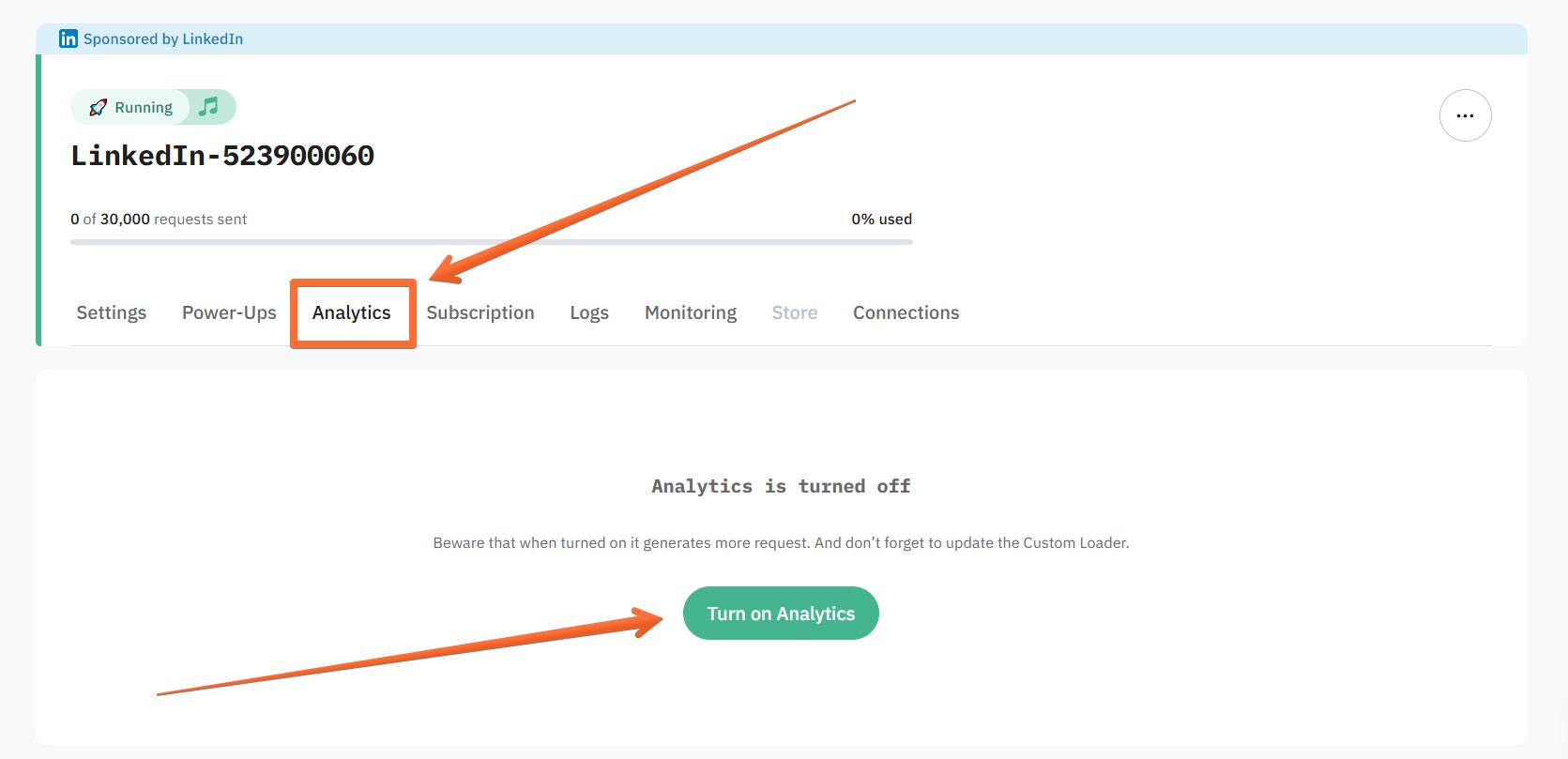
Stape Analytics feature allows you to monitor the effectiveness of Stape’s server-side tracking, allowing you to track its impact on data quality and verify that your setup is optimized for capturing the most accurate data possible. It showcases key metrics, including total events recovered through bypassing ad blockers, or the extended cookie lifespan in browsers that limit cookie lifetime. This feature is included with your LinkedIn-sponsored container offer.
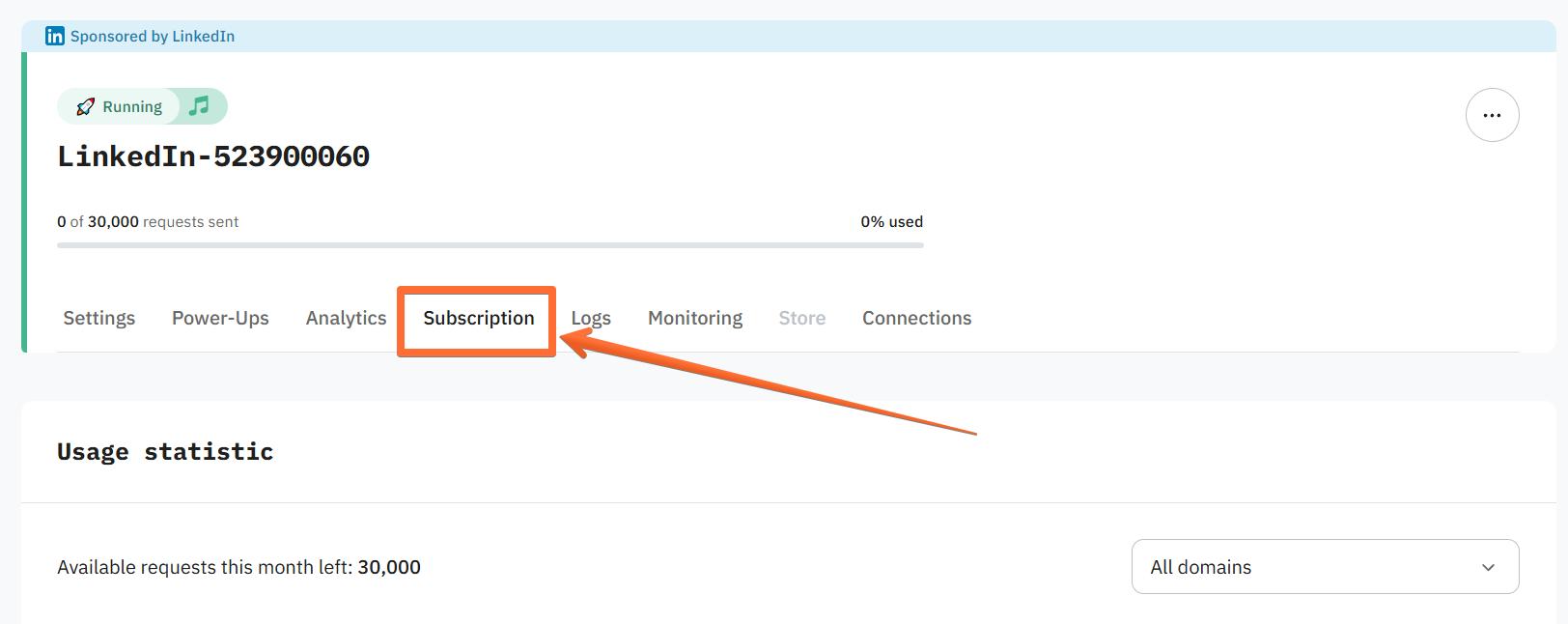
Subscription
Subscription shows information about your usage statistics across your domains.
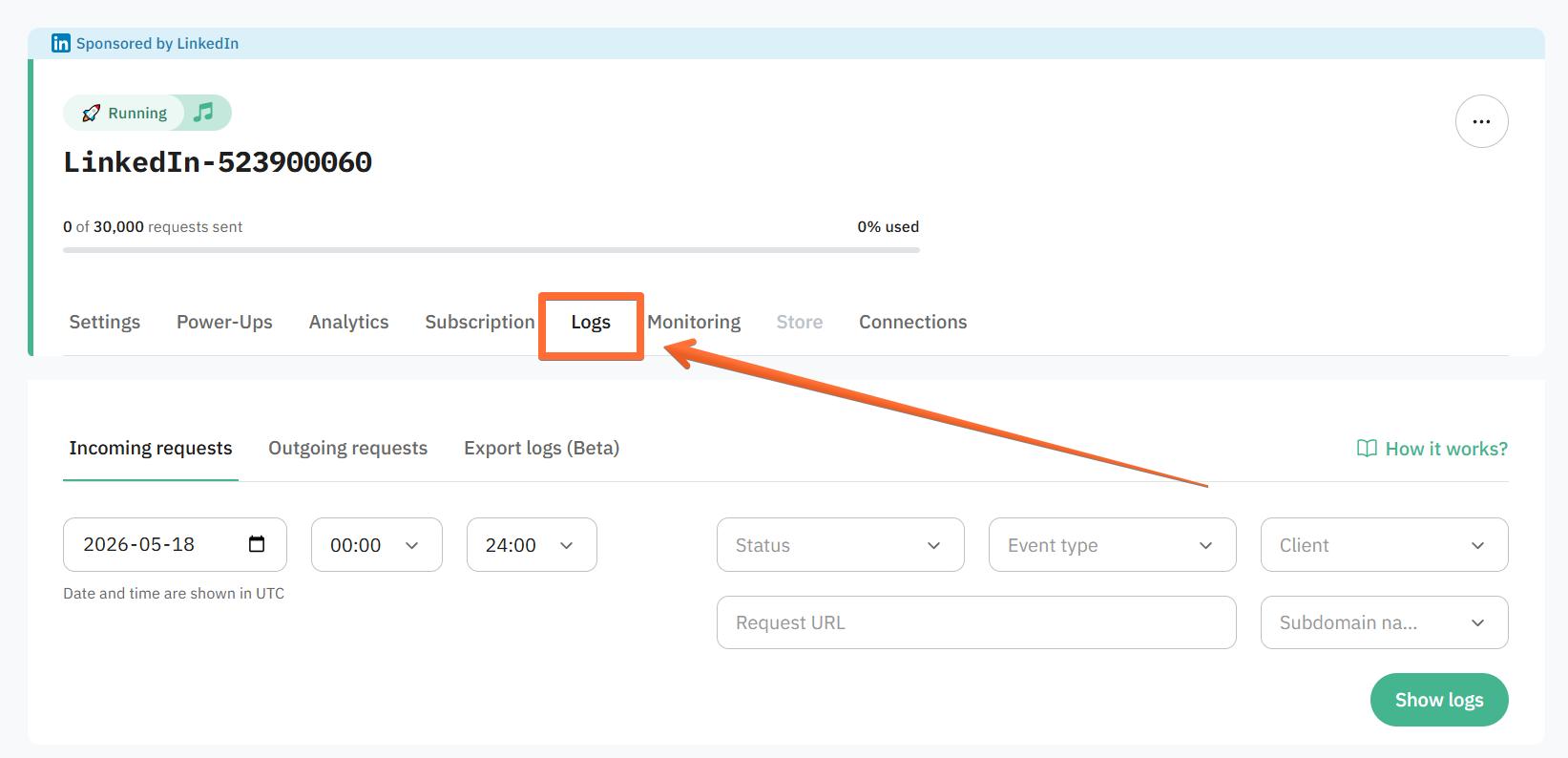
Logs
Stape Logs provide real-time and historical records of the data flowing in and out of your server-side Google Tag Manager container. Logs make it straightforward to monitor and troubleshoot your server-side tracking setup so that any issues with your network or vendor don’t go unnoticed. This feature is included with your LinkedIn-sponsored container offer.
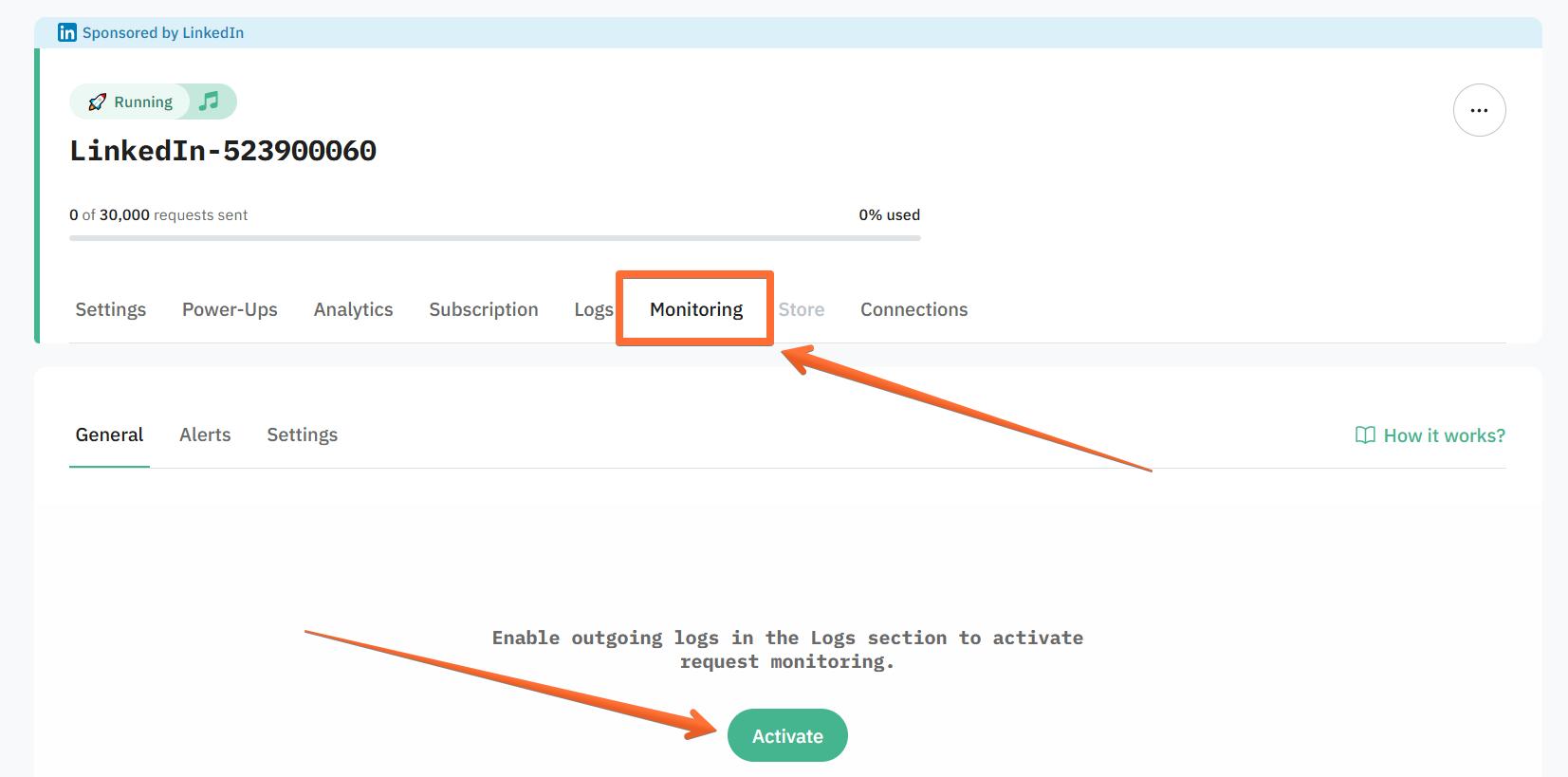
Monitoring
Stape Monitoring is a tool designed to keep an eye on your server GTM container's performance and ensure that tags are working as expected. It allows you to create custom alerts that watch for anomalies in your container’s logs (spikes in errors, drops in event counts, or missing requests) and sends email notifications whenever those rules are triggered. This feature is included with your LinkedIn-sponsored container offer.
Store
Stape Store is a built-in NoSQL database designed to work seamlessly with Stape’s server-side Google Tag Manager (sGTM) container. Its functionality and design are extremely similar to those of Firebase.
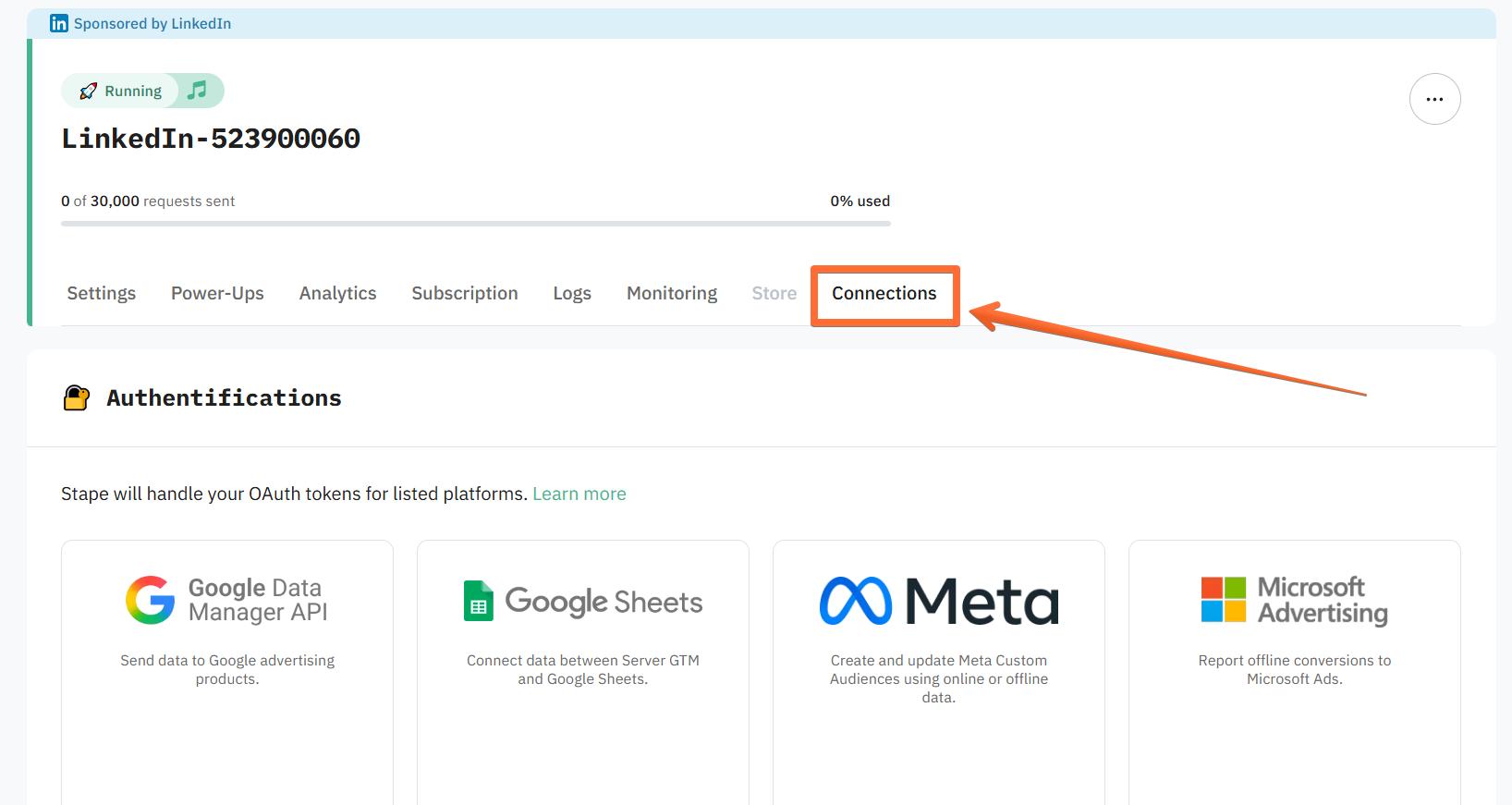
Connections
Connections is a feature that streamlines how you authenticate and manage integrations with third-party platforms directly from your sGTM container settings. Instead of manually creating apps, handling OAuth tokens, or juggling security credentials, you can log in via Connections. This feature is included with your LinkedIn-sponsored container offer.
Was this article helpful?
Comments