TikTok Pixel tag
Updated May 29, 2026
TikTok Pixel tag developed by Stape lets you install and manage the TikTok Pixel through your Google Tag Manager (GTM) web container. It supports several features that enhance your tracking setup: standard and custom TikTok events, Advanced Matching, consent-aware tracking, event deduplication, etc.
Unlike many other TikTok Pixel templates, this tag does not require installing the TikTok Base Code separately through a Custom HTML tag. Simply add the TikTok Pixel by Stape tag to your web GTM container, configure it, and start sending events to TikTok.
Requirements for setting up the TikTok Pixel by Stape tag
Please ensure that you already have Google Tag Manager web and server containers, as well as a configured server container and custom domain in Stape. Please follow these guides if you don’t have any of those:
How to set up the TikTok Pixel by Stape tag
1. Configure sending data to the server GTM container. The two most popular options for sending data to sGTM are Google Analytics 4 and Data Tag/Data Client. Here is a step-by-step guide on sending data to sGTM.
2. Add the TikTok Pixel by Stape tag template in the web GTM container by importing it from the Template gallery:
- Search for the TikTok Pixel by Stape tag in the Google Tag Manager Tag Template gallery.
- Click Add to workspace.
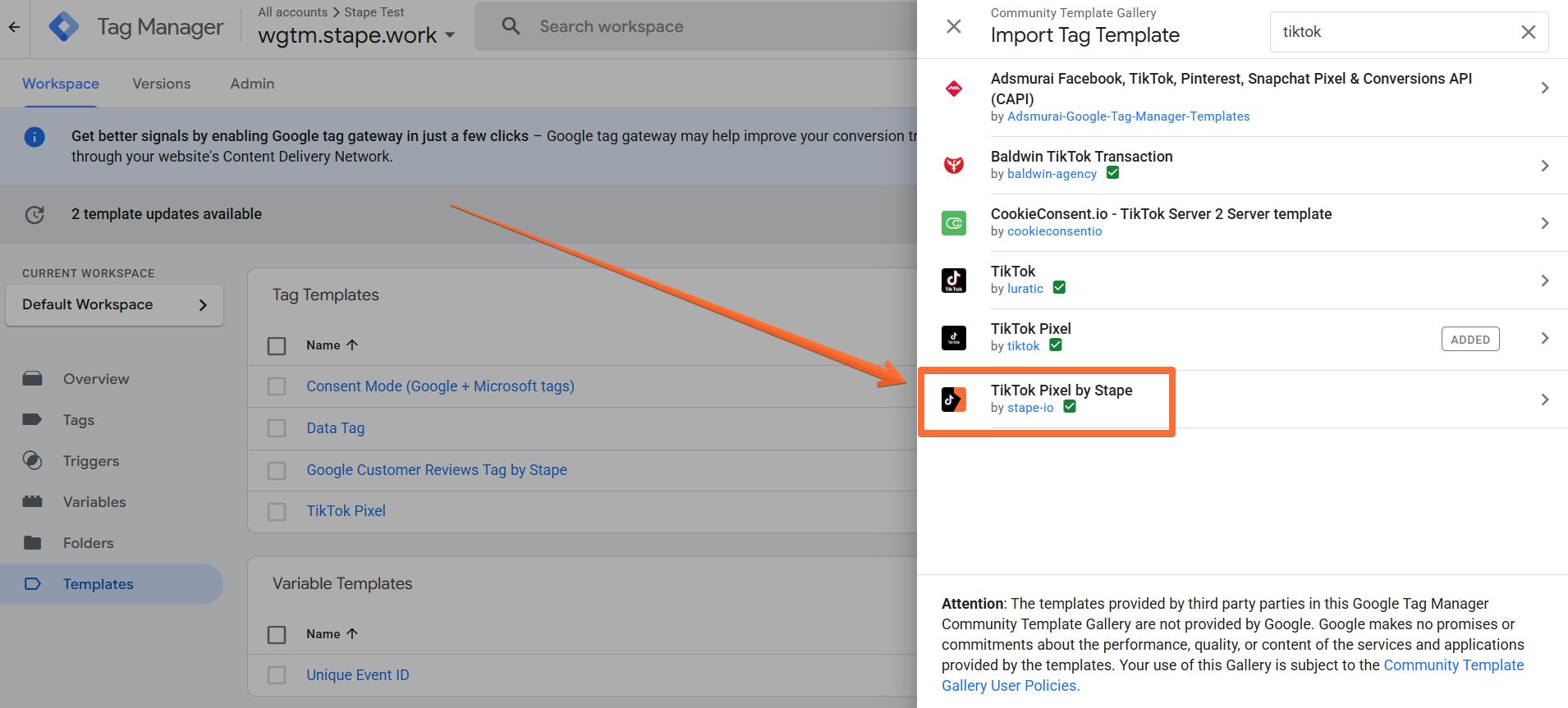
3. Create the TikTok Pixel by Stape tag:
- Go to the Tags menu → click New.
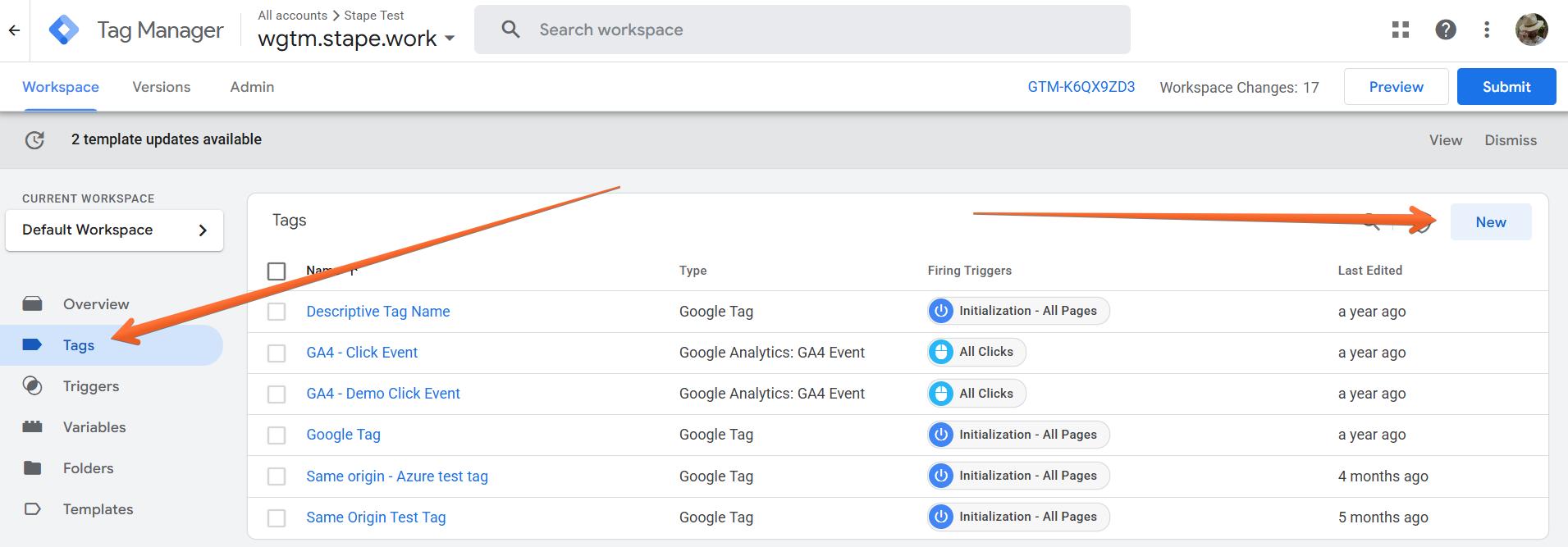
- Click Tag Configuration → select TikTok Pixel by Stape.
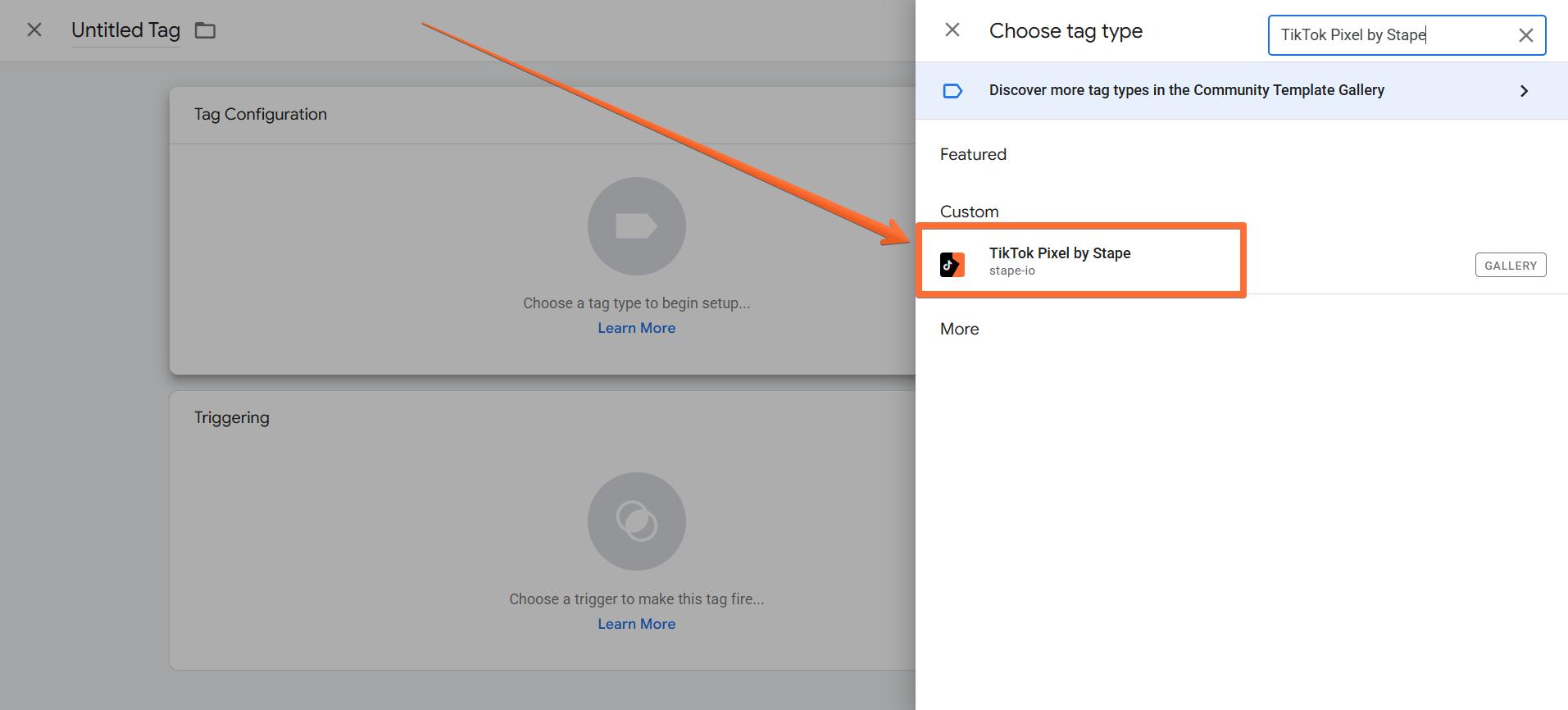
4. Configure the TikTok Pixel by Stape tag:
- TikTok Pixel ID(s) - enter one or several TikTok Pixel IDs.
- Event Name Setup Method - сhoose how the Event Name is defined:
- Inherit from DataLayer - maps GTM/GA4 event names to TikTok equivalents.
- Override - choose from a list of standard events or provide a custom event name.
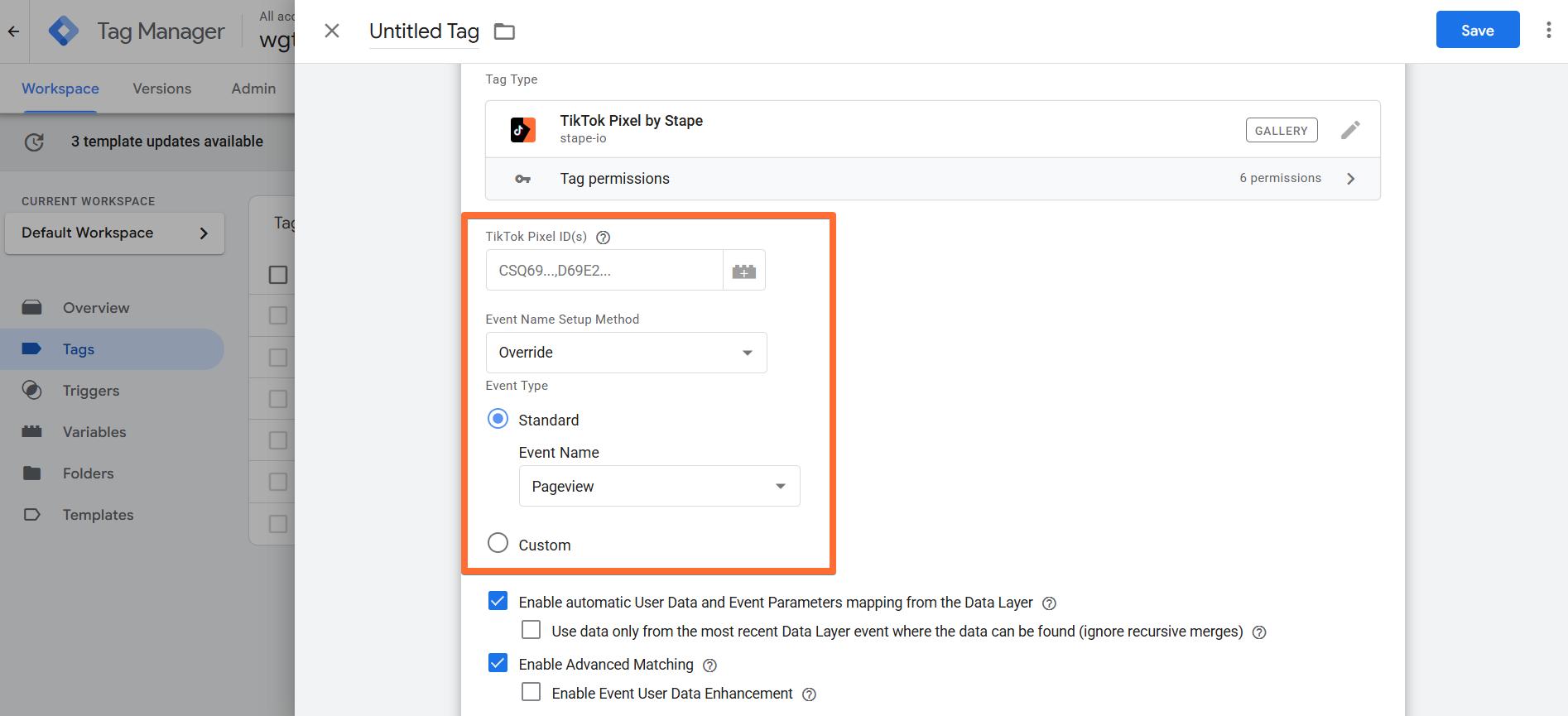
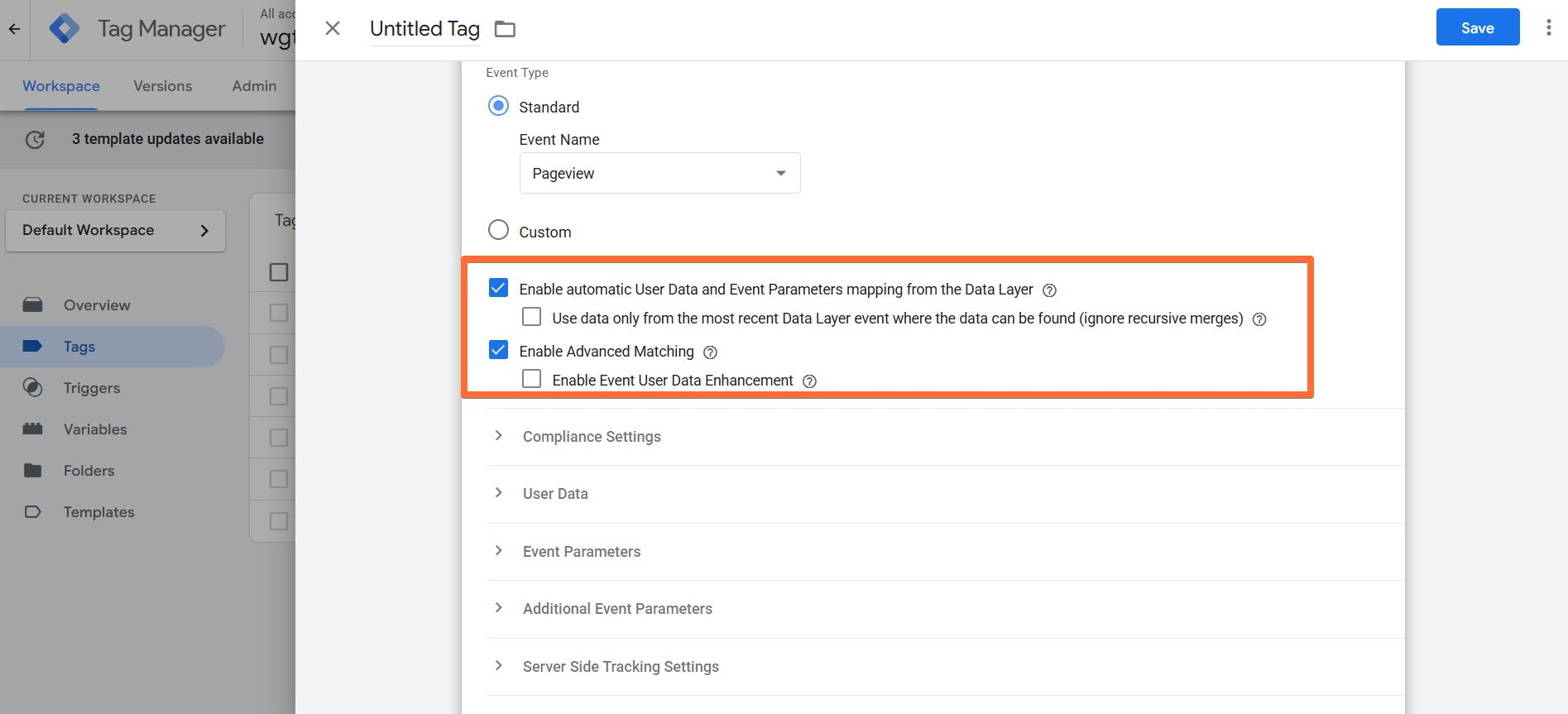
- Enable automatic User Data and Event Parameters mapping from the Data Layer - this is a recommended option that will automatically parse GA4, UA, and Common Event Data formats for event and user data.
- Use data only from the most recent Data Layer event where the data can be found - the tag will ignore recursive merges for Data Layer variables and take only the most recent value of the data.
- Enable Advanced Matching - this is an optional feature that allows to securely pass user data (e.g., email, phone) to TikTok for better match rates.
- Enable Event User Data Enhancement - this is an optional feature to store and reuse user data via localStorage across sessions.
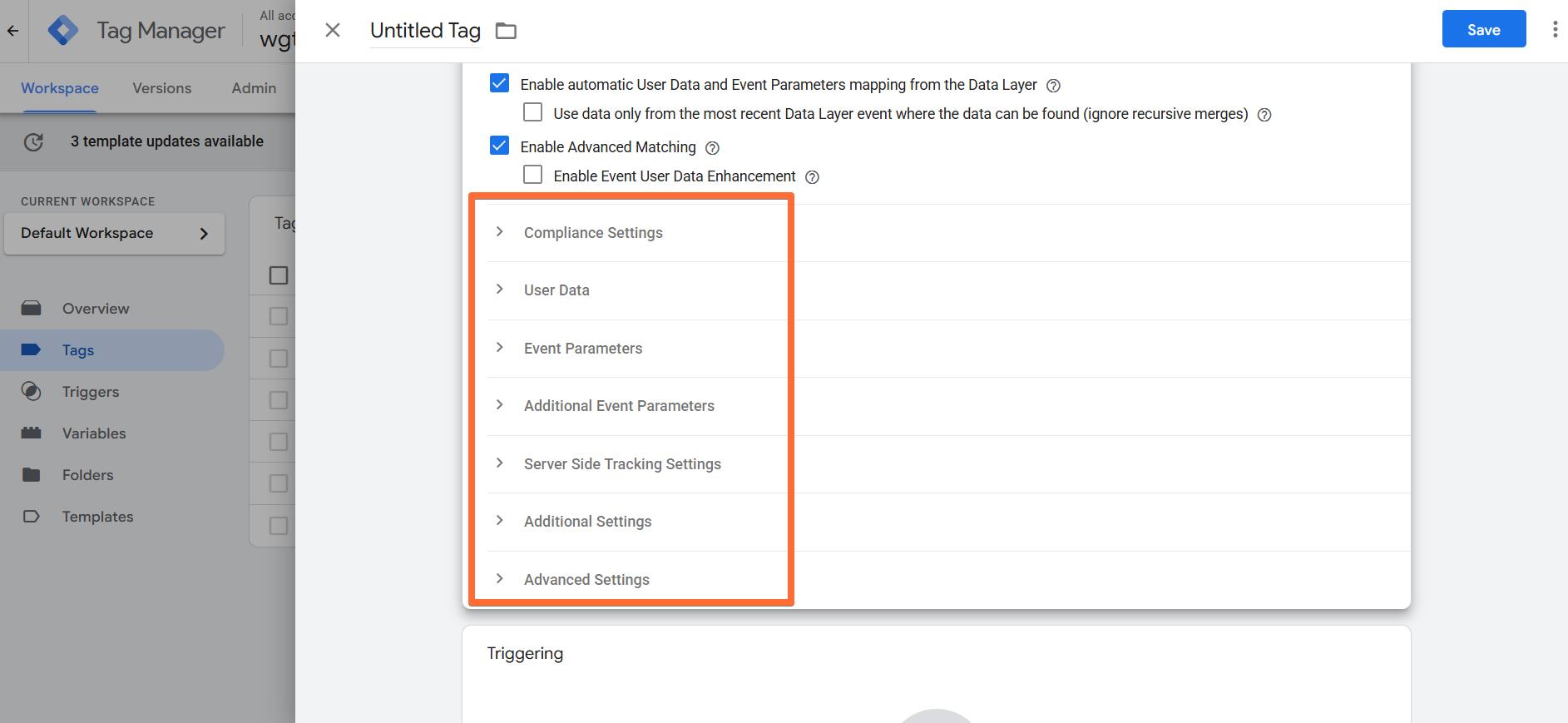
- Advanced parameters:
- Compliance Settings - configure TikTok's consent modes, Google Consent Mode, or Limited Data Use (LDU).
- User Data - select to use a standard User-Provided Data variable or create a variable that returns a JavaScript object containing the desired User Data parameters.
- Event Parameters and Additional Event Parameters - add extra metadata to your events by creating a variable that returns a JavaScript object with the desired event parameters.
- Server Side Tracking Settings - provide an Event ID for deduplication when you use both client-side and server-side tracking with the TikTok Events API. You can also choose to Push event to DataLayer with the Event ID for easier event deduplication.
- Additional Settings - you can choose to Disable History Event Tracking that TikTok Pixel automatically tracks as Pageview. If you do so, make sure to implement it manually instead.
- Advanced Settings - here you can establish tag firing priority, create a custom tag firing schedule, configure tag firing options, and more.
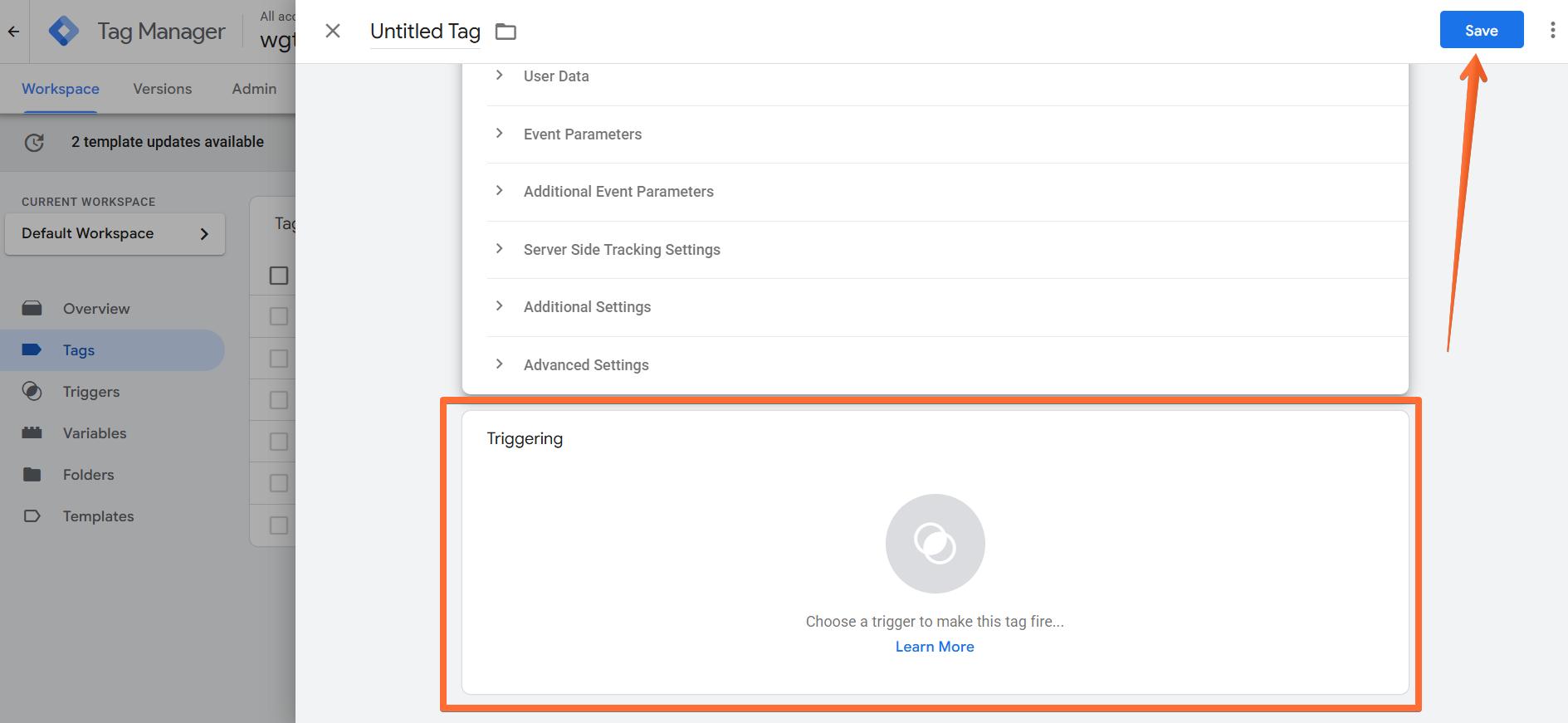
5. Once the tag’s configuration is completed, add a Trigger to fire the tag based on the selected action (e.g., all page views for the "Page View" action or purchase events for the "Conversion" action). Give the trigger a descriptive name, and click Save.
How to test and troubleshoot the TikTok Pixel by Stape tag setup
You can test the configurations in Google Tag Manager. Click on Preview, trigger the event, and check whether the tag has fired.

Find out more about debugging and monitoring server-side tracking configuration in our guide.
Was this article helpful?
🍽 Table of content:
Comments