OpenAI Ads Pixel tag
Updated Aug 3, 2026
The guide explains how to set up the OpenAI Ads Pixel by Stape in a web GTM container. Follow step-by-step instructions to import the tag template, configure the required and optional settings, enable consent support, test your implementation, and prepare the setup for server-side tracking and event deduplication with the OpenAI Ads Events API tag.
Before you begin
To configure the tag, ensure that you already have a web Google Tag Manager container.
How to set up OpenAI Ads Pixel tag for web GTM
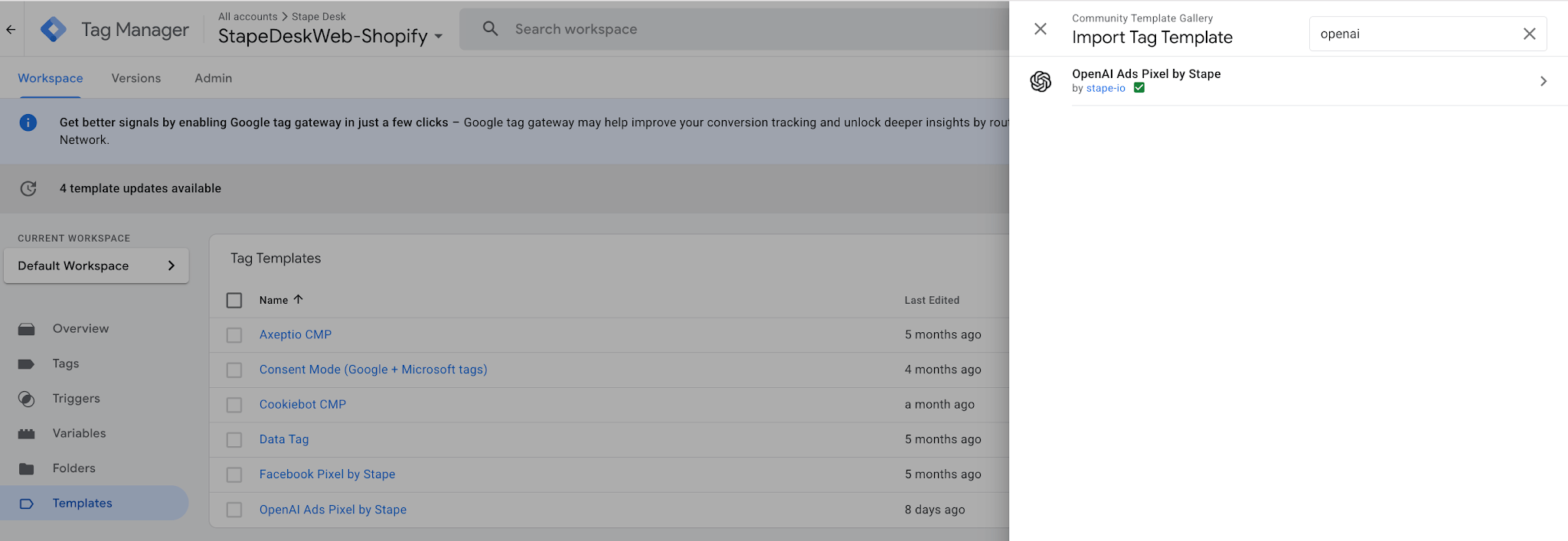
1. Add the OpenAI Ads Pixel template to your workspace in the web GTM container.
Go to the Templates → next to Tag Templates, click "Search gallery" → find OpenAI Ads Pixel → click "Add to workspace."
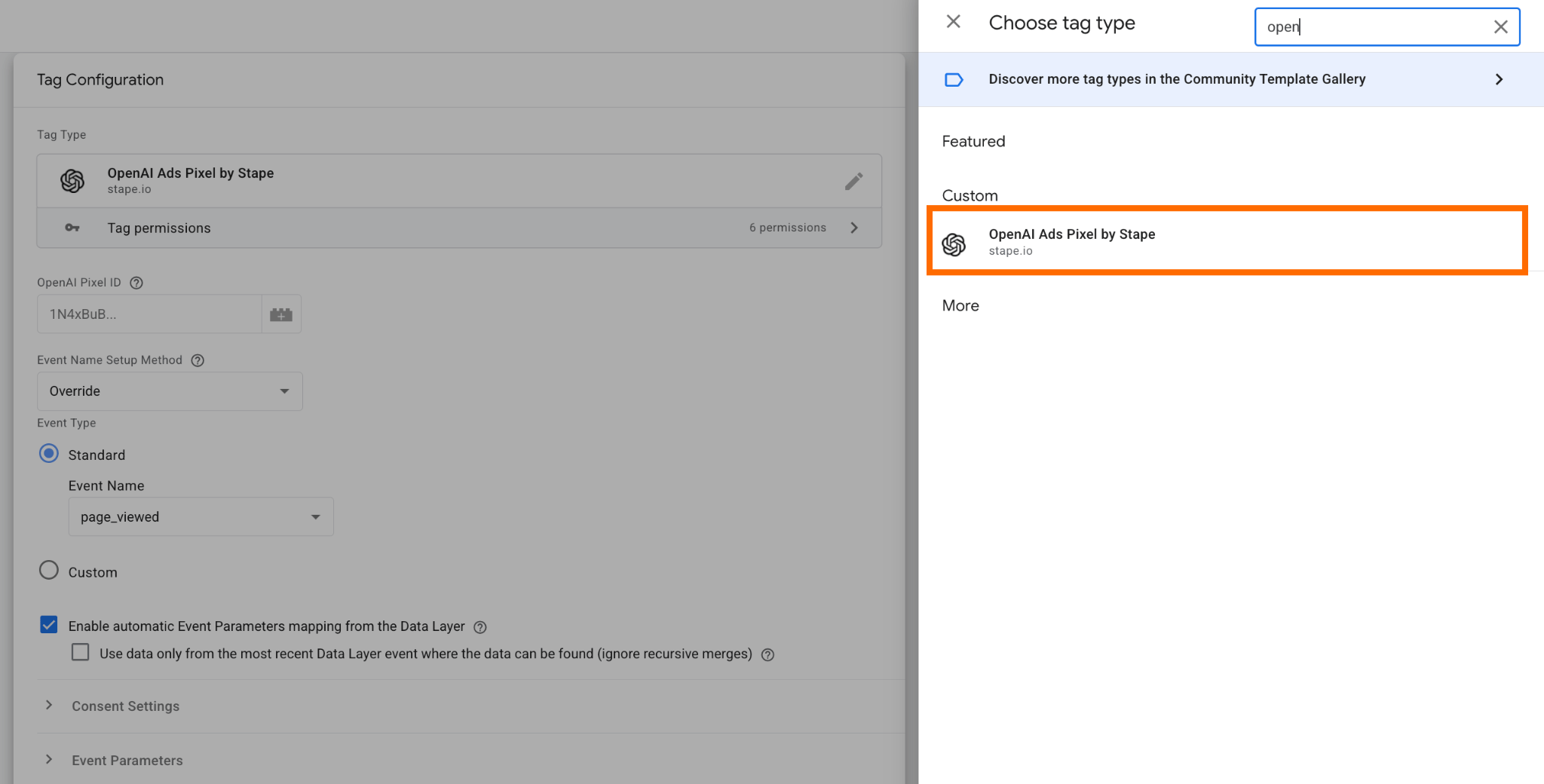
2. Create a new tag.
As Tag Configuration, select “OpenAI Ads Pixel by Stape”.
3. Configure the tag.
- OpenAI Pixel ID - a unique identifier that connects your website tracking events to your ChatGPT Ads account. You can find it in your ad account. Please note that currently only one Pixel ID is supported on the page.
- Event Name Setup Method - select the method:
- Inherit from DataLayer - with this option, the tag maps GA4 event names (add_to_cart, sign_up, etc.) to ChatGPT equivalents.
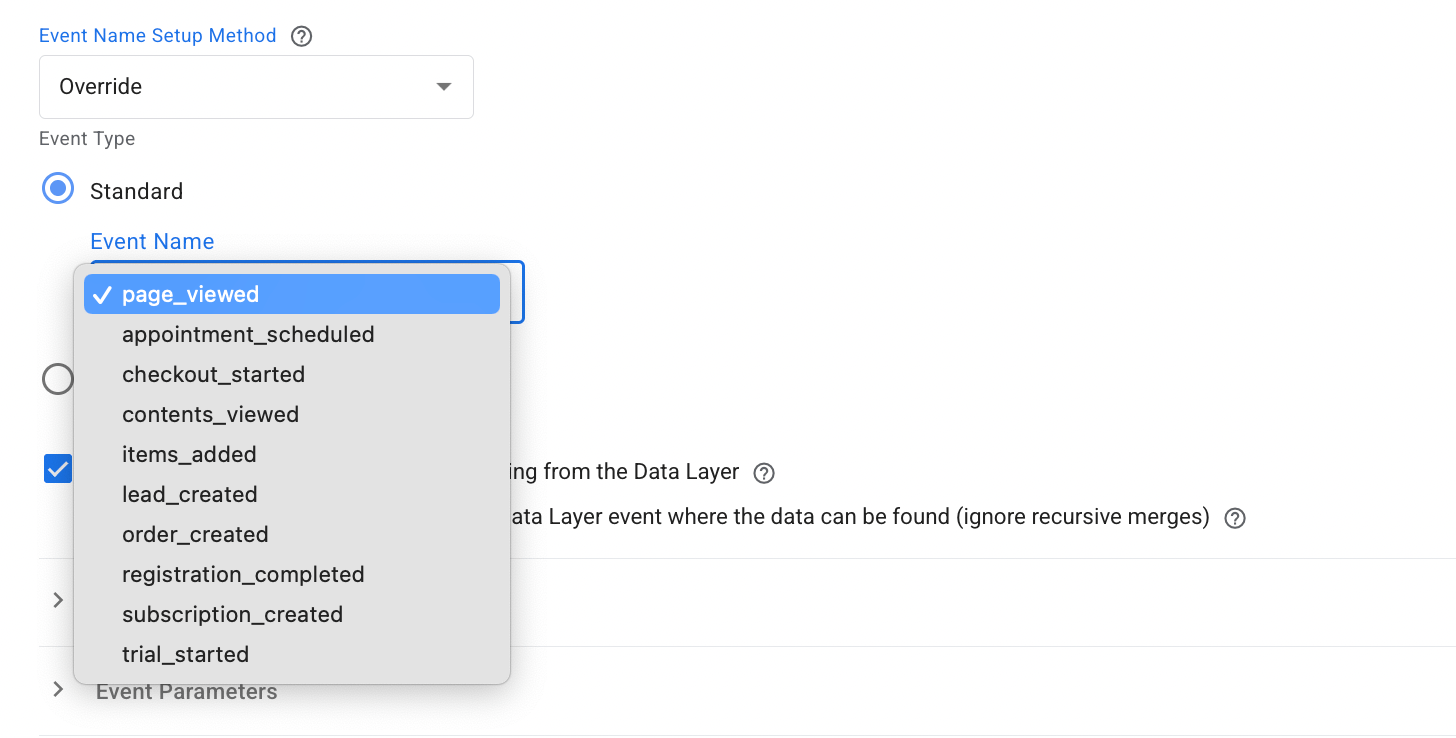
- Override - choose from standard events or provide a custom event name.
- (If selected "Override" as event name setup method) Choose the Event type you want to track: standard from the list of available events or a custom one.
- Enable automatic Event Parameters mapping from the Data Layer box is checked by default. It’s a recommended configuration; with this option, the tag will automatically populate standard Object Properties and User Properties from the DataLayer. Tag parses Google Analytics 4 and Common Event Data formats.
- Configure Compliance section:
- Consent Granted - if you set Consent Granted to false, it will prevent the Pixel from sending hits until the tag is fired with Consent Granted true.
- Enable GTM consent mode support - when enabled, this tag checks for the Google Consent Mode ad_storage consent. If ad_storage consent is denied, the tag will not load the JS SDK, and it will prevent events from being sent until user consent is explicitly granted.
These are the key configuration parameters within a tag. Here is an example of tag configuration at this point:
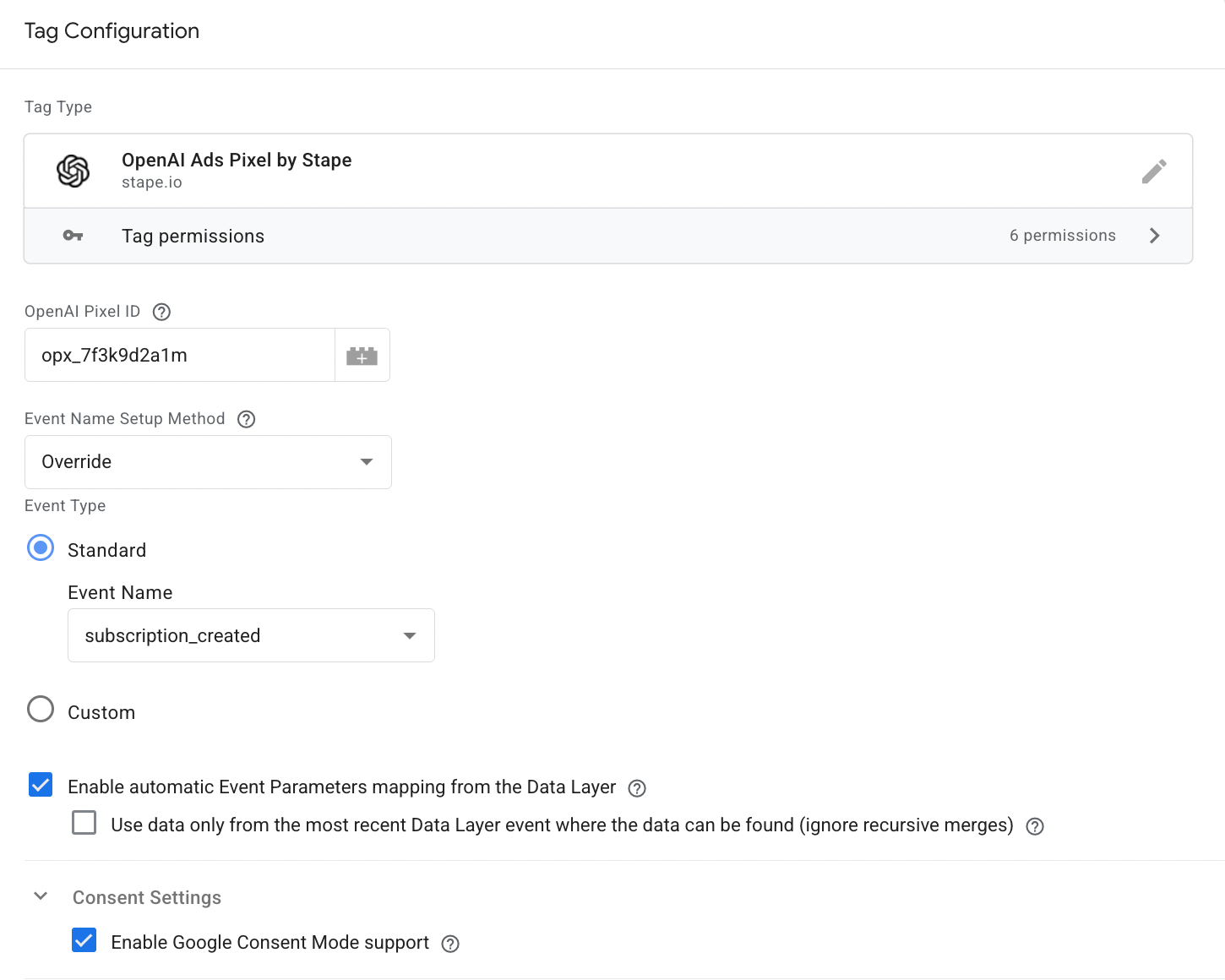
The optional ones include the following:
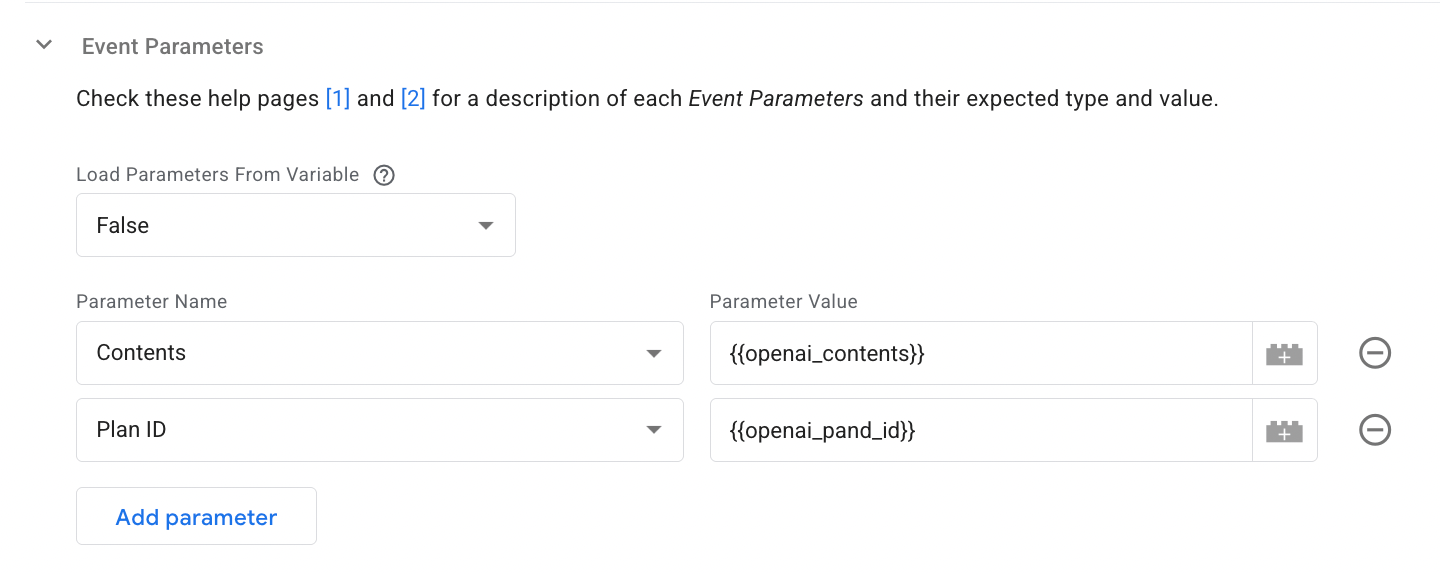
- Event parameters section.
- Load Parameters From Variable - you can create a variable that returns a JavaScript object with the desired Event Parameters.
- Add Parameter name and value - list the properties that will be sent to OpenAI with an event. See the list of supported events in OpenAI’s documentation.
- Server-side tracking settings section.
- This section is valid for you if you have or are going to configure server-side tracking. The section is dedicated to event deduplication. We show how to configure event deduplication in the documentation on the OpenAI Ads Events API tag.
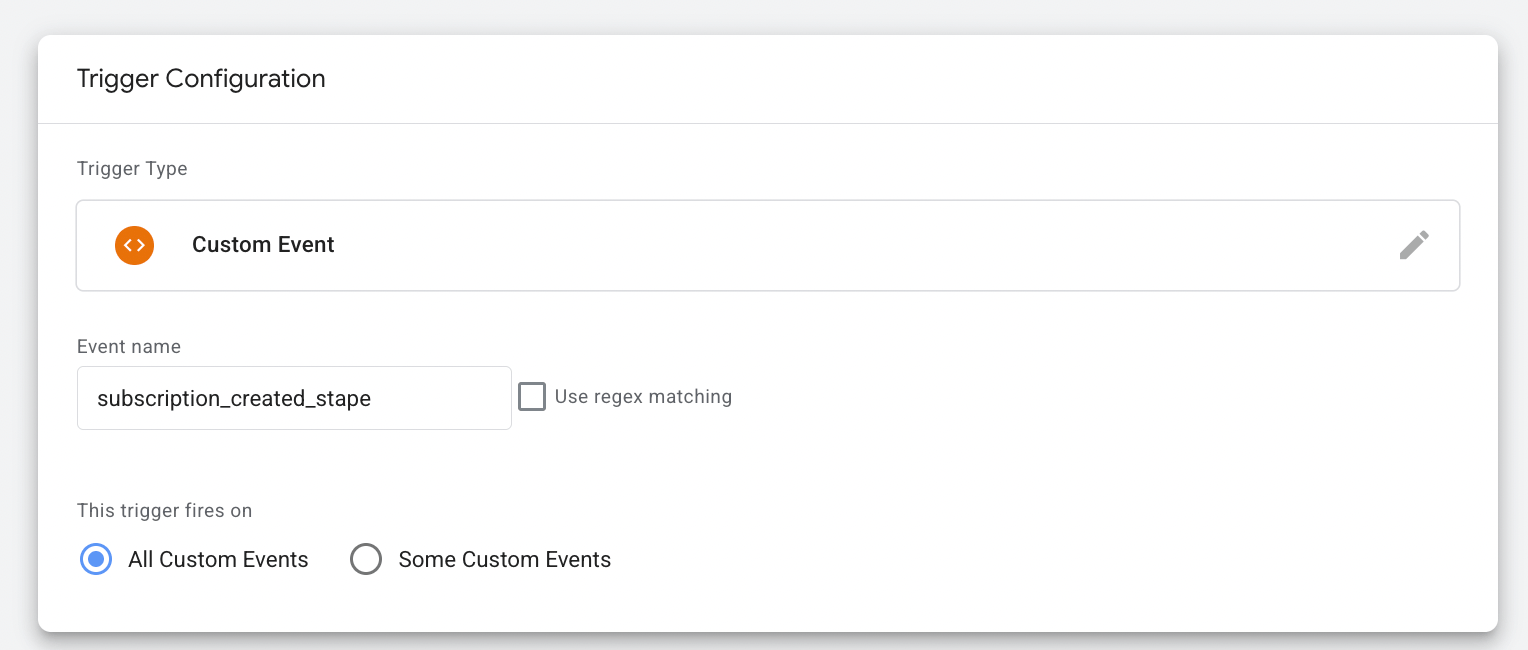
4. Add a trigger for a tag.
The trigger must correspond to the event you aim to track with the tag. In our case, it is “subscription created”.
Test and troubleshoot the OpenAI ads Pixel tag
You can test the configurations in Google Tag Manager. Click on Preview, trigger the event, and check whether the tag has fired.

For more convenient troubleshooting with GTM, make sure to install the Stape GTM Helper Chrome extension.
Next step
To track ChatGPT ad performance with server-side tracking, use the OpenAI Ads Events API tag for server GTM developed by Stape.
Was this article helpful?
🍽 Table of content:
Comments