How to use Stape GTM Helper
Updated Jul 31, 2026
Before you begin
Make sure that you have the Stape GTM Helper extension installed. For the installation instructions read the Stape GTM Helper overview article.
How to scan a website
The Scan website tab lets you run a fast health check on the tracking setup of any page you're viewing – checking analytics, cookies, ads, and SEO. The report is generated using Website Tracking Checker, so it evaluates the same metrics.
- 1.Navigate to the website you want to check.
- 2.In Chrome Extensions, click the Stape GTM Helper icon and open the Scan website tab.
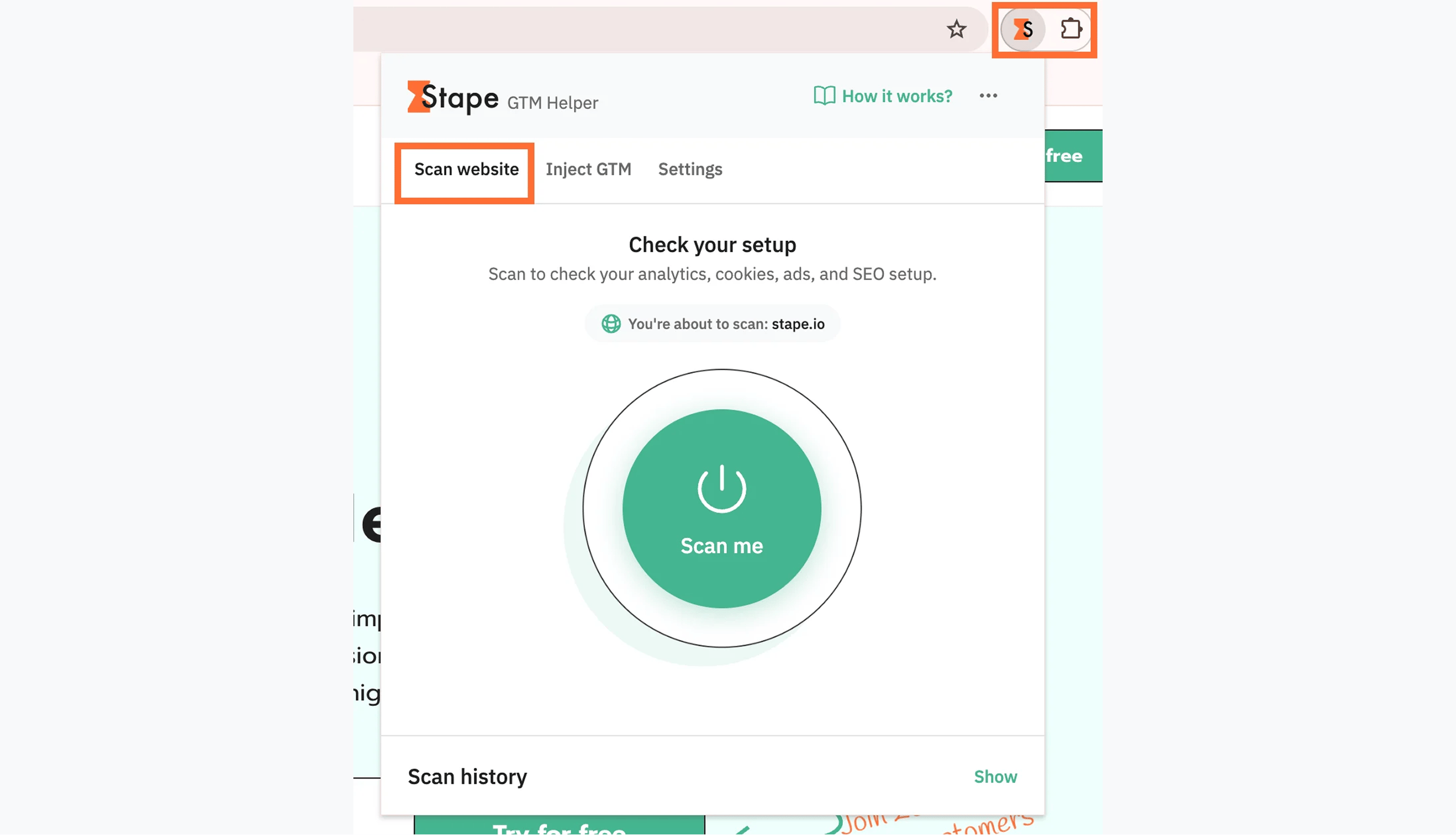
3. Click Scan me.
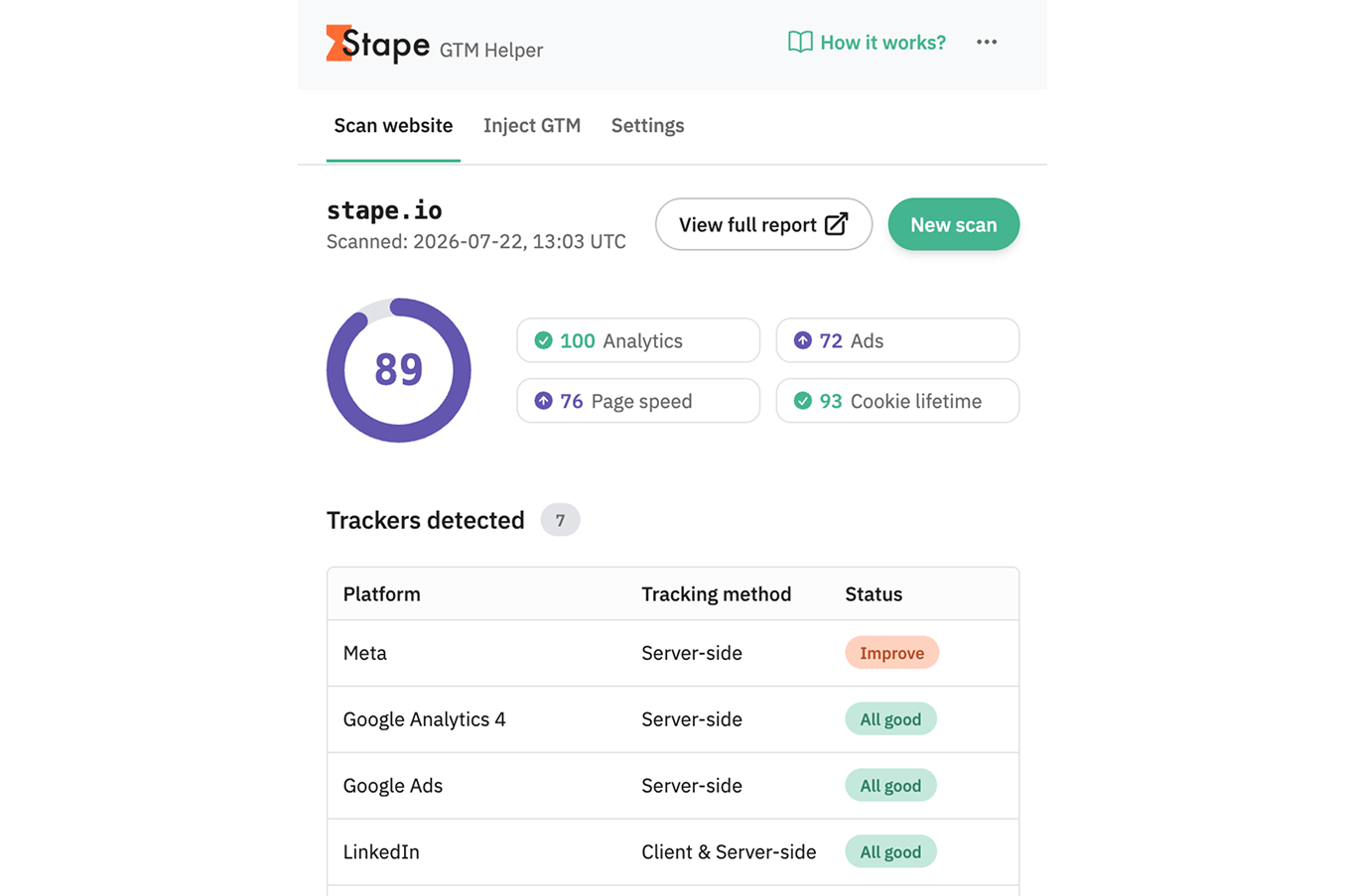
4. Wait for a couple of minutes and review the results. The extension shows:
- Site name and scan timestamp.
- Overall score – a single 0-100 score summarizing overall tracking health.
- Category scores – four metrics, each with a status icon:
- Analytics – checks if platforms like GA4 are implemented using the best practices for the setup.
- Ads – reviews how server-side tracking can improve quality for better ad attribution and ROAS.
- Page speed – detects tracking scripts that slow your site and flags those that can be moved server-side.
- Cookie lifetime – audits cookie lifetimes, consent mode configurations, and technical compliance.
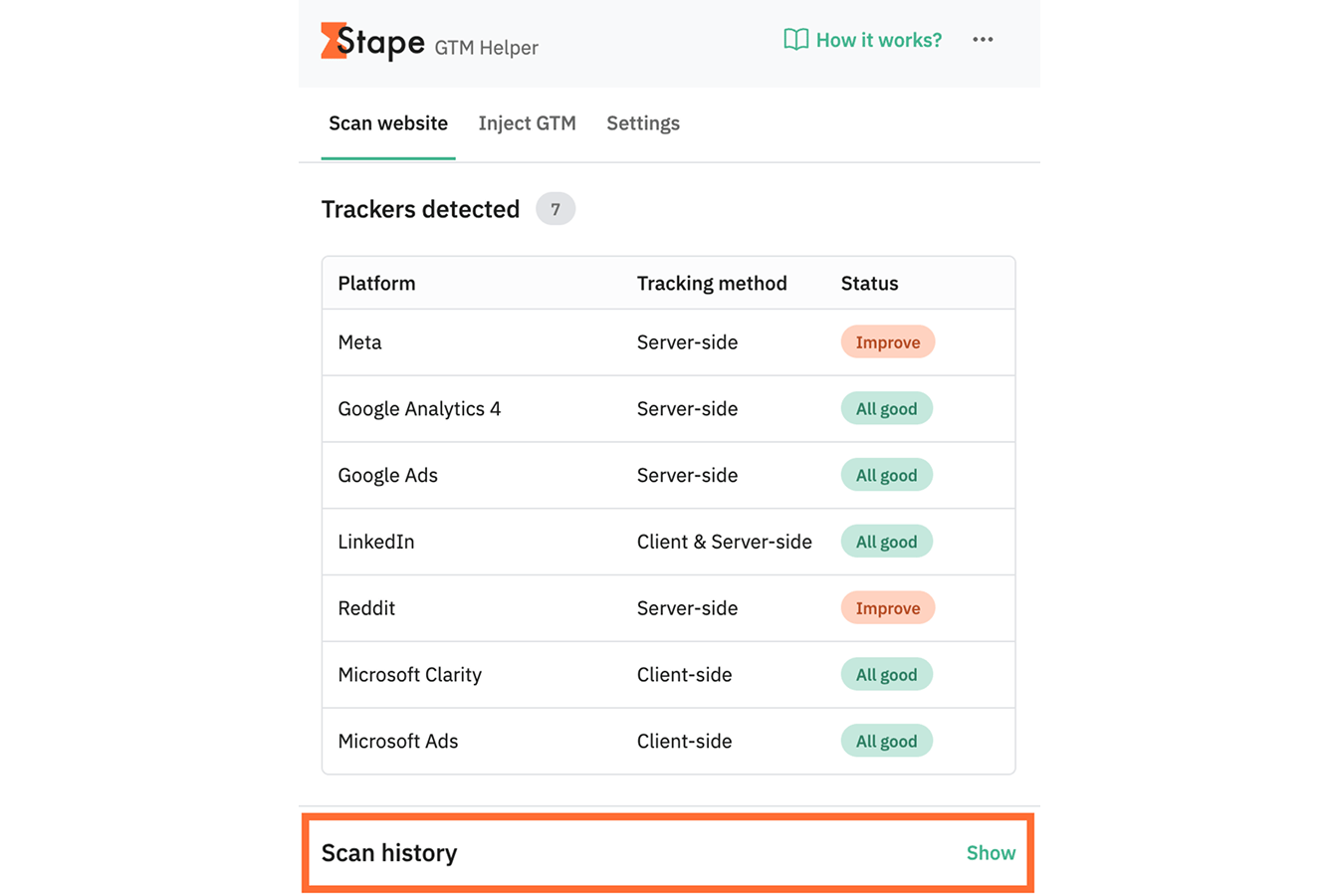
- Trackers detected – a table listing every tracking platform found on the page, with:
- Platform
- Tracking method – whether it runs client-side, server-side, or both
- Status – a colored badge, either All good (green) or Improve (orange), flagging platforms that need attention.
5. Click View full report to open the complete Website Tracking Checker report with detailed findings and recommendations. For more information about the metrics read the Website Tracking Checker overview article.
6. Click New scan to re-run the check – useful after making fixes, to confirm your score and statuses improved.
Past scans remain available under Scan history, so you can compare results over time for the same site.
How to inject GTM script
The Inject GTM feature allows you to inject a GTM container snippet into any website without altering the site's source code or CMS backend. This is useful for testing, debugging, or staging tracking setups on live pages before deploying them. This injection is local to your browser session and doesn't affect your live site or other visitors.
- 1.Navigate to your website.
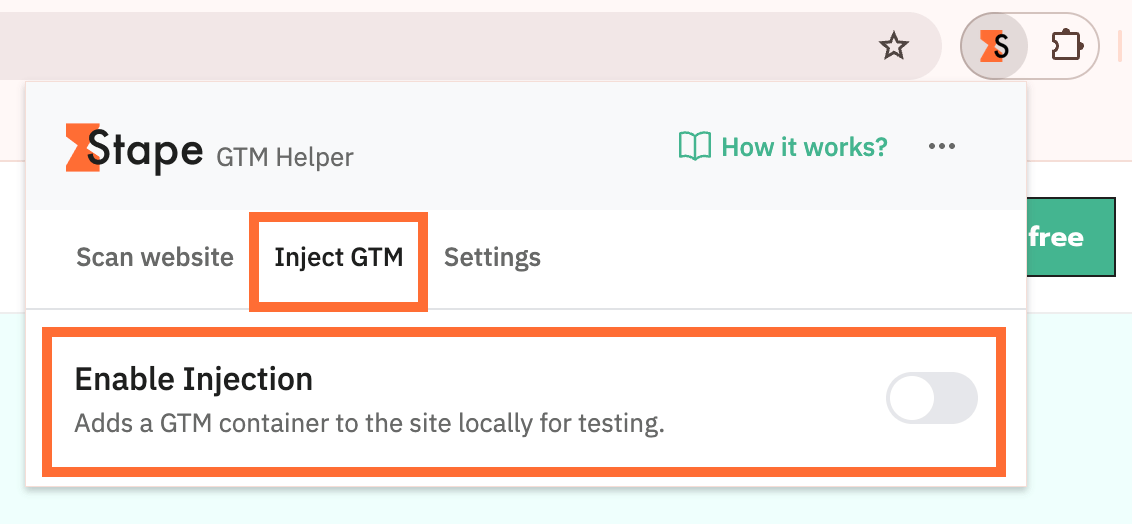
- 2.In Chrome Extensions, click the Stape GTM Helper icon and open the Inject GTM tab.
- 3.Toggle Enable Injection.
4. Enter the domain name and GTM container ID you want to inject.
5. Optionally, instead of using the standard Container ID field (which generates a standard gtm.js tag), the Custom Code field accepts any custom script or snippet you want to execute on the target page. If you generated a snippet with the Custom Loader power-up (which routes gtm.js requests through your custom domain/loader path), paste the full HTML <script> block provided by Stape. You can also inject inline JavaScript to initialize data layer variables or push events for testing before GTM loads.
6. Click Save changes.
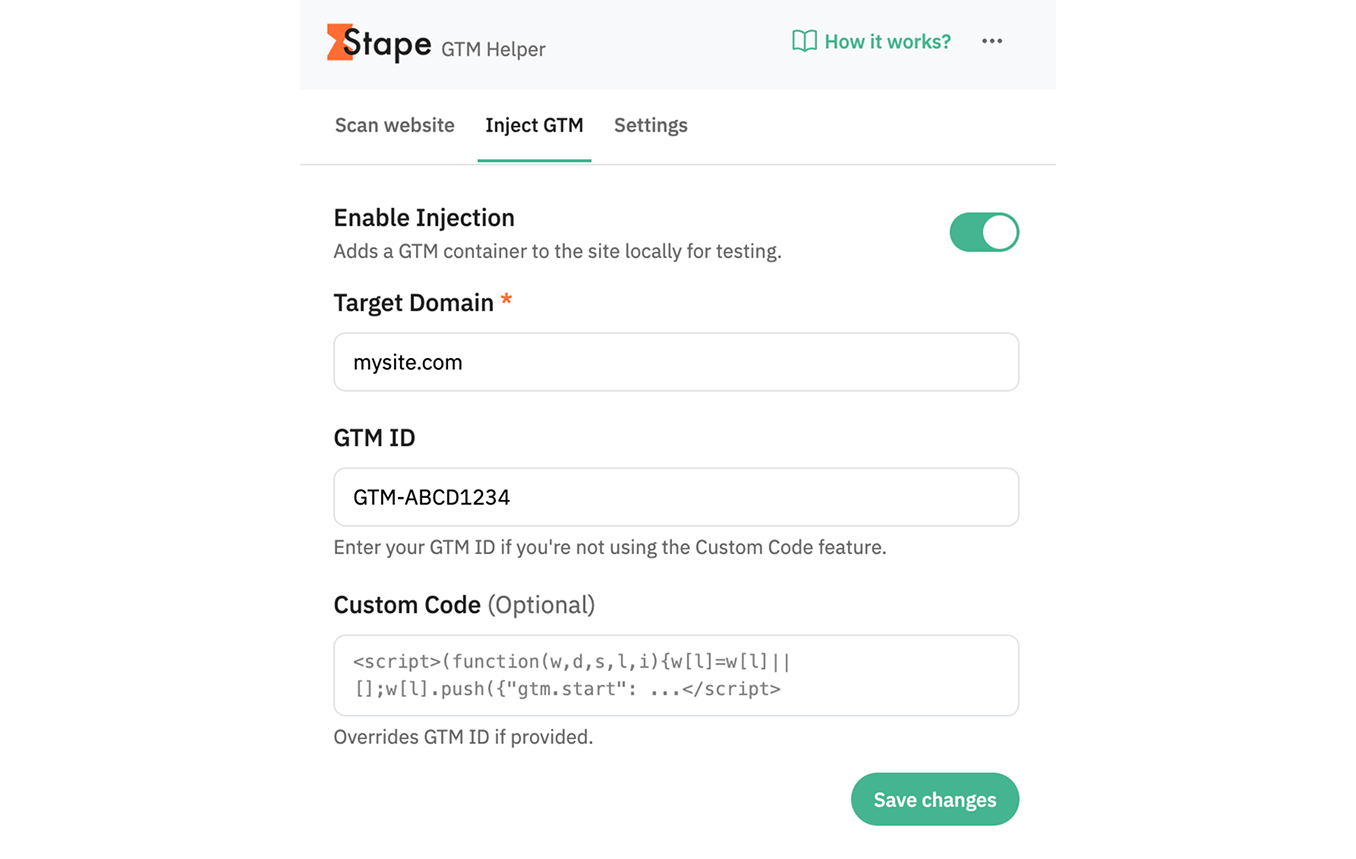
7. Once enabled, reload the page and open GTM Preview mode. You'll now be able to see the events firing on the previously restricted page.
How to use Stape GTM Helper settings
The Settings tab is where you turn individual debugging features on or off. All toggles are enabled by default, and each affects either the web container, the server container, or both.
- 1.Go to the Google Tag Manager and open any container in Preview mode.
- 2.In Chrome Extensions, click the Stape GTM Helper icon and open the Settings tab.
- 3.Toggle each setting on/off according to your needs.
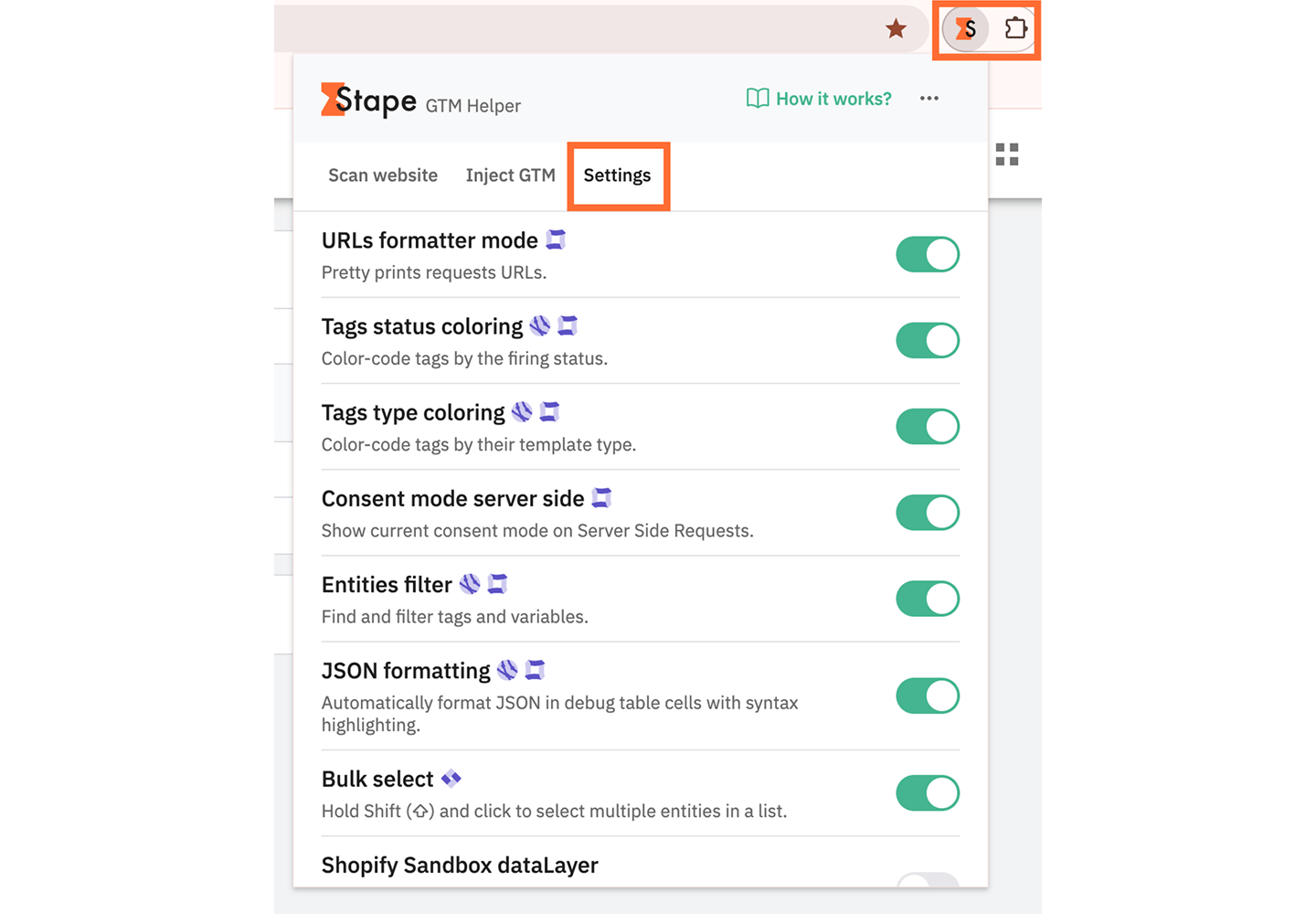
URLs formatter mode
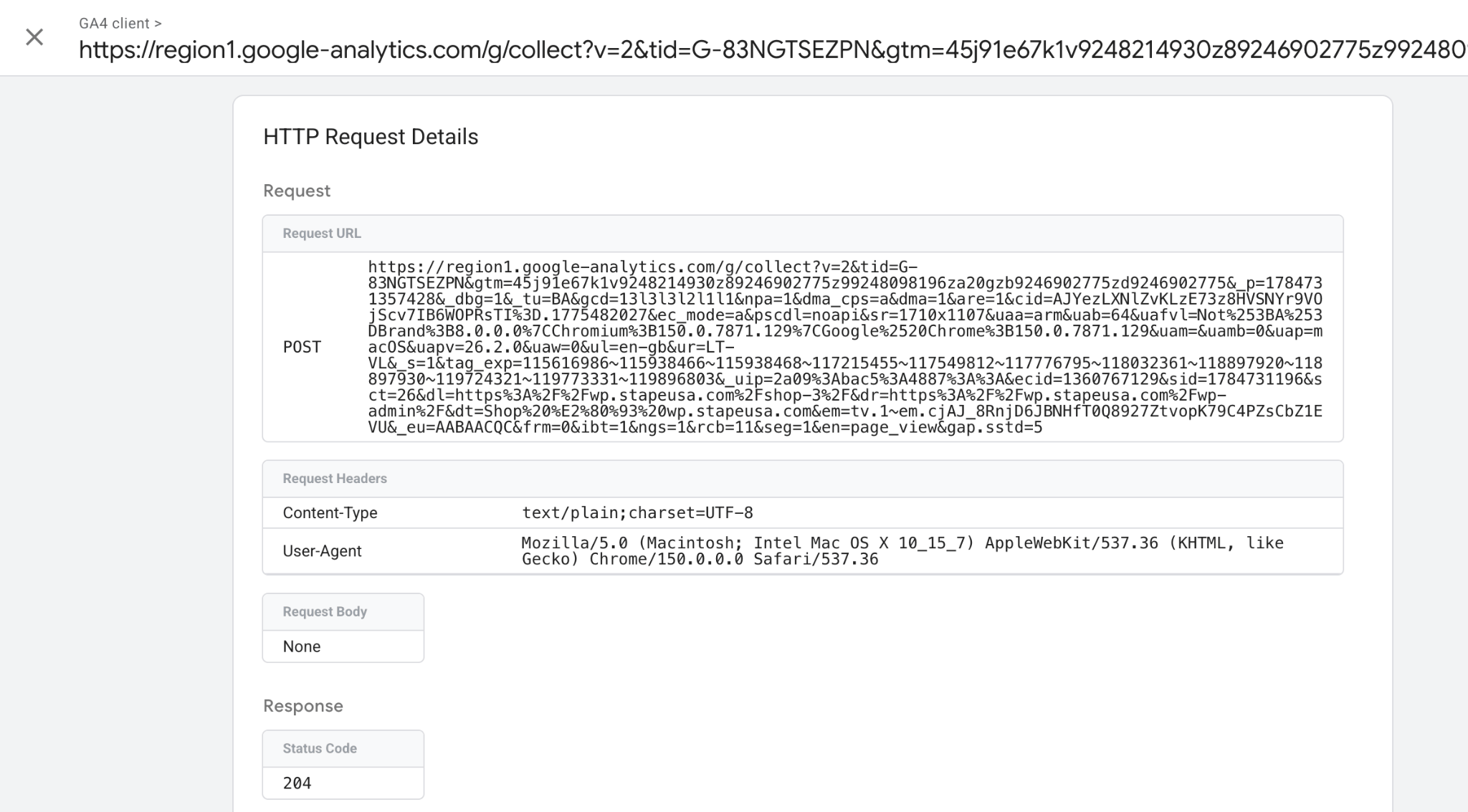
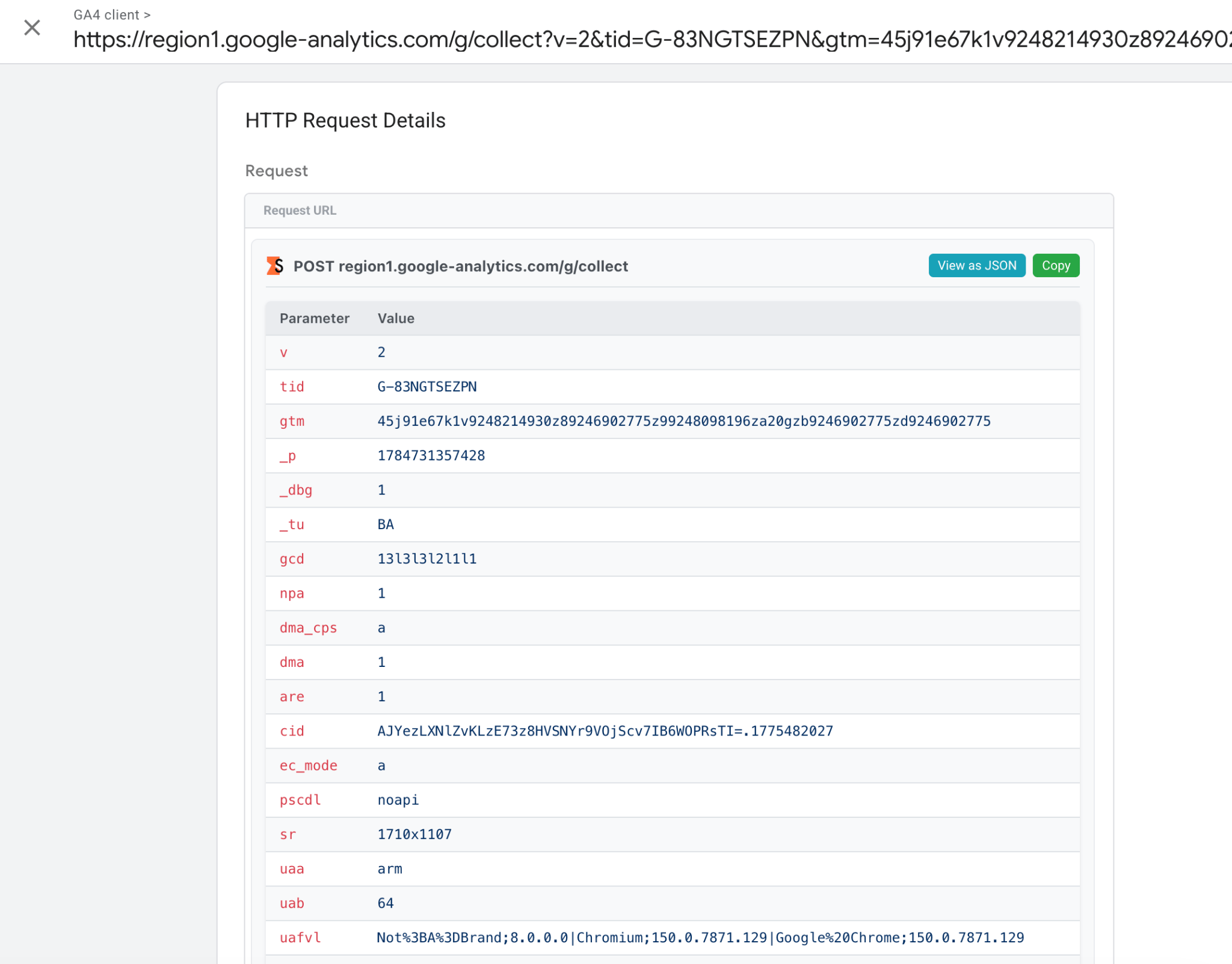
Makes request URLs prettier, turning long query strings into a readable table (useful for GA4 requests). Only applicable for server containers.
Before
After
Tag status coloring
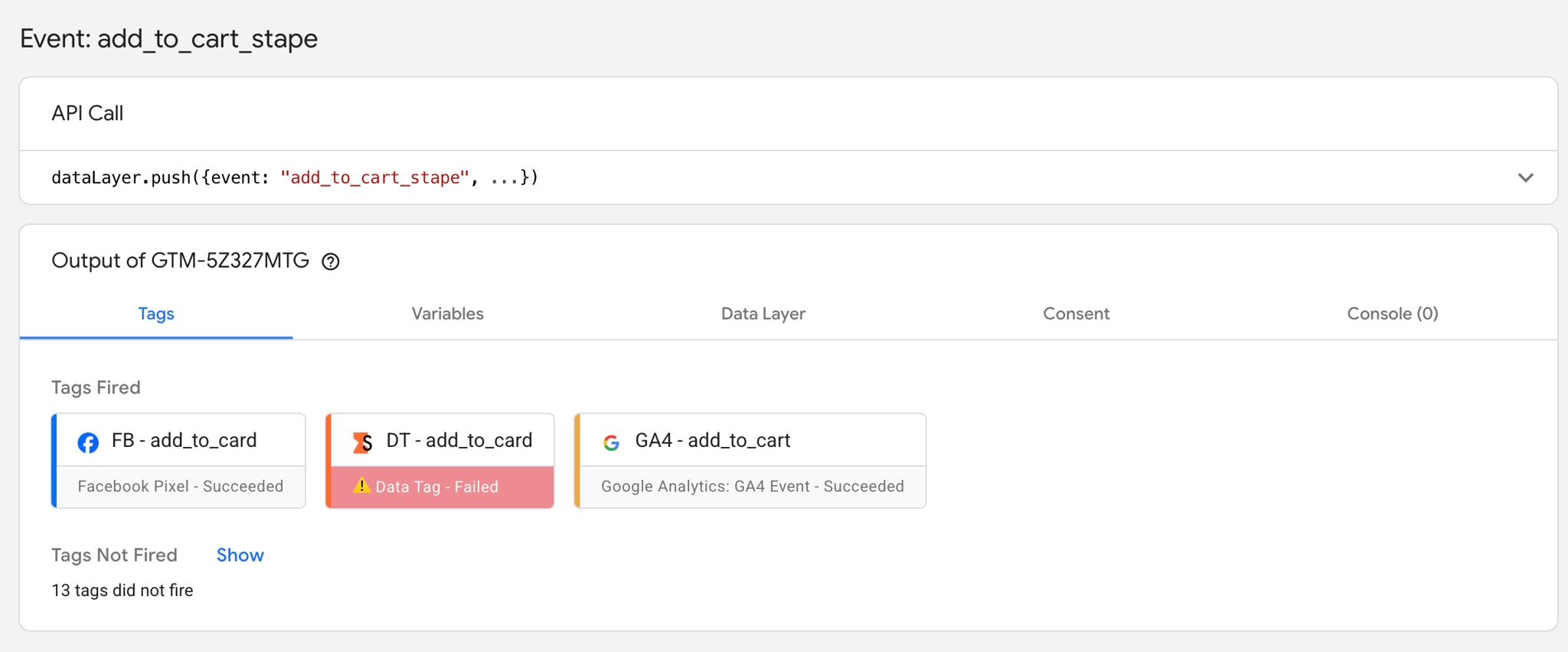
Color-codes tags in Preview mode by their firing status, so you can spot failed tags or 4xx/5xx responses at a glance. Applicable for both server and web containers.
Before
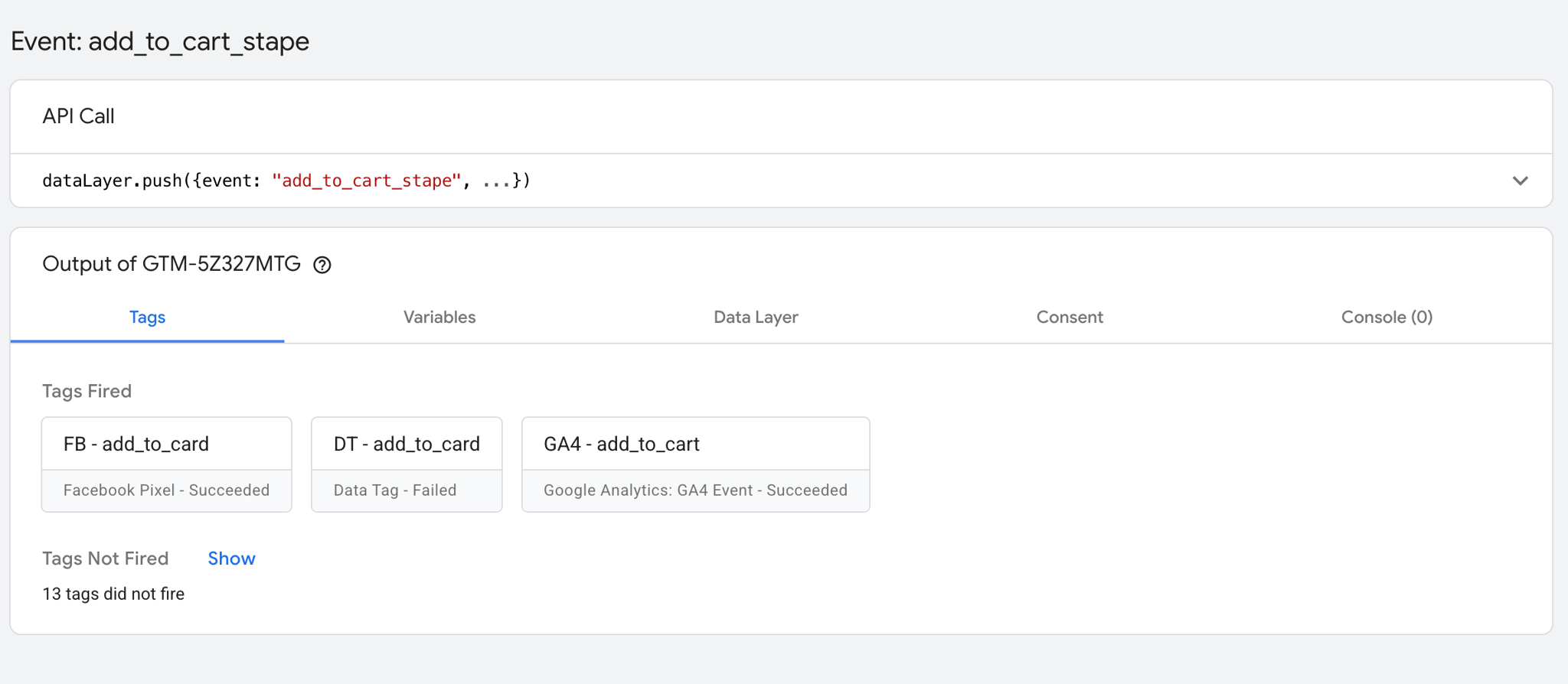
After
Tags type coloring
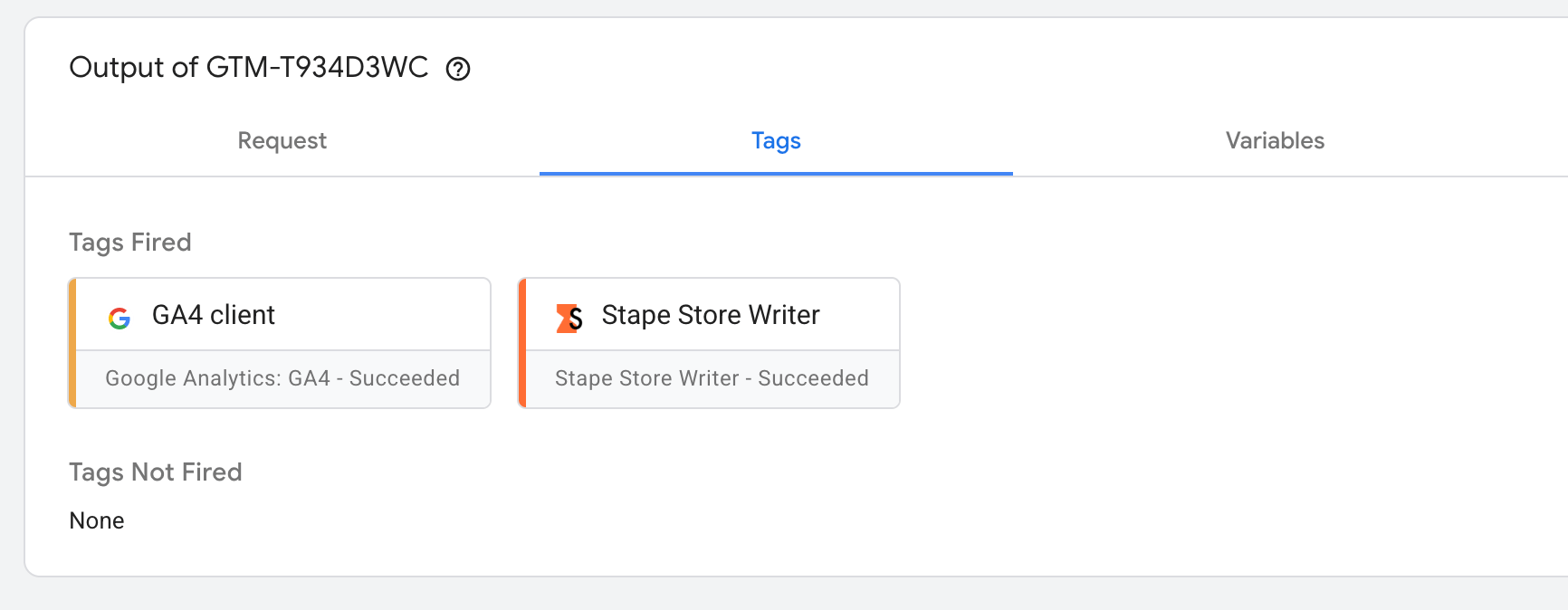
Adds color and platform logos (Meta, GA4, Google Ads, Microsoft, etc.) to tags, making it easier to scan a container with many tags. Applicable for both server and web containers.
Before
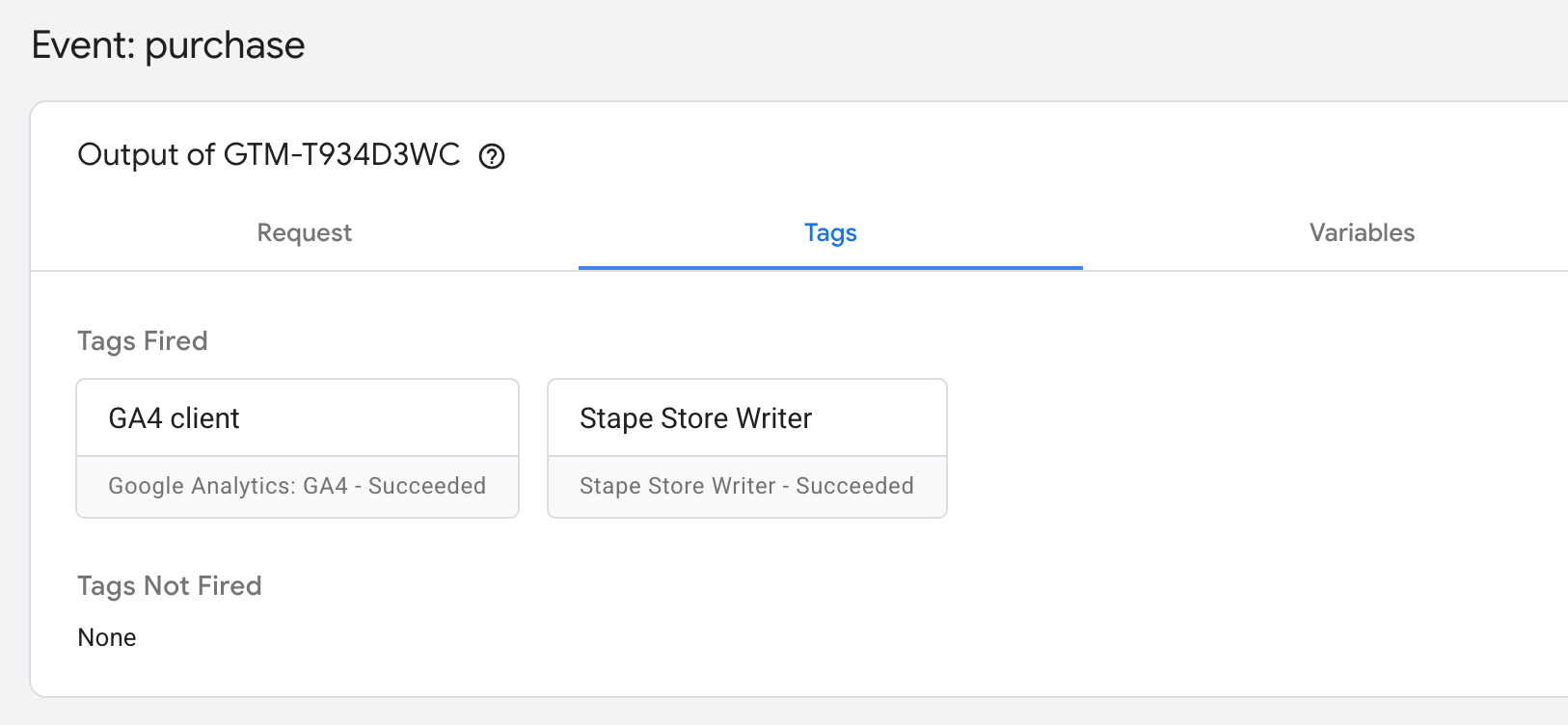
After
Consent mode server side
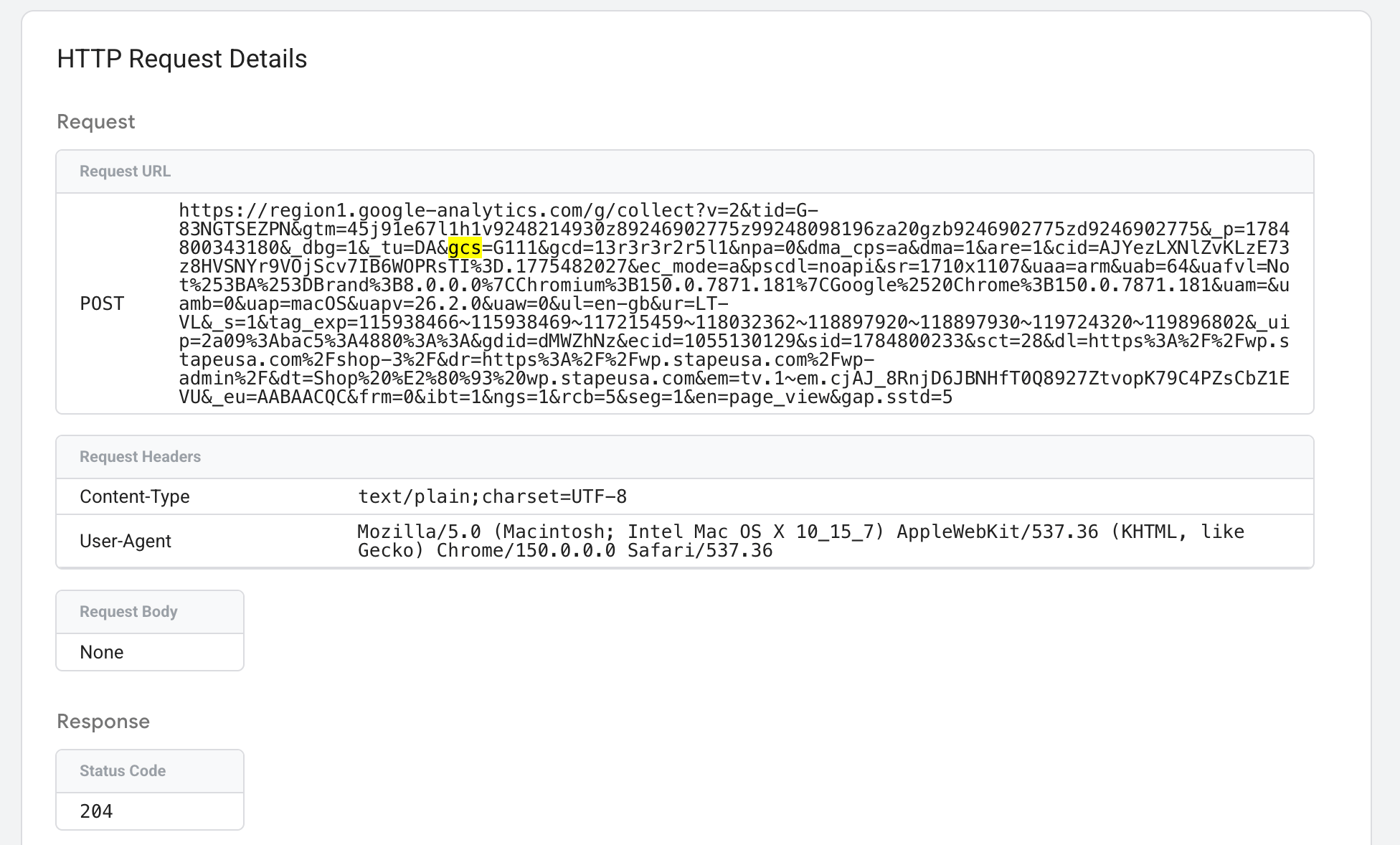
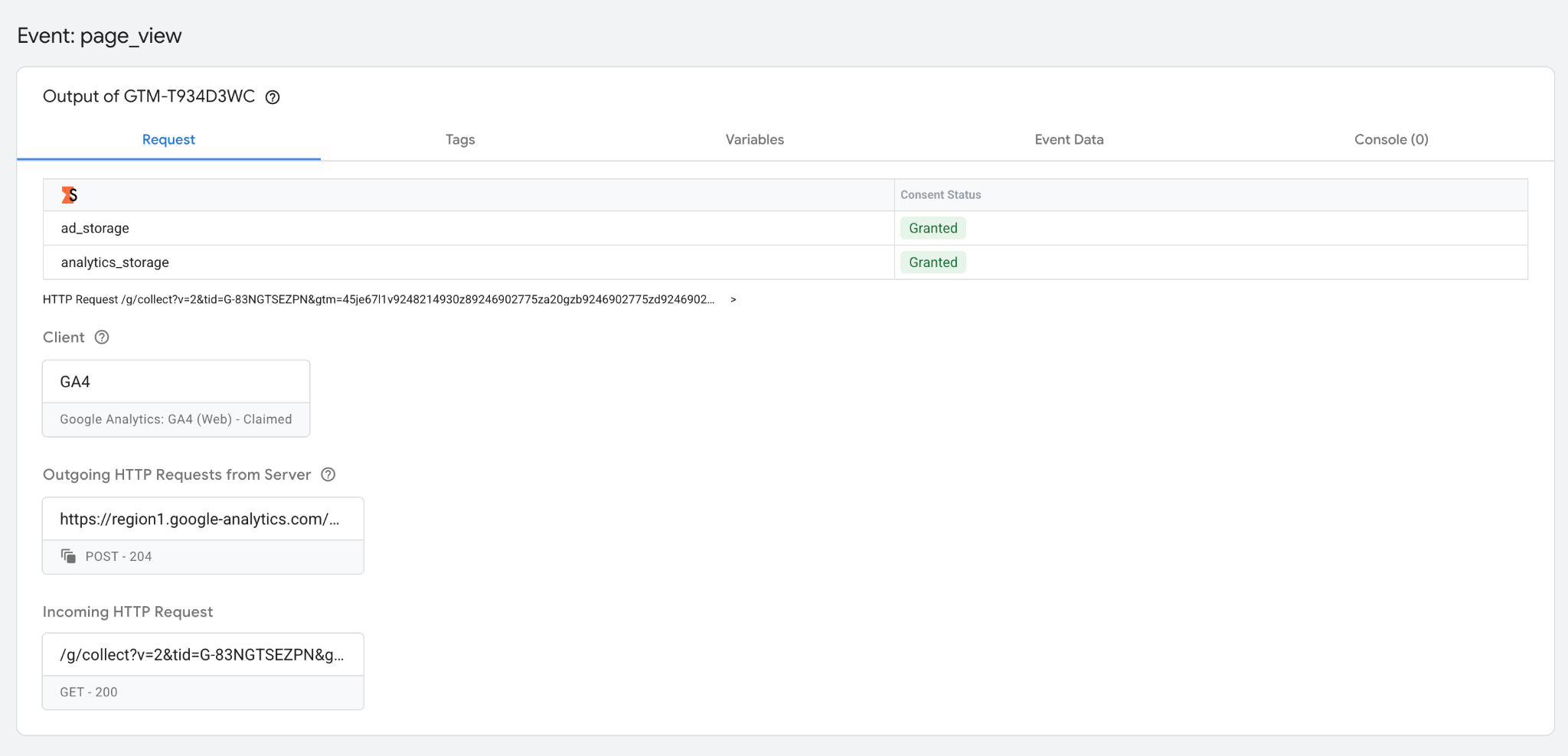
Displays the current Consent Mode status directly in the Request tab, by reading the gcs parameter on GA4 requests. The setting shows both consent type and whether it's Granted or Denied. With this setting you don’t need to look for the gcs parameter in the HTTP requests anymore. Only applicable for server containers.
Before
After
Entities filter
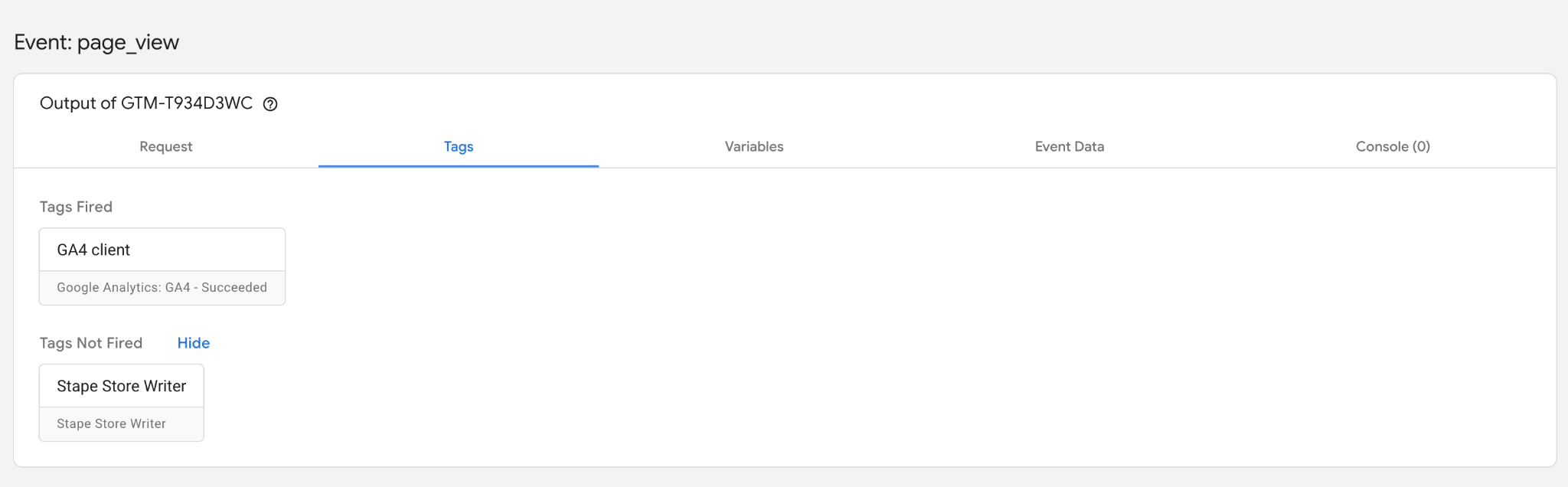
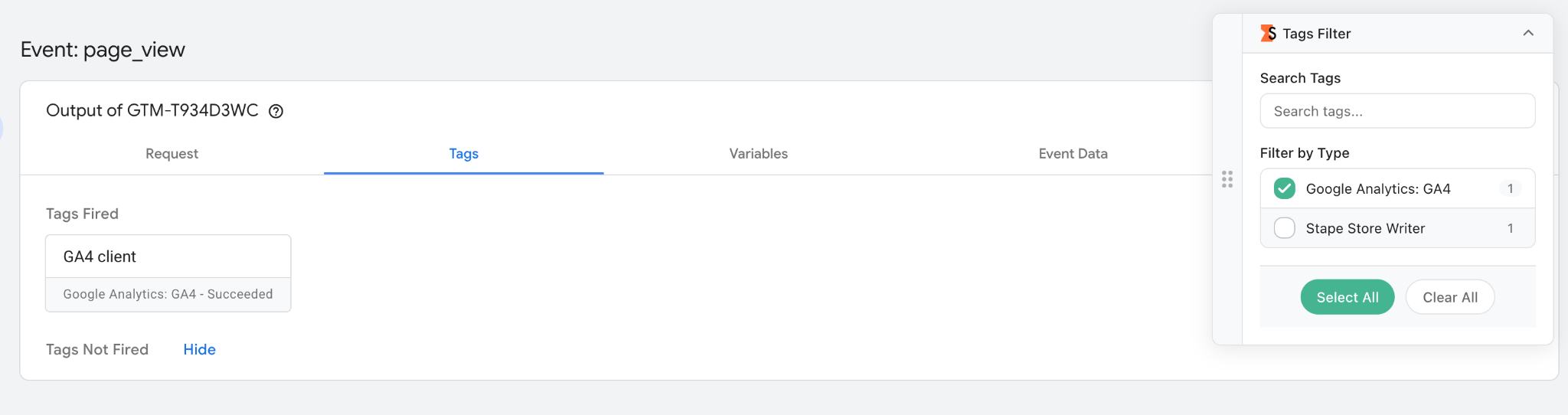
Lets you filter tags and variables in a container down to just the ones you're testing. Applicable for both server and web containers.
Before
After – click on the Tags Filter and select your tag.
JSON formatting
Automatically formats and syntax-highlights JSON in debug table cells (incoming/outgoing requests, webhook payloads, etc.). Applicable for both server and web containers.
Before
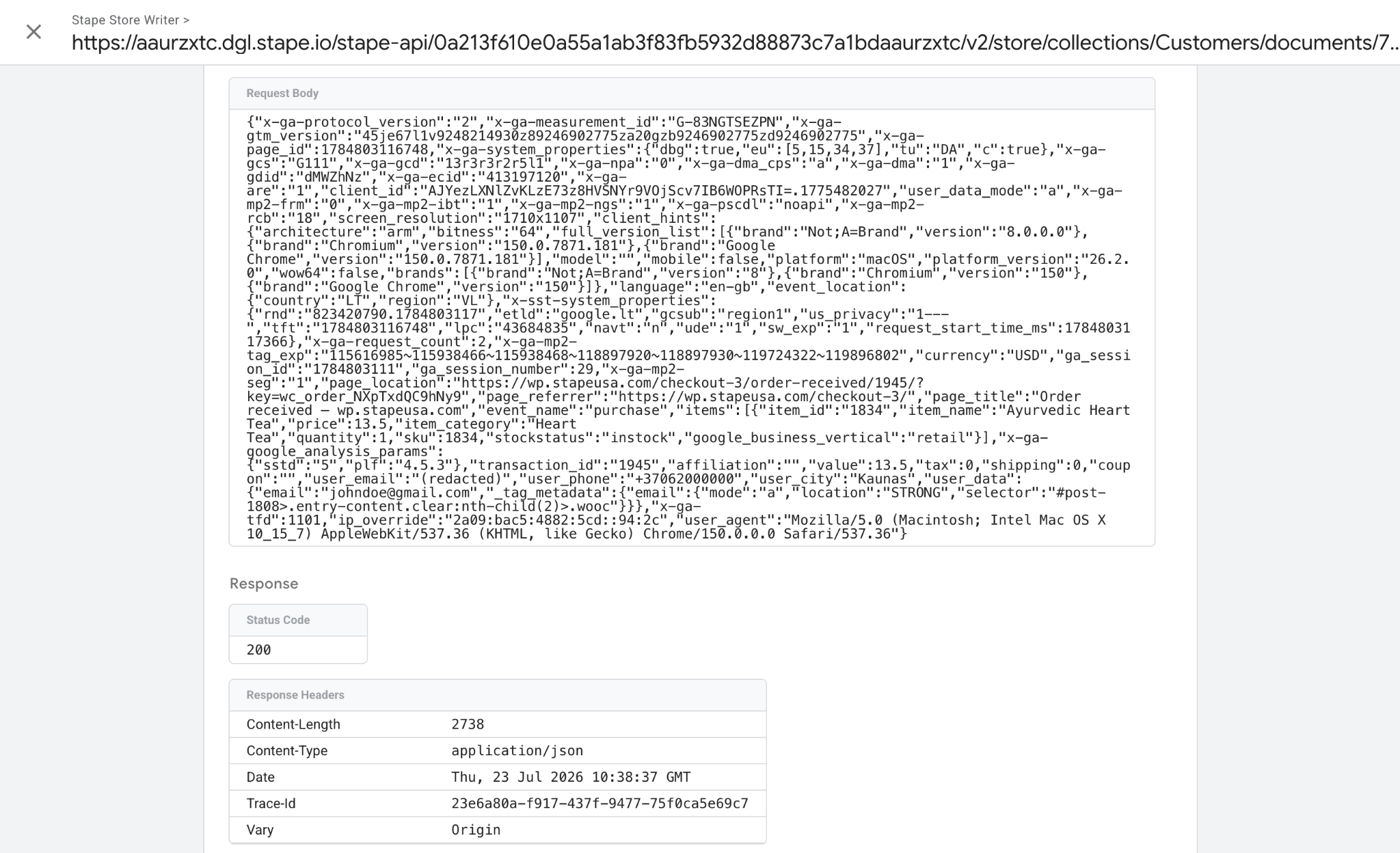
After
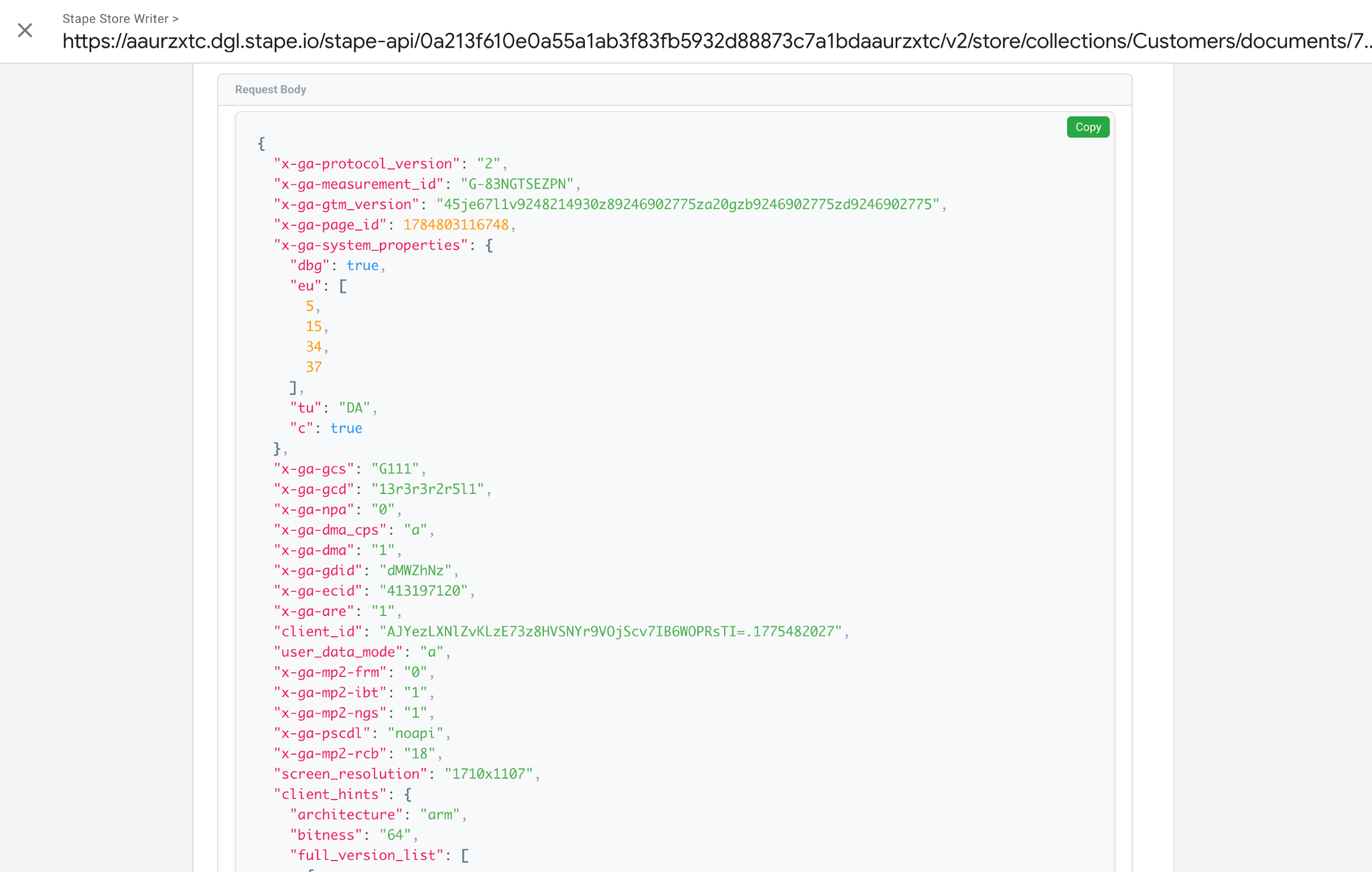
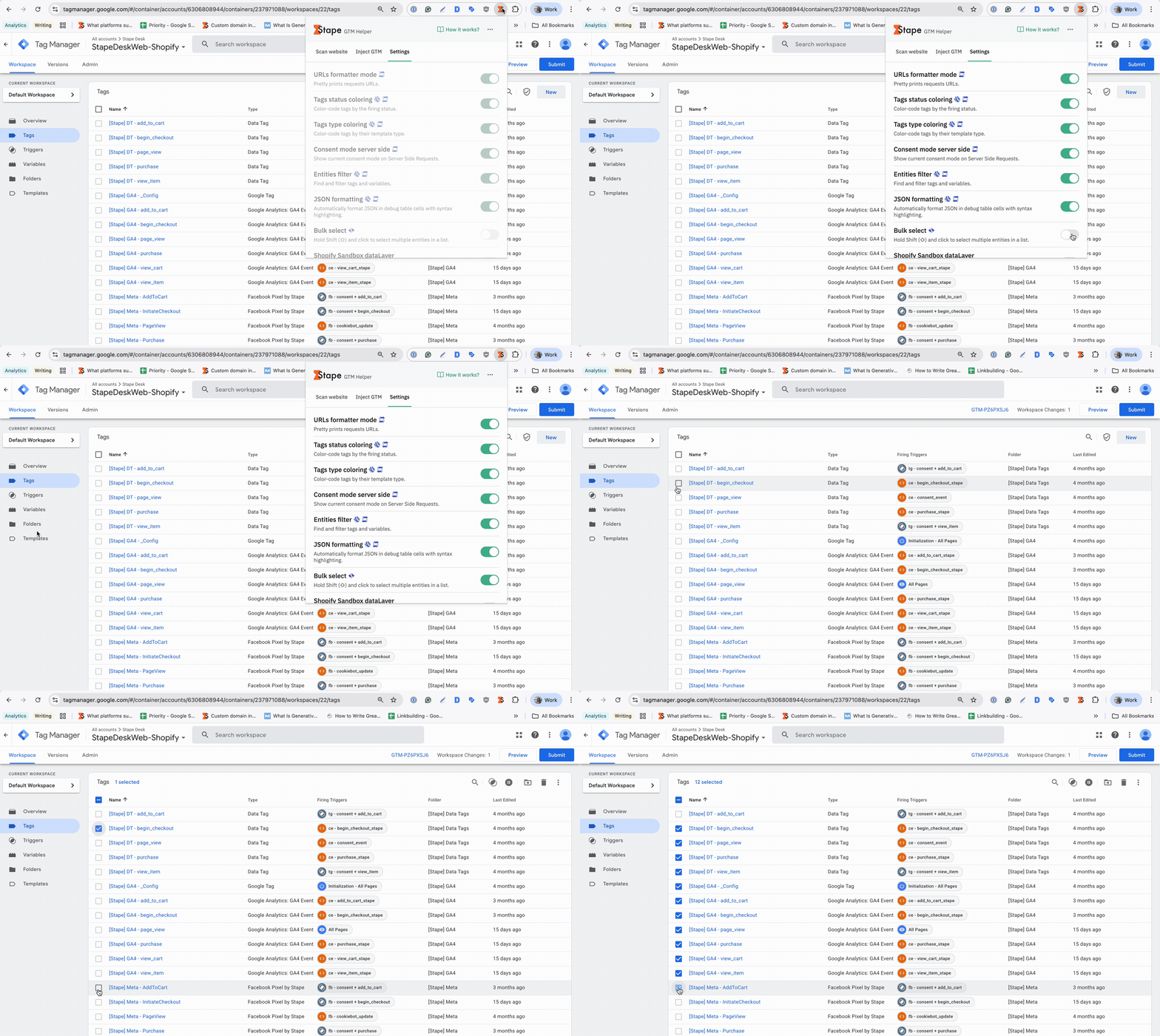
Bulk select
In the GTM container workspace, hold Shift and click to select multiple assets in a list at once, instead of checking each box individually. Applicable for both server and web containers.
Shopify Sandbox dataLayer
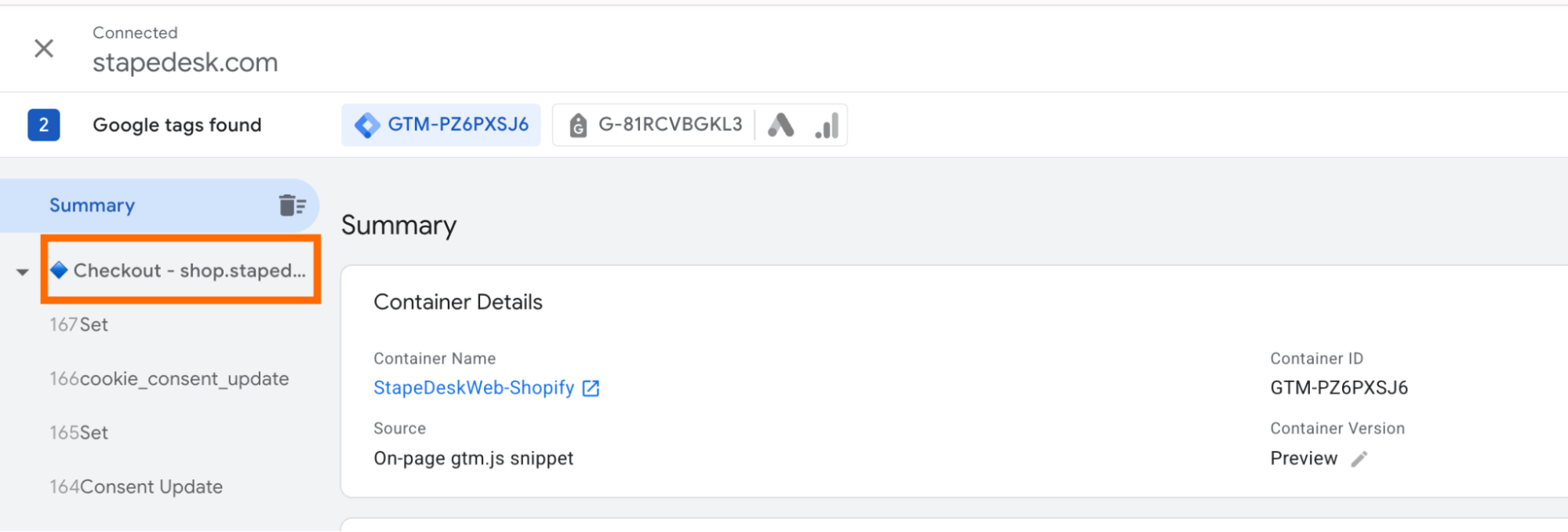
When debugging a Shopify setup, the GTM dataLayer isn’t visible on the checkout page because Shopify restricts access to the checkout environment. The checkout is isolated and doesn’t allow unrestricted DOM manipulation or script injection, as on other Shopify pages. Enable this setting to manually insert the GTM snippet on the checkout page for it to appear in the Preview mode. Only applicable for server containers.
- 1.Enable the Shopify Sandbox dataLayer setting.
- 2.Follow the instructions to set up the GTM script injection.
- 3.The Shopify checkout page now appears in the Preview mode.
Was this article helpful?
🍽 Table of content:
Comments