Adform Cookie Retrieval Script tag
Updated Sep 29, 2026
Adform Cookie Retrieval Script by Stape is a custom Google Tag Manager (GTM) web template designed to retrieve the Adform user ID and store it in a first-party cookie called adfuid.
The server-side Adform tag can capture click IDs from URL parameters on a PageView event. However, for view-through conversions (where there is no click ID in the URL), the browser must load Adform's third-party cookie script. The Adform Cookie Retrieval Script tag handles that client-side retrieval and stores adfuid, allowing your server Adform tag to properly attribute view-through conversions.
When fired, the tag looks for a valid Adform cookie ID in the following prioritized order and stops as soon as one is found:
- 1.URL / Referrer query parameter – checks both the current page URL and the referrer URL for the
adfcookieidquery parameter. - 2.Existing first-party cookie – checks whether the
adfuidcookie is already present in the browser. - 3.Adform's cookie serving script – only if neither the URL parameter nor the existing cookie yields a valid ID, the tag injects Adform's third-party script and reads the ID.
Once retrieved and validated, the tag sets the adfuid first-party cookie. The cookie is captured and passed to sGTM Adform tag.
With the Adform Cookie Retrieval Script tag you can:
- Enable view-through conversion tracking in sGTM – when visitors convert without a click parameter (
adfcookieid) in the URL (such as after viewing an ad) the server container can’t capture the Adform cookie ID on its own. This tag fetches the ID through Adform's script and saves it, enabling attribution for view-through conversions. - Convert Adform IDs into first-party cookies – storing the identifier in a first-party
adfuidcookie shields it from browser third-party cookie restrictions and makes it easy to forward to sGTM through GA4 or Data Tag. - Optimize network performance – the tag only loads the external Adform script if neither a URL parameter nor an existing
adfuidcookie is present. If the user already has a valid ID, no external third-party script is injected or downloaded. - Customize cookie domain – allows you to customize cookie domain and lifetime to keep attribution windows open across repeat visits.
How to set up Adform Cookie Retrieval Script tag
- 1.
- 2.Go to the Google Tag Manager and open your Web container.
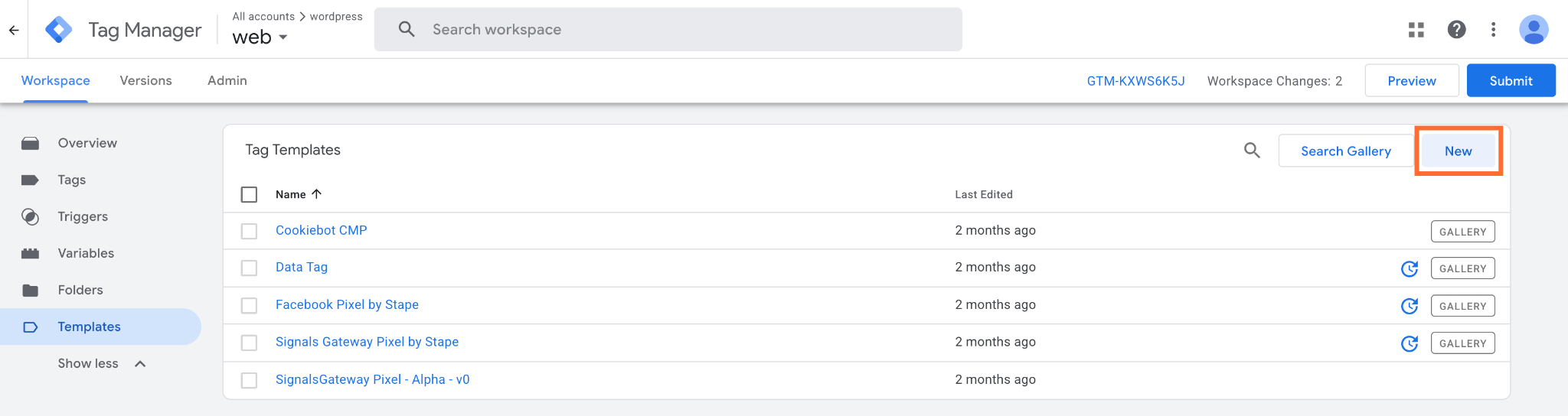
- 3.Go to Templates, and under Tag Templates, click New.
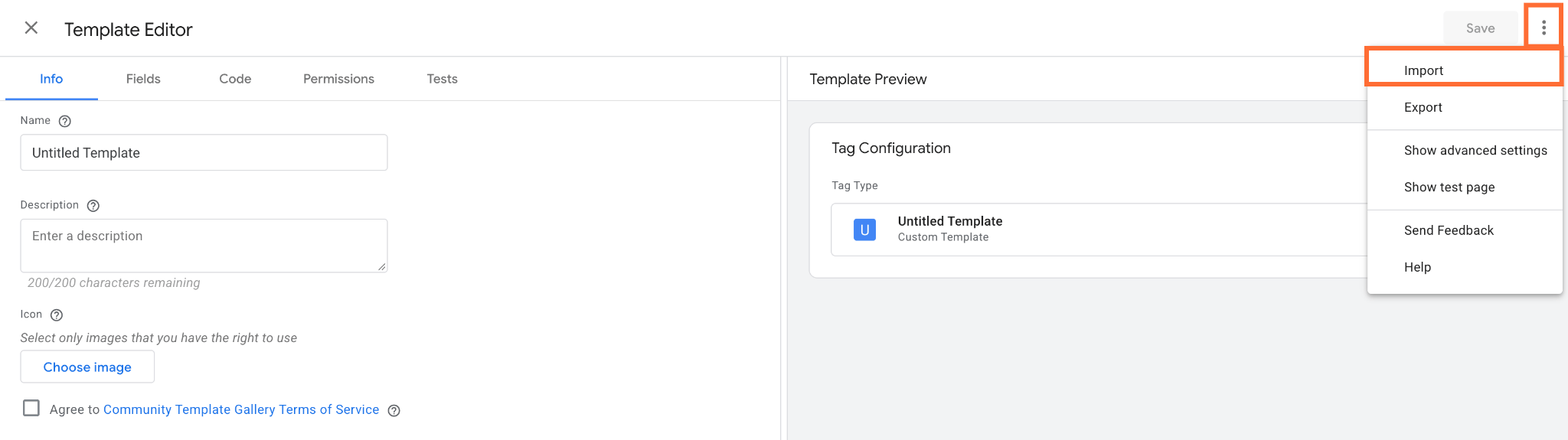
4. At the top-right, click three dots → Import.
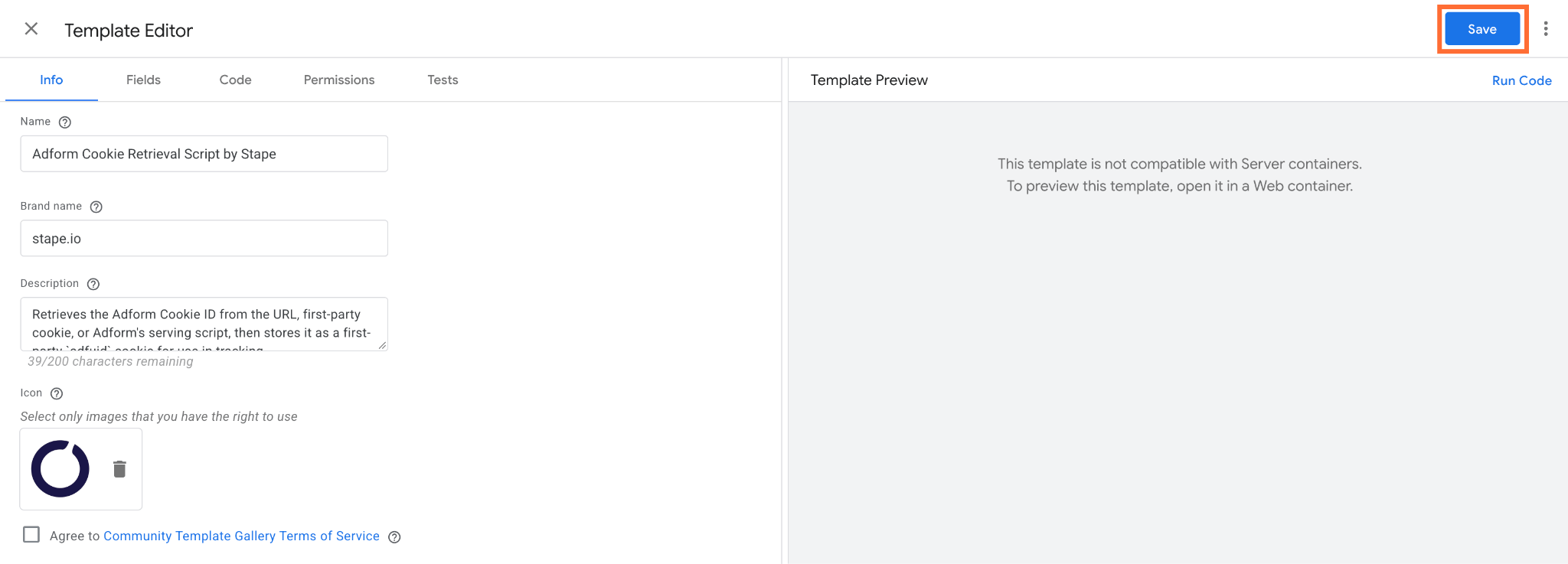
5. From the unzipped folder, select the template.tpl file.
6. Click Save.
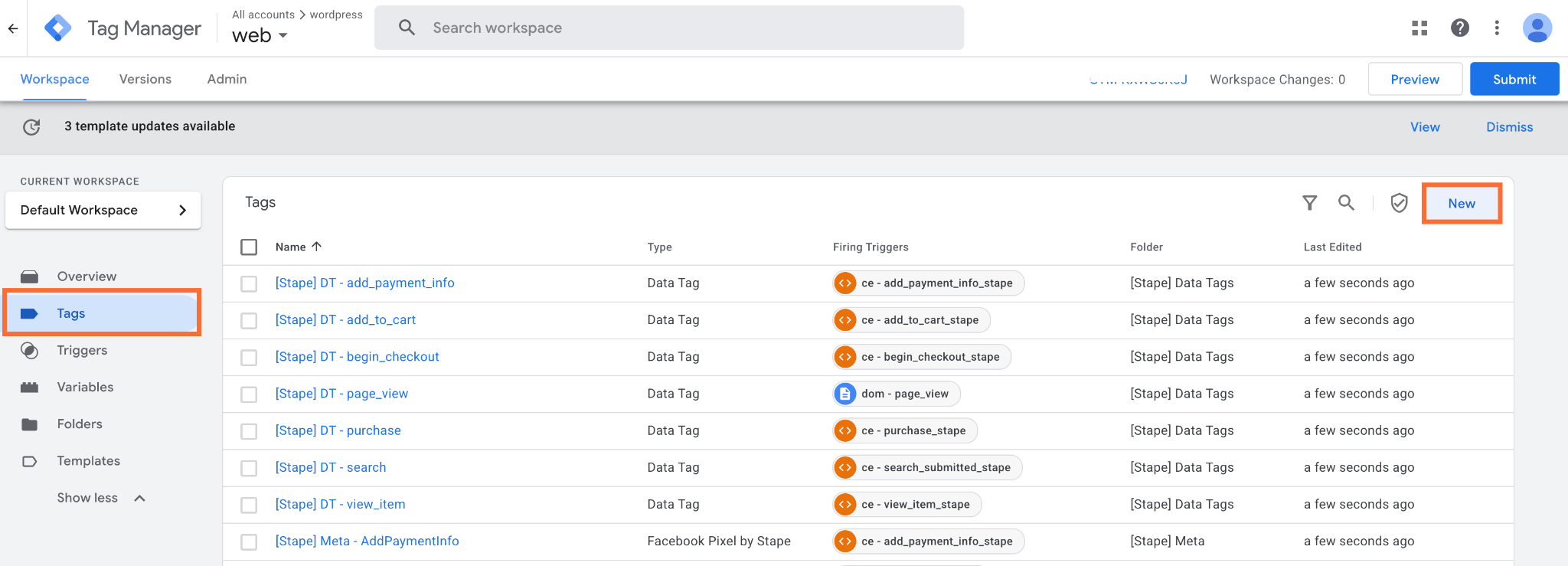
7. Go to Tags and click New.
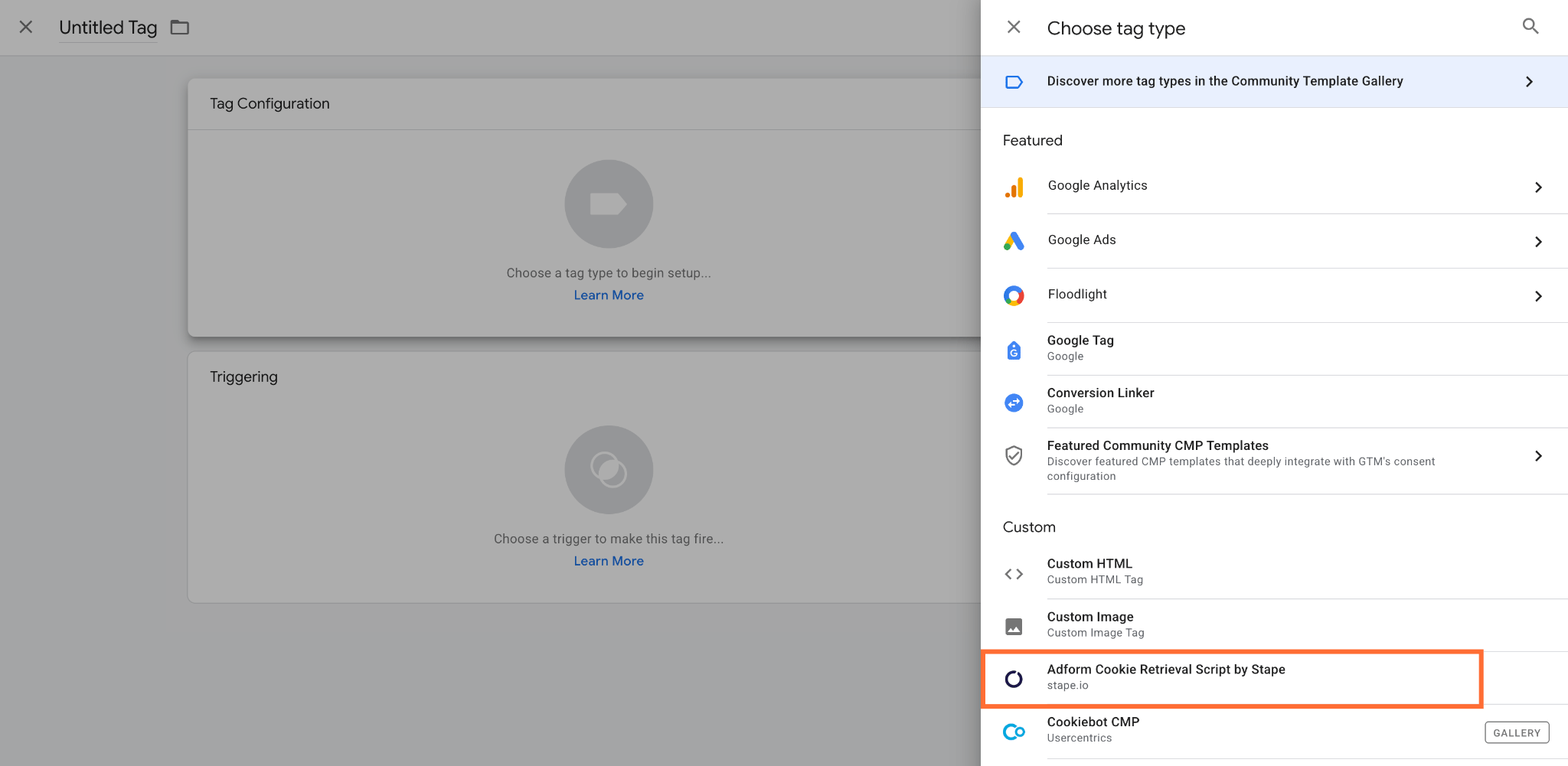
8. Click Tag Configuration and select Adform Cookie Retrieval Script by Stape.
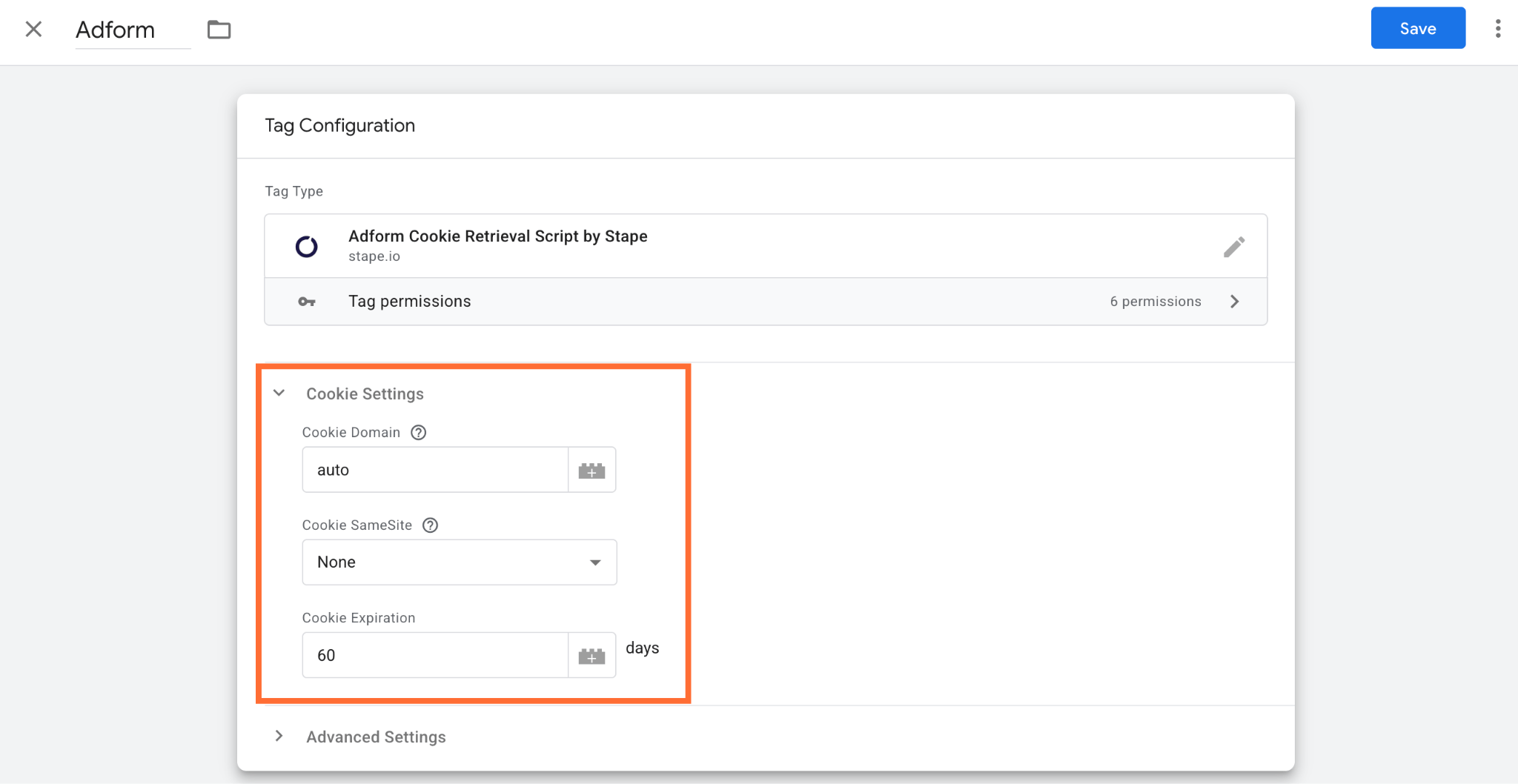
9. In Cookie Settings you can set the following:
- Cookie Domain – specify which domain (and subdomains) are allowed to access and read the cookie stored in the user's browser. If you specify a domain manually (such as
shop.example.com), only that exact subdomain can read the cookie; other subdomains onexample.comwon’t have access to it. Leaving it asautois the standard setup to automatically set the cookie on the highest possible parent domain. For example, if a user visitsshop.example.com, auto writes the cookie to.example.com. This ensures the cookie is shared across all subdomains (likeblog.example.comorcheckout.example.com). - Cookie SameSite – define whether a cookie is sent with cross-site requests. For more information read the Mozilla documentation.
- Cookie Expiration – determine how long (in days) the browser keeps the
adfuidcookie stored before automatically deleting it.
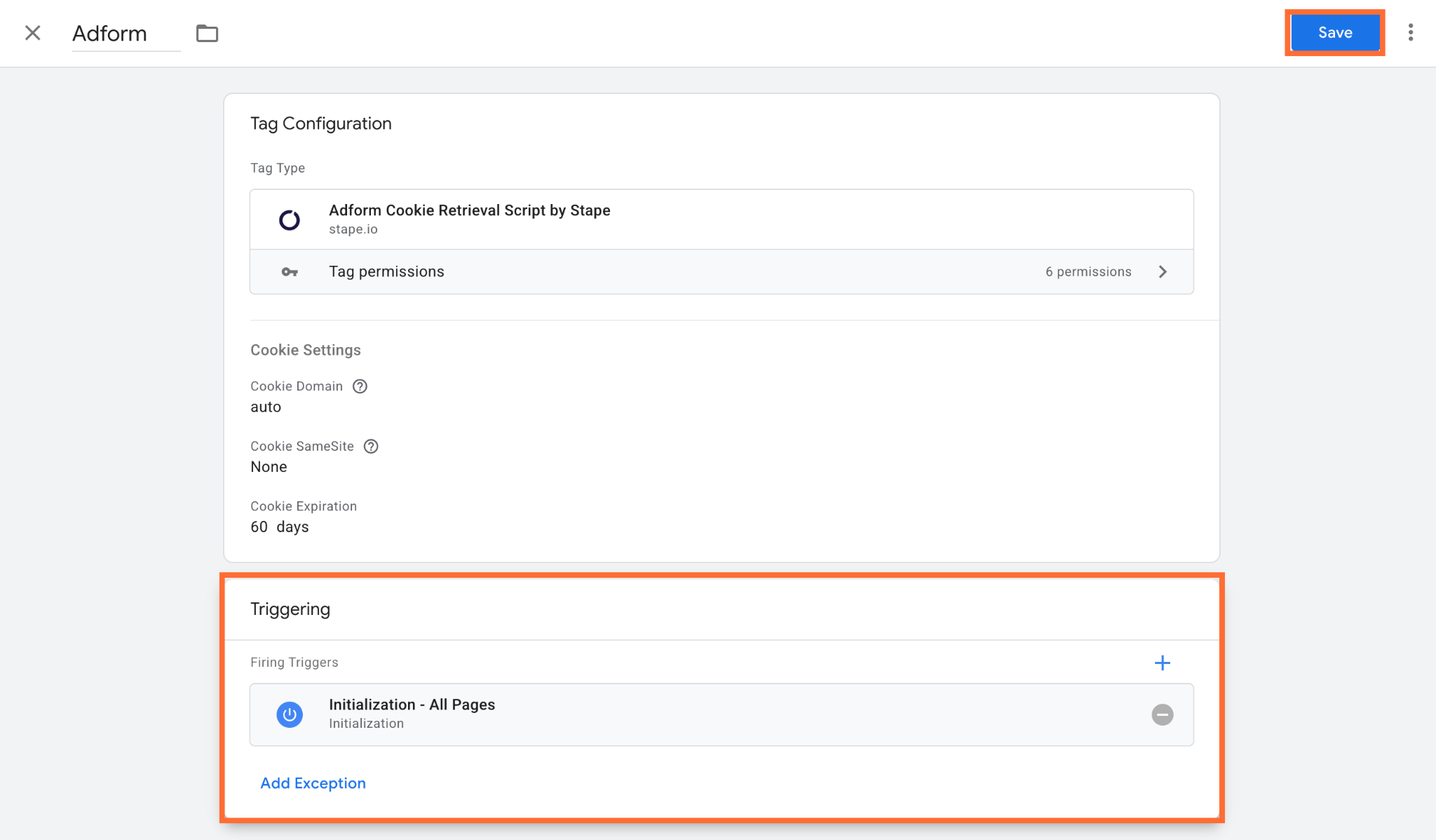
10. Select a trigger. Trigger the tag on the page load (such as Initialization / All Pages, or dom – page view).
11. Click Save.
Testing
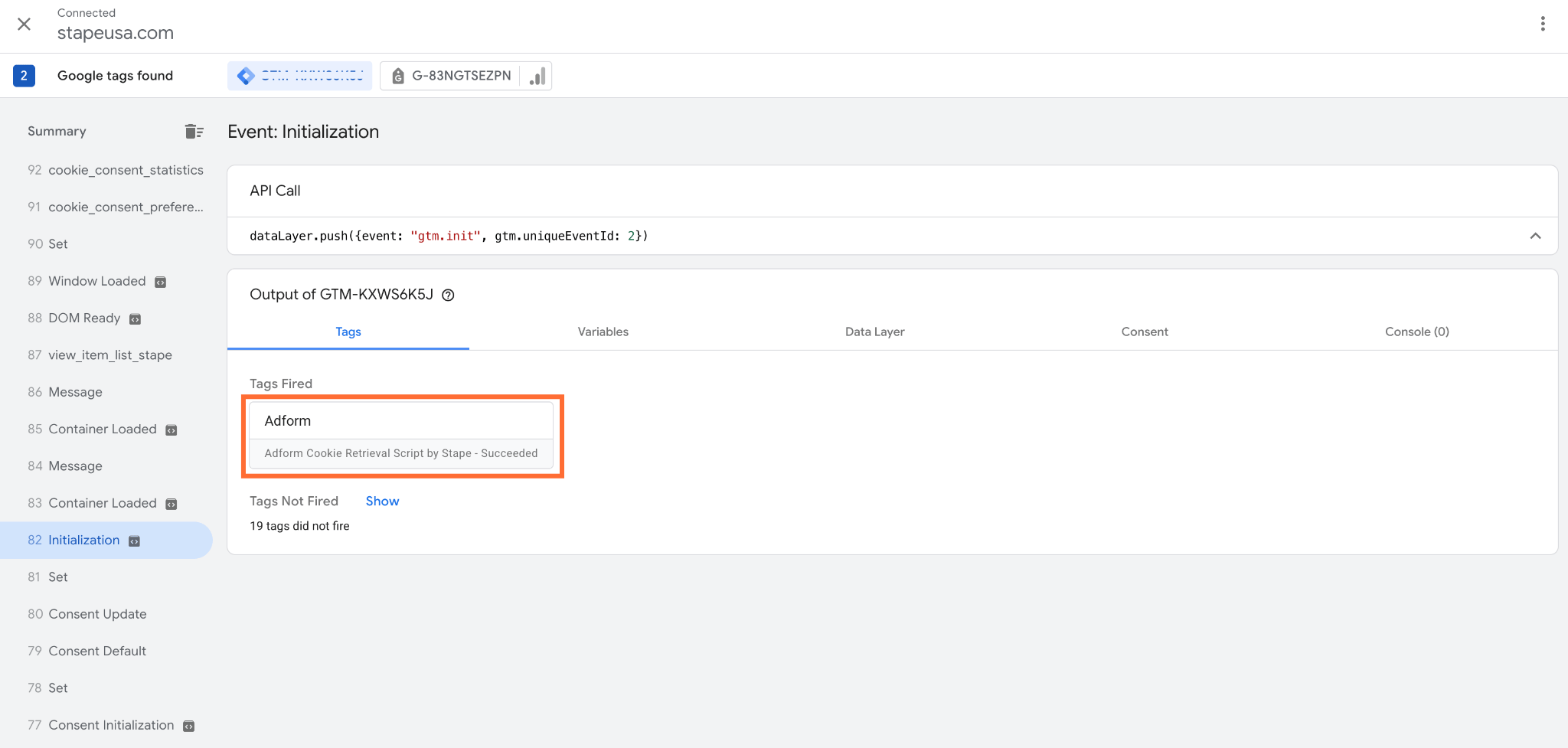
- 1.Open the Preview mode and do some actions on your site to trigger the events. Confirm that the tag is firing.
2. Clear your browser cookies for the test domain. In this case we’re testing the fallback scenario where there’s no adfcookieid query parameter or adfuid cookie, so the tag has to inject the script and create a cookie.
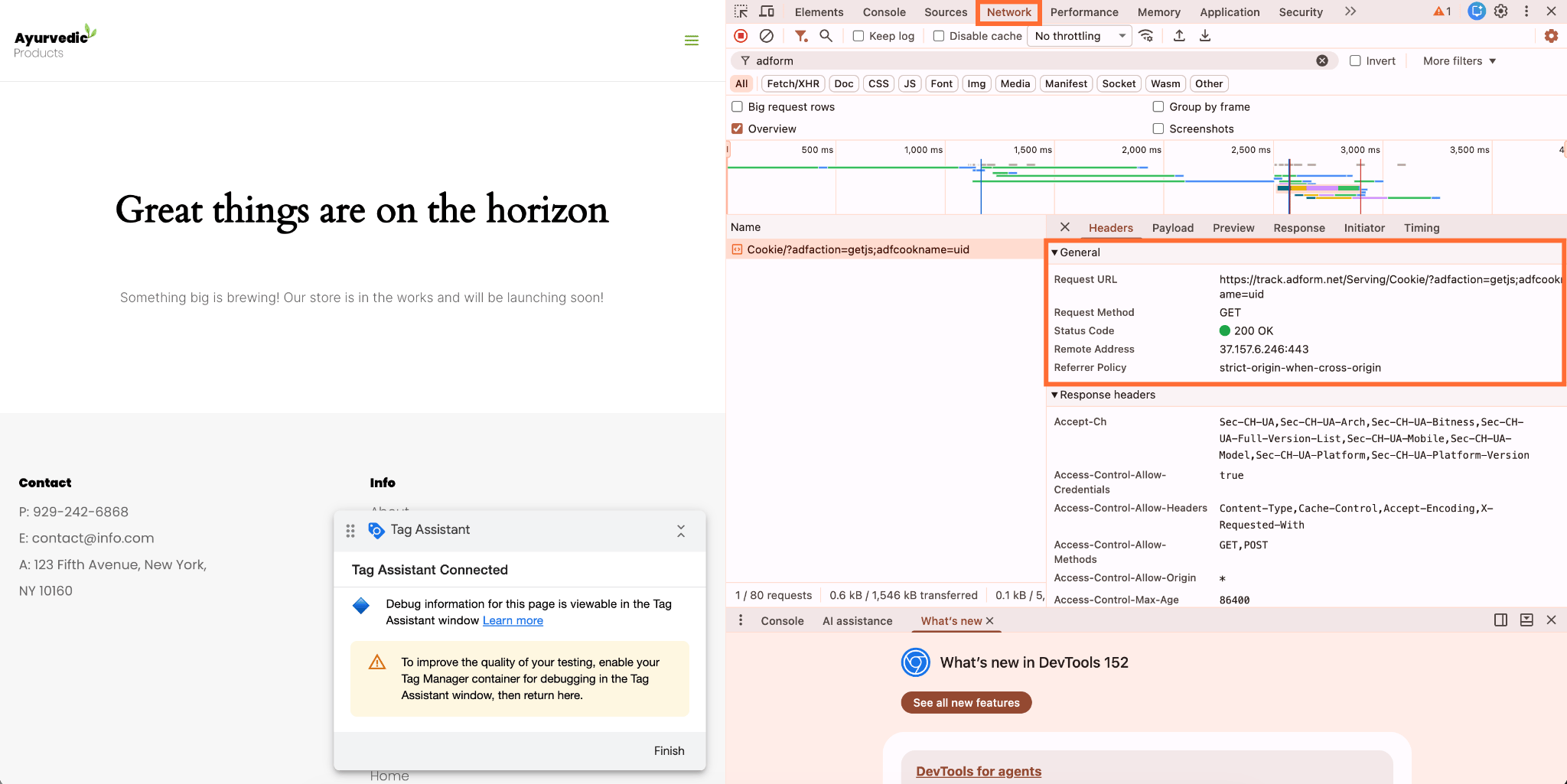
3. Open DevTools → Network tab → filter by adform. Refresh your site without any query parameters.
4. Verify in the Network tab that a request was sent to http://track.adform.net/Serving/Cookie/?adfaction=getjs;adfcookname=uid
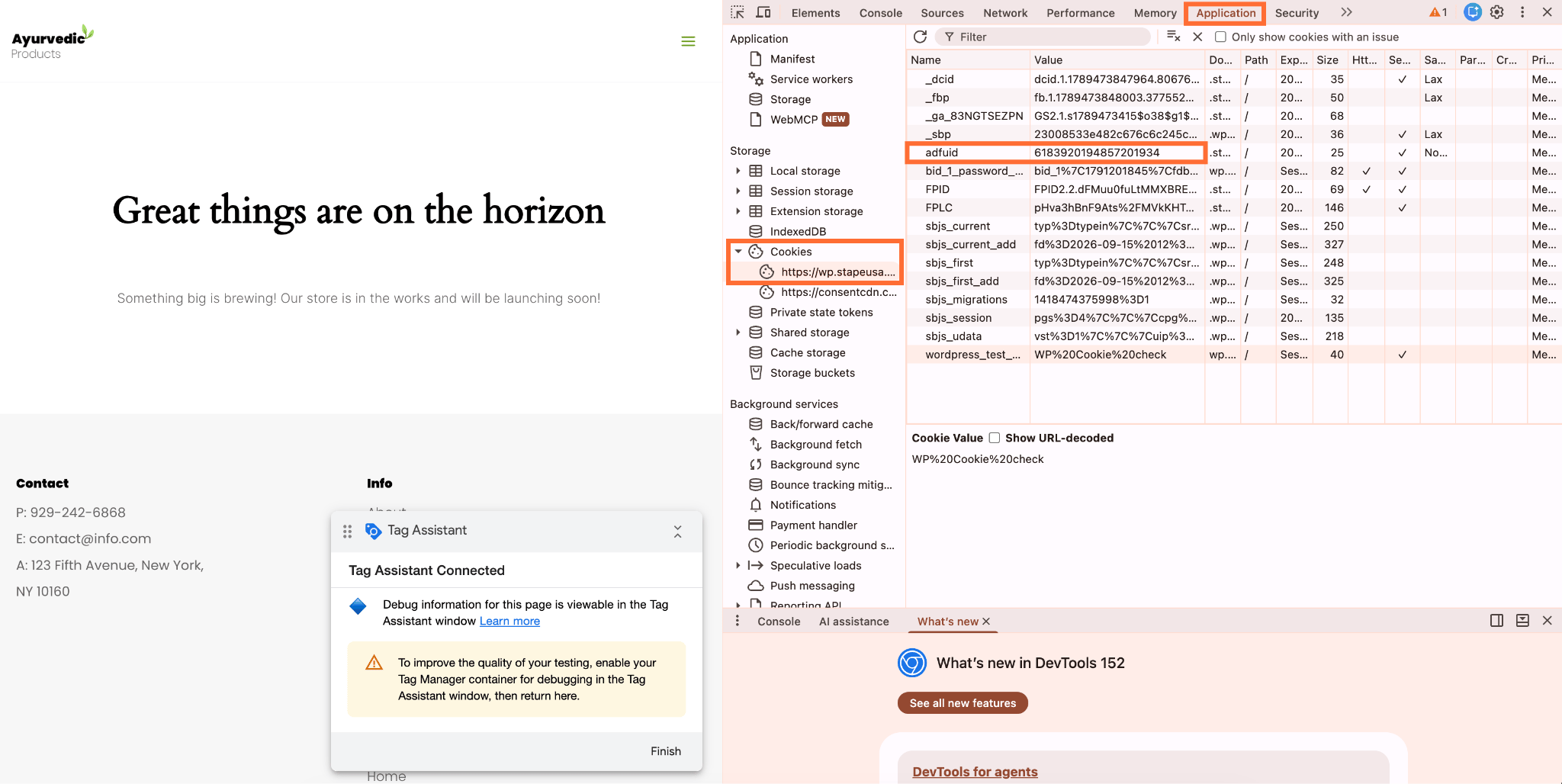
5. Go to Application → Storage → Cookies → your domain. Confirm that the adfuid cookie is created with a numeric value.
Was this article helpful?
🍽 Table of content:
Comments