Partner account overview
Updated Aug 17, 2026
A Partner account is designed for agencies and freelancers that manage clients on Stape and want to earn commission on their subscriptions. Like an Agency account, a Partner account doesn't host containers itself, instead you connect your clients' Standard accounts to your Partner account. From there, you can manage all your clients in one place and earn a recurring commission on every subscription they pay for.
About the Stape partner program
The partner program lets you earn a monthly commission on every client you bring to Stape, for as long as the client's product subscription is paid.
The partner program offers:
- Recurring revenue – earn up to 40% lifetime recurring commission on client subscriptions.
- Management tools – easily add and manage clients and pay for them with consolidated billing.
- Support – receive dedicated support, co-marketing opportunities, and early access to tools and templates.
- Flexible payouts – receive earnings through your preferred payout method.
How much you earn depends on which Stape product the client uses and which partner level you're on. There's one condition: the client has to pay Stape directly.
You have three options for managing client billing:
- Individual billing – the client handles their subscription payments directly with Stape. This is the setup that allows you to earn a recurring commission on their payments.
- Payment link – if you manage your client's sub-account under your Partner email (that is, the client doesn't have access to this sub-account), you can generate a payment link for them to pay without logging in to the account.
- Consolidated invoicing – you manage the payment for the client's subscription via a single, combined invoice. Please note that these subscriptions are processed as account expenses, and therefore don’t qualify for commissions.
Who can become a partner
To upgrade to a Partner account, your Agency account must meet one of the following requirements:
- At least 5 paid products, or
- $50 in monthly referral value
For the enrollment instructions, see How to become a Stape partner.
EU vs Global
Every Stape account is hosted in one of two locations: EU or Global. The location is set when the Agency account is created and can't be changed later. When you upgrade an Agency account, your Partner account inherits that same location.
- EU (Stape Europe) – invoicing in EUR, GDPR-aligned data handling. invoicing in EUR, GDPR-aligned data handling. Select if you have clients based in the EU, or if you have clients that require the GDPR-aligned data handling. For more information see Payment country restrictions on Stape Europe.
- Global – invoicing in USD or EUR (depending on your billing country). Select if your clients are spread across the rest of the world.
You can only add clients hosted in the same location as your Partner account. If you have clients in both locations, you must maintain two independent Partner accounts. You may use the same email address for both. Both accounts must meet the Partner program requirements.
If you want referred clients to select their location at sign-up, contact support@stape.io to request a universal referral link. It lets clients choose a location, and they're connected to the matching Partner account automatically.
Adding clients
How you add a client depends on whether they already have a Stape account:
- Your client already has a Stape account. You can add them as an existing Stape user. From your dashboard, send them an invite to the email on their account. Once they accept, their account joins your Partner account and shows up in your users list.
- Your client doesn't have a Stape account yet. You have two options:
- Create a sub account for them. From your dashboard, create the account on their behalf. You set the email, password, and the new account is added to your Partner account right away.
- Share your referral link. Send your client the partner's referral link. When they sign up through it, their new account is added to your Partner account automatically.
For more information see How to add clients to your Partner account.
Managing clients
Once a client is in your Partner account, there are two main things you can do:
- Access their account. Request access from your Partner account, and the client approves it from a notification on their side. Once you have it, you can use "Log in as user" from the Users page to open their account, so you can create containers, change settings, or troubleshoot on their behalf.
- Manage their billing. You can pay for your clients' subscriptions through your Partner account via Consolidated Invoicing. Alternatively, the client can pay for their subscriptions themselves. If you manage your client's sub-account under your Partner email (that is, the client doesn't have access to this sub-account), you can generate a payment link for them to pay without logging in to the account.
Team members
If you'd like to add your teammates to manage the Partner account together, you can add them in Partner settings. They’ll get access to your Partner account with few restrictions.
For more information see How to manage team members.
Navigating the account
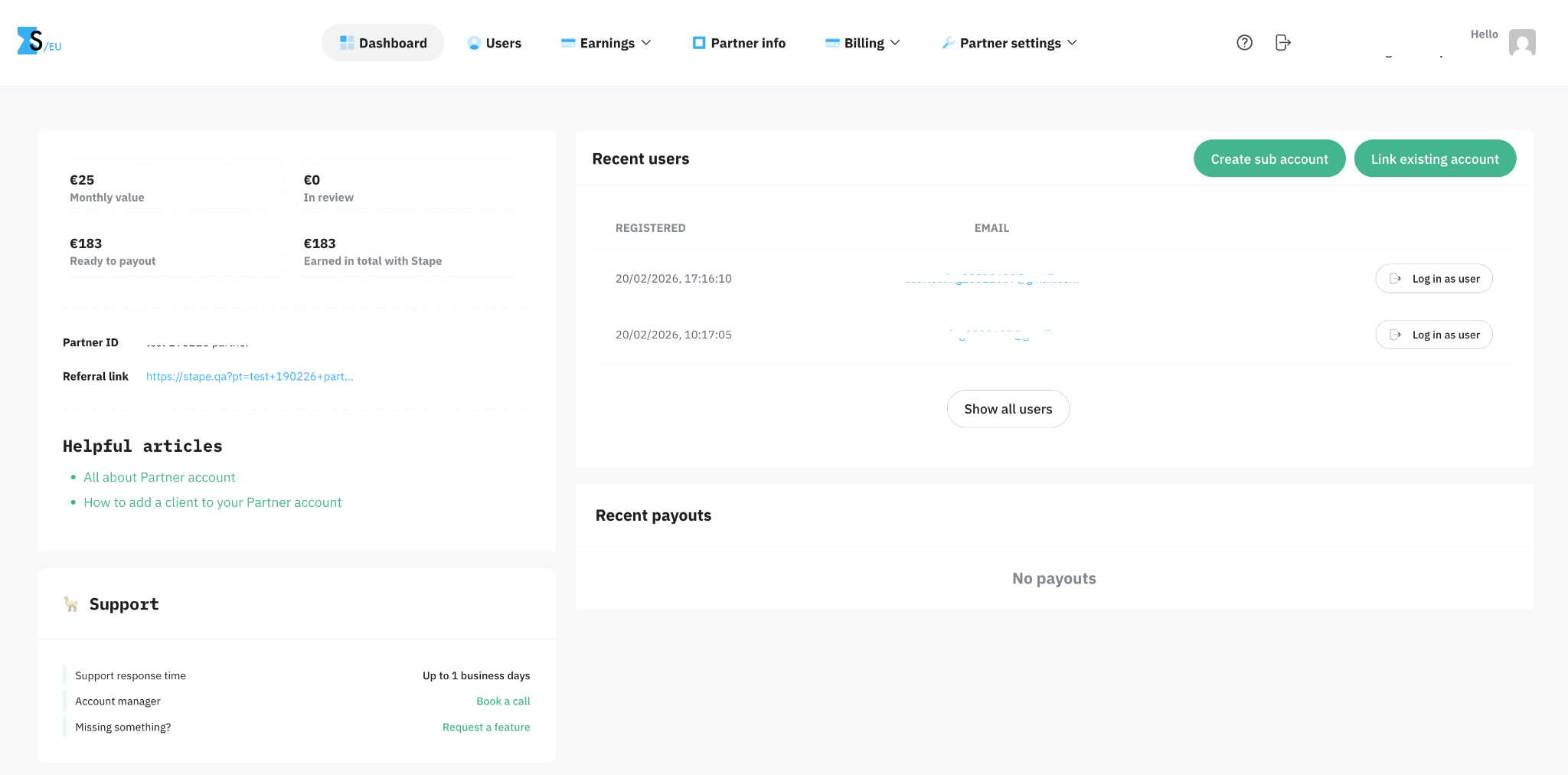
Dashboard
This is the summary of your Partner account – current earnings, helpful articles, list of clients, recent payouts, support contacts, and your referral link. Here you can also create and link clients.
Users
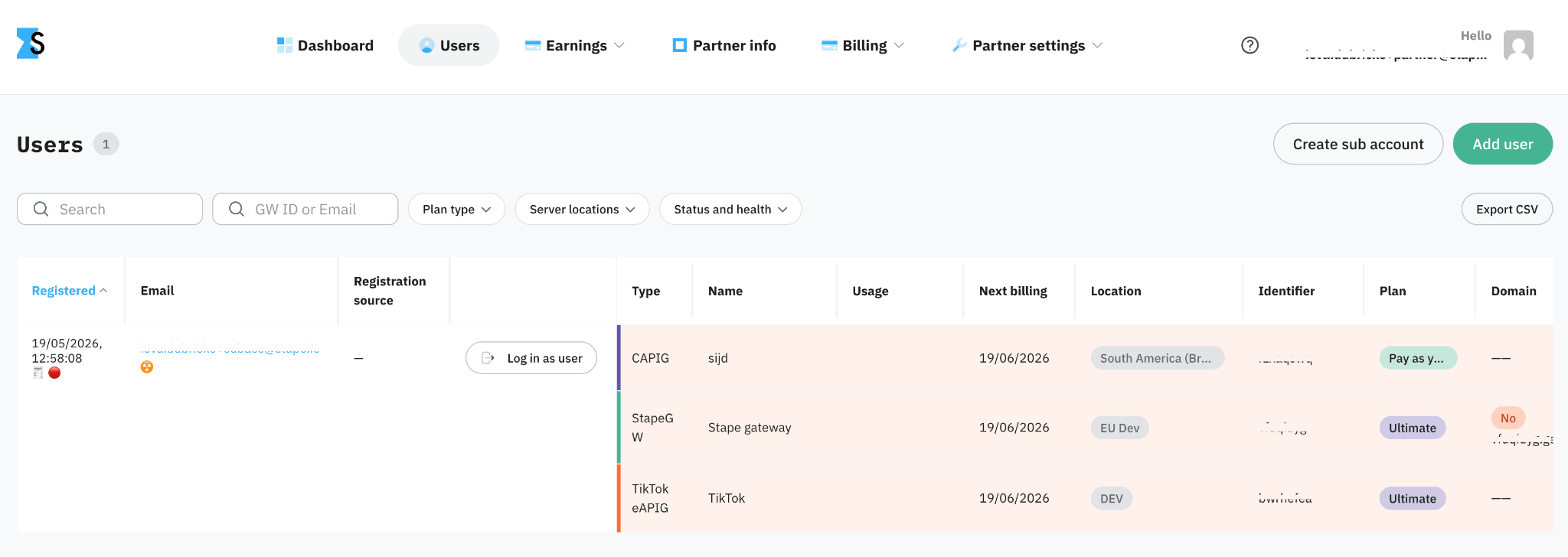
This is the full list of your clients (sub accounts). You can:
- Search and filter by the plan type, server locations and container status.
- See detailed information about the client's containers and gateways.
- Request access to the users' account and log in as a user to help with setup or generate a payment link.
- Export the list as CSV.
- Create an account for your client.
Earnings
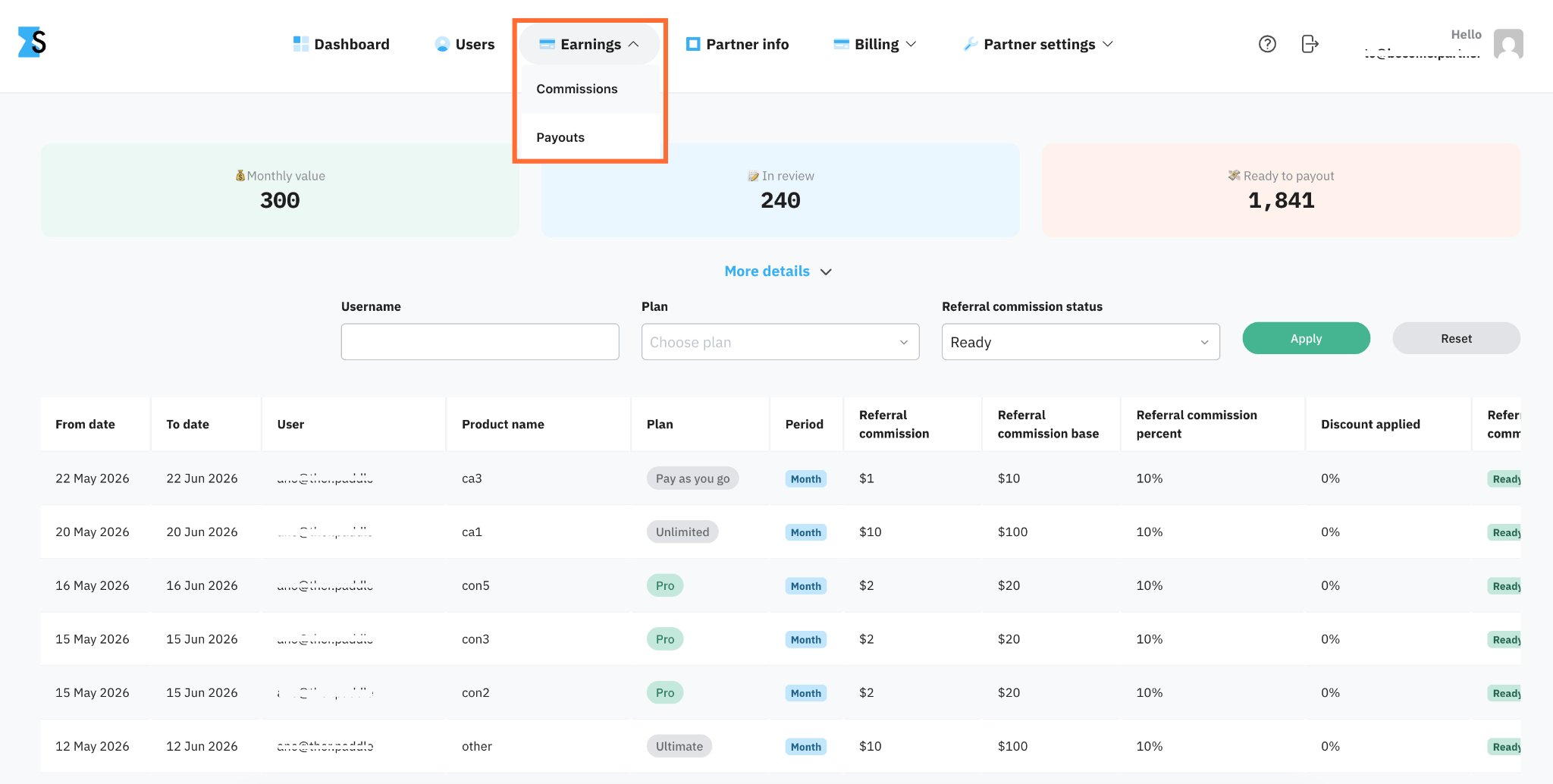
Commissions
On this page you can find your monthly commission breakdown – total value for the month, amount currently in review, and amount ready to pay out.
For more information read Partner commissions and payouts.
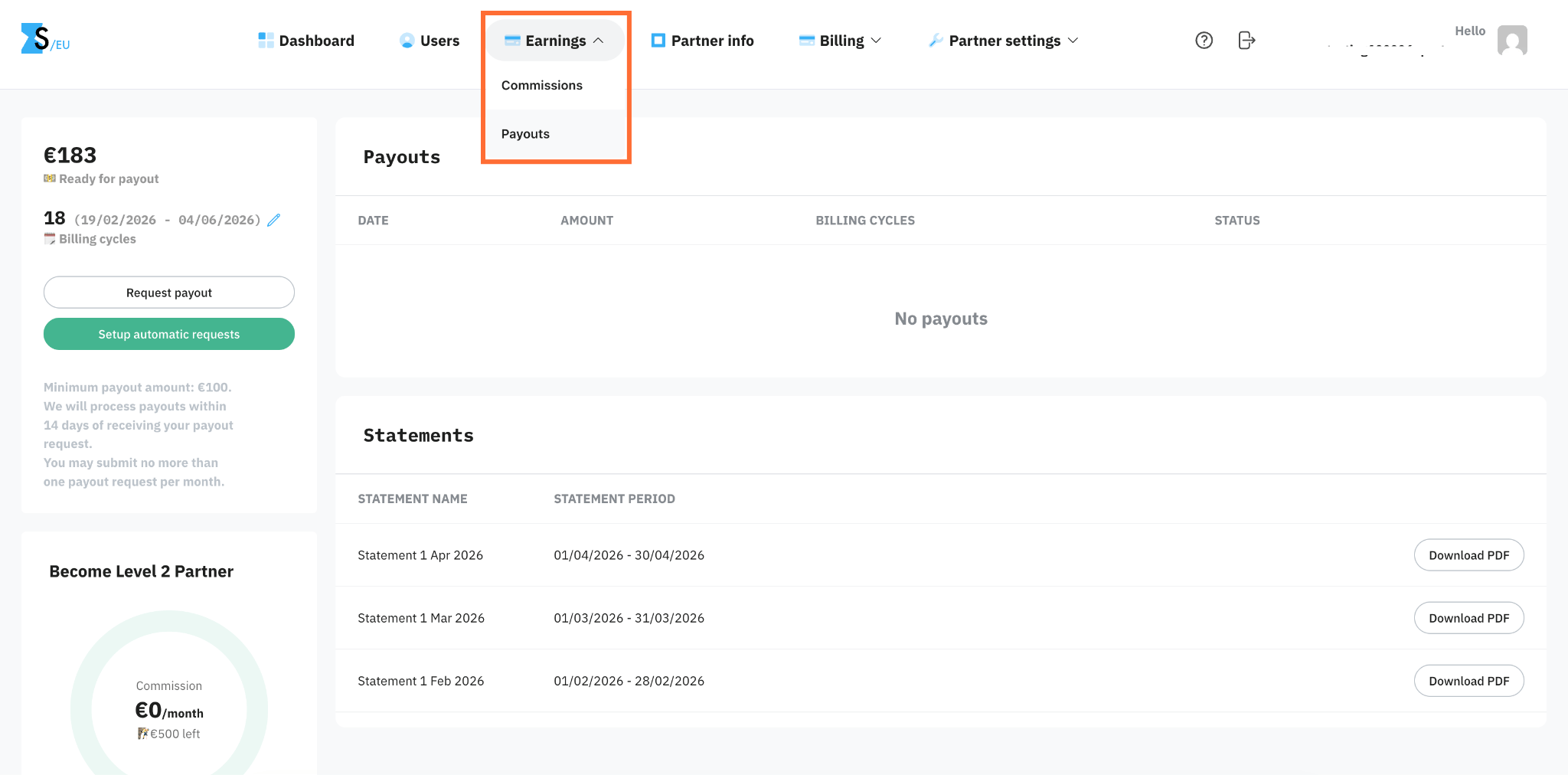
Payouts
Here you can find your payout history, request a payout, and download statements.
For more information read Partner commissions and payouts.
Partner info
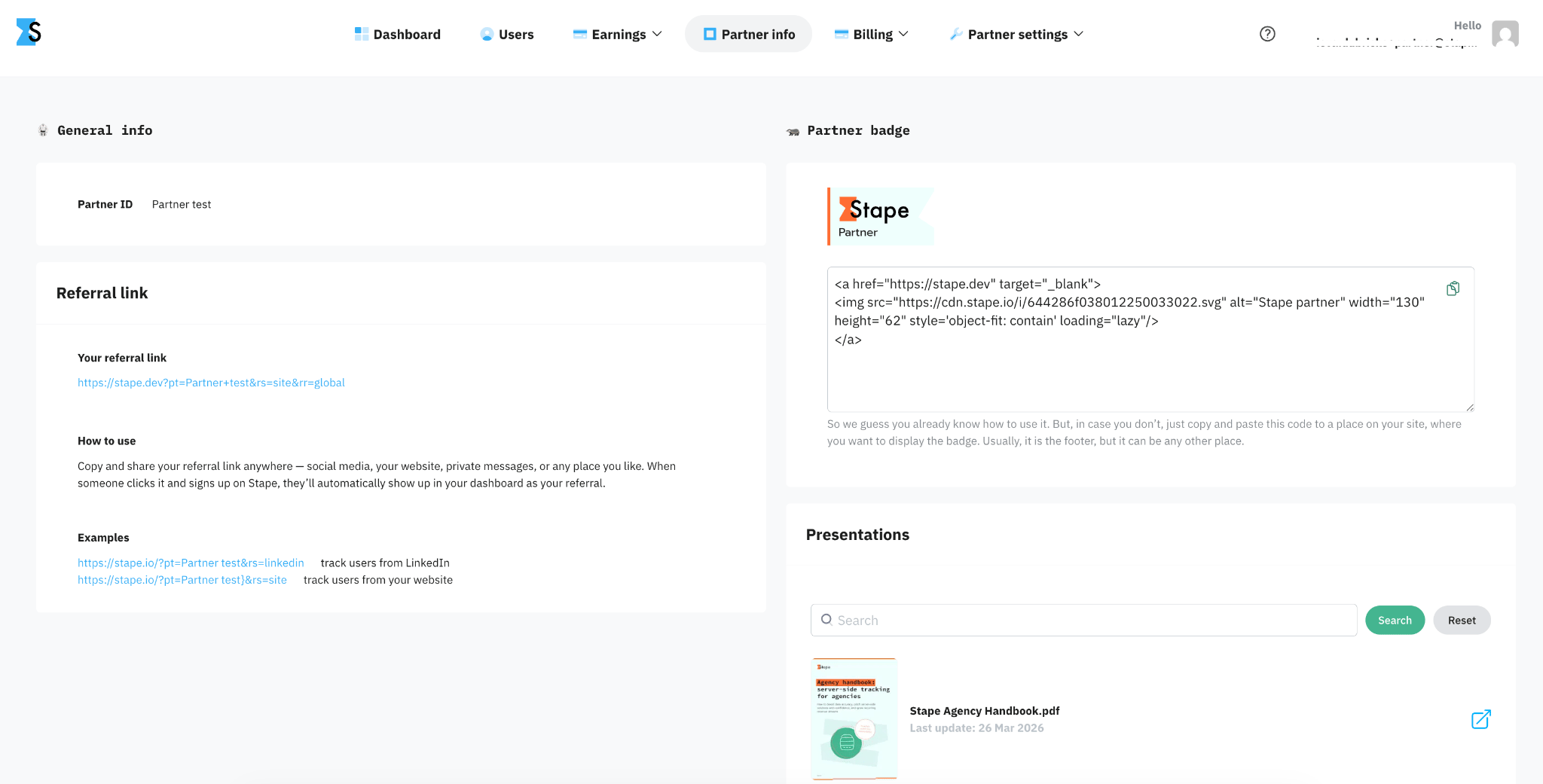
Here you can find your partner ID, referral link, an HTML link of your partner badge, and a set of useful resources, such as presentations and handbooks.
For more information read Resources available to partners.
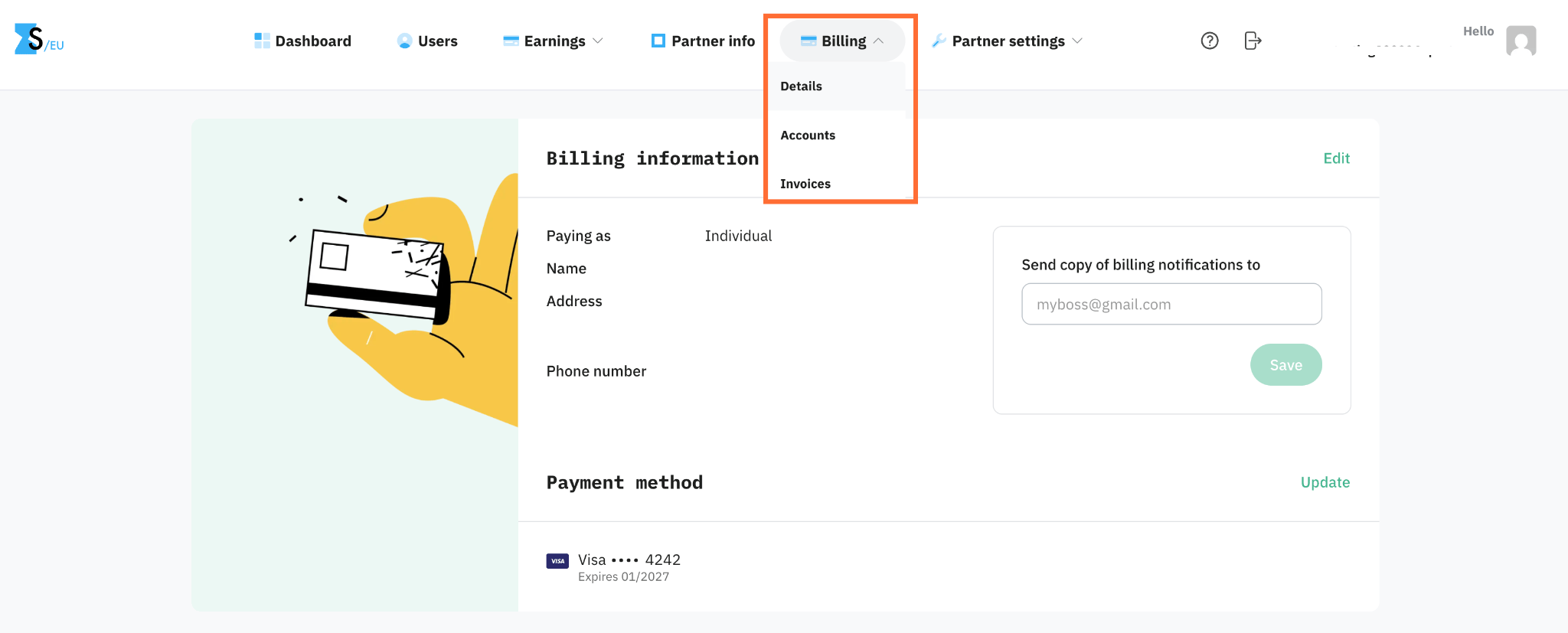
Billing
Here you can find your Partner accounts’ billing details, accounts, and invoices. Also, you can add selected sub accounts under your billing. For more information see Consolidated invoicing for Agency and Partner accounts.
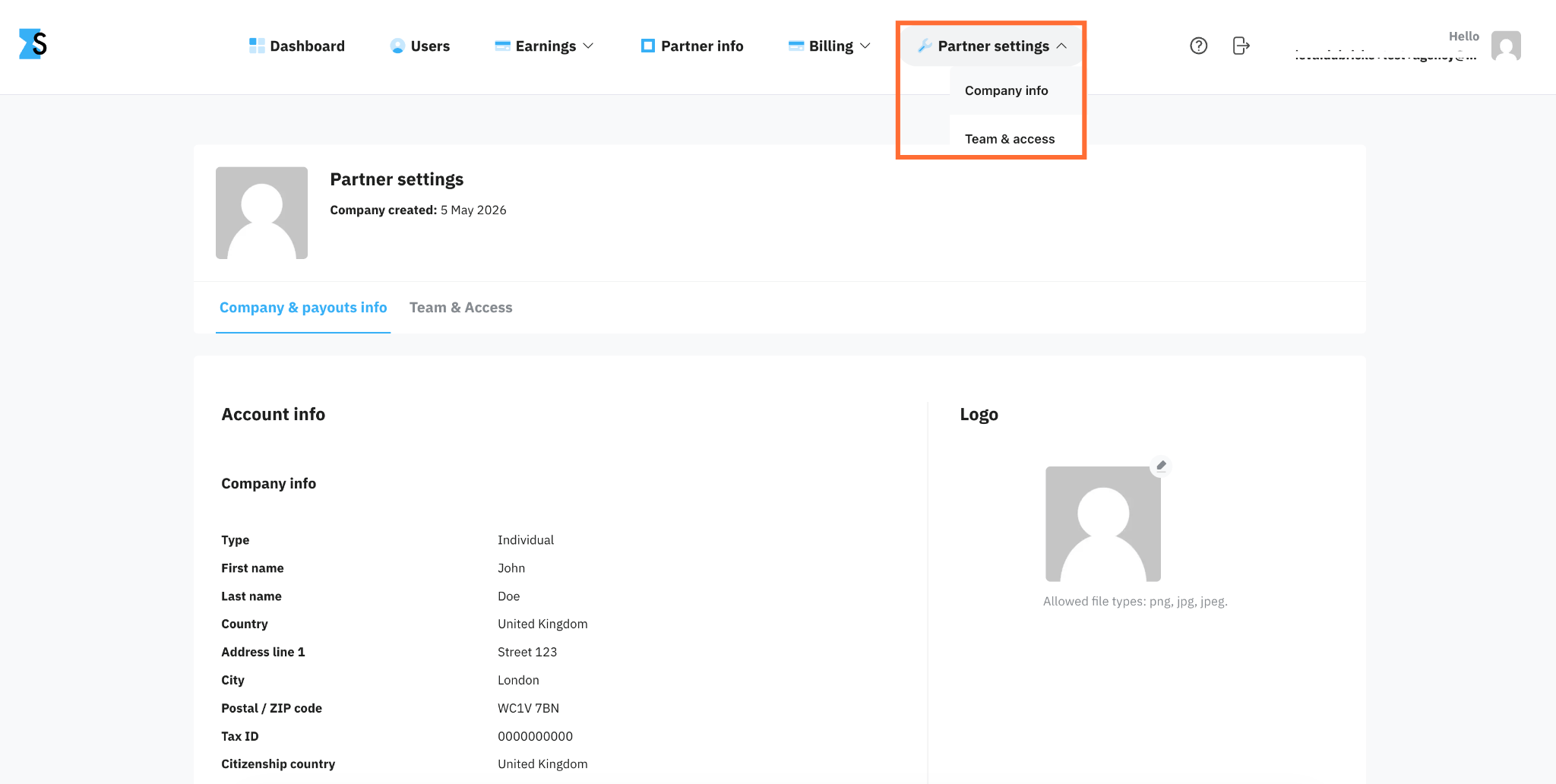
Partner settings
This is your Partner account profile:
- Company & payouts info – here you can update your company info, such as name, address, country, etc. Also here you can update your payout information.
- Team & Access – here you can add your team members so they could also work with sub accounts.
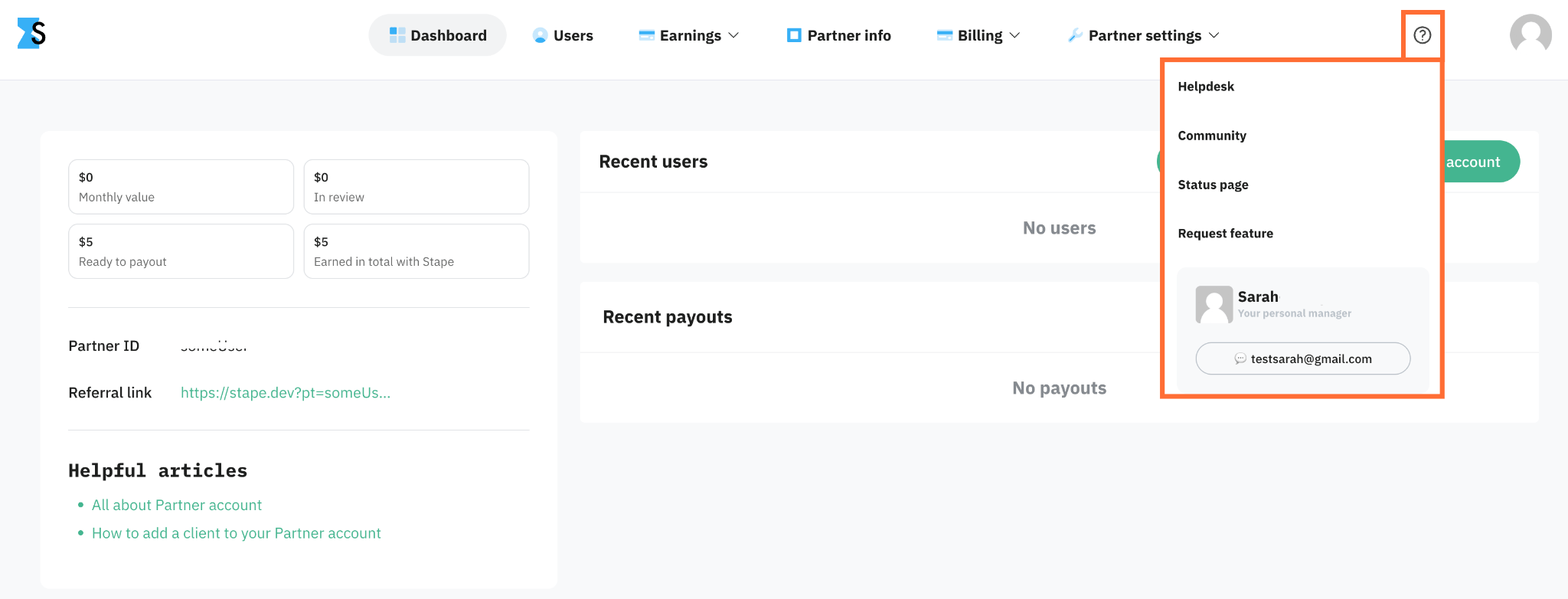
Support center
Click the question mark, and it'll open you a menu with:
- Help desk – you can read the documentation about Stape and its products, also frequently asked questions are answered here.
- Community – a public forum for server-side tracking discussions. Questions are answered by both Stape staff and other server-side tracking experts in the community.
- Status page – shows the health of Stape's services. Check it first if something that was working suddenly stops.
- Request feature – here you can request new features and improvements for Stape.
- Personal manager – a dedicated Stape representative assigned to help you set up or troubleshoot complex server-side configurations. Click the chat button to reach out to your manager.
Account menu
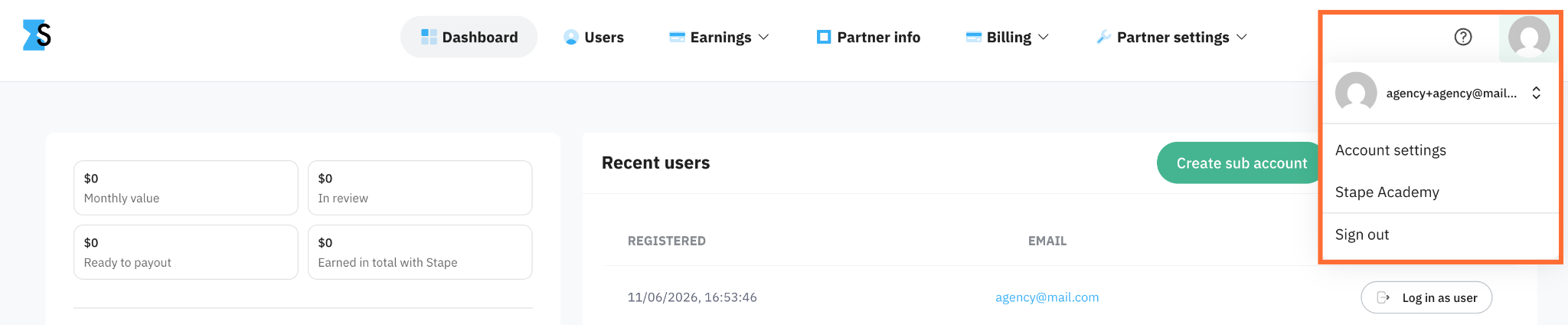
Click your account name in the top right corner to access the personal account settings:
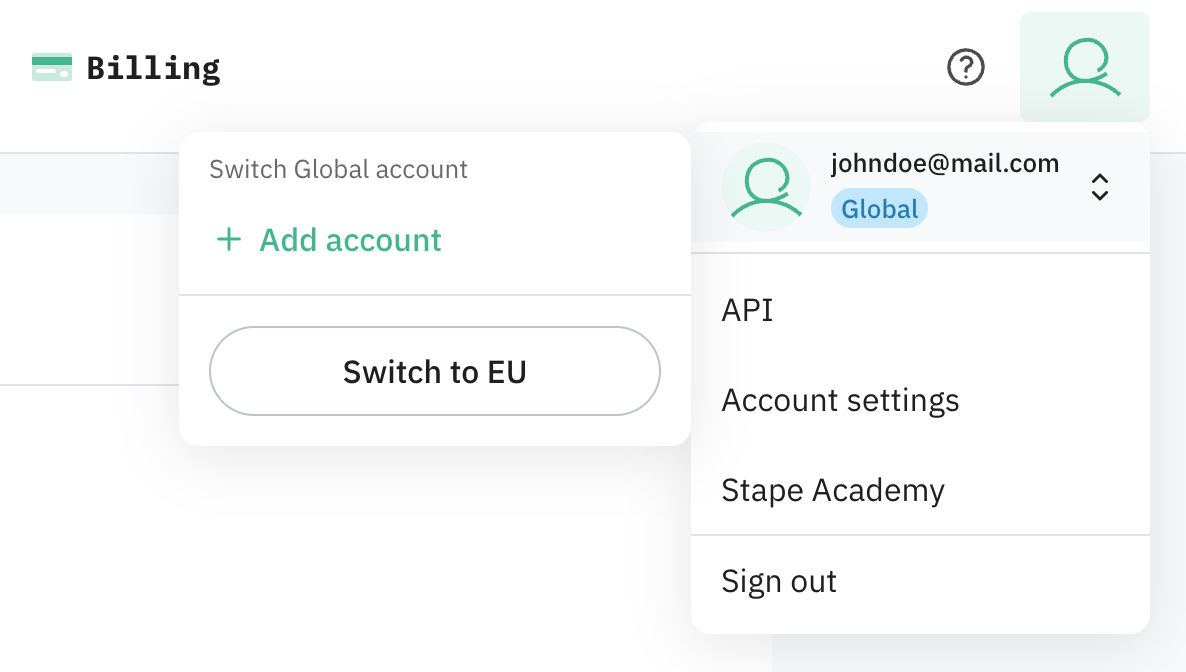
- Your email – shows which account you're currently signed into. Click it to switch to another account you've previously logged into on this device, or add a new one. See How to switch between accounts below.
- Account settings – allows you to:
- Edit your password, email, and personal info
- Set up two-factor authentication
- Review your activity history
- Delete your account
- Stape Academy – a free online training platform dedicated to server-side Google Tag Manager and tracking. It offers video modules and short quizzes designed for marketers and analysts to master tracking setups without touching backend code, and provides an official certification upon completion.
How to switch between accounts
You can stay signed in to more than one Stape account at the same time and switch between them without logging out and back in. This works the same way regardless of location (EU or Global) and how you sign in. Every account you switch between stays fully independent.
Note:
For the account switching, Stape uses a cookie stored in your browser. It doesn’t contain your email, password, or auth token – only whether you've logged in to an account in this browser before. Because it's stored per browser, the accounts you see are specific to this device/browser and to the location (EU or Global) you're currently on.
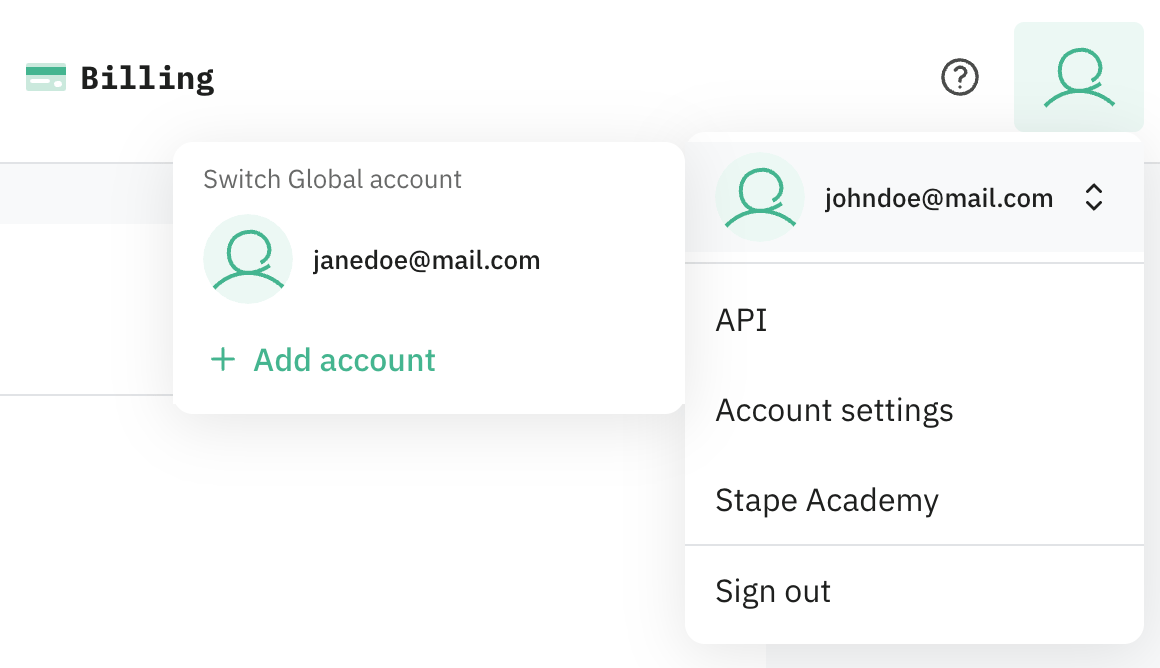
Click your profile picture to see a list of every account you've previously logged into on this device. If you only have one account, you'll see a single Add account button until you add a second one.
Click any account, and you're switched into that account and land on its dashboard immediately – no need to re-enter credentials.
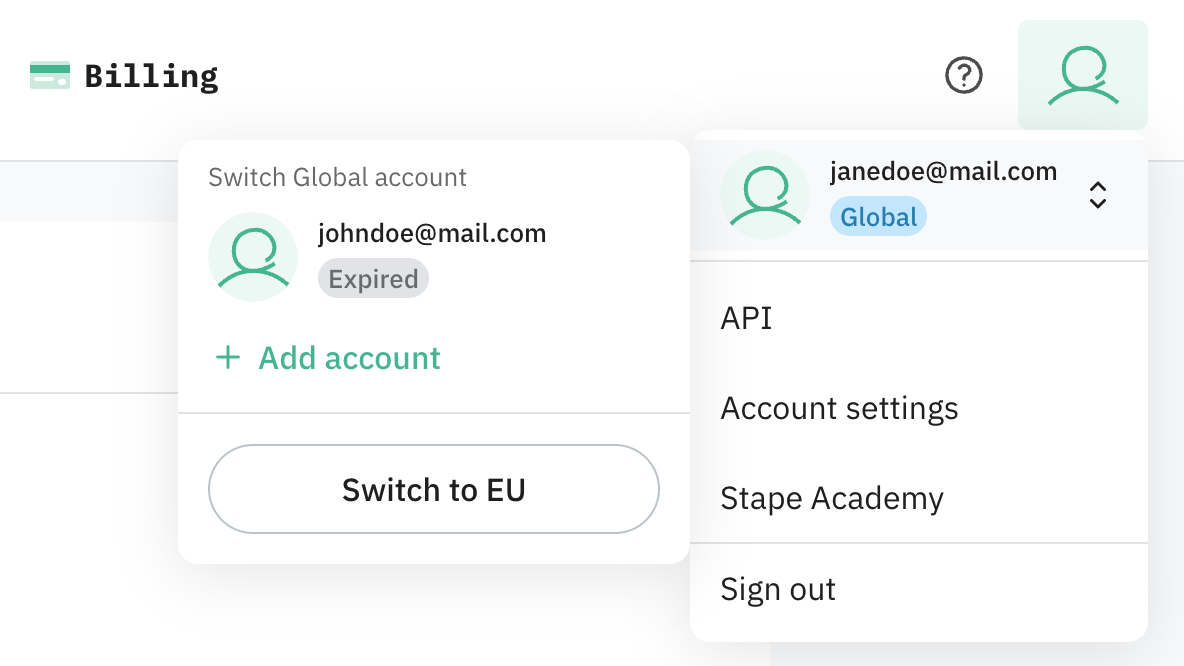
If an account's login session has expired, it's shown in the list with an Expired label. For the label to disappear:
- 1.Click the expired account to be taken to the login page for that account.
- 2.Until you log back in, that account is removed from the list.
- 3.Once you log back in successfully, the account reappears in the same spot.
How to add a new account
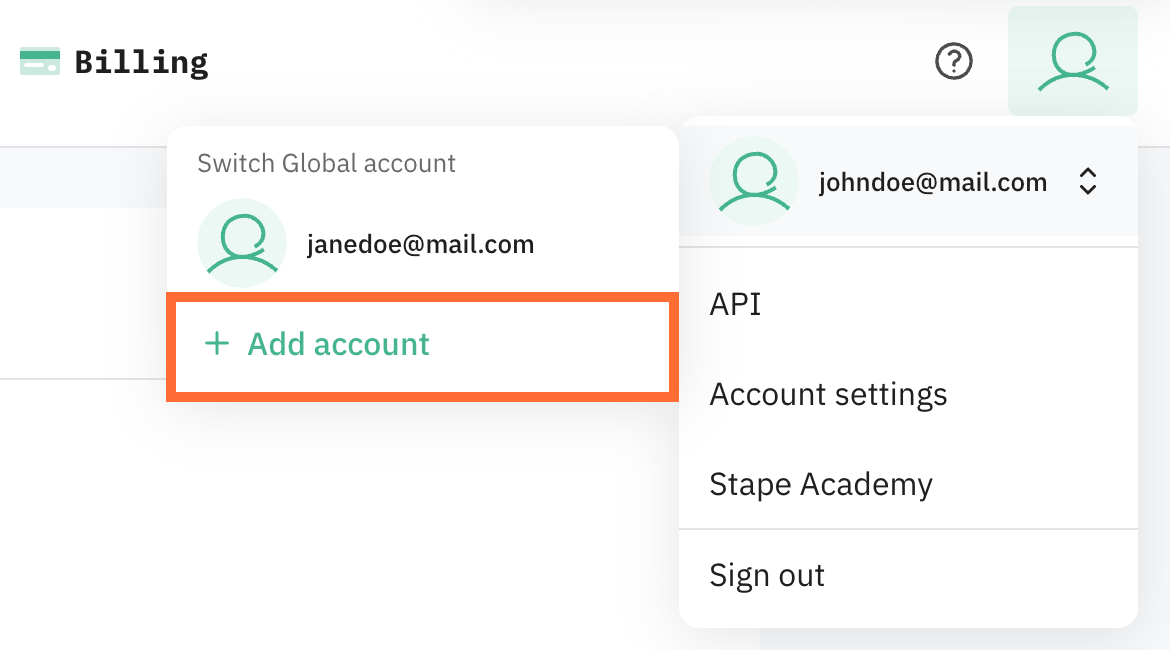
- 1.Click Add account.
- 2.You're redirected to the login page. Enter the credentials for the account you want to add, or click Sign up to create a brand-new account instead.
- 3.Once you log in (or finish signing up), the new account is added to your list and you're switched into it right away.
Switching between EU and Global
If you've previously logged into accounts in both regions, you'll see a region badge (EU or Global) next to your email in the profile header, and a Switch to EU / Switch to Global button in the accounts list. Clicking it takes you to the other region's account.
Was this article helpful?
🍽 Table of content:
Comments