Profile and security
Updated Jun 26, 2026
Your Profile and Security settings allow you to update your personal details, manage how you sign in, and enhance your account protection through tools like two-factor authentication.
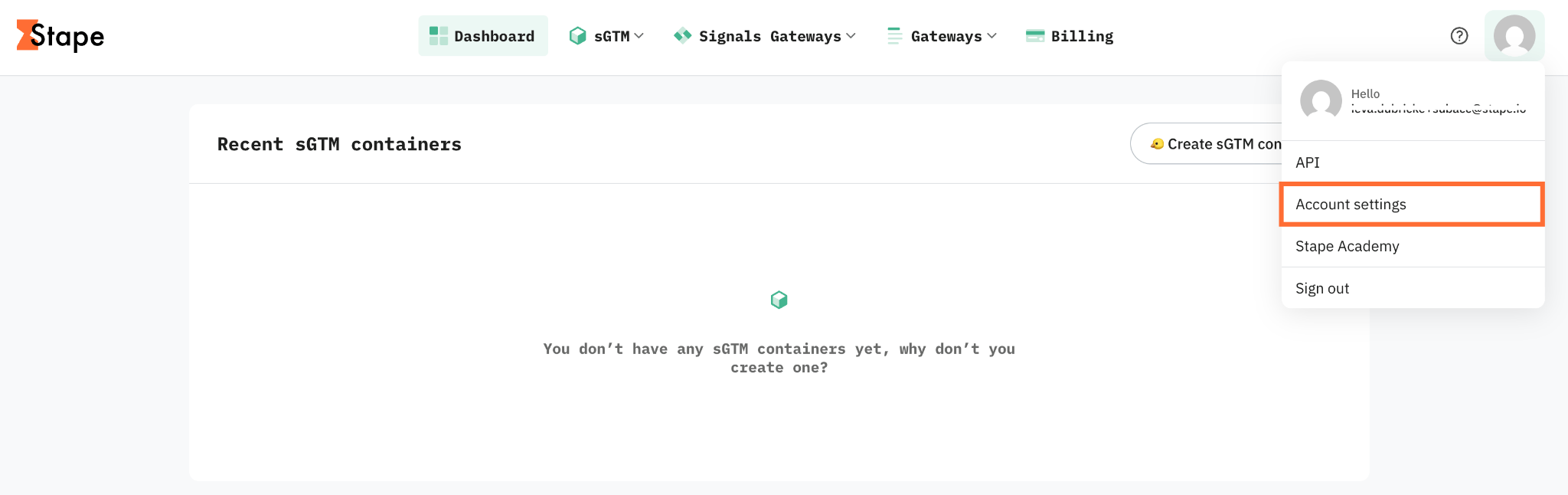
To access these pages, at the top menu click on your profile icon → Account settings.
Profile
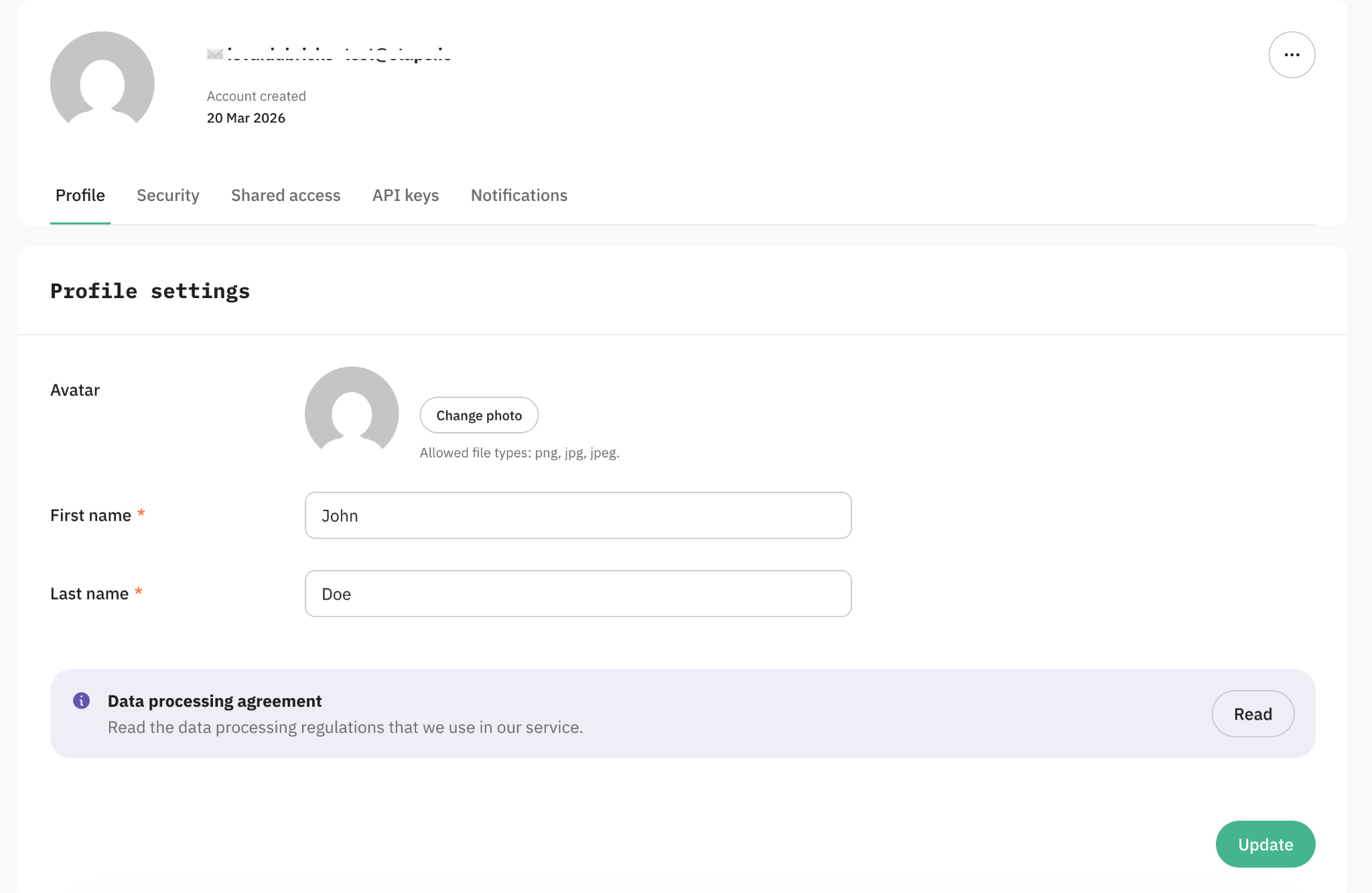
Here you can change your personal details:
- Avatar – click Change photo to upload a profile picture. Allowed file types are PNG, JPG, and JPEG. Your avatar appears next to your account across Stape and helps your teammates recognize you when access is shared.
- First name and Last name – both are required. They appear on your account, in shared-access invitations, and in communications from Stape.
- Data processing agreement – the note links to the data-processing regulations Stape applies to your account. Click Read to review them at any time.
Security
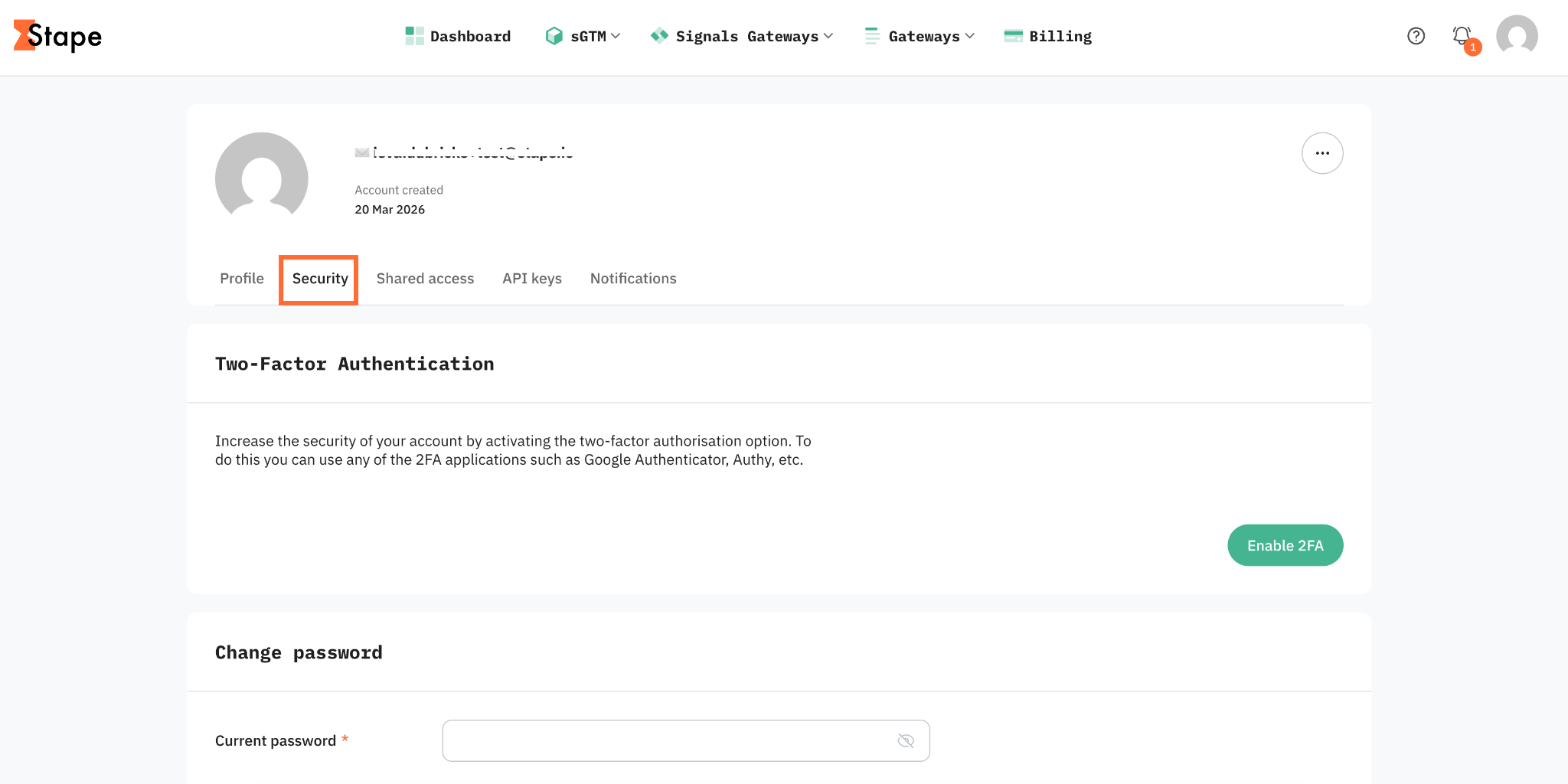
On this page you can enable 2FA, change password, set up a passkey, enable SSO and look at the activity history.
Two-Factor Authentication
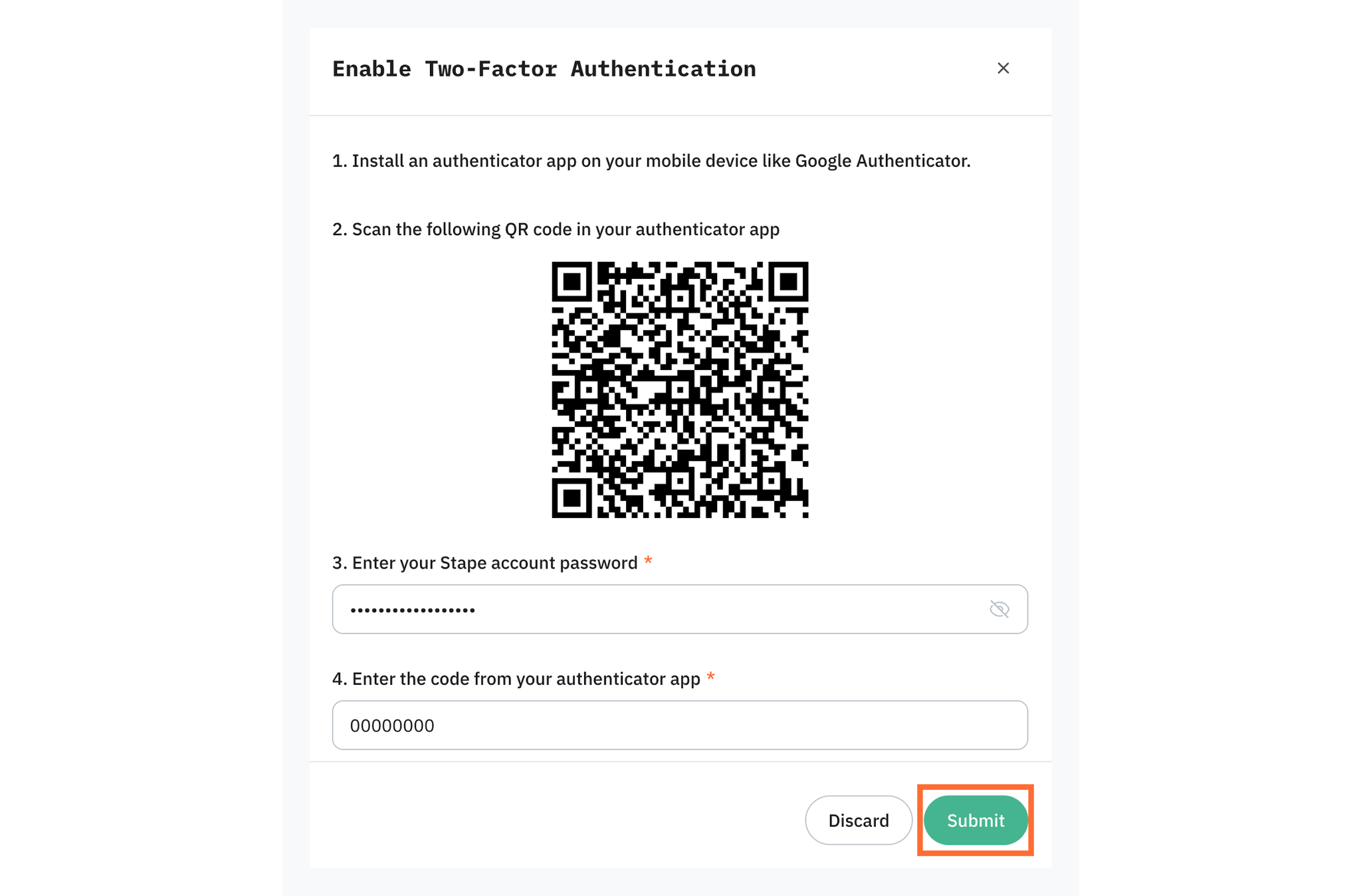
You can increase the security of your account by activating two-factor authentication. You can use any 2FA app, such as Google Authenticator, Authy, etc.
This section is only applicable if you use the email/password authentication.
To enable the 2FA, follow these steps:
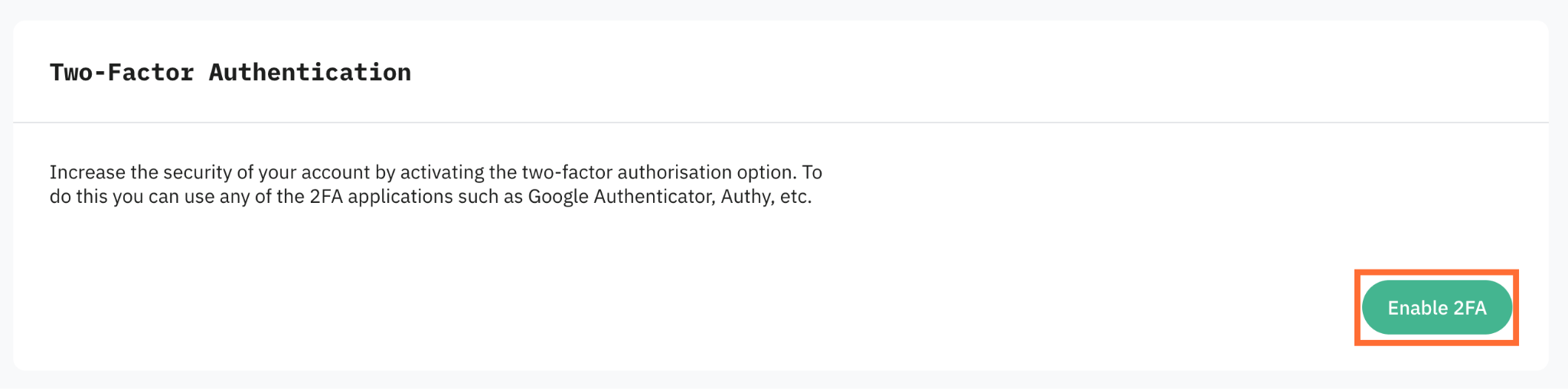
1. Click Enable 2FA.
2. Follow the instructions in the pop-up, and click Submit.
Important:
Stape gives you a set of one-time backup recovery codes. Store them somewhere safe and separate from your phone (a password manager, for example).
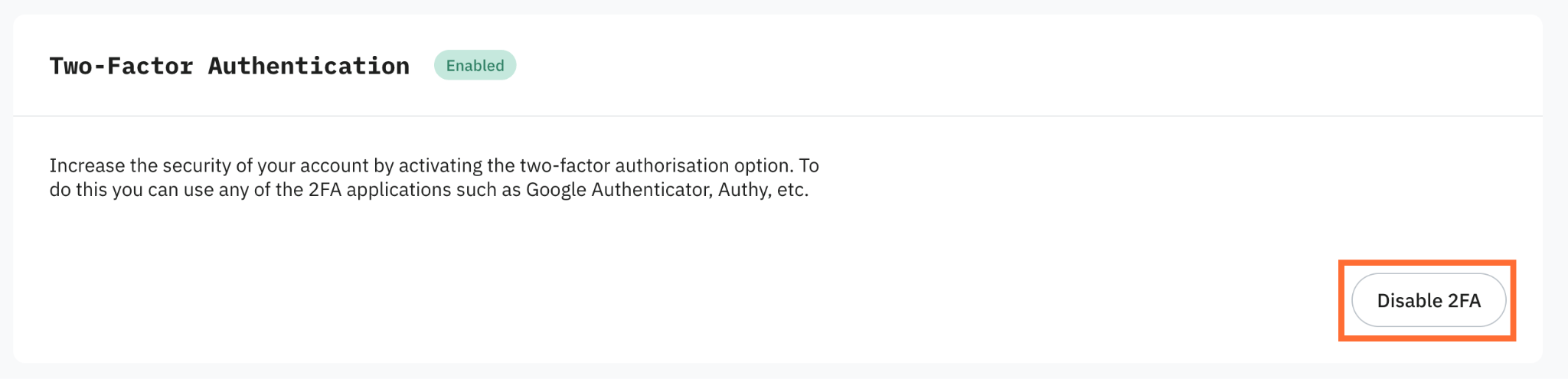
You can disable the 2FA any time by clicking Disable 2FA.
Change password
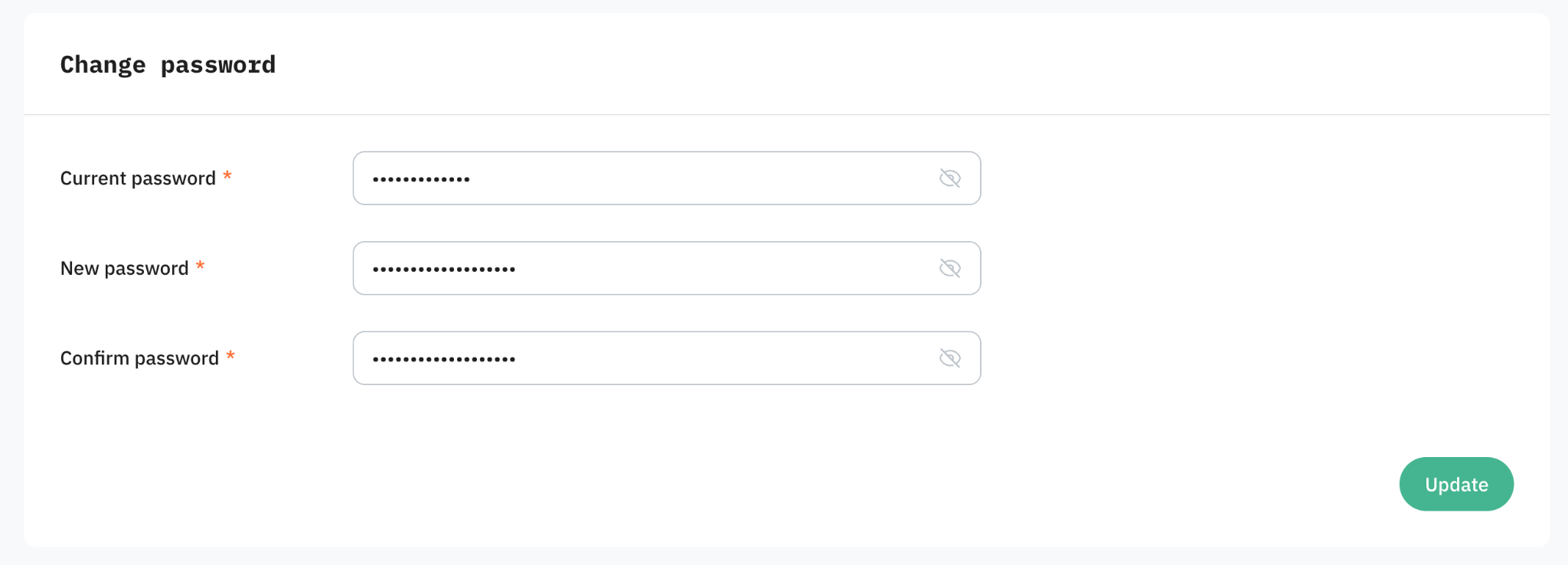
Here you can update your account password.
This section is only applicable if you use the email/password authentication.
- 1.Enter your Current password.
- 2.Enter your New password.
- 3.Re-enter it in Confirm password.
- 4.Click Update.
Activity history
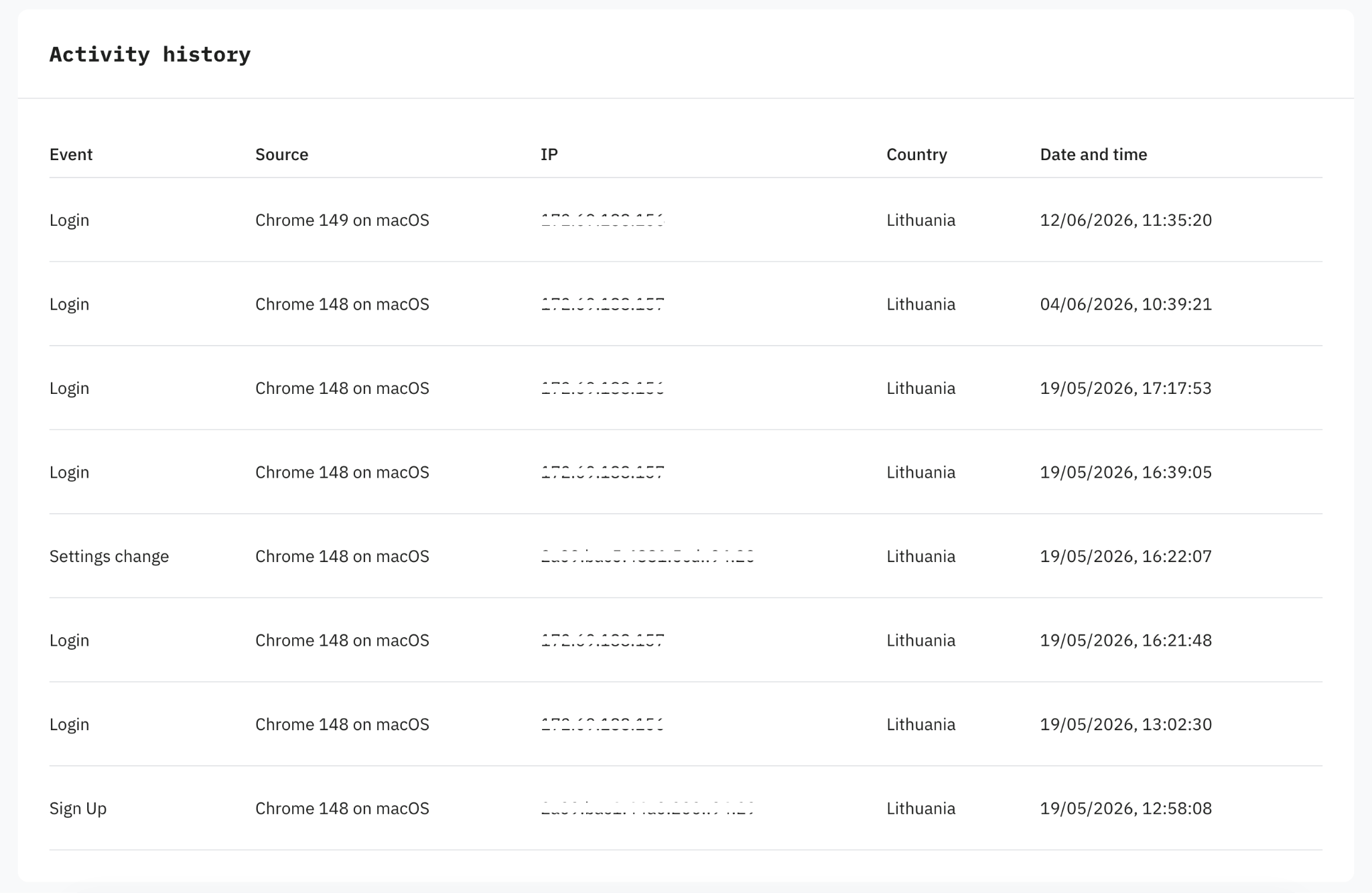
The Activity history log helps you keep an eye on your account by tracking recent logins, making it easy to spot any activity that looks unfamiliar. Each entry includes:
- Event – the specific action (e.g., login).
- Source – the browser and operating system you used.
- IP – the session's IP address.
- Country – the location associated with that IP.
- Date and time – when the event took place.
If you see activity you don't recognize, change your password and enable 2FA right away.
Sign-in methods
Stape supports several sign-in methods:
- Email/password – sign in with your email address + a password.
- Google – one-click sign-in with your Google account.
- Facebook – one-click sign-in with your Facebook account.
- Passkey – sign in with fingerprint, face, or screen lock.
- SSO – single sign-on via your organization's provider.
Email/password sign-in
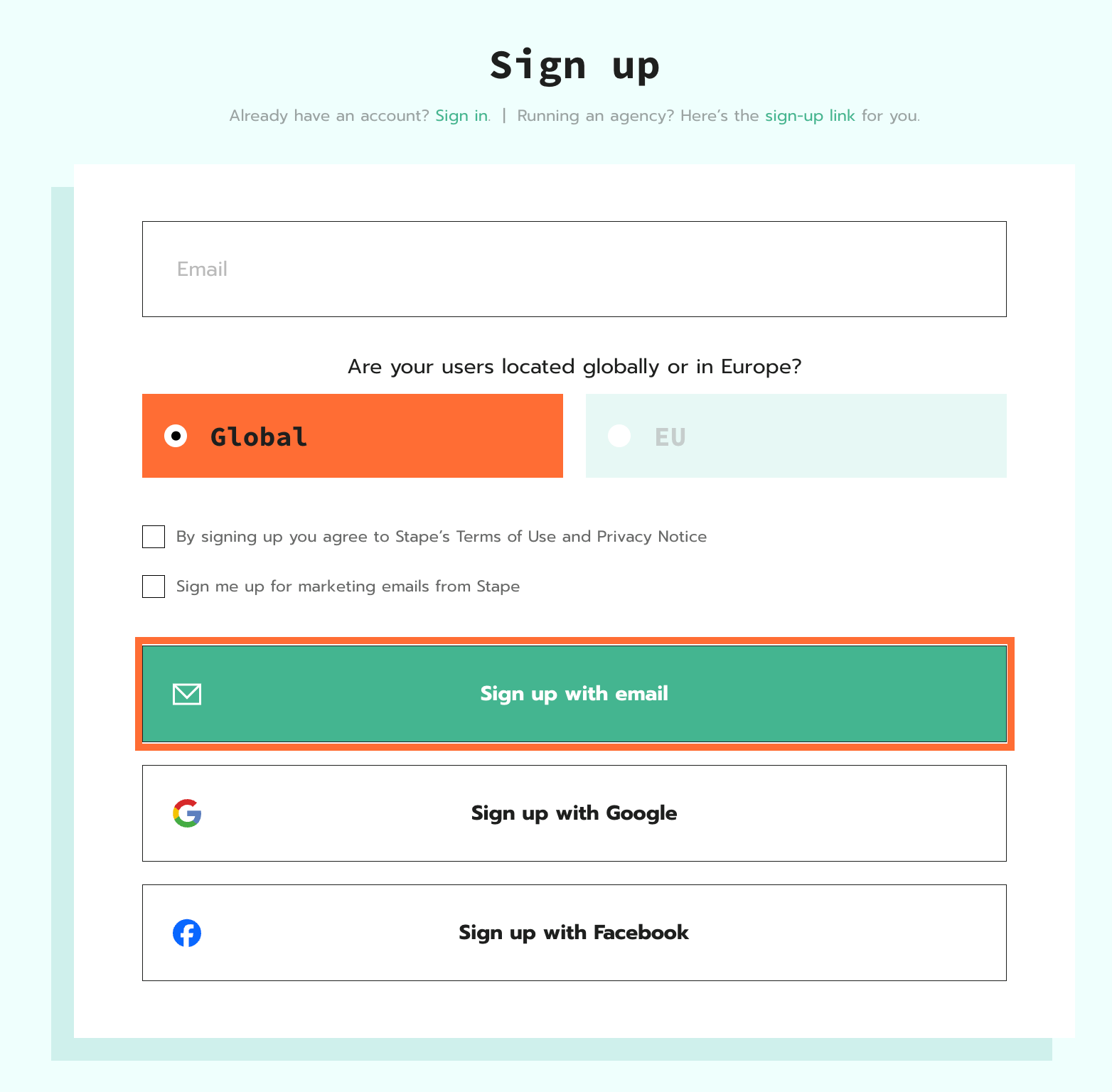
To use this type of authentication, click Sign up with email during the sign-up process. You’ll be asked to enter your password as well.
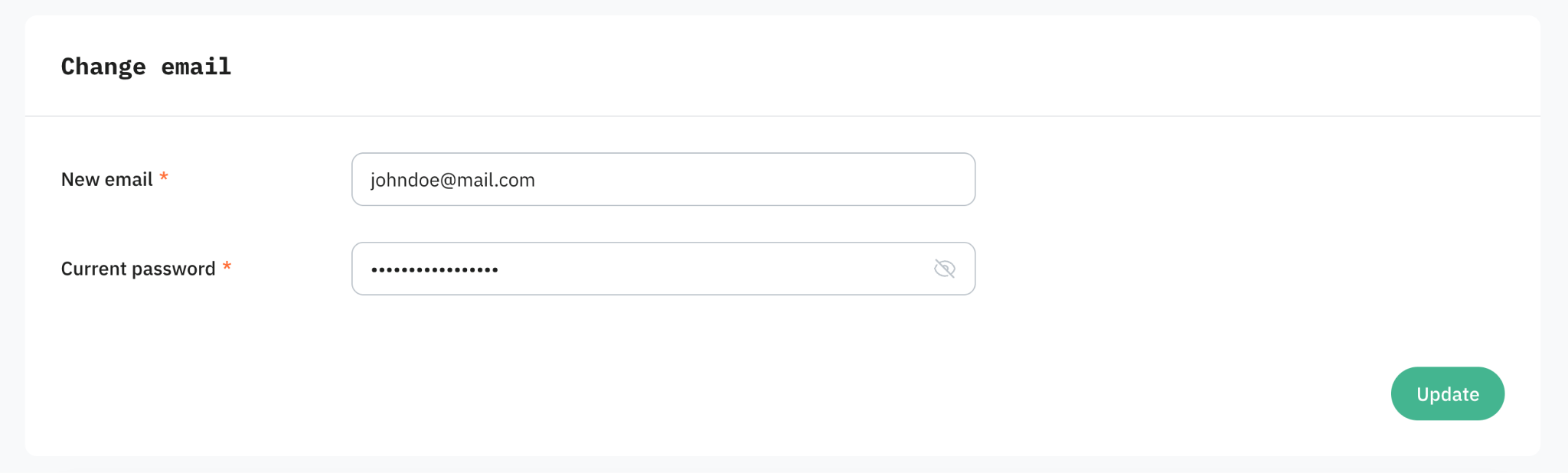
If you log in with an email/password, you can change the email. For this go to Profile → Change email.
The Change email section lets you move your account to a new login email. You need to enter:
- New email – the address you want to use.
- Current password – required to confirm it's really you.
Notes:
- If you have two-factor authentication (2FA) enabled, you'll be asked for your 2FA verification code in addition to your password to authorize the email update.
- When you convert a Standard account to an Agency account, Stape creates a separate agency login by appending
+agencyto your existing username. These are independent logins. If you later change the email on your Standard account, your agency login doesn’t update automatically.
Google/Facebook sign-in
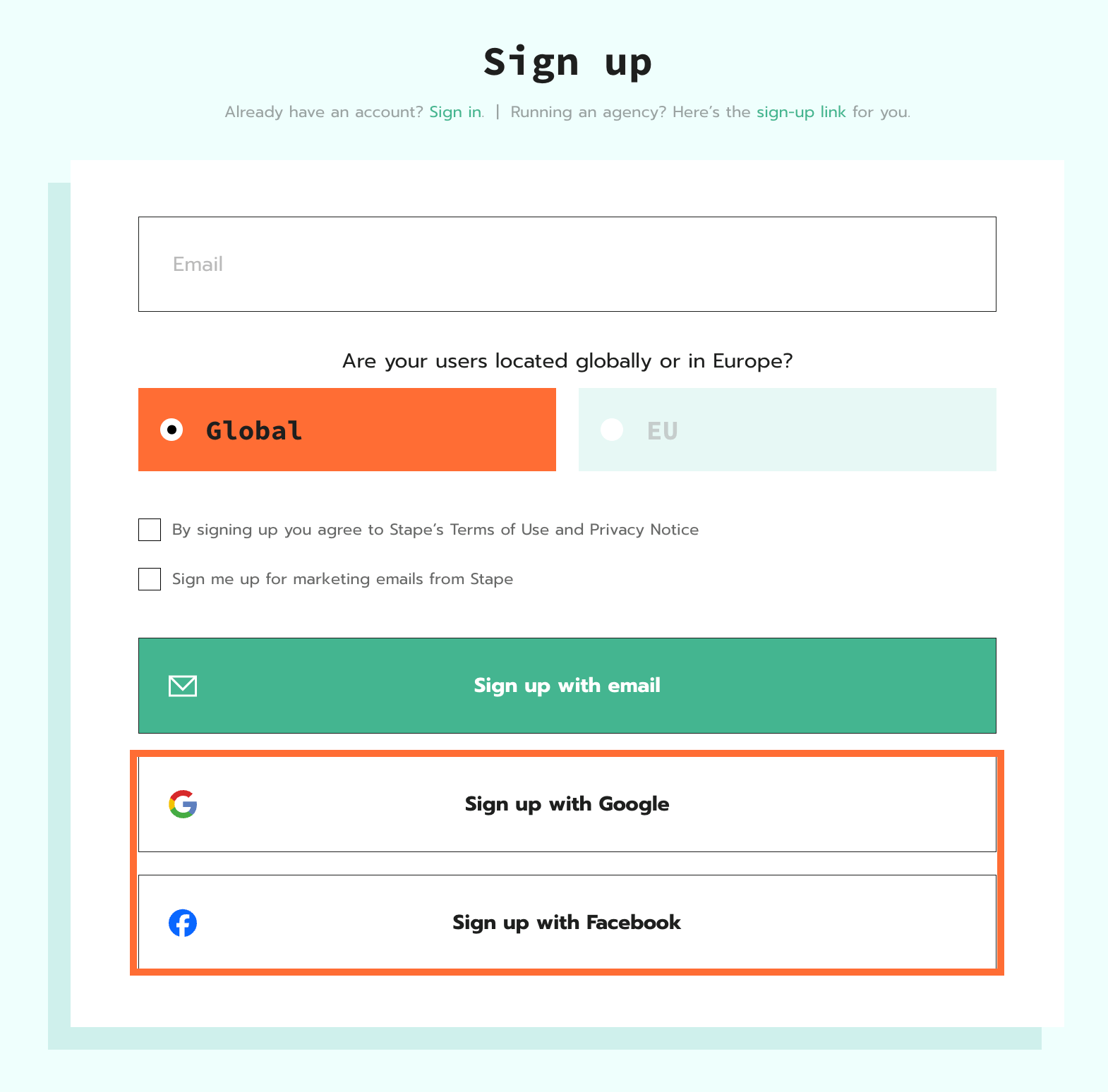
To use this type of authentication, click Sign up with Google or Sign up with Facebook during the sign-up process. You’ll be guided through the process by Google or Facebook.
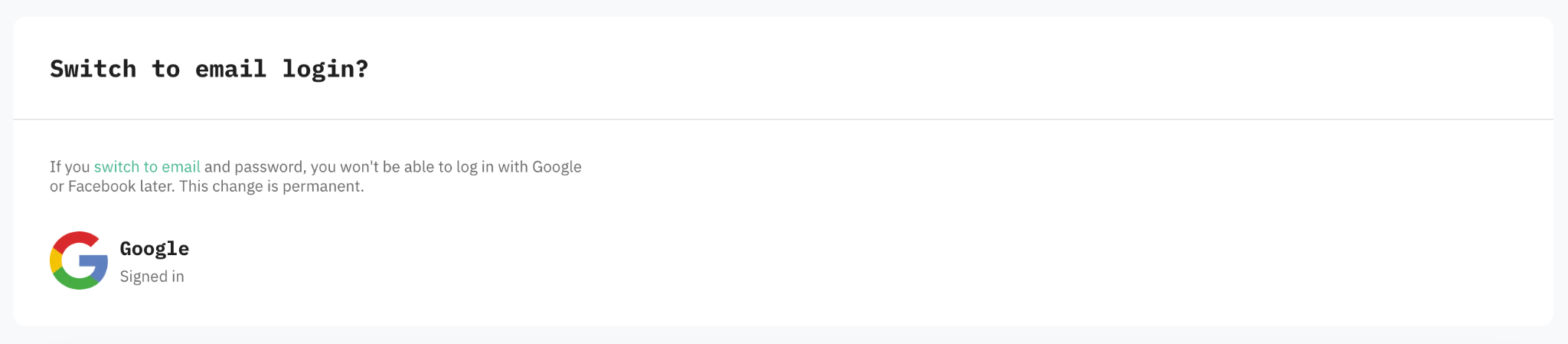
You can change your authentication type. For this go to Profile → Switch to email login and click switch to email link.
Note:
With this authentication type you won't be able to convert your Standard account to an Agency account.
Passkey sign-in
A passkey is a quick, secure way to sign in using your device's fingerprint, face, or screen lock instead of a password.
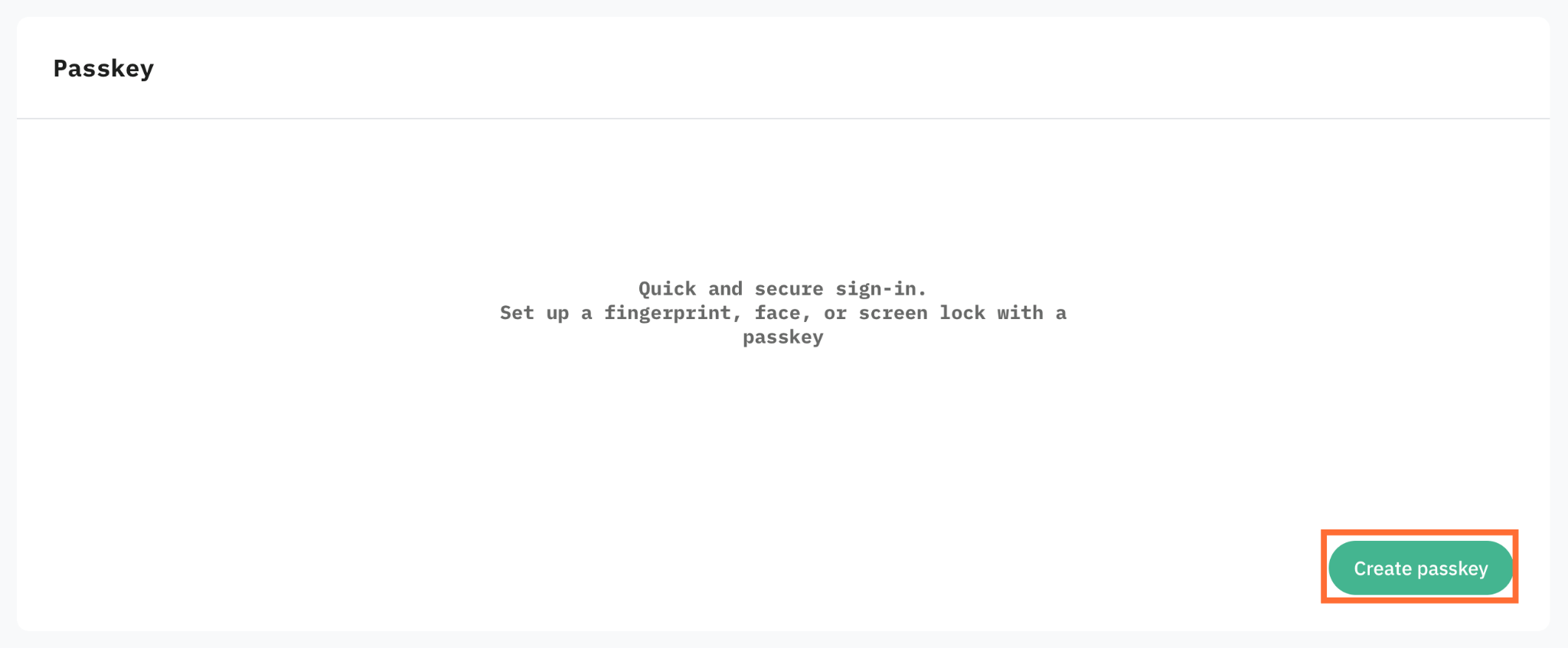
Go to Security → Passkey and click Create passkey. Follow your device's prompt to set the passkey.
This section is only applicable if you use the email/password authentication.
Single Sign-On (SSO) sign-in
With Single Sign-On (SSO), your team can securely access Stape using your existing company email credentials, eliminating the need to manage separate usernames or passwords.
If you remove an employee from your company's system, they immediately lose access to Stape.
Stape's SSO is powered by WorkOS for enterprise-grade reliability and broad compatibility. Supported providers include:
- Google SAML
- Okta SAML
- Microsoft Entra ID (Azure AD) SAML
- ADP OpenID Connect
- Auth0 SAML
- CAS SAML
- ClassLink SAML
- Cloudflare SAML
- CyberArk SAML
- Duo SAML
- Microsoft Entra ID OpenID Connect
- Google OpenID Connect
- JumpCloud SAML
- Keycloak SAML
- LastPass SAML
- Login.gov OpenID Connect
- Microsoft AD FS
- miniOrange SAML
- NetIQ SAML
- Okta OpenID Connect
- OneLogin
- Oracle
- PingFederate
- PingOne
- Rippling
- Shibboleth Generic SAML
- SimpleSAMLphp SAML
- VMware Workspace One
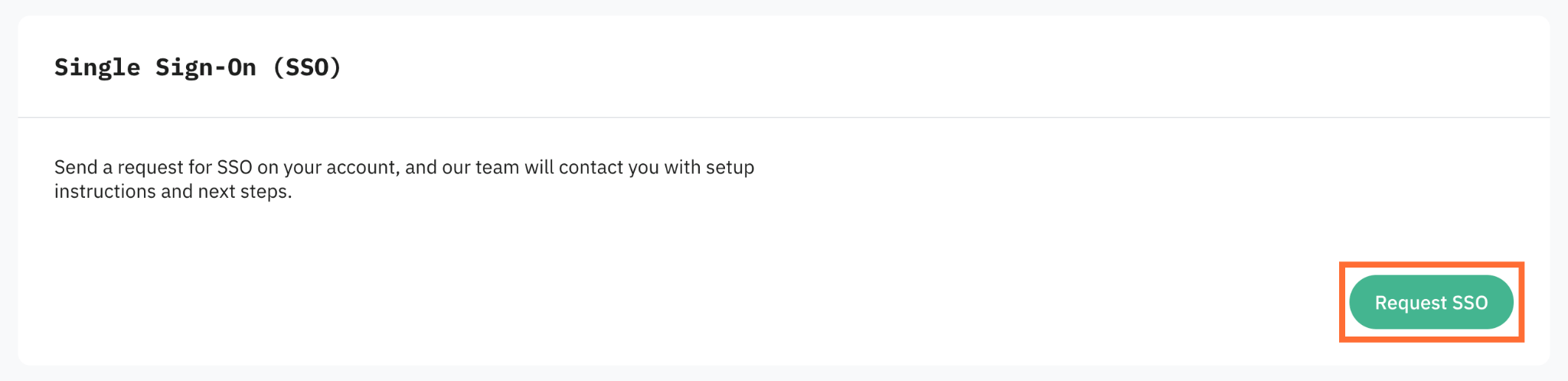
To request SSO, go to Security → Single Sign-On (SSO), and click Request SSO. The Stape team will take a look and contact you with further instructions.
Notes:
- SSO isn't supported for public/free domains like
@gmail.com - SSO is a paid feature available for all Stape accounts.
Account recovery
I forgot my password
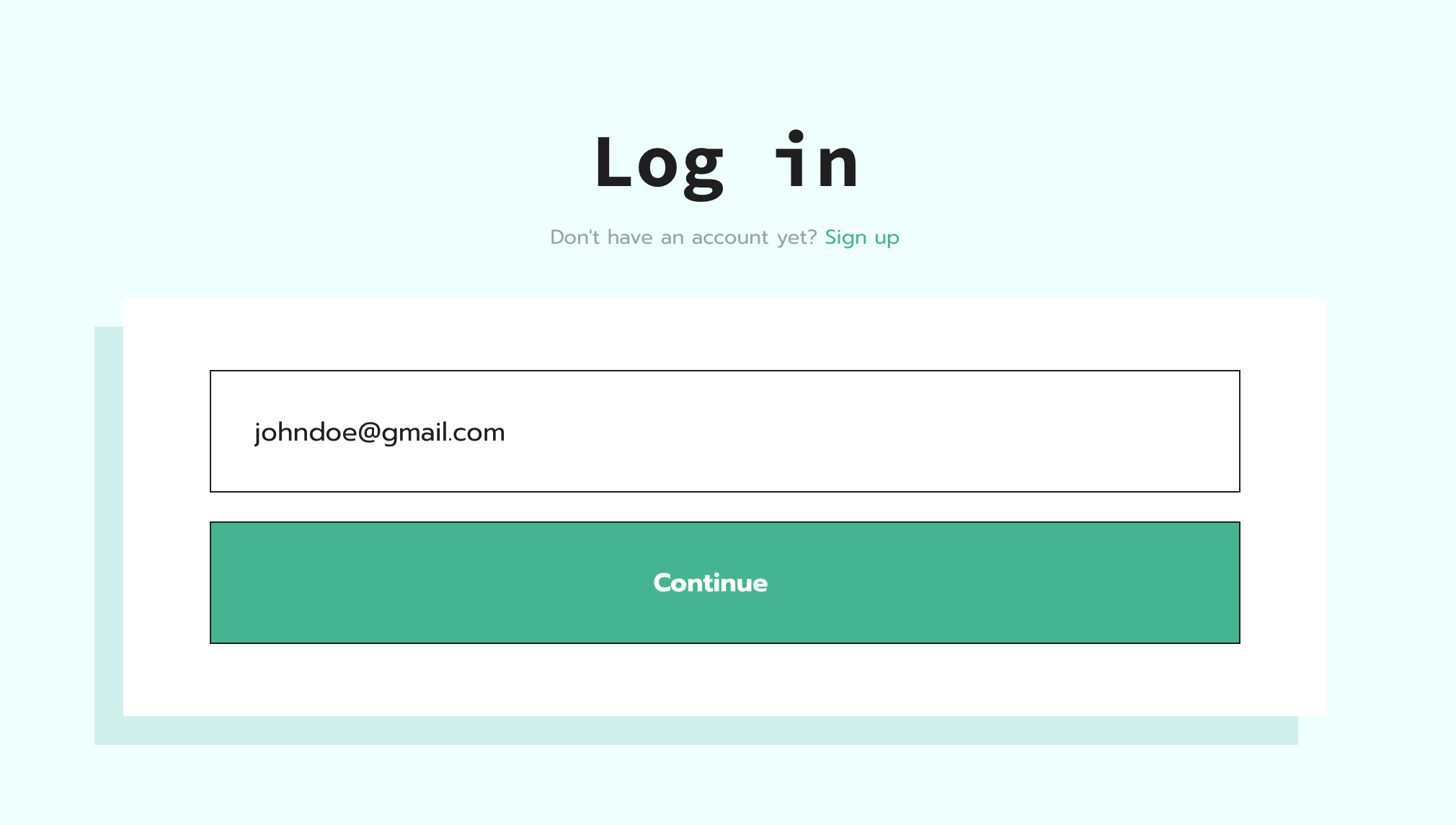
1. On the Stape login page, enter your email address, and click Continue.
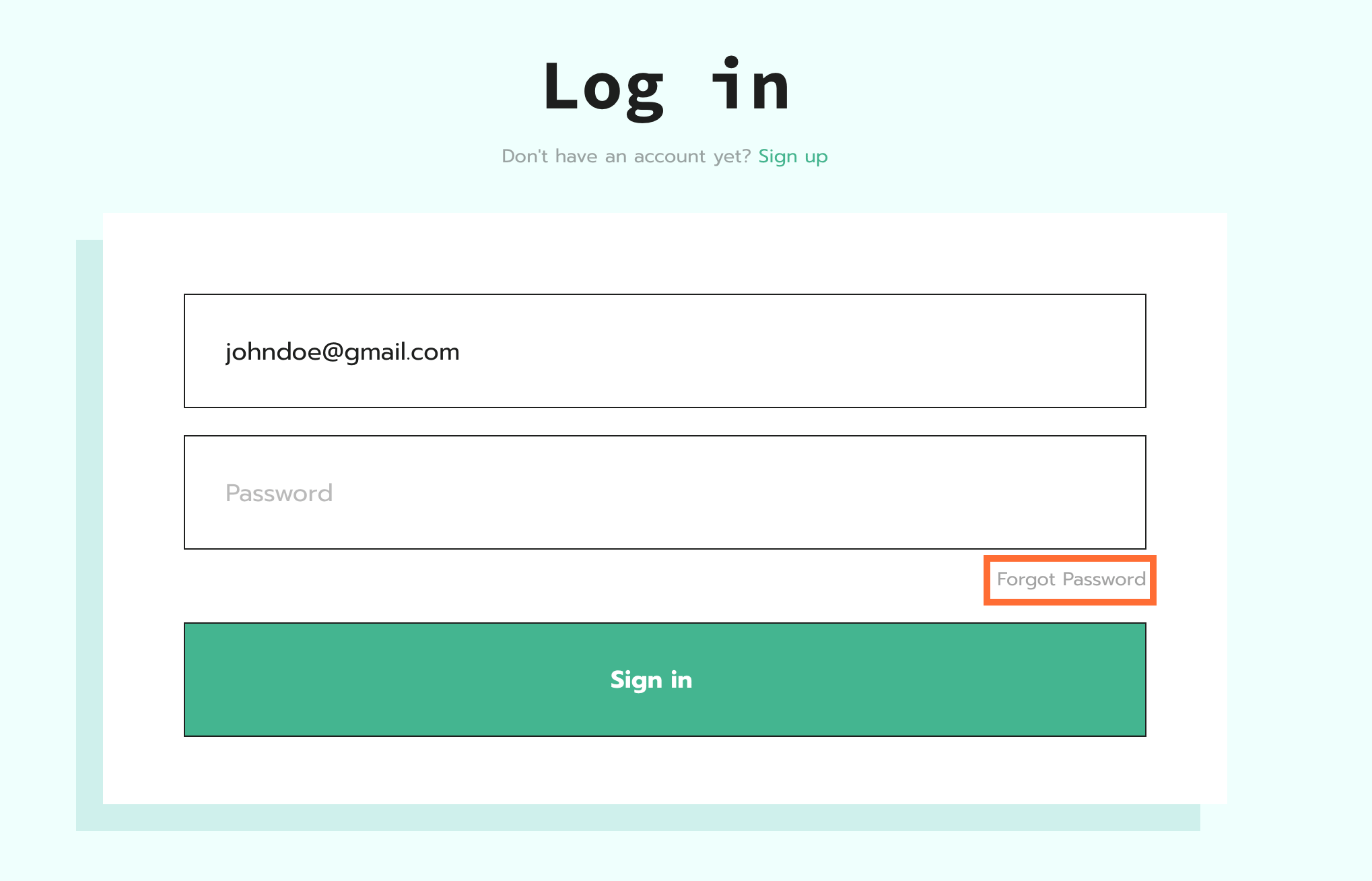
2. Click Forgot Password.
3. Enter your email and click Request.
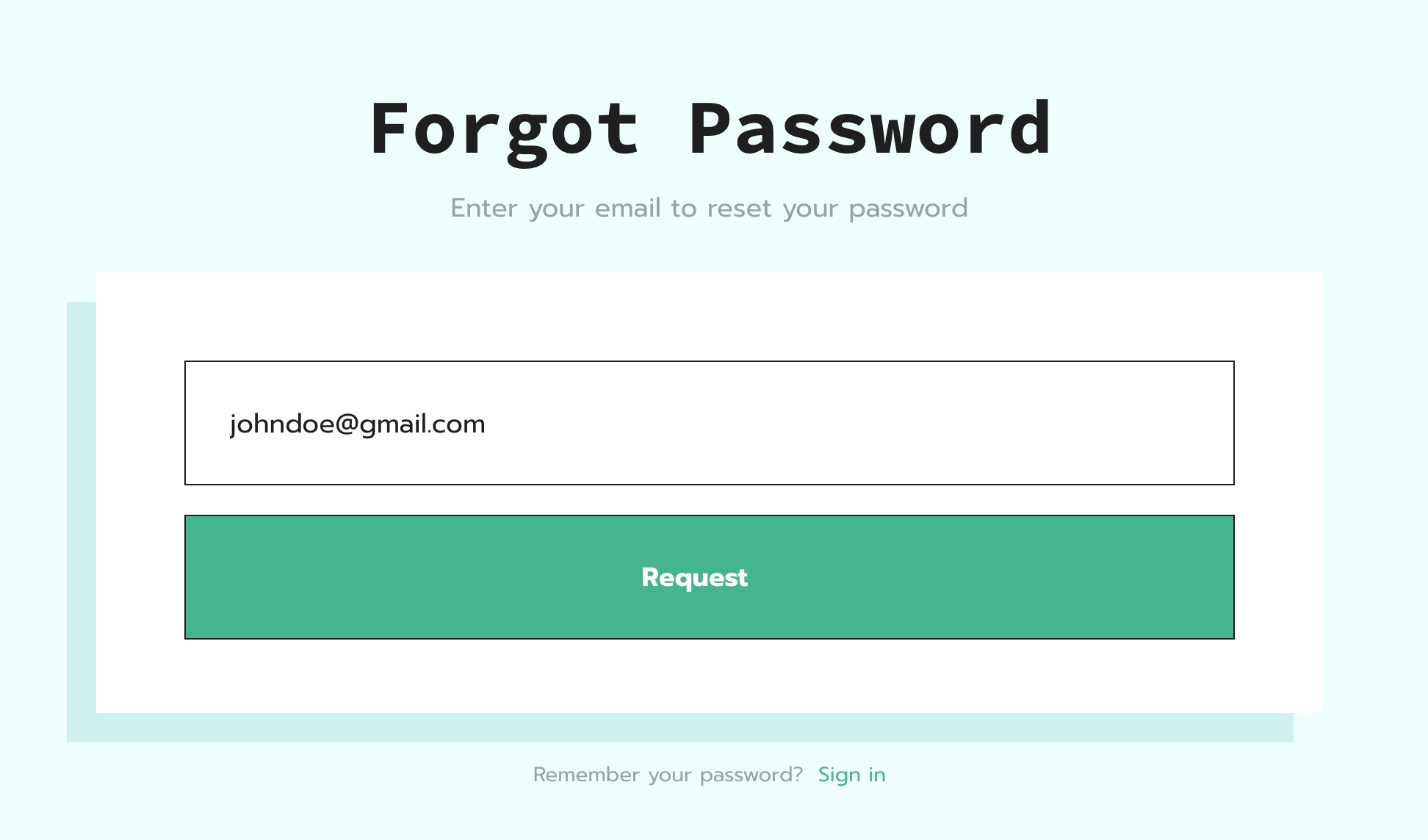
4. Check your inbox for a password reset email from Stape.
5. Click Restore Password and enter a new password.
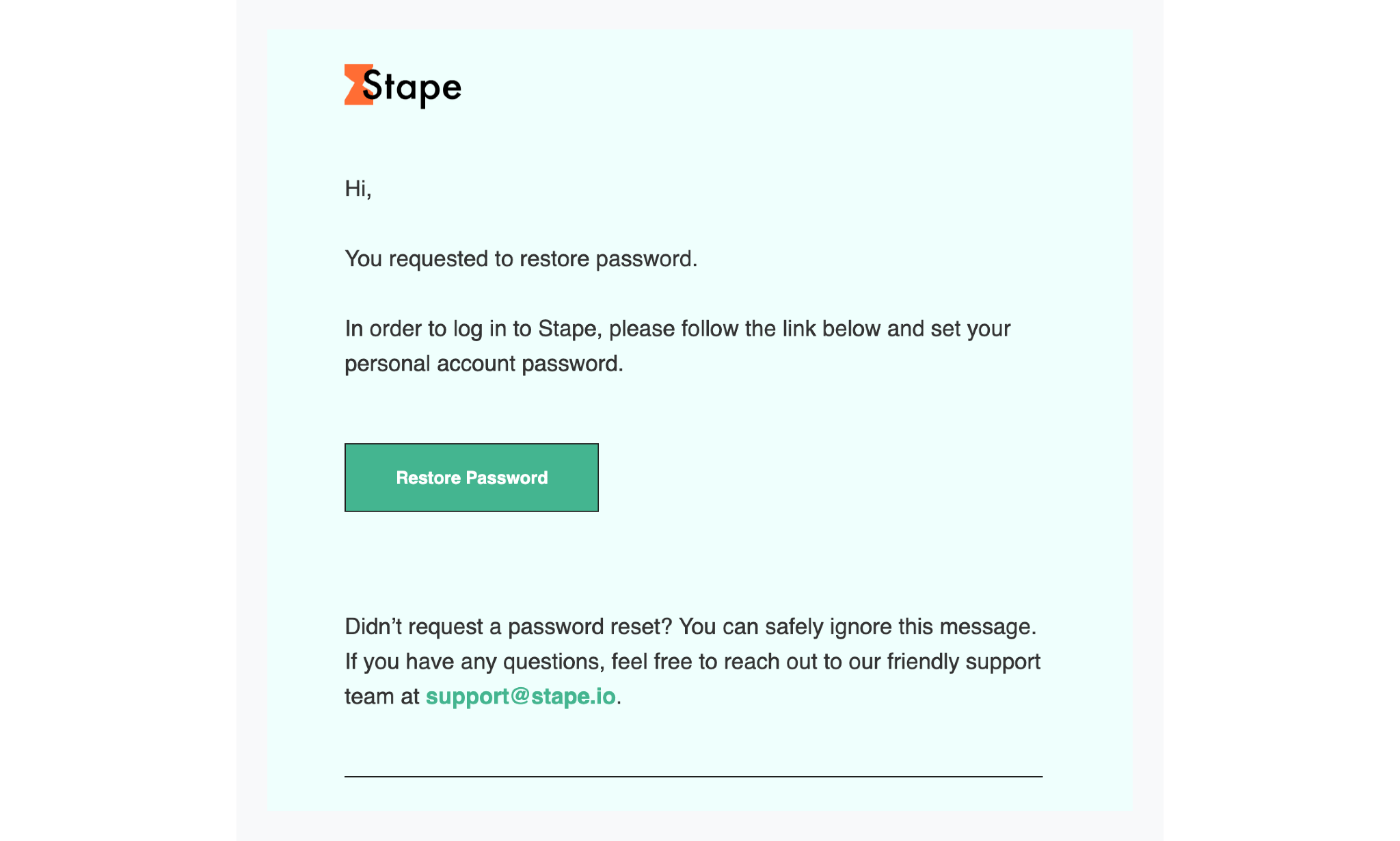
Your new password is now active, and you can sign in with it right away.
I lost access to my 2FA
- If you saved your backup codes: when you set up 2FA, Stape gives you a set of one-time backup recovery codes. If you lose access to your authenticator app or device, enter any one of these codes at the 2FA prompt to sign in. Each code works only once.
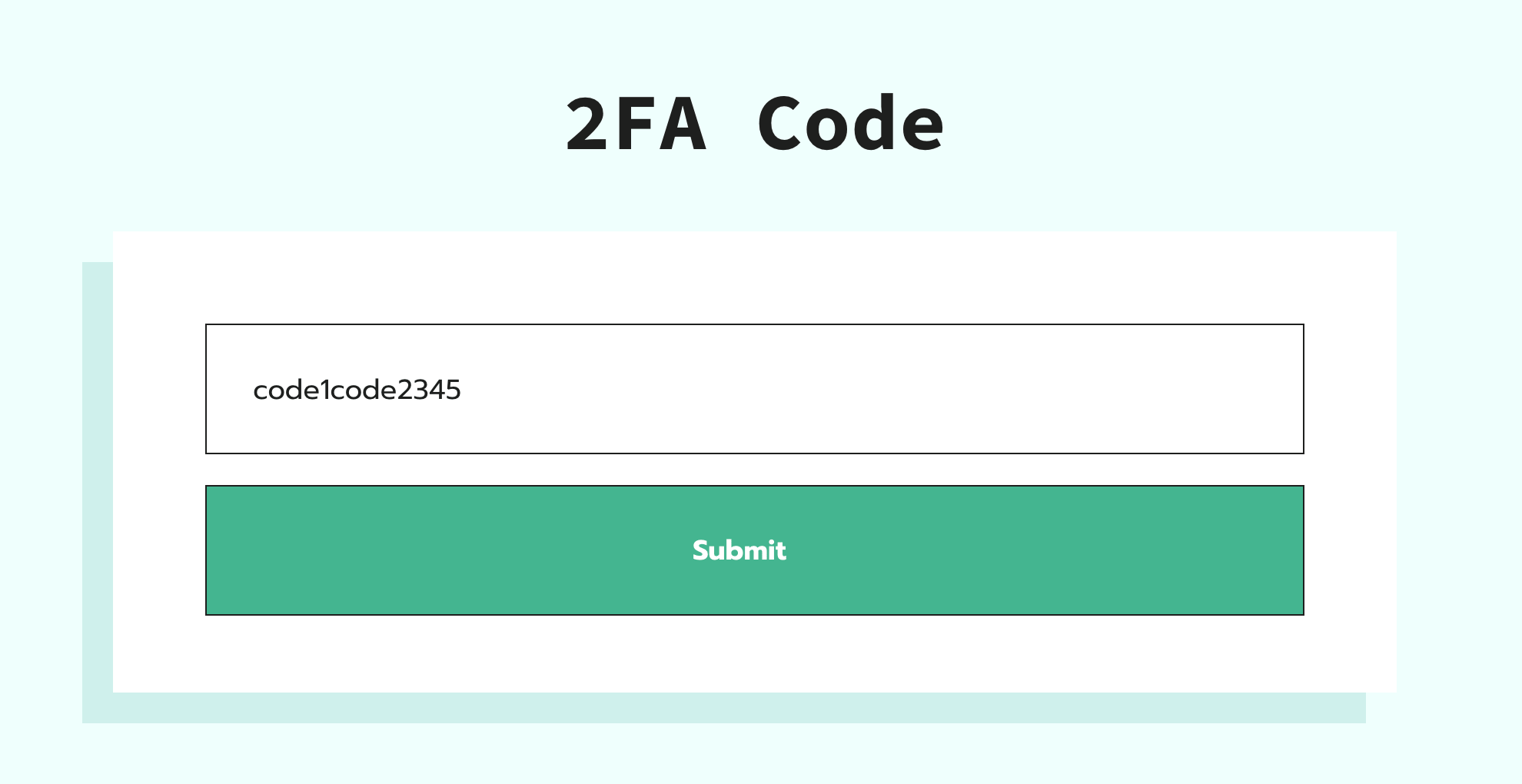
- If you've lost both your authenticator and your backup codes: you won't be able to bypass 2FA on your own. Please contact support@stape.io to request manual recovery.
I lost access to my passkey
Don't worry if you lose the device or browser where your passkey is stored – you won't be locked out. Since a passkey is just one of your sign-in options, you can still access your account by:
- Signing in with your email and password, or
- Using the I forgot my password instructions above to restore access.
Once you're back in, you can set up a new passkey from the Security tab.
Contact support
If none of the above works and you can't recover access yourself, contact the Stape team at support@stape.io. The team will verify that you own the account and help restore your access.
Was this article helpful?
🍽 Table of content:
Comments