How to switch between accounts
Updated Aug 3, 2026
You can stay signed in to more than one Stape account at the same time and switch between them without logging out and back in. This works the same way regardless of location (EU or Global) and how you sign in. Every account you switch between stays fully independent.
Note:
For the account switching, Stape uses a cookie stored in your browser. It doesn’t contain your email, password, or auth token – only whether you've logged in to an account in this browser before. Because it's stored per browser, the accounts you see are specific to this device/browser and to the location (EU or Global) you're currently on.
Click your profile picture to see a list of every account you've previously logged into on this device. If you only have one account, you'll see a single Add account button until you add a second one.
Click any account, and you're switched into that account and land on its dashboard immediately – no need to re-enter credentials.
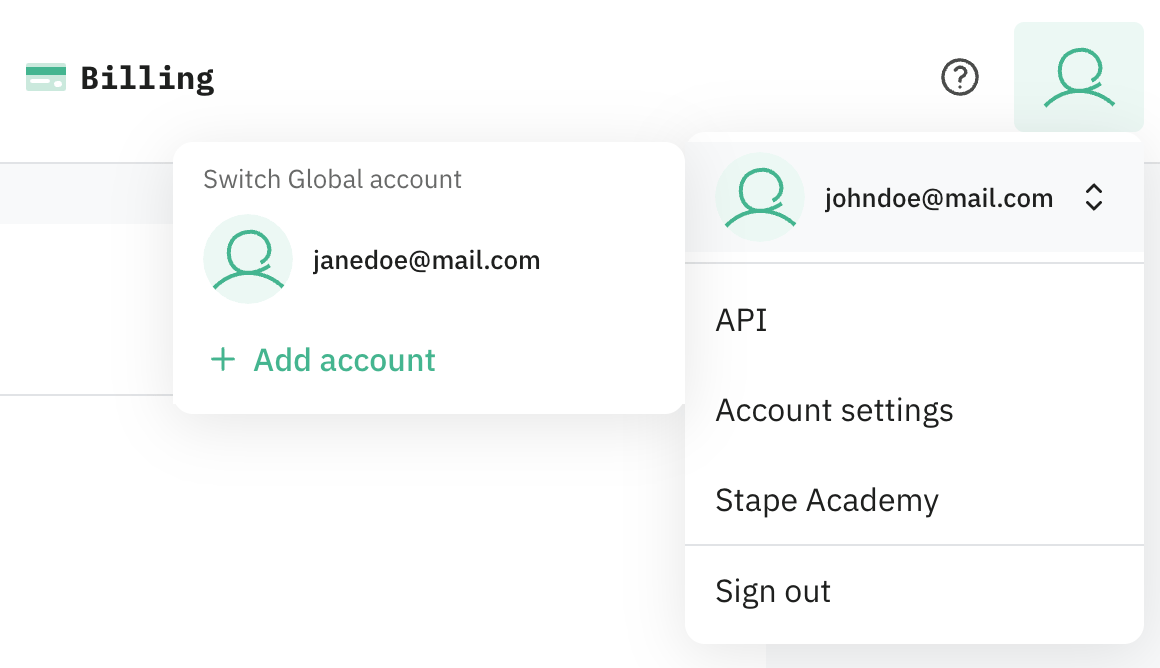
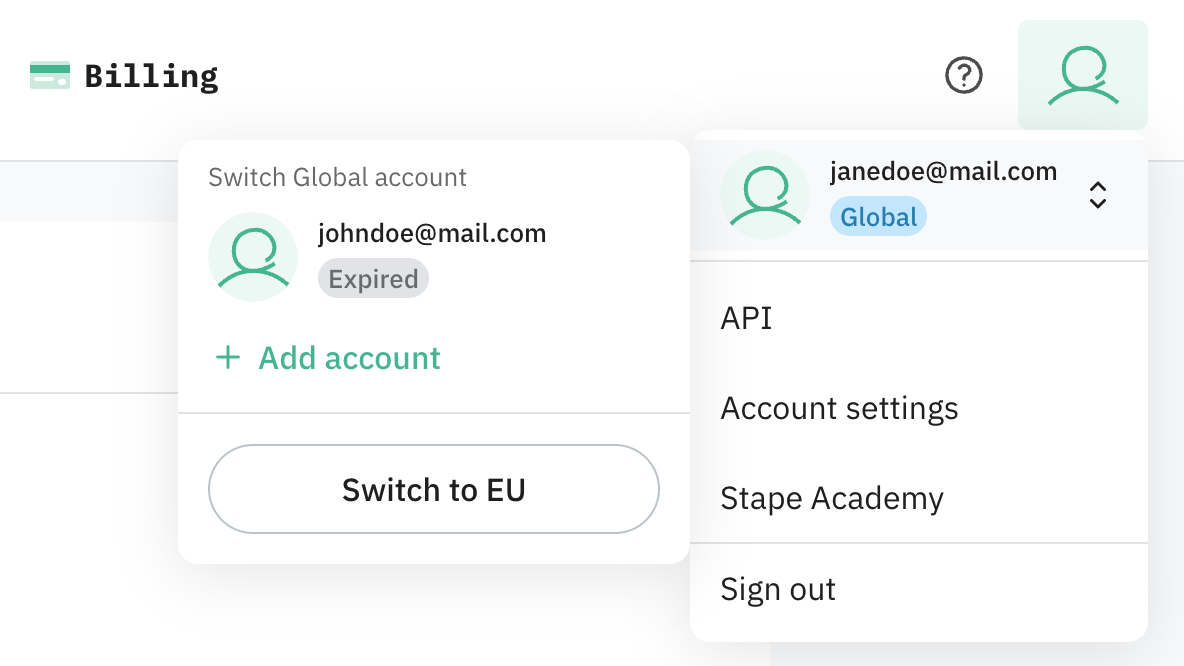
If an account's login session has expired, it's shown in the list with an Expired label. For the label to disappear:
- 1.Click the expired account to be taken to the login page for that account.
- 2.Until you log back in, that account is removed from the list.
- 3.Once you log back in successfully, the account reappears in the same spot.
How to add a new account
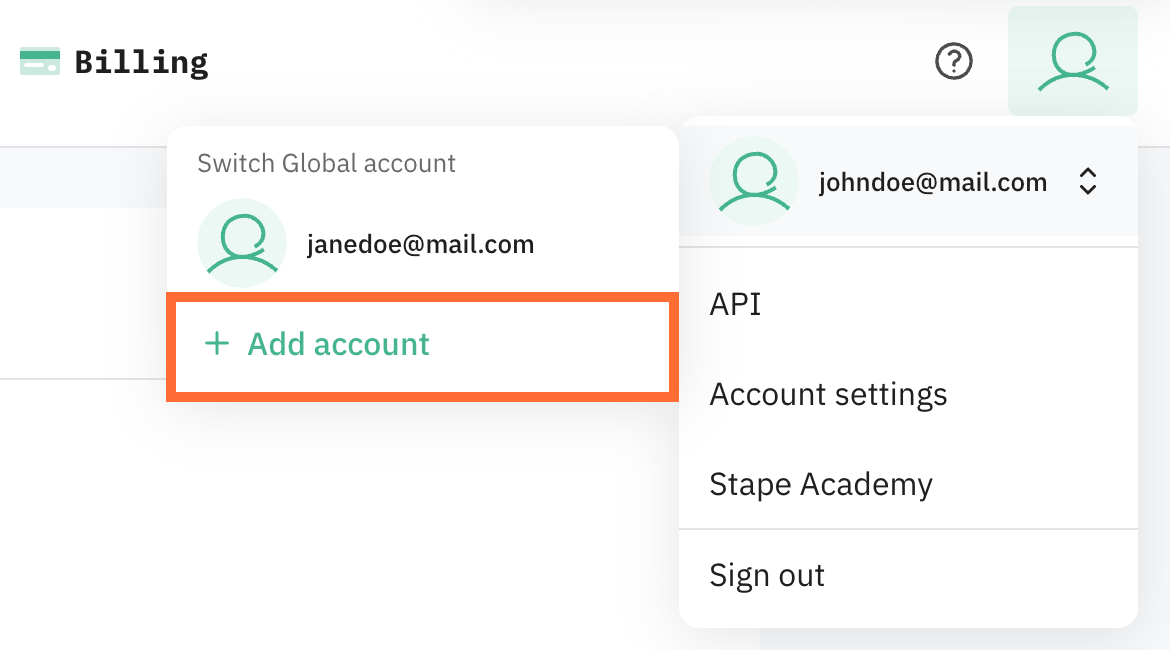
- 1.Click Add account.
- 2.You're redirected to the login page. Enter the credentials for the account you want to add, or click Sign up to create a brand-new account instead.
- 3.Once you log in (or finish signing up), the new account is added to your list and you're switched into it right away.
Switching between EU and Global
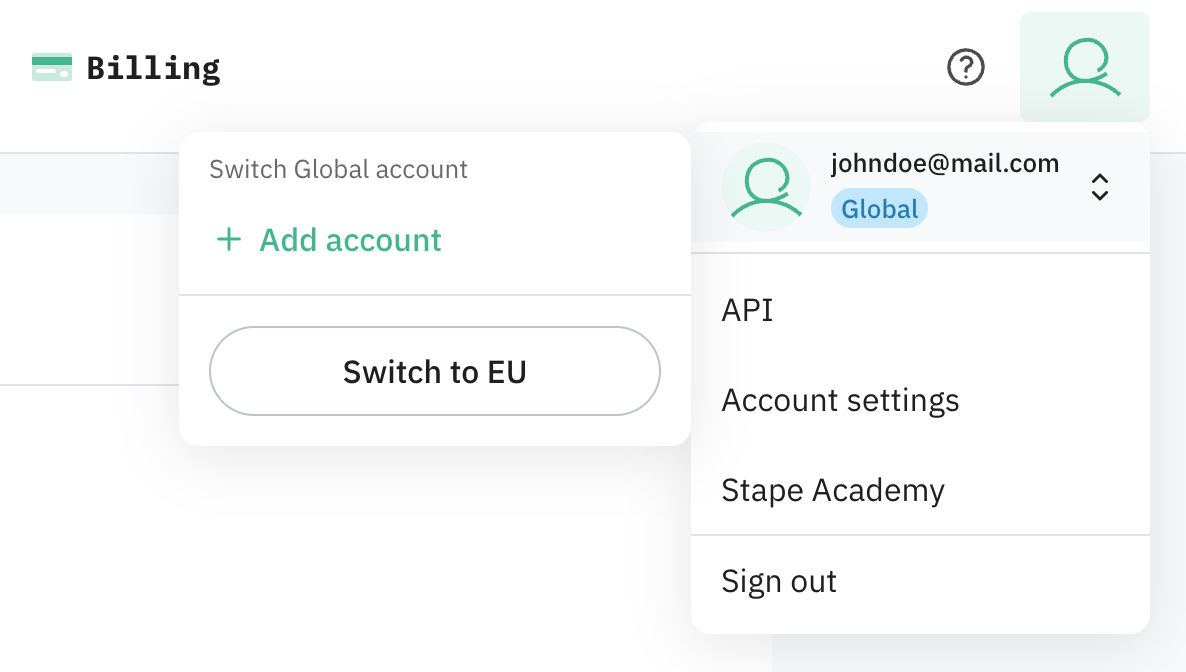
If you've previously logged into accounts in both regions, you'll see a region badge (EU or Global) next to your email in the profile header, and a Switch to EU / Switch to Global button in the accounts list. Clicking it takes you to the other region's account.
Was this article helpful?
Comments