Consolidated invoicing for Agency and Partner accounts
Updated Aug 17, 2026
Consolidated invoicing groups all your active subscriptions into a single invoice per billing cycle, so you get one bill for all products instead of one per product.
The feature works the same way on both Agency and Partner accounts. Anywhere this article says "your account," it applies to whichever type you have.
Before you begin
A few things to know first:
- Agency and Partner accounts are required to enable consolidated invoicing in order to use the Billing menu.
- Without the consolidated invoicing: you can see your sub accounts' subscriptions and invoices, but you can't pay for them.
- With the consolidated invoicing: you can pick which sub accounts pay through your account, and one combined invoice is charged to your card.
- You pay for every subscription of any sub account you add. You can't pick and choose individual subscriptions to cover. It's all or nothing per sub account.
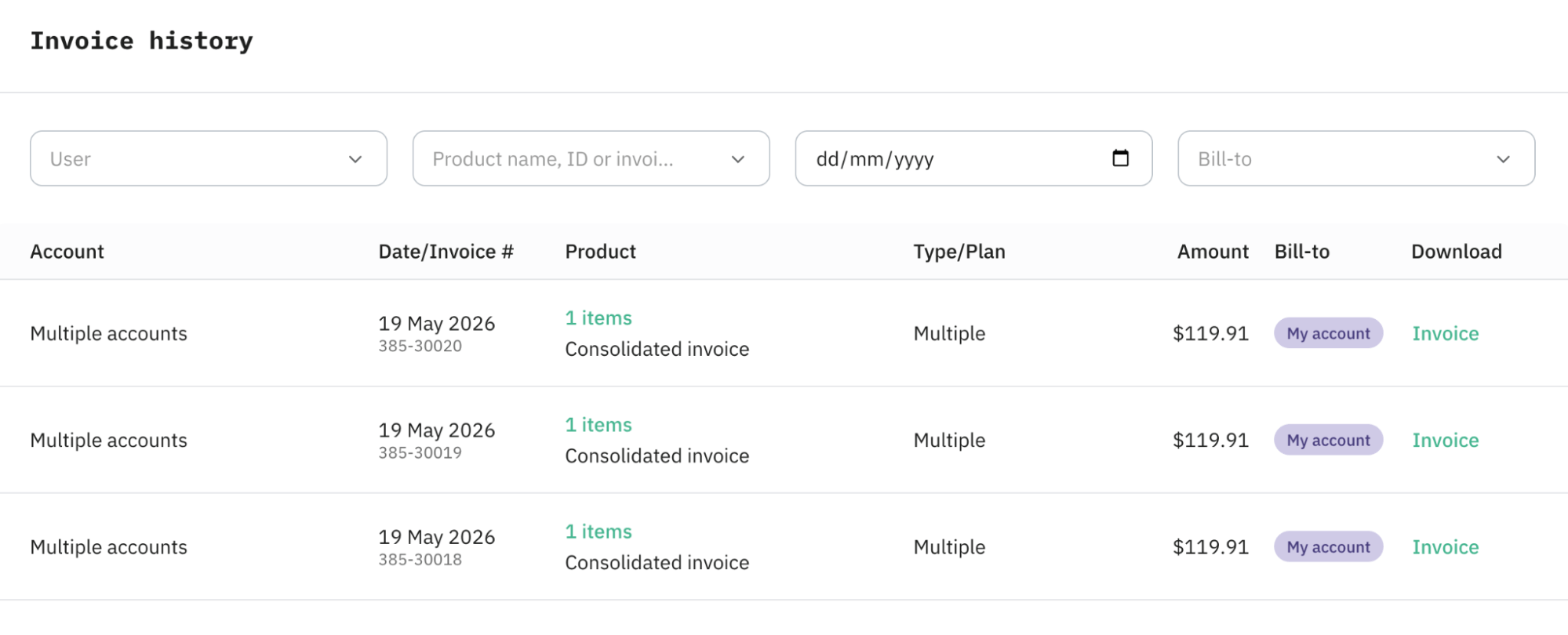
- Consolidated invoicing produces one invoice per billing cycle,
- One invoice for everything on a monthly cycle.
- One invoice for everything on an annual cycle.
- If all your sub accounts' subscriptions are monthly, you'll see one invoice per month. If some are monthly and some are annual, you'll see two invoices, one monthly, one annual.
- Sub accounts can't start new Gateway trials while they're under your billing.
- Existing Gateway trials get auto-upgraded. If a sub account you add already has an active Gateway trial, it's automatically upgraded to the lowest paid plan as soon as you take over their billing. You'll then be charged for it on your next consolidated invoice.
- Each invoice is issued, and shown, in the currency you were actually charged in. Your own billing country determines whether your consolidated invoice is issued in EUR or USD.
What happens when you add a sub account to your billing
- Their existing paid subscriptions are canceled and immediately recreated under your account's billing.
- The billing period depends on whether this is your first sub account. If this is the first sub account you add (for example, your consolidated invoice doesn't yet exist), the new invoice's billing period starts from the current date. If you already have a consolidated invoice, the sub account's subscriptions are aligned to your existing billing period.
- When you add a sub account in the middle of your current billing cycle, Stape doesn't wait until your next renewal date to start charging you for them. It charges you right away, but only for the portion of the cycle that's still left, not for a full cycle.
- From then on, you're the one being charged, not the sub account.
How to turn on the consolidated invoice
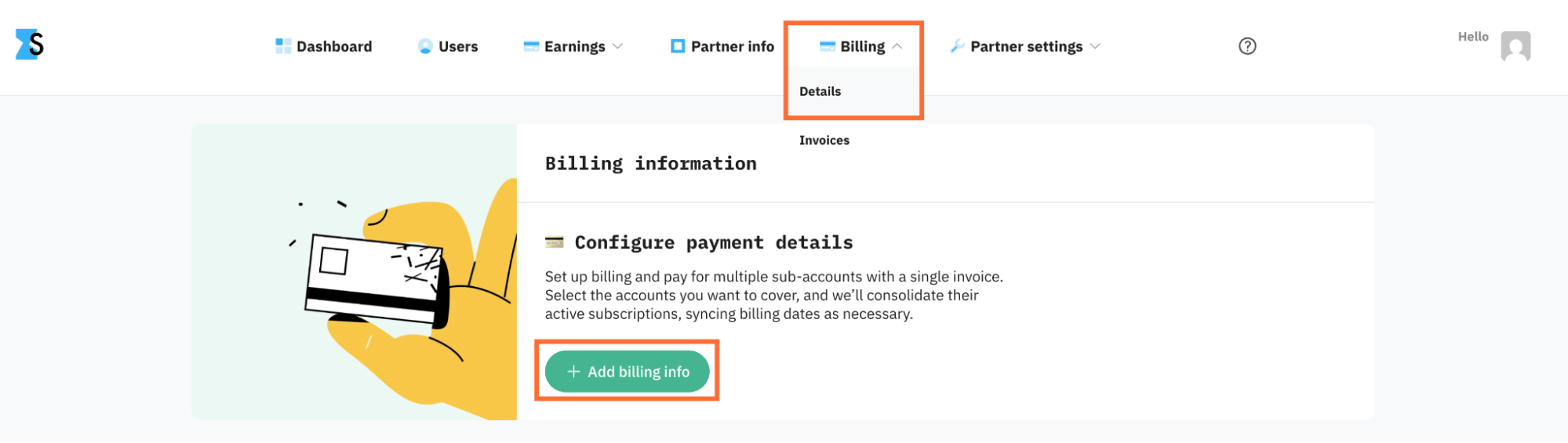
1. Open Billing → Details and click Add billing info. Configure a billing method as described in How to add billing info to your account.
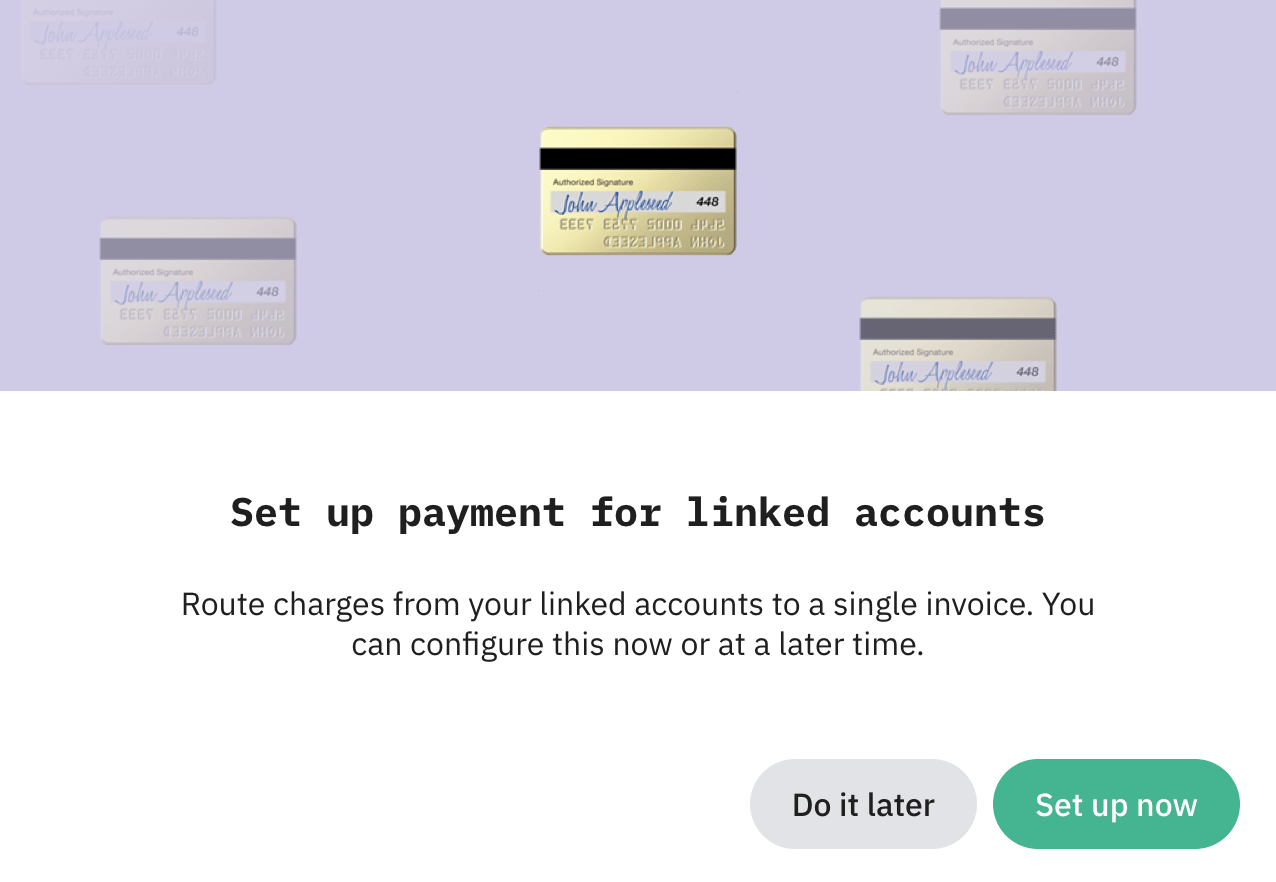
2. Once a billing method is saved, Stape prompts you to set up consolidated invoicing. Click Set up now to continue, or Do it later if you want to come back to it. If you pick Do it later, you can resume the setup any time from Billing → Accounts.
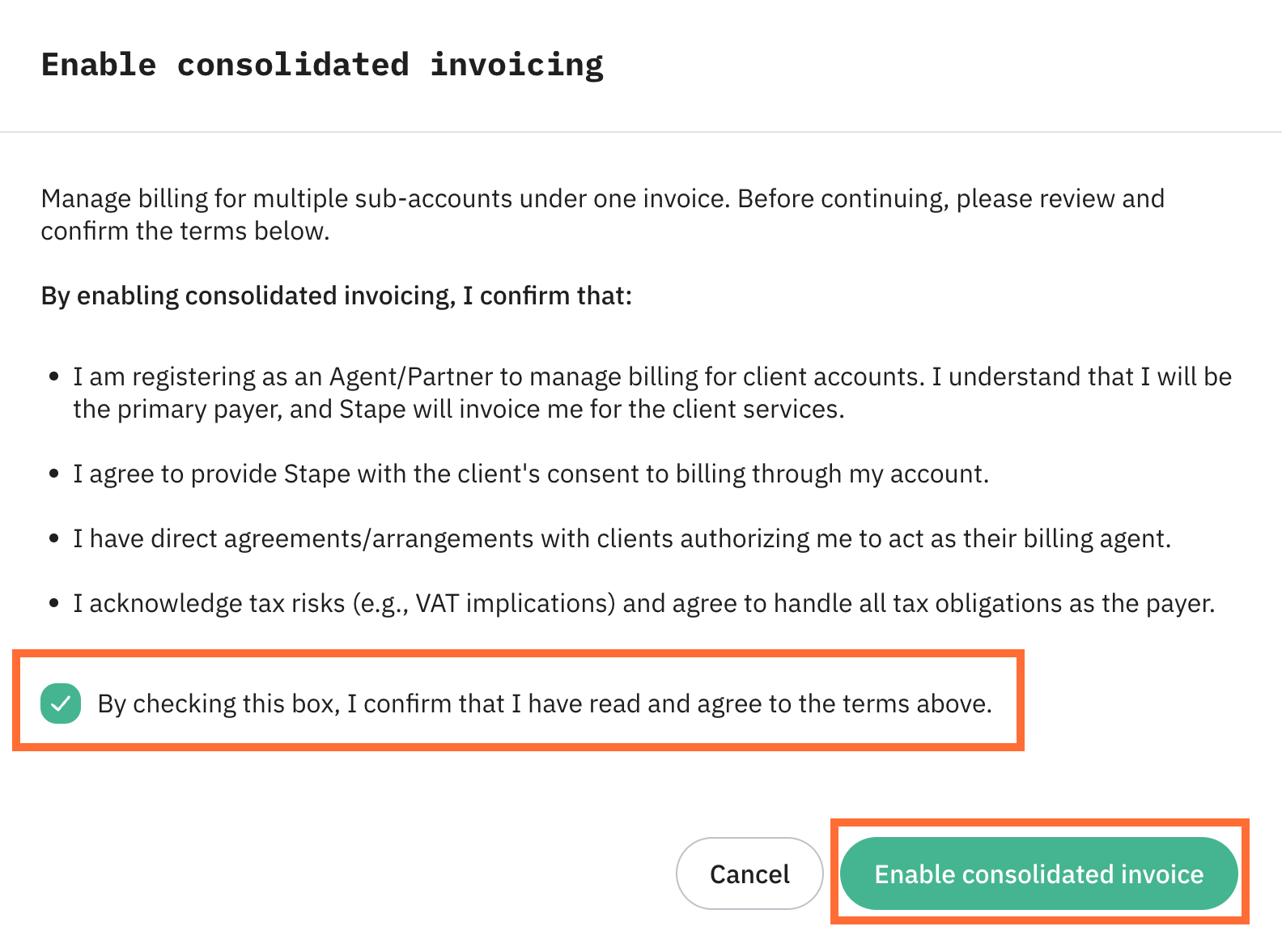
3. Review the terms, tick the box, and click Enable consolidated invoice.
How to add or remove sub accounts
Once consolidated invoicing is on, the Accounts tab appears in your Billing menu.
To add a sub account:
- 1.Go to Billing → Accounts.
- 2.Pick a sub account from the list.
- 3.Click Add user.
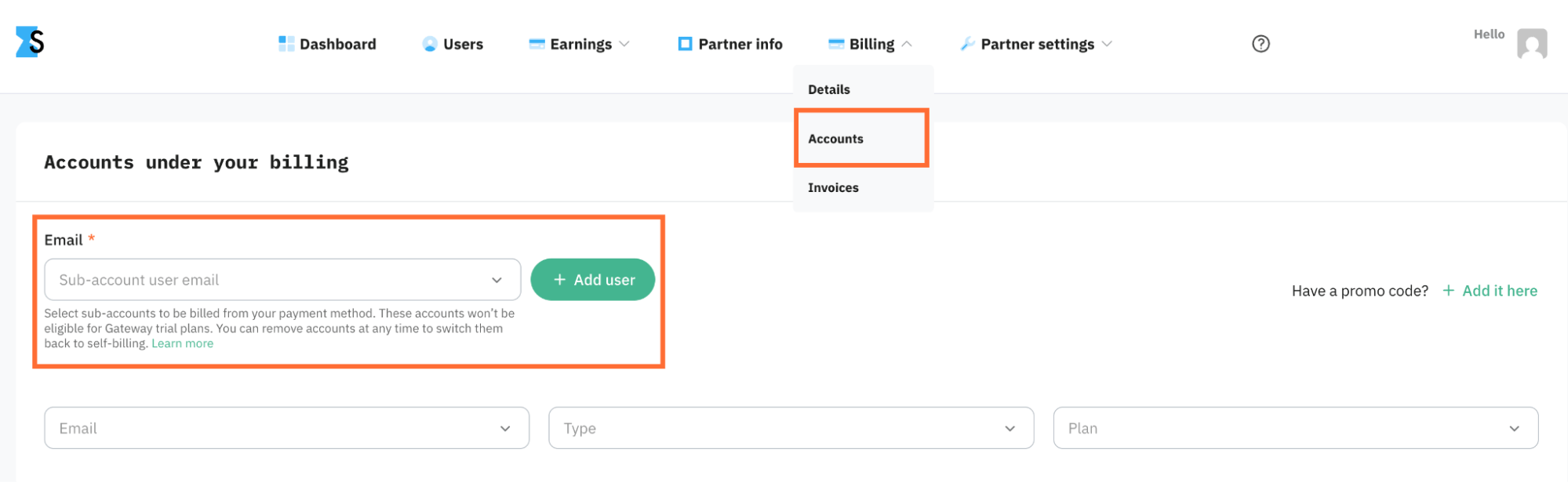
The sub account's existing paid subscription is canceled and immediately recreated under your account's billing.
Below, you'll see a list of users already under your billing.
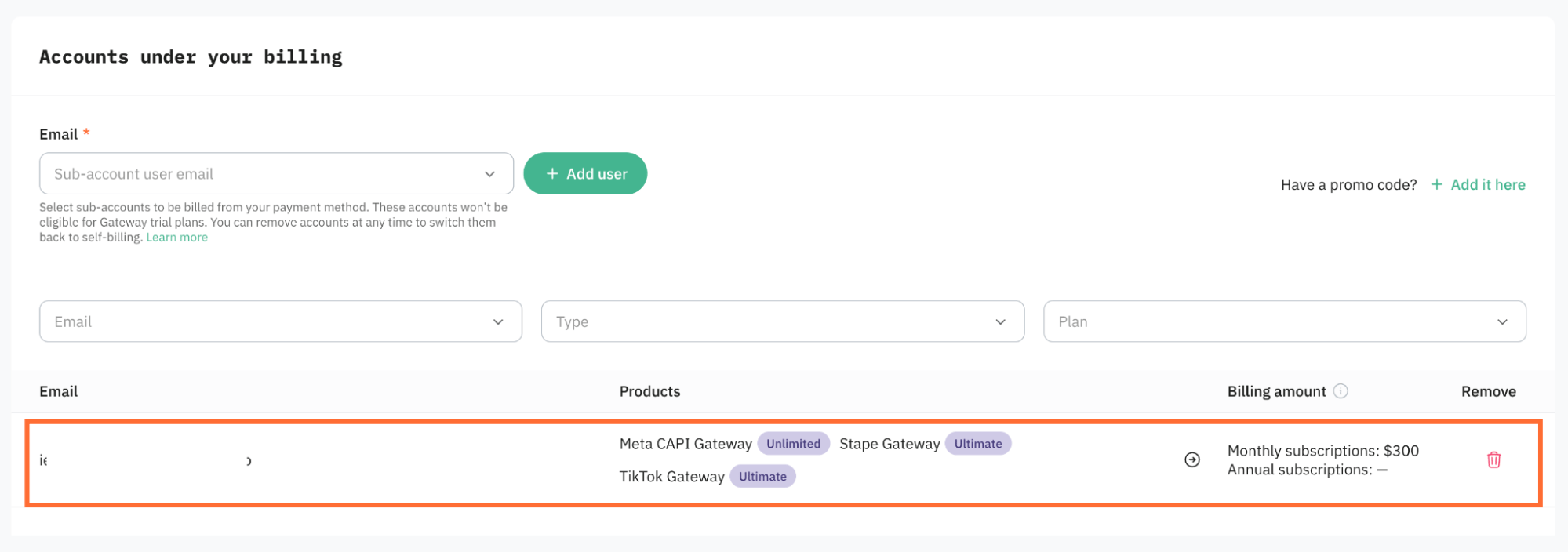
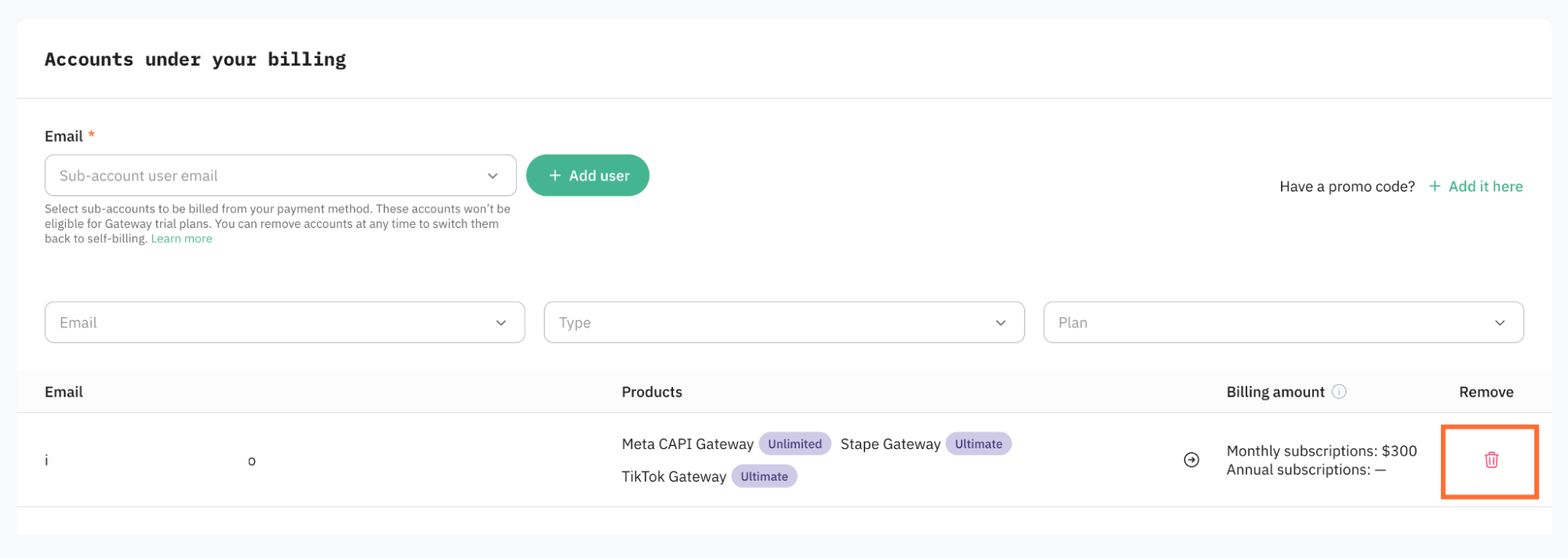
To remove a sub account, use the same menu. Sub account owners can also remove themselves from your billing if they want to pay for their own subscriptions again.
To see which subscriptions were paid through your account and which weren't, open Billing → Invoices.
Note:
For an account to appear in the list for billing, firstly you have to request an access for that account in the Users area.
What happens when a sub account adds a new subscription
You don't need to do anything. Any new subscription added by an existing sub account is automatically rolled into the right consolidated invoice (monthly or annual). The invoice total is recalculated for you.
Example. Today is May 1. You have an annual consolidated invoice with a renewal date of June 1.
- You add a new sub account to your billing today.
- Stape charges you for that sub account's subscriptions from May 1 through June 1, the rest of the current period.
- From June 1 onward, those subscriptions are part of the renewed annual consolidated invoice. You're charged the updated total in one go.
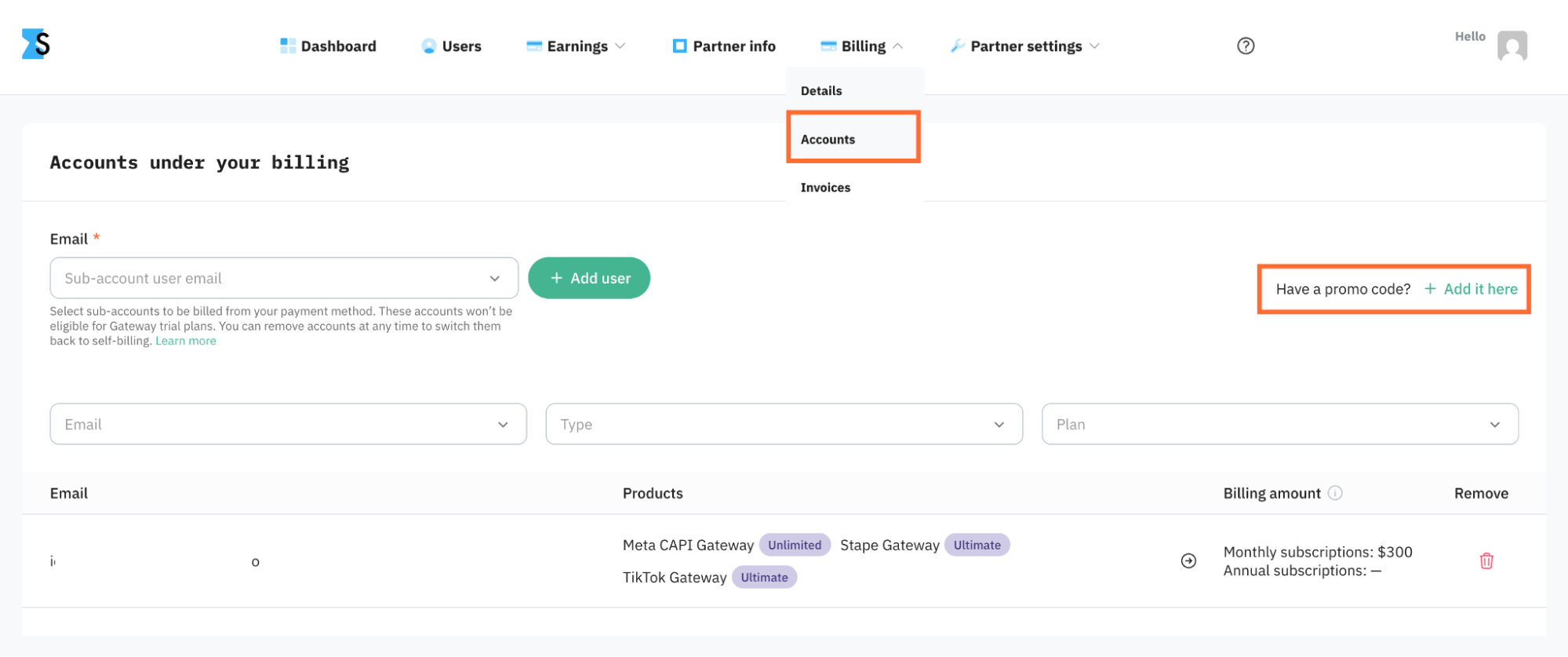
How to apply a promo code
You can apply one promo code to everything in a consolidated invoice at once, every subscription of every sub account on that invoice.
- 1.Go to Billing → Accounts.
- 2.Add the promo code in the field provided.
The discount applies on the next renewal of the consolidated invoice.
How to turn consolidated invoicing off
You can't turn consolidated invoicing off on your own. It's locked on for Agency and Partner accounts, unless you remove all of your sub accounts. If you wish to deactivate this feature, contact the support team.
Was this article helpful?
🍽 Table of content:
Comments